Unit-2 (IT
Workshop-Web
Designing)
Dr. Lokesh Gagnani
Contents
1. Introduction to HTML
• What is a Web Page?
• My First HTML Page
• HTML Code Formatting
2. Basic HTML Tags
• Heading
• Paragraph
• Color
• Font
• List
• Anchor
• Image
4. HTML Tables
5. HTML Forms
6. XHTML
7. Introduction to HTML 5
What is a Web Page?
▪ Web page is text file containing HTML
▪ HTML – Hyper Text Markup Language
• A notation for describing
• document structure (semantic markup)
• formatting (presentation markup)
▪ The markup tags provide information about the page content
structure
Creating HTML Pages
▪ An HTML file must have an .htm or .html file extension
▪ HTML files can be created with text editors:
• NotePad, NotePad ++, PSPad
▪ Or HTML editors (WYSIWYG Editors):
• Microsoft FrontPage
• Macromedia Dreamweaver
• Netscape Composer
• Visual Studio
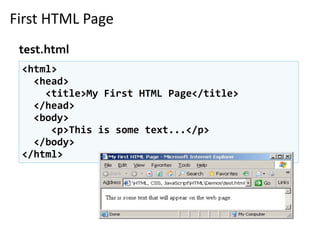
First HTML Page
<html>
<head>
<title>My First HTML Page</title>
</head>
<body>
<p>This is some text...</p>
</body>
</html>
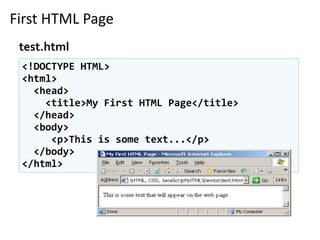
test.html
HTML Structure
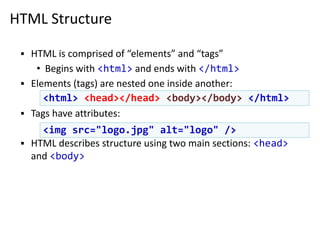
▪ HTML is comprised of “elements” and “tags”
• Begins with <html> and ends with </html>
▪ Elements (tags) are nested one inside another:
▪ Tags have attributes:
▪ HTML describes structure using two main sections: <head>
and <body>
<html> <head></head> <body></body> </html>
<img src="logo.jpg" alt="logo" />
HTML Code Formatting
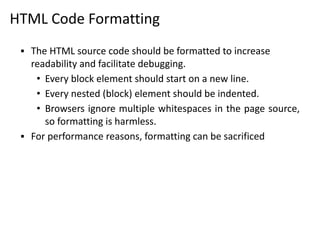
▪ The HTML source code should be formatted to increase
readability and facilitate debugging.
• Every block element should start on a new line.
• Every nested (block) element should be indented.
• Browsers ignore multiple whitespaces in the page source,
so formatting is harmless.
▪ For performance reasons, formatting can be sacrificed
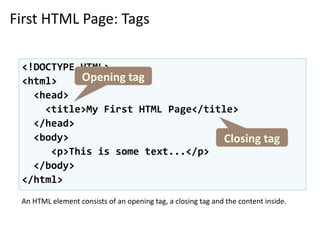
First HTML Page: Tags
<!DOCTYPE HTML>
<html>
<head>
<title>My First HTML Page</title>
</head>
<body>
<p>This is some text...</p>
</body>
</html>
Opening tag
Closing tag
An HTML element consists of an opening tag, a closing tag and the content inside.
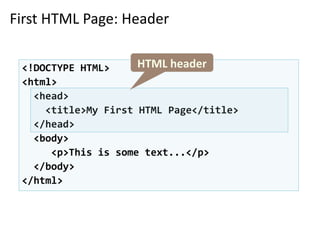
First HTML Page: Header
<!DOCTYPE HTML>
<html>
<head>
<title>My First HTML Page</title>
</head>
<body>
<p>This is some text...</p>
</body>
</html>
HTML header
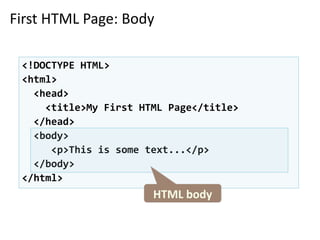
First HTML Page: Body
<!DOCTYPE HTML>
<html>
<head>
<title>My First HTML Page</title>
</head>
<body>
<p>This is some text...</p>
</body>
</html>
HTML body
First HTML Page
<!DOCTYPE HTML>
<html>
<head>
<title>My First HTML Page</title>
</head>
<body>
<p>This is some text...</p>
</body>
</html>
test.html
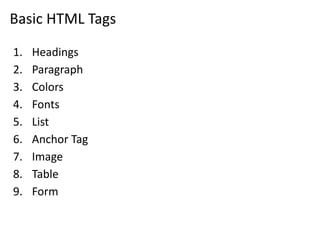
Basic HTML Tags
1. Headings
2. Paragraph
3. Colors
4. Fonts
5. List
6. Anchor Tag
7. Image
8. Table
9. Form
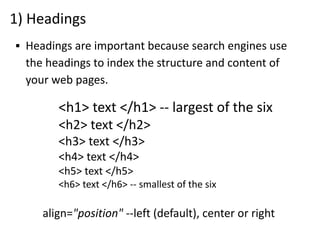
1) Headings
<h1> text </h1> -- largest of the six
<h2> text </h2>
<h3> text </h3>
<h4> text </h4>
<h5> text </h5>
<h6> text </h6> -- smallest of the six
align="position" --left (default), center or right
▪ Headings are important because search engines use
the headings to index the structure and content of
your web pages.
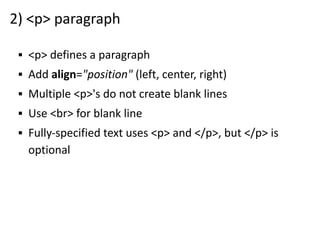
2) <p> paragraph
▪ <p> defines a paragraph
▪ Add align="position" (left, center, right)
▪ Multiple <p>'s do not create blank lines
▪ Use <br> for blank line
▪ Fully-specified text uses <p> and </p>, but </p> is
optional
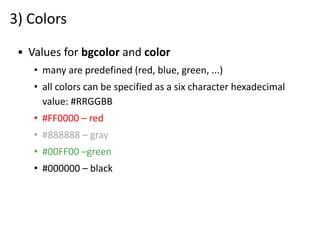
3) Colors
▪ Values for bgcolor and color
• many are predefined (red, blue, green, ...)
• all colors can be specified as a six character hexadecimal
value: #RRGGBB
• #FF0000 – red
• #888888 – gray
• #00FF00 –green
• #000000 – black
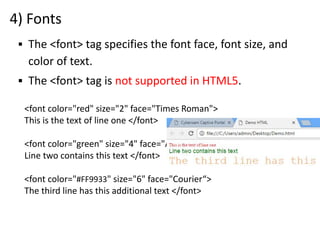
4) Fonts
<font color="red" size="2" face="Times Roman">
This is the text of line one </font>
<font color="green" size="4" face="Arial">
Line two contains this text </font>
<font color="#FF9933" size="6" face="Courier“>
The third line has this additional text </font>
▪ The <font> tag specifies the font face, font size, and
color of text.
▪ The <font> tag is not supported in HTML5.
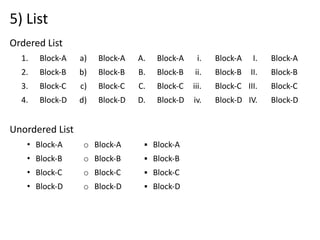
5) List
Ordered List
1. Block-A
2. Block-B
3. Block-C
4. Block-D
Unordered List
• Block-A
• Block-B
• Block-C
• Block-D
a) Block-A
b) Block-B
c) Block-C
d) Block-D
o Block-A
o Block-B
o Block-C
o Block-D
A. Block-A
B. Block-B
C. Block-C
D. Block-D
▪ Block-A
▪ Block-B
▪ Block-C
▪ Block-D
i. Block-A
ii. Block-B
iii. Block-C
iv. Block-D
I. Block-A
II. Block-B
III. Block-C
IV. Block-D
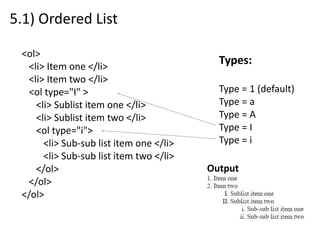
5.1) Ordered List
<ol>
<li> Item one </li>
<li> Item two </li>
<ol type="I" >
<li> Sublist item one </li>
<li> Sublist item two </li>
<ol type="i">
<li> Sub-sub list item one </li>
<li> Sub-sub list item two </li>
</ol>
</ol>
</ol>
Types:
Type = 1 (default)
Type = a
Type = A
Type = I
Type = i
Output
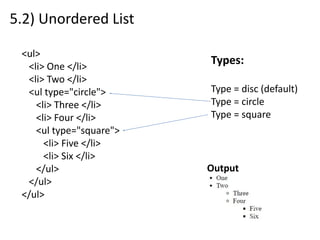
5.2) Unordered List
<ul>
<li> One </li>
<li> Two </li>
<ul type="circle">
<li> Three </li>
<li> Four </li>
<ul type="square">
<li> Five </li>
<li> Six </li>
</ul>
</ul>
</ul>
Types:
Type = disc (default)
Type = circle
Type = square
Output
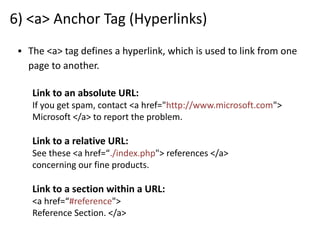
6) <a> Anchor Tag (Hyperlinks)
▪ The <a> tag defines a hyperlink, which is used to link from one
page to another.
Link to an absolute URL:
If you get spam, contact <a href="http://www.microsoft.com">
Microsoft </a> to report the problem.
Link to a relative URL:
See these <a href=“./index.php"> references </a>
concerning our fine products.
Link to a section within a URL:
<a href=“#reference">
Reference Section. </a>
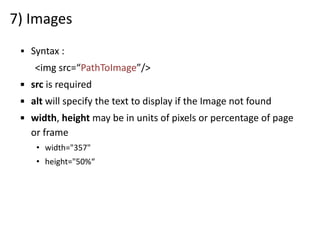
7) Images
▪ Syntax :
<img src=“PathToImage”/>
▪ src is required
▪ alt will specify the text to display if the Image not found
▪ width, height may be in units of pixels or percentage of page
or frame
• width="357"
• height="50%“
Images (cont.)
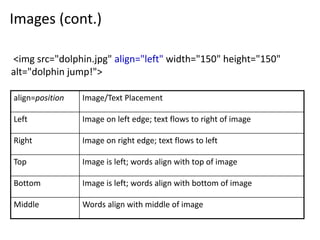
align=position Image/Text Placement
Left Image on left edge; text flows to right of image
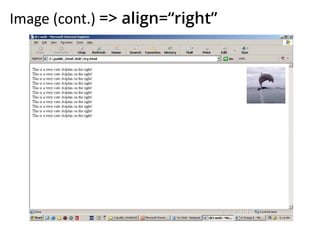
Right Image on right edge; text flows to left
Top Image is left; words align with top of image
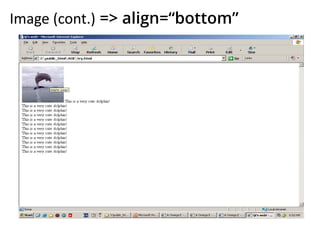
Bottom Image is left; words align with bottom of image
Middle Words align with middle of image
<img src="dolphin.jpg" align="left" width="150" height="150"
alt="dolphin jump!">
Image (cont.) => align=“bottom”
Image (cont.) => align=“right”
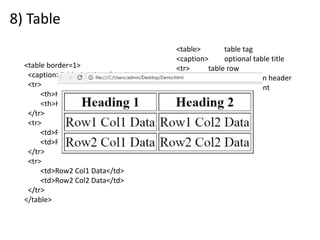
8) Table
<table> table tag
<caption> optional table title
<tr> table row
<th> table column header
<td> table data element
<table border=1>
<caption>Table Caption</caption>
<tr>
<th>Heading1</th>
<th>Heading2</th>
</tr>
<tr>
<td>Row1 Col1 Data</td>
<td>Row1 Col2 Data</td>
</tr>
<tr>
<td>Row2 Col1 Data</td>
<td>Row2 Col2 Data</td>
</tr>
</table>
Table Element Attributes
▪ align=position -- left, center, right for table
▪ border=number -- width in pixels of border (default 0)
▪ cellspacing=number -- spacing in pixels between cells, default
about 3
▪ cellpadding=number -- space in pixels between cell border and
table element, default about 1
▪ width=number[%]-- width in pixels or percentage of page/frame
width
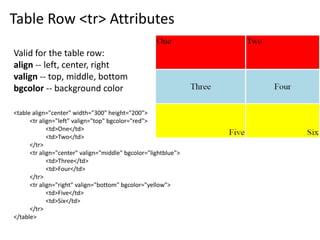
Table Row <tr> Attributes
Valid for the table row:
align -- left, center, right
valign -- top, middle, bottom
bgcolor -- background color
<table align="center" width="300" height="200">
<tr align="left" valign="top" bgcolor="red">
<td>One</td>
<td>Two</td>
</tr>
<tr align="center" valign="middle" bgcolor="lightblue">
<td>Three</td>
<td>Four</td>
</tr>
<tr align="right" valign="bottom" bgcolor="yellow">
<td>Five</td>
<td>Six</td>
</tr>
</table>
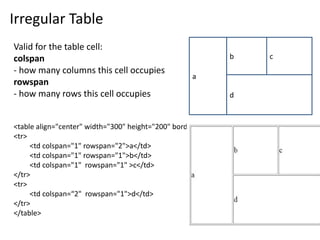
Irregular Table
Valid for the table cell:
colspan
- how many columns this cell occupies
rowspan
- how many rows this cell occupies
<table align="center" width="300" height="200" border="1">
<tr>
<td colspan="1" rowspan="2">a</td>
<td colspan="1" rowspan="1">b</td>
<td colspan="1" rowspan="1" >c</td>
</tr>
<tr>
<td colspan=“2" rowspan="1">d</td>
</tr>
</table>
d
a
b c
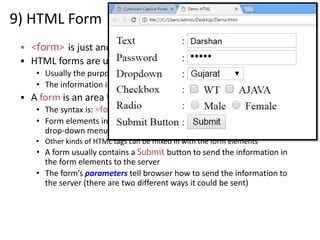
9) HTML Form
▪ <form> is just another kind of HTML tag
▪ HTML forms are used to create GUIs on Web pages
• Usually the purpose is to ask the user for information
• The information is then sent back to the server
▪ A form is an area that can contain form elements
• The syntax is: <form parameters> ...form elements... </form>
• Form elements include: buttons, checkboxes, text fields, radio buttons,
drop-down menus, etc
• Other kinds of HTML tags can be mixed in with the form elements
• A form usually contains a Submit button to send the information in
the form elements to the server
• The form’s parameters tell browser how to send the information to
the server (there are two different ways it could be sent)
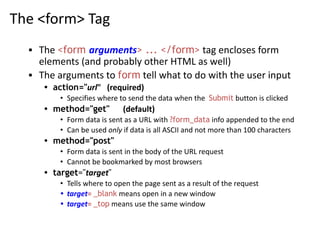
The <form> Tag
▪ The <form arguments> ... </form> tag encloses form
elements (and probably other HTML as well)
▪ The arguments to form tell what to do with the user input
• action="url" (required)
• Specifies where to send the data when the Submit button is clicked
• method="get" (default)
• Form data is sent as a URL with ?form_data info appended to the end
• Can be used only if data is all ASCII and not more than 100 characters
• method="post"
• Form data is sent in the body of the URL request
• Cannot be bookmarked by most browsers
• target="target"
• Tells where to open the page sent as a result of the request
• target= _blank means open in a new window
• target= _top means use the same window
Input tags
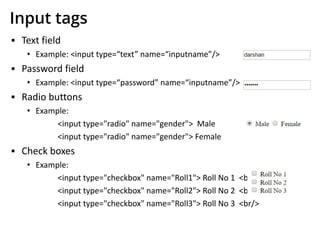
▪ Text field
• Example: <input type=“text” name=“inputname”/>
▪ Password field
• Example: <input type=“password” name=“inputname”/>
▪ Radio buttons
• Example:
<input type="radio" name="gender"> Male
<input type="radio" name="gender"> Female
▪ Check boxes
• Example:
<input type="checkbox" name="Roll1"> Roll No 1 <br/>
<input type="checkbox" name="Roll2"> Roll No 2 <br/>
<input type="checkbox" name="Roll3"> Roll No 3 <br/>
Input tags (cont.)
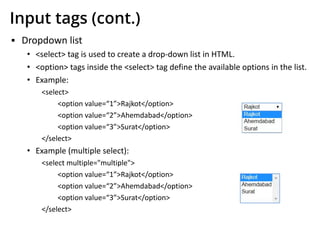
▪ Dropdown list
• <select> tag is used to create a drop-down list in HTML.
• <option> tags inside the <select> tag define the available options in the list.
• Example:
<select>
<option value=“1”>Rajkot</option>
<option value=“2”>Ahemdabad</option>
<option value=“3”>Surat</option>
</select>
• Example (multiple select):
<select multiple="multiple">
<option value=“1”>Rajkot</option>
<option value=“2”>Ahemdabad</option>
<option value=“3”>Surat</option>
</select>
Input tags (cont.)
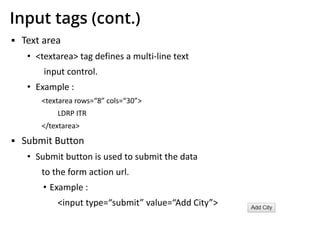
▪ Text area
• <textarea> tag defines a multi-line text
input control.
• Example :
<textarea rows=“8” cols=“30”>
LDRP ITR
</textarea>
▪ Submit Button
• Submit button is used to submit the data
to the form action url.
• Example :
<input type=“submit” value=“Add City”>
XHTML
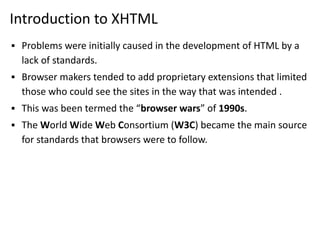
Introduction to XHTML
▪ Problems were initially caused in the development of HTML by a
lack of standards.
▪ Browser makers tended to add proprietary extensions that limited
those who could see the sites in the way that was intended .
▪ This was been termed the “browser wars” of 1990s.
▪ The World Wide Web Consortium (W3C) became the main source
for standards that browsers were to follow.
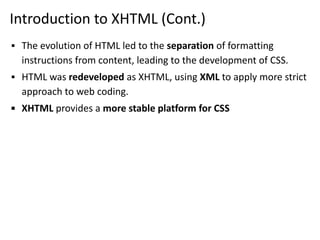
Introduction to XHTML (Cont.)
▪ The evolution of HTML led to the separation of formatting
instructions from content, leading to the development of CSS.
▪ HTML was redeveloped as XHTML, using XML to apply more strict
approach to web coding.
▪ XHTML provides a more stable platform for CSS
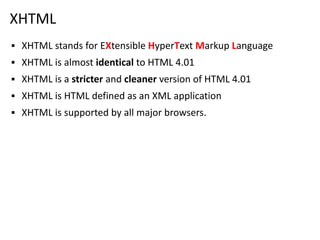
XHTML
▪ XHTML stands for EXtensible HyperText Markup Language
▪ XHTML is almost identical to HTML 4.01
▪ XHTML is a stricter and cleaner version of HTML 4.01
▪ XHTML is HTML defined as an XML application
▪ XHTML is supported by all major browsers.
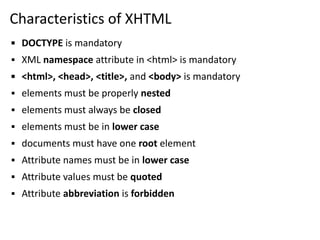
Characteristics of XHTML
▪ DOCTYPE is mandatory
▪ XML namespace attribute in <html> is mandatory
▪ <html>, <head>, <title>, and <body> is mandatory
▪ elements must be properly nested
▪ elements must always be closed
▪ elements must be in lower case
▪ documents must have one root element
▪ Attribute names must be in lower case
▪ Attribute values must be quoted
▪ Attribute abbreviation is forbidden
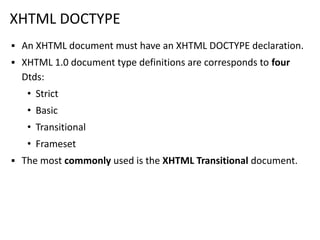
XHTML DOCTYPE
▪ An XHTML document must have an XHTML DOCTYPE declaration.
▪ XHTML 1.0 document type definitions are corresponds to four
Dtds:
• Strict
• Basic
• Transitional
• Frameset
▪ The most commonly used is the XHTML Transitional document.
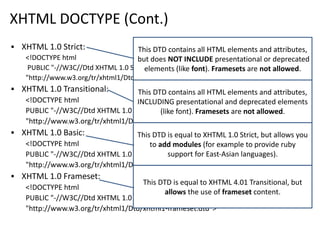
XHTML DOCTYPE (Cont.)
▪ XHTML 1.0 Strict:
<!DOCTYPE html
PUBLIC "-//W3C//Dtd XHTML 1.0 Strict//EN"
"http://www.w3.org/tr/xhtml1/Dtd/xhtml1-strict.dtd">
▪ XHTML 1.0 Transitional:
<!DOCTYPE html
PUBLIC "-//W3C//Dtd XHTML 1.0 Transitional//EN"
"http://www.w3.org/tr/xhtml1/Dtd/xhtml1-transitional.dtd">
▪ XHTML 1.0 Basic:
<!DOCTYPE html
PUBLIC "-//W3C//Dtd XHTML 1.0 Basic//EN"
"http://www.w3.org/tr/xhtml1/Dtd/xhtml1-basic10.dtd">
▪ XHTML 1.0 Frameset:
<!DOCTYPE html
PUBLIC "-//W3C//Dtd XHTML 1.0 Frameset//EN"
"http://www.w3.org/tr/xhtml1/Dtd/xhtml1-frameset.dtd">
This DTD contains all HTML elements and attributes,
but does NOT INCLUDE presentational or deprecated
elements (like font). Framesets are not allowed.
This DTD contains all HTML elements and attributes,
INCLUDING presentational and deprecated elements
(like font). Framesets are not allowed.
This DTD is equal to XHTML 1.0 Strict, but allows you
to add modules (for example to provide ruby
support for East-Asian languages).
This DTD is equal to XHTML 4.01 Transitional, but
allows the use of frameset content.
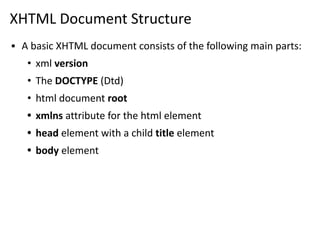
XHTML Document Structure
▪ A basic XHTML document consists of the following main parts:
• xml version
• The DOCTYPE (Dtd)
• html document root
• xmlns attribute for the html element
• head element with a child title element
• body element
Unit – 3: HTML & XHTML Darshan Institute of Engineering & Technology
42
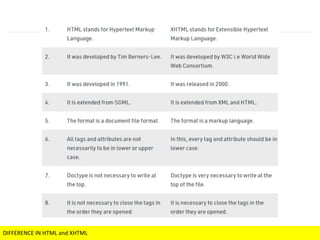
DIFFERENCE IN HTML and XHTML
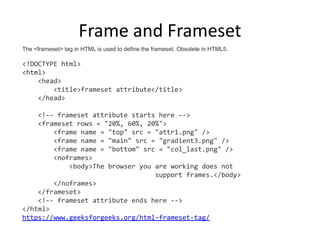
Frame and Frameset
The <frameset> tag in HTML is used to define the frameset. Obsolete in HTML5.
<!DOCTYPE html>
<html>
<head>
<title>frameset attribute</title>
</head>
<!-- frameset attribute starts here -->
<frameset rows = "20%, 60%, 20%">
<frame name = "top" src = "attr1.png" />
<frame name = "main" src = "gradient3.png" />
<frame name = "bottom" src = "col_last.png" />
<noframes>
<body>The browser you are working does not
support frames.</body>
</noframes>
</frameset>
<!-- frameset attribute ends here -->
</html>
https://www.geeksforgeeks.org/html-frameset-tag/
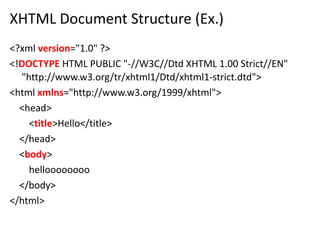
XHTML Document Structure (Ex.)
<?xml version="1.0" ?>
<!DOCTYPE HTML PUBLIC "-//W3C//Dtd XHTML 1.00 Strict//EN"
"http://www.w3.org/tr/xhtml1/Dtd/xhtml1-strict.dtd">
<html xmlns="http://www.w3.org/1999/xhtml">
<head>
<title>Hello</title>
</head>
<body>
helloooooooo
</body>
</html>
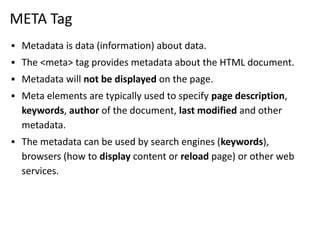
META Tag
▪ Metadata is data (information) about data.
▪ The <meta> tag provides metadata about the HTML document.
▪ Metadata will not be displayed on the page.
▪ Meta elements are typically used to specify page description,
keywords, author of the document, last modified and other
metadata.
▪ The metadata can be used by search engines (keywords),
browsers (how to display content or reload page) or other web
services.
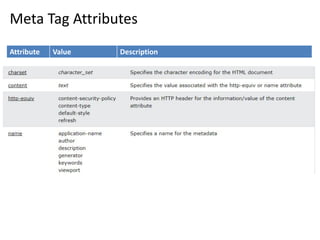
Meta Tag Attributes
Attribute Value Description
Charset Character_set Specifies the character encoding for the HTML document
name
author
description
keywords
robots
expires
Specifies a name for the metadata
http-equiv
content-type
default-style
refresh
Provides an HTTP header for the information/value of the
content attribute
content text
Gives the value associated with the http-equiv or name
attribute
scheme
format/URI
USA/Europe
Not supported in HTML5. Specifies a scheme to be used to
interpret the value of the content attribute
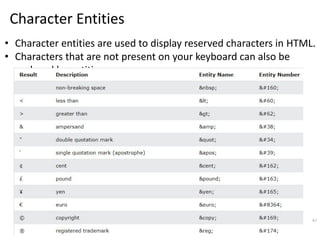
Character Entities
47
• Character entities are used to display reserved characters in HTML.
• Characters that are not present on your keyboard can also be
replaced by entities.
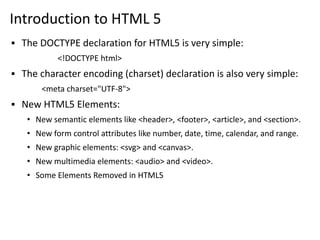
Introduction to HTML 5
▪ The DOCTYPE declaration for HTML5 is very simple:
<!DOCTYPE html>
▪ The character encoding (charset) declaration is also very simple:
<meta charset="UTF-8">
▪ New HTML5 Elements:
• New semantic elements like <header>, <footer>, <article>, and <section>.
• New form control attributes like number, date, time, calendar, and range.
• New graphic elements: <svg> and <canvas>.
• New multimedia elements: <audio> and <video>.
• Some Elements Removed in HTML5
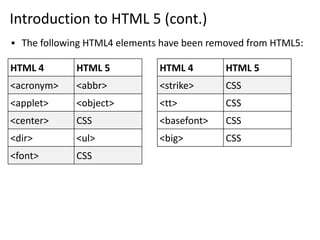
Introduction to HTML 5 (cont.)
▪ The following HTML4 elements have been removed from HTML5:
HTML 4 HTML 5
<acronym> <abbr>
<applet> <object>
<center> CSS
<dir> <ul>
<font> CSS
HTML 4 HTML 5
<strike> CSS
<tt> CSS
<basefont> CSS
<big> CSS
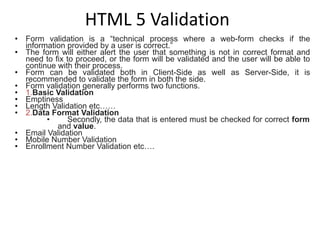
HTML 5 Validation
• Form validation is a “technical process where a web-form checks if the
information provided by a user is correct.”
• The form will either alert the user that something is not in correct format and
need to fix to proceed, or the form will be validated and the user will be able to
continue with their process.
• Form can be validated both in Client-Side as well as Server-Side, it is
recommended to validate the form in both the side.
• Form validation generally performs two functions.
• 1.Basic Validation
• Emptiness
• Length Validation etc……
• 2.Data Format Validation
• Secondly, the data that is entered must be checked for correct form
and value.
• Email Validation
• Mobile Number Validation
• Enrollment Number Validation etc….
● We can use required attribute in order to stop user
sending empty data to server.
<input type="text" name="txtName" required/>
● We can use pattern attribute in order to force some
format on user before sending the data to server.
<input type="text" name="txtName" pattern="[0-9]{10}"/>
● We can use title attribute for custom error message.
<input type="text" name="txtName"
pattern="[0-9]{10}"
title="Please enter 10 digit mobile number"
required/>
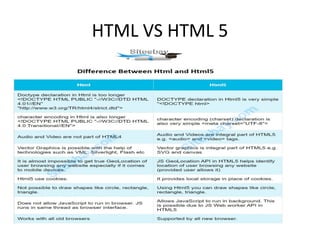
HTML VS HTML 5

Unit 2 (it workshop)

  • 1.
  • 2.
    Contents 1. Introduction toHTML • What is a Web Page? • My First HTML Page • HTML Code Formatting 2. Basic HTML Tags • Heading • Paragraph • Color • Font • List • Anchor • Image 4. HTML Tables 5. HTML Forms 6. XHTML 7. Introduction to HTML 5
  • 3.
    What is aWeb Page? ▪ Web page is text file containing HTML ▪ HTML – Hyper Text Markup Language • A notation for describing • document structure (semantic markup) • formatting (presentation markup) ▪ The markup tags provide information about the page content structure
  • 4.
    Creating HTML Pages ▪An HTML file must have an .htm or .html file extension ▪ HTML files can be created with text editors: • NotePad, NotePad ++, PSPad ▪ Or HTML editors (WYSIWYG Editors): • Microsoft FrontPage • Macromedia Dreamweaver • Netscape Composer • Visual Studio
  • 5.
    First HTML Page <html> <head> <title>MyFirst HTML Page</title> </head> <body> <p>This is some text...</p> </body> </html> test.html
  • 6.
    HTML Structure ▪ HTMLis comprised of “elements” and “tags” • Begins with <html> and ends with </html> ▪ Elements (tags) are nested one inside another: ▪ Tags have attributes: ▪ HTML describes structure using two main sections: <head> and <body> <html> <head></head> <body></body> </html> <img src="logo.jpg" alt="logo" />
  • 7.
    HTML Code Formatting ▪The HTML source code should be formatted to increase readability and facilitate debugging. • Every block element should start on a new line. • Every nested (block) element should be indented. • Browsers ignore multiple whitespaces in the page source, so formatting is harmless. ▪ For performance reasons, formatting can be sacrificed
  • 8.
    First HTML Page:Tags <!DOCTYPE HTML> <html> <head> <title>My First HTML Page</title> </head> <body> <p>This is some text...</p> </body> </html> Opening tag Closing tag An HTML element consists of an opening tag, a closing tag and the content inside.
  • 9.
    First HTML Page:Header <!DOCTYPE HTML> <html> <head> <title>My First HTML Page</title> </head> <body> <p>This is some text...</p> </body> </html> HTML header
  • 10.
    First HTML Page:Body <!DOCTYPE HTML> <html> <head> <title>My First HTML Page</title> </head> <body> <p>This is some text...</p> </body> </html> HTML body
  • 11.
    First HTML Page <!DOCTYPEHTML> <html> <head> <title>My First HTML Page</title> </head> <body> <p>This is some text...</p> </body> </html> test.html
  • 12.
    Basic HTML Tags 1.Headings 2. Paragraph 3. Colors 4. Fonts 5. List 6. Anchor Tag 7. Image 8. Table 9. Form
  • 13.
    1) Headings <h1> text</h1> -- largest of the six <h2> text </h2> <h3> text </h3> <h4> text </h4> <h5> text </h5> <h6> text </h6> -- smallest of the six align="position" --left (default), center or right ▪ Headings are important because search engines use the headings to index the structure and content of your web pages.
  • 14.
    2) <p> paragraph ▪<p> defines a paragraph ▪ Add align="position" (left, center, right) ▪ Multiple <p>'s do not create blank lines ▪ Use <br> for blank line ▪ Fully-specified text uses <p> and </p>, but </p> is optional
  • 15.
    3) Colors ▪ Valuesfor bgcolor and color • many are predefined (red, blue, green, ...) • all colors can be specified as a six character hexadecimal value: #RRGGBB • #FF0000 – red • #888888 – gray • #00FF00 –green • #000000 – black
  • 16.
    4) Fonts <font color="red"size="2" face="Times Roman"> This is the text of line one </font> <font color="green" size="4" face="Arial"> Line two contains this text </font> <font color="#FF9933" size="6" face="Courier“> The third line has this additional text </font> ▪ The <font> tag specifies the font face, font size, and color of text. ▪ The <font> tag is not supported in HTML5.
  • 17.
    5) List Ordered List 1.Block-A 2. Block-B 3. Block-C 4. Block-D Unordered List • Block-A • Block-B • Block-C • Block-D a) Block-A b) Block-B c) Block-C d) Block-D o Block-A o Block-B o Block-C o Block-D A. Block-A B. Block-B C. Block-C D. Block-D ▪ Block-A ▪ Block-B ▪ Block-C ▪ Block-D i. Block-A ii. Block-B iii. Block-C iv. Block-D I. Block-A II. Block-B III. Block-C IV. Block-D
  • 18.
    5.1) Ordered List <ol> <li>Item one </li> <li> Item two </li> <ol type="I" > <li> Sublist item one </li> <li> Sublist item two </li> <ol type="i"> <li> Sub-sub list item one </li> <li> Sub-sub list item two </li> </ol> </ol> </ol> Types: Type = 1 (default) Type = a Type = A Type = I Type = i Output
  • 19.
    5.2) Unordered List <ul> <li>One </li> <li> Two </li> <ul type="circle"> <li> Three </li> <li> Four </li> <ul type="square"> <li> Five </li> <li> Six </li> </ul> </ul> </ul> Types: Type = disc (default) Type = circle Type = square Output
  • 20.
    6) <a> AnchorTag (Hyperlinks) ▪ The <a> tag defines a hyperlink, which is used to link from one page to another. Link to an absolute URL: If you get spam, contact <a href="http://www.microsoft.com"> Microsoft </a> to report the problem. Link to a relative URL: See these <a href=“./index.php"> references </a> concerning our fine products. Link to a section within a URL: <a href=“#reference"> Reference Section. </a>
  • 21.
    7) Images ▪ Syntax: <img src=“PathToImage”/> ▪ src is required ▪ alt will specify the text to display if the Image not found ▪ width, height may be in units of pixels or percentage of page or frame • width="357" • height="50%“
  • 22.
    Images (cont.) align=position Image/TextPlacement Left Image on left edge; text flows to right of image Right Image on right edge; text flows to left Top Image is left; words align with top of image Bottom Image is left; words align with bottom of image Middle Words align with middle of image <img src="dolphin.jpg" align="left" width="150" height="150" alt="dolphin jump!">
  • 23.
    Image (cont.) =>align=“bottom”
  • 24.
    Image (cont.) =>align=“right”
  • 25.
    8) Table <table> tabletag <caption> optional table title <tr> table row <th> table column header <td> table data element <table border=1> <caption>Table Caption</caption> <tr> <th>Heading1</th> <th>Heading2</th> </tr> <tr> <td>Row1 Col1 Data</td> <td>Row1 Col2 Data</td> </tr> <tr> <td>Row2 Col1 Data</td> <td>Row2 Col2 Data</td> </tr> </table>
  • 26.
    Table Element Attributes ▪align=position -- left, center, right for table ▪ border=number -- width in pixels of border (default 0) ▪ cellspacing=number -- spacing in pixels between cells, default about 3 ▪ cellpadding=number -- space in pixels between cell border and table element, default about 1 ▪ width=number[%]-- width in pixels or percentage of page/frame width
  • 27.
    Table Row <tr>Attributes Valid for the table row: align -- left, center, right valign -- top, middle, bottom bgcolor -- background color <table align="center" width="300" height="200"> <tr align="left" valign="top" bgcolor="red"> <td>One</td> <td>Two</td> </tr> <tr align="center" valign="middle" bgcolor="lightblue"> <td>Three</td> <td>Four</td> </tr> <tr align="right" valign="bottom" bgcolor="yellow"> <td>Five</td> <td>Six</td> </tr> </table>
  • 28.
    Irregular Table Valid forthe table cell: colspan - how many columns this cell occupies rowspan - how many rows this cell occupies <table align="center" width="300" height="200" border="1"> <tr> <td colspan="1" rowspan="2">a</td> <td colspan="1" rowspan="1">b</td> <td colspan="1" rowspan="1" >c</td> </tr> <tr> <td colspan=“2" rowspan="1">d</td> </tr> </table> d a b c
  • 29.
    9) HTML Form ▪<form> is just another kind of HTML tag ▪ HTML forms are used to create GUIs on Web pages • Usually the purpose is to ask the user for information • The information is then sent back to the server ▪ A form is an area that can contain form elements • The syntax is: <form parameters> ...form elements... </form> • Form elements include: buttons, checkboxes, text fields, radio buttons, drop-down menus, etc • Other kinds of HTML tags can be mixed in with the form elements • A form usually contains a Submit button to send the information in the form elements to the server • The form’s parameters tell browser how to send the information to the server (there are two different ways it could be sent)
  • 30.
    The <form> Tag ▪The <form arguments> ... </form> tag encloses form elements (and probably other HTML as well) ▪ The arguments to form tell what to do with the user input • action="url" (required) • Specifies where to send the data when the Submit button is clicked • method="get" (default) • Form data is sent as a URL with ?form_data info appended to the end • Can be used only if data is all ASCII and not more than 100 characters • method="post" • Form data is sent in the body of the URL request • Cannot be bookmarked by most browsers • target="target" • Tells where to open the page sent as a result of the request • target= _blank means open in a new window • target= _top means use the same window
  • 31.
    Input tags ▪ Textfield • Example: <input type=“text” name=“inputname”/> ▪ Password field • Example: <input type=“password” name=“inputname”/> ▪ Radio buttons • Example: <input type="radio" name="gender"> Male <input type="radio" name="gender"> Female ▪ Check boxes • Example: <input type="checkbox" name="Roll1"> Roll No 1 <br/> <input type="checkbox" name="Roll2"> Roll No 2 <br/> <input type="checkbox" name="Roll3"> Roll No 3 <br/>
  • 32.
    Input tags (cont.) ▪Dropdown list • <select> tag is used to create a drop-down list in HTML. • <option> tags inside the <select> tag define the available options in the list. • Example: <select> <option value=“1”>Rajkot</option> <option value=“2”>Ahemdabad</option> <option value=“3”>Surat</option> </select> • Example (multiple select): <select multiple="multiple"> <option value=“1”>Rajkot</option> <option value=“2”>Ahemdabad</option> <option value=“3”>Surat</option> </select>
  • 33.
    Input tags (cont.) ▪Text area • <textarea> tag defines a multi-line text input control. • Example : <textarea rows=“8” cols=“30”> LDRP ITR </textarea> ▪ Submit Button • Submit button is used to submit the data to the form action url. • Example : <input type=“submit” value=“Add City”>
  • 34.
  • 35.
    Introduction to XHTML ▪Problems were initially caused in the development of HTML by a lack of standards. ▪ Browser makers tended to add proprietary extensions that limited those who could see the sites in the way that was intended . ▪ This was been termed the “browser wars” of 1990s. ▪ The World Wide Web Consortium (W3C) became the main source for standards that browsers were to follow.
  • 36.
    Introduction to XHTML(Cont.) ▪ The evolution of HTML led to the separation of formatting instructions from content, leading to the development of CSS. ▪ HTML was redeveloped as XHTML, using XML to apply more strict approach to web coding. ▪ XHTML provides a more stable platform for CSS
  • 37.
    XHTML ▪ XHTML standsfor EXtensible HyperText Markup Language ▪ XHTML is almost identical to HTML 4.01 ▪ XHTML is a stricter and cleaner version of HTML 4.01 ▪ XHTML is HTML defined as an XML application ▪ XHTML is supported by all major browsers.
  • 38.
    Characteristics of XHTML ▪DOCTYPE is mandatory ▪ XML namespace attribute in <html> is mandatory ▪ <html>, <head>, <title>, and <body> is mandatory ▪ elements must be properly nested ▪ elements must always be closed ▪ elements must be in lower case ▪ documents must have one root element ▪ Attribute names must be in lower case ▪ Attribute values must be quoted ▪ Attribute abbreviation is forbidden
  • 39.
    XHTML DOCTYPE ▪ AnXHTML document must have an XHTML DOCTYPE declaration. ▪ XHTML 1.0 document type definitions are corresponds to four Dtds: • Strict • Basic • Transitional • Frameset ▪ The most commonly used is the XHTML Transitional document.
  • 40.
    XHTML DOCTYPE (Cont.) ▪XHTML 1.0 Strict: <!DOCTYPE html PUBLIC "-//W3C//Dtd XHTML 1.0 Strict//EN" "http://www.w3.org/tr/xhtml1/Dtd/xhtml1-strict.dtd"> ▪ XHTML 1.0 Transitional: <!DOCTYPE html PUBLIC "-//W3C//Dtd XHTML 1.0 Transitional//EN" "http://www.w3.org/tr/xhtml1/Dtd/xhtml1-transitional.dtd"> ▪ XHTML 1.0 Basic: <!DOCTYPE html PUBLIC "-//W3C//Dtd XHTML 1.0 Basic//EN" "http://www.w3.org/tr/xhtml1/Dtd/xhtml1-basic10.dtd"> ▪ XHTML 1.0 Frameset: <!DOCTYPE html PUBLIC "-//W3C//Dtd XHTML 1.0 Frameset//EN" "http://www.w3.org/tr/xhtml1/Dtd/xhtml1-frameset.dtd"> This DTD contains all HTML elements and attributes, but does NOT INCLUDE presentational or deprecated elements (like font). Framesets are not allowed. This DTD contains all HTML elements and attributes, INCLUDING presentational and deprecated elements (like font). Framesets are not allowed. This DTD is equal to XHTML 1.0 Strict, but allows you to add modules (for example to provide ruby support for East-Asian languages). This DTD is equal to XHTML 4.01 Transitional, but allows the use of frameset content.
  • 41.
    XHTML Document Structure ▪A basic XHTML document consists of the following main parts: • xml version • The DOCTYPE (Dtd) • html document root • xmlns attribute for the html element • head element with a child title element • body element
  • 42.
    Unit – 3:HTML & XHTML Darshan Institute of Engineering & Technology 42 DIFFERENCE IN HTML and XHTML
  • 43.
    Frame and Frameset The<frameset> tag in HTML is used to define the frameset. Obsolete in HTML5. <!DOCTYPE html> <html> <head> <title>frameset attribute</title> </head> <!-- frameset attribute starts here --> <frameset rows = "20%, 60%, 20%"> <frame name = "top" src = "attr1.png" /> <frame name = "main" src = "gradient3.png" /> <frame name = "bottom" src = "col_last.png" /> <noframes> <body>The browser you are working does not support frames.</body> </noframes> </frameset> <!-- frameset attribute ends here --> </html> https://www.geeksforgeeks.org/html-frameset-tag/
  • 44.
    XHTML Document Structure(Ex.) <?xml version="1.0" ?> <!DOCTYPE HTML PUBLIC "-//W3C//Dtd XHTML 1.00 Strict//EN" "http://www.w3.org/tr/xhtml1/Dtd/xhtml1-strict.dtd"> <html xmlns="http://www.w3.org/1999/xhtml"> <head> <title>Hello</title> </head> <body> helloooooooo </body> </html>
  • 45.
    META Tag ▪ Metadatais data (information) about data. ▪ The <meta> tag provides metadata about the HTML document. ▪ Metadata will not be displayed on the page. ▪ Meta elements are typically used to specify page description, keywords, author of the document, last modified and other metadata. ▪ The metadata can be used by search engines (keywords), browsers (how to display content or reload page) or other web services.
  • 46.
    Meta Tag Attributes AttributeValue Description Charset Character_set Specifies the character encoding for the HTML document name author description keywords robots expires Specifies a name for the metadata http-equiv content-type default-style refresh Provides an HTTP header for the information/value of the content attribute content text Gives the value associated with the http-equiv or name attribute scheme format/URI USA/Europe Not supported in HTML5. Specifies a scheme to be used to interpret the value of the content attribute
  • 47.
    Character Entities 47 • Characterentities are used to display reserved characters in HTML. • Characters that are not present on your keyboard can also be replaced by entities.
  • 48.
    Introduction to HTML5 ▪ The DOCTYPE declaration for HTML5 is very simple: <!DOCTYPE html> ▪ The character encoding (charset) declaration is also very simple: <meta charset="UTF-8"> ▪ New HTML5 Elements: • New semantic elements like <header>, <footer>, <article>, and <section>. • New form control attributes like number, date, time, calendar, and range. • New graphic elements: <svg> and <canvas>. • New multimedia elements: <audio> and <video>. • Some Elements Removed in HTML5
  • 49.
    Introduction to HTML5 (cont.) ▪ The following HTML4 elements have been removed from HTML5: HTML 4 HTML 5 <acronym> <abbr> <applet> <object> <center> CSS <dir> <ul> <font> CSS HTML 4 HTML 5 <strike> CSS <tt> CSS <basefont> CSS <big> CSS
  • 50.
    HTML 5 Validation •Form validation is a “technical process where a web-form checks if the information provided by a user is correct.” • The form will either alert the user that something is not in correct format and need to fix to proceed, or the form will be validated and the user will be able to continue with their process. • Form can be validated both in Client-Side as well as Server-Side, it is recommended to validate the form in both the side. • Form validation generally performs two functions. • 1.Basic Validation • Emptiness • Length Validation etc…… • 2.Data Format Validation • Secondly, the data that is entered must be checked for correct form and value. • Email Validation • Mobile Number Validation • Enrollment Number Validation etc….
  • 51.
    ● We canuse required attribute in order to stop user sending empty data to server. <input type="text" name="txtName" required/> ● We can use pattern attribute in order to force some format on user before sending the data to server. <input type="text" name="txtName" pattern="[0-9]{10}"/> ● We can use title attribute for custom error message. <input type="text" name="txtName" pattern="[0-9]{10}" title="Please enter 10 digit mobile number" required/>
  • 52.