HTML
HYPER TEXT MARKUP
LANGUAGE
Presented By
A.Vanaja
HYPER TEXT MARKUP LANGUAGE
• HTML is structure of Web pages. (Ex- Text Image and Etc….)
• you can create your own Website.
• HTML is part of Front End application
• HTML derived from SGML(Standared Graphics Markup Language)
• HTML future is XML(Extented Markup Language)
• Markup language is not a programming language
• Markup language is set of Markup Tags
HTML TAGS
• HTML Tags is always enclosed angler brackets its like <>
• HTML Tags come from pairs,
Opening tag and a Closing Tag
Like
<html> </html>,
<p> </p>, etc.
• HTML basis Tags
<head>
<body>
<title>
<meta>
<img>
HTML ELEMENTS
• HTML Element is inside the tags, like
<html> welcome to Edureka </html>
• Examples of some HTML elements:
<h1>My First Heading</h1> <p>My first paragraph.</p>
• HTML Element have <div> Tag and <Span> Tag
1. <div> Tag is a block level Element. <div> is used to define divitions in an HTML document
<div> container applying styles individually
2. <Span> Tag is used to define inline sections in an HTML document
Span keeps to the Width of element it contains.
Does not apply styling to other HTML tags present inside it
HTML INPUT TAGS
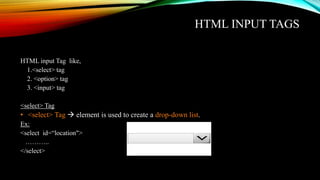
HTML input Tag like,
1.<select> tag
2. <option> tag
3. <input> tag
<select> Tag
• <select> Tag  element is used to create a drop-down list.
Ex:
<select id=“location">
………..
</select>
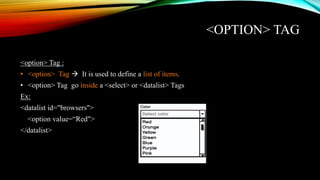
<OPTION> TAG
<option> Tag :
• <option> Tag  It is used to define a list of items.
• <option> Tag go inside a <select> or <datalist> Tags
Ex:
<datalist id="browsers">
<option value=“Red">
</datalist>
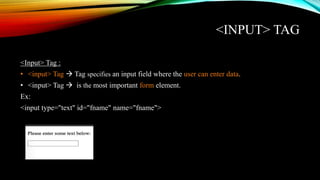
<INPUT> TAG
<Input> Tag :
• <input> Tag  Tag specifies an input field where the user can enter data.
• <input> Tag  is the most important form element.
Ex:
<input type="text" id="fname" name="fname">
HTML FORMS
• An HTML form is used to collect user input.
• The user input is most often sent to a server for processing.
• Form elements are elements that allow the user to enter information. Like,
1. text fields,
2. textarea fields,
3. drop-down menus,
4. radio buttons,
5. checkboxes
6. Action Attribute and the Submit Button, etc.
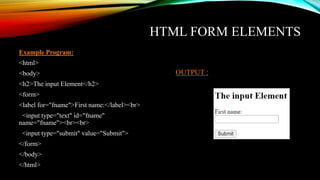
HTML FORM ELEMENTS
OUTPUT :
Example Program:
<html>
<body>
<h2>The input Element</h2>
<form>
<label for="fname">First name:</label><br>
<input type="text" id="fname"
name="fname"><br><br>
<input type="submit" value="Submit">
</form>
</body>
</html>
HTML TABLES
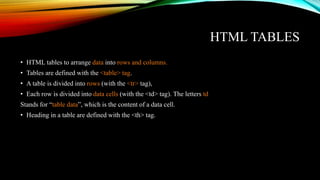
• HTML tables to arrange data into rows and columns.
• Tables are defined with the <table> tag.
• A table is divided into rows (with the <tr> tag),
• Each row is divided into data cells (with the <td> tag). The letters td
Stands for “table data”, which is the content of a data cell.
• Heading in a table are defined with the <th> tag.
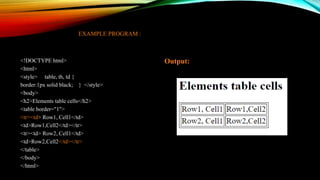
EXAMPLE PROGRAM :
<!DOCTYPE html>
<html>
<style> table, th, td {
border:1px solid black; } </style>
<body>
<h2>Elements table cells</h2>
<table border="1">
<tr><td> Row1, Cell1</td>
<td>Row1,Cell2</td></tr>
<tr><td> Row2, Cell1</td>
<td>Row2,Cell2</td></tr>
</table>
</body>
</html>
Output:
HTML LIST
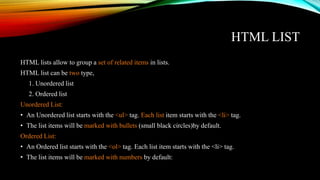
HTML lists allow to group a set of related items in lists.
HTML list can be two type,
1. Unordered list
2. Ordered list
Unordered List:
• An Unordered list starts with the <ul> tag. Each list item starts with the <li> tag.
• The list items will be marked with bullets (small black circles)by default.
Ordered List:
• An Ordered list starts with the <ol> tag. Each list item starts with the <li> tag.
• The list items will be marked with numbers by default:
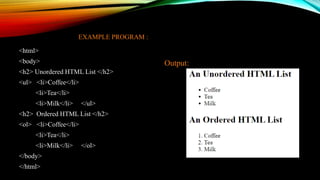
EXAMPLE PROGRAM :
<html>
<body>
<h2> Unordered HTML List </h2>
<ul> <li>Coffee</li>
<li>Tea</li>
<li>Milk</li> </ul>
<h2> Ordered HTML List </h2>
<ol> <li>Coffee</li>
<li>Tea</li>
<li>Milk</li> </ol>
</body>
</html>
Output:
HTML LINK TAG
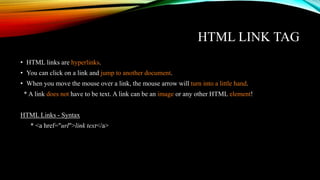
• HTML links are hyperlinks.
• You can click on a link and jump to another document.
• When you move the mouse over a link, the mouse arrow will turn into a little hand.
* A link does not have to be text. A link can be an image or any other HTML element!
HTML Links - Syntax
* <a href="url">link text</a>
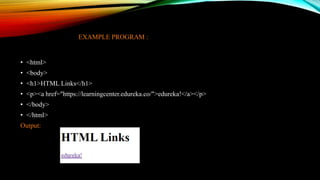
EXAMPLE PROGRAM :
• <html>
• <body>
• <h1>HTML Links</h1>
• <p><a href="https://learningcenter.edureka.co/">edureka!</a></p>
• </body>
• </html>
Output:
HTML5
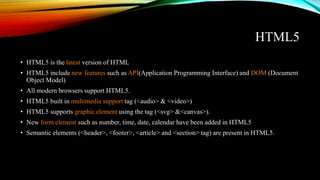
• HTML5 is the latest version of HTML
• HTML5 include new features such as API(Application Programming Interface) and DOM (Document
Object Model)
• All modern browsers support HTML5.
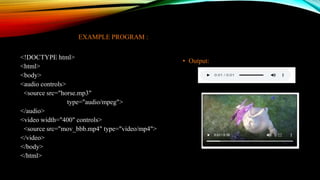
• HTML5 built in multimedia support tag (<audio> & <video>)
• HTML5 supports graphic element using the tag (<svg> &<canvas>).
• New form element such as number, time, date, calendar have been added in HTML5
• Semantic elements (<header>, <footer>, <article> and <section> tag) are present in HTML5.
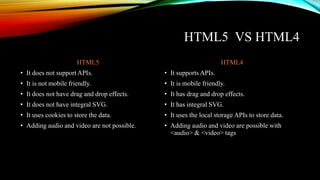
HTML5 VS HTML4
HTML5
• It does not support APIs.
• It is not mobile friendly.
• It does not have drag and drop effects.
• It does not have integral SVG.
• It uses cookies to store the data.
• Adding audio and video are not possible.
HTML4
• It supports APIs.
• It is mobile friendly.
• It has drag and drop effects.
• It has integral SVG.
• It uses the local storage APIs to store data.
• Adding audio and video are possible with
<audio> & <video> tags
EXAMPLE PROGRAM :
<!DOCTYPE html>
<html>
<body>
<audio controls>
<source src="horse.mp3"
type="audio/mpeg">
</audio>
<video width="400" controls>
<source src="mov_bbb.mp4" type="video/mp4">
</video>
</body>
</html>
• Output:
HTML5 CANVAS
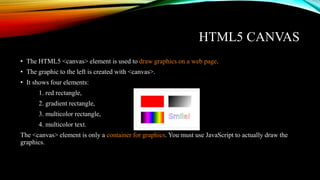
• The HTML5 <canvas> element is used to draw graphics on a web page.
• The graphic to the left is created with <canvas>.
• It shows four elements:
1. red rectangle,
2. gradient rectangle,
3. multicolor rectangle,
4. multicolor text.
The <canvas> element is only a container for graphics. You must use JavaScript to actually draw the
graphics.
EXAMPLE PROGRAM :
<!DOCTYPE html>
<html>
<body>
<canvas id="myCanvas" width="200“
height="100" style="border:1px solid
#000000;">
</canvas>
</body>
</html>
• Output:
HTML5 SVG
• SVG defines vector-based graphics in XML format.
• SVG stands for Scalable Vector Graphics
• SVG is used to define graphics for the Web
• SVG has several methods for drawing paths,
boxes, circles, text, and graphic images.
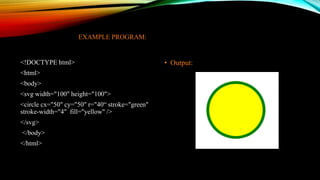
EXAMPLE PROGRAM:
<!DOCTYPE html>
<html>
<body>
<svg width="100" height="100">
<circle cx="50" cy="50" r="40“ stroke="green"
stroke-width="4" fill="yellow" />
</svg>
</body>
</html>
• Output:
THANK YOU

HTML.pptx

  • 1.
  • 2.
    HYPER TEXT MARKUPLANGUAGE • HTML is structure of Web pages. (Ex- Text Image and Etc….) • you can create your own Website. • HTML is part of Front End application • HTML derived from SGML(Standared Graphics Markup Language) • HTML future is XML(Extented Markup Language) • Markup language is not a programming language • Markup language is set of Markup Tags
  • 3.
    HTML TAGS • HTMLTags is always enclosed angler brackets its like <> • HTML Tags come from pairs, Opening tag and a Closing Tag Like <html> </html>, <p> </p>, etc. • HTML basis Tags <head> <body> <title> <meta> <img>
  • 4.
    HTML ELEMENTS • HTMLElement is inside the tags, like <html> welcome to Edureka </html> • Examples of some HTML elements: <h1>My First Heading</h1> <p>My first paragraph.</p> • HTML Element have <div> Tag and <Span> Tag 1. <div> Tag is a block level Element. <div> is used to define divitions in an HTML document <div> container applying styles individually 2. <Span> Tag is used to define inline sections in an HTML document Span keeps to the Width of element it contains. Does not apply styling to other HTML tags present inside it
  • 5.
    HTML INPUT TAGS HTMLinput Tag like, 1.<select> tag 2. <option> tag 3. <input> tag <select> Tag • <select> Tag  element is used to create a drop-down list. Ex: <select id=“location"> ……….. </select>
  • 6.
    <OPTION> TAG <option> Tag: • <option> Tag  It is used to define a list of items. • <option> Tag go inside a <select> or <datalist> Tags Ex: <datalist id="browsers"> <option value=“Red"> </datalist>
  • 7.
    <INPUT> TAG <Input> Tag: • <input> Tag  Tag specifies an input field where the user can enter data. • <input> Tag  is the most important form element. Ex: <input type="text" id="fname" name="fname">
  • 8.
    HTML FORMS • AnHTML form is used to collect user input. • The user input is most often sent to a server for processing. • Form elements are elements that allow the user to enter information. Like, 1. text fields, 2. textarea fields, 3. drop-down menus, 4. radio buttons, 5. checkboxes 6. Action Attribute and the Submit Button, etc.
  • 9.
    HTML FORM ELEMENTS OUTPUT: Example Program: <html> <body> <h2>The input Element</h2> <form> <label for="fname">First name:</label><br> <input type="text" id="fname" name="fname"><br><br> <input type="submit" value="Submit"> </form> </body> </html>
  • 10.
    HTML TABLES • HTMLtables to arrange data into rows and columns. • Tables are defined with the <table> tag. • A table is divided into rows (with the <tr> tag), • Each row is divided into data cells (with the <td> tag). The letters td Stands for “table data”, which is the content of a data cell. • Heading in a table are defined with the <th> tag.
  • 11.
    EXAMPLE PROGRAM : <!DOCTYPEhtml> <html> <style> table, th, td { border:1px solid black; } </style> <body> <h2>Elements table cells</h2> <table border="1"> <tr><td> Row1, Cell1</td> <td>Row1,Cell2</td></tr> <tr><td> Row2, Cell1</td> <td>Row2,Cell2</td></tr> </table> </body> </html> Output:
  • 12.
    HTML LIST HTML listsallow to group a set of related items in lists. HTML list can be two type, 1. Unordered list 2. Ordered list Unordered List: • An Unordered list starts with the <ul> tag. Each list item starts with the <li> tag. • The list items will be marked with bullets (small black circles)by default. Ordered List: • An Ordered list starts with the <ol> tag. Each list item starts with the <li> tag. • The list items will be marked with numbers by default:
  • 13.
    EXAMPLE PROGRAM : <html> <body> <h2>Unordered HTML List </h2> <ul> <li>Coffee</li> <li>Tea</li> <li>Milk</li> </ul> <h2> Ordered HTML List </h2> <ol> <li>Coffee</li> <li>Tea</li> <li>Milk</li> </ol> </body> </html> Output:
  • 14.
    HTML LINK TAG •HTML links are hyperlinks. • You can click on a link and jump to another document. • When you move the mouse over a link, the mouse arrow will turn into a little hand. * A link does not have to be text. A link can be an image or any other HTML element! HTML Links - Syntax * <a href="url">link text</a>
  • 15.
    EXAMPLE PROGRAM : •<html> • <body> • <h1>HTML Links</h1> • <p><a href="https://learningcenter.edureka.co/">edureka!</a></p> • </body> • </html> Output:
  • 16.
    HTML5 • HTML5 isthe latest version of HTML • HTML5 include new features such as API(Application Programming Interface) and DOM (Document Object Model) • All modern browsers support HTML5. • HTML5 built in multimedia support tag (<audio> & <video>) • HTML5 supports graphic element using the tag (<svg> &<canvas>). • New form element such as number, time, date, calendar have been added in HTML5 • Semantic elements (<header>, <footer>, <article> and <section> tag) are present in HTML5.
  • 17.
    HTML5 VS HTML4 HTML5 •It does not support APIs. • It is not mobile friendly. • It does not have drag and drop effects. • It does not have integral SVG. • It uses cookies to store the data. • Adding audio and video are not possible. HTML4 • It supports APIs. • It is mobile friendly. • It has drag and drop effects. • It has integral SVG. • It uses the local storage APIs to store data. • Adding audio and video are possible with <audio> & <video> tags
  • 18.
    EXAMPLE PROGRAM : <!DOCTYPEhtml> <html> <body> <audio controls> <source src="horse.mp3" type="audio/mpeg"> </audio> <video width="400" controls> <source src="mov_bbb.mp4" type="video/mp4"> </video> </body> </html> • Output:
  • 19.
    HTML5 CANVAS • TheHTML5 <canvas> element is used to draw graphics on a web page. • The graphic to the left is created with <canvas>. • It shows four elements: 1. red rectangle, 2. gradient rectangle, 3. multicolor rectangle, 4. multicolor text. The <canvas> element is only a container for graphics. You must use JavaScript to actually draw the graphics.
  • 20.
    EXAMPLE PROGRAM : <!DOCTYPEhtml> <html> <body> <canvas id="myCanvas" width="200“ height="100" style="border:1px solid #000000;"> </canvas> </body> </html> • Output:
  • 21.
    HTML5 SVG • SVGdefines vector-based graphics in XML format. • SVG stands for Scalable Vector Graphics • SVG is used to define graphics for the Web • SVG has several methods for drawing paths, boxes, circles, text, and graphic images.
  • 22.
    EXAMPLE PROGRAM: <!DOCTYPE html> <html> <body> <svgwidth="100" height="100"> <circle cx="50" cy="50" r="40“ stroke="green" stroke-width="4" fill="yellow" /> </svg> </body> </html> • Output:
  • 23.