ICT INFO1
Revision
Health and Safety - Responsibility
• Employers responsibility
– Equipment used correctly and safely
– Employees don’t use plugs unsupervised
– Equipment positioned in easily accessible
ways
• Employees not having to stretch/strain to reach
equipment
– Provide training for employees to use
equipment
– Provide regular eye tests and pay for glasses
if needed
Health and Safety - Responsibility
• Employers responsibility
– Safety testing carried out regularly
– Perform regular risk assessments
– Temperature is comfortable
– Reduced noise pollution
– Good amount of space
– Correct equipment to allow for correct use
– Good quality software
• Employees responsibility
– Use workstations and equipment correctly
• Shown through training
– Bring problems to employers attention immediately
and work with them to solve it
Health and Safety - Responsibility
• Manufacturers of IT equipments responsibility
– Ensure products comply with Directive
• Screens must tilt and swivel
– Keyboards must be separate and moveable
– Promoting use of laptops not for entering large
amounts of data
• Bad software design
– Inefficient design or bugs
– Incomprehensible error messages
– Use of non-standard keys
– Badly structured menus
– Poor input screen layout
– Flashing effects/inappropriate colour
– All cause more stress for user
Health and Safety – Problems
Caused
• Stress
– ICT systems stressful for beginners or unfamiliar users without proper training
– Unable to avoid work through developments
• Receive work emails/calls at home
– New software difficult to use
• RSI
– Repetitive movements when of keyboard, mouse, mobile, etc.
– Use wrist rest, take regular breaks, have keyboard at correct height
• Eyestrain
– Long hours spent in front of screen
– Glare from screen, sitting too close/far from screen, constantly refocusing
(looking from paper to screen repetitively)
– Take regular breaks, use blinds, sit correct distance from screen
• About 3 feet
• Backache
– Improper sitting position or position of keyboard/screen
– Take regular breaks, sit correctly in chair, have screen at correct
height/position
• Chair with 5 point base and height and tilt adjustable
• Screen height and tilt adjustable
Health and Safety - Legislation
• Health and Safety at Work Act
– Right to be safe at work
– Employers must do as much as they can to
ensure workers are safe
– Employers responsibilities
• Health and Safety (Display Screen
Equipment) Regulations
– Use of computers in the workplace
Analysis – Client, User, Audience
• Client
– Person who came to you with a problem
– Wants you to devise solution for it
– Person you have most contact with throughout
duration of project
– Will maintain system once finished
• User
– Person who uses the system
– Update/edit it once in use
• Audience
– Person who will view the final system
– Who the solution is aimed at
Analysis – What To Include
• Problem identification and background information
– Find out information about problem
• Interview
• Observation
– View current system and look for problems
– How users interact with current system
• View documentation
• Perform questionnaire
• Break problem down
– Large problems broken down to smaller ones to help with design
• Client requirements and evaluation criteria
– What they want, easily see what you are trying to solve, check
you’ve produced what the client wanted, signed to agree
• Inputs, processing and outputs needed for client
requirements
– Must match what client wants not what you think they want
Design of Solutions - Standards
• Agreed formal ways of carrying out tasks
– Agreed nationally
• All developers use same standards when
working on project
• Systems Analysis and Design Methodology
– Structured methodology provides set approach to
information systems development
– Specifies stages and tasks needed to be carried out
– What needs to be produced
– Techniques used in production
• Logical data modelling
• Data flow modelling
• Event modelling
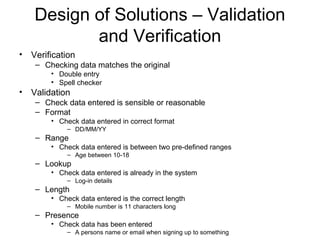
Design of Solutions – Validation
and Verification
• Verification
– Checking data matches the original
• Double entry
• Spell checker
• Validation
– Check data entered is sensible or reasonable
– Format
• Check data entered in correct format
– DD/MM/YY
– Range
• Check data entered is between two pre-defined ranges
– Age between 10-18
– Lookup
• Check data entered is already in the system
– Log-in details
– Length
• Check data entered is the correct length
– Mobile number is 11 characters long
– Presence
• Check data has been entered
– A persons name or email when signing up to something
Input Devices
• Keyboard
– QWERTY, ergonomic, concept
• Concept uses icons, found in fast-food places
• Mouse
• Touch screen
• Graphics tablet
• Camera
• Joystick
• Microphone
• Scanner
Input Methods
• Optical Mark Recognition (OMR)
– Pre-designed pieces of paper
– Put through mark scanner
– Registers bits which have been filled in
– Lottery tickets/readers, multiple choice tests
• Magnetic Ink Character Recognition (MICR)
– Only used on cheques
– Most secure but most expensive
– Data written on bottom in magnetic ink and magnetised as read
– Cheques becoming less popular so won’t be needed
• Barcodes
– Very common in everyday life
– Cheap and easy to use
– Read through scanner and can be anyway up when read
– Can’t always be read if damaged, creased or covered
• Optical Character Recognition (OCR)
– Scans paper (handwritten or typed) into computer and displays as text document
– Doesn’t work as well with handwritten as typed
– Struggles with similar looking letters
– Not 100% accurate
• Speech recognition
– Good for people with disabilities that don’t allow them to use other methods or if other
methods aren’t possible (while driving)
– Doesn’t always register correct terminology
– Has difficulties with regional accents and different languages
– Needs to be trained to recognise users voice
Storage Devices - Magnetic
• Floppy disk
– Practically disappeared from computer use
– Too small and expensive for modern computing
• Hard disk
– Main storage device for all computers
– Can hold large amounts of data
• Magnetic tape
– Cheap to use as mass storage
– Generally only used for backups
– Data stored sequentially so tape has to run through
until record is found
Storage Devices - Optical
• CD-ROM
– Bought with contents already on it
– Read-only memory so can’t change what’s on it
– Transfer pre-written material onto a computer
• Software needed in a business
– Very fast as data read by laser
• DVD-ROM
– Holds more data than CD
– Read-only memory so can’t change what’s on it
– Specially designed to store video, graphics, sound, etc.
• CD-R/DVD-R
– Write once, read many
– Store data and programs permanently
– Very cheap so more efficient
Storage Devices – Flash Memory
• Memory stick
– Generally cheap
• More expensive for large amounts of storage
– Small so easy to carry around
– Should only be used to transfer data
• Not for backups
• Should also be stored on another device from this
– Nearly all computers have USB port so can be
read on many devices
Output Devices
• Monitor
• Projector
• Printer
– Laser, ink-jet, dot matrix
• Plotter
• Embosser
– For Braille
• Speakers/headphones
Systems and Utility Software
• Performs specific and useful task
– Compressing files
• Reduces size of data file
• Take up less space in memory and less time to send
• Must be uncompressed to use
– Defragmenting hard disk
• Cleans hard disk
• Arranges file segments so next to each
• Speeds up file access
• Most come as part of operating system
– Manages components of computer system
– Provides interface between system and user
– Monitors input and output devices
– Scheduling programs and resources
Applications Software
• Increases the functionality of the system
• Allows user to do something useful
• Generic
– General purpose/off the shelf
• Word processing, databases
– Integrated package contains several types
• Specific
– Used to solve problems for one specific purpose
• CAD/CAM
• Bespoke
– One-off designed specially to solve a specific task
– Very expensive to produce
– Should meet all of the clients needs and be specific to the issue
– Won’t get automatic upgrades (if any)
Wizards and Macros
• Wizards
– Create applications whilst being guided
through process
– Don’t have to create from scratch
– Good for inexperienced users
• Macros
– Allow user to automate tasks
– Can be recorded actions or written by hand
– Reduce time taken to perform task
• Using print macro rather than go through all stages
Implementation for Solution
• How data is entered
• Control mechanisms
– Validation techniques
• How data is processed and organised
• What will be output and how will it look
• Overview of solution
Testing
• Test no.
– Perform tests in logical order
– Refer back to tests if needed later
• Test
– Clearly see what is being tested
– Test data
• Normal
– Within boundaries
• Extreme
– Maximum of boundaries
– 1=<x=>100 = 1 and 100
• Erroneous
– Not within boundaries/incorrect
• Reasons for testing
– Validity of input
– Accuracy of output
– Presentation of output
– Does it meet the clients requirements
– Is it usable by the user and/or audience
• Expected outcome
– What to look for when testing
• Actual outcome
– What actually happened
– Is it what was expected
– If not, retest
Evaluation
• Assess effectiveness of solution
– Does the solution do what it’s meant to do
– Does the solution do it in the way it’s meant to
– Is the solution an effective one
– If not, what’s wrong with it and what would
make it effective
• Need to understand what’s been done and
how mistakes could be corrected

AQA AS ICT INFO1 Revision

  • 1.
  • 2.
    Health and Safety- Responsibility • Employers responsibility – Equipment used correctly and safely – Employees don’t use plugs unsupervised – Equipment positioned in easily accessible ways • Employees not having to stretch/strain to reach equipment – Provide training for employees to use equipment – Provide regular eye tests and pay for glasses if needed
  • 3.
    Health and Safety- Responsibility • Employers responsibility – Safety testing carried out regularly – Perform regular risk assessments – Temperature is comfortable – Reduced noise pollution – Good amount of space – Correct equipment to allow for correct use – Good quality software • Employees responsibility – Use workstations and equipment correctly • Shown through training – Bring problems to employers attention immediately and work with them to solve it
  • 4.
    Health and Safety- Responsibility • Manufacturers of IT equipments responsibility – Ensure products comply with Directive • Screens must tilt and swivel – Keyboards must be separate and moveable – Promoting use of laptops not for entering large amounts of data • Bad software design – Inefficient design or bugs – Incomprehensible error messages – Use of non-standard keys – Badly structured menus – Poor input screen layout – Flashing effects/inappropriate colour – All cause more stress for user
  • 5.
    Health and Safety– Problems Caused • Stress – ICT systems stressful for beginners or unfamiliar users without proper training – Unable to avoid work through developments • Receive work emails/calls at home – New software difficult to use • RSI – Repetitive movements when of keyboard, mouse, mobile, etc. – Use wrist rest, take regular breaks, have keyboard at correct height • Eyestrain – Long hours spent in front of screen – Glare from screen, sitting too close/far from screen, constantly refocusing (looking from paper to screen repetitively) – Take regular breaks, use blinds, sit correct distance from screen • About 3 feet • Backache – Improper sitting position or position of keyboard/screen – Take regular breaks, sit correctly in chair, have screen at correct height/position • Chair with 5 point base and height and tilt adjustable • Screen height and tilt adjustable
  • 6.
    Health and Safety- Legislation • Health and Safety at Work Act – Right to be safe at work – Employers must do as much as they can to ensure workers are safe – Employers responsibilities • Health and Safety (Display Screen Equipment) Regulations – Use of computers in the workplace
  • 7.
    Analysis – Client,User, Audience • Client – Person who came to you with a problem – Wants you to devise solution for it – Person you have most contact with throughout duration of project – Will maintain system once finished • User – Person who uses the system – Update/edit it once in use • Audience – Person who will view the final system – Who the solution is aimed at
  • 8.
    Analysis – WhatTo Include • Problem identification and background information – Find out information about problem • Interview • Observation – View current system and look for problems – How users interact with current system • View documentation • Perform questionnaire • Break problem down – Large problems broken down to smaller ones to help with design • Client requirements and evaluation criteria – What they want, easily see what you are trying to solve, check you’ve produced what the client wanted, signed to agree • Inputs, processing and outputs needed for client requirements – Must match what client wants not what you think they want
  • 9.
    Design of Solutions- Standards • Agreed formal ways of carrying out tasks – Agreed nationally • All developers use same standards when working on project • Systems Analysis and Design Methodology – Structured methodology provides set approach to information systems development – Specifies stages and tasks needed to be carried out – What needs to be produced – Techniques used in production • Logical data modelling • Data flow modelling • Event modelling
  • 10.
    Design of Solutions– Validation and Verification • Verification – Checking data matches the original • Double entry • Spell checker • Validation – Check data entered is sensible or reasonable – Format • Check data entered in correct format – DD/MM/YY – Range • Check data entered is between two pre-defined ranges – Age between 10-18 – Lookup • Check data entered is already in the system – Log-in details – Length • Check data entered is the correct length – Mobile number is 11 characters long – Presence • Check data has been entered – A persons name or email when signing up to something
  • 11.
    Input Devices • Keyboard –QWERTY, ergonomic, concept • Concept uses icons, found in fast-food places • Mouse • Touch screen • Graphics tablet • Camera • Joystick • Microphone • Scanner
  • 12.
    Input Methods • OpticalMark Recognition (OMR) – Pre-designed pieces of paper – Put through mark scanner – Registers bits which have been filled in – Lottery tickets/readers, multiple choice tests • Magnetic Ink Character Recognition (MICR) – Only used on cheques – Most secure but most expensive – Data written on bottom in magnetic ink and magnetised as read – Cheques becoming less popular so won’t be needed • Barcodes – Very common in everyday life – Cheap and easy to use – Read through scanner and can be anyway up when read – Can’t always be read if damaged, creased or covered • Optical Character Recognition (OCR) – Scans paper (handwritten or typed) into computer and displays as text document – Doesn’t work as well with handwritten as typed – Struggles with similar looking letters – Not 100% accurate • Speech recognition – Good for people with disabilities that don’t allow them to use other methods or if other methods aren’t possible (while driving) – Doesn’t always register correct terminology – Has difficulties with regional accents and different languages – Needs to be trained to recognise users voice
  • 13.
    Storage Devices -Magnetic • Floppy disk – Practically disappeared from computer use – Too small and expensive for modern computing • Hard disk – Main storage device for all computers – Can hold large amounts of data • Magnetic tape – Cheap to use as mass storage – Generally only used for backups – Data stored sequentially so tape has to run through until record is found
  • 14.
    Storage Devices -Optical • CD-ROM – Bought with contents already on it – Read-only memory so can’t change what’s on it – Transfer pre-written material onto a computer • Software needed in a business – Very fast as data read by laser • DVD-ROM – Holds more data than CD – Read-only memory so can’t change what’s on it – Specially designed to store video, graphics, sound, etc. • CD-R/DVD-R – Write once, read many – Store data and programs permanently – Very cheap so more efficient
  • 15.
    Storage Devices –Flash Memory • Memory stick – Generally cheap • More expensive for large amounts of storage – Small so easy to carry around – Should only be used to transfer data • Not for backups • Should also be stored on another device from this – Nearly all computers have USB port so can be read on many devices
  • 16.
    Output Devices • Monitor •Projector • Printer – Laser, ink-jet, dot matrix • Plotter • Embosser – For Braille • Speakers/headphones
  • 17.
    Systems and UtilitySoftware • Performs specific and useful task – Compressing files • Reduces size of data file • Take up less space in memory and less time to send • Must be uncompressed to use – Defragmenting hard disk • Cleans hard disk • Arranges file segments so next to each • Speeds up file access • Most come as part of operating system – Manages components of computer system – Provides interface between system and user – Monitors input and output devices – Scheduling programs and resources
  • 18.
    Applications Software • Increasesthe functionality of the system • Allows user to do something useful • Generic – General purpose/off the shelf • Word processing, databases – Integrated package contains several types • Specific – Used to solve problems for one specific purpose • CAD/CAM • Bespoke – One-off designed specially to solve a specific task – Very expensive to produce – Should meet all of the clients needs and be specific to the issue – Won’t get automatic upgrades (if any)
  • 19.
    Wizards and Macros •Wizards – Create applications whilst being guided through process – Don’t have to create from scratch – Good for inexperienced users • Macros – Allow user to automate tasks – Can be recorded actions or written by hand – Reduce time taken to perform task • Using print macro rather than go through all stages
  • 20.
    Implementation for Solution •How data is entered • Control mechanisms – Validation techniques • How data is processed and organised • What will be output and how will it look • Overview of solution
  • 21.
    Testing • Test no. –Perform tests in logical order – Refer back to tests if needed later • Test – Clearly see what is being tested – Test data • Normal – Within boundaries • Extreme – Maximum of boundaries – 1=<x=>100 = 1 and 100 • Erroneous – Not within boundaries/incorrect • Reasons for testing – Validity of input – Accuracy of output – Presentation of output – Does it meet the clients requirements – Is it usable by the user and/or audience • Expected outcome – What to look for when testing • Actual outcome – What actually happened – Is it what was expected – If not, retest
  • 22.
    Evaluation • Assess effectivenessof solution – Does the solution do what it’s meant to do – Does the solution do it in the way it’s meant to – Is the solution an effective one – If not, what’s wrong with it and what would make it effective • Need to understand what’s been done and how mistakes could be corrected