The Interaction Framework

  Proposed by Abowd and Beale
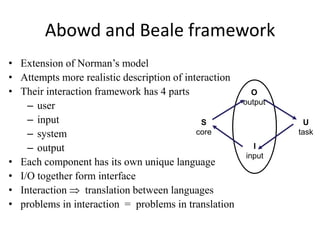
Abowd and Beale framework
• Extension of Norman’s model
• Attempts more realistic description of interaction
• Their interaction framework has 4 parts                O
                                                       output
    – user
    – input                                  S                    U
    – system                                core                task

    – output                                             I
                                                       input
• Each component has its own unique language
• I/O together form interface
• Interaction     translation between languages
• problems in interaction = problems in translation
Using Abowd & Beale’s model
•Interface sits between User and System
•User begin interactive cycle with the formulation of
goal
•Only way to do this Input so task is formed in input
language
• Input language is translated into core language as
operations performed by System
•Execution phase of cycle is completed and evaluation
phase of cycle starts now.
•System is in new state and now user make observation
and compare it with goal
O
                           output

                                         observation
       presentation

 S                                                         U
core                                                     task


       performance
                              I           articulation
                            input


                 Translations between components
Conclusions
• Articulation of task in input language is may
  be simpler or difficult. E.g. ??
• Input are translated to stimuli the System
  (efforts of designer and programmer) E.g.??
• During evaluation User must interpret the
  output to evaluate what has happened E.g. ??
• This model judge the overall usability of an
  entire interactive system
Ergonomics or
Human Factors
Ergonomics
• Also known as Human Factors
• Study of the physical characteristics of interaction
• How the controls are designed? Environment of
  interaction, layout and physical characteristics
• Primary focus on user performance
• Also consider human Psychology              and system
  constraints
• Ergonomics good at defining standards and guidelines
  for constraining the way we design certain aspects of
  systems
Ergonomics - examples
• arrangement of controls and displays
   e.g. controls grouped according to function or frequency of
        use, or sequentially
• surrounding environment
   e.g. seating arrangements adaptable to cope with all sizes of
        user
• health issues
   e.g. physical     position,     environmental     conditions
        (temperature, humidity), lighting, noise,
• use of colour
   e.g. use of red for warning, green               for   okay,
        awareness of colour-blindness etc.
Interaction Styles
•   command line interface
•   menus
•   natural language
•   question/answer and query dialogue
•   form-fills and spreadsheets
•   WIMP
•   point and click
•   three–dimensional interfaces
Command line interface
• Way of expressing instructions to the computer directly
    – function keys, single characters, short abbreviations, whole words, or a
      combination

•   suitable for repetitive tasks
•   better for expert users than novices
•   offers direct access to system functionality
•   command names/abbreviations should be meaningful!
Typical example: the Unix system
Menus
• Set of options displayed on the screen
• Options visible
   – less recall - easier to use
   – rely on recognition so names should be meaningful
• Selection by:
   – numbers, letters, arrow keys, mouse
   – combination (e.g. mouse plus accelerators)
• Often options hierarchically grouped
   – sensible grouping is needed
• Restricted form of full WIMP system
Natural language
• Familiar to user
• speech recognition or typed natural language
• Problems
   – vague
   – ambiguous
   – hard to do well!
• Solutions
   – try to understand a subset
   – pick on key words
Query interfaces
• Question/answer interfaces
   – user led through interaction via series of questions
   – suitable for novice users but restricted functionality
   – often used in information systems


• Query languages (e.g. SQL)
   – used to retrieve information from database
   – requires understanding of database structure and language
     syntax, hence requires some expertise
Form-fills
•   Primarily for data entry or data retrieval
•   Screen like paper form.
•   Data put in relevant place
•   Requires
    – good design
    – obvious correction
      facilities
Spreadsheets
• first spreadsheet VISICALC, followed by Lotus
  1-2-3
  MS Excel most common today
• sophisticated variation of form-filling.
  – grid of cells contain a value or a formula
  – formula can involve values of other cells
           e.g. sum of all cells in this column
  – user can enter and alter data spreadsheet
    maintains consistency
WIMP Interface
        Windows
           Icons
               Menus
                  Pointers
   … or windows, icons, mice, and pull-down menus!


• default style for majority of interactive computer
  systems, especially PCs and desktop machines
Point and click interfaces
• used in ..
   – multimedia
   – web browsers
   – hypertext

• just click something!
   – icons, text links or location on map

• minimal typing
Three dimensional interfaces
• virtual reality
• ‘ordinary’ window systems
   – highlighting
   – visual affordance                        flat buttons …
   – indiscriminate use
     just confusing!
                                      click me!
• 3D workspaces
   – use for extra virtual space                     … or sculptured
   – light and occlusion give depth
   – distance effects
Elements of the WIMP Interface

    windows, icons, menus, pointers
                 +++
          buttons, toolbars,
        palettes, dialog boxes

                              also see supplementary material
                                 on choosing wimp elements
Windows
• WIMP interface often called Windowing systems
• Areas of the screen that behave as if they were independent
   – can contain text or graphics
   – can be moved or resized
   – can overlap and obscure each other, or can be laid out next to one
     another (tiled)

• scrollbars
   – allow the user to move the contents of the window up and down or
     from side to side
• title bars
   – describe the name of the window
Icons
• Small picture or image
• Represents some object in the interface
  – often a window or action
• Windows can be closed down (iconized)
  – small representation if many accessible windows
• Icons can be many and various
  – highly stylized
  – realistic representations.
Pointers
• important component
   – WIMP style relies on pointing and selecting things
• uses mouse, trackpad, joystick, trackball, cursor keys or
  keyboard shortcuts
• wide variety of graphical images
Menus

• Choice of operations or services offered on the screen
• Required option selected with pointer

             File         Edit         Options         Font
                                                 Typewriter
                                                 Screen
                                                 Times


problem – take a lot of screen space
solution – pop-up: menu appears when needed
Kinds of Menus
• Menu Bar at top of screen (normally), menu drags
  down
  – pull-down menu - mouse hold and drag down menu
  – drop-down menu - mouse click reveals menu
  – fall-down menus - mouse just moves over bar!

• Contextual menu appears where you are
  – pop-up menus - actions for selected object
  – pie menus - arranged in a circle
     • easier to select item (larger target area)
     • quicker (same distance to any option) but not widely used
Menus extras
• Cascading menus
  – Hierarchical menu structure
  – Menu selection opens new menu

• Keyboard accelerators
  – key combinations - same effect as menu item
  – two kinds
     • active when menu open – usually first letter
     • active when menu closed – usually Ctrl + letter
Menus Design Issues
• Which kind to use
• What to include in menus at all
• Words to use (action or description)
• How to group items
• Choice of keyboard accelerators
Buttons
• individual and isolated regions within a display
  that can be selected to invoke an action


• Special kinds
  – radio buttons
        – set of mutually exclusive choices
  – check boxes
        – set of non-exclusive choices
Toolbars
• Long lines of icons but what do they do?

• Fast access to common actions

• Often customizable:
  – choose which toolbars to see
  – choose what options are on it
Palettes and tear-off menus
Problem
       menu not there when you want it
Solution
       palettes – little windows of actions
        – shown/hidden           via        menu     option
          e.g. available shapes in drawing package
      tear-off and pin-up menus
        – menu ‘tears off’ to become palette
Dialogue boxes
• Information windows that pop up to inform of
  an important event or request information.

    e.g: when saving a file, a dialogue box is displayed
    to allow the user to specify the filename and
    location.   Once the file is saved, the box
    disappears.
Interactivity
Interactivity
•   Feature of interactive system
•   Enhanced by speech and visual effects
•   Critical in dealing with errors
•   Increases performance of user
•   UNIX vs WINDOWS interface
•   But should not harm security
Speech–driven interfaces
• rapidly improving …
     … but still inaccurate
• how to have robust dialogue?
    … interaction of course!

  e.g. airline reservation:
       reliable “yes” and “no”
       + system reflects back its understanding
      “you want a ticket from New York to Boston?”
Look and feel
• WIMP systems have the same elements:
     windows, icons., menus, pointers, buttons, etc.

• But different window systems behave
  differently

    e.g. MacOS vs Windows menus

 appearance + behaviour = look and feel
Interaction Initiative
• Who has the initiative?
       Order of interaction is decided by system in older
       methods
• WIMP interface – user

• WIMP Exceptions
       pre-emptive parts of the interface (we can’t continue
       for various reason and control is taken by system)
   E.g. Modal dialog boxes
   – come and won’t go away
   – good for errors, essential steps
   – but use with care
Error and Repair
•Can’t always avoid errors …
   but we can put them right

•Make it easy to detect errors
  … then the user can repair them
                    hello, this is the Go Faster booking system
                    what would you like?
                    (user) I want to fly from New York to London and
                       then Boston
                    you want a ticket from New York to Boston
                    (user) no
                    sorry, please confirm one at a time
                    do you want to fly from New York
                    (user) yes .....
Context
Interaction affected by social and organizational context

• Due to presence of other people user may be affected
   – desire to impress, competition, fear of failure
• Motivation
   – fear, allegiance, ambition, self-satisfaction
• Inadequate systems
   – cause frustration and lack of motivation
• When new technology is introduced user motivation is
  needed but if it is well designed then it will be automatically
  popular
Physical Design
• Many constraints faced by designers:
  – Ergonomic –     push button if it is too small button or
                    too close
  – Physical – high-voltage switches are big
  – Legal and safety – high cooker controls
  – Context and environment – easy to clean e.g.
                                        microwave
  – Aesthetic – the control must look good
  – Economic – not cost too much
Design trade-offs
constraints are contradictory need trade-offs
Within categories:
    e.g. safety – cooker controls
       front panel – safer for adult
       rear panel – safer for child

Between categories
    e.g. ergonomics vs. physical – MiniDisc Remote
       ergonomics – controls need to be bigger
       physical – no room
       solution – multifunction controls & reduced functionality
Fluidity (changeability)
• The extent to which the physical structure and
  manipulation of the device naturally relate to the
  logical functions it supports
• Do external physical aspects reflect logical effect?
   – related to affordances
   logical state revealed in physical state?
         e.g. on/off buttons
   nverse actions inverse effects?
         e.g. arrow buttons, twist controls

Interaction

  • 1.
    The Interaction Framework Proposed by Abowd and Beale
  • 2.
    Abowd and Bealeframework • Extension of Norman’s model • Attempts more realistic description of interaction • Their interaction framework has 4 parts O output – user – input S U – system core task – output I input • Each component has its own unique language • I/O together form interface • Interaction translation between languages • problems in interaction = problems in translation
  • 3.
    Using Abowd &Beale’s model •Interface sits between User and System •User begin interactive cycle with the formulation of goal •Only way to do this Input so task is formed in input language • Input language is translated into core language as operations performed by System •Execution phase of cycle is completed and evaluation phase of cycle starts now. •System is in new state and now user make observation and compare it with goal
  • 4.
    O output observation presentation S U core task performance I articulation input Translations between components
  • 5.
    Conclusions • Articulation oftask in input language is may be simpler or difficult. E.g. ?? • Input are translated to stimuli the System (efforts of designer and programmer) E.g.?? • During evaluation User must interpret the output to evaluate what has happened E.g. ?? • This model judge the overall usability of an entire interactive system
  • 6.
  • 7.
    Ergonomics • Also knownas Human Factors • Study of the physical characteristics of interaction • How the controls are designed? Environment of interaction, layout and physical characteristics • Primary focus on user performance • Also consider human Psychology and system constraints • Ergonomics good at defining standards and guidelines for constraining the way we design certain aspects of systems
  • 8.
    Ergonomics - examples •arrangement of controls and displays e.g. controls grouped according to function or frequency of use, or sequentially • surrounding environment e.g. seating arrangements adaptable to cope with all sizes of user • health issues e.g. physical position, environmental conditions (temperature, humidity), lighting, noise, • use of colour e.g. use of red for warning, green for okay, awareness of colour-blindness etc.
  • 9.
    Interaction Styles • command line interface • menus • natural language • question/answer and query dialogue • form-fills and spreadsheets • WIMP • point and click • three–dimensional interfaces
  • 10.
    Command line interface •Way of expressing instructions to the computer directly – function keys, single characters, short abbreviations, whole words, or a combination • suitable for repetitive tasks • better for expert users than novices • offers direct access to system functionality • command names/abbreviations should be meaningful! Typical example: the Unix system
  • 11.
    Menus • Set ofoptions displayed on the screen • Options visible – less recall - easier to use – rely on recognition so names should be meaningful • Selection by: – numbers, letters, arrow keys, mouse – combination (e.g. mouse plus accelerators) • Often options hierarchically grouped – sensible grouping is needed • Restricted form of full WIMP system
  • 12.
    Natural language • Familiarto user • speech recognition or typed natural language • Problems – vague – ambiguous – hard to do well! • Solutions – try to understand a subset – pick on key words
  • 13.
    Query interfaces • Question/answerinterfaces – user led through interaction via series of questions – suitable for novice users but restricted functionality – often used in information systems • Query languages (e.g. SQL) – used to retrieve information from database – requires understanding of database structure and language syntax, hence requires some expertise
  • 14.
    Form-fills • Primarily for data entry or data retrieval • Screen like paper form. • Data put in relevant place • Requires – good design – obvious correction facilities
  • 15.
    Spreadsheets • first spreadsheetVISICALC, followed by Lotus 1-2-3 MS Excel most common today • sophisticated variation of form-filling. – grid of cells contain a value or a formula – formula can involve values of other cells e.g. sum of all cells in this column – user can enter and alter data spreadsheet maintains consistency
  • 16.
    WIMP Interface Windows Icons Menus Pointers … or windows, icons, mice, and pull-down menus! • default style for majority of interactive computer systems, especially PCs and desktop machines
  • 17.
    Point and clickinterfaces • used in .. – multimedia – web browsers – hypertext • just click something! – icons, text links or location on map • minimal typing
  • 18.
    Three dimensional interfaces •virtual reality • ‘ordinary’ window systems – highlighting – visual affordance flat buttons … – indiscriminate use just confusing! click me! • 3D workspaces – use for extra virtual space … or sculptured – light and occlusion give depth – distance effects
  • 19.
    Elements of theWIMP Interface windows, icons, menus, pointers +++ buttons, toolbars, palettes, dialog boxes also see supplementary material on choosing wimp elements
  • 20.
    Windows • WIMP interfaceoften called Windowing systems • Areas of the screen that behave as if they were independent – can contain text or graphics – can be moved or resized – can overlap and obscure each other, or can be laid out next to one another (tiled) • scrollbars – allow the user to move the contents of the window up and down or from side to side • title bars – describe the name of the window
  • 21.
    Icons • Small pictureor image • Represents some object in the interface – often a window or action • Windows can be closed down (iconized) – small representation if many accessible windows • Icons can be many and various – highly stylized – realistic representations.
  • 22.
    Pointers • important component – WIMP style relies on pointing and selecting things • uses mouse, trackpad, joystick, trackball, cursor keys or keyboard shortcuts • wide variety of graphical images
  • 23.
    Menus • Choice ofoperations or services offered on the screen • Required option selected with pointer File Edit Options Font Typewriter Screen Times problem – take a lot of screen space solution – pop-up: menu appears when needed
  • 24.
    Kinds of Menus •Menu Bar at top of screen (normally), menu drags down – pull-down menu - mouse hold and drag down menu – drop-down menu - mouse click reveals menu – fall-down menus - mouse just moves over bar! • Contextual menu appears where you are – pop-up menus - actions for selected object – pie menus - arranged in a circle • easier to select item (larger target area) • quicker (same distance to any option) but not widely used
  • 25.
    Menus extras • Cascadingmenus – Hierarchical menu structure – Menu selection opens new menu • Keyboard accelerators – key combinations - same effect as menu item – two kinds • active when menu open – usually first letter • active when menu closed – usually Ctrl + letter
  • 26.
    Menus Design Issues •Which kind to use • What to include in menus at all • Words to use (action or description) • How to group items • Choice of keyboard accelerators
  • 27.
    Buttons • individual andisolated regions within a display that can be selected to invoke an action • Special kinds – radio buttons – set of mutually exclusive choices – check boxes – set of non-exclusive choices
  • 28.
    Toolbars • Long linesof icons but what do they do? • Fast access to common actions • Often customizable: – choose which toolbars to see – choose what options are on it
  • 29.
    Palettes and tear-offmenus Problem menu not there when you want it Solution palettes – little windows of actions – shown/hidden via menu option e.g. available shapes in drawing package tear-off and pin-up menus – menu ‘tears off’ to become palette
  • 30.
    Dialogue boxes • Informationwindows that pop up to inform of an important event or request information. e.g: when saving a file, a dialogue box is displayed to allow the user to specify the filename and location. Once the file is saved, the box disappears.
  • 31.
  • 32.
    Interactivity • Feature of interactive system • Enhanced by speech and visual effects • Critical in dealing with errors • Increases performance of user • UNIX vs WINDOWS interface • But should not harm security
  • 33.
    Speech–driven interfaces • rapidlyimproving … … but still inaccurate • how to have robust dialogue? … interaction of course! e.g. airline reservation: reliable “yes” and “no” + system reflects back its understanding “you want a ticket from New York to Boston?”
  • 34.
    Look and feel •WIMP systems have the same elements: windows, icons., menus, pointers, buttons, etc. • But different window systems behave differently e.g. MacOS vs Windows menus appearance + behaviour = look and feel
  • 35.
    Interaction Initiative • Whohas the initiative? Order of interaction is decided by system in older methods • WIMP interface – user • WIMP Exceptions pre-emptive parts of the interface (we can’t continue for various reason and control is taken by system) E.g. Modal dialog boxes – come and won’t go away – good for errors, essential steps – but use with care
  • 36.
    Error and Repair •Can’talways avoid errors … but we can put them right •Make it easy to detect errors … then the user can repair them hello, this is the Go Faster booking system what would you like? (user) I want to fly from New York to London and then Boston you want a ticket from New York to Boston (user) no sorry, please confirm one at a time do you want to fly from New York (user) yes .....
  • 37.
    Context Interaction affected bysocial and organizational context • Due to presence of other people user may be affected – desire to impress, competition, fear of failure • Motivation – fear, allegiance, ambition, self-satisfaction • Inadequate systems – cause frustration and lack of motivation • When new technology is introduced user motivation is needed but if it is well designed then it will be automatically popular
  • 38.
    Physical Design • Manyconstraints faced by designers: – Ergonomic – push button if it is too small button or too close – Physical – high-voltage switches are big – Legal and safety – high cooker controls – Context and environment – easy to clean e.g. microwave – Aesthetic – the control must look good – Economic – not cost too much
  • 39.
    Design trade-offs constraints arecontradictory need trade-offs Within categories: e.g. safety – cooker controls front panel – safer for adult rear panel – safer for child Between categories e.g. ergonomics vs. physical – MiniDisc Remote ergonomics – controls need to be bigger physical – no room solution – multifunction controls & reduced functionality
  • 40.
    Fluidity (changeability) • Theextent to which the physical structure and manipulation of the device naturally relate to the logical functions it supports • Do external physical aspects reflect logical effect? – related to affordances logical state revealed in physical state? e.g. on/off buttons nverse actions inverse effects? e.g. arrow buttons, twist controls