AQA INFORMATION
 COMMUNICATION    INFO1


     TECHNOLOGY
CONTENTS

   Input
   Output
   Storage
   Software
   Health and Safety
   Analysis and Design
   Implementation and Testing
   Evaluation
INPUT   SECTION 1
DATA T YPES

   Text
   Still and moving images
   Numbers
   Sound

These are the only 4 possible input data types.
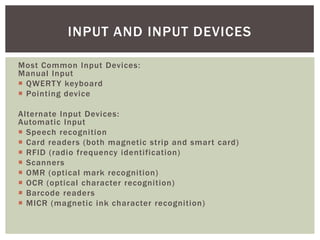
INPUT AND INPUT DEVICES

Most Common Input Devices:
Manual Input
 QWERT Y keyboard
 Pointing device

Alternate Input Devices:
Automatic Input
 Speech recognition
 Card readers (both magnetic strip and smart card)
 RFID (radio frequency identification)
 Scanners
 OMR (optical mark recognition)
 OCR (optical character recognition)
 Barcode readers
 MICR (magnetic ink character recognition)
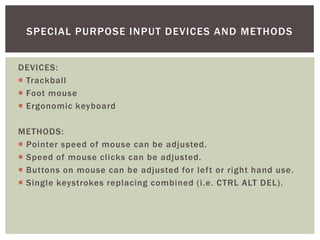
SPECIAL PURPOSE INPUT DEVICES AND METHODS


DEVICES:
 Trackball
 Foot mouse
 Ergonomic keyboard

METHODS:
 Pointer speed of mouse can be adjusted.
 Speed of mouse clicks can be adjusted.
 Buttons on mouse can be adjusted for left or right hand use.
 Single keystrokes replacing combined (i.e. CTRL ALT DEL).
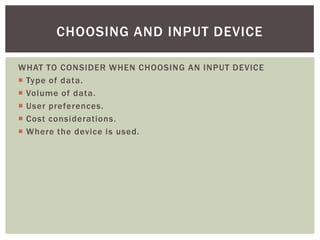
CHOOSING AND INPUT DEVICE

WHAT TO CONSIDER WHEN CHOOSING AN INPUT DEVICE
 Type of data.
 Volume of data.
 User preferences.
 Cost considerations.
 Where the device is used.
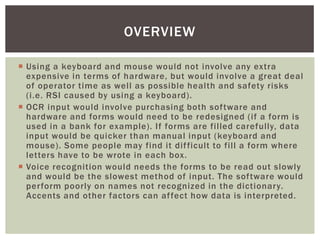
OVERVIEW

 Using a keyboard and mouse would not involve any extra
  expensive in terms of hardware, but would involve a great deal
  of operator time as well as possible health and safety risks
  (i.e. RSI caused by using a keyboard).
 OCR input would involve purchasing both software and
  hardware and forms would need to be redesigned (if a form is
  used in a bank for example). If forms are filled carefully, data
  input would be quicker than manual input (keyboard and
  mouse). Some people may find it dif ficult to fill a form where
  letters have to be wrote in each box.
 Voice recognition would needs the forms to be read out slowly
  and would be the slowest method of input. The software would
  perform poorly on names not recognized in the dictionary.
  Accents and other factors can af fect how data is interpreted.
OUTPUT   SECTION 2
OUTPUT AND OUTPUT DEVICES

Visual:
 M o n i to r s ( LC D , T F T, C R T )
 D i g i t al p r o j e c to r s
 I n te r a c t iv e w h i te b o a r d s
 Plasma screens
 M o b i le p h o n e s s c r e e n s
 P DA s

P r i n te r s :
 I n k j et
 Laser
 M u l t i - f un c t io n ( P S C o r P r i n t , S c a n , C o py )
 Dot-matrix
 P l o t te r s
 P h o to p r i n t i ng

Audio:
 S p e a ke r s
 Headphones
SPECIAL PURPOSE OUTPUT DEVICES / METHODS


   Increasing the size of the font.
   Adjusting screen resolution.
   Magnifying the display by zooming in (increases scrolling).
   Adjusting color contrast – certain colors are more visible for
    people with visual impairments.

Using sound rather than visual may also be useful:

 Text can be read as it is typed, spell check can be set to
  audible rather than visual.
CHOOSING AN OUTPUT DEVICE

Monitors and Screens – To Consider
 What kind of image needs to be viewed?
  Graphic / Web designer will need a larger screen with higher
  screen resolution for finer details reproduction, this will
  eliminate the need to scroll.
  Of fice worker / Administrator will work mostly with text and
  will need space on their desk so therefore would require a
  smaller screen but large enough to view text clearly without
  strain, so a TFT monitor maybe appropriate.
 Where is it going to be viewed?
 Who is going to view it?

Ict info1

  • 1.
  • 2.
    CONTENTS  Input  Output  Storage  Software  Health and Safety  Analysis and Design  Implementation and Testing  Evaluation
  • 3.
    INPUT SECTION 1
  • 4.
    DATA T YPES  Text  Still and moving images  Numbers  Sound These are the only 4 possible input data types.
  • 5.
    INPUT AND INPUTDEVICES Most Common Input Devices: Manual Input  QWERT Y keyboard  Pointing device Alternate Input Devices: Automatic Input  Speech recognition  Card readers (both magnetic strip and smart card)  RFID (radio frequency identification)  Scanners  OMR (optical mark recognition)  OCR (optical character recognition)  Barcode readers  MICR (magnetic ink character recognition)
  • 6.
    SPECIAL PURPOSE INPUTDEVICES AND METHODS DEVICES:  Trackball  Foot mouse  Ergonomic keyboard METHODS:  Pointer speed of mouse can be adjusted.  Speed of mouse clicks can be adjusted.  Buttons on mouse can be adjusted for left or right hand use.  Single keystrokes replacing combined (i.e. CTRL ALT DEL).
  • 7.
    CHOOSING AND INPUTDEVICE WHAT TO CONSIDER WHEN CHOOSING AN INPUT DEVICE  Type of data.  Volume of data.  User preferences.  Cost considerations.  Where the device is used.
  • 8.
    OVERVIEW  Using akeyboard and mouse would not involve any extra expensive in terms of hardware, but would involve a great deal of operator time as well as possible health and safety risks (i.e. RSI caused by using a keyboard).  OCR input would involve purchasing both software and hardware and forms would need to be redesigned (if a form is used in a bank for example). If forms are filled carefully, data input would be quicker than manual input (keyboard and mouse). Some people may find it dif ficult to fill a form where letters have to be wrote in each box.  Voice recognition would needs the forms to be read out slowly and would be the slowest method of input. The software would perform poorly on names not recognized in the dictionary. Accents and other factors can af fect how data is interpreted.
  • 9.
    OUTPUT SECTION 2
  • 10.
    OUTPUT AND OUTPUTDEVICES Visual:  M o n i to r s ( LC D , T F T, C R T )  D i g i t al p r o j e c to r s  I n te r a c t iv e w h i te b o a r d s  Plasma screens  M o b i le p h o n e s s c r e e n s  P DA s P r i n te r s :  I n k j et  Laser  M u l t i - f un c t io n ( P S C o r P r i n t , S c a n , C o py )  Dot-matrix  P l o t te r s  P h o to p r i n t i ng Audio:  S p e a ke r s  Headphones
  • 11.
    SPECIAL PURPOSE OUTPUTDEVICES / METHODS  Increasing the size of the font.  Adjusting screen resolution.  Magnifying the display by zooming in (increases scrolling).  Adjusting color contrast – certain colors are more visible for people with visual impairments. Using sound rather than visual may also be useful:  Text can be read as it is typed, spell check can be set to audible rather than visual.
  • 12.
    CHOOSING AN OUTPUTDEVICE Monitors and Screens – To Consider  What kind of image needs to be viewed? Graphic / Web designer will need a larger screen with higher screen resolution for finer details reproduction, this will eliminate the need to scroll. Of fice worker / Administrator will work mostly with text and will need space on their desk so therefore would require a smaller screen but large enough to view text clearly without strain, so a TFT monitor maybe appropriate.  Where is it going to be viewed?  Who is going to view it?