1. The document provides instructions for creating a quiz in Google Forms, including how to set the title, add questions, collect usernames, and share the quiz link with students.
2. It describes how students can take the quiz by entering answers and submitting their responses, then how their submissions will be stored in the Google Form for grading.
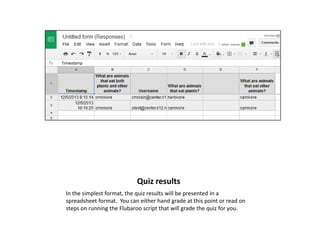
3. Teachers can then view and grade the quiz responses by opening the form in Google Drive and clicking "View Responses", where the answers will be displayed in a spreadsheet for analysis.
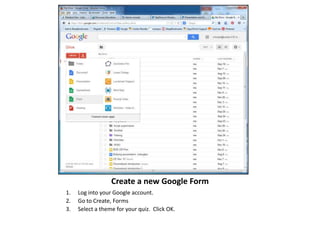
Create a newGoogle Form
1.
2.
3.
Log into your Google account.
Go to Create, Forms
Select a theme for your quiz. Click OK.
3.
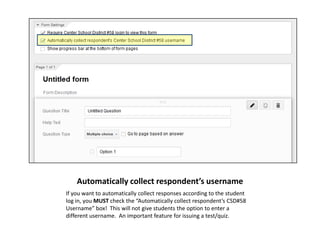
Automatically collect respondent’susername
If you want to automatically collect responses according to the student
log in, you MUST check the “Automatically collect respondent’s CSD#58
Username” box! This will not give students the option to enter a
different username. An important feature for issuing a test/quiz.
4.
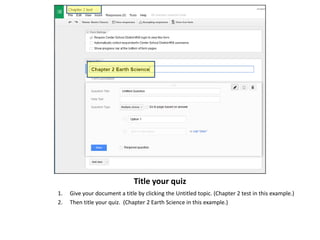
Title your quiz
1.
2.
Giveyour document a title by clicking the Untitled topic. (Chapter 2 test in this example.)
Then title your quiz. (Chapter 2 Earth Science in this example.)
5.
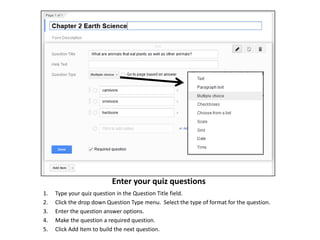
Enter your quizquestions
1.
2.
3.
4.
5.
Type your quiz question in the Question Title field.
Click the drop down Question Type menu. Select the type of format for the question.
Enter the question answer options.
Make the question a required question.
Click Add Item to build the next question.
6.
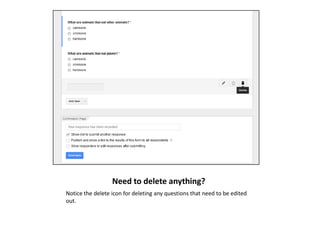
Need to deleteanything?
Notice the delete icon for deleting any questions that need to be edited
out.
7.
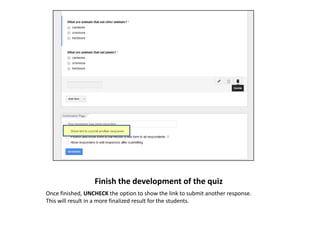
Finish the developmentof the quiz
Once finished, UNCHECK the option to show the link to submit another response.
This will result in a more finalized result for the students.
8.
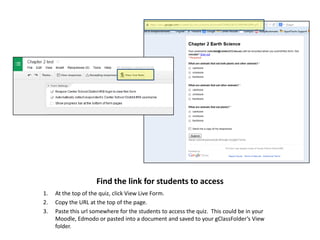
Find the linkfor students to access
1.
2.
3.
At the top of the quiz, click View Live Form.
Copy the URL at the top of the page.
Paste this url somewhere for the students to access the quiz. This could be in your
Moodle, Edmodo or pasted into a document and saved to your gClassFolder’s View
folder.
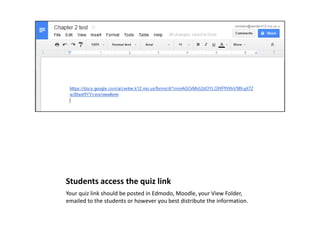
Students access thequiz link
Your quiz link should be posted in Edmodo, Moodle, your View Folder,
emailed to the students or however you best distribute the information.
11.
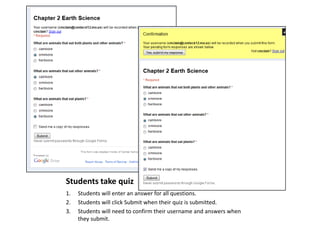
Students take quiz
1.
2.
3.
Studentswill enter an answer for all questions.
Students will click Submit when their quiz is submitted.
Students will need to confirm their username and answers when
they submit.
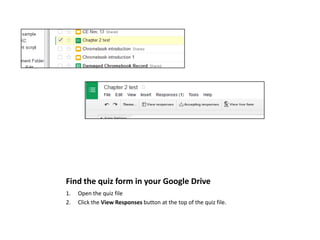
Find the quizform in your Google Drive
1.
2.
Open the quiz file
Click the View Responses button at the top of the quiz file.
14.
Quiz results
In thesimplest format, the quiz results will be presented in a
spreadsheet format. You can either hand grade at this point or read on
steps on running the Flubaroo script that will grade the quiz for you.