

Google Forms
Jan-Marie Kellow
Uses of Google forms
Quizzes
Tests
Prior Knowledge
Feedback
Surveys
Collecting information
Permission Slips
Book Reviews
Reading Logs
Bibliographies
More
Classroom Uses
Getting Started
Creating 1
Question Types
Finish Creating
Adding images/video
Sharing 1 and Sharing 2
Misc 1 and Misc 2
View Responses
Analysing
Embedding in email In blogs/websites In Google Sites
Self-marking forms
Classroom Uses
Contents
Preferably use
Chrome browser
Getting Started
Log in
Click on the 9 dots in the
top right corner.
Click the Drive symbol.
Click Create and
select Form
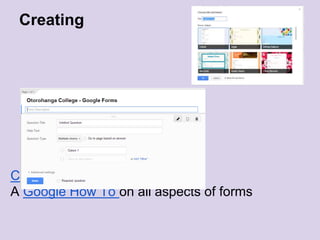
Creating
Creating a form video
A Google How To on all aspects of forms
Question Types
Question types explained
Add images or video
Click the down arrow and
select image or video
Select a file from your
computer, Google drive
etc. Select once
uploaded.
Add separate questions
referring to the image or
video. Or create the
question first.
Adding Images Video
Misc.
You can edit, duplicate or delete each question
Mostly these get left but you may sometimes
want to use them
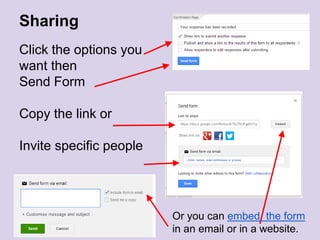
Sharing
Click the options you
want then
Send Form
Copy the link or
Invite specific people
Or you can embed the form
in an email or in a website.
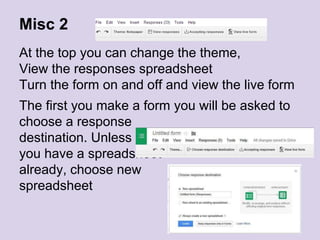
Misc 2
At the top you can change the theme,
View the responses spreadsheet
Turn the form on and off and view the live form
The first you make a form you will be asked to
choose a response
destination. Unless
you have a spreadsheet
already, choose new
spreadsheet
Responses
Analysing
In the spreadsheet
>Form
> Show summary
of
responses
Embedding in email
Click Send Form
Enter email addresses
Tick Embed Form in Email
Embed form in email (first 2 ½ mins of video)
Embedding in blogs or websites
Click File then Embed
Copy the
embed code
Paste it into the HTML section
of the website or blog
Embedding forms in Blogger
Weebly
Embedding in Google Sites
Or you can embed directly
from a Google site
Click edit then Insert
>Drive > Form
Select the form
Save
Embedding forms in Google Sites
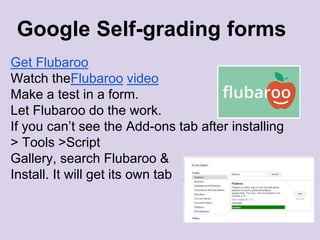
Get Flubaroo
Watch theFlubaroo video
Make a test in a form.
Let Flubaroo do the work.
If you can’t see the Add-ons tab after installing
> Tools >Script
Gallery, search Flubaroo &
Install. It will get its own tab
Google Self-grading forms
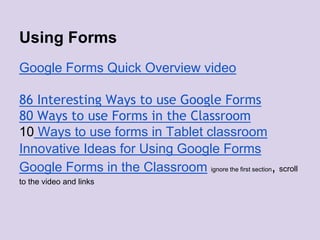
Using Forms
Google Forms Quick Overview video
86 Interesting Ways to use Google Forms
80 Ways to use Forms in the Classroom
10 Ways to use forms in Tablet classroom
Innovative Ideas for Using Google Forms
Google Forms in the Classroom ignore the first section, scroll
to the video and links
My details
@jkellow on Twitter
http://www.pinterest.com/jkellow15/
www.inquiringmind.co.nz
apps4inquiry.weebly.com 10
h

Google forms

  • 1.
  • 3.
    Uses of Googleforms Quizzes Tests Prior Knowledge Feedback Surveys Collecting information Permission Slips Book Reviews Reading Logs Bibliographies More Classroom Uses
  • 4.
    Getting Started Creating 1 QuestionTypes Finish Creating Adding images/video Sharing 1 and Sharing 2 Misc 1 and Misc 2 View Responses Analysing Embedding in email In blogs/websites In Google Sites Self-marking forms Classroom Uses Contents
  • 5.
  • 6.
    Getting Started Log in Clickon the 9 dots in the top right corner. Click the Drive symbol. Click Create and select Form
  • 7.
    Creating Creating a formvideo A Google How To on all aspects of forms
  • 8.
  • 9.
    Add images orvideo Click the down arrow and select image or video Select a file from your computer, Google drive etc. Select once uploaded. Add separate questions referring to the image or video. Or create the question first. Adding Images Video
  • 10.
    Misc. You can edit,duplicate or delete each question Mostly these get left but you may sometimes want to use them
  • 11.
    Sharing Click the optionsyou want then Send Form Copy the link or Invite specific people Or you can embed the form in an email or in a website.
  • 12.
    Misc 2 At thetop you can change the theme, View the responses spreadsheet Turn the form on and off and view the live form The first you make a form you will be asked to choose a response destination. Unless you have a spreadsheet already, choose new spreadsheet
  • 13.
  • 14.
    Analysing In the spreadsheet >Form >Show summary of responses
  • 15.
    Embedding in email ClickSend Form Enter email addresses Tick Embed Form in Email Embed form in email (first 2 ½ mins of video)
  • 16.
    Embedding in blogsor websites Click File then Embed Copy the embed code Paste it into the HTML section of the website or blog Embedding forms in Blogger Weebly
  • 17.
    Embedding in GoogleSites Or you can embed directly from a Google site Click edit then Insert >Drive > Form Select the form Save Embedding forms in Google Sites
  • 18.
    Get Flubaroo Watch theFlubaroovideo Make a test in a form. Let Flubaroo do the work. If you can’t see the Add-ons tab after installing > Tools >Script Gallery, search Flubaroo & Install. It will get its own tab Google Self-grading forms
  • 19.
    Using Forms Google FormsQuick Overview video 86 Interesting Ways to use Google Forms 80 Ways to use Forms in the Classroom 10 Ways to use forms in Tablet classroom Innovative Ideas for Using Google Forms Google Forms in the Classroom ignore the first section, scroll to the video and links
  • 20.
    My details @jkellow onTwitter http://www.pinterest.com/jkellow15/ www.inquiringmind.co.nz apps4inquiry.weebly.com 10 h

Editor's Notes

  • #7 Fr Preferably use Chrome browser - avoid Internet Explorer. Log in to your gmail – this will usually be your school email account but could be a personal gmail account if your school does not have Google Apps for Education (GAFE). Or in Chrome open a new tab.