

How to create an on-line quiz/test & auto correction!
Assessing your students
Can I do it
easily?
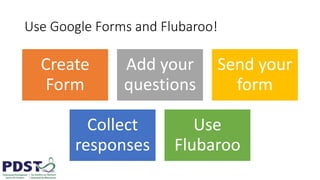
Use Google Forms and Flubaroo!
Create
Form
Add your
questions
Send your
form
Collect
responses
Use
Flubaroo
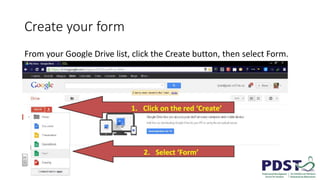
Create your form
From your Google Drive list, click the Create button, then select Form.
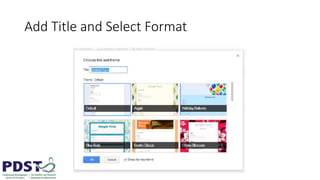
Add Title and Select Format
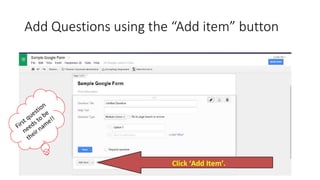
Add Questions using the “Add item” button
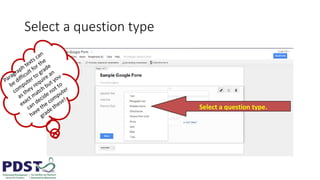
Select a question type
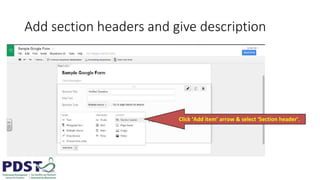
Add section headers and give description
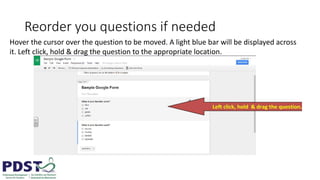
Reorder you questions if needed
Hover the cursor over the question to be moved. A light blue bar will be displayed across
it. Left click, hold & drag the question to the appropriate location.
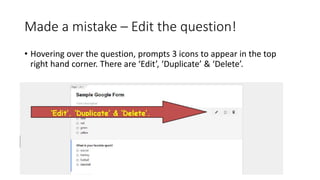
Made a mistake – Edit the question!
• Hovering over the question, prompts 3 icons to appear in the top
right hand corner. There are ‘Edit’, ‘Duplicate’ & ‘Delete’.
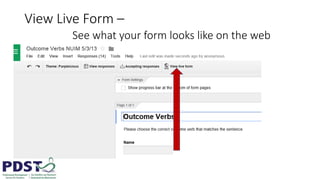
View Live Form –
See what your form looks like on the web
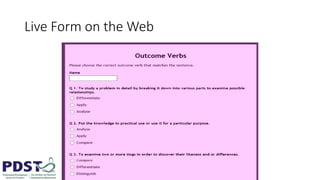
Live Form on the Web
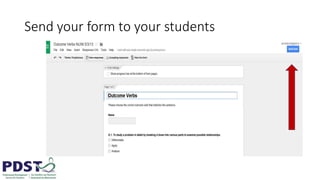
Send your form to your students
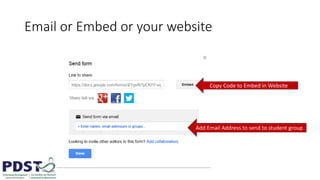
Email or Embed or your website
Copy Code to Embed in Website
Add Email Address to send to student group
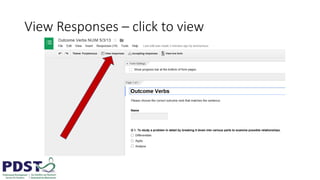
View Responses – click to view
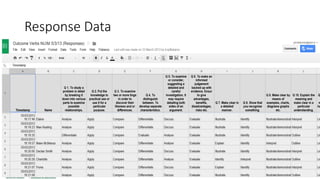
Response Data
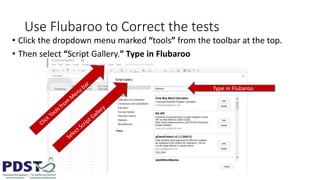
Use Flubaroo to Correct the tests
• Click the dropdown menu marked “tools” from the toolbar at the top.
• Then select “Script Gallery.” Type in Flubaroo
Type in Flubaroo
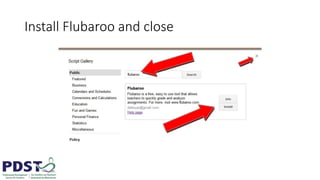
Install Flubaroo and close
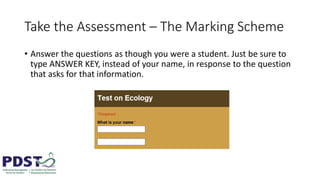
Take the Assessment – The Marking Scheme
• Answer the questions as though you were a student. Just be sure to
type ANSWER KEY, instead of your name, in response to the question
that asks for that information.
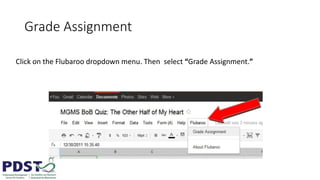
Grade Assignment
Click on the Flubaroo dropdown menu. Then select “Grade Assignment.”
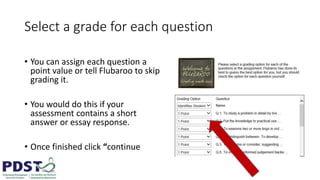
Select a grade for each question
• You can assign each question a
point value or tell Flubaroo to skip
grading it.
• You would do this if your
assessment contains a short
answer or essay response.
• Once finished click “continue
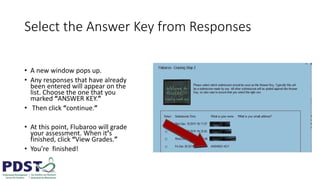
Select the Answer Key from Responses
• A new window pops up.
• Any responses that have already
been entered will appear on the
list. Choose the one that you
marked “ANSWER KEY.”
• Then click “continue.”
• At this point, Flubaroo will grade
your assessment. When it’s
finished, click “View Grades.”
• You’re finished!
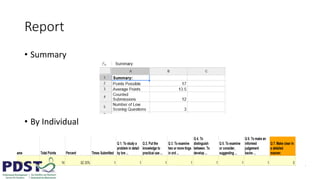
Report
• Summary
• By Individual
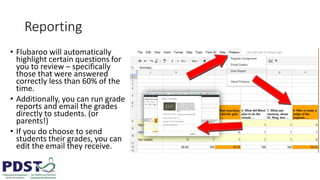
Reporting
• Flubaroo will automatically
highlight certain questions for
you to review – specifically
those that were answered
correctly less than 60% of the
time.
• Additionally, you can run grade
reports and email the grades
directly to students. (or
parents!)
• If you do choose to send
students their grades, you can
edit the email they receive.

On line test and auto correction

  • 1.
    How to createan on-line quiz/test & auto correction!
  • 2.
  • 3.
    Use Google Formsand Flubaroo! Create Form Add your questions Send your form Collect responses Use Flubaroo
  • 4.
    Create your form Fromyour Google Drive list, click the Create button, then select Form.
  • 5.
    Add Title andSelect Format
  • 6.
    Add Questions usingthe “Add item” button
  • 7.
  • 8.
    Add section headersand give description
  • 9.
    Reorder you questionsif needed Hover the cursor over the question to be moved. A light blue bar will be displayed across it. Left click, hold & drag the question to the appropriate location.
  • 10.
    Made a mistake– Edit the question! • Hovering over the question, prompts 3 icons to appear in the top right hand corner. There are ‘Edit’, ‘Duplicate’ & ‘Delete’.
  • 11.
    View Live Form– See what your form looks like on the web
  • 12.
    Live Form onthe Web
  • 13.
    Send your formto your students
  • 14.
    Email or Embedor your website Copy Code to Embed in Website Add Email Address to send to student group
  • 15.
    View Responses –click to view
  • 16.
  • 17.
    Use Flubaroo toCorrect the tests • Click the dropdown menu marked “tools” from the toolbar at the top. • Then select “Script Gallery.” Type in Flubaroo Type in Flubaroo
  • 18.
  • 19.
    Take the Assessment– The Marking Scheme • Answer the questions as though you were a student. Just be sure to type ANSWER KEY, instead of your name, in response to the question that asks for that information.
  • 20.
    Grade Assignment Click onthe Flubaroo dropdown menu. Then select “Grade Assignment.”
  • 21.
    Select a gradefor each question • You can assign each question a point value or tell Flubaroo to skip grading it. • You would do this if your assessment contains a short answer or essay response. • Once finished click “continue
  • 22.
    Select the AnswerKey from Responses • A new window pops up. • Any responses that have already been entered will appear on the list. Choose the one that you marked “ANSWER KEY.” • Then click “continue.” • At this point, Flubaroo will grade your assessment. When it’s finished, click “View Grades.” • You’re finished!
  • 23.
  • 24.
    Reporting • Flubaroo willautomatically highlight certain questions for you to review – specifically those that were answered correctly less than 60% of the time. • Additionally, you can run grade reports and email the grades directly to students. (or parents!) • If you do choose to send students their grades, you can edit the email they receive.