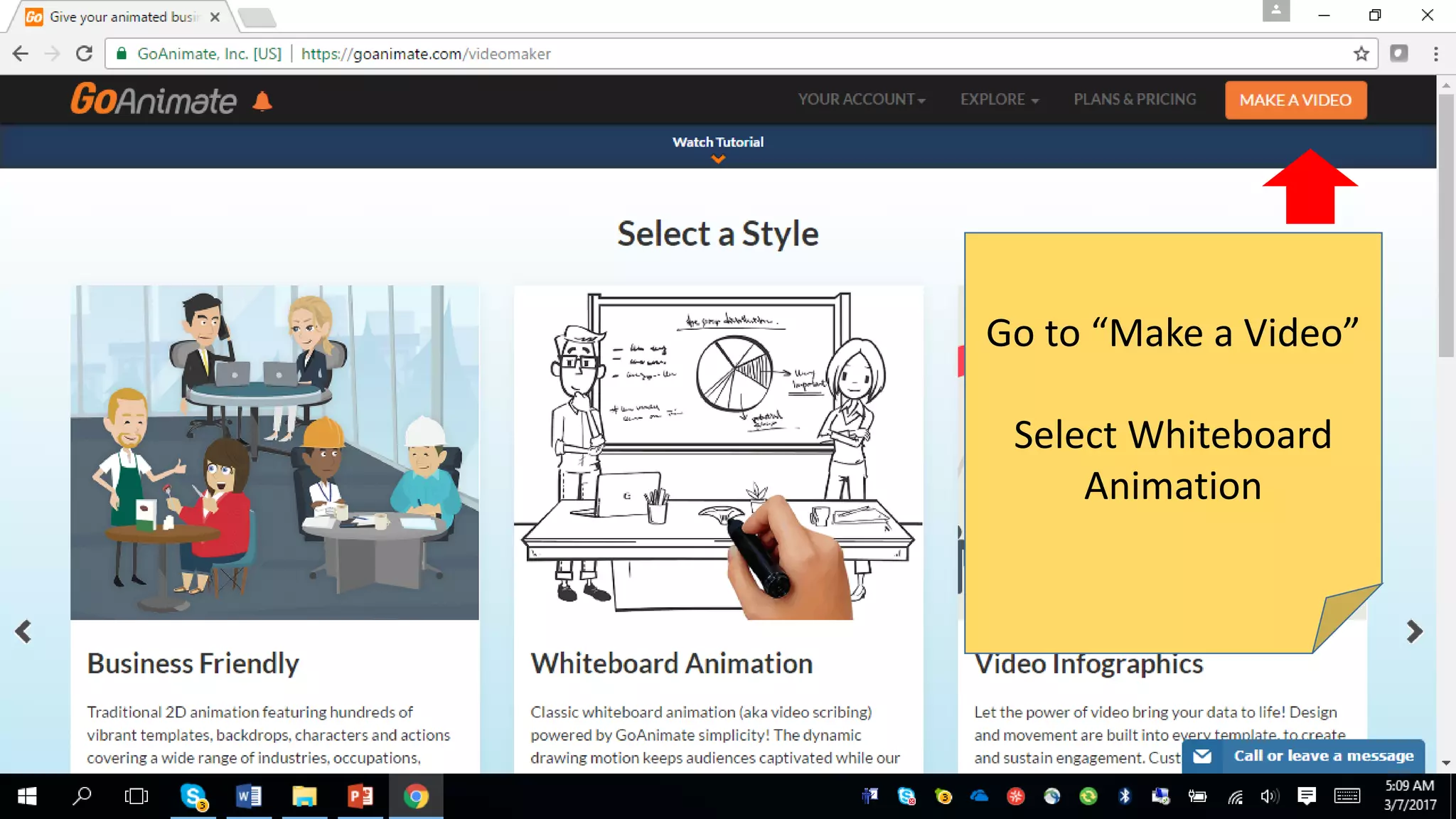
Go to “Make a Video”
Select Whiteboard
Animation
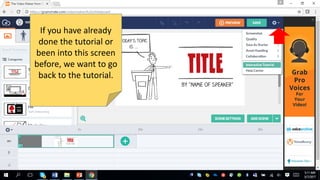
If you have already
done the tutorial or
been into this screen
before, we want to go
back to the tutorial.
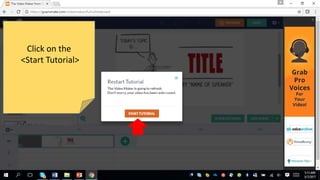
Click on the
<Start Tutorial>
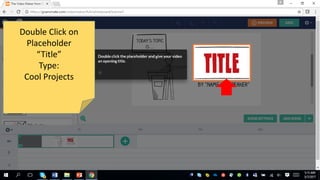
Double Click on
Placeholder
“Title”
Type:
Cool Projects
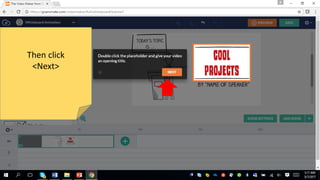
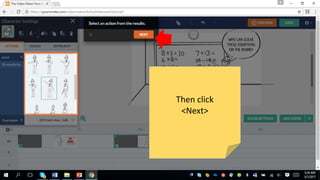
Then click
<Next>
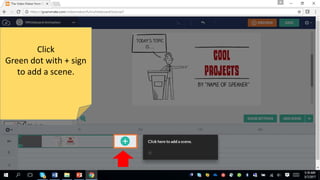
Click
Green dot with + sign
to add a scene.
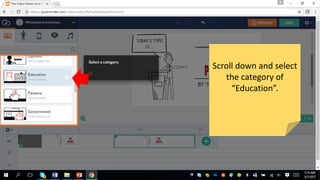
Scroll down and select
the category of
“Education”.
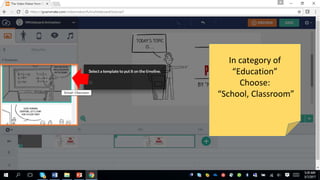
In category of
“Education”
Choose:
“School, Classroom”
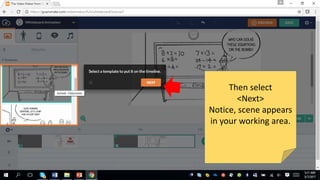
Then select
<Next>
Notice, scene appears
in your working area.
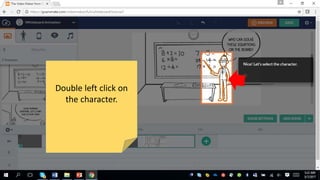
Double left click on
the character.
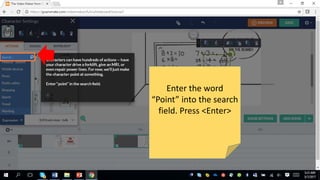
Enter the word
“Point” into the search
field. Press <Enter>
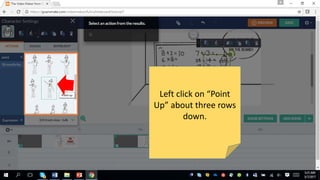
Left click on “Point
Up” about three rows
down.
Then click
<Next>
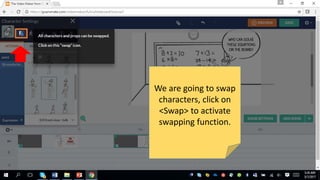
We are going to swap
characters, click on
<Swap> to activate
swapping function.
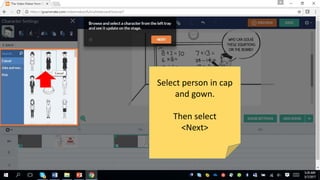
Select person in cap
and gown.
Then select
<Next>
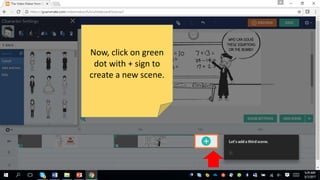
Now, click on green
dot with + sign to
create a new scene.
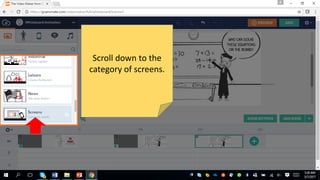
Scroll down to the
category of screens.
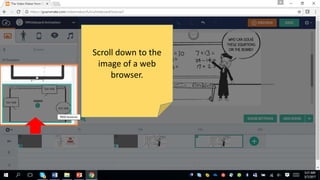
Scroll down to the
image of a web
browser.
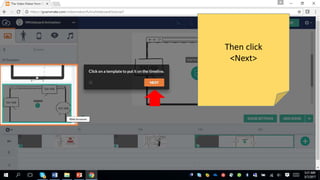
Then click
<Next>
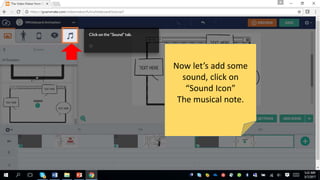
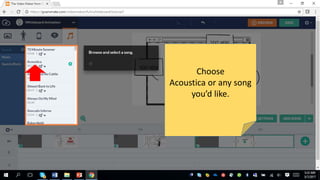
Now let’s add some
sound, click on
“Sound Icon”
The musical note.
Choose
Acoustica or any song
you’d like.
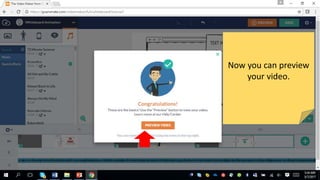
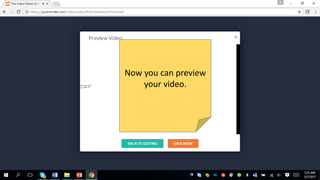
Now you can preview
your video.
Now you can preview
your video.
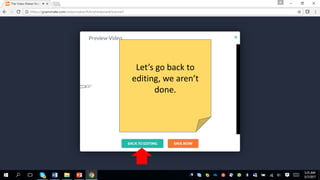
Let’s go back to
editing, we aren’t
done.
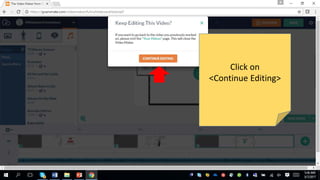
Click on
<Continue Editing>
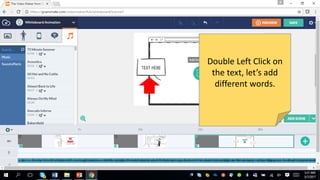
Double Left Click on
the text, let’s add
different words.
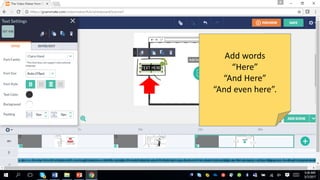
Add words
“Here”
“And Here”
“And even here”.
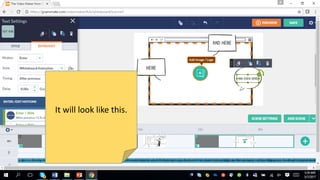
It will look like this.
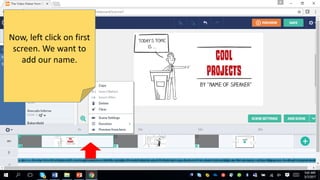
Now, left click on first
screen. We want to
add our name.
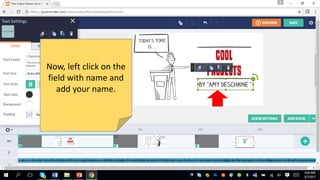
Now, left click on the
field with name and
add your name.
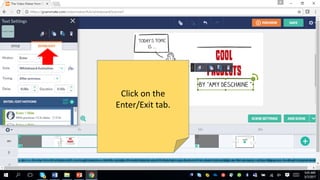
Click on the
Enter/Exit tab.
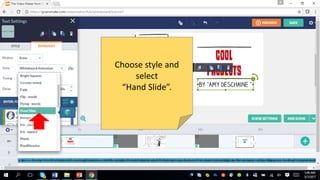
Choose style and
select
“Hand Slide”.
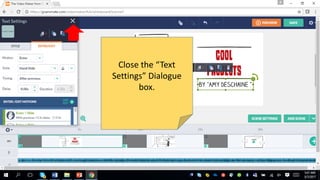
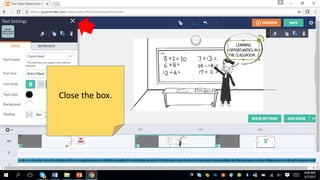
Close the “Text
Settings” Dialogue
box.
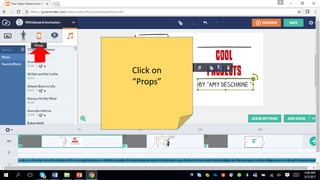
Click on
“Props”
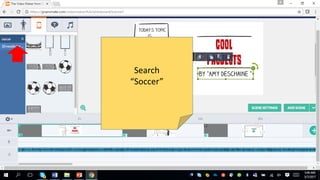
Search
“Soccer”
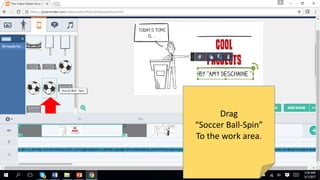
Drag
“Soccer Ball-Spin”
To the work area.
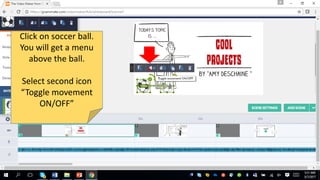
Click on soccer ball.
You will get a menu
above the ball.
Select second icon
“Toggle movement
ON/OFF”
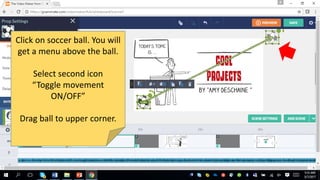
Click on soccer ball. You will
get a menu above the ball.
Select second icon
“Toggle movement
ON/OFF”
Drag ball to upper corner.
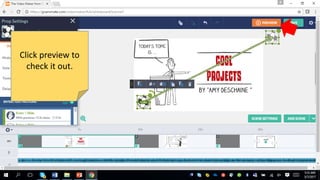
Click preview to
check it out.
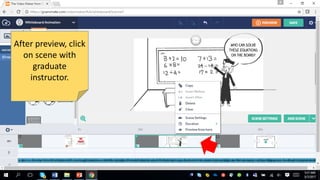
After preview, click
on scene with
graduate
instructor.
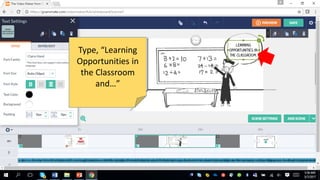
Type, “Learning
Opportunities in
the Classroom
and…”
Close the box.
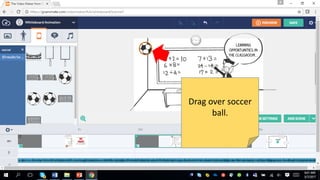
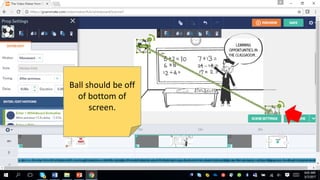
Drag over soccer
ball.
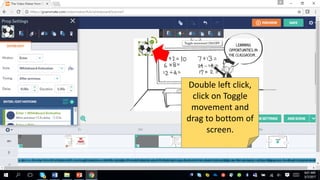
Double left click,
click on Toggle
movement and
drag to bottom of
screen.
Ball should be off
of bottom of
screen.
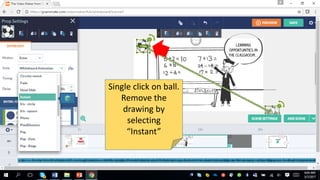
Single click on ball.
Remove the
drawing by
selecting
“Instant”
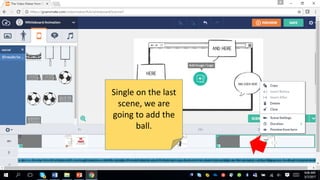
Single on the last
scene, we are
going to add the
ball.
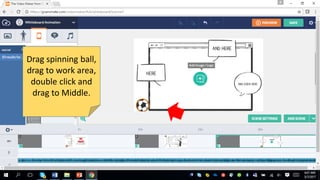
Drag spinning ball,
drag to work area,
double click and
drag to Middle.
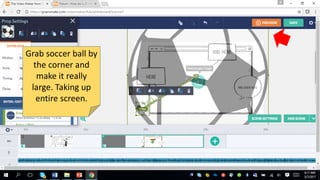
Grab soccer ball by
the corner and
make it really
large. Taking up
entire screen.
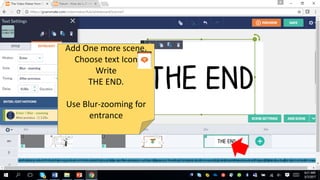
Add One more scene.
Choose text Icon
Write
THE END.
Use Blur-zooming for
entrance
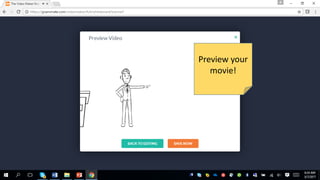
Preview your
movie!
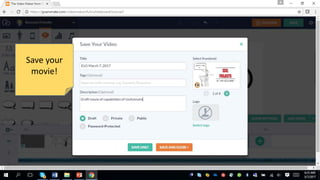
Save your
movie!

GoAnimate Instructions