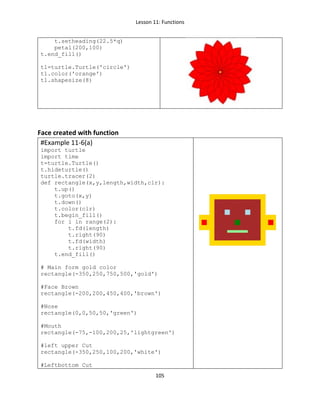
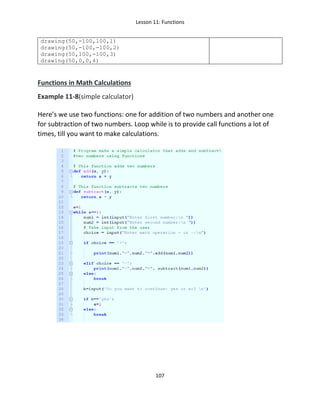
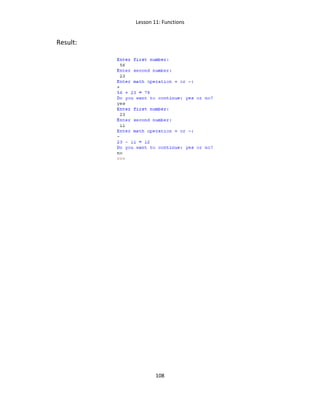
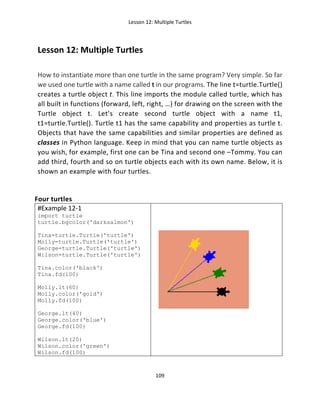
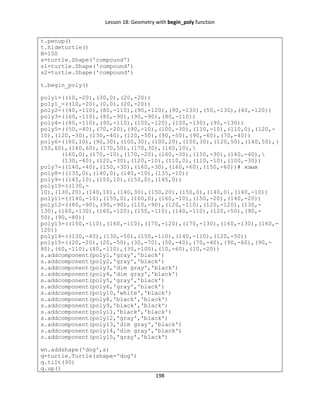
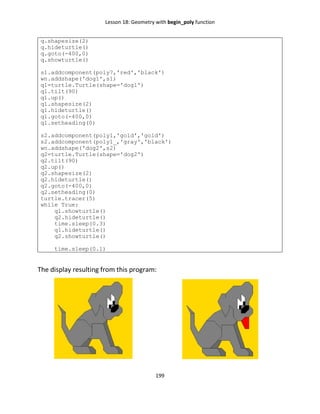
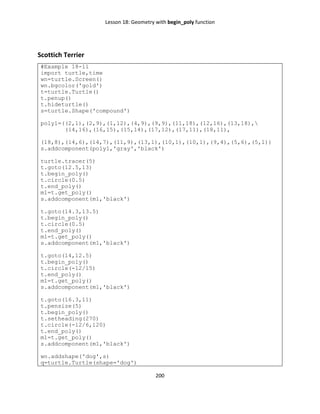
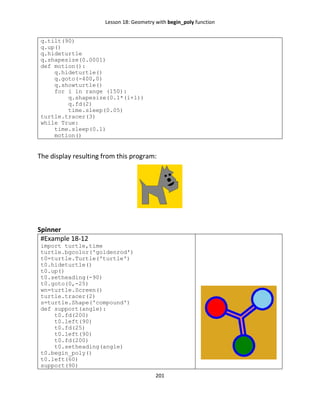
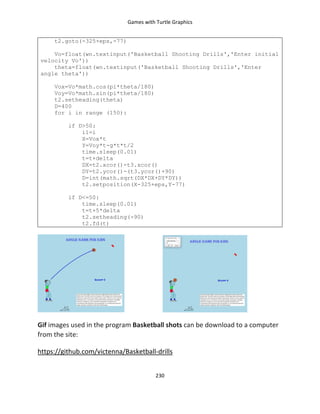
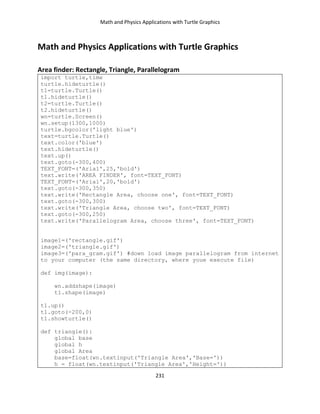
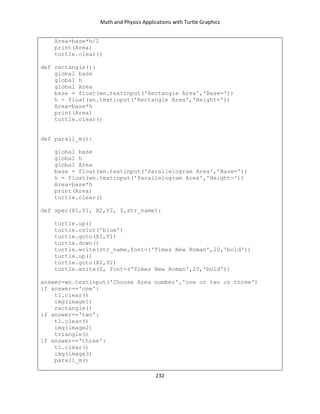
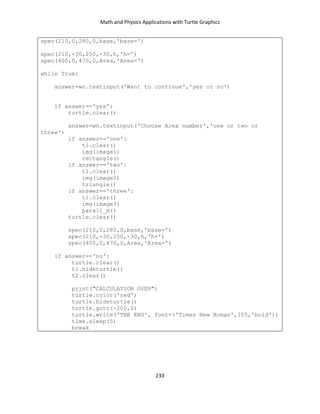
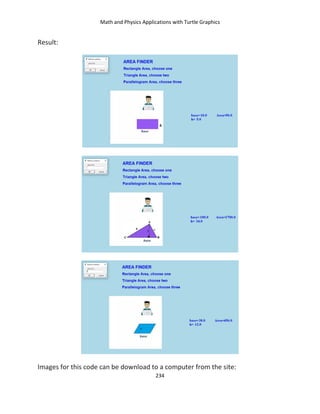
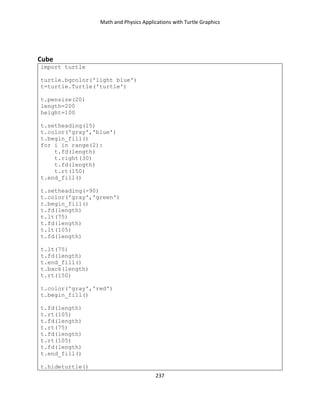
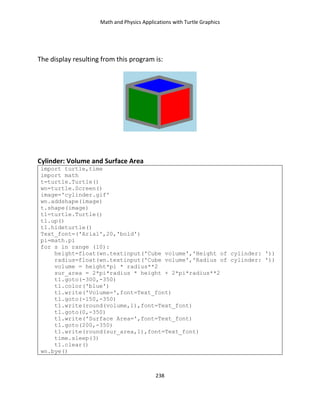
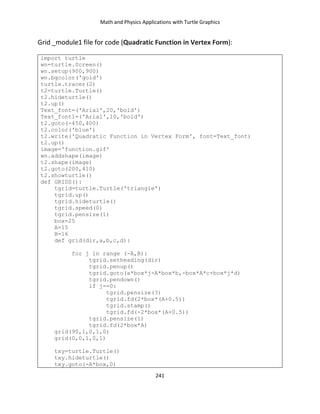
This book is intended for education and fun. Python is an amazing, text-based
coding language, perfectly suited for children older than the age of 10. The
Standard Python library has a module called Turtle which is a popular way to
introduce programming to kids. This library enables children to create pictures
and shapes by providing them with a virtual canvas. With the Python Turtle
library, you can create nice animation projects using images that are taken from
the internet, scaled-down stored as a gif-files download to the projects. The book
includes 19 basic lessons with examples that introduce to the Python codes
through Turtle library which is convenient to the school students of 10+years old.
The book has also a lot of projects that show how to make different animations
with Turtle graphics: games, applications to math, physics, and science.
Lesson 1: Motion Commands
3
Table of Contents
Lesson 1: Motion Commands with Python turtle module...................................... 5
Lesson 2: Main Colour Commands....................................................................... 13
Lesson 3: Main Circle Commands......................................................................... 21
Lesson 4: More Color Examples ........................................................................... 27
Lesson 5: Turtle Shapes........................................................................................ 33
Lesson 6: Loopy loops in Python .......................................................................... 39
Lesson 7: Numbers, Variables, functions print and input..................................... 49
Lesson 8: Logical Operators, Conditional Statements .......................................... 65
Lesson 9: Strings, Lists.......................................................................................... 73
Lesson 10: Random Numbers .............................................................................. 89
Lesson 11: Functions............................................................................................ 99
Lesson 12: Multiple Turtles................................................................................ 109
Lesson 13: How to download an Image into a Python Turtle Project ................. 117
Lesson 14: More Examples with inserted Images............................................... 127
Lesson 15: Mouse and Keyboard Control (Function onclick )............................. 153
Lesson 16: Keyboard Control (Function onkeypress )......................................... 169
Lesson 17: Mouse Keyboard Control (Function ondrag )) .................................. 179
Lesson 18: Geometry with Polygons (with begin_poly)...................................... 187
Lesson 19: Classes and Objects.......................................................................... 203
Games with Turtle Graphics............................................................................... 215
Apple Catcher (with onclick function)...............................................................................................215
Apples (two) Catcher with onkey function .......................................................................................216
TIC-TAC-TOE......................................................................................................................................218
Ball eats squares ...............................................................................................................................222
Turtle and Balls .................................................................................................................................225
Turtle is eating balls..........................................................................................................................227
Basketball shots ................................................................................................................................228
Lesson 1: Motion Commands
4
Math and Physics Applications with Turtle Graphics.......................................... 231
Area finder: Rectangle, Triangle, Parallelogram...............................................................................231
Tiles drawing: hexagons and pentagons...........................................................................................235
Cube ..................................................................................................................................................237
Cylinder: Volume and Surface Area..................................................................................................238
Quadratic Function in Vertex Form...................................................................................................239
Ellasic Collision of two Balls ..............................................................................................................242
Pendulum Waves ..............................................................................................................................245
River Boat problem...........................................................................................................................247
Wall Clock..........................................................................................................................................250
Flight to the Moon ............................................................................................................................253
Pixel Art with Python Turtle Module.................................................................. 261
Cat Image with Pixels........................................................................................................................261
Face from Pixels ................................................................................................................................262
Canadian Leaf....................................................................................................................................264
Module Files in Animation with Turtle Graphics ................................................ 267
Pumkin boy crosses a street .............................................................................................................267
Soccer Shots......................................................................................................................................268
Shark and Muffin...............................................................................................................................271
Bouncing Ball.....................................................................................................................................272
Lesson 1: Motion Commands
5
Lesson 1: Motion Commands with Python turtle module
There are many different graphical toolkits available for Python. For these lessons
we chose one of the simplest: the turtle module. The turtle module provides an
environment where turtles move upon a 2-dimensional grid. Turtle has a position
and a heading (the direction in which the turtle is facing) as shown below:
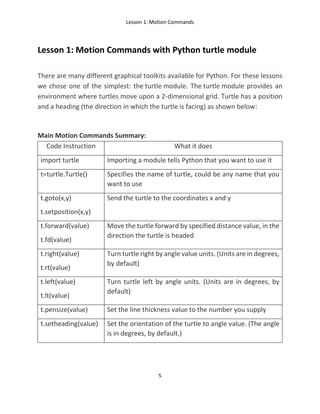
Main Motion Commands Summary:
Code Instruction What it does
import turtle Importing a module tells Python that you want to use it
t=turtle.Turtle() Specifies the name of turtle, could be any name that you
want to use
t.goto(x,y)
t.setposition(x,y)
Send the turtle to the coordinates x and y
t.forward(value)
t.fd(value)
Move the turtle forward by specified distance value, in the
direction the turtle is headed
t.right(value)
t.rt(value)
Turn turtle right by angle value units. (Units are in degrees,
by default)
t.left(value)
t.lt(value)
Turn turtle left by angle units. (Units are in degrees, by
default)
t.pensize(value) Set the line thickness value to the number you supply
t.setheading(value) Set the orientation of the turtle to angle value. (The angle
is in degrees, by default.)
Lesson 1: Motion Commands
6
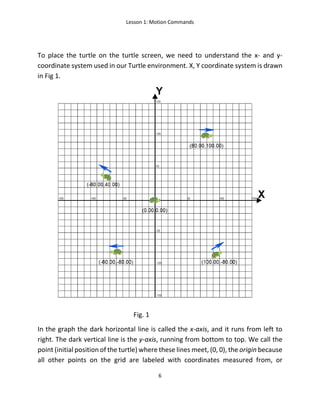
To place the turtle on the turtle screen, we need to understand the x- and y-
coordinate system used in our Turtle environment. X, Y coordinate system is drawn
in Fig 1.
Fig. 1
In the graph the dark horizontal line is called the x-axis, and it runs from left to
right. The dark vertical line is the y-axis, running from bottom to top. We call the
point (initial position of the turtle) where these lines meet, (0, 0), the origin because
all other points on the grid are labeled with coordinates measured from, or
Lesson 1: Motion Commands
7
originating from, that point. Think of the origin, (0, 0), as the center of your screen.
Every other point you want to find can be labeled with an x- and y-coordinate by
starting at the origin and moving left or right, down or up. We label points on a
graph with this pair of coordinates inside parentheses, separated by a comma: (x,
y). The first number, the x-coordinate, tells us how far to move left or right, while
the second number, the y-coordinate, tells us how far to move up or down. Positive
x-values tell us to move right from the origin; negative x-values tell us to move left.
Positive y-values tell us to move up from the origin, and negative y-values tell us to
move down. Look at the points labelled in the Figure. The point in the upper right
is labelled with the x and y-coordinates (80,100). To find the location of this point,
we start at the origin (0, 0) and move 80 spaces to the right (because the x-
coordinate, 80, is positive) and then 100 spaces up (because the y-coordinate, 100,
is positive). To get to the point in the lower right, (100,-80), we go back to the origin
and then move right 100 spaces or units. This time, the y-coordinate is –80, so we
move down 80 units. Moving right 100 and down -80 puts us at (100,-80). For (–80,
40), we move left 80 units from the origin and then up 40 units to the point in the
upper left. Finally, for (–60, –80), we move left 60 units and then down 80 units to
the lower-left point.
By default, turtle screen occupies 0.5 of full width and 0.75 of full height computer
screen.
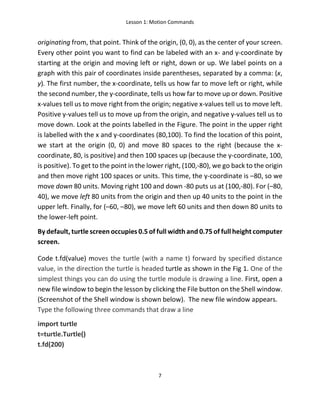
Code t.fd(value) moves the turtle (with a name t) forward by specified distance
value, in the direction the turtle is headed turtle as shown in the Fig 1. One of the
simplest things you can do using the turtle module is drawing a line. First, open a
new file window to begin the lesson by clicking the File button on the Shell window.
(Screenshot of the Shell window is shown below). The new file window appears.
Type the following three commands that draw a line
import turtle
t=turtle.Turtle()
t.fd(200)
Lesson 1: Motion Commands
8
First line makes all the “turtle” commands available for us. This line allows us to use
Python turtle library. Second line (command) creates a new turtle named by t. We
will call it “t”. You can give the turtle any name you want.
Third line movs the turtle previously named as “t” by 200 pixels. You can type any
pixel number you want. Pixel is a single point on the screen-the smallest element
that can be represented. Everything you see on your computer monitor is made up
of pixels, which are tiny, square dots.
After typing these three lines in the new file window, you can run this code using
the button “Run”. The editor will ask you to save the file. You need to save the file
with your desired name in any folder you please. For example, create a new folder
in the documents directory and name this folder “Python Projects” which puts your
file to this directory. The result of code execution:
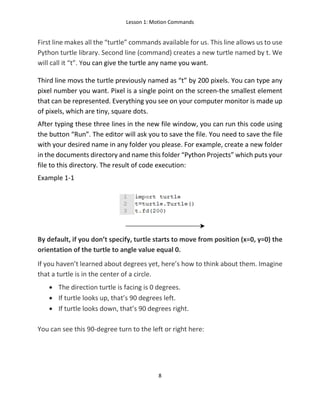
Example 1-1
By default, if you don’t specify, turtle starts to move from position (x=0, y=0) the
orientation of the turtle to angle value equal 0.
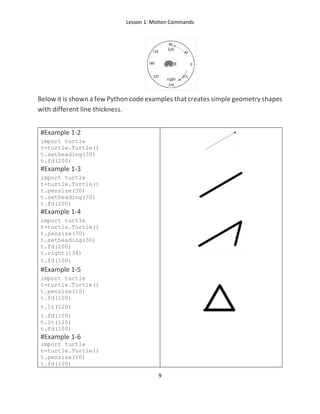
If you haven’t learned about degrees yet, here’s how to think about them. Imagine
that a turtle is in the center of a circle.
• The direction turtle is facing is 0 degrees.
• If turtle looks up, that’s 90 degrees left.
• If turtle looks down, that’s 90 degrees right.
You can see this 90-degree turn to the left or right here:
Lesson 1: Motion Commands
9
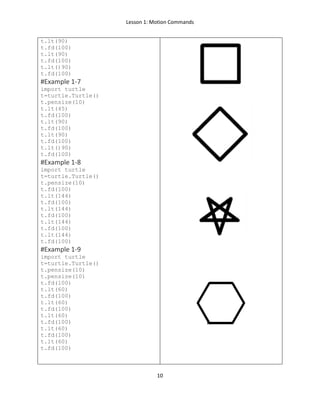
Below it is shown a few Python code examples that creates simple geometry shapes
with different line thickness.
#Example 1-2
import turtle
t=turtle.Turtle()
t.setheading(30)
t.fd(200)
#Example 1-3
import turtle
t=turtle.Turtle()
t.pensize(30)
t.setheading(30)
t.fd(200)
#Example 1-4
import turtle
t=turtle.Turtle()
t.pensize(30)
t.setheading(30)
t.fd(200)
t.right(134)
t.fd(100)
#Example 1-5
import turtle
t=turtle.Turtle()
t.pensize(10)
t.fd(100)
t.lt(120)
t.fd(100)
t.lt(120)
t.fd(100)
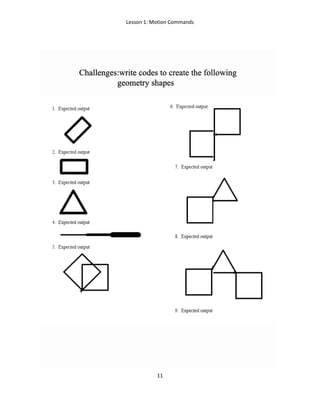
#Example 1-6
import turtle
t=turtle.Turtle()
t.pensize(10)
t.fd(100)
Lesson 1: Motion Commands
10
t.lt(90)
t.fd(100)
t.lt(90)
t.fd(100)
t.lt()90)
t.fd(100)
#Example 1-7
import turtle
t=turtle.Turtle()
t.pensize(10)
t.lt(45)
t.fd(100)
t.lt(90)
t.fd(100)
t.lt(90)
t.fd(100)
t.lt()90)
t.fd(100)
#Example 1-8
import turtle
t=turtle.Turtle()
t.pensize(10)
t.fd(100)
t.lt(144)
t.fd(100)
t.lt(144)
t.fd(100)
t.lt(144)
t.fd(100)
t.lt(144)
t.fd(100)
#Example 1-9
import turtle
t=turtle.Turtle()
t.pensize(10)
t.pensize(10)
t.fd(100)
t.lt(60)
t.fd(100)
t.lt(60)
t.fd(100)
t.lt(60)
t.fd(100)
t.lt(60)
t.fd(100)
t.lt(60)
t.fd(100)
Lesson 1: Motion Commands
11
Lesson 1: Motion Commands
12
Lesson 2: Main Colour Commands
13
Lesson 2: Main Colour Commands
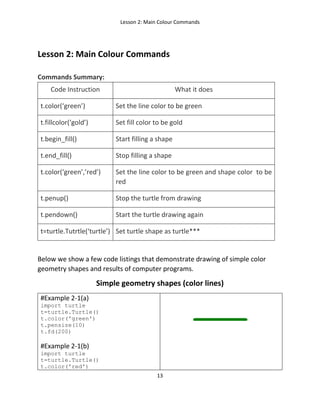
Commands Summary:
Code Instruction What it does
t.color(‘green’) Set the line color to be green
t.fillcolor(‘gold’) Set fill color to be gold
t.begin_fill() Start filling a shape
t.end_fill() Stop filling a shape
t.color(‘green’,’red’) Set the line color to be green and shape color to be
red
t.penup() Stop the turtle from drawing
t.pendown() Start the turtle drawing again
t=turtle.Tutrtle(‘turtle’) Set turtle shape as turtle***
Below we show a few code listings that demonstrate drawing of simple color
geometry shapes and results of computer programs.
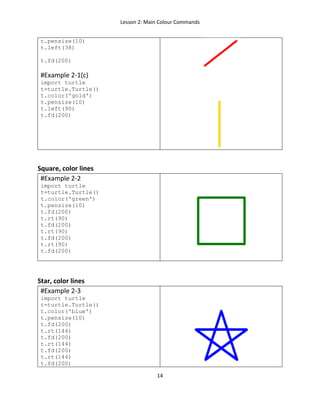
Simple geometry shapes (color lines)
#Example 2-1(a)
import turtle
t=turtle.Turtle()
t.color('green')
t.pensize(10)
t.fd(200)
#Example 2-1(b)
import turtle
t=turtle.Turtle()
t.color('red')
Lesson 2: Main Colour Commands
14
t.pensize(10)
t.left(38)
t.fd(200)
#Example 2-1(c)
import turtle
t=turtle.Turtle()
t.color('gold')
t.pensize(10)
t.left(90)
t.fd(200)
Square, color lines
#Example 2-2
import turtle
t=turtle.Turtle()
t.color('green')
t.pensize(10)
t.fd(200)
t.rt(90)
t.fd(200)
t.rt(90)
t.fd(200)
t.rt(90)
t.fd(200)
Star, color lines
#Example 2-3
import turtle
t=turtle.Turtle()
t.color('blue')
t.pensize(10)
t.fd(200)
t.rt(144)
t.fd(200)
t.rt(144)
t.fd(200)
t.rt(144)
t.fd(200)
Lesson 2: Main Colour Commands
15
t.rt(144)
t.fd(200)
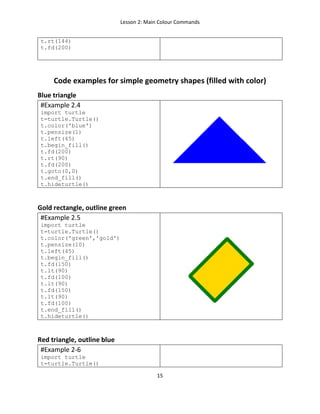
Code examples for simple geometry shapes (filled with color)
Blue triangle
#Example 2.4
import turtle
t=turtle.Turtle()
t.color('blue')
t.pensize(1)
t.left(45)
t.begin_fill()
t.fd(200)
t.rt(90)
t.fd(200)
t.goto(0,0)
t.end_fill()
t.hideturtle()
Gold rectangle, outline green
#Example 2.5
import turtle
t=turtle.Turtle()
t.color('green','gold')
t.pensize(10)
t.left(45)
t.begin_fill()
t.fd(150)
t.lt(90)
t.fd(100)
t.lt(90)
t.fd(150)
t.lt(90)
t.fd(100)
t.end_fill()
t.hideturtle()
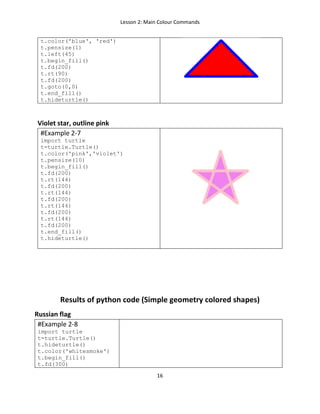
Red triangle, outline blue
#Example 2-6
import turtle
t=turtle.Turtle()
Lesson 2: Main Colour Commands
16
t.color('blue', 'red')
t.pensize(1)
t.left(45)
t.begin_fill()
t.fd(200)
t.rt(90)
t.fd(200)
t.goto(0,0)
t.end_fill()
t.hideturtle()
Violet star, outline pink
#Example 2-7
import turtle
t=turtle.Turtle()
t.color('pink','violet')
t.pensize(10)
t.begin_fill()
t.fd(200)
t.rt(144)
t.fd(200)
t.rt(144)
t.fd(200)
t.rt(144)
t.fd(200)
t.rt(144)
t.fd(200)
t.end_fill()
t.hideturtle()
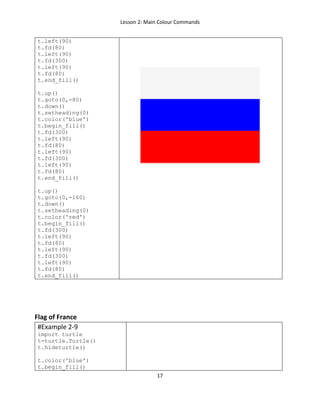
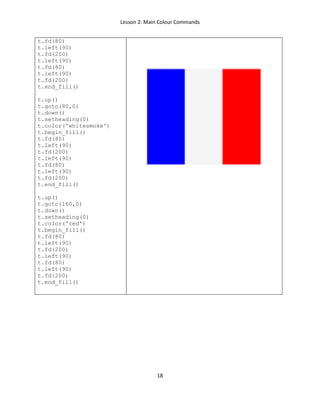
Results of python code (Simple geometry colored shapes)
Russian flag
#Example 2-8
import turtle
t=turtle.Turtle()
t.hideturtle()
t.color('whitesmoke')
t.begin_fill()
t.fd(300)
Lesson 2: Main Colour Commands
17
t.left(90)
t.fd(80)
t.left(90)
t.fd(300)
t.left(90)
t.fd(80)
t.end_fill()
t.up()
t.goto(0,-80)
t.down()
t.setheading(0)
t.color('blue')
t.begin_fill()
t.fd(300)
t.left(90)
t.fd(80)
t.left(90)
t.fd(300)
t.left(90)
t.fd(80)
t.end_fill()
t.up()
t.goto(0,-160)
t.down()
t.setheading(0)
t.color('red')
t.begin_fill()
t.fd(300)
t.left(90)
t.fd(80)
t.left(90)
t.fd(300)
t.left(90)
t.fd(80)
t.end_fill()
Flag of France
#Example 2-9
import turtle
t=turtle.Turtle()
t.hideturtle()
t.color('blue')
t.begin_fill()
Lesson 2: Main Colour Commands
18
t.fd(80)
t.left(90)
t.fd(200)
t.left(90)
t.fd(80)
t.left(90)
t.fd(200)
t.end_fill()
t.up()
t.goto(80,0)
t.down()
t.setheading(0)
t.color('whitesmoke')
t.begin_fill()
t.fd(80)
t.left(90)
t.fd(200)
t.left(90)
t.fd(80)
t.left(90)
t.fd(200)
t.end_fill()
t.up()
t.goto(160,0)
t.down()
t.setheading(0)
t.color('red')
t.begin_fill()
t.fd(80)
t.left(90)
t.fd(200)
t.left(90)
t.fd(80)
t.left(90)
t.fd(200)
t.end_fill()
Lesson 2: Main Colour Commands
19
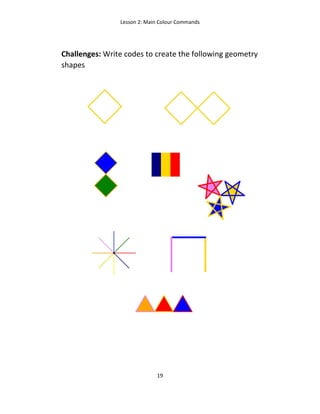
Challenges: Write codes to create the following geometry
shapes
Lesson 2: Main Colour Commands
20
Lesson 3: Main Circle Commands
21
Lesson 3: Main Circle Commands
Summary:
Code Instruction What it does
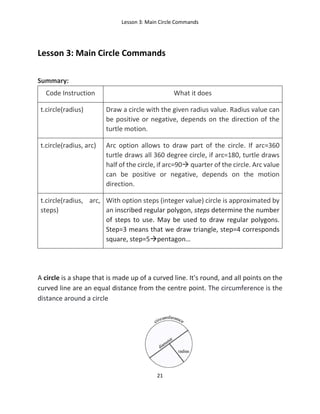
t.circle(radius) Draw a circle with the given radius value. Radius value can
be positive or negative, depends on the direction of the
turtle motion.
t.circle(radius, arc) Arc option allows to draw part of the circle. If arc=360
turtle draws all 360 degree circle, if arc=180, turtle draws
half of the circle, if arc=90 quarter of the circle. Arc value
can be positive or negative, depends on the motion
direction.
t.circle(radius, arc,
steps)
With option steps (integer value) circle is approximated by
an inscribed regular polygon, steps determine the number
of steps to use. May be used to draw regular polygons.
Step=3 means that we draw triangle, step=4 corresponds
square, step=5pentagon…
A circle is a shape that is made up of a curved line. It's round, and all points on the
curved line are an equal distance from the centre point. The circumference is the
distance around a circle
Lesson 3: Main Circle Commands
22
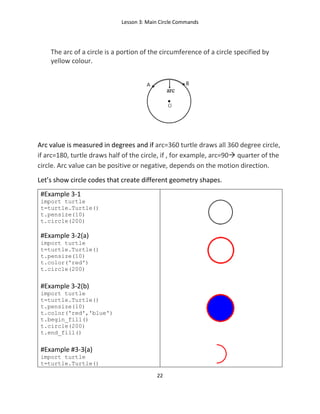
The arc of a circle is a portion of the circumference of a circle specified by
yellow colour.
Arc value is measured in degrees and if arc=360 turtle draws all 360 degree circle,
if arc=180, turtle draws half of the circle, if , for example, arc=90 quarter of the
circle. Arc value can be positive or negative, depends on the motion direction.
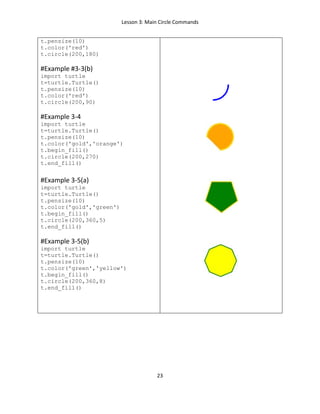
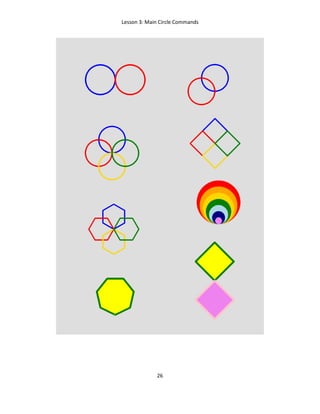
Let’s show circle codes that create different geometry shapes.
#Example 3-1
import turtle
t=turtle.Turtle()
t.pensize(10)
t.circle(200)
#Example 3-2(a)
import turtle
t=turtle.Turtle()
t.pensize(10)
t.color('red')
t.circle(200)
#Example 3-2(b)
import turtle
t=turtle.Turtle()
t.pensize(10)
t.color('red','blue')
t.begin_fill()
t.circle(200)
t.end_fill()
#Example #3-3(a)
import turtle
t=turtle.Turtle()
Lesson 3: Main Circle Commands
23
t.pensize(10)
t.color('red')
t.circle(200,180)
#Example #3-3(b)
import turtle
t=turtle.Turtle()
t.pensize(10)
t.color('red')
t.circle(200,90)
#Example 3-4
import turtle
t=turtle.Turtle()
t.pensize(10)
t.color('gold','orange')
t.begin_fill()
t.circle(200,270)
t.end_fill()
#Example 3-5(a)
import turtle
t=turtle.Turtle()
t.pensize(10)
t.color('gold','green')
t.begin_fill()
t.circle(200,360,5)
t.end_fill()
#Example 3-5(b)
import turtle
t=turtle.Turtle()
t.pensize(10)
t.color('green','yellow')
t.begin_fill()
t.circle(200,360,8)
t.end_fill()
Lesson 3: Main Circle Commands
24
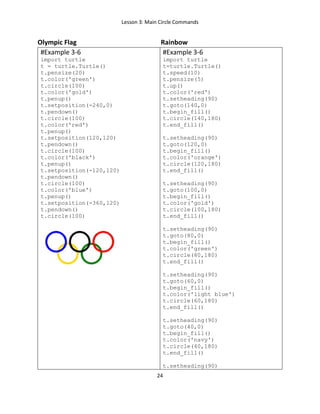
Olympic Flag Rainbow
#Example 3-6
import turtle
t = turtle.Turtle()
t.pensize(20)
t.color('green')
t.circle(100)
t.color('gold')
t.penup()
t.setposition(-240,0)
t.pendown()
t.circle(100)
t.color('red')
t.penup()
t.setposition(120,120)
t.pendown()
t.circle(100)
t.color('black')
t.penup()
t.setposition(-120,120)
t.pendown()
t.circle(100)
t.color('blue')
t.penup()
t.setposition(-360,120)
t.pendown()
t.circle(100)
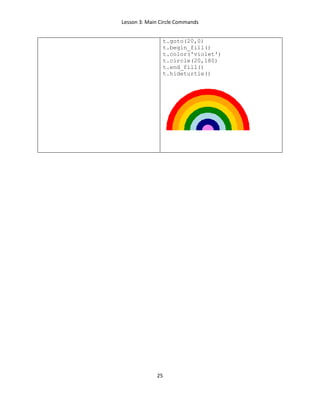
#Example 3-6
import turtle
t=turtle.Turtle()
t.speed(10)
t.pensize(5)
t.up()
t.color('red')
t.setheading(90)
t.goto(140,0)
t.begin_fill()
t.circle(140,180)
t.end_fill()
t.setheading(90)
t.goto(120,0)
t.begin_fill()
t.color('orange')
t.circle(120,180)
t.end_fill()
t.setheading(90)
t.goto(100,0)
t.begin_fill()
t.color('gold')
t.circle(100,180)
t.end_fill()
t.setheading(90)
t.goto(80,0)
t.begin_fill()
t.color('green')
t.circle(80,180)
t.end_fill()
t.setheading(90)
t.goto(60,0)
t.begin_fill()
t.color('light blue')
t.circle(60,180)
t.end_fill()
t.setheading(90)
t.goto(40,0)
t.begin_fill()
t.color('navy')
t.circle(40,180)
t.end_fill()
t.setheading(90)
Lesson 3: Main Circle Commands
25
t.goto(20,0)
t.begin_fill()
t.color('violet')
t.circle(20,180)
t.end_fill()
t.hideturtle()
Lesson 3: Main Circle Commands
26
Lesson 4: More Color Examples
27
Lesson 4: More Color Examples
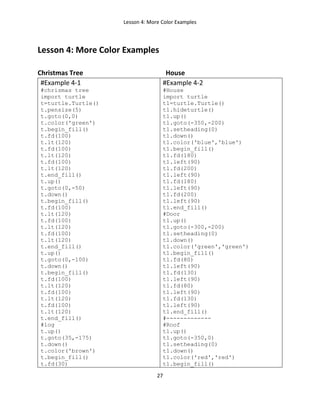
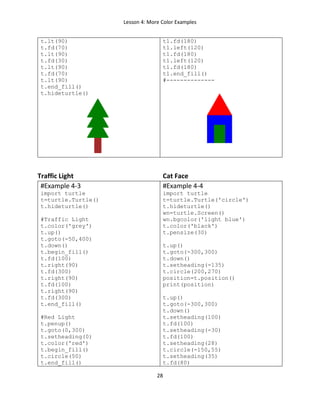
Christmas Tree House
#Example 4-1
#chrismas tree
import turtle
t=turtle.Turtle()
t.pensize(5)
t.goto(0,0)
t.color('green')
t.begin_fill()
t.fd(100)
t.lt(120)
t.fd(100)
t.lt(120)
t.fd(100)
t.lt(120)
t.end_fill()
t.up()
t.goto(0,-50)
t.down()
t.begin_fill()
t.fd(100)
t.lt(120)
t.fd(100)
t.lt(120)
t.fd(100)
t.lt(120)
t.end_fill()
t.up()
t.goto(0,-100)
t.down()
t.begin_fill()
t.fd(100)
t.lt(120)
t.fd(100)
t.lt(120)
t.fd(100)
t.lt(120)
t.end_fill()
#log
t.up()
t.goto(35,-175)
t.down()
t.color('brown')
t.begin_fill()
t.fd(30)
#Example 4-2
#House
import turtle
t1=turtle.Turtle()
t1.hideturtle()
t1.up()
t1.goto(-350,-200)
t1.setheading(0)
t1.down()
t1.color('blue','blue')
t1.begin_fill()
t1.fd(180)
t1.left(90)
t1.fd(200)
t1.left(90)
t1.fd(180)
t1.left(90)
t1.fd(200)
t1.left(90)
t1.end_fill()
#Door
t1.up()
t1.goto(-300,-200)
t1.setheading(0)
t1.down()
t1.color('green','green')
t1.begin_fill()
t1.fd(80)
t1.left(90)
t1.fd(130)
t1.left(90)
t1.fd(80)
t1.left(90)
t1.fd(130)
t1.left(90)
t1.end_fill()
#-------------
#Roof
t1.up()
t1.goto(-350,0)
t1.setheading(0)
t1.down()
t1.color('red','red')
t1.begin_fill()
Lesson 4: More Color Examples
28
t.lt(90)
t.fd(70)
t.lt(90)
t.fd(30)
t.lt(90)
t.fd(70)
t.lt(90)
t.end_fill()
t.hideturtle()
t1.fd(180)
t1.left(120)
t1.fd(180)
t1.left(120)
t1.fd(180)
t1.end_fill()
#--------------
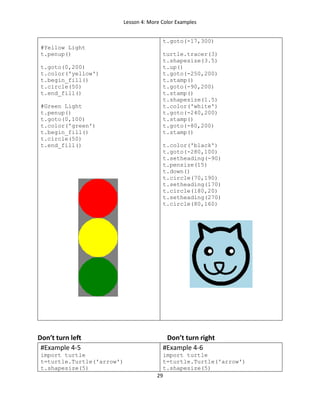
Traffic Light Cat Face
#Example 4-3
import turtle
t=turtle.Turtle()
t.hideturtle()
#Traffic Light
t.color('grey')
t.up()
t.goto(-50,400)
t.down()
t.begin_fill()
t.fd(100)
t.right(90)
t.fd(300)
t.right(90)
t.fd(100)
t.right(90)
t.fd(300)
t.end_fill()
#Red Light
t.penup()
t.goto(0,300)
t.setheading(0)
t.color('red')
t.begin_fill()
t.circle(50)
t.end_fill()
#Example 4-4
import turtle
t=turtle.Turtle('circle')
t.hideturtle()
wn=turtle.Screen()
wn.bgcolor('light blue')
t.color('black')
t.pensize(30)
t.up()
t.goto(-300,300)
t.down()
t.setheading(-135)
t.circle(200,270)
position=t.position()
print(position)
t.up()
t.goto(-300,300)
t.down()
t.setheading(100)
t.fd(100)
t.setheading(-30)
t.fd(100)
t.setheading(28)
t.circle(-150,55)
t.setheading(35)
t.fd(80)
Lesson 4: More Color Examples
29
#Yellow Light
t.penup()
t.goto(0,200)
t.color('yellow')
t.begin_fill()
t.circle(50)
t.end_fill()
#Green Light
t.penup()
t.goto(0,100)
t.color('green')
t.begin_fill()
t.circle(50)
t.end_fill()
t.goto(-17,300)
turtle.tracer(3)
t.shapesize(3.5)
t.up()
t.goto(-250,200)
t.stamp()
t.goto(-90,200)
t.stamp()
t.shapesize(1.5)
t.color('white')
t.goto(-240,200)
t.stamp()
t.goto(-80,200)
t.stamp()
t.color('black')
t.goto(-280,100)
t.setheading(-90)
t.pensize(15)
t.down()
t.circle(70,190)
t.setheading(170)
t.circle(180,20)
t.setheading(270)
t.circle(80,160)
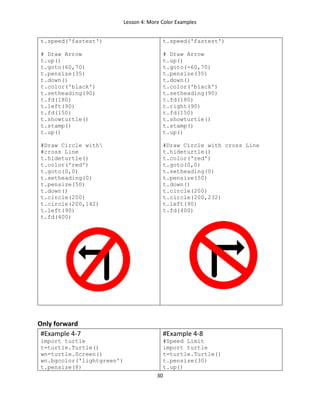
Don’t turn left Don’t turn right
#Example 4-5
import turtle
t=turtle.Turtle('arrow')
t.shapesize(5)
#Example 4-6
import turtle
t=turtle.Turtle('arrow')
t.shapesize(5)
Lesson 4: More Color Examples
30
t.speed('fastest')
# Draw Arrow
t.up()
t.goto(60,70)
t.pensize(35)
t.down()
t.color('black')
t.setheading(90)
t.fd(180)
t.left(90)
t.fd(150)
t.showturtle()
t.stamp()
t.up()
#Draw Circle with
#cross Line
t.hideturtle()
t.color('red')
t.goto(0,0)
t.setheading(0)
t.pensize(50)
t.down()
t.circle(200)
t.circle(200,142)
t.left(90)
t.fd(400)
t.speed('fastest')
# Draw Arrow
t.up()
t.goto(-60,70)
t.pensize(35)
t.down()
t.color('black')
t.setheading(90)
t.fd(180)
t.right(90)
t.fd(150)
t.showturtle()
t.stamp()
t.up()
#Draw Circle with cross Line
t.hideturtle()
t.color('red')
t.goto(0,0)
t.setheading(0)
t.pensize(50)
t.down()
t.circle(200)
t.circle(200,232)
t.left(90)
t.fd(400)
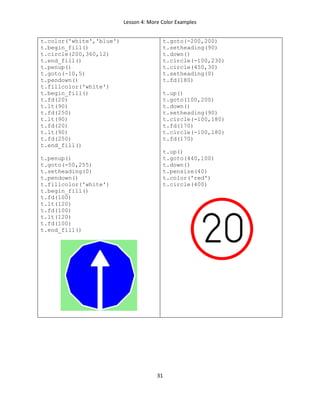
Only forward
#Example 4-7
import turtle
t=turtle.Turtle()
wn=turtle.Screen()
wn.bgcolor('lightgreen')
t.pensize(8)
#Example 4-8
#Speed Limit
import turtle
t=turtle.Turtle()
t.pensize(30)
t.up()
Lesson 4: More Color Examples
31
t.color('white','blue')
t.begin_fill()
t.circle(200,360,12)
t.end_fill()
t.penup()
t.goto(-10,5)
t.pendown()
t.fillcolor('white')
t.begin_fill()
t.fd(20)
t.lt(90)
t.fd(250)
t.lt(90)
t.fd(20)
t.lt(90)
t.fd(250)
t.end_fill()
t.penup()
t.goto(-50,255)
t.setheading(0)
t.pendown()
t.fillcolor('white')
t.begin_fill()
t.fd(100)
t.lt(120)
t.fd(100)
t.lt(120)
t.fd(100)
t.end_fill()
t.goto(-200,200)
t.setheading(90)
t.down()
t.circle(-100,230)
t.circle(450,30)
t.setheading(0)
t.fd(180)
t.up()
t.goto(100,200)
t.down()
t.setheading(90)
t.circle(-100,180)
t.fd(170)
t.circle(-100,180)
t.fd(170)
t.up()
t.goto(440,100)
t.down()
t.pensize(40)
t.color('red')
t.circle(400)
Lesson 4: More Color Examples
32
Lesson 5: Turtle Shapes
33
Lesson 5: Turtle Shapes
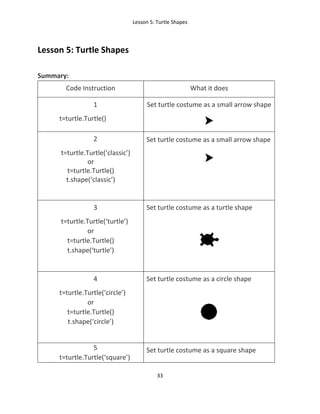
Summary:
Code Instruction What it does
1
t=turtle.Turtle()
Set turtle costume as a small arrow shape
2
t=turtle.Turtle(‘classic’)
or
t=turtle.Turtle()
t.shape(‘classic’)
Set turtle costume as a small arrow shape
3
t=turtle.Turtle(‘turtle’)
or
t=turtle.Turtle()
t.shape(‘turtle’)
Set turtle costume as a turtle shape
4
t=turtle.Turtle(‘circle’)
or
t=turtle.Turtle()
t.shape(‘circle’)
Set turtle costume as a circle shape
5
t=turtle.Turtle(‘square’)
Set turtle costume as a square shape
Lesson 5: Turtle Shapes
34
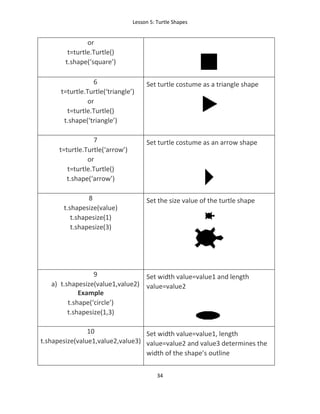
or
t=turtle.Turtle()
t.shape(‘square’)
6
t=turtle.Turtle(‘triangle’)
or
t=turtle.Turtle()
t.shape(‘triangle’)
Set turtle costume as a triangle shape
7
t=turtle.Turtle(‘arrow’)
or
t=turtle.Turtle()
t.shape(‘arrow’)
Set turtle costume as an arrow shape
8
t.shapesize(value)
t.shapesize(1)
t.shapesize(3)
Set the size value of the turtle shape
9
a) t.shapesize(value1,value2)
Example
t.shape(‘circle’)
t.shapesize(1,3)
Set width value=value1 and length
value=value2
10
t.shapesize(value1,value2,value3)
Set width value=value1, length
value=value2 and value3 determines the
width of the shape’s outline
Lesson 5: Turtle Shapes
35
Example
t.turtle(‘square’)
t.shapesize(2,2)
t.shapesize(2,2,10)
11
t.sharefactor(value)
Example
t.shape(‘square’)
t.shapesize(3)
t.shearfactor(0.4)
Distorts the image shape, value should be
between -1 and 1
Keep in mind!
With free of charge Trinket software:
Options 2-7 of Summary work only with two lines
Options 8, 9, 10, 11 work only with Pygame Trinket option, which costs $3 (USA)
per month. In this case at the end of the program you have to add the following
line
input()
#Example 5-1(a)
import turtle
t=turtle.Turtle('square')
t.color('blue')
t.shapesize(2,5)
#Example 5-1(b)
import turtle
t=turtle.Turtle('square')
t.color('blue')
t.shapesize(6,3)
#Example 5-2
import turtle
Lesson 5: Turtle Shapes
36
t=turtle.Turtle('square')
t.color('blue')
t.shapesize(6,1)
t.stamp()
t.rt(45)
t.stamp()
t.rt(45)
t.stamp()
t.rt(45)
#Example 5-3
import turtle
t=turtle.Turtle('circle')
t.color('blue')
t.shapesize(6,1)
t.stamp()
t.rt(45)
t.stamp()
t.rt(45)
t.stamp()
Snowflakes Nice Face
#Example 5-4
import turtle
t=turtle.Turtle('square')
t.up()
t.color('blue')
t.shapesize(4,0.5)
t.stamp()
t.rt(45)
t.stamp()
t.rt(45)
t.stamp()
t.rt(45)
t.stamp()
t.goto(100,50)
t.color('gold')
t.setheading(0)
t.stamp()
t.rt(45)
t.stamp()
t.rt(45)
t.stamp()
t.rt(45)
#Example 5-5
import turtle
t1=turtle.Turtle('circle')
t1.shapesize(20)
t1.color('gold')
t1.stamp()
t1.penup()
t1.goto(-100,15)
t1.shapesize(3)
t1.down()
t1.color('blue')
t1.stamp()
t1.up()
t1.goto(100,15)
t1.down()
t1.shapesize(3)
t1.color('blue')
t1.stamp()
t1.up()
t1.color('green')
Lesson 5: Turtle Shapes
37
t.stamp()
t.goto(-100,50)
t.color('lightblue')
t.setheading(0)
t.stamp()
t.rt(45)
t.stamp()
t.rt(45)
t.stamp()
t.rt(45)
t.stamp()
t.goto(-100,-50)
t.color('violet')
t.setheading(0)
t.stamp()
t.rt(45)
t.stamp()
t.rt(45)
t.stamp()
t.rt(45)
t.stamp()
t.goto(100,-50)
t.color('green')
t.setheading(0)
t.stamp()
t.rt(45)
t.stamp()
t.rt(45)
t.stamp()
t.rt(45)
t.stamp()
t1.goto(0,-90)
t1.shapesize(2,8)
t1.stamp()
t1.up()
t1.color('green')
t1.goto(0,-10)
t1.shapesize(4,1)
t1.stamp()
t1.shape('square')
t1.shapesize(4,19)
t1.color('purple')
t1.goto(0,200)
t1.stamp()
t1.up()
t1.shapesize(7,10)
t1.color('purple')
t1.goto(0,280)
t1.stamp()
t1.hideturtle
Lesson 5: Turtle Shapes
38
Challenges: write codes to create the following geometry shapes
with circle code:
1. Expected output
2. Expected output
3. Expected output
Lesson 6: Loopy loops in Python
39
Lesson 6: Loopy loops in Python
In programming, a loop means repeating something multiple times. One of the
main Python primitive loop commands is for loop:
Summary:
Code Instruction What it does
for m in range(4):
t.forward(1000)
t.left(90)
Here for loop is used for a block of two lines code
[t.forward(100) and t.left(90)] which you want to
repeat 4 times. This short program is equivalent to
the following
for m in range(2):
for n in range(4):
t.forward(100)
t.left(90)
The body of a loop have
another loop within it.
This is called a nested
loop
Nested Loop, equivalent to the following block-
based code. Nested loop is loop inside a loop, the
outer loop only repeats (2 times) after inner loop
has gone round its required number of times 4.
Lesson 6: Loopy loops in Python
40
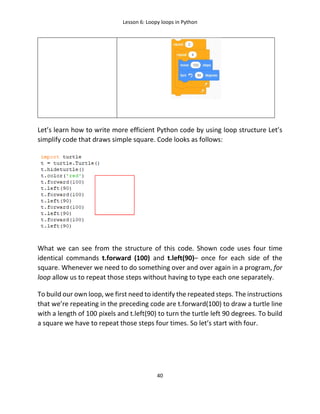
Let’s learn how to write more efficient Python code by using loop structure Let’s
simplify code that draws simple square. Code looks as follows:
What we can see from the structure of this code. Shown code uses four time
identical commands t.forward (100) and t.left(90)– once for each side of the
square. Whenever we need to do something over and over again in a program, for
loop allow us to repeat those steps without having to type each one separately.
To build our own loop, we first need to identify the repeated steps. The instructions
that we’re repeating in the preceding code are t.forward(100) to draw a turtle line
with a length of 100 pixels and t.left(90) to turn the turtle left 90 degrees. To build
a square we have to repeat those steps four times. So let’s start with four.
Lesson 6: Loopy loops in Python
41
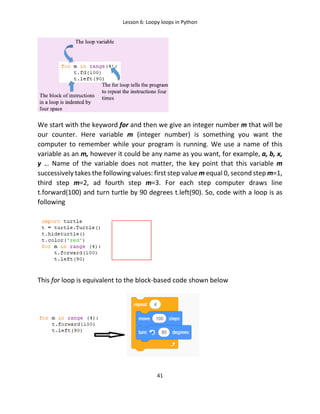
We start with the keyword for and then we give an integer number m that will be
our counter. Here variable m (integer number) is something you want the
computer to remember while your program is running. We use a name of this
variable as an m, however it could be any name as you want, for example, a, b, x,
y … Name of the variable does not matter, the key point that this variable m
successively takes the following values: first step value m equal 0, second step m=1,
third step m=2, ad fourth step m=3. For each step computer draws line
t.forward(100) and turn turtle by 90 degrees t.left(90). So, code with a loop is as
following
This for loop is equivalent to the block-based code shown below
Lesson 6: Loopy loops in Python
42
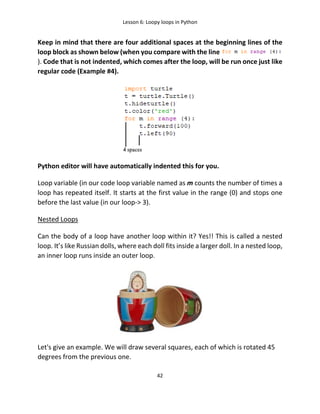
Keep in mind that there are four additional spaces at the beginning lines of the
loop block as shown below (when you compare with the line
). Code that is not indented, which comes after the loop, will be run once just like
regular code (Example #4).
Python editor will have automatically indented this for you.
Loop variable (in our code loop variable named as m counts the number of times a
loop has repeated itself. It starts at the first value in the range (0) and stops one
before the last value (in our loop-> 3).
Nested Loops
Can the body of a loop have another loop within it? Yes!! This is called a nested
loop. It’s like Russian dolls, where each doll fits inside a larger doll. In a nested loop,
an inner loop runs inside an outer loop.
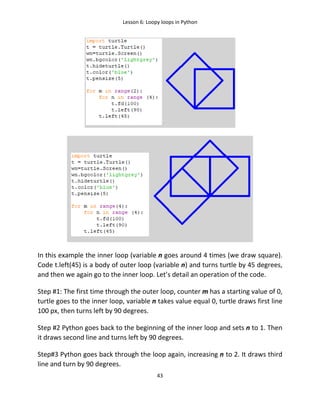
Let's give an example. We will draw several squares, each of which is rotated 45
degrees from the previous one.
Lesson 6: Loopy loops in Python
43
In this example the inner loop (variable n goes around 4 times (we draw square).
Code t.left(45) is a body of outer loop (variable n) and turns turtle by 45 degrees,
and then we again go to the inner loop. Let’s detail an operation of the code.
Step #1: The first time through the outer loop, counter m has a starting value of 0,
turtle goes to the inner loop, variable n takes value equal 0, turtle draws first line
100 px, then turns left by 90 degrees.
Step #2 Python goes back to the beginning of the inner loop and sets n to 1. Then
it draws second line and turns left by 90 degrees.
Step#3 Python goes back through the loop again, increasing n to 2. It draws third
line and turn by 90 degrees.
Lesson 6: Loopy loops in Python
44
Step #4 Python goes back through the loop again, increasing n to 2. It draws third
line and turn by 90 degrees.
Step#5 Python goes out of inner loop, turns turtle to 45 degrees, go back to the
beginning of the outer loop and sets outer variable m to 1. Then Python enters to
the inner loop and repeats all steps #1 to #4. Because, outer variable changes in
the range from 0 to 1Pyrho draws only 2 squares. For loops are useful when you
know how many times a task needs to be repeated. But sometimes you need a loop
to keep repeating until something changes. A while loop keeps on going around as
many times as it needs to. A while loop keeps repeating as long as certain condition
is true. This condition is called the loop condition and is either true or false.
While loops
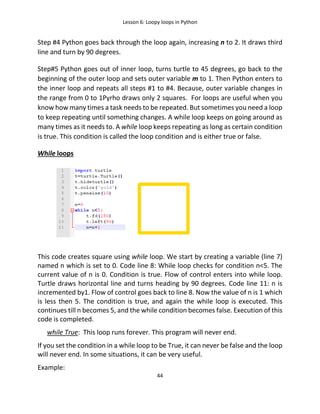
This code creates square using while loop. We start by creating a variable (line 7)
named n which is set to 0. Code line 8: While loop checks for condition n<5. The
current value of n is 0. Condition is true. Flow of control enters into while loop.
Turtle draws horizontal line and turns heading by 90 degrees. Code line 11: n is
incremented by1. Flow of control goes back to line 8. Now the value of n is 1 which
is less then 5. The condition is true, and again the while loop is executed. This
continues till n becomes 5, and the while condition becomes false. Execution of this
code is completed.
while True: This loop runs forever. This program will never end.
If you set the condition in a while loop to be True, it can never be false and the loop
will never end. In some situations, it can be very useful.
Example:
Lesson 6: Loopy loops in Python
45
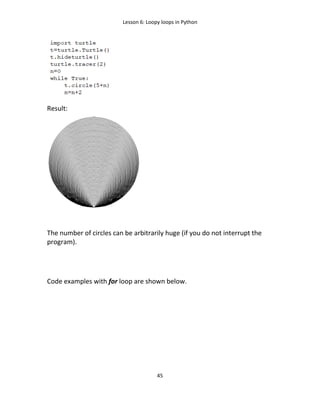
Result:
The number of circles can be arbitrarily huge (if you do not interrupt the
program).
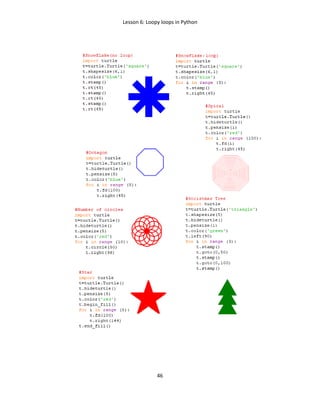
Code examples with for loop are shown below.
Lesson 6: Loopy loops in Python
46
Lesson 6: Loopy loops in Python
47
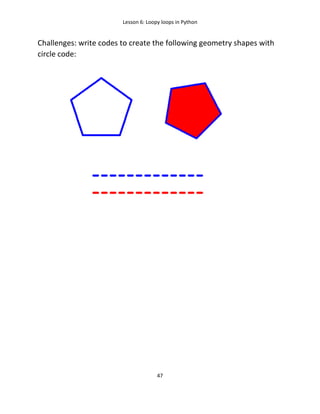
Challenges: write codes to create the following geometry shapes with
circle code:
Lesson 6: Loopy loops in Python
48
Lesson 7: Numbers, Variables, functions print and input
49
Lesson 7: Numbers, Variables, functions print and input
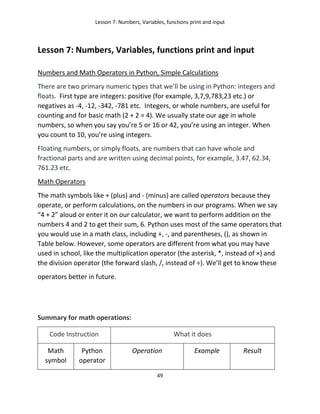
Numbers and Math Operators in Python, Simple Calculations
There are two primary numeric types that we’ll be using in Python: integers and
floats. First type are integers: positive (for example, 3,7,9,783,23 etc.) or
negatives as -4, -12, -342, -781 etc. Integers, or whole numbers, are useful for
counting and for basic math (2 + 2 = 4). We usually state our age in whole
numbers, so when you say you’re 5 or 16 or 42, you’re using an integer. When
you count to 10, you’re using integers.
Floating numbers, or simply floats, are numbers that can have whole and
fractional parts and are written using decimal points, for example, 3.47, 62.34,
761.23 etc.
Math Operators
The math symbols like + (plus) and - (minus) are called operators because they
operate, or perform calculations, on the numbers in our programs. When we say
“4 + 2” aloud or enter it on our calculator, we want to perform addition on the
numbers 4 and 2 to get their sum, 6. Python uses most of the same operators that
you would use in a math class, including +, -, and parentheses, (), as shown in
Table below. However, some operators are different from what you may have
used in school, like the multiplication operator (the asterisk, *, instead of ×) and
the division operator (the forward slash, /, instead of ÷). We’ll get to know these
operators better in future.
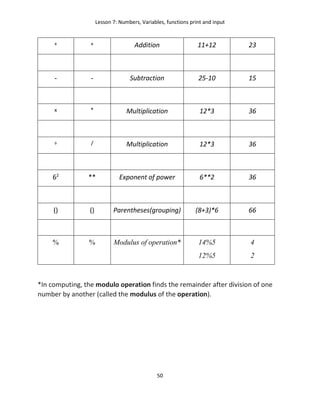
Summary for math operations:
Code Instruction What it does
Math
symbol
Python
operator
Operation Example Result
Lesson 7: Numbers, Variables, functions print and input
50
+ + Addition 11+12 23
- - Subtraction 25-10 15
x * Multiplication 12*3 36
÷ / Multiplication 12*3 36
62
** Exponent of power 6**2 36
() () Parentheses(grouping) (8+3)*6 66
% % Modulus of operation* 14%5
12%5
4
2
*In computing, the modulo operation finds the remainder after division of one
number by another (called the modulus of the operation).
Lesson 7: Numbers, Variables, functions print and input
51
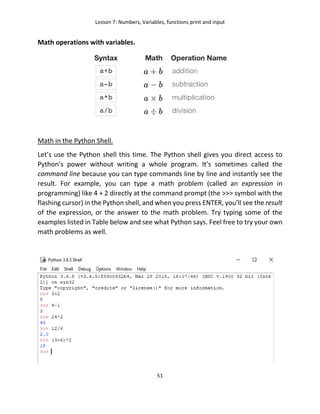
Math operations with variables.
Math in the Python Shell.
Let’s use the Python shell this time. The Python shell gives you direct access to
Python’s power without writing a whole program. It’s sometimes called the
command line because you can type commands line by line and instantly see the
result. For example, you can type a math problem (called an expression in
programming) like 4 + 2 directly at the command prompt (the >>> symbol with the
flashing cursor) in the Python shell, and when you press ENTER, you’ll see the result
of the expression, or the answer to the math problem. Try typing some of the
examples listed in Table below and see what Python says. Feel free to try your own
math problems as well.
Lesson 7: Numbers, Variables, functions print and input
52
A variable is something you want the computer to remember while your program
is running. When Python “remembers” something, it’s storing that information in
the computer’s memory. Variable is like box where data can be stored and labelled.
Python can remember values of several types, including number values (like 7, 42,
or even 98.6) and strings (letters, symbols, words, sentences). In Python, as in most
modern programming languages, we assign a value to a variable with the equal sign
(=). An assignment like x = 10 tells the computer to remember the number 10 and
give it back to us anytime we call out x. So, the assignment operator = assigns the
value on the right to a variable on the left.
The command to assign a variable in Python does the same job as this block-based
Scratch
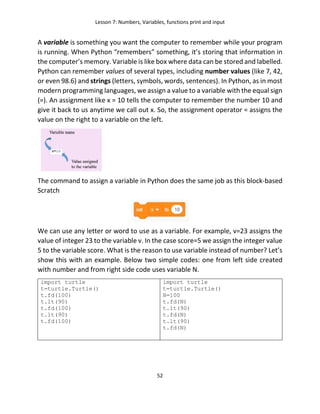
We can use any letter or word to use as a variable. For example, v=23 assigns the
value of integer 23 to the variable v. In the case score=5 we assign the integer value
5 to the variable score. What is the reason to use variable instead of number? Let’s
show this with an example. Below two simple codes: one from left side created
with number and from right side code uses variable N.
import turtle
t=turtle.Turtle()
t.fd(100)
t.lt(90)
t.fd(100)
t.lt(90)
t.fd(100)
import turtle
t=turtle.Turtle()
N=100
t.fd(N)
t.lt(90)
t.fd(N)
t.lt(90)
t.fd(N)
Lesson 7: Numbers, Variables, functions print and input
53
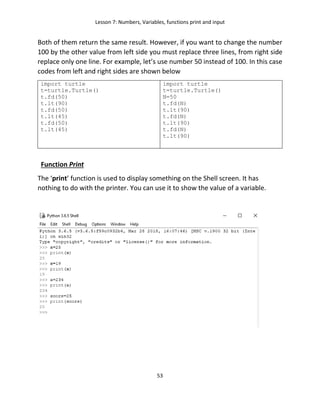
Both of them return the same result. However, if you want to change the number
100 by the other value from left side you must replace three lines, from right side
replace only one line. For example, let’s use number 50 instead of 100. In this case
codes from left and right sides are shown below
import turtle
t=turtle.Turtle()
t.fd(50)
t.lt(90)
t.fd(50)
t.lt(45)
t.fd(50)
t.lt(45)
import turtle
t=turtle.Turtle()
N=50
t.fd(N)
t.lt(90)
t.fd(N)
t.lt(90)
t.fd(N)
t.lt(90)
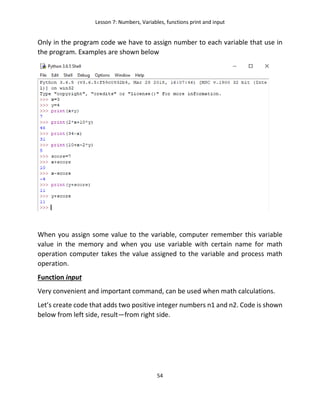
Function Print
The ‘print’ function is used to display something on the Shell screen. It has
nothing to do with the printer. You can use it to show the value of a variable.
Lesson 7: Numbers, Variables, functions print and input
54
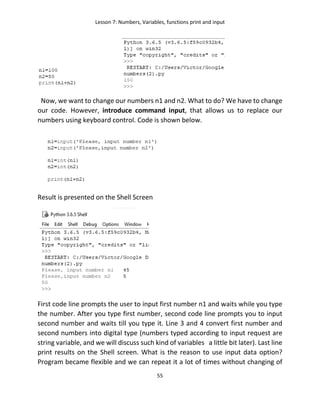
Only in the program code we have to assign number to each variable that use in
the program. Examples are shown below
When you assign some value to the variable, computer remember this variable
value in the memory and when you use variable with certain name for math
operation computer takes the value assigned to the variable and process math
operation.
Function input
Very convenient and important command, can be used when math calculations.
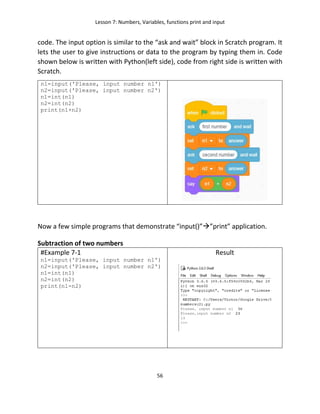
Let’s create code that adds two positive integer numbers n1 and n2. Code is shown
below from left side, result—from right side.
Lesson 7: Numbers, Variables, functions print and input
55
Now, we want to change our numbers n1 and n2. What to do? We have to change
our code. However, introduce command input, that allows us to replace our
numbers using keyboard control. Code is shown below.
Result is presented on the Shell Screen
First code line prompts the user to input first number n1 and waits while you type
the number. After you type first number, second code line prompts you to input
second number and waits till you type it. Line 3 and 4 convert first number and
second numbers into digital type (numbers typed according to input request are
string variable, and we will discuss such kind of variables a little bit later). Last line
print results on the Shell screen. What is the reason to use input data option?
Program became flexible and we can repeat it a lot of times without changing of
Lesson 7: Numbers, Variables, functions print and input
56
code. The input option is similar to the “ask and wait” block in Scratch program. It
lets the user to give instructions or data to the program by typing them in. Code
shown below is written with Python(left side), code from right side is written with
Scratch.
n1=input('Please, input number n1')
n2=input('Please, input number n2')
n1=int(n1)
n2=int(n2)
print(n1+n2)
Now a few simple programs that demonstrate “input()””print” application.
Subtraction of two numbers
#Example 7-1
n1=input('Please, input number n1')
n2=input('Please, input number n2')
n1=int(n1)
n2=int(n2)
print(n1-n2)
Result
Lesson 7: Numbers, Variables, functions print and input
57
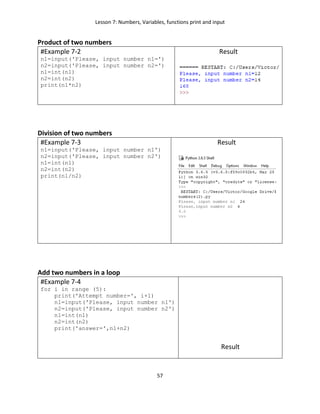
Product of two numbers
#Example 7-2
n1=input('Please, input number n1=')
n2=input('Please, input number n2=')
n1=int(n1)
n2=int(n2)
print(n1*n2)
Result
Division of two numbers
#Example 7-3
n1=input('Please, input number n1')
n2=input('Please, input number n2')
n1=int(n1)
n2=int(n2)
print(n1/n2)
Result
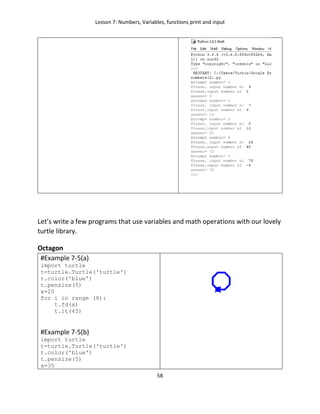
Add two numbers in a loop
#Example 7-4
for i in range (5):
print('Attempt number=', i+1)
n1=input('Please, input number n1')
n2=input('Please, input number n2')
n1=int(n1)
n2=int(n2)
print('answer=',n1+n2)
Result
Lesson 7: Numbers, Variables, functions print and input
58
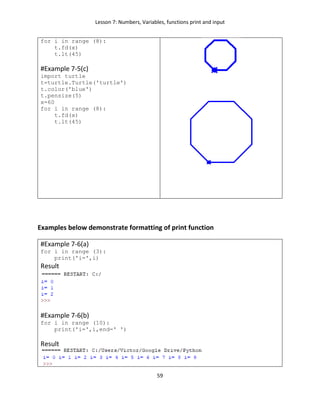
Let’s write a few programs that use variables and math operations with our lovely
turtle library.
Octagon
#Example 7-5(a)
import turtle
t=turtle.Turtle('turtle')
t.color('blue')
t.pensize(5)
x=20
for i in range (8):
t.fd(x)
t.lt(45)
#Example 7-5(b)
import turtle
t=turtle.Turtle('turtle')
t.color('blue')
t.pensize(5)
x=35
Lesson 7: Numbers, Variables, functions print and input
59
for i in range (8):
t.fd(x)
t.lt(45)
#Example 7-5(c)
import turtle
t=turtle.Turtle('turtle')
t.color('blue')
t.pensize(5)
x=60
for i in range (8):
t.fd(x)
t.lt(45)
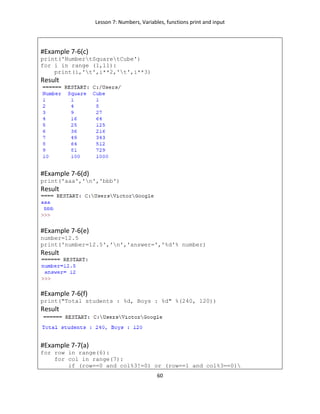
Examples below demonstrate formatting of print function
#Example 7-6(a)
for i in range (3):
print('i=',i)
Result
#Example 7-6(b)
for i in range (10):
print('i=',i,end=' ')
Result
Lesson 7: Numbers, Variables, functions print and input
60
#Example 7-6(c)
print('NumbertSquaretCube')
for i in range (1,11):
print(i,'t',i**2,'t',i**3)
Result
#Example 7-6(d)
print('aaa','n','bbb')
Result
#Example 7-6(e)
number=12.5
print('number=12.5','n','answer=','%d'% number)
Result
#Example 7-6(f)
print("Total students : %d, Boys : %d" %(240, 120))
Result
#Example 7-7(a)
for row in range(6):
for col in range(7):
if (row==0 and col%3!=0) or (row==1 and col%3==0)
Lesson 7: Numbers, Variables, functions print and input
61
or (row-col==2) or (row+col==8):
print('*',end='')
else:
print(' ',end='')
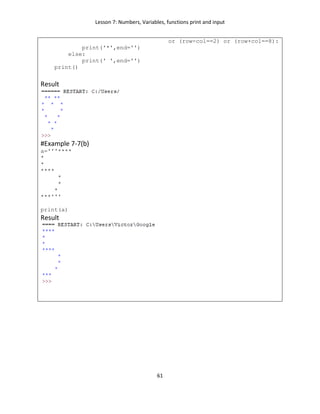
print()
Result
#Example 7-7(b)
a='''****
*
*
****
*
*
*
***'''
print(a)
Result
Lesson 7: Numbers, Variables, functions print and input
62
Number of polygons (Code is written with variables)
#Example 7-8
import turtle
t=turtle.Turtle()
turtle.bgcolor('navy')
t.pensize(5)
side_length=50 #1
#hexagon drawing
t.color('red')
num_sides=6 #2
angle=360/num_sides #3
for m in range (num_sides):
t.fd(side_length)
t.rt(angle)
#pentagon drawing
t.color('green')
num_sides=5
angle=360/num_sides
t.up()
t.goto(200,0)
t.down()
for m in range (num_sides):
t.fd(side_length)
t.rt(angle)
t.hideturtle()
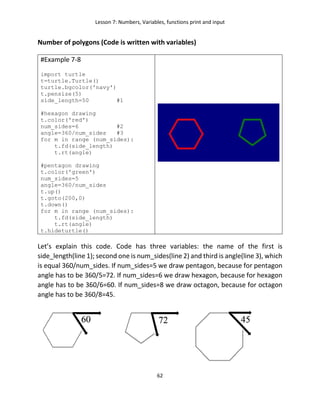
Let’s explain this code. Code has three variables: the name of the first is
side_length(line 1); second one is num_sides(line 2) and third is angle(line 3), which
is equal 360/num_sides. If num_sides=5 we draw pentagon, because for pentagon
angle has to be 360/5=72. If num_sides=6 we draw hexagon, because for hexagon
angle has to be 360/6=60. If num_sides=8 we draw octagon, because for octagon
angle has to be 360/8=45.
Lesson 7: Numbers, Variables, functions print and input
63
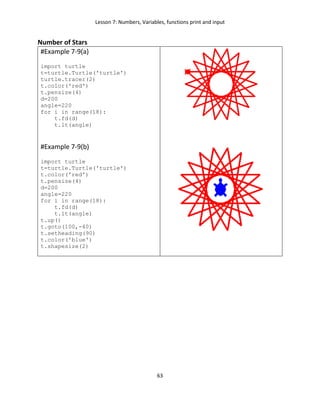
Number of Stars
#Example 7-9(a)
import turtle
t=turtle.Turtle('turtle')
turtle.tracer(2)
t.color('red')
t.pensize(4)
d=200
angle=220
for i in range(18):
t.fd(d)
t.lt(angle)
#Example 7-9(b)
import turtle
t=turtle.Turtle('turtle')
t.color('red')
t.pensize(4)
d=200
angle=220
for i in range(18):
t.fd(d)
t.lt(angle)
t.up()
t.goto(100,-40)
t.setheading(90)
t.color('blue')
t.shapesize(2)
Lesson 7: Numbers, Variables, functions print and input
64
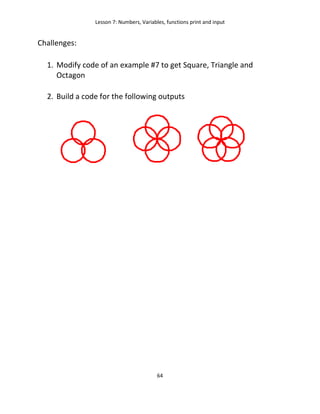
Challenges:
1. Modify code of an example #7 to get Square, Triangle and
Octagon
2. Build a code for the following outputs
Lesson 8: Logical Operators, Conditional Statements
65
Lesson 8: Logical Operators, Conditional Statements
Logical operators are used to compare variables against numbers or against other
variables. The resulting answer is either True or False.
Summary for Comparison Operations:
Code Instruction What it does
Math
symbol
Python
operator
Meaning Example Result
(Boolean
Values)
> > Greater than 12>11 True
< < Less than 25<10 False
≤ <= Less than or equal to 1<=2 True
≥ >= Greater or equal to 1>=3 False
= = = Equal to 5= =10 False
≠ != Not equal to 5 !=10 True
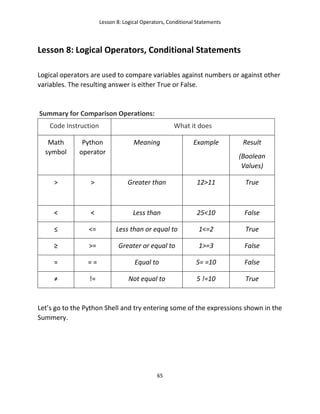
Let’s go to the Python Shell and try entering some of the expressions shown in the
Summery.
Lesson 8: Logical Operators, Conditional Statements
66
Every conditional expression will evaluate to either True or False in Python. Those
are only two Boolean values, and the capital T in True and capital F in False are
requared.
Conditional statement if
The if command means that if a condition is True, then the program runs a block of
commands. If the condition isn’t True, the block is skipped. The block after the if
command is always indented by four spaces.
Let’s go to example:
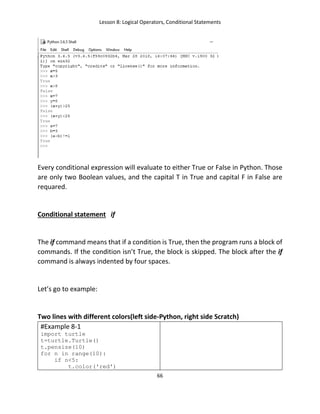
Two lines with different colors(left side-Python, right side Scratch)
#Example 8-1
import turtle
t=turtle.Turtle()
t.pensize(10)
for n in range(10):
if n<5:
t.color('red')
Lesson 8: Logical Operators, Conditional Statements
67
if n>=5:
t.color('blue')
t.fd(20)
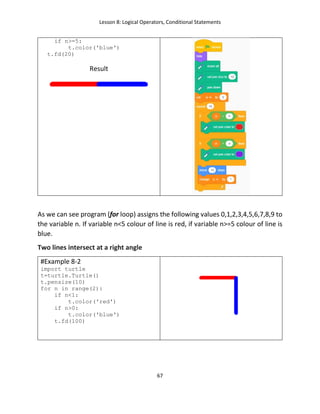
Result
As we can see program (for loop) assigns the following values 0,1,2,3,4,5,6,7,8,9 to
the variable n. If variable n<5 colour of line is red, if variable n>=5 colour of line is
blue.
Two lines intersect at a right angle
#Example 8-2
import turtle
t=turtle.Turtle()
t.pensize(10)
for n in range(2):
if n<1:
t.color('red')
if n>0:
t.color('blue')
t.fd(100)
Lesson 8: Logical Operators, Conditional Statements
68
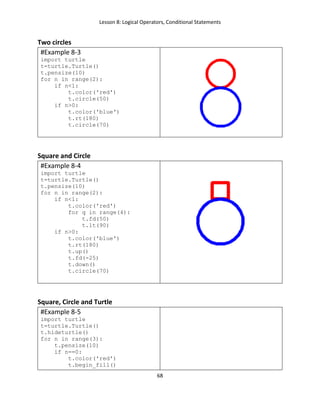
Two circles
#Example 8-3
import turtle
t=turtle.Turtle()
t.pensize(10)
for n in range(2):
if n<1:
t.color('red')
t.circle(50)
if n>0:
t.color('blue')
t.rt(180)
t.circle(70)
Square and Circle
#Example 8-4
import turtle
t=turtle.Turtle()
t.pensize(10)
for n in range(2):
if n<1:
t.color('red')
for q in range(4):
t.fd(50)
t.lt(90)
if n>0:
t.color('blue')
t.rt(180)
t.up()
t.fd(-25)
t.down()
t.circle(70)
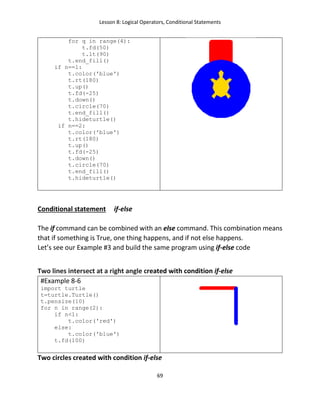
Square, Circle and Turtle
#Example 8-5
import turtle
t=turtle.Turtle()
t.hideturtle()
for n in range(3):
t.pensize(10)
if n==0:
t.color('red')
t.begin_fill()
Lesson 8: Logical Operators, Conditional Statements
69
for q in range(4):
t.fd(50)
t.lt(90)
t.end_fill()
if n==1:
t.color('blue')
t.rt(180)
t.up()
t.fd(-25)
t.down()
t.circle(70)
t.end_fill()
t.hideturtle()
if n==2:
t.color('blue')
t.rt(180)
t.up()
t.fd(-25)
t.down()
t.circle(70)
t.end_fill()
t.hideturtle()
Conditional statement if-else
The if command can be combined with an else command. This combination means
that if something is True, one thing happens, and if not else happens.
Let’s see our Example #3 and build the same program using if-else code
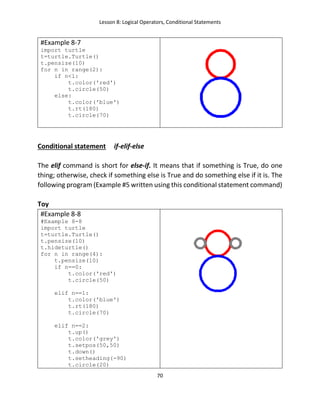
Two lines intersect at a right angle created with condition if-else
#Example 8-6
import turtle
t=turtle.Turtle()
t.pensize(10)
for n in range(2):
if n<1:
t.color('red')
else:
t.color('blue')
t.fd(100)
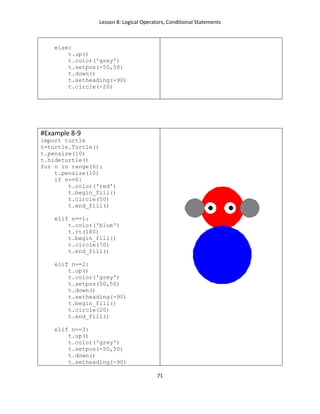
Two circles created with condition if-else
Lesson 8: Logical Operators, Conditional Statements
70
#Example 8-7
import turtle
t=turtle.Turtle()
t.pensize(10)
for n in range(2):
if n<1:
t.color('red')
t.circle(50)
else:
t.color('blue')
t.rt(180)
t.circle(70)
Conditional statement if-elif-else
The elif command is short for else-if. It means that if something is True, do one
thing; otherwise, check if something else is True and do something else if it is. The
following program (Example #5 written using this conditional statement command)
Toy
#Example 8-8
#Example 8-8
import turtle
t=turtle.Turtle()
t.pensize(10)
t.hideturtle()
for n in range(4):
t.pensize(10)
if n==0:
t.color('red')
t.circle(50)
elif n==1:
t.color('blue')
t.rt(180)
t.circle(70)
elif n==2:
t.up()
t.color('grey')
t.setpos(50,50)
t.down()
t.setheading(-90)
t.circle(20)
Lesson 8: Logical Operators, Conditional Statements
71
else:
t.up()
t.color('grey')
t.setpos(-50,50)
t.down()
t.setheading(-90)
t.circle(-20)
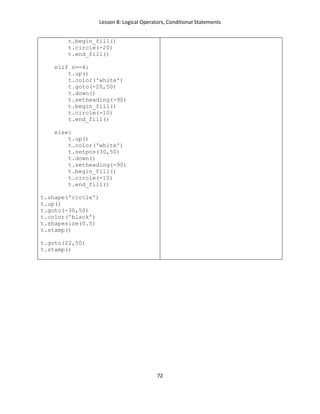
#Example 8-9
import turtle
t=turtle.Turtle()
t.pensize(10)
t.hideturtle()
for n in range(6):
t.pensize(10)
if n==0:
t.color('red')
t.begin_fill()
t.circle(50)
t.end_fill()
elif n==1:
t.color('blue')
t.rt(180)
t.begin_fill()
t.circle(70)
t.end_fill()
elif n==2:
t.up()
t.color('grey')
t.setpos(50,50)
t.down()
t.setheading(-90)
t.begin_fill()
t.circle(20)
t.end_fill()
elif n==3:
t.up()
t.color('grey')
t.setpos(-50,50)
t.down()
t.setheading(-90)
Lesson 8: Logical Operators, Conditional Statements
72
t.begin_fill()
t.circle(-20)
t.end_fill()
elif n==4:
t.up()
t.color('white')
t.goto(-20,50)
t.down()
t.setheading(-90)
t.begin_fill()
t.circle(-10)
t.end_fill()
else:
t.up()
t.color('white')
t.setpos(30,50)
t.down()
t.setheading(-90)
t.begin_fill()
t.circle(-10)
t.end_fill()
t.shape('circle')
t.up()
t.goto(-30,50)
t.color('black')
t.shapesize(0.5)
t.stamp()
t.goto(22,50)
t.stamp()
Lesson 9: Strings, Lists
73
Lesson 9: Strings, Lists
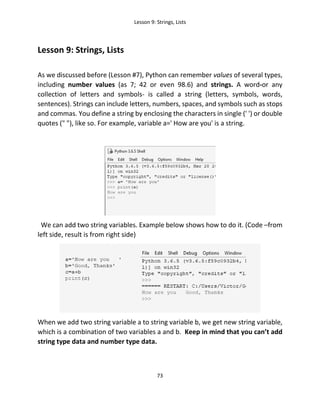
As we discussed before (Lesson #7), Python can remember values of several types,
including number values (as 7; 42 or even 98.6) and strings. A word-or any
collection of letters and symbols- is called a string (letters, symbols, words,
sentences). Strings can include letters, numbers, spaces, and symbols such as stops
and commas. You define a string by enclosing the characters in single (' ') or double
quotes (" "), like so. For example, variable a=' How are you' is a string.
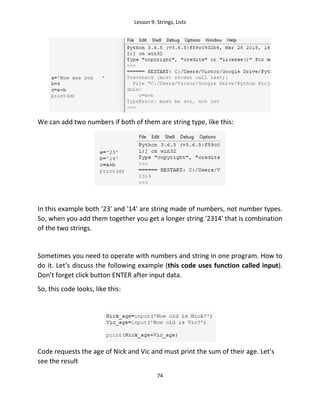
We can add two string variables. Example below shows how to do it. (Code –from
left side, result is from right side)
When we add two string variable a to string variable b, we get new string variable,
which is a combination of two variables a and b. Keep in mind that you can’t add
string type data and number type data.
Lesson 9: Strings, Lists
74
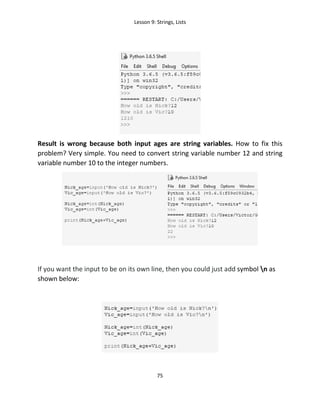
We can add two numbers if both of them are string type, like this:
In this example both '23' and '14' are string made of numbers, not number types.
So, when you add them together you get a longer string '2314' that is combination
of the two strings.
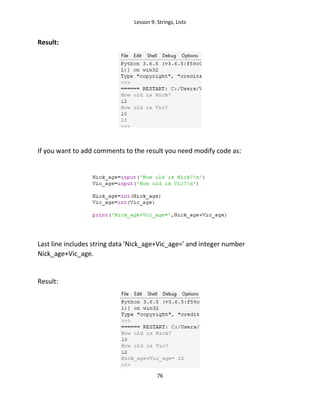
Sometimes you need to operate with numbers and string in one program. How to
do it. Let’s discuss the following example (this code uses function called input).
Don’t forget click button ENTER after input data.
So, this code looks, like this:
Code requests the age of Nick and Vic and must print the sum of their age. Let’s
see the result
Lesson 9: Strings, Lists
75
Result is wrong because both input ages are string variables. How to fix this
problem? Very simple. You need to convert string variable number 12 and string
variable number 10 to the integer numbers.
If you want the input to be on its own line, then you could just add symbol n as
shown below:
Lesson 9: Strings, Lists
76
Result:
If you want to add comments to the result you need modify code as:
Last line includes string data 'Nick_age+Vic_age=' and integer number
Nick_age+Vic_age.
Result:
Lesson 9: Strings, Lists
77
Another example
We can’t get correct result because line #3 of the code adds string variable
“number” with integer 10. Again, to fix this problem we have to convert string
variable “number” to integer number. Below, we show corrected code and
accurate result
Lesson 9: Strings, Lists
78
Example: Bad or good weather with Python
Example: what is the year nowregular or intercalary(leap)
Lesson 9: Strings, Lists
79
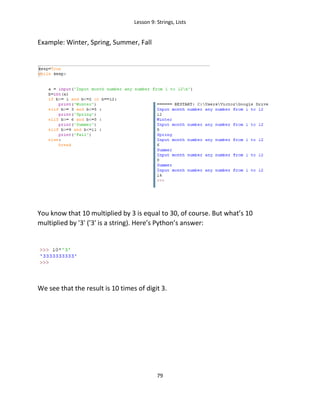
Example: Winter, Spring, Summer, Fall
You know that 10 multiplied by 3 is equal to 30, of course. But what’s 10
multiplied by '3' ('3' is a string). Here’s Python’s answer:
We see that the result is 10 times of digit 3.
Lesson 9: Strings, Lists
80
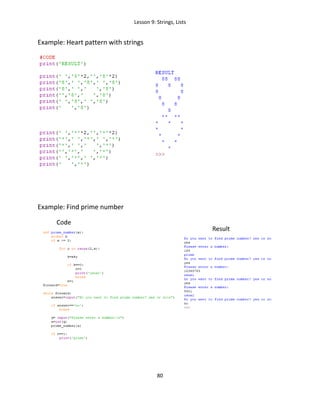
Example: Heart pattern with strings
Example: Find prime number
Lesson 9: Strings, Lists
81
Now, Let’s demonstrate example how to turn turtle with input code
1. Example #9-1 (Turtle turns 45 degrees)
You can include input code line in the loop. In this case program requests you to
input data a few times and you will see the results for each request:
LISTS
When you want to store a lot of data, you may need to use a list. A list can hold
many items together and keep them in order. Python gives each item a number
that shows its position in the list. A list is a group of values, separated by commas,
between square brackets, []. We can store any value types in lists, including
numbers and strings. We can store a few objects as turtles in list (Lesson 12). Let’s
go to list example, called color_list:
Lesson 9: Strings, Lists
82
color_list=['red', 'blue', 'gold', 'green', 'yellow', 'pink’]
This list consists of 6 string variables. If you want to do anything with one of the
words from that list, you can use something called the index- the position of the
item in the list. So, a list is a structure in Python where items are kept in order. Each
entry is given a number that you can use to refer back to it.
color_list[0]= 'red'
color_list[1]= 'blue'
color_list[2]= 'gold'
color_list[3]= 'green'
color_list[4]= 'yellow'
color_list[5]= 'pink'
Below it is shown a list that includes integer numbers
number_list=[3,5,7,11,13,17,19,23,29,31]
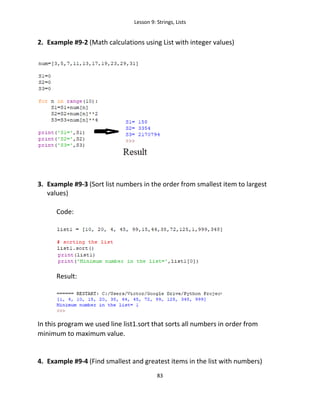
Now we create our first program with a list. Let’s calculate the following sums:
S1=3+5+7+11+13+17+19+23+29+31
S2=32
+52
+72
+112
+132
+172
+192
+232
+292
+312
S3=34
+54
+74
+114
+134
+174
+194
+234
+294
+314
All of these integers are prime numbers. Code, shown below, calculates these
values S1, S2, and S3. To make calculations we use list called num.
Lesson 9: Strings, Lists
83
2. Example #9-2 (Math calculations using List with integer values)
3. Example #9-3 (Sort list numbers in the order from smallest item to largest
values)
Code:
Result:
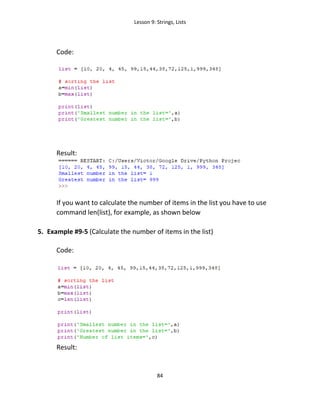
In this program we used line list1.sort that sorts all numbers in order from
minimum to maximum value.
4. Example #9-4 (Find smallest and greatest items in the list with numbers)
Lesson 9: Strings, Lists
84
Code:
Result:
If you want to calculate the number of items in the list you have to use
command len(list), for example, as shown below
5. Example #9-5 (Calculate the number of items in the list)
Code:
Result:
Lesson 9: Strings, Lists
85
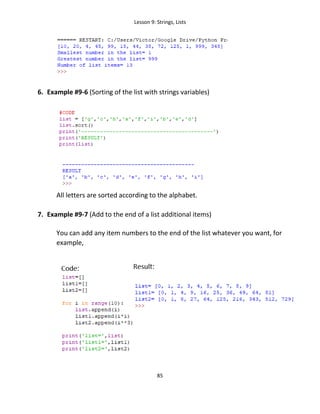
6. Example #9-6 (Sorting of the list with strings variables)
All letters are sorted according to the alphabet.
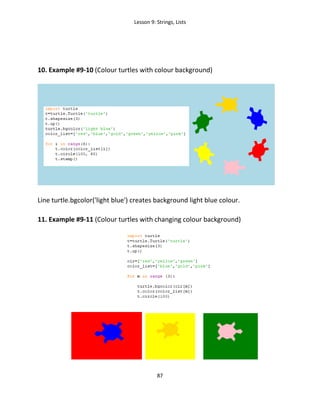
7. Example #9-7 (Add to the end of a list additional items)
You can add any item numbers to the end of the list whatever you want, for
example,
Lesson 9: Strings, Lists
86
In this example we have three lists: list; list1; and list2. All of them initially
are empty. However using lines “list.append(i)” , “list1.append(i*i)”, and
“list2.append(i**3)” we add to the end of each list integer numbers equal
i for list,
i*i for list1,
i**3 for list2.
8. Example #9-8 (Number of different colour turtles, code uses list with string
variables)
Here we set up the colour of turtle with a line t.color(color_list[i]), where i is an
integer number that takes sequentially the following values 0,1,2,3,4,5.
9. Example #9-9 (Example shows the combination of number and string lists)
Lesson 9: Strings, Lists
87
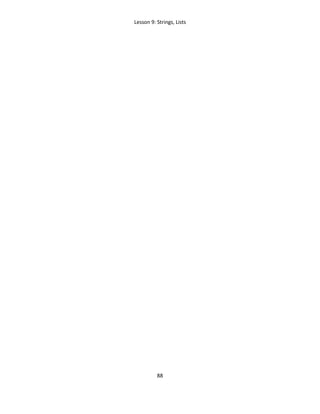
10. Example #9-10 (Colour turtles with colour background)
Line turtle.bgcolor('light blue') creates background light blue colour.
11. Example #9-11 (Colour turtles with changing colour background)
Lesson 9: Strings, Lists
88
Lesson 10: Random Numbers
89
Lesson 10: Random Numbers
Summary:
Code Instruction What it does
import random Specifies random number library module
random.randint(a,b) Return (specifies) a random integer number n such
that a<=n<=b.
random.uniform(a,b) Return (specifies) a random number n (not
necessary integer) such that a<=n<=b.
random.randrange(a,b,c)
random.randrange(a,b)
random.randrange(b)
Return (specifies) a random integer number n in
range a<=n<=b with step c. If c is not specified
returns random integer number in a range
between a and b. If a is not specified returns
random integer number in a range between 0 and
b.
random.shuffle(list) The shuffle function shuffles a list, mixing up the
items of the list.
random.choice(list) If you want to pick a random item from a list
instead of a random number from a given range,
you can use choice.
Python comes with a “Standard Library” that has lots of useful bits of code ready
to use. Stand-alone sections of a library called “modules” can be added to Python
to make it more powerful. For example, Turtle module is used to draw different
shapes on the screen. Random module can pick a random number, or shuffle a list
into a random order.
Simple examples with random functions:
Lesson 10: Random Numbers
90
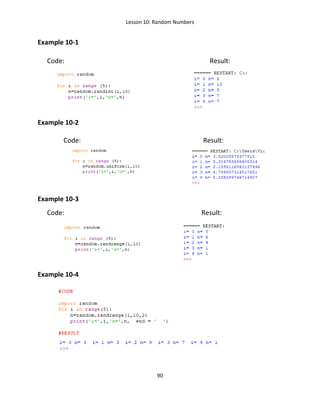
Example 10-1
Code: Result:
Example 10-2
Code: Result:
Example 10-3
Code: Result:
Example 10-4
Lesson 10: Random Numbers
91
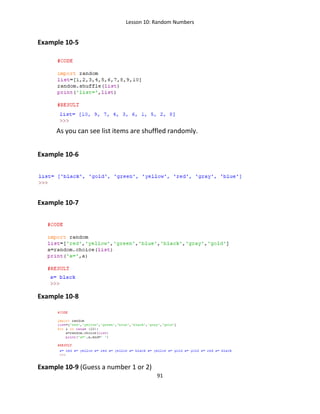
Example 10-5
As you can see list items are shuffled randomly.
Example 10-6
Example 10-7
Example 10-8
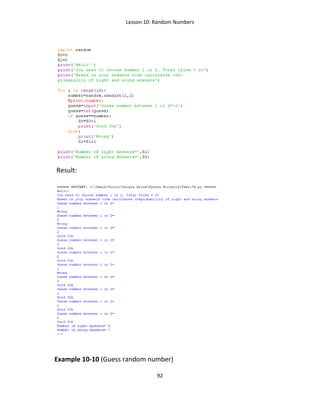
Example 10-9 (Guess a number 1 or 2)
Lesson 10: Random Numbers
92
Result:
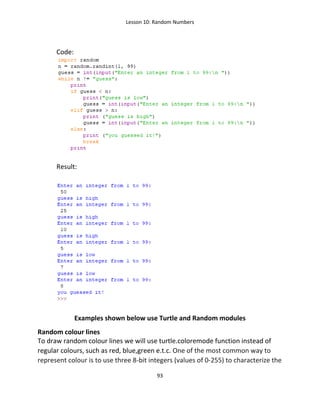
Example 10-10 (Guess random number)
Lesson 10: Random Numbers
93
Code:
Result:
Examples shown below use Turtle and Random modules
Random colour lines
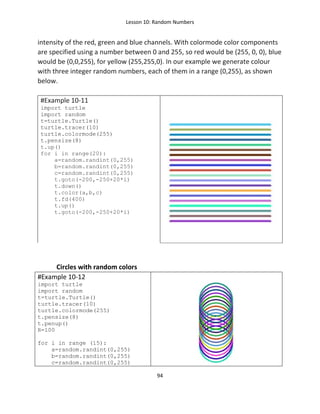
To draw random colour lines we will use turtle.coloremode function instead of
regular colours, such as red, blue,green e.t.c. One of the most common way to
represent colour is to use three 8-bit integers (values of 0-255) to characterize the
Lesson 10: Random Numbers
94
intensity of the red, green and blue channels. With colormode color components
are specified using a number between 0 and 255, so red would be (255, 0, 0), blue
would be (0,0,255), for yellow (255,255,0). In our example we generate colour
with three integer random numbers, each of them in a range (0,255), as shown
below.
#Example 10-11
import turtle
import random
t=turtle.Turtle()
turtle.tracer(10)
turtle.colormode(255)
t.pensize(8)
t.up()
for i in range(20):
a=random.randint(0,255)
b=random.randint(0,255)
c=random.randint(0,255)
t.goto(-200,-250+20*i)
t.down()
t.color(a,b,c)
t.fd(400)
t.up()
t.goto(-200,-250+20*i)
Circles with random colors
#Example 10-12
import turtle
import random
t=turtle.Turtle()
turtle.tracer(10)
turtle.colormode(255)
t.pensize(8)
t.penup()
R=100
for i in range (15):
a=random.randint(0,255)
b=random.randint(0,255)
c=random.randint(0,255)
Lesson 10: Random Numbers
95
t.goto(0,-250+20*i)
t.pendown()
t.pencolor(a,b,c)
t.circle(R)
t.penup()
t.goto(0,-250+20*i)
Random Spiral
#Example 10-13
import turtle
import random
t = turtle.Turtle()
turtle.bgcolor('navy')
turtle.tracer(3)
clr=['red','blue','yellow',
'green','gray',
'violet','pink']
for j in range (20):
a=random.randint(-300,300)
b=random.randint(-300,300)
t.penup()
t.color(random.choice(clr))
for i in range(100):
t.forward(30)
t.left(70)
t.forward(10)
t.right(40)
t.penup()
t.setposition(a,b)
t.pendown()
t.right(2)
Snowflakes
#Example 10-14
import turtle,random
wn=turtle.Screen()
wn.setup(1000,1000)
wn.bgcolor('blue')
turtle.tracer(3)
t=turtle.Turtle()
import random
t.shape('circle')
t.speed(11)
clr=['red','white','green','blue',
'yellow','orange','purple']
t.pensize(3)
Lesson 10: Random Numbers
96
for n in range(20):
t.penup()
a1=random.randint(-300,300)
a2=random.randint(-300,300)
t.goto(a1,a2)
t.pendown()
colr = random.choice(clr)
t.color(colr)
for i in range(12):
t.right(30)
t.forward(20)
t.backward(20)
Random motion
#Example 10-15
import turtle,random,time
t = turtle.Turtle('turtle')
t.pensize(5)
turtle.bgcolor("blue")
for i in range (30):
t.color('red')
t.fd(random.randint(40,80))
a=random.randint(0,1000)
b=a%2
if a%2==0:
t.left(90)
else:
#if a%2>0:
t.left(-90)
time.sleep(1)
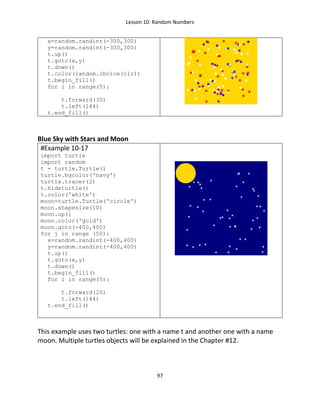
Random Stars Location
#Example 10-16
import turtle
import random
t = turtle.Turtle()
turtle.bgcolor('gold')
turtle.tracer(2)
t.hideturtle()
clr=['red','blue','white']
for j in range (100):
Lesson 10: Random Numbers
97
x=random.randint(-300,300)
y=random.randint(-300,300)
t.up()
t.goto(x,y)
t.down()
t.color(random.choice(clr))
t.begin_fill()
for i in range(5):
t.forward(30)
t.left(144)
t.end_fill()
Blue Sky with Stars and Moon
#Example 10-17
import turtle
import random
t = turtle.Turtle()
turtle.bgcolor('navy')
turtle.tracer(2)
t.hideturtle()
t.color('white')
moon=turtle.Turtle('circle')
moon.shapesize(10)
moon.up()
moon.color('gold')
moon.goto(-400,400)
for j in range (50):
x=random.randint(-400,400)
y=random.randint(-400,400)
t.up()
t.goto(x,y)
t.down()
t.begin_fill()
for i in range(5):
t.forward(20)
t.left(144)
t.end_fill()
This example uses two turtles: one with a name t and another one with a name
moon. Multiple turtles objects will be explained in the Chapter #12.
Lesson 10: Random Numbers
98
Lesson 11: Functions
99
Lesson 11: Functions
Programmers like to make writing code easier. One of the most common
shortcuts is to give a name to a block of code that does a repeatable job. Then,
instead of having to type out the whole block each time, you need it, you can
simply type its name. These named blocks of code are called functions.
Functions
Python language and each library Python module (for example, Turtle module,
Random module Math module and so on) contains lots of useful build in functions
for performing certain tasks. Before using a module and all library module functions
you have to tell the computer to import it so it can be used by your program. After
you import certain module all module build in functions (commands) are getting
available for you. However very often you need to create your own function to
make your code much shorter and elegant. Let’s consider that you need to draw
several squares in a turtle graphics program.
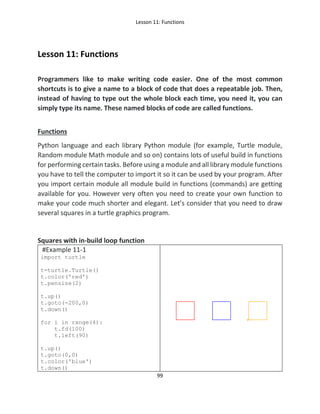
Squares with in-build loop function
#Example 11-1
import turtle
t=turtle.Turtle()
t.color('red')
t.pensize(2)
t.up()
t.goto(-200,0)
t.down()
for i in range(4):
t.fd(100)
t.left(90)
t.up()
t.goto(0,0)
t.color('blue')
t.down()
Lesson 11: Functions
100
for i in range(4):
t.fd(100)
t.left(90)
t.up()
t.goto(200,0)
t.color('orange')
t.down()
for i in range(4):
t.fd(100)
t.left(90)
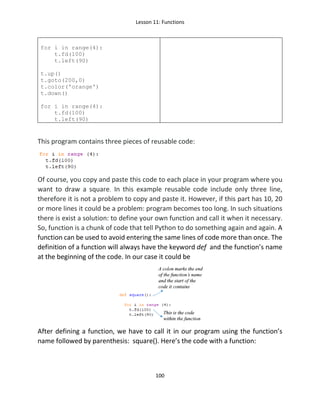
This program contains three pieces of reusable code:
Of course, you copy and paste this code to each place in your program where you
want to draw a square. In this example reusable code include only three line,
therefore it is not a problem to copy and paste it. However, if this part has 10, 20
or more lines it could be a problem: program becomes too long. In such situations
there is exist a solution: to define your own function and call it when it necessary.
So, function is a chunk of code that tell Python to do something again and again. A
function can be used to avoid entering the same lines of code more than once. The
definition of a function will always have the keyword def and the function’s name
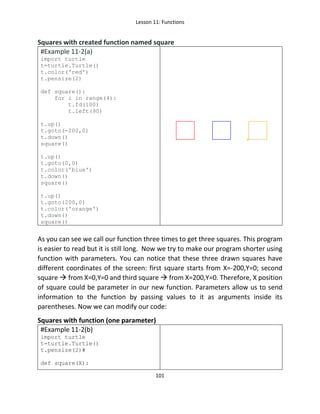
at the beginning of the code. In our case it could be
After defining a function, we have to call it in our program using the function’s
name followed by parenthesis: square(). Here’s the code with a function:
Lesson 11: Functions
101
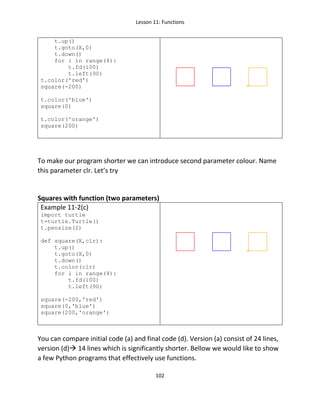
Squares with created function named square
#Example 11-2(a)
import turtle
t=turtle.Turtle()
t.color('red')
t.pensize(2)
def square():
for i in range(4):
t.fd(100)
t.left(90)
t.up()
t.goto(-200,0)
t.down()
square()
t.up()
t.goto(0,0)
t.color('blue')
t.down()
square()
t.up()
t.goto(200,0)
t.color('orange')
t.down()
square()
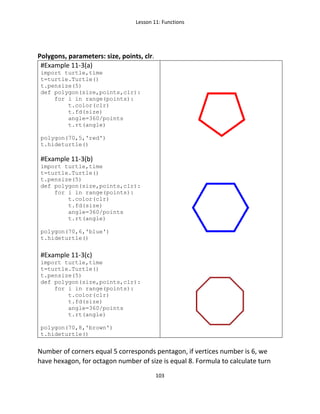
As you can see we call our function three times to get three squares. This program
is easier to read but it is still long. Now we try to make our program shorter using
function with parameters. You can notice that these three drawn squares have
different coordinates of the screen: first square starts from X=-200,Y=0; second
square  from X=0,Y=0 and third square  from X=200,Y=0. Therefore, X position
of square could be parameter in our new function. Parameters allow us to send
information to the function by passing values to it as arguments inside its
parentheses. Now we can modify our code:
Squares with function (one parameter)
#Example 11-2(b)
import turtle
t=turtle.Turtle()
t.pensize(2)#
def square(X):
Lesson 11: Functions
102
t.up()
t.goto(X,0)
t.down()
for i in range(4):
t.fd(100)
t.left(90)
t.color('red')
square(-200)
t.color('blue')
square(0)
t.color('orange')
square(200)
To make our program shorter we can introduce second parameter colour. Name
this parameter clr. Let’s try
Squares with function (two parameters)
Example 11-2(c)
import turtle
t=turtle.Turtle()
t.pensize(2)
def square(X,clr):
t.up()
t.goto(X,0)
t.down()
t.color(clr)
for i in range(4):
t.fd(100)
t.left(90)
square(-200,'red')
square(0,'blue')
square(200,'orange')
You can compare initial code (a) and final code (d). Version (a) consist of 24 lines,
version (d) 14 lines which is significantly shorter. Bellow we would like to show
a few Python programs that effectively use functions.
Lesson 11: Functions
103
Polygons, parameters: size, points, clr.
#Example 11-3(a)
import turtle,time
t=turtle.Turtle()
t.pensize(5)
def polygon(size,points,clr):
for i in range(points):
t.color(clr)
t.fd(size)
angle=360/points
t.rt(angle)
polygon(70,5,'red')
t.hideturtle()
#Example 11-3(b)
import turtle,time
t=turtle.Turtle()
t.pensize(5)
def polygon(size,points,clr):
for i in range(points):
t.color(clr)
t.fd(size)
angle=360/points
t.rt(angle)
polygon(70,6,'blue')
t.hideturtle()
#Example 11-3(c)
import turtle,time
t=turtle.Turtle()
t.pensize(5)
def polygon(size,points,clr):
for i in range(points):
t.color(clr)
t.fd(size)
angle=360/points
t.rt(angle)
polygon(70,8,'brown')
t.hideturtle()
Number of corners equal 5 corresponds pentagon, if vertices number is 6, we
have hexagon, for octagon number of size is equal 8. Formula to calculate turn
Lesson 11: Functions
104
angle for polygon (variable angle in our example) is given by expression
angle=360/points.
Now let’s draw a few polygons on the window screen placed on the randomly
located positions.
Polygons, randomly located on the window screen)
#Example 11-4
import turtle,random
t=turtle.Turtle()
turtle.bgcolor('gold')
turtle.tracer(3)
t.pensize(5)
clr=['red','navy','brown',
'green','violet','pink',
'orange',]
def polygon(size,points,clr):
for i in range(points):
t.color(clr)
t.fd(size)
angle=360/points
t.rt(angle)
for i in range(7):
t.up()
t.setpos(random.randint(-400,400)
,random.randint(-200,200))
t.down()
t.begin_fill()
polygon(25,8,clr[i])
t.end_fill()
t.hideturtle()
Sun Flower
Example 11-5
import turtle
t=turtle.Turtle('turtle')
t.color('black','red')
turtle.tracer(2)
def petal(r,angle):
for i in range(2):
t.circle(r,angle)
t.left(180-angle)
t.begin_fill()
for q in range (16):
Lesson 11: Functions
105
t.setheading(22.5*q)
petal(200,100)
t.end_fill()
t1=turtle.Turtle('circle')
t1.color('orange')
t1.shapesize(8)
Face created with function
#Example 11-6(a)
import turtle
import time
t=turtle.Turtle()
t.hideturtle()
turtle.tracer(2)
def rectangle(x,y,length,width,clr):
t.up()
t.goto(x,y)
t.down()
t.color(clr)
t.begin_fill()
for i in range(2):
t.fd(length)
t.right(90)
t.fd(width)
t.right(90)
t.end_fill()
# Main form gold color
rectangle(-350,250,750,500,'gold')
#Face Brown
rectangle(-200,200,450,400,'brown')
#Nose
rectangle(0,0,50,50,'green')
#Mouth
rectangle(-75,-100,200,25,'lightgreen')
#left upper Cut
rectangle(-350,250,100,200,'white')
#Leftbottom Cut
Lesson 11: Functions
106
rectangle(-350,-100,100,200,'white')
#Right upper Cut
rectangle(300,250,100,200,'white')
#Right bottom Cut
rectangle(300,-100,100,200,'white')
#Left and Right ears
rectangle(325,0,50,50,'red')
rectangle(-325,0,50,50,'red')
#Left and right eyes
rectangle(-100,100,50,50,'lightblue')
rectangle(100,100,50,50,'lightblue')
#Example 11-6(b)
import turtle,random
t=turtle.Turtle('circle')
t.setheading(0)
def face(clr,size1,size2,X,Y):
t.color(clr)
t.up()
t.shapesize(size1,size2)
t.goto(X,Y)
t.stamp()
face('yellow',30,30,0,0)
face('red',3,12,0,-150)
face('black',4,4,-130,120)
face('black',4,4,130,120)
face('gray',10,2,0,0)
#Example 11-7
import turtle
t = turtle.Turtle()
turtle.bgcolor('chocolate')
t.pensize(40)
t.color('blue')
clr=['firebrick','navy','green','gold','violet']
def drawing(r,x,y,n):
t.color(clr[n])
t.up()
t.goto(x,y)
t.down()
t.circle(r)
drawing(50,100,100,0)
Lesson 11: Functions
107
drawing(50,-100,100,1)
drawing(50,-100,-100,2)
drawing(50,100,-100,3)
drawing(50,0,0,4)
Functions in Math Calculations
Example 11-8(simple calculator)
Here’s we use two functions: one for addition of two numbers and another one
for subtraction of two numbers. Loop while is to provide call functions a lot of
times, till you want to make calculations.
Lesson 11: Functions
108
Result:
Lesson 12: Multiple Turtles
109
Lesson 12: Multiple Turtles
How to instantiate more than one turtle in the same program? Very simple. So far
we used one turtle with a name called t in our programs. The line t=turtle.Turtle()
creates a turtle object t. This line imports the module called turtle, which has
all built in functions (forward, left, right, …) for drawing on the screen with the
Turtle object t. Let’s create second turtle object with a name t1,
t1=turtle.Turtle(). Turtle t1 has the same capability and properties as turtle t.
Objects that have the same capabilities and similar properties are defined as
classes in Python language. Keep in mind that you can name turtle objects as
you wish, for example, first one can be Tina and second one –Tommy. You can
add third, fourth and so on turtle objects each with its own name. Below, it is
shown an example with four turtles.
Four turtles
#Example 12-1
import turtle
turtle.bgcolor('darksalmon')
Tina=turtle.Turtle('turtle')
Molly=turtle.Turtle('turtle')
George=turtle.Turtle('turtle')
Wilson=turtle.Turtle('turtle')
Tina.color('black')
Tina.fd(100)
Molly.lt(60)
Molly.color('gold')
Molly.fd(100)
George.lt(40)
George.color('blue')
George.fd(100)
Wilson.lt(20)
Wilson.color('green')
Wilson.fd(100)
Lesson 12: Multiple Turtles
110
First turtle name is Tina, secondMolly, thirdGeorge, and forthWilson.
#Example 12-2
import turtle
tina = turtle.Turtle()
tina.shape('turtle')
tina.shapesize(1)
tina.color('blue')
tina.up()
tina.left(90)
tina.forward(100)
tina.forward(20)
tina.write(
'I am Tina!',
font=('Times New Roman'
,12,'bold'))
tina.forward (50)
tina.right(90)
tommy = turtle.Turtle()
tommy.shape('turtle')
tommy.shapesize(5)
tommy.color('red')
tommy.up()
tommy.forward(50)
tommy.write(
'I am Tommy!'
, font=('Times New Roman'
,12,'bold'))
tommy.forward(150)
In the example12-2 we added couple of lines that allow to write message on the
screen. Each line includes message you want to type, font name font size and font
type.
Simple animation with two turtles
#Example 12-3
import turtle
t1=turtle.Turtle('turtle')
t1.pensize(4)
t1.shapesize(4)
t2=turtle.Turtle('turtle')
t2.pensize(2)
t2.shapesize(2)
X=10
for i in range (50):
Lesson 12: Multiple Turtles
111
t1.fd(X)
t1.lt(10)
t2.fd(X)
t2.rt(10)
Two turtles motion using function
#Example 12-4
import turtle
turtle.bgcolor('red')
t1=turtle.Turtle('turtle')
t2=turtle.Turtle('turtle')
def multiple(turtle,clr,size):
turtle.color(clr)
turtle.shapesize(size)
turtle.pensize(4)
turtle.left(90)
X=10
multiple(t1,'blue',2)
multiple(t2,'gold',1)
for i in range (50):
t1.fd(X)
t1.lt(10)
t2.fd(X)
t2.rt(10)
Example 12-4 shows how to create code with two turtle using function multiple.
Function specifies turtle named t1 and turtle named t2. Parameters of function
are following:
a. Turtle name;
b. Turtle colour;
c. Turtle shape size.
After we determined function we call function with name turtle t1 and call
function with name turtle t2.
Lesson 12: Multiple Turtles
112
Moving Turtles
#Example 12-5
import turtle
maya=turtle.Turtle('turtle')
maya.color('red','green')
maya.penup()
maya.setpos(-200,0)
maya.down()
maya.speed(10)
pepe=turtle.Turtle('turtle')
pepe.color('blue','gold')
pepe.penup()
pepe.setpos(0,-200)
pepe.down()
pepe.speed(10)
pepe.lt(90)
for j in range(7):
maya.begin_fill()
pepe.begin_fill()
#Rectangle drawing
for i in range(4):
maya.fd(50)
maya.rt(90)
pepe.fd(50)
pepe.lt(90)
#-------------------------
maya.fd(50)
pepe.fd(50)
maya.end_fill()
pepe.end_fill()
Two turtles, first named Maya and second Pepe move in perpendicular
directions. Each of them draws square.
Lesson 12: Multiple Turtles
113
Moving Car
#Example 12-6
import turtle
import time
t=turtle.Turtle()
t.color('coral')
t1=turtle.Turtle()
t2=turtle.Turtle()
t3=turtle.Turtle()
t1.color('gray')
t2.color('gray')
t3.hideturtle()
t.penup()
t1.penup()
t2.penup()
t.shape('square')
t1.shape('circle')
t2.shape('circle')
t.turtlesize(4,12)
t1.turtlesize(2)
t2.turtlesize(2)
t3.up()
t3.goto(-460,-95)
t3.down()
t3.color('green')
t3.begin_fill()
for j in range (2):
t3.fd(900)
t3.left(90)
t3.fd(15)
t3.left(90)
t3.end_fill()
for i in range (150):
t.goto(-400+5*i,0)
t1.goto(-460+5*i,-60)
t2.goto(-340+5*i,-60)
Lesson 12: Multiple Turtles
114
Multiple Turtles code with LIST
#Example 12-7(a)
import turtle
q=[turtle.Turtle('square'),
turtle.Turtle('circle'),
turtle.Turtle('turtle'),
turtle.Turtle('arrow')]
clr=['red','gold','blue','violet']
for i in range(4):
q[i].shapesize(2)
q[i].up()
q[i].color(clr[i])
q[i].goto(100*i,0)
#Example 12-7(b)
import turtle
turtle.delay(0)
t = [turtle.Turtle('turtle')
for q in range(8)]
for i, j in enumerate(t):
j.right(i*45)
j.speed(0)
for i in range(720):
for j in t:
j.forward(1)
j.right(1)
#Example 12-7(c)
import turtle
turtle.bgcolor('darksalmon')
wn=turtle.Screen()
turtle.tracer(4)
q=[]
clr=['pink','blue','gold',
'red','green']
pos=[(0,-100),(150,50),
(-150,50),(-150,-250),
(150,-250)]
for n in range (5):
Lesson 12: Multiple Turtles
115
q.append(turtle.Turtle())
q[n].shape('turtle')
q[n].shapesize(5)
q[n].color(clr[n])
q[n].up()
q[n].goto(pos[n])
while True:
for i in range(5):
q[i].fd(2)
q[i].left(1)
#Example 12-7(d)
import turtle
t1=turtle.Turtle()
turtle.bgcolor('blue')
t1.hideturtle()
t2=turtle.Turtle()
t2.hideturtle()
t3=turtle.Turtle()
t3.hideturtle()
t4=turtle.Turtle()
t4.hideturtle()
def run(turtle,delta,
angle,clr,shape):
turtle.showturtle()
turtle.shape(shape)
turtle.shapesize(2)
turtle.color(clr)
turtle.pensize(10)
turtle.fd(delta)
turtle.left(angle)
while True:
run(t1,100,45,'red','turtle')
run(t2,100,-45,'brown','turtle')
run(t3,-100,45,'gold','turtle')
run(t4,-100,-45,'brown','turtle')
Lesson 12: Multiple Turtles
116
#Example 12-8
import turtle,random
turtle.bgcolor('darksalmon')
q=[]
clr=['pink','blue','gold',
'red','green','skyblue',
'hotpink','crimson',
'olive','tomato']
for n in range (len(clr)):
t=turtle.Turtle('turtle')
q.append(t)
q[n].color(clr[n])
q[n].down()
angle=random.randint(-90,90)
q[n].setheading(angle)
for j in range (15):
for i in range(10):
d=random.randint(20,30)
angle=random.randint
(-90,90)
q[i].stamp()
q[i].pensize(3)
q[i].fd(d)
q[i].left(angle)
Lesson 13 :Download Image to the Project
117
Lesson 13: How to download an Image into a Python Turtle
Project
Python Turtle Graphics allows to use images that can be downloaded from any
resource as your computer or internet web pages. Two conditions are required: the
image file must have gif extension and be located in the same directory as the main
file with py extension. Example shown below demonstrates how to insert aquarium
(background image) and fish image into the main file.
Fish in aquarium
#Example 13-1
import turtle
wn=turtle.Screen()
wn.setup(700,500)
wn.bgpic('aquarium.gif')
image='fish1.gif'
wn.addshape(image)
fish=turtle.Turtle()fish.shape(image)
fish.up()
fish.goto(100,0)
fish.showturtle()
Again, keep in mind that Python Turtle accepts files written with extension.gif
only. If you have chosen an image that has a .png. jpg, or jpeg, extension, you
have to convert it to a file with the extension .gif. Аll image files(extension gif)
should be imported into the same directory where the main file is located. ( py
extension) is located.
Key lines in the code:
• Line #4 specifies background image (The name of gif file is aquarium.gif).
• Line #5 specifies a variable with fish image (file name is fish.gif)
Lesson 13 :Download Image to the Project
118
• Line #6 adds fish file to the screen.
• Line #8 allows using fish image as a turtle object. After we determined
turtle object as a fish (instead of our original options, like turtle, circle,
square, triangle…) we can apply our main turtle commands to the fish
image.
Example 13-2 shows a motion of the fish in a horizontal direction from left to right
side, for example 13-3 fish moves in the horizontal direction from left to right side
then turns left and moves from the bottom of the aquarium to the top.
#Example 13-2
import turtle
wn=turtle.Screen()
wn.setup(700,500)
wn.bgpic('aquarium.gif')
image='fish1.gif'
wn.addshape(image)
fish=turtle.Turtle()
fish.shape(image1)
fish.up()
fish.hideturtle()
fish.goto(-300,0)
fish.showturtle()
for i in range(800):
fish.fd(1)
#Example 13-3
import turtle
wn=turtle.Screen()
wn.setup(700,500)
wn.bgpic('aquarium.gif')
image='fish1.gif'
wn.addshape(image)
fish=turtle.Turtle()
fish.shape(image)
fish.up()
fish.hideturtle()
fish.goto(-300,0)
fish.showturtle()
for i in range(500):
fish.fd(1)
fish.lt(90)
for i in range(400):
fish.fd(1)
As you see from the image shown for example 13-3, fish moves from the aquarium
bottom to the top, however, fish does not turn itself. If we want fish to turn on 90
Lesson 13 :Download Image to the Project
119
degrees we have to add a second image and in code listing switch from first to the
second image depends on the motion direction. New code with two inserted fish
images is shown in Example 13-4.
#Example 13-4
import turtle
wn=turtle.Screen()
wn.setup(700,500)
wn.bgpic('aquarium.gif')
image1='fish1.gif'
wn.addshape(image1)
image2='fish2.gif'
wn.addshape(image2)
fish=turtle.Turtle()
fish.shape(image1)
fish.up()
fish.hideturtle()
fish.goto(-300,-200)
fish.showturtle()
for i in range(500):
fish.fd(1)
fish.shape(image2)
fish.lt(90)
for i in range(400):
fish.fd(1)
Horizontal motion
Vertical motion
As you can see we added to the screen image #2 with second position of the fish
(Line #8), use fish1.gif for horizontal movement (Lines 15-16) and file fish2.gif for
vertical movement (Lines 19-20). Two pictures: first one corresponds horizontal
movement, and second one – to vertical movement) are shown below
Lesson 13 :Download Image to the Project
120
Motion around the aquarium.
#Example 13-5
import turtle
wn=turtle.Screen()
wn.setup(700,500)
wn.bgpic('aquarium.gif')
image1='fish1.gif'
image2='fish2.gif'
image3='fish3.gif'
image4='fish4.gif'
wn.addshape(image1)
wn.addshape(image2)
wn.addshape(image3)
wn.addshape(image4)
fish=turtle.Turtle()
fish.shape(image1)
fish.up()
fish.hideturtle()
fish.goto(-300,-200)
fish.showturtle()
for i in range(500):
fish.fd(1)
fish.shape(image2)
fish.lt(90)
for i in range(400):
fish.fd(1)
fish.shape(image3)
fish.lt(90)
for i in range(500):
fish.fd(1)
fish.shape(image4)
fish.lt(90)
for i in range(400):
fish.fd(1)
Code shown in Example 13-5 uses four fish images with different orientation
Lesson 13 :Download Image to the Project
121
and switches one image to the other depending on the motion direction. It is
very important that images have to be trimmed off transparent pixels around
the it when one image passes over or near another as it moves across the
screen, we don’t want the background of one image to wipe out one part of
another. For example, in these images, the checkerboard pattern in the
background represents the transparent area:
Code shown below demonstrates how to animate fish moving across the
aquarium. Each of the four fish files is represented by two different files as
shown below: 2 files for horizontal movements from left to right, 2 files for
horizontal movements from right to left, 2 files for vertical movement from
bottom to top and 2 files for vertical movements from top to bottom.
Lesson 13 :Download Image to the Project
122
Fish swim throughout the aquarium
#Example 13-6
import turtle
import time # new module time
turtle.tracer(2)
t=turtle.Turtle()
wn=turtle.Screen()
wn.setup(1200,900)
wn.bgpic("Aquarium.gif")
image11="f11.gif"
image21="f21.gif"
image31="f31.gif"
image41="f41.gif"
wn.addshape(image11)
wn.addshape(image21)
wn.addshape(image31)
wn.addshape(image41)
image12 ="f12.gif"
image22="f22.gif"
image32="f32.gif"
image42="f42.gif"
wn.addshape(image12)
wn.addshape(image22)
wn.addshape(image32)
wn.addshape(image42)
t.showturtle()
t.up()
t.goto(-400,-200)
for r in range(4):
for i in range(100):
t.shape(image11)
t.fd(4)
time.sleep(0.1) # Suspend execution of the code for the given number of
#seconds (in our case 0.1 seconds).
t.shape(image12)
t.fd(4)
time.sleep(0.1)
t.left(90)
for i in range(50):
t.shape(image21)
t.fd(4)
time.sleep(0.1)
t.shape(image22)
# Continue next page
Lesson 13 :Download Image to the Project
123
t.fd(4)
time.sleep(0.1)
t.left(90)
for i in range(100):
t.shape(image31)
t.fd(4)
#time.sleep(0.1)
t.shape(image32)
t.fd(4)
#time.sleep(0.1)
t.left(90)
for i in range(50):
t.shape(image41)
t.fd(4)
time.sleep(0.1)
t.shape(image42)
t.fd(4)
time.sleep(0.1)
t.left(90)
Static result:
Current code contains Python module called time. This module handles time-
related tasks. To use functions defined in the module, we need to import the
Lesson 13 :Download Image to the Project
124
module first (second line of the listing). Code time.sleep(0.1) means suspending of
code execution for the given number of seconds (in our case 0.1 sec).
Link to access images for this code and code listing:
https://github.com/victenna/Aquarium-with-Fish
The link below shows the final result (click on the link to watch video)
https://www.youtube.com/watch?v=4wKyoa5SHqc&feature=youtu.be
Code shown below in Example 13-7 simulates rainbow prism. It is known that
light is made up of a collection of many colors: red, orange, yellow, green, blue,
indigo, violet. Prism can take in white light on one side and produce its own mini-
rainbow on the other side.
#Example 13-7
import turtle
import time
wn=turtle.Screen()
wn.setup(800,800)
wn.bgpic('raincolors.gif') #background image
t=turtle.Turtle()
clr=['red','orange','yellow','green',
'blue','indigo','violet']
t.color('white')
rainbow=[]
q=0
t.penup()
t.hideturtle()
t.goto(-275,-85)
t.setheading(29)
t.pensize(15)
t.pendown()
turtle.tracer(20)
for n in range (155):
t.fd(1)
X=t.xcor() # return the turtle’s X coordinate.
Y=t.ycor() # return the turtle’s Y coordinate.
if X>-140:
t.penup()
X1=t.xcor()
Y1=t.ycor()
Lesson 13 :Download Image to the Project
125
for n in range (7):
rainbow.append(turtle.Turtle())
rainbow[n].hideturtle()
rainbow[n].penup()
rainbow[n].setposition(X1+5,Y1+3)
rainbow[n].setheading(10-5*n)
rainbow[n].pendown()
rainbow[n].color(clr[n])
for m in range(70):
for n in range (7):
rainbow[n].pensize(5+0.35*m)
if m>43+2*n:
rainbow[n].setheading(-5*n)
rainbow[n].fd(5)
Result of Example 13-7:
Link to access image for this code and code listing:
https://github.com/victenna/Rainbow-Prism
Lesson 13 :Download Image to the Project
126
Lesson 14: More Examples with inserted Images
127
Lesson 14: More Examples with inserted Images
Let's continue to look at examples showing animations using the Python turtle
graphics.
Example 14-1 shows Sun planet system
As you know our Sun planet system contains the Sun and the following planets:
Mercury, Venus, Earth, Mars, Jupiter, Saturn, Uranus and Neptune. Let’s generate
simulation of the orbiting these 8 planets around the Sun using Python code. Code
listing contains 9 almost identical blocks: blocks for each of 8 planets and one for
sun. Each planet is a turtle object, only instead turtle shapes we use an image
downloaded from the Internet. With turtle object we can use all turtle module
codes, that determine motion commands and any other commands specify for this
module.
Solar Planet System
#Example 14-1
import turtle
wn=turtle.Screen()
wn.setup(1200,1000)
wn.bgcolor('black')
wn.bgpic('sky.gif')
wn.tracer(30)
#---------------------------------------
sun=turtle.Turtle('circle') #Sun
sun.penup()
sun.color('yellow')
sun.penup()
Sun_image='Sun.gif'
wn.addshape(Sun_image)
sun.shape(Sun_image)
sun.setposition(0,0)
#------------------------------------------
mercury=turtle.Turtle() #Mercury
mercury.up()
Mercury_image='mercury.gif'
wn.addshape(Mercury_image)
mercury.shape(Mercury_image)
Lesson 14: More Examples with inserted Images
128
mercury.setposition(0,-110)
#------------------------------------------
venus=turtle.Turtle() #Venus
venus.up()
Venus_image='venus.gif'
wn.addshape(Venus_image)
venus.shape(Venus_image)
venus.setposition(0,-135)
#venus.up()
#------------------------------------------
earth=turtle.Turtle() #Earth
earth.up()
Earth_image='earth.gif'
wn.addshape(Earth_image)
earth.shape(Earth_image)
earth.setposition(0,-190)
#------------------------------------------
moon=turtle.Pen() #Moon
moon.up()
moon.setposition(0,60)
moon.shape('circle')
moon.shapesize(0.5)
moon.color('yellow')
moon.speed(0)
#----------------------------------------------
mars=turtle.Turtle() #Mars
mars.up()
Mars_image='Mars.gif'
wn.addshape(Mars_image)
mars.shape(Mars_image)
mars.setposition(0,-280)
#----------------------------------------------
jupiter=turtle.Turtle() #Jupiter
jupiter.up()
Jupiter_image='Jupiter.gif'
wn.addshape(Jupiter_image)
jupiter.shape(Jupiter_image)
jupiter.setposition(0,-350)
#----------------------------------------------
saturn=turtle.Turtle() #Saturn
saturn.up()
Suturn_image='Saturn.gif'
wn.addshape(Suturn_image)
saturn.shape(Suturn_image)
Lesson 14: More Examples with inserted Images
129
saturn.setposition(0,-450)
#------------------------------------------------
uranus=turtle.Turtle() #Urans
uranus.up()
Uranus_image='Uranus.gif'
wn.addshape(Uranus_image)
uranus.shape(Uranus_image)
uranus.setposition(0,-540)
#----------------------------------------------------
neptune=turtle.Turtle() #Neptune
neptune.up()
Neptune_image='Neptune.gif'
wn.addshape(Neptune_image)
neptune.shape(Neptune_image)
neptune.setposition(0,-590)
#----------------------------------------------
while True:
mercury.circle(110,0.478) #Planetary motion
venus.circle(135,0.35)
earth.circle(190,0.3)
mars.circle(280,0.24)
jupiter.circle(350,0.15)
saturn.circle(450,0.1)
uranus.circle(540,0.08)
neptune.circle(590,0.05)
#------------------------------------------------
moon.hideturtle() #Moon motion around Earth
moon.goto(earth.xcor(),earth.ycor())
moon.fd(45)
moon.showturtle()
moon.left(1)
Link to access image for this code and code listing:
https://github.com/victenna/Solar-Planet-System
You can watch video result of this code:
https://youtu.be/gffjt8oOKyU
Lesson 14: More Examples with inserted Images
130
Static result of this code is shown below:
Code in Example 14-1 can be significantly simplified if we combine all images
inthe list. New simplified code listing is shown in Example 14-2.
#Example 14-2
#Solar Planet Motion
import turtle
wn=turtle.Screen()
wn.setup(1300,1300)
wn.bgpic('sky.gif')
wn.bgcolor('black')
wn.tracer(20)
Img=['Sun.gif','mercury.gif','venus.gif','earth.gif','Mars.gif',
'Jupiter.gif','Saturn.gif','Uranus.gif','Neptune.gif','Moon.gif']
Lesson 14: More Examples with inserted Images
131
planet=[]
turtle.hideturtle()
for n in range(10):
planet.append(turtle.Turtle())
planet[n].up()
wn.addshape(Img[n])
planet[n].shape(Img[n])
if n==0:
planet[0].setposition(0,0)
elif n==9:
planet[n].goto(0,-310)
else:
planet[n].goto(0,-120-70*(n-1))
while True:
for m in range (1,10):
planet[m].circle(120+70*(m-1),0.8-0.1*(m-1))
planet[9].hideturtle()
planet[9].goto(planet[3].xcor(),planet[3].ycor())
planet[9].fd(45)
planet[9].showturtle()
planet[9].left(0.1)
Example 14-3 demonstrates Dolphins jumping out of the water. There is an ongoing
debate about why dolphins jump out of the water. Scientists think about different
reasons for this behaviour. Among them, some believe that dolphins jump while
traveling to save energy as going through the air consume less energy than going
through the water. Some others believe that jumping is to get a better view of
distant things in the water, mainly prey. So, in this way, dolphins jump to locate
food or food related activity like seagulls eating or pelicans hunting. Other
explanations suggest that dolphins use jumping to communicate either with a mate
or with another pod as they can hear and interpret the splashes. Some people even
think that dolphins jump for cleaning, trying to get rid of parasites while jumping.
Below we will create Python code that demonstrates animation of three dolphins
that jump out of the water.
Lesson 14: More Examples with inserted Images
132
Dolphins in the sea
#Example 14-3
import turtle
import time
wn = turtle.Screen()
wn.setup(800,800)
wn.tracer(2)
wn.bgpic('more.gif')
image=['do1.gif','do2.gif'] (#1)
wn.addshape(image[0])
wn.addshape(image[1])
t1=turtle.Turtle()
t1.up()
while True:
t1.shape(image[0])
t1.goto(-300,-300)
#----jump out of water
t1.setheading(45)
for i in range(30):
t1.shape(image[0])
t1.fd(20)
time.sleep(0.05)
#-------for fall into water
t1.setheading(-45)
for i in range(30):
t1.shape(image[1])
t1.fd(20)
time.sleep(0.05)
time.sleep(0.5)
Code Result
Let’s take a look for the code. Line, noted as (31) includes two images: first
image for three dolphins that jump out of the water and second- for dolphins
that drop into the water. Motion of the dolphins also includes two blocks of
codes: lines for dolphins jumping out of the water and lines for dolphins that
drop into the water. All images are presented in the Lesson #14. Images for
code (Example 14-3) can be downloaded at:
https://github.com/victenna/Dolphins/tree/master/No%20waves
Sophisticated code with water waves animation is shown in Example 14-4.
Lesson 14: More Examples with inserted Images
133
Example 14-4
import turtle
import time
wn = turtle.Screen()
wn.setup(1000,800)
turtle.tracer(3)
#-----------------15 image frames for water waves
image0=[]
for i in range (15):
i1=str(i)
image0.append(i1+'.gif')
image=['do1.gif','do2.gif']
t1=turtle.Turtle()
t1.up()
k=-1
def motion (direction,img):
global k
t1.setheading(direction)
for i in range(10):
k=k+1
k1=k%15
wn.bgpic(image0[k1])
wn.addshape(img)
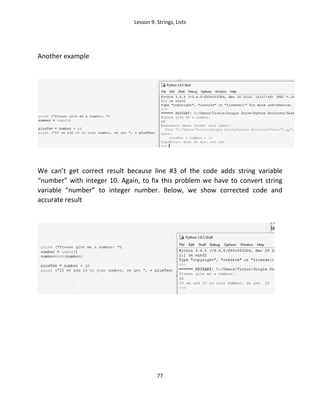
t1.shape(img)
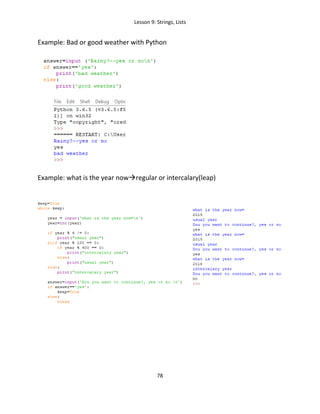
t1.showturtle()
t1.fd(40)
time.sleep(0.05)
while True:
k=k+1
k1=k%15
wn.bgpic(image0[k1])
t1.hideturtle()
t1.goto(-300,-200)
motion(45,image[0])
motion(-45,image[1])
Real result of the code with water motion is shown below:
https://youtu.be/qhXDb4E2XdY
Lesson 14: More Examples with inserted Images
134
Images for code (Example 14-4) can be downloaded at:
https://github.com/victenna/Dolphins/tree/master/Three%20dolphins
Our next example shows how to create a program that creates the running
boys with Python turtle graphics. To do it we have to use run animation frame
images that can be downloaded from the Internet.
Code shown below (Example 14-5) demonstrates how to create motion
animation (walking boy). To generate such an animation, we need to select
several separate static images (frames or sprites) of a running boy so that
with a quick changing of frames the effect of the animation will turn out.
Thus, if one sprite is a still picture, then a rapidly replacing series of these
pictures makes up an animation. All image sprites are loaded into the
program as separate files with the gif extension. The figure below shows 10
separate images (frames) of a boy who, with the help of the Python code,
turn them into an animation (Boy) runs).
Lesson 14: More Examples with inserted Images
135
Walking Boy
#Example 14-5
import turtle,time
wn=turtle.Screen()
wn.setup(850,800)
wn.bgpic('cross1.gif')
turtle.tracer(2)
image0=['01.gif','02.gif','03.gif',
'04.gif','05.gif','06.gif',
'07.gif','08.gif','09.gif',
'010.gif']
t=turtle.Turtle()
t.up()
t.hideturtle()
t.goto(-40,-275)
t.showturtle()
t.speed(10)
t.penup()
dx,dy=2,4
k=0
while True:
k=k+1
k1=k%10
wn.addshape(image0[k1])
t.shape(image0[k1])
t.fd(10)
X,Y=t.position()
time.sleep(0.2)
Lesson 14: More Examples with inserted Images
136
if X>500:
t.hideturtle()
t.goto(-40,-275)
t.showturtle()
Images for the example #14-5 are at:
https://github.com/victenna/Animation-with-Images/tree/master/Pumkin%20boy
Code shown below (Example 14-6) demonstrates how to animate three
running boys. To create animation for running boy we have to use run
animation frame images that can be downloaded from the Internet.
Three Running Boys
#Example 14-6
import turtle,time
t1=turtle.Turtle()
t2=turtle.Turtle()
t3=turtle.Turtle()
wn = turtle.Screen()
wn.bgcolor('green')
wn.setup(800,800)
wn.bgpic('field.gif')
turtle.tracer(2)
image1=['boy11.gif','boy12.gif','boy13.gif','boy14.gif'] #1
image2=['boy21.gif','boy22.gif','boy23.gif','boy24.gif'] #2
image3=['boy31.gif','boy32.gif','boy33.gif','boy34.gif'] #3
for i in range (4):
wn.addshape(image1[i])
wn.addshape(image2[i])
wn.addshape(image3[i])
t1.up()
t1.goto(-600,-150)
t2.up()
t2.goto(-450,110)
t3.up()
t3.goto(-300,200)
delta=7
i=0
import winsound #4
winsound.PlaySound('music3.wav', winsound.SND_ASYNC) #5
while True:
X1=t1.xcor()
if X1>400: #6
t1.goto(-600,-150) #7
t2.goto(-450,110) #8
t3.goto(-300,200) #9
Lesson 14: More Examples with inserted Images
137
i1=i%4
t1.shape(image1[i1])
t1.fd(delta)
t2.shape(image2[i1])
t2.fd(delta)
t3.shape(image3[i1])
t3.fd(delta)
i=i+1
time.sleep(0.035)
Take a look at this code. To generate the motion animation effect we have to
choose a few images( sprites), each of themIt has three lists of images (Lines
noted as #1-#3). To generate the animation effect we have chosen four different
boy images-positions that create running boys. Each line (#15-#17) describes 4
positions of each boy, so we can simulate boy running. Lines named as #4 and #5
provide sound effect when running. Line #4 imports sound module and line #5
calls sound file music3.wav. Turtle module allows sound recording for files with an
extension wav. If boy is out of the screen, conditions (lines #6 to #9) return him to
the left corner of the screen and motion continues again.
Static Result of Code:
Video below shows the final result (click on the image or link to watch video)
https://youtu.be/4L2BMKNKJH8
Lesson 14: More Examples with inserted Images
138
The code and images for program Three running boys are located at:
https://github.com/victenna/Runners
Astronaut in free Space
#Example 14-7(a)
import turtle
import random
turtle.tracer(4)
wn=turtle.Screen()
wn.setup(900,900)
import time
#Moonsky
image1='moonsky.gif' #1
wn.bgpic(image1)
#Spaseshuttle
Shuttle=turtle.Turtle()
image2='shuttle1.gif' #2
wn.addshape(image2)
Shuttle.shape(image2)
Shuttle.penup()
Shuttle.goto(-600,-600)
Shuttle.setheading(40)
#Astronaut
image3='astr1.gif' #3
wn.addshape(image3)
Astro=turtle.Turtle()
Astro.shape(image3)
Lesson 14: More Examples with inserted Images
139
Astro.up()
while True:
Shuttle.fd(5)
time.sleep(0.03)
X,Y=Shuttle.position()
#X=Shuttle.xcor()
#Y=Shuttle.ycor()
Astro.setposition(X+90,Y+90)
Astro.fd(60)
Astro.right(5)
if abs(X-600)<10 or abs(Y-600) <10:
Shuttle.goto(-600,-600)
Astro.goto(-600,-400)
Shuttle.setheading(random.randint(40,80))
The animation Astronaut in free space represents the motion of a spaceship and
an astronaut floating with zero gravity. Astronaut weighs nothing, why? The
teacher, creating the code with the children, explains physics of the phenomenon
(what is weightlessness and why does it appear during the flight of an astronaut
in a spaceship). This method of such teaching significantly improves of subject
learning quality, in our case, physics of motion. The code for this animation with
the images needed for the animation can be downloaded at:
As we can see code includes three inserted images (lines named #1, #2 and
#3. Code and images address:
https://github.com/victenna/Astronaut-in-free-space
You can watch code result at:
https://www.youtube.com/watch?v=vbO7jR3zMho&feature=youtu.be
#Example 14-7(b)
import turtle,random,time
t=turtle.Turtle()
wn=turtle.Screen()
wn.setup(800,800)
wn.bgcolor('dark blue')
turtle.tracer(4)
t.speed(10)
def star(x,y,size):
t.up()
Lesson 14: More Examples with inserted Images
140
t.goto(x,y)
t.color('white')
t.begin_fill()
t.left(36)
for i in range(5):
t.fd(size)
t.left(144)
t.end_fill()
for i in range(50):
sx=random.randint(-
300,300)
sy=random.randint(-
300,300)
ssize=random.randint(10,20)
star(sx,sy,ssize)
earth=turtle.Turtle()
earth.penup()
image1='Earth.gif'
wn.addshape(image1)
earth.shape(image1)
earth.setposition(0,0)
t1=turtle.Turtle()
t1.penup()
image1='astronaut.gif'
wn.addshape(image1)
t1.shape(image1)
t1.left(90)
t1.setposition(300,0)
shuttle=turtle.Turtle()
shuttle.up()
image2='shuttle_.gif'
wn.addshape(image2)
shuttle.shape(image2)
shuttle.goto(0,-250)
shuttle.showturtle()
while True:
shuttle.circle(300,1)
X,Y=shuttle.position()
t1.goto(X+40,Y-60)
time.sleep(0.02)
Lesson 14: More Examples with inserted Images
141
Aquarium with water waves
#Example 14-8
import turtle,time,random
wn=turtle.Screen()
wn.setup(850,600)
AQ=[] #1
for i in range(74): #2
i1=str(i) #3
AQ.append(i1+'.gif')#4
image11 = ("fi11.gif") #5
image12 = ("fi12.gif") #6
image31 = ("fi31.gif") #7
image32 = ("fi32.gif") #8
wn.addshape(image11)
wn.addshape(image12)
wn.addshape(image31)
wn.addshape(image32)
t=turtle.Turtle()
t.showturtle()
t.speed(10)
t.penup()
X,Y=90,-90
dx,dy=2,4
k,r=0,0
while True:
r=r+1
k=k+1
k1=k%74
r1=r%100
wn.bgpic(AQ[k1])
t.setposition(X+dx,Y+dy)
X,Y=t.position()
if dx>0 and r1<50:
t.shape(image11)
if dx>0 and r1>50:
t.shape(image12)
if dx<0 and r1<50:
t.shape(image31)
if dx<0 and r1>50:
t.shape(image32)
if X>250 or X<-260:
dx=-dx
if Y<-205 or Y>210:
dy=-dy
The program shown in example 14-8 is constructed as follows:
Lesson 14: More Examples with inserted Images
142
In order to create water motion in the aquarium (water animation), several static
fixed sprites of water images are introduced into the program, each frame differs
from the previous one so that quick changing of frames creates animation effect.
In our case, each frame contains an image of water with fish, and only one red with
blinking eyes moves around the aquarium due to the control Python codes. All
image sprites are downloaded into the program as separate files with GIF
extension. For water we downloaded 74 files, for red fish 4 images. The names of
the sprites for water are as follows: 0.gif, 1.gif, 2.gif…. 73.gif. Files for these sprites
are downloaded into the program using code lines # 1- # 4. Lines # 5 - # 8 specify
the image of a fish that moves and blinks its eyes due to the Python code. Images
for the project Aquarium with wqter waves can be download at:
https://github.com/victenna/Aquarium-with-water-waves
You can watch real code result at:
https://youtu.be/XeTwY9bwFLk
Below it is shown an animation that demonstrates the motion of a helicopter and
skydivers. The design of this animation can be combined with an explanation of
the motion laws and forces that affect different objects during motion. Code and
images can be downloaded at:
https://github.com/victenna/Helicopter
Helicopter
#Example 14-9
import turtle,time
wn=turtle.Screen()
wn.bgpic('road.gif')
t=turtle.Turtle()
t.up()
turtle.tracer(2)
turtle.bgcolor('brown')
image1=['helicopter11.gif','helicopter12.gif']
image2=['helicopter21.gif','helicopter22.gif']
for i in range(2):
wn.addshape(image1[i])
wn.addshape(image2[i])
image3=['boy.gif','girl.gif','boy1.gif']
for i in range(3):
Lesson 14: More Examples with inserted Images
143
wn.addshape(image3[i])
t1=turtle.Turtle()
t1.shape(image3[0])
t1.up()
t1.hideturtle()
t1.goto(120,400)
t1.setheading(-90)
t2=turtle.Turtle()
t2.shape(image3[1])
t2.up()
t2.hideturtle()
t2.goto(-175,400)
t2.setheading(-90)
t3=turtle.Turtle()
t3.shape(image3[2])
t3.up()
t3.hideturtle()
t3.goto(-295,400)
t3.setheading(-90)
X=0
t.setheading(90)
def up_down(direction):
for i in range (100):
i1=i%2
t.shape(image2[i1])
t.fd(direction)
time.sleep(0.015)
up_down(4.5)
t.setheading(0)
q1=1
q2=0
q3=1
for i in range(450):
if i>=25 and t1.ycor()>-10:
t1.showturtle()
t1.fd(q3*2)
if t1.ycor()<-10:
t1.fd(0)
if i>=230 and t2.ycor()>-10:
t2.showturtle()
t2.fd(q3*2)
if t2.ycor()<-10:
t2.fd(0)
if i>=330 and t3.ycor()>-10:
t3.showturtle()
t3.fd(q3*5)
if t3.ycor()<-10:
t3.fd(0)
Lesson 14: More Examples with inserted Images
144
i1=i%2
X=t.xcor()
t.shape(q1*image1[i1]+abs(q2)*image2[i1])
t.fd(q1*5+q2*5)
time.sleep(0.02)
if X>=480:
q1=0
q2=-1
if X<=-480:
q1=1
q2=0
t.setheading(-90)
up_down(4.5)
Static result of this code
Video result is available:
https://youtu.be/5P104dh_1cU
Pedestrian Crossing (One pedestrian)
#Example 14-10(a)
import turtle,time
wn=turtle.Screen()
wn.setup(800,800)
turtle.bgcolor('light blue')
wn.bgpic('street.gif')
turtle.tracer(2)
#car ========================================
Lesson 14: More Examples with inserted Images
145
car=turtle.Turtle()
cars=['car2.gif','car3.gif','car4.gif']
for i in range(3):
wn.addshape(cars[i])
car.up()
car.setposition(-400,-210)
car.setheading(12)
#light========================================
light=turtle.Turtle()
lights=['red_light.gif','yellow_light.gif','green_light.gif']
for i in range(3):
wn.addshape(lights[i])
light.up()
light.setposition(350,150)
light.shape(lights[2])
#sign===================================
sign=turtle.Turtle()
signs=['w_no.gif','w_yes.gif']
for i in range(2):
wn.addshape(signs[i])
sign.up()
sign.setposition(90,20)
sign.shape(signs[1])
#man============================================
man=turtle.Turtle()
mans=['man1.gif','man2.gif','man3.gif','man4.gif','man5.gif','man6
.gif']
for i in range(6):
wn.addshape(mans[i])
man.shape(mans[3])
man.up()
man.goto(180,-20)
deltaX=5 #determines direction 0f walking (X coordinate)
deltaY=-2.5 #determines direction of walking (Y coordinate)
q=-1
move=1
r=0
while True:
q=q+1
q0=q%3
time.sleep(0.03)
if car.xcor()<-151:
car.shape(cars[q0])
move=1
car.fd(10*move)
light.shape(lights[2])
sign.shape(signs[0])
Lesson 14: More Examples with inserted Images
146
if car.xcor()>-152:
if r<30:
car.shape(cars[0])
r=r+1
light.shape(lights[1])
sign.shape(signs[0])
if r>=29 and r<81:
r=r+1
q1=q%6
light.shape(lights[0])
sign.shape(signs[1])
r1=r-29
man.shape(mans[q1])
man.goto(180+r1*deltaX,-20+r1*deltaY)
time.sleep(0.1)
if r>=81:
car.shape(cars[q0])
move=1
car.fd(10*move)
light.shape(lights[2])
sign.shape(signs[0])
if car.xcor()>500:
q=-1
man.shape(mans[3])
man.hideturtle()
man.goto(180,-20)
man.showturtle()
r=0
car.hideturtle()
car.setposition((-400,-210))
car.showturtle()
Static code result is:
Lesson 14: More Examples with inserted Images
147
You can download images fo Example 14-10(a) at:
https://github.com/victenna/Pedestrian-Crossing
Pedestrian Crossing (Three pedestrians)
#Example 14-10(b)
import turtle,time
car=turtle.Turtle()
turtle.tracer(2)
car.up()
car.hideturtle()
wn=turtle.Screen()
wn.setup(800,800)
turtle.bgcolor('light blue')
wn.bgpic('street.gif')
#car image========================================
cars=['car2.gif','car3.gif','car4.gif']
car=turtle.Turtle() #car turtle
for i in range(3):
wn.addshape(cars[i])
car.up()
car.setposition(-400,-210)
car.setheading(12)
#boy image===========================================
image1=['man1.gif','man2.gif','man3.gif','man4.gif','man5.gif','ma
n6.gif']
image2=['boy21.gif','boy22.gif','boy23.gif','boy24.gif','boy25.gif
','boy26.gif']
image3=['boy41.gif','boy42.gif','boy43.gif','boy44.gif','boy45.gif
','boy46.gif']
t11=turtle.Turtle() #boy turtle
t12=turtle.Turtle() #boy turtle
t13=turtle.Turtle() #boy turtle
X1=180
Y1=-20
def boy_(turtle,X,Y,img):
wn.addshape(img)
turtle.shape(img)
turtle.up()
turtle.goto(X,Y)
turtle.showturtle()
boy_(t11,180,-20,image1[0])
boy_(t12,230,-10,image2[0])
boy_(t13,130,-40,image3[0])
#sign image for pedestrians===============================
sign=['w_no.gif','w_yes.gif']
Lesson 14: More Examples with inserted Images
148
t2=turtle.Turtle() #sign turtle
t2.hideturtle()
t2.up()
t2.setposition(90,20)
t2.showturtle()
def sign_(img1):
wn.addshape(img1)
t2.shape(img1)
sign_(sign[1])
#traffic light image=============================================
light=['red_light.gif','yellow_light.gif','green_light.gif']
t3=turtle.Turtle() #traffic light
t3.hideturtle()
t3.up()
t3.setposition(350,150)
t3.showturtle()
def light_(img2):
wn.addshape(img2)
t3.shape(img2)
light_(light[2])
turtle.tracer(2)
# function man walks===========================
deltaX=5 #determines walking direction
deltaY=-2.5 #determines walking direction
q=-1
move=1
r=0
while True:
q=q+1
q0=q%3
time.sleep(0.03)
if car.xcor()<-151:
car.shape(cars[q0])
move=1
car.fd(10*move)
light_(light[2])
sign_(sign[0])
if car.xcor==-152:
car.shape(car[0])
if car.xcor()>-152:
if r<30:
car.shape(cars[0])
r=r+1
light_(light[1])
sign_(sign[0])
if r>=29 and r<81:
r=r+1
q1=q%6
light_(light[0])
sign_(sign[1])
r1=r-29
Lesson 14: More Examples with inserted Images
149
boy_(t11,180+r1*deltaX,-20+r1*deltaY,image1[q1])
boy_(t12,230+r1*deltaX,-10+r1*deltaY,image2[q1])
boy_(t13,130+r1*1.2*deltaX,-
40+1.2*r1*deltaY,image3[q1])
time.sleep(0.05)
if r>=81:
car.shape(cars[q0])
move=1
car.fd(10*move)
light_(light[2])
sign_(sign[0])
if car.xcor()>500:
q=-1
boy_(t11,180,-20,image1[0])
boy_(t12,230,-10,image2[0])
boy_(t13,130,-40,image3[0])
r=0
car.hideturtle()
car.setposition((-400,-210))
car.showturtle()
Static code result is:
You can watch result of animation at
https://youtu.be/zvTHDusc-H0
Images are at:
Lesson 14: More Examples with inserted Images
150
https://github.com/victenna/Pedestrian-Crossing
Chess Board
import turtle
wn=turtle.Screen()
wn.setup(700,700)
q=turtle.Turtle('square')
q.hideturtle()
q.hideturtle()
q.shapesize(3)
q.color('black')
q.penup()
q.hideturtle()
q.goto(0,0)
turtle.tracer(2)
def condition(a,clr1,clr2):
if j%2==0:
q.color(clr1)
else:
q.color(clr2)
q.goto(a+j*60,a+60*i)
q.stamp()
for i in range(8):
for j in range (8):
if i%2==0:
condition(-200,'coral','lightgray')
if i%2>0:
condition(-200,'lightgray','coral')
t=[]
im=['Rook.gif','Rook.gif','Knight.gif','Knight.gif','Bishop.gif',
'Bishop.gif','King.gif','Queen.gif','Pawn.gif','Pawn.gif','Pawn.gi
f','Pawn.gif',
'Pawn.gif','Pawn.gif','Pawn.gif','Pawn.gif',
'Rookw.gif','Rookw.gif','Knightw.gif','Knightw.gif','Bishopw.gif',

'Bishopw.gif','Kingw.gif','Queenw.gif','Pawnw.gif','Pawnw.gif','Pa
wnw.gif','Pawnw.gif',
'Pawnw.gif','Pawnw.gif','Pawnw.gif','Pawnw.gif']
for n in range (32):
t.append(turtle.Turtle())
wn.addshape(im[n])
t[n].shape(im[n])
t[n].penup()
Lesson 14: More Examples with inserted Images
151
t[0].goto(220,-200)
t[1].goto(-205,-200)
t[2].goto(-140,-200)
t[3].goto(160,-200)
t[4].goto(-85,-200)
t[5].goto(90,-200)
t[6].goto(-25,-200)
t[7].goto(40,-200)
for s in range (8,16):
t[s].goto(-200+(s-8)*60,-140)
t[16].goto(220,220)
t[17].goto(-205,220)
t[18].goto(-140,220)
t[19].goto(160,220)
t[20].goto(-85,220)
t[21].goto(90,220)
t[22].goto(-25,220)
t[23].goto(40,220)
for s in range (24,32):
t[s].goto(-200+(s-24)*60,160)
for n in range(32):
t[n].ondrag(t[n].goto)
Code Result :
Lesson 14: More Examples with inserted Images
152
Images for chess code can be download at:
https://github.com/victenna/Chess-Board
Lesson 15: Mouse and Keyboard Control (Function onclick)
153
Lesson 15: Mouse and Keyboard Control (Function onclick )
Now we are going to learn to handle user events and make our programs more
interactive. Event-driven programs basically do nothing, waiting until something –
an event – happens. When an event does happen, they spring into action, doing
whatever is necessary to handle the event. Python’s turtle module includes some
functions for handling user events, including mouse clicks and keypresses.
First use built in the Turtle module following function: wn.onscreenclick() or shortly
wn.onclick().
As the name suggests, this function allows us to handle events created by the user
clicking on the turtle’s screen. There’s a difference between this function and the
ones we’ve used and built before: the argument that we send to
wn.onscreenclick() isn’t a value — it’s the name of another function:
wn.onscreenclick(t.goto)
Remember the goto(x,y) function that we’ve used to move the mouse to a certain
(x, y) location on the screen? Now we’re telling the computer that when the turtle
screen gets a mouse click, it should set the turtle to the position of that click on
the screen. A function we pass as an argument to another function is sometimes
called a callback function (because it gets called back by the other function).
Notice that when we send a function as an argument to another function, the
inside function doesn’t need the parentheses after its name. By sending the
function name t.goto to wn.onscreenclick(), we’re telling the computer what we
want screen clicks to do: we want to set the position of the turtle to wherever the
user clicked. Let’s try it in a short program:
!!!All codes with function wn.screenonclick ( shortly wn.onclick() ) operates
only when you mouse click on any point of the screen!!!
Lesson 15: Mouse and Keyboard Control (Function onclick)
154
#Example 15-1
import turtle
t=turtle.Turtle()
wn=turtle.Screen()
wn.title('How to handlemouse
clicks on the window')
wn.bgcolor('lightgreen')
t.color('purple')
t.pensize(30)
t.shape('square')
wn.onclick(t.goto)
Result
A drawing result after mouse click in random positions of the screen is shown
from right side of the code. We can change the background colour of the screen,
the turtle’s pen colour, the width of the pen, and more. Operational code for
onclick function can be written as a function:
#Example 15-2
import turtle
t=turtle.Turtle()
wn=turtle.Screen()
wn.title('How to handlemouse
clicks on the window')
wn.bgcolor('lightgreen')
t.color('purple')
t.pensize(5)
t.shape('circle')
def h(x,y):
t.goto(x,y)
wn.onscreenclick(h)
Result
In example #2 code for onscreenclick function is created using h(x,y) function.
Lesson 15: Mouse and Keyboard Control (Function onclick)
155
#Example 15-3
import turtle
t=turtle.Turtle()
wn=turtle.Screen()
wn.title('How to handlemouse
clicks on the window')
wn.bgcolor('lightgreen')
t.color('purple')
t.pensize(30)
t.shape('circle')
n=0
def h(x,y):
global n #1
if n%2==0: #2
t.color(‘red’)
else:
t.color(‘blue’)
t.goto(x,y)
n=n+1
wn.onscreenclick(h)
Result
Variable n (line#1) shown code is global variable. In Python language if a variable
is defined outside a function, usually it can be seen(visible) inside the function. On
the other hand, if variable is defined inside a function, usually it can’t be seen
outside the function. The global keyword is one exception to this rule. A variable
that is defined as a global can be seen everywhere. It’s our example. Line #2
determines the modulo operation of variable n. If variable n can be any integer
number, value n%2 takes value only 0, or 1 depends on the n value.
Table below shows the ratio between n and n%2
n n%2
0 0
1 1
2 0
3 1
4 0
5 1
Lesson 15: Mouse and Keyboard Control (Function onclick)
156
Below we show a few examples that demonstrate onclick function applications
#Example 15-5
import turtle
t=turtle.Turtle()
wn=turtle.Screen()
wn.title('How to handlemouse
clicks on the window')
wn.bgcolor('lightgreen')
t.color('purple')
t.pensize(30)
t.shape('circle')
q=0
def h(x,y):
global q
t.stamp()
t.up()
t.goto(x,y)
if q%2==0 :
t.color('red')
else:
t.color('blue')
q=q+1
wn.onclick(h)
Result
#Example 15-6
import turtle
t=turtle.Turtle()
t.hideturtle()
wn=turtle.Screen()
wn.title('How to handlemouse clicks on the window')
wn.bgcolor('lightgreen')
t.color('purple')
t.pensize(10)
t1=turtle.Turtle()
t1.up()
t1.goto(-300,300)
t1.color('navy')
Lesson 15: Mouse and Keyboard Control (Function onclick)
157
t1.write('Click on any point of the screen',
font=('Arial', 20,'bold'))
n=0
def h(x,y):
global n
t.up()
t.hideturtle()
if n%2==0:
t.color('red'))
else:
t.color('blue')
t.goto(x,y)
t.down()
t.showturtle()
t.circle(50)
n=n+1
wn.onclick(h)
Code result
Lesson 15: Mouse and Keyboard Control (Function onclick)
158
Firework
#Example 15-7(a)
import turtle
import time
import random
wn=turtle.Screen()
wn.bgcolor('black')
t=turtle.Turtle('circle')
t.shapesize(0.3)
t.up()
turtle.tracer(50)
clr=['red','blue','gold','yellow','green','pink','lightgreen']
t1=turtle.Turtle()
t1.up()
t1.hideturtle()
t1.color('red')
t1.goto(-150,300)
t1.write('Firework', font=("Arial",20,'bold'))
t1.goto(-300,250)
t1.color('white')
t1.write('click on any point of the the screen',
font=("Arial",20,'bold'))
def firework(x,y):
t.clear()
t.goto(x,y)
for j in range(5):
a=random.choice(clr)
t.color(a)
time.sleep(0.1)
for i in range(9):
b=random.choice(clr)
t.color(b)
t.circle(40+20*j,40)
t.stamp()
for i in range(10):
wn.bgcolor('red')
time.sleep(0.2)
wn.bgcolor('blue')
time.sleep(0.2)
wn.onclick(firework)
Lesson 15: Mouse and Keyboard Control (Function onclick)
159
Code result
#Example 15-7(b)
import turtle
import time
import random
wn=turtle.Screen()
wn.bgcolor('black')
wn.colormode(255)
t=turtle.Turtle('circle')
t.shapesize(0.3)
t.up()
turtle.tracer(50)
t1=turtle.Turtle()
t1.up()
t1.hideturtle()
t1.color('red')
t1.goto(-150,300)
t1.write('Firework', font=("Arial",20,'bold'))
t1.goto(-300,250)
t1.color('white')
t1.write('click on any point of the the screen',
font=("Arial",20,'bold'))
def firework(x,y):
wn.bgcolor('black')
q=random.randint(5,25)
t.goto(x,y)
for i in range(5):
t.goto(random.randint(-400,400),random.randint(-400,400))
for j in range(5):
q1=random.randint(1,255)
q2=random.randint(1,255)
q3=random.randint(1,255)
t.color(q1,q2,q3)
time.sleep(0.1)
for i in range(q):
q4=random.randint(1,255)
q5=random.randint(1,255)
q6=random.randint(1,255)
t.color(q4,q5,q6)
Lesson 15: Mouse and Keyboard Control (Function onclick)
160
t.circle(40+20*j,40)
t.stamp()
t.fd(20)
#time.sleep(0.2)
for r in range(5):
wn.bgcolor('dark blue')
time.sleep(0.2)
wn.bgcolor('blue')
time.sleep(0.2)
wn.bgcolor('black')
t.clear()
wn.onclick(firework)
Code result
#Example 15-7(c)
#Firework
import turtle,time
import random
wn=turtle.Screen()
turtle.tracer(2,5)
t=turtle.Turtle()
turtle.bgcolor('black')
turtle.colormode(255) #1
t.goto(0,-400)
t.shapesize(1)
t.pensize(2)
t.hideturtle()
t1=turtle.Turtle()
t1.up()
t1.hideturtle()
t1.color('red')
t1.goto(-150,300)
t1.write('Firework', font=("Arial",20,'bold'))
t1.goto(-300,250)
t1.color('white')
Lesson 15: Mouse and Keyboard Control (Function onclick)
161
t1.write('click on any point of the the screen',
font=("Arial",20,'bold'))
def motion(delta,angle,clr):
t.fd(delta)
t.back(delta)
t.rt(angle)
t.color(clr)
def firework(x,y):
t.up()
#t.clear()
t.goto(x,y)
t.down()
for i in range (20):
t.penup()
a=random.randint(0,255)
b=random.randint(0,255)
c=random.randint(0,255)
t.pencolor(a,b,c) #2
u=random.randint(50,350)
t.setheading(90)
d=random.randint(100,600)
t.fd(d)
t.pendown()
if i%2==0:
t.circle(-u,150)
if i%2>0:
t.circle(u,150)
t.setheading(-90)
t.pensize(1)
motion(50,45,'red')
motion(50,-45,'blue')
motion(50,-45,'yellow')
motion(50,-22.5,'green')
motion(50,130,'gold')
t.penup()
t.pensize(2)
t.goto(x,y)
time.sleep(2)
t.clear()
wn.onclick(firework)
Lesson 15: Mouse and Keyboard Control (Function onclick)
162
Code result:
Code in Example 222 sets pencolor to RGB color represented by r,g,b values (line
#2). Each of r,g,b must be in range 0..colormode. We set colormode equal 255
(line #1).
Python turtle module allows to detect when the user has hit certain keys
on the keyboard or moved/clicked the mouse. Whenever the user performs
an action as such it is called an event. When the user interacts with the
program code waits the user's instructions and responds to his commands (for
example, pressing the keyboard or mouse buttons). Thus, you can move, turn on,
turn off, or combine objects created by the program, and you can watch the
result on the monitor screen. The animation shown below is the result of Python
code obtained with a function that moves an object (butterfly) to the position of
the screen that was clicked on with the mouse.
Butterfly with function onclick.
#Example 15-8
import turtle
wn=turtle.Screen()
import time
wn.setup(1200,1100)
wn.bgcolor('pink')
wn.bgpic('grass.gif')
t1=turtle.Turtle()
t2=turtle.Turtle()
t3=turtle.Turtle()
t4=turtle.Turtle()
t5=turtle.Turtle()
t6=turtle.Turtle()
t7=turtle.Turtle()
Lesson 15: Mouse and Keyboard Control (Function onclick)
163
t1.up()
t2.up()
t3.up()
t4.up()
t5.up()
t6.up()
t7.up()
image1='flo11.gif'
image2='flo2.gif'
image3='flo3.gif'
image4='flo4.gif'
image5='flo5.gif'
image6='flo6.gif'
image=[]
for i in range (118):
#print(i)
i1=str(i)
image.append(i1+'.gif')
wn.addshape(image1)
t1.shape(image1)
t1.goto(-100,-230)
wn.addshape(image2)
t2.shape(image2)
t2.goto(-300,-420)
wn.addshape(image3)
t3.shape(image3)
t3.goto(300,-170)
wn.addshape(image4)
t4.shape(image4)
t4.goto(0,235)
wn.addshape(image5)
t5.shape(image5)
t5.goto(-150,380)
wn.addshape(image6)
t6.shape(image6)
t6.goto(400,-450)
while True:
for i in range (18):
wn.addshape(image[i])
t7.shape(image[i])
time.sleep(0.1)
Lesson 15: Mouse and Keyboard Control (Function onclick)
164
def fly(x, y):
t7.goto(x, y)
wn.onclick(fly)
Video code result
https://youtu.be/tDESlsOs_0Y
Images for butterfly with function onclick are at:
https://github.com/victenna/Flowers-and-Butterfly
Lesson 15: Mouse and Keyboard Control (Function onclick)
165
Helicopter with skydivers (skydiver descends to the ground when clicking the
screen by mouse)
#Example 15-9
import turtle,time
wn=turtle.Screen()
wn.bgpic('road.gif')
t=turtle.Turtle()
t.up()
turtle.tracer(2)
turtle.bgcolor('brown')
image1=['helicopter11.gif','helicopter12.gif']
image2=['helicopter21.gif','helicopter22.gif']
for i in range(2):
wn.addshape(image1[i])
wn.addshape(image2[i])
diver=[]
image3=['boy.gif','boy1.gif','boy2.gif', 'boy3.gif','girl.gif']
def condition(turtle):
turtle.setheading(-90)
if turtle.ycor()>-10:
turtle.fd(5)
if turtle.ycor()<-10:
turtle.fd(0)
for i in range(5):
wn.addshape(image3[i])
diver.append(turtle.Turtle())
diver[i].shape(image3[i])
diver[i].up()
diver[i].hideturtle()
diver[i].setheading(-90)
t.setheading(90)
def up_down(step):
for i in range (100):
i1=i%2
t.shape(image1[i1])
t.fd(step)
time.sleep(0.015)
up_down(4.5)
Lesson 15: Mouse and Keyboard Control (Function onclick)
166
t.setheading(0)
s=1
q=0
q1=1
q2=0
i=0
while True:
i=i+1
i1=i%2
X=t.xcor()
if i1==0:
t.shape(image1[0])
if i1==1:
t.shape(image1[1])
t.shape(q1*image1[i1]+abs(q2)*image2[i1])
t.fd(q1*5+q2*5)
time.sleep(0.02)
if X>=480:
q1=0
q2=-1
if X<=-480:
q1=1
q2=0
for m in range(5):
condition(diver[m])
def h(x,y):
global q
global X
q=q+1
for n in range (1,6):
if q==n:
diver[n-1].goto(X,400)
diver[n-1].showturtle()
wn.onclick(h)
Static code result:
Lesson 15: Mouse and Keyboard Control (Function onclick)
167
Lesson 15: Mouse and Keyboard Control (Function onclick)
168
Lesson 16: Keyboard Control (Function onkeypress)
169
Lesson 16: Keyboard Control (Function onkeypress )
Continue to make our programs more interactive. As we told before event-driven
programs basically do nothing, waiting until something –an event – happens. When
an event does happen, they spring into action, doing whatever is necessary to
handle the event. Python’s turtle module includes some functions for handling user
events, including mouse clicks and keypresses. Now investigate the Turtle module
function: wn.onkeypress() or shortly wn.onkey(). The function onkey expects two
arguments: a function and a keyboard value. The keyboard value is either a string
containing the single character on a given keyboard key or a string reserved for a
special key, such as an arrow key. The onkey function binds a given key to a given
function, meaning that when the key is released, the function is called. For
example, if you issue the command onkey(down, 'a'), where down is the name of
the function. Python binds the 'a' key to the down function, and the pen is placed
down when the user releases the 'a' key. You need to set up all your event handlers
for the different keys and then call the listen function to start listening for events.
To experiment with key events, we can bind the arrow keys to move the turtle
forward or backward, turn it left or right, and clear the drawing, as shown in the
following example:
Example 16-1
import turtle
wn=turtle.Screen()
wn.bgcolor('blue')
t1=turtle.Turtle('turtle')
t1.color('red')
def up():
t1.setheading(90)
t1.forward(50)
t1.stamp()
def down():
t1.setheading(270)
Result
Lesson 16: Keyboard Control (Function onkeypress)
170
t1.forward(50)
t1.stamp()
def left():
t1.setheading(180)
t1.forward(50)
t1.stamp()
def right():
t1.setheading(0)
t1.forward(50)
t1.stamp()
wn.listen()
wn.onkey(up, 'Up')
wn.onkey(down, 'Down')
wn.onkey(left, 'Left')
wn.onkey(right, 'Right')
Using function onkey from an example 16-1 user can move the turtle on the
screen by pressing the arrow keys instead of clicking the mouse button. We built
functions for moving the turtle for each arrow keypress on the keyboard, (up (↑),
down ( ) left (←), and right (→) keyboard and then we told the computer to
listen (line #27) for those keys to be pressed.
Code shown below demonstrates how to change the color on computer screen
using keyboard control with Python code.
Example 16-2
import turtle
wn=turtle.Screen()
wn.setup(800,800)
wn.bgcolor('black')
t1=turtle.Turtle()
t1.up()
t1.hideturtle()
t1.color('white')
t1.goto(-150,300)
Lesson 16: Keyboard Control (Function onkeypress)
171
t1.write('Press s-key to get blue 
screen', font=('Aril',20,'bold'))
t1.goto(-300,250)
t1.write('Press a-key to get red 
screen', font=('Aril',20,'bold'))
def blue_screen():
wn.bgcolor('blue')
def red_screen():
wn.bgcolor('red')
wn.listen()
wn.onkey(blue_screen, 's')
wn.onkey(red_screen, 'a')
Example 16-3 shows how to draw different simple geometries with Python
keyboard control.
Example 16-3
import turtle
wn=turtle.Screen()
wn.bgcolor('green')
t1=turtle.Turtle()
t1.color('red')
t1.hideturtle()
t2=turtle.Turtle()
t2.color('blue')
t2.hideturtle()
t3=turtle.Turtle()
t3.color('blue')
t3.color('gold')
t3.hideturtle()
turtle.tracer(3)
t4=turtle.Turtle()
t4.up()
t4.color('white')
Lesson 16: Keyboard Control (Function onkeypress)
172
t4.hideturtle()
t4.goto(-300,300)
t4.write('Press s-key to draw 
square',
font=("Arial",20,'bold'))
t4.goto(-300,250)
t4.write('Press d-key to draw 
hexagon',
font=("Arial",20,'bold'))
t4.goto(-300,200)
t4.write('Press digit 3 to draw 
circle',
font=("Arial",20,'bold'))
t4.goto(-300,350)
t4.write('Press space bar to
clear 
screen',
font=("Arial",20,'bold'))
# This function draw a square.
def square():
t1.up()
t1.goto(-300,0)
t1.down()
t1.begin_fill()
for i in range (4):
t1.fd(100)
t1.rt(90)
t1.end_fill()
# This function draw a hexagon.
def hexagon():
t2.goto(0,0)
t2.down()
t2.begin_fill()
for i in range (6):
t2.fd(100)
t2.lt(60)
t2.end_fill()
# This function draw a circle.
def circle():
t3.up()
t3.goto(300,0)
Lesson 16: Keyboard Control (Function onkeypress)
173
t3.down()
t3.begin_fill()
t3.circle(100)
t3.end_fill()
def start_over():
t1.clear()
t2.clear()
t3.clear()
wn.listen()
# The functions below draws a
shape when certain keys are
pressed.
wn.onkey(square, "s")
wn.onkey(hexagon, "d")
wn.onkey(circle,3)
wn.onkey(start_over,'space')
Next example: traffic light control
#Example 16-4
import turtle
turtle.setup(800,800)
wn = turtle.Screen()
wn.title("Tess becomes a traffic
light!")
wn.bgcolor("lightgreen")
t = turtle.Turtle()
t1=turtle.Turtle()
t1.up()
t1.hideturtle()
t1.color('red')
t1.goto(-100,300)
t1.write('Traffic Light',
font=("Arial",20,'bold'))
t1.goto(-200,250)
t1.color('white')
t1.write('Tap spacebar to change
colour',
font=("Arial",20,'bold'))
Lesson 16: Keyboard Control (Function onkeypress)
174
def light_frame():
t.pensize(3)
t.color("black","darkgrey")
t.begin_fill()
t.forward(80)
t.left(90)
t.forward(200)
t.circle(40, 180)
t.forward(200)
t.left(90)
t.end_fill()
t.up()
t.goto(40,80)
t.down()
t.color('black','black')
t.begin_fill()
t.circle(30)
t.end_fill()
#t.stamp()
t.up()
t.goto(40,10)
t.down()
t.begin_fill()
t.circle(30)
t.end_fill()
t.up()
t.goto(40,150)
t.down()
t.begin_fill()
t.circle(30)
t.end_fill()
t.up()
t.goto(0,0)
light_frame()
t.penup()
t.forward(40)
t.left(90)
t.forward(40)
t.shape("circle")
t.shapesize(3)
t.fillcolor("green")
Lesson 16: Keyboard Control (Function onkeypress)
175
state=0
def next_state():
global state
if state == 0:
t.forward(70)
t.fillcolor("orange")
state= 1
elif state== 1:
t.forward(70)
t.fillcolor("red")
state = 2
else:
t.back(140)
t.fillcolor("green")
state= 0
wn.onkey(next_state, 'space')
wn.listen()
Combine two Events: onkey() and onclick()
#Example 16-5(a)
import turtle
t = turtle.Turtle('circle')
wn = turtle.Screen()
wn.title("How to handle mouse
clicks on the window!")
wn.bgcolor("lightgreen")
t.color("purple")
t.pensize(30)
t.up()
q=0
def h(x, y):
global q
t.stamp()
t.penup()
t.goto(x, y)
if q%2==0:
t.color('red')
Lesson 16: Keyboard Control (Function onkeypress)
176
else:
t.color('blue')
q=q+1
def h1():
t.setheading(0)
t.fd(50)
def h2():
t.setheading(180)
t.fd(50)
def h3():
t.setheading(90)
t.fd(50)
def h4():
t.setheading(-90)
t.fd(50)
wn.onclick(h)
wn.onkey(h1,'Right')
wn.onkey(h2,'Left')
wn.onkey(h3,'Up')
wn.onkey(h4,'Down')
wn.listen()
In this example you can move circle
using arrow keys of the keyboard or
jump circle from one screen
position to the other one using
mouse button click
Example 16-5(b)
import turtle
t = turtle.Turtle('circle')
wn = turtle.Screen()
wn.title("How to handle mouse
clicks on the window!")
wn.bgcolor("lightgreen")
t.color("purple")
t.pensize(30)
t.up()
def h(x, y):
t.down()
t.goto(x, y)
def h1():
t.up()
t.setheading(0)
t.fd(50)
def h2():
t.up()
t.setheading(180)
Lesson 16: Keyboard Control (Function onkeypress)
177
t.fd(50)
def h3():
t.up()
t.setheading(90)
t.fd(50)
def h4():
t.up()
t.setheading(-90)
t.fd(50)
wn.onclick(h)
wn.onkey(h1,'Right')
wn.onkey(h2,'Left')
wn.onkey(h3,'Up')
wn.onkey(h4,'Down')
wn.listen()
Lesson 16: Keyboard Control (Function onkeypress)
178
Lesson 17: Mouse and Keyboard Control (Function ondrag)
179
Lesson 17: Mouse Keyboard Control (Function ondrag ))
Let’s continue investigate event-driven programs. Now we experiment with
ondrag() function. Turtle graphics allows you to respond to mouse drag events
with the ondrag function. Like the onscreenclick function, the ondrag function
expects another function as an argument. This function is triggered repeatedly,
while the user drags the mouse from one position to another in the turtle
graphics window. Initially, you must position the mouse on the turtle’s shape for
the first drag event to be detected. As before, the event-handling function’s two
arguments will be the current mouse coordinates.
Turtle moves according ondrag function
#Example 17-1(a)
import turtle
wn=turtle.Screen()
wn.bgcolor('blue')
t=turtle.Turtle('turtle')
t.up()
t.color('red')
t.shapesize(3)
def dragging(x,y):
t1.ondrag(None)
t.goto(x,y)
t.ondrag(dragging)
t.ondrag(dragging)
Example 17-1(b)
import turtle
wn=turtle.Screen()
wn.bgcolor('blue')
t1= turtle.Turtle('turtle')
t1.penup()
t1.color('red')
t1.shapesize(3)
#t1.speed('fastest')
def dragging(x, y):
t1.ondrag(None)
Turtle moves, direction is horizontal
Turtle moves and specifies (can
change) the angle direction
Lesson 17: Mouse and Keyboard Control (Function ondrag)
180
angle=t1.towards(x, y)
t1.setheading(angle)
t1.goto(x, y)
t1.ondrag(dragging)
print(t1.position())
t1.ondrag(dragging)
Drag two turtles
#Example 17-2
import turtle
wn=turtle.Screen()
wn.bgcolor('gold')
t1= turtle.Turtle('turtle')
t1.penup()
t1.color('red')
t1.shapesize(3)
t2= turtle.Turtle('turtle')
t2.color('blue')
t2.shapesize(2)
t2.up()
t2.goto(100,100)
def dragging(x, y):
t1.ondrag(None)
t1.goto(x, y)
t1.ondrag(dragging)
t1.ondrag(dragging)
def dragging2(x, y):
t2.ondrag(None)
t2.goto(x, y)
t2.ondrag(dragging2)
Lesson 17: Mouse and Keyboard Control (Function ondrag)
181
Build a house
#Example 17-3
import turtle
wn=turtle.Screen()
t1= turtle.Turtle('square')
t1.shapesize(15,10)
t1.penup()
t1.color('red')
t1.speed('fastest')
t2= turtle.Turtle('square')
t2.shapesize(5,3)
t2.penup()
t2.color('black')
t2.speed('fastest')
t3= turtle.Turtle('triangle')
t3.shapesize(14,6)
t3.left(90)
t3.penup()
t3.color('green')
t3.speed('fastest')
t4= turtle.Turtle('circle')
t4.shapesize(2)
t4.left(90)
t4.penup()
t4.color('grey')
t4.speed('fastest')
def dragging1(x, y):
t1.goto(x, y)
def dragging2(x, y):
t2.goto(x, y)
def dragging3(x, y):
t3.goto(x, y)
def dragging4(x, y):
t4.goto(x, y)
t1.ondrag(dragging1)
t2.ondrag(dragging2)
t3.ondrag(dragging3)
Lesson 17: Mouse and Keyboard Control (Function ondrag)
182
t4.ondrag(dragging4)
Video code result
https://youtu.be/pFRGnwrFAyQ
Build a house (short version)
#Example 17-3(b)
import turtle
t=[]
sh=['square','square','triangle','circle']
clr=['red','black','green','grey']
for n in range (4):
t.append(turtle.Turtle())
t[n].shape(sh[n])
t[n].up()
t[n].color(clr[n])
t[n].speed('fastest')
t[0].shapesize(15,10)
t[1].shapesize(5,3)
t[2].shapesize(14,6)
t[2].left(90)
t[3].shapesize(2)
def dragging0(x, y):
t[0].goto(x, y)
def dragging1(x, y):
t[1].goto(x, y)
def dragging2(x, y):
t[2].goto(x, y)
def dragging3(x, y):
t[3].goto(x, y)
t[0].ondrag(dragging0)
t[1].ondrag(dragging1)
t[2].ondrag(dragging2)
t[3].ondrag(dragging3)
Lesson 17: Mouse and Keyboard Control (Function ondrag)
183
Images to build a house can be download at:
https://github.com/victenna/My-House
Build 3D house
#Example 17-4
import turtle
wn=turtle.Screen()
wn.setup(1000,1000)
turtle.tracer(2)
TEXT_FONT=('Arial', 20,'bold')
capture=turtle.Turtle()
capture.hideturtle()
capture.up()
capture.setposition(-400,-300)
capture.write('Build a House dragging parts with a mouse',
font=TEXT_FONT)
t=[]
sh=['square','square','triangle','square','square','square']
clr=['red','whitesmoke','green','whitesmoke','blue','gray']
for n in range (6):
t.append(turtle.Turtle())
t[n].shape(sh[n])
t[n].up()
t[n].color(clr[n])
t[n].speed('fastest')
t[0].shapesize(15,13.8)
t[0].goto(-300,200)
t[1].shapesize(7,3)
t[1].goto(-300,-100)
t[2].shapesize(14,6)
t[2].goto(300,200)
t[2].left(90)
t[3].shapesize(2)
t[3].shearfactor(-0.5)
t[3].goto(300,-100)
t[4].shapesize(12,7.8)
t[4].right(-116.5)
t[4].shearfactor(-0.5)
t[4].goto(0,300)
t[5].shapesize(14.8,10.6)
t[5].right(0)
t[5].shearfactor(-0.5)
t[5].goto(0,-10)
def dragging0(x, y):
t[0].goto(x, y)
def dragging1(x, y):
Lesson 17: Mouse and Keyboard Control (Function ondrag)
184
t[1].goto(x, y)
def dragging2(x, y):
t[2].goto(x, y)
def dragging3(x, y):
t[3].goto(x, y)
def dragging4(x, y):
t[4].goto(x, y)
def dragging5(x, y):
t[5].goto(x, y)
my_dragg=[dragging0,dragging1,dragging2,dragging3,dragging4,dragging5]
for m in range (6):
t[m].ondrag(my_dragg[m])
Static result:
------------------------
Video Result:
https://www.youtube.com/watch?v=tDgwecF0kP8
Boy assemble
#Example 17-5
import turtle
Lesson 17: Mouse and Keyboard Control (Function ondrag)
185
wn=turtle.Screen()
wn.setup(800,800)
wn.bgcolor('gold')
t1=turtle.Turtle()
t2=turtle.Turtle()
t3=turtle.Turtle()
t4=turtle.Turtle()
t5=turtle.Turtle()
t6=turtle.Turtle()
image1='head_.gif'
image2='body_.gif'
image3='left_leg_.gif'
image4='right_leg_.gif'
image5='left_hand_.gif'
image6='right_hand_.gif'
wn.addshape(image1)
t1.shape(image1)
t1.up()
t1.goto(0,200)
wn.addshape(image2)
t2.shape(image2)
t2.up()
t2.goto(-300,300)
wn.addshape(image3)
t3.shape(image3)
t3.up()
t3.goto(100,100)
wn.addshape(image4)
t4.shape(image4)
t4.up()
t4.goto(-200,150)
wn.addshape(image5)
t5.shape(image5)
t5.up()
t5.goto(170,-250)
wn.addshape(image6)
Lesson 17: Mouse and Keyboard Control (Function ondrag)
186
t6.shape(image6)
t6.up()
t6.goto(210,-200)
def dragging2(x, y):
t2.ondrag(None)
t2.goto(x, y)
t2.ondrag(dragging2)
def dragging3(x, y):
t3.ondrag(None)
t3.goto(x, y)
t3.ondrag(dragging3)
def dragging4(x, y):
t4.ondrag(None)
t4.goto(x, y)
t4.ondrag(dragging4)
def dragging5(x, y):
t5.ondrag(None)
t5.goto(x, y)
t5.ondrag(dragging5)
def dragging6(x, y):
t6.ondrag(None)
t6.goto(x, y)
t6.ondrag(dragging6)
Images for Boy assembly code:
https://github.com/victenna/Boy-Assembly
Lesson 18: Geometry with begin_poly function
187
Lesson 18: Geometry with Polygons (with begin_poly)
Turtle graphics has a few simple geometry shapes (triangle, square, rectangle,
circle, oval) described in Lesson 5. You can load these shapes into the program and
use them to create simple animation scenario. As you write more sophisticated
animations, you want to create some shapes of your own under program control.
To do so, Turtle graphics use the functions begin_poly, end_poly, and get_poly to
create a polygon. These functions are shown below:
begin_poly() Start recording the vertices of a
polygon. Current turtle position is first
vertex of polygon.
end_poly() Stop recording the vertices of a
polygon. Current turtle position is last
vertex of polygon. This will be
connected with the first vertex.
get_poly() Returns the last recorded polygon.
The first two functions “record” the turtle’s movements in a set of vertices, which
you can obtain after ending the recording. After calling begin_poly, you run some
code that draws a polygon, with the pen up. Then you can call get_poly to retrieve
the set of the vertices. The next examples show these functions in action:
Rectangle
#Example 18-1
import turtle
t=turtle.Turtle()
wn= turtle.Screen()
t.penup()
t.begin_poly()
for count in range(2):
t.fd(100)
t.left(90)
Lesson 18: Geometry with begin_poly function
188
t.fd(50)
t.left(90)
t.end_poly()
m= t.get_poly()
t.tilt(90) #1
wn.addshape('rectangle',m)
t.shape('rectangle')
t.shapesize(outline=5)
t.color("red", "blue")
Line #1 correct polygon orientation problem when drawing polygon.
Pentagon
#Example 18-2
import turtle
t=turtle.Turtle()
wn=turtle.Screen()
t.up()
t.begin_poly()
for count in range(5):
t.forward(20)
t.left(360 / 5)
t.end_poly()
t.get_poly()
m=t.get_poly()
wn.addshape('pentagon',m)
t.shape('pentagon')
t.tilt(90)
t.shapesize(5)
t.color('red')
Having created a geometric figure, we can use it as a component of the Turtle
module and apply all the commands of this library to element.
Created shape- rectangle
#Example 18-3
import turtle,time
t=turtle.Turtle()
Lesson 18: Geometry with begin_poly function
189
wn=turtle.Screen()
t.up()
t.begin_poly()
for count in range(8):
t.forward(20)
t.left(360 / 8)
t.end_poly()
t.get_poly()
m=t.get_poly()
wn.addshape('pentagon',m)
t.shape('pentagon')
t.tilt(90)
t.shapesize(5)
t.color('red')
for i in range (2):
t.left(30)
time.sleep(1)
In example 18-3 created component octagon moves and rotates along the screen.
Top image corresponds parameter i=0, bottom to i=1.
Now consider geometry of more sophisticated non regular polygon. Specify the
vertex of this polygon and create it using Turtle module commands. Python’s Shape
class allows you to create compound shape. To use compound turtle shape, which
typically consist of several polygons of different color, you must:
Create an empty Shape object of type “compound”.
Add as many components to this object as desired, using the addcomponent()
method. Create on irregular polygon using such method
Irregular polygon
#Example 18-4
import turtle
wn=turtle.Screen()
import time
s=turtle.Shape('compound') #1
turtle.hideturtle()
turtle.up()
poly1=[(60,-20),(20,40), #2
(-40,60),(-40,-20), #3
(-20,-80),(40,-80), #4
(60,-20)] #5
s.addcomponent(poly1,'blue') #6
wn.addshape('POLY',s)
Lesson 18: Geometry with begin_poly function
190
t= turtle.Turtle(shape = 'POLY')
t.showturtle()
t.tilt(90)
In Example 18-4 Line #1 declear polygon component, lines #2-#5 determine
vertix of polygon.
Moving car create with a number of polygons
#Example 18-5
import turtle
wn=turtle.Screen()
wn.bgcolor('gold')
import time
turtle.penup()
turtle.hideturtle()
s=turtle.Shape('compound')
pos1=-50,0
pos2=50,0
pos3=50,20
pos4=30,20
pos5=30,30
pos6=-30,30
pos7=-30,20
pos8=-50,20
poly1=(pos1,pos2,pos3,pos4,
pos5,pos6,pos7,pos8)
s.addcomponent(poly1,'red')
turtle.goto(40,-5)
turtle.begin_poly()
turtle.circle(10)
turtle.end_poly()
m1=turtle.get_poly()
s.addcomponent(m1,'blue')
turtle.goto(-40,-5)
turtle.begin_poly()
turtle.circle(10)
turtle.end_poly()
m2=turtle.get_poly()
s.addcomponent(m2,'blue')
wn.addshape('car',s)
t=turtle.Turtle(shape='car')
t.penup()
t.tilt(90)
for i in range(9):
t.fd(160)
t.left(40)
t.stamp()
Result:
Lesson 18: Geometry with begin_poly function
191
Car Race
#Example 18-6
# CAR TRACK, digit eight route
import turtle
import time
wn=turtle.Screen()
wn.bgcolor('blue')
s=turtle.Shape("compound")
turtle.tracer(2)
t1=turtle.Turtle()
t1.setheading(0)
t1.shapesize(1)
t1.pensize(40)
t1.color('green')
t1.hideturtle()
t1.up()
R=100
t2=turtle.Turtle()
t2.setheading(0)
t2.shapesize(1)
t2.pensize(40)
t2.color('green')
t2.hideturtle()
t2.up()
def road1():
t1.setheading(0)
t1.circle(R)
t1.down()
road1()
def road2():
t1.setheading(0)
t1.circle(-R)
t2.down()
road2()
#Head
head=turtle.Turtle()
head.hideturtle()
head.penup()
head.goto(-20,30)
head.begin_poly()
for i in range (2):
head.fd(40)
head.right(90)
head.fd(20)
head.right(90)
head.end_poly()
m1=head.get_poly()
s.addcomponent(m1,'blue')
Lesson 18: Geometry with begin_poly function
192
#Body
body=turtle.Turtle()
body.hideturtle()
body.penup()
body.goto(-50,10)
body.begin_poly()
for j in range (2):
body.fd(100)
body.right(90)
body.fd(15)
body.right(90)
body.end_poly()
m2=body.get_poly()
s.addcomponent(m2,'red')
#Leg1
leg1=turtle.Turtle()
leg1.hideturtle()
leg1.penup()
leg1.goto(-35,-10)
leg1.begin_poly()
leg1.circle(10)
leg1.end_poly()
m3=leg1.get_poly()
s.addcomponent(m3,'black')
#Leg2
leg2=turtle.Turtle()
leg2.hideturtle()
leg2.penup()
leg2.goto(35,-10)
leg2.begin_poly()
leg2.circle(10)
leg2.end_poly()
m4=leg2.get_poly()
s.addcomponent(m4,'black')
wn.addshape('man',s)
a=turtle.Turtle(shape='man')
a.up()
a.tilt(90)
a.goto(0,-2*R)
a.showturtle()
#a.circle(R)
a.shapesize(0.5)
#----------------------
def car(q,angle):
for i in range (angle):
a.fd(1.7)
a.left(q)
Lesson 18: Geometry with begin_poly function
193
time.sleep(0.008)
for j in range(50):
car(1,180)
car(-1,360)
car(1,180)
Canadian Flag
#Example 18-7
import turtle
t=turtle.Turtle()
wn=turtle.Screen()
turtle.tracer(3)
s = turtle.Shape("compound")
t.hideturtle()
t.up()
t.color('red')
poly1=((0,0),(-25,-45),(-50,-38),(-40,-110),(-75,-80),(-85,-98),(-
125,-90),
(-112,-135),(-130,-142),(-62,-185),(-68,-220),(0,-210),
(68,-220),(62,-185),(130,-142),(112,-135),(125,-90),(85,-
98),(75,-80),
(40,-110),(50,-38),(25,-45))
s.addcomponent(poly1,'red')
wn.register_shape('flag',s)
can_flag=turtle.Turtle(shape='flag')
can_flag.tilt(90)
can_flag.shapesize(0.6)
t2=turtle.Turtle()
t2.up()
t2.color('red','red')
def rectangle(X,Y,width,length):
t2.goto(X,Y)
t2.begin_fill()
t2.down()
for i in range (2):
t2.fd(length)
t2.right(90)
t2.fd(width)
t2.right(90)
t2.end_fill()
rectangle(-190,50,230,90)
t2.up()
rectangle(100,50,230,90)
t2.hideturtle()
t2.up()
rectangle(-5,-100,80,10)
Lesson 18: Geometry with begin_poly function
194
Result:
Motion of Rocketship around the Earth
#Example 18-8
import turtle,time
wn=turtle.Screen()
wn.bgcolor('navy')
wn.setup(900,900)
#t.hideturtle()
#t.up()
image1='Earth.gif'
wn.addshape(image1)
earth=turtle.Turtle()
earth.shape(image1)
earth.goto(0,0)
turtle.tracer(2)
s1=turtle.Shape("compound")
poly1=((0,0),(25,0),(25,10),(0,10))
poly2=((25,0),(35,5),(25,10))
poly3=((0,10),(-5,19),(10,10))
poly4=((0,0),(-5,-10),(10,0))
poly5=((5,7),(15,7),(15,10),(5,10))
poly6=((0,3),(-10,-4),(-10,14),(0,8))
clr=['red','light
blue','gold','yellow']
s1.addcomponent(poly1,clr[0],'black')
s1.addcomponent(poly2,clr[1],'black')
s1.addcomponent(poly3,clr[2],'black')
s1.addcomponent(poly4,clr[3],'black')
s1.addcomponent(poly5,'blue','black')
s1.addcomponent(poly6,'yellow','black')
Lesson 18: Geometry with begin_poly function
195
wn.addshape('geometry',s1)
Roket=turtle.Turtle(shape='geometry')
Roket.shapesize(2)
Roket.tilt(90)
Roket.showturtle()
Roket.up()
Roket.goto(0,-400)
Roket.rt(0)
turtle.tracer(2)
while True:
Roket.circle(400,1)
time.sleep(0.01)
Satellite and Rockets around the spinning Earth (with animation)
#Example 18-9
import turtle,time
wn=turtle.Screen()
wn.bgpic('sky.gif')
wn.setup(900,900)
t=turtle.Turtle()
t.up()
turtle.tracer(2)
s1=turtle.Shape("compound")
s2=turtle.Shape("compound")
s3=turtle.Shape("compound")
#Earth file images
image=[]
for i in range(45):
i1=str(i)
image.append(i1+'.gif')
wn.addshape(image[0])
turtle.shape(image[0])
#======================================
#Rocket polygons
poly1=((0,0),(25,0),(25,10),(0,10))
poly2=((25,0),(35,5),(25,10))
poly3=((0,10),(-5,19),(10,10))
poly4=((0,0),(-5,-10),(10,0))
poly5=((5,7),(15,7),(15,10),(5,10))
poly6=((0,3),(-10,-4),(-10,14),(0,8))
#Rocket1 geometry
s1.addcomponent(poly1,'red','black')
s1.addcomponent(poly2,'light blue','black')
s1.addcomponent(poly3,'gold','black')
s1.addcomponent(poly4,'yellow','black')
s1.addcomponent(poly5,'blue','black')
s1.addcomponent(poly6,'yellow','black')
wn.addshape('geometry1',s1)
Lesson 18: Geometry with begin_poly function
196
Rocket1=turtle.Turtle(shape='geometry1')
Rocket1.hideturtle()
Rocket1.shapesize(2)
Rocket1.tilt(90)
Rocket1.up()
Rocket1.goto(0,-400)
Rocket1.showturtle()
#=================================================
#Rocket2 geometry
s2.addcomponent(poly1,'light blue','black')
s2.addcomponent(poly2,'red','black')
s2.addcomponent(poly3,'gold','black')
s2.addcomponent(poly4,'brown','black')
s2.addcomponent(poly5,'blue','black')
s2.addcomponent(poly6,'yellow','black')
wn.addshape('geometry2',s2)
Rocket2=turtle.Turtle(shape='geometry2')
Rocket2.hideturtle()
Rocket2.shapesize(1.4)
Rocket2.tilt(90)
Rocket2.up()
Rocket2.goto(-220,0)
Rocket2.lt(270)
Rocket2.showturtle()
#=================================================
#Sattelite polygons
poly1=((0,0),(30,0),(30,10),(0,10)) #red
poly2=((20,5),(40,-5),(40,15))
poly3=((0,3),(-10,-4),(-10,14),(0,8))
poly4=((10,0),(20,0),(20,-30),(10,-30)) #gold
poly5=((5,7),(15,7),(15,10),(5,10))
poly6=((10,10),(20,10),(20,40),(10,40))
clr=['red','gold','gainsboro','light blue']
s3.addcomponent(poly1,'red','black') #red
s3.addcomponent(poly3,'gold','black')
s3.addcomponent(poly4,'gainsboro','black') #gold
s3.addcomponent(poly6,'light blue','black')
wn.addshape('geometry3',s3)
Sat1=turtle.Turtle(shape='geometry3')
Sat1.hideturtle()
Sat1.shapesize(2)
Sat1.tilt(0)
Sat1.up()
Sat1.goto(300,0)
Sat1.lt(90)
Sat1.showturtle()
#=================================================
#Earth motion anime files
turtle.tracer(3)
Lesson 18: Geometry with begin_poly function
197
k=0
while True:
k=k+1
k0=k%44
k1=k%44
if k0<22:
wn.bgpic('sky.gif')
if k0>22:
wn.bgpic('sky1.gif')
wn.addshape(image[k1])
t.shape(image[k1])
Rocket1.circle(400,1)
Rocket2.circle(220,3)
Sat1.fd(10)
angle=Sat1.heading()
Sat1.setheading(angle+2)
time.sleep(0.01)
Static code results
Images for project #18-9 are availabe at:
https://github.com/victenna/Rockets-around-Earth
You can watch video at:
https://youtu.be/s2Ksfeeo1Dc
Animated Gog
#Example 18-10
import turtle,time
wn=turtle.Screen()
wn.setup(1200,900)
turtle.tracer(3)
wn.bgcolor('gold')
t=turtle.Turtle('turtle')
Lesson 18: Geometry with begin_poly function
198
t.penup()
t.hideturtle()
B=150
s=turtle.Shape('compound')
s1=turtle.Shape('compound')
s2=turtle.Shape('compound')
t.begin_poly()
poly1=((10,-20),(30,0),(20,-20))
poly1_=((10,-20),(0,0),(20,-20))
poly2=((40,-110),(80,-110),(90,-120),(90,-130),(50,-130),(40,-120))
poly3=((60,-110),(80,-90),(90,-90),(80,-110))
poly4=((80,-110),(90,-110),(100,-120),(100,-130),(90,-130))
poly5=((50,-40),(70,-20),(90,-10),(100,-30),(110,-10),(110,0),(120,-
10),(120,-30),(130,-40),(120,-50),(90,-50),(90,-60),(70,-40))
poly6=((80,10),(90,30),(100,30),(100,20),(100,30),(120,50),(140,50),(
150,60),(160,60),(170,50),(170,30),(160,10),
(160,0),(170,-10),(170,-20),(160,-30),(150,-30),(140,-40),
(130,-40),(120,-30),(120,-10),(110,0),(110,-10),(100,-30))
poly7=((140,-40),(150,-30),(160,-30),(160,-60),(150,-60))# язык
poly8=((135,0),(140,0),(140,-10),(135,-10))
poly9=((145,10),(150,10),(150,0),(145,0))
poly10=((130,-
10),(130,20),(140,10),(140,30),(150,20),(150,0),(140,0),(140,-10))
poly11=((140,-10),(150,0),(160,0),(160,-10),(150,-20),(140,-20))
poly12=((80,-90),(90,-90),(110,-90),(120,-110),(120,-120),(130,-
130),(160,-130),(160,-120),(150,-110),(140,-110),(120,-50),(90,-
50),(90,-80))
poly13=((150,-110),(160,-110),(170,-120),(170,-130),(160,-130),(160,-
120))
poly14=((130,-40),(130,-50),(150,-110),(140,-110),(120,-50))
poly15=((20,-20),(20,-50),(30,-70),(50,-40),(70,-40),(90,-60),(90,-
80),(60,-110),(40,-110),(30,-100),(10,-60),(10,-20))
s.addcomponent(poly1,'gray','black')
s.addcomponent(poly2,'gray','black')
s.addcomponent(poly3,'dim gray','black')
s.addcomponent(poly4,'dim gray','black')
s.addcomponent(poly5,'gray','black')
s.addcomponent(poly6,'gray','black')
s.addcomponent(poly10,'white','black')
s.addcomponent(poly8,'black','black')
s.addcomponent(poly9,'black','black')
s.addcomponent(poly11,'black','black')
s.addcomponent(poly12,'gray','black')
s.addcomponent(poly13,'dim gray','black')
s.addcomponent(poly14,'dim gray','black')
s.addcomponent(poly15,'gray','black')
wn.addshape('dog',s)
q=turtle.Turtle(shape='dog')
q.tilt(90)
q.up()
Lesson 18: Geometry with begin_poly function
199
q.shapesize(2)
q.hideturtle()
q.goto(-400,0)
q.showturtle()
s1.addcomponent(poly7,'red','black')
wn.addshape('dog1',s1)
q1=turtle.Turtle(shape='dog1')
q1.tilt(90)
q1.up()
q1.shapesize(2)
q1.hideturtle()
q1.goto(-400,0)
q1.setheading(0)
s2.addcomponent(poly1,'gold','gold')
s2.addcomponent(poly1_,'gray','black')
wn.addshape('dog2',s2)
q2=turtle.Turtle(shape='dog2')
q2.tilt(90)
q2.up()
q2.shapesize(2)
q2.hideturtle()
q2.goto(-400,0)
q2.setheading(0)
turtle.tracer(5)
while True:
q1.showturtle()
q2.hideturtle()
time.sleep(0.3)
q1.hideturtle()
q2.showturtle()
time.sleep(0.1)
The display resulting from this program:
Lesson 18: Geometry with begin_poly function
200
Scottich Terrier
#Example 18-11
import turtle,time
wn=turtle.Screen()
wn.bgcolor('gold')
t=turtle.Turtle()
t.penup()
t.hideturtle()
s=turtle.Shape('compound')
poly1=((2,1),(2,9),(1,12),(4,9),(9,9),(11,18),(12,16),(13,18),
(14,16),(16,15),(15,14),(17,12),(17,11),(18,11),
(18,8),(14,6),(14,7),(11,9),(13,1),(10,1),(10,1),(9,4),(5,6),(5,1))
s.addcomponent(poly1,'gray','black')
turtle.tracer(5)
t.goto(12.5,13)
t.begin_poly()
t.circle(0.5)
t.end_poly()
m1=t.get_poly()
s.addcomponent(m1,'black')
t.goto(14.3,13.5)
t.begin_poly()
t.circle(0.5)
t.end_poly()
m1=t.get_poly()
s.addcomponent(m1,'black')
t.goto(14,12.5)
t.begin_poly()
t.circle(-12/15)
t.end_poly()
m1=t.get_poly()
s.addcomponent(m1,'black')
t.goto(16.3,11)
t.pensize(5)
t.begin_poly()
t.setheading(270)
t.circle(-12/6,120)
t.end_poly()
m1=t.get_poly()
s.addcomponent(m1,'black')
wn.addshape('dog',s)
q=turtle.Turtle(shape='dog')
Lesson 18: Geometry with begin_poly function
201
q.tilt(90)
q.up()
q.hideturtle
q.shapesize(0.0001)
def motion():
q.hideturtle()
q.goto(-400,0)
q.showturtle()
for i in range (150):
q.shapesize(0.1*(i+1))
q.fd(2)
time.sleep(0.05)
turtle.tracer(3)
while True:
time.sleep(0.1)
motion()
The display resulting from this program:
Spinner
#Example 18-12
import turtle,time
turtle.bgcolor('goldenrod')
t0=turtle.Turtle('turtle')
t0.hideturtle()
t0.up()
t0.setheading(-90)
t0.goto(0,-25)
wn=turtle.Screen()
turtle.tracer(2)
s=turtle.Shape('compound')
def support(angle):
t0.fd(200)
t0.left(90)
t0.fd(25)
t0.left(90)
t0.fd(200)
t0.setheading(angle)
t0.begin_poly()
t0.left(60)
support(90)
Lesson 18: Geometry with begin_poly function
202
support(210)
support(90)
t0.end_poly()
m0=t0.get_poly()
s.addcomponent(m0,'coral','blue')
t1=turtle.Turtle()
t2=turtle.Turtle()
t3=turtle.Turtle()
def spinner(turtle,X,Y,m,clr1,clr2):
turtle.hideturtle()
turtle.up()
turtle.goto(X,Y)
turtle.begin_poly()
turtle.setheading(0)
turtle.circle(70)
turtle.end_poly()
s.addcomponent(turtle.get_poly(),clr1,clr2)
spinner(t1,170,-170,t1.get_poly(),'sky
blue','blue')
spinner(t2,-170,-
170,t2.get_poly(),'green','blue')
spinner(t3,0,100,t3.get_poly(),'red','blue')
wn.addshape('spin',s)
q=turtle.Turtle(shape='spin')
q.shapesize(outline=15)
q.tilt(90)
a=0
def animate():
global a
if a > 0:
a -= 1
if a < 0:
a += 1
ang=a/10
q.right(ang)
turtle.ontimer(animate, 20)
animate()
def flick1():
global a
a += 10
def flick2():
global a
a -= 10
turtle.onkey(flick1, 'Right')
turtle.onkey(flick2, 'Left')
turtle.listen()
Lesson 19: Classes and Objects
203
Lesson 19: Classes and Objects
Object-oriented programming
Python is an object-oriented programming language, which means that it provides
features that support object oriented programming (OOP). In object-oriented
programming the focus is on the creation of objects which contain both data and
functionality together. We’ve already seen Turtle classes and worked with them
in lesson #12.
Below it is shown code that calculates rectangle perimeter and rectangle area
using class method (with Python).
Figure below shows visually class Rectangle and two objects: object 1 and object 2
that are components of created class. Our goal: to calculate perimeter and area of
two objects r1 and r2. First object is a rectangle named as r1 with a width=10 and
a height=5, second object r2 has a width=20 and a height=11.
Fig. 19-1
Lesson 19: Classes and Objects
204
Code for calculation is shown below
Rectangle perimeter and Area
#Example 19-1
#This is Rectangle class
class Rectangle(): #2
# Method to create object (Constructor)
def __init__(self, width, height): #3
self.length = width
self.width = height
# Method to calculate Perimeter
def rectangle_perimeter(self):
return 2*self.length+2*self.width #4
# Method to calculate Area
def rectangle_area(self):
return self.length*self.width
r1 = Rectangle(10, 5) #Object #1
r2 = Rectangle(20,11) #Object #2
#r3 = Rectangle(52,7) #Object #3 #5
print('Rectangle1 Perimeter=',r1.rectangle_perimeter())
print('Rectangle1 Area=',r1.rectangle_area())
print('Rectangle2 Perimeter=',r2.rectangle_perimeter())
print('Rectangle2 Area=',r2.rectangle_area())
#print('Rectangle3 Perimeter=',r3.rectangle_perimeter()) #6
#print('Rectangle3 Area=',r3.rectangle_area()) #7
Let’s explain basic structure of the code, that uses classes and objects concept.
You need to start with the class keyword to indicate that you are creating a
Lesson 19: Classes and Objects
205
class, then you add the name of the class (in our case Rectangle) and colon (:)
[line #2]. Remember: the class is just for defining the Rectangle, not actually
creating instances of individual rectangles with specific width and height; we’ll get
to that shortly.
In the class body [all lines between #4 and #4 including lines #3 and #4], you declare
parameters (attributes), methods (method of calculation in our case), and
constructors.
Attribute:
The attribute is a member of the class. Our rectangle code has two attributes
(parameters): width and height. All classes create objects, and all objects contain
characteristics called attributes (In our case class-Rectangle and objects-r1, r2,
which is shown in Fig 19-1)
Method:
The method of class is similar to a normal function but it is a function of class, in
order to use it, you need to call through object. The first parameter of the method
is always self (a keyword that refers to the class itself).
Constructor:
Constructor is used to create an object. Constructor assigns values of the
parameter to the properties of the object that will be created. You can only define
a constructor in class. The task of constructors is to initialize (assign values) to the
data members of the class when an object of class is created. In Python the
__init__() method is called the constructor and is always called when an object is
created. The first parameter of the constructor is always self (a keyword refers to
the class itself). If the class is not defined by the constructor, Python assumes that
it inherits constructor of parent class.
Lesson 19: Classes and Objects
206
NOTE: You will never have to call the __init__() method; it gets called
automatically when you create a new ‘Rectangle’ instance.
Result of the code, which calculates rectangle parameters is shown below
Similar we can add to our code an object r3 with the following parameters
width=52, height =7 (you have to remove symbol #from left side of lines #5,#6,
and #7. Code and result of calculation looks like:
Circle Calculation with classes concept
Example 19-2
import math
class Circle():
def __init__(self,radius):
self.radius=radius
def curcumference(self):
return 2*math.pi*self.radius
def area(self):
return math.pi*self.radius**2
c1=Circle(5)
c2=Circle(10)
c3=Circle(15)
print('Radius=5,curcumference=',round(c1.curcumference(),1))
print('Radius=5,area',round(c1.area(),1))
print('Radius=10,curcumference=',round(c2.curcumference(),1))
print('Radius=10,area',round(c2.area(),1))
print('Radius=15,curcumference=',round(c3.curcumference(),1))
print('Radius=15,area',round(c3.area(),1))
Result of the code, which calculates circle parameters is shown below:
Lesson 19: Classes and Objects
207
Isosceles Triangle Area Calculation (interactive with input parameters)
Example 19-3
class Triangle():
def __init__(self, base, height):
self.base = base
self.height =height
def area(self):
A=self.base*self.height/2
return A
a=float(input('Enter triangle base length:n'))
b=float(input('Enter triangle height length:n'))
t = Triangle(a,b)
print('triangle area=',t.area())
print('_____________________________')
Output:
Program Explanation
1. User must enter the value of base and height.
a. A class called Triangle is created and the __init__() method is used to
initialize values of that class.
b. A method called as A returns self.base*self.height/2 which is the area of
the class.
3. An object t=Triangle(a,b) for the class is created.
6. Using the object, the method area() is called.
7. The area and perimeter of the circle is printed.
Lesson 19: Classes and Objects
208
Below it is shown an example that allows to combine turtle GUI (graphic user
interface) with class concept. We create code to draw circle with some certain
parameters
#Example 19-4
import turtle #1
wn=turtle.Screen() #2
wn.setup(800,800) #3
wn.bgcolor('red') #4
class Circle(turtle.Turtle): #5
def __init__(self,X,Y,radius,color): #6
self.X=X #7
self.Y=Y #8
self.radius=radius #9
turtle.Turtle.__init__(self) #10
#super().__init__() #11
self.up() #12
self.setposition(X,Y) #13
self.down() #14
self.pensize(5) #15
self.color(color) #16
self.shape('circle') #17
self.circle(radius) #18
circle1=Circle(100,100,30,'gold') #19
circle1=Circle(100,-100,80,'blue') #20
circle1=Circle(-100,-100,60,'green') #21
circle1=Circle(-100,100,100,'yellow') #22
Program Explanation
1. First four lines common for turtle module come with Python soft Line #5
creates Circle subclass with turtle.
2. X and Y position of the circle on the plane are the parameters of the class
Circle. Also, parameters of the Circle class are radius and color.
3. Line #10 allows to communicate turtle commands with class Circle declared
with line #6.
Lesson 19: Classes and Objects
209
4. Lines #16-22 determine main turtle commands, which are known from the
previous lessons.
5. Lines #19-#22 specify object circles with certain parameters.
We can add any numbers of circle objects to the end of this code, for example,
Output of Example 19-4:
Rectangle, Circle, Pentagon, and Square using Class concept
#Example 19-5
import turtle
wn=turtle.Screen()
wn.setup(800,800)
wn.bgcolor('red')
wn.tracer(5)
class Polygons(turtle.Turtle):
def __init__(self):
super().__init__()
self.hideturtle()
def draw_circle(self,R,color):
self.down()
self.shape('circle')
self.color(color)
self.begin_fill()
self.circle(R)
self.end_fill()
self.hideturtle()
def draw_rectangle(self,X,Y,width,length,color):
self.shape('turtle')
self.up()
self.goto(X,Y)
Lesson 19: Classes and Objects
210
self.down()
self.color(color)
for i in range(2):
self.fd(width)
self.left(90)
self.fd(length)
self.left(90)
self.hideturtle()
def draw_triangle(self,X,Y,side,color):
self.shape('turtle')
self.up()
self.goto(X,Y)
self.down()
self.color(color)
self.begin_fill()
for i in range(3):
self.fd(side)
self.left(120)
self.end_fill()
self.hideturtle()
def draw_pentagon(self,X,Y,side,color):
self.shape('turtle')
self.up()
self.goto(X,Y)
self.down()
self.color(color)
self.begin_fill()
for i in range(5):
self.fd(side)
self.left(72)
self.end_fill()
self.hideturtle()
tcircle=Polygons()
tcircle.draw_circle(40,'black')
trectangle=Polygons()
trectangle.draw_rectangle(200,200,60,40,'blue')
trectangle.draw_rectangle(-200,-200,70,70,'blue')
ttriangle=Polygons()
trectangle.draw_triangle(-200,200,60,'gold')
trectangle.draw_pentagon(200,-200,60,'green')
Lesson 19: Classes and Objects
211
Output result:
A few turtle shapes
#Example 19-6
import turtle
wn=turtle.Screen()
wn.setup(800,800)
wn.bgcolor('gold')
class Object(turtle.Turtle):
def __init__(self,shape,X,Y,color):
super().__init__()
self.up()
self.shape(shape)
self.setposition(X,Y)
self.down()
self.color(color)
def goo(self,distance,angle):
self.fd(distance)
self.left(angle)
object1=Object('circle',150,150,'red')
object2=Object('triangle',-150,-200,'blue')
object3=Object('square',-150,150,'green')
object4=Object('turtle',150,-200,'dark blue')
Lesson 19: Classes and Objects
212
object1.circle(40)
object2.circle(80)
object3.circle(120)
object4.circle(160)
object4.up()
object4.goo(130,50)
Output:
Lesson 19: Classes and Objects
213
Class function together with ondrag function
#Example 19-7
import turtle
wn=turtle.Screen()
wn.setup(800,800)
wn.bgcolor('red')
turtle.tracer(2)
class Boy(turtle.Turtle):
def __init__(self,X,Y,image):
super().__init__()
wn.addshape(image)
self.shape(image)
self.up()
self.goto(X,Y)
self.down()
t=[0,0,0,0,0,0]
t[0]=Boy(0,0,'head_.gif')
t[1]=Boy(-200,-200,'body_.gif')
t[2]=Boy(200,200,'left_leg_.gif')
t[3]=Boy(140,-280,'right_leg_.gif')
t[4]=Boy(-200,200,'left_hand_.gif')
t[5]=Boy(300,0,'right_hand_.gif')
for m in range(1,6):
t[m].up()
t[m].ondrag(t[m].goto)
#Example 19-8
import turtle
wn=turtle.Screen()
wn.setup(800,800)
wn.bgcolor('red')
class Boy(turtle.Turtle):
def __init__(self,X,Y,image):
super().__init__()
wn.addshape(image)
self.shape(image)
self.up()
self.goto(X,Y)
self.down()
Lesson 19: Classes and Objects
214
t1=Boy(0,0,'head_.gif')
t2=Boy(-200,-200,'body_.gif')
t3=Boy(200,200,'left_leg_.gif')
t4=Boy(140,-280,'right_leg_.gif')
t5=Boy(-200,200,'left_hand_.gif')
t6=Boy(300,0,'right_hand_.gif')
def dragg(turtle, x, y):
turtle.up()
turtle.ondrag(None) # disable ondrag event inside
drag_handler
turtle.goto(x, y)
turtle.ondrag(lambda x, y, turtle=turtle: dragg(turtle, x,
y))
t2.ondrag(lambda x, y: dragg(t2, x, y))
t3.ondrag(lambda x, y: dragg(t3, x, y))
t4.ondrag(lambda x, y: dragg(t4, x, y))
t5.ondrag(lambda x, y: dragg(t5, x, y))
t6.ondrag(lambda x, y: dragg(t6, x, y))
Result (Examples 19-7 and 19-8):
Games with Turtle Graphics
215
Games with Turtle Graphics
Apple Catcher (with onclick function)
import turtle
import random
import winsound # Import sound library
wn=turtle.Screen()
wn.setup(700,700)
wn.tracer(5) #to make this process faster
wn.bgpic('Apple_Tree.gif')
turtle.hideturtle()
turtle.penup()
# Create apple Image
apple=turtle.Turtle()
image1='apple.gif'
wn.addshape(image1)
apple.shape(image1)
# Create bowl Image
bowl=turtle.Turtle()
image2='b.gif'
wn.addshape(image2)
bowl.shape(image2)
bowl.hideturtle()
bowl.penup()
bowl.goto(0,-300)
bowl.showturtle()
s=0
while True:
apple.penup()
a=random.randrange(-300,300)
apple.goto(a,300)
apple.showturtle()
for i in range(240):
apple.setheading(-90)
apple.fd(2.5)
position1=apple.position()
position2=bowl.position()
delta=abs(position1-position2)
if delta <70:
s=s+1
apple.hideturtle()
frequency=1000 #Sound
Games with Turtle Graphics
216
duration=100 # Sound
winsound.Beep(frequency,duration) # Sound
# Score on the Screen with position (x=150, y=250)
# Score number position x=230, y=250
turtle.goto(150,250)
turtle.clear()
turtle.write ('Score=', font = ('Times New Roman',
20, 'bold'))
turtle.goto(230,250)
turtle.write (s, font = ('Times New Roman', 20, 'bold'))
apple.goto(a,300)
wn.onclick(bowl.goto)# Control of the bowl position
Apples (two) Catcher with onkey function
import turtle,random,time
import winsound # Import sound library
# Create Screen
wn=turtle.Screen()
wn.setup(700,700)
wn.tracer(5) # make this process faster
wn.bgpic('Apple_Tree.gif')
score=turtle.Turtle()
score.hideturtle()
score.up()
score.color('blue')
def scr():
score.goto(150,250)
score.clear()
score.write ('Score=', font = ('Times New Roman',
20, 'bold'))
score.goto(230,250)
score.write (s, font = ('Times New Roman', 20, 'bold'))
#______________________________________________
# Create apple1 Image
apple1=turtle.Turtle()
image1='apple.gif'
wn.addshape(image1)
apple1.shape(image1)
Games with Turtle Graphics
217
# Create apple2 Image
apple2=turtle.Turtle()
image2='apple.gif'
wn.addshape(image2)
apple2.shape(image2)
apple2.up()
# Create bowl Image
bowl=turtle.Turtle()
image2='bowl.gif'
wn.addshape(image2)
bowl.shape(image2)
bowl.hideturtle()
bowl.penup()
bowl.goto(0,-300)
bowl.showturtle()
def left():
bowl.fd(-50)
def right():
bowl.fd(50)
turtle.onkey(left,"Left")
turtle.onkey(right, "Right")
turtle.listen()
s=0
def apple(turtle,rand):
turtle.hideturtle()
turtle.penup()
turtle.setheading(-90)
rand=random.randrange(-300,300)
turtle.goto(rand,300)
delta1=1000
delta2=1000
def condition(turtle,delta):
global s
turtle.showturtle()
turtle.fd(1)
if turtle.ycor()<-300:
turtle.hideturtle()
turtle.goto(random.randrange(-300,300),300)
turtle.showturtle()
if delta <70:
s=s+1
turtle.hideturtle()
frequency=1000 #Sound
duration=100 # Sound
Games with Turtle Graphics
218
winsound.Beep(frequency,duration) # Sound
turtle.goto(random.randrange(-300,300),300)
scr()
apple(apple1,random.randrange(-300,300))
apple(apple2,random.randrange(-300,300))
while True:
delta1=abs(apple1.position()-bowl.position())
delta2=abs(apple2.position()-bowl.position())
condition(apple1,delta1)
condition(apple2,delta2)
Gif images used in the game Apples Catcher can be download to a computer from
the site:
https://github.com/victenna/Apple-Game
TIC-TAC-TOE
import turtle
import time
t1=turtle.Turtle('square')
wn=turtle.Screen()
wn.setup(500,500)
t1.shapesize(2.9)
t1.color('green')
t1.penup()
t1.hideturtle()
t1.goto(0,0)
t1.showturtle()
t1.goto(-100,100)
t1.speed(10)
def grid():
for m in range(3):
Games with Turtle Graphics
219
for n in range (3):
t1.goto(-100+60*n,100-60*m)
t1.stamp()
grid()
reference=[(-100,100),(-40,100),(20,100),(-100,40),(-40,40),(20,40)
,(-100,-20),(-40,-20),(20,-20)]
delta=[100,100,100,100,100,100,100,100,100]
q=-1
t=turtle.Turtle('square')
t.shapesize(1.5)
t.hideturtle()
t.speed(10)
crs=[0,0,0,0,0,0,0,0,0]
circ=[0,0,0,0,0,0,0,0,0]
z=[0,0,0,0,0,0,0,0,0]
def loopp():
for u in range(9):
crs[u]=0
circ[u]=0
z[u]=0
def h(x, y):
sum=0
global q
#global zz
t.penup()
t.goto(x, y)
q=q+1
#print('q=',q)
for s in range(9):
if q%2==0:
t.shape('square')
t.shapesize(1.5)
t.color('red')
else:
t.shape('circle')
t.shapesize(1.5)
t.color('blue')
delta[s]= t.distance(reference[s])
print(z[s])
X0,Y0=t.position()
if X0<-130 or X0>50 or Y0>130 or Y0<-50:
exit()
Games with Turtle Graphics
220
if delta[s]>40:
t.hideturtle()
if delta[s]<40 and z[s]==0:
t.hideturtle()
t.setposition(reference[s])
t.showturtle()
z[s]=1
print('s=',s)
#print('z[s]=',z[s])
q1=q
t.stamp()
X,Y=t.position()
for w in range(3):
if Y==(100-w*60):
if q%2==0:
crs[w]=crs[w]+X
if crs[w]==-120:
print('cross win')
time.sleep(2)
q=-1
grid()
loopp()
else:
circ[w]=circ[w]+X
if circ[w]==-120:
print('circle win')
time.sleep(2)
q=-1
grid()
loopp()
for w1 in range(3):
if X==-(100-w1*60):
if q%2==0:
crs[3+w1]=crs[3+w1]+Y
if crs[3+w1]==120:
print('cross win')
time.sleep(2)
q=-1
grid()
loopp()
else:
circ[3+w1]=circ[3+w1]+Y
if circ[3+w1]==120:
print('circle win')
time.sleep(2)
q=-1
Games with Turtle Graphics
221
grid()
loopp()
if (X==-100 and Y==100) or (X==-40 and Y==40) or
(X==20 and Y==-20):
if q%2==0:
crs[6]=crs[6]+Y
if crs[6]==120:
print('cross win')
time.sleep(2)
q=-1
grid()
loopp()
else:
circ[6]=circ[6]+Y
if circ[6]==120:
print('circle win')
time.sleep(2)
q=-1
grid()
loopp()
if (X==-100 and Y==-20) or (X==-40 and Y==40) or
(X==20 and Y==100):
if q%2==0:
crs[7]=crs[7]+Y
if crs[7]==120:
print('cross win')
time.sleep(2)
q=-1
grid()
loopp()
else:
circ[7]=circ[7]+Y
if circ[7]==120:
print('circle win')
time.sleep(2)
q=-1
grid()
loopp()
for s in range (9):
sum=sum+z[s]
print('sum=',sum)
if sum==9:
print('q=',q)
print('Draw')
time.sleep(2)
q=-1
grid()
Games with Turtle Graphics
222
loopp()
wn.onclick(h)
Ball eats squares
import turtle
import time
import random
TEXT_FONT = ('Arial', 50, 'bold')
SCORE_FONT = ('Arial', 20, 'bold')
TIME_FONT = ('Arial', 20, 'bold')
wn=turtle.Screen()
wn.setup(800,800)
wn.tracer(33)
wn.update()
wn.bgcolor('yellow')
text_turtle = turtle.Turtle()
text_turtle.write('Press SPACE to start', align='center',
font=TEXT_FONT)
time.sleep(5)
wn.clear()
wn.bgcolor('black')
wn.tracer(3)
t0=turtle.Turtle('circle')
t0.shapesize(1)
t0.up()
t0.color('red')
q=[]
q1=[]
q.append(t0)
q[0].goto(-350,-40)
q1.append(0)
q1[0]=q[0].position()
for n in range(1,20):
t1=turtle.Turtle('square')
Games with Turtle Graphics
223
t1.shapesize(1)
t1.color('white')
t1.penup()
t1.speed(2)
#print(n)
q.append(t1)
q[n].penup()
q[n].goto(random.randint(-300,300),random.randint(-300,300))
q1.append(0)
q1[n]=q[n].position()
q[n].showturtle()
def jump_up():
q[0].speed(1)
y=q[0].ycor()
y =y+20
q[0].sety(y)
def jump_down():
q[0].speed(1)
y =q[0].ycor()
y =y-20
q[0].sety(y)
def jump_right():
q[0].speed(1)
x=q[0].xcor()
x =x+20
q[0].setx(x)
def jump_left():
q[0].speed(1)
x =q[0].xcor()
x =x-20
q[0].setx(x)
def score_number():
score_turtle.clear()
score_turtle.hideturtle()
score_turtle.up()
score_turtle.setposition(10,330)
score_turtle.write('Score=', font=SCORE_FONT)
score_turtle.setposition(110,330)
score_turtle.write(score, font=SCORE_FONT)
def time_number():
time_turtle.clear()
time_turtle.hideturtle()
time_turtle.up()
time_turtle.setposition(-390,330)
time_turtle.write('Time(seconds)=', font=TIME_FONT)
time_turtle.setposition(-160,330)
time_turtle.write((delta_t), font=TIME_FONT)
def start_game():
wn.onkey(None, 'space') # can't restart currently
text_turtle.clear()
Games with Turtle Graphics
224
score = 0
score_number()
delta_t=0
time_number()
score_turtle=turtle.Turtle()
score_turtle.color('white')
score_turtle.hideturtle()
time_turtle=turtle.Turtle()
time_turtle.color('white')
time_turtle.hideturtle()
text_turtle = turtle.Turtle()
text_turtle.write('Press SPACE to start', align='center',
font=TEXT_FONT)
turtle.listen()
wn.onkey(start_game, 'space')
turtle.onkey(jump_up, "Up")
turtle.onkey(jump_down, "Down")
turtle.onkey(jump_left, "Left")
turtle.onkey(jump_right, "Right")
score=0
delta_t=0
then = round(time.time()) #Time before the operations start
while True:
for s in range(1,20):
q[s].fd(-3)
if q[s].xcor()<-400:
q[s].hideturtle()
q[s].goto(q1[s])
q[s].showturtle()
dist=t0.distance(q[s].xcor(),q[s].ycor())
if dist<25:
q[s].hideturtle()
q[s].goto(random.randint(-300,300),random.randint(-
300,300))
score=score+1
score_number()
now =round( time.time()) #Time after it finished
delta_t=now-then
time_number()
if score==150:
print("It took: ", now-then, " seconds")
Games with Turtle Graphics
225
Turtle and Balls
import turtle
import random
import time
t1=turtle.Turtle('turtle')
t1.hideturtle()
t1.up()
t1.goto(-400,25)
t1.color('gold')
t1.showturtle()
wn=turtle.Screen()
wn.setup(1000,1000)
wn.bgcolor('black')
turtle.tracer(40)
p=[]
def left():
global tX
global tY
t1.speed(10)
t1.setheading(180)
t1.forward(10)
tX=t1.xcor()
tY=t1.ycor()
def right():
global tX
global tY
t1.speed(10)
t1.setheading(0)
t1.forward(10)
tX=t1.xcor()
tY=t1.ycor()
def up():
global tX
global tY
Games with Turtle Graphics
226
t1.speed(10)
t1.setheading(90)
t1.forward(10)
tX=t1.xcor()
tY=t1.ycor()
def down():
global tX
global tY
t1.speed(10)
t1.setheading(-90)
t1.forward(10)
tX=t1.xcor()
tY=t1.ycor()
wn.listen()
wn.onkey(left, 'Left')
wn.onkey(right, 'Right')
wn.onkey(up, 'Up')
wn.onkey(down, 'Down')
clr=['red','pink','green','brown','yellow','gold','blue','light
blue']
for n in range(8):
p.append(turtle.Turtle('circle'))
p[n].hideturtle()
p[n].up()
p[n].shapesize(1)
p[n].color(clr[n])
if n==0:
p[n].color('black')
p[n].goto(0,-50*n)
p[n].showturtle()
while True:
for m in range (8):
p[m].circle(50*m,random.randint(1,10))
p1=turtle.distance(p[m])
pX=p[m].xcor()
pY=p[m].ycor()
dist=abs(t1.distance(pX,pY))
if dist<25:
t1.goto(-400,25)
t1.setheading(0)
time.sleep(0.005)
#wn.exitonclick()
Games with Turtle Graphics
227
Turtle is eating balls
import turtle
import time
import random
wn=turtle.Screen()
wn.bgcolor('lightblue')
turtle.tracer(3)
t1=turtle.Turtle('turtle')
t1.shapesize(2)
t1.color('red')
t1.speed(2)
t1.penup()
t1.goto(-300,0)
q=[]
q1=[0,0,0,0,0]
for i in range (5):
c=random.randint(50,200)
c1=random.randint(1,5)
t=turtle.Turtle('circle')
t.shapesize(2)
t.speed(0)
q.append(t)
q[i].penup()
q[i].goto(100*(i-1),c)
q1[i]=q[i].position()
q[i].setheading(-90)
q[i].color('black')
q[i].showturtle()
k1=0
def motion(ang):
global k1
t1.goto(-300,0)
t1.setheading(ang)
for j in range(601):
k1=k1+1
#print(k1)
Games with Turtle Graphics
228
if k1<601:
t1.fd(1)
a1=t1.position()
for m in range(5):
if j==0:
q1[m]=q[m].position()
q[m].fd(0.4)#+0.04*m)
a2=q[m].position()
dist=abs(a1-a2)
if dist<40:
q[m].hideturtle()
if k1==599:
t1.goto(-300,0)
a1=t1.position()
for m in range(5):
print(q1[m])
q[m].goto(q1[m])
#print(q1[5])
k1=0
for k in range (10):
t1.penup()
t1.goto(-300,0)
a1=input ('Please,input turtle angle?')
b1=int(a1)
t1.setheading(b1)
motion(b1)
Basketball shots
import turtle
import time
import math,random
#turtle.tracer(2)
t1=turtle.Turtle()
wn=turtle.Screen()
wn.setup(1000,900)
wn.bgcolor('light blue')
# box around a player
t5=turtle.Turtle()
t5.up()
t5.pensize(15)
t5.goto(-450,-318)
t5.down()
#t5.color('blue')
t5.goto(200,-318)
#player image
image1='player.gif'
wn.addshape(image1)
t1.shape(image1)
Games with Turtle Graphics
229
t1.up()
t1.goto(-350,-200)
#ball image
t2=turtle.Turtle()
image2='ball.gif'
wn.addshape(image2)
t2.shape(image2)
t2.up()
t2.pencolor('blue')
t2.goto(-325,-77)
#t2.showturtle()
#basket image
t3=turtle.Turtle()
image3='basket.gif'
wn.addshape(image3)
t3.shape(image3)
t3.up()
t3.goto(320,220)
#vector image
t6=turtle.Turtle()
image6='vector.gif'
wn.addshape(image6)
t6.shape(image6)
t6.up()
t6.goto(-160,-400)
# reflecting plate psition
t4=turtle.Turtle('square')
t4.shapesize(0.3,6.5)
t4.color('red')
t4.up()
t4.goto(355,305)
t4.setheading(-65)
t1.speed(0)
t2.speed(0)
pi=math.pi
g=9.81
delta=0.15
for q in range (20):
time.sleep(0.01)
t2.showturtle()
t=0
eps=0
#eps=50*q
t1.goto(-350+eps,-200)
Games with Turtle Graphics
230
t2.goto(-325+eps,-77)
Vo=float(wn.textinput('Basketball Shooting Drills','Enter initial
velocity Vo'))
theta=float(wn.textinput('Basketball Shooting Drills','Enter
angle theta'))
Vox=Vo*math.cos(pi*theta/180)
Voy=Vo*math.sin(pi*theta/180)
t2.setheading(theta)
D=400
for i in range (150):
if D>50:
i1=i
X=Vox*t
Y=Voy*t-g*t*t/2
time.sleep(0.01)
t=t+delta
DX=t2.xcor()-t3.xcor()
DY=t2.ycor()-(t3.ycor()+90)
D=int(math.sqrt(DX*DX+DY*DY))
t2.setposition(X-325+eps,Y-77)
if D<=50:
time.sleep(0.01)
t=t+5*delta
t2.setheading(-90)
t2.fd(t)
Gif images used in the program Basketball shots can be download to a computer
from the site:
https://github.com/victenna/Basketball-drills
Math and Physics Applications with Turtle Graphics
231
Math and Physics Applications with Turtle Graphics
Area finder: Rectangle, Triangle, Parallelogram
import turtle,time
turtle.hideturtle()
t1=turtle.Turtle()
t1.hideturtle()
t2=turtle.Turtle()
t2.hideturtle()
wn=turtle.Screen()
wn.setup(1300,1000)
turtle.bgcolor('light blue')
text=turtle.Turtle()
text.color('blue')
text.hideturtle()
text.up()
text.goto(-300,400)
TEXT_FONT=('Arial',25,'bold')
text.write('AREA FINDER', font=TEXT_FONT)
TEXT_FONT=('Arial',20,'bold')
text.goto(-300,350)
text.write('Rectangle Area, choose one', font=TEXT_FONT)
text.goto(-300,300)
text.write('Triangle Area, choose two', font=TEXT_FONT)
text.goto(-300,250)
text.write('Parallelogram Area, choose three', font=TEXT_FONT)
image1=('rectangle.gif')
image2=('triangle.gif')
image3=('para_gram.gif') #down load image parallelogram from internet
to your computer (the same directory, where youe execute file)
def img(image):
wn.addshape(image)
t1.shape(image)
t1.up()
t1.goto(-200,0)
t1.showturtle()
def triangle():
global base
global h
global Area
base=float(wn.textinput('Triangle Area','Base='))
h = float(wn.textinput('Triangle Area','Height='))
Math and Physics Applications with Turtle Graphics
232
Area=base*h/2
print(Area)
turtle.clear()
def rectangle():
global base
global h
global Area
base = float(wn.textinput('Rectangle Area','Base='))
h = float(wn.textinput('Rectangle Area','Height='))
Area=base*h
print(Area)
turtle.clear()
def parall_m():
global base
global h
global Area
base = float(wn.textinput('Parallelogram Area','Base='))
h = float(wn.textinput('Parallelogram Area','Height='))
Area=base*h
print(Area)
turtle.clear()
def spec(X1,Y1, X2,Y2, Z,str_name):
turtle.up()
turtle.color('blue')
turtle.goto(X1,Y1)
turtle.down()
turtle.write(str_name,font=('Times New Roman',20,'bold'))
turtle.up()
turtle.goto(X2,Y2)
turtle.write(Z, font=('Times New Roman',20,'bold'))
answer=wn.textinput('Choose Area number','one or two or three')
if answer=='one':
t1.clear()
img(image1)
rectangle()
if answer=='two':
t1.clear()
img(image2)
triangle()
if answer=='three':
t1.clear()
img(image3)
parall_m()
Math and Physics Applications with Turtle Graphics
233
spec(210,0,280,0,base,'base=')
spec(210,-30,250,-30,h,'h=')
spec(400,0,470,0,Area,'Area=')
while True:
answer=wn.textinput('Want to continue','yes or no')
if answer=='yes':
turtle.clear()
answer=wn.textinput('Choose Area number','one or two or
three')
if answer=='one':
t1.clear()
img(image1)
rectangle()
if answer=='two':
t1.clear()
img(image2)
triangle()
if answer=='three':
t1.clear()
img(image3)
parall_m()
turtle.clear()
spec(210,0,280,0,base,'base=')
spec(210,-30,250,-30,h,'h=')
spec(400,0,470,0,Area,'Area=')
if answer=='no':
turtle.clear()
t1.hideturtle()
t2.clear()
print("CALCULATION OVER")
turtle.color('red')
turtle.hideturtle()
turtle.goto(-200,0)
turtle.write('THE END', font=('Times New Roman',105,'bold'))
time.sleep(5)
break
Math and Physics Applications with Turtle Graphics
234
Result:
Images for this code can be download to a computer from the site:
Math and Physics Applications with Turtle Graphics
235
https://github.com/victenna/Math
Tiles drawing: hexagons and pentagons
#Hexagon Tiles
import turtle
turtle.tracer(2)
turtle.bgcolor('navajo white')
t=turtle.Turtle('turtle')
t.hideturtle()
t.pensize(1)
length=100
t.up()
t.goto(0,0)
t.down()
clr=['red','medium purple','green','blue','brown','medium
orchid','magenta']
for m in range(7):
t.color(clr[m])
t.setheading(150+m*60)
if m==6:
t.setheading(150)
t.up()
t.goto(0,0)
t.fd(length)
if m==6:
t.goto(0,-length)
t.down()
t.begin_fill()
for i in range(6):
t.fd(length)
t.right(60)
t.end_fill()
#Pentagon Tiles
import turtle,time
#turtle.tracer(5)
turtle.bgcolor('navajo white')
t=turtle.Turtle('turtle')
t.hideturtle()
t.pensize(1)
length=200
a=1-0.27
t.up()
t.goto(100,200)
t.down()
Math and Physics Applications with Turtle Graphics
236
clr=['red','medium purple','green','blue','brown','medium
orchid','magenta']
def
tile(length1,length2,length3,length4,length5,ang1,ang2,ang3,ang4,colo
r):
t.color(color)
t.begin_fill()
t.fd(length1)
t.lt(ang1)
t.fd(length2)
t.lt(ang2)
t.fd(length3)
t.lt(ang3)
t.fd(length4)
t.lt(ang4)
t.fd(length5)
t.end_fill()
t.setheading(0)
tile((length*a),length,length,length,length,60,90,60,90,clr[0])
t.left(180)
tile(length,length,length*a,length,length,90,60,60,90,clr[1])
t.setheading(0)
tile(length*a,length,length,length,length,-60,-90,-60,-90,clr[2])
t.rt(60)
t.fd(length*a)
t.lt(60)
tile(length,length,length*a,length,length,-90,-60,-60,-90,clr[3])
The display resulting from these programs(hexagon and pentagon tiles) is:
Math and Physics Applications with Turtle Graphics
237
Cube
import turtle
turtle.bgcolor('light blue')
t=turtle.Turtle('turtle')
t.pensize(20)
length=200
height=100
t.setheading(15)
t.color('gray','blue')
t.begin_fill()
for i in range(2):
t.fd(length)
t.right(30)
t.fd(length)
t.rt(150)
t.end_fill()
t.setheading(-90)
t.color('gray','green')
t.begin_fill()
t.fd(length)
t.lt(75)
t.fd(length)
t.lt(105)
t.fd(length)
t.lt(75)
t.fd(length)
t.end_fill()
t.back(length)
t.rt(150)
t.color('gray','red')
t.begin_fill()
t.fd(length)
t.rt(105)
t.fd(length)
t.rt(75)
t.fd(length)
t.rt(105)
t.fd(length)
t.end_fill()
t.hideturtle()
Math and Physics Applications with Turtle Graphics
238
The display resulting from this program is:
Cylinder: Volume and Surface Area
import turtle,time
import math
t=turtle.Turtle()
wn=turtle.Screen()
image='cylinder.gif'
wn.addshape(image)
t.shape(image)
t1=turtle.Turtle()
t1.up()
t1.hideturtle()
Text_font=('Arial',20,'bold')
pi=math.pi
for s in range (10):
height=float(wn.textinput('Cube volume','Height of cylinder: '))
radius=float(wn.textinput('Cube volume','Radius of cylinder: '))
volume = height*pi * radius**2
sur_area = 2*pi*radius * height + 2*pi*radius**2
t1.goto(-300,-350)
t1.color('blue')
t1.write('Volume=',font=Text_font)
t1.goto(-150,-350)
t1.write(round(volume,1),font=Text_font)
t1.goto(0,-350)
t1.write('Surface Area=',font=Text_font)
t1.goto(200,-350)
t1.write(round(sur_area,1),font=Text_font)
time.sleep(3)
t1.clear()
wn.bye()
Math and Physics Applications with Turtle Graphics
239
Result:
Image for this code can be download to a computer from the site:
https://github.com/victenna/Math
Quadratic Function in Vertex Form
import turtle,time
import grid_module1 #Grid_module1 is shown below
#from grid_module1 import GRIDS
wn=turtle.Screen()
wn.setup(950,900)
wn.tracer(10)
t1=turtle.Turtle()
t1.setheading(0)
t1.pensize(5)
t1.hideturtle()
t1.up()
r=-1
clr=['blue','red','green']
while True:
def shift(a,h,k):
#global X,Y
#A=40/Q
X1=-400
Y1=a*(X1-h)*(X1-h)+k
t1.up()
t1.setposition(X1,Y1)
deltax=2
for q in range(0,400):
Math and Physics Applications with Turtle Graphics
240
X=(X1+q*deltax)
Y=a/25*(X-25*h)*(X-25*h)+25*k
if abs(Y)<370 and abs(X)<360:
#print(Y)
t1.down()
else:
t1.up()
t1.setposition(X,Y)
r=r+1
r1=r%3
a1=float(wn.textinput('Quadratic Function','Enter value a'))
h1=float(wn.textinput('Quadratic Function','Enter value h'))
k1=float(wn.textinput('Quadratic Function','Enter value k'))
print(k1)
t1.color(clr[r1])
shift(a1,h1,k1)
if r1==2:
time.sleep(4)
t1.clear()
Images for this code can be download to a computer from the site:
https://github.com/victenna/Quadratic-function
Math and Physics Applications with Turtle Graphics
241
Grid _module1 file for code (Quadratic Function in Vertex Form):
import turtle
wn=turtle.Screen()
wn.setup(900,900)
wn.bgcolor('gold')
turtle.tracer(2)
t2=turtle.Turtle()
t2.hideturtle()
t2.up()
Text_font=('Arial',20,'bold')
Text_font1=('Arial',10,'bold')
t2.goto(-450,400)
t2.color('blue')
t2.write('Quadratic Function in Vertex Form', font=Text_font)
t2.up()
image='function.gif'
wn.addshape(image)
t2.shape(image)
t2.goto(200,410)
t2.showturtle()
def GRIDS():
tgrid=turtle.Turtle('triangle')
tgrid.up()
tgrid.hideturtle()
tgrid.speed(0)
tgrid.pensize(1)
box=25
A=15
B=16
def grid(dir,a,b,c,d):
for j in range (-A,B):
tgrid.setheading(dir)
tgrid.penup()
tgrid.goto(a*box*j-A*box*b,-box*A*c+box*j*d)
tgrid.pendown()
if j==0:
tgrid.pensize(3)
tgrid.fd(2*box*(A+0.5))
tgrid.stamp()
tgrid.fd(-2*box*(A+0.5))
tgrid.pensize(1)
tgrid.fd(2*box*A)
grid(90,1,0,1,0)
grid(0,0,1,0,1)
txy=turtle.Turtle()
txy.hideturtle()
txy.goto(-A*box,0)
Math and Physics Applications with Turtle Graphics
242
def numbers(axis):
for i in range (-A,B):
txy.write(i)
txy.fd(box)
if i==A:
txy.write(axis,font=('Arial',30,'bold'))
numbers('X')
txy.penup()
txy.goto(5,-A*box)
txy.setheading(90)
numbers('Y')
GRIDS()
Ellasic Collision of two Balls
import turtle,time
wn=turtle.Screen()
wn.bgcolor('violet')
#turtle.tracer(3)
turtle.tracer(2)
t1=turtle.Turtle('circle')
t1.color('blue')
t1.hideturtle()
t1.up()
t2=turtle.Turtle('circle')
t2.color('gold')
t2.hideturtle()
t2.up()
t3=turtle.Turtle('arrow')
t3.hideturtle()
t3.up()
t3.color('blue')
t3.shapesize(0.5,4)
t4=turtle.Turtle('arrow')
t4.hideturtle()
t4.up()
t4.color('gold')
t4.shapesize(0.5,4)
t5=turtle.Turtle()
t5.hideturtle()
t5.up()
t5.goto(0,-200)
image='Equation.gif'
wn.addshape(image)
Math and Physics Applications with Turtle Graphics
243
t5.shape(image)
t5.showturtle()
#--------------------------------------------------
#TEXT
TEXT_FONT=('Arial',15,'bold')
text_main=turtle.Turtle()
text_main.color('black')
text_main.hideturtle()
text_main.up()
text_main.setposition(-250,250)
text_main.write('ELASTIC COLLISION of TWO BALLS',
font=('Arial',25,'bold'))
text_main.up()
text_main.setposition(-150,200)
text_main.write('m1-->blue, m2-->gold', font=('Arial',25,'bold'))
text_main.up()
text_main.setposition(-230,150)
text_main.write('before collision velocity for blue ball ->U1, 
for gold ball ->U2=0', font=('Arial',15,'bold'))
text_main.up()
text_main.setposition(-230,-120)
text_main.write('after collision velocity for blue ball ->V1,
for gold ball ->V2', font=('Arial',15,'bold'))
#----------------------------------------------
def collision(size1,size2,angle1,angle2,speed1,speed2,speed3):
text1=turtle.Turtle()
text1.hideturtle()
text1.color('ghostwhite')
text1.up()
text1.clear()
text1.setposition(-150,80)
if speed1==0:
text1.write('Two balls with equal masses m1=m2',
font=('Arial',15,'bold'))
if speed1==-3:
text1.write('Two balls of different mass, m1<m2',
font=('Arial',15,'bold'))
if speed2==2:
text1.write('Two balls of different mass, m1>m2',
font=('Arial',15,'bold'))
t1.goto(-300,0)
t1.shapesize(size1)
t1.showturtle()
Math and Physics Applications with Turtle Graphics
244
t2.goto(0,0)
t2.shapesize(size2)
t2.showturtle()
t3.setheading(angle1)
t3.goto(-300,-50)
t3.showturtle()
time.sleep(0.5)
for i in range(62):
t1.fd(4)
t3.fd(4)
time.sleep(0.01)
t3.hideturtle()
t3.setheading(angle2)
t3.goto(-40,-50)
t3.showturtle()
t4.goto(0,-50)
t4.showturtle()
for i in range(280):
t1.fd(speed1)
t3.fd(speed2)
if speed1==0:
t3.hideturtle()
t2.fd(speed3)
t4.fd(speed3)
time.sleep(0.01)
time.sleep(0.5)
t1.hideturtle()
t2.hideturtle()
t3.hideturtle()
t4.hideturtle()
text1.clear()
#-----------------------------------------------------------
while True:
collision(2.5,2.5,0,0,0,0,4)
collision(1.5,3.5,0,180,-3,3,2)
collision(3.5,1.5,0,0,2,2,4)
Math and Physics Applications with Turtle Graphics
245
Result:
Images for this code can be download to a computer from the site:
https://github.com/victenna/Physics/tree/master/Elastic%20Collision
Pendulum Waves
import turtle
import time
t1=turtle.Turtle()
wn=turtle.Screen()
wn.setup(1200,900)
wn.bgcolor('gold')
t1.hideturtle()
turtle.tracer(2)
t2=turtle.Turtle('turtle')
t2.hideturtle()
t2.color('blue')
t4=turtle.Turtle('square')
t4.shapesize(2,5)
t4.color('red')
t5=turtle.Turtle()
t5.up()
t5.hideturtle()
t5.goto(-390,200)
#t5.showturtle()
t5.color('red')
t5.write('Drag a pendulum to any angle and then press space bar',
font=('Times New Roman',25,'bold'))
t2.penup()
t2.hideturtle()
t2.goto(0,0)
t2.begin_poly()
Math and Physics Applications with Turtle Graphics
246
t2.fd(400)
t2.left(90)
t2.circle(30.358)
t2.fd(4)
t2.left(90)
t2.fd(400)
t2.end_poly()
wn.register_shape('pend',t2.get_poly())
t3=turtle.Turtle(shape='pend')
t3.up()
t3.color('blue')
t3.showturtle()
def motion():
global teta
i=-1
q=-1
t3.setheading(teta)
#time.sleep(3)
while True:
if teta>0 and teta<90:
#print(teta)
i=i+1
i1=i%(2*teta+1)
if i1==2*teta:
q=-1*q
#print(t3.heading())
t3.left(q)
time.sleep(0.02)
if teta>300:
teta1=360-teta
print(teta1)
i=i+1
i1=i%(2*teta1+1)
if i1==2*teta1:
q=-1*q
t3.right(q)
time.sleep(0.02)
teta=0
def drag(x,y):
#t3.ondrag(None)
t3.setheading(0.2*x)
global teta
teta=t3.heading()
teta=round(teta)
Math and Physics Applications with Turtle Graphics
247
#t3.ondrag(drag)
t3.ondrag(drag)
wn.onkey(motion,'space')
#print(q.heading())
wn.listen()
print(teta)
Result:
River Boat problem
import turtle
import time
import math
wn=turtle.Screen()
wn.setup(1800,850)
wn.bgpic('riv1.gif')
turtle.tracer(2)
# Images for boat
image1='boat_1.gif'
image2='boat_2.gif'
image3='boat_3.gif'
#Turtle for boat image1
t1=turtle.Turtle('turtle')
t1.penup()
t1.hideturtle()
wn.addshape(image1)
t1.shape(image1)
t1.setposition(-580,-310)
t1.showturtle()
Math and Physics Applications with Turtle Graphics
248
# Upper shore line position
t2X=-450
t2Y=250
t2=turtle.Turtle('turtle')
t2.hideturtle()
t2.pensize(5)
t2.penup()
t2.goto(-t2X,t2Y)
t2.goto(t2X,t2Y)
# Turtle of letter B and position of letter B
t4=turtle.Turtle('turtle')
image4='B.gif'
wn.addshape(image4)
t4.shape(image4)
t4.hideturtle()
t4.penup()
#Turtle of sentence AB, positition (0,0)
t5=turtle.Turtle('turtle')
image5='AB.gif'
wn.addshape(image5)
t5.shape(image5)
t5.hideturtle()
t5.penup()
TEXT_FONT=('Arial', 20,'bold')
#Velocity (boat and stream) and position of the text
velocity=turtle.Turtle()
velocity.color('white')
velocity.hideturtle()
velocity.up()
#Text answer and position of the text
answer=turtle.Turtle()
answer.color('white')
answer.hideturtle()
answer.up()
image=[image1,image2,image3]
q=-1
# Function for main boat motion
def motion():
X=-580
Y=-310
q=-1
running=True
while running:
q=q+1
q1=q%3
X=X+deltaX
Math and Physics Applications with Turtle Graphics
249
Y=Y+deltaY
wn.addshape(image[q1])
t1.shape(image[q1])
time.sleep(0.1)
t1.setposition(X,Y)
Xcor=t1.xcor()
Ycor=t1.ycor()
dist=abs(Ycor-t2Y)
if dist<40:
t1.hideturtle()
t1.goto(-580,-310)
t1.showturtle()
t4.setposition(Xcor,Ycor+130)
t4.showturtle()
t5.showturtle()
time1=100/deltaY
AB_distance=time1*deltaX
answer.setposition(400,-110)
answer.write('my answer=',font=TEXT_FONT)
answer.setposition(580,-110)
#my_answer=input('answer=')
my_answer=wn.textinput("Welcome to River Boat Problem!",

"my answer?")
answer.write(my_answer,font=TEXT_FONT)
answer.setposition(400,-160)
answer.write('real answer=',font=TEXT_FONT)
answer.setposition(580,-160)
answer.write(round(AB_distance),font=TEXT_FONT)
time.sleep(3)
print(AB_distance)
running=False
while True:
activation = wn.textinput("Welcome to River Boat Problem!", 
"Are you ready?")
if activation=='no':
print("Goodbye!")
#wn.clear()
wn.bye()
else:
deltaY= wn.textinput('Welcome to River Boat Problem!', 
'Boat velocity')
deltaY=int(deltaY)
velocity.setposition(400,0)
velocity.write('boat velocity=',font=TEXT_FONT)
velocity.setposition(600,0)
velocity.write(deltaY,font=TEXT_FONT)
deltaX= wn.textinput('Welcome to River Boat Problem!', 
'Stream velocity')
Math and Physics Applications with Turtle Graphics
250
deltaX=int(deltaX)
velocity.setposition(400,-50)
velocity.write('stream velocity=',font=TEXT_FONT)
velocity.setposition(630,-50)
velocity.write(deltaX,font=TEXT_FONT)
motion()
running=True
velocity.clear()
answer.clear()
Static Fragment of the Result
Images for this code can be download to a computer from the site:
https://github.com/victenna/Physics/tree/master/River_Boat
Wall Clock
import turtle
wn=turtle.Screen()
wn.bgcolor("lightblue")
import time
turtle.tracer(2)
# Clock Face
Math and Physics Applications with Turtle Graphics
251
TEXT_FONT=('Arial',30,'bold')
digit=turtle.Turtle()
digit.up()
digit.hideturtle()
digit.color('black')
digit.goto(-12,205)
#digit.write(12,font=TEXT_FONT)
for q in range (12):
digit.circle(-230,30)
digit.write(1+q,font=TEXT_FONT)
#t0.stamp()
t0 = turtle.Turtle('square')
t0.up()
t0.color('blue')
t0.shapesize(4,0.5)
t0.goto(0,150)
t0.stamp()
for i in range (11):
t0.circle(-150,30)
t0.stamp()
#--------------------------------------
# Hour Hand
t1=turtle.Turtle('triangle')
t1.goto(0,0)
t1.color('red')
t1.pensize(8)
t1.hideturtle()
#---------------------------
# Minute Hand
t2=turtle.Turtle('triangle')
t2.goto(0,0)
t2.color('red')
t2.pensize(6)
t2.hideturtle()
#-------------------------
#Second Hand
t3=turtle.Turtle('square')
t3.color('gold')
t3.pensize(4)
t3.hideturtle()
def sec_angle(angle):
t3.setheading(angle+90)
t3.fd(180)
t3.fd(-180)
Math and Physics Applications with Turtle Graphics
252
time.sleep(1)
t3.clear()
#---------------------------------
#Point (0,0)
t4=turtle.Turtle('circle')
#----------------------------
while True:
#Time
time_hour=time.strftime("%H")
time_min=time.strftime("%M")
time_sec=time.strftime("%S")
t_s=int(time_sec)
t_h=int(time_hour)
tt1=t_h%12 #round every 12 hourss
angle_hour=tt1*30 #hour in degrees
t_m=int(time_min)
angle_minute=t_m*6 # minutes in degrees
print('angle_minute=', angle_minute/6)
print(t_h,t_m)
angle_hour=angle_hour+angle_minute/12
print('angle_hour=', angle_hour)
#Hour arrow
t1.setheading(-angle_hour+90)
t1.fd(90)
t1.fd(-90)
#----------------------------------------
#Minute Arrow
t2.setheading(-angle_minute+90)
t2.fd(110)
t2.fd(-110)
#--------------------
m=0
#Second Arrow
for m in range (60):
sec_angle(-6*m)
if m==59:
t1.clear()
t2.clear()
#Central point
t4.goto(0,0)
Math and Physics Applications with Turtle Graphics
253
Flight to the Moon
import turtle,time
import winsound
wn=turtle.Screen()
t=turtle.Turtle()
t.hideturtle()
t.up()
turtle.tracer(2)
wn.setup(900,900)
#Moon Sky
wn.bgpic('moon3.gif')
turtle.bgcolor('black')
#Astronaut1
image1=['ast11.gif','ast12.gif','ast11_m.gif','ast12_m.gif']
ast1=turtle.Turtle()
ast1.up()
ast1.goto(-250,-240)
wn.addshape('ast11.gif')
wn.addshape('ast12.gif')
wn.addshape('ast11_m.gif')
wn.addshape('ast12_m.gif')
ast1.shape('ast11.gif')
#______________________Atronaut2 is standing
ast2=turtle.Turtle()
Math and Physics Applications with Turtle Graphics
254
ast2.up()
ast2.goto(390,-240)
wn.addshape('ast2.gif')
ast2.shape('ast2.gif')
#______________________________________
#____________Astronaut3 Comes out of the Shuttle
image3=['ast31.gif','ast32.gif','ast33.gif','ast34.gif','ast35.gif']
ast3=turtle.Turtle()
ast3.hideturtle()
for i in range (4):
wn.addshape(image3[i])
s = turtle.Shape("compound")
#Space Shuttle
poly1=((0,0),(25,0),(25,10),(0,10))
poly2=((25,0),(35,5),(25,10))
poly3=((0,10),(-5,19),(10,10))
poly4=((0,0),(-5,-10),(10,0))
#poly5=((5,2),(15,2),(15,5),(5,5))
poly5=((5,7),(15,7),(15,10),(5,10))
poly6=((0,3),(-10,-4),(-10,14),(0,8))
s.addcomponent(poly1,'red','black')
s.addcomponent(poly2,'pink','black')
s.addcomponent(poly3,'green','black')
s.addcomponent(poly4,'green','black')
s.addcomponent(poly5,'blue','black')
wn.addshape('roket',s)
Roket=turtle.Turtle(shape='roket')
Roket.penup()
Roket.hideturtle()
Roket.tilt(90)
Roket.setheading(90)
Roket.hideturtle()
s.addcomponent(poly6,'yellow','black')
wn.addshape('roket1',s)
Roket1=turtle.Turtle(shape='roket1')
Roket1.hideturtle()
Roket1.up()
Roket1.shapesize(0.1)
Roket1.tilt(90)
Roket1.hideturtle()
Math and Physics Applications with Turtle Graphics
255
Roket1.goto(400,400)
Roket1.setheading(230)
Roket1.showturtle()
a1=2/100
a2=4/100
length=0.5
#Roket arrives to the Moon
winsound.PlaySound('to_moon.wav', winsound.SND_ASYNC)
for m in range(160):
Roket1.fd(2)
Roket1.shapesize(length)
length=length+0.03
time.sleep(0.01)
time.sleep(0.1)
print('length=',length)
Roket1.rt(139)
for i in range(82):
Roket1.fd(-4.5)
time.sleep(0.1)# 0.01??????????????
time.sleep(0.5)
Roket1.fd(-65)
X,Y=Roket1.position()
#Roket.hideturtle()
Roket.goto(X,Y)
Roket.showturtle()
Roket1.hideturtle()
Roket.shapesize(5)
#_____Astronaut1 moves to the Shuttle
for m in range(21):
for n in range(2):
ast1.shape(image1[0])
ast1.fd(5)
time.sleep(0.2)
ast1.shape(image1[1])
ast1.fd(5)
time.sleep(0.2)
ast1.hideturtle()
X1,Y1=ast1.position()
#_______________________________
#Astronaut2 comes out!!!!!!!
delta=5
ast3.hideturtle()
Math and Physics Applications with Turtle Graphics
256
ast3.up()
ast3.goto(X1,Y1)
ast3.showturtle()
for m in range(50):
m1=m%4
wn.addshape(image3[m1])
ast3.shape(image3[m1])
ast3.goto(X1,Y1)
X1=ast3.xcor()
X1=X1-delta
time.sleep(0.2)
wn.addshape(image3[4])
ast3.shape('ast35.gif')
ast3.showturtle()
time.sleep(1)
winsound.PlaySound('come.wav', winsound.SND_ASYNC)
# Shuttle starts from the moon
length=5
Roket.shapesize(0.01)
for i in range(130):
Roket1.showturtle()
Roket1.rt(0.35)
Roket1.shapesize(length)
length=length-0.04
time.sleep(0.01)
Roket1.fd(5)
time.sleep(0.2)
wn.setup(900,900)
Roket1.hideturtle()
Roket1.shapesize(2)
#________________Shuttle in free space
ast1.hideturtle()
ast2.hideturtle()
ast3.hideturtle()
sky=['sk1.gif','sk2.gif']
winsound.PlaySound('kosmos.wav', winsound.SND_ASYNC)
for m in range(2):
Roket1.goto(-400,-400)
Roket1.setheading(45)
Roket1.showturtle()
k=0
for i in range(430):
k=k+1
k1=k%15
if k1==0:
Math and Physics Applications with Turtle Graphics
257
wn.bgpic(sky[0])
if k1==7:
wn.bgpic(sky[1])
Roket1.fd(3)
time.sleep(0.01)
turtle.tracer(1)
# Shuttle arrives to the Earth
wn.bgpic('Spaceport2.gif') # Earth Image
winsound.PlaySound('to_earth.wav', winsound.SND_ASYNC)
#____________________________Guest3 and Guest4 meet the roket
imageg3=['guest11.gif','guest12.gif']#,'guest13.gif']
imageg4=['guest21.gif','guest22.gif']#,'guest23.gif','guest24.gif','g
uest25.gif']
guest3=turtle.Turtle()
guest3.hideturtle()
guest3.up()
guest3.goto(350,-350)
guest4=turtle.Turtle()
guest4.hideturtle()
guest4.up()
guest4.goto(-200,-120)
for i in range(2):
wn.addshape(imageg3[i])
for i in range(2):
wn.addshape(imageg4[i])
guest3.shape(imageg3[0])
guest4.shape(imageg4[0])
Roket1.hideturtle()
Roket1.goto(400,400)
Roket1.setheading(-135)
a1=2/100
a2=4/100
length=0.3
Roket1.shapesize(length)
Roket1.showturtle()
guest3.showturtle()
guest4.showturtle()
#_____________________________
#_________________________Rocket arrives to the Earth
Math and Physics Applications with Turtle Graphics
258
for m in range(180):
Roket1.fd(2)
Roket1.shapesize(length)
length=length+0.025
time.sleep(0.01)
Roket1.setheading(90)
for i in range(95):
Roket1.fd(-4.5)
time.sleep(0.02)
X,Y=Roket1.position()
time.sleep(0.5)
Roket.goto(X,Y)
Roket.showturtle()
Roket1.hideturtle()
Roket.shapesize(5)
#________________________________________________
ast1.goto(100,-240)
ast1.showturtle()
winsound.PlaySound('clap.wav', winsound.SND_ASYNC)
#turtle.tracer(2)
for i in range(70):
i1=i%2
#i2=i%5
if i<10:
for n in range(4):
n1=n%2
ast1.shape(image1[2])
ast1.fd(-5)
time.sleep(0.04)
ast1.shape(image1[3])
ast1.fd(-5)
time.sleep(0.04)
guest3.shape(imageg3[n1])
guest4.shape(imageg4[n1])
if i>=10:
guest3.shape(imageg3[i1])
guest4.shape(imageg4[i1])
time.sleep(0.08)
ast1.shape(image1[0])
Math and Physics Applications with Turtle Graphics
259
Images for this code can be download to a computer at:
https://github.com/victenna/Flight-to-the-Moon
Video Watch:
https://youtu.be/1J7xIzgvj3w
Math and Physics Applications with Turtle Graphics
260
Pixel Art with Python Turtle Module
261
Pixel Art with Python Turtle Module
Cat Image with Pixels
import turtle
t= turtle.Turtle()
wn=turtle.Screen()
wn.tracer(0)
t.speed(0)
#Pen.color("#000000")
t.color("black")
# This function draws a box by drawing each side of the square and
using the fill function
def box(size,color):
t.fillcolor(color)
t.begin_fill()
# 0 deg.
t.forward(size)
t.left(90)
# 90 deg.
t.forward(size)
t.left(90)
# 180 deg.
t.forward(size)
t.left(90)
# 270 deg.
t.forward(size)
t.end_fill()
t.setheading(0)
#Position t in top left area of the screen
t.penup()
t.forward(-100)
t.setheading(90)
t.forward(100)
t.setheading(0)
##Here is an example of how to draw a box
#box(boxSize)
#Here is how your PixelArt is stored (using a "list of lists")
pixels = [[1,1,1,1,1,1,1,1,1,1,1,2,2,2,1,1]]
pixels.append([2,1,1,1,1,1,1,2,1,1,1,1,1,2,2,1])
Pixel Art with Python Turtle Module
262
pixels.append([2,2,1,1,1,1,2,2,1,1,1,1,1,1,2,2])
pixels.append([2,2,2,2,2,2,2,2,1,1,1,1,1,1,2,2])
pixels.append([2,2,3,2,2,3,2,2,1,1,1,1,1,1,2,2])
pixels.append([2,2,2,2,2,2,2,2,1,1,1,1,1,1,2,2])
pixels.append([2,2,2,2,2,2,2,2,2,2,2,2,2,2,2,1])
pixels.append([1,2,2,2,2,2,2,1,2,2,2,2,2,2,2,1])
pixels.append([1,1,1,2,2,1,1,1,2,2,1,1,1,2,2,1])
pixels.append([1,1,1,1,1,1,1,1,2,2,1,1,1,2,2,1])
pixels.append([1,1,1,1,1,1,1,2,2,2,1,1,2,2,2,1])
for i in range (12):
for j in range (16):
if pixels[i][j]==2:
box(40,'black')
if pixels[i][j]==3:
box(40,'blue')
t.penup()
t.forward(40)
t.pendown()
t.setheading(270)
t.penup()
t.forward(40)
t.setheading(180)
t.forward(40*16)
t.setheading(0)
t.pendown()
The display resulting from this program is:
Face from Pixels
import turtle
t=turtle.Turtle('square')
t.shapesize(2.5)
t.hideturtle()
t.speed('fastest')
t.up()
Pixel Art with Python Turtle Module
263
t.goto(-240,100)
#Here is how your PixelArt is stored (using a "list of lists")
row0=[0,0,1,1,1,1,1,1,0,0]
row1=[0,1,1,1,1,1,1,1,1,0]
row2=[1,1,2,2,1,1,2,2,1,1]
row3=[1,1,2,2,1,1,2,2,1,1]
row4=[1,1,1,1,1,1,1,1,1,1]
row5=[1,3,1,1,1,1,1,1,3,1]
row6=[1,1,3,1,1,1,1,3,1,1]
row7=[1,1,1,3,4,4,3,1,1,1]
row8=[0,1,1,1,4,4,1,1,1,0]
row9=[0,0,1,1,1,1,1,1,0,0]
clm=[row0,row1,row2,row3,row4,row5,row6,row7,row8,row9]
clr=['gold','blue','black','red']
for i in range (10):
#print(25)
for j in range (10):
t.fd(60)
for k in range(4):
if clm[i][j]==(k+1):
t.showturtle()
t.color(clr[k])
t.stamp()
t.hideturtle()
t.setposition(-240,100-60*(i+1))
t.setheading(0)
The display resulting from this program is:
Pixel Art with Python Turtle Module
264
Canadian Leaf
import turtle
t=turtle.Turtle('square')
t.shapesize(1)
t.hideturtle()
turtle.tracer(3)
#t.speed('fastest')
t.up()
t.goto(-240,100)
t.color('red')
#Here is how your PixelArt is stored (using a "list of lists")
row0=[0,0,0,0,0,0,0,0,0,0,0,1,1,0,0,0,0,0,0,0,0,0,0,0]
row1=[0,0,0,0,0,0,0,0,0,0,0,1,1,0,0,0,0,0,0,0,0,0,0,0]
row2=[0,0,0,0,0,0,0,0,0,0,0,1,1,0,0,0,0,0,0,0,0,0,0,0]
row3=[0,0,0,0,0,0,0,0,0,0,1,1,1,1,0,0,0,0,0,0,0,0,0,0]
row4=[0,0,0,0,0,0,0,1,1,0,1,1,1,1,0,1,1,0,0,0,0,0,0,0]
row5=[0,0,0,0,0,0,0,1,1,1,1,1,1,1,1,1,1,0,0,0,0,0,0,0]
row6=[0,0,0,0,0,0,0,1,1,1,1,1,1,1,1,1,1,0,0,0,0,0,0,0]
row7=[0,0,0,0,0,0,0,0,1,1,1,1,1,1,1,1,0,0,0,0,0,0,0,0]
row8=[0,0,0,0,1,0,0,0,1,1,1,1,1,1,1,1,0,0,0,1,0,0,0,0]
row9=[1,1,1,0,1,1,0,0,1,1,1,1,1,1,1,1,0,0,1,1,0,1,1,1]
row10=[0,1,1,1,1,1,1,0,1,1,1,1,1,1,1,1,0,1,1,1,1,1,1,0]
row11=[0,1,1,1,1,1,1,1,1,1,1,1,1,1,1,1,1,1,1,1,1,1,1,0]
row12=[0,0,1,1,1,1,1,1,1,1,1,1,1,1,1,1,1,1,1,1,1,1,0,0]
row13=[0,0,1,1,1,1,1,1,1,1,1,1,1,1,1,1,1,1,1,1,1,1,0,0]
row14=[1,1,1,1,1,1,1,1,1,1,1,1,1,1,1,1,1,1,1,1,1,1,1,1]
row15=[0,1,1,1,1,1,1,1,1,1,1,1,1,1,1,1,1,1,1,1,1,1,1,0]
row16=[0,0,0,1,1,1,1,1,1,1,1,1,1,1,1,1,1,1,1,1,1,0,0,0]
row17=[0,0,0,0,1,1,1,1,1,1,1,1,1,1,1,1,1,1,1,1,0,0,0,0]
row18=[0,0,0,0,0,1,1,1,1,1,1,1,1,1,1,1,1,1,1,0,0,0,0,0]
row19=[0,0,0,0,0,0,1,1,1,1,1,1,1,1,1,1,1,1,0,0,0,0,0,0]
row20=[0,0,0,0,0,0,1,1,1,1,1,1,1,1,1,1,1,1,0,0,0,0,0,0]
row21=[0,0,0,0,0,1,1,1,1,1,1,1,1,1,1,1,1,1,1,0,0,0,0,0]
row22=[0,0,0,0,0,0,0,0,0,0,0,1,1,0,0,0,0,0,0,0,0,0,0,0]
row23=[0,0,0,0,0,0,0,0,0,0,0,1,1,0,0,0,0,0,0,0,0,0,0,0]
row24=[0,0,0,0,0,0,0,0,0,0,0,1,1,0,0,0,0,0,0,0,0,0,0,0]
row25=[0,0,0,0,0,0,0,0,0,0,0,1,1,0,0,0,0,0,0,0,0,0,0,0]
clm=[row0,row1,row2,row3,row4,row5,row6,row7,row8,row9,row10,row11,ro
w12,
row13,row14,row15,row16,row17,row18,row19,row20,row21,
row22,row23,row24,row25]
box=10
for i in range (26):
#print(25)
for j in range (24):
Pixel Art with Python Turtle Module
265
t.fd(box)
#print(clm[i][j])
if clm[i][j]==1:
t.showturtle()
#t.color(clr[k])
t.stamp()
t.hideturtle()
t.setposition(-240,100-box*(i+1))
t.setheading(0)
The display resulting from this program is:
Pixel Art with Python Turtle Module
266
Module Files in Animation with Turtle Graphics
267
Module Files in Animation with Turtle Graphics
In Python, modules are smaller pieces of a bigger program. Each moduleis is a
separate file, that has a name, statements and extension .py. Typically, module
contains functions (you want to include in your main code) and variables of all
types (arrays, dictionaries, objects etc.). Functions stored in the module are made
available to the main program using the Python import keyword, that has to be
inserted to the main code. Module file should be placed in the same directory as
the program that we import it in. To use created module file in the main program
we hve to make two things:
a) Insert keyword import with the name of module file into the main code;
b) Call each function, created in module file, in the main program.
Below it is shown a few examples of programs, that demonstrate using of
module files in the main program. In the listing code (Pumkin boy crosses a
street) keywords that are inserted to the main file words аrе in bold.
Pumkin boy crosses a street
#Main file
import turtle,time
from mod_pumkin import sprite
from mod_pumkin import shapes
wn=turtle.Screen()
wn.setup(1000,800)
wn.bgpic('cross1.gif')
im=[]
shapes(im)
print(im)
chipo=turtle.Turtle()
chipo.showturtle()
chipo.up()
chipo.goto(-40,-275)
sprite(chipo,0,im[0])
m=0
while True:
m=m+1
m1=m%10
chipo.showturtle()
sprite(chipo,0,im[m1])
chipo.fd(10)
X,Y=chipo.position()
#Module file (mod_pumkin.py)
import turtle
wn=turtle.Screen()
def shapes(im):
for m in range(10):
im.append('0'+str(m)+'.gif')
def sprite(turtle,angle,img):
wn.addshape(img)
turtle.shape(img)
turtle.up()
turtle.setheading(angle)
Module Files in Animation with Turtle Graphics
268
time.sleep(0.2)
if X>500:
chipo.hideturtle()
chipo.goto(-40,-275)
chipo.showturtle()
Images for this code(Pumkin boy crosses a street) can be download at:
https://github.com/victenna/Animation-with-Images/tree/master/Pumkin%20boy
Soccer Shots
#Main file
import turtle,time,random
from mod_soccer1 import sprite
from mod_soccer1 import shapes
from mod_scr import scr
from mod_scr import tot_number
wn=turtle.Screen()
wn.setup(800,800)
wn.bgpic('grass.gif')
im=[]
shapes(im)
print(im)
player=turtle.Turtle()
player.up()
wn.addshape('00.gif')
wn.addshape('03.gif')
player.shape('00.gif')
player.showturtle()
player.goto(-100,-250)
ball=turtle.Turtle()
ball.up()
ball. hideturtle()
ball.goto(170,-400)
wn.addshape('ball.gif')
ball.shape('ball.gif')
#Module file (mod_soccer1.py)
import turtle
wn=turtle.Screen()
def shapes(im):
for i in range(27):
im.append(str(i)+'.gif')
def
sprite(turtle,angle,img):
wn.addshape(img)
turtle.shape(img)
turtle.up()
turtle.setheading(angle)
Module Files in Animation with Turtle Graphics
269
golkip=turtle.Turtle()
golkip.up()
golkip.goto(-120,80)
sprite(golkip,0,im[0])
pos=100,100
n=-1
def right():
global n
n=n+1
n1=n%27
global pos
sprite(golkip,0,im[n1])
golkip.fd(15)
pos=golkip.position()
def left():
global n
n=n+1
n1=n%27
global pos
sprite(golkip,0,im[n1])
golkip.fd(-15)
pos=golkip.position()
wn.onkey(left,'Left')
wn.onkey(right,'Right')
wn.listen()
turtle.tracer(1)
delta=100
i=-1
while True:
ball.hideturtle()
ball.setheading(random.randint(40,110))
i=i+1
i1=i%2
if i1==0:
player.shape('00.gif')
player.showturtle()
X,Y=player.position()
ball.setposition(X,Y+100)
ball.hideturtle()
time.sleep(0.2)
if i1==1:
player.shape('03.gif')
p=0
tot_number()
for q in range(110):
Module Files in Animation with Turtle Graphics
270
if p==0:
ball.showturtle()
if p==1:
ball.hideturtle()
ball.fd(4)
delta=abs(ball.position()
-golkip.position())
if delta<40:
scr()
ball.hideturtle()
ball.goto(100,-150)
p=1
if q==109:
ball.hideturtle()
ball.goto(-100,-150)
player.shape('00.gif')
i=-1
Second module file for Soccer Shots code is:
#Module file(mod_scr.py)
import turtle,time
score=turtle.Turtle()
score.hideturtle()
score.up()
score.color('blue')
s=0
FONT=('Times New Roman', 20, 'bold')
t_num='Total number of shotts='
def scr():
global s
s=s+1
time.sleep(0.5)
score.goto(150,-50)
score.clear()
score.write ('Score=', font =FONT)
score.goto(230,-50)
score.write (s,font=FONT)
total=turtle.Turtle()
total.hideturtle()
total.up()
total.color('blue')
r=0
def tot_number():
global r
r=r+1
Module Files in Animation with Turtle Graphics
271
time.sleep(0.5)#!!!!!!
total.goto(50,0)
total.clear()
total.write (t_num, font=FONT)
total.goto(330,0)
total.write (r, font=FONT)
Images for this code(Pumkin boy crosses a street) can be download at:
https://github.com/victenna/Animation-with-Images/tree/master/Soccer%20Sots
Shark and Muffin
#Main file
import turtle,random,time
from mod_muffin import muffin
from mod_scr import scr
#import module score
from mod_shark import shapes
from mod_shark import sprite
import winsound # Import sound
library
wn=turtle.Screen()
wn.setup(700,700)
wn.bgpic('Aquarium.gif')
im=[]
shapes(im)
print(im)
shark=turtle.Turtle()
sprite(shark,im[0])
shark.goto(0,-200)
muffin1=turtle.Turtle()
muffin(muffin1)
def right():
sprite(shark,im[0])
shark.fd(10)
def left():
sprite(shark,im[1])
shark.fd(-10)
wn.onkey(left,"Left")
wn.onkey(right, "Right")
wn.listen()
delta1=1000
#Module file(mod_shark)
import turtle
wn=turtle.Screen()
def shapes(im):
for m in range(2):
im.append('shark'+str(m+1)+'.gif')
def sprite(turtle,img):
wn.addshape(img)
turtle.shape(img)
turtle.up()
#---------------------------------
#Module file(mod_muffin)
import turtle
wn=turtle.Screen()
image0='muffin1.gif'
def muffin(turtle):
wn.addshape(image0)
turtle.shape(image0)
turtle.hideturtle()
turtle.penup()
turtle.setheading(-90)
turtle.goto(0,300)
turtle.showturtle()
#-------------------------------
#Module file(mod_scr)
import turtle
score=turtle.Turtle()
score.hideturtle()
score.up()
score.color('gold')
s=0
FONT=('Times New Roman',20,
'bold')
Module Files in Animation with Turtle Graphics
272
turtle.tracer(1)
while True:
muffin1.fd(10)
if muffin1.ycor()<-300:
muffin1.hideturtle()
muffin1.goto(random.randrange(-
300,300),300)
muffin1.showturtle()
delta=abs(shark.position()-
muffin1.position())
if delta <50:
muffin1.hideturtle()
frequency=1000 #Sound
duration=100 # Sound
winsound.Beep(frequency,duration)
# Sound
#print(delta1)
muffin1.goto(random.randrange(-
300,300),300)
scr()
time.sleep(0.1)
def scr():
global s
s=s+1
score.goto(150,250)
score.clear()
score.write
('Score=',font=FONT)
score.goto(230,250)
score.write (s,font=FONT)
Images for this code(Shark and Muffin) can be download at
https://github.com/victenna/Shark-and-Muffin/tree/master
Bouncing Ball
#Main file
import turtle,time
from mod_scr import scr
turtle.tracer(2)
wn=turtle.Screen()
wn.bgcolor('black')
plate=turtle.Turtle()
plate.shape('square')
plate.color('gold')
plate.showturtle()
plate.shapesize(2.5,1)
plate.up()
plate.goto(-200,50)
#Module file(mod_scr)
import turtle,time
score=turtle.Turtle()
score.hideturtle()
score.up()
score.color('white')
FONT='Times New Roman', 30,
'bold'
s=0
def scr():
global s
s=s-1
score.goto(150,-50)
Module Files in Animation with Turtle Graphics
273
ball=turtle.Turtle('circle')
ball.color('white')
ball.setheading(45) # Initial
ball angle
ball.up()
border=turtle.Turtle()
border.hideturtle()
border.pensize(8)
border.penup()
border.goto(-400,400)
border.pendown()
border.color('white')
for m in range(4):
border.fd(800)
border.right(90)
def move_up():
y=plate.ycor()
y=y+40
plate.sety(y)
if y > 380:
plate.goto(-200,380)
def move_down():
y=plate.ycor()
y=y-40
plate.sety(y)
if y <-380:
plate.goto(-200,-380)
def move():
wn.update()
ball.fd(10)
angle=ball.heading()
X=ball.xcor()
Y=ball.ycor()
delta=abs(ball.position()-
plate.position())
if delta<20:
ball.setheading(180-
angle)
ball.fd(10)
if X<-380:
scr()
ball.setheading(180-
angle)
ball.fd(10)
score.clear()
score.write('Score='
,font=FONT )
score.goto(280,-50)
score.write (s,font=FONT)
Module Files in Animation with Turtle Graphics
274
if X>380:
ball.setheading(180-
angle)
ball.fd(10)
if Y<-380:
ball.setheading(-angle)
ball.fd(10)
if Y>380:
ball.setheading(-angle)
ball.fd(10)
turtle.ontimer(move,2)
move()
wn.onkey(move_up,'Up')
wn.onkey(move_down,'Down')
wn.listen()

Python book

  • 2.
    This book isintended for education and fun. Python is an amazing, text-based coding language, perfectly suited for children older than the age of 10. The Standard Python library has a module called Turtle which is a popular way to introduce programming to kids. This library enables children to create pictures and shapes by providing them with a virtual canvas. With the Python Turtle library, you can create nice animation projects using images that are taken from the internet, scaled-down stored as a gif-files download to the projects. The book includes 19 basic lessons with examples that introduce to the Python codes through Turtle library which is convenient to the school students of 10+years old. The book has also a lot of projects that show how to make different animations with Turtle graphics: games, applications to math, physics, and science.
  • 3.
    Lesson 1: MotionCommands 3 Table of Contents Lesson 1: Motion Commands with Python turtle module...................................... 5 Lesson 2: Main Colour Commands....................................................................... 13 Lesson 3: Main Circle Commands......................................................................... 21 Lesson 4: More Color Examples ........................................................................... 27 Lesson 5: Turtle Shapes........................................................................................ 33 Lesson 6: Loopy loops in Python .......................................................................... 39 Lesson 7: Numbers, Variables, functions print and input..................................... 49 Lesson 8: Logical Operators, Conditional Statements .......................................... 65 Lesson 9: Strings, Lists.......................................................................................... 73 Lesson 10: Random Numbers .............................................................................. 89 Lesson 11: Functions............................................................................................ 99 Lesson 12: Multiple Turtles................................................................................ 109 Lesson 13: How to download an Image into a Python Turtle Project ................. 117 Lesson 14: More Examples with inserted Images............................................... 127 Lesson 15: Mouse and Keyboard Control (Function onclick )............................. 153 Lesson 16: Keyboard Control (Function onkeypress )......................................... 169 Lesson 17: Mouse Keyboard Control (Function ondrag )) .................................. 179 Lesson 18: Geometry with Polygons (with begin_poly)...................................... 187 Lesson 19: Classes and Objects.......................................................................... 203 Games with Turtle Graphics............................................................................... 215 Apple Catcher (with onclick function)...............................................................................................215 Apples (two) Catcher with onkey function .......................................................................................216 TIC-TAC-TOE......................................................................................................................................218 Ball eats squares ...............................................................................................................................222 Turtle and Balls .................................................................................................................................225 Turtle is eating balls..........................................................................................................................227 Basketball shots ................................................................................................................................228
  • 4.
    Lesson 1: MotionCommands 4 Math and Physics Applications with Turtle Graphics.......................................... 231 Area finder: Rectangle, Triangle, Parallelogram...............................................................................231 Tiles drawing: hexagons and pentagons...........................................................................................235 Cube ..................................................................................................................................................237 Cylinder: Volume and Surface Area..................................................................................................238 Quadratic Function in Vertex Form...................................................................................................239 Ellasic Collision of two Balls ..............................................................................................................242 Pendulum Waves ..............................................................................................................................245 River Boat problem...........................................................................................................................247 Wall Clock..........................................................................................................................................250 Flight to the Moon ............................................................................................................................253 Pixel Art with Python Turtle Module.................................................................. 261 Cat Image with Pixels........................................................................................................................261 Face from Pixels ................................................................................................................................262 Canadian Leaf....................................................................................................................................264 Module Files in Animation with Turtle Graphics ................................................ 267 Pumkin boy crosses a street .............................................................................................................267 Soccer Shots......................................................................................................................................268 Shark and Muffin...............................................................................................................................271 Bouncing Ball.....................................................................................................................................272
  • 5.
    Lesson 1: MotionCommands 5 Lesson 1: Motion Commands with Python turtle module There are many different graphical toolkits available for Python. For these lessons we chose one of the simplest: the turtle module. The turtle module provides an environment where turtles move upon a 2-dimensional grid. Turtle has a position and a heading (the direction in which the turtle is facing) as shown below: Main Motion Commands Summary: Code Instruction What it does import turtle Importing a module tells Python that you want to use it t=turtle.Turtle() Specifies the name of turtle, could be any name that you want to use t.goto(x,y) t.setposition(x,y) Send the turtle to the coordinates x and y t.forward(value) t.fd(value) Move the turtle forward by specified distance value, in the direction the turtle is headed t.right(value) t.rt(value) Turn turtle right by angle value units. (Units are in degrees, by default) t.left(value) t.lt(value) Turn turtle left by angle units. (Units are in degrees, by default) t.pensize(value) Set the line thickness value to the number you supply t.setheading(value) Set the orientation of the turtle to angle value. (The angle is in degrees, by default.)
  • 6.
    Lesson 1: MotionCommands 6 To place the turtle on the turtle screen, we need to understand the x- and y- coordinate system used in our Turtle environment. X, Y coordinate system is drawn in Fig 1. Fig. 1 In the graph the dark horizontal line is called the x-axis, and it runs from left to right. The dark vertical line is the y-axis, running from bottom to top. We call the point (initial position of the turtle) where these lines meet, (0, 0), the origin because all other points on the grid are labeled with coordinates measured from, or
  • 7.
    Lesson 1: MotionCommands 7 originating from, that point. Think of the origin, (0, 0), as the center of your screen. Every other point you want to find can be labeled with an x- and y-coordinate by starting at the origin and moving left or right, down or up. We label points on a graph with this pair of coordinates inside parentheses, separated by a comma: (x, y). The first number, the x-coordinate, tells us how far to move left or right, while the second number, the y-coordinate, tells us how far to move up or down. Positive x-values tell us to move right from the origin; negative x-values tell us to move left. Positive y-values tell us to move up from the origin, and negative y-values tell us to move down. Look at the points labelled in the Figure. The point in the upper right is labelled with the x and y-coordinates (80,100). To find the location of this point, we start at the origin (0, 0) and move 80 spaces to the right (because the x- coordinate, 80, is positive) and then 100 spaces up (because the y-coordinate, 100, is positive). To get to the point in the lower right, (100,-80), we go back to the origin and then move right 100 spaces or units. This time, the y-coordinate is –80, so we move down 80 units. Moving right 100 and down -80 puts us at (100,-80). For (–80, 40), we move left 80 units from the origin and then up 40 units to the point in the upper left. Finally, for (–60, –80), we move left 60 units and then down 80 units to the lower-left point. By default, turtle screen occupies 0.5 of full width and 0.75 of full height computer screen. Code t.fd(value) moves the turtle (with a name t) forward by specified distance value, in the direction the turtle is headed turtle as shown in the Fig 1. One of the simplest things you can do using the turtle module is drawing a line. First, open a new file window to begin the lesson by clicking the File button on the Shell window. (Screenshot of the Shell window is shown below). The new file window appears. Type the following three commands that draw a line import turtle t=turtle.Turtle() t.fd(200)
  • 8.
    Lesson 1: MotionCommands 8 First line makes all the “turtle” commands available for us. This line allows us to use Python turtle library. Second line (command) creates a new turtle named by t. We will call it “t”. You can give the turtle any name you want. Third line movs the turtle previously named as “t” by 200 pixels. You can type any pixel number you want. Pixel is a single point on the screen-the smallest element that can be represented. Everything you see on your computer monitor is made up of pixels, which are tiny, square dots. After typing these three lines in the new file window, you can run this code using the button “Run”. The editor will ask you to save the file. You need to save the file with your desired name in any folder you please. For example, create a new folder in the documents directory and name this folder “Python Projects” which puts your file to this directory. The result of code execution: Example 1-1 By default, if you don’t specify, turtle starts to move from position (x=0, y=0) the orientation of the turtle to angle value equal 0. If you haven’t learned about degrees yet, here’s how to think about them. Imagine that a turtle is in the center of a circle. • The direction turtle is facing is 0 degrees. • If turtle looks up, that’s 90 degrees left. • If turtle looks down, that’s 90 degrees right. You can see this 90-degree turn to the left or right here:
  • 9.
    Lesson 1: MotionCommands 9 Below it is shown a few Python code examples that creates simple geometry shapes with different line thickness. #Example 1-2 import turtle t=turtle.Turtle() t.setheading(30) t.fd(200) #Example 1-3 import turtle t=turtle.Turtle() t.pensize(30) t.setheading(30) t.fd(200) #Example 1-4 import turtle t=turtle.Turtle() t.pensize(30) t.setheading(30) t.fd(200) t.right(134) t.fd(100) #Example 1-5 import turtle t=turtle.Turtle() t.pensize(10) t.fd(100) t.lt(120) t.fd(100) t.lt(120) t.fd(100) #Example 1-6 import turtle t=turtle.Turtle() t.pensize(10) t.fd(100)
  • 10.
    Lesson 1: MotionCommands 10 t.lt(90) t.fd(100) t.lt(90) t.fd(100) t.lt()90) t.fd(100) #Example 1-7 import turtle t=turtle.Turtle() t.pensize(10) t.lt(45) t.fd(100) t.lt(90) t.fd(100) t.lt(90) t.fd(100) t.lt()90) t.fd(100) #Example 1-8 import turtle t=turtle.Turtle() t.pensize(10) t.fd(100) t.lt(144) t.fd(100) t.lt(144) t.fd(100) t.lt(144) t.fd(100) t.lt(144) t.fd(100) #Example 1-9 import turtle t=turtle.Turtle() t.pensize(10) t.pensize(10) t.fd(100) t.lt(60) t.fd(100) t.lt(60) t.fd(100) t.lt(60) t.fd(100) t.lt(60) t.fd(100) t.lt(60) t.fd(100)
  • 11.
    Lesson 1: MotionCommands 11
  • 12.
    Lesson 1: MotionCommands 12
  • 13.
    Lesson 2: MainColour Commands 13 Lesson 2: Main Colour Commands Commands Summary: Code Instruction What it does t.color(‘green’) Set the line color to be green t.fillcolor(‘gold’) Set fill color to be gold t.begin_fill() Start filling a shape t.end_fill() Stop filling a shape t.color(‘green’,’red’) Set the line color to be green and shape color to be red t.penup() Stop the turtle from drawing t.pendown() Start the turtle drawing again t=turtle.Tutrtle(‘turtle’) Set turtle shape as turtle*** Below we show a few code listings that demonstrate drawing of simple color geometry shapes and results of computer programs. Simple geometry shapes (color lines) #Example 2-1(a) import turtle t=turtle.Turtle() t.color('green') t.pensize(10) t.fd(200) #Example 2-1(b) import turtle t=turtle.Turtle() t.color('red')
  • 14.
    Lesson 2: MainColour Commands 14 t.pensize(10) t.left(38) t.fd(200) #Example 2-1(c) import turtle t=turtle.Turtle() t.color('gold') t.pensize(10) t.left(90) t.fd(200) Square, color lines #Example 2-2 import turtle t=turtle.Turtle() t.color('green') t.pensize(10) t.fd(200) t.rt(90) t.fd(200) t.rt(90) t.fd(200) t.rt(90) t.fd(200) Star, color lines #Example 2-3 import turtle t=turtle.Turtle() t.color('blue') t.pensize(10) t.fd(200) t.rt(144) t.fd(200) t.rt(144) t.fd(200) t.rt(144) t.fd(200)
  • 15.
    Lesson 2: MainColour Commands 15 t.rt(144) t.fd(200) Code examples for simple geometry shapes (filled with color) Blue triangle #Example 2.4 import turtle t=turtle.Turtle() t.color('blue') t.pensize(1) t.left(45) t.begin_fill() t.fd(200) t.rt(90) t.fd(200) t.goto(0,0) t.end_fill() t.hideturtle() Gold rectangle, outline green #Example 2.5 import turtle t=turtle.Turtle() t.color('green','gold') t.pensize(10) t.left(45) t.begin_fill() t.fd(150) t.lt(90) t.fd(100) t.lt(90) t.fd(150) t.lt(90) t.fd(100) t.end_fill() t.hideturtle() Red triangle, outline blue #Example 2-6 import turtle t=turtle.Turtle()
  • 16.
    Lesson 2: MainColour Commands 16 t.color('blue', 'red') t.pensize(1) t.left(45) t.begin_fill() t.fd(200) t.rt(90) t.fd(200) t.goto(0,0) t.end_fill() t.hideturtle() Violet star, outline pink #Example 2-7 import turtle t=turtle.Turtle() t.color('pink','violet') t.pensize(10) t.begin_fill() t.fd(200) t.rt(144) t.fd(200) t.rt(144) t.fd(200) t.rt(144) t.fd(200) t.rt(144) t.fd(200) t.end_fill() t.hideturtle() Results of python code (Simple geometry colored shapes) Russian flag #Example 2-8 import turtle t=turtle.Turtle() t.hideturtle() t.color('whitesmoke') t.begin_fill() t.fd(300)
  • 17.
    Lesson 2: MainColour Commands 17 t.left(90) t.fd(80) t.left(90) t.fd(300) t.left(90) t.fd(80) t.end_fill() t.up() t.goto(0,-80) t.down() t.setheading(0) t.color('blue') t.begin_fill() t.fd(300) t.left(90) t.fd(80) t.left(90) t.fd(300) t.left(90) t.fd(80) t.end_fill() t.up() t.goto(0,-160) t.down() t.setheading(0) t.color('red') t.begin_fill() t.fd(300) t.left(90) t.fd(80) t.left(90) t.fd(300) t.left(90) t.fd(80) t.end_fill() Flag of France #Example 2-9 import turtle t=turtle.Turtle() t.hideturtle() t.color('blue') t.begin_fill()
  • 18.
    Lesson 2: MainColour Commands 18 t.fd(80) t.left(90) t.fd(200) t.left(90) t.fd(80) t.left(90) t.fd(200) t.end_fill() t.up() t.goto(80,0) t.down() t.setheading(0) t.color('whitesmoke') t.begin_fill() t.fd(80) t.left(90) t.fd(200) t.left(90) t.fd(80) t.left(90) t.fd(200) t.end_fill() t.up() t.goto(160,0) t.down() t.setheading(0) t.color('red') t.begin_fill() t.fd(80) t.left(90) t.fd(200) t.left(90) t.fd(80) t.left(90) t.fd(200) t.end_fill()
  • 19.
    Lesson 2: MainColour Commands 19 Challenges: Write codes to create the following geometry shapes
  • 20.
    Lesson 2: MainColour Commands 20
  • 21.
    Lesson 3: MainCircle Commands 21 Lesson 3: Main Circle Commands Summary: Code Instruction What it does t.circle(radius) Draw a circle with the given radius value. Radius value can be positive or negative, depends on the direction of the turtle motion. t.circle(radius, arc) Arc option allows to draw part of the circle. If arc=360 turtle draws all 360 degree circle, if arc=180, turtle draws half of the circle, if arc=90 quarter of the circle. Arc value can be positive or negative, depends on the motion direction. t.circle(radius, arc, steps) With option steps (integer value) circle is approximated by an inscribed regular polygon, steps determine the number of steps to use. May be used to draw regular polygons. Step=3 means that we draw triangle, step=4 corresponds square, step=5pentagon… A circle is a shape that is made up of a curved line. It's round, and all points on the curved line are an equal distance from the centre point. The circumference is the distance around a circle
  • 22.
    Lesson 3: MainCircle Commands 22 The arc of a circle is a portion of the circumference of a circle specified by yellow colour. Arc value is measured in degrees and if arc=360 turtle draws all 360 degree circle, if arc=180, turtle draws half of the circle, if , for example, arc=90 quarter of the circle. Arc value can be positive or negative, depends on the motion direction. Let’s show circle codes that create different geometry shapes. #Example 3-1 import turtle t=turtle.Turtle() t.pensize(10) t.circle(200) #Example 3-2(a) import turtle t=turtle.Turtle() t.pensize(10) t.color('red') t.circle(200) #Example 3-2(b) import turtle t=turtle.Turtle() t.pensize(10) t.color('red','blue') t.begin_fill() t.circle(200) t.end_fill() #Example #3-3(a) import turtle t=turtle.Turtle()
  • 23.
    Lesson 3: MainCircle Commands 23 t.pensize(10) t.color('red') t.circle(200,180) #Example #3-3(b) import turtle t=turtle.Turtle() t.pensize(10) t.color('red') t.circle(200,90) #Example 3-4 import turtle t=turtle.Turtle() t.pensize(10) t.color('gold','orange') t.begin_fill() t.circle(200,270) t.end_fill() #Example 3-5(a) import turtle t=turtle.Turtle() t.pensize(10) t.color('gold','green') t.begin_fill() t.circle(200,360,5) t.end_fill() #Example 3-5(b) import turtle t=turtle.Turtle() t.pensize(10) t.color('green','yellow') t.begin_fill() t.circle(200,360,8) t.end_fill()
  • 24.
    Lesson 3: MainCircle Commands 24 Olympic Flag Rainbow #Example 3-6 import turtle t = turtle.Turtle() t.pensize(20) t.color('green') t.circle(100) t.color('gold') t.penup() t.setposition(-240,0) t.pendown() t.circle(100) t.color('red') t.penup() t.setposition(120,120) t.pendown() t.circle(100) t.color('black') t.penup() t.setposition(-120,120) t.pendown() t.circle(100) t.color('blue') t.penup() t.setposition(-360,120) t.pendown() t.circle(100) #Example 3-6 import turtle t=turtle.Turtle() t.speed(10) t.pensize(5) t.up() t.color('red') t.setheading(90) t.goto(140,0) t.begin_fill() t.circle(140,180) t.end_fill() t.setheading(90) t.goto(120,0) t.begin_fill() t.color('orange') t.circle(120,180) t.end_fill() t.setheading(90) t.goto(100,0) t.begin_fill() t.color('gold') t.circle(100,180) t.end_fill() t.setheading(90) t.goto(80,0) t.begin_fill() t.color('green') t.circle(80,180) t.end_fill() t.setheading(90) t.goto(60,0) t.begin_fill() t.color('light blue') t.circle(60,180) t.end_fill() t.setheading(90) t.goto(40,0) t.begin_fill() t.color('navy') t.circle(40,180) t.end_fill() t.setheading(90)
  • 25.
    Lesson 3: MainCircle Commands 25 t.goto(20,0) t.begin_fill() t.color('violet') t.circle(20,180) t.end_fill() t.hideturtle()
  • 26.
    Lesson 3: MainCircle Commands 26
  • 27.
    Lesson 4: MoreColor Examples 27 Lesson 4: More Color Examples Christmas Tree House #Example 4-1 #chrismas tree import turtle t=turtle.Turtle() t.pensize(5) t.goto(0,0) t.color('green') t.begin_fill() t.fd(100) t.lt(120) t.fd(100) t.lt(120) t.fd(100) t.lt(120) t.end_fill() t.up() t.goto(0,-50) t.down() t.begin_fill() t.fd(100) t.lt(120) t.fd(100) t.lt(120) t.fd(100) t.lt(120) t.end_fill() t.up() t.goto(0,-100) t.down() t.begin_fill() t.fd(100) t.lt(120) t.fd(100) t.lt(120) t.fd(100) t.lt(120) t.end_fill() #log t.up() t.goto(35,-175) t.down() t.color('brown') t.begin_fill() t.fd(30) #Example 4-2 #House import turtle t1=turtle.Turtle() t1.hideturtle() t1.up() t1.goto(-350,-200) t1.setheading(0) t1.down() t1.color('blue','blue') t1.begin_fill() t1.fd(180) t1.left(90) t1.fd(200) t1.left(90) t1.fd(180) t1.left(90) t1.fd(200) t1.left(90) t1.end_fill() #Door t1.up() t1.goto(-300,-200) t1.setheading(0) t1.down() t1.color('green','green') t1.begin_fill() t1.fd(80) t1.left(90) t1.fd(130) t1.left(90) t1.fd(80) t1.left(90) t1.fd(130) t1.left(90) t1.end_fill() #------------- #Roof t1.up() t1.goto(-350,0) t1.setheading(0) t1.down() t1.color('red','red') t1.begin_fill()
  • 28.
    Lesson 4: MoreColor Examples 28 t.lt(90) t.fd(70) t.lt(90) t.fd(30) t.lt(90) t.fd(70) t.lt(90) t.end_fill() t.hideturtle() t1.fd(180) t1.left(120) t1.fd(180) t1.left(120) t1.fd(180) t1.end_fill() #-------------- Traffic Light Cat Face #Example 4-3 import turtle t=turtle.Turtle() t.hideturtle() #Traffic Light t.color('grey') t.up() t.goto(-50,400) t.down() t.begin_fill() t.fd(100) t.right(90) t.fd(300) t.right(90) t.fd(100) t.right(90) t.fd(300) t.end_fill() #Red Light t.penup() t.goto(0,300) t.setheading(0) t.color('red') t.begin_fill() t.circle(50) t.end_fill() #Example 4-4 import turtle t=turtle.Turtle('circle') t.hideturtle() wn=turtle.Screen() wn.bgcolor('light blue') t.color('black') t.pensize(30) t.up() t.goto(-300,300) t.down() t.setheading(-135) t.circle(200,270) position=t.position() print(position) t.up() t.goto(-300,300) t.down() t.setheading(100) t.fd(100) t.setheading(-30) t.fd(100) t.setheading(28) t.circle(-150,55) t.setheading(35) t.fd(80)
  • 29.
    Lesson 4: MoreColor Examples 29 #Yellow Light t.penup() t.goto(0,200) t.color('yellow') t.begin_fill() t.circle(50) t.end_fill() #Green Light t.penup() t.goto(0,100) t.color('green') t.begin_fill() t.circle(50) t.end_fill() t.goto(-17,300) turtle.tracer(3) t.shapesize(3.5) t.up() t.goto(-250,200) t.stamp() t.goto(-90,200) t.stamp() t.shapesize(1.5) t.color('white') t.goto(-240,200) t.stamp() t.goto(-80,200) t.stamp() t.color('black') t.goto(-280,100) t.setheading(-90) t.pensize(15) t.down() t.circle(70,190) t.setheading(170) t.circle(180,20) t.setheading(270) t.circle(80,160) Don’t turn left Don’t turn right #Example 4-5 import turtle t=turtle.Turtle('arrow') t.shapesize(5) #Example 4-6 import turtle t=turtle.Turtle('arrow') t.shapesize(5)
  • 30.
    Lesson 4: MoreColor Examples 30 t.speed('fastest') # Draw Arrow t.up() t.goto(60,70) t.pensize(35) t.down() t.color('black') t.setheading(90) t.fd(180) t.left(90) t.fd(150) t.showturtle() t.stamp() t.up() #Draw Circle with #cross Line t.hideturtle() t.color('red') t.goto(0,0) t.setheading(0) t.pensize(50) t.down() t.circle(200) t.circle(200,142) t.left(90) t.fd(400) t.speed('fastest') # Draw Arrow t.up() t.goto(-60,70) t.pensize(35) t.down() t.color('black') t.setheading(90) t.fd(180) t.right(90) t.fd(150) t.showturtle() t.stamp() t.up() #Draw Circle with cross Line t.hideturtle() t.color('red') t.goto(0,0) t.setheading(0) t.pensize(50) t.down() t.circle(200) t.circle(200,232) t.left(90) t.fd(400) Only forward #Example 4-7 import turtle t=turtle.Turtle() wn=turtle.Screen() wn.bgcolor('lightgreen') t.pensize(8) #Example 4-8 #Speed Limit import turtle t=turtle.Turtle() t.pensize(30) t.up()
  • 31.
    Lesson 4: MoreColor Examples 31 t.color('white','blue') t.begin_fill() t.circle(200,360,12) t.end_fill() t.penup() t.goto(-10,5) t.pendown() t.fillcolor('white') t.begin_fill() t.fd(20) t.lt(90) t.fd(250) t.lt(90) t.fd(20) t.lt(90) t.fd(250) t.end_fill() t.penup() t.goto(-50,255) t.setheading(0) t.pendown() t.fillcolor('white') t.begin_fill() t.fd(100) t.lt(120) t.fd(100) t.lt(120) t.fd(100) t.end_fill() t.goto(-200,200) t.setheading(90) t.down() t.circle(-100,230) t.circle(450,30) t.setheading(0) t.fd(180) t.up() t.goto(100,200) t.down() t.setheading(90) t.circle(-100,180) t.fd(170) t.circle(-100,180) t.fd(170) t.up() t.goto(440,100) t.down() t.pensize(40) t.color('red') t.circle(400)
  • 32.
    Lesson 4: MoreColor Examples 32
  • 33.
    Lesson 5: TurtleShapes 33 Lesson 5: Turtle Shapes Summary: Code Instruction What it does 1 t=turtle.Turtle() Set turtle costume as a small arrow shape 2 t=turtle.Turtle(‘classic’) or t=turtle.Turtle() t.shape(‘classic’) Set turtle costume as a small arrow shape 3 t=turtle.Turtle(‘turtle’) or t=turtle.Turtle() t.shape(‘turtle’) Set turtle costume as a turtle shape 4 t=turtle.Turtle(‘circle’) or t=turtle.Turtle() t.shape(‘circle’) Set turtle costume as a circle shape 5 t=turtle.Turtle(‘square’) Set turtle costume as a square shape
  • 34.
    Lesson 5: TurtleShapes 34 or t=turtle.Turtle() t.shape(‘square’) 6 t=turtle.Turtle(‘triangle’) or t=turtle.Turtle() t.shape(‘triangle’) Set turtle costume as a triangle shape 7 t=turtle.Turtle(‘arrow’) or t=turtle.Turtle() t.shape(‘arrow’) Set turtle costume as an arrow shape 8 t.shapesize(value) t.shapesize(1) t.shapesize(3) Set the size value of the turtle shape 9 a) t.shapesize(value1,value2) Example t.shape(‘circle’) t.shapesize(1,3) Set width value=value1 and length value=value2 10 t.shapesize(value1,value2,value3) Set width value=value1, length value=value2 and value3 determines the width of the shape’s outline
  • 35.
    Lesson 5: TurtleShapes 35 Example t.turtle(‘square’) t.shapesize(2,2) t.shapesize(2,2,10) 11 t.sharefactor(value) Example t.shape(‘square’) t.shapesize(3) t.shearfactor(0.4) Distorts the image shape, value should be between -1 and 1 Keep in mind! With free of charge Trinket software: Options 2-7 of Summary work only with two lines Options 8, 9, 10, 11 work only with Pygame Trinket option, which costs $3 (USA) per month. In this case at the end of the program you have to add the following line input() #Example 5-1(a) import turtle t=turtle.Turtle('square') t.color('blue') t.shapesize(2,5) #Example 5-1(b) import turtle t=turtle.Turtle('square') t.color('blue') t.shapesize(6,3) #Example 5-2 import turtle
  • 36.
    Lesson 5: TurtleShapes 36 t=turtle.Turtle('square') t.color('blue') t.shapesize(6,1) t.stamp() t.rt(45) t.stamp() t.rt(45) t.stamp() t.rt(45) #Example 5-3 import turtle t=turtle.Turtle('circle') t.color('blue') t.shapesize(6,1) t.stamp() t.rt(45) t.stamp() t.rt(45) t.stamp() Snowflakes Nice Face #Example 5-4 import turtle t=turtle.Turtle('square') t.up() t.color('blue') t.shapesize(4,0.5) t.stamp() t.rt(45) t.stamp() t.rt(45) t.stamp() t.rt(45) t.stamp() t.goto(100,50) t.color('gold') t.setheading(0) t.stamp() t.rt(45) t.stamp() t.rt(45) t.stamp() t.rt(45) #Example 5-5 import turtle t1=turtle.Turtle('circle') t1.shapesize(20) t1.color('gold') t1.stamp() t1.penup() t1.goto(-100,15) t1.shapesize(3) t1.down() t1.color('blue') t1.stamp() t1.up() t1.goto(100,15) t1.down() t1.shapesize(3) t1.color('blue') t1.stamp() t1.up() t1.color('green')
  • 37.
    Lesson 5: TurtleShapes 37 t.stamp() t.goto(-100,50) t.color('lightblue') t.setheading(0) t.stamp() t.rt(45) t.stamp() t.rt(45) t.stamp() t.rt(45) t.stamp() t.goto(-100,-50) t.color('violet') t.setheading(0) t.stamp() t.rt(45) t.stamp() t.rt(45) t.stamp() t.rt(45) t.stamp() t.goto(100,-50) t.color('green') t.setheading(0) t.stamp() t.rt(45) t.stamp() t.rt(45) t.stamp() t.rt(45) t.stamp() t1.goto(0,-90) t1.shapesize(2,8) t1.stamp() t1.up() t1.color('green') t1.goto(0,-10) t1.shapesize(4,1) t1.stamp() t1.shape('square') t1.shapesize(4,19) t1.color('purple') t1.goto(0,200) t1.stamp() t1.up() t1.shapesize(7,10) t1.color('purple') t1.goto(0,280) t1.stamp() t1.hideturtle
  • 38.
    Lesson 5: TurtleShapes 38 Challenges: write codes to create the following geometry shapes with circle code: 1. Expected output 2. Expected output 3. Expected output
  • 39.
    Lesson 6: Loopyloops in Python 39 Lesson 6: Loopy loops in Python In programming, a loop means repeating something multiple times. One of the main Python primitive loop commands is for loop: Summary: Code Instruction What it does for m in range(4): t.forward(1000) t.left(90) Here for loop is used for a block of two lines code [t.forward(100) and t.left(90)] which you want to repeat 4 times. This short program is equivalent to the following for m in range(2): for n in range(4): t.forward(100) t.left(90) The body of a loop have another loop within it. This is called a nested loop Nested Loop, equivalent to the following block- based code. Nested loop is loop inside a loop, the outer loop only repeats (2 times) after inner loop has gone round its required number of times 4.
  • 40.
    Lesson 6: Loopyloops in Python 40 Let’s learn how to write more efficient Python code by using loop structure Let’s simplify code that draws simple square. Code looks as follows: What we can see from the structure of this code. Shown code uses four time identical commands t.forward (100) and t.left(90)– once for each side of the square. Whenever we need to do something over and over again in a program, for loop allow us to repeat those steps without having to type each one separately. To build our own loop, we first need to identify the repeated steps. The instructions that we’re repeating in the preceding code are t.forward(100) to draw a turtle line with a length of 100 pixels and t.left(90) to turn the turtle left 90 degrees. To build a square we have to repeat those steps four times. So let’s start with four.
  • 41.
    Lesson 6: Loopyloops in Python 41 We start with the keyword for and then we give an integer number m that will be our counter. Here variable m (integer number) is something you want the computer to remember while your program is running. We use a name of this variable as an m, however it could be any name as you want, for example, a, b, x, y … Name of the variable does not matter, the key point that this variable m successively takes the following values: first step value m equal 0, second step m=1, third step m=2, ad fourth step m=3. For each step computer draws line t.forward(100) and turn turtle by 90 degrees t.left(90). So, code with a loop is as following This for loop is equivalent to the block-based code shown below
  • 42.
    Lesson 6: Loopyloops in Python 42 Keep in mind that there are four additional spaces at the beginning lines of the loop block as shown below (when you compare with the line ). Code that is not indented, which comes after the loop, will be run once just like regular code (Example #4). Python editor will have automatically indented this for you. Loop variable (in our code loop variable named as m counts the number of times a loop has repeated itself. It starts at the first value in the range (0) and stops one before the last value (in our loop-> 3). Nested Loops Can the body of a loop have another loop within it? Yes!! This is called a nested loop. It’s like Russian dolls, where each doll fits inside a larger doll. In a nested loop, an inner loop runs inside an outer loop. Let's give an example. We will draw several squares, each of which is rotated 45 degrees from the previous one.
  • 43.
    Lesson 6: Loopyloops in Python 43 In this example the inner loop (variable n goes around 4 times (we draw square). Code t.left(45) is a body of outer loop (variable n) and turns turtle by 45 degrees, and then we again go to the inner loop. Let’s detail an operation of the code. Step #1: The first time through the outer loop, counter m has a starting value of 0, turtle goes to the inner loop, variable n takes value equal 0, turtle draws first line 100 px, then turns left by 90 degrees. Step #2 Python goes back to the beginning of the inner loop and sets n to 1. Then it draws second line and turns left by 90 degrees. Step#3 Python goes back through the loop again, increasing n to 2. It draws third line and turn by 90 degrees.
  • 44.
    Lesson 6: Loopyloops in Python 44 Step #4 Python goes back through the loop again, increasing n to 2. It draws third line and turn by 90 degrees. Step#5 Python goes out of inner loop, turns turtle to 45 degrees, go back to the beginning of the outer loop and sets outer variable m to 1. Then Python enters to the inner loop and repeats all steps #1 to #4. Because, outer variable changes in the range from 0 to 1Pyrho draws only 2 squares. For loops are useful when you know how many times a task needs to be repeated. But sometimes you need a loop to keep repeating until something changes. A while loop keeps on going around as many times as it needs to. A while loop keeps repeating as long as certain condition is true. This condition is called the loop condition and is either true or false. While loops This code creates square using while loop. We start by creating a variable (line 7) named n which is set to 0. Code line 8: While loop checks for condition n<5. The current value of n is 0. Condition is true. Flow of control enters into while loop. Turtle draws horizontal line and turns heading by 90 degrees. Code line 11: n is incremented by1. Flow of control goes back to line 8. Now the value of n is 1 which is less then 5. The condition is true, and again the while loop is executed. This continues till n becomes 5, and the while condition becomes false. Execution of this code is completed. while True: This loop runs forever. This program will never end. If you set the condition in a while loop to be True, it can never be false and the loop will never end. In some situations, it can be very useful. Example:
  • 45.
    Lesson 6: Loopyloops in Python 45 Result: The number of circles can be arbitrarily huge (if you do not interrupt the program). Code examples with for loop are shown below.
  • 46.
    Lesson 6: Loopyloops in Python 46
  • 47.
    Lesson 6: Loopyloops in Python 47 Challenges: write codes to create the following geometry shapes with circle code:
  • 48.
    Lesson 6: Loopyloops in Python 48
  • 49.
    Lesson 7: Numbers,Variables, functions print and input 49 Lesson 7: Numbers, Variables, functions print and input Numbers and Math Operators in Python, Simple Calculations There are two primary numeric types that we’ll be using in Python: integers and floats. First type are integers: positive (for example, 3,7,9,783,23 etc.) or negatives as -4, -12, -342, -781 etc. Integers, or whole numbers, are useful for counting and for basic math (2 + 2 = 4). We usually state our age in whole numbers, so when you say you’re 5 or 16 or 42, you’re using an integer. When you count to 10, you’re using integers. Floating numbers, or simply floats, are numbers that can have whole and fractional parts and are written using decimal points, for example, 3.47, 62.34, 761.23 etc. Math Operators The math symbols like + (plus) and - (minus) are called operators because they operate, or perform calculations, on the numbers in our programs. When we say “4 + 2” aloud or enter it on our calculator, we want to perform addition on the numbers 4 and 2 to get their sum, 6. Python uses most of the same operators that you would use in a math class, including +, -, and parentheses, (), as shown in Table below. However, some operators are different from what you may have used in school, like the multiplication operator (the asterisk, *, instead of ×) and the division operator (the forward slash, /, instead of ÷). We’ll get to know these operators better in future. Summary for math operations: Code Instruction What it does Math symbol Python operator Operation Example Result
  • 50.
    Lesson 7: Numbers,Variables, functions print and input 50 + + Addition 11+12 23 - - Subtraction 25-10 15 x * Multiplication 12*3 36 ÷ / Multiplication 12*3 36 62 ** Exponent of power 6**2 36 () () Parentheses(grouping) (8+3)*6 66 % % Modulus of operation* 14%5 12%5 4 2 *In computing, the modulo operation finds the remainder after division of one number by another (called the modulus of the operation).
  • 51.
    Lesson 7: Numbers,Variables, functions print and input 51 Math operations with variables. Math in the Python Shell. Let’s use the Python shell this time. The Python shell gives you direct access to Python’s power without writing a whole program. It’s sometimes called the command line because you can type commands line by line and instantly see the result. For example, you can type a math problem (called an expression in programming) like 4 + 2 directly at the command prompt (the >>> symbol with the flashing cursor) in the Python shell, and when you press ENTER, you’ll see the result of the expression, or the answer to the math problem. Try typing some of the examples listed in Table below and see what Python says. Feel free to try your own math problems as well.
  • 52.
    Lesson 7: Numbers,Variables, functions print and input 52 A variable is something you want the computer to remember while your program is running. When Python “remembers” something, it’s storing that information in the computer’s memory. Variable is like box where data can be stored and labelled. Python can remember values of several types, including number values (like 7, 42, or even 98.6) and strings (letters, symbols, words, sentences). In Python, as in most modern programming languages, we assign a value to a variable with the equal sign (=). An assignment like x = 10 tells the computer to remember the number 10 and give it back to us anytime we call out x. So, the assignment operator = assigns the value on the right to a variable on the left. The command to assign a variable in Python does the same job as this block-based Scratch We can use any letter or word to use as a variable. For example, v=23 assigns the value of integer 23 to the variable v. In the case score=5 we assign the integer value 5 to the variable score. What is the reason to use variable instead of number? Let’s show this with an example. Below two simple codes: one from left side created with number and from right side code uses variable N. import turtle t=turtle.Turtle() t.fd(100) t.lt(90) t.fd(100) t.lt(90) t.fd(100) import turtle t=turtle.Turtle() N=100 t.fd(N) t.lt(90) t.fd(N) t.lt(90) t.fd(N)
  • 53.
    Lesson 7: Numbers,Variables, functions print and input 53 Both of them return the same result. However, if you want to change the number 100 by the other value from left side you must replace three lines, from right side replace only one line. For example, let’s use number 50 instead of 100. In this case codes from left and right sides are shown below import turtle t=turtle.Turtle() t.fd(50) t.lt(90) t.fd(50) t.lt(45) t.fd(50) t.lt(45) import turtle t=turtle.Turtle() N=50 t.fd(N) t.lt(90) t.fd(N) t.lt(90) t.fd(N) t.lt(90) Function Print The ‘print’ function is used to display something on the Shell screen. It has nothing to do with the printer. You can use it to show the value of a variable.
  • 54.
    Lesson 7: Numbers,Variables, functions print and input 54 Only in the program code we have to assign number to each variable that use in the program. Examples are shown below When you assign some value to the variable, computer remember this variable value in the memory and when you use variable with certain name for math operation computer takes the value assigned to the variable and process math operation. Function input Very convenient and important command, can be used when math calculations. Let’s create code that adds two positive integer numbers n1 and n2. Code is shown below from left side, result—from right side.
  • 55.
    Lesson 7: Numbers,Variables, functions print and input 55 Now, we want to change our numbers n1 and n2. What to do? We have to change our code. However, introduce command input, that allows us to replace our numbers using keyboard control. Code is shown below. Result is presented on the Shell Screen First code line prompts the user to input first number n1 and waits while you type the number. After you type first number, second code line prompts you to input second number and waits till you type it. Line 3 and 4 convert first number and second numbers into digital type (numbers typed according to input request are string variable, and we will discuss such kind of variables a little bit later). Last line print results on the Shell screen. What is the reason to use input data option? Program became flexible and we can repeat it a lot of times without changing of
  • 56.
    Lesson 7: Numbers,Variables, functions print and input 56 code. The input option is similar to the “ask and wait” block in Scratch program. It lets the user to give instructions or data to the program by typing them in. Code shown below is written with Python(left side), code from right side is written with Scratch. n1=input('Please, input number n1') n2=input('Please, input number n2') n1=int(n1) n2=int(n2) print(n1+n2) Now a few simple programs that demonstrate “input()””print” application. Subtraction of two numbers #Example 7-1 n1=input('Please, input number n1') n2=input('Please, input number n2') n1=int(n1) n2=int(n2) print(n1-n2) Result
  • 57.
    Lesson 7: Numbers,Variables, functions print and input 57 Product of two numbers #Example 7-2 n1=input('Please, input number n1=') n2=input('Please, input number n2=') n1=int(n1) n2=int(n2) print(n1*n2) Result Division of two numbers #Example 7-3 n1=input('Please, input number n1') n2=input('Please, input number n2') n1=int(n1) n2=int(n2) print(n1/n2) Result Add two numbers in a loop #Example 7-4 for i in range (5): print('Attempt number=', i+1) n1=input('Please, input number n1') n2=input('Please, input number n2') n1=int(n1) n2=int(n2) print('answer=',n1+n2) Result
  • 58.
    Lesson 7: Numbers,Variables, functions print and input 58 Let’s write a few programs that use variables and math operations with our lovely turtle library. Octagon #Example 7-5(a) import turtle t=turtle.Turtle('turtle') t.color('blue') t.pensize(5) x=20 for i in range (8): t.fd(x) t.lt(45) #Example 7-5(b) import turtle t=turtle.Turtle('turtle') t.color('blue') t.pensize(5) x=35
  • 59.
    Lesson 7: Numbers,Variables, functions print and input 59 for i in range (8): t.fd(x) t.lt(45) #Example 7-5(c) import turtle t=turtle.Turtle('turtle') t.color('blue') t.pensize(5) x=60 for i in range (8): t.fd(x) t.lt(45) Examples below demonstrate formatting of print function #Example 7-6(a) for i in range (3): print('i=',i) Result #Example 7-6(b) for i in range (10): print('i=',i,end=' ') Result
  • 60.
    Lesson 7: Numbers,Variables, functions print and input 60 #Example 7-6(c) print('NumbertSquaretCube') for i in range (1,11): print(i,'t',i**2,'t',i**3) Result #Example 7-6(d) print('aaa','n','bbb') Result #Example 7-6(e) number=12.5 print('number=12.5','n','answer=','%d'% number) Result #Example 7-6(f) print("Total students : %d, Boys : %d" %(240, 120)) Result #Example 7-7(a) for row in range(6): for col in range(7): if (row==0 and col%3!=0) or (row==1 and col%3==0)
  • 61.
    Lesson 7: Numbers,Variables, functions print and input 61 or (row-col==2) or (row+col==8): print('*',end='') else: print(' ',end='') print() Result #Example 7-7(b) a='''**** * * **** * * * ***''' print(a) Result
  • 62.
    Lesson 7: Numbers,Variables, functions print and input 62 Number of polygons (Code is written with variables) #Example 7-8 import turtle t=turtle.Turtle() turtle.bgcolor('navy') t.pensize(5) side_length=50 #1 #hexagon drawing t.color('red') num_sides=6 #2 angle=360/num_sides #3 for m in range (num_sides): t.fd(side_length) t.rt(angle) #pentagon drawing t.color('green') num_sides=5 angle=360/num_sides t.up() t.goto(200,0) t.down() for m in range (num_sides): t.fd(side_length) t.rt(angle) t.hideturtle() Let’s explain this code. Code has three variables: the name of the first is side_length(line 1); second one is num_sides(line 2) and third is angle(line 3), which is equal 360/num_sides. If num_sides=5 we draw pentagon, because for pentagon angle has to be 360/5=72. If num_sides=6 we draw hexagon, because for hexagon angle has to be 360/6=60. If num_sides=8 we draw octagon, because for octagon angle has to be 360/8=45.
  • 63.
    Lesson 7: Numbers,Variables, functions print and input 63 Number of Stars #Example 7-9(a) import turtle t=turtle.Turtle('turtle') turtle.tracer(2) t.color('red') t.pensize(4) d=200 angle=220 for i in range(18): t.fd(d) t.lt(angle) #Example 7-9(b) import turtle t=turtle.Turtle('turtle') t.color('red') t.pensize(4) d=200 angle=220 for i in range(18): t.fd(d) t.lt(angle) t.up() t.goto(100,-40) t.setheading(90) t.color('blue') t.shapesize(2)
  • 64.
    Lesson 7: Numbers,Variables, functions print and input 64 Challenges: 1. Modify code of an example #7 to get Square, Triangle and Octagon 2. Build a code for the following outputs
  • 65.
    Lesson 8: LogicalOperators, Conditional Statements 65 Lesson 8: Logical Operators, Conditional Statements Logical operators are used to compare variables against numbers or against other variables. The resulting answer is either True or False. Summary for Comparison Operations: Code Instruction What it does Math symbol Python operator Meaning Example Result (Boolean Values) > > Greater than 12>11 True < < Less than 25<10 False ≤ <= Less than or equal to 1<=2 True ≥ >= Greater or equal to 1>=3 False = = = Equal to 5= =10 False ≠ != Not equal to 5 !=10 True Let’s go to the Python Shell and try entering some of the expressions shown in the Summery.
  • 66.
    Lesson 8: LogicalOperators, Conditional Statements 66 Every conditional expression will evaluate to either True or False in Python. Those are only two Boolean values, and the capital T in True and capital F in False are requared. Conditional statement if The if command means that if a condition is True, then the program runs a block of commands. If the condition isn’t True, the block is skipped. The block after the if command is always indented by four spaces. Let’s go to example: Two lines with different colors(left side-Python, right side Scratch) #Example 8-1 import turtle t=turtle.Turtle() t.pensize(10) for n in range(10): if n<5: t.color('red')
  • 67.
    Lesson 8: LogicalOperators, Conditional Statements 67 if n>=5: t.color('blue') t.fd(20) Result As we can see program (for loop) assigns the following values 0,1,2,3,4,5,6,7,8,9 to the variable n. If variable n<5 colour of line is red, if variable n>=5 colour of line is blue. Two lines intersect at a right angle #Example 8-2 import turtle t=turtle.Turtle() t.pensize(10) for n in range(2): if n<1: t.color('red') if n>0: t.color('blue') t.fd(100)
  • 68.
    Lesson 8: LogicalOperators, Conditional Statements 68 Two circles #Example 8-3 import turtle t=turtle.Turtle() t.pensize(10) for n in range(2): if n<1: t.color('red') t.circle(50) if n>0: t.color('blue') t.rt(180) t.circle(70) Square and Circle #Example 8-4 import turtle t=turtle.Turtle() t.pensize(10) for n in range(2): if n<1: t.color('red') for q in range(4): t.fd(50) t.lt(90) if n>0: t.color('blue') t.rt(180) t.up() t.fd(-25) t.down() t.circle(70) Square, Circle and Turtle #Example 8-5 import turtle t=turtle.Turtle() t.hideturtle() for n in range(3): t.pensize(10) if n==0: t.color('red') t.begin_fill()
  • 69.
    Lesson 8: LogicalOperators, Conditional Statements 69 for q in range(4): t.fd(50) t.lt(90) t.end_fill() if n==1: t.color('blue') t.rt(180) t.up() t.fd(-25) t.down() t.circle(70) t.end_fill() t.hideturtle() if n==2: t.color('blue') t.rt(180) t.up() t.fd(-25) t.down() t.circle(70) t.end_fill() t.hideturtle() Conditional statement if-else The if command can be combined with an else command. This combination means that if something is True, one thing happens, and if not else happens. Let’s see our Example #3 and build the same program using if-else code Two lines intersect at a right angle created with condition if-else #Example 8-6 import turtle t=turtle.Turtle() t.pensize(10) for n in range(2): if n<1: t.color('red') else: t.color('blue') t.fd(100) Two circles created with condition if-else
  • 70.
    Lesson 8: LogicalOperators, Conditional Statements 70 #Example 8-7 import turtle t=turtle.Turtle() t.pensize(10) for n in range(2): if n<1: t.color('red') t.circle(50) else: t.color('blue') t.rt(180) t.circle(70) Conditional statement if-elif-else The elif command is short for else-if. It means that if something is True, do one thing; otherwise, check if something else is True and do something else if it is. The following program (Example #5 written using this conditional statement command) Toy #Example 8-8 #Example 8-8 import turtle t=turtle.Turtle() t.pensize(10) t.hideturtle() for n in range(4): t.pensize(10) if n==0: t.color('red') t.circle(50) elif n==1: t.color('blue') t.rt(180) t.circle(70) elif n==2: t.up() t.color('grey') t.setpos(50,50) t.down() t.setheading(-90) t.circle(20)
  • 71.
    Lesson 8: LogicalOperators, Conditional Statements 71 else: t.up() t.color('grey') t.setpos(-50,50) t.down() t.setheading(-90) t.circle(-20) #Example 8-9 import turtle t=turtle.Turtle() t.pensize(10) t.hideturtle() for n in range(6): t.pensize(10) if n==0: t.color('red') t.begin_fill() t.circle(50) t.end_fill() elif n==1: t.color('blue') t.rt(180) t.begin_fill() t.circle(70) t.end_fill() elif n==2: t.up() t.color('grey') t.setpos(50,50) t.down() t.setheading(-90) t.begin_fill() t.circle(20) t.end_fill() elif n==3: t.up() t.color('grey') t.setpos(-50,50) t.down() t.setheading(-90)
  • 72.
    Lesson 8: LogicalOperators, Conditional Statements 72 t.begin_fill() t.circle(-20) t.end_fill() elif n==4: t.up() t.color('white') t.goto(-20,50) t.down() t.setheading(-90) t.begin_fill() t.circle(-10) t.end_fill() else: t.up() t.color('white') t.setpos(30,50) t.down() t.setheading(-90) t.begin_fill() t.circle(-10) t.end_fill() t.shape('circle') t.up() t.goto(-30,50) t.color('black') t.shapesize(0.5) t.stamp() t.goto(22,50) t.stamp()
  • 73.
    Lesson 9: Strings,Lists 73 Lesson 9: Strings, Lists As we discussed before (Lesson #7), Python can remember values of several types, including number values (as 7; 42 or even 98.6) and strings. A word-or any collection of letters and symbols- is called a string (letters, symbols, words, sentences). Strings can include letters, numbers, spaces, and symbols such as stops and commas. You define a string by enclosing the characters in single (' ') or double quotes (" "), like so. For example, variable a=' How are you' is a string. We can add two string variables. Example below shows how to do it. (Code –from left side, result is from right side) When we add two string variable a to string variable b, we get new string variable, which is a combination of two variables a and b. Keep in mind that you can’t add string type data and number type data.
  • 74.
    Lesson 9: Strings,Lists 74 We can add two numbers if both of them are string type, like this: In this example both '23' and '14' are string made of numbers, not number types. So, when you add them together you get a longer string '2314' that is combination of the two strings. Sometimes you need to operate with numbers and string in one program. How to do it. Let’s discuss the following example (this code uses function called input). Don’t forget click button ENTER after input data. So, this code looks, like this: Code requests the age of Nick and Vic and must print the sum of their age. Let’s see the result
  • 75.
    Lesson 9: Strings,Lists 75 Result is wrong because both input ages are string variables. How to fix this problem? Very simple. You need to convert string variable number 12 and string variable number 10 to the integer numbers. If you want the input to be on its own line, then you could just add symbol n as shown below:
  • 76.
    Lesson 9: Strings,Lists 76 Result: If you want to add comments to the result you need modify code as: Last line includes string data 'Nick_age+Vic_age=' and integer number Nick_age+Vic_age. Result:
  • 77.
    Lesson 9: Strings,Lists 77 Another example We can’t get correct result because line #3 of the code adds string variable “number” with integer 10. Again, to fix this problem we have to convert string variable “number” to integer number. Below, we show corrected code and accurate result
  • 78.
    Lesson 9: Strings,Lists 78 Example: Bad or good weather with Python Example: what is the year nowregular or intercalary(leap)
  • 79.
    Lesson 9: Strings,Lists 79 Example: Winter, Spring, Summer, Fall You know that 10 multiplied by 3 is equal to 30, of course. But what’s 10 multiplied by '3' ('3' is a string). Here’s Python’s answer: We see that the result is 10 times of digit 3.
  • 80.
    Lesson 9: Strings,Lists 80 Example: Heart pattern with strings Example: Find prime number
  • 81.
    Lesson 9: Strings,Lists 81 Now, Let’s demonstrate example how to turn turtle with input code 1. Example #9-1 (Turtle turns 45 degrees) You can include input code line in the loop. In this case program requests you to input data a few times and you will see the results for each request: LISTS When you want to store a lot of data, you may need to use a list. A list can hold many items together and keep them in order. Python gives each item a number that shows its position in the list. A list is a group of values, separated by commas, between square brackets, []. We can store any value types in lists, including numbers and strings. We can store a few objects as turtles in list (Lesson 12). Let’s go to list example, called color_list:
  • 82.
    Lesson 9: Strings,Lists 82 color_list=['red', 'blue', 'gold', 'green', 'yellow', 'pink’] This list consists of 6 string variables. If you want to do anything with one of the words from that list, you can use something called the index- the position of the item in the list. So, a list is a structure in Python where items are kept in order. Each entry is given a number that you can use to refer back to it. color_list[0]= 'red' color_list[1]= 'blue' color_list[2]= 'gold' color_list[3]= 'green' color_list[4]= 'yellow' color_list[5]= 'pink' Below it is shown a list that includes integer numbers number_list=[3,5,7,11,13,17,19,23,29,31] Now we create our first program with a list. Let’s calculate the following sums: S1=3+5+7+11+13+17+19+23+29+31 S2=32 +52 +72 +112 +132 +172 +192 +232 +292 +312 S3=34 +54 +74 +114 +134 +174 +194 +234 +294 +314 All of these integers are prime numbers. Code, shown below, calculates these values S1, S2, and S3. To make calculations we use list called num.
  • 83.
    Lesson 9: Strings,Lists 83 2. Example #9-2 (Math calculations using List with integer values) 3. Example #9-3 (Sort list numbers in the order from smallest item to largest values) Code: Result: In this program we used line list1.sort that sorts all numbers in order from minimum to maximum value. 4. Example #9-4 (Find smallest and greatest items in the list with numbers)
  • 84.
    Lesson 9: Strings,Lists 84 Code: Result: If you want to calculate the number of items in the list you have to use command len(list), for example, as shown below 5. Example #9-5 (Calculate the number of items in the list) Code: Result:
  • 85.
    Lesson 9: Strings,Lists 85 6. Example #9-6 (Sorting of the list with strings variables) All letters are sorted according to the alphabet. 7. Example #9-7 (Add to the end of a list additional items) You can add any item numbers to the end of the list whatever you want, for example,
  • 86.
    Lesson 9: Strings,Lists 86 In this example we have three lists: list; list1; and list2. All of them initially are empty. However using lines “list.append(i)” , “list1.append(i*i)”, and “list2.append(i**3)” we add to the end of each list integer numbers equal i for list, i*i for list1, i**3 for list2. 8. Example #9-8 (Number of different colour turtles, code uses list with string variables) Here we set up the colour of turtle with a line t.color(color_list[i]), where i is an integer number that takes sequentially the following values 0,1,2,3,4,5. 9. Example #9-9 (Example shows the combination of number and string lists)
  • 87.
    Lesson 9: Strings,Lists 87 10. Example #9-10 (Colour turtles with colour background) Line turtle.bgcolor('light blue') creates background light blue colour. 11. Example #9-11 (Colour turtles with changing colour background)
  • 88.
  • 89.
    Lesson 10: RandomNumbers 89 Lesson 10: Random Numbers Summary: Code Instruction What it does import random Specifies random number library module random.randint(a,b) Return (specifies) a random integer number n such that a<=n<=b. random.uniform(a,b) Return (specifies) a random number n (not necessary integer) such that a<=n<=b. random.randrange(a,b,c) random.randrange(a,b) random.randrange(b) Return (specifies) a random integer number n in range a<=n<=b with step c. If c is not specified returns random integer number in a range between a and b. If a is not specified returns random integer number in a range between 0 and b. random.shuffle(list) The shuffle function shuffles a list, mixing up the items of the list. random.choice(list) If you want to pick a random item from a list instead of a random number from a given range, you can use choice. Python comes with a “Standard Library” that has lots of useful bits of code ready to use. Stand-alone sections of a library called “modules” can be added to Python to make it more powerful. For example, Turtle module is used to draw different shapes on the screen. Random module can pick a random number, or shuffle a list into a random order. Simple examples with random functions:
  • 90.
    Lesson 10: RandomNumbers 90 Example 10-1 Code: Result: Example 10-2 Code: Result: Example 10-3 Code: Result: Example 10-4
  • 91.
    Lesson 10: RandomNumbers 91 Example 10-5 As you can see list items are shuffled randomly. Example 10-6 Example 10-7 Example 10-8 Example 10-9 (Guess a number 1 or 2)
  • 92.
    Lesson 10: RandomNumbers 92 Result: Example 10-10 (Guess random number)
  • 93.
    Lesson 10: RandomNumbers 93 Code: Result: Examples shown below use Turtle and Random modules Random colour lines To draw random colour lines we will use turtle.coloremode function instead of regular colours, such as red, blue,green e.t.c. One of the most common way to represent colour is to use three 8-bit integers (values of 0-255) to characterize the
  • 94.
    Lesson 10: RandomNumbers 94 intensity of the red, green and blue channels. With colormode color components are specified using a number between 0 and 255, so red would be (255, 0, 0), blue would be (0,0,255), for yellow (255,255,0). In our example we generate colour with three integer random numbers, each of them in a range (0,255), as shown below. #Example 10-11 import turtle import random t=turtle.Turtle() turtle.tracer(10) turtle.colormode(255) t.pensize(8) t.up() for i in range(20): a=random.randint(0,255) b=random.randint(0,255) c=random.randint(0,255) t.goto(-200,-250+20*i) t.down() t.color(a,b,c) t.fd(400) t.up() t.goto(-200,-250+20*i) Circles with random colors #Example 10-12 import turtle import random t=turtle.Turtle() turtle.tracer(10) turtle.colormode(255) t.pensize(8) t.penup() R=100 for i in range (15): a=random.randint(0,255) b=random.randint(0,255) c=random.randint(0,255)
  • 95.
    Lesson 10: RandomNumbers 95 t.goto(0,-250+20*i) t.pendown() t.pencolor(a,b,c) t.circle(R) t.penup() t.goto(0,-250+20*i) Random Spiral #Example 10-13 import turtle import random t = turtle.Turtle() turtle.bgcolor('navy') turtle.tracer(3) clr=['red','blue','yellow', 'green','gray', 'violet','pink'] for j in range (20): a=random.randint(-300,300) b=random.randint(-300,300) t.penup() t.color(random.choice(clr)) for i in range(100): t.forward(30) t.left(70) t.forward(10) t.right(40) t.penup() t.setposition(a,b) t.pendown() t.right(2) Snowflakes #Example 10-14 import turtle,random wn=turtle.Screen() wn.setup(1000,1000) wn.bgcolor('blue') turtle.tracer(3) t=turtle.Turtle() import random t.shape('circle') t.speed(11) clr=['red','white','green','blue', 'yellow','orange','purple'] t.pensize(3)
  • 96.
    Lesson 10: RandomNumbers 96 for n in range(20): t.penup() a1=random.randint(-300,300) a2=random.randint(-300,300) t.goto(a1,a2) t.pendown() colr = random.choice(clr) t.color(colr) for i in range(12): t.right(30) t.forward(20) t.backward(20) Random motion #Example 10-15 import turtle,random,time t = turtle.Turtle('turtle') t.pensize(5) turtle.bgcolor("blue") for i in range (30): t.color('red') t.fd(random.randint(40,80)) a=random.randint(0,1000) b=a%2 if a%2==0: t.left(90) else: #if a%2>0: t.left(-90) time.sleep(1) Random Stars Location #Example 10-16 import turtle import random t = turtle.Turtle() turtle.bgcolor('gold') turtle.tracer(2) t.hideturtle() clr=['red','blue','white'] for j in range (100):
  • 97.
    Lesson 10: RandomNumbers 97 x=random.randint(-300,300) y=random.randint(-300,300) t.up() t.goto(x,y) t.down() t.color(random.choice(clr)) t.begin_fill() for i in range(5): t.forward(30) t.left(144) t.end_fill() Blue Sky with Stars and Moon #Example 10-17 import turtle import random t = turtle.Turtle() turtle.bgcolor('navy') turtle.tracer(2) t.hideturtle() t.color('white') moon=turtle.Turtle('circle') moon.shapesize(10) moon.up() moon.color('gold') moon.goto(-400,400) for j in range (50): x=random.randint(-400,400) y=random.randint(-400,400) t.up() t.goto(x,y) t.down() t.begin_fill() for i in range(5): t.forward(20) t.left(144) t.end_fill() This example uses two turtles: one with a name t and another one with a name moon. Multiple turtles objects will be explained in the Chapter #12.
  • 98.
  • 99.
    Lesson 11: Functions 99 Lesson11: Functions Programmers like to make writing code easier. One of the most common shortcuts is to give a name to a block of code that does a repeatable job. Then, instead of having to type out the whole block each time, you need it, you can simply type its name. These named blocks of code are called functions. Functions Python language and each library Python module (for example, Turtle module, Random module Math module and so on) contains lots of useful build in functions for performing certain tasks. Before using a module and all library module functions you have to tell the computer to import it so it can be used by your program. After you import certain module all module build in functions (commands) are getting available for you. However very often you need to create your own function to make your code much shorter and elegant. Let’s consider that you need to draw several squares in a turtle graphics program. Squares with in-build loop function #Example 11-1 import turtle t=turtle.Turtle() t.color('red') t.pensize(2) t.up() t.goto(-200,0) t.down() for i in range(4): t.fd(100) t.left(90) t.up() t.goto(0,0) t.color('blue') t.down()
  • 100.
    Lesson 11: Functions 100 fori in range(4): t.fd(100) t.left(90) t.up() t.goto(200,0) t.color('orange') t.down() for i in range(4): t.fd(100) t.left(90) This program contains three pieces of reusable code: Of course, you copy and paste this code to each place in your program where you want to draw a square. In this example reusable code include only three line, therefore it is not a problem to copy and paste it. However, if this part has 10, 20 or more lines it could be a problem: program becomes too long. In such situations there is exist a solution: to define your own function and call it when it necessary. So, function is a chunk of code that tell Python to do something again and again. A function can be used to avoid entering the same lines of code more than once. The definition of a function will always have the keyword def and the function’s name at the beginning of the code. In our case it could be After defining a function, we have to call it in our program using the function’s name followed by parenthesis: square(). Here’s the code with a function:
  • 101.
    Lesson 11: Functions 101 Squareswith created function named square #Example 11-2(a) import turtle t=turtle.Turtle() t.color('red') t.pensize(2) def square(): for i in range(4): t.fd(100) t.left(90) t.up() t.goto(-200,0) t.down() square() t.up() t.goto(0,0) t.color('blue') t.down() square() t.up() t.goto(200,0) t.color('orange') t.down() square() As you can see we call our function three times to get three squares. This program is easier to read but it is still long. Now we try to make our program shorter using function with parameters. You can notice that these three drawn squares have different coordinates of the screen: first square starts from X=-200,Y=0; second square  from X=0,Y=0 and third square  from X=200,Y=0. Therefore, X position of square could be parameter in our new function. Parameters allow us to send information to the function by passing values to it as arguments inside its parentheses. Now we can modify our code: Squares with function (one parameter) #Example 11-2(b) import turtle t=turtle.Turtle() t.pensize(2)# def square(X):
  • 102.
    Lesson 11: Functions 102 t.up() t.goto(X,0) t.down() fori in range(4): t.fd(100) t.left(90) t.color('red') square(-200) t.color('blue') square(0) t.color('orange') square(200) To make our program shorter we can introduce second parameter colour. Name this parameter clr. Let’s try Squares with function (two parameters) Example 11-2(c) import turtle t=turtle.Turtle() t.pensize(2) def square(X,clr): t.up() t.goto(X,0) t.down() t.color(clr) for i in range(4): t.fd(100) t.left(90) square(-200,'red') square(0,'blue') square(200,'orange') You can compare initial code (a) and final code (d). Version (a) consist of 24 lines, version (d) 14 lines which is significantly shorter. Bellow we would like to show a few Python programs that effectively use functions.
  • 103.
    Lesson 11: Functions 103 Polygons,parameters: size, points, clr. #Example 11-3(a) import turtle,time t=turtle.Turtle() t.pensize(5) def polygon(size,points,clr): for i in range(points): t.color(clr) t.fd(size) angle=360/points t.rt(angle) polygon(70,5,'red') t.hideturtle() #Example 11-3(b) import turtle,time t=turtle.Turtle() t.pensize(5) def polygon(size,points,clr): for i in range(points): t.color(clr) t.fd(size) angle=360/points t.rt(angle) polygon(70,6,'blue') t.hideturtle() #Example 11-3(c) import turtle,time t=turtle.Turtle() t.pensize(5) def polygon(size,points,clr): for i in range(points): t.color(clr) t.fd(size) angle=360/points t.rt(angle) polygon(70,8,'brown') t.hideturtle() Number of corners equal 5 corresponds pentagon, if vertices number is 6, we have hexagon, for octagon number of size is equal 8. Formula to calculate turn
  • 104.
    Lesson 11: Functions 104 anglefor polygon (variable angle in our example) is given by expression angle=360/points. Now let’s draw a few polygons on the window screen placed on the randomly located positions. Polygons, randomly located on the window screen) #Example 11-4 import turtle,random t=turtle.Turtle() turtle.bgcolor('gold') turtle.tracer(3) t.pensize(5) clr=['red','navy','brown', 'green','violet','pink', 'orange',] def polygon(size,points,clr): for i in range(points): t.color(clr) t.fd(size) angle=360/points t.rt(angle) for i in range(7): t.up() t.setpos(random.randint(-400,400) ,random.randint(-200,200)) t.down() t.begin_fill() polygon(25,8,clr[i]) t.end_fill() t.hideturtle() Sun Flower Example 11-5 import turtle t=turtle.Turtle('turtle') t.color('black','red') turtle.tracer(2) def petal(r,angle): for i in range(2): t.circle(r,angle) t.left(180-angle) t.begin_fill() for q in range (16):
  • 105.
    Lesson 11: Functions 105 t.setheading(22.5*q) petal(200,100) t.end_fill() t1=turtle.Turtle('circle') t1.color('orange') t1.shapesize(8) Facecreated with function #Example 11-6(a) import turtle import time t=turtle.Turtle() t.hideturtle() turtle.tracer(2) def rectangle(x,y,length,width,clr): t.up() t.goto(x,y) t.down() t.color(clr) t.begin_fill() for i in range(2): t.fd(length) t.right(90) t.fd(width) t.right(90) t.end_fill() # Main form gold color rectangle(-350,250,750,500,'gold') #Face Brown rectangle(-200,200,450,400,'brown') #Nose rectangle(0,0,50,50,'green') #Mouth rectangle(-75,-100,200,25,'lightgreen') #left upper Cut rectangle(-350,250,100,200,'white') #Leftbottom Cut
  • 106.
    Lesson 11: Functions 106 rectangle(-350,-100,100,200,'white') #Rightupper Cut rectangle(300,250,100,200,'white') #Right bottom Cut rectangle(300,-100,100,200,'white') #Left and Right ears rectangle(325,0,50,50,'red') rectangle(-325,0,50,50,'red') #Left and right eyes rectangle(-100,100,50,50,'lightblue') rectangle(100,100,50,50,'lightblue') #Example 11-6(b) import turtle,random t=turtle.Turtle('circle') t.setheading(0) def face(clr,size1,size2,X,Y): t.color(clr) t.up() t.shapesize(size1,size2) t.goto(X,Y) t.stamp() face('yellow',30,30,0,0) face('red',3,12,0,-150) face('black',4,4,-130,120) face('black',4,4,130,120) face('gray',10,2,0,0) #Example 11-7 import turtle t = turtle.Turtle() turtle.bgcolor('chocolate') t.pensize(40) t.color('blue') clr=['firebrick','navy','green','gold','violet'] def drawing(r,x,y,n): t.color(clr[n]) t.up() t.goto(x,y) t.down() t.circle(r) drawing(50,100,100,0)
  • 107.
    Lesson 11: Functions 107 drawing(50,-100,100,1) drawing(50,-100,-100,2) drawing(50,100,-100,3) drawing(50,0,0,4) Functionsin Math Calculations Example 11-8(simple calculator) Here’s we use two functions: one for addition of two numbers and another one for subtraction of two numbers. Loop while is to provide call functions a lot of times, till you want to make calculations.
  • 108.
  • 109.
    Lesson 12: MultipleTurtles 109 Lesson 12: Multiple Turtles How to instantiate more than one turtle in the same program? Very simple. So far we used one turtle with a name called t in our programs. The line t=turtle.Turtle() creates a turtle object t. This line imports the module called turtle, which has all built in functions (forward, left, right, …) for drawing on the screen with the Turtle object t. Let’s create second turtle object with a name t1, t1=turtle.Turtle(). Turtle t1 has the same capability and properties as turtle t. Objects that have the same capabilities and similar properties are defined as classes in Python language. Keep in mind that you can name turtle objects as you wish, for example, first one can be Tina and second one –Tommy. You can add third, fourth and so on turtle objects each with its own name. Below, it is shown an example with four turtles. Four turtles #Example 12-1 import turtle turtle.bgcolor('darksalmon') Tina=turtle.Turtle('turtle') Molly=turtle.Turtle('turtle') George=turtle.Turtle('turtle') Wilson=turtle.Turtle('turtle') Tina.color('black') Tina.fd(100) Molly.lt(60) Molly.color('gold') Molly.fd(100) George.lt(40) George.color('blue') George.fd(100) Wilson.lt(20) Wilson.color('green') Wilson.fd(100)
  • 110.
    Lesson 12: MultipleTurtles 110 First turtle name is Tina, secondMolly, thirdGeorge, and forthWilson. #Example 12-2 import turtle tina = turtle.Turtle() tina.shape('turtle') tina.shapesize(1) tina.color('blue') tina.up() tina.left(90) tina.forward(100) tina.forward(20) tina.write( 'I am Tina!', font=('Times New Roman' ,12,'bold')) tina.forward (50) tina.right(90) tommy = turtle.Turtle() tommy.shape('turtle') tommy.shapesize(5) tommy.color('red') tommy.up() tommy.forward(50) tommy.write( 'I am Tommy!' , font=('Times New Roman' ,12,'bold')) tommy.forward(150) In the example12-2 we added couple of lines that allow to write message on the screen. Each line includes message you want to type, font name font size and font type. Simple animation with two turtles #Example 12-3 import turtle t1=turtle.Turtle('turtle') t1.pensize(4) t1.shapesize(4) t2=turtle.Turtle('turtle') t2.pensize(2) t2.shapesize(2) X=10 for i in range (50):
  • 111.
    Lesson 12: MultipleTurtles 111 t1.fd(X) t1.lt(10) t2.fd(X) t2.rt(10) Two turtles motion using function #Example 12-4 import turtle turtle.bgcolor('red') t1=turtle.Turtle('turtle') t2=turtle.Turtle('turtle') def multiple(turtle,clr,size): turtle.color(clr) turtle.shapesize(size) turtle.pensize(4) turtle.left(90) X=10 multiple(t1,'blue',2) multiple(t2,'gold',1) for i in range (50): t1.fd(X) t1.lt(10) t2.fd(X) t2.rt(10) Example 12-4 shows how to create code with two turtle using function multiple. Function specifies turtle named t1 and turtle named t2. Parameters of function are following: a. Turtle name; b. Turtle colour; c. Turtle shape size. After we determined function we call function with name turtle t1 and call function with name turtle t2.
  • 112.
    Lesson 12: MultipleTurtles 112 Moving Turtles #Example 12-5 import turtle maya=turtle.Turtle('turtle') maya.color('red','green') maya.penup() maya.setpos(-200,0) maya.down() maya.speed(10) pepe=turtle.Turtle('turtle') pepe.color('blue','gold') pepe.penup() pepe.setpos(0,-200) pepe.down() pepe.speed(10) pepe.lt(90) for j in range(7): maya.begin_fill() pepe.begin_fill() #Rectangle drawing for i in range(4): maya.fd(50) maya.rt(90) pepe.fd(50) pepe.lt(90) #------------------------- maya.fd(50) pepe.fd(50) maya.end_fill() pepe.end_fill() Two turtles, first named Maya and second Pepe move in perpendicular directions. Each of them draws square.
  • 113.
    Lesson 12: MultipleTurtles 113 Moving Car #Example 12-6 import turtle import time t=turtle.Turtle() t.color('coral') t1=turtle.Turtle() t2=turtle.Turtle() t3=turtle.Turtle() t1.color('gray') t2.color('gray') t3.hideturtle() t.penup() t1.penup() t2.penup() t.shape('square') t1.shape('circle') t2.shape('circle') t.turtlesize(4,12) t1.turtlesize(2) t2.turtlesize(2) t3.up() t3.goto(-460,-95) t3.down() t3.color('green') t3.begin_fill() for j in range (2): t3.fd(900) t3.left(90) t3.fd(15) t3.left(90) t3.end_fill() for i in range (150): t.goto(-400+5*i,0) t1.goto(-460+5*i,-60) t2.goto(-340+5*i,-60)
  • 114.
    Lesson 12: MultipleTurtles 114 Multiple Turtles code with LIST #Example 12-7(a) import turtle q=[turtle.Turtle('square'), turtle.Turtle('circle'), turtle.Turtle('turtle'), turtle.Turtle('arrow')] clr=['red','gold','blue','violet'] for i in range(4): q[i].shapesize(2) q[i].up() q[i].color(clr[i]) q[i].goto(100*i,0) #Example 12-7(b) import turtle turtle.delay(0) t = [turtle.Turtle('turtle') for q in range(8)] for i, j in enumerate(t): j.right(i*45) j.speed(0) for i in range(720): for j in t: j.forward(1) j.right(1) #Example 12-7(c) import turtle turtle.bgcolor('darksalmon') wn=turtle.Screen() turtle.tracer(4) q=[] clr=['pink','blue','gold', 'red','green'] pos=[(0,-100),(150,50), (-150,50),(-150,-250), (150,-250)] for n in range (5):
  • 115.
    Lesson 12: MultipleTurtles 115 q.append(turtle.Turtle()) q[n].shape('turtle') q[n].shapesize(5) q[n].color(clr[n]) q[n].up() q[n].goto(pos[n]) while True: for i in range(5): q[i].fd(2) q[i].left(1) #Example 12-7(d) import turtle t1=turtle.Turtle() turtle.bgcolor('blue') t1.hideturtle() t2=turtle.Turtle() t2.hideturtle() t3=turtle.Turtle() t3.hideturtle() t4=turtle.Turtle() t4.hideturtle() def run(turtle,delta, angle,clr,shape): turtle.showturtle() turtle.shape(shape) turtle.shapesize(2) turtle.color(clr) turtle.pensize(10) turtle.fd(delta) turtle.left(angle) while True: run(t1,100,45,'red','turtle') run(t2,100,-45,'brown','turtle') run(t3,-100,45,'gold','turtle') run(t4,-100,-45,'brown','turtle')
  • 116.
    Lesson 12: MultipleTurtles 116 #Example 12-8 import turtle,random turtle.bgcolor('darksalmon') q=[] clr=['pink','blue','gold', 'red','green','skyblue', 'hotpink','crimson', 'olive','tomato'] for n in range (len(clr)): t=turtle.Turtle('turtle') q.append(t) q[n].color(clr[n]) q[n].down() angle=random.randint(-90,90) q[n].setheading(angle) for j in range (15): for i in range(10): d=random.randint(20,30) angle=random.randint (-90,90) q[i].stamp() q[i].pensize(3) q[i].fd(d) q[i].left(angle)
  • 117.
    Lesson 13 :DownloadImage to the Project 117 Lesson 13: How to download an Image into a Python Turtle Project Python Turtle Graphics allows to use images that can be downloaded from any resource as your computer or internet web pages. Two conditions are required: the image file must have gif extension and be located in the same directory as the main file with py extension. Example shown below demonstrates how to insert aquarium (background image) and fish image into the main file. Fish in aquarium #Example 13-1 import turtle wn=turtle.Screen() wn.setup(700,500) wn.bgpic('aquarium.gif') image='fish1.gif' wn.addshape(image) fish=turtle.Turtle()fish.shape(image) fish.up() fish.goto(100,0) fish.showturtle() Again, keep in mind that Python Turtle accepts files written with extension.gif only. If you have chosen an image that has a .png. jpg, or jpeg, extension, you have to convert it to a file with the extension .gif. Аll image files(extension gif) should be imported into the same directory where the main file is located. ( py extension) is located. Key lines in the code: • Line #4 specifies background image (The name of gif file is aquarium.gif). • Line #5 specifies a variable with fish image (file name is fish.gif)
  • 118.
    Lesson 13 :DownloadImage to the Project 118 • Line #6 adds fish file to the screen. • Line #8 allows using fish image as a turtle object. After we determined turtle object as a fish (instead of our original options, like turtle, circle, square, triangle…) we can apply our main turtle commands to the fish image. Example 13-2 shows a motion of the fish in a horizontal direction from left to right side, for example 13-3 fish moves in the horizontal direction from left to right side then turns left and moves from the bottom of the aquarium to the top. #Example 13-2 import turtle wn=turtle.Screen() wn.setup(700,500) wn.bgpic('aquarium.gif') image='fish1.gif' wn.addshape(image) fish=turtle.Turtle() fish.shape(image1) fish.up() fish.hideturtle() fish.goto(-300,0) fish.showturtle() for i in range(800): fish.fd(1) #Example 13-3 import turtle wn=turtle.Screen() wn.setup(700,500) wn.bgpic('aquarium.gif') image='fish1.gif' wn.addshape(image) fish=turtle.Turtle() fish.shape(image) fish.up() fish.hideturtle() fish.goto(-300,0) fish.showturtle() for i in range(500): fish.fd(1) fish.lt(90) for i in range(400): fish.fd(1) As you see from the image shown for example 13-3, fish moves from the aquarium bottom to the top, however, fish does not turn itself. If we want fish to turn on 90
  • 119.
    Lesson 13 :DownloadImage to the Project 119 degrees we have to add a second image and in code listing switch from first to the second image depends on the motion direction. New code with two inserted fish images is shown in Example 13-4. #Example 13-4 import turtle wn=turtle.Screen() wn.setup(700,500) wn.bgpic('aquarium.gif') image1='fish1.gif' wn.addshape(image1) image2='fish2.gif' wn.addshape(image2) fish=turtle.Turtle() fish.shape(image1) fish.up() fish.hideturtle() fish.goto(-300,-200) fish.showturtle() for i in range(500): fish.fd(1) fish.shape(image2) fish.lt(90) for i in range(400): fish.fd(1) Horizontal motion Vertical motion As you can see we added to the screen image #2 with second position of the fish (Line #8), use fish1.gif for horizontal movement (Lines 15-16) and file fish2.gif for vertical movement (Lines 19-20). Two pictures: first one corresponds horizontal movement, and second one – to vertical movement) are shown below
  • 120.
    Lesson 13 :DownloadImage to the Project 120 Motion around the aquarium. #Example 13-5 import turtle wn=turtle.Screen() wn.setup(700,500) wn.bgpic('aquarium.gif') image1='fish1.gif' image2='fish2.gif' image3='fish3.gif' image4='fish4.gif' wn.addshape(image1) wn.addshape(image2) wn.addshape(image3) wn.addshape(image4) fish=turtle.Turtle() fish.shape(image1) fish.up() fish.hideturtle() fish.goto(-300,-200) fish.showturtle() for i in range(500): fish.fd(1) fish.shape(image2) fish.lt(90) for i in range(400): fish.fd(1) fish.shape(image3) fish.lt(90) for i in range(500): fish.fd(1) fish.shape(image4) fish.lt(90) for i in range(400): fish.fd(1) Code shown in Example 13-5 uses four fish images with different orientation
  • 121.
    Lesson 13 :DownloadImage to the Project 121 and switches one image to the other depending on the motion direction. It is very important that images have to be trimmed off transparent pixels around the it when one image passes over or near another as it moves across the screen, we don’t want the background of one image to wipe out one part of another. For example, in these images, the checkerboard pattern in the background represents the transparent area: Code shown below demonstrates how to animate fish moving across the aquarium. Each of the four fish files is represented by two different files as shown below: 2 files for horizontal movements from left to right, 2 files for horizontal movements from right to left, 2 files for vertical movement from bottom to top and 2 files for vertical movements from top to bottom.
  • 122.
    Lesson 13 :DownloadImage to the Project 122 Fish swim throughout the aquarium #Example 13-6 import turtle import time # new module time turtle.tracer(2) t=turtle.Turtle() wn=turtle.Screen() wn.setup(1200,900) wn.bgpic("Aquarium.gif") image11="f11.gif" image21="f21.gif" image31="f31.gif" image41="f41.gif" wn.addshape(image11) wn.addshape(image21) wn.addshape(image31) wn.addshape(image41) image12 ="f12.gif" image22="f22.gif" image32="f32.gif" image42="f42.gif" wn.addshape(image12) wn.addshape(image22) wn.addshape(image32) wn.addshape(image42) t.showturtle() t.up() t.goto(-400,-200) for r in range(4): for i in range(100): t.shape(image11) t.fd(4) time.sleep(0.1) # Suspend execution of the code for the given number of #seconds (in our case 0.1 seconds). t.shape(image12) t.fd(4) time.sleep(0.1) t.left(90) for i in range(50): t.shape(image21) t.fd(4) time.sleep(0.1) t.shape(image22) # Continue next page
  • 123.
    Lesson 13 :DownloadImage to the Project 123 t.fd(4) time.sleep(0.1) t.left(90) for i in range(100): t.shape(image31) t.fd(4) #time.sleep(0.1) t.shape(image32) t.fd(4) #time.sleep(0.1) t.left(90) for i in range(50): t.shape(image41) t.fd(4) time.sleep(0.1) t.shape(image42) t.fd(4) time.sleep(0.1) t.left(90) Static result: Current code contains Python module called time. This module handles time- related tasks. To use functions defined in the module, we need to import the
  • 124.
    Lesson 13 :DownloadImage to the Project 124 module first (second line of the listing). Code time.sleep(0.1) means suspending of code execution for the given number of seconds (in our case 0.1 sec). Link to access images for this code and code listing: https://github.com/victenna/Aquarium-with-Fish The link below shows the final result (click on the link to watch video) https://www.youtube.com/watch?v=4wKyoa5SHqc&feature=youtu.be Code shown below in Example 13-7 simulates rainbow prism. It is known that light is made up of a collection of many colors: red, orange, yellow, green, blue, indigo, violet. Prism can take in white light on one side and produce its own mini- rainbow on the other side. #Example 13-7 import turtle import time wn=turtle.Screen() wn.setup(800,800) wn.bgpic('raincolors.gif') #background image t=turtle.Turtle() clr=['red','orange','yellow','green', 'blue','indigo','violet'] t.color('white') rainbow=[] q=0 t.penup() t.hideturtle() t.goto(-275,-85) t.setheading(29) t.pensize(15) t.pendown() turtle.tracer(20) for n in range (155): t.fd(1) X=t.xcor() # return the turtle’s X coordinate. Y=t.ycor() # return the turtle’s Y coordinate. if X>-140: t.penup() X1=t.xcor() Y1=t.ycor()
  • 125.
    Lesson 13 :DownloadImage to the Project 125 for n in range (7): rainbow.append(turtle.Turtle()) rainbow[n].hideturtle() rainbow[n].penup() rainbow[n].setposition(X1+5,Y1+3) rainbow[n].setheading(10-5*n) rainbow[n].pendown() rainbow[n].color(clr[n]) for m in range(70): for n in range (7): rainbow[n].pensize(5+0.35*m) if m>43+2*n: rainbow[n].setheading(-5*n) rainbow[n].fd(5) Result of Example 13-7: Link to access image for this code and code listing: https://github.com/victenna/Rainbow-Prism
  • 126.
    Lesson 13 :DownloadImage to the Project 126
  • 127.
    Lesson 14: MoreExamples with inserted Images 127 Lesson 14: More Examples with inserted Images Let's continue to look at examples showing animations using the Python turtle graphics. Example 14-1 shows Sun planet system As you know our Sun planet system contains the Sun and the following planets: Mercury, Venus, Earth, Mars, Jupiter, Saturn, Uranus and Neptune. Let’s generate simulation of the orbiting these 8 planets around the Sun using Python code. Code listing contains 9 almost identical blocks: blocks for each of 8 planets and one for sun. Each planet is a turtle object, only instead turtle shapes we use an image downloaded from the Internet. With turtle object we can use all turtle module codes, that determine motion commands and any other commands specify for this module. Solar Planet System #Example 14-1 import turtle wn=turtle.Screen() wn.setup(1200,1000) wn.bgcolor('black') wn.bgpic('sky.gif') wn.tracer(30) #--------------------------------------- sun=turtle.Turtle('circle') #Sun sun.penup() sun.color('yellow') sun.penup() Sun_image='Sun.gif' wn.addshape(Sun_image) sun.shape(Sun_image) sun.setposition(0,0) #------------------------------------------ mercury=turtle.Turtle() #Mercury mercury.up() Mercury_image='mercury.gif' wn.addshape(Mercury_image) mercury.shape(Mercury_image)
  • 128.
    Lesson 14: MoreExamples with inserted Images 128 mercury.setposition(0,-110) #------------------------------------------ venus=turtle.Turtle() #Venus venus.up() Venus_image='venus.gif' wn.addshape(Venus_image) venus.shape(Venus_image) venus.setposition(0,-135) #venus.up() #------------------------------------------ earth=turtle.Turtle() #Earth earth.up() Earth_image='earth.gif' wn.addshape(Earth_image) earth.shape(Earth_image) earth.setposition(0,-190) #------------------------------------------ moon=turtle.Pen() #Moon moon.up() moon.setposition(0,60) moon.shape('circle') moon.shapesize(0.5) moon.color('yellow') moon.speed(0) #---------------------------------------------- mars=turtle.Turtle() #Mars mars.up() Mars_image='Mars.gif' wn.addshape(Mars_image) mars.shape(Mars_image) mars.setposition(0,-280) #---------------------------------------------- jupiter=turtle.Turtle() #Jupiter jupiter.up() Jupiter_image='Jupiter.gif' wn.addshape(Jupiter_image) jupiter.shape(Jupiter_image) jupiter.setposition(0,-350) #---------------------------------------------- saturn=turtle.Turtle() #Saturn saturn.up() Suturn_image='Saturn.gif' wn.addshape(Suturn_image) saturn.shape(Suturn_image)
  • 129.
    Lesson 14: MoreExamples with inserted Images 129 saturn.setposition(0,-450) #------------------------------------------------ uranus=turtle.Turtle() #Urans uranus.up() Uranus_image='Uranus.gif' wn.addshape(Uranus_image) uranus.shape(Uranus_image) uranus.setposition(0,-540) #---------------------------------------------------- neptune=turtle.Turtle() #Neptune neptune.up() Neptune_image='Neptune.gif' wn.addshape(Neptune_image) neptune.shape(Neptune_image) neptune.setposition(0,-590) #---------------------------------------------- while True: mercury.circle(110,0.478) #Planetary motion venus.circle(135,0.35) earth.circle(190,0.3) mars.circle(280,0.24) jupiter.circle(350,0.15) saturn.circle(450,0.1) uranus.circle(540,0.08) neptune.circle(590,0.05) #------------------------------------------------ moon.hideturtle() #Moon motion around Earth moon.goto(earth.xcor(),earth.ycor()) moon.fd(45) moon.showturtle() moon.left(1) Link to access image for this code and code listing: https://github.com/victenna/Solar-Planet-System You can watch video result of this code: https://youtu.be/gffjt8oOKyU
  • 130.
    Lesson 14: MoreExamples with inserted Images 130 Static result of this code is shown below: Code in Example 14-1 can be significantly simplified if we combine all images inthe list. New simplified code listing is shown in Example 14-2. #Example 14-2 #Solar Planet Motion import turtle wn=turtle.Screen() wn.setup(1300,1300) wn.bgpic('sky.gif') wn.bgcolor('black') wn.tracer(20) Img=['Sun.gif','mercury.gif','venus.gif','earth.gif','Mars.gif', 'Jupiter.gif','Saturn.gif','Uranus.gif','Neptune.gif','Moon.gif']
  • 131.
    Lesson 14: MoreExamples with inserted Images 131 planet=[] turtle.hideturtle() for n in range(10): planet.append(turtle.Turtle()) planet[n].up() wn.addshape(Img[n]) planet[n].shape(Img[n]) if n==0: planet[0].setposition(0,0) elif n==9: planet[n].goto(0,-310) else: planet[n].goto(0,-120-70*(n-1)) while True: for m in range (1,10): planet[m].circle(120+70*(m-1),0.8-0.1*(m-1)) planet[9].hideturtle() planet[9].goto(planet[3].xcor(),planet[3].ycor()) planet[9].fd(45) planet[9].showturtle() planet[9].left(0.1) Example 14-3 demonstrates Dolphins jumping out of the water. There is an ongoing debate about why dolphins jump out of the water. Scientists think about different reasons for this behaviour. Among them, some believe that dolphins jump while traveling to save energy as going through the air consume less energy than going through the water. Some others believe that jumping is to get a better view of distant things in the water, mainly prey. So, in this way, dolphins jump to locate food or food related activity like seagulls eating or pelicans hunting. Other explanations suggest that dolphins use jumping to communicate either with a mate or with another pod as they can hear and interpret the splashes. Some people even think that dolphins jump for cleaning, trying to get rid of parasites while jumping. Below we will create Python code that demonstrates animation of three dolphins that jump out of the water.
  • 132.
    Lesson 14: MoreExamples with inserted Images 132 Dolphins in the sea #Example 14-3 import turtle import time wn = turtle.Screen() wn.setup(800,800) wn.tracer(2) wn.bgpic('more.gif') image=['do1.gif','do2.gif'] (#1) wn.addshape(image[0]) wn.addshape(image[1]) t1=turtle.Turtle() t1.up() while True: t1.shape(image[0]) t1.goto(-300,-300) #----jump out of water t1.setheading(45) for i in range(30): t1.shape(image[0]) t1.fd(20) time.sleep(0.05) #-------for fall into water t1.setheading(-45) for i in range(30): t1.shape(image[1]) t1.fd(20) time.sleep(0.05) time.sleep(0.5) Code Result Let’s take a look for the code. Line, noted as (31) includes two images: first image for three dolphins that jump out of the water and second- for dolphins that drop into the water. Motion of the dolphins also includes two blocks of codes: lines for dolphins jumping out of the water and lines for dolphins that drop into the water. All images are presented in the Lesson #14. Images for code (Example 14-3) can be downloaded at: https://github.com/victenna/Dolphins/tree/master/No%20waves Sophisticated code with water waves animation is shown in Example 14-4.
  • 133.
    Lesson 14: MoreExamples with inserted Images 133 Example 14-4 import turtle import time wn = turtle.Screen() wn.setup(1000,800) turtle.tracer(3) #-----------------15 image frames for water waves image0=[] for i in range (15): i1=str(i) image0.append(i1+'.gif') image=['do1.gif','do2.gif'] t1=turtle.Turtle() t1.up() k=-1 def motion (direction,img): global k t1.setheading(direction) for i in range(10): k=k+1 k1=k%15 wn.bgpic(image0[k1]) wn.addshape(img) t1.shape(img) t1.showturtle() t1.fd(40) time.sleep(0.05) while True: k=k+1 k1=k%15 wn.bgpic(image0[k1]) t1.hideturtle() t1.goto(-300,-200) motion(45,image[0]) motion(-45,image[1]) Real result of the code with water motion is shown below: https://youtu.be/qhXDb4E2XdY
  • 134.
    Lesson 14: MoreExamples with inserted Images 134 Images for code (Example 14-4) can be downloaded at: https://github.com/victenna/Dolphins/tree/master/Three%20dolphins Our next example shows how to create a program that creates the running boys with Python turtle graphics. To do it we have to use run animation frame images that can be downloaded from the Internet. Code shown below (Example 14-5) demonstrates how to create motion animation (walking boy). To generate such an animation, we need to select several separate static images (frames or sprites) of a running boy so that with a quick changing of frames the effect of the animation will turn out. Thus, if one sprite is a still picture, then a rapidly replacing series of these pictures makes up an animation. All image sprites are loaded into the program as separate files with the gif extension. The figure below shows 10 separate images (frames) of a boy who, with the help of the Python code, turn them into an animation (Boy) runs).
  • 135.
    Lesson 14: MoreExamples with inserted Images 135 Walking Boy #Example 14-5 import turtle,time wn=turtle.Screen() wn.setup(850,800) wn.bgpic('cross1.gif') turtle.tracer(2) image0=['01.gif','02.gif','03.gif', '04.gif','05.gif','06.gif', '07.gif','08.gif','09.gif', '010.gif'] t=turtle.Turtle() t.up() t.hideturtle() t.goto(-40,-275) t.showturtle() t.speed(10) t.penup() dx,dy=2,4 k=0 while True: k=k+1 k1=k%10 wn.addshape(image0[k1]) t.shape(image0[k1]) t.fd(10) X,Y=t.position() time.sleep(0.2)
  • 136.
    Lesson 14: MoreExamples with inserted Images 136 if X>500: t.hideturtle() t.goto(-40,-275) t.showturtle() Images for the example #14-5 are at: https://github.com/victenna/Animation-with-Images/tree/master/Pumkin%20boy Code shown below (Example 14-6) demonstrates how to animate three running boys. To create animation for running boy we have to use run animation frame images that can be downloaded from the Internet. Three Running Boys #Example 14-6 import turtle,time t1=turtle.Turtle() t2=turtle.Turtle() t3=turtle.Turtle() wn = turtle.Screen() wn.bgcolor('green') wn.setup(800,800) wn.bgpic('field.gif') turtle.tracer(2) image1=['boy11.gif','boy12.gif','boy13.gif','boy14.gif'] #1 image2=['boy21.gif','boy22.gif','boy23.gif','boy24.gif'] #2 image3=['boy31.gif','boy32.gif','boy33.gif','boy34.gif'] #3 for i in range (4): wn.addshape(image1[i]) wn.addshape(image2[i]) wn.addshape(image3[i]) t1.up() t1.goto(-600,-150) t2.up() t2.goto(-450,110) t3.up() t3.goto(-300,200) delta=7 i=0 import winsound #4 winsound.PlaySound('music3.wav', winsound.SND_ASYNC) #5 while True: X1=t1.xcor() if X1>400: #6 t1.goto(-600,-150) #7 t2.goto(-450,110) #8 t3.goto(-300,200) #9
  • 137.
    Lesson 14: MoreExamples with inserted Images 137 i1=i%4 t1.shape(image1[i1]) t1.fd(delta) t2.shape(image2[i1]) t2.fd(delta) t3.shape(image3[i1]) t3.fd(delta) i=i+1 time.sleep(0.035) Take a look at this code. To generate the motion animation effect we have to choose a few images( sprites), each of themIt has three lists of images (Lines noted as #1-#3). To generate the animation effect we have chosen four different boy images-positions that create running boys. Each line (#15-#17) describes 4 positions of each boy, so we can simulate boy running. Lines named as #4 and #5 provide sound effect when running. Line #4 imports sound module and line #5 calls sound file music3.wav. Turtle module allows sound recording for files with an extension wav. If boy is out of the screen, conditions (lines #6 to #9) return him to the left corner of the screen and motion continues again. Static Result of Code: Video below shows the final result (click on the image or link to watch video) https://youtu.be/4L2BMKNKJH8
  • 138.
    Lesson 14: MoreExamples with inserted Images 138 The code and images for program Three running boys are located at: https://github.com/victenna/Runners Astronaut in free Space #Example 14-7(a) import turtle import random turtle.tracer(4) wn=turtle.Screen() wn.setup(900,900) import time #Moonsky image1='moonsky.gif' #1 wn.bgpic(image1) #Spaseshuttle Shuttle=turtle.Turtle() image2='shuttle1.gif' #2 wn.addshape(image2) Shuttle.shape(image2) Shuttle.penup() Shuttle.goto(-600,-600) Shuttle.setheading(40) #Astronaut image3='astr1.gif' #3 wn.addshape(image3) Astro=turtle.Turtle() Astro.shape(image3)
  • 139.
    Lesson 14: MoreExamples with inserted Images 139 Astro.up() while True: Shuttle.fd(5) time.sleep(0.03) X,Y=Shuttle.position() #X=Shuttle.xcor() #Y=Shuttle.ycor() Astro.setposition(X+90,Y+90) Astro.fd(60) Astro.right(5) if abs(X-600)<10 or abs(Y-600) <10: Shuttle.goto(-600,-600) Astro.goto(-600,-400) Shuttle.setheading(random.randint(40,80)) The animation Astronaut in free space represents the motion of a spaceship and an astronaut floating with zero gravity. Astronaut weighs nothing, why? The teacher, creating the code with the children, explains physics of the phenomenon (what is weightlessness and why does it appear during the flight of an astronaut in a spaceship). This method of such teaching significantly improves of subject learning quality, in our case, physics of motion. The code for this animation with the images needed for the animation can be downloaded at: As we can see code includes three inserted images (lines named #1, #2 and #3. Code and images address: https://github.com/victenna/Astronaut-in-free-space You can watch code result at: https://www.youtube.com/watch?v=vbO7jR3zMho&feature=youtu.be #Example 14-7(b) import turtle,random,time t=turtle.Turtle() wn=turtle.Screen() wn.setup(800,800) wn.bgcolor('dark blue') turtle.tracer(4) t.speed(10) def star(x,y,size): t.up()
  • 140.
    Lesson 14: MoreExamples with inserted Images 140 t.goto(x,y) t.color('white') t.begin_fill() t.left(36) for i in range(5): t.fd(size) t.left(144) t.end_fill() for i in range(50): sx=random.randint(- 300,300) sy=random.randint(- 300,300) ssize=random.randint(10,20) star(sx,sy,ssize) earth=turtle.Turtle() earth.penup() image1='Earth.gif' wn.addshape(image1) earth.shape(image1) earth.setposition(0,0) t1=turtle.Turtle() t1.penup() image1='astronaut.gif' wn.addshape(image1) t1.shape(image1) t1.left(90) t1.setposition(300,0) shuttle=turtle.Turtle() shuttle.up() image2='shuttle_.gif' wn.addshape(image2) shuttle.shape(image2) shuttle.goto(0,-250) shuttle.showturtle() while True: shuttle.circle(300,1) X,Y=shuttle.position() t1.goto(X+40,Y-60) time.sleep(0.02)
  • 141.
    Lesson 14: MoreExamples with inserted Images 141 Aquarium with water waves #Example 14-8 import turtle,time,random wn=turtle.Screen() wn.setup(850,600) AQ=[] #1 for i in range(74): #2 i1=str(i) #3 AQ.append(i1+'.gif')#4 image11 = ("fi11.gif") #5 image12 = ("fi12.gif") #6 image31 = ("fi31.gif") #7 image32 = ("fi32.gif") #8 wn.addshape(image11) wn.addshape(image12) wn.addshape(image31) wn.addshape(image32) t=turtle.Turtle() t.showturtle() t.speed(10) t.penup() X,Y=90,-90 dx,dy=2,4 k,r=0,0 while True: r=r+1 k=k+1 k1=k%74 r1=r%100 wn.bgpic(AQ[k1]) t.setposition(X+dx,Y+dy) X,Y=t.position() if dx>0 and r1<50: t.shape(image11) if dx>0 and r1>50: t.shape(image12) if dx<0 and r1<50: t.shape(image31) if dx<0 and r1>50: t.shape(image32) if X>250 or X<-260: dx=-dx if Y<-205 or Y>210: dy=-dy The program shown in example 14-8 is constructed as follows:
  • 142.
    Lesson 14: MoreExamples with inserted Images 142 In order to create water motion in the aquarium (water animation), several static fixed sprites of water images are introduced into the program, each frame differs from the previous one so that quick changing of frames creates animation effect. In our case, each frame contains an image of water with fish, and only one red with blinking eyes moves around the aquarium due to the control Python codes. All image sprites are downloaded into the program as separate files with GIF extension. For water we downloaded 74 files, for red fish 4 images. The names of the sprites for water are as follows: 0.gif, 1.gif, 2.gif…. 73.gif. Files for these sprites are downloaded into the program using code lines # 1- # 4. Lines # 5 - # 8 specify the image of a fish that moves and blinks its eyes due to the Python code. Images for the project Aquarium with wqter waves can be download at: https://github.com/victenna/Aquarium-with-water-waves You can watch real code result at: https://youtu.be/XeTwY9bwFLk Below it is shown an animation that demonstrates the motion of a helicopter and skydivers. The design of this animation can be combined with an explanation of the motion laws and forces that affect different objects during motion. Code and images can be downloaded at: https://github.com/victenna/Helicopter Helicopter #Example 14-9 import turtle,time wn=turtle.Screen() wn.bgpic('road.gif') t=turtle.Turtle() t.up() turtle.tracer(2) turtle.bgcolor('brown') image1=['helicopter11.gif','helicopter12.gif'] image2=['helicopter21.gif','helicopter22.gif'] for i in range(2): wn.addshape(image1[i]) wn.addshape(image2[i]) image3=['boy.gif','girl.gif','boy1.gif'] for i in range(3):
  • 143.
    Lesson 14: MoreExamples with inserted Images 143 wn.addshape(image3[i]) t1=turtle.Turtle() t1.shape(image3[0]) t1.up() t1.hideturtle() t1.goto(120,400) t1.setheading(-90) t2=turtle.Turtle() t2.shape(image3[1]) t2.up() t2.hideturtle() t2.goto(-175,400) t2.setheading(-90) t3=turtle.Turtle() t3.shape(image3[2]) t3.up() t3.hideturtle() t3.goto(-295,400) t3.setheading(-90) X=0 t.setheading(90) def up_down(direction): for i in range (100): i1=i%2 t.shape(image2[i1]) t.fd(direction) time.sleep(0.015) up_down(4.5) t.setheading(0) q1=1 q2=0 q3=1 for i in range(450): if i>=25 and t1.ycor()>-10: t1.showturtle() t1.fd(q3*2) if t1.ycor()<-10: t1.fd(0) if i>=230 and t2.ycor()>-10: t2.showturtle() t2.fd(q3*2) if t2.ycor()<-10: t2.fd(0) if i>=330 and t3.ycor()>-10: t3.showturtle() t3.fd(q3*5) if t3.ycor()<-10: t3.fd(0)
  • 144.
    Lesson 14: MoreExamples with inserted Images 144 i1=i%2 X=t.xcor() t.shape(q1*image1[i1]+abs(q2)*image2[i1]) t.fd(q1*5+q2*5) time.sleep(0.02) if X>=480: q1=0 q2=-1 if X<=-480: q1=1 q2=0 t.setheading(-90) up_down(4.5) Static result of this code Video result is available: https://youtu.be/5P104dh_1cU Pedestrian Crossing (One pedestrian) #Example 14-10(a) import turtle,time wn=turtle.Screen() wn.setup(800,800) turtle.bgcolor('light blue') wn.bgpic('street.gif') turtle.tracer(2) #car ========================================
  • 145.
    Lesson 14: MoreExamples with inserted Images 145 car=turtle.Turtle() cars=['car2.gif','car3.gif','car4.gif'] for i in range(3): wn.addshape(cars[i]) car.up() car.setposition(-400,-210) car.setheading(12) #light======================================== light=turtle.Turtle() lights=['red_light.gif','yellow_light.gif','green_light.gif'] for i in range(3): wn.addshape(lights[i]) light.up() light.setposition(350,150) light.shape(lights[2]) #sign=================================== sign=turtle.Turtle() signs=['w_no.gif','w_yes.gif'] for i in range(2): wn.addshape(signs[i]) sign.up() sign.setposition(90,20) sign.shape(signs[1]) #man============================================ man=turtle.Turtle() mans=['man1.gif','man2.gif','man3.gif','man4.gif','man5.gif','man6 .gif'] for i in range(6): wn.addshape(mans[i]) man.shape(mans[3]) man.up() man.goto(180,-20) deltaX=5 #determines direction 0f walking (X coordinate) deltaY=-2.5 #determines direction of walking (Y coordinate) q=-1 move=1 r=0 while True: q=q+1 q0=q%3 time.sleep(0.03) if car.xcor()<-151: car.shape(cars[q0]) move=1 car.fd(10*move) light.shape(lights[2]) sign.shape(signs[0])
  • 146.
    Lesson 14: MoreExamples with inserted Images 146 if car.xcor()>-152: if r<30: car.shape(cars[0]) r=r+1 light.shape(lights[1]) sign.shape(signs[0]) if r>=29 and r<81: r=r+1 q1=q%6 light.shape(lights[0]) sign.shape(signs[1]) r1=r-29 man.shape(mans[q1]) man.goto(180+r1*deltaX,-20+r1*deltaY) time.sleep(0.1) if r>=81: car.shape(cars[q0]) move=1 car.fd(10*move) light.shape(lights[2]) sign.shape(signs[0]) if car.xcor()>500: q=-1 man.shape(mans[3]) man.hideturtle() man.goto(180,-20) man.showturtle() r=0 car.hideturtle() car.setposition((-400,-210)) car.showturtle() Static code result is:
  • 147.
    Lesson 14: MoreExamples with inserted Images 147 You can download images fo Example 14-10(a) at: https://github.com/victenna/Pedestrian-Crossing Pedestrian Crossing (Three pedestrians) #Example 14-10(b) import turtle,time car=turtle.Turtle() turtle.tracer(2) car.up() car.hideturtle() wn=turtle.Screen() wn.setup(800,800) turtle.bgcolor('light blue') wn.bgpic('street.gif') #car image======================================== cars=['car2.gif','car3.gif','car4.gif'] car=turtle.Turtle() #car turtle for i in range(3): wn.addshape(cars[i]) car.up() car.setposition(-400,-210) car.setheading(12) #boy image=========================================== image1=['man1.gif','man2.gif','man3.gif','man4.gif','man5.gif','ma n6.gif'] image2=['boy21.gif','boy22.gif','boy23.gif','boy24.gif','boy25.gif ','boy26.gif'] image3=['boy41.gif','boy42.gif','boy43.gif','boy44.gif','boy45.gif ','boy46.gif'] t11=turtle.Turtle() #boy turtle t12=turtle.Turtle() #boy turtle t13=turtle.Turtle() #boy turtle X1=180 Y1=-20 def boy_(turtle,X,Y,img): wn.addshape(img) turtle.shape(img) turtle.up() turtle.goto(X,Y) turtle.showturtle() boy_(t11,180,-20,image1[0]) boy_(t12,230,-10,image2[0]) boy_(t13,130,-40,image3[0]) #sign image for pedestrians=============================== sign=['w_no.gif','w_yes.gif']
  • 148.
    Lesson 14: MoreExamples with inserted Images 148 t2=turtle.Turtle() #sign turtle t2.hideturtle() t2.up() t2.setposition(90,20) t2.showturtle() def sign_(img1): wn.addshape(img1) t2.shape(img1) sign_(sign[1]) #traffic light image============================================= light=['red_light.gif','yellow_light.gif','green_light.gif'] t3=turtle.Turtle() #traffic light t3.hideturtle() t3.up() t3.setposition(350,150) t3.showturtle() def light_(img2): wn.addshape(img2) t3.shape(img2) light_(light[2]) turtle.tracer(2) # function man walks=========================== deltaX=5 #determines walking direction deltaY=-2.5 #determines walking direction q=-1 move=1 r=0 while True: q=q+1 q0=q%3 time.sleep(0.03) if car.xcor()<-151: car.shape(cars[q0]) move=1 car.fd(10*move) light_(light[2]) sign_(sign[0]) if car.xcor==-152: car.shape(car[0]) if car.xcor()>-152: if r<30: car.shape(cars[0]) r=r+1 light_(light[1]) sign_(sign[0]) if r>=29 and r<81: r=r+1 q1=q%6 light_(light[0]) sign_(sign[1]) r1=r-29
  • 149.
    Lesson 14: MoreExamples with inserted Images 149 boy_(t11,180+r1*deltaX,-20+r1*deltaY,image1[q1]) boy_(t12,230+r1*deltaX,-10+r1*deltaY,image2[q1]) boy_(t13,130+r1*1.2*deltaX,- 40+1.2*r1*deltaY,image3[q1]) time.sleep(0.05) if r>=81: car.shape(cars[q0]) move=1 car.fd(10*move) light_(light[2]) sign_(sign[0]) if car.xcor()>500: q=-1 boy_(t11,180,-20,image1[0]) boy_(t12,230,-10,image2[0]) boy_(t13,130,-40,image3[0]) r=0 car.hideturtle() car.setposition((-400,-210)) car.showturtle() Static code result is: You can watch result of animation at https://youtu.be/zvTHDusc-H0 Images are at:
  • 150.
    Lesson 14: MoreExamples with inserted Images 150 https://github.com/victenna/Pedestrian-Crossing Chess Board import turtle wn=turtle.Screen() wn.setup(700,700) q=turtle.Turtle('square') q.hideturtle() q.hideturtle() q.shapesize(3) q.color('black') q.penup() q.hideturtle() q.goto(0,0) turtle.tracer(2) def condition(a,clr1,clr2): if j%2==0: q.color(clr1) else: q.color(clr2) q.goto(a+j*60,a+60*i) q.stamp() for i in range(8): for j in range (8): if i%2==0: condition(-200,'coral','lightgray') if i%2>0: condition(-200,'lightgray','coral') t=[] im=['Rook.gif','Rook.gif','Knight.gif','Knight.gif','Bishop.gif', 'Bishop.gif','King.gif','Queen.gif','Pawn.gif','Pawn.gif','Pawn.gi f','Pawn.gif', 'Pawn.gif','Pawn.gif','Pawn.gif','Pawn.gif', 'Rookw.gif','Rookw.gif','Knightw.gif','Knightw.gif','Bishopw.gif', 'Bishopw.gif','Kingw.gif','Queenw.gif','Pawnw.gif','Pawnw.gif','Pa wnw.gif','Pawnw.gif', 'Pawnw.gif','Pawnw.gif','Pawnw.gif','Pawnw.gif'] for n in range (32): t.append(turtle.Turtle()) wn.addshape(im[n]) t[n].shape(im[n]) t[n].penup()
  • 151.
    Lesson 14: MoreExamples with inserted Images 151 t[0].goto(220,-200) t[1].goto(-205,-200) t[2].goto(-140,-200) t[3].goto(160,-200) t[4].goto(-85,-200) t[5].goto(90,-200) t[6].goto(-25,-200) t[7].goto(40,-200) for s in range (8,16): t[s].goto(-200+(s-8)*60,-140) t[16].goto(220,220) t[17].goto(-205,220) t[18].goto(-140,220) t[19].goto(160,220) t[20].goto(-85,220) t[21].goto(90,220) t[22].goto(-25,220) t[23].goto(40,220) for s in range (24,32): t[s].goto(-200+(s-24)*60,160) for n in range(32): t[n].ondrag(t[n].goto) Code Result :
  • 152.
    Lesson 14: MoreExamples with inserted Images 152 Images for chess code can be download at: https://github.com/victenna/Chess-Board
  • 153.
    Lesson 15: Mouseand Keyboard Control (Function onclick) 153 Lesson 15: Mouse and Keyboard Control (Function onclick ) Now we are going to learn to handle user events and make our programs more interactive. Event-driven programs basically do nothing, waiting until something – an event – happens. When an event does happen, they spring into action, doing whatever is necessary to handle the event. Python’s turtle module includes some functions for handling user events, including mouse clicks and keypresses. First use built in the Turtle module following function: wn.onscreenclick() or shortly wn.onclick(). As the name suggests, this function allows us to handle events created by the user clicking on the turtle’s screen. There’s a difference between this function and the ones we’ve used and built before: the argument that we send to wn.onscreenclick() isn’t a value — it’s the name of another function: wn.onscreenclick(t.goto) Remember the goto(x,y) function that we’ve used to move the mouse to a certain (x, y) location on the screen? Now we’re telling the computer that when the turtle screen gets a mouse click, it should set the turtle to the position of that click on the screen. A function we pass as an argument to another function is sometimes called a callback function (because it gets called back by the other function). Notice that when we send a function as an argument to another function, the inside function doesn’t need the parentheses after its name. By sending the function name t.goto to wn.onscreenclick(), we’re telling the computer what we want screen clicks to do: we want to set the position of the turtle to wherever the user clicked. Let’s try it in a short program: !!!All codes with function wn.screenonclick ( shortly wn.onclick() ) operates only when you mouse click on any point of the screen!!!
  • 154.
    Lesson 15: Mouseand Keyboard Control (Function onclick) 154 #Example 15-1 import turtle t=turtle.Turtle() wn=turtle.Screen() wn.title('How to handlemouse clicks on the window') wn.bgcolor('lightgreen') t.color('purple') t.pensize(30) t.shape('square') wn.onclick(t.goto) Result A drawing result after mouse click in random positions of the screen is shown from right side of the code. We can change the background colour of the screen, the turtle’s pen colour, the width of the pen, and more. Operational code for onclick function can be written as a function: #Example 15-2 import turtle t=turtle.Turtle() wn=turtle.Screen() wn.title('How to handlemouse clicks on the window') wn.bgcolor('lightgreen') t.color('purple') t.pensize(5) t.shape('circle') def h(x,y): t.goto(x,y) wn.onscreenclick(h) Result In example #2 code for onscreenclick function is created using h(x,y) function.
  • 155.
    Lesson 15: Mouseand Keyboard Control (Function onclick) 155 #Example 15-3 import turtle t=turtle.Turtle() wn=turtle.Screen() wn.title('How to handlemouse clicks on the window') wn.bgcolor('lightgreen') t.color('purple') t.pensize(30) t.shape('circle') n=0 def h(x,y): global n #1 if n%2==0: #2 t.color(‘red’) else: t.color(‘blue’) t.goto(x,y) n=n+1 wn.onscreenclick(h) Result Variable n (line#1) shown code is global variable. In Python language if a variable is defined outside a function, usually it can be seen(visible) inside the function. On the other hand, if variable is defined inside a function, usually it can’t be seen outside the function. The global keyword is one exception to this rule. A variable that is defined as a global can be seen everywhere. It’s our example. Line #2 determines the modulo operation of variable n. If variable n can be any integer number, value n%2 takes value only 0, or 1 depends on the n value. Table below shows the ratio between n and n%2 n n%2 0 0 1 1 2 0 3 1 4 0 5 1
  • 156.
    Lesson 15: Mouseand Keyboard Control (Function onclick) 156 Below we show a few examples that demonstrate onclick function applications #Example 15-5 import turtle t=turtle.Turtle() wn=turtle.Screen() wn.title('How to handlemouse clicks on the window') wn.bgcolor('lightgreen') t.color('purple') t.pensize(30) t.shape('circle') q=0 def h(x,y): global q t.stamp() t.up() t.goto(x,y) if q%2==0 : t.color('red') else: t.color('blue') q=q+1 wn.onclick(h) Result #Example 15-6 import turtle t=turtle.Turtle() t.hideturtle() wn=turtle.Screen() wn.title('How to handlemouse clicks on the window') wn.bgcolor('lightgreen') t.color('purple') t.pensize(10) t1=turtle.Turtle() t1.up() t1.goto(-300,300) t1.color('navy')
  • 157.
    Lesson 15: Mouseand Keyboard Control (Function onclick) 157 t1.write('Click on any point of the screen', font=('Arial', 20,'bold')) n=0 def h(x,y): global n t.up() t.hideturtle() if n%2==0: t.color('red')) else: t.color('blue') t.goto(x,y) t.down() t.showturtle() t.circle(50) n=n+1 wn.onclick(h) Code result
  • 158.
    Lesson 15: Mouseand Keyboard Control (Function onclick) 158 Firework #Example 15-7(a) import turtle import time import random wn=turtle.Screen() wn.bgcolor('black') t=turtle.Turtle('circle') t.shapesize(0.3) t.up() turtle.tracer(50) clr=['red','blue','gold','yellow','green','pink','lightgreen'] t1=turtle.Turtle() t1.up() t1.hideturtle() t1.color('red') t1.goto(-150,300) t1.write('Firework', font=("Arial",20,'bold')) t1.goto(-300,250) t1.color('white') t1.write('click on any point of the the screen', font=("Arial",20,'bold')) def firework(x,y): t.clear() t.goto(x,y) for j in range(5): a=random.choice(clr) t.color(a) time.sleep(0.1) for i in range(9): b=random.choice(clr) t.color(b) t.circle(40+20*j,40) t.stamp() for i in range(10): wn.bgcolor('red') time.sleep(0.2) wn.bgcolor('blue') time.sleep(0.2) wn.onclick(firework)
  • 159.
    Lesson 15: Mouseand Keyboard Control (Function onclick) 159 Code result #Example 15-7(b) import turtle import time import random wn=turtle.Screen() wn.bgcolor('black') wn.colormode(255) t=turtle.Turtle('circle') t.shapesize(0.3) t.up() turtle.tracer(50) t1=turtle.Turtle() t1.up() t1.hideturtle() t1.color('red') t1.goto(-150,300) t1.write('Firework', font=("Arial",20,'bold')) t1.goto(-300,250) t1.color('white') t1.write('click on any point of the the screen', font=("Arial",20,'bold')) def firework(x,y): wn.bgcolor('black') q=random.randint(5,25) t.goto(x,y) for i in range(5): t.goto(random.randint(-400,400),random.randint(-400,400)) for j in range(5): q1=random.randint(1,255) q2=random.randint(1,255) q3=random.randint(1,255) t.color(q1,q2,q3) time.sleep(0.1) for i in range(q): q4=random.randint(1,255) q5=random.randint(1,255) q6=random.randint(1,255) t.color(q4,q5,q6)
  • 160.
    Lesson 15: Mouseand Keyboard Control (Function onclick) 160 t.circle(40+20*j,40) t.stamp() t.fd(20) #time.sleep(0.2) for r in range(5): wn.bgcolor('dark blue') time.sleep(0.2) wn.bgcolor('blue') time.sleep(0.2) wn.bgcolor('black') t.clear() wn.onclick(firework) Code result #Example 15-7(c) #Firework import turtle,time import random wn=turtle.Screen() turtle.tracer(2,5) t=turtle.Turtle() turtle.bgcolor('black') turtle.colormode(255) #1 t.goto(0,-400) t.shapesize(1) t.pensize(2) t.hideturtle() t1=turtle.Turtle() t1.up() t1.hideturtle() t1.color('red') t1.goto(-150,300) t1.write('Firework', font=("Arial",20,'bold')) t1.goto(-300,250) t1.color('white')
  • 161.
    Lesson 15: Mouseand Keyboard Control (Function onclick) 161 t1.write('click on any point of the the screen', font=("Arial",20,'bold')) def motion(delta,angle,clr): t.fd(delta) t.back(delta) t.rt(angle) t.color(clr) def firework(x,y): t.up() #t.clear() t.goto(x,y) t.down() for i in range (20): t.penup() a=random.randint(0,255) b=random.randint(0,255) c=random.randint(0,255) t.pencolor(a,b,c) #2 u=random.randint(50,350) t.setheading(90) d=random.randint(100,600) t.fd(d) t.pendown() if i%2==0: t.circle(-u,150) if i%2>0: t.circle(u,150) t.setheading(-90) t.pensize(1) motion(50,45,'red') motion(50,-45,'blue') motion(50,-45,'yellow') motion(50,-22.5,'green') motion(50,130,'gold') t.penup() t.pensize(2) t.goto(x,y) time.sleep(2) t.clear() wn.onclick(firework)
  • 162.
    Lesson 15: Mouseand Keyboard Control (Function onclick) 162 Code result: Code in Example 222 sets pencolor to RGB color represented by r,g,b values (line #2). Each of r,g,b must be in range 0..colormode. We set colormode equal 255 (line #1). Python turtle module allows to detect when the user has hit certain keys on the keyboard or moved/clicked the mouse. Whenever the user performs an action as such it is called an event. When the user interacts with the program code waits the user's instructions and responds to his commands (for example, pressing the keyboard or mouse buttons). Thus, you can move, turn on, turn off, or combine objects created by the program, and you can watch the result on the monitor screen. The animation shown below is the result of Python code obtained with a function that moves an object (butterfly) to the position of the screen that was clicked on with the mouse. Butterfly with function onclick. #Example 15-8 import turtle wn=turtle.Screen() import time wn.setup(1200,1100) wn.bgcolor('pink') wn.bgpic('grass.gif') t1=turtle.Turtle() t2=turtle.Turtle() t3=turtle.Turtle() t4=turtle.Turtle() t5=turtle.Turtle() t6=turtle.Turtle() t7=turtle.Turtle()
  • 163.
    Lesson 15: Mouseand Keyboard Control (Function onclick) 163 t1.up() t2.up() t3.up() t4.up() t5.up() t6.up() t7.up() image1='flo11.gif' image2='flo2.gif' image3='flo3.gif' image4='flo4.gif' image5='flo5.gif' image6='flo6.gif' image=[] for i in range (118): #print(i) i1=str(i) image.append(i1+'.gif') wn.addshape(image1) t1.shape(image1) t1.goto(-100,-230) wn.addshape(image2) t2.shape(image2) t2.goto(-300,-420) wn.addshape(image3) t3.shape(image3) t3.goto(300,-170) wn.addshape(image4) t4.shape(image4) t4.goto(0,235) wn.addshape(image5) t5.shape(image5) t5.goto(-150,380) wn.addshape(image6) t6.shape(image6) t6.goto(400,-450) while True: for i in range (18): wn.addshape(image[i]) t7.shape(image[i]) time.sleep(0.1)
  • 164.
    Lesson 15: Mouseand Keyboard Control (Function onclick) 164 def fly(x, y): t7.goto(x, y) wn.onclick(fly) Video code result https://youtu.be/tDESlsOs_0Y Images for butterfly with function onclick are at: https://github.com/victenna/Flowers-and-Butterfly
  • 165.
    Lesson 15: Mouseand Keyboard Control (Function onclick) 165 Helicopter with skydivers (skydiver descends to the ground when clicking the screen by mouse) #Example 15-9 import turtle,time wn=turtle.Screen() wn.bgpic('road.gif') t=turtle.Turtle() t.up() turtle.tracer(2) turtle.bgcolor('brown') image1=['helicopter11.gif','helicopter12.gif'] image2=['helicopter21.gif','helicopter22.gif'] for i in range(2): wn.addshape(image1[i]) wn.addshape(image2[i]) diver=[] image3=['boy.gif','boy1.gif','boy2.gif', 'boy3.gif','girl.gif'] def condition(turtle): turtle.setheading(-90) if turtle.ycor()>-10: turtle.fd(5) if turtle.ycor()<-10: turtle.fd(0) for i in range(5): wn.addshape(image3[i]) diver.append(turtle.Turtle()) diver[i].shape(image3[i]) diver[i].up() diver[i].hideturtle() diver[i].setheading(-90) t.setheading(90) def up_down(step): for i in range (100): i1=i%2 t.shape(image1[i1]) t.fd(step) time.sleep(0.015) up_down(4.5)
  • 166.
    Lesson 15: Mouseand Keyboard Control (Function onclick) 166 t.setheading(0) s=1 q=0 q1=1 q2=0 i=0 while True: i=i+1 i1=i%2 X=t.xcor() if i1==0: t.shape(image1[0]) if i1==1: t.shape(image1[1]) t.shape(q1*image1[i1]+abs(q2)*image2[i1]) t.fd(q1*5+q2*5) time.sleep(0.02) if X>=480: q1=0 q2=-1 if X<=-480: q1=1 q2=0 for m in range(5): condition(diver[m]) def h(x,y): global q global X q=q+1 for n in range (1,6): if q==n: diver[n-1].goto(X,400) diver[n-1].showturtle() wn.onclick(h) Static code result:
  • 167.
    Lesson 15: Mouseand Keyboard Control (Function onclick) 167
  • 168.
    Lesson 15: Mouseand Keyboard Control (Function onclick) 168
  • 169.
    Lesson 16: KeyboardControl (Function onkeypress) 169 Lesson 16: Keyboard Control (Function onkeypress ) Continue to make our programs more interactive. As we told before event-driven programs basically do nothing, waiting until something –an event – happens. When an event does happen, they spring into action, doing whatever is necessary to handle the event. Python’s turtle module includes some functions for handling user events, including mouse clicks and keypresses. Now investigate the Turtle module function: wn.onkeypress() or shortly wn.onkey(). The function onkey expects two arguments: a function and a keyboard value. The keyboard value is either a string containing the single character on a given keyboard key or a string reserved for a special key, such as an arrow key. The onkey function binds a given key to a given function, meaning that when the key is released, the function is called. For example, if you issue the command onkey(down, 'a'), where down is the name of the function. Python binds the 'a' key to the down function, and the pen is placed down when the user releases the 'a' key. You need to set up all your event handlers for the different keys and then call the listen function to start listening for events. To experiment with key events, we can bind the arrow keys to move the turtle forward or backward, turn it left or right, and clear the drawing, as shown in the following example: Example 16-1 import turtle wn=turtle.Screen() wn.bgcolor('blue') t1=turtle.Turtle('turtle') t1.color('red') def up(): t1.setheading(90) t1.forward(50) t1.stamp() def down(): t1.setheading(270) Result
  • 170.
    Lesson 16: KeyboardControl (Function onkeypress) 170 t1.forward(50) t1.stamp() def left(): t1.setheading(180) t1.forward(50) t1.stamp() def right(): t1.setheading(0) t1.forward(50) t1.stamp() wn.listen() wn.onkey(up, 'Up') wn.onkey(down, 'Down') wn.onkey(left, 'Left') wn.onkey(right, 'Right') Using function onkey from an example 16-1 user can move the turtle on the screen by pressing the arrow keys instead of clicking the mouse button. We built functions for moving the turtle for each arrow keypress on the keyboard, (up (↑), down ( ) left (←), and right (→) keyboard and then we told the computer to listen (line #27) for those keys to be pressed. Code shown below demonstrates how to change the color on computer screen using keyboard control with Python code. Example 16-2 import turtle wn=turtle.Screen() wn.setup(800,800) wn.bgcolor('black') t1=turtle.Turtle() t1.up() t1.hideturtle() t1.color('white') t1.goto(-150,300)
  • 171.
    Lesson 16: KeyboardControl (Function onkeypress) 171 t1.write('Press s-key to get blue screen', font=('Aril',20,'bold')) t1.goto(-300,250) t1.write('Press a-key to get red screen', font=('Aril',20,'bold')) def blue_screen(): wn.bgcolor('blue') def red_screen(): wn.bgcolor('red') wn.listen() wn.onkey(blue_screen, 's') wn.onkey(red_screen, 'a') Example 16-3 shows how to draw different simple geometries with Python keyboard control. Example 16-3 import turtle wn=turtle.Screen() wn.bgcolor('green') t1=turtle.Turtle() t1.color('red') t1.hideturtle() t2=turtle.Turtle() t2.color('blue') t2.hideturtle() t3=turtle.Turtle() t3.color('blue') t3.color('gold') t3.hideturtle() turtle.tracer(3) t4=turtle.Turtle() t4.up() t4.color('white')
  • 172.
    Lesson 16: KeyboardControl (Function onkeypress) 172 t4.hideturtle() t4.goto(-300,300) t4.write('Press s-key to draw square', font=("Arial",20,'bold')) t4.goto(-300,250) t4.write('Press d-key to draw hexagon', font=("Arial",20,'bold')) t4.goto(-300,200) t4.write('Press digit 3 to draw circle', font=("Arial",20,'bold')) t4.goto(-300,350) t4.write('Press space bar to clear screen', font=("Arial",20,'bold')) # This function draw a square. def square(): t1.up() t1.goto(-300,0) t1.down() t1.begin_fill() for i in range (4): t1.fd(100) t1.rt(90) t1.end_fill() # This function draw a hexagon. def hexagon(): t2.goto(0,0) t2.down() t2.begin_fill() for i in range (6): t2.fd(100) t2.lt(60) t2.end_fill() # This function draw a circle. def circle(): t3.up() t3.goto(300,0)
  • 173.
    Lesson 16: KeyboardControl (Function onkeypress) 173 t3.down() t3.begin_fill() t3.circle(100) t3.end_fill() def start_over(): t1.clear() t2.clear() t3.clear() wn.listen() # The functions below draws a shape when certain keys are pressed. wn.onkey(square, "s") wn.onkey(hexagon, "d") wn.onkey(circle,3) wn.onkey(start_over,'space') Next example: traffic light control #Example 16-4 import turtle turtle.setup(800,800) wn = turtle.Screen() wn.title("Tess becomes a traffic light!") wn.bgcolor("lightgreen") t = turtle.Turtle() t1=turtle.Turtle() t1.up() t1.hideturtle() t1.color('red') t1.goto(-100,300) t1.write('Traffic Light', font=("Arial",20,'bold')) t1.goto(-200,250) t1.color('white') t1.write('Tap spacebar to change colour', font=("Arial",20,'bold'))
  • 174.
    Lesson 16: KeyboardControl (Function onkeypress) 174 def light_frame(): t.pensize(3) t.color("black","darkgrey") t.begin_fill() t.forward(80) t.left(90) t.forward(200) t.circle(40, 180) t.forward(200) t.left(90) t.end_fill() t.up() t.goto(40,80) t.down() t.color('black','black') t.begin_fill() t.circle(30) t.end_fill() #t.stamp() t.up() t.goto(40,10) t.down() t.begin_fill() t.circle(30) t.end_fill() t.up() t.goto(40,150) t.down() t.begin_fill() t.circle(30) t.end_fill() t.up() t.goto(0,0) light_frame() t.penup() t.forward(40) t.left(90) t.forward(40) t.shape("circle") t.shapesize(3) t.fillcolor("green")
  • 175.
    Lesson 16: KeyboardControl (Function onkeypress) 175 state=0 def next_state(): global state if state == 0: t.forward(70) t.fillcolor("orange") state= 1 elif state== 1: t.forward(70) t.fillcolor("red") state = 2 else: t.back(140) t.fillcolor("green") state= 0 wn.onkey(next_state, 'space') wn.listen() Combine two Events: onkey() and onclick() #Example 16-5(a) import turtle t = turtle.Turtle('circle') wn = turtle.Screen() wn.title("How to handle mouse clicks on the window!") wn.bgcolor("lightgreen") t.color("purple") t.pensize(30) t.up() q=0 def h(x, y): global q t.stamp() t.penup() t.goto(x, y) if q%2==0: t.color('red')
  • 176.
    Lesson 16: KeyboardControl (Function onkeypress) 176 else: t.color('blue') q=q+1 def h1(): t.setheading(0) t.fd(50) def h2(): t.setheading(180) t.fd(50) def h3(): t.setheading(90) t.fd(50) def h4(): t.setheading(-90) t.fd(50) wn.onclick(h) wn.onkey(h1,'Right') wn.onkey(h2,'Left') wn.onkey(h3,'Up') wn.onkey(h4,'Down') wn.listen() In this example you can move circle using arrow keys of the keyboard or jump circle from one screen position to the other one using mouse button click Example 16-5(b) import turtle t = turtle.Turtle('circle') wn = turtle.Screen() wn.title("How to handle mouse clicks on the window!") wn.bgcolor("lightgreen") t.color("purple") t.pensize(30) t.up() def h(x, y): t.down() t.goto(x, y) def h1(): t.up() t.setheading(0) t.fd(50) def h2(): t.up() t.setheading(180)
  • 177.
    Lesson 16: KeyboardControl (Function onkeypress) 177 t.fd(50) def h3(): t.up() t.setheading(90) t.fd(50) def h4(): t.up() t.setheading(-90) t.fd(50) wn.onclick(h) wn.onkey(h1,'Right') wn.onkey(h2,'Left') wn.onkey(h3,'Up') wn.onkey(h4,'Down') wn.listen()
  • 178.
    Lesson 16: KeyboardControl (Function onkeypress) 178
  • 179.
    Lesson 17: Mouseand Keyboard Control (Function ondrag) 179 Lesson 17: Mouse Keyboard Control (Function ondrag )) Let’s continue investigate event-driven programs. Now we experiment with ondrag() function. Turtle graphics allows you to respond to mouse drag events with the ondrag function. Like the onscreenclick function, the ondrag function expects another function as an argument. This function is triggered repeatedly, while the user drags the mouse from one position to another in the turtle graphics window. Initially, you must position the mouse on the turtle’s shape for the first drag event to be detected. As before, the event-handling function’s two arguments will be the current mouse coordinates. Turtle moves according ondrag function #Example 17-1(a) import turtle wn=turtle.Screen() wn.bgcolor('blue') t=turtle.Turtle('turtle') t.up() t.color('red') t.shapesize(3) def dragging(x,y): t1.ondrag(None) t.goto(x,y) t.ondrag(dragging) t.ondrag(dragging) Example 17-1(b) import turtle wn=turtle.Screen() wn.bgcolor('blue') t1= turtle.Turtle('turtle') t1.penup() t1.color('red') t1.shapesize(3) #t1.speed('fastest') def dragging(x, y): t1.ondrag(None) Turtle moves, direction is horizontal Turtle moves and specifies (can change) the angle direction
  • 180.
    Lesson 17: Mouseand Keyboard Control (Function ondrag) 180 angle=t1.towards(x, y) t1.setheading(angle) t1.goto(x, y) t1.ondrag(dragging) print(t1.position()) t1.ondrag(dragging) Drag two turtles #Example 17-2 import turtle wn=turtle.Screen() wn.bgcolor('gold') t1= turtle.Turtle('turtle') t1.penup() t1.color('red') t1.shapesize(3) t2= turtle.Turtle('turtle') t2.color('blue') t2.shapesize(2) t2.up() t2.goto(100,100) def dragging(x, y): t1.ondrag(None) t1.goto(x, y) t1.ondrag(dragging) t1.ondrag(dragging) def dragging2(x, y): t2.ondrag(None) t2.goto(x, y) t2.ondrag(dragging2) t2.ondrag(dragging2)
  • 181.
    Lesson 17: Mouseand Keyboard Control (Function ondrag) 181 Build a house #Example 17-3 import turtle wn=turtle.Screen() t1= turtle.Turtle('square') t1.shapesize(15,10) t1.penup() t1.color('red') t1.speed('fastest') t2= turtle.Turtle('square') t2.shapesize(5,3) t2.penup() t2.color('black') t2.speed('fastest') t3= turtle.Turtle('triangle') t3.shapesize(14,6) t3.left(90) t3.penup() t3.color('green') t3.speed('fastest') t4= turtle.Turtle('circle') t4.shapesize(2) t4.left(90) t4.penup() t4.color('grey') t4.speed('fastest') def dragging1(x, y): t1.goto(x, y) def dragging2(x, y): t2.goto(x, y) def dragging3(x, y): t3.goto(x, y) def dragging4(x, y): t4.goto(x, y) t1.ondrag(dragging1) t2.ondrag(dragging2) t3.ondrag(dragging3)
  • 182.
    Lesson 17: Mouseand Keyboard Control (Function ondrag) 182 t4.ondrag(dragging4) Video code result https://youtu.be/pFRGnwrFAyQ Build a house (short version) #Example 17-3(b) import turtle t=[] sh=['square','square','triangle','circle'] clr=['red','black','green','grey'] for n in range (4): t.append(turtle.Turtle()) t[n].shape(sh[n]) t[n].up() t[n].color(clr[n]) t[n].speed('fastest') t[0].shapesize(15,10) t[1].shapesize(5,3) t[2].shapesize(14,6) t[2].left(90) t[3].shapesize(2) def dragging0(x, y): t[0].goto(x, y) def dragging1(x, y): t[1].goto(x, y) def dragging2(x, y): t[2].goto(x, y) def dragging3(x, y): t[3].goto(x, y) t[0].ondrag(dragging0) t[1].ondrag(dragging1) t[2].ondrag(dragging2) t[3].ondrag(dragging3)
  • 183.
    Lesson 17: Mouseand Keyboard Control (Function ondrag) 183 Images to build a house can be download at: https://github.com/victenna/My-House Build 3D house #Example 17-4 import turtle wn=turtle.Screen() wn.setup(1000,1000) turtle.tracer(2) TEXT_FONT=('Arial', 20,'bold') capture=turtle.Turtle() capture.hideturtle() capture.up() capture.setposition(-400,-300) capture.write('Build a House dragging parts with a mouse', font=TEXT_FONT) t=[] sh=['square','square','triangle','square','square','square'] clr=['red','whitesmoke','green','whitesmoke','blue','gray'] for n in range (6): t.append(turtle.Turtle()) t[n].shape(sh[n]) t[n].up() t[n].color(clr[n]) t[n].speed('fastest') t[0].shapesize(15,13.8) t[0].goto(-300,200) t[1].shapesize(7,3) t[1].goto(-300,-100) t[2].shapesize(14,6) t[2].goto(300,200) t[2].left(90) t[3].shapesize(2) t[3].shearfactor(-0.5) t[3].goto(300,-100) t[4].shapesize(12,7.8) t[4].right(-116.5) t[4].shearfactor(-0.5) t[4].goto(0,300) t[5].shapesize(14.8,10.6) t[5].right(0) t[5].shearfactor(-0.5) t[5].goto(0,-10) def dragging0(x, y): t[0].goto(x, y) def dragging1(x, y):
  • 184.
    Lesson 17: Mouseand Keyboard Control (Function ondrag) 184 t[1].goto(x, y) def dragging2(x, y): t[2].goto(x, y) def dragging3(x, y): t[3].goto(x, y) def dragging4(x, y): t[4].goto(x, y) def dragging5(x, y): t[5].goto(x, y) my_dragg=[dragging0,dragging1,dragging2,dragging3,dragging4,dragging5] for m in range (6): t[m].ondrag(my_dragg[m]) Static result: ------------------------ Video Result: https://www.youtube.com/watch?v=tDgwecF0kP8 Boy assemble #Example 17-5 import turtle
  • 185.
    Lesson 17: Mouseand Keyboard Control (Function ondrag) 185 wn=turtle.Screen() wn.setup(800,800) wn.bgcolor('gold') t1=turtle.Turtle() t2=turtle.Turtle() t3=turtle.Turtle() t4=turtle.Turtle() t5=turtle.Turtle() t6=turtle.Turtle() image1='head_.gif' image2='body_.gif' image3='left_leg_.gif' image4='right_leg_.gif' image5='left_hand_.gif' image6='right_hand_.gif' wn.addshape(image1) t1.shape(image1) t1.up() t1.goto(0,200) wn.addshape(image2) t2.shape(image2) t2.up() t2.goto(-300,300) wn.addshape(image3) t3.shape(image3) t3.up() t3.goto(100,100) wn.addshape(image4) t4.shape(image4) t4.up() t4.goto(-200,150) wn.addshape(image5) t5.shape(image5) t5.up() t5.goto(170,-250) wn.addshape(image6)
  • 186.
    Lesson 17: Mouseand Keyboard Control (Function ondrag) 186 t6.shape(image6) t6.up() t6.goto(210,-200) def dragging2(x, y): t2.ondrag(None) t2.goto(x, y) t2.ondrag(dragging2) t2.ondrag(dragging2) def dragging3(x, y): t3.ondrag(None) t3.goto(x, y) t3.ondrag(dragging3) t3.ondrag(dragging3) def dragging4(x, y): t4.ondrag(None) t4.goto(x, y) t4.ondrag(dragging4) t4.ondrag(dragging4) def dragging5(x, y): t5.ondrag(None) t5.goto(x, y) t5.ondrag(dragging5) t5.ondrag(dragging5) def dragging6(x, y): t6.ondrag(None) t6.goto(x, y) t6.ondrag(dragging6) t6.ondrag(dragging6) Images for Boy assembly code: https://github.com/victenna/Boy-Assembly
  • 187.
    Lesson 18: Geometrywith begin_poly function 187 Lesson 18: Geometry with Polygons (with begin_poly) Turtle graphics has a few simple geometry shapes (triangle, square, rectangle, circle, oval) described in Lesson 5. You can load these shapes into the program and use them to create simple animation scenario. As you write more sophisticated animations, you want to create some shapes of your own under program control. To do so, Turtle graphics use the functions begin_poly, end_poly, and get_poly to create a polygon. These functions are shown below: begin_poly() Start recording the vertices of a polygon. Current turtle position is first vertex of polygon. end_poly() Stop recording the vertices of a polygon. Current turtle position is last vertex of polygon. This will be connected with the first vertex. get_poly() Returns the last recorded polygon. The first two functions “record” the turtle’s movements in a set of vertices, which you can obtain after ending the recording. After calling begin_poly, you run some code that draws a polygon, with the pen up. Then you can call get_poly to retrieve the set of the vertices. The next examples show these functions in action: Rectangle #Example 18-1 import turtle t=turtle.Turtle() wn= turtle.Screen() t.penup() t.begin_poly() for count in range(2): t.fd(100) t.left(90)
  • 188.
    Lesson 18: Geometrywith begin_poly function 188 t.fd(50) t.left(90) t.end_poly() m= t.get_poly() t.tilt(90) #1 wn.addshape('rectangle',m) t.shape('rectangle') t.shapesize(outline=5) t.color("red", "blue") Line #1 correct polygon orientation problem when drawing polygon. Pentagon #Example 18-2 import turtle t=turtle.Turtle() wn=turtle.Screen() t.up() t.begin_poly() for count in range(5): t.forward(20) t.left(360 / 5) t.end_poly() t.get_poly() m=t.get_poly() wn.addshape('pentagon',m) t.shape('pentagon') t.tilt(90) t.shapesize(5) t.color('red') Having created a geometric figure, we can use it as a component of the Turtle module and apply all the commands of this library to element. Created shape- rectangle #Example 18-3 import turtle,time t=turtle.Turtle()
  • 189.
    Lesson 18: Geometrywith begin_poly function 189 wn=turtle.Screen() t.up() t.begin_poly() for count in range(8): t.forward(20) t.left(360 / 8) t.end_poly() t.get_poly() m=t.get_poly() wn.addshape('pentagon',m) t.shape('pentagon') t.tilt(90) t.shapesize(5) t.color('red') for i in range (2): t.left(30) time.sleep(1) In example 18-3 created component octagon moves and rotates along the screen. Top image corresponds parameter i=0, bottom to i=1. Now consider geometry of more sophisticated non regular polygon. Specify the vertex of this polygon and create it using Turtle module commands. Python’s Shape class allows you to create compound shape. To use compound turtle shape, which typically consist of several polygons of different color, you must: Create an empty Shape object of type “compound”. Add as many components to this object as desired, using the addcomponent() method. Create on irregular polygon using such method Irregular polygon #Example 18-4 import turtle wn=turtle.Screen() import time s=turtle.Shape('compound') #1 turtle.hideturtle() turtle.up() poly1=[(60,-20),(20,40), #2 (-40,60),(-40,-20), #3 (-20,-80),(40,-80), #4 (60,-20)] #5 s.addcomponent(poly1,'blue') #6 wn.addshape('POLY',s)
  • 190.
    Lesson 18: Geometrywith begin_poly function 190 t= turtle.Turtle(shape = 'POLY') t.showturtle() t.tilt(90) In Example 18-4 Line #1 declear polygon component, lines #2-#5 determine vertix of polygon. Moving car create with a number of polygons #Example 18-5 import turtle wn=turtle.Screen() wn.bgcolor('gold') import time turtle.penup() turtle.hideturtle() s=turtle.Shape('compound') pos1=-50,0 pos2=50,0 pos3=50,20 pos4=30,20 pos5=30,30 pos6=-30,30 pos7=-30,20 pos8=-50,20 poly1=(pos1,pos2,pos3,pos4, pos5,pos6,pos7,pos8) s.addcomponent(poly1,'red') turtle.goto(40,-5) turtle.begin_poly() turtle.circle(10) turtle.end_poly() m1=turtle.get_poly() s.addcomponent(m1,'blue') turtle.goto(-40,-5) turtle.begin_poly() turtle.circle(10) turtle.end_poly() m2=turtle.get_poly() s.addcomponent(m2,'blue') wn.addshape('car',s) t=turtle.Turtle(shape='car') t.penup() t.tilt(90) for i in range(9): t.fd(160) t.left(40) t.stamp() Result:
  • 191.
    Lesson 18: Geometrywith begin_poly function 191 Car Race #Example 18-6 # CAR TRACK, digit eight route import turtle import time wn=turtle.Screen() wn.bgcolor('blue') s=turtle.Shape("compound") turtle.tracer(2) t1=turtle.Turtle() t1.setheading(0) t1.shapesize(1) t1.pensize(40) t1.color('green') t1.hideturtle() t1.up() R=100 t2=turtle.Turtle() t2.setheading(0) t2.shapesize(1) t2.pensize(40) t2.color('green') t2.hideturtle() t2.up() def road1(): t1.setheading(0) t1.circle(R) t1.down() road1() def road2(): t1.setheading(0) t1.circle(-R) t2.down() road2() #Head head=turtle.Turtle() head.hideturtle() head.penup() head.goto(-20,30) head.begin_poly() for i in range (2): head.fd(40) head.right(90) head.fd(20) head.right(90) head.end_poly() m1=head.get_poly() s.addcomponent(m1,'blue')
  • 192.
    Lesson 18: Geometrywith begin_poly function 192 #Body body=turtle.Turtle() body.hideturtle() body.penup() body.goto(-50,10) body.begin_poly() for j in range (2): body.fd(100) body.right(90) body.fd(15) body.right(90) body.end_poly() m2=body.get_poly() s.addcomponent(m2,'red') #Leg1 leg1=turtle.Turtle() leg1.hideturtle() leg1.penup() leg1.goto(-35,-10) leg1.begin_poly() leg1.circle(10) leg1.end_poly() m3=leg1.get_poly() s.addcomponent(m3,'black') #Leg2 leg2=turtle.Turtle() leg2.hideturtle() leg2.penup() leg2.goto(35,-10) leg2.begin_poly() leg2.circle(10) leg2.end_poly() m4=leg2.get_poly() s.addcomponent(m4,'black') wn.addshape('man',s) a=turtle.Turtle(shape='man') a.up() a.tilt(90) a.goto(0,-2*R) a.showturtle() #a.circle(R) a.shapesize(0.5) #---------------------- def car(q,angle): for i in range (angle): a.fd(1.7) a.left(q)
  • 193.
    Lesson 18: Geometrywith begin_poly function 193 time.sleep(0.008) for j in range(50): car(1,180) car(-1,360) car(1,180) Canadian Flag #Example 18-7 import turtle t=turtle.Turtle() wn=turtle.Screen() turtle.tracer(3) s = turtle.Shape("compound") t.hideturtle() t.up() t.color('red') poly1=((0,0),(-25,-45),(-50,-38),(-40,-110),(-75,-80),(-85,-98),(- 125,-90), (-112,-135),(-130,-142),(-62,-185),(-68,-220),(0,-210), (68,-220),(62,-185),(130,-142),(112,-135),(125,-90),(85,- 98),(75,-80), (40,-110),(50,-38),(25,-45)) s.addcomponent(poly1,'red') wn.register_shape('flag',s) can_flag=turtle.Turtle(shape='flag') can_flag.tilt(90) can_flag.shapesize(0.6) t2=turtle.Turtle() t2.up() t2.color('red','red') def rectangle(X,Y,width,length): t2.goto(X,Y) t2.begin_fill() t2.down() for i in range (2): t2.fd(length) t2.right(90) t2.fd(width) t2.right(90) t2.end_fill() rectangle(-190,50,230,90) t2.up() rectangle(100,50,230,90) t2.hideturtle() t2.up() rectangle(-5,-100,80,10)
  • 194.
    Lesson 18: Geometrywith begin_poly function 194 Result: Motion of Rocketship around the Earth #Example 18-8 import turtle,time wn=turtle.Screen() wn.bgcolor('navy') wn.setup(900,900) #t.hideturtle() #t.up() image1='Earth.gif' wn.addshape(image1) earth=turtle.Turtle() earth.shape(image1) earth.goto(0,0) turtle.tracer(2) s1=turtle.Shape("compound") poly1=((0,0),(25,0),(25,10),(0,10)) poly2=((25,0),(35,5),(25,10)) poly3=((0,10),(-5,19),(10,10)) poly4=((0,0),(-5,-10),(10,0)) poly5=((5,7),(15,7),(15,10),(5,10)) poly6=((0,3),(-10,-4),(-10,14),(0,8)) clr=['red','light blue','gold','yellow'] s1.addcomponent(poly1,clr[0],'black') s1.addcomponent(poly2,clr[1],'black') s1.addcomponent(poly3,clr[2],'black') s1.addcomponent(poly4,clr[3],'black') s1.addcomponent(poly5,'blue','black') s1.addcomponent(poly6,'yellow','black')
  • 195.
    Lesson 18: Geometrywith begin_poly function 195 wn.addshape('geometry',s1) Roket=turtle.Turtle(shape='geometry') Roket.shapesize(2) Roket.tilt(90) Roket.showturtle() Roket.up() Roket.goto(0,-400) Roket.rt(0) turtle.tracer(2) while True: Roket.circle(400,1) time.sleep(0.01) Satellite and Rockets around the spinning Earth (with animation) #Example 18-9 import turtle,time wn=turtle.Screen() wn.bgpic('sky.gif') wn.setup(900,900) t=turtle.Turtle() t.up() turtle.tracer(2) s1=turtle.Shape("compound") s2=turtle.Shape("compound") s3=turtle.Shape("compound") #Earth file images image=[] for i in range(45): i1=str(i) image.append(i1+'.gif') wn.addshape(image[0]) turtle.shape(image[0]) #====================================== #Rocket polygons poly1=((0,0),(25,0),(25,10),(0,10)) poly2=((25,0),(35,5),(25,10)) poly3=((0,10),(-5,19),(10,10)) poly4=((0,0),(-5,-10),(10,0)) poly5=((5,7),(15,7),(15,10),(5,10)) poly6=((0,3),(-10,-4),(-10,14),(0,8)) #Rocket1 geometry s1.addcomponent(poly1,'red','black') s1.addcomponent(poly2,'light blue','black') s1.addcomponent(poly3,'gold','black') s1.addcomponent(poly4,'yellow','black') s1.addcomponent(poly5,'blue','black') s1.addcomponent(poly6,'yellow','black') wn.addshape('geometry1',s1)
  • 196.
    Lesson 18: Geometrywith begin_poly function 196 Rocket1=turtle.Turtle(shape='geometry1') Rocket1.hideturtle() Rocket1.shapesize(2) Rocket1.tilt(90) Rocket1.up() Rocket1.goto(0,-400) Rocket1.showturtle() #================================================= #Rocket2 geometry s2.addcomponent(poly1,'light blue','black') s2.addcomponent(poly2,'red','black') s2.addcomponent(poly3,'gold','black') s2.addcomponent(poly4,'brown','black') s2.addcomponent(poly5,'blue','black') s2.addcomponent(poly6,'yellow','black') wn.addshape('geometry2',s2) Rocket2=turtle.Turtle(shape='geometry2') Rocket2.hideturtle() Rocket2.shapesize(1.4) Rocket2.tilt(90) Rocket2.up() Rocket2.goto(-220,0) Rocket2.lt(270) Rocket2.showturtle() #================================================= #Sattelite polygons poly1=((0,0),(30,0),(30,10),(0,10)) #red poly2=((20,5),(40,-5),(40,15)) poly3=((0,3),(-10,-4),(-10,14),(0,8)) poly4=((10,0),(20,0),(20,-30),(10,-30)) #gold poly5=((5,7),(15,7),(15,10),(5,10)) poly6=((10,10),(20,10),(20,40),(10,40)) clr=['red','gold','gainsboro','light blue'] s3.addcomponent(poly1,'red','black') #red s3.addcomponent(poly3,'gold','black') s3.addcomponent(poly4,'gainsboro','black') #gold s3.addcomponent(poly6,'light blue','black') wn.addshape('geometry3',s3) Sat1=turtle.Turtle(shape='geometry3') Sat1.hideturtle() Sat1.shapesize(2) Sat1.tilt(0) Sat1.up() Sat1.goto(300,0) Sat1.lt(90) Sat1.showturtle() #================================================= #Earth motion anime files turtle.tracer(3)
  • 197.
    Lesson 18: Geometrywith begin_poly function 197 k=0 while True: k=k+1 k0=k%44 k1=k%44 if k0<22: wn.bgpic('sky.gif') if k0>22: wn.bgpic('sky1.gif') wn.addshape(image[k1]) t.shape(image[k1]) Rocket1.circle(400,1) Rocket2.circle(220,3) Sat1.fd(10) angle=Sat1.heading() Sat1.setheading(angle+2) time.sleep(0.01) Static code results Images for project #18-9 are availabe at: https://github.com/victenna/Rockets-around-Earth You can watch video at: https://youtu.be/s2Ksfeeo1Dc Animated Gog #Example 18-10 import turtle,time wn=turtle.Screen() wn.setup(1200,900) turtle.tracer(3) wn.bgcolor('gold') t=turtle.Turtle('turtle')
  • 198.
    Lesson 18: Geometrywith begin_poly function 198 t.penup() t.hideturtle() B=150 s=turtle.Shape('compound') s1=turtle.Shape('compound') s2=turtle.Shape('compound') t.begin_poly() poly1=((10,-20),(30,0),(20,-20)) poly1_=((10,-20),(0,0),(20,-20)) poly2=((40,-110),(80,-110),(90,-120),(90,-130),(50,-130),(40,-120)) poly3=((60,-110),(80,-90),(90,-90),(80,-110)) poly4=((80,-110),(90,-110),(100,-120),(100,-130),(90,-130)) poly5=((50,-40),(70,-20),(90,-10),(100,-30),(110,-10),(110,0),(120,- 10),(120,-30),(130,-40),(120,-50),(90,-50),(90,-60),(70,-40)) poly6=((80,10),(90,30),(100,30),(100,20),(100,30),(120,50),(140,50),( 150,60),(160,60),(170,50),(170,30),(160,10), (160,0),(170,-10),(170,-20),(160,-30),(150,-30),(140,-40), (130,-40),(120,-30),(120,-10),(110,0),(110,-10),(100,-30)) poly7=((140,-40),(150,-30),(160,-30),(160,-60),(150,-60))# язык poly8=((135,0),(140,0),(140,-10),(135,-10)) poly9=((145,10),(150,10),(150,0),(145,0)) poly10=((130,- 10),(130,20),(140,10),(140,30),(150,20),(150,0),(140,0),(140,-10)) poly11=((140,-10),(150,0),(160,0),(160,-10),(150,-20),(140,-20)) poly12=((80,-90),(90,-90),(110,-90),(120,-110),(120,-120),(130,- 130),(160,-130),(160,-120),(150,-110),(140,-110),(120,-50),(90,- 50),(90,-80)) poly13=((150,-110),(160,-110),(170,-120),(170,-130),(160,-130),(160,- 120)) poly14=((130,-40),(130,-50),(150,-110),(140,-110),(120,-50)) poly15=((20,-20),(20,-50),(30,-70),(50,-40),(70,-40),(90,-60),(90,- 80),(60,-110),(40,-110),(30,-100),(10,-60),(10,-20)) s.addcomponent(poly1,'gray','black') s.addcomponent(poly2,'gray','black') s.addcomponent(poly3,'dim gray','black') s.addcomponent(poly4,'dim gray','black') s.addcomponent(poly5,'gray','black') s.addcomponent(poly6,'gray','black') s.addcomponent(poly10,'white','black') s.addcomponent(poly8,'black','black') s.addcomponent(poly9,'black','black') s.addcomponent(poly11,'black','black') s.addcomponent(poly12,'gray','black') s.addcomponent(poly13,'dim gray','black') s.addcomponent(poly14,'dim gray','black') s.addcomponent(poly15,'gray','black') wn.addshape('dog',s) q=turtle.Turtle(shape='dog') q.tilt(90) q.up()
  • 199.
    Lesson 18: Geometrywith begin_poly function 199 q.shapesize(2) q.hideturtle() q.goto(-400,0) q.showturtle() s1.addcomponent(poly7,'red','black') wn.addshape('dog1',s1) q1=turtle.Turtle(shape='dog1') q1.tilt(90) q1.up() q1.shapesize(2) q1.hideturtle() q1.goto(-400,0) q1.setheading(0) s2.addcomponent(poly1,'gold','gold') s2.addcomponent(poly1_,'gray','black') wn.addshape('dog2',s2) q2=turtle.Turtle(shape='dog2') q2.tilt(90) q2.up() q2.shapesize(2) q2.hideturtle() q2.goto(-400,0) q2.setheading(0) turtle.tracer(5) while True: q1.showturtle() q2.hideturtle() time.sleep(0.3) q1.hideturtle() q2.showturtle() time.sleep(0.1) The display resulting from this program:
  • 200.
    Lesson 18: Geometrywith begin_poly function 200 Scottich Terrier #Example 18-11 import turtle,time wn=turtle.Screen() wn.bgcolor('gold') t=turtle.Turtle() t.penup() t.hideturtle() s=turtle.Shape('compound') poly1=((2,1),(2,9),(1,12),(4,9),(9,9),(11,18),(12,16),(13,18), (14,16),(16,15),(15,14),(17,12),(17,11),(18,11), (18,8),(14,6),(14,7),(11,9),(13,1),(10,1),(10,1),(9,4),(5,6),(5,1)) s.addcomponent(poly1,'gray','black') turtle.tracer(5) t.goto(12.5,13) t.begin_poly() t.circle(0.5) t.end_poly() m1=t.get_poly() s.addcomponent(m1,'black') t.goto(14.3,13.5) t.begin_poly() t.circle(0.5) t.end_poly() m1=t.get_poly() s.addcomponent(m1,'black') t.goto(14,12.5) t.begin_poly() t.circle(-12/15) t.end_poly() m1=t.get_poly() s.addcomponent(m1,'black') t.goto(16.3,11) t.pensize(5) t.begin_poly() t.setheading(270) t.circle(-12/6,120) t.end_poly() m1=t.get_poly() s.addcomponent(m1,'black') wn.addshape('dog',s) q=turtle.Turtle(shape='dog')
  • 201.
    Lesson 18: Geometrywith begin_poly function 201 q.tilt(90) q.up() q.hideturtle q.shapesize(0.0001) def motion(): q.hideturtle() q.goto(-400,0) q.showturtle() for i in range (150): q.shapesize(0.1*(i+1)) q.fd(2) time.sleep(0.05) turtle.tracer(3) while True: time.sleep(0.1) motion() The display resulting from this program: Spinner #Example 18-12 import turtle,time turtle.bgcolor('goldenrod') t0=turtle.Turtle('turtle') t0.hideturtle() t0.up() t0.setheading(-90) t0.goto(0,-25) wn=turtle.Screen() turtle.tracer(2) s=turtle.Shape('compound') def support(angle): t0.fd(200) t0.left(90) t0.fd(25) t0.left(90) t0.fd(200) t0.setheading(angle) t0.begin_poly() t0.left(60) support(90)
  • 202.
    Lesson 18: Geometrywith begin_poly function 202 support(210) support(90) t0.end_poly() m0=t0.get_poly() s.addcomponent(m0,'coral','blue') t1=turtle.Turtle() t2=turtle.Turtle() t3=turtle.Turtle() def spinner(turtle,X,Y,m,clr1,clr2): turtle.hideturtle() turtle.up() turtle.goto(X,Y) turtle.begin_poly() turtle.setheading(0) turtle.circle(70) turtle.end_poly() s.addcomponent(turtle.get_poly(),clr1,clr2) spinner(t1,170,-170,t1.get_poly(),'sky blue','blue') spinner(t2,-170,- 170,t2.get_poly(),'green','blue') spinner(t3,0,100,t3.get_poly(),'red','blue') wn.addshape('spin',s) q=turtle.Turtle(shape='spin') q.shapesize(outline=15) q.tilt(90) a=0 def animate(): global a if a > 0: a -= 1 if a < 0: a += 1 ang=a/10 q.right(ang) turtle.ontimer(animate, 20) animate() def flick1(): global a a += 10 def flick2(): global a a -= 10 turtle.onkey(flick1, 'Right') turtle.onkey(flick2, 'Left') turtle.listen()
  • 203.
    Lesson 19: Classesand Objects 203 Lesson 19: Classes and Objects Object-oriented programming Python is an object-oriented programming language, which means that it provides features that support object oriented programming (OOP). In object-oriented programming the focus is on the creation of objects which contain both data and functionality together. We’ve already seen Turtle classes and worked with them in lesson #12. Below it is shown code that calculates rectangle perimeter and rectangle area using class method (with Python). Figure below shows visually class Rectangle and two objects: object 1 and object 2 that are components of created class. Our goal: to calculate perimeter and area of two objects r1 and r2. First object is a rectangle named as r1 with a width=10 and a height=5, second object r2 has a width=20 and a height=11. Fig. 19-1
  • 204.
    Lesson 19: Classesand Objects 204 Code for calculation is shown below Rectangle perimeter and Area #Example 19-1 #This is Rectangle class class Rectangle(): #2 # Method to create object (Constructor) def __init__(self, width, height): #3 self.length = width self.width = height # Method to calculate Perimeter def rectangle_perimeter(self): return 2*self.length+2*self.width #4 # Method to calculate Area def rectangle_area(self): return self.length*self.width r1 = Rectangle(10, 5) #Object #1 r2 = Rectangle(20,11) #Object #2 #r3 = Rectangle(52,7) #Object #3 #5 print('Rectangle1 Perimeter=',r1.rectangle_perimeter()) print('Rectangle1 Area=',r1.rectangle_area()) print('Rectangle2 Perimeter=',r2.rectangle_perimeter()) print('Rectangle2 Area=',r2.rectangle_area()) #print('Rectangle3 Perimeter=',r3.rectangle_perimeter()) #6 #print('Rectangle3 Area=',r3.rectangle_area()) #7 Let’s explain basic structure of the code, that uses classes and objects concept. You need to start with the class keyword to indicate that you are creating a
  • 205.
    Lesson 19: Classesand Objects 205 class, then you add the name of the class (in our case Rectangle) and colon (:) [line #2]. Remember: the class is just for defining the Rectangle, not actually creating instances of individual rectangles with specific width and height; we’ll get to that shortly. In the class body [all lines between #4 and #4 including lines #3 and #4], you declare parameters (attributes), methods (method of calculation in our case), and constructors. Attribute: The attribute is a member of the class. Our rectangle code has two attributes (parameters): width and height. All classes create objects, and all objects contain characteristics called attributes (In our case class-Rectangle and objects-r1, r2, which is shown in Fig 19-1) Method: The method of class is similar to a normal function but it is a function of class, in order to use it, you need to call through object. The first parameter of the method is always self (a keyword that refers to the class itself). Constructor: Constructor is used to create an object. Constructor assigns values of the parameter to the properties of the object that will be created. You can only define a constructor in class. The task of constructors is to initialize (assign values) to the data members of the class when an object of class is created. In Python the __init__() method is called the constructor and is always called when an object is created. The first parameter of the constructor is always self (a keyword refers to the class itself). If the class is not defined by the constructor, Python assumes that it inherits constructor of parent class.
  • 206.
    Lesson 19: Classesand Objects 206 NOTE: You will never have to call the __init__() method; it gets called automatically when you create a new ‘Rectangle’ instance. Result of the code, which calculates rectangle parameters is shown below Similar we can add to our code an object r3 with the following parameters width=52, height =7 (you have to remove symbol #from left side of lines #5,#6, and #7. Code and result of calculation looks like: Circle Calculation with classes concept Example 19-2 import math class Circle(): def __init__(self,radius): self.radius=radius def curcumference(self): return 2*math.pi*self.radius def area(self): return math.pi*self.radius**2 c1=Circle(5) c2=Circle(10) c3=Circle(15) print('Radius=5,curcumference=',round(c1.curcumference(),1)) print('Radius=5,area',round(c1.area(),1)) print('Radius=10,curcumference=',round(c2.curcumference(),1)) print('Radius=10,area',round(c2.area(),1)) print('Radius=15,curcumference=',round(c3.curcumference(),1)) print('Radius=15,area',round(c3.area(),1)) Result of the code, which calculates circle parameters is shown below:
  • 207.
    Lesson 19: Classesand Objects 207 Isosceles Triangle Area Calculation (interactive with input parameters) Example 19-3 class Triangle(): def __init__(self, base, height): self.base = base self.height =height def area(self): A=self.base*self.height/2 return A a=float(input('Enter triangle base length:n')) b=float(input('Enter triangle height length:n')) t = Triangle(a,b) print('triangle area=',t.area()) print('_____________________________') Output: Program Explanation 1. User must enter the value of base and height. a. A class called Triangle is created and the __init__() method is used to initialize values of that class. b. A method called as A returns self.base*self.height/2 which is the area of the class. 3. An object t=Triangle(a,b) for the class is created. 6. Using the object, the method area() is called. 7. The area and perimeter of the circle is printed.
  • 208.
    Lesson 19: Classesand Objects 208 Below it is shown an example that allows to combine turtle GUI (graphic user interface) with class concept. We create code to draw circle with some certain parameters #Example 19-4 import turtle #1 wn=turtle.Screen() #2 wn.setup(800,800) #3 wn.bgcolor('red') #4 class Circle(turtle.Turtle): #5 def __init__(self,X,Y,radius,color): #6 self.X=X #7 self.Y=Y #8 self.radius=radius #9 turtle.Turtle.__init__(self) #10 #super().__init__() #11 self.up() #12 self.setposition(X,Y) #13 self.down() #14 self.pensize(5) #15 self.color(color) #16 self.shape('circle') #17 self.circle(radius) #18 circle1=Circle(100,100,30,'gold') #19 circle1=Circle(100,-100,80,'blue') #20 circle1=Circle(-100,-100,60,'green') #21 circle1=Circle(-100,100,100,'yellow') #22 Program Explanation 1. First four lines common for turtle module come with Python soft Line #5 creates Circle subclass with turtle. 2. X and Y position of the circle on the plane are the parameters of the class Circle. Also, parameters of the Circle class are radius and color. 3. Line #10 allows to communicate turtle commands with class Circle declared with line #6.
  • 209.
    Lesson 19: Classesand Objects 209 4. Lines #16-22 determine main turtle commands, which are known from the previous lessons. 5. Lines #19-#22 specify object circles with certain parameters. We can add any numbers of circle objects to the end of this code, for example, Output of Example 19-4: Rectangle, Circle, Pentagon, and Square using Class concept #Example 19-5 import turtle wn=turtle.Screen() wn.setup(800,800) wn.bgcolor('red') wn.tracer(5) class Polygons(turtle.Turtle): def __init__(self): super().__init__() self.hideturtle() def draw_circle(self,R,color): self.down() self.shape('circle') self.color(color) self.begin_fill() self.circle(R) self.end_fill() self.hideturtle() def draw_rectangle(self,X,Y,width,length,color): self.shape('turtle') self.up() self.goto(X,Y)
  • 210.
    Lesson 19: Classesand Objects 210 self.down() self.color(color) for i in range(2): self.fd(width) self.left(90) self.fd(length) self.left(90) self.hideturtle() def draw_triangle(self,X,Y,side,color): self.shape('turtle') self.up() self.goto(X,Y) self.down() self.color(color) self.begin_fill() for i in range(3): self.fd(side) self.left(120) self.end_fill() self.hideturtle() def draw_pentagon(self,X,Y,side,color): self.shape('turtle') self.up() self.goto(X,Y) self.down() self.color(color) self.begin_fill() for i in range(5): self.fd(side) self.left(72) self.end_fill() self.hideturtle() tcircle=Polygons() tcircle.draw_circle(40,'black') trectangle=Polygons() trectangle.draw_rectangle(200,200,60,40,'blue') trectangle.draw_rectangle(-200,-200,70,70,'blue') ttriangle=Polygons() trectangle.draw_triangle(-200,200,60,'gold') trectangle.draw_pentagon(200,-200,60,'green')
  • 211.
    Lesson 19: Classesand Objects 211 Output result: A few turtle shapes #Example 19-6 import turtle wn=turtle.Screen() wn.setup(800,800) wn.bgcolor('gold') class Object(turtle.Turtle): def __init__(self,shape,X,Y,color): super().__init__() self.up() self.shape(shape) self.setposition(X,Y) self.down() self.color(color) def goo(self,distance,angle): self.fd(distance) self.left(angle) object1=Object('circle',150,150,'red') object2=Object('triangle',-150,-200,'blue') object3=Object('square',-150,150,'green') object4=Object('turtle',150,-200,'dark blue')
  • 212.
    Lesson 19: Classesand Objects 212 object1.circle(40) object2.circle(80) object3.circle(120) object4.circle(160) object4.up() object4.goo(130,50) Output:
  • 213.
    Lesson 19: Classesand Objects 213 Class function together with ondrag function #Example 19-7 import turtle wn=turtle.Screen() wn.setup(800,800) wn.bgcolor('red') turtle.tracer(2) class Boy(turtle.Turtle): def __init__(self,X,Y,image): super().__init__() wn.addshape(image) self.shape(image) self.up() self.goto(X,Y) self.down() t=[0,0,0,0,0,0] t[0]=Boy(0,0,'head_.gif') t[1]=Boy(-200,-200,'body_.gif') t[2]=Boy(200,200,'left_leg_.gif') t[3]=Boy(140,-280,'right_leg_.gif') t[4]=Boy(-200,200,'left_hand_.gif') t[5]=Boy(300,0,'right_hand_.gif') for m in range(1,6): t[m].up() t[m].ondrag(t[m].goto) #Example 19-8 import turtle wn=turtle.Screen() wn.setup(800,800) wn.bgcolor('red') class Boy(turtle.Turtle): def __init__(self,X,Y,image): super().__init__() wn.addshape(image) self.shape(image) self.up() self.goto(X,Y) self.down()
  • 214.
    Lesson 19: Classesand Objects 214 t1=Boy(0,0,'head_.gif') t2=Boy(-200,-200,'body_.gif') t3=Boy(200,200,'left_leg_.gif') t4=Boy(140,-280,'right_leg_.gif') t5=Boy(-200,200,'left_hand_.gif') t6=Boy(300,0,'right_hand_.gif') def dragg(turtle, x, y): turtle.up() turtle.ondrag(None) # disable ondrag event inside drag_handler turtle.goto(x, y) turtle.ondrag(lambda x, y, turtle=turtle: dragg(turtle, x, y)) t2.ondrag(lambda x, y: dragg(t2, x, y)) t3.ondrag(lambda x, y: dragg(t3, x, y)) t4.ondrag(lambda x, y: dragg(t4, x, y)) t5.ondrag(lambda x, y: dragg(t5, x, y)) t6.ondrag(lambda x, y: dragg(t6, x, y)) Result (Examples 19-7 and 19-8):
  • 215.
    Games with TurtleGraphics 215 Games with Turtle Graphics Apple Catcher (with onclick function) import turtle import random import winsound # Import sound library wn=turtle.Screen() wn.setup(700,700) wn.tracer(5) #to make this process faster wn.bgpic('Apple_Tree.gif') turtle.hideturtle() turtle.penup() # Create apple Image apple=turtle.Turtle() image1='apple.gif' wn.addshape(image1) apple.shape(image1) # Create bowl Image bowl=turtle.Turtle() image2='b.gif' wn.addshape(image2) bowl.shape(image2) bowl.hideturtle() bowl.penup() bowl.goto(0,-300) bowl.showturtle() s=0 while True: apple.penup() a=random.randrange(-300,300) apple.goto(a,300) apple.showturtle() for i in range(240): apple.setheading(-90) apple.fd(2.5) position1=apple.position() position2=bowl.position() delta=abs(position1-position2) if delta <70: s=s+1 apple.hideturtle() frequency=1000 #Sound
  • 216.
    Games with TurtleGraphics 216 duration=100 # Sound winsound.Beep(frequency,duration) # Sound # Score on the Screen with position (x=150, y=250) # Score number position x=230, y=250 turtle.goto(150,250) turtle.clear() turtle.write ('Score=', font = ('Times New Roman', 20, 'bold')) turtle.goto(230,250) turtle.write (s, font = ('Times New Roman', 20, 'bold')) apple.goto(a,300) wn.onclick(bowl.goto)# Control of the bowl position Apples (two) Catcher with onkey function import turtle,random,time import winsound # Import sound library # Create Screen wn=turtle.Screen() wn.setup(700,700) wn.tracer(5) # make this process faster wn.bgpic('Apple_Tree.gif') score=turtle.Turtle() score.hideturtle() score.up() score.color('blue') def scr(): score.goto(150,250) score.clear() score.write ('Score=', font = ('Times New Roman', 20, 'bold')) score.goto(230,250) score.write (s, font = ('Times New Roman', 20, 'bold')) #______________________________________________ # Create apple1 Image apple1=turtle.Turtle() image1='apple.gif' wn.addshape(image1) apple1.shape(image1)
  • 217.
    Games with TurtleGraphics 217 # Create apple2 Image apple2=turtle.Turtle() image2='apple.gif' wn.addshape(image2) apple2.shape(image2) apple2.up() # Create bowl Image bowl=turtle.Turtle() image2='bowl.gif' wn.addshape(image2) bowl.shape(image2) bowl.hideturtle() bowl.penup() bowl.goto(0,-300) bowl.showturtle() def left(): bowl.fd(-50) def right(): bowl.fd(50) turtle.onkey(left,"Left") turtle.onkey(right, "Right") turtle.listen() s=0 def apple(turtle,rand): turtle.hideturtle() turtle.penup() turtle.setheading(-90) rand=random.randrange(-300,300) turtle.goto(rand,300) delta1=1000 delta2=1000 def condition(turtle,delta): global s turtle.showturtle() turtle.fd(1) if turtle.ycor()<-300: turtle.hideturtle() turtle.goto(random.randrange(-300,300),300) turtle.showturtle() if delta <70: s=s+1 turtle.hideturtle() frequency=1000 #Sound duration=100 # Sound
  • 218.
    Games with TurtleGraphics 218 winsound.Beep(frequency,duration) # Sound turtle.goto(random.randrange(-300,300),300) scr() apple(apple1,random.randrange(-300,300)) apple(apple2,random.randrange(-300,300)) while True: delta1=abs(apple1.position()-bowl.position()) delta2=abs(apple2.position()-bowl.position()) condition(apple1,delta1) condition(apple2,delta2) Gif images used in the game Apples Catcher can be download to a computer from the site: https://github.com/victenna/Apple-Game TIC-TAC-TOE import turtle import time t1=turtle.Turtle('square') wn=turtle.Screen() wn.setup(500,500) t1.shapesize(2.9) t1.color('green') t1.penup() t1.hideturtle() t1.goto(0,0) t1.showturtle() t1.goto(-100,100) t1.speed(10) def grid(): for m in range(3):
  • 219.
    Games with TurtleGraphics 219 for n in range (3): t1.goto(-100+60*n,100-60*m) t1.stamp() grid() reference=[(-100,100),(-40,100),(20,100),(-100,40),(-40,40),(20,40) ,(-100,-20),(-40,-20),(20,-20)] delta=[100,100,100,100,100,100,100,100,100] q=-1 t=turtle.Turtle('square') t.shapesize(1.5) t.hideturtle() t.speed(10) crs=[0,0,0,0,0,0,0,0,0] circ=[0,0,0,0,0,0,0,0,0] z=[0,0,0,0,0,0,0,0,0] def loopp(): for u in range(9): crs[u]=0 circ[u]=0 z[u]=0 def h(x, y): sum=0 global q #global zz t.penup() t.goto(x, y) q=q+1 #print('q=',q) for s in range(9): if q%2==0: t.shape('square') t.shapesize(1.5) t.color('red') else: t.shape('circle') t.shapesize(1.5) t.color('blue') delta[s]= t.distance(reference[s]) print(z[s]) X0,Y0=t.position() if X0<-130 or X0>50 or Y0>130 or Y0<-50: exit()
  • 220.
    Games with TurtleGraphics 220 if delta[s]>40: t.hideturtle() if delta[s]<40 and z[s]==0: t.hideturtle() t.setposition(reference[s]) t.showturtle() z[s]=1 print('s=',s) #print('z[s]=',z[s]) q1=q t.stamp() X,Y=t.position() for w in range(3): if Y==(100-w*60): if q%2==0: crs[w]=crs[w]+X if crs[w]==-120: print('cross win') time.sleep(2) q=-1 grid() loopp() else: circ[w]=circ[w]+X if circ[w]==-120: print('circle win') time.sleep(2) q=-1 grid() loopp() for w1 in range(3): if X==-(100-w1*60): if q%2==0: crs[3+w1]=crs[3+w1]+Y if crs[3+w1]==120: print('cross win') time.sleep(2) q=-1 grid() loopp() else: circ[3+w1]=circ[3+w1]+Y if circ[3+w1]==120: print('circle win') time.sleep(2) q=-1
  • 221.
    Games with TurtleGraphics 221 grid() loopp() if (X==-100 and Y==100) or (X==-40 and Y==40) or (X==20 and Y==-20): if q%2==0: crs[6]=crs[6]+Y if crs[6]==120: print('cross win') time.sleep(2) q=-1 grid() loopp() else: circ[6]=circ[6]+Y if circ[6]==120: print('circle win') time.sleep(2) q=-1 grid() loopp() if (X==-100 and Y==-20) or (X==-40 and Y==40) or (X==20 and Y==100): if q%2==0: crs[7]=crs[7]+Y if crs[7]==120: print('cross win') time.sleep(2) q=-1 grid() loopp() else: circ[7]=circ[7]+Y if circ[7]==120: print('circle win') time.sleep(2) q=-1 grid() loopp() for s in range (9): sum=sum+z[s] print('sum=',sum) if sum==9: print('q=',q) print('Draw') time.sleep(2) q=-1 grid()
  • 222.
    Games with TurtleGraphics 222 loopp() wn.onclick(h) Ball eats squares import turtle import time import random TEXT_FONT = ('Arial', 50, 'bold') SCORE_FONT = ('Arial', 20, 'bold') TIME_FONT = ('Arial', 20, 'bold') wn=turtle.Screen() wn.setup(800,800) wn.tracer(33) wn.update() wn.bgcolor('yellow') text_turtle = turtle.Turtle() text_turtle.write('Press SPACE to start', align='center', font=TEXT_FONT) time.sleep(5) wn.clear() wn.bgcolor('black') wn.tracer(3) t0=turtle.Turtle('circle') t0.shapesize(1) t0.up() t0.color('red') q=[] q1=[] q.append(t0) q[0].goto(-350,-40) q1.append(0) q1[0]=q[0].position() for n in range(1,20): t1=turtle.Turtle('square')
  • 223.
    Games with TurtleGraphics 223 t1.shapesize(1) t1.color('white') t1.penup() t1.speed(2) #print(n) q.append(t1) q[n].penup() q[n].goto(random.randint(-300,300),random.randint(-300,300)) q1.append(0) q1[n]=q[n].position() q[n].showturtle() def jump_up(): q[0].speed(1) y=q[0].ycor() y =y+20 q[0].sety(y) def jump_down(): q[0].speed(1) y =q[0].ycor() y =y-20 q[0].sety(y) def jump_right(): q[0].speed(1) x=q[0].xcor() x =x+20 q[0].setx(x) def jump_left(): q[0].speed(1) x =q[0].xcor() x =x-20 q[0].setx(x) def score_number(): score_turtle.clear() score_turtle.hideturtle() score_turtle.up() score_turtle.setposition(10,330) score_turtle.write('Score=', font=SCORE_FONT) score_turtle.setposition(110,330) score_turtle.write(score, font=SCORE_FONT) def time_number(): time_turtle.clear() time_turtle.hideturtle() time_turtle.up() time_turtle.setposition(-390,330) time_turtle.write('Time(seconds)=', font=TIME_FONT) time_turtle.setposition(-160,330) time_turtle.write((delta_t), font=TIME_FONT) def start_game(): wn.onkey(None, 'space') # can't restart currently text_turtle.clear()
  • 224.
    Games with TurtleGraphics 224 score = 0 score_number() delta_t=0 time_number() score_turtle=turtle.Turtle() score_turtle.color('white') score_turtle.hideturtle() time_turtle=turtle.Turtle() time_turtle.color('white') time_turtle.hideturtle() text_turtle = turtle.Turtle() text_turtle.write('Press SPACE to start', align='center', font=TEXT_FONT) turtle.listen() wn.onkey(start_game, 'space') turtle.onkey(jump_up, "Up") turtle.onkey(jump_down, "Down") turtle.onkey(jump_left, "Left") turtle.onkey(jump_right, "Right") score=0 delta_t=0 then = round(time.time()) #Time before the operations start while True: for s in range(1,20): q[s].fd(-3) if q[s].xcor()<-400: q[s].hideturtle() q[s].goto(q1[s]) q[s].showturtle() dist=t0.distance(q[s].xcor(),q[s].ycor()) if dist<25: q[s].hideturtle() q[s].goto(random.randint(-300,300),random.randint(- 300,300)) score=score+1 score_number() now =round( time.time()) #Time after it finished delta_t=now-then time_number() if score==150: print("It took: ", now-then, " seconds")
  • 225.
    Games with TurtleGraphics 225 Turtle and Balls import turtle import random import time t1=turtle.Turtle('turtle') t1.hideturtle() t1.up() t1.goto(-400,25) t1.color('gold') t1.showturtle() wn=turtle.Screen() wn.setup(1000,1000) wn.bgcolor('black') turtle.tracer(40) p=[] def left(): global tX global tY t1.speed(10) t1.setheading(180) t1.forward(10) tX=t1.xcor() tY=t1.ycor() def right(): global tX global tY t1.speed(10) t1.setheading(0) t1.forward(10) tX=t1.xcor() tY=t1.ycor() def up(): global tX global tY
  • 226.
    Games with TurtleGraphics 226 t1.speed(10) t1.setheading(90) t1.forward(10) tX=t1.xcor() tY=t1.ycor() def down(): global tX global tY t1.speed(10) t1.setheading(-90) t1.forward(10) tX=t1.xcor() tY=t1.ycor() wn.listen() wn.onkey(left, 'Left') wn.onkey(right, 'Right') wn.onkey(up, 'Up') wn.onkey(down, 'Down') clr=['red','pink','green','brown','yellow','gold','blue','light blue'] for n in range(8): p.append(turtle.Turtle('circle')) p[n].hideturtle() p[n].up() p[n].shapesize(1) p[n].color(clr[n]) if n==0: p[n].color('black') p[n].goto(0,-50*n) p[n].showturtle() while True: for m in range (8): p[m].circle(50*m,random.randint(1,10)) p1=turtle.distance(p[m]) pX=p[m].xcor() pY=p[m].ycor() dist=abs(t1.distance(pX,pY)) if dist<25: t1.goto(-400,25) t1.setheading(0) time.sleep(0.005) #wn.exitonclick()
  • 227.
    Games with TurtleGraphics 227 Turtle is eating balls import turtle import time import random wn=turtle.Screen() wn.bgcolor('lightblue') turtle.tracer(3) t1=turtle.Turtle('turtle') t1.shapesize(2) t1.color('red') t1.speed(2) t1.penup() t1.goto(-300,0) q=[] q1=[0,0,0,0,0] for i in range (5): c=random.randint(50,200) c1=random.randint(1,5) t=turtle.Turtle('circle') t.shapesize(2) t.speed(0) q.append(t) q[i].penup() q[i].goto(100*(i-1),c) q1[i]=q[i].position() q[i].setheading(-90) q[i].color('black') q[i].showturtle() k1=0 def motion(ang): global k1 t1.goto(-300,0) t1.setheading(ang) for j in range(601): k1=k1+1 #print(k1)
  • 228.
    Games with TurtleGraphics 228 if k1<601: t1.fd(1) a1=t1.position() for m in range(5): if j==0: q1[m]=q[m].position() q[m].fd(0.4)#+0.04*m) a2=q[m].position() dist=abs(a1-a2) if dist<40: q[m].hideturtle() if k1==599: t1.goto(-300,0) a1=t1.position() for m in range(5): print(q1[m]) q[m].goto(q1[m]) #print(q1[5]) k1=0 for k in range (10): t1.penup() t1.goto(-300,0) a1=input ('Please,input turtle angle?') b1=int(a1) t1.setheading(b1) motion(b1) Basketball shots import turtle import time import math,random #turtle.tracer(2) t1=turtle.Turtle() wn=turtle.Screen() wn.setup(1000,900) wn.bgcolor('light blue') # box around a player t5=turtle.Turtle() t5.up() t5.pensize(15) t5.goto(-450,-318) t5.down() #t5.color('blue') t5.goto(200,-318) #player image image1='player.gif' wn.addshape(image1) t1.shape(image1)
  • 229.
    Games with TurtleGraphics 229 t1.up() t1.goto(-350,-200) #ball image t2=turtle.Turtle() image2='ball.gif' wn.addshape(image2) t2.shape(image2) t2.up() t2.pencolor('blue') t2.goto(-325,-77) #t2.showturtle() #basket image t3=turtle.Turtle() image3='basket.gif' wn.addshape(image3) t3.shape(image3) t3.up() t3.goto(320,220) #vector image t6=turtle.Turtle() image6='vector.gif' wn.addshape(image6) t6.shape(image6) t6.up() t6.goto(-160,-400) # reflecting plate psition t4=turtle.Turtle('square') t4.shapesize(0.3,6.5) t4.color('red') t4.up() t4.goto(355,305) t4.setheading(-65) t1.speed(0) t2.speed(0) pi=math.pi g=9.81 delta=0.15 for q in range (20): time.sleep(0.01) t2.showturtle() t=0 eps=0 #eps=50*q t1.goto(-350+eps,-200)
  • 230.
    Games with TurtleGraphics 230 t2.goto(-325+eps,-77) Vo=float(wn.textinput('Basketball Shooting Drills','Enter initial velocity Vo')) theta=float(wn.textinput('Basketball Shooting Drills','Enter angle theta')) Vox=Vo*math.cos(pi*theta/180) Voy=Vo*math.sin(pi*theta/180) t2.setheading(theta) D=400 for i in range (150): if D>50: i1=i X=Vox*t Y=Voy*t-g*t*t/2 time.sleep(0.01) t=t+delta DX=t2.xcor()-t3.xcor() DY=t2.ycor()-(t3.ycor()+90) D=int(math.sqrt(DX*DX+DY*DY)) t2.setposition(X-325+eps,Y-77) if D<=50: time.sleep(0.01) t=t+5*delta t2.setheading(-90) t2.fd(t) Gif images used in the program Basketball shots can be download to a computer from the site: https://github.com/victenna/Basketball-drills
  • 231.
    Math and PhysicsApplications with Turtle Graphics 231 Math and Physics Applications with Turtle Graphics Area finder: Rectangle, Triangle, Parallelogram import turtle,time turtle.hideturtle() t1=turtle.Turtle() t1.hideturtle() t2=turtle.Turtle() t2.hideturtle() wn=turtle.Screen() wn.setup(1300,1000) turtle.bgcolor('light blue') text=turtle.Turtle() text.color('blue') text.hideturtle() text.up() text.goto(-300,400) TEXT_FONT=('Arial',25,'bold') text.write('AREA FINDER', font=TEXT_FONT) TEXT_FONT=('Arial',20,'bold') text.goto(-300,350) text.write('Rectangle Area, choose one', font=TEXT_FONT) text.goto(-300,300) text.write('Triangle Area, choose two', font=TEXT_FONT) text.goto(-300,250) text.write('Parallelogram Area, choose three', font=TEXT_FONT) image1=('rectangle.gif') image2=('triangle.gif') image3=('para_gram.gif') #down load image parallelogram from internet to your computer (the same directory, where youe execute file) def img(image): wn.addshape(image) t1.shape(image) t1.up() t1.goto(-200,0) t1.showturtle() def triangle(): global base global h global Area base=float(wn.textinput('Triangle Area','Base=')) h = float(wn.textinput('Triangle Area','Height='))
  • 232.
    Math and PhysicsApplications with Turtle Graphics 232 Area=base*h/2 print(Area) turtle.clear() def rectangle(): global base global h global Area base = float(wn.textinput('Rectangle Area','Base=')) h = float(wn.textinput('Rectangle Area','Height=')) Area=base*h print(Area) turtle.clear() def parall_m(): global base global h global Area base = float(wn.textinput('Parallelogram Area','Base=')) h = float(wn.textinput('Parallelogram Area','Height=')) Area=base*h print(Area) turtle.clear() def spec(X1,Y1, X2,Y2, Z,str_name): turtle.up() turtle.color('blue') turtle.goto(X1,Y1) turtle.down() turtle.write(str_name,font=('Times New Roman',20,'bold')) turtle.up() turtle.goto(X2,Y2) turtle.write(Z, font=('Times New Roman',20,'bold')) answer=wn.textinput('Choose Area number','one or two or three') if answer=='one': t1.clear() img(image1) rectangle() if answer=='two': t1.clear() img(image2) triangle() if answer=='three': t1.clear() img(image3) parall_m()
  • 233.
    Math and PhysicsApplications with Turtle Graphics 233 spec(210,0,280,0,base,'base=') spec(210,-30,250,-30,h,'h=') spec(400,0,470,0,Area,'Area=') while True: answer=wn.textinput('Want to continue','yes or no') if answer=='yes': turtle.clear() answer=wn.textinput('Choose Area number','one or two or three') if answer=='one': t1.clear() img(image1) rectangle() if answer=='two': t1.clear() img(image2) triangle() if answer=='three': t1.clear() img(image3) parall_m() turtle.clear() spec(210,0,280,0,base,'base=') spec(210,-30,250,-30,h,'h=') spec(400,0,470,0,Area,'Area=') if answer=='no': turtle.clear() t1.hideturtle() t2.clear() print("CALCULATION OVER") turtle.color('red') turtle.hideturtle() turtle.goto(-200,0) turtle.write('THE END', font=('Times New Roman',105,'bold')) time.sleep(5) break
  • 234.
    Math and PhysicsApplications with Turtle Graphics 234 Result: Images for this code can be download to a computer from the site:
  • 235.
    Math and PhysicsApplications with Turtle Graphics 235 https://github.com/victenna/Math Tiles drawing: hexagons and pentagons #Hexagon Tiles import turtle turtle.tracer(2) turtle.bgcolor('navajo white') t=turtle.Turtle('turtle') t.hideturtle() t.pensize(1) length=100 t.up() t.goto(0,0) t.down() clr=['red','medium purple','green','blue','brown','medium orchid','magenta'] for m in range(7): t.color(clr[m]) t.setheading(150+m*60) if m==6: t.setheading(150) t.up() t.goto(0,0) t.fd(length) if m==6: t.goto(0,-length) t.down() t.begin_fill() for i in range(6): t.fd(length) t.right(60) t.end_fill() #Pentagon Tiles import turtle,time #turtle.tracer(5) turtle.bgcolor('navajo white') t=turtle.Turtle('turtle') t.hideturtle() t.pensize(1) length=200 a=1-0.27 t.up() t.goto(100,200) t.down()
  • 236.
    Math and PhysicsApplications with Turtle Graphics 236 clr=['red','medium purple','green','blue','brown','medium orchid','magenta'] def tile(length1,length2,length3,length4,length5,ang1,ang2,ang3,ang4,colo r): t.color(color) t.begin_fill() t.fd(length1) t.lt(ang1) t.fd(length2) t.lt(ang2) t.fd(length3) t.lt(ang3) t.fd(length4) t.lt(ang4) t.fd(length5) t.end_fill() t.setheading(0) tile((length*a),length,length,length,length,60,90,60,90,clr[0]) t.left(180) tile(length,length,length*a,length,length,90,60,60,90,clr[1]) t.setheading(0) tile(length*a,length,length,length,length,-60,-90,-60,-90,clr[2]) t.rt(60) t.fd(length*a) t.lt(60) tile(length,length,length*a,length,length,-90,-60,-60,-90,clr[3]) The display resulting from these programs(hexagon and pentagon tiles) is:
  • 237.
    Math and PhysicsApplications with Turtle Graphics 237 Cube import turtle turtle.bgcolor('light blue') t=turtle.Turtle('turtle') t.pensize(20) length=200 height=100 t.setheading(15) t.color('gray','blue') t.begin_fill() for i in range(2): t.fd(length) t.right(30) t.fd(length) t.rt(150) t.end_fill() t.setheading(-90) t.color('gray','green') t.begin_fill() t.fd(length) t.lt(75) t.fd(length) t.lt(105) t.fd(length) t.lt(75) t.fd(length) t.end_fill() t.back(length) t.rt(150) t.color('gray','red') t.begin_fill() t.fd(length) t.rt(105) t.fd(length) t.rt(75) t.fd(length) t.rt(105) t.fd(length) t.end_fill() t.hideturtle()
  • 238.
    Math and PhysicsApplications with Turtle Graphics 238 The display resulting from this program is: Cylinder: Volume and Surface Area import turtle,time import math t=turtle.Turtle() wn=turtle.Screen() image='cylinder.gif' wn.addshape(image) t.shape(image) t1=turtle.Turtle() t1.up() t1.hideturtle() Text_font=('Arial',20,'bold') pi=math.pi for s in range (10): height=float(wn.textinput('Cube volume','Height of cylinder: ')) radius=float(wn.textinput('Cube volume','Radius of cylinder: ')) volume = height*pi * radius**2 sur_area = 2*pi*radius * height + 2*pi*radius**2 t1.goto(-300,-350) t1.color('blue') t1.write('Volume=',font=Text_font) t1.goto(-150,-350) t1.write(round(volume,1),font=Text_font) t1.goto(0,-350) t1.write('Surface Area=',font=Text_font) t1.goto(200,-350) t1.write(round(sur_area,1),font=Text_font) time.sleep(3) t1.clear() wn.bye()
  • 239.
    Math and PhysicsApplications with Turtle Graphics 239 Result: Image for this code can be download to a computer from the site: https://github.com/victenna/Math Quadratic Function in Vertex Form import turtle,time import grid_module1 #Grid_module1 is shown below #from grid_module1 import GRIDS wn=turtle.Screen() wn.setup(950,900) wn.tracer(10) t1=turtle.Turtle() t1.setheading(0) t1.pensize(5) t1.hideturtle() t1.up() r=-1 clr=['blue','red','green'] while True: def shift(a,h,k): #global X,Y #A=40/Q X1=-400 Y1=a*(X1-h)*(X1-h)+k t1.up() t1.setposition(X1,Y1) deltax=2 for q in range(0,400):
  • 240.
    Math and PhysicsApplications with Turtle Graphics 240 X=(X1+q*deltax) Y=a/25*(X-25*h)*(X-25*h)+25*k if abs(Y)<370 and abs(X)<360: #print(Y) t1.down() else: t1.up() t1.setposition(X,Y) r=r+1 r1=r%3 a1=float(wn.textinput('Quadratic Function','Enter value a')) h1=float(wn.textinput('Quadratic Function','Enter value h')) k1=float(wn.textinput('Quadratic Function','Enter value k')) print(k1) t1.color(clr[r1]) shift(a1,h1,k1) if r1==2: time.sleep(4) t1.clear() Images for this code can be download to a computer from the site: https://github.com/victenna/Quadratic-function
  • 241.
    Math and PhysicsApplications with Turtle Graphics 241 Grid _module1 file for code (Quadratic Function in Vertex Form): import turtle wn=turtle.Screen() wn.setup(900,900) wn.bgcolor('gold') turtle.tracer(2) t2=turtle.Turtle() t2.hideturtle() t2.up() Text_font=('Arial',20,'bold') Text_font1=('Arial',10,'bold') t2.goto(-450,400) t2.color('blue') t2.write('Quadratic Function in Vertex Form', font=Text_font) t2.up() image='function.gif' wn.addshape(image) t2.shape(image) t2.goto(200,410) t2.showturtle() def GRIDS(): tgrid=turtle.Turtle('triangle') tgrid.up() tgrid.hideturtle() tgrid.speed(0) tgrid.pensize(1) box=25 A=15 B=16 def grid(dir,a,b,c,d): for j in range (-A,B): tgrid.setheading(dir) tgrid.penup() tgrid.goto(a*box*j-A*box*b,-box*A*c+box*j*d) tgrid.pendown() if j==0: tgrid.pensize(3) tgrid.fd(2*box*(A+0.5)) tgrid.stamp() tgrid.fd(-2*box*(A+0.5)) tgrid.pensize(1) tgrid.fd(2*box*A) grid(90,1,0,1,0) grid(0,0,1,0,1) txy=turtle.Turtle() txy.hideturtle() txy.goto(-A*box,0)
  • 242.
    Math and PhysicsApplications with Turtle Graphics 242 def numbers(axis): for i in range (-A,B): txy.write(i) txy.fd(box) if i==A: txy.write(axis,font=('Arial',30,'bold')) numbers('X') txy.penup() txy.goto(5,-A*box) txy.setheading(90) numbers('Y') GRIDS() Ellasic Collision of two Balls import turtle,time wn=turtle.Screen() wn.bgcolor('violet') #turtle.tracer(3) turtle.tracer(2) t1=turtle.Turtle('circle') t1.color('blue') t1.hideturtle() t1.up() t2=turtle.Turtle('circle') t2.color('gold') t2.hideturtle() t2.up() t3=turtle.Turtle('arrow') t3.hideturtle() t3.up() t3.color('blue') t3.shapesize(0.5,4) t4=turtle.Turtle('arrow') t4.hideturtle() t4.up() t4.color('gold') t4.shapesize(0.5,4) t5=turtle.Turtle() t5.hideturtle() t5.up() t5.goto(0,-200) image='Equation.gif' wn.addshape(image)
  • 243.
    Math and PhysicsApplications with Turtle Graphics 243 t5.shape(image) t5.showturtle() #-------------------------------------------------- #TEXT TEXT_FONT=('Arial',15,'bold') text_main=turtle.Turtle() text_main.color('black') text_main.hideturtle() text_main.up() text_main.setposition(-250,250) text_main.write('ELASTIC COLLISION of TWO BALLS', font=('Arial',25,'bold')) text_main.up() text_main.setposition(-150,200) text_main.write('m1-->blue, m2-->gold', font=('Arial',25,'bold')) text_main.up() text_main.setposition(-230,150) text_main.write('before collision velocity for blue ball ->U1, for gold ball ->U2=0', font=('Arial',15,'bold')) text_main.up() text_main.setposition(-230,-120) text_main.write('after collision velocity for blue ball ->V1, for gold ball ->V2', font=('Arial',15,'bold')) #---------------------------------------------- def collision(size1,size2,angle1,angle2,speed1,speed2,speed3): text1=turtle.Turtle() text1.hideturtle() text1.color('ghostwhite') text1.up() text1.clear() text1.setposition(-150,80) if speed1==0: text1.write('Two balls with equal masses m1=m2', font=('Arial',15,'bold')) if speed1==-3: text1.write('Two balls of different mass, m1<m2', font=('Arial',15,'bold')) if speed2==2: text1.write('Two balls of different mass, m1>m2', font=('Arial',15,'bold')) t1.goto(-300,0) t1.shapesize(size1) t1.showturtle()
  • 244.
    Math and PhysicsApplications with Turtle Graphics 244 t2.goto(0,0) t2.shapesize(size2) t2.showturtle() t3.setheading(angle1) t3.goto(-300,-50) t3.showturtle() time.sleep(0.5) for i in range(62): t1.fd(4) t3.fd(4) time.sleep(0.01) t3.hideturtle() t3.setheading(angle2) t3.goto(-40,-50) t3.showturtle() t4.goto(0,-50) t4.showturtle() for i in range(280): t1.fd(speed1) t3.fd(speed2) if speed1==0: t3.hideturtle() t2.fd(speed3) t4.fd(speed3) time.sleep(0.01) time.sleep(0.5) t1.hideturtle() t2.hideturtle() t3.hideturtle() t4.hideturtle() text1.clear() #----------------------------------------------------------- while True: collision(2.5,2.5,0,0,0,0,4) collision(1.5,3.5,0,180,-3,3,2) collision(3.5,1.5,0,0,2,2,4)
  • 245.
    Math and PhysicsApplications with Turtle Graphics 245 Result: Images for this code can be download to a computer from the site: https://github.com/victenna/Physics/tree/master/Elastic%20Collision Pendulum Waves import turtle import time t1=turtle.Turtle() wn=turtle.Screen() wn.setup(1200,900) wn.bgcolor('gold') t1.hideturtle() turtle.tracer(2) t2=turtle.Turtle('turtle') t2.hideturtle() t2.color('blue') t4=turtle.Turtle('square') t4.shapesize(2,5) t4.color('red') t5=turtle.Turtle() t5.up() t5.hideturtle() t5.goto(-390,200) #t5.showturtle() t5.color('red') t5.write('Drag a pendulum to any angle and then press space bar', font=('Times New Roman',25,'bold')) t2.penup() t2.hideturtle() t2.goto(0,0) t2.begin_poly()
  • 246.
    Math and PhysicsApplications with Turtle Graphics 246 t2.fd(400) t2.left(90) t2.circle(30.358) t2.fd(4) t2.left(90) t2.fd(400) t2.end_poly() wn.register_shape('pend',t2.get_poly()) t3=turtle.Turtle(shape='pend') t3.up() t3.color('blue') t3.showturtle() def motion(): global teta i=-1 q=-1 t3.setheading(teta) #time.sleep(3) while True: if teta>0 and teta<90: #print(teta) i=i+1 i1=i%(2*teta+1) if i1==2*teta: q=-1*q #print(t3.heading()) t3.left(q) time.sleep(0.02) if teta>300: teta1=360-teta print(teta1) i=i+1 i1=i%(2*teta1+1) if i1==2*teta1: q=-1*q t3.right(q) time.sleep(0.02) teta=0 def drag(x,y): #t3.ondrag(None) t3.setheading(0.2*x) global teta teta=t3.heading() teta=round(teta)
  • 247.
    Math and PhysicsApplications with Turtle Graphics 247 #t3.ondrag(drag) t3.ondrag(drag) wn.onkey(motion,'space') #print(q.heading()) wn.listen() print(teta) Result: River Boat problem import turtle import time import math wn=turtle.Screen() wn.setup(1800,850) wn.bgpic('riv1.gif') turtle.tracer(2) # Images for boat image1='boat_1.gif' image2='boat_2.gif' image3='boat_3.gif' #Turtle for boat image1 t1=turtle.Turtle('turtle') t1.penup() t1.hideturtle() wn.addshape(image1) t1.shape(image1) t1.setposition(-580,-310) t1.showturtle()
  • 248.
    Math and PhysicsApplications with Turtle Graphics 248 # Upper shore line position t2X=-450 t2Y=250 t2=turtle.Turtle('turtle') t2.hideturtle() t2.pensize(5) t2.penup() t2.goto(-t2X,t2Y) t2.goto(t2X,t2Y) # Turtle of letter B and position of letter B t4=turtle.Turtle('turtle') image4='B.gif' wn.addshape(image4) t4.shape(image4) t4.hideturtle() t4.penup() #Turtle of sentence AB, positition (0,0) t5=turtle.Turtle('turtle') image5='AB.gif' wn.addshape(image5) t5.shape(image5) t5.hideturtle() t5.penup() TEXT_FONT=('Arial', 20,'bold') #Velocity (boat and stream) and position of the text velocity=turtle.Turtle() velocity.color('white') velocity.hideturtle() velocity.up() #Text answer and position of the text answer=turtle.Turtle() answer.color('white') answer.hideturtle() answer.up() image=[image1,image2,image3] q=-1 # Function for main boat motion def motion(): X=-580 Y=-310 q=-1 running=True while running: q=q+1 q1=q%3 X=X+deltaX
  • 249.
    Math and PhysicsApplications with Turtle Graphics 249 Y=Y+deltaY wn.addshape(image[q1]) t1.shape(image[q1]) time.sleep(0.1) t1.setposition(X,Y) Xcor=t1.xcor() Ycor=t1.ycor() dist=abs(Ycor-t2Y) if dist<40: t1.hideturtle() t1.goto(-580,-310) t1.showturtle() t4.setposition(Xcor,Ycor+130) t4.showturtle() t5.showturtle() time1=100/deltaY AB_distance=time1*deltaX answer.setposition(400,-110) answer.write('my answer=',font=TEXT_FONT) answer.setposition(580,-110) #my_answer=input('answer=') my_answer=wn.textinput("Welcome to River Boat Problem!", "my answer?") answer.write(my_answer,font=TEXT_FONT) answer.setposition(400,-160) answer.write('real answer=',font=TEXT_FONT) answer.setposition(580,-160) answer.write(round(AB_distance),font=TEXT_FONT) time.sleep(3) print(AB_distance) running=False while True: activation = wn.textinput("Welcome to River Boat Problem!", "Are you ready?") if activation=='no': print("Goodbye!") #wn.clear() wn.bye() else: deltaY= wn.textinput('Welcome to River Boat Problem!', 'Boat velocity') deltaY=int(deltaY) velocity.setposition(400,0) velocity.write('boat velocity=',font=TEXT_FONT) velocity.setposition(600,0) velocity.write(deltaY,font=TEXT_FONT) deltaX= wn.textinput('Welcome to River Boat Problem!', 'Stream velocity')
  • 250.
    Math and PhysicsApplications with Turtle Graphics 250 deltaX=int(deltaX) velocity.setposition(400,-50) velocity.write('stream velocity=',font=TEXT_FONT) velocity.setposition(630,-50) velocity.write(deltaX,font=TEXT_FONT) motion() running=True velocity.clear() answer.clear() Static Fragment of the Result Images for this code can be download to a computer from the site: https://github.com/victenna/Physics/tree/master/River_Boat Wall Clock import turtle wn=turtle.Screen() wn.bgcolor("lightblue") import time turtle.tracer(2) # Clock Face
  • 251.
    Math and PhysicsApplications with Turtle Graphics 251 TEXT_FONT=('Arial',30,'bold') digit=turtle.Turtle() digit.up() digit.hideturtle() digit.color('black') digit.goto(-12,205) #digit.write(12,font=TEXT_FONT) for q in range (12): digit.circle(-230,30) digit.write(1+q,font=TEXT_FONT) #t0.stamp() t0 = turtle.Turtle('square') t0.up() t0.color('blue') t0.shapesize(4,0.5) t0.goto(0,150) t0.stamp() for i in range (11): t0.circle(-150,30) t0.stamp() #-------------------------------------- # Hour Hand t1=turtle.Turtle('triangle') t1.goto(0,0) t1.color('red') t1.pensize(8) t1.hideturtle() #--------------------------- # Minute Hand t2=turtle.Turtle('triangle') t2.goto(0,0) t2.color('red') t2.pensize(6) t2.hideturtle() #------------------------- #Second Hand t3=turtle.Turtle('square') t3.color('gold') t3.pensize(4) t3.hideturtle() def sec_angle(angle): t3.setheading(angle+90) t3.fd(180) t3.fd(-180)
  • 252.
    Math and PhysicsApplications with Turtle Graphics 252 time.sleep(1) t3.clear() #--------------------------------- #Point (0,0) t4=turtle.Turtle('circle') #---------------------------- while True: #Time time_hour=time.strftime("%H") time_min=time.strftime("%M") time_sec=time.strftime("%S") t_s=int(time_sec) t_h=int(time_hour) tt1=t_h%12 #round every 12 hourss angle_hour=tt1*30 #hour in degrees t_m=int(time_min) angle_minute=t_m*6 # minutes in degrees print('angle_minute=', angle_minute/6) print(t_h,t_m) angle_hour=angle_hour+angle_minute/12 print('angle_hour=', angle_hour) #Hour arrow t1.setheading(-angle_hour+90) t1.fd(90) t1.fd(-90) #---------------------------------------- #Minute Arrow t2.setheading(-angle_minute+90) t2.fd(110) t2.fd(-110) #-------------------- m=0 #Second Arrow for m in range (60): sec_angle(-6*m) if m==59: t1.clear() t2.clear() #Central point t4.goto(0,0)
  • 253.
    Math and PhysicsApplications with Turtle Graphics 253 Flight to the Moon import turtle,time import winsound wn=turtle.Screen() t=turtle.Turtle() t.hideturtle() t.up() turtle.tracer(2) wn.setup(900,900) #Moon Sky wn.bgpic('moon3.gif') turtle.bgcolor('black') #Astronaut1 image1=['ast11.gif','ast12.gif','ast11_m.gif','ast12_m.gif'] ast1=turtle.Turtle() ast1.up() ast1.goto(-250,-240) wn.addshape('ast11.gif') wn.addshape('ast12.gif') wn.addshape('ast11_m.gif') wn.addshape('ast12_m.gif') ast1.shape('ast11.gif') #______________________Atronaut2 is standing ast2=turtle.Turtle()
  • 254.
    Math and PhysicsApplications with Turtle Graphics 254 ast2.up() ast2.goto(390,-240) wn.addshape('ast2.gif') ast2.shape('ast2.gif') #______________________________________ #____________Astronaut3 Comes out of the Shuttle image3=['ast31.gif','ast32.gif','ast33.gif','ast34.gif','ast35.gif'] ast3=turtle.Turtle() ast3.hideturtle() for i in range (4): wn.addshape(image3[i]) s = turtle.Shape("compound") #Space Shuttle poly1=((0,0),(25,0),(25,10),(0,10)) poly2=((25,0),(35,5),(25,10)) poly3=((0,10),(-5,19),(10,10)) poly4=((0,0),(-5,-10),(10,0)) #poly5=((5,2),(15,2),(15,5),(5,5)) poly5=((5,7),(15,7),(15,10),(5,10)) poly6=((0,3),(-10,-4),(-10,14),(0,8)) s.addcomponent(poly1,'red','black') s.addcomponent(poly2,'pink','black') s.addcomponent(poly3,'green','black') s.addcomponent(poly4,'green','black') s.addcomponent(poly5,'blue','black') wn.addshape('roket',s) Roket=turtle.Turtle(shape='roket') Roket.penup() Roket.hideturtle() Roket.tilt(90) Roket.setheading(90) Roket.hideturtle() s.addcomponent(poly6,'yellow','black') wn.addshape('roket1',s) Roket1=turtle.Turtle(shape='roket1') Roket1.hideturtle() Roket1.up() Roket1.shapesize(0.1) Roket1.tilt(90) Roket1.hideturtle()
  • 255.
    Math and PhysicsApplications with Turtle Graphics 255 Roket1.goto(400,400) Roket1.setheading(230) Roket1.showturtle() a1=2/100 a2=4/100 length=0.5 #Roket arrives to the Moon winsound.PlaySound('to_moon.wav', winsound.SND_ASYNC) for m in range(160): Roket1.fd(2) Roket1.shapesize(length) length=length+0.03 time.sleep(0.01) time.sleep(0.1) print('length=',length) Roket1.rt(139) for i in range(82): Roket1.fd(-4.5) time.sleep(0.1)# 0.01?????????????? time.sleep(0.5) Roket1.fd(-65) X,Y=Roket1.position() #Roket.hideturtle() Roket.goto(X,Y) Roket.showturtle() Roket1.hideturtle() Roket.shapesize(5) #_____Astronaut1 moves to the Shuttle for m in range(21): for n in range(2): ast1.shape(image1[0]) ast1.fd(5) time.sleep(0.2) ast1.shape(image1[1]) ast1.fd(5) time.sleep(0.2) ast1.hideturtle() X1,Y1=ast1.position() #_______________________________ #Astronaut2 comes out!!!!!!! delta=5 ast3.hideturtle()
  • 256.
    Math and PhysicsApplications with Turtle Graphics 256 ast3.up() ast3.goto(X1,Y1) ast3.showturtle() for m in range(50): m1=m%4 wn.addshape(image3[m1]) ast3.shape(image3[m1]) ast3.goto(X1,Y1) X1=ast3.xcor() X1=X1-delta time.sleep(0.2) wn.addshape(image3[4]) ast3.shape('ast35.gif') ast3.showturtle() time.sleep(1) winsound.PlaySound('come.wav', winsound.SND_ASYNC) # Shuttle starts from the moon length=5 Roket.shapesize(0.01) for i in range(130): Roket1.showturtle() Roket1.rt(0.35) Roket1.shapesize(length) length=length-0.04 time.sleep(0.01) Roket1.fd(5) time.sleep(0.2) wn.setup(900,900) Roket1.hideturtle() Roket1.shapesize(2) #________________Shuttle in free space ast1.hideturtle() ast2.hideturtle() ast3.hideturtle() sky=['sk1.gif','sk2.gif'] winsound.PlaySound('kosmos.wav', winsound.SND_ASYNC) for m in range(2): Roket1.goto(-400,-400) Roket1.setheading(45) Roket1.showturtle() k=0 for i in range(430): k=k+1 k1=k%15 if k1==0:
  • 257.
    Math and PhysicsApplications with Turtle Graphics 257 wn.bgpic(sky[0]) if k1==7: wn.bgpic(sky[1]) Roket1.fd(3) time.sleep(0.01) turtle.tracer(1) # Shuttle arrives to the Earth wn.bgpic('Spaceport2.gif') # Earth Image winsound.PlaySound('to_earth.wav', winsound.SND_ASYNC) #____________________________Guest3 and Guest4 meet the roket imageg3=['guest11.gif','guest12.gif']#,'guest13.gif'] imageg4=['guest21.gif','guest22.gif']#,'guest23.gif','guest24.gif','g uest25.gif'] guest3=turtle.Turtle() guest3.hideturtle() guest3.up() guest3.goto(350,-350) guest4=turtle.Turtle() guest4.hideturtle() guest4.up() guest4.goto(-200,-120) for i in range(2): wn.addshape(imageg3[i]) for i in range(2): wn.addshape(imageg4[i]) guest3.shape(imageg3[0]) guest4.shape(imageg4[0]) Roket1.hideturtle() Roket1.goto(400,400) Roket1.setheading(-135) a1=2/100 a2=4/100 length=0.3 Roket1.shapesize(length) Roket1.showturtle() guest3.showturtle() guest4.showturtle() #_____________________________ #_________________________Rocket arrives to the Earth
  • 258.
    Math and PhysicsApplications with Turtle Graphics 258 for m in range(180): Roket1.fd(2) Roket1.shapesize(length) length=length+0.025 time.sleep(0.01) Roket1.setheading(90) for i in range(95): Roket1.fd(-4.5) time.sleep(0.02) X,Y=Roket1.position() time.sleep(0.5) Roket.goto(X,Y) Roket.showturtle() Roket1.hideturtle() Roket.shapesize(5) #________________________________________________ ast1.goto(100,-240) ast1.showturtle() winsound.PlaySound('clap.wav', winsound.SND_ASYNC) #turtle.tracer(2) for i in range(70): i1=i%2 #i2=i%5 if i<10: for n in range(4): n1=n%2 ast1.shape(image1[2]) ast1.fd(-5) time.sleep(0.04) ast1.shape(image1[3]) ast1.fd(-5) time.sleep(0.04) guest3.shape(imageg3[n1]) guest4.shape(imageg4[n1]) if i>=10: guest3.shape(imageg3[i1]) guest4.shape(imageg4[i1]) time.sleep(0.08) ast1.shape(image1[0])
  • 259.
    Math and PhysicsApplications with Turtle Graphics 259 Images for this code can be download to a computer at: https://github.com/victenna/Flight-to-the-Moon Video Watch: https://youtu.be/1J7xIzgvj3w
  • 260.
    Math and PhysicsApplications with Turtle Graphics 260
  • 261.
    Pixel Art withPython Turtle Module 261 Pixel Art with Python Turtle Module Cat Image with Pixels import turtle t= turtle.Turtle() wn=turtle.Screen() wn.tracer(0) t.speed(0) #Pen.color("#000000") t.color("black") # This function draws a box by drawing each side of the square and using the fill function def box(size,color): t.fillcolor(color) t.begin_fill() # 0 deg. t.forward(size) t.left(90) # 90 deg. t.forward(size) t.left(90) # 180 deg. t.forward(size) t.left(90) # 270 deg. t.forward(size) t.end_fill() t.setheading(0) #Position t in top left area of the screen t.penup() t.forward(-100) t.setheading(90) t.forward(100) t.setheading(0) ##Here is an example of how to draw a box #box(boxSize) #Here is how your PixelArt is stored (using a "list of lists") pixels = [[1,1,1,1,1,1,1,1,1,1,1,2,2,2,1,1]] pixels.append([2,1,1,1,1,1,1,2,1,1,1,1,1,2,2,1])
  • 262.
    Pixel Art withPython Turtle Module 262 pixels.append([2,2,1,1,1,1,2,2,1,1,1,1,1,1,2,2]) pixels.append([2,2,2,2,2,2,2,2,1,1,1,1,1,1,2,2]) pixels.append([2,2,3,2,2,3,2,2,1,1,1,1,1,1,2,2]) pixels.append([2,2,2,2,2,2,2,2,1,1,1,1,1,1,2,2]) pixels.append([2,2,2,2,2,2,2,2,2,2,2,2,2,2,2,1]) pixels.append([1,2,2,2,2,2,2,1,2,2,2,2,2,2,2,1]) pixels.append([1,1,1,2,2,1,1,1,2,2,1,1,1,2,2,1]) pixels.append([1,1,1,1,1,1,1,1,2,2,1,1,1,2,2,1]) pixels.append([1,1,1,1,1,1,1,2,2,2,1,1,2,2,2,1]) pixels.append([1,1,1,1,1,1,1,2,2,2,1,1,2,2,2,1]) for i in range (12): for j in range (16): if pixels[i][j]==2: box(40,'black') if pixels[i][j]==3: box(40,'blue') t.penup() t.forward(40) t.pendown() t.setheading(270) t.penup() t.forward(40) t.setheading(180) t.forward(40*16) t.setheading(0) t.pendown() The display resulting from this program is: Face from Pixels import turtle t=turtle.Turtle('square') t.shapesize(2.5) t.hideturtle() t.speed('fastest') t.up()
  • 263.
    Pixel Art withPython Turtle Module 263 t.goto(-240,100) #Here is how your PixelArt is stored (using a "list of lists") row0=[0,0,1,1,1,1,1,1,0,0] row1=[0,1,1,1,1,1,1,1,1,0] row2=[1,1,2,2,1,1,2,2,1,1] row3=[1,1,2,2,1,1,2,2,1,1] row4=[1,1,1,1,1,1,1,1,1,1] row5=[1,3,1,1,1,1,1,1,3,1] row6=[1,1,3,1,1,1,1,3,1,1] row7=[1,1,1,3,4,4,3,1,1,1] row8=[0,1,1,1,4,4,1,1,1,0] row9=[0,0,1,1,1,1,1,1,0,0] clm=[row0,row1,row2,row3,row4,row5,row6,row7,row8,row9] clr=['gold','blue','black','red'] for i in range (10): #print(25) for j in range (10): t.fd(60) for k in range(4): if clm[i][j]==(k+1): t.showturtle() t.color(clr[k]) t.stamp() t.hideturtle() t.setposition(-240,100-60*(i+1)) t.setheading(0) The display resulting from this program is:
  • 264.
    Pixel Art withPython Turtle Module 264 Canadian Leaf import turtle t=turtle.Turtle('square') t.shapesize(1) t.hideturtle() turtle.tracer(3) #t.speed('fastest') t.up() t.goto(-240,100) t.color('red') #Here is how your PixelArt is stored (using a "list of lists") row0=[0,0,0,0,0,0,0,0,0,0,0,1,1,0,0,0,0,0,0,0,0,0,0,0] row1=[0,0,0,0,0,0,0,0,0,0,0,1,1,0,0,0,0,0,0,0,0,0,0,0] row2=[0,0,0,0,0,0,0,0,0,0,0,1,1,0,0,0,0,0,0,0,0,0,0,0] row3=[0,0,0,0,0,0,0,0,0,0,1,1,1,1,0,0,0,0,0,0,0,0,0,0] row4=[0,0,0,0,0,0,0,1,1,0,1,1,1,1,0,1,1,0,0,0,0,0,0,0] row5=[0,0,0,0,0,0,0,1,1,1,1,1,1,1,1,1,1,0,0,0,0,0,0,0] row6=[0,0,0,0,0,0,0,1,1,1,1,1,1,1,1,1,1,0,0,0,0,0,0,0] row7=[0,0,0,0,0,0,0,0,1,1,1,1,1,1,1,1,0,0,0,0,0,0,0,0] row8=[0,0,0,0,1,0,0,0,1,1,1,1,1,1,1,1,0,0,0,1,0,0,0,0] row9=[1,1,1,0,1,1,0,0,1,1,1,1,1,1,1,1,0,0,1,1,0,1,1,1] row10=[0,1,1,1,1,1,1,0,1,1,1,1,1,1,1,1,0,1,1,1,1,1,1,0] row11=[0,1,1,1,1,1,1,1,1,1,1,1,1,1,1,1,1,1,1,1,1,1,1,0] row12=[0,0,1,1,1,1,1,1,1,1,1,1,1,1,1,1,1,1,1,1,1,1,0,0] row13=[0,0,1,1,1,1,1,1,1,1,1,1,1,1,1,1,1,1,1,1,1,1,0,0] row14=[1,1,1,1,1,1,1,1,1,1,1,1,1,1,1,1,1,1,1,1,1,1,1,1] row15=[0,1,1,1,1,1,1,1,1,1,1,1,1,1,1,1,1,1,1,1,1,1,1,0] row16=[0,0,0,1,1,1,1,1,1,1,1,1,1,1,1,1,1,1,1,1,1,0,0,0] row17=[0,0,0,0,1,1,1,1,1,1,1,1,1,1,1,1,1,1,1,1,0,0,0,0] row18=[0,0,0,0,0,1,1,1,1,1,1,1,1,1,1,1,1,1,1,0,0,0,0,0] row19=[0,0,0,0,0,0,1,1,1,1,1,1,1,1,1,1,1,1,0,0,0,0,0,0] row20=[0,0,0,0,0,0,1,1,1,1,1,1,1,1,1,1,1,1,0,0,0,0,0,0] row21=[0,0,0,0,0,1,1,1,1,1,1,1,1,1,1,1,1,1,1,0,0,0,0,0] row22=[0,0,0,0,0,0,0,0,0,0,0,1,1,0,0,0,0,0,0,0,0,0,0,0] row23=[0,0,0,0,0,0,0,0,0,0,0,1,1,0,0,0,0,0,0,0,0,0,0,0] row24=[0,0,0,0,0,0,0,0,0,0,0,1,1,0,0,0,0,0,0,0,0,0,0,0] row25=[0,0,0,0,0,0,0,0,0,0,0,1,1,0,0,0,0,0,0,0,0,0,0,0] clm=[row0,row1,row2,row3,row4,row5,row6,row7,row8,row9,row10,row11,ro w12, row13,row14,row15,row16,row17,row18,row19,row20,row21, row22,row23,row24,row25] box=10 for i in range (26): #print(25) for j in range (24):
  • 265.
    Pixel Art withPython Turtle Module 265 t.fd(box) #print(clm[i][j]) if clm[i][j]==1: t.showturtle() #t.color(clr[k]) t.stamp() t.hideturtle() t.setposition(-240,100-box*(i+1)) t.setheading(0) The display resulting from this program is:
  • 266.
    Pixel Art withPython Turtle Module 266
  • 267.
    Module Files inAnimation with Turtle Graphics 267 Module Files in Animation with Turtle Graphics In Python, modules are smaller pieces of a bigger program. Each moduleis is a separate file, that has a name, statements and extension .py. Typically, module contains functions (you want to include in your main code) and variables of all types (arrays, dictionaries, objects etc.). Functions stored in the module are made available to the main program using the Python import keyword, that has to be inserted to the main code. Module file should be placed in the same directory as the program that we import it in. To use created module file in the main program we hve to make two things: a) Insert keyword import with the name of module file into the main code; b) Call each function, created in module file, in the main program. Below it is shown a few examples of programs, that demonstrate using of module files in the main program. In the listing code (Pumkin boy crosses a street) keywords that are inserted to the main file words аrе in bold. Pumkin boy crosses a street #Main file import turtle,time from mod_pumkin import sprite from mod_pumkin import shapes wn=turtle.Screen() wn.setup(1000,800) wn.bgpic('cross1.gif') im=[] shapes(im) print(im) chipo=turtle.Turtle() chipo.showturtle() chipo.up() chipo.goto(-40,-275) sprite(chipo,0,im[0]) m=0 while True: m=m+1 m1=m%10 chipo.showturtle() sprite(chipo,0,im[m1]) chipo.fd(10) X,Y=chipo.position() #Module file (mod_pumkin.py) import turtle wn=turtle.Screen() def shapes(im): for m in range(10): im.append('0'+str(m)+'.gif') def sprite(turtle,angle,img): wn.addshape(img) turtle.shape(img) turtle.up() turtle.setheading(angle)
  • 268.
    Module Files inAnimation with Turtle Graphics 268 time.sleep(0.2) if X>500: chipo.hideturtle() chipo.goto(-40,-275) chipo.showturtle() Images for this code(Pumkin boy crosses a street) can be download at: https://github.com/victenna/Animation-with-Images/tree/master/Pumkin%20boy Soccer Shots #Main file import turtle,time,random from mod_soccer1 import sprite from mod_soccer1 import shapes from mod_scr import scr from mod_scr import tot_number wn=turtle.Screen() wn.setup(800,800) wn.bgpic('grass.gif') im=[] shapes(im) print(im) player=turtle.Turtle() player.up() wn.addshape('00.gif') wn.addshape('03.gif') player.shape('00.gif') player.showturtle() player.goto(-100,-250) ball=turtle.Turtle() ball.up() ball. hideturtle() ball.goto(170,-400) wn.addshape('ball.gif') ball.shape('ball.gif') #Module file (mod_soccer1.py) import turtle wn=turtle.Screen() def shapes(im): for i in range(27): im.append(str(i)+'.gif') def sprite(turtle,angle,img): wn.addshape(img) turtle.shape(img) turtle.up() turtle.setheading(angle)
  • 269.
    Module Files inAnimation with Turtle Graphics 269 golkip=turtle.Turtle() golkip.up() golkip.goto(-120,80) sprite(golkip,0,im[0]) pos=100,100 n=-1 def right(): global n n=n+1 n1=n%27 global pos sprite(golkip,0,im[n1]) golkip.fd(15) pos=golkip.position() def left(): global n n=n+1 n1=n%27 global pos sprite(golkip,0,im[n1]) golkip.fd(-15) pos=golkip.position() wn.onkey(left,'Left') wn.onkey(right,'Right') wn.listen() turtle.tracer(1) delta=100 i=-1 while True: ball.hideturtle() ball.setheading(random.randint(40,110)) i=i+1 i1=i%2 if i1==0: player.shape('00.gif') player.showturtle() X,Y=player.position() ball.setposition(X,Y+100) ball.hideturtle() time.sleep(0.2) if i1==1: player.shape('03.gif') p=0 tot_number() for q in range(110):
  • 270.
    Module Files inAnimation with Turtle Graphics 270 if p==0: ball.showturtle() if p==1: ball.hideturtle() ball.fd(4) delta=abs(ball.position() -golkip.position()) if delta<40: scr() ball.hideturtle() ball.goto(100,-150) p=1 if q==109: ball.hideturtle() ball.goto(-100,-150) player.shape('00.gif') i=-1 Second module file for Soccer Shots code is: #Module file(mod_scr.py) import turtle,time score=turtle.Turtle() score.hideturtle() score.up() score.color('blue') s=0 FONT=('Times New Roman', 20, 'bold') t_num='Total number of shotts=' def scr(): global s s=s+1 time.sleep(0.5) score.goto(150,-50) score.clear() score.write ('Score=', font =FONT) score.goto(230,-50) score.write (s,font=FONT) total=turtle.Turtle() total.hideturtle() total.up() total.color('blue') r=0 def tot_number(): global r r=r+1
  • 271.
    Module Files inAnimation with Turtle Graphics 271 time.sleep(0.5)#!!!!!! total.goto(50,0) total.clear() total.write (t_num, font=FONT) total.goto(330,0) total.write (r, font=FONT) Images for this code(Pumkin boy crosses a street) can be download at: https://github.com/victenna/Animation-with-Images/tree/master/Soccer%20Sots Shark and Muffin #Main file import turtle,random,time from mod_muffin import muffin from mod_scr import scr #import module score from mod_shark import shapes from mod_shark import sprite import winsound # Import sound library wn=turtle.Screen() wn.setup(700,700) wn.bgpic('Aquarium.gif') im=[] shapes(im) print(im) shark=turtle.Turtle() sprite(shark,im[0]) shark.goto(0,-200) muffin1=turtle.Turtle() muffin(muffin1) def right(): sprite(shark,im[0]) shark.fd(10) def left(): sprite(shark,im[1]) shark.fd(-10) wn.onkey(left,"Left") wn.onkey(right, "Right") wn.listen() delta1=1000 #Module file(mod_shark) import turtle wn=turtle.Screen() def shapes(im): for m in range(2): im.append('shark'+str(m+1)+'.gif') def sprite(turtle,img): wn.addshape(img) turtle.shape(img) turtle.up() #--------------------------------- #Module file(mod_muffin) import turtle wn=turtle.Screen() image0='muffin1.gif' def muffin(turtle): wn.addshape(image0) turtle.shape(image0) turtle.hideturtle() turtle.penup() turtle.setheading(-90) turtle.goto(0,300) turtle.showturtle() #------------------------------- #Module file(mod_scr) import turtle score=turtle.Turtle() score.hideturtle() score.up() score.color('gold') s=0 FONT=('Times New Roman',20, 'bold')
  • 272.
    Module Files inAnimation with Turtle Graphics 272 turtle.tracer(1) while True: muffin1.fd(10) if muffin1.ycor()<-300: muffin1.hideturtle() muffin1.goto(random.randrange(- 300,300),300) muffin1.showturtle() delta=abs(shark.position()- muffin1.position()) if delta <50: muffin1.hideturtle() frequency=1000 #Sound duration=100 # Sound winsound.Beep(frequency,duration) # Sound #print(delta1) muffin1.goto(random.randrange(- 300,300),300) scr() time.sleep(0.1) def scr(): global s s=s+1 score.goto(150,250) score.clear() score.write ('Score=',font=FONT) score.goto(230,250) score.write (s,font=FONT) Images for this code(Shark and Muffin) can be download at https://github.com/victenna/Shark-and-Muffin/tree/master Bouncing Ball #Main file import turtle,time from mod_scr import scr turtle.tracer(2) wn=turtle.Screen() wn.bgcolor('black') plate=turtle.Turtle() plate.shape('square') plate.color('gold') plate.showturtle() plate.shapesize(2.5,1) plate.up() plate.goto(-200,50) #Module file(mod_scr) import turtle,time score=turtle.Turtle() score.hideturtle() score.up() score.color('white') FONT='Times New Roman', 30, 'bold' s=0 def scr(): global s s=s-1 score.goto(150,-50)
  • 273.
    Module Files inAnimation with Turtle Graphics 273 ball=turtle.Turtle('circle') ball.color('white') ball.setheading(45) # Initial ball angle ball.up() border=turtle.Turtle() border.hideturtle() border.pensize(8) border.penup() border.goto(-400,400) border.pendown() border.color('white') for m in range(4): border.fd(800) border.right(90) def move_up(): y=plate.ycor() y=y+40 plate.sety(y) if y > 380: plate.goto(-200,380) def move_down(): y=plate.ycor() y=y-40 plate.sety(y) if y <-380: plate.goto(-200,-380) def move(): wn.update() ball.fd(10) angle=ball.heading() X=ball.xcor() Y=ball.ycor() delta=abs(ball.position()- plate.position()) if delta<20: ball.setheading(180- angle) ball.fd(10) if X<-380: scr() ball.setheading(180- angle) ball.fd(10) score.clear() score.write('Score=' ,font=FONT ) score.goto(280,-50) score.write (s,font=FONT)
  • 274.
    Module Files inAnimation with Turtle Graphics 274 if X>380: ball.setheading(180- angle) ball.fd(10) if Y<-380: ball.setheading(-angle) ball.fd(10) if Y>380: ball.setheading(-angle) ball.fd(10) turtle.ontimer(move,2) move() wn.onkey(move_up,'Up') wn.onkey(move_down,'Down') wn.listen()