
Game Development for
Nokia Asha Devices
with Java ME
                      Marlon Luz - INdT
              Nokia Developer Evangelist
                            @marlonluz
Low-Level UI API
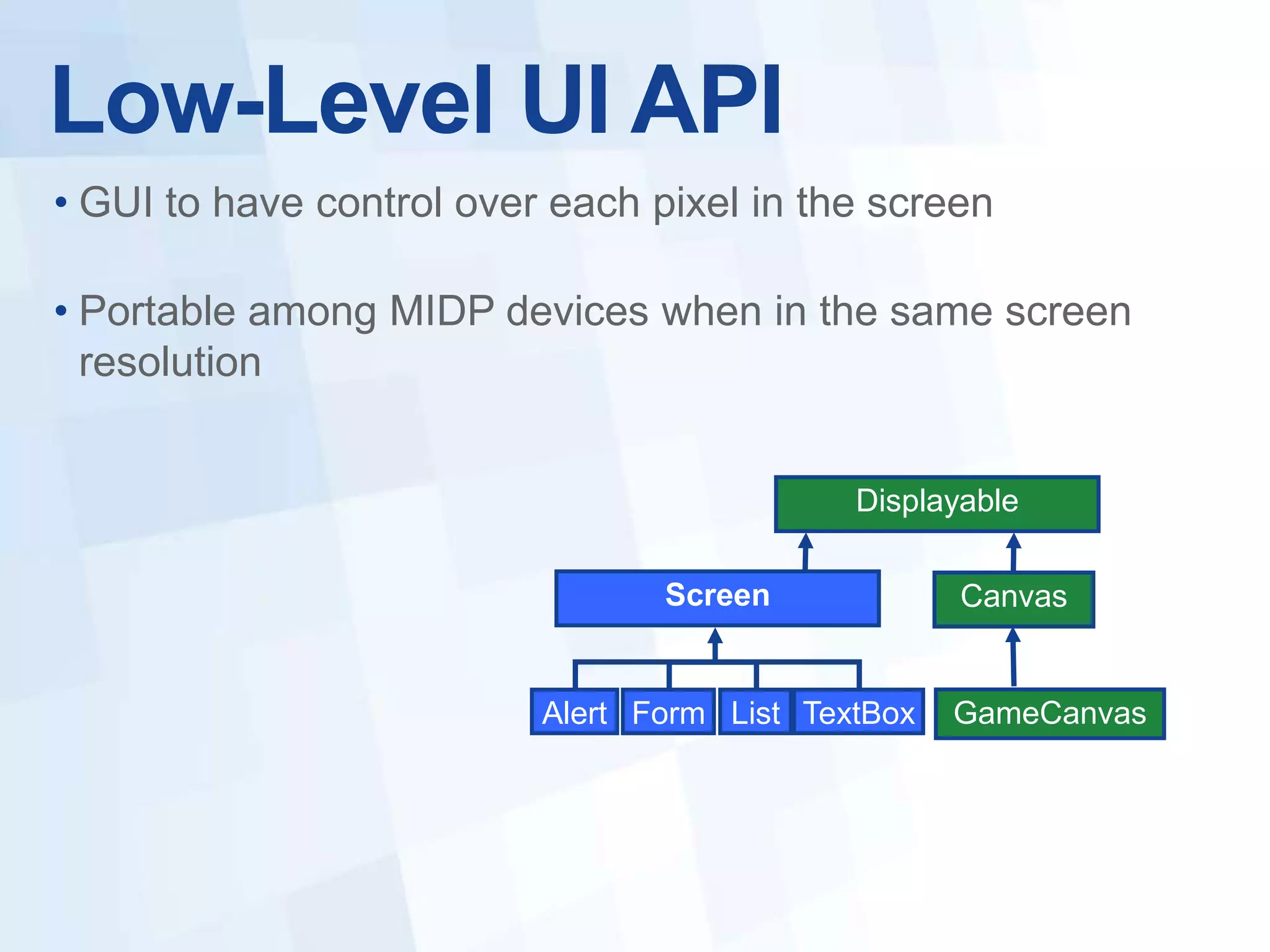
• GUI to have control over each pixel in the screen

• Portable among MIDP devices when in the same screen
  resolution


                                             Displayable

                                 Screen             Canvas


                          Alert Form List TextBox   GameCanvas
Canvas
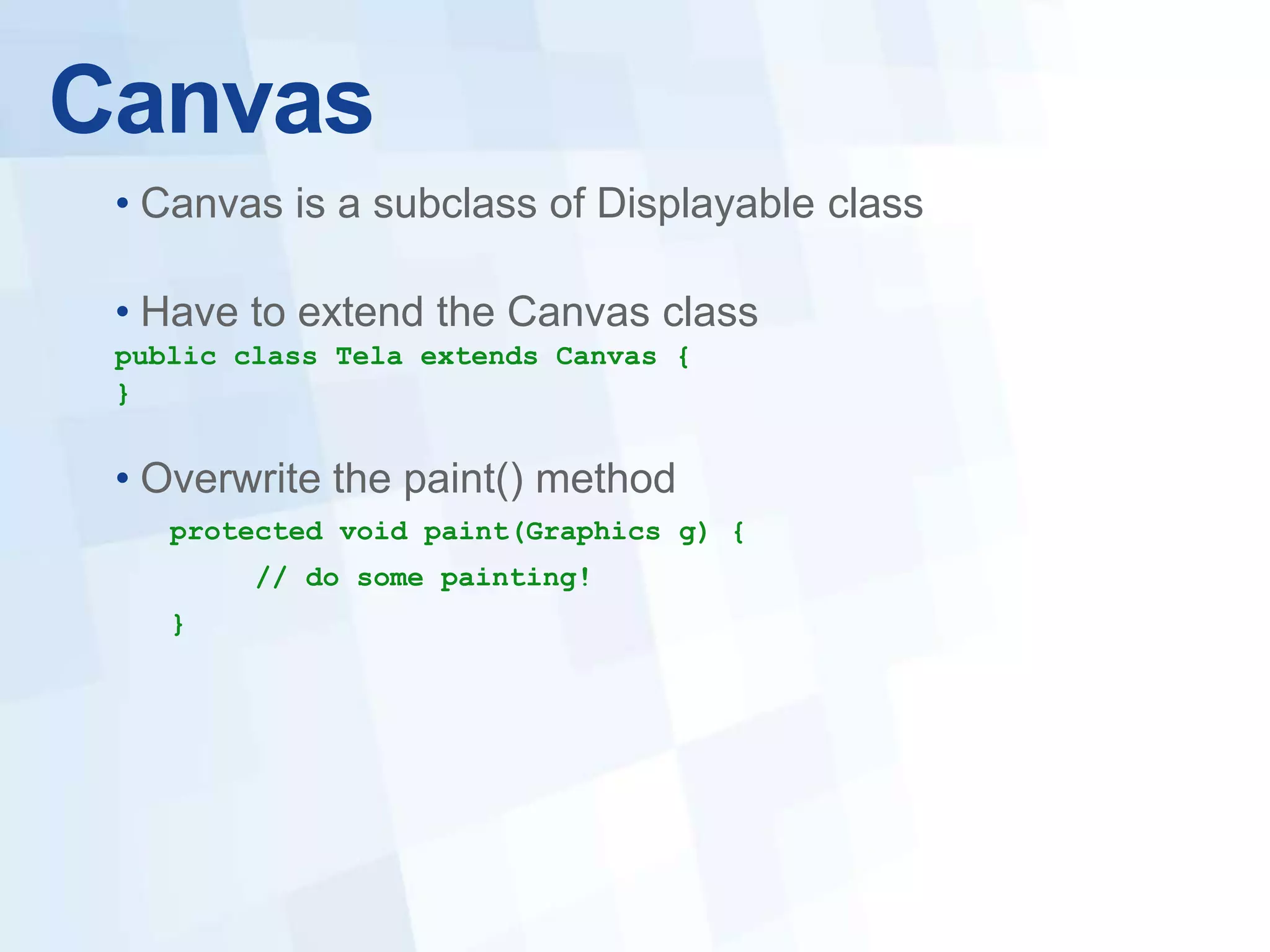
 • Canvas is a subclass of Displayable class

 • Have to extend the Canvas class
 public class Tela extends Canvas {
 }


 • Overwrite the paint() method
    protected void paint(Graphics g) {
         // do some painting!
    }
Drawing on the screen
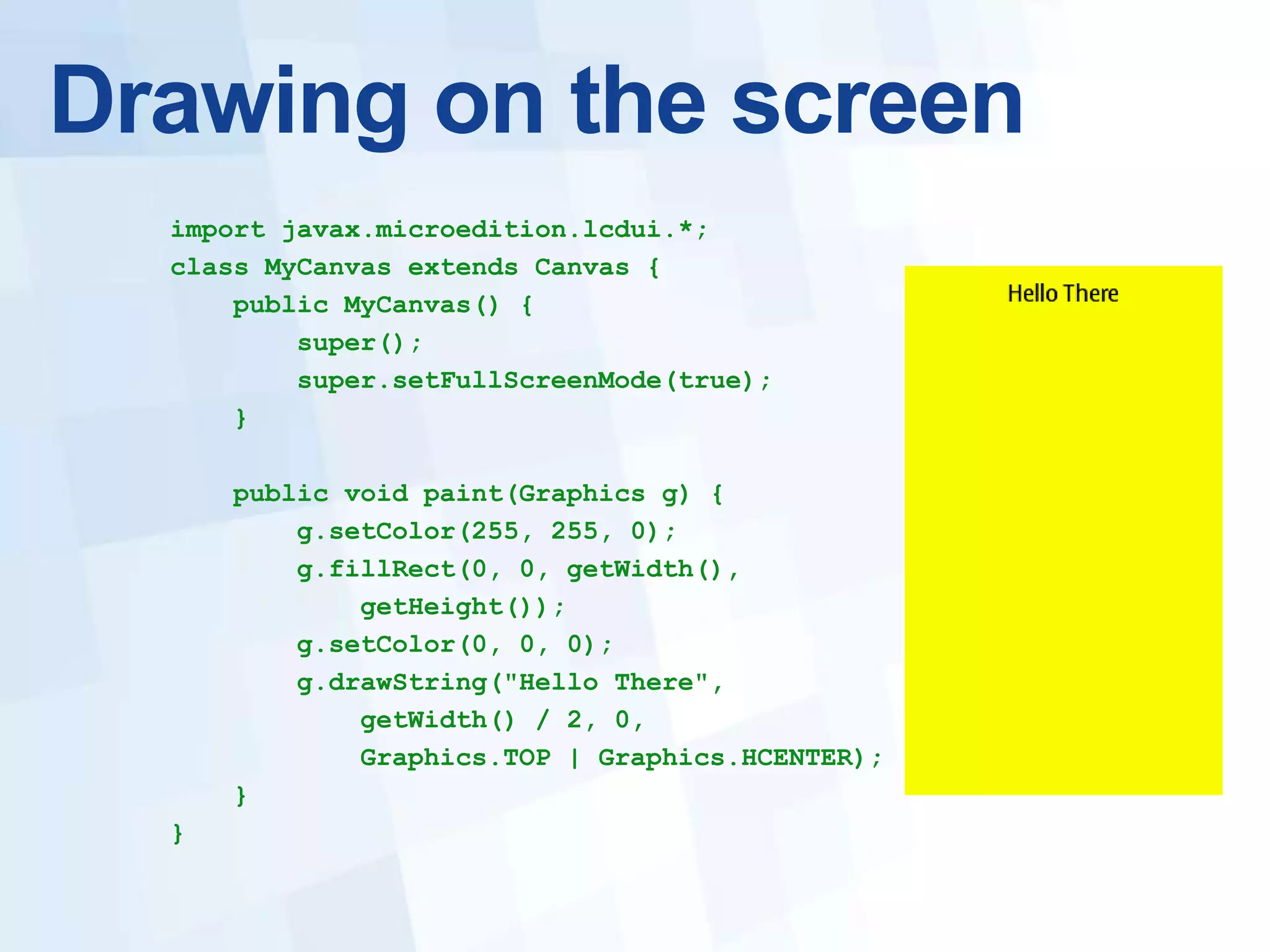
  import javax.microedition.lcdui.*;
  class MyCanvas extends Canvas {
      public MyCanvas() {
          super();
          super.setFullScreenMode(true);
      }

      public void paint(Graphics g) {
          g.setColor(255, 255, 0);
          g.fillRect(0, 0, getWidth(),
              getHeight());
          g.setColor(0, 0, 0);
          g.drawString("Hello There",
              getWidth() / 2, 0,
              Graphics.TOP | Graphics.HCENTER);
      }
  }
Fonts
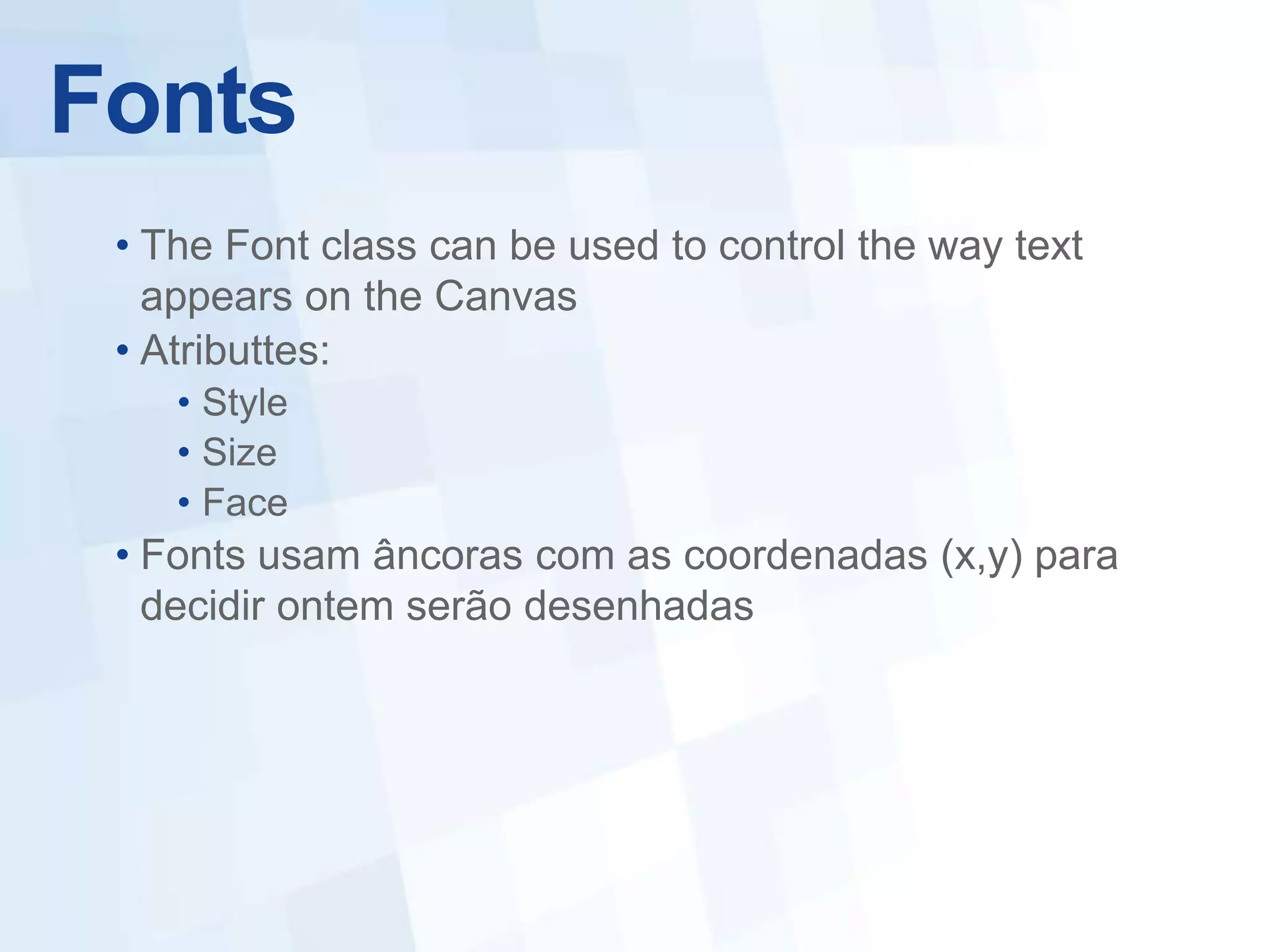
 • The Font class can be used to control the way text
   appears on the Canvas
 • Atributtes:
    • Style
    • Size
    • Face
 • Fonts usam âncoras com as coordenadas (x,y) para
   decidir ontem serão desenhadas
Fonts
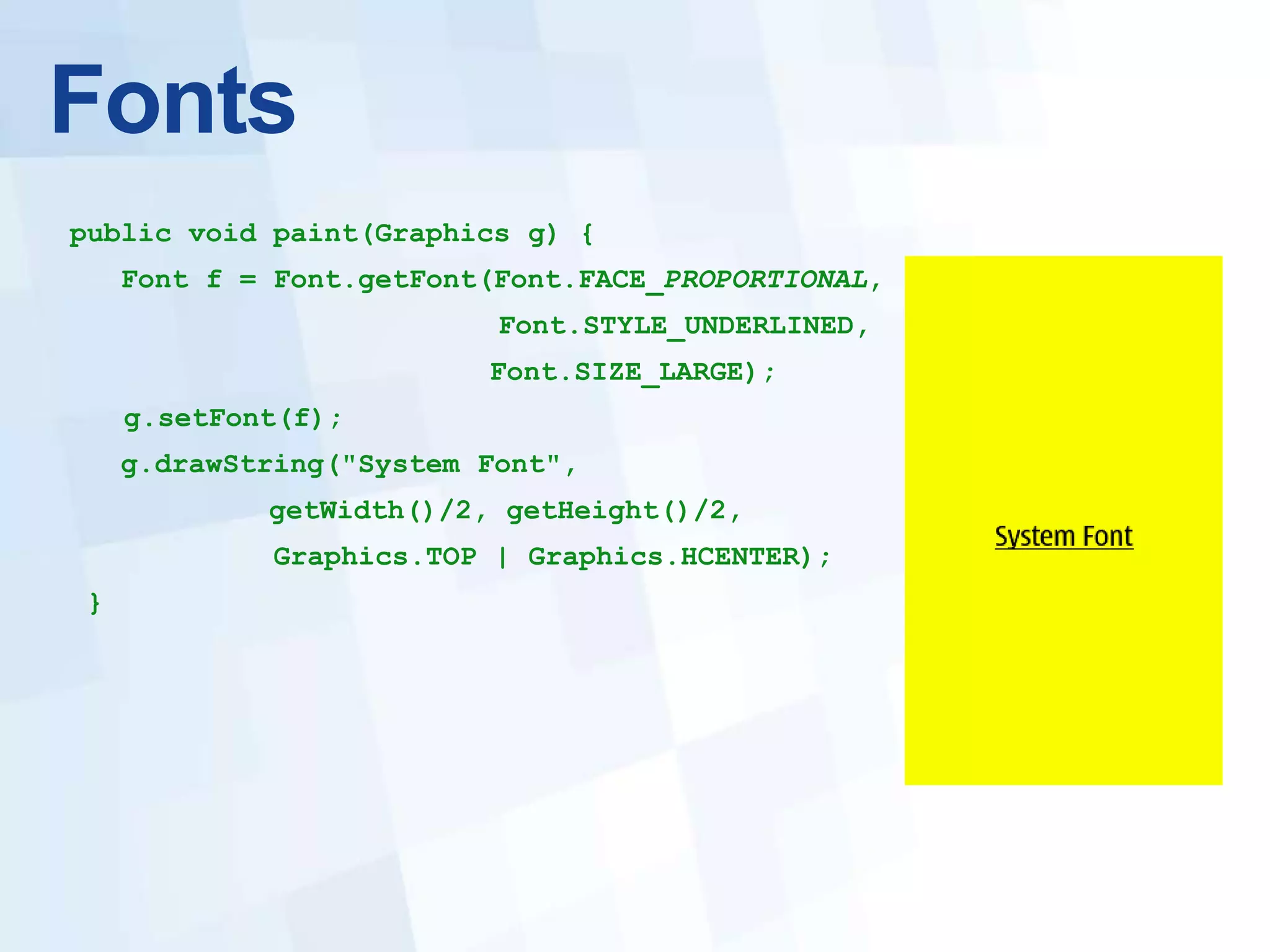
public void paint(Graphics g) {
    Font f = Font.getFont(Font.FACE_PROPORTIONAL,
                          Font.STYLE_UNDERLINED,
                         Font.SIZE_LARGE);
    g.setFont(f);
    g.drawString("System Font",
            getWidth()/2, getHeight()/2,
             Graphics.TOP | Graphics.HCENTER);
}
Events
 • The developer is resposible to manage all input events

 • Input events are throw when:
    • A key is pressed ( for keyboard enabled devices)
    • The screen is touched (for touchscreen devices)
    • A command is chosen
Events
 • For keyboard enabled devices use the following methods
   to capture key events:
    • keyPressed(int keyCode)
    • keyReleased(int keyCode)
    • keyRepeated(int keyCode)

 • For touchscreen enabled devices use the following
   methods to capture touch events:
    • pointerPressed(int x, int y)
    • pointerReleased(int x, int y)
    • pointerDragged(int x, int y)
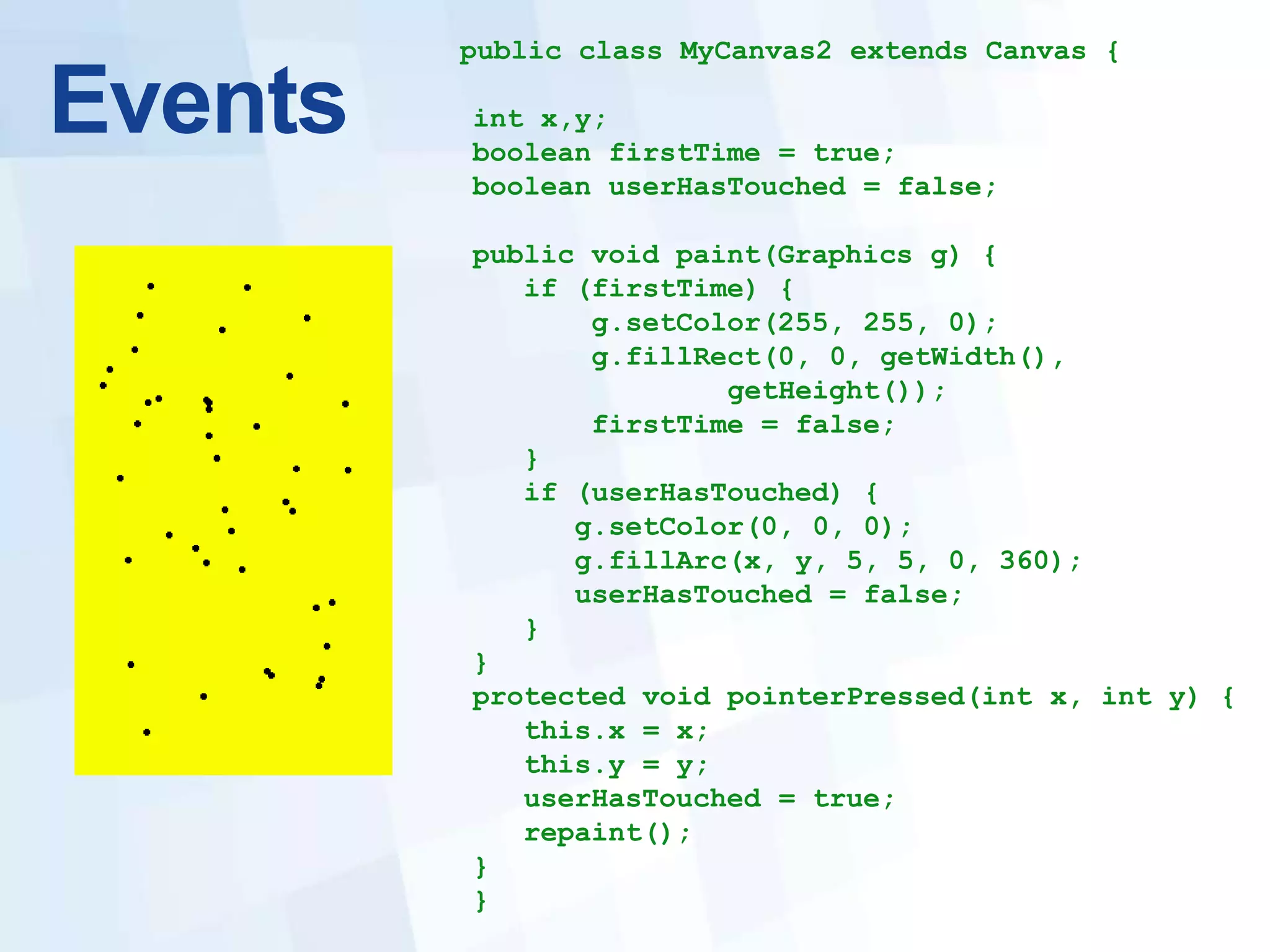
public class MyCanvas2 extends Canvas {

Events   int x,y;
         boolean firstTime = true;
         boolean userHasTouched = false;

         public void paint(Graphics g) {
            if (firstTime) {
                g.setColor(255, 255, 0);
                g.fillRect(0, 0, getWidth(),
                        getHeight());
                firstTime = false;
            }
            if (userHasTouched) {
               g.setColor(0, 0, 0);
               g.fillArc(x, y, 5, 5, 0, 360);
               userHasTouched = false;
            }
         }
         protected void pointerPressed(int x, int y) {
            this.x = x;
            this.y = y;
            userHasTouched = true;
            repaint();
         }
         }
Sample
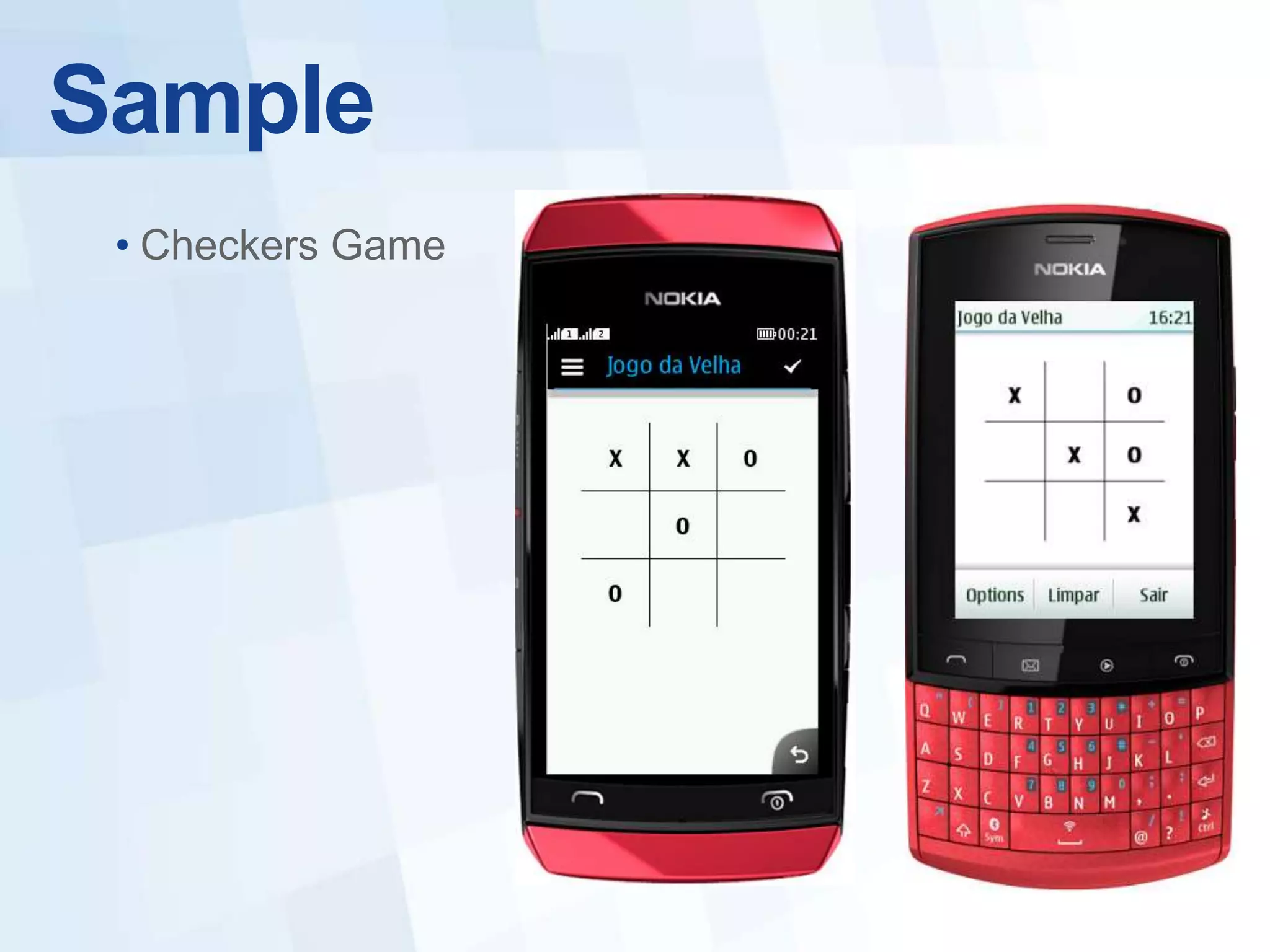
 • Checkers Game
Game API
 • javax.microedition.lcdui.game package

 • Help to develop games quickly and help to reduce the
   size of the JAR file

 • Layers usage to create visual elements, for exemple:
    • Layer 1 – Background
    • Layer 2 – Enemy
    • Layer 3 – Player
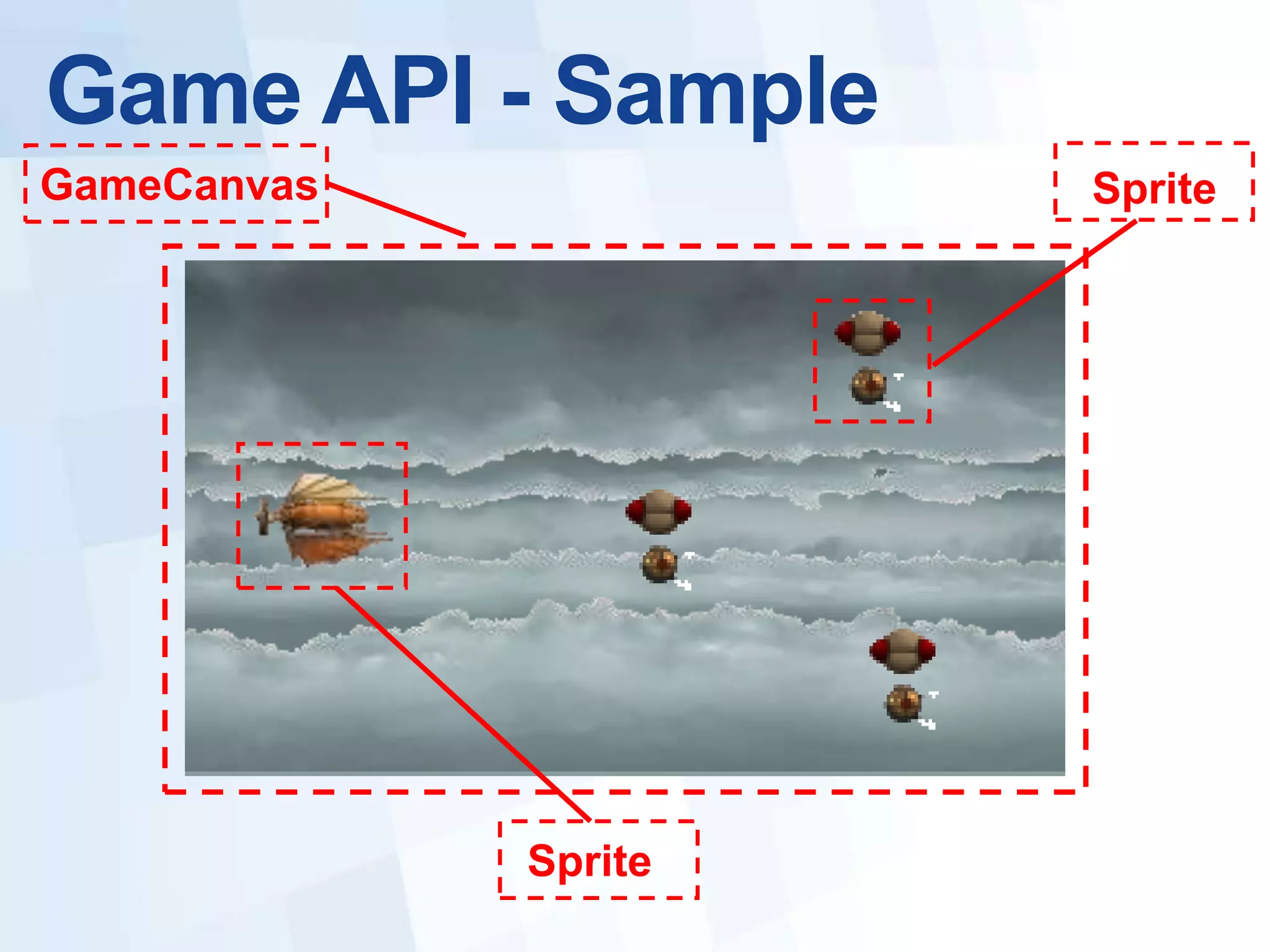
Game API - Sample
GameCanvas            Sprite


             Sprite
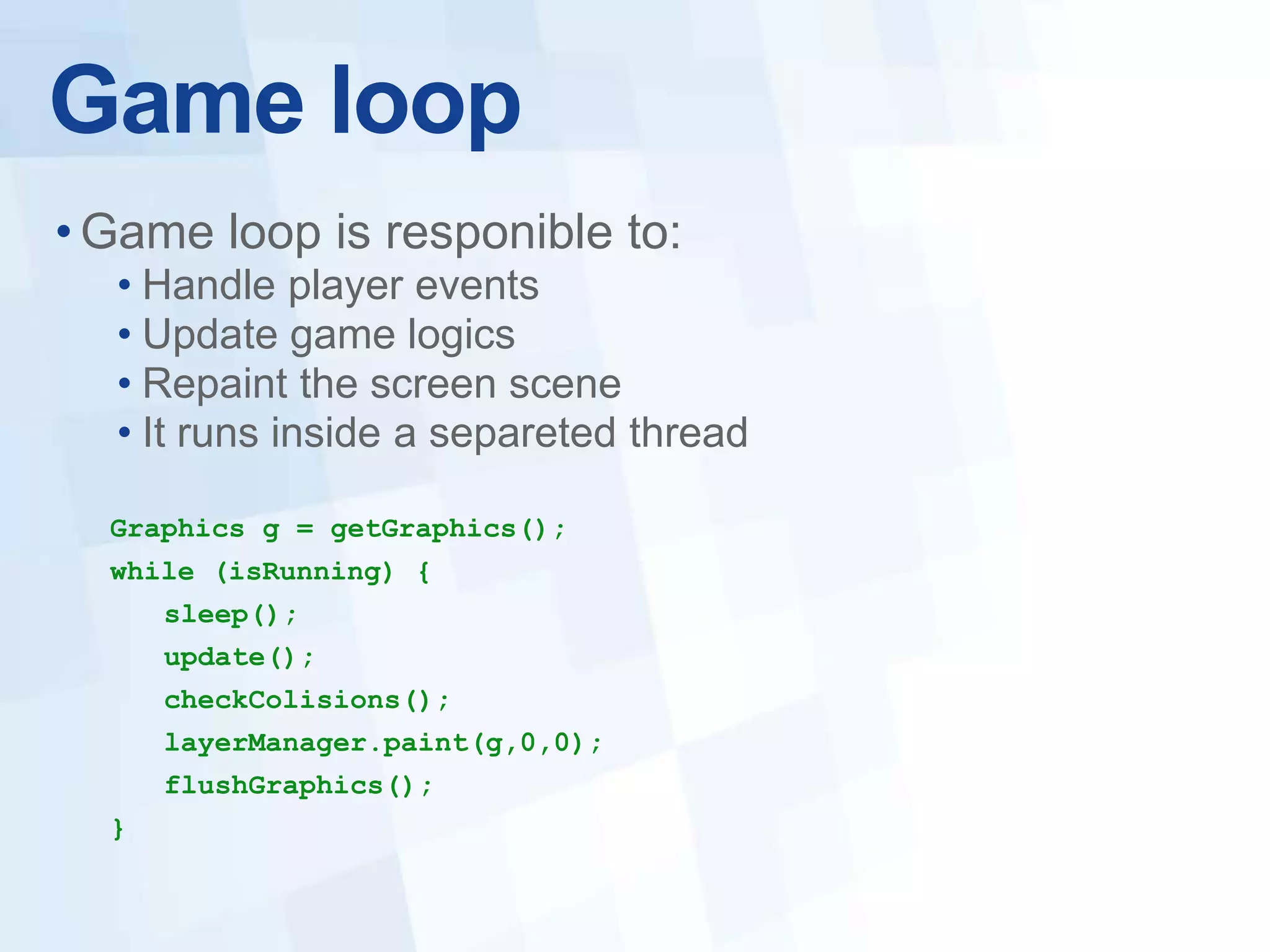
Game loop
• Game loop is responible to:
  • Handle player events
  • Update game logics
  • Repaint the screen scene
  • It runs inside a separeted thread

  Graphics g = getGraphics();
  while (isRunning) {
      sleep();
      update();
      checkColisions();
      layerManager.paint(g,0,0);
      flushGraphics();
  }
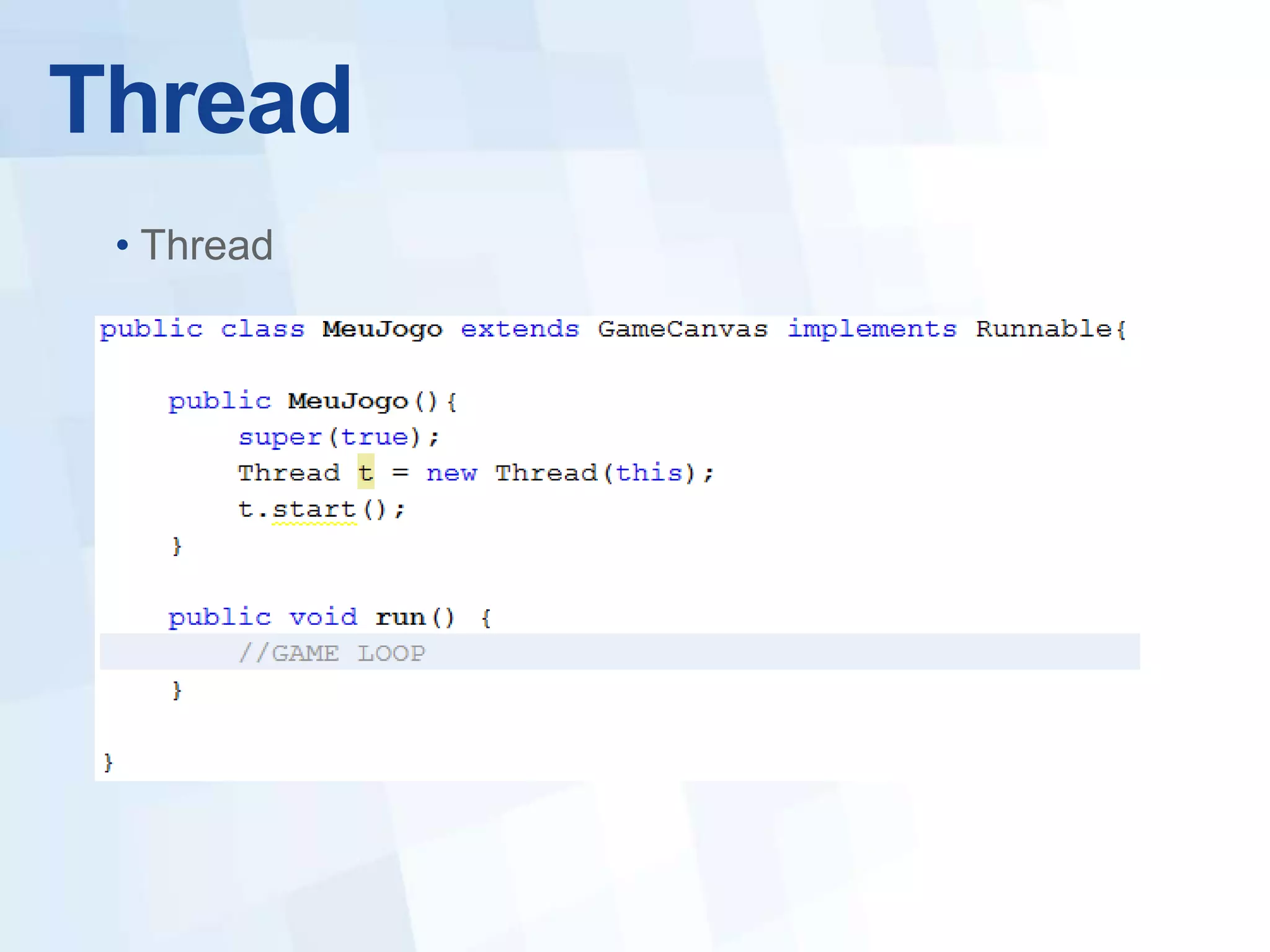
Thread
 • Thread
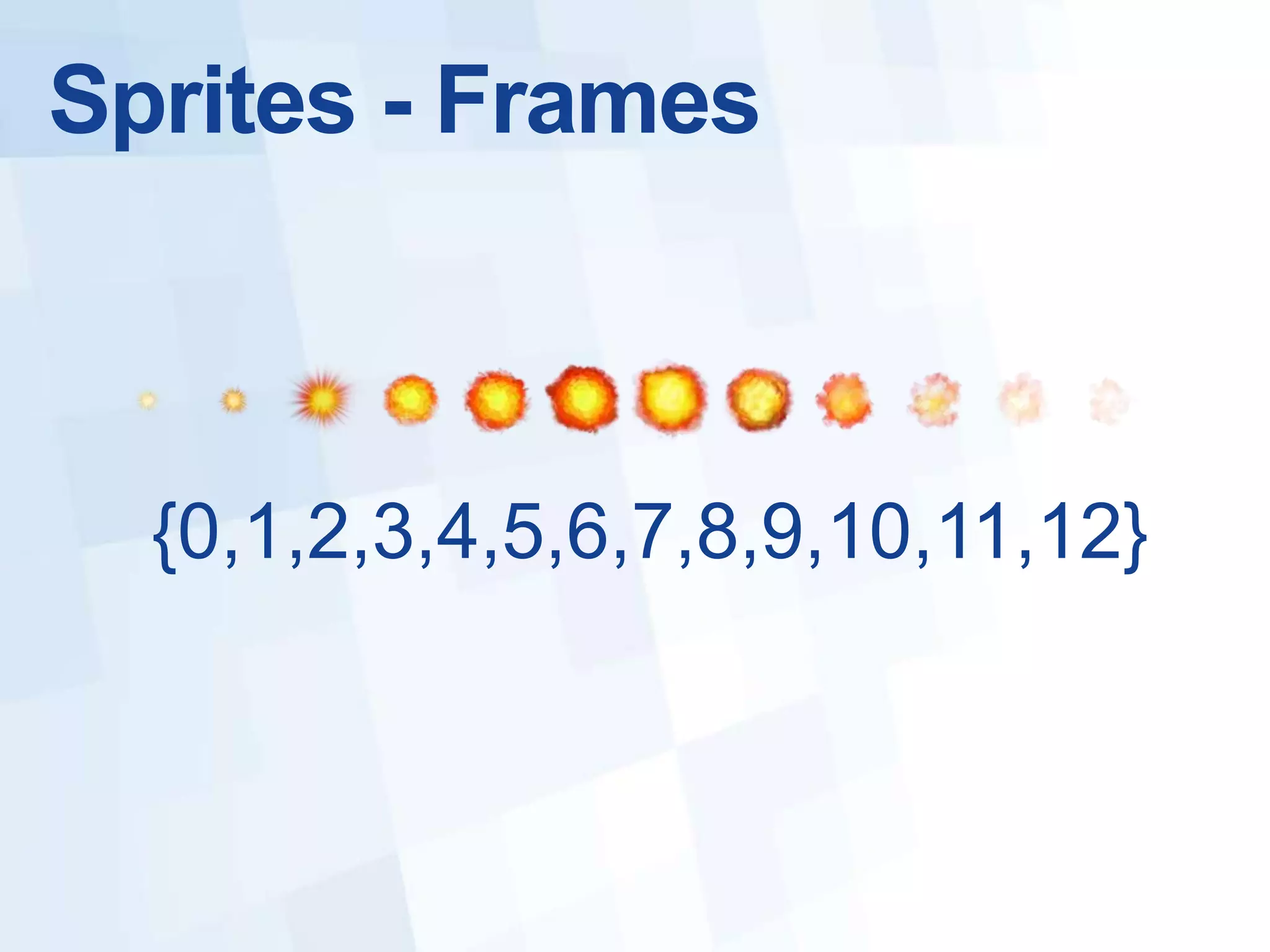
Sprites - Frames


  {0,1,2,3,4,5,6,7,8,9,10,11,12}
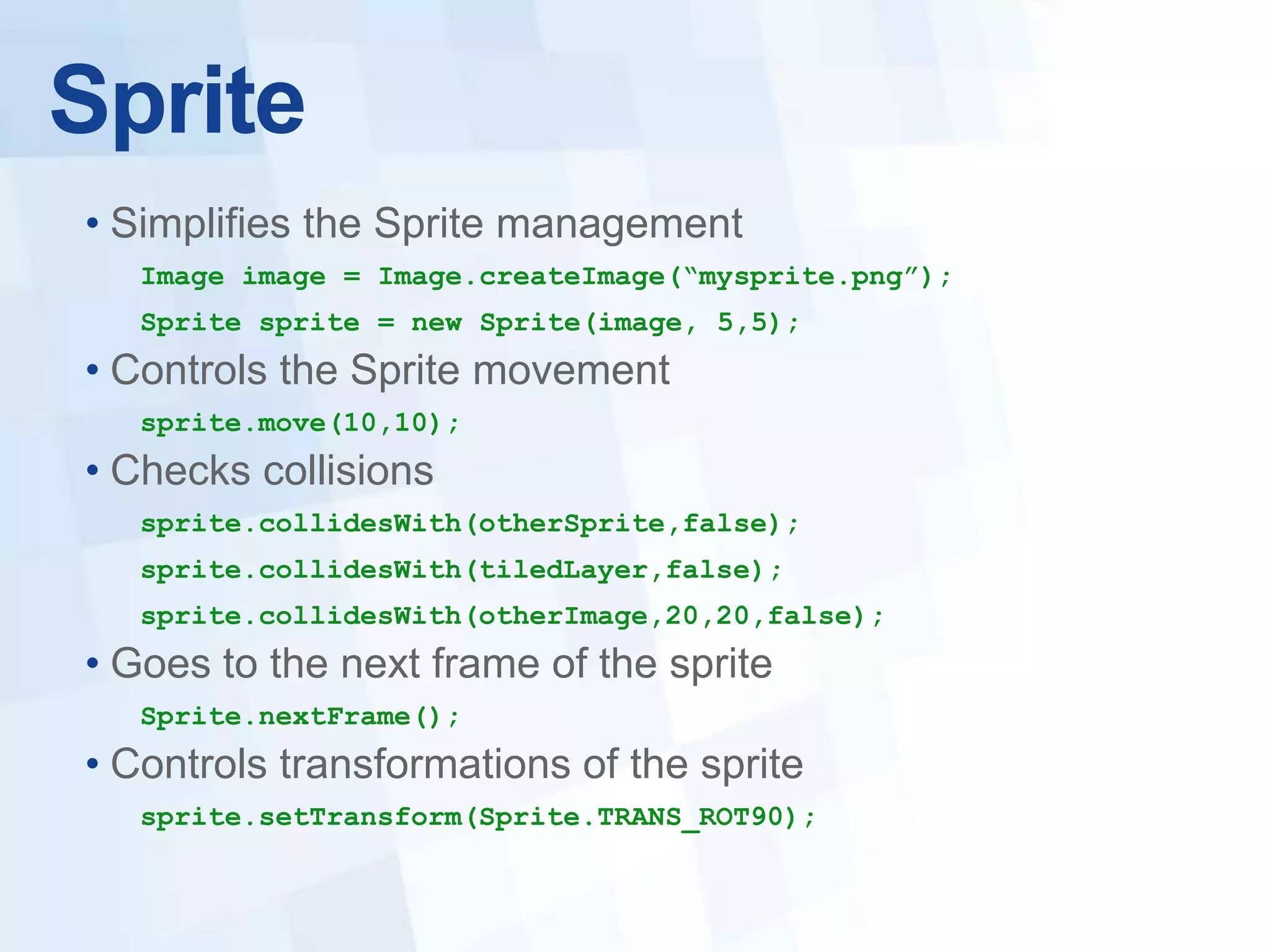
Sprite
• Simplifies the Sprite management
   Image image = Image.createImage(“mysprite.png”);
   Sprite sprite = new Sprite(image, 5,5);
• Controls the Sprite movement
   sprite.move(10,10);
• Checks collisions
   sprite.collidesWith(otherSprite,false);
   sprite.collidesWith(tiledLayer,false);
   sprite.collidesWith(otherImage,20,20,false);
• Goes to the next frame of the sprite
   Sprite.nextFrame();
• Controls transformations of the sprite
   sprite.setTransform(Sprite.TRANS_ROT90);
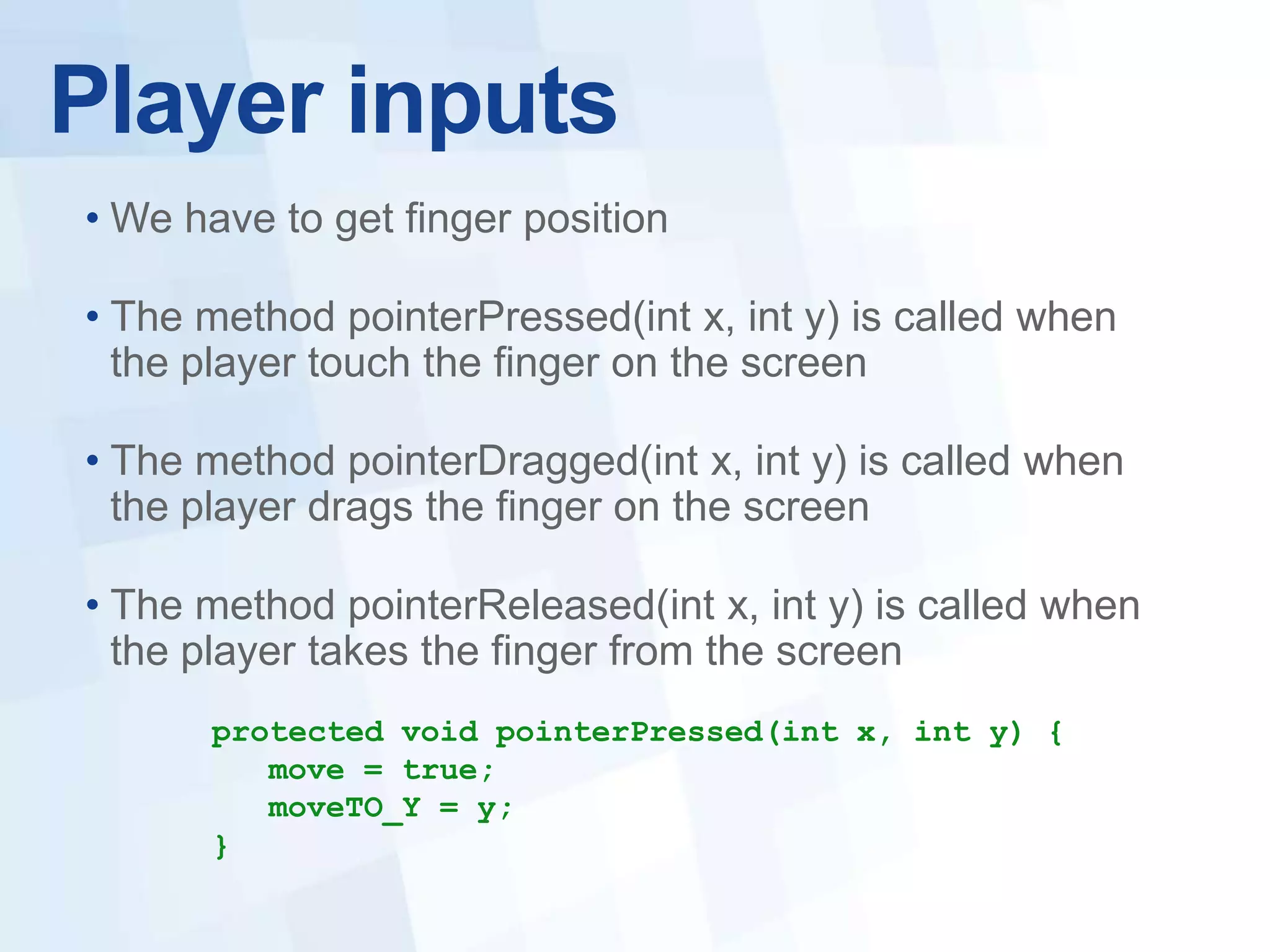
Player inputs
• We have to get finger position

• The method pointerPressed(int x, int y) is called when
  the player touch the finger on the screen

• The method pointerDragged(int x, int y) is called when
  the player drags the finger on the screen

• The method pointerReleased(int x, int y) is called when
  the player takes the finger from the screen
      protected void pointerPressed(int x, int y) {
         move = true;
         moveTO_Y = y;
      }
Let’s code
Thanks
             Marlon Luz
 ext-marlon.luz@nokia.com
               @marlonluz

Game Development for Nokia Asha Devices with Java ME #2

  • 1.
    Game Development for NokiaAsha Devices with Java ME Marlon Luz - INdT Nokia Developer Evangelist @marlonluz
  • 2.
    Low-Level UI API •GUI to have control over each pixel in the screen • Portable among MIDP devices when in the same screen resolution Displayable Screen Canvas Alert Form List TextBox GameCanvas
  • 3.
    Canvas • Canvasis a subclass of Displayable class • Have to extend the Canvas class public class Tela extends Canvas { } • Overwrite the paint() method protected void paint(Graphics g) { // do some painting! }
  • 4.
    Drawing on thescreen import javax.microedition.lcdui.*; class MyCanvas extends Canvas { public MyCanvas() { super(); super.setFullScreenMode(true); } public void paint(Graphics g) { g.setColor(255, 255, 0); g.fillRect(0, 0, getWidth(), getHeight()); g.setColor(0, 0, 0); g.drawString("Hello There", getWidth() / 2, 0, Graphics.TOP | Graphics.HCENTER); } }
  • 5.
    Fonts • TheFont class can be used to control the way text appears on the Canvas • Atributtes: • Style • Size • Face • Fonts usam âncoras com as coordenadas (x,y) para decidir ontem serão desenhadas
  • 6.
    Fonts public void paint(Graphicsg) { Font f = Font.getFont(Font.FACE_PROPORTIONAL, Font.STYLE_UNDERLINED, Font.SIZE_LARGE); g.setFont(f); g.drawString("System Font", getWidth()/2, getHeight()/2, Graphics.TOP | Graphics.HCENTER); }
  • 7.
    Events • Thedeveloper is resposible to manage all input events • Input events are throw when: • A key is pressed ( for keyboard enabled devices) • The screen is touched (for touchscreen devices) • A command is chosen
  • 8.
    Events • Forkeyboard enabled devices use the following methods to capture key events: • keyPressed(int keyCode) • keyReleased(int keyCode) • keyRepeated(int keyCode) • For touchscreen enabled devices use the following methods to capture touch events: • pointerPressed(int x, int y) • pointerReleased(int x, int y) • pointerDragged(int x, int y)
  • 9.
    public class MyCanvas2extends Canvas { Events int x,y; boolean firstTime = true; boolean userHasTouched = false; public void paint(Graphics g) { if (firstTime) { g.setColor(255, 255, 0); g.fillRect(0, 0, getWidth(), getHeight()); firstTime = false; } if (userHasTouched) { g.setColor(0, 0, 0); g.fillArc(x, y, 5, 5, 0, 360); userHasTouched = false; } } protected void pointerPressed(int x, int y) { this.x = x; this.y = y; userHasTouched = true; repaint(); } }
  • 10.
  • 11.
    Game API •javax.microedition.lcdui.game package • Help to develop games quickly and help to reduce the size of the JAR file • Layers usage to create visual elements, for exemple: • Layer 1 – Background • Layer 2 – Enemy • Layer 3 – Player
  • 12.
    Game API -Sample GameCanvas Sprite Sprite
  • 13.
    Game loop • Gameloop is responible to: • Handle player events • Update game logics • Repaint the screen scene • It runs inside a separeted thread Graphics g = getGraphics(); while (isRunning) { sleep(); update(); checkColisions(); layerManager.paint(g,0,0); flushGraphics(); }
  • 14.
  • 15.
    Sprites - Frames {0,1,2,3,4,5,6,7,8,9,10,11,12}
  • 16.
    Sprite • Simplifies theSprite management Image image = Image.createImage(“mysprite.png”); Sprite sprite = new Sprite(image, 5,5); • Controls the Sprite movement sprite.move(10,10); • Checks collisions sprite.collidesWith(otherSprite,false); sprite.collidesWith(tiledLayer,false); sprite.collidesWith(otherImage,20,20,false); • Goes to the next frame of the sprite Sprite.nextFrame(); • Controls transformations of the sprite sprite.setTransform(Sprite.TRANS_ROT90);
  • 17.
    Player inputs • Wehave to get finger position • The method pointerPressed(int x, int y) is called when the player touch the finger on the screen • The method pointerDragged(int x, int y) is called when the player drags the finger on the screen • The method pointerReleased(int x, int y) is called when the player takes the finger from the screen protected void pointerPressed(int x, int y) { move = true; moveTO_Y = y; }
  • 18.
  • 19.
    Thanks Marlon Luz ext-marlon.luz@nokia.com @marlonluz