An Introduction to
Computer Science with Java
Copyright 2013 by C. Herbert, all rights reserved.
Last edited August 21, 2013 by C. Herbert
This document is a draft of a chapter from Computer Science
with Java, written by Charles Herbert with the assistance of
Craig
Nelson. It is available free of charge for students in Computer
Science 111 at Community College of Philadelphia during the
Fall
2013 semester. It may not be reproduced or distributed for any
other purposes without proper prior permission.
CSCI 111 Chapter 11 Graphics pg. 2
Introduction to
Computer Science with Java
Chapter 11 – Java Graphics
This short chapter describes how programmers can create and
manipulate two-dimensional graphics in
Java. It includes creating.
Chapter Learning Outcomes
Upon completion of this chapter students should be able to:
) is and why
GPUs are used
with modern computers.
classes are and
how they are used.
Graphics class:
o setting the Color for graphics;
o drawing lines;
o drawing rectangles, and rectangles with rounded corners;
o drawing ovals, circles, and arc of ovals and circles;
o drawing polygons;
o drawing text on the screen.
and scientific data.
figurative and abstract images.
11.1 Overview of Graphics Programming in Java
Graphics programming in Java is done through the use of APIs,
including the java.awt.Graphics class and
the Java 2D API that are both part of AWT; Java OpenGL
(JOGL), Java 3D (J3D), and Java Advanced
Imaging (JAI), which are official Java APIs; and many third
party APIs, such as the Java LightWeight
Game Library (JLWGL). The graphics capabilities in the AWT
and the Java OpenGL graphics libraries are
by far the most commonly used.
In this chapter we will focus on creating simple graphics and
concepts of graphics programming using
the graphics classes included in AWT, which will allow us to
create and manipulate simple graphic
images that can be displayed using the same containers as those
used for Swing components.
The graphics capabilities in AWT should work equally as well
on Windows, Mac and Linux-based
systems, although specialized coding for certain devices and
unique hardware configurations may
require the use of specialized APIs.
CSCI 111 Chapter 11 Graphics pg. 3
Generally, instructions in Java, as in any programming language
are fed through the operating system to
the computer’s hardware. In the case of graphics programming,
an additional component is often
present – a graphics processing unit. A graphics processing unit
(GPU), often called a graphics
accelerator, is a specialized processing unit for rendering high
quality images and video on a computer
screen. GPUs are often accompanied by additional specialized
graphics memory on a board that can be
added to a computer. Such boards are known as graphics cards.
GPU’s are used because of the massive amount of data involved
in imaging, especially video. A typical
HD television image has between 900.000 and 2.1 million pixels
per frame, with 3 or 4 bytes needed to
store each pixel. At 30 frames per second, the highest quality
raw video data would need a bandwidth in
the neighborhood of 30 billion bytes per second. Many special
techniques are used to reduce and
compress this data. The Society of Motion Picture and
Television Engineers (SMPTE ) has developed the
HD-SDI standard for broadcast HD video, which requires a
bandwidth of 1.485 Gbits/Sec.
The image below shows a modern ATI Raedon HD GPU, which
communicates with the CPU and 2 Gb of
graphics memory, and can control several display monitors. Its
components function as follows:
GPU for 3D video graphics and
can also perform 2D graphics.
still images.
U.
with the graphics memory.
communication between the memory
and the video processing engine.
units are proprietary circuits that
manipulate images moving from
video memory to the screen.
pipelines that translate graphic
images to coordinate system for the
hardware. They allow for parallel
processing of data moving to display
screens.
Even still images can require a lot of memory and processing
power. A 3-megapixel image from a
cellphone camera can use a megabyte of memory – which is as
much as 8 minutes of MP3 quality sound
or 64 thousand characters of Unicode text, roughly a 50 page
document.
CSCI 111 Chapter 11 Graphics pg. 4
11.2 Using the java.awt.Canvas and java.awt.Graphics Classes
The most commonly used classes for graphics programming in
Java are those found in AWT. They are
often used in conjunction with Swing components in GUI
programming. We will use two of those
classes: the java.awt.Canvas class and the java.awt.Graphics
class.
The Graphics class draws shapes on top of existing GUI
components, such as drawing an image on a
button. A Canvas class object in Java is a component
representing a blank window on which we may
draw shapes. We can also read user input on a Canvas, such as
the location of the screen pointer when
someone clicks a mouse button.
The paint() method is the method that draws on a component,
but the paint() method in the Canvas
class leaves the Canvas blank. We can create our own
customized Canvas as a subclass of the Canvas
class, then draw on our Canvas object by defining the
paint()method for our class.
Inside the paint() method we will use methods from the
java.awt.Graphics class to draw on our Canvas.
The java.awt.Graphics class contains many features for drawing
images. Quoting from Oracle’s Java
Tutorials Website
1
: “The Java 2D™ API is powerful and complex. However, the
vast majority of uses for
the Java 2D API utilize a small subset of its capabilities
encapsulated in the java.awt.Graphics class”.
Here is an example of how this works. The following code
creates a sub class of Canvas called MyCanvas,
with three simple rectangles. The paint() method in the
MyCanvas class will draw three rectangles on
the canvas, the second of which is a filled rectangle. The
objects are drawn in the order on which the
code to do so appears in method, so the second rectangle is on
top of the first, and the third in on top of
the second. The main() method creates and displays a JFrame
object containing a MyCanvas object.
/* ThreeRectangles.java
* last edited Nov. 15, 2013 by C.Herbert
*
* This code demonstrates the creation of a canvas subclass for
drawing
* by overriding the paint method() in the subclass.
*
* The main() method displays the canvas with our graphihcs in
a JFrame.
*
*
*/
package threerectangles;
import java.awt.*;
import javax.swing.*;
public class ThreeRectangles {
public static void main(String[] args)
{
// create a MyCanvas object
1
The java graphics tutorials are available online at:
http://docs.oracle.com/javase/tutorial/2d/basic2d/index.html
They are
useful, but may be difficult to use for beginning programmers.
http://docs.oracle.com/javase/tutorial/2d/basic2d/index.html
CSCI 111 Chapter 11 Graphics pg. 5
MyCanvas canvas1 = new MyCanvas();
// set up a JFrame tpo hold the canvas
JFrame frame = new JFrame();
frame.setSize(400, 400);
frame.setLocation(200, 200);
frame.setDefaultCloseOperation(JFrame.EXIT_ON_CLOSE);
// add the canvas to the frame as a content panel
frame.getContentPane().add(canvas1);
frame.setVisible(true);
} // end main()
} // end class ThreeRectangles
class MyCanvas extends Canvas
{
public MyCanvas()
{
} // end MyCanvas() constructor
public void paint(Graphics graphics)
// note: the graphics parameter is required as an artifact from
inheritance
{
graphics.setColor(Color.red);
graphics.drawRect(10, 10, 110, 110);
graphics.setColor(Color.green);
graphics.fillRect(35, 35, 135, 135);
graphics.setColor(Color.blue);
graphics.drawRect(60, 60, 160, 160);
} // end paint()
} // end class MyCanvas
In summary, methods from the Graphics class
(java.awt.Graphics) such as the drawRect() method, can
be used to draw on a GUI component. The Canvas class
(java.awt.Canvas) is a component that creates a
blank canvas just for such drawing. The paint method() in the
Canvas class leaves the canvas blank. We
can create our own canvas as a sub-class of the Canvas class
and draw on the canvas by overriding the
paint() method. The canvas can then be displayed by placing in
a container, such as a JFrame object, and
making the container visible.
11.3 Using Methods from the Graphics Class
In this section we will see how to draw with some of the most
commonly used methods from the
Graphics class, including methods for:
the Color for graphics;
CSCI 111 Chapter 11 Graphics pg. 6
We will start by looking at the coordinate system for onscreen
graphics.
Onscreen Coordinates
Most computer screens use an inverted Cartesian coordinate
system A Cartesian coordinate system –
named for its inventor René Descartes – is a standard two-
dimensional rectangular coordinate system
with an x values that increase to the right and y values that
increase upward. The two-dimensional
system is bisected horizontally by a vertical y-axis where x =0
and a horizontal x-axis where y=0, as
shown below. Points are located with an ordered pair of x and y
coordinates – (x,y).
CSCI 111 Chapter 11 Graphics pg. 7
An inverted Cartesian coordinate system is the same as a
Cartesian coordinate system, except that the
Y-axis values increase with movement downward. The first
computer screens that appeared in the
middle of the Twentieth Century displayed text in lines across
the screen with one line below another
starting from the top left corner of the screen. The text
coordinates were measured from the top left
corner across and down.
Graphics on computer monitors followed this convention, with
the origin in the top left corner of the
screen, the x-coordinate increasing across the screen from left
to right, and the y-coordinate increasing
down the screen from top to bottom. Thus the name inverted
Cartesian coordinate system, in which the
y coordinate goes up as we move down the screen.
In containers such as JFrames, the same inverted Cartesian
coordinate system is used. Points are
referenced by (x,y) ordered pairs, with the origin in the top
right corner of the frame. The x coordinate
increase to the right and the y coordinate increase downward.
The following sections describe some of the most commonly
used methods from the Graphics class. The
methods would be used in the paint method to draw on a
component, such as a class that extends the
Canvas class, as in the example on pages 4 and 5 above.
In these examples, instance is the name of the instance of the
graphics class. All coordinates are integer
values of data type int.
Drawing Lines
drawLine(int x1, int y1, int x2, int y2);
draws a line between the points (x1, y1)
and (x2, y2).
Drawing Rectangles
drawRect(int x, int y, int width, int height) draws the outline of
a rectangle of the specified width and
height with the top left corner at point (x,y). The bottom right
corner will be at point(x+width, y+height.
To draw a square, specify equal values for width and height.
fillRect(int x, int y, int width, int height) draws a filled
rectangle.
CSCI 111 Chapter 11 Graphics pg. 8
Rectangles with Rounded Corners
drawRoundRect(int x, int y, int width, int height, int arcWidth,
int arcHeight) draws an outline of
rectangle with rounded-corners. The arcWidth and arcHeight
parameters set the horizontal and vertical
diameter of the arc used for the corners of the rectangle.
fillRoundRect(int x, int y, int width, int height, int arcWidth,
int arcHeight) draws a filled rectangle.
The example below shows a standard rectangle and three
rectangles with rounded corners, each drawn
with different parameters.
Drawing Ovals and Circles
drawOval(int x, int y, int width, int height) draws an outline of
an oval within a rectangular area whose
top left corner is at point (x, y) and whose bottom right corner
is at point (x+width, y+height).
To draw a circle, specify equal values for width and height.
The diameter of the circle will be equal to
the value used for width and height; the radius will be half that
value. The center point of an oval or a
circle will be at coordinates (x+(width/2), y+(height/2)).
fillOval(int x, int y, int width, int height) draws a filled oval.
The example below shows three ovals, each drawn with
different parameters.
CSCI 111 Chapter 11 Graphics pg. 9
Drawing Arcs of Ovals and Circles
drawArc(int x, int y, int width, int height, int startAngle, int
arcAngle) draws an outline of arc, which is
a segment of the perimeter of an oval where:
whose top left corner is at point (x, y)
and whose bottom right corner is at point (x+width, y+height);
extends for arcAngle degrees;
and measurement moves
counterclockwise around the oval for 360 degrees, as shown in
the diagram below.
fillArc(int x, int y, int width, int height, int startAngle, int
arcAngle) draws a filled segment of an oval
defined by the specified arc.
The code below draws the arcs shown, each drawn with
different parameters.
CSCI 111 Chapter 11 Graphics pg. 10
Drawing Polygons
drawPolygon(int[] xPoints, int[] yPoints, int n) draws a polygon
with n vertex points defined by an array
of x coordinates, and an array y coordinates.
fillPolygon(int[] xPoints, int[] yPoints, int nPoints) draws a
filled polygon.
Drawing Text
drawString(String str, int x, int y) draws text specified by given
String, starting with the baseline of the
leftmost character at point (x,y).
The Color and Font of the text can be specified using the
setColor()and SetFont() methods for
components, as discussed in chapter 7, section 7.9.
The example below shows code to draw a text message
identifying a previously drawn shape.
CSCI 111 Chapter 11 Graphics pg. 11
Drawing Images from a Data File
drawImage(Image img, int x, int y, ImageObserver observer)
draws the image img with its top left
corner at the point (x,y). observer can be left null. Two lines
are required to create an image from a file
and display the image:
Image name = new ImageIcon( “filename” ).getImage();
instance.drawImage(name, x, y,null);
The first line will create an image with the name name from the
file identified by the String “filename”,
where “filename” may be a local or full context name of an
image file. The second line will draw the
image on the screen. This technique works with JPEG, PNG,
GIF, BMP and WBMP file types, although
there may be some timing issues loading animated GIF files as
Java Image class objects.
The following shows an example of this:
11.4 Programming Examples – a Histogram
A histogram is a graphic representation of data, also known as a
bar chart. In this example we will look
at a histogram created using java’s graphics class.
The first step in drawing any graphic image is to design the
image. We wish to create a bar chart
showing enrollments in Computer Science courses at
Community College of Philadelphia in the Fall
semester for four years. Here is the data:
year students
2010 ................. 106
2011 ................. 105
2012 ................. 142
2013 ................. 324
Sections were added in 2012 and again in 2013, increasing
enrollment.
A sample Netbeans project named DrawDemo that demonstrates
the commands in
this section is included in the files for this chapter.
CSCI 111 Chapter 11 Graphics pg. 12
We wish to create a histogram that looks something like this
one, created in Microsoft Excel:
We need to create text labels, rectangles to represent the data,
and the lines on the chart. The size of
each rectangle is related to the magnitude of the data. The
maximum data value is 324. We will use a
slightly higher number, 350, for the scale on our graph – 0 to
350. Each of our bars will be proportional
in size to 350.
year students
2010 ................. 106 106/350 = .303
2011 ................. 105 105/350 = .300
2012 ................. 142 142/350 = .406
2013 ................. 324 324/350 = .926
Our scale for the graph will be 20 pixels for each 50 units of
data. This means that 350 units on the y-
axis will take up 140 pixels. They will be drawn up from the
bottom, with a baseline of y = 200.
The bars will be 20 pixels wide, with 20 pixels between bars.
We will also put a small picture of the Computer Science logo
in the upper left corner of the window.
The program needs to do the following:
1. place logo in corner
2. place title at top of chart
3. in a loop, place the horizontal lines and the labels for the
lines 50, 100, 150, etc. up to 350.
4. in a loop, draw the bars – every 40 units in the x direction, 20
units wide, with the height of the
filled rectangle for the bar determined by the enrollment value
for that bar.
CSCI 111 Chapter 11 Graphics pg. 13
The program has some math to calculate where things should be
drawn on the canvas, and to adjust
how the labels line up with lines and bars on the chart.
Here is what the finished histogram looks like:
The lines, labels and filled rectangles for the bars are each
drawn using standard Graphics class
statements. The difficult part is laying the design of the chart,
then doing a bit of tedious math to figure
out the coordinates for drawing the objects. The inverted
Cartesian screen coordinates make things a
bit more tedious. Using loops to draw the lines and the bars
saves some work.
The code to draw this histogram is included in the NetBeans
project Histogram, included with the files
for this chapter. Obviously, it is easier to use software such as
Excel to draw charts and graphs. This
project is included as an object of study to learn more about
using Graphics class objects in Java.
11.5 Programming Example – a Pie Chart
A pie chart, like the one shown below, depicts how each number
in a set of numbers is part of the whole
in proportion to the other parts. Pie charts can be created in
Java by using the fillArc()method.
Adjacent filled arcs are drawn for each value with the length of
the arc proportional to the size of the
value for that arc.
For a pie chart, we need to know where each arc starts and the
size of the arc in degrees. The total pie
chart will be 360 degrees. First we calculate the sum of the
values. Then, The size of the arc (in degrees)
that corresponds to each value will be (value* 360/sum). The
first arc will start at zero degrees. For each
slice of the pie chart, we will calculate the size of the arc, draw
the arc, then use the size to calculate the
starting angle for the next arc.
CSCI 111 Chapter 11 Graphics pg. 14
Each slice of the pie chart will have a value, a label for that
value, and a color. The label and value can
be read in from a data file or entered by a user. The colors can
be defined in the program.
We will also need a title for our pie chart. In the example
below, we will read data from a file that has:
the title of the chart on the first line, then sets of lines – each
having a line with a label, followed by a
line with the value that matches the label.
In addition to drawing the pie chart, we will draw a legend that
has a square with the same color as the
slice, along with the label and value for that color.
The following algorithm shows how to do this:
1. read the data file:
a. first, read the title
b. then in a loop,
c. Load the labels and values for each slice into arrays. We will
put the labels in the array
sliceLabel[]. We will put the values in the array sliceValue[].
Alternatively, this could be
done by letting the user enter the data.
d. As we load the values, we will also calculate the sum of the
values.
2. We will also need a color for each slice. We will call the
array sliceColor[].We can hardcode these
colors into our program. Color[] sliceColor = { Color.RED,
Color.BLUE, Color.GREEN,
Color.MAGENTA, Color. PINK, Color. GRAY, Color. CYAN,
Color. ORANGE} This array of colors can
handle up to 8 slices in the pie chart. Alternatively, we could
define our own Color for any slice,
by using a Color constructor with RGB values, such as new
Color(128,0, 255).
3. Draw the Title for the chart.
4. Draw the body of the chart. We need to keep track of where
each arc starts and the size of the
arc in degrees. We will initialize the starting angle to be 0
degrees. The total pie chart will be
CSCI 111 Chapter 11 Graphics pg. 15
360 degrees. The size of the arc (in degrees) corresponding to
each value will be
(sliceValue [i] * 360/sum). In a for loop for the number of
slices:
a. Calculate the size of the arc: (size = (a[i] * 360/sum) *
360)
b. Set the color for arc i to be sliceColor[i].
c. Draw the arc: fillArc(x, y, width, height, start, size)
d. Draw the square in the legend for this slice.
e. Add the label and value next to the square.
f. Calculate the value of start for the next slice: start = start +
size.
When the loop is finished, the chart will be done.
The code for this is included as the NetBeans project PieChart
in the files for this chapter. It draws the
pie chart above, showing the popular vote for the Dubious
Presidential Election of 1824, which resulted
in the House of Representatives selecting the president in what
has come to be known as the “Corrupt
Bargain”. You can draw pie charts for different data simply by
editing the PieChartData.txt file included
with the project.
Data about each slice of the pie can be stored in parallel arrays,
or as properties of a Slice object. The
example for this uses parallel arrays.
11.6 Programming Example – Trigonometric Functions
It is much easier to draw graphs of functions than it is to draw
histograms or pie charts. We simply need
to have a loop that goes through 360 degrees, calculates the
function for each degree, then draws the
function on the screen. However, some factors are necessary to
convert the value of the function for
each degree into coordinates on the screen.
For example, the sine of an angle varies from +1 to -1. If we
wish to plot the point (x,y) where x is the
angle and y is sine(x), we need to use a few factors to enlarge
the graph the image on the screen.
The following pseudocode shows a short algorithm for plotting
a sine curve. The value of the sine
function is multiplied by 100, giving us the range -100 to +100,
and it is added to 200 to position it on
the screen:
for(x =0.0; x <=360.0; x++)
{
y = 100.0 * Math.sin( Math.toRadians(x) );
plot (x,y)
}
The flowing image was drawn in a similar fashion, but instead
of plotting each point, a line was drawn
from each point on the curve to the next. The code for this is in
the NetBeans project SineCurve,
included with the files for this chapter. It uses several factors to
line things up on the screen, and adds a
few labels, as described in the comments in the source code.
CSCI 111 Chapter 11 Graphics pg. 16
We can also convert the drawing to polar coordinates using
parametric equations, and draw what is
known as a cosine rose. Basically, a cosine curve is wrapped
around a circle.
The image below shows this. The code for this is included in
the Netbeans project CosineRose. It starts
with a JOptionPane dialog box to ask the user for a factor that
will alter the image. The code uses a time
delay with try-catch blocks for exception handling, which is
described in the next chapter.
CSCI 111 Chapter 11 Graphics pg. 17
11.7 Programming Example – Abstract Computer Graphics
Using the graphics commands shown in this chapter and a little
creativity, it is fairly easy to create some
original computer artwork. Such as the example below:
Figurative art or abstract art can be drawn using various
graphics commands. Figurative art represents
things form the physical world. Abstract art represents more
abstract concepts. The Random Rectangles
image above is abstract; The Bedroom Window below is
figurative.
The art can also be dynamic, which means putting time delays
in the program to allow the user to see
the art being drawn or see the art changing while the program
runs.
Some of the examples shown here are abstract, dynamic art. To
see them in action run the program
included in the NetBeans projects RandomRectangles and
CirclePatterns included with this chapter.
CSCI 111 Chapter 11 Graphics pg. 18
Netbeans projects named RandomRoses and RandomCards are
also included with the files for this
chapter.
Warning: Some dynamic art programs flash on the screen and
could cause problems for people prone to
seizures, such as the CirclePatterns program.
CSCI 111 Chapter 11 Graphics pg. 19
Chapter Review
Section 1 of this chapter describes software and hardware used
for computer graphics including what a
graphics processing unit (GPU) is and why GPUs are used with
modern computers.
Section 2 describes the use of the java.awt.Canvas and
java.awt.Graphics classes
Section 3 is a long section describing how to work with of some
of the most commonly used drawing
methods in the Graphics class. It includes a discussion of
inverted Cartesian coordinates.
Section 4 shows an example of the Graphics class to create a
histogram. The process of laying out the
design for the histogram can be a tedious process. so students
are not expected to do this as part of this
class.
Section 5 shows an example using the Graphics class to create a
pie chart. The software included with
this chapter has a program to draw a pie chart from a data file.
Students can draw different pie charts
by changing the data file.
Section 6 demonstrates how to use the Graphics class to graph a
trigonometric function. It also has a
sample program that draws a cosine rose.
Section 7 discusses using the Graphics class to create abstract
and figurative computer artwork,
including still images and dynamic art.
Chapter Questions
1. What is a GPU? Why is it used for computer graphics?
2. What is the Canvas class in Java? Why is it used to in
conjunction with the Graphics class?
3. What is coordinate system is used for most computer
graphics? How does it compare to a Cartesian
coordinate system? Historically, how did this come to be used
for computer graphics?
4. What coordinates must be specified to draw a rectangle using
the drawrectangle() method?
5. How can we draw a filled rectangle using methods from the
Java Graphics class?
6. How can we draw a circle using methods from the Java
Graphics class? What about a triangle or
hexagon?
7. What is the system of measurement and direction for drawing
arcs of circle and ovals using the
drawArc() method?
8. How can we draw text on a Canvas using methods from the
Graphics class? How can we affect the
appearance of the text?
9. What is the difference between figurative and abstract
images?
10. What is the meaning of the term dynamic art with reference
to computer generated images?
CSCI 111 Chapter 11 Graphics pg. 20
Chapter Exercise
Your task for this chapter is to write a Java program using the
Java Graphics class to create an example
of a computer generated image. This is an opportunity for you
to explore computer graphics and
exercise some individual creativity.
You should submit well-documented code, along with a lab
report describing your work. What
happened in the process of exploration and design for your
project? How does your code work? How did
you use other features of Java, such as branching routines or
loops in your work? Tell us about the
thoughts behind your finished work. What influenced your
work?
Your work can be as simple or as complex as you would like,
but be careful about taking on something
that will be enormously time consuming. If you decide to work
on figurative art, It might help to start
with a single idea or concept, such as snowfall in the city, or
along the Schuylkill. Figurative art can also
be static or dynamic. Imagine how, for example, the Bedroom
Window example at the end of this
chapter could be subtly dynamic.
Your finished image for this project should be suitable for a
general audience.
This assignment will be the final project for our class, although
you will have a short assignment
regarding Exceptions.
CSCI 111 Chapter 11 Graphics pg. 21
Contents
Chapter 11 – Java Graphics
...............................................................................................
............................ 2
Chapter Learning Outcomes
...............................................................................................
...................... 2
11.1 Overview of Graphics Programming in Java
................................................................................. 2
11.2 Using the java.awt.Canvas and java.awt.Graphics Classes
........................................................ 4
11.3 Using Methods from the Graphics Class
....................................................................................... 5
Onscreen
Coordinates.............................................................................
.............................................. 6
Drawing Lines
...............................................................................................
......................................... 7
Drawing Rectangles
...............................................................................................
................................ 7
Rectangles with Rounded Corners
...............................................................................................
......... 8
Ovals and Circles
...............................................................................................
.................................... 8
Drawing Arcs of Ovals and Circles
...............................................................................................
.......... 9
Drawing Polygons
...............................................................................................
................................. 10
Drawing Text
...............................................................................................
........................................ 10
Drawing Images from a Data File
...............................................................................................
......... 11
11.4 Programming Examples – a Histogram
....................................................................................... 11
11.5 Programming Example – a Pie Chart
...........................................................................................
13
11.6 Programming Example – Trigonometric Functions
..................................................................... 15
11.7 Programming Example – Abstract Computer Graphics
.............................................................. 17
Chapter Review
...............................................................................................
........................................ 19
Chapter Questions
...............................................................................................
................................... 19
Chapter Exercise
...............................................................................................
...................................... 20
An Introduction to
Computer Science with Java
Copyright 2013, 2019 by C. Herbert, all rights reserved.
Last edited November 22, 2019 by C. Herbert
This document is a draft of a chapter from Computer Science
with Java, written by Charles Herbert with the assistance of
Craig
Nelson. It is available free of charge for students in Computer
Science 111 at Community College of Philadelphia during the
Fall
2019 semester. It may not be reproduced or distributed for any
other purposes without proper prior permission.
Chapter 9 – Classes and Objects in Java
Contents
Chapter 9 – Classes and Objects in Java
...............................................................................................
........ 2
Chapter Learning Outcomes
...............................................................................................
...................... 2
9.1 Defining Classes of Objects in Java
...............................................................................................
2
9.2 Organizing Class Declarations in Java
........................................................................................... 6
Independent, De-Coupled Class Files
...............................................................................................
..... 6
Independent Classes in a Single Java
File.........................................................................................
..... 8
Nested Classes in a Single Java File
...............................................................................................
........ 8
Lab 9A – Creating multiple independent class files in IntelliJ
IDEA .......................................................... 9
9.3 Use of the Java Keyword this
...............................................................................................
....... 15
9.4 Example – Array of Objects: Monopoly Board Squares
.............................................................. 16
9.5 Abstract Methods, Abstract Classes, and Java Interfaces
........................................................... 23
Abstract Classes
...............................................................................................
................................... 23
Example of an Abstract Class – the Shape Class
................................................................................. 23
UML Diagrams for Inheritance and Abstract Classes
.......................................................................... 26
Java
Interfaces................................................................................
..................................................... 27
Interfaces in UML diagrams
...............................................................................................
................. 29
Java’s Comparable Interface
...............................................................................................
................ 29
Example – implementing Java’s Comparable Interface
.................................................................... 30
9.6 Copying Objects
...............................................................................................
........................... 32
A Copy Constructor in Java
...................................................................................... .........
.................. 33
Chapter Review
...............................................................................................
........................................ 34
Chapter Questions
...............................................................................................
................................... 34
Chapter Exercise
...............................................................................................
...................................... 35
CSCI 111 Chapter 9 – Classes and Objects in Java pg. 2
Introduction to
Computer Science with Java
Chapter 9 – Classes and Objects in Java
This chapter describes how we can create our own classes in
Java. It includes creating classes of objects,
passing objects as parameters, use of the Java keyword this, and
implementing interfaces.
Chapter Learning Outcomes
Upon completion of this chapter students should be able to:
• Create a class of objects in Java as a collection of properties
and methods
that manipulate the properties.
• Create constructor, accessor, mutator, utility, and static
methods within Java
classes.
• Use objects of the students’ own creation in Java methods in
other classes.
• Describe the concept of an inner Class and create Java code
that uses inner
classes.
• Describe the use of the Java keyword this and properly use it
in Java
methods.
• Create and manipulate an array of objects in Java.
• Describe the concept of a Java interface and a Java abstract
class, the
purpose of the comparable interface and compareTo() method,
and
demonstrate their use in a Java class.
9.1 Defining Classes of Objects in Java
NOTE: Chapter 8 contains an introduction to the concepts of
object-oriented programming and should be
completed before working with this chapter.
The code that defines a class in Java is called a class
declaration, but it is also known as a class
definition. Class declarations in Java start with the keyword
class, then the name of the class, followed
by a set of braces enclosing the declarations for the properties
and methods in the class. Remember that
the Java naming convention is to start a class name with an
uppercase letter.
class ClassName {
// declare properties
// declare methods – with constructors first
) // end class ClassName
If a class is to be a public class, its name should preceded by
the visibility indicator public. Only one class
in each *.Java file may be public. If no visibility modifier is
used, then the class is package-private, and is
only accessible from within the package.
CSCI 111 Chapter 9 – Classes and Objects in Java pg. 3
Note about executable classes:
If a Java file has a main() method, it must be in a public class.
The public class then becomes an executable
class because of the presence of a main() method. The main()
method is a static method, and such a class is
an executable Java project class, in which all other methods in
the class are often static methods called from
the main() method. Such a class is not a class used to define
instances of objects, but an executable class
used to start software.
Usually the properties of an object are declared first in a class
declaration, followed by the methods.
Putting the set of property declarations together at the top of a
class declaration works like a data
dictionary, making it easier for someone reading a class
declaration to know what the properties of the
object are.
The constructors should be listed before other methods. As with
properties, this makes it easier for
someone reading the method to find them.
Example – Java Class Declaration
The following code shows a class declaration in Java for a Book
class of objects:
public class Book
{
// declare properties
private String isbn;
private String title;
private String subject;
private double price;
// constructor methods ******************************
public Book()
{
} // end Book()
public Book(String number, String name)
{
isbn = number;
title = name;
} // end Book(String number, String name)
CSCI 111 Chapter 9 – Classes and Objects in Java pg. 4
// accessor methods *******************************
public String getTitle()
{
return title;
} // end getTitle()
public String getISBN()
{
return isbn;
} // end getISBN()
public String getSubject()
{
return subject;
} // end getSubject()
public double getPrice()
{
return price;
} // end getPrice()
// mutator methods ******************************
public void setTitle(String name)
{
title = name;
} // end setTitle()
public void setISBN(String number)
{
isbn = number;
} // end setISBN()
public void setSubject(String sub)
{
subject = sub;
} // end setSubject()
public void setPrice(double value)
{
price = value;
} // end setPrice()
// method to return information about the book as a String
public String toString()
{
return ("Title: " + title + "ISBN: " + isbn);
} // end to String()
} // end class Book
The Book class is properly encapsulated by making all of its
properties private. Only the public methods
may be used from outside of the class.
CSCI 111 Chapter 9 – Classes and Objects in Java pg. 5
The Book class has two constructors, a default constructor and a
constructor with two parameters,
number and name. A default constructor in Java is a
constructor with no parameters. Such a
constructor is often also a null constructor or a nullary
constructor. (Nullary is a term from mathematics
that indicates a function or operation with no operands.
Compare it to unary (with one operand) and
binary (with two operands). A null constructor sets up the
proper memory storage space for an instance
of an object, but the object's properties have null values – they
are empty.
A null constructor is simply a constructor with no code in the
method. Consider the following code,
which uses the default null constructor to create an instance of a
book:
Book myBook = new Book();
a new Book object with null values in its properties is created.
The variable myBook will contain a
reference to the new Book object.
A constructor whose declaration contains parameters is an
initializing constructor. It will create an
instance of an object with some or all the properties initialized,
depending on how the method is
defined.
Consider the following code which uses the initializing
constructor in the Book class to create an
instance of a book:
Book myBook = new Book("978-02-62031417", "Introduction to
Algorithms");
a new Book object with some initial values in its properties is
created. The variable myBook will contain
a reference to the new Book object. (This data is for a real
book, By Cormen, Leirson and Rivest, an is an
important work in Computer Science.)
These two methods with the same name but with different
parameters are an example of parametric
polymorphism, discussed in the previous chapter.
Each Java class that defines instance of an object must have a
constructor. If a class declaration in Java
does not contain any constructors, then the compiler will add a
default null constructor with an empty
method body.
CSCI 111 Chapter 9 – Classes and Objects in Java pg. 6
In the Book class example, the standard accessor methods
follow the constructor, and then the mutator
methods follow the accessors. There are no static methods or
properties. Static methods and properties
are normally listed first in the declarations of properties and
methods, but static methods are not often
used in classes that create instances of a class of objects.
The toString method could also be considered an accessor
method, since it returns information from the
properties of an object. It is a good programming practice to
include a toString() method for a class of
objects that returns identifying information about an object as a
String.
9.2 Organizing Class Declarations in Java
Java provides several different ways to organize and access
declarations for new classes of objects. In
this section we will examine three of those ways:
• independent, de-coupled class files with each class declaration
in its own file
• multiple classes in a single *.java file,
• inner classes, with one class declared inside another class.
Independent, De-Coupled Class Files
Unless there is a special reason to do otherwise, each class
should be
declared in its own file, creating independent de-coupled class
files. This is
the preferred approach to declaring objects in Java, as in many
object-
oriented programming languages.
Java source code should be contained in a text file ending with
the
extension “.java”. If the code contains a class with an
executable main()
method, it is an executable Java project file. However, most
classes in
object-oriented programming are not executable classes, they
are classes
CSCI 111 Chapter 9 – Classes and Objects in Java pg. 7
that define objects to be used by other software. The Book
class in section 1 of this chapter is an
example – it is not executable and cannot be run by itself as a
program. It is used in conjunction with
other software to create instances of a book object.
Class files should have the same name as the class they are
defining -- the Book class is in the file
Book.java.
For true object-oriented programming –beyond trivial examples
like those found at the beginning of a
Java textbook or a Java language tutorial, we need both properly
defined classes of objects and a public
class with a main() method that allows us to execute our code.
Here is an example of an executable class that uses the book
class to create an instance of a book
object. It is the in the file BookProject.java from a project
named BookProject.
/* BookProject.java
* This file contains the excutable class for a project
* demonstrating the use of a Book object
* last edited November 20, 2019 by C. Herbert
* The file declaring the Book class must be visible to this Main
class.
*/
package BookProject;
public class Main {
public static void main(String[] args) {
// create an instance of the book class of objects
// note: this is a real book important in the history of
Computer Science
Book myBook = new Book("978-02-62031417","Introduction
To Algorithms");
// add a subject and a price
myBook.setSubject("Computer Science");
myBook.setPrice(64.95);
// print the information about the book
System.out.println(myBook.toString());
System.out.println("The price of the book is: " +
myBook.getPrice () );
System.out.println("The subject is: " + myBook.getSubject ()
);
} // end main()
} // end class BookProject
The two files – Book.java and BookProject.java are both part of
the same Java project, and are in the
same src folder within the project. The Book class in the
Book.java file is visible to main() method in the
Main class in BookProject.java. because the files are the same
folder (and in the same project).
This is the preferred way to organize object declarations in Java
– each class is in its own file. This
supports the notion of de-coupling objects so they more easily
can be used independently of one
another.
CSCI 111 Chapter 9 – Classes and Objects in Java pg. 8
Lab 9A starting on the next page shows you how to create this
example in IntelliJ IDEA. It demonstrates
creating a class in its own file in an IntelliJ project and then
accessing that class from the main() method
in the executable class.
Independent Classes in a Single Java File
Multiple classes can be defined in a single Java file, either one
after
another in sequence, or using nested classes. This works, but
remember, only one class in each file can be a public class. For
this
reason, placing each class in its own file is recommended
instead of
multiple classes in the same file, unless we wish to "hide" the
non-
public classes.
If we do want multiple independent class declarations in a
single file,
they should be placed in the file one after another as shown
below.
Typically, if one of the classes is an executable class with a
main()
method, that class is at the top of the file.
Only a public class can be accessed by other software. So, if we
have
multiple classes, then the private classes could be classes that
define
objects for use in the public class that we do not wish other
software to be able to see or use. In
essence, classes other thasn the one public class in the file are
encapsulated within the file.
However, the use of nested classes is preferred over having
multiple classes independently defined in
the same file.
Nested Classes in a Single Java File
One class can be defined within another class. The inside class
is known
as a nested class. If it is not a static class, it is called an inner
class. If it a
static class, it is known as a static nested class. The use of static
inner
classes is beyond what we wish to cover in this chapter, so we
will just
briefly look at inner classes.
An inner class in only visible to the class in which it is
contained. An
object defined by an inner class will only be useable within the
containing class. If we wish to have an encapsulated object that
is
"hidden" from other software, it can be declared in an inner
class. If we
want the object to be useable elsewhere, then it should be
defined in its
own class file.
No special notation is needed for an inner class – the class
declaration simple needs to be within
another class. The Java project InnerClassDemo, included with
this project, is an example of the use of
an inner class.
CSCI 111 Chapter 9 – Classes and Objects in Java pg. 9
Lab 9A – Creating Multiple Independent Class Files in IntelliJ
IDEA
This lab demonstrates how to create multiple, independent class
files in IntelliJ IDEA within the same
programming project. Our project will be named
"BookProject", the executable class will have intelliJ's
default name for the executable class "Main", and this will
contain the project's main() method. All of
this is similar to what you have done before. What's new is that
we will also create a second class file
within the project, Book.java, which will contain the class
declaration used to create instances of the
book class within the main() method in the Main.java file.
Objects must be defined in a class before they can be used. The
development of an IntelliJ IDEA project
with multiple classes occurs in three phases:
phase 1 – start the project
phase 2- create the classes that will define the objects to be
used in the project. Each class will be in its
ow file.
phase 3- create the code in the executable class that will use the
objects in the project.
The rest of this lab will walk you through this process, step by
step.
STEP 1.
Start IntelliJ IDEA, then from the opening menu, select
Create New Project.
A New Project window will open.
STEP 2.
On the new Project screen that appears,
make sure Java is selected to start a new
Java project, then click the [Next] button.
The New Project window will change to
show ask you about a project template.
CSCI 111 Chapter 9 – Classes and Objects in Java pg. 10
STEP 3.
Click the checkbox to create project from
template, select the Command Line App template,
then click the [Next] button to continue.
The New Project window will change to ask you about
the name and location of your project files.
STEP 4.
The project name will be BookProject.
Fill in the Project name field with "BookProject", make
sure the Base package is also "BookProject", and
make sure the Project location is set to be what you
want it to be, as you would with any IntelliJ project.
It is usually best to make the package name and the
name of the project to be the same.
This example shows the desktop as the location.
Choosing a location fpr the project is up to you. You
may want to work on the desktop then copy the
project folder to a nother location for long term
storage.
When the data in the three fields is what you want it
to be, then click the [Finish] button to create your
project.
Now you should be able to see the main() method in the Main
class of your Java project.
CSCI 111 Chapter 9 – Classes and Objects in Java pg. 11
STEP 5.
Before going any further, add proper documentation to your
Main.java file, similar to the following:
/* Main.java
* This file contains the executable class for a project
* demonstrating the use of a Book object
* last edited November 20, 2019 by C. Herbert
* The file declaring the Book class must be visible to this Main
class.
*/
Also, label the closing braces for the main() method and for the
Main class:
} // end main()
} // end class Main
STEP 6.
Now that we have a project, we can create the Book class that
will be used to instantiate Book objects
within the project. We need the Book class to be defined before
we can create a Book object in the
main() method.
From the IntelliJ IDEA File menu, select New, then select Java
Class from the pop-up sub-menu that
appears.
A New Java Class file menu will appear, as shown below:
CSCI 111 Chapter 9 – Classes and Objects in Java pg. 12
STEP 7.
Type "Book" in the space for the Name, and then double-click
Class in the menu to create a blank Java
class file named Book.java.
The Book.java file should appear in your IntelliJ editing
window as shown here:
Notice that a few things have happened. There are now two
tabs in the editing window –one for
Book.java, and one for Main.java. You can click on either tab
to see or to work with either file.
The BookProject folder within the src folder now has two
source code files in it – Book and Main.
The Book.java tab should be selected in the editing window, as
shown above, so that you can see the
Book.java class file. It contains the package declaration
indicating that this new file is part of the
BookProject package, and the Book class file, but the class has
no code in it yet.
STEP 8.
Before going any further, let's add proper documentation to this
class file, similar to the following:
/* Book.java
* This file contains the declaration for the Book class of
objects,
* as used in our textbook
* last edited November 20, 2019 by C. Herbert
* The file declaring the Book class must be visible to this Main
class.
*/
Also, label the closing brace for the class:
} // end class Book
When you are finished, you can save your work by Building the
project. It should build quickly, ssince
there is very little code in the project so far.
STEP 9.
Now we need to create the code to define the Book object. We
will need to add properties, constructor
methods, accessor methods, etc., to the Book class. The code
that we will use for this is shown starting
back on page 3 of this chapter. and in the file Book.java
included with the files for this chapter in Canvas.
You can cut and paste the code into your Book.Java class or
retype the code yourself. Copy and paste
the code defining the properties and methods between the
opening brace following the class header
and the and closing brace that we just labeled as the end of the
class.
CSCI 111 Chapter 9 – Classes and Objects in Java pg. 13
When you are finished, you code should match the code in the
file Book.java. Correct any errors that
may have occurred when you copied the code, then build the
project again to save your work.
STEP 10.
Now that we have a Book class, we can use it in the main()
method in the Main class to create a Book
object.
We will keep this simple. We wish to create a book with the
following information:
• ISBN: 978-02-62031417
• title: Introduction to Algorithms
• subject: Computer Science
• price: $64.95
We will instantiate a Book object with the initializing
constructor that uses ISBN and title as parameters.
We will use the variable myBook to refer to this book. Then, we
will use mutator methods to add values
for the subject and price properties of the object.
Let's turn the description from that last paragraph into
comments in Java.
// create an instance of the book class with an ISBN and title
// add a subject
// add a price
Click the tab to access the Main class in the IntelliJ Idea editor
and add these three comments to your
main() method. Your Main class should something look like
this:
CSCI 111 Chapter 9 – Classes and Objects in Java pg. 14
STEP 11.
Now we can add the Java instructions to do what each comment
says to do, as follows:
// create an instance of the book class with an ISBN and title
Book myBook = new Book("978-02-62031417","Introduction To
Algorithms");
// add a subject
myBook.setSubject("Computer Science");
// add a price
myBook.setPrice(64.95);
STEP 12.
Our last step is to add code to print the information for
myBook. We will use the accessor methods
toString(), getSubject() and getPrice() to do this. Add the
following code to your main() method:
// print the information about the book
System.out.println(myBook.toString());
System.out.println("The price of the book is: " +
myBook.getPrice () );
System.out.println("The subject is: " + myBook.getSubject () );
The main() method in your Java project should now look like
this:
That's it, we are done! You now have a
Book class and software that
instantiates ad uses a Book object.
Build and run your software. Your
output should be similar to that shown.
CSCI 111 Chapter 9 – Classes and Objects in Java pg. 15
9.3 Use of the Java Keyword this
The Java keyword this may be used in a method to specify the
properties of the instance of the for
which the method has been invoked. It is most often used in a
method where a method variable or a
method parameter has the same name as a property of the
object.
Consider the following example from the Book class that
appeared near the beginning of this chapter.
The book class has a constructor with two parameters, number
and name as follows:
public Book(String number, String name)
{
isbn = number;
title = name;
} // end Book(String number, String name)
However, what happens if the two parameters have the same
name as the object's properties, like this:
public Book(String isbn, String title)
{
isbn = isbn; // note that these two lines are incorrect
title = title; // no errors, but they don’t work as expected
} // end Book(String isbn, String title)
How does the computer know whether isbn refers to parameter
or to the objects isbn property? The
statement isbn = isbn; can cause confusion for a compiler and
for a person reading the method. The
compiler will assume that isbn is the name of the variable or
parameter, and not the name of an object’s
property. It makes sense to the compiler and no error is
generated, but it just doesn’t work as we
wanted it to work. It sets the variable isbn equal to itself and
does not change the object's isbn property.
The keyword this is designed to solve the problem. this.isbn
will refer to the property isbn for the
instance of the object that was used to invoke the method.
Here is the method with the keyword this:
public Book(String isbn, String title)
{
this.isbn = isbn; // note: this works as expected
this.title = title;
} // end Book(String isbn, String title)
The keyword this can always be used to indicate an object's
property, even if it doesn't have the same
name as a method parameter or method variable. Even though it
always appropriate when referring to
properties of an object, we only need to use it if a property and
a variable or Parmenter have the same
name. Some programs always use this, while others only use
this when necessary.
CSCI 111 Chapter 9 – Classes and Objects in Java pg. 16
9.4 Example – Array of Objects: Monopoly Board Squares
As we saw in Chapter 8, each element in an array of objects is a
reference variable holding the address
of an object. The example below demonstrates the creation of
an array of objects.
In this example we will create an array of
squares for a Monopoly board, then place the
squares in an array of objects. First, we must
define a class for the squares, and then we can
place them in an array.
We will start with a description of the squares
and a UML diagram of the class.
There are 40 squares on a Monopoly board, as
shown here.
There are different types of squares:
• Property. These squares can be bought
and sold. A player who lands on a
property must pay rent. Each property
belongs to a color group. A Monopoly
property has the attributes name, price,
rent, color and owner.
• Railroad. Railroads can also be bought and sold, but the rent
for a player who lands on a
railroad square depends on the number of railroads in
possession of the owner. These squares
only have a name and an owner.
• Utility. Utilities can be bought and sold. The rent depends on
the roll of the dice when a player
lands on the square. Utilities, like railroads, only have the
properties name and owner.
• Community squares. There are several other squares that can
be grouped together as
community squares that do not have an individual owner and
cannot be bought or sold. The
action to be performed when a player lands on a community
square depends in the specific
square. They each only have a name, but no owner, price, or
fixed rent. The community squares
include:
o two card squares (Chance and Community Chest) with cards
to determine what happens
when a player lands on one of these squares.
o two tax squares (Income Tax and Luxury Tax) that each have
a formula for determining the
tax a player pays to the bank when landing on one of these
squares.
o two free squares – Just Visiting and Free Parking on which
nothing happens. The game's
jail is on the Just Visiting square.
CSCI 111 Chapter 9 – Classes and Objects in Java pg. 17
o The Go square, on which the game starts. Players are paid
$200 each time they go around
the board and pass the Go square.
o a Go to Jail square, which sends a player to jail.
We are going to create a simplified version of the game with an
array of board square objects with
simplified properties. This is typical in software development.
A complex piece of software might be
developed in stages, with a simplified design used for early
stages and complexity added during later
stages of development.
For our simplified version of the game, the rent for railroads
will be fixed at $25, the rent for utilities will be
fixed at $15, and the community squares will be inactive, in
effect being all free parking. Each square will
have five properties: name, type, rent, price and color.
Our simplified game will have four types of squares: property,
railroad, utility, and community. We will not
keep track of who owns which square in this version of the
game.
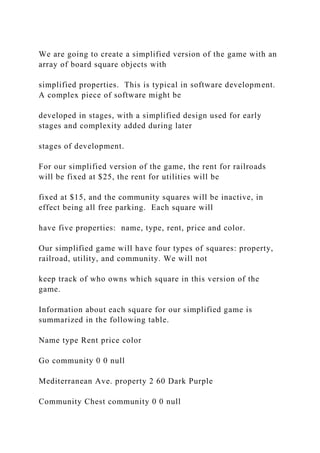
Information about each square for our simplified game is
summarized in the following table.
Name type Rent price color
Go community 0 0 null
Mediterranean Ave. property 2 60 Dark Purple
Community Chest community 0 0 null
Baltic Ave. property 4 60 Dark Purple
Income Tax community 200 0 null
Reading Railroad railroad 25 200 null
Oriental Ave property 6 100 Light Blue
Chance community 0 0 null
Vermont Ave. property 6 100 Light Blue
Connecticut Ave. property 8 120 Light Blue
Jail/Just Visiting community 0 0 null
St. Charles Place property 10 140 Light Purple
Electric Company utility 10 150 null
States Ave. property 10 140 Light Purple
Virginia Ave. property 12 160 Light Purple
Pennsylvania Railroad railroad 25 200 null
St. James Place property 14 180 Orange
Community Chest community 0 0 null
Tennessee Ave. property 14 180 Orange
New York Ave. property 16 200 Orange
Free Parking community 0 0 null
Kentucky Ave. property 18 220 Red
Chance community 0 0 null
Indiana Ave. property 18 220 Red
Illinois Ave. property 20 240 Red
B & O Railroad railroad 25 200 null
Atlantic Ave. property 22 260 Yellow
Ventnor Ave. property 22 260 Yellow
Water Works community 10 150 null
Marvin Gardens property 24 280 Yellow
Go To Jail community 0 0 null
CSCI 111 Chapter 9 – Classes and Objects in Java pg. 18
Pacific Ave. property 26 300 Green
No. Carolina Ave. property 26 300 Green
Community Chest community 0 0 null
Pennsylvania Ave. property 28 320 Green
Short Line Railroad railroad 25 200 null
Chance community 0 0 null
Park Place property 25 350 Dark Blue
Luxury Tax community 100 0 null
Boardwalk property 50 400 Dark Blue
We wish to create a BoardSquare class of objects, based on the
information in the table above. We can
see that there we need are five data properties for each square:
• name – the name of the square
• type – the type of the square. There are six types: property,
railroad, utility, plain, tax, and toJail
• price – the cost to buy the square. A price of zero means the
square is not for sale.
• rent – the rent that a player who lands on the square must pay.
• color – the color of the square. only property squares have
color, the rest are null.
We need public methods to get each property, but not to set
each property, since users will not be able
to change the properties of each BoardSquare. The
BoardSquare's values will be set by a constructor. In
this case, the set of methods will be simple – two constructors
(one null constructor and one initializing
constructor) and the accessor method for each BoardSquare’s
property, plus a toString() method.
We will use Strings for most properties. The price and the rent
will be integers. Here is an annotated
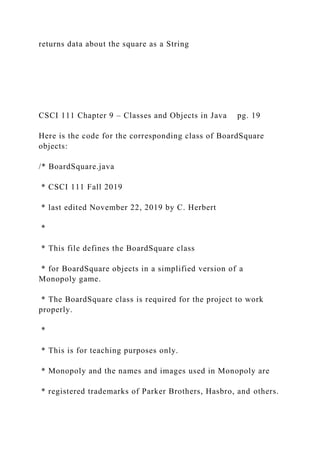
UML diagram for the BoardSquare class:
BoardSquare (board squares for a Monopoly game)
- name: String
- type: String
- price: int
- rent: int
- color: String
name of the square
property, railroad, utility, or community
color group; many are null
+ BoardSquare(): void
+ BoardSquare(String, String, int, int, String): void
+ getName(): String
+ getType(): String
+ getPrice() int
+ getRent() int
+ getColor:(() String
+ toString:() String
(name, type, price, rent and color)
returns data about the square as a String
CSCI 111 Chapter 9 – Classes and Objects in Java pg. 19
Here is the code for the corresponding class of BoardSquare
objects:
/* BoardSquare.java
* CSCI 111 Fall 2019
* last edited November 22, 2019 by C. Herbert
*
* This file defines the BoardSquare class
* for BoardSquare objects in a simplified version of a
Monopoly game.
* The BoardSquare class is required for the project to work
properly.
*
* This is for teaching purposes only.
* Monopoly and the names and images used in Monopoly are
* registered trademarks of Parker Brothers, Hasbro, and others.
*/
package monopoly;
public class BoardSquare {
private String name; // the name of the square
private String type; // property, railroad, utility, or
community
private int price; // cost to buy the square; zero means not
for sale
private int rent; // rent paid by a player who lands on the
square
private String color; // many are null; this is not the Java
Color class
// constructors
public BoardSquare() {
name = "";
type = "";
price = 0;
rent = 0;
color = "";
} // end Square()
public BoardSquare(String name, String type, int price, int
rent, String color) {
this.name = name;
this.type = type;
this.price = price;
this.rent = rent;
this.color = color;
} // end BoardSquare()
// accessors for each property
public String getName() {
return name;
} //end getName()
public String getType() {
return type;
} //end getType()
public int getPrice() {
return price;
} //end getPrice()
CSCI 111 Chapter 9 – Classes and Objects in Java pg. 20
public int getRent() {
return rent;
} //end getRent()
public String getColor() {
return color;
} //end getColor()
// a method to return the BoardSquare's data as a String
public String toString() {
String info;
info = (name + ", " + type + ", " + price + ", " + rent + ", "
+ color);
return info;
} //end toString()
} // end class BoardSquare
//***************************************************
************************
The executable class in the Monopoly project is named
Monopoly and is in the file Monopoly.java. It
uses the BoardSquare class to create an array of BoardSquares.
The main() method:
• creates an array of 40 BoardSquares and assigns the variable
square to refer to the array. The
properties of the BoardSquares are null at the time it is created.
• calls the method loadArray(), which initializes the properties
of the 40 BoardSquares from data
in a file named "squares.txt"
• calls the method printArray(), to test the software by printing
the properties of each element in
the square[] array.
/* Monopoly.java
* CSCI 111 Fall 2019
* last edited November 22, 2019 by C. Herbert
*
* This file contains the executable class Monopoly
* for a simplified version of a Monopoly game.
* It requires access to the BoardSquare class to work properly.
*
* The software creates an array for 40 BoardSquares and loads
data
* into the array from a simple text data file
*
*It also has code to test the program by printing the data from
the array
*
* This is for teaching purposes only.
* Monopoly and the names and images used in Monopoly are
* registered trademarks of Parker Brothers, Hasbro, and others.
*/
package monopoly;
import java.util.*;
CSCI 111 Chapter 9 – Classes and Objects in Java pg. 21
public class Monopoly {
public static void main(String[] args) throws Exception {
// create an array for the 40 squares on a Monopoly board
BoardSquare[] square = new BoardSquare[40]; // array of
40 monopoly squares
// call the method to load the array
loadArray(square);
// test the code by printing the data for each square
printArray(square);
} // end main()
//***************************************************
********************
// method to load the BoardSquare array from a data file
public static void loadArray(BoardSquare[] sq) throws
Exception {
// declare temporary variables to hold BoardSquare
properties read from a file
// each variable corresponds by name to a property of a
BoardSquare object
String inName;
String inType;
int inPrice;
int inRent;
String inColor;
// Create a File class object linked to the name of the file
to be read
java.io.File squareFile = new java.io.File("squares.txt");
// Create a Scanner named infile to read the input stream
from the file
Scanner infile = new Scanner(squareFile);
/* This loop reads data into the array of BoardSquares.
* Each item of data is a separate line in the file.
* There are 40 sets of data for the 40 squares.
*/
for (int i = 0; i < 40; i++) {
// read data from the file into temporary variables
// read Strings directly; parse integers
inName = infile.nextLine();
inType = infile.nextLine();
inPrice = Integer.parseInt(infile.nextLine());
inRent = Integer.parseInt(infile.nextLine());
inColor = infile.nextLine();
// initialze each array element with the BoardSquare
initializing constructor
sq[i] = new BoardSquare(inName, inType, inPrice,
inRent, inColor);
} // end for
infile.close();
} // endLoadArray
//***************************************************
********************
CSCI 111 Chapter 9 – Classes and Objects in Java pg. 22
// test method to print data from the array of BoarsSquares
public static void printArray(BoardSquare[] sq) throws
Exception {
// print header above each row
System.out.println("Data from the array of Monopoly
board squares.n");
System.out.printf("%-22s%-12s%6s%6s%14s%n", "name",
"type", "price", "rent", "color");
System.out.println("************************************
****************************");
// print data in formatted columns, one square per row
for (int i = 0; i < 40; i++) {
System.out.printf("%-22s", sq[i].getName());
System.out.printf("%-12s", sq[i].getType());
System.out.printf("%6d", sq[i].getPrice());
System.out.printf("%6d", sq[i].getRent());
System.out.printf("%14s%n", sq[i].getColor());
} // end for
} // end printArray
//***************************************************
********************
} // end class BoardSquare
//***************************************************
************************
Each element in the array square will now be a reference
variable, holding the memory address where
the corresponding BoardSquare object is actually stored in
memory.
square[0] square [1] square [2] square [3] . . .
4000H 4128H 4224H 4380H . . .
square[0]
name: Go
type: community
rent: 0
price: 0
color: null
square[1]
name: Mediterranean Ave.
type: property
rent: 2
price: 60
color: Dark Purple
square[2]
name: Community Chest
type: community
rent: 0
price: 0
color: null
square[3]
name: Baltic Ave.
type: property
rent: 4
price: 60
color: Dark Purple
CSCI 111 Chapter 9 – Classes and Objects in Java pg. 23
9.5 Abstract Methods, Abstract Classes, and Java Interfaces
An abstract method in Java is a method that only has a method
header – including its return type,
name, and parameter list – but no method body. It’s really not
a method, just information about the
method. Abstract methods are used to create Java interfaces
and Abstract classes, which we learn more
about in just a moment.
The header for an abstract method starts with the keyword
abstract and ends with a semicolon, such as
in the following examples:
abstract double getArea();
abstract void draw();
abstract void resize();
Each of these three might be used in a program that draws
shapes on the screen.
A concrete method is a method that is not abstract – in other
words, the normal methods that we have
been using so far.
Obviously, abstract methods can’t do anything, but can they
form the basis for extensions of Java
Abstract classes and implementations of Java interfaces that can
do things.
Abstract Classes
An abstract class is a class that cannot be instantiated – in other
words, no objects of the class can be
created. An abstract class serves as the basis for subclasses that
can be instantiated.
An abstract class may contain one or more abstract methods.
Any class that contains at least one
abstract method must be declared as an abstract class. The
following example shows how and why
abstract classes are used.
Example of an Abstract Class – the Shape Class
Imagine that we wish to have a graphics program that can draw
a variety of shapes on the screen, and
can give us information about the shapes it draws – color,
perimeter, area, location, and so on. The
shapes will be in different classes that have different properties.
For example, a circle will have a radius, whereas a square will
have a side, and a rectangle will have a
long side and a short side. All of the shapes will have an area, a
perimeter, a color, and a location.
The methods to draw the shapes on the screen will work
differently for different shapes. The software
will use the location of the center of a circle and its radius to
draw a circle, while it will use the location
CSCI 111 Chapter 9 – Classes and Objects in Java pg. 24
of the top left corner of a square and the length of its side to
draw a square. The classes for rectangles,
ellipses, regular hexagons, triangles, parallelograms, and so on,
will all use different information to draw
the shapes, but they will all have draw methods; The same is
true for area methods and perimeter
methods; each class will have them , but they will not all work
the same way.
This is an obvious case where inheritance can be used. We can
set up a parent class, named Shape, with
subclasses Circle, Square, Rectangle, and so on. All of the
objects in the graphics system will be objects
of one of the subclasses of Shape – they will all be circles,
squares, rectangles, and so on. No objects of
the parent class Shape will be created. A few properties – such
as location, color, area and perimeter –
will be common to all shapes but other properties and most
methods will be different for each subclass.
This is the perfect case for an abstract class. We will declare
Shape to be an abstract class, which means
there will be no Shape objects. The objects will be in
subclasses of Shape . We will put the common
properties in the Shape class to be inherited by the subclasses.
We will also give the shape class abstract methods for draw,
area, and perimeter, which will tell
programmers that the subclasses must implement these methods.
Concrete classes that are subclasses
of abstract classes must implement the abstract classes inherited
from the abstract parent class.
Here is what the abstract parent class Shape will look like:
abstract class Shape {
// declare properties
Point location; // an object of type Point has an x and y
coordinate
Color color; // using Java’s built in Color class
double area;
double perimeter;
// declare concrete methods -– accessors for location and color
Point getLocation() {
return location;
}
Color getColor() {
return color;
}
// declare concrete methods – mutators for location and color
void setLocation(Point location) {
this.location = location;
}
void setColor(Color color) {
this.color = color;
}
// declare abstract methods
abstract void draw();
abstract double calculateArea();
abstract double calculatePerimeter();
}// end abstract class Shape
CSCI 111 Chapter 9 – Classes and Objects in Java pg. 25
The abstract class Shape can now be used as the basis for
subclasses. The subclasses will inherit the four
properties – location, color, area, and perimeter – and the
concrete methods, and they must implement
the abstract methods draw(), calculateArea(), and
calculatePerimeter(). The code for the Circle class,
minus some of the details, is shown below.
class Circle extends Shape {
// declare Circle specific properties
private double radius;
private Point center; // center and location will be the same
point.
// constructors
public Circle() {
radius = 0;
area = 0;
perimeter = 0;
} // end Cirlce()
public Circle(Point location, double radius, Color color) {
this.location =location;
this.radius = radius;
this.color = color;
// re-calculate area and perimeter whenever radius changes
area = calculateArea();
perimeter = calculatePerimeter();
} // end Circle( --- )
// add additional accessors
public double getRadius() {
return radius;
} // end getRadius()
public double getCenter() {
return center;
} // end getCenter()
public void setRadius(double radius) {
this.radius = radius;
// re-calculate area and perimeter whenever radius changes
area = calculateArea();
perimeter = calculatePerimeter();
} // end setRadius
// add additional mutators
// implement classes that were abstract in the super class
(parent class)
public void draw(){
// put the code here to draw a circle
} // end draw()
CSCI 111 Chapter 9 – Classes and Objects in Java pg. 26
private double calculateArea() {
// area = π * r^2
return Math.PI * radius * radius;
} // end calculateArea()
private double calculatePerimeter() {
// area = 2 * π * r
return Math.PI * 2.0 * radius;
} // calculatePerimeter()
// add additional methods for the Circle class here
} // end class circle
To summarize the use of Abstract classes:
• Abstract methods are methods that have no body, just the
method header.
• An abstract class is a class that has at least one abstract
method.
• An Abstract class cannot be instantiated – no objects of that
class can be created.
• Abstract classes are the basis for concrete classes that can be
instantiated.
• An Abstract class may contain properties and concrete
methods that subclasses have in
common, and abstract methods for other methods that the
subclasses must have, but which will
work differently in different subclasses.
UML Diagrams for Inheritance and Abstract Classes
We use arrows to denote subclass relationships (inheritance) In
UML diagrams, pointing from the
subclasses to the superclass. The arrowheads are supposed to
be open arrowheads , but often
solid arrowheads are used because they are much easier to draw.
The simplified UML diagram
below shows this. Book and and EMail both are subclasses of
Document.
CSCI 111 Chapter 9 – Classes and Objects in Java pg. 27
Technically, the UML standard only calls for abstract class
names and abstract method names to be
italicized, but often people put the word “abstract” with the
names to make it more obvious that they
are abstract.
Java Interfaces
Abstract methods can also be used in Java Interfaces. Java
Interfaces are very similar to abstract classes,
but they have two differences:
1. Interfaces can only have abstract methods, not concrete
methods. Interfaces can have
constants, but not properties or concrete methods. (An abstract
class can have concrete
methods as well as abstract methods.)
2. Interfaces are implemented not inherited; they are not used as
super classes. A concrete class
can implement more than one interface.
Interfaces have no constructors, and are not classes that can be
instantiated. They provide a standard
set of method calls for other classes.
A class implements an Interface by using the phrase
”implements [interface name]” immediately after
the name of the class in the class declaration.
Java interfaces are used to provide a common set of method
calls for use within many classes. In
essence, they form a contract that says “This class will include
the methods listed in the interface, with
the same method names, parameters and return types.”
Effectively, an interface in Java is a list of
abstract methods that will be implemented in any class that
implements the interface.
Imagine that we have several major electronic companies
making burglar alarms, cable television boxes,
microwave ovens, and so on, all of which use an electronic
clock with a display and a programmable
clock chip made by one manufacturer. The manufacturer could
publish a Java interface showing how to
invoke the methods to program the chip. The various other
manufacturers could include the interface
in the Java code for their devices, so that programmers creating
software for the various systems could
all use the same method names, parameters, etc, for any clock
software, making all of the system more
compatible with one another.
The code below shows a clock interface.
interface Clock {
void setTime(int hours, int minutes, int second);
void setHours(int hours);
void setTimeZone(int zone);
void setMinutes(int minutes);
void setSeconds(int seconds);
int getHours();
int getMinutes();
int getSeconds();
int getTimeZone();
} // end interface Clock
CSCI 111 Chapter 9 – Classes and Objects in Java pg. 28
By publishing the interface, the clock chip manufacturer is
telling others : “these methods are
guaranteed to work in our system.” The Java software in the
clock would implement this interface, as
would any software in any compatible system that also declares
that it implements the interface.
To implement an interface, the class header should include the
declaration “implements [name of
interface]” immediately after the class name. For example a
class named Timer that implements the
Clock interface might have a class declaration that starts like
this:
Public class Timer implements Clock
{
// body of the Timer class goes here – properties and methods
as usual
}
This tells the world that the Timer class has code implementing
all of the abstract methods in the Clock
interface. Someone who knows the Clock interface would then
know how to invoke and use the similar
methods in Timer. In a similar manner, someone who knows
the Clock interface would also know how
to use the related methods in any system that implements Clock
– household appliances, entertainment
systems, communications equipment, and so on.
In some systems, the interface that specifies the behavior is
called the supplier, and the class that
implements the behavior is called the client.
In the modern world, with so many systems interacting with one
another all around the Earth via the
Web, through mobile devices, via telephone and radio systems,
and so on, Java interfaces go a long way
toward ensuring some compatibility among software systems.
Interfaces are one of the reasons the
Java language is used so widely in so many large complex
computer systems.
To summarize the use of Java interfaces:
• An interface is a collection of methods, similar to those found
in a class, but all of the interface’s
methods are abstract methods.
• An interface could also include properties and constants, but
often only has abstract methods.
• A class that implements an interface will have methods that
match the abstract methods in the
interface, with the same method names and matching
parameters.
• An interface is like a contract, with any class that implements
the interface guaranteeing that
the methods listed in the interface will work in the class.
• classes can implement more than one interface.
• interface implementation is independent of inheritance.
Interfaces cannot be inherited; a class
cannot extend an interface.
• a programmer declares a class will implement an interface by
including “implements [interface
name]” immediately after the class name, such as in “public
class Timer implements Clock { … ”.
CSCI 111 Chapter 9 – Classes and Objects in Java pg. 29
Interfaces in UML diagrams
The implementation of interfaces in UML diagrams is shown by
using an arrow with a dotted line
pointing from a class to any Interfaces it implements. In the
following simplified example, both the
Professor class and the Student class implement the Person
interface:
Java’s Comparable Interface
One commonly used Java interface is the Comparable interface,
whose only method is the CompareTo()
method. The CompareTo() method compares two objects in a
class and returns an integer.
The integer returned by a.compareTo(b) will be:
• a negative number if a comes before b;
• a zero if a equals b;
• a positive number if a comes after b.
An example of how this is used is the The String class
CompareTo() method, which uses the lexicographic
order (alphabetic order) of the Unicode characters in the String
to compare them. It is most often used
in an If statement, such as in this code from the BubbleSort
demo example in Chapter 6:
if ( a[i+1].compareTo(a[i]) < 0 ) // if the two items are out
of order
{
// swap the two items and set swapped to true
c = a[i];
a[i] = a[i+1];
a[i+1] = c;
swapped = true;
} // end if
The pattern of use for the compareTo() methods in if statement
basically is:
CSCI 111 Chapter 9 – Classes and Objects in Java pg. 30
• if (a.compareTo(b) < 0) // then a comes before b.
• if (a.compareTo(b) == 0) // then a equals b.
• if (a.compareTo(b) > 0) // then b comes before a.
But this only works if we implement the compareTo() method in
a way that tells the computer how to
compare two items in a newly defined class, as the String class
does. How will objects in a new class be
compared?
To implement the comparable interface in a new class, we need
to include code for the compareTo()
method in a class declaration telling the computer how to
compare two items in the new class. The
following example shows how to do this with the Book class
from the beginning of the chapter.
Example – implementing Java’s Comparable Interface
Here is part of the class declaration for the Book class:
public class Book
{
// declare properties
private String isbn;
private String title;
private String subject;
private double price;
// constructor methods ******************************
public Book()
{
} // end Book()
the rest of the class declaration follows this . . .
For the compareTo() method to work, we need to decide what
to use as the basis for the order of our
books. We can use any property that already has a predefined
order, such as the ISBN or the title, which
are Strings. If the new class has a property that is a key field,
then that should be used as the basis for
the compareTo() method. A key field is a field that has a
unique value for each instance of an object.
Your Jnumber at CCP is an example of a key field – no two
students can have the same Jnumber. Social
security numbers, bank account numbers, and Vehicle
Identification Numbers (VIN) are all examples of
key fields.
isbn is a key field. It can be used to compare two objects. The
following code shows how to implement
the compareTo() method in the book class using the String
property isbn:
/* compareTo() method using ISBN as the basis for ordering
Book objects
* a.compareTo(b) compares Book a to Book b
public int compareTo(Book b)
{
int x;
x = this.isbn.compareTo(b.isbn);
return x;
} // end Book()
CSCI 111 Chapter 9 – Classes and Objects in Java pg. 31
In the code shown here, this.isbn is the isbn property for the
Book object invoking the method. In code
outside of the class, Book object a can be compared to Book
object b this way - a.compareTo(b);
The isbn property is a String, so one isbn is compared to
another in the method by using the String class
compareTo() method. this.isbn.compareTo(b) invokes the
String compareTo() method for this.isbn. The
Book compareTo() method then returns the result of that String
comparison. The result is that Book
class objects will now be compared by their isbn properties
whenever a program uses compareTo() with
Book class objects.
The Book class header can now include the “implements
comparable” phrase:
public class Book implements Comparable
{
// declare properties
private String isbn;
private String title;
private String subject;
private double price;
// constructor methods ******************************
public Book()
{
} // end Book()
. . . other methods would follow here, including
public int compareTo(Book b)
{
int x;
x = this.isbn.compareTo(b.isbn);
return x;
} // end Book()
the rest of the class declaration follows this . . .
We can include the Book compareTo() method in the Book class
declaration without implementing
Java’s comparable interface, so why should we bother to do so?
The answer is to let programmers know
that our class of objects can be compared and ordered using this
standard method. By putting a
compareTo() method in the Book class declaration and
including the “implements comparable” phrase
with the Book class header, we are telling other programmers
that Book objects can be compared to
one another, so they can be sorted, etc.
Think of it like a badge worn by a soldier. A soldier who is a
properly trained combat parachutist wears a
badge with combat jump wings on his uniform, indicating he is
a trained parachute jumper. In a similar
manner, the “implements comparable” phrase indicates that a
class includes a proper compareTo()
method.
Please note that the comparable interface is included in the
standard Java.lang package, so it can be
used without any import statement. Other Java interfaces, such
as some of those used in GUI
programming, may need import statements to work in you code.
CSCI 111 Chapter 9 – Classes and Objects in Java pg. 32
9.6 Copying Objects
We have seen that a reference variable is used to refer to the
location where the details of an object are
actually stored. For example, imagine that we have two objects
from the Book class, bookA and bookB.
Each variable will point to the memory location where the data
for its object is stored.
In chapter 8 we saw that setting BookB equal to BookA with
the statement BookB = BookA; changes
the value of the reference variable so that they both point to
BookA. The old data from BookB is lost.
bookA
bookB
But what if we want BookB to be a copy of BookA? The copy
shown above, where the reference is
copied so that two variables refer to the same object in memory
is known as a shallow copy. Copying all
of the properties of one object to another object of the same
type is known as a deep copy. A deep copy
bookA
bookB
bookA
isbn: 978-1400033416
title: Beloved
subject: fiction
price: 23
bookB
isbn: 978-0316769174
title: The Catcher in the Rye
subject: fiction
price: 14
bookB
isbn: 978-0316769174
title: The Catcher in the Rye
subject: fiction
price: 14
bookA
isbn: 978-1400033416
title: Beloved
subject: fiction
price: 23
CSCI 111 Chapter 9 – Classes and Objects in Java pg. 33
copies the state of one object to another. The diagram below
shows what a deep copy would look like.
We need to write a method to perform a deep copy.
Here is a method to perform a deep copy for the Book class:
public void copy(Book source)
{
this.isbn = source.isbn;
this,title = source.title;
this.subject = source.subject;
this.price = source.price;
)
The code to copy BookA to BookB would then look like this:
BookB.copy(BookA);
All of the properties of BookA are copied to BookB.
A Copy Constructor in Java
Once we have a copy() method in our class, we can easily set up
a copy constructor. A copy constructor
is a constructor that creates a new instance of an object and
copies the state of an existing object into
the new object. It creates a new copy of an object initialized
with all of the properties of the object it is
copying. The code for a copy constructor in the Book class
would like this:
Book( Book source)
{
this.copy(BookA);
)
Of course, this only works when we have already have a copy()
method. A copy constructor is used like
this:
Book bookD = new Book(bookA);
It is very useful to include a copy method and a copy
constructor in declarations for new classes.
bookA
bookB
bookB
isbn: 978-1400033416
title: Beloved
subject: fiction
price: 23
bookA
isbn: 978-1400033416
title: Beloved
subject: fiction
price: 23
CSCI 111 Chapter 9 – Classes and Objects in Java pg. 34
Chapter Review
Section 1 of this chapter described class declarations for a new
class of objects in Java. Key terms
included: class declaration and default constructor. (Note: Most
of the new key terms for this topic
were introduced in the previous chapter.)
Section 2 discussed two ways to organize class declarations in
Java code: multiple classes in a single
*.java file, and inner classes. Key terms included inner class
and nested classes.
Section 3 described appropriate use of the Java Keyword this.
Section 4 described how arrays of objects work in Java, using
reference variables.
Section 5 discussed the Java abstract methods and their use in
Abstract Classes and Java interfaces,
including the use of Java’s Comparable interface. Key terms
included: abstract method, concrete
method, abstract class, interface, and key field.
Chapter Questions
1. By what other name is a Java class declaration also known?
What is a default constructor? What
happens if a Java Class declaration does not have a constructor?
2. In a .java file, when should a class be public? What class is
always public in a .java file? How many
classes in a .java file can be public?
3. How are inner classes declared in Java? When is an inner
class a good idea, and when is it a bad idea?
4. What does the keyword this refer to in a Java method?
When should it be used?
5. What is a static property? How are static properties invoked?
6. What is actually stored in an array of objects in Java?
7. How is an abstract method declared in Java? How is it
different from a concrete method?
8. How is an object of an abstract class instantiated in Java?
What are abstract classes used for? What
classes must be declared as an abstract class?
9. What do we know about all of the methods in a Java
interface? What does implementation of an
interface by a class guarantee for a programmer using the class?
How many interfaces can a class
implement?
10. How is inheritance indicated on a UML diagram? How is
implementation of an interface indicated?
CSCI 111 Chapter 9 – Classes and Objects in Java pg. 35
Chapter Exercise
Creating A Player Class for a Monopoly Game
The Java project Monopoly in the files for this chapter, has two
classes described earlier in the chapter –
the executable class Monopoly.java and BoardSquare.java
which defines a BoardSquare object.
Your task is to create a new class for a Player object in a
monopoly game, and to revise the existing
Monopoly project to test the player class by moving the player.
We are not implementing a complete
Monopoly game, but just creating a Player class and testing how
it works within the project.
You should:
1. Design and create the class declaration for the Player class
according to the annotated UML
diagram below, and add it to the IntelliJ Monopoly project in a
new Java class file.
2. Modify the executable Monopoly class to test the player, as
follows:
a. you should instantiate a player object. ( … such as, Player p1
= new Player();
p1 is just an example. You can decide what to name the
variable.)
b. initialize the player’s location to be square 0, the Go square.
the player’s location will be
the square that the player’s token is currently on.
c. initialize the players name and token with values you choose,
such as "Joe" and "the
race car". Initialize the players balance to be 1500.
d. print the initial data for the Player, such as
the race car is on GO. Joe's Balance is $1,500.
e. create a loop to move the player 10 times. The loop should:
i. pick two random numbers between 1 and 6 and add them
together to simulate
the rolling of a real pair of dice.
ii. move the player (change location) to the new square by
adding the player's
location to the value rolled by the dice. (If the value is greater
than 39, then
subtract 40. This accounts for starting again at the start of the
board.)
The code could look like this:
newLocation = p1.getLocation() + roll;
if (newLocation > 39)
newLocation = newLocation - 40;
p1.setLocation(newLocation);
iii. subtract the square's rent from the player's balance,
something like this:
newBalance = p1.getBalance() -
square[newLlocation].getRent();
p1.setBalance(newBalance);
CSCI 111 Chapter 9 – Classes and Objects in Java pg. 36
We are subtracting rents but not adding anything to the player's
balance.
Remember, our purpose is just to test the player object.
iv. print a message telling us the roll of the dice, the new
location, it's rent, and
new balance, such as:
Joe rolled 8. The Race Car is on Vermont Ave. The rent is $6.
Joe's now has $1,494.
Remember, this is the first part in building a Monopoly game in
Java so we are only testing the player
class object by moving the player on the board. Things like
picking a card if the player lands on Chance,
buying and selling properties, collecting $200 for passing Go,
and so on, are not part of this project. In a
real development situation, those things would be added in
another phase of the project once the
BoardSquare and Player objects work properly. Graphics (and
sound) would also be added later. Don’t
get carried away with fancy features at this point and make the
assignment harder than it needs to be.
Player (player for a Monopoly game)
- name: String
- token: String
- location: int
- balance: int
name of the player
racecar, wheelbarrow, battleship, top hat, etc.
the number of the square the player is on
initialized to zero
the player’s current bank balance
initialized to 1500
+ Player(): void
+ Player(String, String, int, int): void
+ getName(): String
+ getToken(): String
+ getLocation() int
+ getBalance() int
+ setName(String): void
+ setToken(String): void
+ setLocation(int): void
+ setBalance(int): void
+ toString:() String
(name, token, location, bank balance)
returns data about the player as a String
CirclePatterns/.idea/$PRODUCT_WORKSPACE_FILE$
1.8
CirclePatterns/.idea/misc.xml
CirclePatterns/.idea/modules.xml
CirclePatterns/.idea/workspace.xml
1574522721289
1574522721289
CirclePatterns/build.xml
Builds, tests, and runs the project CirclePatterns.
CirclePatterns/build/built-jar.properties
#Thu, 21 Nov 2013 22:07:38 -0500
C:UserscherbertDesktopNetBeansProjectsCirclePatterns
=
CirclePatterns/build/classes/.netbeans_automatic_build
CirclePatterns/build/classes/.netbeans_update_resources
CirclePatterns/build/classes/circlepatterns/CirclePatterns.classp
ackage circlepatterns;
publicsynchronizedclass CirclePatterns {
public void CirclePatterns();
publicstatic void main(String[]);
}
CirclePatterns/build/classes/circlepatterns/MyCanvas.classpacka
ge circlepatterns;
synchronizedclass MyCanvas extends java.awt.Canvas {
public void MyCanvas();
public void paint(java.awt.Graphics);
}
CirclePatterns/CirclePatterns.iml
CirclePatterns/manifest.mf
Manifest-Version: 1.0
X-COMMENT: Main-Class will be added automatically by build
CirclePatterns/nbproject/build-impl.xml
Must set src.dir
Must set test.src.dir
Must set build.dir
Must set dist.dir
Must set build.classes.dir
Must set dist.javadoc.dir
Must set build.test.classes.dir
Must set build.test.results.dir
Must set build.classes.excludes
Must set dist.jar
Must set javac.includes
No tests executed.
Must set JVM to use for profiling in profiler.info.jvm
Must set profiler agent JVM arguments in
profiler.info.jvmargs.agent
Must select some files in the IDE or set javac.includes
To run this application from the command line without
Ant, try:
java -cp "${run.classpath.with.dist.jar}" ${main.class}
To run this application from the command line without
Ant, try:
java -jar "${dist.jar.resolved}"
Must select one file in the IDE or set run.class
Must select one file in the IDE or set debug.class
Must set fix.includes
This target only works when run from inside the NetBeans
IDE.
Must select one file in the IDE or set profile.class
This target only works when run from inside the NetBeans
IDE.
This target only works when run from inside the NetBeans
IDE.
This target only works when run from inside the NetBeans
IDE.
Must select one file in the IDE or set run.class
Must select some files in the IDE or set test.includes
Must select one file in the IDE or set run.class
Must select one file in the IDE or set applet.url
Must select some files in the IDE or set javac.includes
Some tests failed; see details above.
Must select some files in the IDE or set test.includes
Some tests failed; see details above.
Must select some files in the IDE or set test.class
Must select some method in the IDE or set test.method
Some tests failed; see details above.
Must select one file in the IDE or set test.class
Must select some method in the IDE or set test.method
Must select one file in the IDE or set applet.url
CirclePatterns/nbproject/genfiles.properties
build.xml.data.CRC32=45ef90fa
build.xml.script.CRC32=665c12be
[email protected]
# This file is used by a NetBeans-based IDE to track changes in
generated files such as build-impl.xml.
# Do not edit this file. You may delete it but then the IDE will
never regenerate such files for you.
nbproject/build-impl.xml.data.CRC32=45ef90fa
nbproject/build-impl.xml.script.CRC32=ff7a8039
nbproject/[email protected]
CirclePatterns/nbproject/private/private.properties
compile.on.save=true
user.properties.file=C:UserscherbertAppDataRoamingNe
tBeans7.3.1build.properties
CirclePatterns/nbproject/private/private.xml
file:/C:/Users/cherbert/Desktop/NetBeansProjects/CirclePatterns
/src/circlepatterns/CirclePatterns.java
CirclePatterns/nbproject/project.properties
annotation.processing.enabled=true
annotation.processing.enabled.in.editor=false
annotation.processing.processor.options=
annotation.processing.processors.list=
annotation.processing.run.all.processors=true
annotation.processing.source.output=${build.generated.sources.
dir}/ap-source-output
build.classes.dir=${build.dir}/classes
build.classes.excludes=**/*.java,**/*.form
# This directory is removed when the project is cleaned:
build.dir=build
build.generated.dir=${build.dir}/generated
build.generated.sources.dir=${build.dir}/generated-sources
# Only compile against the classpath explicitly listed here:
build.sysclasspath=ignore
build.test.classes.dir=${build.dir}/test/classes
build.test.results.dir=${build.dir}/test/results
# Uncomment to specify the preferred debugger connection
transport:
#debug.transport=dt_socket
debug.classpath=
${run.classpath}
debug.test.classpath=
${run.test.classpath}
# This directory is removed when the project is cleaned:
dist.dir=dist
dist.jar=${dist.dir}/CirclePatterns.jar
dist.javadoc.dir=${dist.dir}/javadoc
excludes=
includes=**
jar.compress=false
javac.classpath=
# Space-separated list of extra javac options
javac.compilerargs=
javac.deprecation=false
javac.processorpath=
${javac.classpath}
javac.source=1.7
javac.target=1.7
javac.test.classpath=
${javac.classpath}:
${build.classes.dir}
javac.test.processorpath=
${javac.test.classpath}
javadoc.additionalparam=
javadoc.author=false
javadoc.encoding=${source.encoding}
javadoc.noindex=false
javadoc.nonavbar=false
javadoc.notree=false
javadoc.private=false
javadoc.splitindex=true
javadoc.use=true
javadoc.version=false
javadoc.windowtitle=
main.class=circlepatterns.CirclePatterns
manifest.file=manifest.mf
meta.inf.dir=${src.dir}/META-INF
mkdist.disabled=false
platform.active=default_platform
run.classpath=
${javac.classpath}:
${build.classes.dir}
# Space-separated list of JVM arguments used when running the
project.
# You may also define separate properties like run-sys-
prop.name=value instead of -Dname=value.
# To set system properties for unit tests define test-sys-
prop.name=value:
run.jvmargs=
run.test.classpath=
${javac.test.classpath}:
${build.test.classes.dir}
source.encoding=UTF-8
src.dir=src
test.src.dir=test
CirclePatterns/nbproject/project.xml
org.netbeans.modules.java.j2seproject
CirclePatterns
CirclePatterns/out/production/CirclePatterns/circlepatterns/Circl
ePatterns.classpackage circlepatterns;
publicsynchronizedclass CirclePatterns {
public void CirclePatterns();
publicstatic void main(String[]);
}
CirclePatterns/out/production/CirclePatterns/circlepatterns/MyC
anvas.classpackage circlepatterns;
synchronizedclass MyCanvas extends java.awt.Canvas {
public void MyCanvas();
public void paint(java.awt.Graphics);
}
CirclePatterns/src/circlepatterns/CirclePatterns.javaCirclePatter
ns/src/circlepatterns/CirclePatterns.java/* CirclePatterns.Java
* Computer Science 111, Fall 2013
* Last edited Nov. 20, 2013 by C. Herbert
*
* This code demonstrates a simple example of some computer a
rt work.
* It draws a pattern of circles on the screen with a time delay b
etween drawings.
*/
package circlepatterns;
import java.awt.*;
import java.util.concurrent.TimeUnit;
import javax.swing.*;
publicclassCirclePatterns
{
publicstaticvoid main(String[] args)
{
// create a MyCanvas object
MyCanvas canvas1 =newMyCanvas();
// set up a JFrame to hold the canvas
JFrame frame =newJFrame();
frame.setTitle("Circle Patterns");
frame.setSize(500,500);
frame.setLocation(100,100);
frame.setDefaultCloseOperation(JFrame.EXIT_ON_CLOS
E);
// add the canvas to the frame as a content panel
frame.getContentPane().add(canvas1);
frame.setVisible(true);
}// end main()
}// end class
classMyCanvasextendsCanvas
{
publicMyCanvas()
{}// end MyCanvas() constructor
publicvoid paint(Graphics graphics)
{
int x;// x coordinate to locate circle
int y;// y coordinate to locate circle
int diameter;// width of rectangle
int i;// loop counter
int times;// number of times the program is repesated
for(times =1; times <=10; times++)
{
// paint the canvas black
graphics.setColor(Color.BLACK);
graphics.fillRect(0,0,500,500);
for(i =1; i <=100; i++)
{
// red circles
graphics.setColor(newColor(255,0,0));
x =0+ i *5;
y =0+ i *5;
diameter =10* i;
graphics.drawOval(x, y, diameter, diameter);
// blue circles
graphics.setColor(newColor(0,0,255));
x =0- i *5;
y =0+ i *5;
diameter =10* i;
graphics.drawOval(x, y, diameter, diameter);
// green circles
graphics.setColor(newColor(0,255,0));
x =0+ i *5;
y =0- i *5;
diameter =10* i;
graphics.drawOval(x, y, diameter, diameter);
// The sleep command delays the drawing to make it more intere
sting
// It must be in try-
cathc blocks for error handling (discussed in chap. 12)
try
{
TimeUnit.MILLISECONDS.sleep(20);
}// end try
catch(Exception e)
{
System.out.println("Exception caught");
}// end catch
}// end for
}// end while
}// end paint()
}// end class MyCanvas
ConcentricCircles/.idea/$PRODUCT_WORKSPACE_FILE$
1.8
ConcentricCircles/.idea/misc.xml
ConcentricCircles/.idea/modules.xml
ConcentricCircles/.idea/workspace.xml
1574522989856
1574522989856
ConcentricCircles/build.xml
Builds, tests, and runs the project ConcentricCircles.
ConcentricCircles/build/classes/.netbeans_automatic_build
ConcentricCircles/build/classes/.netbeans_update_resources
ConcentricCircles/build/classes/concentriccircles/ConcentricCir
cles.classpackage concentriccircles;
publicsynchronizedclass ConcentricCircles {
public void ConcentricCircles();
publicstatic void main(String[]);
}
ConcentricCircles/build/classes/concentriccircles/MyCanvas.cla
sspackage concentriccircles;
synchronizedclass MyCanvas extends java.awt.Canvas {
public void MyCanvas();
public void paint(java.awt.Graphics);
}
ConcentricCircles/ConcentricCircles.iml
ConcentricCircles/manifest.mf
Manifest-Version: 1.0
X-COMMENT: Main-Class will be added automatically by build
ConcentricCircles/nbproject/build-impl.xml
Must set src.dir
Must set test.src.dir
Must set build.dir
Must set dist.dir
Must set build.classes.dir
Must set dist.javadoc.dir
Must set build.test.classes.dir
Must set build.test.results.dir
Must set build.classes.excludes
Must set dist.jar
Must set javac.includes
No tests executed.
Must set JVM to use for profiling in profiler.info.jvm
Must set profiler agent JVM arguments in
profiler.info.jvmargs.agent
Must select some files in the IDE or set javac.includes
To run this application from the command line without
Ant, try:
java -cp "${run.classpath.with.dist.jar}" ${main.class}
To run this application from the command line without
Ant, try:
java -jar "${dist.jar.resolved}"
Must select one file in the IDE or set run.class
Must select one file in the IDE or set debug.class
Must set fix.includes
This target only works when run from inside the NetBeans
IDE.
Must select one file in the IDE or set profile.class
This target only works when run from inside the NetBeans
IDE.
This target only works when run from inside the NetBeans
IDE.
This target only works when run from inside the NetBeans
IDE.
Must select one file in the IDE or set run.class
Must select some files in the IDE or set test.includes
Must select one file in the IDE or set run.class
Must select one file in the IDE or set applet.url
Must select some files in the IDE or set javac.includes
Some tests failed; see details above.
Must select some files in the IDE or set test.includes
Some tests failed; see details above.
Must select some files in the IDE or set test.class
Must select some method in the IDE or set test.method
Some tests failed; see details above.
Must select one file in the IDE or set test.class
Must select some method in the IDE or set test.method
Must select one file in the IDE or set applet.url
ConcentricCircles/nbproject/genfiles.properties
build.xml.data.CRC32=48a71fdd
build.xml.script.CRC32=ab357ec2
[email protected]
# This file is used by a NetBeans-based IDE to track changes in
generated files such as build-impl.xml.
# Do not edit this file. You may delete it but then the IDE will
never regenerate such files for you.
nbproject/build-impl.xml.data.CRC32=48a71fdd
nbproject/build-impl.xml.script.CRC32=b94aed7f
nbproject/[email protected]
ConcentricCircles/nbproject/private/private.properties
compile.on.save=true
user.properties.file=C:UserscherbertAppDataRoamingNe
tBeans7.3.1build.properties
ConcentricCircles/nbproject/private/private.xml
file:/C:/Users/cherbert/Desktop/NetBeansProjects/ConcentricCir
cles/src/concentriccircles/ConcentricCircles.java
ConcentricCircles/nbproject/project.properties
annotation.processing.enabled=true
annotation.processing.enabled.in.editor=false
annotation.processing.processor.options=
annotation.processing.processors.list=
annotation.processing.run.all.processors=true
annotation.processing.source.output=${build.generated.sources.
dir}/ap-source-output
build.classes.dir=${build.dir}/classes
build.classes.excludes=**/*.java,**/*.form
# This directory is removed when the project is cleaned:
build.dir=build
build.generated.dir=${build.dir}/generated
build.generated.sources.dir=${build.dir}/generated-sources
# Only compile against the classpath explicitly listed here:
build.sysclasspath=ignore
build.test.classes.dir=${build.dir}/test/classes
build.test.results.dir=${build.dir}/test/results
# Uncomment to specify the preferred debugger connection
transport:
#debug.transport=dt_socket
debug.classpath=
${run.classpath}
debug.test.classpath=
${run.test.classpath}
# This directory is removed when the project is cleaned:
dist.dir=dist
dist.jar=${dist.dir}/ConcentricCircles.jar
dist.javadoc.dir=${dist.dir}/javadoc
excludes=
includes=**
jar.compress=false
javac.classpath=
# Space-separated list of extra javac options
javac.compilerargs=
javac.deprecation=false
javac.processorpath=
${javac.classpath}
javac.source=1.7
javac.target=1.7
javac.test.classpath=
${javac.classpath}:
${build.classes.dir}
javac.test.processorpath=
${javac.test.classpath}
javadoc.additionalparam=
javadoc.author=false
javadoc.encoding=${source.encoding}
javadoc.noindex=false
javadoc.nonavbar=false
javadoc.notree=false
javadoc.private=false
javadoc.splitindex=true
javadoc.use=true
javadoc.version=false
javadoc.windowtitle=
main.class=concentriccircles.ConcentricCircles
manifest.file=manifest.mf
meta.inf.dir=${src.dir}/META-INF
mkdist.disabled=false
platform.active=default_platform
run.classpath=
${javac.classpath}:
${build.classes.dir}
# Space-separated list of JVM arguments used when running the
project.
# You may also define separate properties like run-sys-
prop.name=value instead of -Dname=value.
# To set system properties for unit tests define test-sys-
prop.name=value:
run.jvmargs=
run.test.classpath=
${javac.test.classpath}:
${build.test.classes.dir}
source.encoding=UTF-8
src.dir=src
test.src.dir=test
ConcentricCircles/nbproject/project.xml
org.netbeans.modules.java.j2seproject
ConcentricCircles
ConcentricCircles/out/production/ConcentricCircles/concentricc
ircles/ConcentricCircles.classpackage concentriccircles;
publicsynchronizedclass ConcentricCircles {
public void ConcentricCircles();
publicstatic void main(String[]);
}
ConcentricCircles/out/production/ConcentricCircles/concentricc
ircles/MyCanvas.classpackage concentriccircles;
synchronizedclass MyCanvas extends java.awt.Canvas {
public void MyCanvas();
public void paint(java.awt.Graphics);
}
ConcentricCircles/src/concentriccircles/ConcentricCircles.javaC
oncentricCircles/src/concentriccircles/ConcentricCircles.java/*
CirclePatterns.Java
* Computer Science 111, Fall 2013
* Last edited Nov. 20. 2013 by C. Herbert
*
* This code demonstrates how to draws a pattern of concentric
circles.
*
* Circle are drawn inside a bounding rectangle that is actually
* a bounding square, with the same width and height.
*
* To draw concentric cicles, , move the x and y coordinates for
each suscessive circle
* up and to the right by a factor of k, and at the same time, incr
ease the size
* of the biounding square by a factor of 2K.
*
*/
package concentriccircles;
import java.awt.*;
import java.util.concurrent.TimeUnit;
import javax.swing.*;
publicclassConcentricCircles
{
publicstaticvoid main(String[] args)
{
// create a MyCanvas object
MyCanvas canvas1 =newMyCanvas();
// set up a JFrame to hold the canvas
JFrame frame =newJFrame();
frame.setTitle("Concentric Circles");
frame.setSize(500,500);
frame.setLocation(100,100);
frame.setDefaultCloseOperation(JFrame.EXIT_ON_CLOS
E);
// add the canvas to the frame as a content panel
frame.getContentPane().add(canvas1);
frame.setVisible(true);
}// end main()
}// end class
classMyCanvasextendsCanvas
{
publicMyCanvas()
{}// end MyCanvas() constructor
publicvoid paint(Graphics graphics)
{
int x;// x coordinate to locate circle
int y;// y coordinate to locate circle
int diameter;// width of rectangle
int i;// loop counter
// paint the canvas black
graphics.setColor(Color.BLACK);
graphics.fillRect(0,0,500,500);
for(i =0; i <50; i++){
// red circles
graphics.setColor(newColor(255,128,255));
x =250- i *8;
y =250- i *8;
diameter =16* i;
graphics.drawOval(x, y, diameter, diameter);
// The sleep command delays the drawing to make it more intere
sting
// It must be in try-
cathc blocks for error handling (discussed in chap. 12)
try
{
TimeUnit.MILLISECONDS.sleep(20);
}// end try
catch(Exception e)
{
System.out.println("Exception caught");
}// end catch
}// end for
}// end paint()
}// end class MyCanvas
CosineRose/.idea/$PRODUCT_WORKSPACE_FILE$
1.8
CosineRose/.idea/libraries/CosineRose.xml
CosineRose/.idea/misc.xml
CosineRose/.idea/modules.xml
CosineRose/.idea/workspace.xml
1574523136540
1574523136540
CosineRose/build.xml
Builds, tests, and runs the project CosineRose.
CosineRose/build/built-jar.properties
#Fri, 22 Nov 2013 06:45:45 -0500
C:UserscherbertDesktopNetBeansProjectsCosineRose=
CosineRose/build/classes/.netbeans_automatic_build
CosineRose/build/classes/.netbeans_update_resources
CosineRose/build/classes/cosinerose/CosineRose.classpackage
cosinerose;
publicsynchronizedclass CosineRose {
public void CosineRose();
publicstatic void main(String[]);
}
CosineRose/build/classes/cosinerose/CosineRose.rs
CosineRose/build/classes/cosinerose/RoseCanvas.classpackage
cosinerose;
synchronizedclass RoseCanvas extends java.awt.Canvas {
double x1;
double y1;
double x2;
double y2;
double value;
int xAdjust;
int yAdjust;
double factor;
String messageString;
String inputString;
String title;
public void RoseCanvas();
public void inputFactor();
public void paint(java.awt.Graphics);
}
CosineRose/CosineRose.iml
CosineRose/dist/CosineRose.jar
META-INF/MANIFEST.MF
Manifest-Version: 1.0
Ant-Version: Apache Ant 1.8.4
Created-By: 1.7.0_25-b16 (Oracle Corporation)
Class-Path:
X-COMMENT: Main-Class will be added automatically by build
Main-Class: cosinerose.CosineRose
cosinerose/CosineRose.classpackage cosinerose;
publicsynchronizedclass CosineRose {
public void CosineRose();
publicstatic void main(String[]);
}
cosinerose/RoseCanvas.classpackage cosinerose;
synchronizedclass RoseCanvas extends java.awt.Canvas {
double x1;
double y1;
double x2;
double y2;
double value;
int xAdjust;
int yAdjust;
double factor;
String messageString;
String inputString;
String title;
public void RoseCanvas();
public void inputFactor();
public void paint(java.awt.Graphics);
}
CosineRose/dist/README.TXT
========================
BUILD OUTPUT DESCRIPTION
========================
When you build an Java application project that has a main
class, the IDE
automatically copies all of the JAR
files on the projects classpath to your projects dist/lib folder.
The IDE
also adds each of the JAR files to the Class-Path element in the
application
JAR files manifest file (MANIFEST.MF).
To run the project from the command line, go to the dist folder
and
type the following:
java -jar "CosineRose.jar"
To distribute this project, zip up the dist folder (including the
lib folder)
and distribute the ZIP file.
Notes:
* If two JAR files on the project classpath have the same name,
only the first
JAR file is copied to the lib folder.
* Only JAR files are copied to the lib folder.
If the classpath contains other types of files or folders, these
files (folders)
are not copied.
* If a library on the projects classpath also has a Class-Path
element
specified in the manifest,the content of the Class-Path element
has to be on
the projects runtime path.
* To set a main class in a standard Java project, right-click the
project node
in the Projects window and choose Properties. Then click Run
and enter the
class name in the Main Class field. Alternatively, you can
manually type the
class name in the manifest Main-Class element.
CosineRose/manifest.mf
Manifest-Version: 1.0
X-COMMENT: Main-Class will be added automatically by build
CosineRose/nbproject/build-impl.xml
Must set src.dir
Must set test.src.dir
Must set build.dir
Must set dist.dir
Must set build.classes.dir
Must set dist.javadoc.dir
Must set build.test.classes.dir
Must set build.test.results.dir
Must set build.classes.excludes
Must set dist.jar
Must set javac.includes
No tests executed.
Must set JVM to use for profiling in profiler.info.jvm
Must set profiler agent JVM arguments in
profiler.info.jvmargs.agent
Must select some files in the IDE or set javac.includes
To run this application from the command line without
Ant, try:
java -cp "${run.classpath.with.dist.jar}" ${main.class}
To run this application from the command line without
Ant, try:
java -jar "${dist.jar.resolved}"
Must select one file in the IDE or set run.class
Must select one file in the IDE or set debug.class
Must set fix.includes
This target only works when run from inside the NetBeans
IDE.
Must select one file in the IDE or set profile.class
This target only works when run from inside the NetBeans
IDE.
This target only works when run from inside the NetBeans
IDE.
This target only works when run from inside the NetBeans
IDE.
Must select one file in the IDE or set run.class
Must select some files in the IDE or set test.includes
Must select one file in the IDE or set run.class
Must select one file in the IDE or set applet.url
Must select some files in the IDE or set javac.includes
Some tests failed; see details above.
Must select some files in the IDE or set test.includes
Some tests failed; see details above.
Must select some files in the IDE or set test.class
Must select some method in the IDE or set test.method
Some tests failed; see details above.
Must select one file in the IDE or set test.class
Must select some method in the IDE or set test.method
Must select one file in the IDE or set applet.url
CosineRose/nbproject/genfiles.properties
build.xml.data.CRC32=246366d1
build.xml.script.CRC32=0c5c294a
[email protected]
# This file is used by a NetBeans-based IDE to track changes in
generated files such as build-impl.xml.
# Do not edit this file. You may delete it but then the IDE will
never regenerate such files for you.
nbproject/build-impl.xml.data.CRC32=246366d1
nbproject/build-impl.xml.script.CRC32=20eeafbd
nbproject/[email protected]
CosineRose/nbproject/private/private.properties
compile.on.save=true
user.properties.file=C:UserscherbertAppDataRoamingNe
tBeans7.3.1build.properties
CosineRose/nbproject/private/private.xml
file:/C:/Users/cherbert/Desktop/NetBeansProjects/CosineRose/s
rc/cosinerose/CosineRose.java
CosineRose/nbproject/project.properties
annotation.processing.enabled=true
annotation.processing.enabled.in.editor=false
annotation.processing.processor.options=
annotation.processing.processors.list=
annotation.processing.run.all.processors=true
annotation.processing.source.output=${build.generated.sources.
dir}/ap-source-output
build.classes.dir=${build.dir}/classes
build.classes.excludes=**/*.java,**/*.form
# This directory is removed when the project is cleaned:
build.dir=build
build.generated.dir=${build.dir}/generated
build.generated.sources.dir=${build.dir}/generated-sources
# Only compile against the classpath explicitly listed here:
build.sysclasspath=ignore
build.test.classes.dir=${build.dir}/test/classes
build.test.results.dir=${build.dir}/test/results
# Uncomment to specify the preferred debugger connection
transport:
#debug.transport=dt_socket
debug.classpath=
${run.classpath}
debug.test.classpath=
${run.test.classpath}
# This directory is removed when the project is cleaned:
dist.dir=dist
dist.jar=${dist.dir}/CosineRose.jar
dist.javadoc.dir=${dist.dir}/javadoc
excludes=
includes=**
jar.compress=false
javac.classpath=
# Space-separated list of extra javac options
javac.compilerargs=
javac.deprecation=false
javac.processorpath=
${javac.classpath}
javac.source=1.7
javac.target=1.7
javac.test.classpath=
${javac.classpath}:
${build.classes.dir}
javac.test.processorpath=
${javac.test.classpath}
javadoc.additionalparam=
javadoc.author=false
javadoc.encoding=${source.encoding}
javadoc.noindex=false
javadoc.nonavbar=false
javadoc.notree=false
javadoc.private=false
javadoc.splitindex=true
javadoc.use=true
javadoc.version=false
javadoc.windowtitle=
main.class=cosinerose.CosineRose
manifest.file=manifest.mf
meta.inf.dir=${src.dir}/META-INF
mkdist.disabled=false
platform.active=default_platform
run.classpath=
${javac.classpath}:
${build.classes.dir}
# Space-separated list of JVM arguments used when running the
project.
# You may also define separate properties like run-sys-
prop.name=value instead of -Dname=value.
# To set system properties for unit tests define test-sys-
prop.name=value:
run.jvmargs=
run.test.classpath=
${javac.test.classpath}:
${build.test.classes.dir}
source.encoding=UTF-8
src.dir=src
test.src.dir=test
CosineRose/nbproject/project.xml
org.netbeans.modules.java.j2seproject
CosineRose
CosineRose/out/production/CosineRose/cosinerose/CosineRose.
classpackage cosinerose;
publicsynchronizedclass CosineRose {
public void CosineRose();
publicstatic void main(String[]);
}
CosineRose/out/production/CosineRose/cosinerose/RoseCanvas.
classpackage cosinerose;
synchronizedclass RoseCanvas extends java.awt.Canvas {
double x1;
double y1;
double x2;
double y2;
double value;
int xAdjust;
int yAdjust;
double factor;
String messageString;
String inputString;
String title;
public void RoseCanvas();
public void inputFactor();
public void paint(java.awt.Graphics);
}
CosineRose/src/cosinerose/CosineRose.javaCosineRose/src/cosi
nerose/CosineRose.java
/* CosineRose.Java
* Computer Science 111, Fall 2013
* Last edited Nov. 20, 2013 by C. Herbert
*
* This code demonstrates how to draw a cosine rose in aJFrame
* using Java Graphics class objects.
*
* It lets the user input a factor that will alter the image
*/
package cosinerose;
import java.awt.*;
import java.util.concurrent.TimeUnit;
import javax.swing.*;
publicclassCosineRose
{
publicstaticvoid main(String[] args)
{
// create a RoseCanvas object
RoseCanvas canvas1 =newRoseCanvas();
// set up a JFrame to hold the canvas
JFrame frame =newJFrame();
frame.setTitle("Cosine Rose");
frame.setSize(500,500);
frame.setLocation(200,200);
frame.setDefaultCloseOperation(JFrame.EXIT_ON_CLOS
E);
// get the factor for cosine rose in camvas1 from the user
canvas1.inputFactor();
// add the canvas to the frame as a content panel
frame.getContentPane().add(canvas1);
frame.setVisible(true);
}// end main()
}// end class
classRoseCanvasextendsCanvas
{
double x1;// x coordinate for point 1
double y1;// y coordinate for point 1
double x2;// x coordinate for point 2
double y2;// y coordinate for point 2
double value;// value of the function to be graphed
int xAdjust =250;// these two factor are used to adjust the positi
on
int yAdjust =250;// of the graph on the canvas
double factor;// the "factor" allowxthe user to alter the image.
String messageString;// a string for prompt in the input message
box
String inputString;// a String to capture the input
String title;// title for the canvas
// // RoseCanvas() constructor
publicRoseCanvas(){
}
// method to get a facotr for the cosine rose from the user
publicvoid inputFactor(){
// ask the user to enter a factor that will alter the image
messageString ="This program will draw a cosine rose.n"
+"Please enter a factor for the equation.n"
+"(Integers work best.)";
inputString =JOptionPane.showInputDialog(messageString
);
factor =Double.parseDouble(inputString);
}
publicvoid paint(Graphics graphics)
{
double i;// a loop counter
// Put a title on the Canvas
graphics.setColor(Color.RED);
graphics.setFont(newFont("Arial",Font.PLAIN,18));
title ="Cosine Rose r = COS("+ factor +" x u03B8)";
graphics.drawString(title,85,30);
// set drawing color back to black
graphics.setColor(Color.BLACK);
// set x to 0; calculate 100 * the sine for the first x value;
x1 =200.0*Math.cos(factor *Math.toRadians(0))*Math.sin
(Math.toRadians(0));
y1 =200.0*Math.cos(factor *Math.toRadians(0))*Math.cos
(Math.toRadians(0));
// go through 360 degrees
for(i =0.0; i <=360.0; i++){
// calculate the x and y coordinates for each degree
// 200 is aan offeste for where to draw the curve
x2 =200.0*Math.cos(factor *Math.toRadians(i))*Math.s
in(Math.toRadians(i));
y2 =200.0*Math.cos(factor *Math.toRadians(i))*Math.c
os(Math.toRadians(i));
// The sleep command delays the drawing to make it more intere
sting
// It must be in try-
cathc blocks for error handling (discussed in chap. 12)
try
{
TimeUnit.MILLISECONDS.sleep(10);
}catch(Exception e)
{
System.out.println("Exception caught");
}
// draw a line from (x1,y1) to (x2,y2)
// xadjust and yasjust position the graph
// the subtraction for y is because of inverted cartesian coordin
ates
graphics.drawLine(xAdjust +(int) x1, yAdjust -
(int) y1, xAdjust +(int) x2, yAdjust -(int) y2);
// update new first point (x1, y1) to be old second point(x2, y2)
x1 = x2;
y1 = y2;
}// end for
}// end paint()
}// end class MyCanvas
drawDemo/.idea/$PRODUCT_WORKSPACE_FILE$
1.8
drawDemo/.idea/misc.xml
drawDemo/.idea/modules.xml
drawDemo/.idea/workspace.xml
1574523198671
1574523198671
drawDemo/build.xml
Builds, tests, and runs the project drawDemo.
drawDemo/build/built-jar.properties
#Sat, 20 Jun 2015 15:10:11 -0400
C:UsersChuckDocumentsNetBeansProjectsdrawDemo=
drawDemo/build/classes/.netbeans_automatic_build
drawDemo/build/classes/.netbeans_update_resources
drawDemo/build/classes/drawdemo/DrawDemo.classpackage
drawdemo;
publicsynchronizedclass DrawDemo {
public void DrawDemo();
publicstatic void main(String[]);
}
drawDemo/build/classes/drawdemo/MyCanvas.classpackage
drawdemo;
synchronizedclass MyCanvas extends java.awt.Canvas {
public void MyCanvas();
public void paint(java.awt.Graphics);
}
drawDemo/build/test/classes/drawdemo/DrawDemo.classpackag
e drawdemo;
publicsynchronizedclass DrawDemo {
public void DrawDemo();
publicstatic void main(String[]);
}
drawDemo/build/test/classes/drawdemo/MyCanvas.classpackage
drawdemo;
synchronizedclass MyCanvas extends java.awt.Canvas {
public void MyCanvas();
public void paint(java.awt.Graphics);
}
drawDemo/drawDemo.iml
drawDemo/logo.jpg
drawDemo/manifest.mf
Manifest-Version: 1.0
X-COMMENT: Main-Class will be added automatically by build
drawDemo/master-application.jnlp
<jnlp spec="1.0+" codebase="${jnlp.codebase}"
href="launch.jnlp">
<information>
<title>${APPLICATION.TITLE}</title>
<vendor>${APPLICATION.VENDOR}</vendor>
<homepage href="${APPLICATION.HOMEPAGE}"/>
<description>${APPLICATION.DESC}</description>
<description
kind="short">${APPLICATION.DESC.SHORT}</description>
<!--${JNLP.ICONS}-->
<!--${JNLP.OFFLINE.ALLOWED}-->
</information>
<!--${JNLP.UPDATE}-->
<!--${JNLP.SECURITY}-->
<resources>
<!--${JNLP.RESOURCES.RUNTIME}-->
<!--${JNLP.RESOURCES.MAIN.JAR}-->
<!--${JNLP.RESOURCES.JARS}-->
<!--${JNLP.RESOURCES.EXTENSIONS}-->
</resources>
<application-desc main-class="${jnlp.main.class}">
<!--${JNLP.APPLICATION.ARGS}-->
</application-desc>
</jnlp>
drawDemo/nbproject/build-impl.xml
Must set src.dir
Must set test.src.dir
Must set build.dir
Must set dist.dir
Must set build.classes.dir
Must set dist.javadoc.dir
Must set build.test.classes.dir
Must set build.test.results.dir
Must set build.classes.excludes
Must set dist.jar
Must set javac.includes
No tests executed.
Must set JVM to use for profiling in profiler.info.jvm
Must set profiler agent JVM arguments in
profiler.info.jvmargs.agent
Must select some files in the IDE or set javac.includes
To run this application from the command line without
Ant, try:
java -cp "${run.classpath.with.dist.jar}" ${main.class}
To run this application from the command line without
Ant, try:
java -jar "${dist.jar.resolved}"
Must select one file in the IDE or set run.class
Must select one file in the IDE or set debug.class
Must set fix.includes
This target only works when run from inside the NetBeans
IDE.
Must select one file in the IDE or set profile.class
This target only works when run from inside the NetBeans
IDE.
This target only works when run from inside the NetBeans
IDE.
This target only works when run from inside the NetBeans
IDE.
Must select one file in the IDE or set run.class
Must select some files in the IDE or set test.includes
Must select one file in the IDE or set run.class
Must select one file in the IDE or set applet.url
Must select some files in the IDE or set javac.includes
Some tests failed; see details above.
Must select some files in the IDE or set test.includes
Some tests failed; see details above.
Must select some files in the IDE or set test.class
Must select some method in the IDE or set test.method
Some tests failed; see details above.
Must select one file in the IDE or set test.class
Must select some method in the IDE or set test.method
Must select one file in the IDE or set applet.url
drawDemo/nbproject/configs/JWS_generated.properties
$label=Web Start
$target.debug=jws-debug
$target.run=jws-run
compile.on.save.unsupported.javawebstart=true
drawDemo/nbproject/genfiles.properties
build.xml.data.CRC32=2fa960bb
build.xml.script.CRC32=fc53a618
[email protected]
# This file is used by a NetBeans-based IDE to track changes in
generated files such as build-impl.xml.
# Do not edit this file. You may delete it but then the IDE will
never regenerate such files for you.
nbproject/build-impl.xml.data.CRC32=2fa960bb
nbproject/build-impl.xml.script.CRC32=ba1a5535
nbproject/[email protected]
drawDemo/nbproject/jnlp-impl.xml
To run this application from the command line without
Ant, try:
javaws "${jnlp.file.resolved}"
drawDemo/nbproject/jnlp-impl_backup.xml
To run this application from the command line without
Ant, try:
javaws "${jnlp.file.resolved}"
drawDemo/nbproject/private/config.properties
drawDemo/nbproject/private/private.properties
compile.on.save=true
user.properties.file=C:UserscherbertAppDataRoamingNe
tBeans7.3.1build.properties
drawDemo/nbproject/private/private.xml
file:/C:/Users/cherbert/Desktop/NetBeansProjects/drawDemo/sr
c/drawdemo/DrawDemo.java
drawDemo/nbproject/project.properties
annotation.processing.enabled=true
annotation.processing.enabled.in.editor=false
annotation.processing.processor.options=
annotation.processing.processors.list=
annotation.processing.run.all.processors=true
annotation.processing.source.output=${build.generated.sources.
dir}/ap-source-output
build.classes.dir=${build.dir}/classes
build.classes.excludes=**/*.java,**/*.form
# This directory is removed when the project is cleaned:
build.dir=build
build.generated.dir=${build.dir}/generated
build.generated.sources.dir=${build.dir}/generated-sources
# Only compile against the classpath explicitly listed here:
build.sysclasspath=ignore
build.test.classes.dir=${build.dir}/test/classes
build.test.results.dir=${build.dir}/test/results
# Uncomment to specify the preferred debugger connection
transport:
#debug.transport=dt_socket
debug.classpath=
${run.classpath}
debug.test.classpath=
${run.test.classpath}
# This directory is removed when the project is cleaned:
dist.dir=dist
dist.jar=${dist.dir}/drawDemo.jar
dist.javadoc.dir=${dist.dir}/javadoc
excludes=
includes=**
jar.compress=false
javac.classpath=
# Space-separated list of extra javac options
javac.compilerargs=
javac.deprecation=false
javac.processorpath=
${javac.classpath}
javac.source=1.7
javac.target=1.7
javac.test.classpath=
${javac.classpath}:
${build.classes.dir}
javac.test.processorpath=
${javac.test.classpath}
javadoc.additionalparam=
javadoc.author=false
javadoc.encoding=${source.encoding}
javadoc.noindex=false
javadoc.nonavbar=false
javadoc.notree=false
javadoc.private=false
javadoc.splitindex=true
javadoc.use=true
javadoc.version=false
javadoc.windowtitle=
main.class=drawdemo.DrawDemo
manifest.file=manifest.mf
meta.inf.dir=${src.dir}/META-INF
mkdist.disabled=false
platform.active=default_platform
run.classpath=
${javac.classpath}:
${build.classes.dir}
# Space-separated list of JVM arguments used when running the
project.
# You may also define separate properties like run-sys-
prop.name=value instead of -Dname=value.
# To set system properties for unit tests define test-sys-
prop.name=value:
run.jvmargs=
run.test.classpath=
${javac.test.classpath}:
${build.test.classes.dir}
source.encoding=UTF-8
src.dir=src
test.src.dir=test
drawDemo/nbproject/project.xml
org.netbeans.modules.java.j2seproject
drawDemo
drawDemo/out/production/drawDemo/drawdemo/DrawDemo.cla
sspackage drawdemo;
publicsynchronizedclass DrawDemo {
public void DrawDemo();
publicstatic void main(String[]);
}
drawDemo/out/production/drawDemo/drawdemo/MyCanvas.clas
spackage drawdemo;
synchronizedclass MyCanvas extends java.awt.Canvas {
public void MyCanvas();
public void paint(java.awt.Graphics);
}
drawDemo/preview-application.htmlTest page for launching the
application via JNLP
drawDemo/src/drawdemo/DrawDemo.javadrawDemo/src/drawde
mo/DrawDemo.java/*
* To change this template, choose Tools | Templates
* and open the template in the editor.
*/
package drawdemo;
import java.awt.*;
import javax.swing.*;
publicclassDrawDemo{
publicstaticvoid main(String[] args){
// create a MyCanvas object
MyCanvas canvas1 =newMyCanvas();
// set up a JFrame tpo hold the canvas
JFrame frame =newJFrame();
frame.setTitle("Using Common Graphics Class Methods");
frame.setSize(512,546);
frame.setLocation(100,100);
frame.setDefaultCloseOperation(JFrame.EXIT_ON_CLOS
E);
// add the canvas to the frame as a content panel
frame.getContentPane().add(canvas1);
frame.setVisible(true);
}// end main()
}// end class ThreeRectangles
classMyCanvasextendsCanvas{
publicMyCanvas(){
}// end MyCanvas() constructor
publicvoid paint(Graphics graphics){
graphics.drawRect(20,20,100,200);
graphics.drawOval(140,20,100,100);
graphics.drawRoundRect(260,20,100,200,20,20);
graphics.drawArc(340,20,100,100,0,90);
graphics.drawLine(20,240,400,280);
// draw a gray square as a shadow under a red squareoutlined in
black
// draw a gray squareto be used as a shadow, offset down and ri
ght 5 pixels
graphics.setColor(newColor(160,160,160));
graphics.fillRect(25,305,100,100);
// put the red square over the gray shadow
graphics.setColor(Color.red);
graphics.fillRect(20,300,100,100);
// out line the filled red square with a black square
graphics.setColor(Color.black);
graphics.drawRect(20,300,100,100);
graphics.setColor(Color.green);
graphics.fillOval(140,300,100,200);
graphics.setColor(Color.blue);
graphics.fillRoundRect(260,300,100,200,60,60);
graphics.setColor(newColor(128,0,128));
graphics.fillArc(340,340,100,100,0,90);
// draw a parallelogram
int n =4;
int[] x ={20,100,140,60};
int[] y ={420,420,480,480};
graphics.drawPolygon(x, y, n);
// draw some text
graphics.setColor(Color.black);
graphics.setFont(newFont("Times New Roman",Font.BOL
D,12));
graphics.drawString("Draw Text",390,150);
// add a logo to the canvas
Image logo =newImageIcon("logo.jpg").getImage();
graphics.drawImage(logo,390,440,null);
}// end paint()
}// end class MyCanvas
drawDemo/test/DrawDemo.javadrawDemo/test/DrawDemo.java/
*
* To change this template, choose Tools | Templates
* and open the template in the editor.
*/
package drawdemo;
import java.awt.*;
import javax.swing.*;
publicclassDrawDemo{
publicstaticvoid main(String[] args){
// create a MyCanvas object
MyCanvas canvas1 =newMyCanvas();
// set up a JFrame to hold the canvas
JFrame frame =newJFrame();
frame.setTitle("Using Common Graphics Class Methods");
frame.setSize(512,546);
frame.setLocation(100,100);
frame.setDefaultCloseOperation(JFrame.EXIT_ON_CLOS
E);
// add the canvas to the frame as a content panel
frame.getContentPane().add(canvas1);
frame.setVisible(true);
}// end main()
}// end class ThreeRectangles
classMyCanvasextendsCanvas{
publicMyCanvas(){
}// end MyCanvas() constructor
publicvoid paint(Graphics graphics){
graphics.drawRect(20,20,100,200);
graphics.drawOval(140,20,100,100);
graphics.drawRoundRect(260,20,100,200,20,20);
graphics.drawArc(340,20,100,100,0,90);
graphics.drawLine(20,240,400,280);
// draw a gray square as a shadow under a red squareoutlined in
black
// draw a gray squareto be used as a shadow, offset down and ri
ght 5 pixels
graphics.setColor(newColor(160,160,160));
graphics.fillRect(25,305,100,100);
// put the red square over the gray shadow
graphics.setColor(Color.red);
graphics.fillRect(20,300,100,100);
// out line the filled red square with a black square
graphics.setColor(Color.black);
graphics.drawRect(20,300,100,100);
graphics.setColor(Color.green);
graphics.fillOval(140,300,100,200);
graphics.setColor(Color.blue);
graphics.fillRoundRect(260,300,100,200,60,60);
graphics.setColor(newColor(128,0,128));
graphics.fillArc(340,340,100,100,0,90);
// draw a parallelogram
int n =4;
int[] x ={20,100,140,60};
int[] y ={420,420,480,480};
graphics.drawPolygon(x, y, n);
// draw some text
graphics.setColor(Color.black);
graphics.setFont(newFont("Times New Roman",Font.BOL
D,12));
graphics.drawString("Draw Text",390,150);
// add a logo to the canvas
Image logo =newImageIcon("logo.jpg").getImage();
graphics.drawImage(logo,390,440,null);
}// end paint()
}// end class MyCanvas
GettingCloser/.idea/$PRODUCT_WORKSPACE_FILE$
1.8
GettingCloser/.idea/misc.xml
GettingCloser/.idea/modules.xml
GettingCloser/.idea/workspace.xml
1574562376408
1574562376408
GettingCloser/GettingCloser.iml
GettingCloser/out/production/gettingCloser/gettingCloser/Gettin
gCloser.classpackage gettingCloser;
publicsynchronizedclass GettingCloser {
public void GettingCloser();
publicstatic void main(String[]);
}
GettingCloser/out/production/gettingCloser/gettingCloser/MyCa
nvas.classpackage gettingCloser;
synchronizedclass MyCanvas extends java.awt.Canvas {
public void MyCanvas();
public void paint(java.awt.Graphics);
}
GettingCloser/src/GettingCloser/GettingCloser.javaGettingClos
er/src/GettingCloser/GettingCloser.java/* gettingCloser.Java
* Computer Science 111, Fall 2013
* Last edited Nov. 23, 2019 by C. Herbert
*
* This code demonstrates a simplew example of some computer
art work.
* It draws random ovals on top od each other. Do they appear t
o be getting closer?
*/
package gettingCloser;
import java.awt.*;
import java.util.concurrent.TimeUnit;
import javax.swing.*;
publicclassGettingCloser{
publicstaticvoid main(String[] args)
{
// create a MyCanvas object
MyCanvas canvas1 =newMyCanvas();
// set up a JFrame to hold the canvas
JFrame frame =newJFrame();
frame.setTitle("Random rectangles");
frame.setSize(500,500);
frame.setLocation(100,100);
frame.setDefaultCloseOperation(JFrame.EXIT_ON_CL
OSE);
// add the canvas to the frame as a content panel
frame.getContentPane().add(canvas1);
frame.setVisible(true);
}// end main()
}// end class
classMyCanvasextendsCanvas
{
publicMyCanvas()
{}// end MyCanvas() constructor
publicvoid paint(Graphics graphics)
{
int r;// red Color factor
int g;// green Color factor
int b;// blue Color factor
int x;// x coordinate to locate rectangle
int y;// y coordinate to locate rectangle
int width;// width of rectangle
int height;// height of rectangle
int i;// loop counter
// paint the canvas black
graphics.setColor(Color.BLACK);
graphics.fillRect(0,0,500,500);
for(i=1; i<=1000; i++)
{
// randomly generate and set a color
r =(int)(Math.random()*256);
g =(int)(Math.random()*256);
b =(int)(Math.random()*256);
graphics.setColor(newColor(r, g, b));
// randomly generate and draw an oval
x =(int)(Math.random()*500);
y =(int)(Math.random()*500);
width =(int)(Math.random()*250);
height =(int)(Math.random()*250);
graphics.fillOval(x, y, width, height);
// The sleep command delays the drawing to make it more intere
sting
// It must be in try-
cathc blocks for error handling (discussed in chap. 12)
try
{
TimeUnit.MILLISECONDS.sleep(20);
}
catch(Exception e)
{
System.out.println("Exception caught");
}
}
}// end paint()
}// end class MyCanvas
Histogram/.idea/$PRODUCT_WORKSPACE_FILE$
1.8
Histogram/.idea/misc.xml
Histogram/.idea/modules.xml
Histogram/.idea/workspace.xml
1574523259255
1574523259255
Histogram/build.xml
Builds, tests, and runs the project Histogram.
Histogram/build/built-jar.properties
#Fri, 22 Nov 2013 09:17:35 -0500
C:UserscherbertDesktopNetBeansProjectsHistogram=
Histogram/build/classes/.netbeans_automatic_build
Histogram/build/classes/.netbeans_update_resources
Histogram/build/classes/histogram/Histogram.classpackage
histogram;
publicsynchronizedclass Histogram {
public void Histogram();
publicstatic void main(String[]);
}
Histogram/build/classes/histogram/Histogram.rs
Histogram/build/classes/histogram/MyCanvas.classpackage
histogram;
synchronizedclass MyCanvas extends java.awt.Canvas {
public void MyCanvas();
public void paint(java.awt.Graphics);
}
Histogram/CSCI.JPG
Histogram/Histogram.iml
Histogram/logo.jpg
Histogram/manifest.mf
Manifest-Version: 1.0
X-COMMENT: Main-Class will be added automatically by build
Histogram/nbproject/build-impl.xml
Must set src.dir
Must set test.src.dir
Must set build.dir
Must set dist.dir
Must set build.classes.dir
Must set dist.javadoc.dir
Must set build.test.classes.dir
Must set build.test.results.dir
Must set build.classes.excludes
Must set dist.jar
Must set javac.includes
No tests executed.
Must set JVM to use for profiling in profiler.info.jvm
Must set profiler agent JVM arguments in
profiler.info.jvmargs.agent
Must select some files in the IDE or set javac.includes
To run this application from the command line without
Ant, try:
java -cp "${run.classpath.with.dist.jar}" ${main.class}
To run this application from the command line without
Ant, try:
java -jar "${dist.jar.resolved}"
Must select one file in the IDE or set run.class
Must select one file in the IDE or set debug.class
Must set fix.includes
This target only works when run from inside the NetBeans
IDE.
Must select one file in the IDE or set profile.class
This target only works when run from inside the NetBeans
IDE.
This target only works when run from inside the NetBeans
IDE.
This target only works when run from inside the NetBeans
IDE.
Must select one file in the IDE or set run.class
Must select some files in the IDE or set test.includes
Must select one file in the IDE or set run.class
Must select one file in the IDE or set applet.url
Must select some files in the IDE or set javac.includes
Some tests failed; see details above.
Must select some files in the IDE or set test.includes
Some tests failed; see details above.
Must select some files in the IDE or set test.class
Must select some method in the IDE or set test.method
Some tests failed; see details above.
Must select one file in the IDE or set test.class
Must select some method in the IDE or set test.method
Must select one file in the IDE or set applet.url
Histogram/nbproject/genfiles.properties
build.xml.data.CRC32=dc3100a3
build.xml.script.CRC32=a08e0b33
[email protected]
# This file is used by a NetBeans-based IDE to track changes in
generated files such as build-impl.xml.
# Do not edit this file. You may delete it but then the IDE will
never regenerate such files for you.
nbproject/build-impl.xml.data.CRC32=dc3100a3
nbproject/build-impl.xml.script.CRC32=fee95aa2
nbproject/[email protected]
Histogram/nbproject/private/private.properties
compile.on.save=true
user.properties.file=C:UserscherbertAppDataRoamingNe
tBeans7.3.1build.properties
Histogram/nbproject/private/private.xml
file:/C:/Users/cherbert/Desktop/NetBeansProjects/Histogram/src
/histogram/Histogram.java
Histogram/nbproject/project.properties
annotation.processing.enabled=true
annotation.processing.enabled.in.editor=false
annotation.processing.processor.options=
annotation.processing.processors.list=
annotation.processing.run.all.processors=true
annotation.processing.source.output=${build.generated.sources.
dir}/ap-source-output
build.classes.dir=${build.dir}/classes
build.classes.excludes=**/*.java,**/*.form
# This directory is removed when the project is cleaned:
build.dir=build
build.generated.dir=${build.dir}/generated
build.generated.sources.dir=${build.dir}/generated-sources
# Only compile against the classpath explicitly listed here:
build.sysclasspath=ignore
build.test.classes.dir=${build.dir}/test/classes
build.test.results.dir=${build.dir}/test/results
# Uncomment to specify the preferred debugger connection
transport:
#debug.transport=dt_socket
debug.classpath=
${run.classpath}
debug.test.classpath=
${run.test.classpath}
# This directory is removed when the project is cleaned:
dist.dir=dist
dist.jar=${dist.dir}/Histogram.jar
dist.javadoc.dir=${dist.dir}/javadoc
excludes=
includes=**
jar.compress=false
javac.classpath=
# Space-separated list of extra javac options
javac.compilerargs=
javac.deprecation=false
javac.processorpath=
${javac.classpath}
javac.source=1.7
javac.target=1.7
javac.test.classpath=
${javac.classpath}:
${build.classes.dir}
javac.test.processorpath=
${javac.test.classpath}
javadoc.additionalparam=
javadoc.author=false
javadoc.encoding=${source.encoding}
javadoc.noindex=false
javadoc.nonavbar=false
javadoc.notree=false
javadoc.private=false
javadoc.splitindex=true
javadoc.use=true
javadoc.version=false
javadoc.windowtitle=
main.class=histogram.Histogram
manifest.file=manifest.mf
meta.inf.dir=${src.dir}/META-INF
mkdist.disabled=false
platform.active=default_platform
run.classpath=
${javac.classpath}:
${build.classes.dir}
# Space-separated list of JVM arguments used when running the
project.
# You may also define separate properties like run-sys-
prop.name=value instead of -Dname=value.
# To set system properties for unit tests define test-sys-
prop.name=value:
run.jvmargs=
run.test.classpath=
${javac.test.classpath}:
${build.test.classes.dir}
source.encoding=UTF-8
src.dir=src
test.src.dir=test
Histogram/nbproject/project.xml
org.netbeans.modules.java.j2seproject
Histogram
Histogram/out/production/Histogram/histogram/Histogram.class
package histogram;
publicsynchronizedclass Histogram {
public void Histogram();
publicstatic void main(String[]);
}
Histogram/out/production/Histogram/histogram/MyCanvas.class
package histogram;
synchronizedclass MyCanvas extends java.awt.Canvas {
public void MyCanvas();
public void paint(java.awt.Graphics);
}
Histogram/src/histogram/Histogram.javaHistogram/src/histogra
m/Histogram.java/* Histogram.Java
* Computer Science 111, Fall 2013
* Last edited Nov. 20, 2013 by C. Herbert
*
* This code demonstrates how to draw a histogram in aJFrame
* using Java Graphics class objects.
*
* With a little work, it could be transformed into a general-
purpose
* program to read data and labels from a data file then create a
hsitogram
* based on the data.
*
* When analyzing this code, remember, the screen uses inverte
d Cartesian coordinates.
*/
package histogram;
import java.awt.*;
import javax.swing.*;
publicclassHistogram
{
publicstaticvoid main(String[] args)
{
// create a MyCanvas object
MyCanvas canvas1 =newMyCanvas();
// set up a JFrame to hold the canvas
JFrame frame =newJFrame();
frame.setTitle("Enrollment Histogram");
frame.setSize(300,280);
frame.setLocation(100,100);
frame.setDefaultCloseOperation(JFrame.EXIT_ON_CLOS
E);
// add the canvas to the frame as a content panel
frame.getContentPane().add(canvas1);
frame.setVisible(true);
// add the canvas to the frame as a content panel
frame.getContentPane().add(canvas1);
frame.setVisible(true);
}// end main()
}// end class
classMyCanvasextendsCanvas
{
publicMyCanvas()
{}// end MyCanvas() constructor
publicvoid paint(Graphics graphics)
{
int i;// a loop counter
int x;// x coordinate for drawing
int y;// y coordinate for drawing
/* parallel arrays of data --
This could also be done as an object with
* enrollment and year properties. With more than two pro
perties,
* objects are probably better. The data could be read in fr
om a file.
*/
int[] enrollment ={106,105,142,324};// array of enrollment figu
res
String[] year ={"2010","2011","2012","2013"};// array of years
for labels
// paint the canvas white
graphics.setColor(Color.white);
graphics.fillRect(0,0,300,280);
// add a logo to the canvas
Image logo =newImageIcon("logo.jpg").getImage();
graphics.drawImage(logo,5,5,null);
// draw chart title
graphics.setColor(Color.black);
graphics.setFont(newFont("Times New Roman",Font.BOL
D,16));
graphics.drawString("Course Enrollment",85,30);
// draw horizintal lines and unit labels
graphics.setFont(newFont("Arial",Font.PLAIN,12));
graphics.setColor(Color.gray);
for(i =0; i <=7; i++){
// lines and labels every 20 units from 200 up
y =200-(20* i);// caculate y coordinate for each line
// draw each line across
graphics.drawLine(50, y,250, y);
// place label for each line; +5 adjustment to align labels and lin
es
graphics.drawString(Integer.toString(i *50),20, y +5);
}// end for
// draw vertical lines on left and right of chart
graphics.drawLine(50,200,50,60);
graphics.drawLine(250,200,250,60);
// draw data bars and place year labels
graphics.setColor(newColor(128,0,0));
for(i =1; i <=4; i++){
x =40+(40* i);// space bars 40 pixels apart
y =(enrollment[i -
1]*140)/350;// caculate height of bar based on data
graphics.fillRect(x,200- y,20, y);// draw bars
// put year under each bar, 20 pixels below bar, x-
5 to align labels and bars
graphics.drawString(year[i -1], x -5,220);
}// end for
}// end paint()
}// end class MyCanvas
PieChart/.idea/$PRODUCT_WORKSPACE_FILE$
1.8
PieChart/.idea/misc.xml
PieChart/.idea/modules.xml
PieChart/.idea/workspace.xml
1574523326984
1574523326984
PieChart/build.xml
Builds, tests, and runs the project PieChart.
PieChart/build/classes/.netbeans_automatic_build
PieChart/build/classes/.netbeans_update_resources
PieChart/build/classes/piechart/PieChart.classpackage piechart;
publicsynchronizedclass PieChart {
public void PieChart();
publicstatic void main(String[]) throws Exception;
}
PieChart/build/classes/piechart/PieChartCanvas.classpackage
piechart;
synchronizedclass PieChartCanvas extends java.awt.Canvas {
String title;
int count;
double sum;
String[] sliceLabel;
double[] sliceValue;
java.awt.Color[] sliceColor;
public void PieChartCanvas();
public void ReadChartdata() throws Exception;
public void paint(java.awt.Graphics);
}
PieChart/manifest.mf
Manifest-Version: 1.0
X-COMMENT: Main-Class will be added automatically by build
PieChart/nbproject/build-impl.xml
Must set src.dir
Must set test.src.dir
Must set build.dir
Must set dist.dir
Must set build.classes.dir
Must set dist.javadoc.dir
Must set build.test.classes.dir
Must set build.test.results.dir
Must set build.classes.excludes
Must set dist.jar
Must set javac.includes
No tests executed.
Must set JVM to use for profiling in profiler.info.jvm
Must set profiler agent JVM arguments in
profiler.info.jvmargs.agent
Must select some files in the IDE or set javac.includes
To run this application from the command line without
Ant, try:
java -cp "${run.classpath.with.dist.jar}" ${main.class}
To run this application from the command line without
Ant, try:
java -jar "${dist.jar.resolved}"
Must select one file in the IDE or set run.class
Must select one file in the IDE or set debug.class
Must set fix.includes
This target only works when run from inside the NetBeans
IDE.
Must select one file in the IDE or set profile.class
This target only works when run from inside the NetBeans
IDE.
This target only works when run from inside the NetBeans
IDE.
This target only works when run from inside the NetBeans
IDE.
Must select one file in the IDE or set run.class
Must select some files in the IDE or set test.includes
Must select one file in the IDE or set run.class
Must select one file in the IDE or set applet.url
Must select some files in the IDE or set javac.includes
Some tests failed; see details above.
Must select some files in the IDE or set test.includes
Some tests failed; see details above.
Must select some files in the IDE or set test.class
Must select some method in the IDE or set test.method
Some tests failed; see details above.
Must select one file in the IDE or set test.class
Must select some method in the IDE or set test.method
Must select one file in the IDE or set applet.url
PieChart/nbproject/genfiles.properties
build.xml.data.CRC32=1c9e1903
build.xml.script.CRC32=0a1b5f57
[email protected]
# This file is used by a NetBeans-based IDE to track changes in
generated files such as build-impl.xml.
# Do not edit this file. You may delete it but then the IDE will
never regenerate such files for you.
nbproject/build-impl.xml.data.CRC32=1c9e1903
nbproject/build-impl.xml.script.CRC32=3701ff6e
nbproject/[email protected]
PieChart/nbproject/private/private.properties
compile.on.save=true
user.properties.file=C:UserscherbertAppDataRoamingNe
tBeans7.3.1build.properties
PieChart/nbproject/private/private.xml
file:/C:/Users/cherbert/Desktop/NetBeansProjects/PieChart/src/
piechart/PieChart.java
PieChart/nbproject/project.properties
annotation.processing.enabled=true
annotation.processing.enabled.in.editor=false
annotation.processing.processor.options=
annotation.processing.processors.list=
annotation.processing.run.all.processors=true
annotation.processing.source.output=${build.generated.sources.
dir}/ap-source-output
build.classes.dir=${build.dir}/classes
build.classes.excludes=**/*.java,**/*.form
# This directory is removed when the project is cleaned:
build.dir=build
build.generated.dir=${build.dir}/generated
build.generated.sources.dir=${build.dir}/generated-sources
# Only compile against the classpath explicitly listed here:
build.sysclasspath=ignore
build.test.classes.dir=${build.dir}/test/classes
build.test.results.dir=${build.dir}/test/results
# Uncomment to specify the preferred debugger connection
transport:
#debug.transport=dt_socket
debug.classpath=
${run.classpath}
debug.test.classpath=
${run.test.classpath}
# This directory is removed when the project is cleaned:
dist.dir=dist
dist.jar=${dist.dir}/PieChart.jar
dist.javadoc.dir=${dist.dir}/javadoc
excludes=
includes=**
jar.compress=false
javac.classpath=
# Space-separated list of extra javac options
javac.compilerargs=
javac.deprecation=false
javac.processorpath=
${javac.classpath}
javac.source=1.7
javac.target=1.7
javac.test.classpath=
${javac.classpath}:
${build.classes.dir}
javac.test.processorpath=
${javac.test.classpath}
javadoc.additionalparam=
javadoc.author=false
javadoc.encoding=${source.encoding}
javadoc.noindex=false
javadoc.nonavbar=false
javadoc.notree=false
javadoc.private=false
javadoc.splitindex=true
javadoc.use=true
javadoc.version=false
javadoc.windowtitle=
main.class=piechart.PieChart
manifest.file=manifest.mf
meta.inf.dir=${src.dir}/META-INF
mkdist.disabled=false
platform.active=default_platform
run.classpath=
${javac.classpath}:
${build.classes.dir}
# Space-separated list of JVM arguments used when running the
project.
# You may also define separate properties like run-sys-
prop.name=value instead of -Dname=value.
# To set system properties for unit tests define test-sys-
prop.name=value:
run.jvmargs=
run.test.classpath=
${javac.test.classpath}:
${build.test.classes.dir}
source.encoding=UTF-8
src.dir=src
test.src.dir=test
PieChart/nbproject/project.xml
org.netbeans.modules.java.j2seproject
PieChart
PieChart/out/production/PieChart/piechart/PieChart.classpackag
e piechart;
publicsynchronizedclass PieChart {
public void PieChart();
publicstatic void main(String[]) throws Exception;
}
PieChart/out/production/PieChart/piechart/PieChartCanvas.class
package piechart;
synchronizedclass PieChartCanvas extends java.awt.Canvas {
String title;
int count;
double sum;
String[] sliceLabel;
double[] sliceValue;
java.awt.Color[] sliceColor;
public void PieChartCanvas();
public void ReadChartdata() throws Exception;
public void paint(java.awt.Graphics);
}
PieChart/PieChart.iml
PieChart/PieChartData.txt
Dubious Election of 1824
Andrew Jackson
151271
John Quincy Adams
113122
William Harris Crawford
40856
Henry Clay
47531
Others
13053
PieChart/src/piechart/PieChart.javaPieChart/src/piechart/PieCha
rt.java/* PieChart.Java
* Computer Science 111, Fall 2013
* Last edited Nov. 20, 2013 by C. Herbert
*
* This code demonstrates how to draw a pie chart in aJFrame
* using Java Graphics class objects.
*
* The chart can handle up to 8 integer values, read in from a da
ta file.
* This code reads a local data file named "PieData.txt"
* The first line inthe file contains the title of the chart.
* Follwing that, there should be a line with a label, followed by
a line with
* the data that matches that label.
*
* The colors of the chart are harcooded into the program.
* When analyzing this code, remember, the screen uses inverte
d Cartesian coordinates.
*/
package piechart;
import java.awt.*;
import java.util.*;
import javax.swing.*;
publicclassPieChart{
publicstaticvoid main(String[] args)throwsException
{
// create a PieChartCanvas object named canvas1
PieChartCanvas canvas1 =newPieChartCanvas();
// read data into variables for the canvas1 object
canvas1.ReadChartdata();
// set up a JFrame to hold the canvas
JFrame frame =newJFrame();
frame.setTitle("Bedroom Window by Wharton Reed Dickin
son");
frame.setSize(500,400);
frame.setLocation(100,100);
frame.setDefaultCloseOperation(JFrame.EXIT_ON_CLOS
E);
// add the canvas to the frame as a content panel
frame.getContentPane().add(canvas1);
frame.setVisible(true);
}// end main()
}// end PieChart
classPieChartCanvasextendsCanvas
{
String title;// chart title
int count;// number of slices
double sum;// sum of the values in the chart
String[] sliceLabel =newString[10];// array of labels for the cha
rt
double[] sliceValue=newdouble[10];// array of values for the ch
art
// array of colors for each slice
Color[] sliceColor ={Color.RED,Color.BLUE,Color.GREEN,Co
lor.MAGENTA,
Color.ORANGE,Color.GRAY,Color.CYAN,Color.PINK};
publicPieChartCanvas()
{}// end MyCanvas() constructor
publicvoidReadChartdata()throwsException
{
// Create a Scanner named infile to read the input stream from t
he file
Scanner infile =newScanner(new java.io.File("PieChartData.txt"
));
// read title
title = infile.nextLine();
System.out.println(title);
// initialize count and sum
sum =0.0;
count =0;
// read data for each slice
while(infile.hasNextLine())
{
sliceLabel[count]= infile.nextLine();
sliceValue[count]=Double.parseDouble(infile.nextLine(
));
System.out.println(sliceValue[count]);
// update count and sum
sum = sum + sliceValue[count];
count++;
}// end while (infile.hasNext())
}// end ReadChartdata()
publicvoid paint(Graphics graphics)
{
int i;// a loop counter
int start =0;// the starting angle for each pie chart slice
double size;// the size of the arc for each slice (in degrees)
int x =10;// x coordinate of the bounding square for the pie's cir
cle
int y =40;// y coordinate of the bounding square for the pie's cir
cle
int side =200;// side of the bounding square for the pie's circle
// draw title
graphics.setFont(newFont("Cambria",Font.BOLD,18));
graphics.drawString(title,130,24);
// set a smaller font for the legend in the following loop
graphics.setFont(newFont("Arial",Font.BOLD,12));
// loop to draw pie chart and legend
for( i =0; i < count; i++)
{
// calculate size of slice
size = sliceValue[i]/sum *360.0;
// set the color for arc
graphics.setColor(sliceColor[i]);
// draw slice
graphics.fillArc(x, y, side, side, start,(int)Math.round(si
ze));
System.out.println(size);
// draw the square in the legend for this slice
graphics.fillRect(240,40+40*i,15,15);
// identify the color with label and value the legend
graphics.setColor(Color.BLACK);
graphics.drawString(sliceLabel[i],265,50+40*i);
graphics.drawString(Integer.toString((int)sliceValue[i])
,425,50+40*i);
// calculate the value of start for the next slice
start = start +(int)Math.round(size);
}
}// end paint()
}// end class MyCanvas
RandomCards/.idea/$PRODUCT_WORKSPACE_FILE$
1.8
RandomCards/.idea/misc.xml
RandomCards/.idea/modules.xml
RandomCards/.idea/workspace.xml
1574533557925
1574533557925
RandomCards/build.xml
Builds, tests, and runs the project RandomCards.
RandomCards/build/classes/.netbeans_automatic_build
RandomCards/build/classes/.netbeans_update_resources
RandomCards/build/classes/randomcards/MyCanvas.classpackag
e randomcards;
synchronizedclass MyCanvas extends java.awt.Canvas {
public void MyCanvas();
public void paint(java.awt.Graphics);
}
RandomCards/build/classes/randomcards/RandomCards.classpac
kage randomcards;
publicsynchronizedclass RandomCards {
public void RandomCards();
publicstatic void main(String[]);
}
RandomCards/cards/1.png
RandomCards/cards/10.png
RandomCards/cards/11.png
RandomCards/cards/12.png
RandomCards/cards/13.png
RandomCards/cards/14.png
RandomCards/cards/15.png
RandomCards/cards/16.png
RandomCards/cards/17.png
RandomCards/cards/18.png
RandomCards/cards/19.png
RandomCards/cards/2.png
RandomCards/cards/20.png
RandomCards/cards/21.png
RandomCards/cards/22.png
RandomCards/cards/23.png
RandomCards/cards/24.png
RandomCards/cards/25.png
RandomCards/cards/26.png
RandomCards/cards/27.png
RandomCards/cards/28.png
RandomCards/cards/29.png
RandomCards/cards/3.png
RandomCards/cards/30.png
RandomCards/cards/31.png
RandomCards/cards/32.png
RandomCards/cards/33.png
RandomCards/cards/34.png
RandomCards/cards/35.png
RandomCards/cards/36.png
RandomCards/cards/37.png
RandomCards/cards/38.png
RandomCards/cards/39.png
RandomCards/cards/4.png
RandomCards/cards/40.png
RandomCards/cards/41.png
RandomCards/cards/42.png
RandomCards/cards/43.png
RandomCards/cards/44.png
RandomCards/cards/45.png
RandomCards/cards/46.png
RandomCards/cards/47.png
RandomCards/cards/48.png
RandomCards/cards/49.png
RandomCards/cards/5.png
RandomCards/cards/50.png
RandomCards/cards/51.png
RandomCards/cards/52.png
RandomCards/cards/53.png
RandomCards/cards/54.png
RandomCards/cards/6.png
RandomCards/cards/7.png
RandomCards/cards/8.png
RandomCards/cards/9.png
RandomCards/cards/b1fh.png
RandomCards/cards/b1fv.png
RandomCards/cards/b2fh.png
RandomCards/cards/b2fv.png
RandomCards/cards/Thumbs.db
RandomCards/manifest.mf
Manifest-Version: 1.0
X-COMMENT: Main-Class will be added automatically by build
RandomCards/nbproject/build-impl.xml
Must set src.dir
Must set test.src.dir
Must set build.dir
Must set dist.dir
Must set build.classes.dir
Must set dist.javadoc.dir
Must set build.test.classes.dir
Must set build.test.results.dir
Must set build.classes.excludes
Must set dist.jar
Must set javac.includes
No tests executed.
Must set JVM to use for profiling in profiler.info.jvm
Must set profiler agent JVM arguments in
profiler.info.jvmargs.agent
Must select some files in the IDE or set javac.includes
To run this application from the command line without
Ant, try:
java -cp "${run.classpath.with.dist.jar}" ${main.class}
To run this application from the command line without
Ant, try:
java -jar "${dist.jar.resolved}"
Must select one file in the IDE or set run.class
Must select one file in the IDE or set debug.class
Must set fix.includes
This target only works when run from inside the NetBeans
IDE.
Must select one file in the IDE or set profile.class
This target only works when run from inside the NetBeans
IDE.
This target only works when run from inside the NetBeans
IDE.
This target only works when run from inside the NetBeans
IDE.
Must select one file in the IDE or set run.class
Must select some files in the IDE or set test.includes
Must select one file in the IDE or set run.class
Must select one file in the IDE or set applet.url
Must select some files in the IDE or set javac.includes
Some tests failed; see details above.
Must select some files in the IDE or set test.includes
Some tests failed; see details above.
Must select some files in the IDE or set test.class
Must select some method in the IDE or set test.method
Some tests failed; see details above.
Must select one file in the IDE or set test.class
Must select some method in the IDE or set test.method
Must select one file in the IDE or set applet.url
RandomCards/nbproject/genfiles.properties
build.xml.data.CRC32=c3ceb0dd
build.xml.script.CRC32=aaf1f873
[email protected]
# This file is used by a NetBeans-based IDE to track changes in
generated files such as build-impl.xml.
# Do not edit this file. You may delete it but then the IDE will
never regenerate such files for you.
nbproject/build-impl.xml.data.CRC32=c3ceb0dd
nbproject/build-impl.xml.script.CRC32=d471aafb
nbproject/[email protected]
RandomCards/nbproject/private/private.properties
compile.on.save=true
user.properties.file=C:UserscherbertAppDataRoamingNe
tBeans7.3.1build.properties
RandomCards/nbproject/private/private.xml
file:/C:/Users/cherbert/Desktop/NetBeansProjects/RandomCards
/src/randomcards/RandomCards.java
RandomCards/nbproject/project.properties
annotation.processing.enabled=true
annotation.processing.enabled.in.editor=false
annotation.processing.processor.options=
annotation.processing.processors.list=
annotation.processing.run.all.processors=true
annotation.processing.source.output=${build.generated.sources.
dir}/ap-source-output
build.classes.dir=${build.dir}/classes
build.classes.excludes=**/*.java,**/*.form
# This directory is removed when the project is cleaned:
build.dir=build
build.generated.dir=${build.dir}/generated
build.generated.sources.dir=${build.dir}/generated-sources
# Only compile against the classpath explicitly listed here:
build.sysclasspath=ignore
build.test.classes.dir=${build.dir}/test/classes
build.test.results.dir=${build.dir}/test/results
# Uncomment to specify the preferred debugger connection
transport:
#debug.transport=dt_socket
debug.classpath=
${run.classpath}
debug.test.classpath=
${run.test.classpath}
# This directory is removed when the project is cleaned:
dist.dir=dist
dist.jar=${dist.dir}/RandomCards.jar
dist.javadoc.dir=${dist.dir}/javadoc
excludes=
includes=**
jar.compress=false
javac.classpath=
# Space-separated list of extra javac options
javac.compilerargs=
javac.deprecation=false
javac.processorpath=
${javac.classpath}
javac.source=1.7
javac.target=1.7
javac.test.classpath=
${javac.classpath}:
${build.classes.dir}
javac.test.processorpath=
${javac.test.classpath}
javadoc.additionalparam=
javadoc.author=false
javadoc.encoding=${source.encoding}
javadoc.noindex=false
javadoc.nonavbar=false
javadoc.notree=false
javadoc.private=false
javadoc.splitindex=true
javadoc.use=true
javadoc.version=false
javadoc.windowtitle=
main.class=randomcards.RandomCards
manifest.file=manifest.mf
meta.inf.dir=${src.dir}/META-INF
mkdist.disabled=false
platform.active=default_platform
run.classpath=
${javac.classpath}:
${build.classes.dir}
# Space-separated list of JVM arguments used when running the
project.
# You may also define separate properties like run-sys-
prop.name=value instead of -Dname=value.
# To set system properties for unit tests define test-sys-
prop.name=value:
run.jvmargs=
run.test.classpath=
${javac.test.classpath}:
${build.test.classes.dir}
source.encoding=UTF-8
src.dir=src
test.src.dir=test
RandomCards/nbproject/project.xml
org.netbeans.modules.java.j2seproject
RandomCards
RandomCards/out/production/RandomCards/randomcards/MyCa
nvas.classpackage randomcards;
synchronizedclass MyCanvas extends java.awt.Canvas {
public void MyCanvas();
public void paint(java.awt.Graphics);
}
RandomCards/out/production/RandomCards/randomcards/Rando
mCards.classpackage randomcards;
publicsynchronizedclass RandomCards {
public void RandomCards();
publicstatic void main(String[]);
}
RandomCards/RandomCards.iml
RandomCards/src/randomcards/RandomCards.javaRandomCards
/src/randomcards/RandomCards.java/* RandomCards.Java
* Computer Science 111, Fall 2013
* Last edited Nov. 20, 2013 by C. Herbert
*
* This code demonstrates a simple example of some computer a
rt work.
* It randomly picks a playing cared and displays it 100 times in
random locations.
* The process is repeated 10 times
*
*/
package randomcards;
import java.awt.*;
import java.util.concurrent.TimeUnit;
import javax.swing.*;
publicclassRandomCards{
publicstaticvoid main(String[] args){
// create a MyCanvas object
MyCanvas canvas1 =newMyCanvas();
// set up a JFrame to hold the canvas
JFrame frame =newJFrame();
frame.setTitle("Random rectangles");
frame.setSize(500,500);
Monopoly/.idea/encodings.xml
Monopoly/.idea/misc.xml
Monopoly/.idea/modules.xml
Monopoly/.idea/workspace.xml
1574779618329
1574779618329
Monopoly/build.xml
Builds, tests, and runs the project Monopoly.
Monopoly/build/built-jar.properties
#Sun, 24 Nov 2013 12:45:02 -0500
C:UserscherbertDesktopNetBeansProjectsMonopoly=
Monopoly/build/classes/.netbeans_automatic_build
Monopoly/build/classes/.netbeans_update_resources
Monopoly/build/classes/monopoly/BoardSquare.classpackage
monopoly;
synchronizedclass BoardSquare {
private String name;
private String type;
private int price;
private int rent;
private String color;
public void BoardSquare();
public void BoardSquare(String, String, int, int, String);
public String getName();
public String getType();
public int getPrice();
public int getRent();
public String getColor();
public String toString();
}
Monopoly/build/classes/monopoly/Monopoly.classpackage
monopoly;
publicsynchronizedclass Monopoly {
public void Monopoly();
publicstatic void main(String[]) throws Exception;
publicstatic void loadArray(BoardSquare[]) throws
Exception;
}
Monopoly/build/classes/monopoly/Monopoly.rs
monopoly.Monopoly
monopoly.BoardSquare
Monopoly/manifest.mf
Manifest-Version: 1.0
X-COMMENT: Main-Class will be added automatically by build
Monopoly/Monopoly.iml
Monopoly/Monopoly1.iml
Monopoly/nbproject/build-impl.xml
Must set src.dir
Must set test.src.dir
Must set build.dir
Must set dist.dir
Must set build.classes.dir
Must set dist.javadoc.dir
Must set build.test.classes.dir
Must set build.test.results.dir
Must set build.classes.excludes
Must set dist.jar
Must set javac.includes
No tests executed.
Must set JVM to use for profiling in profiler.info.jvm
Must set profiler agent JVM arguments in
profiler.info.jvmargs.agent
Monopoly/nbproject/genfiles.properties
build.xml.data.CRC32=f3074cd0
build.xml.script.CRC32=57d6b473
[email protected]
# This file is used by a NetBeans-based IDE to track changes in
generated files such as build-impl.xml.
# Do not edit this file. You may delete it but then the IDE will
never regenerate such files for you.
nbproject/build-impl.xml.data.CRC32=f3074cd0
nbproject/build-impl.xml.script.CRC32=f24615cf
nbproject/[email protected]
Monopoly/nbproject/private/private.properties
compile.on.save=true
user.properties.file=C:UsersChuckAppDataRoamingNet
Beans8.0.2build.properties
Monopoly/nbproject/private/private.xml
file:/C:/Users/Chuck/Documents/NetBeansProjects/Monopoly/sr
c/monopoly/Monopoly.java
Monopoly/nbproject/project.properties
annotation.processing.enabled=true
annotation.processing.enabled.in.editor=false
annotation.processing.processor.options=
annotation.processing.processors.list=
annotation.processing.run.all.processors=true
annotation.processing.source.output=${build.generated.sources.
dir}/ap-source-output
build.classes.dir=${build.dir}/classes
build.classes.excludes=**/*.java,**/*.form
# This directory is removed when the project is cleaned:
build.dir=build
build.generated.dir=${build.dir}/generated
build.generated.sources.dir=${build.dir}/generated-sources
# Only compile against the classpath explicitly listed here:
build.sysclasspath=ignore
build.test.classes.dir=${build.dir}/test/classes
build.test.results.dir=${build.dir}/test/results
# Uncomment to specify the preferred debugger connection
transport:
#debug.transport=dt_socket
debug.classpath=
${run.classpath}
debug.test.classpath=
${run.test.classpath}
# This directory is removed when the project is cleaned:
dist.dir=dist
dist.jar=${dist.dir}/Monopoly.jar
dist.javadoc.dir=${dist.dir}/javadoc
excludes=
includes=**
jar.compress=false
javac.classpath=
# Space-separated list of extra javac options
javac.compilerargs=
javac.deprecation=false
javac.processorpath=
${javac.classpath}
javac.source=1.7
javac.target=1.7
javac.test.classpath=
${javac.classpath}:
${build.classes.dir}
javac.test.processorpath=
${javac.test.classpath}
javadoc.additionalparam=
javadoc.author=false
javadoc.encoding=${source.encoding}
javadoc.noindex=false
javadoc.nonavbar=false
javadoc.notree=false
javadoc.private=false
javadoc.splitindex=true
javadoc.use=true
javadoc.version=false
javadoc.windowtitle=
main.class=monopoly.Monopoly
manifest.file=manifest.mf
meta.inf.dir=${src.dir}/META-INF
mkdist.disabled=false
platform.active=default_platform
run.classpath=
${javac.classpath}:
${build.classes.dir}
# Space-separated list of JVM arguments used when running the
project.
# You may also define separate properties like run-sys-
prop.name=value instead of -Dname=value.
# To set system properties for unit tests define test-sys-
prop.name=value:
run.jvmargs=
run.test.classpath=
${javac.test.classpath}:
${build.test.classes.dir}
source.encoding=UTF-8
src.dir=src
test.src.dir=test
Monopoly/nbproject/project.xml
org.netbeans.modules.java.j2seproject
Monopoly
Monopoly/out/production/Monopoly/monopoly/BoardSquare.cla
sspackage monopoly;
publicsynchronizedclass BoardSquare {
private String name;
private String type;
private int price;
private int rent;
private String color;
public void BoardSquare();
public void BoardSquare(String, String, int, int, String);
public String getName();
public String getType();
public int getPrice();
public int getRent();
public String getColor();
public String toString();
}
Monopoly/out/production/Monopoly/monopoly/Monopoly.classp
ackage monopoly;
publicsynchronizedclass Monopoly {
public void Monopoly();
publicstatic void main(String[]) throws Exception;
publicstatic void loadArray(BoardSquare[]) throws
Exception;
publicstatic void printArray(BoardSquare[]) throws
Exception;
}
Monopoly/out/production/Monopoly1/monopoly/BoardSquare.cl
asspackage monopoly;
publicsynchronizedclass BoardSquare {
private String name;
private String type;
private int price;
private int rent;
private String color;
public void BoardSquare();
public void BoardSquare(String, String, int, int, String);
public String getName();
public String getType();
public int getPrice();
public int getRent();
public String getColor();
public String toString();
}
Monopoly/out/production/Monopoly1/monopoly/Monopoly.class
package monopoly;
publicsynchronizedclass Monopoly {
public void Monopoly();
publicstatic void main(String[]) throws Exception;
publicstatic void loadArray(BoardSquare[]) throws
Exception;
publicstatic void printArray(BoardSquare[]) throws
Exception;
}
Monopoly/squares.txt
Go
plain
0
0
null
Mediterranean Ave.
property
2
60
Dark Purple
Community Chest
card
0
0
null
Baltic Ave.
property
4
60
Dark Purple
Income Tax
tax
200
0
null
Reading Railroad
railroad
25
200
null
Oriental Ave
property
6
100
Light Blue
Chance
card
0
0
null
Vermont Ave.
property
6
100
Light Blue
Connecticut Ave.
property
8
120
Light Blue
Jail/Just Visiting
plain
0
0
null
St. Charles Place
property
10
140
Light Purple
Electric Company
utility
10
150
null
States Ave.
property
10
140
Light Purple
Virginia Ave.
property
12
160
Light Purple
Pennsylvania Railroad
railroad
25
200
null
St. James Place
property
14
180
Orange
Community Chest
card
0
0
null
Tennessee Ave.
property
14
180
Orange
New York Ave.
property
16
200
Orange
Free Parking
plain
0
0
null
Kentucky Ave.
property
18
220
Red
Chance
card
0
0
null
Indiana Ave.
property
18
220
Red
Illinois Ave.
property
20
240
Red
B & O Railroad
railroad
25
200
null
Atlantic Ave.
property
22
260
Yellow
Ventnor Ave.
property
22
260
Yellow
Water Works
utility
10
150
null
Marvin Gardens
property
24
280
Yellow
Go To Jail
toJail
0
0
null
Pacific Ave.
property
26
300
Green
No. Carolina Ave.
property
26
300
Green
Community Chest
card
0
0
null
Pennsylvania Ave.
property
28
320
Green
Short Line Railroad
railroad
25
200
null
Chance
chance
0
0
null
Park Place
property
25
350
Dark Blue
Luxury Tax
tax
100
0
null
Boardwalk
property
50
400
Dark Blue
Monopoly/src/monopoly/BoardSquare.javaMonopoly/src/monop
oly/BoardSquare.java/* BoardSquare.java
* CSCI 111 Fall 2019
* last edited November 22, 2019 by C. Herbert
*
* This file defines the BoardSquare class
* for BoardSquare objects in a simplified version of a Monopol
y game.
* The BoardSquare class is required for the project to work pro
perly.
*
* This is for teaching purposes only.
* Monopoly and the names and images used in Monopoly are
* registered trademarks of Parker Brothers, Hasbro, and others.
*/
package monopoly;
publicclassBoardSquare{
privateString name;// the name of the square
privateString type;// property, railroad, utility, or community
privateint price;// cost to buy the square; zero means not for sal
e
privateint rent;// rent paid by a player who lands on the square
privateString color;// many are null; this is not the Java Color cl
ass
// constructors
publicBoardSquare(){
name ="";
type ="";
price =0;
rent =0;
color ="";
}// end Square()
publicBoardSquare(String name,String type,int price,int rent,Str
ing color){
this.name = name;
this.type = type;
this.price = price;
this.rent = rent;
this.color = color;
}// end BoardSquare()
// accessors for each property
publicString getName(){
return name;
}//end getName()
publicString getType(){
return type;
}//end getType()
publicint getPrice(){
return price;
}//end getPrice()
publicint getRent(){
return rent;
}//end getRent()
publicString getColor(){
return color;
}//end getColor()
// a method to return the BoardSquare's data as a String
publicString toString(){
String info;
info =(name +", "+ type +", "+ price +", "+ rent +", "+ col
or);
return info;
}//end toString()
}// end class BoardSquare
//***************************************************
************************
Monopoly/src/monopoly/Monopoly.javaMonopoly/src/monopoly
/Monopoly.java/* Monopoly.java
* CSCI 111 Fall 2019
* last edited November 22, 2019 by C. Herbert
*
* This file contains the executable class Monopoly
* for a simplified version of a Monopoly game.
* It requires access to the BoardSquare class to work properly.
*
* The software creates an array for 40 BoardSquares and loads
data
* into the array from a simple text data file
*
*It also has code to test the program by printing the data from t
he array
*
* This is for teaching purposes only.
* Monopoly and the names and images used in Monopoly are
* registered trademarks of Parker Brothers, Hasbro, and others.
*/
package monopoly;
import java.util.*;
publicclassMonopoly{
publicstaticvoid main(String[] args)throwsException{
// create an array for the 40 squares on a Monopoly board
BoardSquare[] square =newBoardSquare[40];// array of 40 mon
opoly squares
// call the method to load the array
loadArray(square);
// test the code by printing the data for each square
printArray(square);
}// end main()
//***************************************************
********************
// method to load the BoardSquare array from a data file
publicstaticvoid loadArray(BoardSquare[] sq)throwsException{
// declare temporary variables to hold BoardSquare properties re
ad from a file
// each variable corresponds by name to a property of a BoardSq
uare object
String inName;
String inType;
int inPrice;
int inRent;
String inColor;
// Create a File class object linked to the name of the file to be r
ead
java.io.File squareFile =new java.io.File("squares.txt");
// Create a Scanner named infile to read the input stream from t
he file
Scanner infile =newScanner(squareFile);
/* This loop reads data into the array of BoardSquares.
* Each item of data is a separate line in the file.
* There are 40 sets of data for the 40 squares.
*/
for(int i =0; i <40; i++){
// read data from the file into temporary variables
// read Strings directly; parse integers
inName = infile.nextLine();
inType = infile.nextLine();
inRent =Integer.parseInt(infile.nextLine());
inPrice =Integer.parseInt(infile.nextLine());
inColor = infile.nextLine();
// initialze each array element with the BoardSquare initializing
constructor
sq[i]=newBoardSquare(inName, inType, inPrice, inRent
, inColor);
}// end for
infile.close();
}// endLoadArray
//***************************************************
********************
// test method to print data from the array of BoarsSquares
publicstaticvoid printArray(BoardSquare[] sq)throwsException{
// print header above each row
System.out.println("Data from the array of Monopoly board squ
ares.n");
System.out.printf("%-22s%-
12s%6s%6s%14s%n","name","type","price","rent","color");
System.out.println("************************************
****************************");
// print data in formatted columns, one square per row
for(int i =0; i <40; i++){
System.out.printf("%-22s", sq[i].getName());
System.out.printf("%-12s", sq[i].getType());
System.out.printf("%6d", sq[i].getPrice());
System.out.printf("%6d", sq[i].getRent());
System.out.printf("%14s%n", sq[i].getColor());
}// end for
}// end printArray
//***************************************************
********************
}// end class BoardSquare
//***************************************************
************************

An Introduction to Computer Science with Java .docx

  • 1.
    An Introduction to ComputerScience with Java Copyright 2013 by C. Herbert, all rights reserved. Last edited August 21, 2013 by C. Herbert This document is a draft of a chapter from Computer Science with Java, written by Charles Herbert with the assistance of Craig Nelson. It is available free of charge for students in Computer Science 111 at Community College of Philadelphia during the Fall 2013 semester. It may not be reproduced or distributed for any other purposes without proper prior permission. CSCI 111 Chapter 11 Graphics pg. 2 Introduction to
  • 2.
    Computer Science withJava Chapter 11 – Java Graphics This short chapter describes how programmers can create and manipulate two-dimensional graphics in Java. It includes creating. Chapter Learning Outcomes Upon completion of this chapter students should be able to: ) is and why GPUs are used with modern computers. classes are and how they are used. Graphics class: o setting the Color for graphics; o drawing lines; o drawing rectangles, and rectangles with rounded corners; o drawing ovals, circles, and arc of ovals and circles; o drawing polygons; o drawing text on the screen. and scientific data.
  • 3.
    figurative and abstractimages. 11.1 Overview of Graphics Programming in Java Graphics programming in Java is done through the use of APIs, including the java.awt.Graphics class and the Java 2D API that are both part of AWT; Java OpenGL (JOGL), Java 3D (J3D), and Java Advanced Imaging (JAI), which are official Java APIs; and many third party APIs, such as the Java LightWeight Game Library (JLWGL). The graphics capabilities in the AWT and the Java OpenGL graphics libraries are by far the most commonly used. In this chapter we will focus on creating simple graphics and concepts of graphics programming using the graphics classes included in AWT, which will allow us to create and manipulate simple graphic images that can be displayed using the same containers as those used for Swing components. The graphics capabilities in AWT should work equally as well on Windows, Mac and Linux-based systems, although specialized coding for certain devices and unique hardware configurations may require the use of specialized APIs.
  • 4.
    CSCI 111 Chapter11 Graphics pg. 3 Generally, instructions in Java, as in any programming language are fed through the operating system to the computer’s hardware. In the case of graphics programming, an additional component is often present – a graphics processing unit. A graphics processing unit (GPU), often called a graphics accelerator, is a specialized processing unit for rendering high quality images and video on a computer screen. GPUs are often accompanied by additional specialized graphics memory on a board that can be added to a computer. Such boards are known as graphics cards. GPU’s are used because of the massive amount of data involved in imaging, especially video. A typical HD television image has between 900.000 and 2.1 million pixels per frame, with 3 or 4 bytes needed to store each pixel. At 30 frames per second, the highest quality raw video data would need a bandwidth in the neighborhood of 30 billion bytes per second. Many special techniques are used to reduce and compress this data. The Society of Motion Picture and Television Engineers (SMPTE ) has developed the
  • 5.
    HD-SDI standard forbroadcast HD video, which requires a bandwidth of 1.485 Gbits/Sec. The image below shows a modern ATI Raedon HD GPU, which communicates with the CPU and 2 Gb of graphics memory, and can control several display monitors. Its components function as follows: GPU for 3D video graphics and can also perform 2D graphics. still images. U. with the graphics memory. communication between the memory and the video processing engine. units are proprietary circuits that manipulate images moving from
  • 6.
    video memory tothe screen. pipelines that translate graphic images to coordinate system for the hardware. They allow for parallel processing of data moving to display screens. Even still images can require a lot of memory and processing power. A 3-megapixel image from a cellphone camera can use a megabyte of memory – which is as much as 8 minutes of MP3 quality sound or 64 thousand characters of Unicode text, roughly a 50 page document. CSCI 111 Chapter 11 Graphics pg. 4 11.2 Using the java.awt.Canvas and java.awt.Graphics Classes The most commonly used classes for graphics programming in Java are those found in AWT. They are often used in conjunction with Swing components in GUI programming. We will use two of those
  • 7.
    classes: the java.awt.Canvasclass and the java.awt.Graphics class. The Graphics class draws shapes on top of existing GUI components, such as drawing an image on a button. A Canvas class object in Java is a component representing a blank window on which we may draw shapes. We can also read user input on a Canvas, such as the location of the screen pointer when someone clicks a mouse button. The paint() method is the method that draws on a component, but the paint() method in the Canvas class leaves the Canvas blank. We can create our own customized Canvas as a subclass of the Canvas class, then draw on our Canvas object by defining the paint()method for our class. Inside the paint() method we will use methods from the java.awt.Graphics class to draw on our Canvas. The java.awt.Graphics class contains many features for drawing images. Quoting from Oracle’s Java Tutorials Website 1 : “The Java 2D™ API is powerful and complex. However, the vast majority of uses for the Java 2D API utilize a small subset of its capabilities
  • 8.
    encapsulated in thejava.awt.Graphics class”. Here is an example of how this works. The following code creates a sub class of Canvas called MyCanvas, with three simple rectangles. The paint() method in the MyCanvas class will draw three rectangles on the canvas, the second of which is a filled rectangle. The objects are drawn in the order on which the code to do so appears in method, so the second rectangle is on top of the first, and the third in on top of the second. The main() method creates and displays a JFrame object containing a MyCanvas object. /* ThreeRectangles.java * last edited Nov. 15, 2013 by C.Herbert * * This code demonstrates the creation of a canvas subclass for drawing * by overriding the paint method() in the subclass. * * The main() method displays the canvas with our graphihcs in a JFrame. * *
  • 9.
    */ package threerectangles; import java.awt.*; importjavax.swing.*; public class ThreeRectangles { public static void main(String[] args) { // create a MyCanvas object 1 The java graphics tutorials are available online at: http://docs.oracle.com/javase/tutorial/2d/basic2d/index.html They are useful, but may be difficult to use for beginning programmers. http://docs.oracle.com/javase/tutorial/2d/basic2d/index.html CSCI 111 Chapter 11 Graphics pg. 5 MyCanvas canvas1 = new MyCanvas();
  • 10.
    // set upa JFrame tpo hold the canvas JFrame frame = new JFrame(); frame.setSize(400, 400); frame.setLocation(200, 200); frame.setDefaultCloseOperation(JFrame.EXIT_ON_CLOSE); // add the canvas to the frame as a content panel frame.getContentPane().add(canvas1); frame.setVisible(true); } // end main() } // end class ThreeRectangles class MyCanvas extends Canvas { public MyCanvas() {
  • 11.
    } // endMyCanvas() constructor public void paint(Graphics graphics) // note: the graphics parameter is required as an artifact from inheritance { graphics.setColor(Color.red); graphics.drawRect(10, 10, 110, 110); graphics.setColor(Color.green); graphics.fillRect(35, 35, 135, 135); graphics.setColor(Color.blue); graphics.drawRect(60, 60, 160, 160); } // end paint() } // end class MyCanvas In summary, methods from the Graphics class (java.awt.Graphics) such as the drawRect() method, can be used to draw on a GUI component. The Canvas class (java.awt.Canvas) is a component that creates a
  • 12.
    blank canvas justfor such drawing. The paint method() in the Canvas class leaves the canvas blank. We can create our own canvas as a sub-class of the Canvas class and draw on the canvas by overriding the paint() method. The canvas can then be displayed by placing in a container, such as a JFrame object, and making the container visible. 11.3 Using Methods from the Graphics Class In this section we will see how to draw with some of the most commonly used methods from the Graphics class, including methods for: the Color for graphics; CSCI 111 Chapter 11 Graphics pg. 6 We will start by looking at the coordinate system for onscreen
  • 13.
    graphics. Onscreen Coordinates Most computerscreens use an inverted Cartesian coordinate system A Cartesian coordinate system – named for its inventor René Descartes – is a standard two- dimensional rectangular coordinate system with an x values that increase to the right and y values that increase upward. The two-dimensional system is bisected horizontally by a vertical y-axis where x =0 and a horizontal x-axis where y=0, as shown below. Points are located with an ordered pair of x and y coordinates – (x,y). CSCI 111 Chapter 11 Graphics pg. 7 An inverted Cartesian coordinate system is the same as a
  • 14.
    Cartesian coordinate system,except that the Y-axis values increase with movement downward. The first computer screens that appeared in the middle of the Twentieth Century displayed text in lines across the screen with one line below another starting from the top left corner of the screen. The text coordinates were measured from the top left corner across and down. Graphics on computer monitors followed this convention, with the origin in the top left corner of the screen, the x-coordinate increasing across the screen from left to right, and the y-coordinate increasing down the screen from top to bottom. Thus the name inverted Cartesian coordinate system, in which the y coordinate goes up as we move down the screen. In containers such as JFrames, the same inverted Cartesian coordinate system is used. Points are referenced by (x,y) ordered pairs, with the origin in the top right corner of the frame. The x coordinate increase to the right and the y coordinate increase downward. The following sections describe some of the most commonly used methods from the Graphics class. The methods would be used in the paint method to draw on a
  • 15.
    component, such asa class that extends the Canvas class, as in the example on pages 4 and 5 above. In these examples, instance is the name of the instance of the graphics class. All coordinates are integer values of data type int. Drawing Lines drawLine(int x1, int y1, int x2, int y2); draws a line between the points (x1, y1) and (x2, y2). Drawing Rectangles drawRect(int x, int y, int width, int height) draws the outline of a rectangle of the specified width and height with the top left corner at point (x,y). The bottom right corner will be at point(x+width, y+height. To draw a square, specify equal values for width and height. fillRect(int x, int y, int width, int height) draws a filled rectangle. CSCI 111 Chapter 11 Graphics pg. 8
  • 16.
    Rectangles with RoundedCorners drawRoundRect(int x, int y, int width, int height, int arcWidth, int arcHeight) draws an outline of rectangle with rounded-corners. The arcWidth and arcHeight parameters set the horizontal and vertical diameter of the arc used for the corners of the rectangle. fillRoundRect(int x, int y, int width, int height, int arcWidth, int arcHeight) draws a filled rectangle. The example below shows a standard rectangle and three rectangles with rounded corners, each drawn with different parameters. Drawing Ovals and Circles drawOval(int x, int y, int width, int height) draws an outline of an oval within a rectangular area whose top left corner is at point (x, y) and whose bottom right corner is at point (x+width, y+height). To draw a circle, specify equal values for width and height. The diameter of the circle will be equal to the value used for width and height; the radius will be half that value. The center point of an oval or a circle will be at coordinates (x+(width/2), y+(height/2)).
  • 17.
    fillOval(int x, inty, int width, int height) draws a filled oval. The example below shows three ovals, each drawn with different parameters. CSCI 111 Chapter 11 Graphics pg. 9 Drawing Arcs of Ovals and Circles drawArc(int x, int y, int width, int height, int startAngle, int arcAngle) draws an outline of arc, which is a segment of the perimeter of an oval where: whose top left corner is at point (x, y) and whose bottom right corner is at point (x+width, y+height); extends for arcAngle degrees; and measurement moves
  • 18.
    counterclockwise around theoval for 360 degrees, as shown in the diagram below. fillArc(int x, int y, int width, int height, int startAngle, int arcAngle) draws a filled segment of an oval defined by the specified arc. The code below draws the arcs shown, each drawn with different parameters. CSCI 111 Chapter 11 Graphics pg. 10 Drawing Polygons drawPolygon(int[] xPoints, int[] yPoints, int n) draws a polygon with n vertex points defined by an array of x coordinates, and an array y coordinates. fillPolygon(int[] xPoints, int[] yPoints, int nPoints) draws a filled polygon. Drawing Text drawString(String str, int x, int y) draws text specified by given String, starting with the baseline of the leftmost character at point (x,y).
  • 19.
    The Color andFont of the text can be specified using the setColor()and SetFont() methods for components, as discussed in chapter 7, section 7.9. The example below shows code to draw a text message identifying a previously drawn shape. CSCI 111 Chapter 11 Graphics pg. 11 Drawing Images from a Data File drawImage(Image img, int x, int y, ImageObserver observer) draws the image img with its top left corner at the point (x,y). observer can be left null. Two lines are required to create an image from a file and display the image: Image name = new ImageIcon( “filename” ).getImage(); instance.drawImage(name, x, y,null); The first line will create an image with the name name from the file identified by the String “filename”, where “filename” may be a local or full context name of an image file. The second line will draw the
  • 20.
    image on thescreen. This technique works with JPEG, PNG, GIF, BMP and WBMP file types, although there may be some timing issues loading animated GIF files as Java Image class objects. The following shows an example of this: 11.4 Programming Examples – a Histogram A histogram is a graphic representation of data, also known as a bar chart. In this example we will look at a histogram created using java’s graphics class. The first step in drawing any graphic image is to design the image. We wish to create a bar chart showing enrollments in Computer Science courses at Community College of Philadelphia in the Fall semester for four years. Here is the data: year students 2010 ................. 106 2011 ................. 105 2012 ................. 142 2013 ................. 324
  • 21.
    Sections were addedin 2012 and again in 2013, increasing enrollment. A sample Netbeans project named DrawDemo that demonstrates the commands in this section is included in the files for this chapter. CSCI 111 Chapter 11 Graphics pg. 12 We wish to create a histogram that looks something like this one, created in Microsoft Excel: We need to create text labels, rectangles to represent the data, and the lines on the chart. The size of each rectangle is related to the magnitude of the data. The maximum data value is 324. We will use a slightly higher number, 350, for the scale on our graph – 0 to 350. Each of our bars will be proportional in size to 350. year students 2010 ................. 106 106/350 = .303 2011 ................. 105 105/350 = .300 2012 ................. 142 142/350 = .406
  • 22.
    2013 ................. 324324/350 = .926 Our scale for the graph will be 20 pixels for each 50 units of data. This means that 350 units on the y- axis will take up 140 pixels. They will be drawn up from the bottom, with a baseline of y = 200. The bars will be 20 pixels wide, with 20 pixels between bars. We will also put a small picture of the Computer Science logo in the upper left corner of the window. The program needs to do the following: 1. place logo in corner 2. place title at top of chart 3. in a loop, place the horizontal lines and the labels for the lines 50, 100, 150, etc. up to 350. 4. in a loop, draw the bars – every 40 units in the x direction, 20 units wide, with the height of the filled rectangle for the bar determined by the enrollment value for that bar. CSCI 111 Chapter 11 Graphics pg. 13 The program has some math to calculate where things should be drawn on the canvas, and to adjust
  • 23.
    how the labelsline up with lines and bars on the chart. Here is what the finished histogram looks like: The lines, labels and filled rectangles for the bars are each drawn using standard Graphics class statements. The difficult part is laying the design of the chart, then doing a bit of tedious math to figure out the coordinates for drawing the objects. The inverted Cartesian screen coordinates make things a bit more tedious. Using loops to draw the lines and the bars saves some work. The code to draw this histogram is included in the NetBeans project Histogram, included with the files for this chapter. Obviously, it is easier to use software such as Excel to draw charts and graphs. This project is included as an object of study to learn more about using Graphics class objects in Java. 11.5 Programming Example – a Pie Chart A pie chart, like the one shown below, depicts how each number in a set of numbers is part of the whole in proportion to the other parts. Pie charts can be created in Java by using the fillArc()method. Adjacent filled arcs are drawn for each value with the length of the arc proportional to the size of the
  • 24.
    value for thatarc. For a pie chart, we need to know where each arc starts and the size of the arc in degrees. The total pie chart will be 360 degrees. First we calculate the sum of the values. Then, The size of the arc (in degrees) that corresponds to each value will be (value* 360/sum). The first arc will start at zero degrees. For each slice of the pie chart, we will calculate the size of the arc, draw the arc, then use the size to calculate the starting angle for the next arc. CSCI 111 Chapter 11 Graphics pg. 14 Each slice of the pie chart will have a value, a label for that value, and a color. The label and value can be read in from a data file or entered by a user. The colors can be defined in the program. We will also need a title for our pie chart. In the example below, we will read data from a file that has: the title of the chart on the first line, then sets of lines – each having a line with a label, followed by a line with the value that matches the label.
  • 25.
    In addition todrawing the pie chart, we will draw a legend that has a square with the same color as the slice, along with the label and value for that color. The following algorithm shows how to do this: 1. read the data file: a. first, read the title b. then in a loop, c. Load the labels and values for each slice into arrays. We will put the labels in the array sliceLabel[]. We will put the values in the array sliceValue[]. Alternatively, this could be done by letting the user enter the data. d. As we load the values, we will also calculate the sum of the values. 2. We will also need a color for each slice. We will call the array sliceColor[].We can hardcode these colors into our program. Color[] sliceColor = { Color.RED, Color.BLUE, Color.GREEN, Color.MAGENTA, Color. PINK, Color. GRAY, Color. CYAN, Color. ORANGE} This array of colors can handle up to 8 slices in the pie chart. Alternatively, we could define our own Color for any slice,
  • 26.
    by using aColor constructor with RGB values, such as new Color(128,0, 255). 3. Draw the Title for the chart. 4. Draw the body of the chart. We need to keep track of where each arc starts and the size of the arc in degrees. We will initialize the starting angle to be 0 degrees. The total pie chart will be CSCI 111 Chapter 11 Graphics pg. 15 360 degrees. The size of the arc (in degrees) corresponding to each value will be (sliceValue [i] * 360/sum). In a for loop for the number of slices: a. Calculate the size of the arc: (size = (a[i] * 360/sum) * 360) b. Set the color for arc i to be sliceColor[i]. c. Draw the arc: fillArc(x, y, width, height, start, size) d. Draw the square in the legend for this slice. e. Add the label and value next to the square. f. Calculate the value of start for the next slice: start = start + size. When the loop is finished, the chart will be done.
  • 27.
    The code forthis is included as the NetBeans project PieChart in the files for this chapter. It draws the pie chart above, showing the popular vote for the Dubious Presidential Election of 1824, which resulted in the House of Representatives selecting the president in what has come to be known as the “Corrupt Bargain”. You can draw pie charts for different data simply by editing the PieChartData.txt file included with the project. Data about each slice of the pie can be stored in parallel arrays, or as properties of a Slice object. The example for this uses parallel arrays. 11.6 Programming Example – Trigonometric Functions It is much easier to draw graphs of functions than it is to draw histograms or pie charts. We simply need to have a loop that goes through 360 degrees, calculates the function for each degree, then draws the function on the screen. However, some factors are necessary to convert the value of the function for each degree into coordinates on the screen. For example, the sine of an angle varies from +1 to -1. If we wish to plot the point (x,y) where x is the
  • 28.
    angle and yis sine(x), we need to use a few factors to enlarge the graph the image on the screen. The following pseudocode shows a short algorithm for plotting a sine curve. The value of the sine function is multiplied by 100, giving us the range -100 to +100, and it is added to 200 to position it on the screen: for(x =0.0; x <=360.0; x++) { y = 100.0 * Math.sin( Math.toRadians(x) ); plot (x,y) } The flowing image was drawn in a similar fashion, but instead of plotting each point, a line was drawn from each point on the curve to the next. The code for this is in the NetBeans project SineCurve, included with the files for this chapter. It uses several factors to line things up on the screen, and adds a few labels, as described in the comments in the source code. CSCI 111 Chapter 11 Graphics pg. 16
  • 29.
    We can alsoconvert the drawing to polar coordinates using parametric equations, and draw what is known as a cosine rose. Basically, a cosine curve is wrapped around a circle. The image below shows this. The code for this is included in the Netbeans project CosineRose. It starts with a JOptionPane dialog box to ask the user for a factor that will alter the image. The code uses a time delay with try-catch blocks for exception handling, which is described in the next chapter. CSCI 111 Chapter 11 Graphics pg. 17 11.7 Programming Example – Abstract Computer Graphics Using the graphics commands shown in this chapter and a little creativity, it is fairly easy to create some original computer artwork. Such as the example below: Figurative art or abstract art can be drawn using various graphics commands. Figurative art represents
  • 30.
    things form thephysical world. Abstract art represents more abstract concepts. The Random Rectangles image above is abstract; The Bedroom Window below is figurative. The art can also be dynamic, which means putting time delays in the program to allow the user to see the art being drawn or see the art changing while the program runs. Some of the examples shown here are abstract, dynamic art. To see them in action run the program included in the NetBeans projects RandomRectangles and CirclePatterns included with this chapter. CSCI 111 Chapter 11 Graphics pg. 18 Netbeans projects named RandomRoses and RandomCards are also included with the files for this chapter. Warning: Some dynamic art programs flash on the screen and could cause problems for people prone to seizures, such as the CirclePatterns program.
  • 31.
    CSCI 111 Chapter11 Graphics pg. 19 Chapter Review Section 1 of this chapter describes software and hardware used for computer graphics including what a graphics processing unit (GPU) is and why GPUs are used with modern computers. Section 2 describes the use of the java.awt.Canvas and java.awt.Graphics classes Section 3 is a long section describing how to work with of some of the most commonly used drawing methods in the Graphics class. It includes a discussion of inverted Cartesian coordinates. Section 4 shows an example of the Graphics class to create a histogram. The process of laying out the design for the histogram can be a tedious process. so students are not expected to do this as part of this class. Section 5 shows an example using the Graphics class to create a pie chart. The software included with this chapter has a program to draw a pie chart from a data file. Students can draw different pie charts by changing the data file.
  • 32.
    Section 6 demonstrateshow to use the Graphics class to graph a trigonometric function. It also has a sample program that draws a cosine rose. Section 7 discusses using the Graphics class to create abstract and figurative computer artwork, including still images and dynamic art. Chapter Questions 1. What is a GPU? Why is it used for computer graphics? 2. What is the Canvas class in Java? Why is it used to in conjunction with the Graphics class? 3. What is coordinate system is used for most computer graphics? How does it compare to a Cartesian coordinate system? Historically, how did this come to be used for computer graphics? 4. What coordinates must be specified to draw a rectangle using the drawrectangle() method? 5. How can we draw a filled rectangle using methods from the Java Graphics class? 6. How can we draw a circle using methods from the Java Graphics class? What about a triangle or hexagon? 7. What is the system of measurement and direction for drawing arcs of circle and ovals using the
  • 33.
    drawArc() method? 8. Howcan we draw text on a Canvas using methods from the Graphics class? How can we affect the appearance of the text? 9. What is the difference between figurative and abstract images? 10. What is the meaning of the term dynamic art with reference to computer generated images? CSCI 111 Chapter 11 Graphics pg. 20 Chapter Exercise Your task for this chapter is to write a Java program using the Java Graphics class to create an example of a computer generated image. This is an opportunity for you to explore computer graphics and exercise some individual creativity. You should submit well-documented code, along with a lab report describing your work. What happened in the process of exploration and design for your project? How does your code work? How did
  • 34.
    you use otherfeatures of Java, such as branching routines or loops in your work? Tell us about the thoughts behind your finished work. What influenced your work? Your work can be as simple or as complex as you would like, but be careful about taking on something that will be enormously time consuming. If you decide to work on figurative art, It might help to start with a single idea or concept, such as snowfall in the city, or along the Schuylkill. Figurative art can also be static or dynamic. Imagine how, for example, the Bedroom Window example at the end of this chapter could be subtly dynamic. Your finished image for this project should be suitable for a general audience. This assignment will be the final project for our class, although you will have a short assignment regarding Exceptions. CSCI 111 Chapter 11 Graphics pg. 21 Contents Chapter 11 – Java Graphics
  • 35.
    ............................................................................................... ............................ 2 Chapter LearningOutcomes ............................................................................................... ...................... 2 11.1 Overview of Graphics Programming in Java ................................................................................. 2 11.2 Using the java.awt.Canvas and java.awt.Graphics Classes ........................................................ 4 11.3 Using Methods from the Graphics Class ....................................................................................... 5 Onscreen Coordinates............................................................................. .............................................. 6 Drawing Lines ............................................................................................... ......................................... 7 Drawing Rectangles ............................................................................................... ................................ 7 Rectangles with Rounded Corners ............................................................................................... ......... 8 Ovals and Circles ............................................................................................... .................................... 8
  • 36.
    Drawing Arcs ofOvals and Circles ............................................................................................... .......... 9 Drawing Polygons ............................................................................................... ................................. 10 Drawing Text ............................................................................................... ........................................ 10 Drawing Images from a Data File ............................................................................................... ......... 11 11.4 Programming Examples – a Histogram ....................................................................................... 11 11.5 Programming Example – a Pie Chart ........................................................................................... 13 11.6 Programming Example – Trigonometric Functions ..................................................................... 15 11.7 Programming Example – Abstract Computer Graphics .............................................................. 17 Chapter Review ............................................................................................... ........................................ 19 Chapter Questions ............................................................................................... ................................... 19
  • 37.
    Chapter Exercise ............................................................................................... ...................................... 20 AnIntroduction to Computer Science with Java Copyright 2013, 2019 by C. Herbert, all rights reserved. Last edited November 22, 2019 by C. Herbert This document is a draft of a chapter from Computer Science with Java, written by Charles Herbert with the assistance of Craig Nelson. It is available free of charge for students in Computer Science 111 at Community College of Philadelphia during the Fall 2019 semester. It may not be reproduced or distributed for any other purposes without proper prior permission. Chapter 9 – Classes and Objects in Java Contents Chapter 9 – Classes and Objects in Java ............................................................................................... ........ 2
  • 38.
    Chapter Learning Outcomes ............................................................................................... ......................2 9.1 Defining Classes of Objects in Java ............................................................................................... 2 9.2 Organizing Class Declarations in Java ........................................................................................... 6 Independent, De-Coupled Class Files ............................................................................................... ..... 6 Independent Classes in a Single Java File......................................................................................... ..... 8 Nested Classes in a Single Java File ............................................................................................... ........ 8 Lab 9A – Creating multiple independent class files in IntelliJ IDEA .......................................................... 9 9.3 Use of the Java Keyword this ............................................................................................... ....... 15 9.4 Example – Array of Objects: Monopoly Board Squares .............................................................. 16 9.5 Abstract Methods, Abstract Classes, and Java Interfaces ........................................................... 23
  • 39.
    Abstract Classes ............................................................................................... ................................... 23 Exampleof an Abstract Class – the Shape Class ................................................................................. 23 UML Diagrams for Inheritance and Abstract Classes .......................................................................... 26 Java Interfaces................................................................................ ..................................................... 27 Interfaces in UML diagrams ............................................................................................... ................. 29 Java’s Comparable Interface ............................................................................................... ................ 29 Example – implementing Java’s Comparable Interface .................................................................... 30 9.6 Copying Objects ............................................................................................... ........................... 32 A Copy Constructor in Java ...................................................................................... ......... .................. 33 Chapter Review ............................................................................................... ........................................ 34
  • 40.
    Chapter Questions ............................................................................................... ................................... 34 ChapterExercise ............................................................................................... ...................................... 35 CSCI 111 Chapter 9 – Classes and Objects in Java pg. 2 Introduction to Computer Science with Java Chapter 9 – Classes and Objects in Java This chapter describes how we can create our own classes in Java. It includes creating classes of objects, passing objects as parameters, use of the Java keyword this, and implementing interfaces. Chapter Learning Outcomes Upon completion of this chapter students should be able to: • Create a class of objects in Java as a collection of properties and methods that manipulate the properties. • Create constructor, accessor, mutator, utility, and static methods within Java
  • 41.
    classes. • Use objectsof the students’ own creation in Java methods in other classes. • Describe the concept of an inner Class and create Java code that uses inner classes. • Describe the use of the Java keyword this and properly use it in Java methods. • Create and manipulate an array of objects in Java. • Describe the concept of a Java interface and a Java abstract class, the purpose of the comparable interface and compareTo() method, and demonstrate their use in a Java class. 9.1 Defining Classes of Objects in Java NOTE: Chapter 8 contains an introduction to the concepts of object-oriented programming and should be completed before working with this chapter. The code that defines a class in Java is called a class declaration, but it is also known as a class
  • 42.
    definition. Class declarationsin Java start with the keyword class, then the name of the class, followed by a set of braces enclosing the declarations for the properties and methods in the class. Remember that the Java naming convention is to start a class name with an uppercase letter. class ClassName { // declare properties // declare methods – with constructors first ) // end class ClassName If a class is to be a public class, its name should preceded by the visibility indicator public. Only one class in each *.Java file may be public. If no visibility modifier is used, then the class is package-private, and is only accessible from within the package. CSCI 111 Chapter 9 – Classes and Objects in Java pg. 3 Note about executable classes: If a Java file has a main() method, it must be in a public class. The public class then becomes an executable class because of the presence of a main() method. The main() method is a static method, and such a class is
  • 43.
    an executable Javaproject class, in which all other methods in the class are often static methods called from the main() method. Such a class is not a class used to define instances of objects, but an executable class used to start software. Usually the properties of an object are declared first in a class declaration, followed by the methods. Putting the set of property declarations together at the top of a class declaration works like a data dictionary, making it easier for someone reading a class declaration to know what the properties of the object are. The constructors should be listed before other methods. As with properties, this makes it easier for someone reading the method to find them. Example – Java Class Declaration The following code shows a class declaration in Java for a Book class of objects: public class Book { // declare properties
  • 44.
    private String isbn; privateString title; private String subject; private double price; // constructor methods ****************************** public Book() { } // end Book() public Book(String number, String name) { isbn = number; title = name; } // end Book(String number, String name) CSCI 111 Chapter 9 – Classes and Objects in Java pg. 4 // accessor methods *******************************
  • 45.
    public String getTitle() { returntitle; } // end getTitle() public String getISBN() { return isbn; } // end getISBN() public String getSubject() { return subject; } // end getSubject() public double getPrice() { return price; } // end getPrice()
  • 46.
    // mutator methods****************************** public void setTitle(String name) { title = name; } // end setTitle() public void setISBN(String number) { isbn = number; } // end setISBN() public void setSubject(String sub) { subject = sub; } // end setSubject() public void setPrice(double value) { price = value;
  • 47.
    } // endsetPrice() // method to return information about the book as a String public String toString() { return ("Title: " + title + "ISBN: " + isbn); } // end to String() } // end class Book The Book class is properly encapsulated by making all of its properties private. Only the public methods may be used from outside of the class. CSCI 111 Chapter 9 – Classes and Objects in Java pg. 5 The Book class has two constructors, a default constructor and a constructor with two parameters, number and name. A default constructor in Java is a constructor with no parameters. Such a constructor is often also a null constructor or a nullary constructor. (Nullary is a term from mathematics
  • 48.
    that indicates afunction or operation with no operands. Compare it to unary (with one operand) and binary (with two operands). A null constructor sets up the proper memory storage space for an instance of an object, but the object's properties have null values – they are empty. A null constructor is simply a constructor with no code in the method. Consider the following code, which uses the default null constructor to create an instance of a book: Book myBook = new Book(); a new Book object with null values in its properties is created. The variable myBook will contain a reference to the new Book object. A constructor whose declaration contains parameters is an initializing constructor. It will create an instance of an object with some or all the properties initialized, depending on how the method is defined. Consider the following code which uses the initializing constructor in the Book class to create an instance of a book:
  • 49.
    Book myBook =new Book("978-02-62031417", "Introduction to Algorithms"); a new Book object with some initial values in its properties is created. The variable myBook will contain a reference to the new Book object. (This data is for a real book, By Cormen, Leirson and Rivest, an is an important work in Computer Science.) These two methods with the same name but with different parameters are an example of parametric polymorphism, discussed in the previous chapter. Each Java class that defines instance of an object must have a constructor. If a class declaration in Java does not contain any constructors, then the compiler will add a default null constructor with an empty method body. CSCI 111 Chapter 9 – Classes and Objects in Java pg. 6 In the Book class example, the standard accessor methods follow the constructor, and then the mutator methods follow the accessors. There are no static methods or properties. Static methods and properties
  • 50.
    are normally listedfirst in the declarations of properties and methods, but static methods are not often used in classes that create instances of a class of objects. The toString method could also be considered an accessor method, since it returns information from the properties of an object. It is a good programming practice to include a toString() method for a class of objects that returns identifying information about an object as a String. 9.2 Organizing Class Declarations in Java Java provides several different ways to organize and access declarations for new classes of objects. In this section we will examine three of those ways: • independent, de-coupled class files with each class declaration in its own file • multiple classes in a single *.java file, • inner classes, with one class declared inside another class. Independent, De-Coupled Class Files Unless there is a special reason to do otherwise, each class should be declared in its own file, creating independent de-coupled class files. This is
  • 51.
    the preferred approachto declaring objects in Java, as in many object- oriented programming languages. Java source code should be contained in a text file ending with the extension “.java”. If the code contains a class with an executable main() method, it is an executable Java project file. However, most classes in object-oriented programming are not executable classes, they are classes CSCI 111 Chapter 9 – Classes and Objects in Java pg. 7 that define objects to be used by other software. The Book class in section 1 of this chapter is an example – it is not executable and cannot be run by itself as a program. It is used in conjunction with other software to create instances of a book object. Class files should have the same name as the class they are defining -- the Book class is in the file Book.java. For true object-oriented programming –beyond trivial examples
  • 52.
    like those foundat the beginning of a Java textbook or a Java language tutorial, we need both properly defined classes of objects and a public class with a main() method that allows us to execute our code. Here is an example of an executable class that uses the book class to create an instance of a book object. It is the in the file BookProject.java from a project named BookProject. /* BookProject.java * This file contains the excutable class for a project * demonstrating the use of a Book object * last edited November 20, 2019 by C. Herbert * The file declaring the Book class must be visible to this Main class. */ package BookProject; public class Main { public static void main(String[] args) {
  • 53.
    // create aninstance of the book class of objects // note: this is a real book important in the history of Computer Science Book myBook = new Book("978-02-62031417","Introduction To Algorithms"); // add a subject and a price myBook.setSubject("Computer Science"); myBook.setPrice(64.95); // print the information about the book System.out.println(myBook.toString()); System.out.println("The price of the book is: " + myBook.getPrice () ); System.out.println("The subject is: " + myBook.getSubject () ); } // end main() } // end class BookProject The two files – Book.java and BookProject.java are both part of the same Java project, and are in the
  • 54.
    same src folderwithin the project. The Book class in the Book.java file is visible to main() method in the Main class in BookProject.java. because the files are the same folder (and in the same project). This is the preferred way to organize object declarations in Java – each class is in its own file. This supports the notion of de-coupling objects so they more easily can be used independently of one another. CSCI 111 Chapter 9 – Classes and Objects in Java pg. 8 Lab 9A starting on the next page shows you how to create this example in IntelliJ IDEA. It demonstrates creating a class in its own file in an IntelliJ project and then accessing that class from the main() method in the executable class. Independent Classes in a Single Java File Multiple classes can be defined in a single Java file, either one after another in sequence, or using nested classes. This works, but remember, only one class in each file can be a public class. For this
  • 55.
    reason, placing eachclass in its own file is recommended instead of multiple classes in the same file, unless we wish to "hide" the non- public classes. If we do want multiple independent class declarations in a single file, they should be placed in the file one after another as shown below. Typically, if one of the classes is an executable class with a main() method, that class is at the top of the file. Only a public class can be accessed by other software. So, if we have multiple classes, then the private classes could be classes that define objects for use in the public class that we do not wish other software to be able to see or use. In essence, classes other thasn the one public class in the file are encapsulated within the file. However, the use of nested classes is preferred over having multiple classes independently defined in the same file.
  • 56.
    Nested Classes ina Single Java File One class can be defined within another class. The inside class is known as a nested class. If it is not a static class, it is called an inner class. If it a static class, it is known as a static nested class. The use of static inner classes is beyond what we wish to cover in this chapter, so we will just briefly look at inner classes. An inner class in only visible to the class in which it is contained. An object defined by an inner class will only be useable within the containing class. If we wish to have an encapsulated object that is "hidden" from other software, it can be declared in an inner class. If we want the object to be useable elsewhere, then it should be defined in its own class file. No special notation is needed for an inner class – the class declaration simple needs to be within
  • 57.
    another class. TheJava project InnerClassDemo, included with this project, is an example of the use of an inner class. CSCI 111 Chapter 9 – Classes and Objects in Java pg. 9 Lab 9A – Creating Multiple Independent Class Files in IntelliJ IDEA This lab demonstrates how to create multiple, independent class files in IntelliJ IDEA within the same programming project. Our project will be named "BookProject", the executable class will have intelliJ's default name for the executable class "Main", and this will contain the project's main() method. All of this is similar to what you have done before. What's new is that we will also create a second class file within the project, Book.java, which will contain the class declaration used to create instances of the book class within the main() method in the Main.java file. Objects must be defined in a class before they can be used. The development of an IntelliJ IDEA project with multiple classes occurs in three phases: phase 1 – start the project
  • 58.
    phase 2- createthe classes that will define the objects to be used in the project. Each class will be in its ow file. phase 3- create the code in the executable class that will use the objects in the project. The rest of this lab will walk you through this process, step by step. STEP 1. Start IntelliJ IDEA, then from the opening menu, select Create New Project. A New Project window will open. STEP 2. On the new Project screen that appears, make sure Java is selected to start a new Java project, then click the [Next] button. The New Project window will change to show ask you about a project template.
  • 59.
    CSCI 111 Chapter9 – Classes and Objects in Java pg. 10 STEP 3. Click the checkbox to create project from template, select the Command Line App template, then click the [Next] button to continue. The New Project window will change to ask you about the name and location of your project files. STEP 4. The project name will be BookProject. Fill in the Project name field with "BookProject", make sure the Base package is also "BookProject", and make sure the Project location is set to be what you
  • 60.
    want it tobe, as you would with any IntelliJ project. It is usually best to make the package name and the name of the project to be the same. This example shows the desktop as the location. Choosing a location fpr the project is up to you. You may want to work on the desktop then copy the project folder to a nother location for long term storage. When the data in the three fields is what you want it to be, then click the [Finish] button to create your project. Now you should be able to see the main() method in the Main class of your Java project. CSCI 111 Chapter 9 – Classes and Objects in Java pg. 11 STEP 5. Before going any further, add proper documentation to your Main.java file, similar to the following:
  • 61.
    /* Main.java * Thisfile contains the executable class for a project * demonstrating the use of a Book object * last edited November 20, 2019 by C. Herbert * The file declaring the Book class must be visible to this Main class. */ Also, label the closing braces for the main() method and for the Main class: } // end main() } // end class Main STEP 6. Now that we have a project, we can create the Book class that will be used to instantiate Book objects within the project. We need the Book class to be defined before we can create a Book object in the main() method. From the IntelliJ IDEA File menu, select New, then select Java Class from the pop-up sub-menu that
  • 62.
    appears. A New JavaClass file menu will appear, as shown below: CSCI 111 Chapter 9 – Classes and Objects in Java pg. 12 STEP 7. Type "Book" in the space for the Name, and then double-click Class in the menu to create a blank Java class file named Book.java. The Book.java file should appear in your IntelliJ editing window as shown here: Notice that a few things have happened. There are now two tabs in the editing window –one for Book.java, and one for Main.java. You can click on either tab to see or to work with either file. The BookProject folder within the src folder now has two source code files in it – Book and Main. The Book.java tab should be selected in the editing window, as shown above, so that you can see the Book.java class file. It contains the package declaration
  • 63.
    indicating that thisnew file is part of the BookProject package, and the Book class file, but the class has no code in it yet. STEP 8. Before going any further, let's add proper documentation to this class file, similar to the following: /* Book.java * This file contains the declaration for the Book class of objects, * as used in our textbook * last edited November 20, 2019 by C. Herbert * The file declaring the Book class must be visible to this Main class. */ Also, label the closing brace for the class: } // end class Book When you are finished, you can save your work by Building the project. It should build quickly, ssince there is very little code in the project so far. STEP 9.
  • 64.
    Now we needto create the code to define the Book object. We will need to add properties, constructor methods, accessor methods, etc., to the Book class. The code that we will use for this is shown starting back on page 3 of this chapter. and in the file Book.java included with the files for this chapter in Canvas. You can cut and paste the code into your Book.Java class or retype the code yourself. Copy and paste the code defining the properties and methods between the opening brace following the class header and the and closing brace that we just labeled as the end of the class. CSCI 111 Chapter 9 – Classes and Objects in Java pg. 13 When you are finished, you code should match the code in the file Book.java. Correct any errors that may have occurred when you copied the code, then build the project again to save your work. STEP 10. Now that we have a Book class, we can use it in the main() method in the Main class to create a Book object. We will keep this simple. We wish to create a book with the
  • 65.
    following information: • ISBN:978-02-62031417 • title: Introduction to Algorithms • subject: Computer Science • price: $64.95 We will instantiate a Book object with the initializing constructor that uses ISBN and title as parameters. We will use the variable myBook to refer to this book. Then, we will use mutator methods to add values for the subject and price properties of the object. Let's turn the description from that last paragraph into comments in Java. // create an instance of the book class with an ISBN and title // add a subject // add a price Click the tab to access the Main class in the IntelliJ Idea editor and add these three comments to your main() method. Your Main class should something look like this:
  • 66.
    CSCI 111 Chapter9 – Classes and Objects in Java pg. 14 STEP 11. Now we can add the Java instructions to do what each comment says to do, as follows: // create an instance of the book class with an ISBN and title Book myBook = new Book("978-02-62031417","Introduction To Algorithms"); // add a subject myBook.setSubject("Computer Science"); // add a price myBook.setPrice(64.95); STEP 12. Our last step is to add code to print the information for myBook. We will use the accessor methods toString(), getSubject() and getPrice() to do this. Add the following code to your main() method: // print the information about the book
  • 67.
    System.out.println(myBook.toString()); System.out.println("The price ofthe book is: " + myBook.getPrice () ); System.out.println("The subject is: " + myBook.getSubject () ); The main() method in your Java project should now look like this: That's it, we are done! You now have a Book class and software that instantiates ad uses a Book object. Build and run your software. Your output should be similar to that shown. CSCI 111 Chapter 9 – Classes and Objects in Java pg. 15 9.3 Use of the Java Keyword this The Java keyword this may be used in a method to specify the properties of the instance of the for which the method has been invoked. It is most often used in a method where a method variable or a
  • 68.
    method parameter hasthe same name as a property of the object. Consider the following example from the Book class that appeared near the beginning of this chapter. The book class has a constructor with two parameters, number and name as follows: public Book(String number, String name) { isbn = number; title = name; } // end Book(String number, String name) However, what happens if the two parameters have the same name as the object's properties, like this: public Book(String isbn, String title) { isbn = isbn; // note that these two lines are incorrect title = title; // no errors, but they don’t work as expected } // end Book(String isbn, String title) How does the computer know whether isbn refers to parameter
  • 69.
    or to theobjects isbn property? The statement isbn = isbn; can cause confusion for a compiler and for a person reading the method. The compiler will assume that isbn is the name of the variable or parameter, and not the name of an object’s property. It makes sense to the compiler and no error is generated, but it just doesn’t work as we wanted it to work. It sets the variable isbn equal to itself and does not change the object's isbn property. The keyword this is designed to solve the problem. this.isbn will refer to the property isbn for the instance of the object that was used to invoke the method. Here is the method with the keyword this: public Book(String isbn, String title) { this.isbn = isbn; // note: this works as expected this.title = title; } // end Book(String isbn, String title) The keyword this can always be used to indicate an object's property, even if it doesn't have the same name as a method parameter or method variable. Even though it
  • 70.
    always appropriate whenreferring to properties of an object, we only need to use it if a property and a variable or Parmenter have the same name. Some programs always use this, while others only use this when necessary. CSCI 111 Chapter 9 – Classes and Objects in Java pg. 16 9.4 Example – Array of Objects: Monopoly Board Squares As we saw in Chapter 8, each element in an array of objects is a reference variable holding the address of an object. The example below demonstrates the creation of an array of objects. In this example we will create an array of squares for a Monopoly board, then place the squares in an array of objects. First, we must define a class for the squares, and then we can place them in an array. We will start with a description of the squares and a UML diagram of the class. There are 40 squares on a Monopoly board, as
  • 71.
    shown here. There aredifferent types of squares: • Property. These squares can be bought and sold. A player who lands on a property must pay rent. Each property belongs to a color group. A Monopoly property has the attributes name, price, rent, color and owner. • Railroad. Railroads can also be bought and sold, but the rent for a player who lands on a railroad square depends on the number of railroads in possession of the owner. These squares only have a name and an owner. • Utility. Utilities can be bought and sold. The rent depends on the roll of the dice when a player lands on the square. Utilities, like railroads, only have the properties name and owner. • Community squares. There are several other squares that can be grouped together as community squares that do not have an individual owner and cannot be bought or sold. The
  • 72.
    action to beperformed when a player lands on a community square depends in the specific square. They each only have a name, but no owner, price, or fixed rent. The community squares include: o two card squares (Chance and Community Chest) with cards to determine what happens when a player lands on one of these squares. o two tax squares (Income Tax and Luxury Tax) that each have a formula for determining the tax a player pays to the bank when landing on one of these squares. o two free squares – Just Visiting and Free Parking on which nothing happens. The game's jail is on the Just Visiting square. CSCI 111 Chapter 9 – Classes and Objects in Java pg. 17 o The Go square, on which the game starts. Players are paid $200 each time they go around the board and pass the Go square. o a Go to Jail square, which sends a player to jail.
  • 73.
    We are goingto create a simplified version of the game with an array of board square objects with simplified properties. This is typical in software development. A complex piece of software might be developed in stages, with a simplified design used for early stages and complexity added during later stages of development. For our simplified version of the game, the rent for railroads will be fixed at $25, the rent for utilities will be fixed at $15, and the community squares will be inactive, in effect being all free parking. Each square will have five properties: name, type, rent, price and color. Our simplified game will have four types of squares: property, railroad, utility, and community. We will not keep track of who owns which square in this version of the game. Information about each square for our simplified game is summarized in the following table. Name type Rent price color Go community 0 0 null Mediterranean Ave. property 2 60 Dark Purple Community Chest community 0 0 null
  • 74.
    Baltic Ave. property4 60 Dark Purple Income Tax community 200 0 null Reading Railroad railroad 25 200 null Oriental Ave property 6 100 Light Blue Chance community 0 0 null Vermont Ave. property 6 100 Light Blue Connecticut Ave. property 8 120 Light Blue Jail/Just Visiting community 0 0 null St. Charles Place property 10 140 Light Purple Electric Company utility 10 150 null States Ave. property 10 140 Light Purple Virginia Ave. property 12 160 Light Purple Pennsylvania Railroad railroad 25 200 null St. James Place property 14 180 Orange Community Chest community 0 0 null Tennessee Ave. property 14 180 Orange New York Ave. property 16 200 Orange Free Parking community 0 0 null
  • 75.
    Kentucky Ave. property18 220 Red Chance community 0 0 null Indiana Ave. property 18 220 Red Illinois Ave. property 20 240 Red B & O Railroad railroad 25 200 null Atlantic Ave. property 22 260 Yellow Ventnor Ave. property 22 260 Yellow Water Works community 10 150 null Marvin Gardens property 24 280 Yellow Go To Jail community 0 0 null CSCI 111 Chapter 9 – Classes and Objects in Java pg. 18 Pacific Ave. property 26 300 Green No. Carolina Ave. property 26 300 Green Community Chest community 0 0 null Pennsylvania Ave. property 28 320 Green Short Line Railroad railroad 25 200 null Chance community 0 0 null
  • 76.
    Park Place property25 350 Dark Blue Luxury Tax community 100 0 null Boardwalk property 50 400 Dark Blue We wish to create a BoardSquare class of objects, based on the information in the table above. We can see that there we need are five data properties for each square: • name – the name of the square • type – the type of the square. There are six types: property, railroad, utility, plain, tax, and toJail • price – the cost to buy the square. A price of zero means the square is not for sale. • rent – the rent that a player who lands on the square must pay. • color – the color of the square. only property squares have color, the rest are null. We need public methods to get each property, but not to set each property, since users will not be able to change the properties of each BoardSquare. The BoardSquare's values will be set by a constructor. In this case, the set of methods will be simple – two constructors (one null constructor and one initializing constructor) and the accessor method for each BoardSquare’s
  • 77.
    property, plus atoString() method. We will use Strings for most properties. The price and the rent will be integers. Here is an annotated UML diagram for the BoardSquare class: BoardSquare (board squares for a Monopoly game) - name: String - type: String - price: int - rent: int - color: String name of the square property, railroad, utility, or community color group; many are null + BoardSquare(): void + BoardSquare(String, String, int, int, String): void + getName(): String + getType(): String + getPrice() int + getRent() int + getColor:(() String + toString:() String (name, type, price, rent and color)
  • 78.
    returns data aboutthe square as a String CSCI 111 Chapter 9 – Classes and Objects in Java pg. 19 Here is the code for the corresponding class of BoardSquare objects: /* BoardSquare.java * CSCI 111 Fall 2019 * last edited November 22, 2019 by C. Herbert * * This file defines the BoardSquare class * for BoardSquare objects in a simplified version of a Monopoly game. * The BoardSquare class is required for the project to work properly. * * This is for teaching purposes only. * Monopoly and the names and images used in Monopoly are * registered trademarks of Parker Brothers, Hasbro, and others.
  • 79.
    */ package monopoly; public classBoardSquare { private String name; // the name of the square private String type; // property, railroad, utility, or community private int price; // cost to buy the square; zero means not for sale private int rent; // rent paid by a player who lands on the square private String color; // many are null; this is not the Java Color class // constructors public BoardSquare() { name = ""; type = ""; price = 0; rent = 0; color = "";
  • 80.
    } // endSquare() public BoardSquare(String name, String type, int price, int rent, String color) { this.name = name; this.type = type; this.price = price; this.rent = rent; this.color = color; } // end BoardSquare() // accessors for each property public String getName() { return name; } //end getName() public String getType() { return type; } //end getType()
  • 81.
    public int getPrice(){ return price; } //end getPrice() CSCI 111 Chapter 9 – Classes and Objects in Java pg. 20 public int getRent() { return rent; } //end getRent() public String getColor() { return color; } //end getColor() // a method to return the BoardSquare's data as a String public String toString() {
  • 82.
    String info; info =(name + ", " + type + ", " + price + ", " + rent + ", " + color); return info; } //end toString() } // end class BoardSquare //*************************************************** ************************ The executable class in the Monopoly project is named Monopoly and is in the file Monopoly.java. It uses the BoardSquare class to create an array of BoardSquares. The main() method: • creates an array of 40 BoardSquares and assigns the variable square to refer to the array. The properties of the BoardSquares are null at the time it is created. • calls the method loadArray(), which initializes the properties of the 40 BoardSquares from data in a file named "squares.txt" • calls the method printArray(), to test the software by printing the properties of each element in
  • 83.
    the square[] array. /*Monopoly.java * CSCI 111 Fall 2019 * last edited November 22, 2019 by C. Herbert * * This file contains the executable class Monopoly * for a simplified version of a Monopoly game. * It requires access to the BoardSquare class to work properly. * * The software creates an array for 40 BoardSquares and loads data * into the array from a simple text data file * *It also has code to test the program by printing the data from the array * * This is for teaching purposes only. * Monopoly and the names and images used in Monopoly are * registered trademarks of Parker Brothers, Hasbro, and others.
  • 84.
    */ package monopoly; import java.util.*; CSCI111 Chapter 9 – Classes and Objects in Java pg. 21 public class Monopoly { public static void main(String[] args) throws Exception { // create an array for the 40 squares on a Monopoly board BoardSquare[] square = new BoardSquare[40]; // array of 40 monopoly squares // call the method to load the array loadArray(square); // test the code by printing the data for each square printArray(square);
  • 85.
    } // endmain() //*************************************************** ******************** // method to load the BoardSquare array from a data file public static void loadArray(BoardSquare[] sq) throws Exception { // declare temporary variables to hold BoardSquare properties read from a file // each variable corresponds by name to a property of a BoardSquare object String inName; String inType; int inPrice; int inRent; String inColor; // Create a File class object linked to the name of the file to be read java.io.File squareFile = new java.io.File("squares.txt");
  • 86.
    // Create aScanner named infile to read the input stream from the file Scanner infile = new Scanner(squareFile); /* This loop reads data into the array of BoardSquares. * Each item of data is a separate line in the file. * There are 40 sets of data for the 40 squares. */ for (int i = 0; i < 40; i++) { // read data from the file into temporary variables // read Strings directly; parse integers inName = infile.nextLine(); inType = infile.nextLine(); inPrice = Integer.parseInt(infile.nextLine()); inRent = Integer.parseInt(infile.nextLine()); inColor = infile.nextLine(); // initialze each array element with the BoardSquare initializing constructor sq[i] = new BoardSquare(inName, inType, inPrice, inRent, inColor);
  • 87.
    } // endfor infile.close(); } // endLoadArray //*************************************************** ******************** CSCI 111 Chapter 9 – Classes and Objects in Java pg. 22 // test method to print data from the array of BoarsSquares public static void printArray(BoardSquare[] sq) throws Exception { // print header above each row System.out.println("Data from the array of Monopoly board squares.n"); System.out.printf("%-22s%-12s%6s%6s%14s%n", "name", "type", "price", "rent", "color");
  • 88.
    System.out.println("************************************ ****************************"); // print datain formatted columns, one square per row for (int i = 0; i < 40; i++) { System.out.printf("%-22s", sq[i].getName()); System.out.printf("%-12s", sq[i].getType()); System.out.printf("%6d", sq[i].getPrice()); System.out.printf("%6d", sq[i].getRent()); System.out.printf("%14s%n", sq[i].getColor()); } // end for } // end printArray //*************************************************** ******************** } // end class BoardSquare //*************************************************** ************************ Each element in the array square will now be a reference
  • 89.
    variable, holding thememory address where the corresponding BoardSquare object is actually stored in memory. square[0] square [1] square [2] square [3] . . . 4000H 4128H 4224H 4380H . . . square[0] name: Go type: community rent: 0 price: 0 color: null square[1]
  • 90.
    name: Mediterranean Ave. type:property rent: 2 price: 60 color: Dark Purple square[2] name: Community Chest type: community rent: 0 price: 0 color: null square[3] name: Baltic Ave. type: property rent: 4 price: 60 color: Dark Purple
  • 91.
    CSCI 111 Chapter9 – Classes and Objects in Java pg. 23 9.5 Abstract Methods, Abstract Classes, and Java Interfaces An abstract method in Java is a method that only has a method header – including its return type, name, and parameter list – but no method body. It’s really not a method, just information about the method. Abstract methods are used to create Java interfaces and Abstract classes, which we learn more about in just a moment. The header for an abstract method starts with the keyword abstract and ends with a semicolon, such as in the following examples: abstract double getArea(); abstract void draw(); abstract void resize(); Each of these three might be used in a program that draws shapes on the screen. A concrete method is a method that is not abstract – in other words, the normal methods that we have been using so far. Obviously, abstract methods can’t do anything, but can they form the basis for extensions of Java
  • 92.
    Abstract classes andimplementations of Java interfaces that can do things. Abstract Classes An abstract class is a class that cannot be instantiated – in other words, no objects of the class can be created. An abstract class serves as the basis for subclasses that can be instantiated. An abstract class may contain one or more abstract methods. Any class that contains at least one abstract method must be declared as an abstract class. The following example shows how and why abstract classes are used. Example of an Abstract Class – the Shape Class Imagine that we wish to have a graphics program that can draw a variety of shapes on the screen, and can give us information about the shapes it draws – color, perimeter, area, location, and so on. The shapes will be in different classes that have different properties. For example, a circle will have a radius, whereas a square will have a side, and a rectangle will have a long side and a short side. All of the shapes will have an area, a perimeter, a color, and a location.
  • 93.
    The methods todraw the shapes on the screen will work differently for different shapes. The software will use the location of the center of a circle and its radius to draw a circle, while it will use the location CSCI 111 Chapter 9 – Classes and Objects in Java pg. 24 of the top left corner of a square and the length of its side to draw a square. The classes for rectangles, ellipses, regular hexagons, triangles, parallelograms, and so on, will all use different information to draw the shapes, but they will all have draw methods; The same is true for area methods and perimeter methods; each class will have them , but they will not all work the same way. This is an obvious case where inheritance can be used. We can set up a parent class, named Shape, with subclasses Circle, Square, Rectangle, and so on. All of the objects in the graphics system will be objects of one of the subclasses of Shape – they will all be circles, squares, rectangles, and so on. No objects of the parent class Shape will be created. A few properties – such as location, color, area and perimeter – will be common to all shapes but other properties and most
  • 94.
    methods will bedifferent for each subclass. This is the perfect case for an abstract class. We will declare Shape to be an abstract class, which means there will be no Shape objects. The objects will be in subclasses of Shape . We will put the common properties in the Shape class to be inherited by the subclasses. We will also give the shape class abstract methods for draw, area, and perimeter, which will tell programmers that the subclasses must implement these methods. Concrete classes that are subclasses of abstract classes must implement the abstract classes inherited from the abstract parent class. Here is what the abstract parent class Shape will look like: abstract class Shape { // declare properties Point location; // an object of type Point has an x and y coordinate Color color; // using Java’s built in Color class double area; double perimeter;
  • 95.
    // declare concretemethods -– accessors for location and color Point getLocation() { return location; } Color getColor() { return color; } // declare concrete methods – mutators for location and color void setLocation(Point location) { this.location = location; } void setColor(Color color) { this.color = color; } // declare abstract methods abstract void draw();
  • 96.
    abstract double calculateArea(); abstractdouble calculatePerimeter(); }// end abstract class Shape CSCI 111 Chapter 9 – Classes and Objects in Java pg. 25 The abstract class Shape can now be used as the basis for subclasses. The subclasses will inherit the four properties – location, color, area, and perimeter – and the concrete methods, and they must implement the abstract methods draw(), calculateArea(), and calculatePerimeter(). The code for the Circle class, minus some of the details, is shown below. class Circle extends Shape { // declare Circle specific properties private double radius; private Point center; // center and location will be the same point. // constructors public Circle() {
  • 97.
    radius = 0; area= 0; perimeter = 0; } // end Cirlce() public Circle(Point location, double radius, Color color) { this.location =location; this.radius = radius; this.color = color; // re-calculate area and perimeter whenever radius changes area = calculateArea(); perimeter = calculatePerimeter(); } // end Circle( --- ) // add additional accessors public double getRadius() { return radius; } // end getRadius()
  • 98.
    public double getCenter(){ return center; } // end getCenter() public void setRadius(double radius) { this.radius = radius; // re-calculate area and perimeter whenever radius changes area = calculateArea(); perimeter = calculatePerimeter(); } // end setRadius // add additional mutators // implement classes that were abstract in the super class (parent class) public void draw(){ // put the code here to draw a circle } // end draw()
  • 99.
    CSCI 111 Chapter9 – Classes and Objects in Java pg. 26 private double calculateArea() { // area = π * r^2 return Math.PI * radius * radius; } // end calculateArea() private double calculatePerimeter() { // area = 2 * π * r return Math.PI * 2.0 * radius; } // calculatePerimeter() // add additional methods for the Circle class here } // end class circle To summarize the use of Abstract classes: • Abstract methods are methods that have no body, just the method header. • An abstract class is a class that has at least one abstract method. • An Abstract class cannot be instantiated – no objects of that
  • 100.
    class can becreated. • Abstract classes are the basis for concrete classes that can be instantiated. • An Abstract class may contain properties and concrete methods that subclasses have in common, and abstract methods for other methods that the subclasses must have, but which will work differently in different subclasses. UML Diagrams for Inheritance and Abstract Classes We use arrows to denote subclass relationships (inheritance) In UML diagrams, pointing from the subclasses to the superclass. The arrowheads are supposed to be open arrowheads , but often solid arrowheads are used because they are much easier to draw. The simplified UML diagram below shows this. Book and and EMail both are subclasses of Document. CSCI 111 Chapter 9 – Classes and Objects in Java pg. 27 Technically, the UML standard only calls for abstract class names and abstract method names to be italicized, but often people put the word “abstract” with the
  • 101.
    names to makeit more obvious that they are abstract. Java Interfaces Abstract methods can also be used in Java Interfaces. Java Interfaces are very similar to abstract classes, but they have two differences: 1. Interfaces can only have abstract methods, not concrete methods. Interfaces can have constants, but not properties or concrete methods. (An abstract class can have concrete methods as well as abstract methods.) 2. Interfaces are implemented not inherited; they are not used as super classes. A concrete class can implement more than one interface. Interfaces have no constructors, and are not classes that can be instantiated. They provide a standard set of method calls for other classes. A class implements an Interface by using the phrase ”implements [interface name]” immediately after the name of the class in the class declaration. Java interfaces are used to provide a common set of method calls for use within many classes. In
  • 102.
    essence, they forma contract that says “This class will include the methods listed in the interface, with the same method names, parameters and return types.” Effectively, an interface in Java is a list of abstract methods that will be implemented in any class that implements the interface. Imagine that we have several major electronic companies making burglar alarms, cable television boxes, microwave ovens, and so on, all of which use an electronic clock with a display and a programmable clock chip made by one manufacturer. The manufacturer could publish a Java interface showing how to invoke the methods to program the chip. The various other manufacturers could include the interface in the Java code for their devices, so that programmers creating software for the various systems could all use the same method names, parameters, etc, for any clock software, making all of the system more compatible with one another. The code below shows a clock interface. interface Clock { void setTime(int hours, int minutes, int second);
  • 103.
    void setHours(int hours); voidsetTimeZone(int zone); void setMinutes(int minutes); void setSeconds(int seconds); int getHours(); int getMinutes(); int getSeconds(); int getTimeZone(); } // end interface Clock CSCI 111 Chapter 9 – Classes and Objects in Java pg. 28 By publishing the interface, the clock chip manufacturer is telling others : “these methods are guaranteed to work in our system.” The Java software in the clock would implement this interface, as would any software in any compatible system that also declares that it implements the interface. To implement an interface, the class header should include the declaration “implements [name of
  • 104.
    interface]” immediately afterthe class name. For example a class named Timer that implements the Clock interface might have a class declaration that starts like this: Public class Timer implements Clock { // body of the Timer class goes here – properties and methods as usual } This tells the world that the Timer class has code implementing all of the abstract methods in the Clock interface. Someone who knows the Clock interface would then know how to invoke and use the similar methods in Timer. In a similar manner, someone who knows the Clock interface would also know how to use the related methods in any system that implements Clock – household appliances, entertainment systems, communications equipment, and so on. In some systems, the interface that specifies the behavior is called the supplier, and the class that implements the behavior is called the client. In the modern world, with so many systems interacting with one
  • 105.
    another all aroundthe Earth via the Web, through mobile devices, via telephone and radio systems, and so on, Java interfaces go a long way toward ensuring some compatibility among software systems. Interfaces are one of the reasons the Java language is used so widely in so many large complex computer systems. To summarize the use of Java interfaces: • An interface is a collection of methods, similar to those found in a class, but all of the interface’s methods are abstract methods. • An interface could also include properties and constants, but often only has abstract methods. • A class that implements an interface will have methods that match the abstract methods in the interface, with the same method names and matching parameters. • An interface is like a contract, with any class that implements the interface guaranteeing that the methods listed in the interface will work in the class. • classes can implement more than one interface. • interface implementation is independent of inheritance. Interfaces cannot be inherited; a class
  • 106.
    cannot extend aninterface. • a programmer declares a class will implement an interface by including “implements [interface name]” immediately after the class name, such as in “public class Timer implements Clock { … ”. CSCI 111 Chapter 9 – Classes and Objects in Java pg. 29 Interfaces in UML diagrams The implementation of interfaces in UML diagrams is shown by using an arrow with a dotted line pointing from a class to any Interfaces it implements. In the following simplified example, both the Professor class and the Student class implement the Person interface: Java’s Comparable Interface One commonly used Java interface is the Comparable interface, whose only method is the CompareTo() method. The CompareTo() method compares two objects in a class and returns an integer. The integer returned by a.compareTo(b) will be:
  • 107.
    • a negativenumber if a comes before b; • a zero if a equals b; • a positive number if a comes after b. An example of how this is used is the The String class CompareTo() method, which uses the lexicographic order (alphabetic order) of the Unicode characters in the String to compare them. It is most often used in an If statement, such as in this code from the BubbleSort demo example in Chapter 6: if ( a[i+1].compareTo(a[i]) < 0 ) // if the two items are out of order { // swap the two items and set swapped to true c = a[i]; a[i] = a[i+1]; a[i+1] = c; swapped = true; } // end if The pattern of use for the compareTo() methods in if statement
  • 108.
    basically is: CSCI 111Chapter 9 – Classes and Objects in Java pg. 30 • if (a.compareTo(b) < 0) // then a comes before b. • if (a.compareTo(b) == 0) // then a equals b. • if (a.compareTo(b) > 0) // then b comes before a. But this only works if we implement the compareTo() method in a way that tells the computer how to compare two items in a newly defined class, as the String class does. How will objects in a new class be compared? To implement the comparable interface in a new class, we need to include code for the compareTo() method in a class declaration telling the computer how to compare two items in the new class. The following example shows how to do this with the Book class from the beginning of the chapter. Example – implementing Java’s Comparable Interface Here is part of the class declaration for the Book class: public class Book {
  • 109.
    // declare properties privateString isbn; private String title; private String subject; private double price; // constructor methods ****************************** public Book() { } // end Book() the rest of the class declaration follows this . . . For the compareTo() method to work, we need to decide what to use as the basis for the order of our books. We can use any property that already has a predefined order, such as the ISBN or the title, which are Strings. If the new class has a property that is a key field, then that should be used as the basis for the compareTo() method. A key field is a field that has a unique value for each instance of an object.
  • 110.
    Your Jnumber atCCP is an example of a key field – no two students can have the same Jnumber. Social security numbers, bank account numbers, and Vehicle Identification Numbers (VIN) are all examples of key fields. isbn is a key field. It can be used to compare two objects. The following code shows how to implement the compareTo() method in the book class using the String property isbn: /* compareTo() method using ISBN as the basis for ordering Book objects * a.compareTo(b) compares Book a to Book b public int compareTo(Book b) { int x; x = this.isbn.compareTo(b.isbn); return x; } // end Book() CSCI 111 Chapter 9 – Classes and Objects in Java pg. 31
  • 111.
    In the codeshown here, this.isbn is the isbn property for the Book object invoking the method. In code outside of the class, Book object a can be compared to Book object b this way - a.compareTo(b); The isbn property is a String, so one isbn is compared to another in the method by using the String class compareTo() method. this.isbn.compareTo(b) invokes the String compareTo() method for this.isbn. The Book compareTo() method then returns the result of that String comparison. The result is that Book class objects will now be compared by their isbn properties whenever a program uses compareTo() with Book class objects. The Book class header can now include the “implements comparable” phrase: public class Book implements Comparable { // declare properties private String isbn; private String title; private String subject; private double price;
  • 112.
    // constructor methods****************************** public Book() { } // end Book() . . . other methods would follow here, including public int compareTo(Book b) { int x; x = this.isbn.compareTo(b.isbn); return x; } // end Book() the rest of the class declaration follows this . . . We can include the Book compareTo() method in the Book class declaration without implementing Java’s comparable interface, so why should we bother to do so? The answer is to let programmers know
  • 113.
    that our classof objects can be compared and ordered using this standard method. By putting a compareTo() method in the Book class declaration and including the “implements comparable” phrase with the Book class header, we are telling other programmers that Book objects can be compared to one another, so they can be sorted, etc. Think of it like a badge worn by a soldier. A soldier who is a properly trained combat parachutist wears a badge with combat jump wings on his uniform, indicating he is a trained parachute jumper. In a similar manner, the “implements comparable” phrase indicates that a class includes a proper compareTo() method. Please note that the comparable interface is included in the standard Java.lang package, so it can be used without any import statement. Other Java interfaces, such as some of those used in GUI programming, may need import statements to work in you code. CSCI 111 Chapter 9 – Classes and Objects in Java pg. 32 9.6 Copying Objects
  • 114.
    We have seenthat a reference variable is used to refer to the location where the details of an object are actually stored. For example, imagine that we have two objects from the Book class, bookA and bookB. Each variable will point to the memory location where the data for its object is stored. In chapter 8 we saw that setting BookB equal to BookA with the statement BookB = BookA; changes the value of the reference variable so that they both point to BookA. The old data from BookB is lost. bookA bookB
  • 115.
    But what ifwe want BookB to be a copy of BookA? The copy shown above, where the reference is copied so that two variables refer to the same object in memory is known as a shallow copy. Copying all of the properties of one object to another object of the same type is known as a deep copy. A deep copy bookA bookB bookA isbn: 978-1400033416 title: Beloved subject: fiction price: 23 bookB isbn: 978-0316769174 title: The Catcher in the Rye subject: fiction
  • 116.
    price: 14 bookB isbn: 978-0316769174 title:The Catcher in the Rye subject: fiction price: 14 bookA isbn: 978-1400033416 title: Beloved subject: fiction price: 23 CSCI 111 Chapter 9 – Classes and Objects in Java pg. 33 copies the state of one object to another. The diagram below shows what a deep copy would look like. We need to write a method to perform a deep copy.
  • 117.
    Here is amethod to perform a deep copy for the Book class: public void copy(Book source) { this.isbn = source.isbn; this,title = source.title; this.subject = source.subject; this.price = source.price; ) The code to copy BookA to BookB would then look like this: BookB.copy(BookA); All of the properties of BookA are copied to BookB. A Copy Constructor in Java Once we have a copy() method in our class, we can easily set up a copy constructor. A copy constructor is a constructor that creates a new instance of an object and copies the state of an existing object into the new object. It creates a new copy of an object initialized
  • 118.
    with all ofthe properties of the object it is copying. The code for a copy constructor in the Book class would like this: Book( Book source) { this.copy(BookA); ) Of course, this only works when we have already have a copy() method. A copy constructor is used like this: Book bookD = new Book(bookA); It is very useful to include a copy method and a copy constructor in declarations for new classes. bookA bookB bookB isbn: 978-1400033416 title: Beloved subject: fiction
  • 119.
    price: 23 bookA isbn: 978-1400033416 title:Beloved subject: fiction price: 23 CSCI 111 Chapter 9 – Classes and Objects in Java pg. 34 Chapter Review Section 1 of this chapter described class declarations for a new class of objects in Java. Key terms included: class declaration and default constructor. (Note: Most of the new key terms for this topic were introduced in the previous chapter.) Section 2 discussed two ways to organize class declarations in Java code: multiple classes in a single *.java file, and inner classes. Key terms included inner class and nested classes. Section 3 described appropriate use of the Java Keyword this. Section 4 described how arrays of objects work in Java, using
  • 120.
    reference variables. Section 5discussed the Java abstract methods and their use in Abstract Classes and Java interfaces, including the use of Java’s Comparable interface. Key terms included: abstract method, concrete method, abstract class, interface, and key field. Chapter Questions 1. By what other name is a Java class declaration also known? What is a default constructor? What happens if a Java Class declaration does not have a constructor? 2. In a .java file, when should a class be public? What class is always public in a .java file? How many classes in a .java file can be public? 3. How are inner classes declared in Java? When is an inner class a good idea, and when is it a bad idea? 4. What does the keyword this refer to in a Java method? When should it be used? 5. What is a static property? How are static properties invoked? 6. What is actually stored in an array of objects in Java? 7. How is an abstract method declared in Java? How is it different from a concrete method? 8. How is an object of an abstract class instantiated in Java?
  • 121.
    What are abstractclasses used for? What classes must be declared as an abstract class? 9. What do we know about all of the methods in a Java interface? What does implementation of an interface by a class guarantee for a programmer using the class? How many interfaces can a class implement? 10. How is inheritance indicated on a UML diagram? How is implementation of an interface indicated? CSCI 111 Chapter 9 – Classes and Objects in Java pg. 35 Chapter Exercise Creating A Player Class for a Monopoly Game The Java project Monopoly in the files for this chapter, has two classes described earlier in the chapter – the executable class Monopoly.java and BoardSquare.java which defines a BoardSquare object. Your task is to create a new class for a Player object in a monopoly game, and to revise the existing Monopoly project to test the player class by moving the player. We are not implementing a complete
  • 122.
    Monopoly game, butjust creating a Player class and testing how it works within the project. You should: 1. Design and create the class declaration for the Player class according to the annotated UML diagram below, and add it to the IntelliJ Monopoly project in a new Java class file. 2. Modify the executable Monopoly class to test the player, as follows: a. you should instantiate a player object. ( … such as, Player p1 = new Player(); p1 is just an example. You can decide what to name the variable.) b. initialize the player’s location to be square 0, the Go square. the player’s location will be the square that the player’s token is currently on. c. initialize the players name and token with values you choose, such as "Joe" and "the race car". Initialize the players balance to be 1500. d. print the initial data for the Player, such as the race car is on GO. Joe's Balance is $1,500. e. create a loop to move the player 10 times. The loop should:
  • 123.
    i. pick tworandom numbers between 1 and 6 and add them together to simulate the rolling of a real pair of dice. ii. move the player (change location) to the new square by adding the player's location to the value rolled by the dice. (If the value is greater than 39, then subtract 40. This accounts for starting again at the start of the board.) The code could look like this: newLocation = p1.getLocation() + roll; if (newLocation > 39) newLocation = newLocation - 40; p1.setLocation(newLocation); iii. subtract the square's rent from the player's balance, something like this: newBalance = p1.getBalance() - square[newLlocation].getRent(); p1.setBalance(newBalance); CSCI 111 Chapter 9 – Classes and Objects in Java pg. 36
  • 124.
    We are subtractingrents but not adding anything to the player's balance. Remember, our purpose is just to test the player object. iv. print a message telling us the roll of the dice, the new location, it's rent, and new balance, such as: Joe rolled 8. The Race Car is on Vermont Ave. The rent is $6. Joe's now has $1,494. Remember, this is the first part in building a Monopoly game in Java so we are only testing the player class object by moving the player on the board. Things like picking a card if the player lands on Chance, buying and selling properties, collecting $200 for passing Go, and so on, are not part of this project. In a real development situation, those things would be added in another phase of the project once the BoardSquare and Player objects work properly. Graphics (and sound) would also be added later. Don’t get carried away with fancy features at this point and make the assignment harder than it needs to be. Player (player for a Monopoly game) - name: String - token: String
  • 125.
    - location: int -balance: int name of the player racecar, wheelbarrow, battleship, top hat, etc. the number of the square the player is on initialized to zero the player’s current bank balance initialized to 1500 + Player(): void + Player(String, String, int, int): void + getName(): String + getToken(): String + getLocation() int + getBalance() int + setName(String): void + setToken(String): void + setLocation(int): void + setBalance(int): void + toString:() String (name, token, location, bank balance) returns data about the player as a String
  • 126.
  • 128.
    1574522721289 1574522721289 CirclePatterns/build.xml Builds, tests, andruns the project CirclePatterns. CirclePatterns/build/built-jar.properties #Thu, 21 Nov 2013 22:07:38 -0500
  • 129.
    C:UserscherbertDesktopNetBeansProjectsCirclePatterns = CirclePatterns/build/classes/.netbeans_automatic_build CirclePatterns/build/classes/.netbeans_update_resources CirclePatterns/build/classes/circlepatterns/CirclePatterns.classp ackage circlepatterns; publicsynchronizedclass CirclePatterns{ public void CirclePatterns(); publicstatic void main(String[]); } CirclePatterns/build/classes/circlepatterns/MyCanvas.classpacka ge circlepatterns; synchronizedclass MyCanvas extends java.awt.Canvas { public void MyCanvas(); public void paint(java.awt.Graphics); } CirclePatterns/CirclePatterns.iml CirclePatterns/manifest.mf Manifest-Version: 1.0 X-COMMENT: Main-Class will be added automatically by build
  • 130.
  • 135.
    Must set src.dir Mustset test.src.dir Must set build.dir Must set dist.dir Must set build.classes.dir
  • 136.
    Must set dist.javadoc.dir Mustset build.test.classes.dir Must set build.test.results.dir Must set build.classes.excludes Must set dist.jar
  • 138.
  • 142.
  • 149.
    Must set JVMto use for profiling in profiler.info.jvm Must set profiler agent JVM arguments in profiler.info.jvmargs.agent
  • 155.
    Must select somefiles in the IDE or set javac.includes
  • 156.
    To run thisapplication from the command line without Ant, try: java -cp "${run.classpath.with.dist.jar}" ${main.class}
  • 157.
    To run thisapplication from the command line without Ant, try: java -jar "${dist.jar.resolved}"
  • 158.
    Must select onefile in the IDE or set run.class Must select one file in the IDE or set run.class Must select one file in the IDE or set debug.class Must select one file in the IDE or set debug.class
  • 159.
    Must set fix.includes Thistarget only works when run from inside the NetBeans IDE. Must select one file in the IDE or set profile.class This target only works when run from inside the NetBeans IDE. This target only works when run from inside the NetBeans
  • 160.
    IDE. This target onlyworks when run from inside the NetBeans IDE.
  • 161.
    Must select onefile in the IDE or set run.class Must select some files in the IDE or set test.includes Must select one file in the IDE or set run.class Must select one file in the IDE or set applet.url
  • 163.
    Must select somefiles in the IDE or set javac.includes
  • 164.
    Some tests failed;see details above. Must select some files in the IDE or set test.includes Some tests failed; see details above. Must select some files in the IDE or set test.class Must select some method in the IDE or set test.method Some tests failed; see details above.
  • 165.
    Must select onefile in the IDE or set test.class Must select one file in the IDE or set test.class Must select some method in the IDE or set test.method Must select one file in the IDE or set applet.url Must select one file in the IDE or set applet.url
  • 167.
    CirclePatterns/nbproject/genfiles.properties build.xml.data.CRC32=45ef90fa build.xml.script.CRC32=665c12be [email protected] # Thisfile is used by a NetBeans-based IDE to track changes in generated files such as build-impl.xml. # Do not edit this file. You may delete it but then the IDE will never regenerate such files for you. nbproject/build-impl.xml.data.CRC32=45ef90fa nbproject/build-impl.xml.script.CRC32=ff7a8039 nbproject/[email protected] CirclePatterns/nbproject/private/private.properties compile.on.save=true user.properties.file=C:UserscherbertAppDataRoamingNe tBeans7.3.1build.properties
  • 168.
  • 169.
    build.generated.sources.dir=${build.dir}/generated-sources # Only compileagainst the classpath explicitly listed here: build.sysclasspath=ignore build.test.classes.dir=${build.dir}/test/classes build.test.results.dir=${build.dir}/test/results # Uncomment to specify the preferred debugger connection transport: #debug.transport=dt_socket debug.classpath= ${run.classpath} debug.test.classpath= ${run.test.classpath} # This directory is removed when the project is cleaned: dist.dir=dist dist.jar=${dist.dir}/CirclePatterns.jar dist.javadoc.dir=${dist.dir}/javadoc excludes= includes=**
  • 170.
    jar.compress=false javac.classpath= # Space-separated listof extra javac options javac.compilerargs= javac.deprecation=false javac.processorpath= ${javac.classpath} javac.source=1.7 javac.target=1.7 javac.test.classpath= ${javac.classpath}: ${build.classes.dir} javac.test.processorpath= ${javac.test.classpath} javadoc.additionalparam= javadoc.author=false javadoc.encoding=${source.encoding} javadoc.noindex=false
  • 171.
  • 172.
    # To setsystem properties for unit tests define test-sys- prop.name=value: run.jvmargs= run.test.classpath= ${javac.test.classpath}: ${build.test.classes.dir} source.encoding=UTF-8 src.dir=src test.src.dir=test CirclePatterns/nbproject/project.xml org.netbeans.modules.java.j2seproject CirclePatterns CirclePatterns/out/production/CirclePatterns/circlepatterns/Circl
  • 173.
    ePatterns.classpackage circlepatterns; publicsynchronizedclass CirclePatterns{ public void CirclePatterns(); publicstatic void main(String[]); } CirclePatterns/out/production/CirclePatterns/circlepatterns/MyC anvas.classpackage circlepatterns; synchronizedclass MyCanvas extends java.awt.Canvas { public void MyCanvas(); public void paint(java.awt.Graphics); } CirclePatterns/src/circlepatterns/CirclePatterns.javaCirclePatter ns/src/circlepatterns/CirclePatterns.java/* CirclePatterns.Java * Computer Science 111, Fall 2013 * Last edited Nov. 20, 2013 by C. Herbert * * This code demonstrates a simple example of some computer a rt work. * It draws a pattern of circles on the screen with a time delay b etween drawings. */ package circlepatterns; import java.awt.*; import java.util.concurrent.TimeUnit; import javax.swing.*; publicclassCirclePatterns { publicstaticvoid main(String[] args) {
  • 174.
    // create aMyCanvas object MyCanvas canvas1 =newMyCanvas(); // set up a JFrame to hold the canvas JFrame frame =newJFrame(); frame.setTitle("Circle Patterns"); frame.setSize(500,500); frame.setLocation(100,100); frame.setDefaultCloseOperation(JFrame.EXIT_ON_CLOS E); // add the canvas to the frame as a content panel frame.getContentPane().add(canvas1); frame.setVisible(true); }// end main() }// end class classMyCanvasextendsCanvas { publicMyCanvas() {}// end MyCanvas() constructor publicvoid paint(Graphics graphics) { int x;// x coordinate to locate circle int y;// y coordinate to locate circle int diameter;// width of rectangle int i;// loop counter int times;// number of times the program is repesated for(times =1; times <=10; times++)
  • 175.
    { // paint thecanvas black graphics.setColor(Color.BLACK); graphics.fillRect(0,0,500,500); for(i =1; i <=100; i++) { // red circles graphics.setColor(newColor(255,0,0)); x =0+ i *5; y =0+ i *5; diameter =10* i; graphics.drawOval(x, y, diameter, diameter); // blue circles graphics.setColor(newColor(0,0,255)); x =0- i *5; y =0+ i *5; diameter =10* i; graphics.drawOval(x, y, diameter, diameter); // green circles graphics.setColor(newColor(0,255,0)); x =0+ i *5; y =0- i *5; diameter =10* i; graphics.drawOval(x, y, diameter, diameter); // The sleep command delays the drawing to make it more intere sting // It must be in try- cathc blocks for error handling (discussed in chap. 12) try { TimeUnit.MILLISECONDS.sleep(20);
  • 176.
    }// end try catch(Exceptione) { System.out.println("Exception caught"); }// end catch }// end for }// end while }// end paint() }// end class MyCanvas ConcentricCircles/.idea/$PRODUCT_WORKSPACE_FILE$ 1.8
  • 177.
  • 178.
  • 179.
    ConcentricCircles/build/classes/.netbeans_automatic_build ConcentricCircles/build/classes/.netbeans_update_resources ConcentricCircles/build/classes/concentriccircles/ConcentricCir cles.classpackage concentriccircles; publicsynchronizedclass ConcentricCircles{ public void ConcentricCircles(); publicstatic void main(String[]); } ConcentricCircles/build/classes/concentriccircles/MyCanvas.cla sspackage concentriccircles; synchronizedclass MyCanvas extends java.awt.Canvas { public void MyCanvas(); public void paint(java.awt.Graphics); } ConcentricCircles/ConcentricCircles.iml ConcentricCircles/manifest.mf Manifest-Version: 1.0 X-COMMENT: Main-Class will be added automatically by build ConcentricCircles/nbproject/build-impl.xml
  • 185.
    Must set src.dir Mustset test.src.dir Must set build.dir Must set dist.dir Must set build.classes.dir Must set dist.javadoc.dir Must set build.test.classes.dir Must set build.test.results.dir Must set build.classes.excludes Must set dist.jar
  • 188.
  • 192.
  • 199.
    Must set JVMto use for profiling in profiler.info.jvm Must set profiler agent JVM arguments in profiler.info.jvmargs.agent
  • 205.
    Must select somefiles in the IDE or set javac.includes
  • 206.
    To run thisapplication from the command line without Ant, try: java -cp "${run.classpath.with.dist.jar}" ${main.class}
  • 207.
    To run thisapplication from the command line without Ant, try: java -jar "${dist.jar.resolved}" Must select one file in the IDE or set run.class
  • 208.
    Must select onefile in the IDE or set run.class Must select one file in the IDE or set debug.class Must select one file in the IDE or set debug.class Must set fix.includes
  • 209.
    This target onlyworks when run from inside the NetBeans IDE. Must select one file in the IDE or set profile.class This target only works when run from inside the NetBeans IDE. This target only works when run from inside the NetBeans IDE.
  • 210.
    This target onlyworks when run from inside the NetBeans IDE.
  • 211.
    Must select onefile in the IDE or set run.class Must select some files in the IDE or set test.includes Must select one file in the IDE or set run.class Must select one file in the IDE or set applet.url
  • 213.
    Must select somefiles in the IDE or set javac.includes
  • 214.
    Some tests failed;see details above. Must select some files in the IDE or set test.includes Some tests failed; see details above. Must select some files in the IDE or set test.class Must select some method in the IDE or set test.method Some tests failed; see details above. Must select one file in the IDE or set test.class Must select one file in the IDE or set test.class Must select some method in the IDE or set test.method
  • 215.
    Must select onefile in the IDE or set applet.url Must select one file in the IDE or set applet.url
  • 217.
    ConcentricCircles/nbproject/genfiles.properties build.xml.data.CRC32=48a71fdd build.xml.script.CRC32=ab357ec2 [email protected] # Thisfile is used by a NetBeans-based IDE to track changes in generated files such as build-impl.xml. # Do not edit this file. You may delete it but then the IDE will never regenerate such files for you. nbproject/build-impl.xml.data.CRC32=48a71fdd nbproject/build-impl.xml.script.CRC32=b94aed7f nbproject/[email protected] ConcentricCircles/nbproject/private/private.properties compile.on.save=true user.properties.file=C:UserscherbertAppDataRoamingNe tBeans7.3.1build.properties ConcentricCircles/nbproject/private/private.xml
  • 218.
    file:/C:/Users/cherbert/Desktop/NetBeansProjects/ConcentricCir cles/src/concentriccircles/ConcentricCircles.java ConcentricCircles/nbproject/project.properties annotation.processing.enabled=true annotation.processing.enabled.in.editor=false annotation.processing.processor.options= annotation.processing.processors.list= annotation.processing.run.all.processors=true annotation.processing.source.output=${build.generated.sources. dir}/ap-source-output build.classes.dir=${build.dir}/classes build.classes.excludes=**/*.java,**/*.form # This directoryis removed when the project is cleaned: build.dir=build build.generated.dir=${build.dir}/generated build.generated.sources.dir=${build.dir}/generated-sources # Only compile against the classpath explicitly listed here: build.sysclasspath=ignore build.test.classes.dir=${build.dir}/test/classes
  • 219.
    build.test.results.dir=${build.dir}/test/results # Uncomment tospecify the preferred debugger connection transport: #debug.transport=dt_socket debug.classpath= ${run.classpath} debug.test.classpath= ${run.test.classpath} # This directory is removed when the project is cleaned: dist.dir=dist dist.jar=${dist.dir}/ConcentricCircles.jar dist.javadoc.dir=${dist.dir}/javadoc excludes= includes=** jar.compress=false javac.classpath= # Space-separated list of extra javac options javac.compilerargs=
  • 220.
  • 221.
    javadoc.use=true javadoc.version=false javadoc.windowtitle= main.class=concentriccircles.ConcentricCircles manifest.file=manifest.mf meta.inf.dir=${src.dir}/META-INF mkdist.disabled=false platform.active=default_platform run.classpath= ${javac.classpath}: ${build.classes.dir} # Space-separated listof JVM arguments used when running the project. # You may also define separate properties like run-sys- prop.name=value instead of -Dname=value. # To set system properties for unit tests define test-sys- prop.name=value: run.jvmargs= run.test.classpath= ${javac.test.classpath}:
  • 222.
  • 223.
    ircles/MyCanvas.classpackage concentriccircles; synchronizedclass MyCanvasextends java.awt.Canvas { public void MyCanvas(); public void paint(java.awt.Graphics); } ConcentricCircles/src/concentriccircles/ConcentricCircles.javaC oncentricCircles/src/concentriccircles/ConcentricCircles.java/* CirclePatterns.Java * Computer Science 111, Fall 2013 * Last edited Nov. 20. 2013 by C. Herbert * * This code demonstrates how to draws a pattern of concentric circles. * * Circle are drawn inside a bounding rectangle that is actually * a bounding square, with the same width and height. * * To draw concentric cicles, , move the x and y coordinates for each suscessive circle * up and to the right by a factor of k, and at the same time, incr ease the size * of the biounding square by a factor of 2K. * */ package concentriccircles; import java.awt.*; import java.util.concurrent.TimeUnit; import javax.swing.*; publicclassConcentricCircles { publicstaticvoid main(String[] args)
  • 224.
    { // create aMyCanvas object MyCanvas canvas1 =newMyCanvas(); // set up a JFrame to hold the canvas JFrame frame =newJFrame(); frame.setTitle("Concentric Circles"); frame.setSize(500,500); frame.setLocation(100,100); frame.setDefaultCloseOperation(JFrame.EXIT_ON_CLOS E); // add the canvas to the frame as a content panel frame.getContentPane().add(canvas1); frame.setVisible(true); }// end main() }// end class classMyCanvasextendsCanvas { publicMyCanvas() {}// end MyCanvas() constructor publicvoid paint(Graphics graphics) { int x;// x coordinate to locate circle int y;// y coordinate to locate circle int diameter;// width of rectangle int i;// loop counter
  • 225.
    // paint thecanvas black graphics.setColor(Color.BLACK); graphics.fillRect(0,0,500,500); for(i =0; i <50; i++){ // red circles graphics.setColor(newColor(255,128,255)); x =250- i *8; y =250- i *8; diameter =16* i; graphics.drawOval(x, y, diameter, diameter); // The sleep command delays the drawing to make it more intere sting // It must be in try- cathc blocks for error handling (discussed in chap. 12) try { TimeUnit.MILLISECONDS.sleep(20); }// end try catch(Exception e) { System.out.println("Exception caught"); }// end catch }// end for }// end paint()
  • 226.
    }// end classMyCanvas CosineRose/.idea/$PRODUCT_WORKSPACE_FILE$ 1.8 CosineRose/.idea/libraries/CosineRose.xml CosineRose/.idea/misc.xml CosineRose/.idea/modules.xml CosineRose/.idea/workspace.xml
  • 228.
    1574523136540 1574523136540 CosineRose/build.xml Builds, tests, andruns the project CosineRose. CosineRose/build/built-jar.properties #Fri, 22 Nov 2013 06:45:45 -0500
  • 229.
    C:UserscherbertDesktopNetBeansProjectsCosineRose= CosineRose/build/classes/.netbeans_automatic_build CosineRose/build/classes/.netbeans_update_resources CosineRose/build/classes/cosinerose/CosineRose.classpackage cosinerose; publicsynchronizedclass CosineRose { publicvoid CosineRose(); publicstatic void main(String[]); } CosineRose/build/classes/cosinerose/CosineRose.rs CosineRose/build/classes/cosinerose/RoseCanvas.classpackage cosinerose; synchronizedclass RoseCanvas extends java.awt.Canvas { double x1; double y1; double x2; double y2; double value; int xAdjust; int yAdjust; double factor; String messageString; String inputString; String title; public void RoseCanvas();
  • 230.
    public void inputFactor(); publicvoid paint(java.awt.Graphics); } CosineRose/CosineRose.iml CosineRose/dist/CosineRose.jar META-INF/MANIFEST.MF Manifest-Version: 1.0 Ant-Version: Apache Ant 1.8.4 Created-By: 1.7.0_25-b16 (Oracle Corporation) Class-Path: X-COMMENT: Main-Class will be added automatically by build Main-Class: cosinerose.CosineRose cosinerose/CosineRose.classpackage cosinerose; publicsynchronizedclass CosineRose { public void CosineRose(); publicstatic void main(String[]); } cosinerose/RoseCanvas.classpackage cosinerose; synchronizedclass RoseCanvas extends java.awt.Canvas {
  • 231.
    double x1; double y1; doublex2; double y2; double value; int xAdjust; int yAdjust; double factor; String messageString; String inputString; String title; public void RoseCanvas(); public void inputFactor(); public void paint(java.awt.Graphics); } CosineRose/dist/README.TXT ======================== BUILD OUTPUT DESCRIPTION ======================== When you build an Java application project that has a main class, the IDE automatically copies all of the JAR files on the projects classpath to your projects dist/lib folder. The IDE also adds each of the JAR files to the Class-Path element in the application JAR files manifest file (MANIFEST.MF). To run the project from the command line, go to the dist folder and type the following: java -jar "CosineRose.jar"
  • 232.
    To distribute thisproject, zip up the dist folder (including the lib folder) and distribute the ZIP file. Notes: * If two JAR files on the project classpath have the same name, only the first JAR file is copied to the lib folder. * Only JAR files are copied to the lib folder. If the classpath contains other types of files or folders, these files (folders) are not copied. * If a library on the projects classpath also has a Class-Path element specified in the manifest,the content of the Class-Path element has to be on the projects runtime path. * To set a main class in a standard Java project, right-click the project node in the Projects window and choose Properties. Then click Run and enter the class name in the Main Class field. Alternatively, you can manually type the class name in the manifest Main-Class element. CosineRose/manifest.mf Manifest-Version: 1.0 X-COMMENT: Main-Class will be added automatically by build
  • 233.
  • 238.
    Must set src.dir Mustset test.src.dir Must set build.dir Must set dist.dir Must set build.classes.dir Must set dist.javadoc.dir Must set build.test.classes.dir Must set build.test.results.dir
  • 239.
  • 241.
  • 245.
  • 252.
    Must set JVMto use for profiling in profiler.info.jvm Must set profiler agent JVM arguments in profiler.info.jvmargs.agent
  • 258.
    Must select somefiles in the IDE or set javac.includes
  • 259.
    To run thisapplication from the command line without Ant, try: java -cp "${run.classpath.with.dist.jar}" ${main.class}
  • 260.
    To run thisapplication from the command line without Ant, try: java -jar "${dist.jar.resolved}"
  • 261.
    Must select onefile in the IDE or set run.class Must select one file in the IDE or set run.class Must select one file in the IDE or set debug.class Must select one file in the IDE or set debug.class
  • 262.
    Must set fix.includes Thistarget only works when run from inside the NetBeans IDE. Must select one file in the IDE or set profile.class This target only works when run from inside the NetBeans IDE. This target only works when run from inside the NetBeans IDE.
  • 263.
    This target onlyworks when run from inside the NetBeans IDE.
  • 264.
    Must select onefile in the IDE or set run.class Must select some files in the IDE or set test.includes Must select one file in the IDE or set run.class Must select one file in the IDE or set applet.url
  • 266.
    Must select somefiles in the IDE or set javac.includes
  • 267.
    Some tests failed;see details above. Must select some files in the IDE or set test.includes Some tests failed; see details above. Must select some files in the IDE or set test.class Must select some method in the IDE or set test.method Some tests failed; see details above. Must select one file in the IDE or set test.class
  • 268.
    Must select onefile in the IDE or set test.class Must select some method in the IDE or set test.method Must select one file in the IDE or set applet.url Must select one file in the IDE or set applet.url
  • 270.
    CosineRose/nbproject/genfiles.properties build.xml.data.CRC32=246366d1 build.xml.script.CRC32=0c5c294a [email protected] # Thisfile is used by a NetBeans-based IDE to track changes in generated files such as build-impl.xml. # Do not edit this file. You may delete it but then the IDE will never regenerate such files for you. nbproject/build-impl.xml.data.CRC32=246366d1 nbproject/build-impl.xml.script.CRC32=20eeafbd nbproject/[email protected] CosineRose/nbproject/private/private.properties compile.on.save=true user.properties.file=C:UserscherbertAppDataRoamingNe tBeans7.3.1build.properties
  • 271.
  • 272.
    # Only compileagainst the classpath explicitly listed here: build.sysclasspath=ignore build.test.classes.dir=${build.dir}/test/classes build.test.results.dir=${build.dir}/test/results # Uncomment to specify the preferred debugger connection transport: #debug.transport=dt_socket debug.classpath= ${run.classpath} debug.test.classpath= ${run.test.classpath} # This directory is removed when the project is cleaned: dist.dir=dist dist.jar=${dist.dir}/CosineRose.jar dist.javadoc.dir=${dist.dir}/javadoc excludes= includes=** jar.compress=false javac.classpath=
  • 273.
    # Space-separated listof extra javac options javac.compilerargs= javac.deprecation=false javac.processorpath= ${javac.classpath} javac.source=1.7 javac.target=1.7 javac.test.classpath= ${javac.classpath}: ${build.classes.dir} javac.test.processorpath= ${javac.test.classpath} javadoc.additionalparam= javadoc.author=false javadoc.encoding=${source.encoding} javadoc.noindex=false javadoc.nonavbar=false javadoc.notree=false
  • 274.
    javadoc.private=false javadoc.splitindex=true javadoc.use=true javadoc.version=false javadoc.windowtitle= main.class=cosinerose.CosineRose manifest.file=manifest.mf meta.inf.dir=${src.dir}/META-INF mkdist.disabled=false platform.active=default_platform run.classpath= ${javac.classpath}: ${build.classes.dir} # Space-separated listof JVM arguments used when running the project. # You may also define separate properties like run-sys- prop.name=value instead of -Dname=value. # To set system properties for unit tests define test-sys- prop.name=value:
  • 275.
  • 276.
    publicstatic void main(String[]); } CosineRose/out/production/CosineRose/cosinerose/RoseCanvas. classpackagecosinerose; synchronizedclass RoseCanvas extends java.awt.Canvas { double x1; double y1; double x2; double y2; double value; int xAdjust; int yAdjust; double factor; String messageString; String inputString; String title; public void RoseCanvas(); public void inputFactor(); public void paint(java.awt.Graphics); } CosineRose/src/cosinerose/CosineRose.javaCosineRose/src/cosi nerose/CosineRose.java /* CosineRose.Java * Computer Science 111, Fall 2013 * Last edited Nov. 20, 2013 by C. Herbert * * This code demonstrates how to draw a cosine rose in aJFrame * using Java Graphics class objects. * * It lets the user input a factor that will alter the image */
  • 277.
    package cosinerose; import java.awt.*; importjava.util.concurrent.TimeUnit; import javax.swing.*; publicclassCosineRose { publicstaticvoid main(String[] args) { // create a RoseCanvas object RoseCanvas canvas1 =newRoseCanvas(); // set up a JFrame to hold the canvas JFrame frame =newJFrame(); frame.setTitle("Cosine Rose"); frame.setSize(500,500); frame.setLocation(200,200); frame.setDefaultCloseOperation(JFrame.EXIT_ON_CLOS E); // get the factor for cosine rose in camvas1 from the user canvas1.inputFactor(); // add the canvas to the frame as a content panel frame.getContentPane().add(canvas1); frame.setVisible(true); }// end main() }// end class classRoseCanvasextendsCanvas { double x1;// x coordinate for point 1
  • 278.
    double y1;// ycoordinate for point 1 double x2;// x coordinate for point 2 double y2;// y coordinate for point 2 double value;// value of the function to be graphed int xAdjust =250;// these two factor are used to adjust the positi on int yAdjust =250;// of the graph on the canvas double factor;// the "factor" allowxthe user to alter the image. String messageString;// a string for prompt in the input message box String inputString;// a String to capture the input String title;// title for the canvas // // RoseCanvas() constructor publicRoseCanvas(){ } // method to get a facotr for the cosine rose from the user publicvoid inputFactor(){ // ask the user to enter a factor that will alter the image messageString ="This program will draw a cosine rose.n" +"Please enter a factor for the equation.n" +"(Integers work best.)"; inputString =JOptionPane.showInputDialog(messageString ); factor =Double.parseDouble(inputString); } publicvoid paint(Graphics graphics) { double i;// a loop counter // Put a title on the Canvas
  • 279.
    graphics.setColor(Color.RED); graphics.setFont(newFont("Arial",Font.PLAIN,18)); title ="Cosine Roser = COS("+ factor +" x u03B8)"; graphics.drawString(title,85,30); // set drawing color back to black graphics.setColor(Color.BLACK); // set x to 0; calculate 100 * the sine for the first x value; x1 =200.0*Math.cos(factor *Math.toRadians(0))*Math.sin (Math.toRadians(0)); y1 =200.0*Math.cos(factor *Math.toRadians(0))*Math.cos (Math.toRadians(0)); // go through 360 degrees for(i =0.0; i <=360.0; i++){ // calculate the x and y coordinates for each degree // 200 is aan offeste for where to draw the curve x2 =200.0*Math.cos(factor *Math.toRadians(i))*Math.s in(Math.toRadians(i)); y2 =200.0*Math.cos(factor *Math.toRadians(i))*Math.c os(Math.toRadians(i)); // The sleep command delays the drawing to make it more intere sting // It must be in try- cathc blocks for error handling (discussed in chap. 12) try { TimeUnit.MILLISECONDS.sleep(10); }catch(Exception e) { System.out.println("Exception caught"); }
  • 280.
    // draw aline from (x1,y1) to (x2,y2) // xadjust and yasjust position the graph // the subtraction for y is because of inverted cartesian coordin ates graphics.drawLine(xAdjust +(int) x1, yAdjust - (int) y1, xAdjust +(int) x2, yAdjust -(int) y2); // update new first point (x1, y1) to be old second point(x2, y2) x1 = x2; y1 = y2; }// end for }// end paint() }// end class MyCanvas drawDemo/.idea/$PRODUCT_WORKSPACE_FILE$ 1.8
  • 281.
  • 282.
  • 283.
    drawDemo/build/built-jar.properties #Sat, 20 Jun2015 15:10:11 -0400 C:UsersChuckDocumentsNetBeansProjectsdrawDemo= drawDemo/build/classes/.netbeans_automatic_build drawDemo/build/classes/.netbeans_update_resources drawDemo/build/classes/drawdemo/DrawDemo.classpackage drawdemo; publicsynchronizedclass DrawDemo { public void DrawDemo(); publicstatic void main(String[]); } drawDemo/build/classes/drawdemo/MyCanvas.classpackage drawdemo; synchronizedclass MyCanvas extends java.awt.Canvas { public void MyCanvas(); public void paint(java.awt.Graphics); } drawDemo/build/test/classes/drawdemo/DrawDemo.classpackag
  • 284.
    e drawdemo; publicsynchronizedclass DrawDemo{ public void DrawDemo(); publicstatic void main(String[]); } drawDemo/build/test/classes/drawdemo/MyCanvas.classpackage drawdemo; synchronizedclass MyCanvas extends java.awt.Canvas { public void MyCanvas(); public void paint(java.awt.Graphics); } drawDemo/drawDemo.iml drawDemo/logo.jpg drawDemo/manifest.mf Manifest-Version: 1.0 X-COMMENT: Main-Class will be added automatically by build drawDemo/master-application.jnlp <jnlp spec="1.0+" codebase="${jnlp.codebase}" href="launch.jnlp"> <information> <title>${APPLICATION.TITLE}</title>
  • 285.
  • 286.
  • 291.
    Must set src.dir Mustset test.src.dir Must set build.dir Must set dist.dir
  • 292.
    Must set build.classes.dir Mustset dist.javadoc.dir Must set build.test.classes.dir Must set build.test.results.dir Must set build.classes.excludes Must set dist.jar
  • 294.
  • 298.
  • 305.
    Must set JVMto use for profiling in profiler.info.jvm Must set profiler agent JVM arguments in profiler.info.jvmargs.agent
  • 311.
    Must select somefiles in the IDE or set javac.includes
  • 312.
    To run thisapplication from the command line without Ant, try: java -cp "${run.classpath.with.dist.jar}" ${main.class}
  • 313.
    To run thisapplication from the command line without Ant, try: java -jar "${dist.jar.resolved}"
  • 314.
    Must select onefile in the IDE or set run.class Must select one file in the IDE or set run.class Must select one file in the IDE or set debug.class
  • 315.
    Must select onefile in the IDE or set debug.class Must set fix.includes This target only works when run from inside the NetBeans IDE. Must select one file in the IDE or set profile.class This target only works when run from inside the NetBeans IDE.
  • 316.
    This target onlyworks when run from inside the NetBeans IDE. This target only works when run from inside the NetBeans IDE.
  • 317.
    Must select onefile in the IDE or set run.class Must select some files in the IDE or set test.includes Must select one file in the IDE or set run.class Must select one file in the IDE or set applet.url
  • 319.
    Must select somefiles in the IDE or set javac.includes
  • 320.
    Some tests failed;see details above. Must select some files in the IDE or set test.includes Some tests failed; see details above. Must select some files in the IDE or set test.class Must select some method in the IDE or set test.method Some tests failed; see details above.
  • 321.
    Must select onefile in the IDE or set test.class Must select one file in the IDE or set test.class Must select some method in the IDE or set test.method Must select one file in the IDE or set applet.url Must select one file in the IDE or set applet.url
  • 323.
    drawDemo/nbproject/configs/JWS_generated.properties $label=Web Start $target.debug=jws-debug $target.run=jws-run compile.on.save.unsupported.javawebstart=true drawDemo/nbproject/genfiles.properties build.xml.data.CRC32=2fa960bb build.xml.script.CRC32=fc53a618 [email protected] #This file is used by a NetBeans-based IDE to track changes in generated files such as build-impl.xml. # Do not edit this file. You may delete it but then the IDE will never regenerate such files for you.
  • 324.
  • 336.
    To run thisapplication from the command line without Ant, try: javaws "${jnlp.file.resolved}"
  • 344.
  • 352.
    To run thisapplication from the command line without Ant, try: javaws "${jnlp.file.resolved}"
  • 360.
  • 361.
    build.classes.dir=${build.dir}/classes build.classes.excludes=**/*.java,**/*.form # This directoryis removed when the project is cleaned: build.dir=build build.generated.dir=${build.dir}/generated build.generated.sources.dir=${build.dir}/generated-sources # Only compile against the classpath explicitly listed here: build.sysclasspath=ignore build.test.classes.dir=${build.dir}/test/classes build.test.results.dir=${build.dir}/test/results # Uncomment to specify the preferred debugger connection transport: #debug.transport=dt_socket debug.classpath= ${run.classpath} debug.test.classpath= ${run.test.classpath} # This directory is removed when the project is cleaned:
  • 362.
    dist.dir=dist dist.jar=${dist.dir}/drawDemo.jar dist.javadoc.dir=${dist.dir}/javadoc excludes= includes=** jar.compress=false javac.classpath= # Space-separated listof extra javac options javac.compilerargs= javac.deprecation=false javac.processorpath= ${javac.classpath} javac.source=1.7 javac.target=1.7 javac.test.classpath= ${javac.classpath}: ${build.classes.dir} javac.test.processorpath=
  • 363.
  • 364.
    ${javac.classpath}: ${build.classes.dir} # Space-separated listof JVM arguments used when running the project. # You may also define separate properties like run-sys- prop.name=value instead of -Dname=value. # To set system properties for unit tests define test-sys- prop.name=value: run.jvmargs= run.test.classpath= ${javac.test.classpath}: ${build.test.classes.dir} source.encoding=UTF-8 src.dir=src test.src.dir=test drawDemo/nbproject/project.xml org.netbeans.modules.java.j2seproject drawDemo
  • 365.
    drawDemo/out/production/drawDemo/drawdemo/DrawDemo.cla sspackage drawdemo; publicsynchronizedclass DrawDemo{ public void DrawDemo(); publicstatic void main(String[]); } drawDemo/out/production/drawDemo/drawdemo/MyCanvas.clas spackage drawdemo; synchronizedclass MyCanvas extends java.awt.Canvas { public void MyCanvas(); public void paint(java.awt.Graphics); } drawDemo/preview-application.htmlTest page for launching the application via JNLP drawDemo/src/drawdemo/DrawDemo.javadrawDemo/src/drawde mo/DrawDemo.java/* * To change this template, choose Tools | Templates * and open the template in the editor. */ package drawdemo; import java.awt.*;
  • 366.
    import javax.swing.*; publicclassDrawDemo{ publicstaticvoid main(String[]args){ // create a MyCanvas object MyCanvas canvas1 =newMyCanvas(); // set up a JFrame tpo hold the canvas JFrame frame =newJFrame(); frame.setTitle("Using Common Graphics Class Methods"); frame.setSize(512,546); frame.setLocation(100,100); frame.setDefaultCloseOperation(JFrame.EXIT_ON_CLOS E); // add the canvas to the frame as a content panel frame.getContentPane().add(canvas1); frame.setVisible(true); }// end main() }// end class ThreeRectangles classMyCanvasextendsCanvas{ publicMyCanvas(){ }// end MyCanvas() constructor publicvoid paint(Graphics graphics){ graphics.drawRect(20,20,100,200); graphics.drawOval(140,20,100,100); graphics.drawRoundRect(260,20,100,200,20,20); graphics.drawArc(340,20,100,100,0,90); graphics.drawLine(20,240,400,280);
  • 367.
    // draw agray square as a shadow under a red squareoutlined in black // draw a gray squareto be used as a shadow, offset down and ri ght 5 pixels graphics.setColor(newColor(160,160,160)); graphics.fillRect(25,305,100,100); // put the red square over the gray shadow graphics.setColor(Color.red); graphics.fillRect(20,300,100,100); // out line the filled red square with a black square graphics.setColor(Color.black); graphics.drawRect(20,300,100,100); graphics.setColor(Color.green); graphics.fillOval(140,300,100,200); graphics.setColor(Color.blue); graphics.fillRoundRect(260,300,100,200,60,60); graphics.setColor(newColor(128,0,128)); graphics.fillArc(340,340,100,100,0,90); // draw a parallelogram int n =4; int[] x ={20,100,140,60}; int[] y ={420,420,480,480}; graphics.drawPolygon(x, y, n); // draw some text graphics.setColor(Color.black); graphics.setFont(newFont("Times New Roman",Font.BOL D,12)); graphics.drawString("Draw Text",390,150);
  • 368.
    // add alogo to the canvas Image logo =newImageIcon("logo.jpg").getImage(); graphics.drawImage(logo,390,440,null); }// end paint() }// end class MyCanvas drawDemo/test/DrawDemo.javadrawDemo/test/DrawDemo.java/ * * To change this template, choose Tools | Templates * and open the template in the editor. */ package drawdemo; import java.awt.*; import javax.swing.*; publicclassDrawDemo{ publicstaticvoid main(String[] args){ // create a MyCanvas object MyCanvas canvas1 =newMyCanvas(); // set up a JFrame to hold the canvas JFrame frame =newJFrame(); frame.setTitle("Using Common Graphics Class Methods"); frame.setSize(512,546); frame.setLocation(100,100); frame.setDefaultCloseOperation(JFrame.EXIT_ON_CLOS E); // add the canvas to the frame as a content panel frame.getContentPane().add(canvas1);
  • 369.
    frame.setVisible(true); }// end main() }//end class ThreeRectangles classMyCanvasextendsCanvas{ publicMyCanvas(){ }// end MyCanvas() constructor publicvoid paint(Graphics graphics){ graphics.drawRect(20,20,100,200); graphics.drawOval(140,20,100,100); graphics.drawRoundRect(260,20,100,200,20,20); graphics.drawArc(340,20,100,100,0,90); graphics.drawLine(20,240,400,280); // draw a gray square as a shadow under a red squareoutlined in black // draw a gray squareto be used as a shadow, offset down and ri ght 5 pixels graphics.setColor(newColor(160,160,160)); graphics.fillRect(25,305,100,100); // put the red square over the gray shadow graphics.setColor(Color.red); graphics.fillRect(20,300,100,100); // out line the filled red square with a black square graphics.setColor(Color.black); graphics.drawRect(20,300,100,100); graphics.setColor(Color.green); graphics.fillOval(140,300,100,200);
  • 370.
    graphics.setColor(Color.blue); graphics.fillRoundRect(260,300,100,200,60,60); graphics.setColor(newColor(128,0,128)); graphics.fillArc(340,340,100,100,0,90); // draw aparallelogram int n =4; int[] x ={20,100,140,60}; int[] y ={420,420,480,480}; graphics.drawPolygon(x, y, n); // draw some text graphics.setColor(Color.black); graphics.setFont(newFont("Times New Roman",Font.BOL D,12)); graphics.drawString("Draw Text",390,150); // add a logo to the canvas Image logo =newImageIcon("logo.jpg").getImage(); graphics.drawImage(logo,390,440,null); }// end paint() }// end class MyCanvas GettingCloser/.idea/$PRODUCT_WORKSPACE_FILE$ 1.8
  • 371.
  • 372.
  • 373.
    GettingCloser/GettingCloser.iml GettingCloser/out/production/gettingCloser/gettingCloser/Gettin gCloser.classpackage gettingCloser; publicsynchronizedclass GettingCloser{ public void GettingCloser(); publicstatic void main(String[]); } GettingCloser/out/production/gettingCloser/gettingCloser/MyCa nvas.classpackage gettingCloser; synchronizedclass MyCanvas extends java.awt.Canvas { public void MyCanvas(); public void paint(java.awt.Graphics); } GettingCloser/src/GettingCloser/GettingCloser.javaGettingClos er/src/GettingCloser/GettingCloser.java/* gettingCloser.Java * Computer Science 111, Fall 2013 * Last edited Nov. 23, 2019 by C. Herbert * * This code demonstrates a simplew example of some computer art work. * It draws random ovals on top od each other. Do they appear t o be getting closer? */ package gettingCloser;
  • 374.
    import java.awt.*; import java.util.concurrent.TimeUnit; importjavax.swing.*; publicclassGettingCloser{ publicstaticvoid main(String[] args) { // create a MyCanvas object MyCanvas canvas1 =newMyCanvas(); // set up a JFrame to hold the canvas JFrame frame =newJFrame(); frame.setTitle("Random rectangles"); frame.setSize(500,500); frame.setLocation(100,100); frame.setDefaultCloseOperation(JFrame.EXIT_ON_CL OSE); // add the canvas to the frame as a content panel frame.getContentPane().add(canvas1); frame.setVisible(true); }// end main() }// end class classMyCanvasextendsCanvas { publicMyCanvas() {}// end MyCanvas() constructor publicvoid paint(Graphics graphics) {
  • 375.
    int r;// redColor factor int g;// green Color factor int b;// blue Color factor int x;// x coordinate to locate rectangle int y;// y coordinate to locate rectangle int width;// width of rectangle int height;// height of rectangle int i;// loop counter // paint the canvas black graphics.setColor(Color.BLACK); graphics.fillRect(0,0,500,500); for(i=1; i<=1000; i++) { // randomly generate and set a color r =(int)(Math.random()*256); g =(int)(Math.random()*256); b =(int)(Math.random()*256); graphics.setColor(newColor(r, g, b)); // randomly generate and draw an oval x =(int)(Math.random()*500); y =(int)(Math.random()*500); width =(int)(Math.random()*250); height =(int)(Math.random()*250); graphics.fillOval(x, y, width, height); // The sleep command delays the drawing to make it more intere sting // It must be in try- cathc blocks for error handling (discussed in chap. 12) try {
  • 376.
    TimeUnit.MILLISECONDS.sleep(20); } catch(Exception e) { System.out.println("Exception caught"); } } }//end paint() }// end class MyCanvas Histogram/.idea/$PRODUCT_WORKSPACE_FILE$ 1.8
  • 377.
  • 378.
  • 379.
    Builds, tests, andruns the project Histogram. Histogram/build/built-jar.properties #Fri, 22 Nov 2013 09:17:35 -0500 C:UserscherbertDesktopNetBeansProjectsHistogram= Histogram/build/classes/.netbeans_automatic_build Histogram/build/classes/.netbeans_update_resources Histogram/build/classes/histogram/Histogram.classpackage histogram; publicsynchronizedclass Histogram { public void Histogram(); publicstatic void main(String[]); } Histogram/build/classes/histogram/Histogram.rs Histogram/build/classes/histogram/MyCanvas.classpackage histogram; synchronizedclass MyCanvas extends java.awt.Canvas { public void MyCanvas(); public void paint(java.awt.Graphics);
  • 380.
  • 386.
    Must set src.dir Mustset test.src.dir Must set build.dir Must set dist.dir Must set build.classes.dir Must set dist.javadoc.dir Must set build.test.classes.dir Must set build.test.results.dir Must set build.classes.excludes Must set dist.jar
  • 389.
  • 392.
  • 399.
    Must set JVMto use for profiling in profiler.info.jvm Must set profiler agent JVM arguments in profiler.info.jvmargs.agent
  • 405.
    Must select somefiles in the IDE or set javac.includes
  • 406.
    To run thisapplication from the command line without Ant, try:
  • 407.
    java -cp "${run.classpath.with.dist.jar}"${main.class} To run this application from the command line without Ant, try: java -jar "${dist.jar.resolved}"
  • 408.
    Must select onefile in the IDE or set run.class Must select one file in the IDE or set run.class
  • 409.
    Must select onefile in the IDE or set debug.class Must select one file in the IDE or set debug.class Must set fix.includes This target only works when run from inside the NetBeans IDE.
  • 410.
    Must select onefile in the IDE or set profile.class This target only works when run from inside the NetBeans IDE. This target only works when run from inside the NetBeans IDE. This target only works when run from inside the NetBeans IDE.
  • 411.
    Must select onefile in the IDE or set run.class Must select some files in the IDE or set test.includes
  • 412.
    Must select onefile in the IDE or set run.class Must select one file in the IDE or set applet.url
  • 414.
    Must select somefiles in the IDE or set javac.includes Some tests failed; see details above. Must select some files in the IDE or set test.includes
  • 415.
    Some tests failed;see details above. Must select some files in the IDE or set test.class Must select some method in the IDE or set test.method Some tests failed; see details above. Must select one file in the IDE or set test.class Must select one file in the IDE or set test.class Must select some method in the IDE or set test.method Must select one file in the IDE or set applet.url
  • 416.
    Must select onefile in the IDE or set applet.url
  • 417.
    Histogram/nbproject/genfiles.properties build.xml.data.CRC32=dc3100a3 build.xml.script.CRC32=a08e0b33 [email protected] # Thisfile is used by a NetBeans-based IDE to track changes in generated files such as build-impl.xml.
  • 418.
    # Do notedit this file. You may delete it but then the IDE will never regenerate such files for you. nbproject/build-impl.xml.data.CRC32=dc3100a3 nbproject/build-impl.xml.script.CRC32=fee95aa2 nbproject/[email protected] Histogram/nbproject/private/private.properties compile.on.save=true user.properties.file=C:UserscherbertAppDataRoamingNe tBeans7.3.1build.properties Histogram/nbproject/private/private.xml file:/C:/Users/cherbert/Desktop/NetBeansProjects/Histogram/src /histogram/Histogram.java Histogram/nbproject/project.properties annotation.processing.enabled=true annotation.processing.enabled.in.editor=false annotation.processing.processor.options= annotation.processing.processors.list=
  • 419.
    annotation.processing.run.all.processors=true annotation.processing.source.output=${build.generated.sources. dir}/ap-source-output build.classes.dir=${build.dir}/classes build.classes.excludes=**/*.java,**/*.form # This directoryis removed when the project is cleaned: build.dir=build build.generated.dir=${build.dir}/generated build.generated.sources.dir=${build.dir}/generated-sources # Only compile against the classpath explicitly listed here: build.sysclasspath=ignore build.test.classes.dir=${build.dir}/test/classes build.test.results.dir=${build.dir}/test/results # Uncomment to specify the preferred debugger connection transport: #debug.transport=dt_socket debug.classpath= ${run.classpath} debug.test.classpath=
  • 420.
    ${run.test.classpath} # This directoryis removed when the project is cleaned: dist.dir=dist dist.jar=${dist.dir}/Histogram.jar dist.javadoc.dir=${dist.dir}/javadoc excludes= includes=** jar.compress=false javac.classpath= # Space-separated list of extra javac options javac.compilerargs= javac.deprecation=false javac.processorpath= ${javac.classpath} javac.source=1.7 javac.target=1.7 javac.test.classpath= ${javac.classpath}:
  • 421.
  • 422.
    platform.active=default_platform run.classpath= ${javac.classpath}: ${build.classes.dir} # Space-separated listof JVM arguments used when running the project. # You may also define separate properties like run-sys- prop.name=value instead of -Dname=value. # To set system properties for unit tests define test-sys- prop.name=value: run.jvmargs= run.test.classpath= ${javac.test.classpath}: ${build.test.classes.dir} source.encoding=UTF-8 src.dir=src test.src.dir=test Histogram/nbproject/project.xml org.netbeans.modules.java.j2seproject
  • 423.
    Histogram Histogram/out/production/Histogram/histogram/Histogram.class package histogram; publicsynchronizedclass Histogram{ public void Histogram(); publicstatic void main(String[]); } Histogram/out/production/Histogram/histogram/MyCanvas.class package histogram; synchronizedclass MyCanvas extends java.awt.Canvas { public void MyCanvas(); public void paint(java.awt.Graphics); } Histogram/src/histogram/Histogram.javaHistogram/src/histogra m/Histogram.java/* Histogram.Java * Computer Science 111, Fall 2013 * Last edited Nov. 20, 2013 by C. Herbert * * This code demonstrates how to draw a histogram in aJFrame * using Java Graphics class objects.
  • 424.
    * * With alittle work, it could be transformed into a general- purpose * program to read data and labels from a data file then create a hsitogram * based on the data. * * When analyzing this code, remember, the screen uses inverte d Cartesian coordinates. */ package histogram; import java.awt.*; import javax.swing.*; publicclassHistogram { publicstaticvoid main(String[] args) { // create a MyCanvas object MyCanvas canvas1 =newMyCanvas(); // set up a JFrame to hold the canvas JFrame frame =newJFrame(); frame.setTitle("Enrollment Histogram"); frame.setSize(300,280); frame.setLocation(100,100); frame.setDefaultCloseOperation(JFrame.EXIT_ON_CLOS E); // add the canvas to the frame as a content panel frame.getContentPane().add(canvas1); frame.setVisible(true);
  • 425.
    // add thecanvas to the frame as a content panel frame.getContentPane().add(canvas1); frame.setVisible(true); }// end main() }// end class classMyCanvasextendsCanvas { publicMyCanvas() {}// end MyCanvas() constructor publicvoid paint(Graphics graphics) { int i;// a loop counter int x;// x coordinate for drawing int y;// y coordinate for drawing /* parallel arrays of data -- This could also be done as an object with * enrollment and year properties. With more than two pro perties, * objects are probably better. The data could be read in fr om a file. */ int[] enrollment ={106,105,142,324};// array of enrollment figu res String[] year ={"2010","2011","2012","2013"};// array of years for labels // paint the canvas white graphics.setColor(Color.white); graphics.fillRect(0,0,300,280);
  • 426.
    // add alogo to the canvas Image logo =newImageIcon("logo.jpg").getImage(); graphics.drawImage(logo,5,5,null); // draw chart title graphics.setColor(Color.black); graphics.setFont(newFont("Times New Roman",Font.BOL D,16)); graphics.drawString("Course Enrollment",85,30); // draw horizintal lines and unit labels graphics.setFont(newFont("Arial",Font.PLAIN,12)); graphics.setColor(Color.gray); for(i =0; i <=7; i++){ // lines and labels every 20 units from 200 up y =200-(20* i);// caculate y coordinate for each line // draw each line across graphics.drawLine(50, y,250, y); // place label for each line; +5 adjustment to align labels and lin es graphics.drawString(Integer.toString(i *50),20, y +5); }// end for // draw vertical lines on left and right of chart graphics.drawLine(50,200,50,60); graphics.drawLine(250,200,250,60); // draw data bars and place year labels graphics.setColor(newColor(128,0,0)); for(i =1; i <=4; i++){ x =40+(40* i);// space bars 40 pixels apart y =(enrollment[i - 1]*140)/350;// caculate height of bar based on data graphics.fillRect(x,200- y,20, y);// draw bars
  • 427.
    // put yearunder each bar, 20 pixels below bar, x- 5 to align labels and bars graphics.drawString(year[i -1], x -5,220); }// end for }// end paint() }// end class MyCanvas PieChart/.idea/$PRODUCT_WORKSPACE_FILE$ 1.8 PieChart/.idea/misc.xml PieChart/.idea/modules.xml
  • 428.
  • 429.
    1574523326984 1574523326984 PieChart/build.xml Builds, tests, andruns the project PieChart. PieChart/build/classes/.netbeans_automatic_build PieChart/build/classes/.netbeans_update_resources
  • 430.
    PieChart/build/classes/piechart/PieChart.classpackage piechart; publicsynchronizedclass PieChart{ public void PieChart(); publicstatic void main(String[]) throws Exception; } PieChart/build/classes/piechart/PieChartCanvas.classpackage piechart; synchronizedclass PieChartCanvas extends java.awt.Canvas { String title; int count; double sum; String[] sliceLabel; double[] sliceValue; java.awt.Color[] sliceColor; public void PieChartCanvas(); public void ReadChartdata() throws Exception; public void paint(java.awt.Graphics); } PieChart/manifest.mf Manifest-Version: 1.0 X-COMMENT: Main-Class will be added automatically by build PieChart/nbproject/build-impl.xml
  • 436.
    Must set src.dir Mustset test.src.dir Must set build.dir Must set dist.dir Must set build.classes.dir Must set dist.javadoc.dir Must set build.test.classes.dir Must set build.test.results.dir Must set build.classes.excludes Must set dist.jar
  • 439.
  • 443.
  • 450.
    Must set JVMto use for profiling in profiler.info.jvm Must set profiler agent JVM arguments in profiler.info.jvmargs.agent
  • 456.
    Must select somefiles in the IDE or set javac.includes
  • 457.
    To run thisapplication from the command line without Ant, try: java -cp "${run.classpath.with.dist.jar}" ${main.class}
  • 458.
    To run thisapplication from the command line without Ant, try: java -jar "${dist.jar.resolved}" Must select one file in the IDE or set run.class Must select one file in the IDE or set run.class
  • 459.
    Must select onefile in the IDE or set debug.class Must select one file in the IDE or set debug.class Must set fix.includes
  • 460.
    This target onlyworks when run from inside the NetBeans IDE. Must select one file in the IDE or set profile.class This target only works when run from inside the NetBeans IDE. This target only works when run from inside the NetBeans IDE.
  • 461.
    This target onlyworks when run from inside the NetBeans IDE.
  • 462.
    Must select onefile in the IDE or set run.class Must select some files in the IDE or set test.includes Must select one file in the IDE or set run.class Must select one file in the IDE or set applet.url
  • 464.
    Must select somefiles in the IDE or set javac.includes
  • 465.
    Some tests failed;see details above. Must select some files in the IDE or set test.includes Some tests failed; see details above. Must select some files in the IDE or set test.class Must select some method in the IDE or set test.method Some tests failed; see details above. Must select one file in the IDE or set test.class Must select one file in the IDE or set test.class Must select some method in the IDE or set test.method
  • 466.
    Must select onefile in the IDE or set applet.url Must select one file in the IDE or set applet.url
  • 468.
    PieChart/nbproject/genfiles.properties build.xml.data.CRC32=1c9e1903 build.xml.script.CRC32=0a1b5f57 [email protected] # Thisfile is used by a NetBeans-based IDE to track changes in generated files such as build-impl.xml. # Do not edit this file. You may delete it but then the IDE will never regenerate such files for you. nbproject/build-impl.xml.data.CRC32=1c9e1903 nbproject/build-impl.xml.script.CRC32=3701ff6e nbproject/[email protected] PieChart/nbproject/private/private.properties compile.on.save=true user.properties.file=C:UserscherbertAppDataRoamingNe tBeans7.3.1build.properties PieChart/nbproject/private/private.xml file:/C:/Users/cherbert/Desktop/NetBeansProjects/PieChart/src/
  • 469.
  • 470.
    build.test.results.dir=${build.dir}/test/results # Uncomment tospecify the preferred debugger connection transport: #debug.transport=dt_socket debug.classpath= ${run.classpath} debug.test.classpath= ${run.test.classpath} # This directory is removed when the project is cleaned: dist.dir=dist dist.jar=${dist.dir}/PieChart.jar dist.javadoc.dir=${dist.dir}/javadoc excludes= includes=** jar.compress=false javac.classpath= # Space-separated list of extra javac options javac.compilerargs= javac.deprecation=false
  • 471.
  • 472.
    javadoc.version=false javadoc.windowtitle= main.class=piechart.PieChart manifest.file=manifest.mf meta.inf.dir=${src.dir}/META-INF mkdist.disabled=false platform.active=default_platform run.classpath= ${javac.classpath}: ${build.classes.dir} # Space-separated listof JVM arguments used when running the project. # You may also define separate properties like run-sys- prop.name=value instead of -Dname=value. # To set system properties for unit tests define test-sys- prop.name=value: run.jvmargs= run.test.classpath= ${javac.test.classpath}:
  • 473.
  • 474.
    synchronizedclass PieChartCanvas extendsjava.awt.Canvas { String title; int count; double sum; String[] sliceLabel; double[] sliceValue; java.awt.Color[] sliceColor; public void PieChartCanvas(); public void ReadChartdata() throws Exception; public void paint(java.awt.Graphics); } PieChart/PieChart.iml PieChart/PieChartData.txt Dubious Election of 1824 Andrew Jackson 151271 John Quincy Adams 113122 William Harris Crawford 40856 Henry Clay 47531 Others
  • 475.
    13053 PieChart/src/piechart/PieChart.javaPieChart/src/piechart/PieCha rt.java/* PieChart.Java * ComputerScience 111, Fall 2013 * Last edited Nov. 20, 2013 by C. Herbert * * This code demonstrates how to draw a pie chart in aJFrame * using Java Graphics class objects. * * The chart can handle up to 8 integer values, read in from a da ta file. * This code reads a local data file named "PieData.txt" * The first line inthe file contains the title of the chart. * Follwing that, there should be a line with a label, followed by a line with * the data that matches that label. * * The colors of the chart are harcooded into the program. * When analyzing this code, remember, the screen uses inverte d Cartesian coordinates. */ package piechart; import java.awt.*; import java.util.*; import javax.swing.*; publicclassPieChart{ publicstaticvoid main(String[] args)throwsException { // create a PieChartCanvas object named canvas1 PieChartCanvas canvas1 =newPieChartCanvas();
  • 476.
    // read datainto variables for the canvas1 object canvas1.ReadChartdata(); // set up a JFrame to hold the canvas JFrame frame =newJFrame(); frame.setTitle("Bedroom Window by Wharton Reed Dickin son"); frame.setSize(500,400); frame.setLocation(100,100); frame.setDefaultCloseOperation(JFrame.EXIT_ON_CLOS E); // add the canvas to the frame as a content panel frame.getContentPane().add(canvas1); frame.setVisible(true); }// end main() }// end PieChart classPieChartCanvasextendsCanvas { String title;// chart title int count;// number of slices double sum;// sum of the values in the chart String[] sliceLabel =newString[10];// array of labels for the cha rt double[] sliceValue=newdouble[10];// array of values for the ch art // array of colors for each slice Color[] sliceColor ={Color.RED,Color.BLUE,Color.GREEN,Co lor.MAGENTA, Color.ORANGE,Color.GRAY,Color.CYAN,Color.PINK}; publicPieChartCanvas() {}// end MyCanvas() constructor
  • 477.
    publicvoidReadChartdata()throwsException { // Create aScanner named infile to read the input stream from t he file Scanner infile =newScanner(new java.io.File("PieChartData.txt" )); // read title title = infile.nextLine(); System.out.println(title); // initialize count and sum sum =0.0; count =0; // read data for each slice while(infile.hasNextLine()) { sliceLabel[count]= infile.nextLine(); sliceValue[count]=Double.parseDouble(infile.nextLine( )); System.out.println(sliceValue[count]); // update count and sum sum = sum + sliceValue[count]; count++; }// end while (infile.hasNext()) }// end ReadChartdata() publicvoid paint(Graphics graphics) { int i;// a loop counter int start =0;// the starting angle for each pie chart slice double size;// the size of the arc for each slice (in degrees)
  • 478.
    int x =10;//x coordinate of the bounding square for the pie's cir cle int y =40;// y coordinate of the bounding square for the pie's cir cle int side =200;// side of the bounding square for the pie's circle // draw title graphics.setFont(newFont("Cambria",Font.BOLD,18)); graphics.drawString(title,130,24); // set a smaller font for the legend in the following loop graphics.setFont(newFont("Arial",Font.BOLD,12)); // loop to draw pie chart and legend for( i =0; i < count; i++) { // calculate size of slice size = sliceValue[i]/sum *360.0; // set the color for arc graphics.setColor(sliceColor[i]); // draw slice graphics.fillArc(x, y, side, side, start,(int)Math.round(si ze)); System.out.println(size); // draw the square in the legend for this slice graphics.fillRect(240,40+40*i,15,15); // identify the color with label and value the legend graphics.setColor(Color.BLACK); graphics.drawString(sliceLabel[i],265,50+40*i); graphics.drawString(Integer.toString((int)sliceValue[i]) ,425,50+40*i);
  • 479.
    // calculate thevalue of start for the next slice start = start +(int)Math.round(size); } }// end paint() }// end class MyCanvas RandomCards/.idea/$PRODUCT_WORKSPACE_FILE$ 1.8 RandomCards/.idea/misc.xml
  • 480.
  • 481.
  • 482.
    RandomCards/build/classes/.netbeans_automatic_build RandomCards/build/classes/.netbeans_update_resources RandomCards/build/classes/randomcards/MyCanvas.classpackag e randomcards; synchronizedclass MyCanvasextends java.awt.Canvas { public void MyCanvas(); public void paint(java.awt.Graphics); } RandomCards/build/classes/randomcards/RandomCards.classpac kage randomcards; publicsynchronizedclass RandomCards { public void RandomCards(); publicstatic void main(String[]); } RandomCards/cards/1.png RandomCards/cards/10.png RandomCards/cards/11.png RandomCards/cards/12.png RandomCards/cards/13.png RandomCards/cards/14.png RandomCards/cards/15.png RandomCards/cards/16.png
  • 483.
  • 484.
  • 485.
  • 486.
  • 491.
    Must set src.dir Mustset test.src.dir Must set build.dir Must set dist.dir Must set build.classes.dir Must set dist.javadoc.dir
  • 492.
    Must set build.test.classes.dir Mustset build.test.results.dir Must set build.classes.excludes Must set dist.jar
  • 494.
  • 498.
  • 505.
    Must set JVMto use for profiling in profiler.info.jvm Must set profiler agent JVM arguments in profiler.info.jvmargs.agent
  • 511.
    Must select somefiles in the IDE or set javac.includes
  • 512.
    To run thisapplication from the command line without Ant, try: java -cp "${run.classpath.with.dist.jar}" ${main.class}
  • 513.
    To run thisapplication from the command line without Ant, try: java -jar "${dist.jar.resolved}"
  • 514.
    Must select onefile in the IDE or set run.class Must select one file in the IDE or set run.class Must select one file in the IDE or set debug.class Must select one file in the IDE or set debug.class
  • 515.
    Must set fix.includes Thistarget only works when run from inside the NetBeans IDE. Must select one file in the IDE or set profile.class This target only works when run from inside the NetBeans IDE. This target only works when run from inside the NetBeans IDE.
  • 516.
    This target onlyworks when run from inside the NetBeans IDE.
  • 517.
    Must select onefile in the IDE or set run.class Must select some files in the IDE or set test.includes Must select one file in the IDE or set run.class Must select one file in the IDE or set applet.url
  • 519.
    Must select somefiles in the IDE or set javac.includes
  • 520.
    Some tests failed;see details above. Must select some files in the IDE or set test.includes Some tests failed; see details above. Must select some files in the IDE or set test.class Must select some method in the IDE or set test.method Some tests failed; see details above.
  • 521.
    Must select onefile in the IDE or set test.class Must select one file in the IDE or set test.class Must select some method in the IDE or set test.method Must select one file in the IDE or set applet.url Must select one file in the IDE or set applet.url
  • 523.
    RandomCards/nbproject/genfiles.properties build.xml.data.CRC32=c3ceb0dd build.xml.script.CRC32=aaf1f873 [email protected] # Thisfile is used by a NetBeans-based IDE to track changes in generated files such as build-impl.xml. # Do not edit this file. You may delete it but then the IDE will never regenerate such files for you. nbproject/build-impl.xml.data.CRC32=c3ceb0dd nbproject/build-impl.xml.script.CRC32=d471aafb nbproject/[email protected] RandomCards/nbproject/private/private.properties compile.on.save=true user.properties.file=C:UserscherbertAppDataRoamingNe tBeans7.3.1build.properties
  • 524.
  • 525.
    build.generated.sources.dir=${build.dir}/generated-sources # Only compileagainst the classpath explicitly listed here: build.sysclasspath=ignore build.test.classes.dir=${build.dir}/test/classes build.test.results.dir=${build.dir}/test/results # Uncomment to specify the preferred debugger connection transport: #debug.transport=dt_socket debug.classpath= ${run.classpath} debug.test.classpath= ${run.test.classpath} # This directory is removed when the project is cleaned: dist.dir=dist dist.jar=${dist.dir}/RandomCards.jar dist.javadoc.dir=${dist.dir}/javadoc excludes= includes=** jar.compress=false
  • 526.
    javac.classpath= # Space-separated listof extra javac options javac.compilerargs= javac.deprecation=false javac.processorpath= ${javac.classpath} javac.source=1.7 javac.target=1.7 javac.test.classpath= ${javac.classpath}: ${build.classes.dir} javac.test.processorpath= ${javac.test.classpath} javadoc.additionalparam= javadoc.author=false javadoc.encoding=${source.encoding} javadoc.noindex=false javadoc.nonavbar=false
  • 527.
  • 528.
  • 529.
    synchronizedclass MyCanvas extendsjava.awt.Canvas { public void MyCanvas(); public void paint(java.awt.Graphics); } RandomCards/out/production/RandomCards/randomcards/Rando mCards.classpackage randomcards; publicsynchronizedclass RandomCards { public void RandomCards(); publicstatic void main(String[]); } RandomCards/RandomCards.iml RandomCards/src/randomcards/RandomCards.javaRandomCards /src/randomcards/RandomCards.java/* RandomCards.Java * Computer Science 111, Fall 2013 * Last edited Nov. 20, 2013 by C. Herbert * * This code demonstrates a simple example of some computer a rt work. * It randomly picks a playing cared and displays it 100 times in random locations. * The process is repeated 10 times * */ package randomcards; import java.awt.*; import java.util.concurrent.TimeUnit; import javax.swing.*; publicclassRandomCards{
  • 530.
    publicstaticvoid main(String[] args){ //create a MyCanvas object MyCanvas canvas1 =newMyCanvas(); // set up a JFrame to hold the canvas JFrame frame =newJFrame(); frame.setTitle("Random rectangles"); frame.setSize(500,500); Monopoly/.idea/encodings.xml Monopoly/.idea/misc.xml Monopoly/.idea/modules.xml Monopoly/.idea/workspace.xml
  • 531.
    1574779618329 1574779618329 Monopoly/build.xml Builds, tests, andruns the project Monopoly. Monopoly/build/built-jar.properties
  • 532.
    #Sun, 24 Nov2013 12:45:02 -0500 C:UserscherbertDesktopNetBeansProjectsMonopoly= Monopoly/build/classes/.netbeans_automatic_build Monopoly/build/classes/.netbeans_update_resources Monopoly/build/classes/monopoly/BoardSquare.classpackage monopoly; synchronizedclass BoardSquare { private String name; private String type; private int price; private int rent; private String color; public void BoardSquare(); public void BoardSquare(String, String, int, int, String); public String getName(); public String getType(); public int getPrice(); public int getRent(); public String getColor(); public String toString(); } Monopoly/build/classes/monopoly/Monopoly.classpackage monopoly; publicsynchronizedclass Monopoly {
  • 533.
    public void Monopoly(); publicstaticvoid main(String[]) throws Exception; publicstatic void loadArray(BoardSquare[]) throws Exception; } Monopoly/build/classes/monopoly/Monopoly.rs monopoly.Monopoly monopoly.BoardSquare Monopoly/manifest.mf Manifest-Version: 1.0 X-COMMENT: Main-Class will be added automatically by build Monopoly/Monopoly.iml Monopoly/Monopoly1.iml Monopoly/nbproject/build-impl.xml Must set src.dir Must set test.src.dir Must set build.dir Must set dist.dir Must set build.classes.dir Must set dist.javadoc.dir Must set build.test.classes.dir Must set build.test.results.dir Must set build.classes.excludes Must set dist.jar
  • 536.
  • 540.
  • 547.
    Must set JVMto use for profiling in profiler.info.jvm Must set profiler agent JVM arguments in profiler.info.jvmargs.agent
  • 550.
    Monopoly/nbproject/genfiles.properties build.xml.data.CRC32=f3074cd0 build.xml.script.CRC32=57d6b473 [email protected] # Thisfile is used by a NetBeans-based IDE to track changes in generated files such as build-impl.xml. # Do not edit this file. You may delete it but then the IDE will never regenerate such files for you. nbproject/build-impl.xml.data.CRC32=f3074cd0 nbproject/build-impl.xml.script.CRC32=f24615cf nbproject/[email protected] Monopoly/nbproject/private/private.properties compile.on.save=true user.properties.file=C:UsersChuckAppDataRoamingNet Beans8.0.2build.properties
  • 551.
  • 552.
    # Only compileagainst the classpath explicitly listed here: build.sysclasspath=ignore build.test.classes.dir=${build.dir}/test/classes build.test.results.dir=${build.dir}/test/results # Uncomment to specify the preferred debugger connection transport: #debug.transport=dt_socket debug.classpath= ${run.classpath} debug.test.classpath= ${run.test.classpath} # This directory is removed when the project is cleaned: dist.dir=dist dist.jar=${dist.dir}/Monopoly.jar dist.javadoc.dir=${dist.dir}/javadoc excludes= includes=** jar.compress=false javac.classpath=
  • 553.
    # Space-separated listof extra javac options javac.compilerargs= javac.deprecation=false javac.processorpath= ${javac.classpath} javac.source=1.7 javac.target=1.7 javac.test.classpath= ${javac.classpath}: ${build.classes.dir} javac.test.processorpath= ${javac.test.classpath} javadoc.additionalparam= javadoc.author=false javadoc.encoding=${source.encoding} javadoc.noindex=false javadoc.nonavbar=false javadoc.notree=false
  • 554.
    javadoc.private=false javadoc.splitindex=true javadoc.use=true javadoc.version=false javadoc.windowtitle= main.class=monopoly.Monopoly manifest.file=manifest.mf meta.inf.dir=${src.dir}/META-INF mkdist.disabled=false platform.active=default_platform run.classpath= ${javac.classpath}: ${build.classes.dir} # Space-separated listof JVM arguments used when running the project. # You may also define separate properties like run-sys- prop.name=value instead of -Dname=value. # To set system properties for unit tests define test-sys- prop.name=value:
  • 555.
  • 556.
    private String type; privateint price; private int rent; private String color; public void BoardSquare(); public void BoardSquare(String, String, int, int, String); public String getName(); public String getType(); public int getPrice(); public int getRent(); public String getColor(); public String toString(); } Monopoly/out/production/Monopoly/monopoly/Monopoly.classp ackage monopoly; publicsynchronizedclass Monopoly { public void Monopoly(); publicstatic void main(String[]) throws Exception; publicstatic void loadArray(BoardSquare[]) throws Exception; publicstatic void printArray(BoardSquare[]) throws Exception; } Monopoly/out/production/Monopoly1/monopoly/BoardSquare.cl asspackage monopoly; publicsynchronizedclass BoardSquare { private String name; private String type; private int price; private int rent; private String color; public void BoardSquare();
  • 557.
    public void BoardSquare(String,String, int, int, String); public String getName(); public String getType(); public int getPrice(); public int getRent(); public String getColor(); public String toString(); } Monopoly/out/production/Monopoly1/monopoly/Monopoly.class package monopoly; publicsynchronizedclass Monopoly { public void Monopoly(); publicstatic void main(String[]) throws Exception; publicstatic void loadArray(BoardSquare[]) throws Exception; publicstatic void printArray(BoardSquare[]) throws Exception; } Monopoly/squares.txt Go plain 0 0 null Mediterranean Ave. property
  • 558.
    2 60 Dark Purple Community Chest card 0 0 null BalticAve. property 4 60 Dark Purple Income Tax tax 200 0 null
  • 559.
    Reading Railroad railroad 25 200 null Oriental Ave property 6 100 LightBlue Chance card 0 0 null Vermont Ave. property 6
  • 560.
    100 Light Blue Connecticut Ave. property 8 120 LightBlue Jail/Just Visiting plain 0 0 null St. Charles Place property 10 140 Light Purple Electric Company
  • 561.
    utility 10 150 null States Ave. property 10 140 Light Purple VirginiaAve. property 12 160 Light Purple Pennsylvania Railroad railroad 25 200
  • 562.
    null St. James Place property 14 180 Orange CommunityChest card 0 0 null Tennessee Ave. property 14 180 Orange New York Ave. property
  • 563.
  • 564.
    Indiana Ave. property 18 220 Red Illinois Ave. property 20 240 Red B& O Railroad railroad 25 200 null Atlantic Ave. property 22
  • 565.
  • 566.
    toJail 0 0 null Pacific Ave. property 26 300 Green No. CarolinaAve. property 26 300 Green Community Chest card 0 0
  • 567.
    null Pennsylvania Ave. property 28 320 Green Short LineRailroad railroad 25 200 null Chance chance 0 0 null Park Place property
  • 568.
    25 350 Dark Blue Luxury Tax tax 100 0 null Boardwalk property 50 400 DarkBlue Monopoly/src/monopoly/BoardSquare.javaMonopoly/src/monop oly/BoardSquare.java/* BoardSquare.java * CSCI 111 Fall 2019 * last edited November 22, 2019 by C. Herbert * * This file defines the BoardSquare class * for BoardSquare objects in a simplified version of a Monopol
  • 569.
    y game. * TheBoardSquare class is required for the project to work pro perly. * * This is for teaching purposes only. * Monopoly and the names and images used in Monopoly are * registered trademarks of Parker Brothers, Hasbro, and others. */ package monopoly; publicclassBoardSquare{ privateString name;// the name of the square privateString type;// property, railroad, utility, or community privateint price;// cost to buy the square; zero means not for sal e privateint rent;// rent paid by a player who lands on the square privateString color;// many are null; this is not the Java Color cl ass // constructors publicBoardSquare(){ name =""; type =""; price =0; rent =0; color =""; }// end Square() publicBoardSquare(String name,String type,int price,int rent,Str ing color){ this.name = name; this.type = type; this.price = price; this.rent = rent; this.color = color;
  • 570.
    }// end BoardSquare() //accessors for each property publicString getName(){ return name; }//end getName() publicString getType(){ return type; }//end getType() publicint getPrice(){ return price; }//end getPrice() publicint getRent(){ return rent; }//end getRent() publicString getColor(){ return color; }//end getColor() // a method to return the BoardSquare's data as a String publicString toString(){ String info; info =(name +", "+ type +", "+ price +", "+ rent +", "+ col or); return info; }//end toString()
  • 571.
    }// end classBoardSquare //*************************************************** ************************ Monopoly/src/monopoly/Monopoly.javaMonopoly/src/monopoly /Monopoly.java/* Monopoly.java * CSCI 111 Fall 2019 * last edited November 22, 2019 by C. Herbert * * This file contains the executable class Monopoly * for a simplified version of a Monopoly game. * It requires access to the BoardSquare class to work properly. * * The software creates an array for 40 BoardSquares and loads data * into the array from a simple text data file * *It also has code to test the program by printing the data from t he array * * This is for teaching purposes only. * Monopoly and the names and images used in Monopoly are * registered trademarks of Parker Brothers, Hasbro, and others. */ package monopoly; import java.util.*; publicclassMonopoly{ publicstaticvoid main(String[] args)throwsException{ // create an array for the 40 squares on a Monopoly board BoardSquare[] square =newBoardSquare[40];// array of 40 mon opoly squares
  • 572.
    // call themethod to load the array loadArray(square); // test the code by printing the data for each square printArray(square); }// end main() //*************************************************** ******************** // method to load the BoardSquare array from a data file publicstaticvoid loadArray(BoardSquare[] sq)throwsException{ // declare temporary variables to hold BoardSquare properties re ad from a file // each variable corresponds by name to a property of a BoardSq uare object String inName; String inType; int inPrice; int inRent; String inColor; // Create a File class object linked to the name of the file to be r ead java.io.File squareFile =new java.io.File("squares.txt"); // Create a Scanner named infile to read the input stream from t he file Scanner infile =newScanner(squareFile); /* This loop reads data into the array of BoardSquares. * Each item of data is a separate line in the file. * There are 40 sets of data for the 40 squares. */
  • 573.
    for(int i =0;i <40; i++){ // read data from the file into temporary variables // read Strings directly; parse integers inName = infile.nextLine(); inType = infile.nextLine(); inRent =Integer.parseInt(infile.nextLine()); inPrice =Integer.parseInt(infile.nextLine()); inColor = infile.nextLine(); // initialze each array element with the BoardSquare initializing constructor sq[i]=newBoardSquare(inName, inType, inPrice, inRent , inColor); }// end for infile.close(); }// endLoadArray //*************************************************** ******************** // test method to print data from the array of BoarsSquares publicstaticvoid printArray(BoardSquare[] sq)throwsException{ // print header above each row System.out.println("Data from the array of Monopoly board squ ares.n"); System.out.printf("%-22s%- 12s%6s%6s%14s%n","name","type","price","rent","color"); System.out.println("************************************ ****************************"); // print data in formatted columns, one square per row for(int i =0; i <40; i++){ System.out.printf("%-22s", sq[i].getName()); System.out.printf("%-12s", sq[i].getType());
  • 574.
    System.out.printf("%6d", sq[i].getPrice()); System.out.printf("%6d", sq[i].getRent()); System.out.printf("%14s%n",sq[i].getColor()); }// end for }// end printArray //*************************************************** ******************** }// end class BoardSquare //*************************************************** ************************