By Marcel Caraciolo http://mobideia.blogspot.com Chapter 06–  MIDP:  User Interface SCMAD Certification  45mm 61mm
Agenda Low level User interface Canvas Graphics CustomItem
MIDP : High User Interface - CustomItem Allow using Canvas features inside a form A custom item will handle user input and render  outputs Like any other item, it’s composed of label +  component. The label is rendered by the device,  while the application will render the component As in Canvas, the device calls paint() method to  render the outputs Use Preferred size and Minimum Size “ Item navigation” may temporarily be delegated to  the component
CustomItem: Abstract methods paint(graphics,width,height): Same behavior from Canvas.paint Component size (width,height) is a parameter getMinContentWidth, getMinContentHeight: Must return the minimum component size getPrefContentWidth(height),getPrefContentHeight(width) Us eful to calculate the best size for the component. When the  width is calculated, the height is passed as parameter and vice- versa (-1 will be sent if it’s not yet defined).
CustomItem: Super class methods repaint,repaint(x,y,w,h), getGameAction: Similar to Canvas methods getInteractionModes: Returns an integer with a bitmask indicating the supported  interaction modes: TRANSVERSE_HORIZONTAL, TRANSVERSE_VERTICAL : if the “navigation” inside the item is allowed. KEY_PRESS,KEY_RELEASE,KEY_REPEAT : Keyboard events  POINTER_PRESS,POINTER_RELEASE,POINTER_DRAG:  Touchscreen events invalidate: Requests a component re-initialization  (size is re-calculated, and  the component is redrawn.) Inherits notifyStateChanged() method from Item, which is used to trigger events on ItemStateListener.
CustomItem: Callback methods sizeChanged(w,h):  The size calculated by minContent and prefContent may not be allowed by the platform. If this is the case, this method will be called. It’s also called when the component size is changed. showNotify , hideNotify:  Notifies when an item is shown or hidden
CustomItem: Callback methods Transverse(dir,viewportWidth,viewportHeight,visRect_inout[]): Notifies that a navigation event happened on an item Parameters: dir : Canvas.UP, DOWN, LEFT, RIGHT or NONE (None: User clicked with a touchscreen) viewportWidth, viewportHeight:  Size of the visible area visRect inout:  In/Out parameter. Array of int[4] with [x, y,w, h], where x, y is the distance from the origin, and w, h are the size  of the rectangle. State may be kept on the component (and  used at paint method). It may be easier to ignore this  parameter Returns true when the navigation happened internally, and false when the focus shall be lost
CustomItem: Callback methods traverseOut():  Indicates that the focus was lost keyPressed(keyCode), keyReleased(keyCode), keyRepeated(keyCode):  Notify keyboard events pointerPressed(x, y), pointerReleased(x, y),  pointerDragged(x, y):  Notify touchscreen events
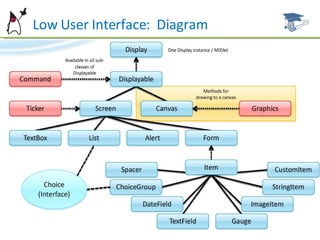
Low User Interface:  Diagram
Low Low User Interface Based on Canvas, not on Screen You draw on a “canvas”, High Level widgets are not used Portability depends on how do you code your application.  You need to consider device features like screen sizes and  input devices Based on Canvas and GameCanvas: Canvas:  Useful for showing charts and for applications where all the events are triggered by user input (e.g. card games) GameCanvas:  Graphics for real time games, where the events occur according to the running time
Can  Canvas Screen” itself, where the images will be generated Abstract class, application shall extend it. It must  implement the  paint(graphics)  method, which is called  when the screen is rendered May also implement logic to handle user input  Drawing itself is done through a graphics object passed as parameter  to the paint method
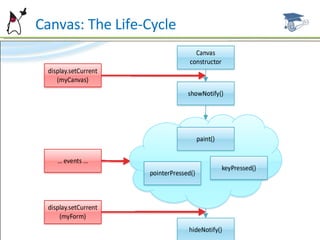
Can  Canvas: The Life-Cycle
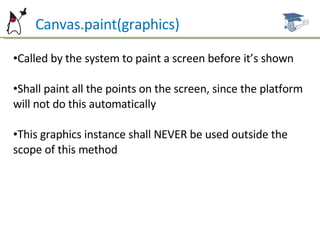
Can  Canvas.paint(graphics) Called by the system to paint a screen before it’s shown Shall paint all the points on the screen, since the platform will not  do this automatically This graphics instance shall NEVER be used outside the scope of  this method
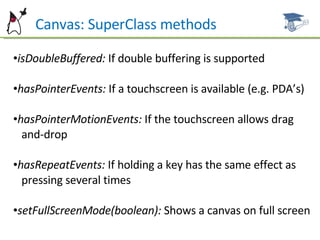
Can  Canvas: SuperClass methods isDoubleBuffered:  If double buffering is supported hasPointerEvents:  If a touchscreen is available (e.g. PDA’s) hasPointerMotionEvents:  If the touchscreen allows drag  and-drop hasRepeatEvents:  If holding a key has the same effect as  pressing  several times setFullScreenMode(boolean):  Shows a canvas on full screen
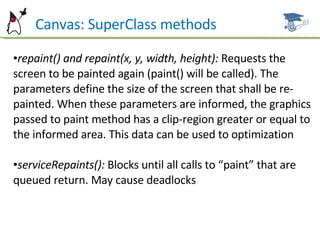
Can  Canvas: SuperClass methods repaint() and repaint(x, y, width, height):  Requests the screen to be painted again (paint() will be called). The parameters define the size of the screen that shall be re-painted. When these parameters are informed, the graphics passed to paint method has a clip-region greater or equal to the informed area. This data can be used to  optimization serviceRepaints():  Blocks until all calls to “paint” that are queued  return. May cause deadlocks
Can  Canvas: Callback methods keyPressed(keyCode):  Key was pressed keyRepeated(keyCode):  Key is being hold keyReleased(keyCode):  Key is no longer pressed pointerPressed(x, y):  Pointer was pressed at x, y pointerReleased(x, y):  Pointer is no longer pressed at x, y pointerDragged(x, y):  Pointer is being dragged through x, y showNotify():  Canvas is going to be shown hideNotify():  Canvas is no longer being shown sizeChanged():  Canvas was resized
Can  Canvas: Key Events keyPressed, keyRepeated and keyReleased  methods receive  keyCode parameter, to inform which key was pressed.  Cellphone keys  available are: KEY NUM0 - KEY NUM9  (0 - 9) KEY STAR  (*) KEY POUND  (#) Game keys are also available. Their value is found by  getGameAction(keyCode).  Available game keys are: UP, DOWN, LEFT, RIGHT FIRE, GAME A, GAME B, GAME C, GAME D
Can  Canvas: Key Events A single Game Key can be linked to several keys (e.g. UP may be mapped both to “2 key” and to “up key”) Other keys may be available. To enforce portability, you should only  use default keys A textual description can be found by  getKeyName(keyCode)
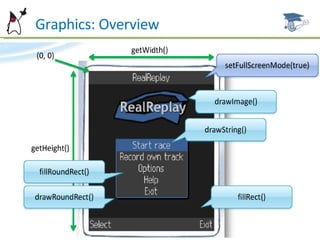
Can  Graphics Useful for rendering images (text, images, geometric shapes) on  screen Color model: 24 bits (8 bits for each color). When the  device does not support a requested color, it will use a  similar one (even for gray  scales) Coordinate system with origin (0, 0) on the upper left  corner. X grows to the right and Y grows down. This  coordinate system may  be translated Every Graphics is rectangular and all pixels are square
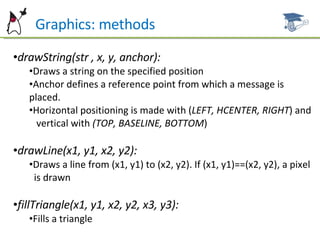
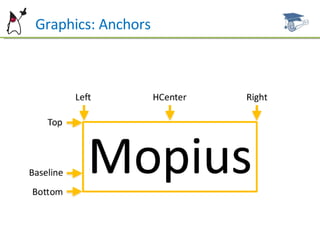
Can  Graphics: methods drawString(str , x, y, anchor): Draws a string on the specified position Anchor defines a reference point from which a message is placed. Horizontal positioning is made with ( LEFT, HCENTER, RIGHT ) and  vertical with  (TOP, BASELINE, BOTTOM ) drawLine(x1, y1, x2, y2): Draws a line from (x1, y1) to (x2, y2). If (x1, y1)==(x2, y2), a  pixel  is drawn fillTriangle(x1, y1, x2, y2, x3, y3): Fills a triangle
Can  Graphics: Anchors
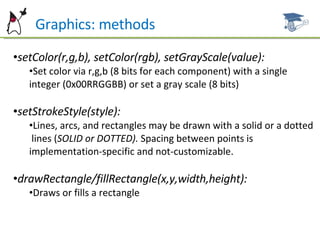
Can  Graphics: methods setColor(r,g,b), setColor(rgb), setGrayScale(value): Set color via r,g,b (8 bits for each component) with a single integer (0x00RRGGBB) or set a gray scale (8 bits) setStrokeStyle(style): Lines, arcs, and rectangles may be drawn with a solid or a dotted  lines ( SOLID or DOTTED).  Spacing between points is implementation-specific and not-customizable. drawRectangle/fillRectangle(x,y,width,height): Draws or fills a rectangle
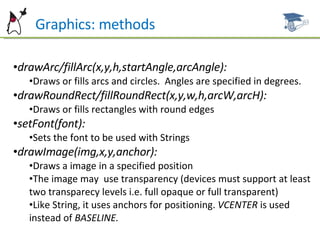
Can  Graphics: methods drawArc/fillArc(x,y,h,startAngle,arcAngle): Draws or fills arcs and circles.  Angles are specified in degrees. drawRoundRect/fillRoundRect(x,y,w,h,arcW,arcH): Draws or fills rectangles with round edges setFont(font): Sets the font to be used with Strings drawImage(img,x,y,anchor): Draws a image in a specified position The image may  use transparency (devices must support at least two transparecy levels i.e. full opaque or full transparent) Like String, it uses anchors for positioning.  VCENTER  is used instead of  BASELINE.
Can  Graphics: methods translate(x,y): Translates the reference point (origin). To return to the original reference, you may call g.translate(ax –  g.getTranslateX() , ay –  g.getTranslateY()) setClip(x,y,width,height): Sets a clip area to limit painting (like “framing” the image). Paints outsides of this area are ignored. drawRGB(data[],offset,scanlength,x,y,w,h,procAlpha): Renders an integer array with format:  0xAARRGGBB, where AA stands for transparency. Offset: first index on the array. Scanlength: number of elements that define a “line”.
Can  Graphics: Overview
Example Codes Some examples and MIDlets samples are available for reference and studying  at this link: http://www.dsc.upe.br/~mpc/chapter6.rar The source codes include: CustomItemMIDlet GraphicMIDlet KeyInputMIDlet LowLevelMIDlet
Future Work Next Chapter: MIDP – Util Timers User Interface API Classes MIDP Classes Introduction to MIDP - GameUI
References ALVES F. Eduardo. SCMAD Study Guide,  27/04/2008.  JAKL Andreas, Java Platform, Micro Edition Part  01 slides, 12/2007. Sun Certification Mobile Application Developer  Website:  [http://www.sun.com/training/certification/java/scmad.xml].

Scmad Chapter06

  • 1.
    By Marcel Caraciolohttp://mobideia.blogspot.com Chapter 06– MIDP: User Interface SCMAD Certification 45mm 61mm
  • 2.
    Agenda Low levelUser interface Canvas Graphics CustomItem
  • 3.
    MIDP : HighUser Interface - CustomItem Allow using Canvas features inside a form A custom item will handle user input and render outputs Like any other item, it’s composed of label + component. The label is rendered by the device, while the application will render the component As in Canvas, the device calls paint() method to render the outputs Use Preferred size and Minimum Size “ Item navigation” may temporarily be delegated to the component
  • 4.
    CustomItem: Abstract methodspaint(graphics,width,height): Same behavior from Canvas.paint Component size (width,height) is a parameter getMinContentWidth, getMinContentHeight: Must return the minimum component size getPrefContentWidth(height),getPrefContentHeight(width) Us eful to calculate the best size for the component. When the width is calculated, the height is passed as parameter and vice- versa (-1 will be sent if it’s not yet defined).
  • 5.
    CustomItem: Super classmethods repaint,repaint(x,y,w,h), getGameAction: Similar to Canvas methods getInteractionModes: Returns an integer with a bitmask indicating the supported interaction modes: TRANSVERSE_HORIZONTAL, TRANSVERSE_VERTICAL : if the “navigation” inside the item is allowed. KEY_PRESS,KEY_RELEASE,KEY_REPEAT : Keyboard events POINTER_PRESS,POINTER_RELEASE,POINTER_DRAG: Touchscreen events invalidate: Requests a component re-initialization (size is re-calculated, and the component is redrawn.) Inherits notifyStateChanged() method from Item, which is used to trigger events on ItemStateListener.
  • 6.
    CustomItem: Callback methodssizeChanged(w,h): The size calculated by minContent and prefContent may not be allowed by the platform. If this is the case, this method will be called. It’s also called when the component size is changed. showNotify , hideNotify: Notifies when an item is shown or hidden
  • 7.
    CustomItem: Callback methodsTransverse(dir,viewportWidth,viewportHeight,visRect_inout[]): Notifies that a navigation event happened on an item Parameters: dir : Canvas.UP, DOWN, LEFT, RIGHT or NONE (None: User clicked with a touchscreen) viewportWidth, viewportHeight: Size of the visible area visRect inout: In/Out parameter. Array of int[4] with [x, y,w, h], where x, y is the distance from the origin, and w, h are the size of the rectangle. State may be kept on the component (and used at paint method). It may be easier to ignore this parameter Returns true when the navigation happened internally, and false when the focus shall be lost
  • 8.
    CustomItem: Callback methodstraverseOut(): Indicates that the focus was lost keyPressed(keyCode), keyReleased(keyCode), keyRepeated(keyCode): Notify keyboard events pointerPressed(x, y), pointerReleased(x, y), pointerDragged(x, y): Notify touchscreen events
  • 9.
  • 10.
    Low Low UserInterface Based on Canvas, not on Screen You draw on a “canvas”, High Level widgets are not used Portability depends on how do you code your application. You need to consider device features like screen sizes and input devices Based on Canvas and GameCanvas: Canvas: Useful for showing charts and for applications where all the events are triggered by user input (e.g. card games) GameCanvas: Graphics for real time games, where the events occur according to the running time
  • 11.
    Can CanvasScreen” itself, where the images will be generated Abstract class, application shall extend it. It must implement the paint(graphics) method, which is called when the screen is rendered May also implement logic to handle user input Drawing itself is done through a graphics object passed as parameter to the paint method
  • 12.
    Can Canvas:The Life-Cycle
  • 13.
    Can Canvas.paint(graphics)Called by the system to paint a screen before it’s shown Shall paint all the points on the screen, since the platform will not do this automatically This graphics instance shall NEVER be used outside the scope of this method
  • 14.
    Can Canvas:SuperClass methods isDoubleBuffered: If double buffering is supported hasPointerEvents: If a touchscreen is available (e.g. PDA’s) hasPointerMotionEvents: If the touchscreen allows drag and-drop hasRepeatEvents: If holding a key has the same effect as pressing several times setFullScreenMode(boolean): Shows a canvas on full screen
  • 15.
    Can Canvas:SuperClass methods repaint() and repaint(x, y, width, height): Requests the screen to be painted again (paint() will be called). The parameters define the size of the screen that shall be re-painted. When these parameters are informed, the graphics passed to paint method has a clip-region greater or equal to the informed area. This data can be used to optimization serviceRepaints(): Blocks until all calls to “paint” that are queued return. May cause deadlocks
  • 16.
    Can Canvas:Callback methods keyPressed(keyCode): Key was pressed keyRepeated(keyCode): Key is being hold keyReleased(keyCode): Key is no longer pressed pointerPressed(x, y): Pointer was pressed at x, y pointerReleased(x, y): Pointer is no longer pressed at x, y pointerDragged(x, y): Pointer is being dragged through x, y showNotify(): Canvas is going to be shown hideNotify(): Canvas is no longer being shown sizeChanged(): Canvas was resized
  • 17.
    Can Canvas:Key Events keyPressed, keyRepeated and keyReleased methods receive keyCode parameter, to inform which key was pressed. Cellphone keys available are: KEY NUM0 - KEY NUM9 (0 - 9) KEY STAR (*) KEY POUND (#) Game keys are also available. Their value is found by getGameAction(keyCode). Available game keys are: UP, DOWN, LEFT, RIGHT FIRE, GAME A, GAME B, GAME C, GAME D
  • 18.
    Can Canvas:Key Events A single Game Key can be linked to several keys (e.g. UP may be mapped both to “2 key” and to “up key”) Other keys may be available. To enforce portability, you should only use default keys A textual description can be found by getKeyName(keyCode)
  • 19.
    Can GraphicsUseful for rendering images (text, images, geometric shapes) on screen Color model: 24 bits (8 bits for each color). When the device does not support a requested color, it will use a similar one (even for gray scales) Coordinate system with origin (0, 0) on the upper left corner. X grows to the right and Y grows down. This coordinate system may be translated Every Graphics is rectangular and all pixels are square
  • 20.
    Can Graphics:methods drawString(str , x, y, anchor): Draws a string on the specified position Anchor defines a reference point from which a message is placed. Horizontal positioning is made with ( LEFT, HCENTER, RIGHT ) and vertical with (TOP, BASELINE, BOTTOM ) drawLine(x1, y1, x2, y2): Draws a line from (x1, y1) to (x2, y2). If (x1, y1)==(x2, y2), a pixel is drawn fillTriangle(x1, y1, x2, y2, x3, y3): Fills a triangle
  • 21.
  • 22.
    Can Graphics:methods setColor(r,g,b), setColor(rgb), setGrayScale(value): Set color via r,g,b (8 bits for each component) with a single integer (0x00RRGGBB) or set a gray scale (8 bits) setStrokeStyle(style): Lines, arcs, and rectangles may be drawn with a solid or a dotted lines ( SOLID or DOTTED). Spacing between points is implementation-specific and not-customizable. drawRectangle/fillRectangle(x,y,width,height): Draws or fills a rectangle
  • 23.
    Can Graphics:methods drawArc/fillArc(x,y,h,startAngle,arcAngle): Draws or fills arcs and circles. Angles are specified in degrees. drawRoundRect/fillRoundRect(x,y,w,h,arcW,arcH): Draws or fills rectangles with round edges setFont(font): Sets the font to be used with Strings drawImage(img,x,y,anchor): Draws a image in a specified position The image may use transparency (devices must support at least two transparecy levels i.e. full opaque or full transparent) Like String, it uses anchors for positioning. VCENTER is used instead of BASELINE.
  • 24.
    Can Graphics:methods translate(x,y): Translates the reference point (origin). To return to the original reference, you may call g.translate(ax – g.getTranslateX() , ay – g.getTranslateY()) setClip(x,y,width,height): Sets a clip area to limit painting (like “framing” the image). Paints outsides of this area are ignored. drawRGB(data[],offset,scanlength,x,y,w,h,procAlpha): Renders an integer array with format: 0xAARRGGBB, where AA stands for transparency. Offset: first index on the array. Scanlength: number of elements that define a “line”.
  • 25.
    Can Graphics:Overview
  • 26.
    Example Codes Someexamples and MIDlets samples are available for reference and studying at this link: http://www.dsc.upe.br/~mpc/chapter6.rar The source codes include: CustomItemMIDlet GraphicMIDlet KeyInputMIDlet LowLevelMIDlet
  • 27.
    Future Work NextChapter: MIDP – Util Timers User Interface API Classes MIDP Classes Introduction to MIDP - GameUI
  • 28.
    References ALVES F.Eduardo. SCMAD Study Guide, 27/04/2008. JAKL Andreas, Java Platform, Micro Edition Part 01 slides, 12/2007. Sun Certification Mobile Application Developer Website: [http://www.sun.com/training/certification/java/scmad.xml].