THE CITY UNIVERSITY OF NEW YORK
New York City College of Technology
Architectural Technology Department
March 20, 2019
Written by Laurin Moseley
Rhino to Fusion 360
Fusion 360
Autodesk Fusion 360 is free for students. Download is available here: https://www.autodesk.com/products/fusion-360/students-teachers-educators
Fusion 360 works alongside your current software. If you want to create organically shaped models not supported with your current 3D
modeler, you can do so in Fusion 360โ€™s sculpting environment.
2
This material is based upon work supported by the National Science Foundation
under Grant Numbers 1141234.
Any opinions, findings, and conclusions or recommendations expressed in this
material are those of the author(s) and do not necessarily reflect the views of the
National Science Foundation.
3
Rhino to Fusion 360
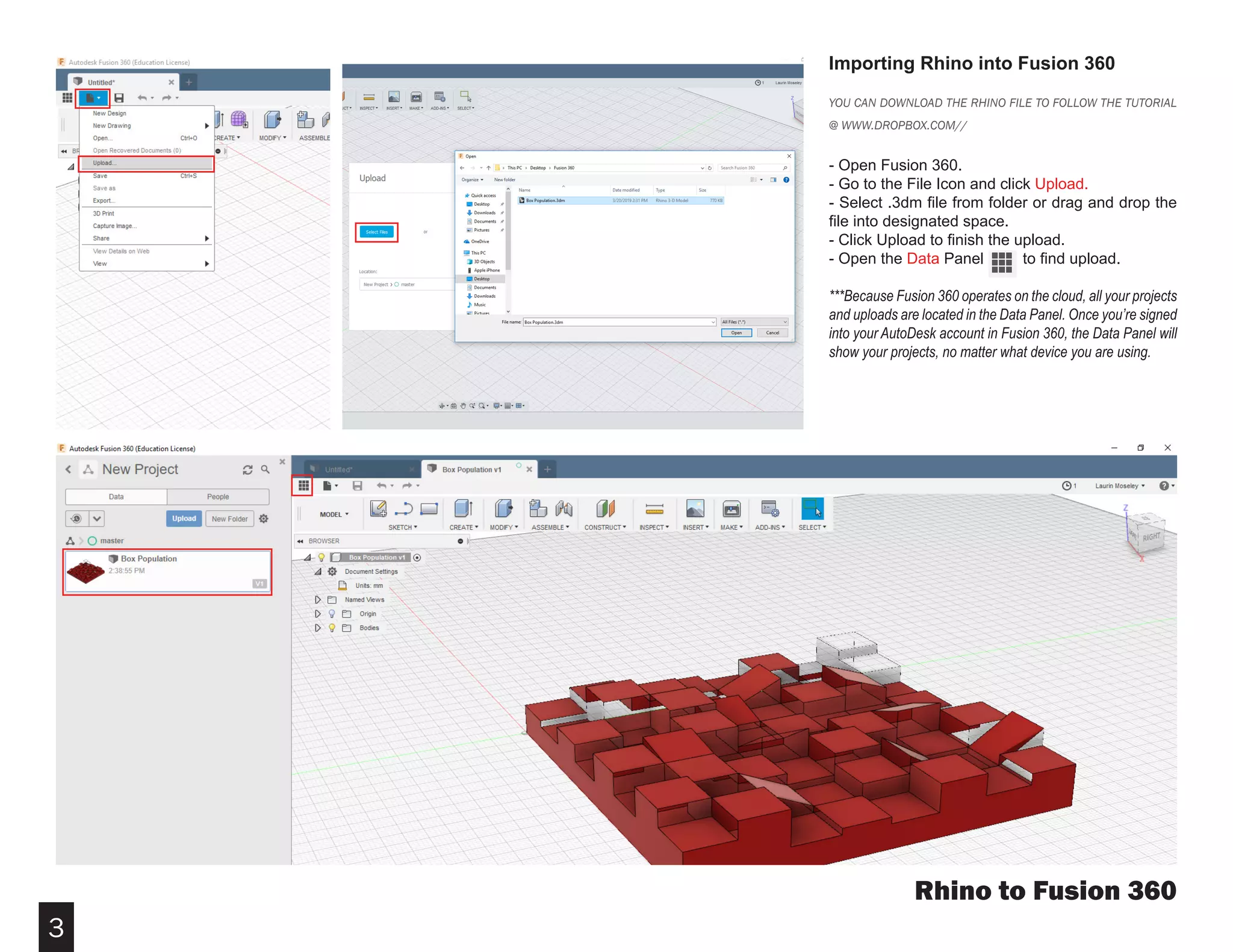
Importing Rhino into Fusion 360
YOU CAN DOWNLOAD THE RHINO FILE TO FOLLOW THE TUTORIAL
@ WWW.DROPBOX.COM//
- Open Fusion 360.
- Go to the File Icon and click Upload.
- Select .3dm file from folder or drag and drop the
file into designated space.
- Click Upload to finish the upload.
- Open the Data Panel to find upload.
***Because Fusion 360 operates on the cloud, all your projects
and uploads are located in the Data Panel. Once youโ€™re signed
into your AutoDesk account in Fusion 360, the Data Panel will
show your projects, no matter what device you are using.
4
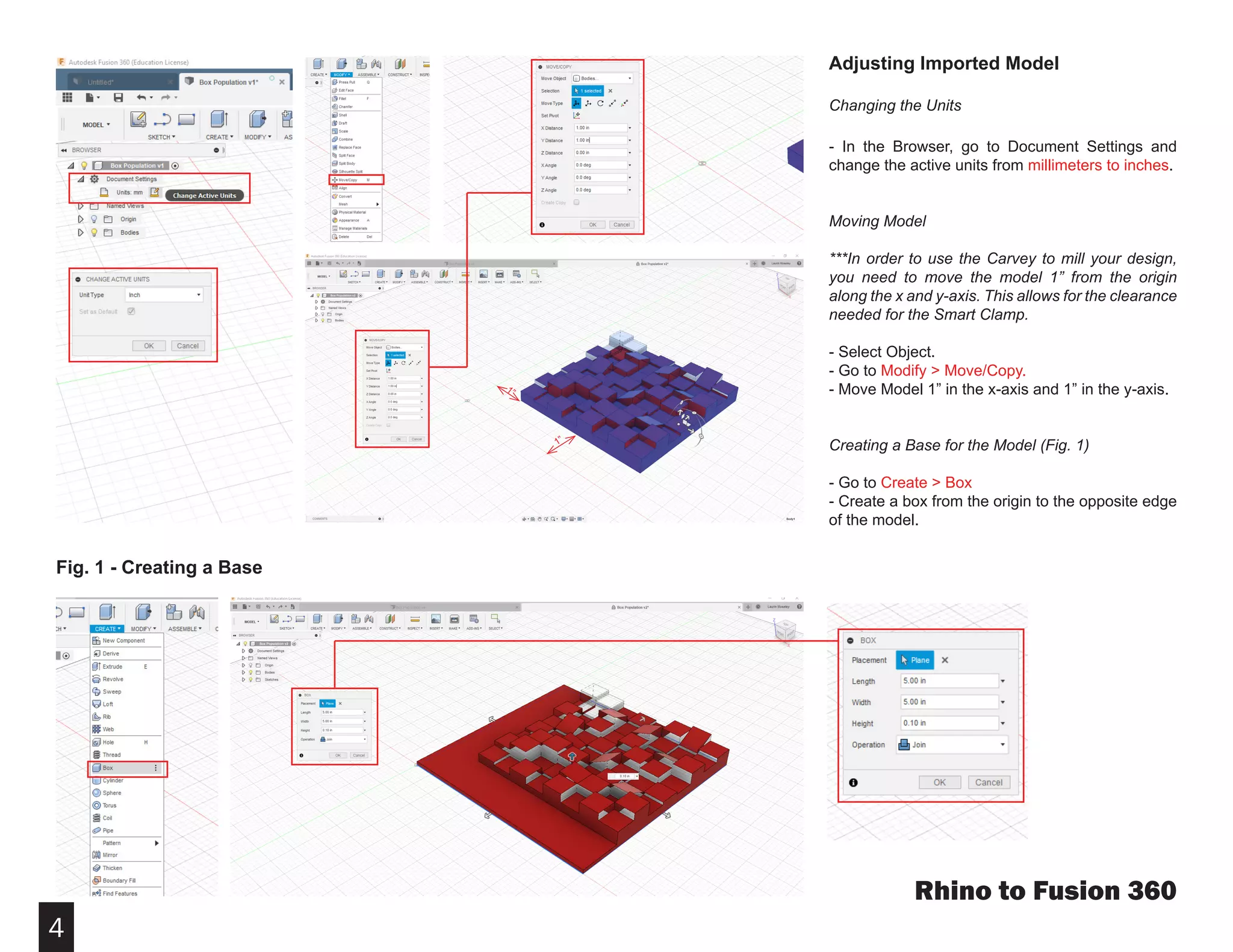
Fig. 1 - Creating a Base
Adjusting Imported Model
Changing the Units
- In the Browser, go to Document Settings and
change the active units from millimeters to inches.
Moving Model
***In order to use the Carvey to mill your design,
you need to move the model 1โ€ from the origin
along the x and y-axis. This allows for the clearance
needed for the Smart Clamp.
- Select Object.
- Go to Modify > Move/Copy.
- Move Model 1โ€ in the x-axis and 1โ€ in the y-axis.
Creating a Base for the Model (Fig. 1)
- Go to Create > Box
- Create a box from the origin to the opposite edge
of the model.
Rhino to Fusion 360
1โ€
1โ€
5
Rhino to Fusion 360
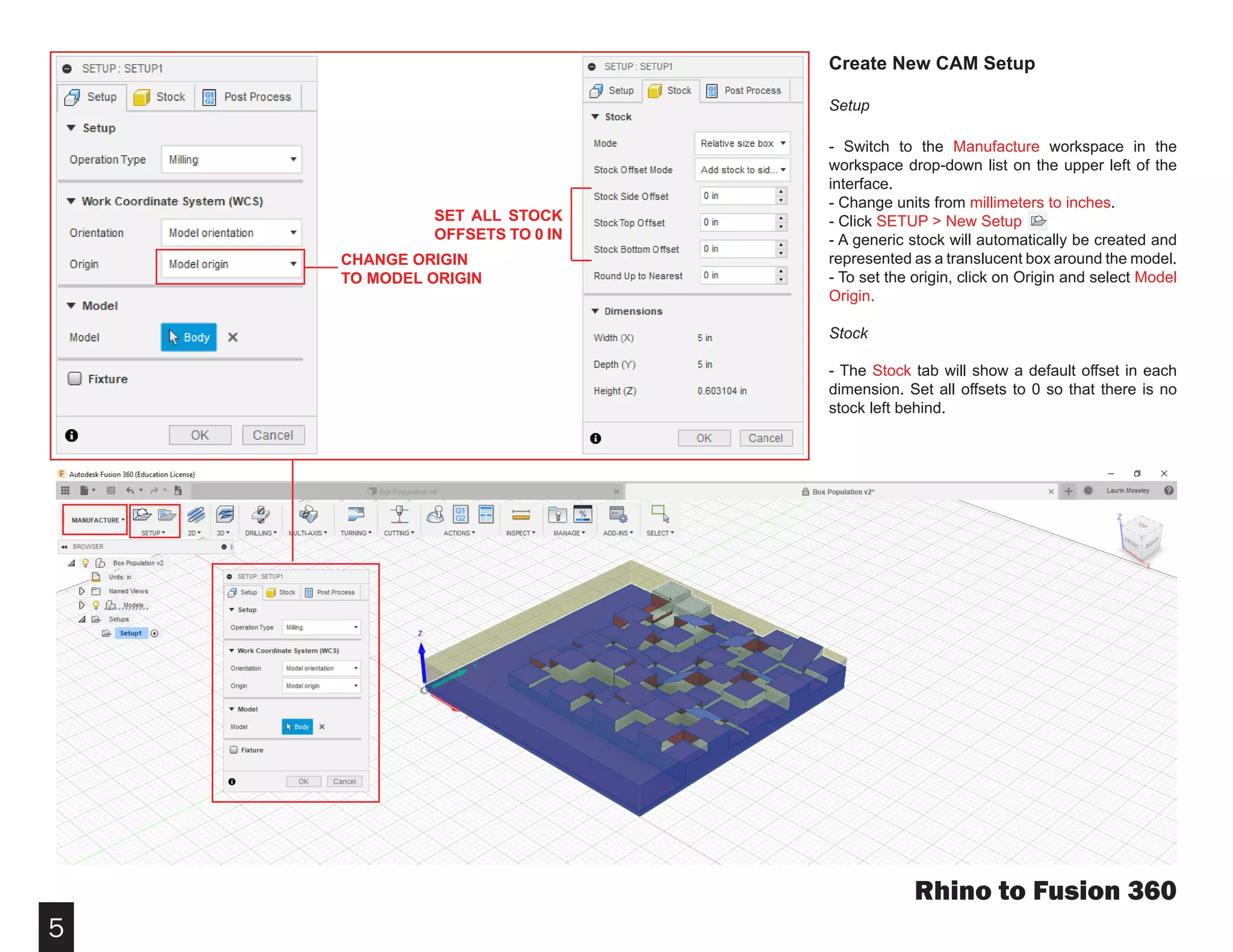
Create New CAM Setup
Setup
- Switch to the Manufacture workspace in the
workspace drop-down list on the upper left of the
interface.
- Change units from millimeters to inches.
- Click SETUP > New Setup
- A generic stock will automatically be created and
represented as a translucent box around the model.
- To set the origin, click on Origin and select Model
Origin.
Stock
- The Stock tab will show a default offset in each
dimension. Set all offsets to 0 so that there is no
stock left behind.
SET ALL STOCK
OFFSETS TO 0 IN
CHANGE ORIGIN
TO MODEL ORIGIN
6
Rhino to Fusion 360
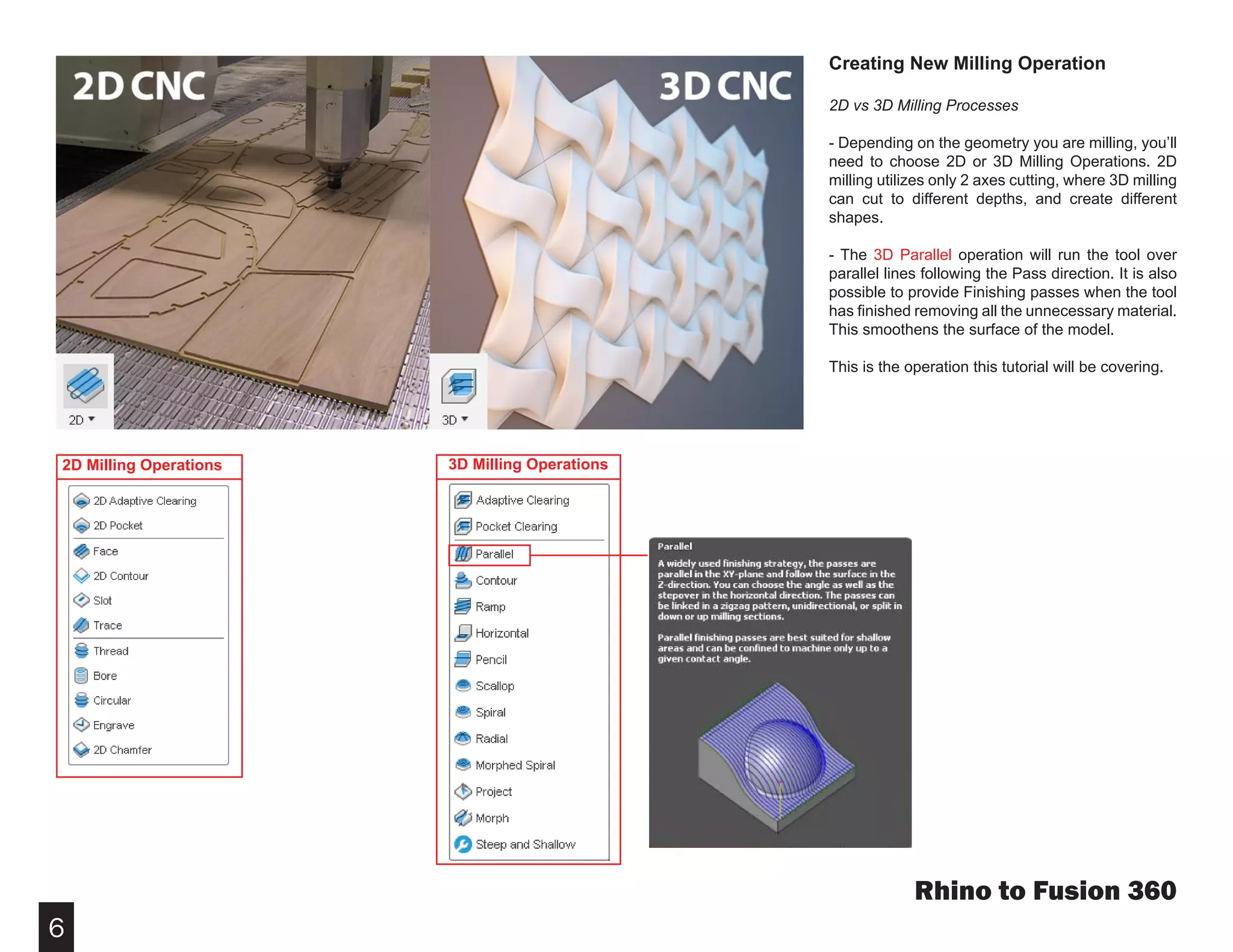
Creating New Milling Operation
2D vs 3D Milling Processes
- Depending on the geometry you are milling, youโ€™ll
need to choose 2D or 3D Milling Operations. 2D
milling utilizes only 2 axes cutting, where 3D milling
can cut to different depths, and create different
shapes.
- The 3D Parallel operation will run the tool over
parallel lines following the Pass direction. It is also
possible to provide Finishing passes when the tool
has finished removing all the unnecessary material.
This smoothens the surface of the model.
This is the operation this tutorial will be covering.
2D Milling Operations 3D Milling Operations
7
Creating New Milling Operation
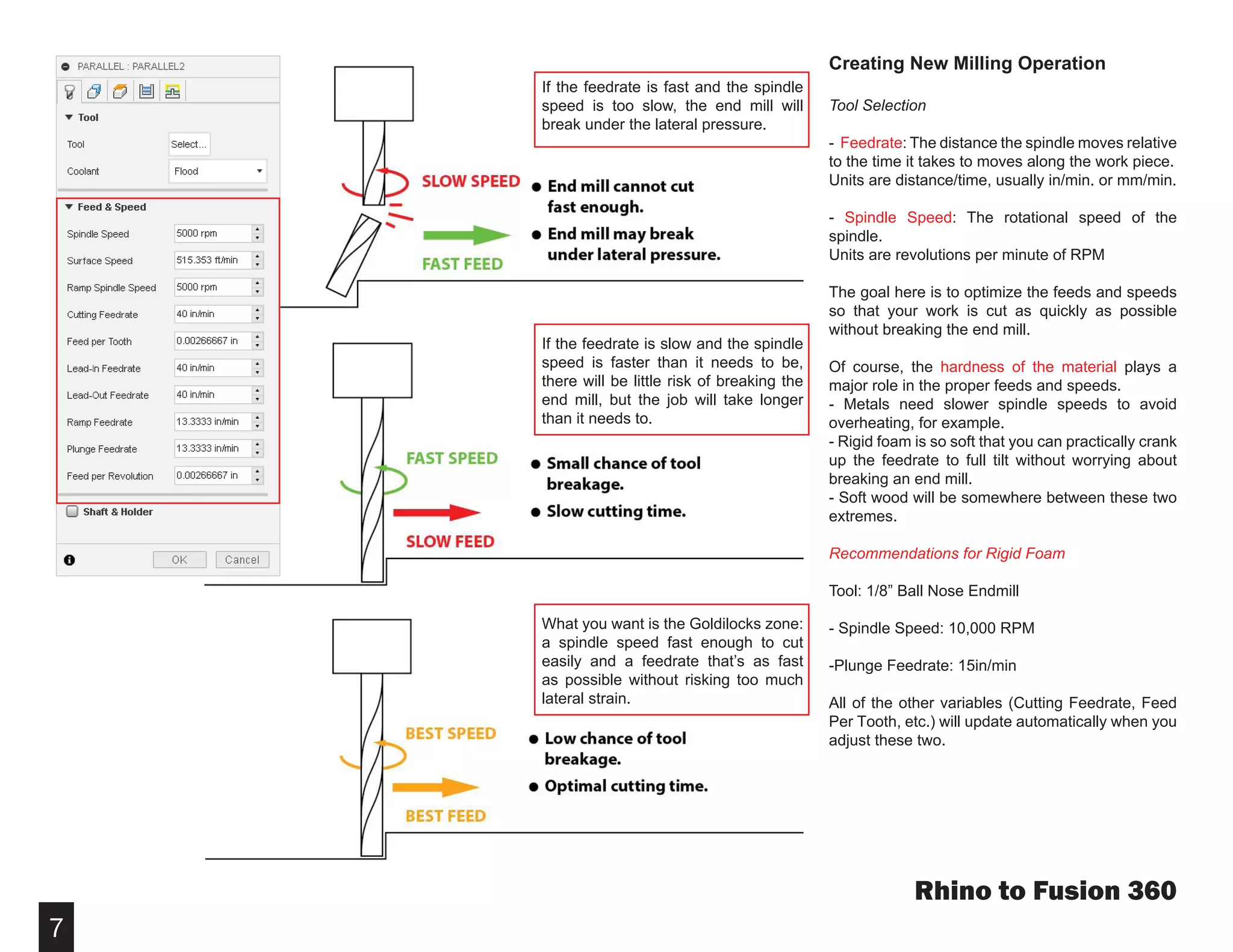
Tool Selection
- Feedrate: The distance the spindle moves relative
to the time it takes to moves along the work piece.
Units are distance/time, usually in/min. or mm/min.
- Spindle Speed: The rotational speed of the
spindle.
Units are revolutions per minute of RPM
The goal here is to optimize the feeds and speeds
so that your work is cut as quickly as possible
without breaking the end mill.
Of course, the hardness of the material plays a
major role in the proper feeds and speeds.
- Metals need slower spindle speeds to avoid
overheating, for example.
- Rigid foam is so soft that you can practically crank
up the feedrate to full tilt without worrying about
breaking an end mill.
- Soft wood will be somewhere between these two
extremes.
Recommendations for Rigid Foam
Tool: 1/8โ€ Ball Nose Endmill
- Spindle Speed: 10,000 RPM
-Plunge Feedrate: 15in/min
All of the other variables (Cutting Feedrate, Feed
Per Tooth, etc.) will update automatically when you
adjust these two.
Rhino to Fusion 360
If the feedrate is fast and the spindle
speed is too slow, the end mill will
break under the lateral pressure.
If the feedrate is slow and the spindle
speed is faster than it needs to be,
there will be little risk of breaking the
end mill, but the job will take longer
than it needs to.
What you want is the Goldilocks zone:
a spindle speed fast enough to cut
easily and a feedrate thatโ€™s as fast
as possible without risking too much
lateral strain.
8
Creating New Milling Operation
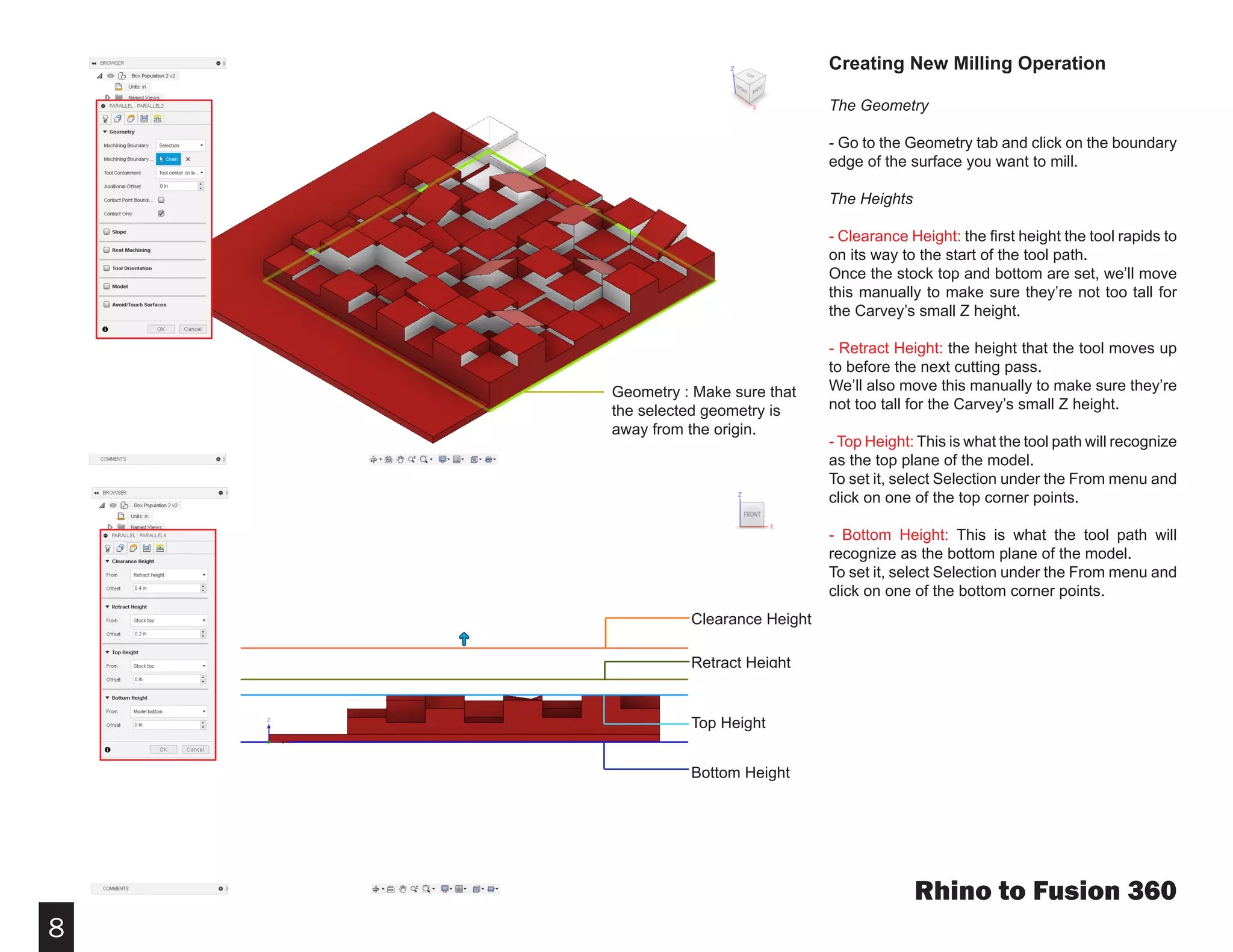
The Geometry
- Go to the Geometry tab and click on the boundary
edge of the surface you want to mill.
The Heights
- Clearance Height: the first height the tool rapids to
on its way to the start of the tool path.
Once the stock top and bottom are set, weโ€™ll move
this manually to make sure theyโ€™re not too tall for
the Carveyโ€™s small Z height.
- Retract Height: the height that the tool moves up
to before the next cutting pass.
Weโ€™ll also move this manually to make sure theyโ€™re
not too tall for the Carveyโ€™s small Z height.
- Top Height: This is what the tool path will recognize
as the top plane of the model.
To set it, select Selection under the From menu and
click on one of the top corner points.
- Bottom Height: This is what the tool path will
recognize as the bottom plane of the model.
To set it, select Selection under the From menu and
click on one of the bottom corner points.
Rhino to Fusion 360
Geometry : Make sure that
the selected geometry is
away from the origin.
Clearance Height
Retract Height
Top Height
Bottom Height
9
Creating New Milling Operation
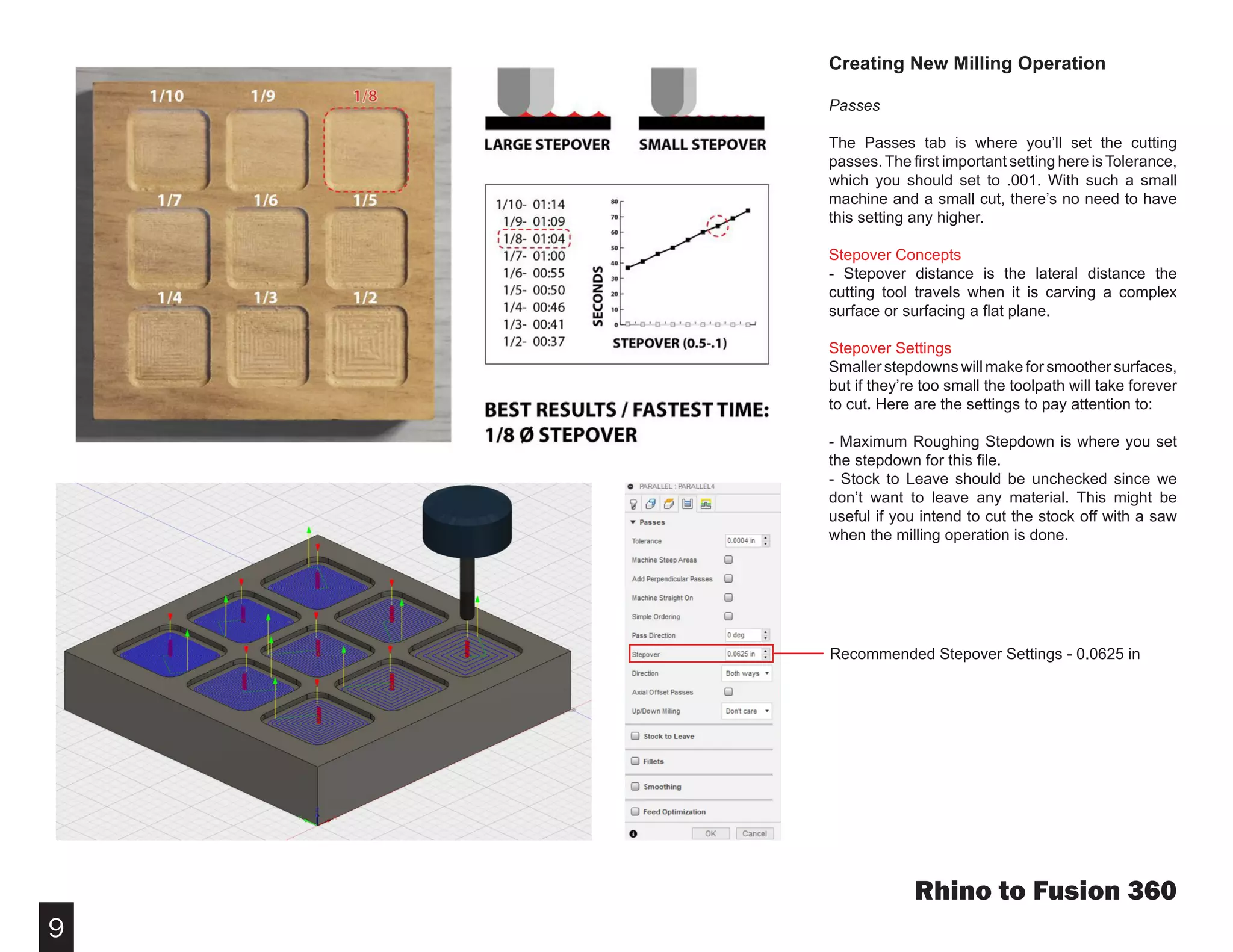
Passes
The Passes tab is where youโ€™ll set the cutting
passes.The first important setting here isTolerance,
which you should set to .001. With such a small
machine and a small cut, thereโ€™s no need to have
this setting any higher.
Stepover Concepts
- Stepover distance is the lateral distance the
cutting tool travels when it is carving a complex
surface or surfacing a flat plane.
Stepover Settings
Smaller stepdowns will make for smoother surfaces,
but if theyโ€™re too small the toolpath will take forever
to cut. Here are the settings to pay attention to:
- Maximum Roughing Stepdown is where you set
the stepdown for this file.
- Stock to Leave should be unchecked since we
donโ€™t want to leave any material. This might be
useful if you intend to cut the stock off with a saw
when the milling operation is done.
Rhino to Fusion 360
Recommended Stepover Settings - 0.0625 in
10
Creating New Milling Operation
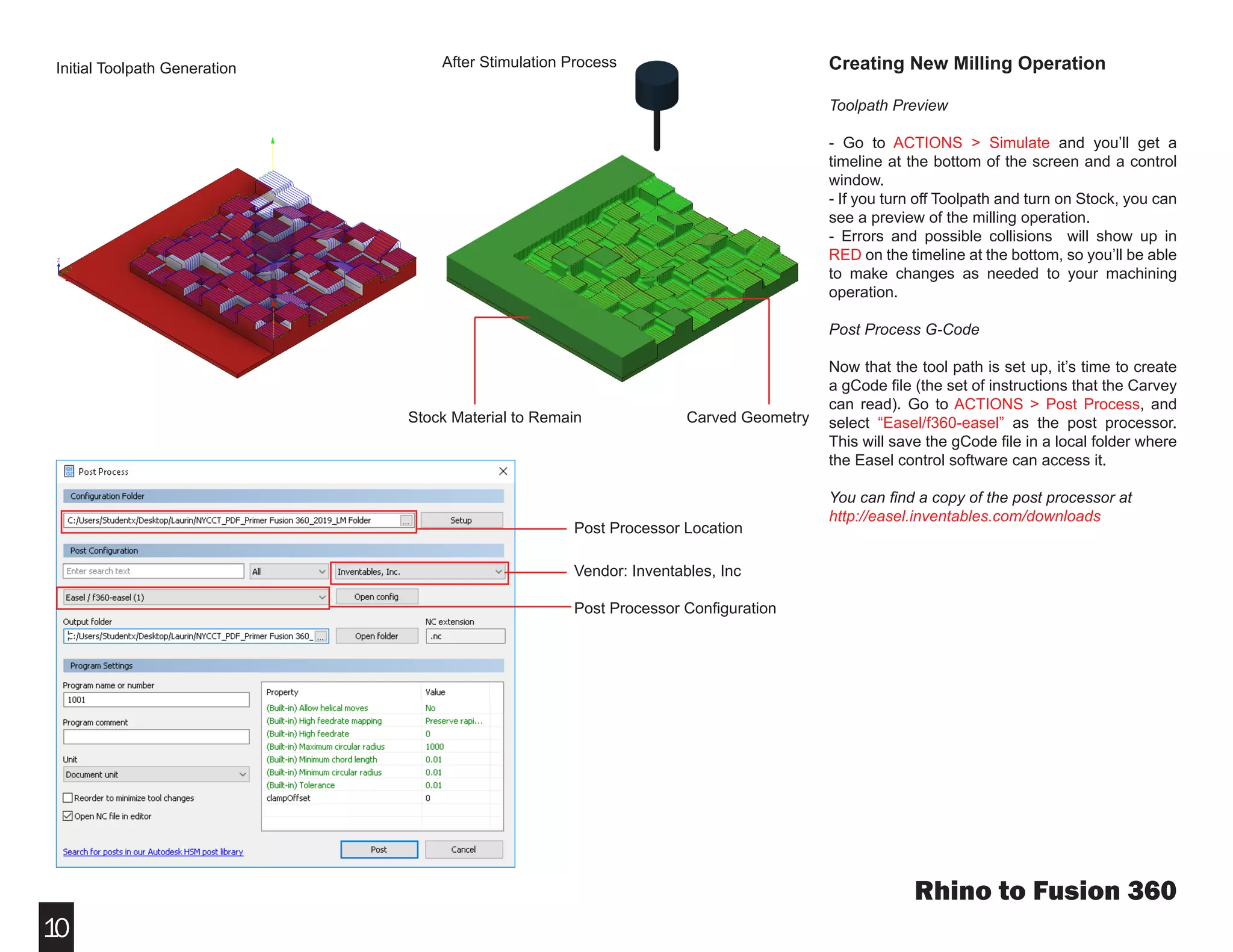
Toolpath Preview
- Go to ACTIONS > Simulate and youโ€™ll get a
timeline at the bottom of the screen and a control
window.
- If you turn off Toolpath and turn on Stock, you can
see a preview of the milling operation.
- Errors and possible collisions will show up in
RED on the timeline at the bottom, so youโ€™ll be able
to make changes as needed to your machining
operation.
Post Process G-Code
Now that the tool path is set up, itโ€™s time to create
a gCode file (the set of instructions that the Carvey
can read). Go to ACTIONS > Post Process, and
select โ€œEasel/f360-easelโ€ as the post processor.
This will save the gCode file in a local folder where
the Easel control software can access it.
You can find a copy of the post processor at
http://easel.inventables.com/downloads
Rhino to Fusion 360
Initial Toolpath Generation After Stimulation Process
Stock Material to Remain Carved Geometry
Post Processor Configuration
Vendor: Inventables, Inc
Post Processor Location

Fusion 360 Tutorial

  • 1.
    THE CITY UNIVERSITYOF NEW YORK New York City College of Technology Architectural Technology Department March 20, 2019 Written by Laurin Moseley Rhino to Fusion 360 Fusion 360 Autodesk Fusion 360 is free for students. Download is available here: https://www.autodesk.com/products/fusion-360/students-teachers-educators Fusion 360 works alongside your current software. If you want to create organically shaped models not supported with your current 3D modeler, you can do so in Fusion 360โ€™s sculpting environment.
  • 2.
    2 This material isbased upon work supported by the National Science Foundation under Grant Numbers 1141234. Any opinions, findings, and conclusions or recommendations expressed in this material are those of the author(s) and do not necessarily reflect the views of the National Science Foundation.
  • 3.
    3 Rhino to Fusion360 Importing Rhino into Fusion 360 YOU CAN DOWNLOAD THE RHINO FILE TO FOLLOW THE TUTORIAL @ WWW.DROPBOX.COM// - Open Fusion 360. - Go to the File Icon and click Upload. - Select .3dm file from folder or drag and drop the file into designated space. - Click Upload to finish the upload. - Open the Data Panel to find upload. ***Because Fusion 360 operates on the cloud, all your projects and uploads are located in the Data Panel. Once youโ€™re signed into your AutoDesk account in Fusion 360, the Data Panel will show your projects, no matter what device you are using.
  • 4.
    4 Fig. 1 -Creating a Base Adjusting Imported Model Changing the Units - In the Browser, go to Document Settings and change the active units from millimeters to inches. Moving Model ***In order to use the Carvey to mill your design, you need to move the model 1โ€ from the origin along the x and y-axis. This allows for the clearance needed for the Smart Clamp. - Select Object. - Go to Modify > Move/Copy. - Move Model 1โ€ in the x-axis and 1โ€ in the y-axis. Creating a Base for the Model (Fig. 1) - Go to Create > Box - Create a box from the origin to the opposite edge of the model. Rhino to Fusion 360 1โ€ 1โ€
  • 5.
    5 Rhino to Fusion360 Create New CAM Setup Setup - Switch to the Manufacture workspace in the workspace drop-down list on the upper left of the interface. - Change units from millimeters to inches. - Click SETUP > New Setup - A generic stock will automatically be created and represented as a translucent box around the model. - To set the origin, click on Origin and select Model Origin. Stock - The Stock tab will show a default offset in each dimension. Set all offsets to 0 so that there is no stock left behind. SET ALL STOCK OFFSETS TO 0 IN CHANGE ORIGIN TO MODEL ORIGIN
  • 6.
    6 Rhino to Fusion360 Creating New Milling Operation 2D vs 3D Milling Processes - Depending on the geometry you are milling, youโ€™ll need to choose 2D or 3D Milling Operations. 2D milling utilizes only 2 axes cutting, where 3D milling can cut to different depths, and create different shapes. - The 3D Parallel operation will run the tool over parallel lines following the Pass direction. It is also possible to provide Finishing passes when the tool has finished removing all the unnecessary material. This smoothens the surface of the model. This is the operation this tutorial will be covering. 2D Milling Operations 3D Milling Operations
  • 7.
    7 Creating New MillingOperation Tool Selection - Feedrate: The distance the spindle moves relative to the time it takes to moves along the work piece. Units are distance/time, usually in/min. or mm/min. - Spindle Speed: The rotational speed of the spindle. Units are revolutions per minute of RPM The goal here is to optimize the feeds and speeds so that your work is cut as quickly as possible without breaking the end mill. Of course, the hardness of the material plays a major role in the proper feeds and speeds. - Metals need slower spindle speeds to avoid overheating, for example. - Rigid foam is so soft that you can practically crank up the feedrate to full tilt without worrying about breaking an end mill. - Soft wood will be somewhere between these two extremes. Recommendations for Rigid Foam Tool: 1/8โ€ Ball Nose Endmill - Spindle Speed: 10,000 RPM -Plunge Feedrate: 15in/min All of the other variables (Cutting Feedrate, Feed Per Tooth, etc.) will update automatically when you adjust these two. Rhino to Fusion 360 If the feedrate is fast and the spindle speed is too slow, the end mill will break under the lateral pressure. If the feedrate is slow and the spindle speed is faster than it needs to be, there will be little risk of breaking the end mill, but the job will take longer than it needs to. What you want is the Goldilocks zone: a spindle speed fast enough to cut easily and a feedrate thatโ€™s as fast as possible without risking too much lateral strain.
  • 8.
    8 Creating New MillingOperation The Geometry - Go to the Geometry tab and click on the boundary edge of the surface you want to mill. The Heights - Clearance Height: the first height the tool rapids to on its way to the start of the tool path. Once the stock top and bottom are set, weโ€™ll move this manually to make sure theyโ€™re not too tall for the Carveyโ€™s small Z height. - Retract Height: the height that the tool moves up to before the next cutting pass. Weโ€™ll also move this manually to make sure theyโ€™re not too tall for the Carveyโ€™s small Z height. - Top Height: This is what the tool path will recognize as the top plane of the model. To set it, select Selection under the From menu and click on one of the top corner points. - Bottom Height: This is what the tool path will recognize as the bottom plane of the model. To set it, select Selection under the From menu and click on one of the bottom corner points. Rhino to Fusion 360 Geometry : Make sure that the selected geometry is away from the origin. Clearance Height Retract Height Top Height Bottom Height
  • 9.
    9 Creating New MillingOperation Passes The Passes tab is where youโ€™ll set the cutting passes.The first important setting here isTolerance, which you should set to .001. With such a small machine and a small cut, thereโ€™s no need to have this setting any higher. Stepover Concepts - Stepover distance is the lateral distance the cutting tool travels when it is carving a complex surface or surfacing a flat plane. Stepover Settings Smaller stepdowns will make for smoother surfaces, but if theyโ€™re too small the toolpath will take forever to cut. Here are the settings to pay attention to: - Maximum Roughing Stepdown is where you set the stepdown for this file. - Stock to Leave should be unchecked since we donโ€™t want to leave any material. This might be useful if you intend to cut the stock off with a saw when the milling operation is done. Rhino to Fusion 360 Recommended Stepover Settings - 0.0625 in
  • 10.
    10 Creating New MillingOperation Toolpath Preview - Go to ACTIONS > Simulate and youโ€™ll get a timeline at the bottom of the screen and a control window. - If you turn off Toolpath and turn on Stock, you can see a preview of the milling operation. - Errors and possible collisions will show up in RED on the timeline at the bottom, so youโ€™ll be able to make changes as needed to your machining operation. Post Process G-Code Now that the tool path is set up, itโ€™s time to create a gCode file (the set of instructions that the Carvey can read). Go to ACTIONS > Post Process, and select โ€œEasel/f360-easelโ€ as the post processor. This will save the gCode file in a local folder where the Easel control software can access it. You can find a copy of the post processor at http://easel.inventables.com/downloads Rhino to Fusion 360 Initial Toolpath Generation After Stimulation Process Stock Material to Remain Carved Geometry Post Processor Configuration Vendor: Inventables, Inc Post Processor Location