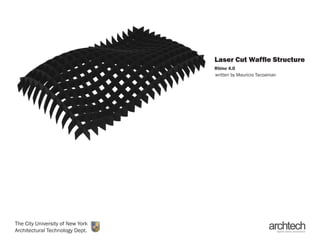
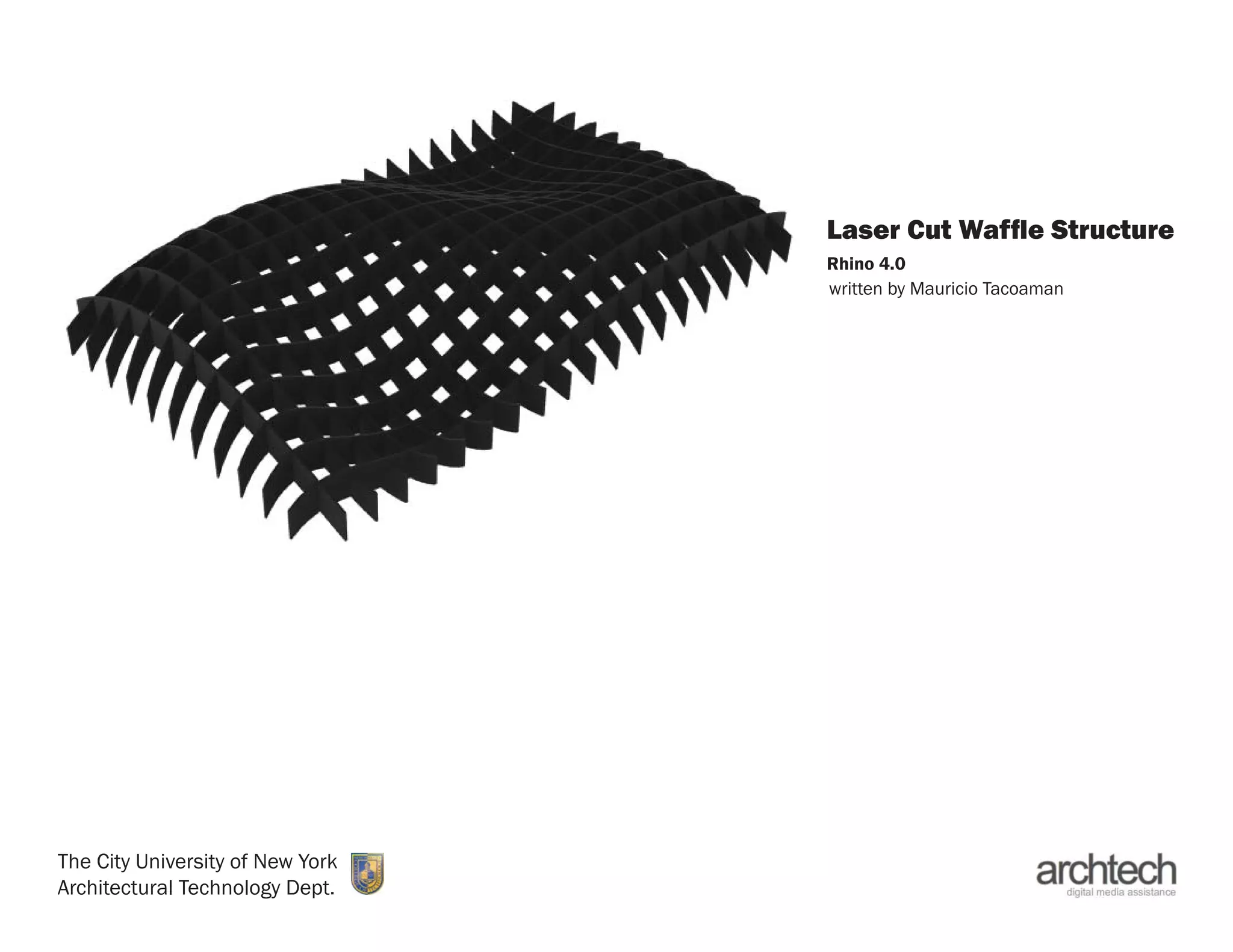
Laser Cut Waffle Structure
                                  Rhino 4.0
                                  written by Mauricio Tacoaman


The City University of New York
Architectural Technology Dept.
Step One:
                                                                                 The first step in creating a waffle structure
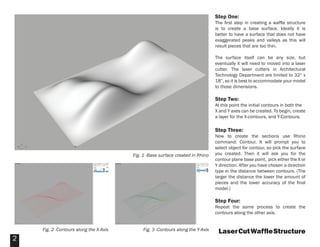
                                                                                 is to create a base surface. Ideally it is
                                                                                 better to have a surface that does not have
                                                                                 exaggerated peaks and valleys as this will
                                                                                 result pieces that are too thin.

                                                                                 The surface itself can be any size, but
                                                                                 eventually it will need to moved into a laser
                                                                                 cutter. The laser cutters in Architectural
                                                                                 Technology Department are limited to 32” x
                                                                                 18”, so it is best to accommodate your model
                                                                                 to those dimensions.

                                                                                 Step Two:
                                                                                 At this point the initial contours in both the
                                                                                 X and Y axes can be created. To begin, create
                                                                                 a layer for the X-contours, and Y-Contours.

                                                                                 Step Three:
                                                                                 Now to create the sections use Rhino
                                                                                 command: Contour. It will prompt you to
                                                                                 select object for contour, so pick the surface
                                        Fig. 1 -Base surface created in Rhino    you created. Then it will ask you for the
                                                                                 contour plane base point, pick either the X or
                                                                                 Y direction. After you have chosen a direction
                                                                                 type in the distance between contours. (The
                                                                                 larger the distance the lower the amount of
                                                                                 pieces and the lower accuracy of the final
                                                                                 model.)

                                                                                 Step Four:
                                                                                 Repeat the same process to create the
                                                                                 contours along the other axis.


    Fig. 2 -Contours along the X-Axis        Fig. 3 -Contours along the Y-Axis    Laser Cut Waffle Structure
2
Step Five:
                                                                                          You may need to join the curves making up
                                                                                          each contour cut. Select them individually
                                                                                          and us Rhino command: Join (Ctrl + J).

                                                                                          Step Six:
                                                                                          Use Extrude Curve>Straight command
                                                                                          (ExtrudeCrv) to create surfaces from the
                                                                                          contour curves.


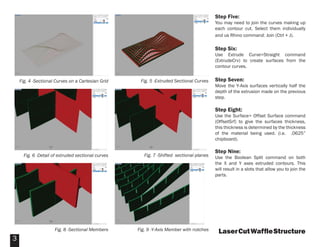
    Fig. 4 -Sectional Curves on a Cartesian Grid     Fig. 5 -Extruded Sectional Curves    Step Seven:
                                                                                          Move the Y-Axis surfaces vertically half the
                                                                                          depth of the extrusion made on the previous
                                                                                          step.

                                                                                          Step Eight:
                                                                                          Use the Surface> Offset Surface command
                                                                                          (OffsetSrf) to give the surfaces thickness,
                                                                                          this thickness is determined by the thickness
                                                                                          of the material being used. (i.e. .0625”
                                                                                          chipboard).

                                                                                          Step Nine:
      Fig. 6 -Detail of extruded sectional curves      Fig. 7 -Shifted sectional planes   Use the Boolean Split command on both
                                                                                          the X and Y axes extruded contours. This
                                                                                          will result in a slots that allow you to join the
                                                                                          parts.


                     Fig. 8 -Sectional Members      Fig. 9 -Y-Axis Member with notches     Laser Cut Waffle Structure
3
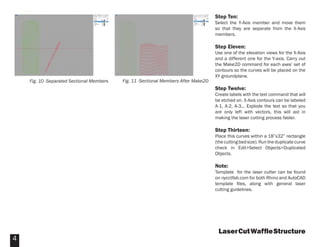
Step Ten:
                                                                                     Select the Y-Axis member and move them
                                                                                     so that they are separate from the X-Axis
                                                                                     members.

                                                                                     Step Eleven:
                                                                                     Use one of the elevation views for the X-Axis
                                                                                     and a different one for the Y-axis. Carry out
                                                                                     the Make2D command for each axes’ set of
                                                                                     contours so the curves will be placed on the
                                                                                     XY groundplane.
    Fig. 10 -Separated Sectional Members   Fig. 11 -Sectional Members After Make2D
                                                                                     Step Twelve:
                                                                                     Create labels with the text command that will
                                                                                     be etched on. X-Axis contours can be labeled
                                                                                     A-1, A-2, A-3... Explode the text so that you
                                                                                     are only left with vectors, this will aid in
                                                                                     making the laser cutting process faster.

                                                                                     Step Thirteen:
                                                                                     Place this curves within a 18”x32” rectangle
                                                                                     (the cutting bed size). Run the duplicate curve
                                                                                     check in Edit>Select Objects>Duplicated
                                                                                     Objects.

                                                                                     Note:
                                                                                     Template for the laser cutter can be found
                                                                                     on nycctfab.com for both Rhino and AutoCAD
                                                                                     template files, along with general laser
                                                                                     cutting guidelines.


                                                                                      Laser Cut Waffle Structure
4

Waffle Structure

  • 1.
    Laser Cut WaffleStructure Rhino 4.0 written by Mauricio Tacoaman The City University of New York Architectural Technology Dept.
  • 2.
    Step One: The first step in creating a waffle structure is to create a base surface. Ideally it is better to have a surface that does not have exaggerated peaks and valleys as this will result pieces that are too thin. The surface itself can be any size, but eventually it will need to moved into a laser cutter. The laser cutters in Architectural Technology Department are limited to 32” x 18”, so it is best to accommodate your model to those dimensions. Step Two: At this point the initial contours in both the X and Y axes can be created. To begin, create a layer for the X-contours, and Y-Contours. Step Three: Now to create the sections use Rhino command: Contour. It will prompt you to select object for contour, so pick the surface Fig. 1 -Base surface created in Rhino you created. Then it will ask you for the contour plane base point, pick either the X or Y direction. After you have chosen a direction type in the distance between contours. (The larger the distance the lower the amount of pieces and the lower accuracy of the final model.) Step Four: Repeat the same process to create the contours along the other axis. Fig. 2 -Contours along the X-Axis Fig. 3 -Contours along the Y-Axis Laser Cut Waffle Structure 2
  • 3.
    Step Five: You may need to join the curves making up each contour cut. Select them individually and us Rhino command: Join (Ctrl + J). Step Six: Use Extrude Curve>Straight command (ExtrudeCrv) to create surfaces from the contour curves. Fig. 4 -Sectional Curves on a Cartesian Grid Fig. 5 -Extruded Sectional Curves Step Seven: Move the Y-Axis surfaces vertically half the depth of the extrusion made on the previous step. Step Eight: Use the Surface> Offset Surface command (OffsetSrf) to give the surfaces thickness, this thickness is determined by the thickness of the material being used. (i.e. .0625” chipboard). Step Nine: Fig. 6 -Detail of extruded sectional curves Fig. 7 -Shifted sectional planes Use the Boolean Split command on both the X and Y axes extruded contours. This will result in a slots that allow you to join the parts. Fig. 8 -Sectional Members Fig. 9 -Y-Axis Member with notches Laser Cut Waffle Structure 3
  • 4.
    Step Ten: Select the Y-Axis member and move them so that they are separate from the X-Axis members. Step Eleven: Use one of the elevation views for the X-Axis and a different one for the Y-axis. Carry out the Make2D command for each axes’ set of contours so the curves will be placed on the XY groundplane. Fig. 10 -Separated Sectional Members Fig. 11 -Sectional Members After Make2D Step Twelve: Create labels with the text command that will be etched on. X-Axis contours can be labeled A-1, A-2, A-3... Explode the text so that you are only left with vectors, this will aid in making the laser cutting process faster. Step Thirteen: Place this curves within a 18”x32” rectangle (the cutting bed size). Run the duplicate curve check in Edit>Select Objects>Duplicated Objects. Note: Template for the laser cutter can be found on nycctfab.com for both Rhino and AutoCAD template files, along with general laser cutting guidelines. Laser Cut Waffle Structure 4