TUTORIAL SERIES FOR
         VERSION 9


 GENERAL NOTES
www.truong2008.com


Wire V9                                                       GENERAL NOTES


                           MENU NAVIGATION


                               Menu Cues


                  More Icons                               Toolbar


                   Main Menu


                   Return to Main Menu Button


                    Secondary Menu
                                                         Prompt Area
                                                         Prompt Area


Toolbar - Can be used instead of Main Menu and Secondary Menu selections.

Menu Cues - Displays selection cues in the space following the Main Menu title area.

Main Menu - Selections used to create geometry and wirepaths.

Secondary Menu - Selections used to work with geometry.

Prompt Area - System displays data and the user inputs data, also prompts the user
for info.


                                       Page 1
Wire V9                                                            GENERAL NOTES


                                THE MAIN MENU
When the system first starts, the Mastercam logo screen appears, then the Main and
Secondary Menus are displayed.

Analyze Displays all relevant information about a point, line, arc, spline, surface or
dimension on the screen.

Create: Adds geometry to the system's database and draws it on the screen.

File: Manipulates disk files (saves, retrieves, converts, transmits, receives, etc.).

Modify: Alters screen geometry with the fillet, trim, break, and join commands.

Xform: Transforms geometry with the mirror, rotate, scale, translate, and offset
commands.

Delete: Removes an entity or group of entities from the screen and the system's
database.

Screen: Plots the geometry currently displayed on the screen, changes the current
color or level, displays entity endpoints or changes the way in which geometry is
displayed.

Solids: Creates and modifies solid geometry.

Wirepaths: Programs NC wirepaths (CAM systems only).

NC utils: Manipulates NC wirepaths (CAM systems only).


                                       Page 2
Wire V9                                                            GENERAL NOTES


                         THE SECONDARY MENU

Z: Use Z depth only in Mastercam Wire to change the current construction depth. The
construction depth is the depth of the currently defined construction plane. This value
may be entered by selecting an existing point (i.e., endpoint of a line) or by typing Z and
the desired depth, followed by Enter. The construction depth is changed automatically
in most creation functions in the 3D-construction mode.

Color: Assigns a system color. This instructs the system to display any new geometry
created in the selected color (Create | Line, Create | Arc, Backplot | Save geometry,
etc.). It also applies the chosen color to a converted file that does not support colors
(i.e., DXF). Mastercam contains two color palettes from which you can select system
colors, a 16-color and 256-color palette.

Level: Assigns a system level to created/converted geometry. Level stores any new
geometry created in the selected level. It also applies the chosen color to a converted
file that does not support levels (i.e., NFL or ASCII). This feature also controls what
levels are visible. You can set a total of 256 levels in Mastercam. Click the following to
read more about levels: Assigning Levels.

Attributes: Lets you change one or more attributes (color, level, line style, line width,
and point style) for entities that you select, without affecting system default settings.

Groups: Defines a collection of entities as a named group.

Mask: Sets the system's masking level. With the masking level OFF, the system will
recognise any entity in the database; however, if the mask level is set (changed to a
non-zero level number between 1 and 255) the system will then only recognise entities
that are on that level. Mask will affect all functions (delete, group, file conversion, etc.)
except fit, screen statistics, or screen endpoints. To reset the masking level to OFF, the
masking level must be set to 0.

WCS: Allows you to redefine the World Coordinate System, and groups the
functionality of Tool, Construction and Graphic Views. WCS is not supported by
Mastercam Wire.

Tplane: The tool plane (Tplane) is a two dimensional plane that represents a CNC
machine's coordinate system.

Cplane: Defines the plane on which you will create and manipulate geometry. You
have several construction plane (Cplane) options.


                                       Page 3
Wire V9                                                      GENERAL NOTES

Gview: Alters the way in which you view images through the graphics view (Gview)
feature. Gview allows you to view geometry from several different angles.


                            GRAPHICS VIEWS
There are 8 standard graphics views in Mastercam.

View 1 =     Top
View 2 =     Front
View 3 =     Back
View 4 =     Bottom
View 5 =     Right
View 6 =     Left
View 7 =     Isometric
View 8 =     Axonometric


            MEASURING ANGLES IN MASTERCAM


                              Y+
                           90 DEG


   X-   ________________________________ X+
180 DEG                                 0 DEG.


                           Y-
                        270 DEG


                                    Page 4
Wire V9                                                           GENERAL NOTES


                    DEFAULT KEY ASSIGNMENTS
The table below lists the default key assignments.

Key(s)       Function            Description

F1           zoom                Activates the zoom-in window. Use the zoom
                                 window to magnify part of your geometry.

F2           unzoom              Zooms out from your geometry reducing its
                                 size on your screen.

F3           repaint             Redisplays the graphic screen to clean up any
                                 display remnants.

F4           analyze             Activates the Analyze menu.

F5           delete              Activates the Delete menu.

F6           file                Activates the File menu.

F7           modify              Activates the Modify menu.

F8           create              Activates the Create menu.

F9           display             Displays the following:
             information         *the current system construction, and tool
                                 origins
                                 *the relative positions of all three origins (if an origin is
                                 not defined, then it does not display)
                                 *the current geometry filename, file size, and the date
                                 and time that the file was last saved
                                 *the current NCI filename.

F10          execute             Activates the key and button assignment
             function window     display (shown on the previous page).

Alt+F1       fit geometry        Fits the displayed image to the graphic screen
                                 area.

Alt+F2       scale geometry      Unzoom by 0.8

Alt+F3       cursor tracking     Activates the cursor tracking feature.


                                     Page 5
Wire V9                                                     GENERAL NOTES


Alt+F4    exit              Exits Mastercam.

Alt+F5    delete menu       Activates the Delete menu.

Alt+F7    blank             Activates the Screen | Blank menu.

Alt+F8    configure         Opens the Screen | Configure Window. (You
                            cannot use this key assignment to access
                            Allocations, however.)

Alt+F9    draw axes         Displays the current graphics view (center),
                            the current construction plane axis (lower left),
                            and the current tool plane axis (lower right).

Alt+F10   execute           Activates the key and button assignment
          function window   display (shown on the previous page).

Alt+A     autosave          Opens the AutoSave Window

Alt+B     Toolbar           Displays or hides the Toolbar

Alt+C     run C-Hooks       Lets you run a C-Hook applications program.
                            The C-Hook's *.DLL file must be in the
                            directory specified under the
                            Screen | Configure | Data Paths menu.

Alt+D     drafting          Opens the Drafting global parameters Window.
          parameters        (This is the same as clicking PM).

Alt+F     menu fonts        Opens the Font Window.
                            selection window

Alt+G     Grid Parameters   Sets active grid which can be visible or invisible

Alt+H     on-line help      Opens Mastercam's Help Window for instant
                            access to on-line help information about
                            Mastercam and its features.

Alt+I     open files        Lists files that Mastercam creates for its own
                            use during a session. This is a diagnostic tool
                            only. Click the Windows close button to exit
                            this window.


                               Page 6
Wire V9                                                    GENERAL NOTES

Alt+L     attributes menu   Lets you set the current line style, width, color and
                            level.

Alt+M     memory            Lists Mastercam memory allocations. This is a
          allocations       diagnostic tool only. Click the Windows close
                            button to exit this window
Alt+N     named views       Allows saved named views to be quickly accesed

Alt+P     prompt area       Displays and hides Mastercam's prompt area.
                            We recommend that you leave the prompt area
                            visible at all times.

Alt+S     shading toggle    Activates full time shading

Alt+T     draw NC           Turns the wirepath display on and off. When
                            you turn on the wirepath display, the current
                            NCI file appears in the wirepath color (normally
                            cyan). After you turn off the wirepath, press F3
                            to refresh the screen. You can only use this
                            feature during wirepath creation or until you
                            select End progrm.

Alt+U     undo              Lets you undo the last operation that you
                            performed. You must stay in the last
                            operation's menu to undo it. After you exit from
                            the menu of the operation that you want to
                            undo, this feature is no longer available.

Alt+V     Mastercam         Displays the software version and serial
          version number    number of your SIM.

Alt+W     set viewport      Opens the VIEWPORTS Window. This lets
          window            you set the viewport configuration. Toggle the
                            display or enter the viewport number.

Alt+X     xform menu        Activates the Xform menu.

Alt+Z     visible levels    Opens the Visible Levels Window.
Alt+0     Cplane (depth)    Quick access to changing Z construction depth

Alt+1     color             Opens the color dialog box.

Alt+2     levels            Opens the Main level dialog box.


                               Page 7
Wire V9                                                       GENERAL NOTES

Alt+3       mask level          Opens the Mask level dialog box.

Alt+4       toolplane           Activates the toolplane menu.

Alt+5       Cplane              Activates the Cplane menu.

Alt+6       Gview               Activates the Gview menu.

Alt+’       Create|Arc-2pt. cir Activates the Create|Arc|2pt. circle point menu.
                                Make your selections from the point menu to
                                create your circle.

Alt+Tab     switch between      Lets you move between all of the open
            open applications   applications in Windows. Alt+Shift+Tab lets
                                you move through open applications in the
                                reverse order.

Tab /
Shift+Tab   navigate in         Lets you move between controls in a window
            windows             (text boxes and radio buttons for example).

Esc         system interrupt    Press Esc to interrupt some commands
                                (transform, repaint, etc.) Once a command has
                                been interrupted, it cannot be restarted from
                                the point of interruption.

            backup key          Instead of clicking backup, press Esc to back
                                up to a previous menu.

Page Up /
Page Down zoom                  Press Page Up to zoom in on a geometry.
                                Press Page Down to zoom out.

Cursor      pan                 Lets you pan over geometry. Note that the
Arrows                          arrows move the geometry window not the
                                geometry.


                                   Page 8
Wire V9                                                           GENERAL NOTES


                       DATA ENTRY SHORTCUTS
Mastercam lets you use several shortcuts to enter information into text boxes when
creating geometry. These shortcuts let you get data from an existing entity and use it
when creating new geometry.
The shortcuts are as follows:

A      Use “A” to input an existing angle.
D      Use “D” to input an existing diameter.
L      Use “L” to input an existing length.
R      Use “R” to input an existing radius.
S      Use “S” to input the distance between two existing points.
X      Use “X” to input an existing X co-ordinate.
Y      Use “Y” to input an existing Y co-ordinate.
Z      Use “Z” to input an existing Z co-ordinate.

To use a shortcut:

1.     Type a letter (from the list above), instead of a value, into the text box.
2.     Press Enter. Mastercam prompts you to select the existing entity from
       which you want to get the data.
3.     Click the entity you want to use.
4.     Mastercam displays the data it gets from the existing entity.
5.     Press Enter to accept the data or type a different value and press Enter.
6.     Mastercam uses the data from the existing entity in creating the new
       entity.

Data Entry Shortcut Example

This example uses the “L” data entry shortcut to create a line.

1.    Create a line with endpoints at 0,0,0 and 3,0,0.
       This will be the existing line from which we get data by using “L.”
2.     Click MAIN MENU | Create | Line | Polar.
3.     Set 0,0,0 as one endpoint of the polar line.
4.     Set 33 degrees as the angle of the line.
5.     Type L and press Enter for the line length.
6.     Mastercam prompts you to select an existing line.
7.     Click the existing line.
8.     Mastercam displays the data it gets from the existing line.
9.     Press Enter to accept this data.
10.    Mastercam creates the new line.


                                      Page 9
Wire V9                                                             GENERAL NOTES


              ASSIGNING BUTTONS AND KEYS
This Mastercam feature lets you assign a function or C-Hook or macro to a function key
(F1 through F10) or an Alt key (excluding system keys such as Alt+F4) or a button in
Mastercam's Toolbar. You can assign a maximum of 50 keys and a maximum of 99
buttons.

Select the following menu picks:

          MAIN MENU
          Screen
          Configure
          Toolbar/ Keys


Funcs/ C-Hooks/ Macros [default]
      This allows the user to check all assignments, or filter out the desired
commands. ( Functions, c-hooks, macros, keys, buttons, keys/ buttons).

All [default]
        This function allows the user to further filter using the following variables:
Unassigned, assigned, all.

Find Key
         This function allows the user to press a button or key, and the function assigned
to it will be filtered out.

Current Assignment

Add           This allows the user to add an assignment.
Edit          This allows a user to edit an existing assignment.
Remove        This allows the user to remove an assignment.


                                       Page 10
Wire V9                                                                       GENERAL NOTES


ASSIGNING A BITMAP TO A BUTTON
Now you have a function assigned to a button. If there is no default bitmap assigned to
the desired function, you can make one, or modify a bitmap from another function.

If this is the case, the button will now look highlighted, but no bitmap is yet assigned.

PROCEDURE

Open the wire9.cfg file, and search for the button number that was just assigned.
( example: search for B92 )

When you have found the appropriate button, record the definition assigned to it.
( this is the word right after assignment )

Create or modify an existing bitmap, and save it in the Mcam9CommonIcons directory,
using the name of the function found in the .CFG file. Mastercam will automatically
update that button assignment.

                  ADDING A C’HOOK TO YOUR MENU
Follow these steps to add a frequently used c-hook to the side menu bar.

1) Decide what menu you wish this function to be added to.

2) Open the Wire9.txt file with any text editor.

3) Search for a function that has been previously assigned, which will be before (or
   after) the position that you wish to fill.

4) Insert the name of the c’hook within the quotes, in the desired position, immediately
   followed by an asterisk * symbol (note to place an underscore on the letter you wish
   to use as a shortcut place an ampersand before that letter (letter can only appear
   once in any one menu)).

5) The next time you open Mastercam, the menu will be modified.

Definition - C-Hooks
Mastercam C-Hooks are custom-made application programs created in the C programming language. These
application programs are also known as C-Hooks. Anyone, CNC Software, Inc., Mastercam dealers, and our
customers, can develop a C-Hook that runs with Mastercam. C-Hooks use the same graphic and menu functions as
Mastercam.


                                             Page 11
Wire V9                                                           GENERAL NOTES


                          Wirepath Parameters
The following paragraph describes, in alphabetic order, the wirepath parameters that
are used in contour, no core and 4-axis wirepath.

Adding a finish contour operation – Adds a separate contour operation after the no
core operation. When you choose this option, Mastercam Wire opens the contour
parameters dialog box where you can specify all the parameters of a regular contour
operation.

All contours use same subprogram – Available when using Subprograms to create
copies of the same part.

Arc type and radius – Defines the shape of tapered contour when a smooth corner is
encountered in the geometry. See Corner type and radius for more details.

Auto entry – Starts the no core wirepath at the thread point.

Auto exit – Exits the no core wirepath at the cut point.

Auto position cut point – Sets the cut point perpendicular to the end of contour.

Auto start position - Moves the job start point to the thread point of the first contour in
the operation. Disable it to insert a rapid move from the start point to the thread point.

Canned text – Assigns variables from 1 to 99 that can be used to control some specific
machine settings. The post processor has to be customized accordingly.

Change NCI – Allows you to change the current Nci file name to store the wirepath
information.

Comment – Allows you to enter information about the current operation.

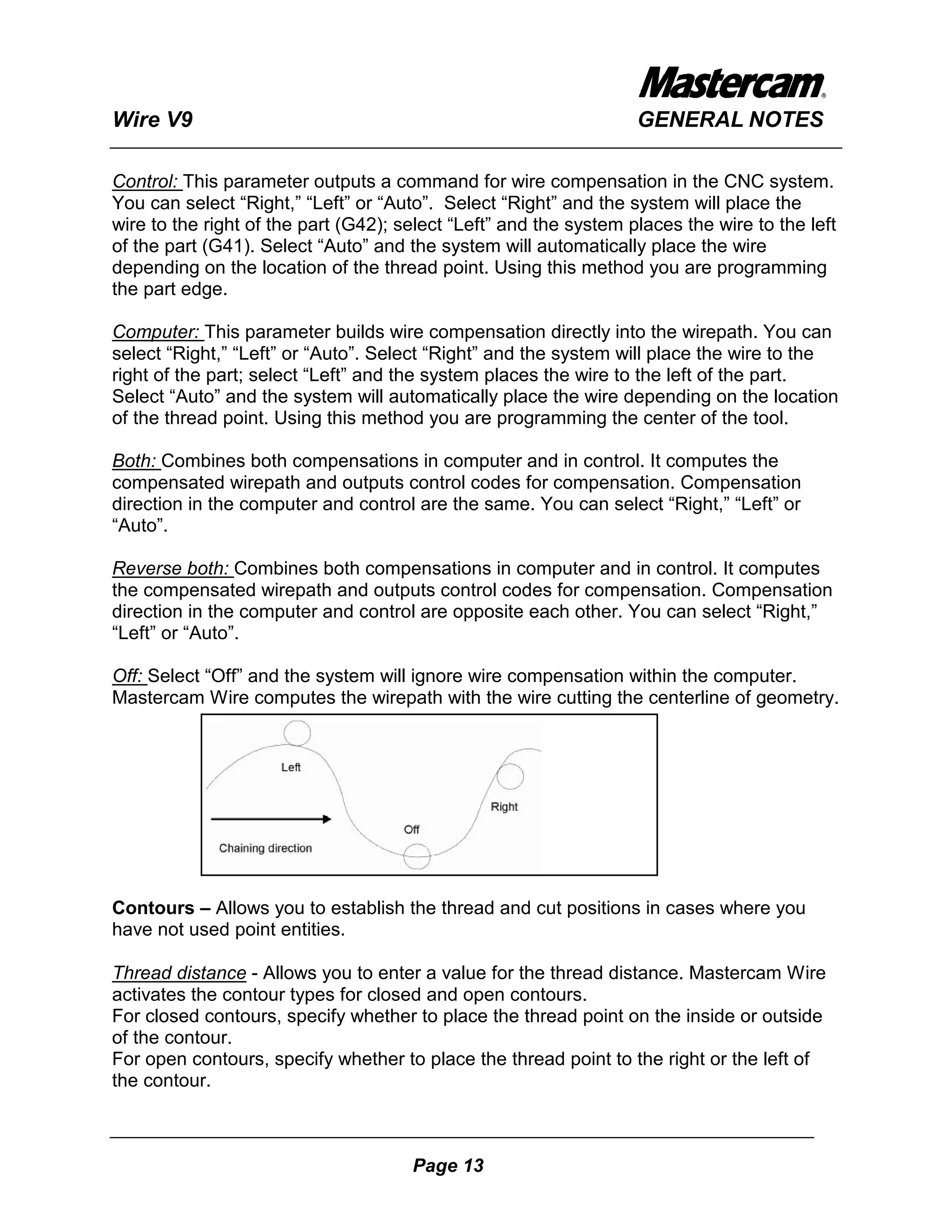
Compensation types – Offsets the wire from the geometry. When cutting the part in
the chaining direction, wire compensation can follow the centerline of the geometry or
be offset to the right or the left to compensate for the wire diameter. This offset may be
generated by Mastercam Wire (computer compensation), by the NC control (control
compensation), or a combination of both ("both" and "reverse both" compensation).


                                      Page 12
Wire V9                                                            GENERAL NOTES

Control: This parameter outputs a command for wire compensation in the CNC system.
You can select “Right,” “Left” or “Auto”. Select “Right” and the system will place the
wire to the right of the part (G42); select “Left” and the system places the wire to the left
of the part (G41). Select “Auto” and the system will automatically place the wire
depending on the location of the thread point. Using this method you are programming
the part edge.

Computer: This parameter builds wire compensation directly into the wirepath. You can
select “Right,” “Left” or “Auto”. Select “Right” and the system will place the wire to the
right of the part; select “Left” and the system places the wire to the left of the part.
Select “Auto” and the system will automatically place the wire depending on the location
of the thread point. Using this method you are programming the center of the tool.

Both: Combines both compensations in computer and in control. It computes the
compensated wirepath and outputs control codes for compensation. Compensation
direction in the computer and control are the same. You can select “Right,” “Left” or
“Auto”.

Reverse both: Combines both compensations in computer and in control. It computes
the compensated wirepath and outputs control codes for compensation. Compensation
direction in the computer and control are opposite each other. You can select “Right,”
“Left” or “Auto”.

Off: Select “Off” and the system will ignore wire compensation within the computer.
Mastercam Wire computes the wirepath with the wire cutting the centerline of geometry.


Contours – Allows you to establish the thread and cut positions in cases where you
have not used point entities.

Thread distance - Allows you to enter a value for the thread distance. Mastercam Wire
activates the contour types for closed and open contours.
For closed contours, specify whether to place the thread point on the inside or outside
of the contour.
For open contours, specify whether to place the thread point to the right or the left of
the contour.


                                      Page 13
Wire V9                                                        GENERAL NOTES

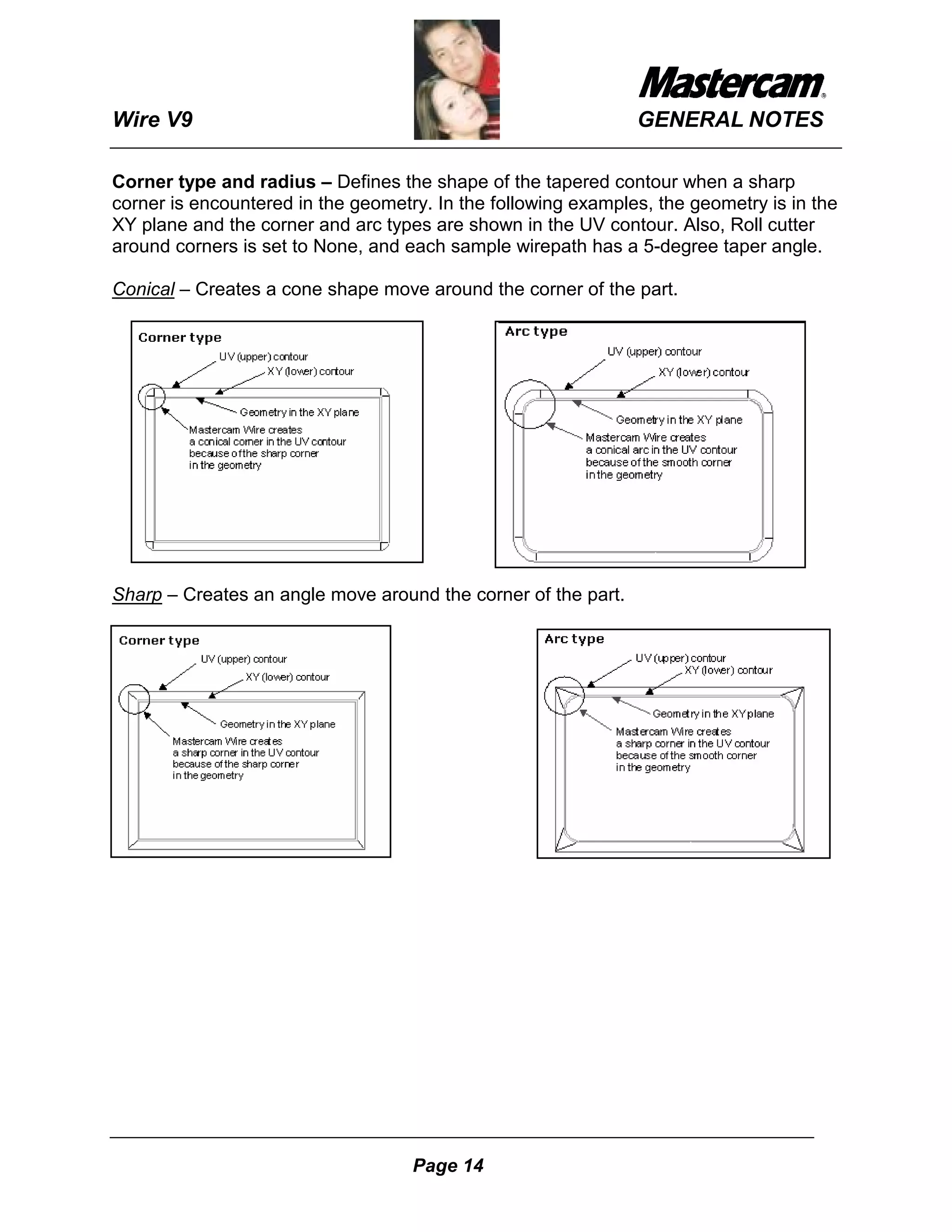
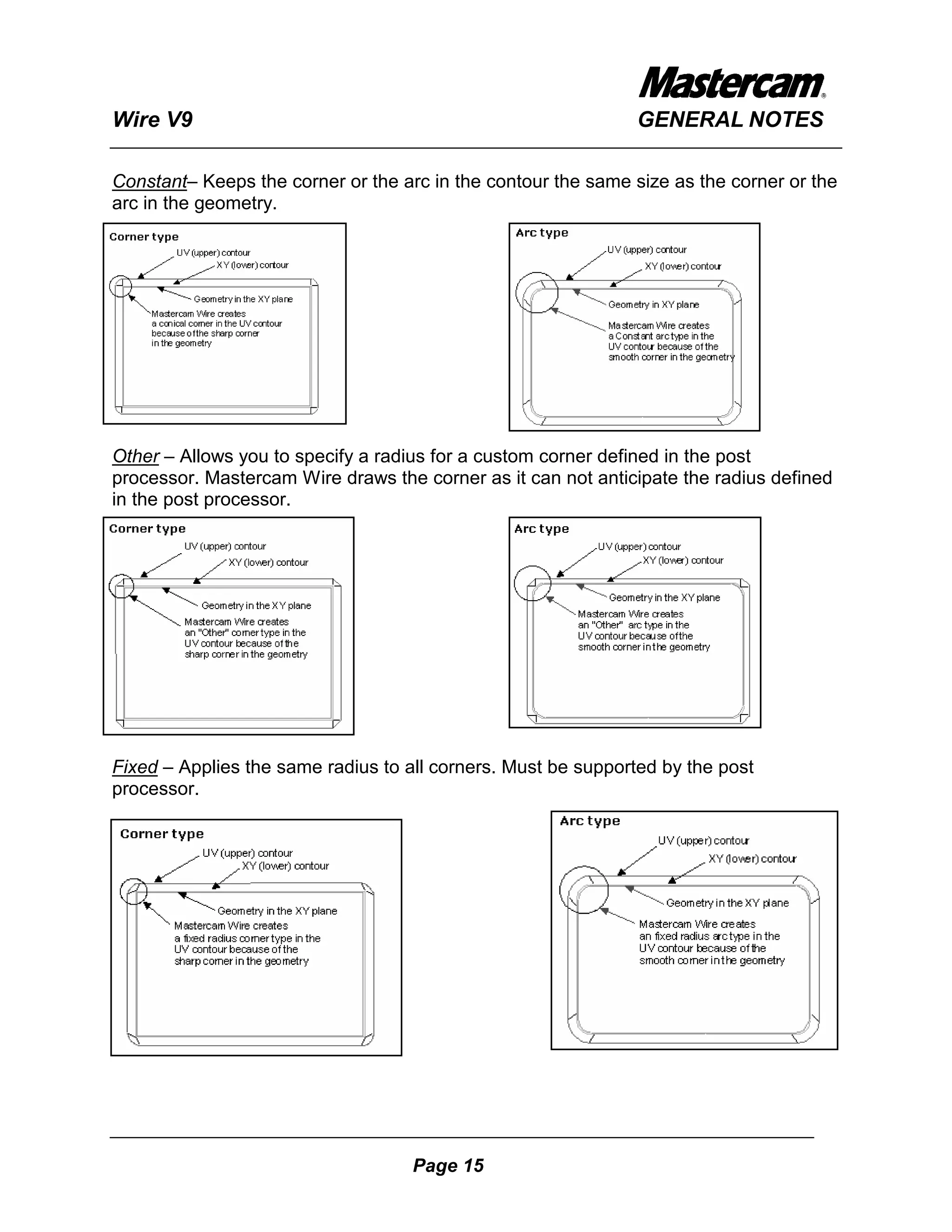
Corner type and radius – Defines the shape of the tapered contour when a sharp
corner is encountered in the geometry. In the following examples, the geometry is in the
XY plane and the corner and arc types are shown in the UV contour. Also, Roll cutter
around corners is set to None, and each sample wirepath has a 5-degree taper angle.

Conical – Creates a cone shape move around the corner of the part.


Sharp – Creates an angle move around the corner of the part.


                                    Page 14
Wire V9                                                        GENERAL NOTES

Constant– Keeps the corner or the arc in the contour the same size as the corner or the
arc in the geometry.


Other – Allows you to specify a radius for a custom corner defined in the post
processor. Mastercam Wire draws the corner as it can not anticipate the radius defined
in the post processor.


Fixed – Applies the same radius to all corners. Must be supported by the post
processor.


                                    Page 15
Wire V9                                                           GENERAL NOTES

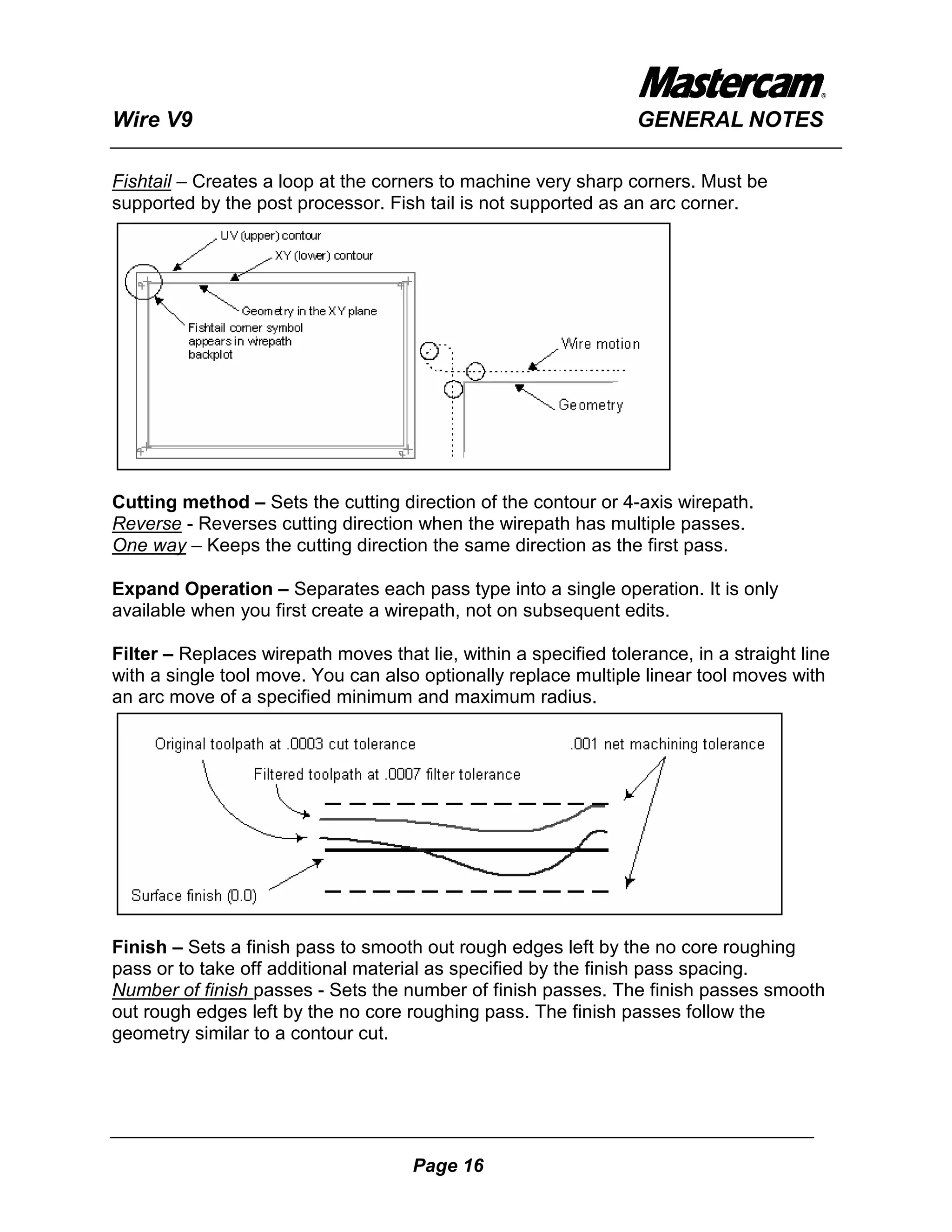
Fishtail – Creates a loop at the corners to machine very sharp corners. Must be
supported by the post processor. Fish tail is not supported as an arc corner.


Cutting method – Sets the cutting direction of the contour or 4-axis wirepath.
Reverse - Reverses cutting direction when the wirepath has multiple passes.
One way – Keeps the cutting direction the same direction as the first pass.

Expand Operation – Separates each pass type into a single operation. It is only
available when you first create a wirepath, not on subsequent edits.

Filter – Replaces wirepath moves that lie, within a specified tolerance, in a straight line
with a single tool move. You can also optionally replace multiple linear tool moves with
an arc move of a specified minimum and maximum radius.


Finish – Sets a finish pass to smooth out rough edges left by the no core roughing
pass or to take off additional material as specified by the finish pass spacing.
Number of finish passes - Sets the number of finish passes. The finish passes smooth
out rough edges left by the no core roughing pass. The finish passes follow the
geometry similar to a contour cut.


                                      Page 16
Wire V9                                                            GENERAL NOTES

Start finish pass at closest entity - Begins the finish pass with the closest endpoint of
the closest entity at the end of the roughing wirepath. When cleared, the finish pass
begins with the first entity in the chain as it was originally selected.
Wire compensation - Sets Wire compensation to computer for the finish pass to offset
the wire as part of the wirepath. Set compensation to control to have the control offset
the wire. The both option applies the offset to the wirepath (computer) but also allows
for additional compensation to be set in the control.

Finish pass spacing - Determines the size of the cut for each finish pass. The roughing
pass leaves stock on the walls of the pocket and on the islands, if the number of finish
passes is greater than zero. The finish passes remove stock left by the roughing pass.

Burn finish passes after roughing all pockets - Used multiple no core wirepaths exist in
a single operation, Mastercam Wire can cut the roughing pass on each no core first.
After completing all the roughing passes, Mastercam Wire then cuts the finish pass on
each no core wirepath.

Format – Controls how the arcs and lines in 4-axis wirepath are handled as data for the
control.
4-axis taper - Outputs only UV/XY linear moves. All circular moves (arcs) are broken
into linear moves based on the linearization tolerance set in the 4-axis parameters
dialog box tab.

Direct 4-axis - Outputs XY/UV linear and circular moves simultaneously. Direct 4-axis
requires that the XY and UV contours have an equal number of entities. In cases where
there aren’t an equal number of entities, branch lines need to be added to the geometry
to connect the entities to a synch point.

General – Controls cutting method, wire EDM machine initial settings and other
parameters. Choose a topic below for more information.
Wire - When checked, wire is present (threaded).
Power - When checked, applies voltage to the wire.
Flush - Sets the initial state for the water settings On, Off, or Other. The "Other" setting
is specific to the control.
Fill tank - Sets the initial state for the fluid tank. "On" fills the tank.

Generate stops – Creates a stop point before each tab.
For first tab cut of each chain - Outputs a stop code before the tab cut for the first tab
cut on each chain. Subsequent tab cuts do not include stop codes.

For first tab cut in the operation - Outputs a stop code before the tab cut for the first tab
cut of the operation. Subsequent tab cuts throughout the operation do not include stop
codes.


                                      Page 17
Wire V9                                                          GENERAL NOTES

No stops output - Suppresses all stop codes for all tab cuts in the operation.

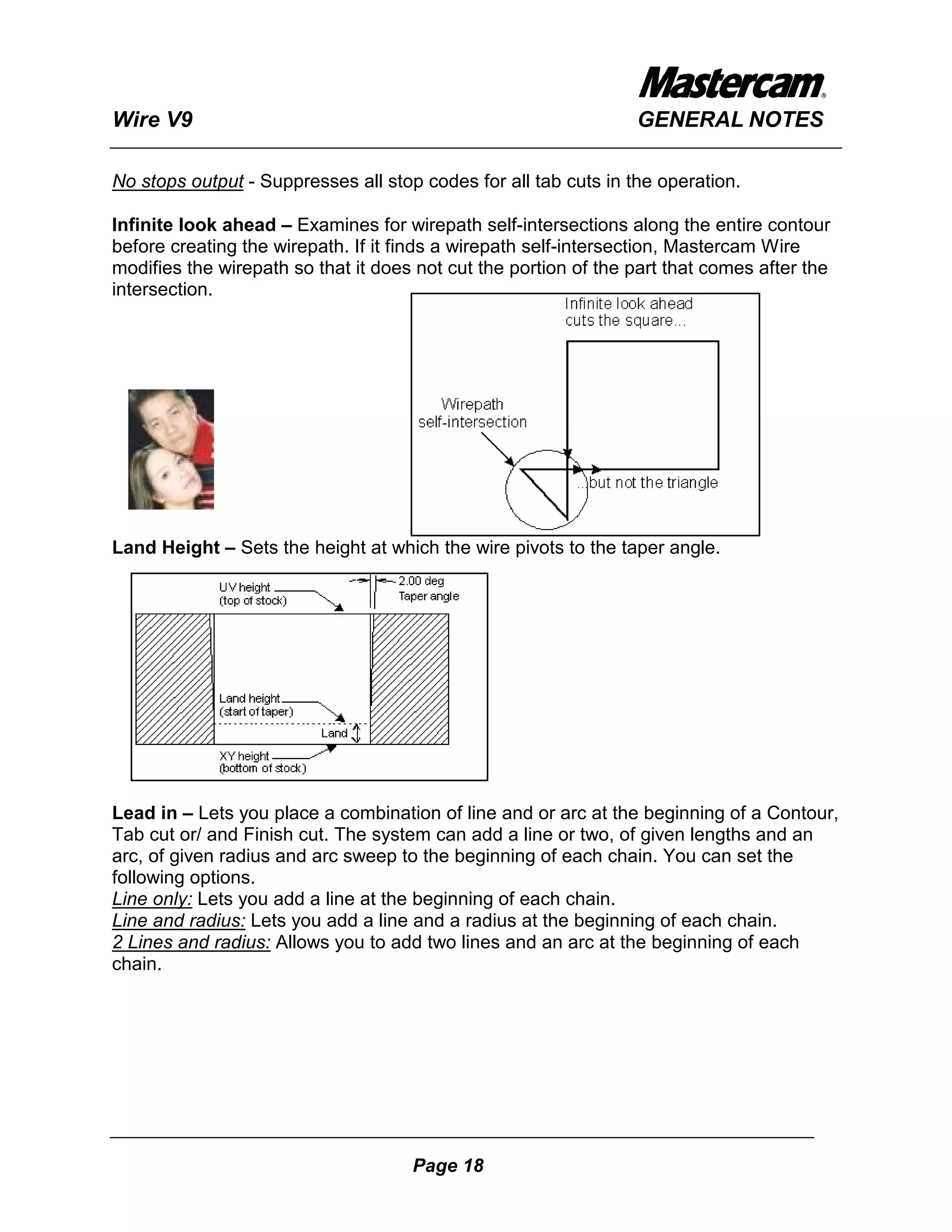
Infinite look ahead – Examines for wirepath self-intersections along the entire contour
before creating the wirepath. If it finds a wirepath self-intersection, Mastercam Wire
modifies the wirepath so that it does not cut the portion of the part that comes after the
intersection.


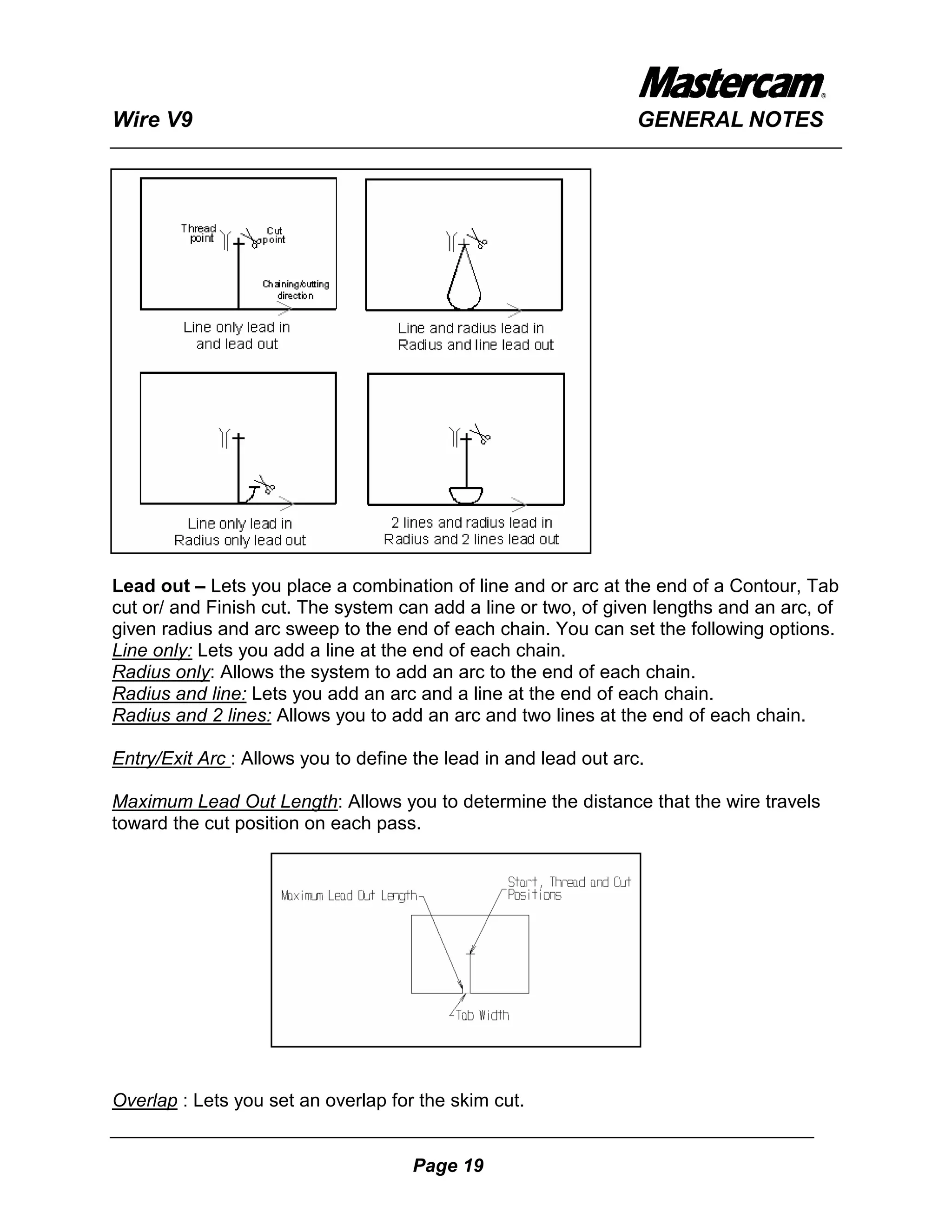
Land Height – Sets the height at which the wire pivots to the taper angle.


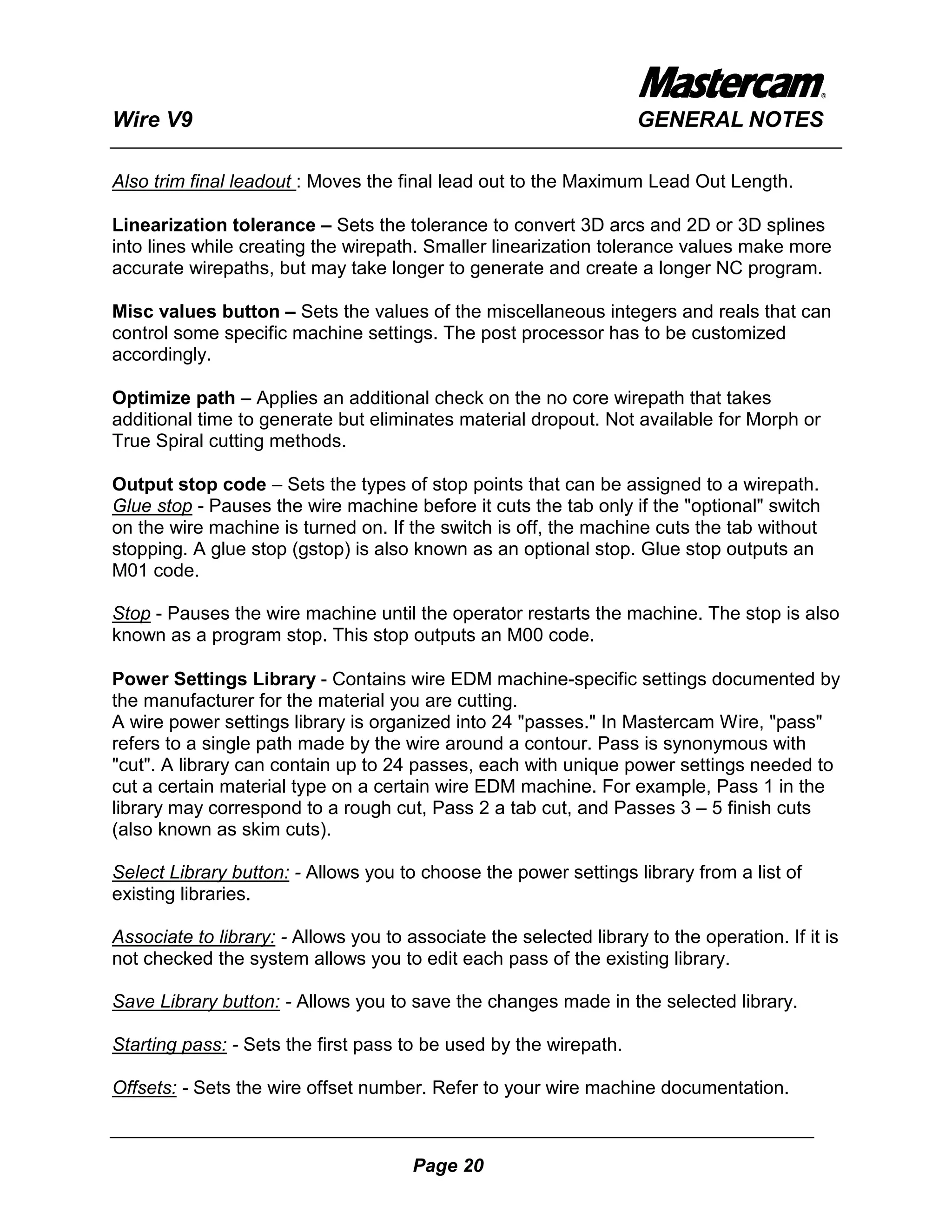
Lead in – Lets you place a combination of line and or arc at the beginning of a Contour,
Tab cut or/ and Finish cut. The system can add a line or two, of given lengths and an
arc, of given radius and arc sweep to the beginning of each chain. You can set the
following options.
Line only: Lets you add a line at the beginning of each chain.
Line and radius: Lets you add a line and a radius at the beginning of each chain.
2 Lines and radius: Allows you to add two lines and an arc at the beginning of each
chain.


                                     Page 18
Wire V9                                                           GENERAL NOTES


Lead out – Lets you place a combination of line and or arc at the end of a Contour, Tab
cut or/ and Finish cut. The system can add a line or two, of given lengths and an arc, of
given radius and arc sweep to the end of each chain. You can set the following options.
Line only: Lets you add a line at the end of each chain.
Radius only: Allows the system to add an arc to the end of each chain.
Radius and line: Lets you add an arc and a line at the end of each chain.
Radius and 2 lines: Allows you to add an arc and two lines at the end of each chain.

Entry/Exit Arc : Allows you to define the lead in and lead out arc.

Maximum Lead Out Length: Allows you to determine the distance that the wire travels
toward the cut position on each pass.


Overlap : Lets you set an overlap for the skim cut.


                                     Page 19
Wire V9                                                             GENERAL NOTES

Also trim final leadout : Moves the final lead out to the Maximum Lead Out Length.

Linearization tolerance – Sets the tolerance to convert 3D arcs and 2D or 3D splines
into lines while creating the wirepath. Smaller linearization tolerance values make more
accurate wirepaths, but may take longer to generate and create a longer NC program.

Misc values button – Sets the values of the miscellaneous integers and reals that can
control some specific machine settings. The post processor has to be customized
accordingly.

Optimize path – Applies an additional check on the no core wirepath that takes
additional time to generate but eliminates material dropout. Not available for Morph or
True Spiral cutting methods.

Output stop code – Sets the types of stop points that can be assigned to a wirepath.
Glue stop - Pauses the wire machine before it cuts the tab only if the "optional" switch
on the wire machine is turned on. If the switch is off, the machine cuts the tab without
stopping. A glue stop (gstop) is also known as an optional stop. Glue stop outputs an
M01 code.

Stop - Pauses the wire machine until the operator restarts the machine. The stop is also
known as a program stop. This stop outputs an M00 code.

Power Settings Library - Contains wire EDM machine-specific settings documented by
the manufacturer for the material you are cutting.
A wire power settings library is organized into 24 "passes." In Mastercam Wire, "pass"
refers to a single path made by the wire around a contour. Pass is synonymous with
"cut". A library can contain up to 24 passes, each with unique power settings needed to
cut a certain material type on a certain wire EDM machine. For example, Pass 1 in the
library may correspond to a rough cut, Pass 2 a tab cut, and Passes 3 – 5 finish cuts
(also known as skim cuts).

Select Library button: - Allows you to choose the power settings library from a list of
existing libraries.

Associate to library: - Allows you to associate the selected library to the operation. If it is
not checked the system allows you to edit each pass of the existing library.

Save Library button: - Allows you to save the changes made in the selected library.

Starting pass: - Sets the first pass to be used by the wirepath.

Offsets: - Sets the wire offset number. Refer to your wire machine documentation.


                                       Page 20
Wire V9                                                          GENERAL NOTES

Condition code: - Sets a wire machine-specific value that corresponds to a register
number in control. It depends on material, wire type and thickness. Refer to your wire
machine documentation.

Feedrate: - Sets the speed at which the wire cuts the material in inches per minute or
centimetres per minute. Some controllers calculate the feed rate based on material nad
thickness. Other controllers require a value that represents the material and the
thickness. Refer to your wire machine documentation.

Wire diameter: - Sets the width of the wire.

Wire radius: - Sets the radius of the wire automatically when you enter the diameter.

Wire overburn: - Sets the extra material that can be removed by the wire.

Stock to leave: - Sets amount of stock to leave for the finish pass(skim cut).

Total offset: - Displays the sum of the wire diameter, overburn and stock to leave.

Registers1-10: - Values that correspond to the registers in the controller.

Pass comment: - Allows you to enter information about the current pass.

Perform rough cut – Enables the rough cut.
Additional skim cuts (before tab): - Sets the number of skim cuts to be performed before
the tab cut.

Program # – Lets you set the program number for the machines that require a program
name.

Rapid Height – Sets the Z height of the upper wire guide for rapid moves whether or
not the wire is threaded.

Reset pass number on tab cuts – Allows you to use Pass #1 (rough cut) settings
when cutting the tab.

Roll Wire Around Corners - This parameter functions only when you employ the Wire
Compensation - In Computer parameter. You use it primarily for inserting arc moves
around sharp corners in the wirepath. In some cases, the system will fillet sharp corners
(even if the parameter is set to “None”). This is because some objects in the wirepath
do not intersect; in these cases, the computer will automatically add a fillet.


                                     Page 21
Wire V9                                                      GENERAL NOTES

Rough – Enables the settings for removing almost all of the material in the no core
wirepath.
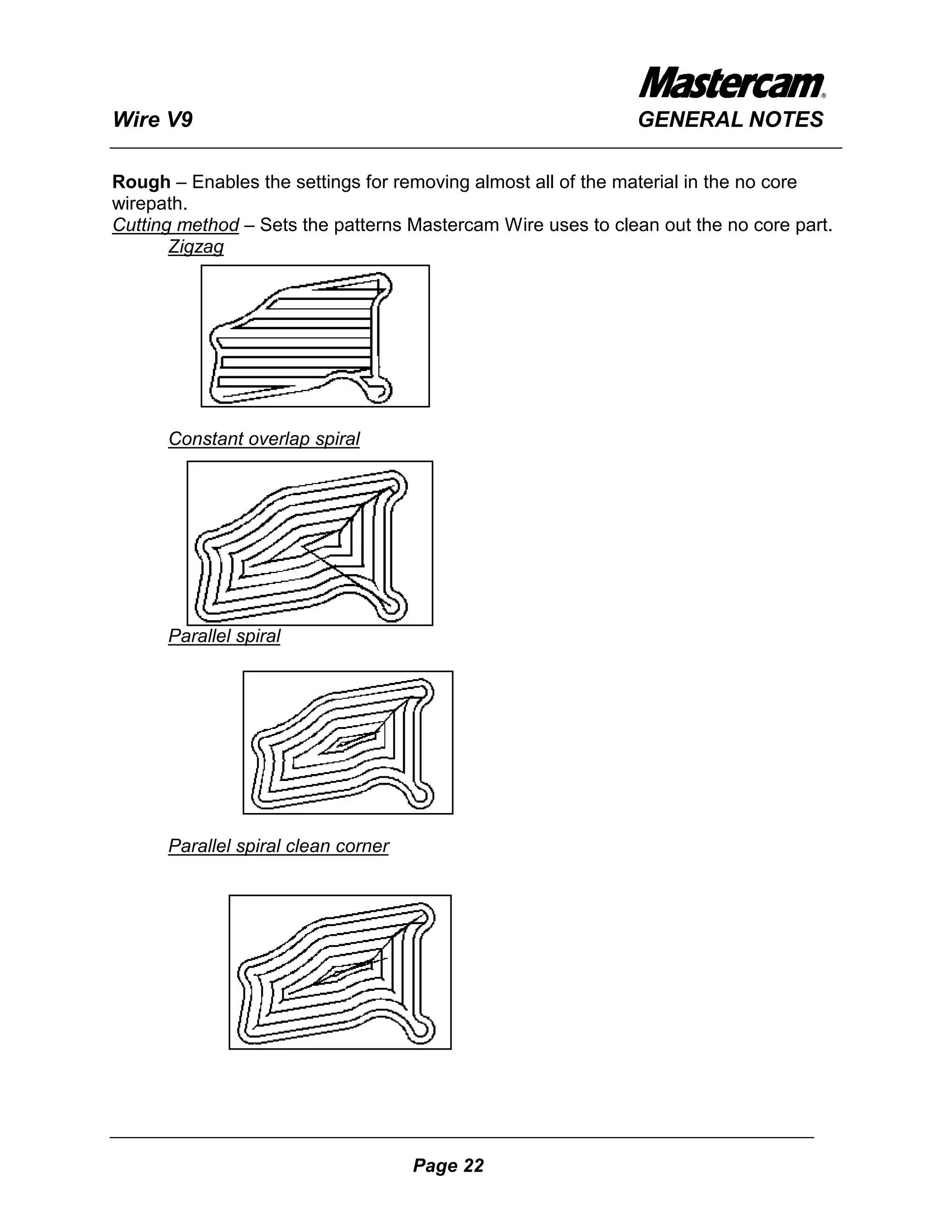
Cutting method – Sets the patterns Mastercam Wire uses to clean out the no core part.
       Zigzag


      Constant overlap spiral


      Parallel spiral


      Parallel spiral clean corner


                                     Page 22
Wire V9                                                        GENERAL NOTES

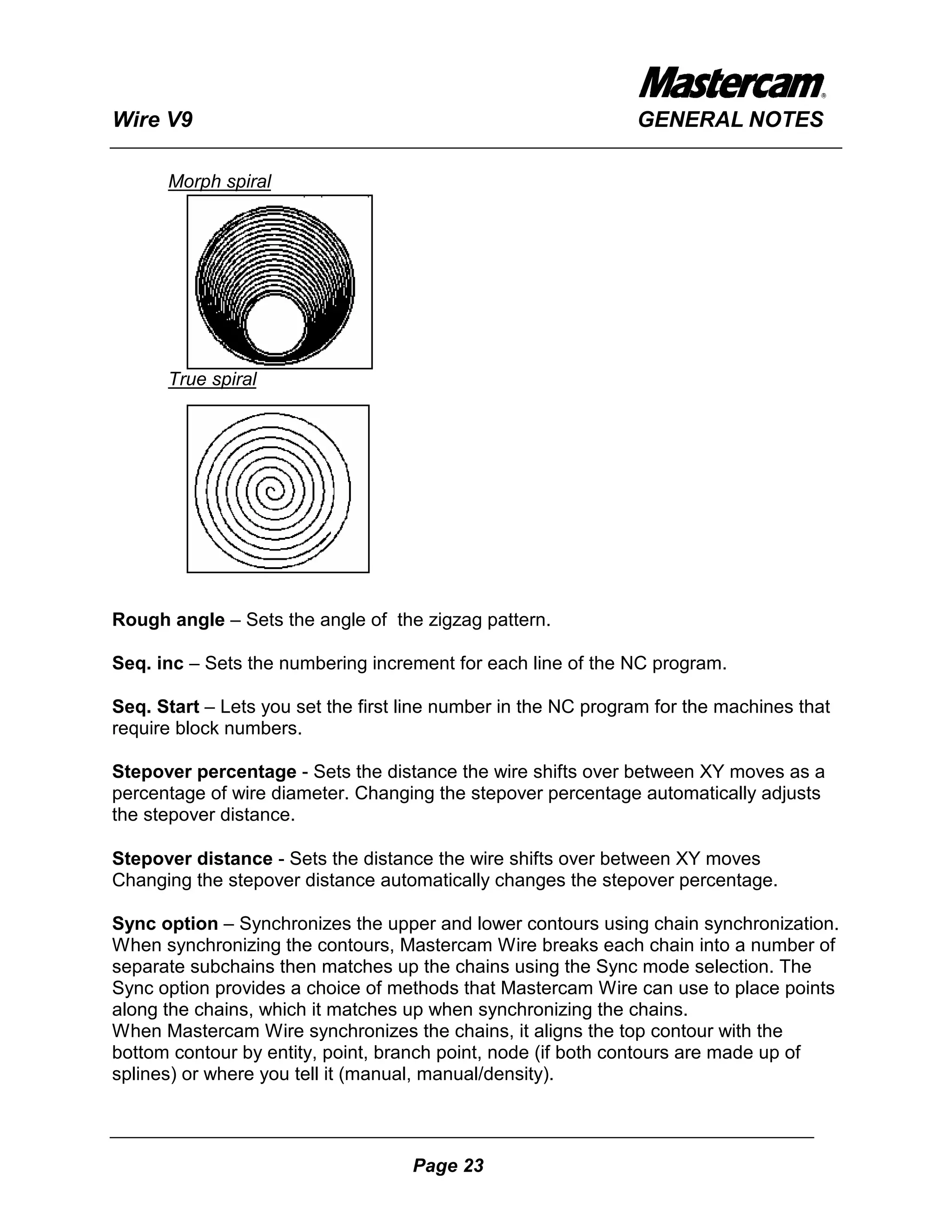
      Morph spiral


      True spiral


Rough angle – Sets the angle of the zigzag pattern.

Seq. inc – Sets the numbering increment for each line of the NC program.

Seq. Start – Lets you set the first line number in the NC program for the machines that
require block numbers.

Stepover percentage - Sets the distance the wire shifts over between XY moves as a
percentage of wire diameter. Changing the stepover percentage automatically adjusts
the stepover distance.

Stepover distance - Sets the distance the wire shifts over between XY moves
Changing the stepover distance automatically changes the stepover percentage.

Sync option – Synchronizes the upper and lower contours using chain synchronization.
When synchronizing the contours, Mastercam Wire breaks each chain into a number of
separate subchains then matches up the chains using the Sync mode selection. The
Sync option provides a choice of methods that Mastercam Wire can use to place points
along the chains, which it matches up when synchronizing the chains.
When Mastercam Wire synchronizes the chains, it aligns the top contour with the
bottom contour by entity, point, branch point, node (if both contours are made up of
splines) or where you tell it (manual, manual/density).


                                    Page 23
Wire V9                                                        GENERAL NOTES


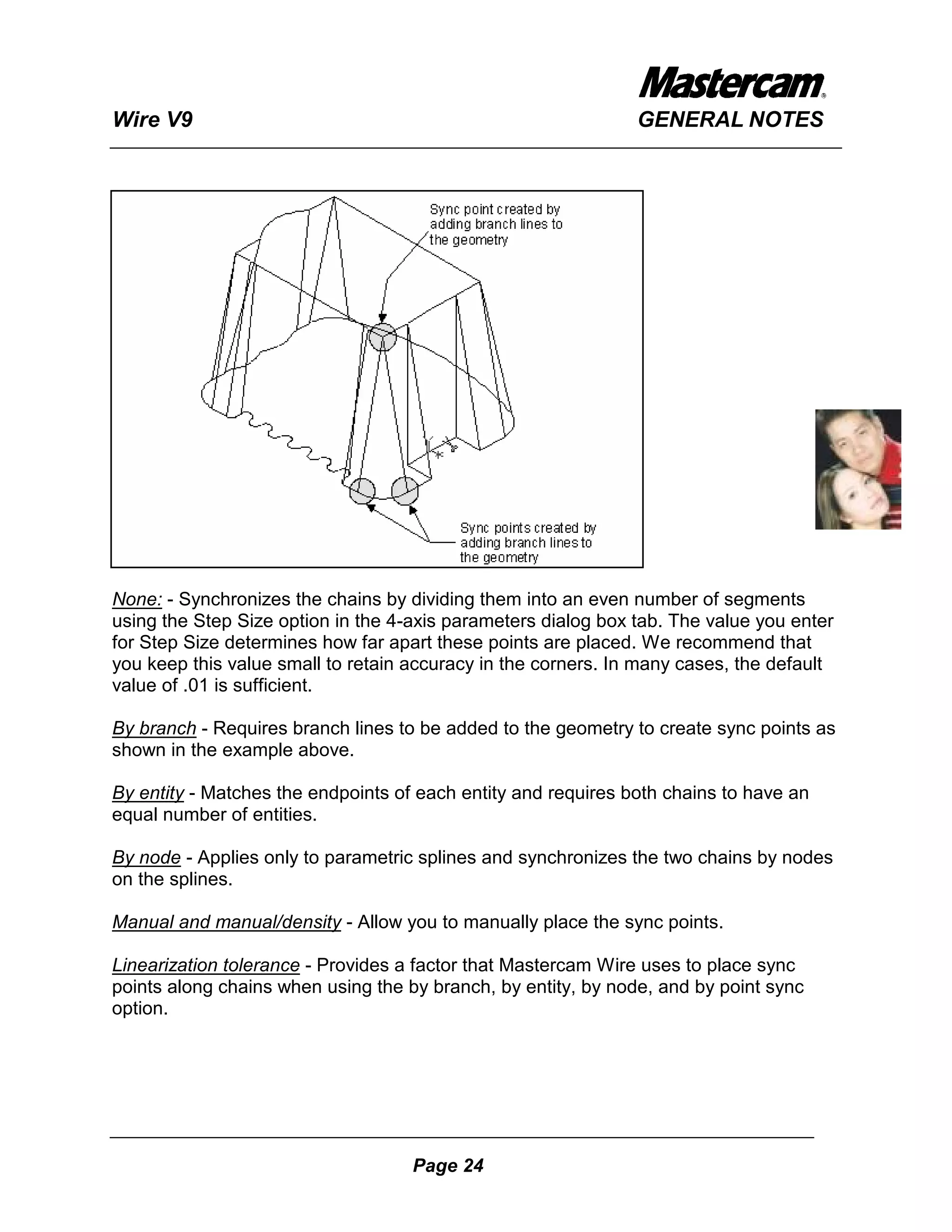
None: - Synchronizes the chains by dividing them into an even number of segments
using the Step Size option in the 4-axis parameters dialog box tab. The value you enter
for Step Size determines how far apart these points are placed. We recommend that
you keep this value small to retain accuracy in the corners. In many cases, the default
value of .01 is sufficient.

By branch - Requires branch lines to be added to the geometry to create sync points as
shown in the example above.

By entity - Matches the endpoints of each entity and requires both chains to have an
equal number of entities.

By node - Applies only to parametric splines and synchronizes the two chains by nodes
on the splines.

Manual and manual/density - Allow you to manually place the sync points.

Linearization tolerance - Provides a factor that Mastercam Wire uses to place sync
points along chains when using the by branch, by entity, by node, and by point sync
option.


                                    Page 24
Wire V9                                                           GENERAL NOTES

Suppress all thread flags – No thread flags will be written in the NCI file.

Suppress all cut flags – No cut flags will be written in the NCI file.

Skim cuts after tab – Allows you to program the finish passes.

Together - Sets the number of skim cuts to make before moving to the next contour in
the operation.
Separate - Sets the number of skim cuts to make, with one made on each chain in the
operation separately. Separate is enabled only when you choose Rough, tab, and finish
separately.

Subprogram – Creates subprograms called by the main program each time the
program repeats the same passes in the XY plane. Used to generate a smaller NC
program.

STCW – Sets the start, thread, cut and work origin positions for the current operation.

Start - Is the home position of the operation.


Thread - Is the point where the machine threads the wire, usually a predrilled hole in the
material. The wire cuts from the thread position to the start of the chain based
on the settings for lead ins and lead outs.


Cut - Is the point where the wire machine cuts the wire before moving to
the next thread point.


Work origin - Is a reference point for wirepath creation and is set to the
system origin by default. Changing the work origin offsets the coordinates
for the wirepath.


                                      Page 25
Wire V9                                                          GENERAL NOTES

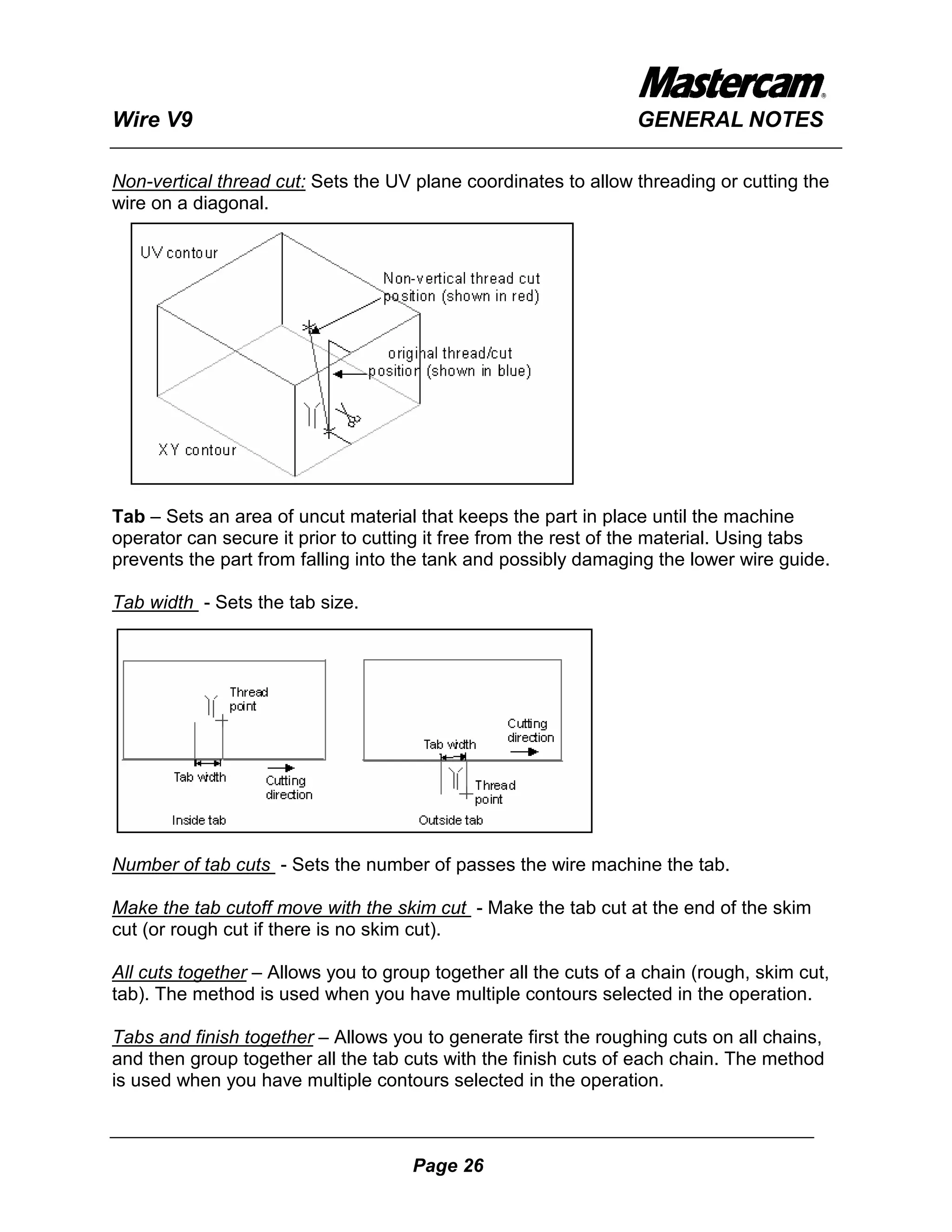
Non-vertical thread cut: Sets the UV plane coordinates to allow threading or cutting the
wire on a diagonal.


Tab – Sets an area of uncut material that keeps the part in place until the machine
operator can secure it prior to cutting it free from the rest of the material. Using tabs
prevents the part from falling into the tank and possibly damaging the lower wire guide.

Tab width - Sets the tab size.


Number of tab cuts - Sets the number of passes the wire machine the tab.

Make the tab cutoff move with the skim cut - Make the tab cut at the end of the skim
cut (or rough cut if there is no skim cut).

All cuts together – Allows you to group together all the cuts of a chain (rough, skim cut,
tab). The method is used when you have multiple contours selected in the operation.

Tabs and finish together – Allows you to generate first the roughing cuts on all chains,
and then group together all the tab cuts with the finish cuts of each chain. The method
is used when you have multiple contours selected in the operation.


                                     Page 26
Wire V9                                                          GENERAL NOTES

Rough, tabs and finish separately – Allows you to generate first the roughing cuts on all
chains, and then the tab cuts for all chains, and at last the skim cuts of each chain. The
method is used when you have multiple contours selected in the operation.

Automatic – Allows you to set the number of tabs to place on each contour in the
operation. Mastercam Wire spaces the tabs equally over the contour.

Manual – Allows you to manually select the tabs positions around the contour, by
selecting Position button.

Use square point for tab position – Automatically places a tab at each location marked
by a square point. You have to previously create points using square style along the
geometry. If you use the square point method, select Start, Midpoint or End to indicate
what square point marks.

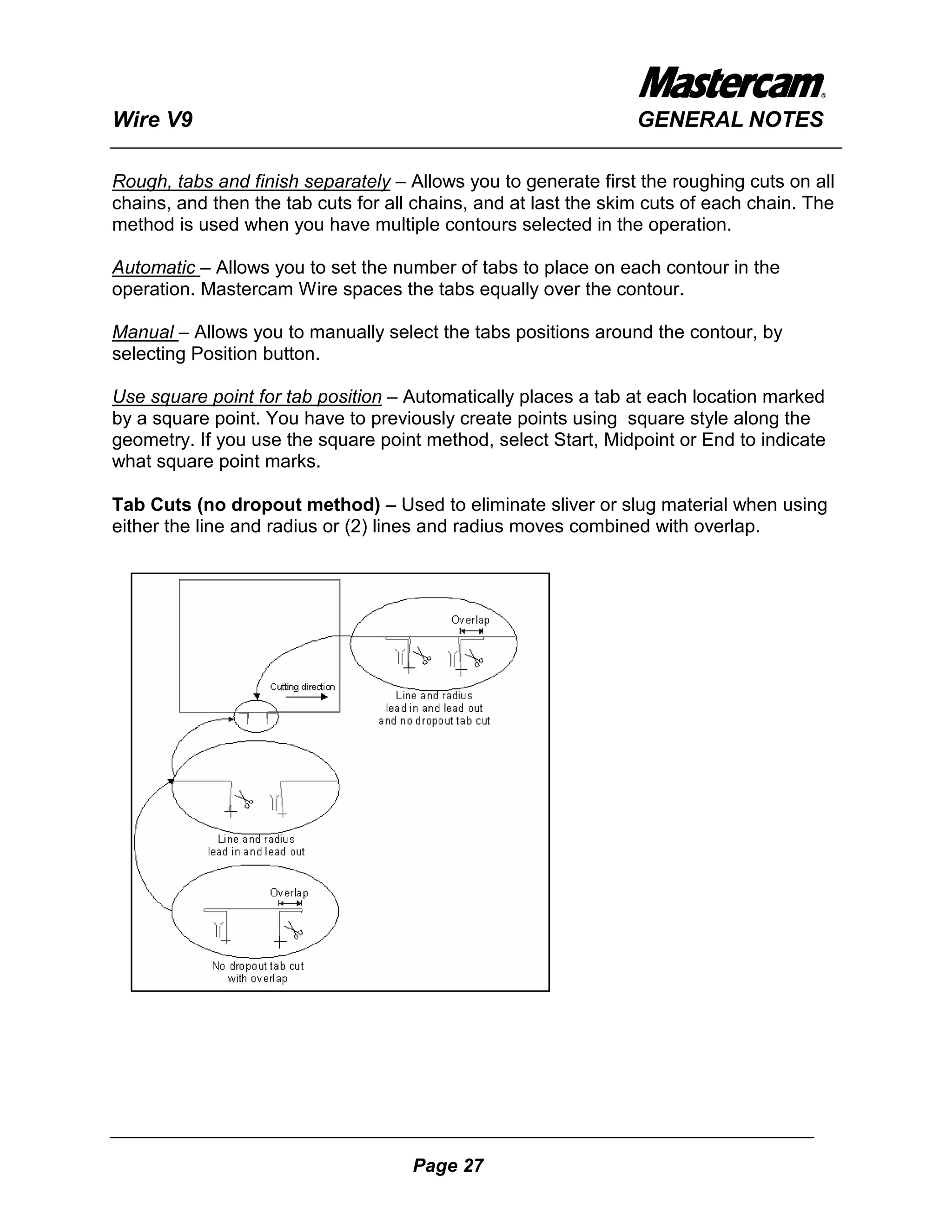
Tab Cuts (no dropout method) – Used to eliminate sliver or slug material when using
either the line and radius or (2) lines and radius moves combined with overlap.


                                     Page 27
Wire V9                                                          GENERAL NOTES

Trimming - Used in a 4-axis wirepath to reference Z values in the wirepath.
In computer - Uses the XY and UV trim planes to reference the Z values for the
wirepath.

In control - Uses the XY and UV height planes (by default, the locations of the XY and
UV geometry) to reference the Z values for the wirepath.

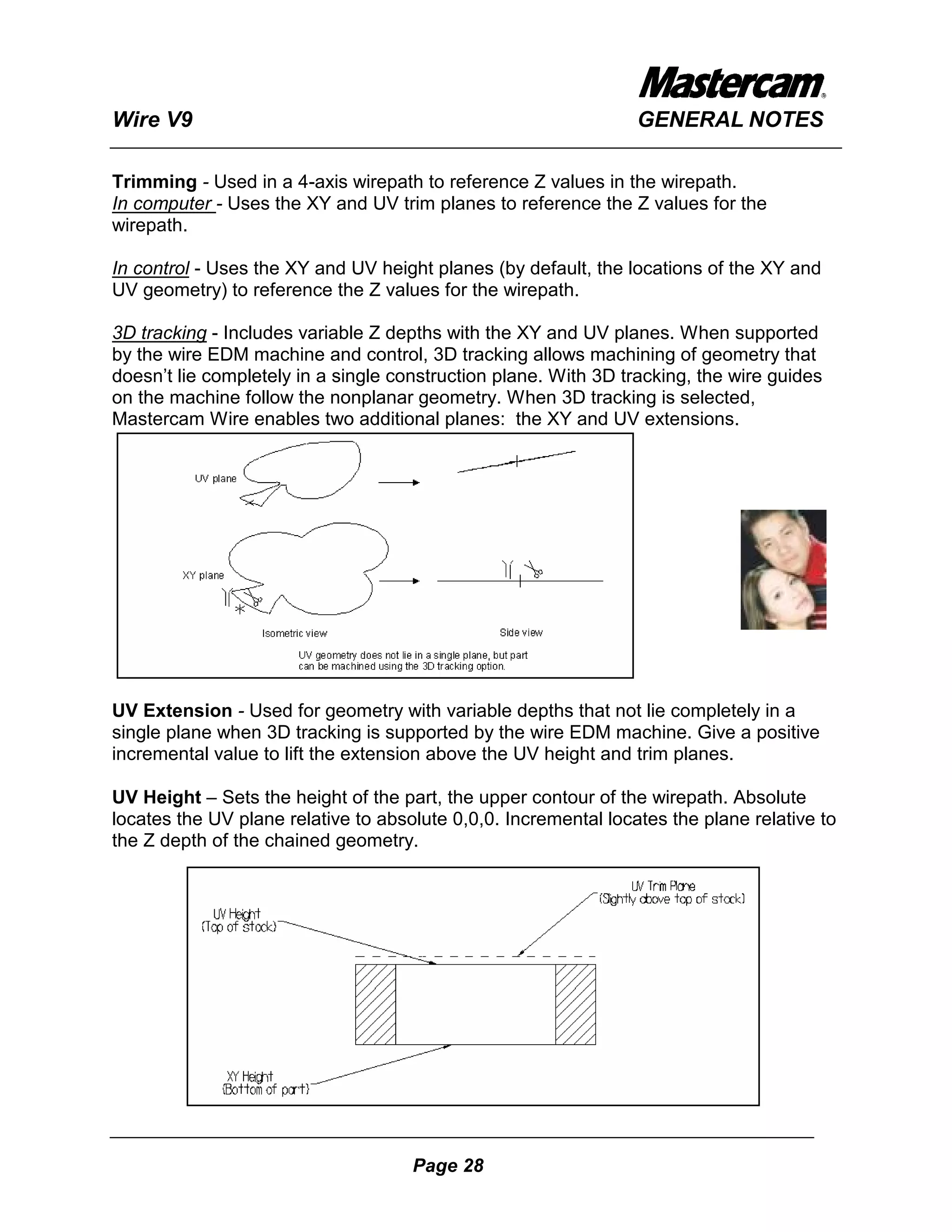
3D tracking - Includes variable Z depths with the XY and UV planes. When supported
by the wire EDM machine and control, 3D tracking allows machining of geometry that
doesn’t lie completely in a single construction plane. With 3D tracking, the wire guides
on the machine follow the nonplanar geometry. When 3D tracking is selected,
Mastercam Wire enables two additional planes: the XY and UV extensions.


UV Extension - Used for geometry with variable depths that not lie completely in a
single plane when 3D tracking is supported by the wire EDM machine. Give a positive
incremental value to lift the extension above the UV height and trim planes.

UV Height – Sets the height of the part, the upper contour of the wirepath. Absolute
locates the UV plane relative to absolute 0,0,0. Incremental locates the plane relative to
the Z depth of the chained geometry.


                                     Page 28
Wire V9                                                          GENERAL NOTES

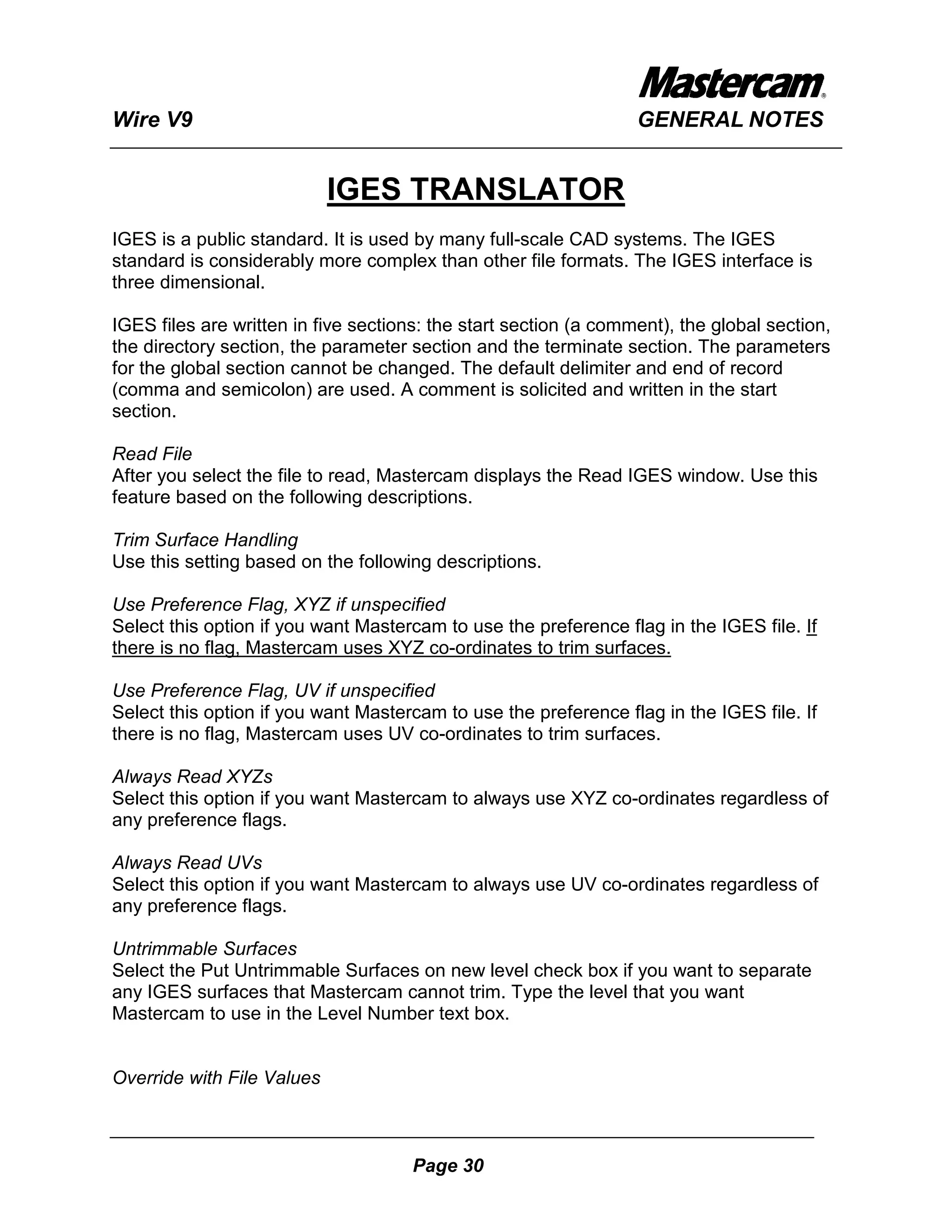
UV Trim Plane – Sets the location of the upper guide that can be required by the
control and is usually set higher than UV Height. When is not required it should be set
to the same height as the UV Height.

XY Extension - Used for geometry with variable depths that not lie completely in a
single plane when 3D tracking is supported by the wire EDM machine. Give a negative
incremental value to locate the extension below the XY height and trim planes.

XY Height – Sets the bottom of the part, the lower contour of the wirepath. Absolute
locates the XY plane relative to absolute 0,0,0. Incremental locates the plane relative to
the Z depth of the chained geometry.


XY Trim Plane – Sets the location of the lower guide that can be required by the control
and is usually set lower than XY Height. When is not required it should be set to the
same height as the XY Height.


                                     Page 29
Wire V9                                                           GENERAL NOTES


                            IGES TRANSLATOR
IGES is a public standard. It is used by many full-scale CAD systems. The IGES
standard is considerably more complex than other file formats. The IGES interface is
three dimensional.

IGES files are written in five sections: the start section (a comment), the global section,
the directory section, the parameter section and the terminate section. The parameters
for the global section cannot be changed. The default delimiter and end of record
(comma and semicolon) are used. A comment is solicited and written in the start
section.

Read File
After you select the file to read, Mastercam displays the Read IGES window. Use this
feature based on the following descriptions.

Trim Surface Handling
Use this setting based on the following descriptions.

Use Preference Flag, XYZ if unspecified
Select this option if you want Mastercam to use the preference flag in the IGES file. If
there is no flag, Mastercam uses XYZ co-ordinates to trim surfaces.

Use Preference Flag, UV if unspecified
Select this option if you want Mastercam to use the preference flag in the IGES file. If
there is no flag, Mastercam uses UV co-ordinates to trim surfaces.

Always Read XYZs
Select this option if you want Mastercam to always use XYZ co-ordinates regardless of
any preference flags.

Always Read UVs
Select this option if you want Mastercam to always use UV co-ordinates regardless of
any preference flags.

Untrimmable Surfaces
Select the Put Untrimmable Surfaces on new level check box if you want to separate
any IGES surfaces that Mastercam cannot trim. Type the level that you want
Mastercam to use in the Level Number text box.


Override with File Values


                                      Page 30
Wire V9                                                         GENERAL NOTES

Use this selection to override Mastercam's Tolerance settings with those that the IGES
file is using. This feature scales all Mastercam tolerance settings to meet the converted
file's scale. Select .MC9 Name to replace the current Mastercam file name with the
name of the IGES file.

File is English
This selection lets Mastercam automatically change the Unit System setting in Screen |
Configure | Misc. Settings based on whether the IGES file is U.S. Customary Units or SI
(metric).
Select Scale Data to scale the converted IGES file to the current Mastercam setting.
Select Override Units if you want to reset Mastercam based on whether the IGES file is
U.S. Customary Units or SI (metric).

IGSCAN
Use this feature to scan the IGES file for information. Mastercam displays the
information to the screen.

Masking
This function defines the IGES read/write mask for all supported data types from 100 to
500 (excluding 124 - transformation matrix). Only supported entities may be masked
Mastercam displays the IGES Entity Masking window. Select all the check boxes for
those entities you want to include. Deselect the check boxes for those entities you do
not want to include. Click Done after you select the entities you want to include or
Cancel to quit without masking.


                       AUTODESK TRANSLATOR
The Autodesk conversion option available with Mastercam Version 9 reads AutoCAD
10 through AutoCAD 2000 DWG, DXF, and Autodesk InventorÔ (IPT) files. It also
writes AutoCAD 13, AutoCAD 14, and AutoCAD 2000 DWG/DXF files.
The DXF (Drawing Interchange File) format is used by AUTOCAD®
The DXF format is three dimensional and supports colors and levels. Splines,
dimensions, leader lines or notes are not supported (use IGES). Commonly used for
shape translation.

The DWG format is the AutoCAD® drawing (*.DWG) file format. The DWG format is
three dimensional and supports colors and levels and splines, dimensions, leader lines
or notes.


                                     Page 31
Wire V9                                                           GENERAL NOTES

You can read a single file or an entire directory. A single file becomes the current file. A
scan function is built into the converter to allow you to examine the DWG file before you
convert it. You can also mask entities to selectively convert them.

The Autodesk Inventor file is a 3D solids file created in Autodesk Inventor software. You
must have Autodesk Inventor or Autodesk DesignTracker installed in order to use this
converter. You can install DesignTracker from the Mastercam system CD.


                                      Page 32
Wire V9                                                          GENERAL NOTES


                        OPERATIONS MANAGER
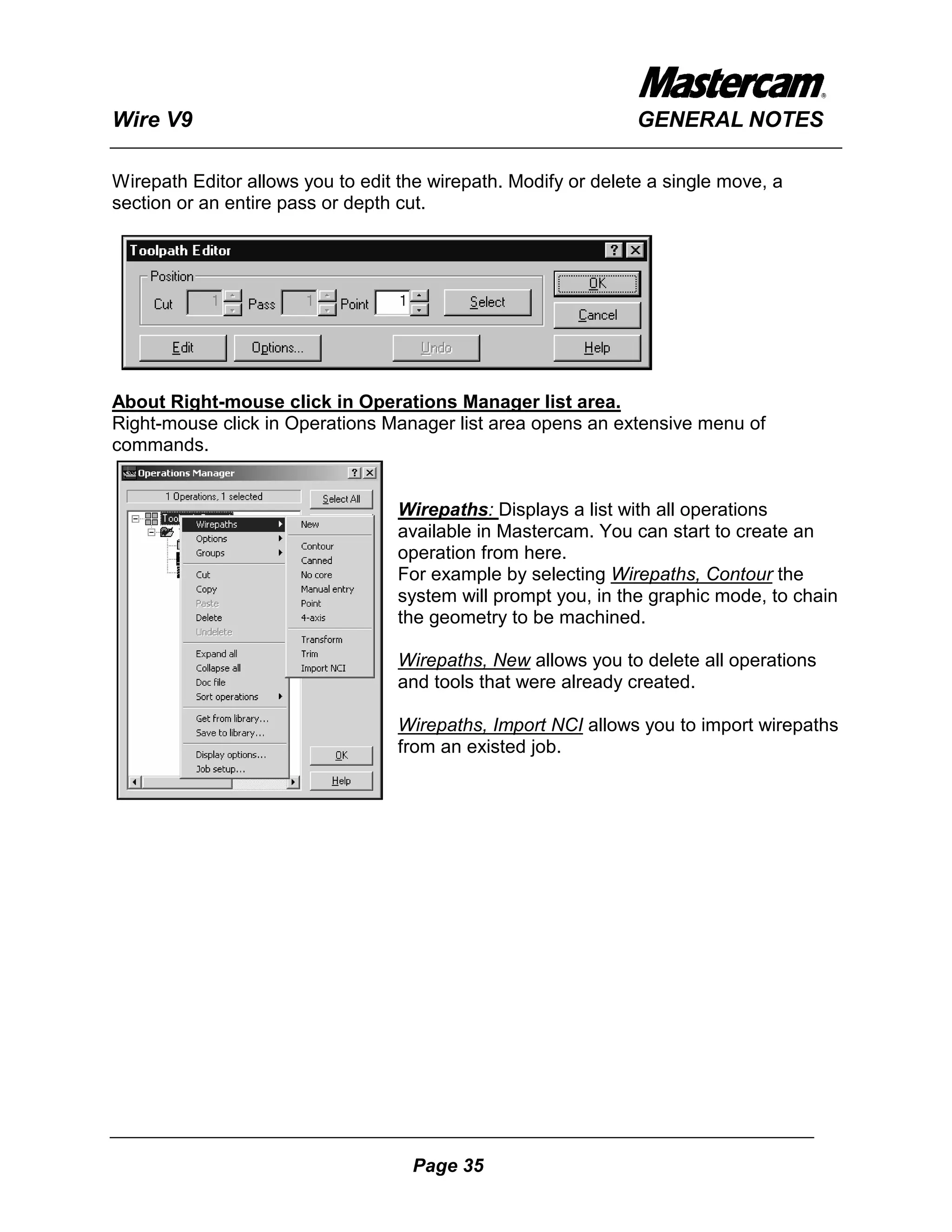
The Operations Manager lists all operations in the current job. Use this dialog box to
sort, edit, regenerate, verify and post any operations. You can enter this dialog box by
choosing Wirepaths, Operations from the Main Menu.


Select All
This button selects all operations listed in the Operations Manager. Selected operations
are represented by a check mark on the folder icon.


Regen Path
The Regen Path button recreates the selected operations after changes have been
made to the operations. This option applies only to associative wirepaths.

Backplot
The Backplot button backplots all selected operations in the order they appear in the
Operations Manager.

Verify
The Verify button opens Mastercam’s wirepath verification program and creates a
model of all selected operations in the order they appear in the Operations Manager.

Post
The Post button creates an ASCII NCI file. The Mastercam post processor uses this
text file for the selected operation according to your default post processor settings. The


                                     Page 33
Wire V9                                                            GENERAL NOTES

Post button creates the NC file automatically only if you turn on the default post
processor.


Operation List Area
This area displays the order of operations in the current job. Select the + or – in front of
the file folder icon for an operation to display/ collapse the pieces of that operation,
including parameters, tool definition, geometry, and the NCI file.


Parameters
Select the Parameters icon to edit the wirepath parameters.

Geometry
Select the Geometry icon to edit the chains and points to be machined in that operation.
Right-mouse click in the list area and you can change the followings:

                                   ♦   Add a new chain.
                                   ♦   Change the side of the cutter compensation.
                                   ♦   Rechain all the chains.
                                   ♦   Resynchronizing chains.
                                   ♦   Analyze all chains.
                                   ♦   Delete a chain.
                                   ♦   Reverse the chain direction.
                                   ♦   Rechain a single chain.
                                   ♦   Change the Start point of the chain.
                                   ♦   Change at point some of the parameters.
                                   ♦   Rename the chain.
                                   ♦   Change the thread/cut positions.
                                   ♦   Analyze a single chain.
                                   ♦   Edit existing tabs.


NCI
NCI is a separate intermediate file that contains all information of the wirepath data.
The post-processor uses the NCI file to create a NC file for your specific
machine/control.
Select NCI icon the system will open the Backplot command.
Right-mouse click on the NCI icon and the Wirepath Editor will be displayed.


                                       Page 34
Wire V9                                                         GENERAL NOTES

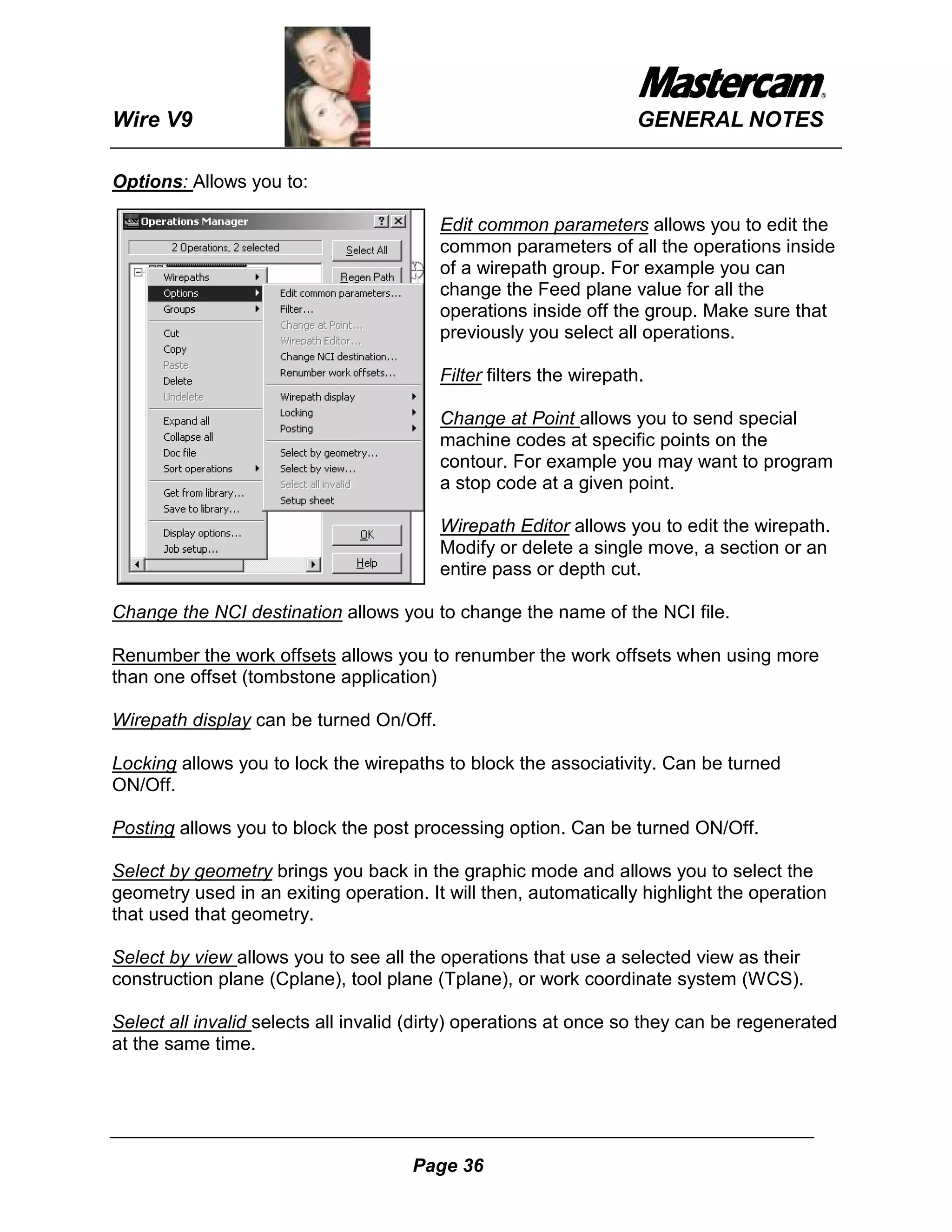
Wirepath Editor allows you to edit the wirepath. Modify or delete a single move, a
section or an entire pass or depth cut.


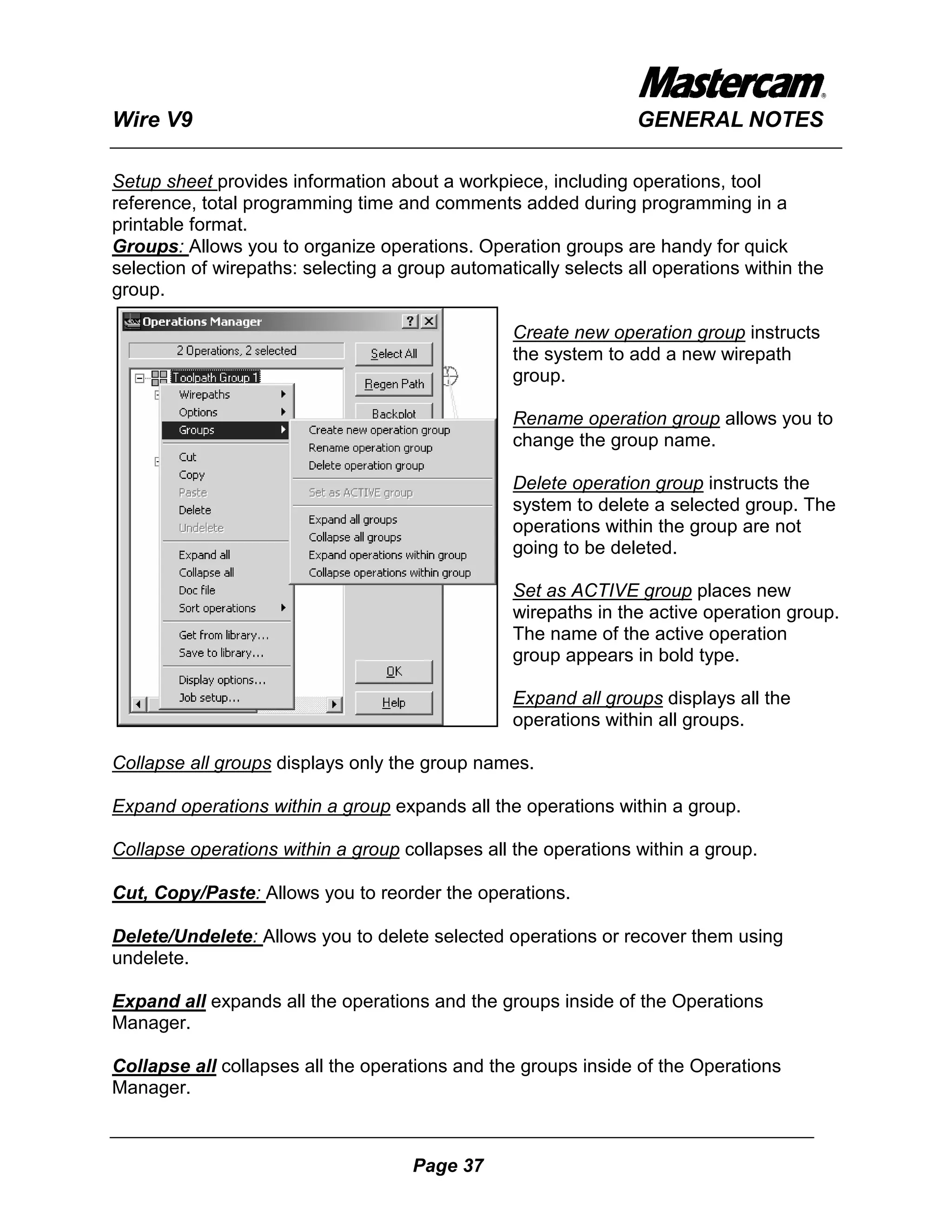
About Right-mouse click in Operations Manager list area.
Right-mouse click in Operations Manager list area opens an extensive menu of
commands.


                                  Wirepaths: Displays a list with all operations
                                  available in Mastercam. You can start to create an
                                  operation from here.
                                  For example by selecting Wirepaths, Contour the
                                  system will prompt you, in the graphic mode, to chain
                                  the geometry to be machined.

                                  Wirepaths, New allows you to delete all operations
                                  and tools that were already created.

                                  Wirepaths, Import NCI allows you to import wirepaths
                                  from an existed job.


                                    Page 35
Wire V9                                                             GENERAL NOTES

Options: Allows you to:

                                         Edit common parameters allows you to edit the
                                         common parameters of all the operations inside
                                         of a wirepath group. For example you can
                                         change the Feed plane value for all the
                                         operations inside off the group. Make sure that
                                         previously you select all operations.

                                         Filter filters the wirepath.

                                         Change at Point allows you to send special
                                         machine codes at specific points on the
                                         contour. For example you may want to program
                                         a stop code at a given point.

                                         Wirepath Editor allows you to edit the wirepath.
                                         Modify or delete a single move, a section or an
                                         entire pass or depth cut.

Change the NCI destination allows you to change the name of the NCI file.

Renumber the work offsets allows you to renumber the work offsets when using more
than one offset (tombstone application)

Wirepath display can be turned On/Off.

Locking allows you to lock the wirepaths to block the associativity. Can be turned
ON/Off.

Posting allows you to block the post processing option. Can be turned ON/Off.

Select by geometry brings you back in the graphic mode and allows you to select the
geometry used in an exiting operation. It will then, automatically highlight the operation
that used that geometry.

Select by view allows you to see all the operations that use a selected view as their
construction plane (Cplane), tool plane (Tplane), or work coordinate system (WCS).

Select all invalid selects all invalid (dirty) operations at once so they can be regenerated
at the same time.


                                      Page 36
Wire V9                                                          GENERAL NOTES

Setup sheet provides information about a workpiece, including operations, tool
reference, total programming time and comments added during programming in a
printable format.
Groups: Allows you to organize operations. Operation groups are handy for quick
selection of wirepaths: selecting a group automatically selects all operations within the
group.

                                                  Create new operation group instructs
                                                  the system to add a new wirepath
                                                  group.

                                                  Rename operation group allows you to
                                                  change the group name.

                                                  Delete operation group instructs the
                                                  system to delete a selected group. The
                                                  operations within the group are not
                                                  going to be deleted.

                                                  Set as ACTIVE group places new
                                                  wirepaths in the active operation group.
                                                  The name of the active operation
                                                  group appears in bold type.

                                                  Expand all groups displays all the
                                                  operations within all groups.

Collapse all groups displays only the group names.

Expand operations within a group expands all the operations within a group.

Collapse operations within a group collapses all the operations within a group.

Cut, Copy/Paste: Allows you to reorder the operations.

Delete/Undelete: Allows you to delete selected operations or recover them using
undelete.

Expand all expands all the operations and the groups inside of the Operations
Manager.

Collapse all collapses all the operations and the groups inside of the Operations
Manager.


                                     Page 37
Wire V9                                                           GENERAL NOTES

Doc file creates a text file that lists all the groups, operations, tools, geometry and NCI
destination that are in the Operations Manager.

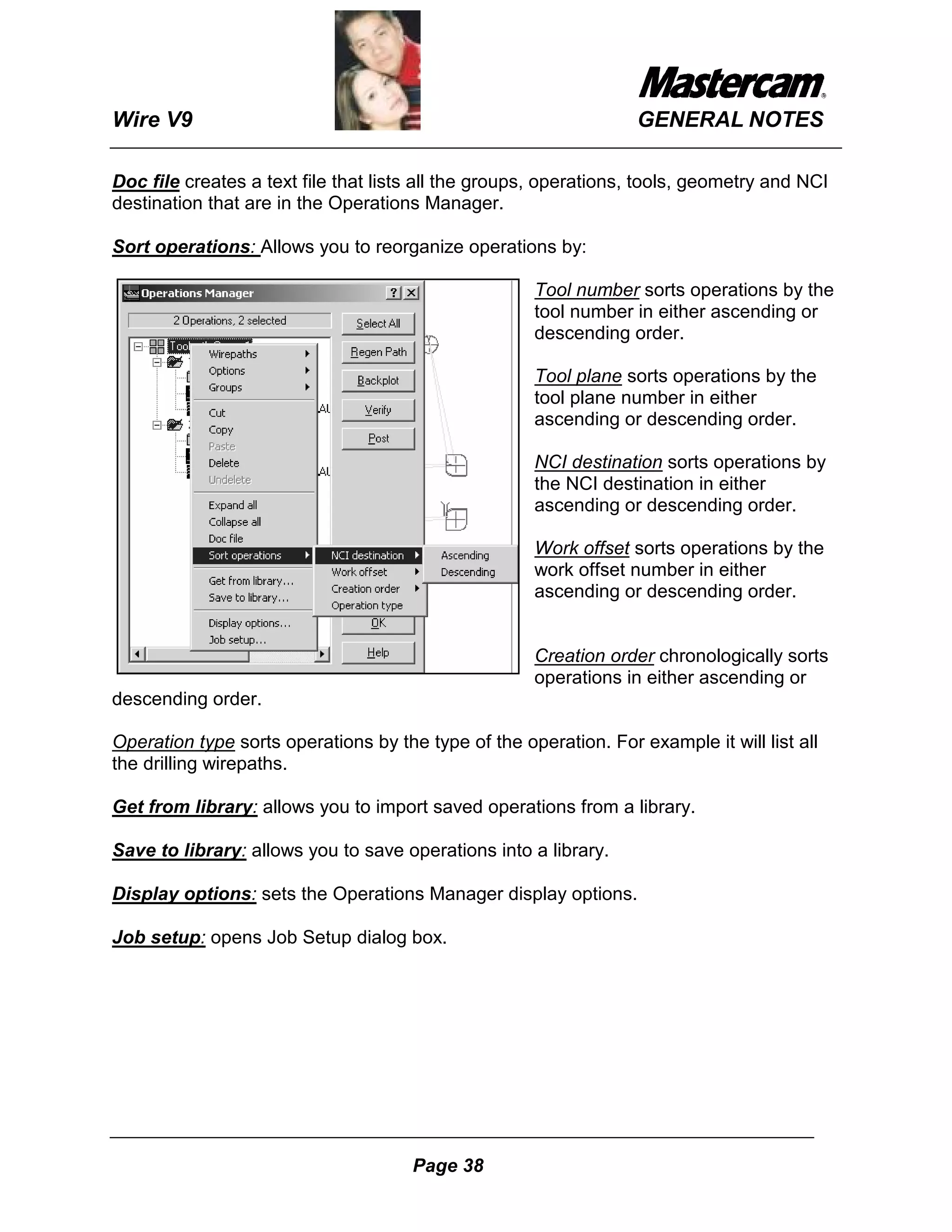
Sort operations: Allows you to reorganize operations by:

                                                     Tool number sorts operations by the
                                                     tool number in either ascending or
                                                     descending order.

                                                     Tool plane sorts operations by the
                                                     tool plane number in either
                                                     ascending or descending order.

                                                     NCI destination sorts operations by
                                                     the NCI destination in either
                                                     ascending or descending order.

                                                     Work offset sorts operations by the
                                                     work offset number in either
                                                     ascending or descending order.


                                                     Creation order chronologically sorts
                                                     operations in either ascending or
descending order.

Operation type sorts operations by the type of the operation. For example it will list all
the drilling wirepaths.

Get from library: allows you to import saved operations from a library.

Save to library: allows you to save operations into a library.

Display options: sets the Operations Manager display options.

Job setup: opens Job Setup dialog box.


                                      Page 38

Master Cam 9

  • 1.
    TUTORIAL SERIES FOR VERSION 9 GENERAL NOTES
  • 2.
    www.truong2008.com Wire V9 GENERAL NOTES MENU NAVIGATION Menu Cues More Icons Toolbar Main Menu Return to Main Menu Button Secondary Menu Prompt Area Prompt Area Toolbar - Can be used instead of Main Menu and Secondary Menu selections. Menu Cues - Displays selection cues in the space following the Main Menu title area. Main Menu - Selections used to create geometry and wirepaths. Secondary Menu - Selections used to work with geometry. Prompt Area - System displays data and the user inputs data, also prompts the user for info. Page 1
  • 3.
    Wire V9 GENERAL NOTES THE MAIN MENU When the system first starts, the Mastercam logo screen appears, then the Main and Secondary Menus are displayed. Analyze Displays all relevant information about a point, line, arc, spline, surface or dimension on the screen. Create: Adds geometry to the system's database and draws it on the screen. File: Manipulates disk files (saves, retrieves, converts, transmits, receives, etc.). Modify: Alters screen geometry with the fillet, trim, break, and join commands. Xform: Transforms geometry with the mirror, rotate, scale, translate, and offset commands. Delete: Removes an entity or group of entities from the screen and the system's database. Screen: Plots the geometry currently displayed on the screen, changes the current color or level, displays entity endpoints or changes the way in which geometry is displayed. Solids: Creates and modifies solid geometry. Wirepaths: Programs NC wirepaths (CAM systems only). NC utils: Manipulates NC wirepaths (CAM systems only). Page 2
  • 4.
    Wire V9 GENERAL NOTES THE SECONDARY MENU Z: Use Z depth only in Mastercam Wire to change the current construction depth. The construction depth is the depth of the currently defined construction plane. This value may be entered by selecting an existing point (i.e., endpoint of a line) or by typing Z and the desired depth, followed by Enter. The construction depth is changed automatically in most creation functions in the 3D-construction mode. Color: Assigns a system color. This instructs the system to display any new geometry created in the selected color (Create | Line, Create | Arc, Backplot | Save geometry, etc.). It also applies the chosen color to a converted file that does not support colors (i.e., DXF). Mastercam contains two color palettes from which you can select system colors, a 16-color and 256-color palette. Level: Assigns a system level to created/converted geometry. Level stores any new geometry created in the selected level. It also applies the chosen color to a converted file that does not support levels (i.e., NFL or ASCII). This feature also controls what levels are visible. You can set a total of 256 levels in Mastercam. Click the following to read more about levels: Assigning Levels. Attributes: Lets you change one or more attributes (color, level, line style, line width, and point style) for entities that you select, without affecting system default settings. Groups: Defines a collection of entities as a named group. Mask: Sets the system's masking level. With the masking level OFF, the system will recognise any entity in the database; however, if the mask level is set (changed to a non-zero level number between 1 and 255) the system will then only recognise entities that are on that level. Mask will affect all functions (delete, group, file conversion, etc.) except fit, screen statistics, or screen endpoints. To reset the masking level to OFF, the masking level must be set to 0. WCS: Allows you to redefine the World Coordinate System, and groups the functionality of Tool, Construction and Graphic Views. WCS is not supported by Mastercam Wire. Tplane: The tool plane (Tplane) is a two dimensional plane that represents a CNC machine's coordinate system. Cplane: Defines the plane on which you will create and manipulate geometry. You have several construction plane (Cplane) options. Page 3
  • 5.
    Wire V9 GENERAL NOTES Gview: Alters the way in which you view images through the graphics view (Gview) feature. Gview allows you to view geometry from several different angles. GRAPHICS VIEWS There are 8 standard graphics views in Mastercam. View 1 = Top View 2 = Front View 3 = Back View 4 = Bottom View 5 = Right View 6 = Left View 7 = Isometric View 8 = Axonometric MEASURING ANGLES IN MASTERCAM Y+ 90 DEG X- ________________________________ X+ 180 DEG 0 DEG. Y- 270 DEG Page 4
  • 6.
    Wire V9 GENERAL NOTES DEFAULT KEY ASSIGNMENTS The table below lists the default key assignments. Key(s) Function Description F1 zoom Activates the zoom-in window. Use the zoom window to magnify part of your geometry. F2 unzoom Zooms out from your geometry reducing its size on your screen. F3 repaint Redisplays the graphic screen to clean up any display remnants. F4 analyze Activates the Analyze menu. F5 delete Activates the Delete menu. F6 file Activates the File menu. F7 modify Activates the Modify menu. F8 create Activates the Create menu. F9 display Displays the following: information *the current system construction, and tool origins *the relative positions of all three origins (if an origin is not defined, then it does not display) *the current geometry filename, file size, and the date and time that the file was last saved *the current NCI filename. F10 execute Activates the key and button assignment function window display (shown on the previous page). Alt+F1 fit geometry Fits the displayed image to the graphic screen area. Alt+F2 scale geometry Unzoom by 0.8 Alt+F3 cursor tracking Activates the cursor tracking feature. Page 5
  • 7.
    Wire V9 GENERAL NOTES Alt+F4 exit Exits Mastercam. Alt+F5 delete menu Activates the Delete menu. Alt+F7 blank Activates the Screen | Blank menu. Alt+F8 configure Opens the Screen | Configure Window. (You cannot use this key assignment to access Allocations, however.) Alt+F9 draw axes Displays the current graphics view (center), the current construction plane axis (lower left), and the current tool plane axis (lower right). Alt+F10 execute Activates the key and button assignment function window display (shown on the previous page). Alt+A autosave Opens the AutoSave Window Alt+B Toolbar Displays or hides the Toolbar Alt+C run C-Hooks Lets you run a C-Hook applications program. The C-Hook's *.DLL file must be in the directory specified under the Screen | Configure | Data Paths menu. Alt+D drafting Opens the Drafting global parameters Window. parameters (This is the same as clicking PM). Alt+F menu fonts Opens the Font Window. selection window Alt+G Grid Parameters Sets active grid which can be visible or invisible Alt+H on-line help Opens Mastercam's Help Window for instant access to on-line help information about Mastercam and its features. Alt+I open files Lists files that Mastercam creates for its own use during a session. This is a diagnostic tool only. Click the Windows close button to exit this window. Page 6
  • 8.
    Wire V9 GENERAL NOTES Alt+L attributes menu Lets you set the current line style, width, color and level. Alt+M memory Lists Mastercam memory allocations. This is a allocations diagnostic tool only. Click the Windows close button to exit this window Alt+N named views Allows saved named views to be quickly accesed Alt+P prompt area Displays and hides Mastercam's prompt area. We recommend that you leave the prompt area visible at all times. Alt+S shading toggle Activates full time shading Alt+T draw NC Turns the wirepath display on and off. When you turn on the wirepath display, the current NCI file appears in the wirepath color (normally cyan). After you turn off the wirepath, press F3 to refresh the screen. You can only use this feature during wirepath creation or until you select End progrm. Alt+U undo Lets you undo the last operation that you performed. You must stay in the last operation's menu to undo it. After you exit from the menu of the operation that you want to undo, this feature is no longer available. Alt+V Mastercam Displays the software version and serial version number number of your SIM. Alt+W set viewport Opens the VIEWPORTS Window. This lets window you set the viewport configuration. Toggle the display or enter the viewport number. Alt+X xform menu Activates the Xform menu. Alt+Z visible levels Opens the Visible Levels Window. Alt+0 Cplane (depth) Quick access to changing Z construction depth Alt+1 color Opens the color dialog box. Alt+2 levels Opens the Main level dialog box. Page 7
  • 9.
    Wire V9 GENERAL NOTES Alt+3 mask level Opens the Mask level dialog box. Alt+4 toolplane Activates the toolplane menu. Alt+5 Cplane Activates the Cplane menu. Alt+6 Gview Activates the Gview menu. Alt+’ Create|Arc-2pt. cir Activates the Create|Arc|2pt. circle point menu. Make your selections from the point menu to create your circle. Alt+Tab switch between Lets you move between all of the open open applications applications in Windows. Alt+Shift+Tab lets you move through open applications in the reverse order. Tab / Shift+Tab navigate in Lets you move between controls in a window windows (text boxes and radio buttons for example). Esc system interrupt Press Esc to interrupt some commands (transform, repaint, etc.) Once a command has been interrupted, it cannot be restarted from the point of interruption. backup key Instead of clicking backup, press Esc to back up to a previous menu. Page Up / Page Down zoom Press Page Up to zoom in on a geometry. Press Page Down to zoom out. Cursor pan Lets you pan over geometry. Note that the Arrows arrows move the geometry window not the geometry. Page 8
  • 10.
    Wire V9 GENERAL NOTES DATA ENTRY SHORTCUTS Mastercam lets you use several shortcuts to enter information into text boxes when creating geometry. These shortcuts let you get data from an existing entity and use it when creating new geometry. The shortcuts are as follows: A Use “A” to input an existing angle. D Use “D” to input an existing diameter. L Use “L” to input an existing length. R Use “R” to input an existing radius. S Use “S” to input the distance between two existing points. X Use “X” to input an existing X co-ordinate. Y Use “Y” to input an existing Y co-ordinate. Z Use “Z” to input an existing Z co-ordinate. To use a shortcut: 1. Type a letter (from the list above), instead of a value, into the text box. 2. Press Enter. Mastercam prompts you to select the existing entity from which you want to get the data. 3. Click the entity you want to use. 4. Mastercam displays the data it gets from the existing entity. 5. Press Enter to accept the data or type a different value and press Enter. 6. Mastercam uses the data from the existing entity in creating the new entity. Data Entry Shortcut Example This example uses the “L” data entry shortcut to create a line. 1. Create a line with endpoints at 0,0,0 and 3,0,0. This will be the existing line from which we get data by using “L.” 2. Click MAIN MENU | Create | Line | Polar. 3. Set 0,0,0 as one endpoint of the polar line. 4. Set 33 degrees as the angle of the line. 5. Type L and press Enter for the line length. 6. Mastercam prompts you to select an existing line. 7. Click the existing line. 8. Mastercam displays the data it gets from the existing line. 9. Press Enter to accept this data. 10. Mastercam creates the new line. Page 9
  • 11.
    Wire V9 GENERAL NOTES ASSIGNING BUTTONS AND KEYS This Mastercam feature lets you assign a function or C-Hook or macro to a function key (F1 through F10) or an Alt key (excluding system keys such as Alt+F4) or a button in Mastercam's Toolbar. You can assign a maximum of 50 keys and a maximum of 99 buttons. Select the following menu picks: MAIN MENU Screen Configure Toolbar/ Keys Funcs/ C-Hooks/ Macros [default] This allows the user to check all assignments, or filter out the desired commands. ( Functions, c-hooks, macros, keys, buttons, keys/ buttons). All [default] This function allows the user to further filter using the following variables: Unassigned, assigned, all. Find Key This function allows the user to press a button or key, and the function assigned to it will be filtered out. Current Assignment Add This allows the user to add an assignment. Edit This allows a user to edit an existing assignment. Remove This allows the user to remove an assignment. Page 10
  • 12.
    Wire V9 GENERAL NOTES ASSIGNING A BITMAP TO A BUTTON Now you have a function assigned to a button. If there is no default bitmap assigned to the desired function, you can make one, or modify a bitmap from another function. If this is the case, the button will now look highlighted, but no bitmap is yet assigned. PROCEDURE Open the wire9.cfg file, and search for the button number that was just assigned. ( example: search for B92 ) When you have found the appropriate button, record the definition assigned to it. ( this is the word right after assignment ) Create or modify an existing bitmap, and save it in the Mcam9CommonIcons directory, using the name of the function found in the .CFG file. Mastercam will automatically update that button assignment. ADDING A C’HOOK TO YOUR MENU Follow these steps to add a frequently used c-hook to the side menu bar. 1) Decide what menu you wish this function to be added to. 2) Open the Wire9.txt file with any text editor. 3) Search for a function that has been previously assigned, which will be before (or after) the position that you wish to fill. 4) Insert the name of the c’hook within the quotes, in the desired position, immediately followed by an asterisk * symbol (note to place an underscore on the letter you wish to use as a shortcut place an ampersand before that letter (letter can only appear once in any one menu)). 5) The next time you open Mastercam, the menu will be modified. Definition - C-Hooks Mastercam C-Hooks are custom-made application programs created in the C programming language. These application programs are also known as C-Hooks. Anyone, CNC Software, Inc., Mastercam dealers, and our customers, can develop a C-Hook that runs with Mastercam. C-Hooks use the same graphic and menu functions as Mastercam. Page 11
  • 13.
    Wire V9 GENERAL NOTES Wirepath Parameters The following paragraph describes, in alphabetic order, the wirepath parameters that are used in contour, no core and 4-axis wirepath. Adding a finish contour operation – Adds a separate contour operation after the no core operation. When you choose this option, Mastercam Wire opens the contour parameters dialog box where you can specify all the parameters of a regular contour operation. All contours use same subprogram – Available when using Subprograms to create copies of the same part. Arc type and radius – Defines the shape of tapered contour when a smooth corner is encountered in the geometry. See Corner type and radius for more details. Auto entry – Starts the no core wirepath at the thread point. Auto exit – Exits the no core wirepath at the cut point. Auto position cut point – Sets the cut point perpendicular to the end of contour. Auto start position - Moves the job start point to the thread point of the first contour in the operation. Disable it to insert a rapid move from the start point to the thread point. Canned text – Assigns variables from 1 to 99 that can be used to control some specific machine settings. The post processor has to be customized accordingly. Change NCI – Allows you to change the current Nci file name to store the wirepath information. Comment – Allows you to enter information about the current operation. Compensation types – Offsets the wire from the geometry. When cutting the part in the chaining direction, wire compensation can follow the centerline of the geometry or be offset to the right or the left to compensate for the wire diameter. This offset may be generated by Mastercam Wire (computer compensation), by the NC control (control compensation), or a combination of both ("both" and "reverse both" compensation). Page 12
  • 14.
    Wire V9 GENERAL NOTES Control: This parameter outputs a command for wire compensation in the CNC system. You can select “Right,” “Left” or “Auto”. Select “Right” and the system will place the wire to the right of the part (G42); select “Left” and the system places the wire to the left of the part (G41). Select “Auto” and the system will automatically place the wire depending on the location of the thread point. Using this method you are programming the part edge. Computer: This parameter builds wire compensation directly into the wirepath. You can select “Right,” “Left” or “Auto”. Select “Right” and the system will place the wire to the right of the part; select “Left” and the system places the wire to the left of the part. Select “Auto” and the system will automatically place the wire depending on the location of the thread point. Using this method you are programming the center of the tool. Both: Combines both compensations in computer and in control. It computes the compensated wirepath and outputs control codes for compensation. Compensation direction in the computer and control are the same. You can select “Right,” “Left” or “Auto”. Reverse both: Combines both compensations in computer and in control. It computes the compensated wirepath and outputs control codes for compensation. Compensation direction in the computer and control are opposite each other. You can select “Right,” “Left” or “Auto”. Off: Select “Off” and the system will ignore wire compensation within the computer. Mastercam Wire computes the wirepath with the wire cutting the centerline of geometry. Contours – Allows you to establish the thread and cut positions in cases where you have not used point entities. Thread distance - Allows you to enter a value for the thread distance. Mastercam Wire activates the contour types for closed and open contours. For closed contours, specify whether to place the thread point on the inside or outside of the contour. For open contours, specify whether to place the thread point to the right or the left of the contour. Page 13
  • 15.
    Wire V9 GENERAL NOTES Corner type and radius – Defines the shape of the tapered contour when a sharp corner is encountered in the geometry. In the following examples, the geometry is in the XY plane and the corner and arc types are shown in the UV contour. Also, Roll cutter around corners is set to None, and each sample wirepath has a 5-degree taper angle. Conical – Creates a cone shape move around the corner of the part. Sharp – Creates an angle move around the corner of the part. Page 14
  • 16.
    Wire V9 GENERAL NOTES Constant– Keeps the corner or the arc in the contour the same size as the corner or the arc in the geometry. Other – Allows you to specify a radius for a custom corner defined in the post processor. Mastercam Wire draws the corner as it can not anticipate the radius defined in the post processor. Fixed – Applies the same radius to all corners. Must be supported by the post processor. Page 15
  • 17.
    Wire V9 GENERAL NOTES Fishtail – Creates a loop at the corners to machine very sharp corners. Must be supported by the post processor. Fish tail is not supported as an arc corner. Cutting method – Sets the cutting direction of the contour or 4-axis wirepath. Reverse - Reverses cutting direction when the wirepath has multiple passes. One way – Keeps the cutting direction the same direction as the first pass. Expand Operation – Separates each pass type into a single operation. It is only available when you first create a wirepath, not on subsequent edits. Filter – Replaces wirepath moves that lie, within a specified tolerance, in a straight line with a single tool move. You can also optionally replace multiple linear tool moves with an arc move of a specified minimum and maximum radius. Finish – Sets a finish pass to smooth out rough edges left by the no core roughing pass or to take off additional material as specified by the finish pass spacing. Number of finish passes - Sets the number of finish passes. The finish passes smooth out rough edges left by the no core roughing pass. The finish passes follow the geometry similar to a contour cut. Page 16
  • 18.
    Wire V9 GENERAL NOTES Start finish pass at closest entity - Begins the finish pass with the closest endpoint of the closest entity at the end of the roughing wirepath. When cleared, the finish pass begins with the first entity in the chain as it was originally selected. Wire compensation - Sets Wire compensation to computer for the finish pass to offset the wire as part of the wirepath. Set compensation to control to have the control offset the wire. The both option applies the offset to the wirepath (computer) but also allows for additional compensation to be set in the control. Finish pass spacing - Determines the size of the cut for each finish pass. The roughing pass leaves stock on the walls of the pocket and on the islands, if the number of finish passes is greater than zero. The finish passes remove stock left by the roughing pass. Burn finish passes after roughing all pockets - Used multiple no core wirepaths exist in a single operation, Mastercam Wire can cut the roughing pass on each no core first. After completing all the roughing passes, Mastercam Wire then cuts the finish pass on each no core wirepath. Format – Controls how the arcs and lines in 4-axis wirepath are handled as data for the control. 4-axis taper - Outputs only UV/XY linear moves. All circular moves (arcs) are broken into linear moves based on the linearization tolerance set in the 4-axis parameters dialog box tab. Direct 4-axis - Outputs XY/UV linear and circular moves simultaneously. Direct 4-axis requires that the XY and UV contours have an equal number of entities. In cases where there aren’t an equal number of entities, branch lines need to be added to the geometry to connect the entities to a synch point. General – Controls cutting method, wire EDM machine initial settings and other parameters. Choose a topic below for more information. Wire - When checked, wire is present (threaded). Power - When checked, applies voltage to the wire. Flush - Sets the initial state for the water settings On, Off, or Other. The "Other" setting is specific to the control. Fill tank - Sets the initial state for the fluid tank. "On" fills the tank. Generate stops – Creates a stop point before each tab. For first tab cut of each chain - Outputs a stop code before the tab cut for the first tab cut on each chain. Subsequent tab cuts do not include stop codes. For first tab cut in the operation - Outputs a stop code before the tab cut for the first tab cut of the operation. Subsequent tab cuts throughout the operation do not include stop codes. Page 17
  • 19.
    Wire V9 GENERAL NOTES No stops output - Suppresses all stop codes for all tab cuts in the operation. Infinite look ahead – Examines for wirepath self-intersections along the entire contour before creating the wirepath. If it finds a wirepath self-intersection, Mastercam Wire modifies the wirepath so that it does not cut the portion of the part that comes after the intersection. Land Height – Sets the height at which the wire pivots to the taper angle. Lead in – Lets you place a combination of line and or arc at the beginning of a Contour, Tab cut or/ and Finish cut. The system can add a line or two, of given lengths and an arc, of given radius and arc sweep to the beginning of each chain. You can set the following options. Line only: Lets you add a line at the beginning of each chain. Line and radius: Lets you add a line and a radius at the beginning of each chain. 2 Lines and radius: Allows you to add two lines and an arc at the beginning of each chain. Page 18
  • 20.
    Wire V9 GENERAL NOTES Lead out – Lets you place a combination of line and or arc at the end of a Contour, Tab cut or/ and Finish cut. The system can add a line or two, of given lengths and an arc, of given radius and arc sweep to the end of each chain. You can set the following options. Line only: Lets you add a line at the end of each chain. Radius only: Allows the system to add an arc to the end of each chain. Radius and line: Lets you add an arc and a line at the end of each chain. Radius and 2 lines: Allows you to add an arc and two lines at the end of each chain. Entry/Exit Arc : Allows you to define the lead in and lead out arc. Maximum Lead Out Length: Allows you to determine the distance that the wire travels toward the cut position on each pass. Overlap : Lets you set an overlap for the skim cut. Page 19
  • 21.
    Wire V9 GENERAL NOTES Also trim final leadout : Moves the final lead out to the Maximum Lead Out Length. Linearization tolerance – Sets the tolerance to convert 3D arcs and 2D or 3D splines into lines while creating the wirepath. Smaller linearization tolerance values make more accurate wirepaths, but may take longer to generate and create a longer NC program. Misc values button – Sets the values of the miscellaneous integers and reals that can control some specific machine settings. The post processor has to be customized accordingly. Optimize path – Applies an additional check on the no core wirepath that takes additional time to generate but eliminates material dropout. Not available for Morph or True Spiral cutting methods. Output stop code – Sets the types of stop points that can be assigned to a wirepath. Glue stop - Pauses the wire machine before it cuts the tab only if the "optional" switch on the wire machine is turned on. If the switch is off, the machine cuts the tab without stopping. A glue stop (gstop) is also known as an optional stop. Glue stop outputs an M01 code. Stop - Pauses the wire machine until the operator restarts the machine. The stop is also known as a program stop. This stop outputs an M00 code. Power Settings Library - Contains wire EDM machine-specific settings documented by the manufacturer for the material you are cutting. A wire power settings library is organized into 24 "passes." In Mastercam Wire, "pass" refers to a single path made by the wire around a contour. Pass is synonymous with "cut". A library can contain up to 24 passes, each with unique power settings needed to cut a certain material type on a certain wire EDM machine. For example, Pass 1 in the library may correspond to a rough cut, Pass 2 a tab cut, and Passes 3 – 5 finish cuts (also known as skim cuts). Select Library button: - Allows you to choose the power settings library from a list of existing libraries. Associate to library: - Allows you to associate the selected library to the operation. If it is not checked the system allows you to edit each pass of the existing library. Save Library button: - Allows you to save the changes made in the selected library. Starting pass: - Sets the first pass to be used by the wirepath. Offsets: - Sets the wire offset number. Refer to your wire machine documentation. Page 20
  • 22.
    Wire V9 GENERAL NOTES Condition code: - Sets a wire machine-specific value that corresponds to a register number in control. It depends on material, wire type and thickness. Refer to your wire machine documentation. Feedrate: - Sets the speed at which the wire cuts the material in inches per minute or centimetres per minute. Some controllers calculate the feed rate based on material nad thickness. Other controllers require a value that represents the material and the thickness. Refer to your wire machine documentation. Wire diameter: - Sets the width of the wire. Wire radius: - Sets the radius of the wire automatically when you enter the diameter. Wire overburn: - Sets the extra material that can be removed by the wire. Stock to leave: - Sets amount of stock to leave for the finish pass(skim cut). Total offset: - Displays the sum of the wire diameter, overburn and stock to leave. Registers1-10: - Values that correspond to the registers in the controller. Pass comment: - Allows you to enter information about the current pass. Perform rough cut – Enables the rough cut. Additional skim cuts (before tab): - Sets the number of skim cuts to be performed before the tab cut. Program # – Lets you set the program number for the machines that require a program name. Rapid Height – Sets the Z height of the upper wire guide for rapid moves whether or not the wire is threaded. Reset pass number on tab cuts – Allows you to use Pass #1 (rough cut) settings when cutting the tab. Roll Wire Around Corners - This parameter functions only when you employ the Wire Compensation - In Computer parameter. You use it primarily for inserting arc moves around sharp corners in the wirepath. In some cases, the system will fillet sharp corners (even if the parameter is set to “None”). This is because some objects in the wirepath do not intersect; in these cases, the computer will automatically add a fillet. Page 21
  • 23.
    Wire V9 GENERAL NOTES Rough – Enables the settings for removing almost all of the material in the no core wirepath. Cutting method – Sets the patterns Mastercam Wire uses to clean out the no core part. Zigzag Constant overlap spiral Parallel spiral Parallel spiral clean corner Page 22
  • 24.
    Wire V9 GENERAL NOTES Morph spiral True spiral Rough angle – Sets the angle of the zigzag pattern. Seq. inc – Sets the numbering increment for each line of the NC program. Seq. Start – Lets you set the first line number in the NC program for the machines that require block numbers. Stepover percentage - Sets the distance the wire shifts over between XY moves as a percentage of wire diameter. Changing the stepover percentage automatically adjusts the stepover distance. Stepover distance - Sets the distance the wire shifts over between XY moves Changing the stepover distance automatically changes the stepover percentage. Sync option – Synchronizes the upper and lower contours using chain synchronization. When synchronizing the contours, Mastercam Wire breaks each chain into a number of separate subchains then matches up the chains using the Sync mode selection. The Sync option provides a choice of methods that Mastercam Wire can use to place points along the chains, which it matches up when synchronizing the chains. When Mastercam Wire synchronizes the chains, it aligns the top contour with the bottom contour by entity, point, branch point, node (if both contours are made up of splines) or where you tell it (manual, manual/density). Page 23
  • 25.
    Wire V9 GENERAL NOTES None: - Synchronizes the chains by dividing them into an even number of segments using the Step Size option in the 4-axis parameters dialog box tab. The value you enter for Step Size determines how far apart these points are placed. We recommend that you keep this value small to retain accuracy in the corners. In many cases, the default value of .01 is sufficient. By branch - Requires branch lines to be added to the geometry to create sync points as shown in the example above. By entity - Matches the endpoints of each entity and requires both chains to have an equal number of entities. By node - Applies only to parametric splines and synchronizes the two chains by nodes on the splines. Manual and manual/density - Allow you to manually place the sync points. Linearization tolerance - Provides a factor that Mastercam Wire uses to place sync points along chains when using the by branch, by entity, by node, and by point sync option. Page 24
  • 26.
    Wire V9 GENERAL NOTES Suppress all thread flags – No thread flags will be written in the NCI file. Suppress all cut flags – No cut flags will be written in the NCI file. Skim cuts after tab – Allows you to program the finish passes. Together - Sets the number of skim cuts to make before moving to the next contour in the operation. Separate - Sets the number of skim cuts to make, with one made on each chain in the operation separately. Separate is enabled only when you choose Rough, tab, and finish separately. Subprogram – Creates subprograms called by the main program each time the program repeats the same passes in the XY plane. Used to generate a smaller NC program. STCW – Sets the start, thread, cut and work origin positions for the current operation. Start - Is the home position of the operation. Thread - Is the point where the machine threads the wire, usually a predrilled hole in the material. The wire cuts from the thread position to the start of the chain based on the settings for lead ins and lead outs. Cut - Is the point where the wire machine cuts the wire before moving to the next thread point. Work origin - Is a reference point for wirepath creation and is set to the system origin by default. Changing the work origin offsets the coordinates for the wirepath. Page 25
  • 27.
    Wire V9 GENERAL NOTES Non-vertical thread cut: Sets the UV plane coordinates to allow threading or cutting the wire on a diagonal. Tab – Sets an area of uncut material that keeps the part in place until the machine operator can secure it prior to cutting it free from the rest of the material. Using tabs prevents the part from falling into the tank and possibly damaging the lower wire guide. Tab width - Sets the tab size. Number of tab cuts - Sets the number of passes the wire machine the tab. Make the tab cutoff move with the skim cut - Make the tab cut at the end of the skim cut (or rough cut if there is no skim cut). All cuts together – Allows you to group together all the cuts of a chain (rough, skim cut, tab). The method is used when you have multiple contours selected in the operation. Tabs and finish together – Allows you to generate first the roughing cuts on all chains, and then group together all the tab cuts with the finish cuts of each chain. The method is used when you have multiple contours selected in the operation. Page 26
  • 28.
    Wire V9 GENERAL NOTES Rough, tabs and finish separately – Allows you to generate first the roughing cuts on all chains, and then the tab cuts for all chains, and at last the skim cuts of each chain. The method is used when you have multiple contours selected in the operation. Automatic – Allows you to set the number of tabs to place on each contour in the operation. Mastercam Wire spaces the tabs equally over the contour. Manual – Allows you to manually select the tabs positions around the contour, by selecting Position button. Use square point for tab position – Automatically places a tab at each location marked by a square point. You have to previously create points using square style along the geometry. If you use the square point method, select Start, Midpoint or End to indicate what square point marks. Tab Cuts (no dropout method) – Used to eliminate sliver or slug material when using either the line and radius or (2) lines and radius moves combined with overlap. Page 27
  • 29.
    Wire V9 GENERAL NOTES Trimming - Used in a 4-axis wirepath to reference Z values in the wirepath. In computer - Uses the XY and UV trim planes to reference the Z values for the wirepath. In control - Uses the XY and UV height planes (by default, the locations of the XY and UV geometry) to reference the Z values for the wirepath. 3D tracking - Includes variable Z depths with the XY and UV planes. When supported by the wire EDM machine and control, 3D tracking allows machining of geometry that doesn’t lie completely in a single construction plane. With 3D tracking, the wire guides on the machine follow the nonplanar geometry. When 3D tracking is selected, Mastercam Wire enables two additional planes: the XY and UV extensions. UV Extension - Used for geometry with variable depths that not lie completely in a single plane when 3D tracking is supported by the wire EDM machine. Give a positive incremental value to lift the extension above the UV height and trim planes. UV Height – Sets the height of the part, the upper contour of the wirepath. Absolute locates the UV plane relative to absolute 0,0,0. Incremental locates the plane relative to the Z depth of the chained geometry. Page 28
  • 30.
    Wire V9 GENERAL NOTES UV Trim Plane – Sets the location of the upper guide that can be required by the control and is usually set higher than UV Height. When is not required it should be set to the same height as the UV Height. XY Extension - Used for geometry with variable depths that not lie completely in a single plane when 3D tracking is supported by the wire EDM machine. Give a negative incremental value to locate the extension below the XY height and trim planes. XY Height – Sets the bottom of the part, the lower contour of the wirepath. Absolute locates the XY plane relative to absolute 0,0,0. Incremental locates the plane relative to the Z depth of the chained geometry. XY Trim Plane – Sets the location of the lower guide that can be required by the control and is usually set lower than XY Height. When is not required it should be set to the same height as the XY Height. Page 29
  • 31.
    Wire V9 GENERAL NOTES IGES TRANSLATOR IGES is a public standard. It is used by many full-scale CAD systems. The IGES standard is considerably more complex than other file formats. The IGES interface is three dimensional. IGES files are written in five sections: the start section (a comment), the global section, the directory section, the parameter section and the terminate section. The parameters for the global section cannot be changed. The default delimiter and end of record (comma and semicolon) are used. A comment is solicited and written in the start section. Read File After you select the file to read, Mastercam displays the Read IGES window. Use this feature based on the following descriptions. Trim Surface Handling Use this setting based on the following descriptions. Use Preference Flag, XYZ if unspecified Select this option if you want Mastercam to use the preference flag in the IGES file. If there is no flag, Mastercam uses XYZ co-ordinates to trim surfaces. Use Preference Flag, UV if unspecified Select this option if you want Mastercam to use the preference flag in the IGES file. If there is no flag, Mastercam uses UV co-ordinates to trim surfaces. Always Read XYZs Select this option if you want Mastercam to always use XYZ co-ordinates regardless of any preference flags. Always Read UVs Select this option if you want Mastercam to always use UV co-ordinates regardless of any preference flags. Untrimmable Surfaces Select the Put Untrimmable Surfaces on new level check box if you want to separate any IGES surfaces that Mastercam cannot trim. Type the level that you want Mastercam to use in the Level Number text box. Override with File Values Page 30
  • 32.
    Wire V9 GENERAL NOTES Use this selection to override Mastercam's Tolerance settings with those that the IGES file is using. This feature scales all Mastercam tolerance settings to meet the converted file's scale. Select .MC9 Name to replace the current Mastercam file name with the name of the IGES file. File is English This selection lets Mastercam automatically change the Unit System setting in Screen | Configure | Misc. Settings based on whether the IGES file is U.S. Customary Units or SI (metric). Select Scale Data to scale the converted IGES file to the current Mastercam setting. Select Override Units if you want to reset Mastercam based on whether the IGES file is U.S. Customary Units or SI (metric). IGSCAN Use this feature to scan the IGES file for information. Mastercam displays the information to the screen. Masking This function defines the IGES read/write mask for all supported data types from 100 to 500 (excluding 124 - transformation matrix). Only supported entities may be masked Mastercam displays the IGES Entity Masking window. Select all the check boxes for those entities you want to include. Deselect the check boxes for those entities you do not want to include. Click Done after you select the entities you want to include or Cancel to quit without masking. AUTODESK TRANSLATOR The Autodesk conversion option available with Mastercam Version 9 reads AutoCAD 10 through AutoCAD 2000 DWG, DXF, and Autodesk InventorÔ (IPT) files. It also writes AutoCAD 13, AutoCAD 14, and AutoCAD 2000 DWG/DXF files. The DXF (Drawing Interchange File) format is used by AUTOCAD® The DXF format is three dimensional and supports colors and levels. Splines, dimensions, leader lines or notes are not supported (use IGES). Commonly used for shape translation. The DWG format is the AutoCAD® drawing (*.DWG) file format. The DWG format is three dimensional and supports colors and levels and splines, dimensions, leader lines or notes. Page 31
  • 33.
    Wire V9 GENERAL NOTES You can read a single file or an entire directory. A single file becomes the current file. A scan function is built into the converter to allow you to examine the DWG file before you convert it. You can also mask entities to selectively convert them. The Autodesk Inventor file is a 3D solids file created in Autodesk Inventor software. You must have Autodesk Inventor or Autodesk DesignTracker installed in order to use this converter. You can install DesignTracker from the Mastercam system CD. Page 32
  • 34.
    Wire V9 GENERAL NOTES OPERATIONS MANAGER The Operations Manager lists all operations in the current job. Use this dialog box to sort, edit, regenerate, verify and post any operations. You can enter this dialog box by choosing Wirepaths, Operations from the Main Menu. Select All This button selects all operations listed in the Operations Manager. Selected operations are represented by a check mark on the folder icon. Regen Path The Regen Path button recreates the selected operations after changes have been made to the operations. This option applies only to associative wirepaths. Backplot The Backplot button backplots all selected operations in the order they appear in the Operations Manager. Verify The Verify button opens Mastercam’s wirepath verification program and creates a model of all selected operations in the order they appear in the Operations Manager. Post The Post button creates an ASCII NCI file. The Mastercam post processor uses this text file for the selected operation according to your default post processor settings. The Page 33
  • 35.
    Wire V9 GENERAL NOTES Post button creates the NC file automatically only if you turn on the default post processor. Operation List Area This area displays the order of operations in the current job. Select the + or – in front of the file folder icon for an operation to display/ collapse the pieces of that operation, including parameters, tool definition, geometry, and the NCI file. Parameters Select the Parameters icon to edit the wirepath parameters. Geometry Select the Geometry icon to edit the chains and points to be machined in that operation. Right-mouse click in the list area and you can change the followings: ♦ Add a new chain. ♦ Change the side of the cutter compensation. ♦ Rechain all the chains. ♦ Resynchronizing chains. ♦ Analyze all chains. ♦ Delete a chain. ♦ Reverse the chain direction. ♦ Rechain a single chain. ♦ Change the Start point of the chain. ♦ Change at point some of the parameters. ♦ Rename the chain. ♦ Change the thread/cut positions. ♦ Analyze a single chain. ♦ Edit existing tabs. NCI NCI is a separate intermediate file that contains all information of the wirepath data. The post-processor uses the NCI file to create a NC file for your specific machine/control. Select NCI icon the system will open the Backplot command. Right-mouse click on the NCI icon and the Wirepath Editor will be displayed. Page 34
  • 36.
    Wire V9 GENERAL NOTES Wirepath Editor allows you to edit the wirepath. Modify or delete a single move, a section or an entire pass or depth cut. About Right-mouse click in Operations Manager list area. Right-mouse click in Operations Manager list area opens an extensive menu of commands. Wirepaths: Displays a list with all operations available in Mastercam. You can start to create an operation from here. For example by selecting Wirepaths, Contour the system will prompt you, in the graphic mode, to chain the geometry to be machined. Wirepaths, New allows you to delete all operations and tools that were already created. Wirepaths, Import NCI allows you to import wirepaths from an existed job. Page 35
  • 37.
    Wire V9 GENERAL NOTES Options: Allows you to: Edit common parameters allows you to edit the common parameters of all the operations inside of a wirepath group. For example you can change the Feed plane value for all the operations inside off the group. Make sure that previously you select all operations. Filter filters the wirepath. Change at Point allows you to send special machine codes at specific points on the contour. For example you may want to program a stop code at a given point. Wirepath Editor allows you to edit the wirepath. Modify or delete a single move, a section or an entire pass or depth cut. Change the NCI destination allows you to change the name of the NCI file. Renumber the work offsets allows you to renumber the work offsets when using more than one offset (tombstone application) Wirepath display can be turned On/Off. Locking allows you to lock the wirepaths to block the associativity. Can be turned ON/Off. Posting allows you to block the post processing option. Can be turned ON/Off. Select by geometry brings you back in the graphic mode and allows you to select the geometry used in an exiting operation. It will then, automatically highlight the operation that used that geometry. Select by view allows you to see all the operations that use a selected view as their construction plane (Cplane), tool plane (Tplane), or work coordinate system (WCS). Select all invalid selects all invalid (dirty) operations at once so they can be regenerated at the same time. Page 36
  • 38.
    Wire V9 GENERAL NOTES Setup sheet provides information about a workpiece, including operations, tool reference, total programming time and comments added during programming in a printable format. Groups: Allows you to organize operations. Operation groups are handy for quick selection of wirepaths: selecting a group automatically selects all operations within the group. Create new operation group instructs the system to add a new wirepath group. Rename operation group allows you to change the group name. Delete operation group instructs the system to delete a selected group. The operations within the group are not going to be deleted. Set as ACTIVE group places new wirepaths in the active operation group. The name of the active operation group appears in bold type. Expand all groups displays all the operations within all groups. Collapse all groups displays only the group names. Expand operations within a group expands all the operations within a group. Collapse operations within a group collapses all the operations within a group. Cut, Copy/Paste: Allows you to reorder the operations. Delete/Undelete: Allows you to delete selected operations or recover them using undelete. Expand all expands all the operations and the groups inside of the Operations Manager. Collapse all collapses all the operations and the groups inside of the Operations Manager. Page 37
  • 39.
    Wire V9 GENERAL NOTES Doc file creates a text file that lists all the groups, operations, tools, geometry and NCI destination that are in the Operations Manager. Sort operations: Allows you to reorganize operations by: Tool number sorts operations by the tool number in either ascending or descending order. Tool plane sorts operations by the tool plane number in either ascending or descending order. NCI destination sorts operations by the NCI destination in either ascending or descending order. Work offset sorts operations by the work offset number in either ascending or descending order. Creation order chronologically sorts operations in either ascending or descending order. Operation type sorts operations by the type of the operation. For example it will list all the drilling wirepaths. Get from library: allows you to import saved operations from a library. Save to library: allows you to save operations into a library. Display options: sets the Operations Manager display options. Job setup: opens Job Setup dialog box. Page 38