BuildingPerformanceModule
The City University of New York
New York City College Of Technology
Architectural Technology Department
written by Felix Rodriguez
State Data Logger - (UX90-001)
March 29, 2015
BuildingPerformanceModule
State Data Logger - (UX90-001)
Definition:
This is a HOBO: UX90-001 - State Data Logger a
logger which records the state/event and runtime
changes from electrical and mechanical sensing
devices.
Applications:
Monitoring Energy Consumption
Mechanical equipment operation
Determine when a door or window is open or
closed
2
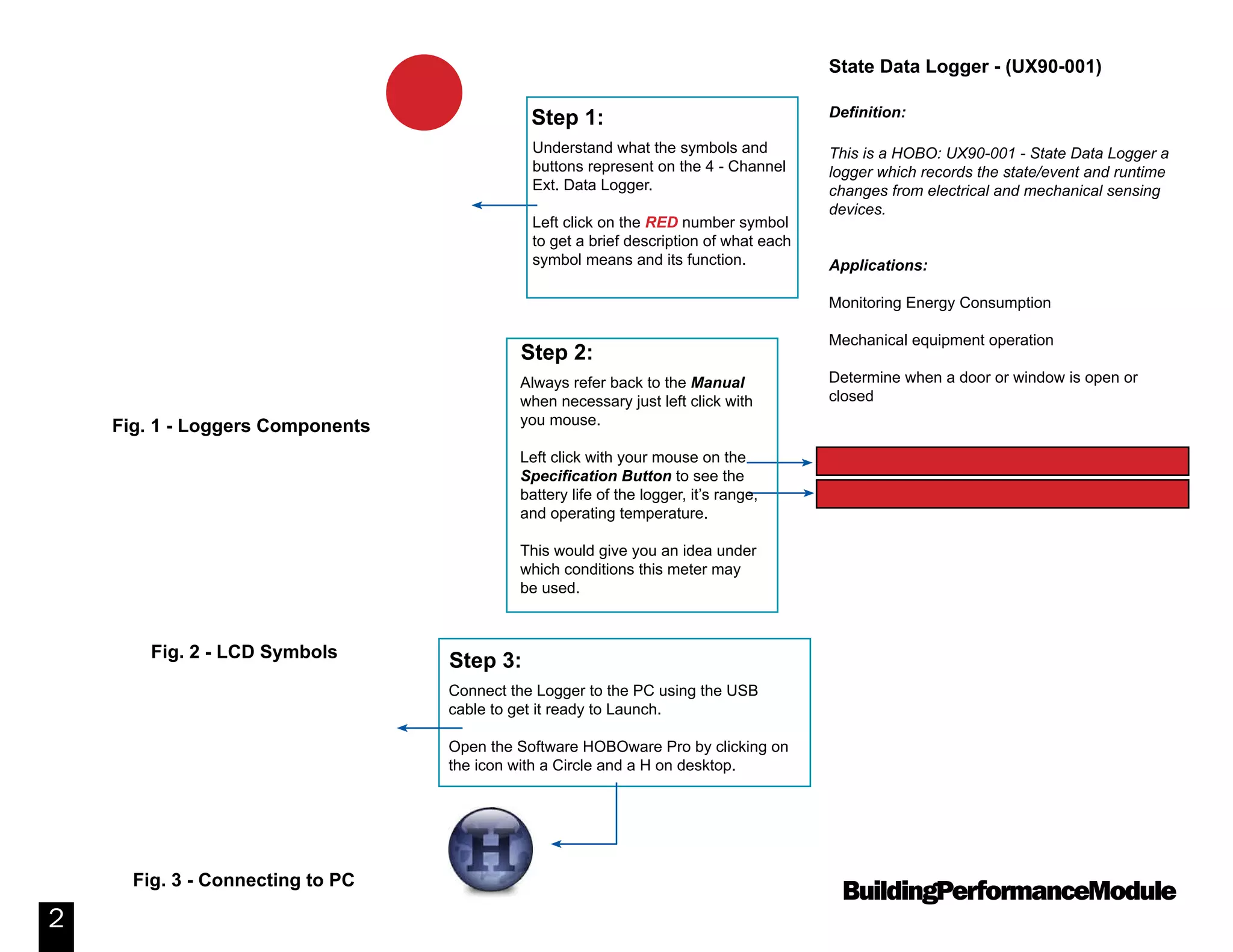
Understand what the symbols and
buttons represent on the 4 - Channel
Ext. Data Logger.
Left click on the RED number symbol
to get a brief description of what each
symbol means and its function.
Step 1:
Always refer back to the Manual
when necessary just left click with
you mouse.
Left click with your mouse on the
Specification Button to see the
battery life of the logger, it’s range,
and operating temperature.
This would give you an idea under
which conditions this meter may
be used.
Step 2:
Connect the Logger to the PC using the USB
cable to get it ready to Launch.
Open the Software HOBOware Pro by clicking on
the icon with a Circle and a H on desktop.
Step 3:
Fig. 1 - Loggers Components
Fig. 2 - LCD Symbols
Fig. 3 - Connecting to PC
Manual: UX90-001 - State Data Logger
Specs: UX90-001 Specifications
1
BuildingPerformanceModule
3
How to Launch the logger to collect data.
Step 4:
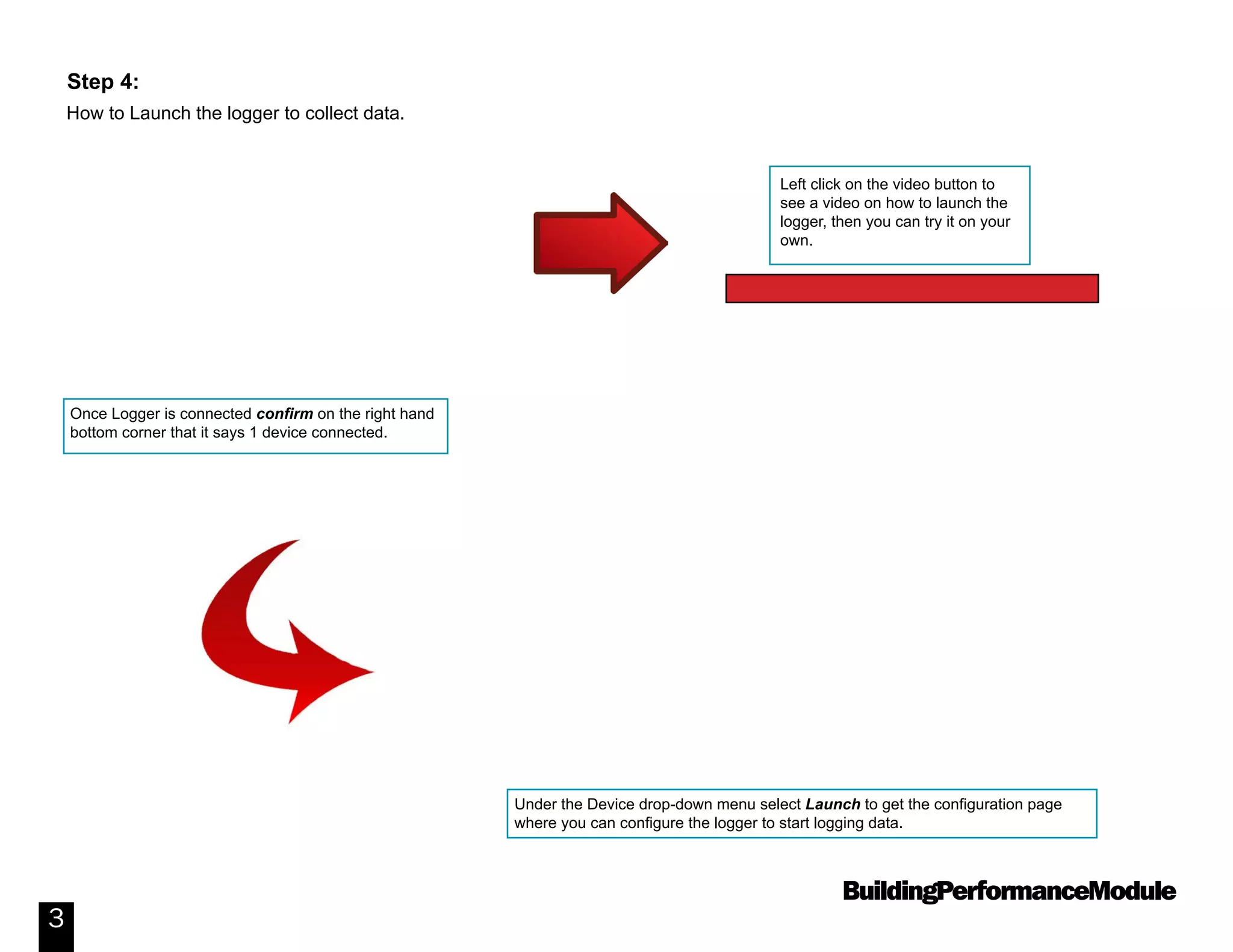
Once Logger is connected confirm on the right hand
bottom corner that it says 1 device connected.
Under the Device drop-down menu select Launch to get the configuration page
where you can configure the logger to start logging data.
Left click on the video button to
see a video on how to launch the
logger, then you can try it on your
own.
Video: How to Launch a Data Logger
BuildingPerformanceModule
4
Launching the Logger
Step 4:
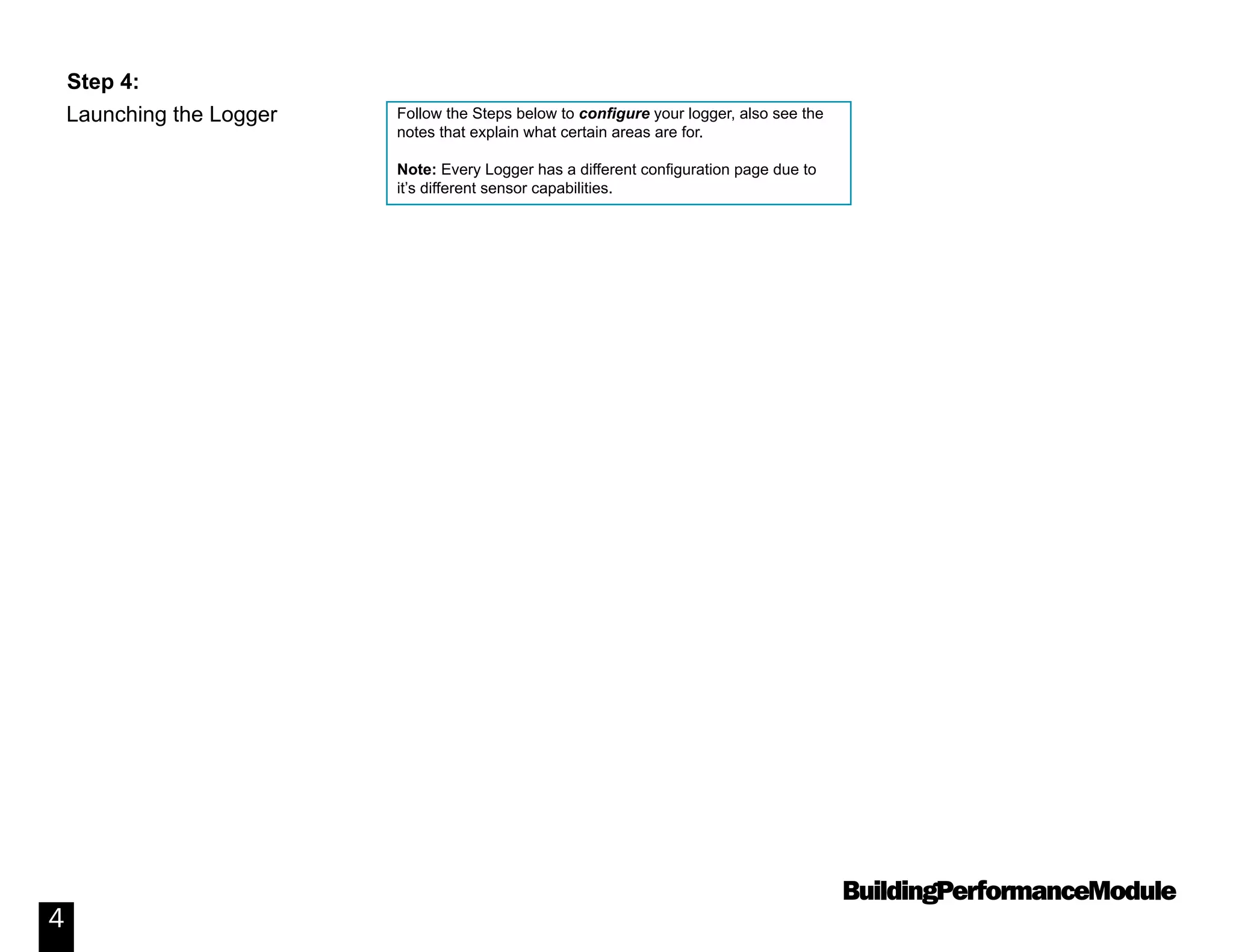
Follow the Steps below to configure your logger, also see the
notes that explain what certain areas are for.
Note: Every Logger has a different configuration page due to
it’s different sensor capabilities.
BuildingPerformanceModule
5
Configuration Page for the:
UX90-001 - State Logger
Launching the Logger
Step 4:
BuildingPerformanceModule
6
Device Status
Step 5:
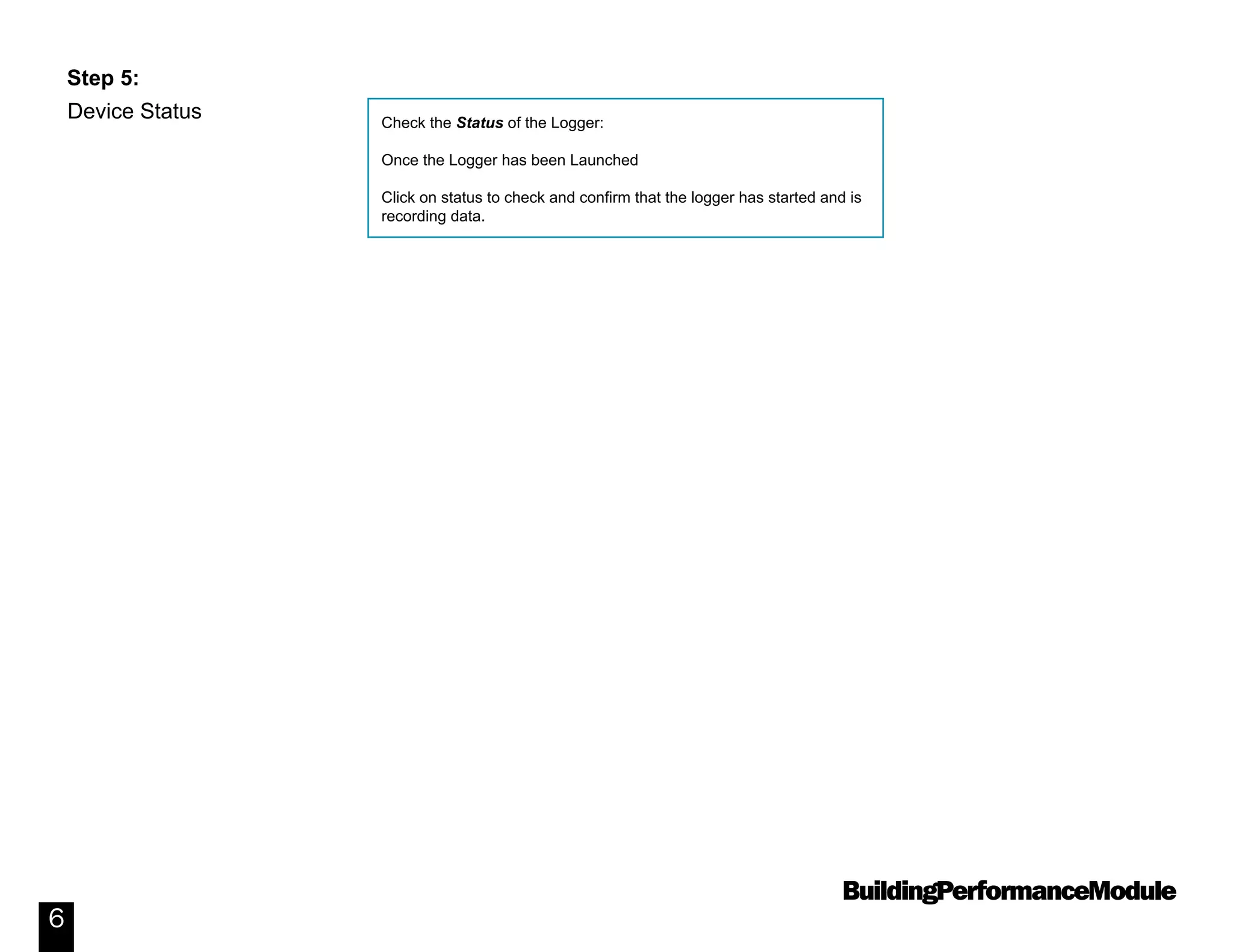
Check the Status of the Logger:
Once the Logger has been Launched
Click on status to check and confirm that the logger has started and is
recording data.
BuildingPerformanceModule
7
Device Status
Step 5:
See the Device Status page and look at important
information such as.
Is the logger logging ?
How much battery is left?
BuildingPerformanceModule
8
Logger placement on a Electrical Panel.
Note: This logger is using a external cable
which contains a black and white wire on the
other end to connect to the electrical panel.
See instructions on how
to use the magnet switch
Step 6:
Logger Placement
BuildingPerformanceModule
9
Follow the steps below to Read-out the data
from the logger. This will allow you to down-
load all the data collected in the logger.
Step 7:
Read-out the data Logger
Left click on the video button to see a video on how to
Read-out the logger, then you can try it on your own.
Video: How to Read out a Data Logger
BuildingPerformanceModule
10
Step 8:
The Graph information below shows you the graph that is cre-
ated using the Hoboware software, however you can further ma-
nipulate this data by exporting it as a CSV file to use in Excel.
Hoboware Pro
Software Graph
BuildingPerformanceModule
11
Step 9:
Export to a CSV file Follow the steps below to export your data as a
CSV file and use in Excel, allowing you to further
manipulate the data.
BuildingPerformanceModule
12
State Data Logger - (UX90-001)
Additional Information;
Learn how to use HOBOware Software more in
depth by left clicking on the buttons to the left.
Introduction to HOBOware Pro Software part 1
Introduction to HOBOware Pro Software part 2
Introduction to HOBOware Pro Software part 3
Additional References
Introduction to HOBOware Pro Software Part 1
Introduction to HOBOware Pro Software Part 2
Introduction to HOBOware Pro Software Part 3
Visit Onsetcomp.com for more information

Performance Module 13 State Data Logger

  • 1.
    BuildingPerformanceModule The City Universityof New York New York City College Of Technology Architectural Technology Department written by Felix Rodriguez State Data Logger - (UX90-001) March 29, 2015
  • 2.
    BuildingPerformanceModule State Data Logger- (UX90-001) Definition: This is a HOBO: UX90-001 - State Data Logger a logger which records the state/event and runtime changes from electrical and mechanical sensing devices. Applications: Monitoring Energy Consumption Mechanical equipment operation Determine when a door or window is open or closed 2 Understand what the symbols and buttons represent on the 4 - Channel Ext. Data Logger. Left click on the RED number symbol to get a brief description of what each symbol means and its function. Step 1: Always refer back to the Manual when necessary just left click with you mouse. Left click with your mouse on the Specification Button to see the battery life of the logger, it’s range, and operating temperature. This would give you an idea under which conditions this meter may be used. Step 2: Connect the Logger to the PC using the USB cable to get it ready to Launch. Open the Software HOBOware Pro by clicking on the icon with a Circle and a H on desktop. Step 3: Fig. 1 - Loggers Components Fig. 2 - LCD Symbols Fig. 3 - Connecting to PC Manual: UX90-001 - State Data Logger Specs: UX90-001 Specifications 1
  • 3.
    BuildingPerformanceModule 3 How to Launchthe logger to collect data. Step 4: Once Logger is connected confirm on the right hand bottom corner that it says 1 device connected. Under the Device drop-down menu select Launch to get the configuration page where you can configure the logger to start logging data. Left click on the video button to see a video on how to launch the logger, then you can try it on your own. Video: How to Launch a Data Logger
  • 4.
    BuildingPerformanceModule 4 Launching the Logger Step4: Follow the Steps below to configure your logger, also see the notes that explain what certain areas are for. Note: Every Logger has a different configuration page due to it’s different sensor capabilities.
  • 5.
    BuildingPerformanceModule 5 Configuration Page forthe: UX90-001 - State Logger Launching the Logger Step 4:
  • 6.
    BuildingPerformanceModule 6 Device Status Step 5: Checkthe Status of the Logger: Once the Logger has been Launched Click on status to check and confirm that the logger has started and is recording data.
  • 7.
    BuildingPerformanceModule 7 Device Status Step 5: Seethe Device Status page and look at important information such as. Is the logger logging ? How much battery is left?
  • 8.
    BuildingPerformanceModule 8 Logger placement ona Electrical Panel. Note: This logger is using a external cable which contains a black and white wire on the other end to connect to the electrical panel. See instructions on how to use the magnet switch Step 6: Logger Placement
  • 9.
    BuildingPerformanceModule 9 Follow the stepsbelow to Read-out the data from the logger. This will allow you to down- load all the data collected in the logger. Step 7: Read-out the data Logger Left click on the video button to see a video on how to Read-out the logger, then you can try it on your own. Video: How to Read out a Data Logger
  • 10.
    BuildingPerformanceModule 10 Step 8: The Graphinformation below shows you the graph that is cre- ated using the Hoboware software, however you can further ma- nipulate this data by exporting it as a CSV file to use in Excel. Hoboware Pro Software Graph
  • 11.
    BuildingPerformanceModule 11 Step 9: Export toa CSV file Follow the steps below to export your data as a CSV file and use in Excel, allowing you to further manipulate the data.
  • 12.
    BuildingPerformanceModule 12 State Data Logger- (UX90-001) Additional Information; Learn how to use HOBOware Software more in depth by left clicking on the buttons to the left. Introduction to HOBOware Pro Software part 1 Introduction to HOBOware Pro Software part 2 Introduction to HOBOware Pro Software part 3 Additional References Introduction to HOBOware Pro Software Part 1 Introduction to HOBOware Pro Software Part 2 Introduction to HOBOware Pro Software Part 3 Visit Onsetcomp.com for more information