BASIC OF
MICROSOFT
EXCEL
Contents:
• Why is Microsoft Excel needed?
• What is in an Excel spreadsheet?
• What are the basic functions for Excel?
o What is it for?
o What is the format?
• Example
Why is MS Excel needed?
• Commonly used in most companies
• Mostly required in every job
• Makes calculations of complex formulas easy
• Works great as a basic reporting tool (AP, AR,
Inventory, etc.)
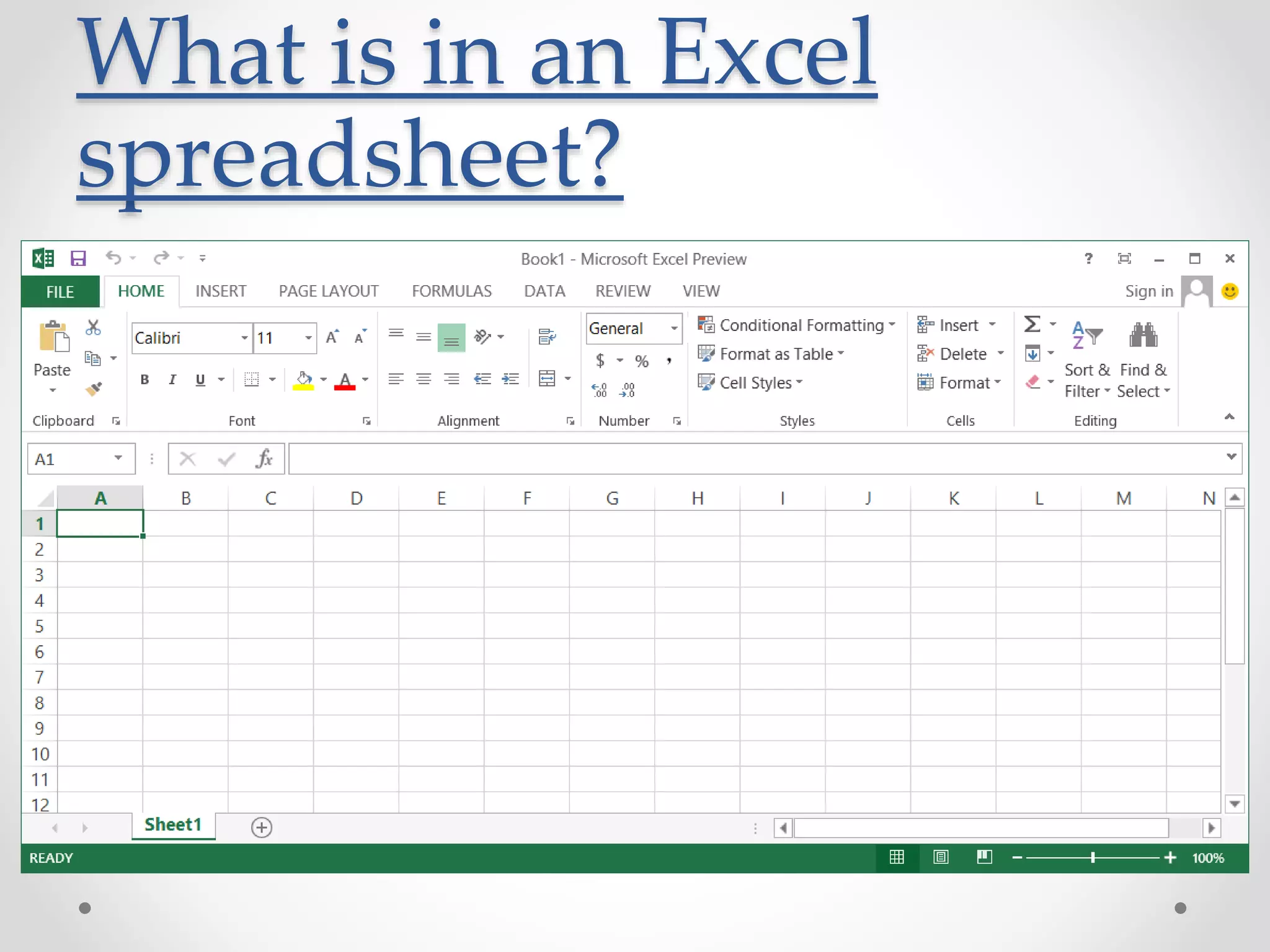
What is in an Excel
spreadsheet?
Basic Functions in Excel:
• Count functions
• Sum functions
• Logical functions
• Lookup Functions
• Statistical functions
• PIVOT Table
Count functions:
• Count:
o To count the cells that contain numbers
o Format: =Count(range)
• Countif:
o To count cells based on ONLY ONE criteria
o Format: =Countif(range, criteria)
• Countifs:
o To count the cells based on MULTIPLE criteria
o Format: =Countifs(range, criteria 1, criteria 2, etc.)
Sum functions:
• Sum:
o To calculate the total of a range of cells
o Format: =Sum(range)
• Sumif:
o To calculate the total of a range of cells based on ONLY ONE
criteria
o Format: =Sumif(range, criteria)
• Sumifs:
o To calculate the total of a range of cells based on MULTIPLE
criteria
o Format: =Sumifs(range, criteria 1, criteria 2, etc.)
Logical functions:
• IF:
o To check if the condition is met, and return one value if TRUE and another
value if FALSE
o Format: =IF(logical test, value if true, value if false)
o NOTES: If function can be nested if there are multiple functions needed
to be satisfied.
• AND:
o Returns TRUE if ALL CONDITIONS are true and returns FALSE if ANY of
the conditions are false
o Format: =IF(AND(condition 1, condition 2, etc.), value if true, value if
false)
• OR:
o Returns TRUE if ANY OF THE CONDITIONS are TRUE and returns FALSE
if ALL CONDITIONS are false
o Format: =IF(OR(condition 1, condition 2, etc.), value if true, value if
false)
Lookup functions:
• VLookup:
o Vertical lookup – looks for a value in the leftmost column
of a table, then returns a value in the same row from
another column you specify
o Format: =VLOOKUP(value looked up, table, column to
lookup, range lookup)
• HLookup:
o Horizontal lookup – the same as VLookup
o Format: =HLOOKUP(value looked up, table, row to
lookup, range lookup)
Statistical functions:
• Average:
o To calculate the average of a range of cells
o Format: =AVERAGE(range)
• Averageif:
o To calculate the average of a range of cells based on ONE criteria
o Format: =AVERAGEIF(range, criteria)
• Median:
o To calculate the median of a range of cells based on MULTIPLE
criteria
o Format: =MEDIAN(range)
Statistical functions:
• Mode:
o To calculate the mode of a range of cells
o Format: =MODE(range)
• Standard Deviation:
o To calculate the standard deviation of a range of cells
o Format: =STEDV(range, criteria)
• Min/Max:
o To calculate the min/max of a range of cells
o Format for Minimum: =MIN(range)
o Format for Maximum: =MAX(range)
PIVOT Table:
• One of Excel’s most powerful features
• Allows users to extract a significance from
a large, detailed data set.
• Includes:
o Insert a PIVOT table
o Drag fields
o Sort
o Change summary calculation
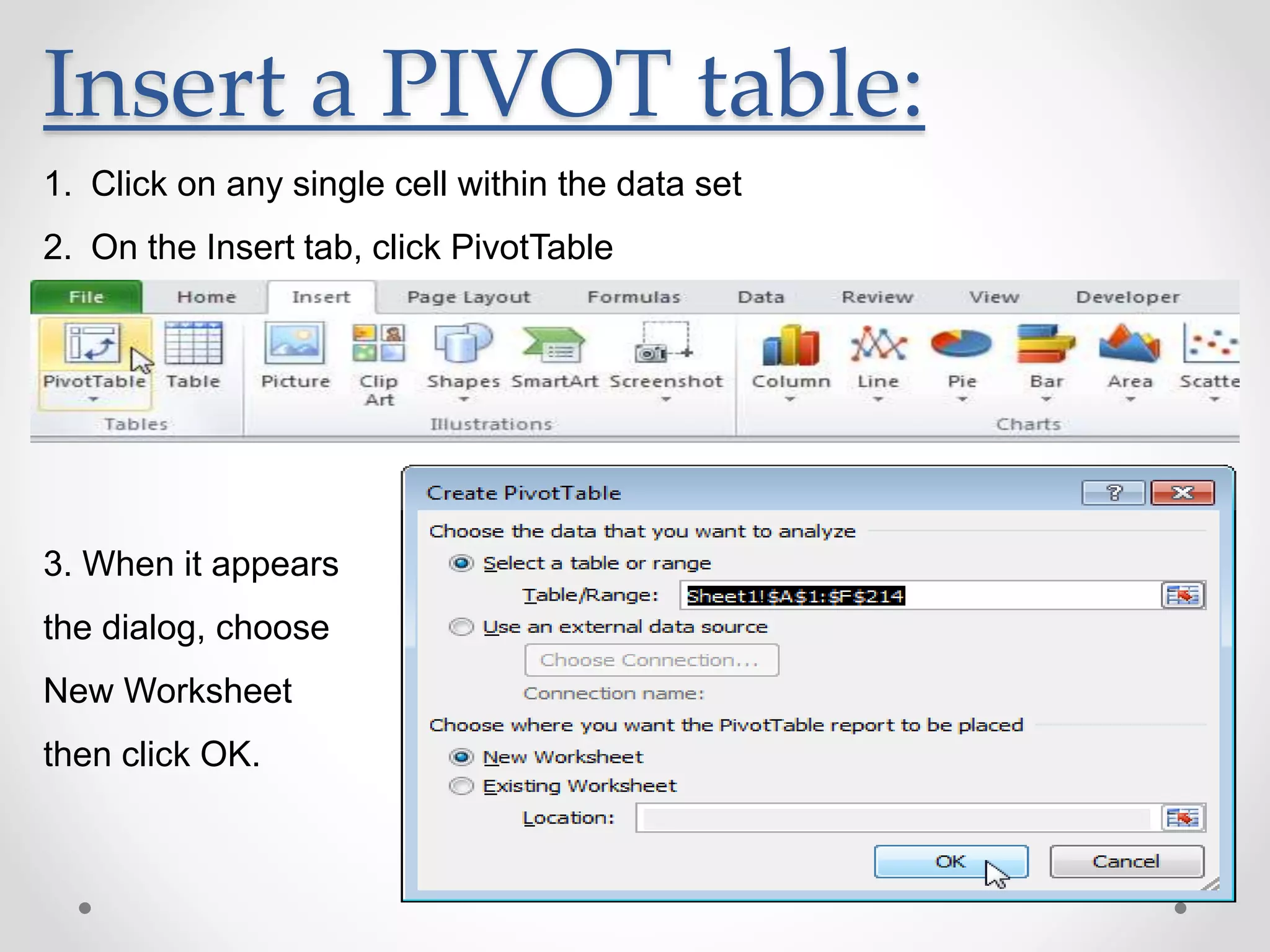
Insert a PIVOT table:
1. Click on any single cell within the data set
2. On the Insert tab, click PivotTable
3. When it appears
the dialog, choose
New Worksheet
then click OK.
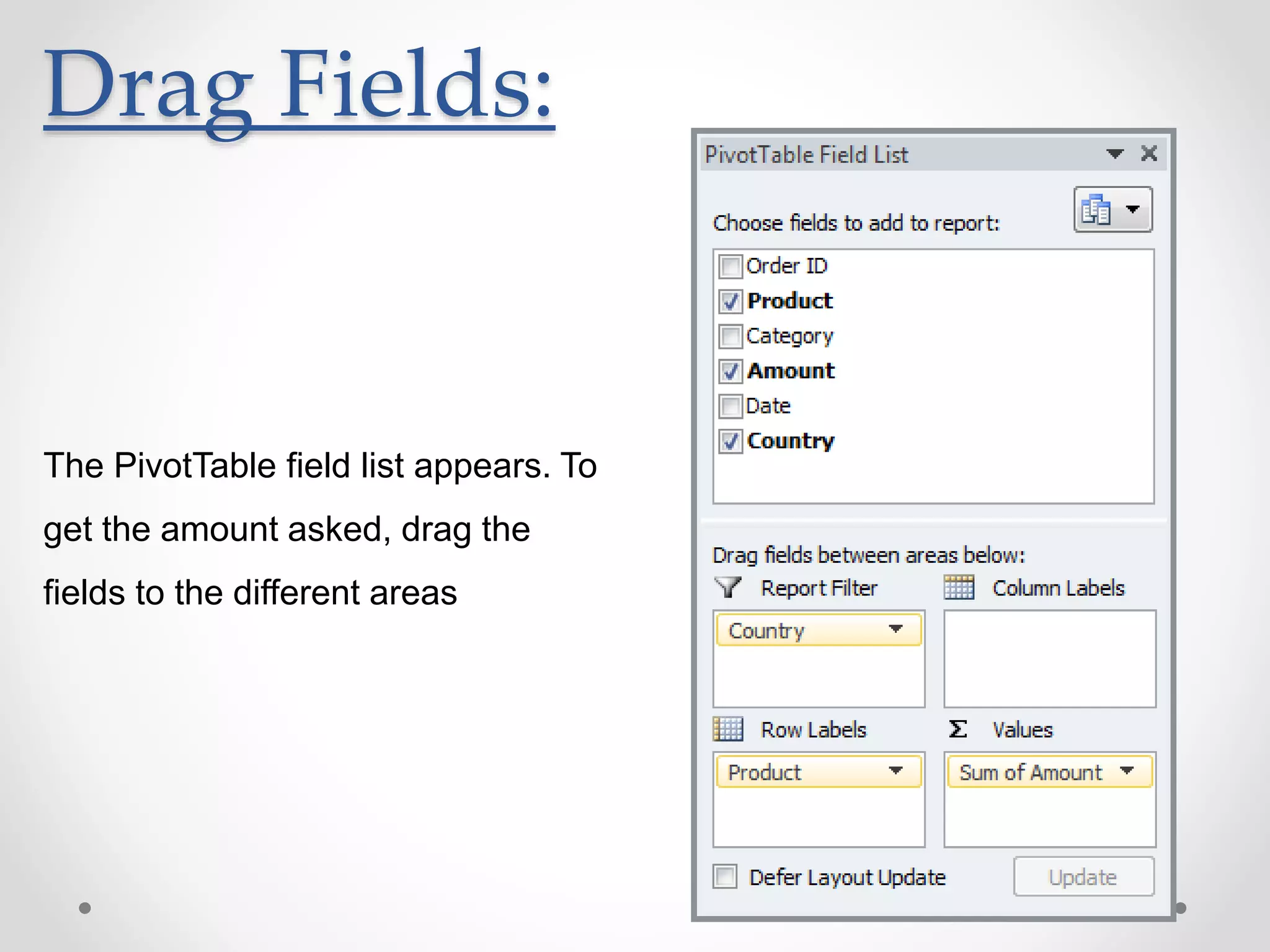
Drag Fields:
The PivotTable field list appears. To
get the amount asked, drag the
fields to the different areas
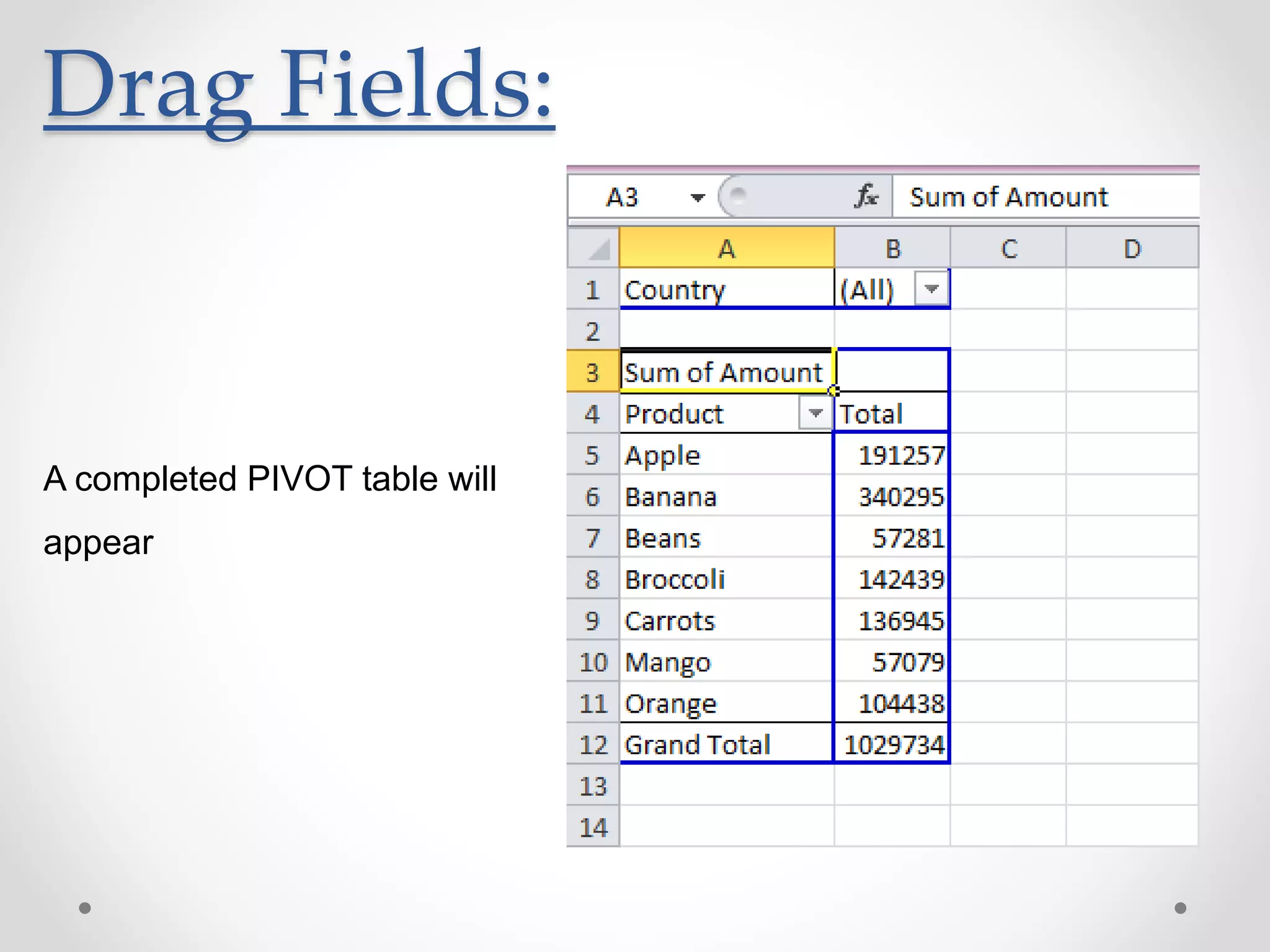
Drag Fields:
A completed PIVOT table will
appear
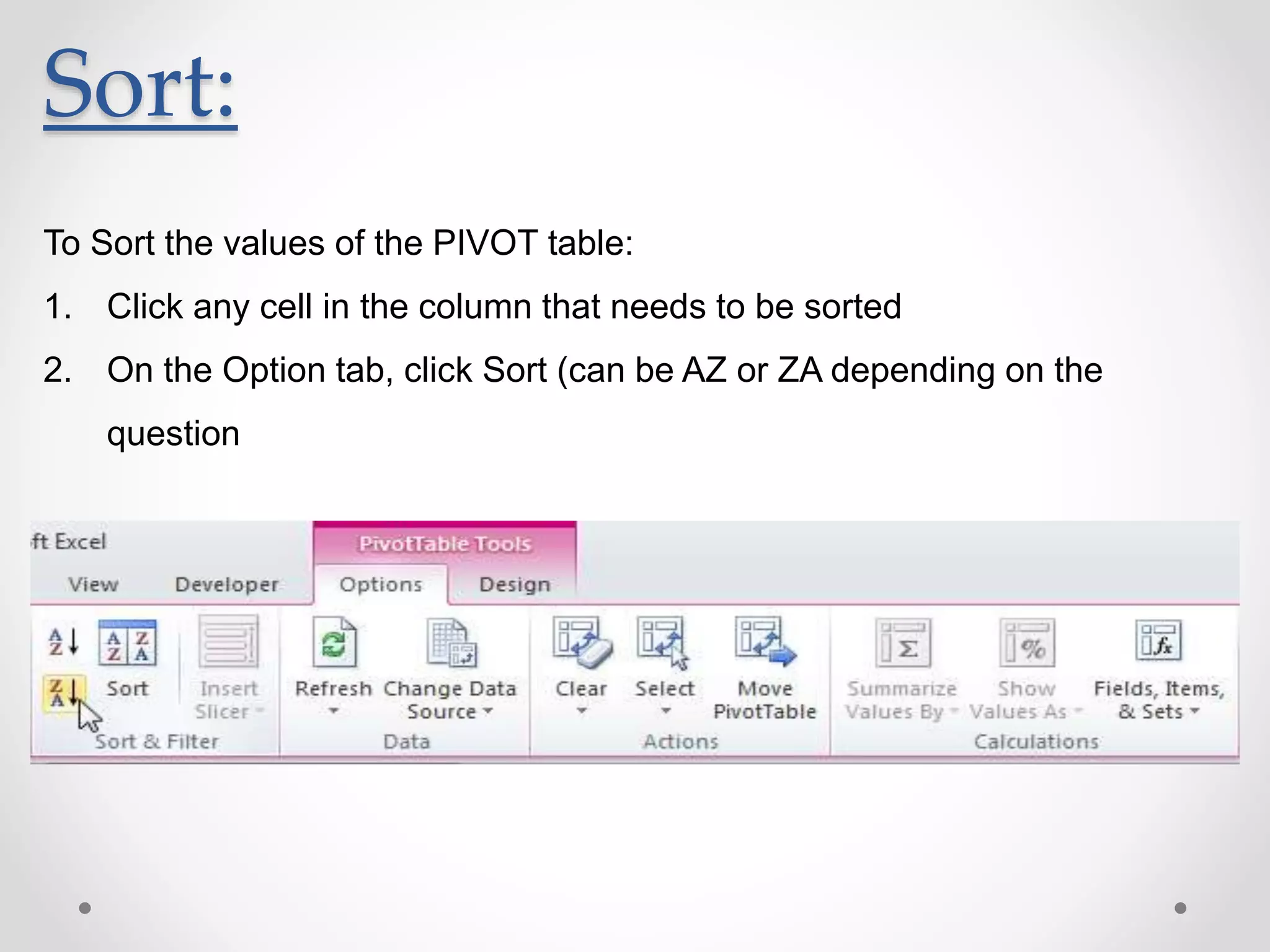
Sort:
To Sort the values of the PIVOT table:
1. Click any cell in the column that needs to be sorted
2. On the Option tab, click Sort (can be AZ or ZA depending on the
question
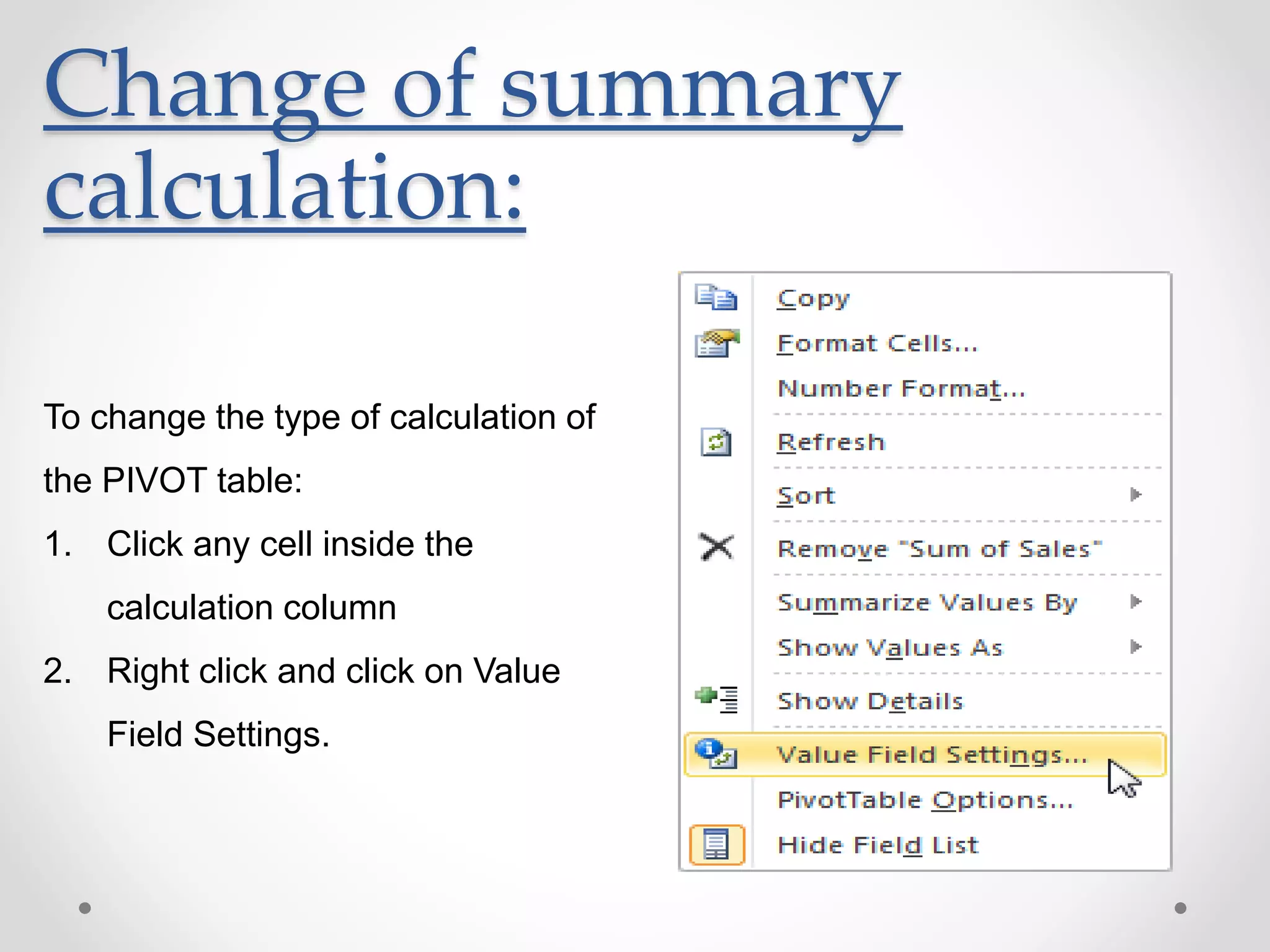
Change of summary
calculation:
To change the type of calculation of
the PIVOT table:
1. Click any cell inside the
calculation column
2. Right click and click on Value
Field Settings.
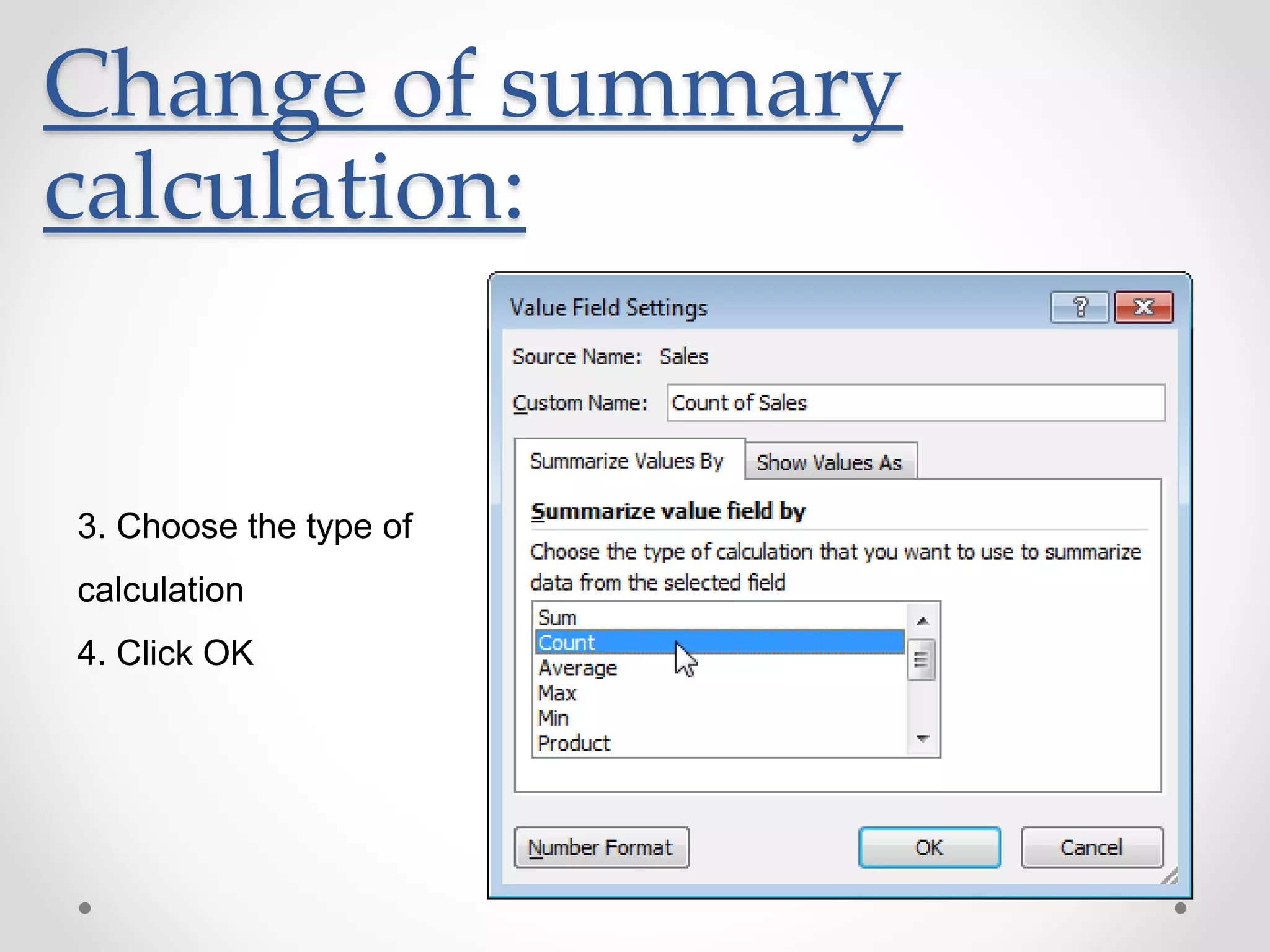
Change of summary
calculation:
3. Choose the type of
calculation
4. Click OK

Excel Workshop

  • 1.
  • 2.
    Contents: • Why isMicrosoft Excel needed? • What is in an Excel spreadsheet? • What are the basic functions for Excel? o What is it for? o What is the format? • Example
  • 3.
    Why is MSExcel needed? • Commonly used in most companies • Mostly required in every job • Makes calculations of complex formulas easy • Works great as a basic reporting tool (AP, AR, Inventory, etc.)
  • 4.
    What is inan Excel spreadsheet?
  • 5.
    Basic Functions inExcel: • Count functions • Sum functions • Logical functions • Lookup Functions • Statistical functions • PIVOT Table
  • 6.
    Count functions: • Count: oTo count the cells that contain numbers o Format: =Count(range) • Countif: o To count cells based on ONLY ONE criteria o Format: =Countif(range, criteria) • Countifs: o To count the cells based on MULTIPLE criteria o Format: =Countifs(range, criteria 1, criteria 2, etc.)
  • 7.
    Sum functions: • Sum: oTo calculate the total of a range of cells o Format: =Sum(range) • Sumif: o To calculate the total of a range of cells based on ONLY ONE criteria o Format: =Sumif(range, criteria) • Sumifs: o To calculate the total of a range of cells based on MULTIPLE criteria o Format: =Sumifs(range, criteria 1, criteria 2, etc.)
  • 8.
    Logical functions: • IF: oTo check if the condition is met, and return one value if TRUE and another value if FALSE o Format: =IF(logical test, value if true, value if false) o NOTES: If function can be nested if there are multiple functions needed to be satisfied. • AND: o Returns TRUE if ALL CONDITIONS are true and returns FALSE if ANY of the conditions are false o Format: =IF(AND(condition 1, condition 2, etc.), value if true, value if false) • OR: o Returns TRUE if ANY OF THE CONDITIONS are TRUE and returns FALSE if ALL CONDITIONS are false o Format: =IF(OR(condition 1, condition 2, etc.), value if true, value if false)
  • 9.
    Lookup functions: • VLookup: oVertical lookup – looks for a value in the leftmost column of a table, then returns a value in the same row from another column you specify o Format: =VLOOKUP(value looked up, table, column to lookup, range lookup) • HLookup: o Horizontal lookup – the same as VLookup o Format: =HLOOKUP(value looked up, table, row to lookup, range lookup)
  • 10.
    Statistical functions: • Average: oTo calculate the average of a range of cells o Format: =AVERAGE(range) • Averageif: o To calculate the average of a range of cells based on ONE criteria o Format: =AVERAGEIF(range, criteria) • Median: o To calculate the median of a range of cells based on MULTIPLE criteria o Format: =MEDIAN(range)
  • 11.
    Statistical functions: • Mode: oTo calculate the mode of a range of cells o Format: =MODE(range) • Standard Deviation: o To calculate the standard deviation of a range of cells o Format: =STEDV(range, criteria) • Min/Max: o To calculate the min/max of a range of cells o Format for Minimum: =MIN(range) o Format for Maximum: =MAX(range)
  • 12.
    PIVOT Table: • Oneof Excel’s most powerful features • Allows users to extract a significance from a large, detailed data set. • Includes: o Insert a PIVOT table o Drag fields o Sort o Change summary calculation
  • 13.
    Insert a PIVOTtable: 1. Click on any single cell within the data set 2. On the Insert tab, click PivotTable 3. When it appears the dialog, choose New Worksheet then click OK.
  • 14.
    Drag Fields: The PivotTablefield list appears. To get the amount asked, drag the fields to the different areas
  • 15.
    Drag Fields: A completedPIVOT table will appear
  • 16.
    Sort: To Sort thevalues of the PIVOT table: 1. Click any cell in the column that needs to be sorted 2. On the Option tab, click Sort (can be AZ or ZA depending on the question
  • 17.
    Change of summary calculation: Tochange the type of calculation of the PIVOT table: 1. Click any cell inside the calculation column 2. Right click and click on Value Field Settings.
  • 18.
    Change of summary calculation: 3.Choose the type of calculation 4. Click OK

Editor's Notes

  • #5 Ryan and Nhi will explain what is in an Excel based on this picture.
  • #15 Ryan or Nhi will explain what is in this field list
  • #17 Ryan or Nhi will explain what is in this field list
  • #18 Ryan or Nhi will explain what is in this field list
  • #19 Ryan or Nhi will explain what is in this field list