e-Tutorial
Online Correction (without digital
signature)
Copyright © 2012 Income Tax Department 1
www.simpletaxindia.net
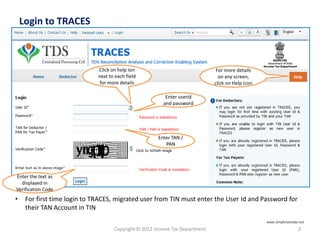
Login to TRACES
Copyright © 2012 Income Tax Department 2
• For first time login to TRACES, migrated user from TIN must enter the User Id and Password for
their TAN Account in TIN
Click on help ion
next to each field
for more details
For more details
on any screen,
click on Help icon
Enter the text as
displayed in
Verification Code
Enter TAN /
PAN
Enter userid
and password
www.simpletaxindia.net
Copyright © 2012 Income Tax Department 3
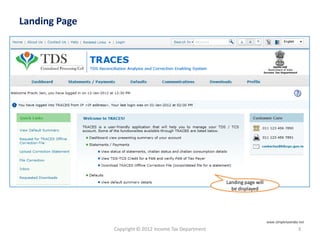
Landing page will
be displayed
Landing Page
www.simpletaxindia.net
Online Correction Request Flow
Copyright © 2012 Income Tax Department
www.simpletaxindia.net
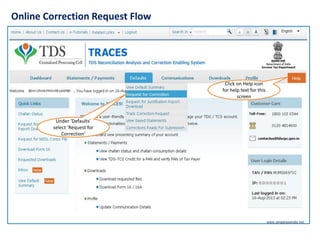
Online Correction Request Flow
Click on Help icon
for help text for this
screen
Under ‘Defaults’
select ‘Request for
Correction’
www.simpletaxindia.net
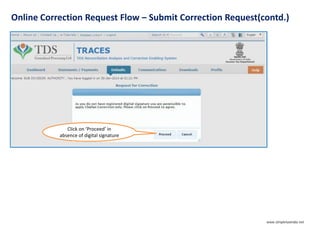
Online Correction Request Flow – Submit Correction Request(contd.)
Click on ‘Proceed’ in
absence of digital signature
www.simpletaxindia.net
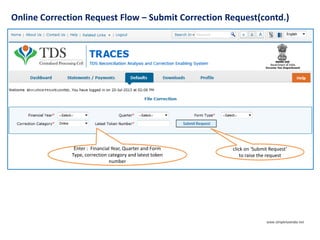
Online Correction Request Flow – Submit Correction Request(contd.)
Enter : Financial Year, Quarter and Form
Type, correction category and latest token
number
click on ‘Submit Request’
to raise the request
www.simpletaxindia.net
Online Correction Request Flow – Submit Correction Request(contd.)
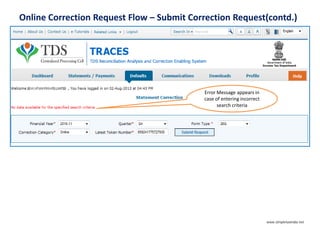
Error Message appears in
case of entering incorrect
search criteria
www.simpletaxindia.net
Online Correction Request Flow – Submit Correction Request(contd.)
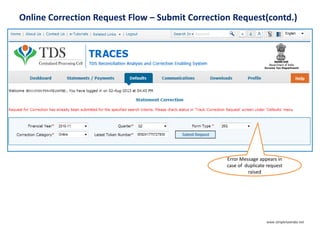
Error Message appears in
case of duplicate request
raised
www.simpletaxindia.net
Online Correction Request Flow – Submit Correction Request(contd.)
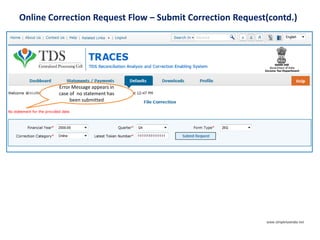
Error Message appears in
case of no statement has
been submitted
www.simpletaxindia.net
Online Correction Request Flow – Submit Correction Request(contd.)
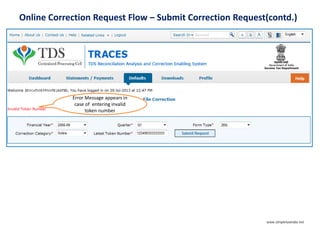
Error Message appears in
case of entering invalid
token number
www.simpletaxindia.net
Online Correction Request Flow – Submit Correction Request(contd.)
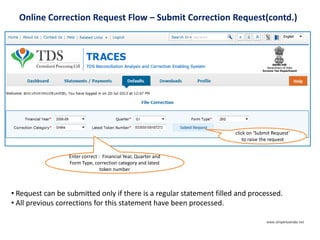
Enter correct : Financial Year, Quarter and
Form Type, correction category and latest
token number
click on ‘Submit Request’
to raise the request
• Request can be submitted only if there is a regular statement filled and processed.
• All previous corrections for this statement have been processed.
www.simpletaxindia.net
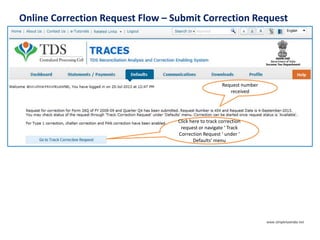
Online Correction Request Flow – Submit Correction Request
Request number
received
Click here to track correction
request or navigate ‘ Track
Correction Request ‘ under ‘
Defaults’ menu
www.simpletaxindia.net
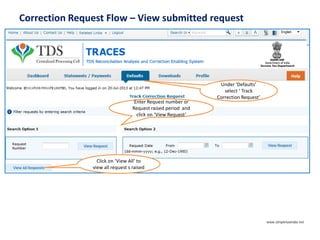
Correction Request Flow – View submitted request
Enter Request number or
Request raised period and
click on ‘View Request’
Click on ‘View All’ to
view all request s raised
Under ‘Defaults’
select ‘ Track
Correction Request’
www.simpletaxindia.net
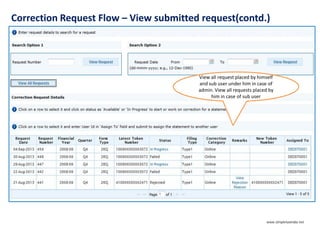
Correction Request Flow – View submitted request(contd.)
View all request placed by himself
and sub user under him in case of
admin. View all requests placed by
him in case of sub user
www.simpletaxindia.net
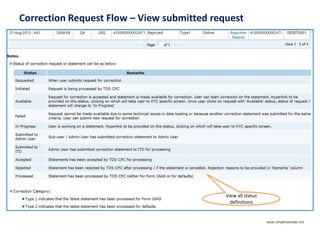
Correction Request Flow – View submitted request
View all status
definitions
www.simpletaxindia.net
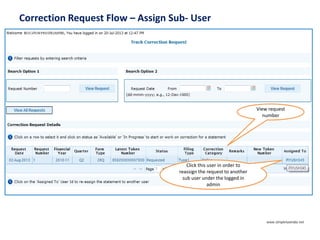
Correction Request Flow – Assign Sub- User
View request
number
Click this user in order to
reassign the request to another
sub user under the logged in
admin
www.simpletaxindia.net
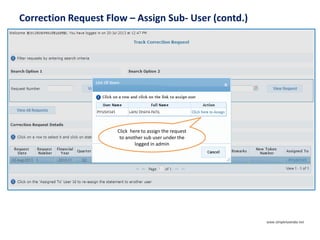
Correction Request Flow – Assign Sub- User (contd.)
Click here to assign the request
to another sub user under the
logged in admin
www.simpletaxindia.net
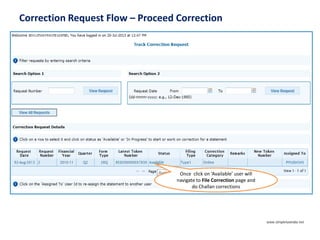
Correction Request Flow – Proceed Correction
Once click on ‘Available’ user will
navigate to File Correction page and
do Challan corrections
www.simpletaxindia.net
Challan Correction
Copyright © 2012 Income Tax Department
www.simpletaxindia.net
Copyright © 2012 Income Tax Department 21
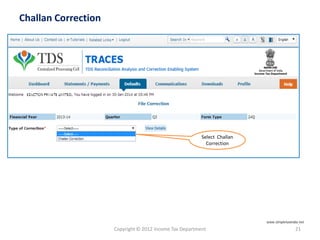
Challan Correction
Select Challan
Correction
www.simpletaxindia.net
Copyright © 2012 Income Tax Department 22
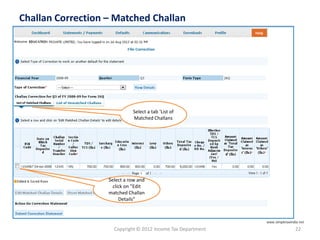
Challan Correction – Matched Challan
Select a tab ‘List of
Matched Challans
Select a row and
click on ”Edit
matched Challan
Details”
www.simpletaxindia.net
Copyright © 2012 Income Tax Department 23
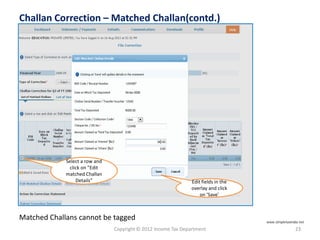
Challan Correction – Matched Challan(contd.)
Edit fields in the
overlay and click
on ‘Save’
Select a row and
click on ”Edit
matched Challan
Details”
Matched Challans cannot be tagged www.simpletaxindia.net
Copyright © 2012 Income Tax Department 24
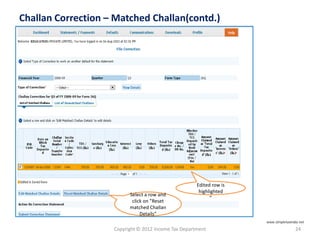
Challan Correction – Matched Challan(contd.)
Edited row is
highlighted
”
Select a row and
click on ”Reset
matched Challan
Details”
www.simpletaxindia.net
Copyright © 2012 Income Tax Department 25
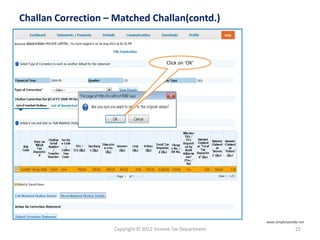
Challan Correction – Matched Challan(contd.)
Click on ‘OK’
www.simpletaxindia.net
Copyright © 2012 Income Tax Department 26
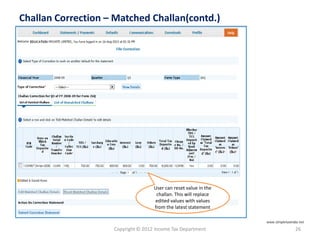
Challan Correction – Matched Challan(contd.)
User can reset value in the
challan. This will replace
edited values with values
from the latest statement
www.simpletaxindia.net
Copyright © 2012 Income Tax Department 27
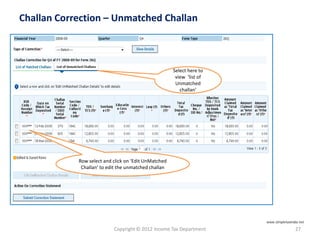
Challan Correction – Unmatched Challan
Select here to
view ‘list of
Unmatched
challan’
Row select and click on ‘Edit UnMatched
Challan’ to edit the unmatched challan
www.simpletaxindia.net
Copyright © 2012 Income Tax Department 28
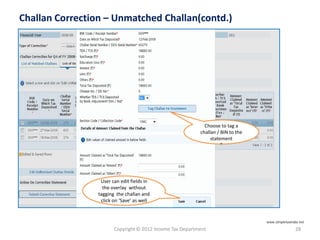
Challan Correction – Unmatched Challan(contd.)
Choose to tag a
challan / BIN to the
statement
”
User can edit fields in
the overlay without
tagging the challan and
click on ‘Save’ as well
www.simpletaxindia.net
Copyright © 2012 Income Tax Department 29
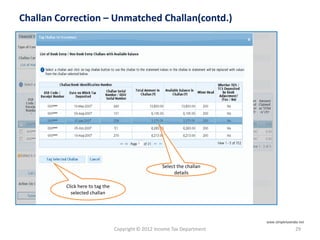
Challan Correction – Unmatched Challan(contd.)
Select the challan
details
Click here to tag the
selected challan
www.simpletaxindia.net
Copyright © 2012 Income Tax Department 30
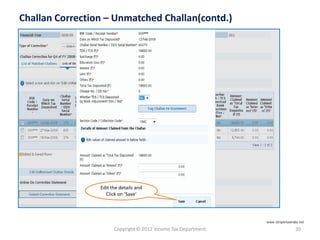
Challan Correction – Unmatched Challan(contd.)
Edit the details and
Click on ‘Save’
www.simpletaxindia.net
Copyright © 2012 Income Tax Department 31
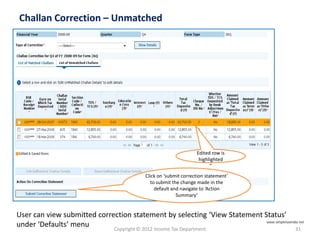
Challan Correction – Unmatched
Click on ‘submit correction statement’
to submit the change made in the
default and navigate to ‘Action
Summary’
Edited row is
highlighted
”
User can view submitted correction statement by selecting ‘View Statement Status’
under ‘Defaults’ menu www.simpletaxindia.net
Action Summary
Copyright © 2012 Income Tax Department
www.simpletaxindia.net
Copyright © 2012 Income Tax Department 33
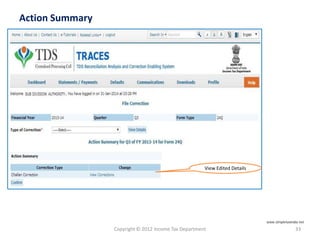
Action Summary
View Edited Details
www.simpletaxindia.net
Copyright © 2012 Income Tax Department 34
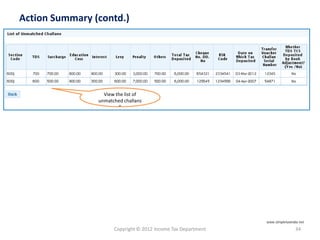
Action Summary (contd.)
View the list of
unmatched challans
”
www.simpletaxindia.net
Copyright © 2012 Income Tax Department 35
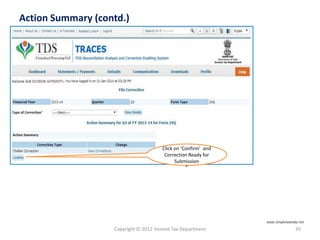
Action Summary (contd.)
View the list of
unmatched challans
”
Click on ‘Confirm’ and
Correction Ready for
Submission
”
www.simpletaxindia.net
Copyright © 2012 Income Tax Department 36
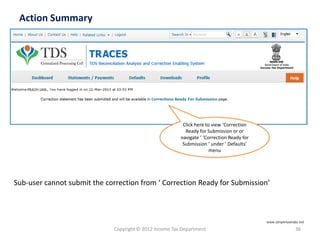
Action Summary
Click here to view ‘Correction
Ready for Submission or or
navigate ‘ ‘Correction Ready for
Submission ‘ under ‘ Defaults’
menu
Sub-user cannot submit the correction from ‘ Correction Ready for Submission’
www.simpletaxindia.net
Copyright © 2012 Income Tax Department 37
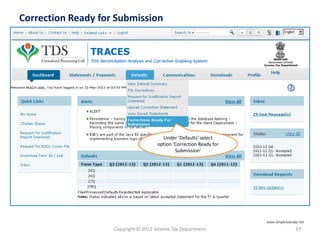
Correction Ready for Submission
Under ‘Defaults’ select
option ‘Correction Ready for
Submission’
www.simpletaxindia.net
Copyright © 2012 Income Tax Department 38
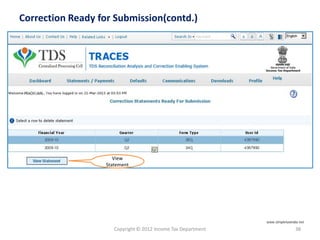
Correction Ready for Submission(contd.)
View
Statement
www.simpletaxindia.net
Copyright © 2012 Income Tax Department 39
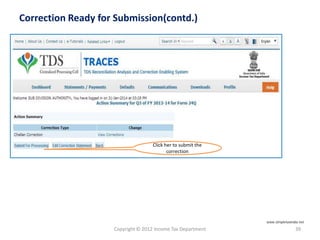
Correction Ready for Submission(contd.)
Click her to submit the
correction
www.simpletaxindia.net
Copyright © 2012 Income Tax Department 40
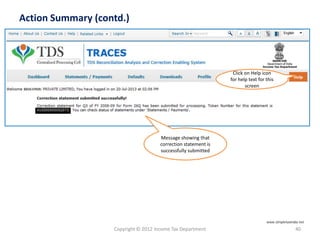
Action Summary (contd.)
Click on Help icon
for help text for this
screen
Message showing that
correction statement is
successfully submitted
www.simpletaxindia.net

E tutorial-filing correction(wds)

  • 1.
    e-Tutorial Online Correction (withoutdigital signature) Copyright © 2012 Income Tax Department 1 www.simpletaxindia.net
  • 2.
    Login to TRACES Copyright© 2012 Income Tax Department 2 • For first time login to TRACES, migrated user from TIN must enter the User Id and Password for their TAN Account in TIN Click on help ion next to each field for more details For more details on any screen, click on Help icon Enter the text as displayed in Verification Code Enter TAN / PAN Enter userid and password www.simpletaxindia.net
  • 3.
    Copyright © 2012Income Tax Department 3 Landing page will be displayed Landing Page www.simpletaxindia.net
  • 4.
    Online Correction RequestFlow Copyright © 2012 Income Tax Department www.simpletaxindia.net
  • 5.
    Online Correction RequestFlow Click on Help icon for help text for this screen Under ‘Defaults’ select ‘Request for Correction’ www.simpletaxindia.net
  • 6.
    Online Correction RequestFlow – Submit Correction Request(contd.) Click on ‘Proceed’ in absence of digital signature www.simpletaxindia.net
  • 7.
    Online Correction RequestFlow – Submit Correction Request(contd.) Enter : Financial Year, Quarter and Form Type, correction category and latest token number click on ‘Submit Request’ to raise the request www.simpletaxindia.net
  • 8.
    Online Correction RequestFlow – Submit Correction Request(contd.) Error Message appears in case of entering incorrect search criteria www.simpletaxindia.net
  • 9.
    Online Correction RequestFlow – Submit Correction Request(contd.) Error Message appears in case of duplicate request raised www.simpletaxindia.net
  • 10.
    Online Correction RequestFlow – Submit Correction Request(contd.) Error Message appears in case of no statement has been submitted www.simpletaxindia.net
  • 11.
    Online Correction RequestFlow – Submit Correction Request(contd.) Error Message appears in case of entering invalid token number www.simpletaxindia.net
  • 12.
    Online Correction RequestFlow – Submit Correction Request(contd.) Enter correct : Financial Year, Quarter and Form Type, correction category and latest token number click on ‘Submit Request’ to raise the request • Request can be submitted only if there is a regular statement filled and processed. • All previous corrections for this statement have been processed. www.simpletaxindia.net
  • 13.
    Online Correction RequestFlow – Submit Correction Request Request number received Click here to track correction request or navigate ‘ Track Correction Request ‘ under ‘ Defaults’ menu www.simpletaxindia.net
  • 14.
    Correction Request Flow– View submitted request Enter Request number or Request raised period and click on ‘View Request’ Click on ‘View All’ to view all request s raised Under ‘Defaults’ select ‘ Track Correction Request’ www.simpletaxindia.net
  • 15.
    Correction Request Flow– View submitted request(contd.) View all request placed by himself and sub user under him in case of admin. View all requests placed by him in case of sub user www.simpletaxindia.net
  • 16.
    Correction Request Flow– View submitted request View all status definitions www.simpletaxindia.net
  • 17.
    Correction Request Flow– Assign Sub- User View request number Click this user in order to reassign the request to another sub user under the logged in admin www.simpletaxindia.net
  • 18.
    Correction Request Flow– Assign Sub- User (contd.) Click here to assign the request to another sub user under the logged in admin www.simpletaxindia.net
  • 19.
    Correction Request Flow– Proceed Correction Once click on ‘Available’ user will navigate to File Correction page and do Challan corrections www.simpletaxindia.net
  • 20.
    Challan Correction Copyright ©2012 Income Tax Department www.simpletaxindia.net
  • 21.
    Copyright © 2012Income Tax Department 21 Challan Correction Select Challan Correction www.simpletaxindia.net
  • 22.
    Copyright © 2012Income Tax Department 22 Challan Correction – Matched Challan Select a tab ‘List of Matched Challans Select a row and click on ”Edit matched Challan Details” www.simpletaxindia.net
  • 23.
    Copyright © 2012Income Tax Department 23 Challan Correction – Matched Challan(contd.) Edit fields in the overlay and click on ‘Save’ Select a row and click on ”Edit matched Challan Details” Matched Challans cannot be tagged www.simpletaxindia.net
  • 24.
    Copyright © 2012Income Tax Department 24 Challan Correction – Matched Challan(contd.) Edited row is highlighted ” Select a row and click on ”Reset matched Challan Details” www.simpletaxindia.net
  • 25.
    Copyright © 2012Income Tax Department 25 Challan Correction – Matched Challan(contd.) Click on ‘OK’ www.simpletaxindia.net
  • 26.
    Copyright © 2012Income Tax Department 26 Challan Correction – Matched Challan(contd.) User can reset value in the challan. This will replace edited values with values from the latest statement www.simpletaxindia.net
  • 27.
    Copyright © 2012Income Tax Department 27 Challan Correction – Unmatched Challan Select here to view ‘list of Unmatched challan’ Row select and click on ‘Edit UnMatched Challan’ to edit the unmatched challan www.simpletaxindia.net
  • 28.
    Copyright © 2012Income Tax Department 28 Challan Correction – Unmatched Challan(contd.) Choose to tag a challan / BIN to the statement ” User can edit fields in the overlay without tagging the challan and click on ‘Save’ as well www.simpletaxindia.net
  • 29.
    Copyright © 2012Income Tax Department 29 Challan Correction – Unmatched Challan(contd.) Select the challan details Click here to tag the selected challan www.simpletaxindia.net
  • 30.
    Copyright © 2012Income Tax Department 30 Challan Correction – Unmatched Challan(contd.) Edit the details and Click on ‘Save’ www.simpletaxindia.net
  • 31.
    Copyright © 2012Income Tax Department 31 Challan Correction – Unmatched Click on ‘submit correction statement’ to submit the change made in the default and navigate to ‘Action Summary’ Edited row is highlighted ” User can view submitted correction statement by selecting ‘View Statement Status’ under ‘Defaults’ menu www.simpletaxindia.net
  • 32.
    Action Summary Copyright ©2012 Income Tax Department www.simpletaxindia.net
  • 33.
    Copyright © 2012Income Tax Department 33 Action Summary View Edited Details www.simpletaxindia.net
  • 34.
    Copyright © 2012Income Tax Department 34 Action Summary (contd.) View the list of unmatched challans ” www.simpletaxindia.net
  • 35.
    Copyright © 2012Income Tax Department 35 Action Summary (contd.) View the list of unmatched challans ” Click on ‘Confirm’ and Correction Ready for Submission ” www.simpletaxindia.net
  • 36.
    Copyright © 2012Income Tax Department 36 Action Summary Click here to view ‘Correction Ready for Submission or or navigate ‘ ‘Correction Ready for Submission ‘ under ‘ Defaults’ menu Sub-user cannot submit the correction from ‘ Correction Ready for Submission’ www.simpletaxindia.net
  • 37.
    Copyright © 2012Income Tax Department 37 Correction Ready for Submission Under ‘Defaults’ select option ‘Correction Ready for Submission’ www.simpletaxindia.net
  • 38.
    Copyright © 2012Income Tax Department 38 Correction Ready for Submission(contd.) View Statement www.simpletaxindia.net
  • 39.
    Copyright © 2012Income Tax Department 39 Correction Ready for Submission(contd.) Click her to submit the correction www.simpletaxindia.net
  • 40.
    Copyright © 2012Income Tax Department 40 Action Summary (contd.) Click on Help icon for help text for this screen Message showing that correction statement is successfully submitted www.simpletaxindia.net