e-payment of VAT

***************************************
By

CA. NIMESH DEDHIA
Email: nmdedhia@gmail.com
Applicability
• e-payment is made compulsory for the
monthly return by Notification No. VAT1510/CR-64/Taxation-1 dt.26.05.2010 w.e.f.
01/06/2010
• e-payment is made compulsory for the
quarterly return by Notification No. VAT1510/CR-90/Taxation-1 dt.28.07.2010 w.e.f.
01/10/2010
• Procedure for e-payment has been explained
by Trade Circular No. 8T of 2010 dt. 06-022010.
Method of e-payment
• Banks Integrated with MSTD website
• E-payment directly from bank's website
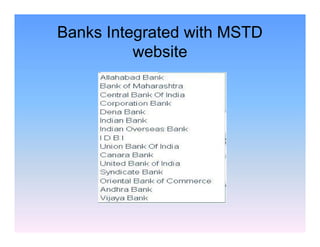
Banks Integrated with MSTD
website
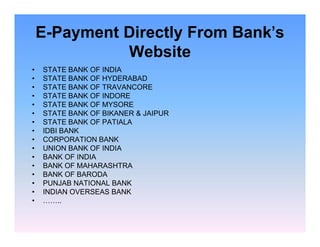
E-Payment Directly From Bank's
Website
•
•
•
•
•
•
•
•
•
•
•
•
•
•
•
•

STATE BANK OF INDIA
STATE BANK OF HYDERABAD
STATE BANK OF TRAVANCORE
STATE BANK OF INDORE
STATE BANK OF MYSORE
STATE BANK OF BIKANER & JAIPUR
STATE BANK OF PATIALA
IDBI BANK
CORPORATION BANK
UNION BANK OF INDIA
BANK OF INDIA
BANK OF MAHARASHTRA
BANK OF BARODA
PUNJAB NATIONAL BANK
INDIAN OVERSEAS BANK
……..
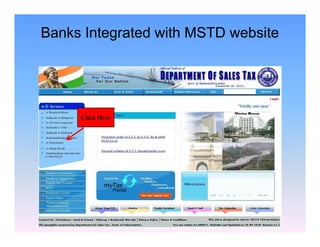
Banks Integrated with MSTD website

Click Here
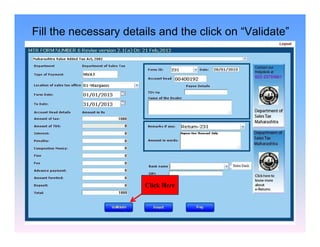
Fill the necessary details and the click on “Validate”

Click Here
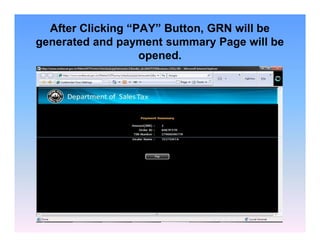
After Clicking “PAY” Button, GRN will be
generated and payment summary Page will be
opened.
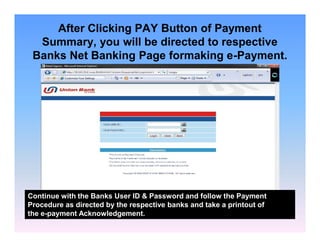
After Clicking PAY Button of Payment
Summary, you will be directed to respective
Banks Net Banking Page formaking e-Payment.

Continue with the Banks User ID & Password and follow the Payment
Procedure as directed by the respective banks and take a printout of
the e-payment Acknowledgement.
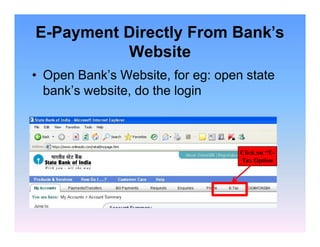
E-Payment Directly From Bank's
Website
• Open Bank’s Website, for eg: open state
bank’s website, do the login

Click on “ETax Option
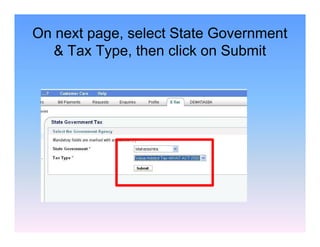
On next page, select State Government
& Tax Type, then click on Submit
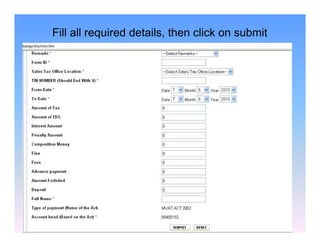
Fill all required details, then click on submit
• After click on Submit Button, it will confirm
you again for payment of tax.
• Then after confirming, it will generate VAT
Tax Challan.
• Save the challan to your computer & take
the print.
E-Filing of MVAT Returns
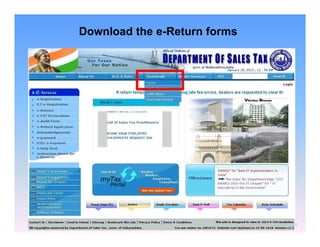
Download the e-Return forms

15
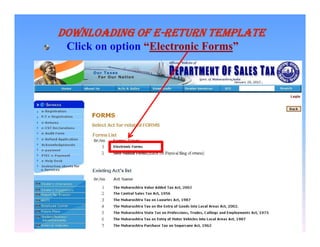
DOWNLOADING OF E-RETURN TEMPLATE
Click on option “Electronic Forms”

16
DOWNLOADING OF E-RETURN TEMPLATE

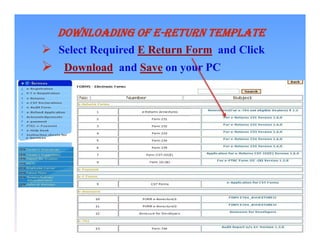
 Select Required E Return Form and Click



Download and Save on your PC

17
PREPARATION OF RETURN

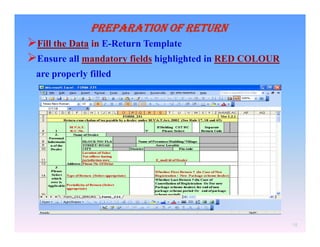
Fill the Data in E-Return Template
Ensure all mandatory fields highlighted in RED COLOUR
are properly filled

18
PREPARATION OF RETURN
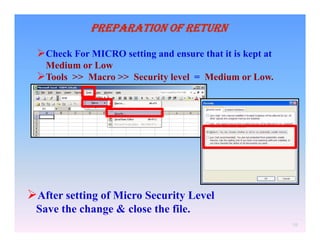
Check For MICRO setting and ensure that it is kept at
Medium or Low
Tools >> Macro >> Security level = Medium or Low.

After setting of Micro Security Level
Save the change & close the file.
19
PREPARATION OF RETURN

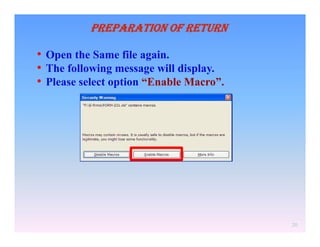
• Open the Same file again.
• The following message will display.
• Please select option “Enable Macro”.

20
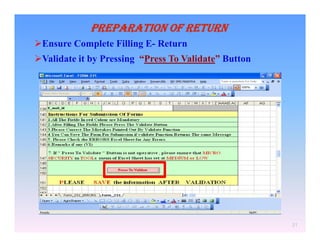
PREPARATION OF RETURN
Ensure Complete Filling E- Return
Validate it by Pressing “Press To Validate” Button

21
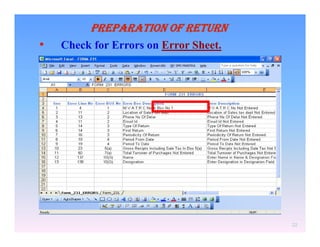
PREPARATION OF RETURN

•

Check for Errors on Error Sheet.

22
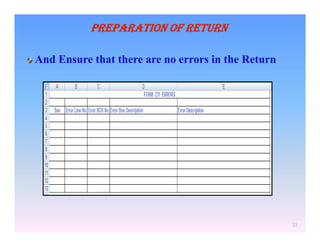
PREPARATION OF RETURN
And Ensure that there are no errors in the Return

23
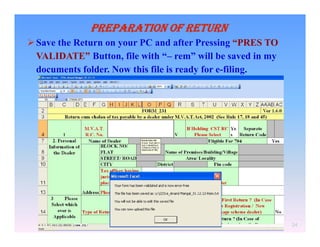
PREPARATION OF RETURN
 Save the Return on your PC and after Pressing “PRES TO
VALIDATE” Button, file with “– rem” will be saved in my
documents folder. Now this file is ready for e-filing.

24
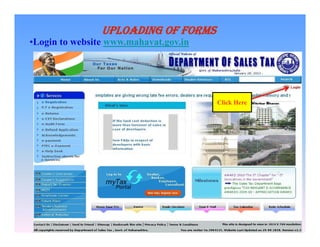
UPLOADING OF FORMS
•Login to website www.mahavat.gov.in

Click Here
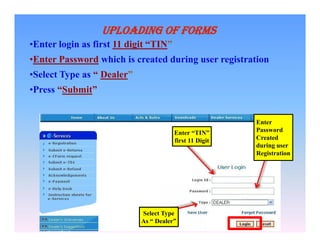
UPLOADING OF FORMS
•Enter login as first 11 digit “TIN”
•Enter Password which is created during user registration
•Select Type as “ Dealer”
•Press “Submit”

Enter “TIN”
first 11 Digit

Select Type
As “ Dealer”

Enter
Password
Created
during user
Registration
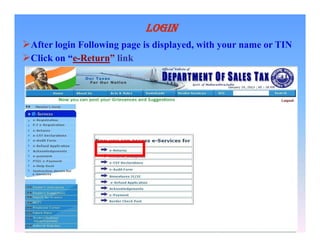
LOGIN
After login Following page is displayed, with your name or TIN
Click on “e-Return” link

27
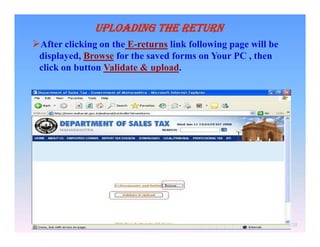
UPLOADING THE RETURN
After clicking on the E-returns link following page will be
displayed, Browse for the saved forms on Your PC , then
click on button Validate & upload.

28
ACKNOWLEDGEMENT
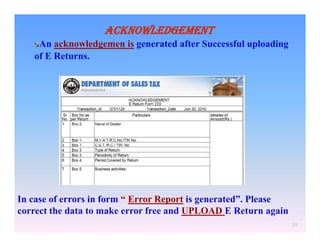
An acknowledgemen is generated after Successful uploading
of E Returns.

In case of errors in form “ Error Report is generated”. Please
correct the data to make error free and UPLOAD E Return again
29
ACKNOWLEDGEMENT

•Press Print to take print out Or Click on
Download as PDF and Save to our Computer

30
SUBMISSION OF COPY OF ACKNOWLEDGEMENT
No Need for Sbmission of Signed Hard Copy to
Department after Sumitting E-Enrollment

31
Thank you

Email: nmdedhia@gmail.com

e-Return & e-Payment under MVAT Act

  • 1.
  • 2.
    Applicability • e-payment ismade compulsory for the monthly return by Notification No. VAT1510/CR-64/Taxation-1 dt.26.05.2010 w.e.f. 01/06/2010 • e-payment is made compulsory for the quarterly return by Notification No. VAT1510/CR-90/Taxation-1 dt.28.07.2010 w.e.f. 01/10/2010 • Procedure for e-payment has been explained by Trade Circular No. 8T of 2010 dt. 06-022010.
  • 3.
    Method of e-payment •Banks Integrated with MSTD website • E-payment directly from bank's website
  • 4.
  • 5.
    E-Payment Directly FromBank's Website • • • • • • • • • • • • • • • • STATE BANK OF INDIA STATE BANK OF HYDERABAD STATE BANK OF TRAVANCORE STATE BANK OF INDORE STATE BANK OF MYSORE STATE BANK OF BIKANER & JAIPUR STATE BANK OF PATIALA IDBI BANK CORPORATION BANK UNION BANK OF INDIA BANK OF INDIA BANK OF MAHARASHTRA BANK OF BARODA PUNJAB NATIONAL BANK INDIAN OVERSEAS BANK ……..
  • 6.
    Banks Integrated withMSTD website Click Here
  • 7.
    Fill the necessarydetails and the click on “Validate” Click Here
  • 8.
    After Clicking “PAY”Button, GRN will be generated and payment summary Page will be opened.
  • 9.
    After Clicking PAYButton of Payment Summary, you will be directed to respective Banks Net Banking Page formaking e-Payment. Continue with the Banks User ID & Password and follow the Payment Procedure as directed by the respective banks and take a printout of the e-payment Acknowledgement.
  • 10.
    E-Payment Directly FromBank's Website • Open Bank’s Website, for eg: open state bank’s website, do the login Click on “ETax Option
  • 11.
    On next page,select State Government & Tax Type, then click on Submit
  • 12.
    Fill all requireddetails, then click on submit
  • 13.
    • After clickon Submit Button, it will confirm you again for payment of tax. • Then after confirming, it will generate VAT Tax Challan. • Save the challan to your computer & take the print.
  • 14.
  • 15.
  • 16.
    DOWNLOADING OF E-RETURNTEMPLATE Click on option “Electronic Forms” 16
  • 17.
    DOWNLOADING OF E-RETURNTEMPLATE  Select Required E Return Form and Click  Download and Save on your PC 17
  • 18.
    PREPARATION OF RETURN Fillthe Data in E-Return Template Ensure all mandatory fields highlighted in RED COLOUR are properly filled 18
  • 19.
    PREPARATION OF RETURN CheckFor MICRO setting and ensure that it is kept at Medium or Low Tools >> Macro >> Security level = Medium or Low. After setting of Micro Security Level Save the change & close the file. 19
  • 20.
    PREPARATION OF RETURN •Open the Same file again. • The following message will display. • Please select option “Enable Macro”. 20
  • 21.
    PREPARATION OF RETURN EnsureComplete Filling E- Return Validate it by Pressing “Press To Validate” Button 21
  • 22.
    PREPARATION OF RETURN • Checkfor Errors on Error Sheet. 22
  • 23.
    PREPARATION OF RETURN AndEnsure that there are no errors in the Return 23
  • 24.
    PREPARATION OF RETURN Save the Return on your PC and after Pressing “PRES TO VALIDATE” Button, file with “– rem” will be saved in my documents folder. Now this file is ready for e-filing. 24
  • 25.
    UPLOADING OF FORMS •Loginto website www.mahavat.gov.in Click Here
  • 26.
    UPLOADING OF FORMS •Enterlogin as first 11 digit “TIN” •Enter Password which is created during user registration •Select Type as “ Dealer” •Press “Submit” Enter “TIN” first 11 Digit Select Type As “ Dealer” Enter Password Created during user Registration
  • 27.
    LOGIN After login Followingpage is displayed, with your name or TIN Click on “e-Return” link 27
  • 28.
    UPLOADING THE RETURN Afterclicking on the E-returns link following page will be displayed, Browse for the saved forms on Your PC , then click on button Validate & upload. 28
  • 29.
    ACKNOWLEDGEMENT An acknowledgemen isgenerated after Successful uploading of E Returns. In case of errors in form “ Error Report is generated”. Please correct the data to make error free and UPLOAD E Return again 29
  • 30.
    ACKNOWLEDGEMENT •Press Print totake print out Or Click on Download as PDF and Save to our Computer 30
  • 31.
    SUBMISSION OF COPYOF ACKNOWLEDGEMENT No Need for Sbmission of Signed Hard Copy to Department after Sumitting E-Enrollment 31
  • 32.