e-Tutorial
Digital Signature

Copyright © 2012 Income Tax Department

1
Install Digital Signature certificate
PFX file

All content in this e-tutorial are purely for information purpose. All names may be trademarks of their respective owners.

Copyright © 2012 Income Tax Department

2
Steps of Installation of Digital Signature Certificate
Requirement for installing of Digital signature certificate :
• Valid Digital Signature should be obtained from Third Party Vendor.
• Only class 2 or class 3 digital Signature certificate is allowed for the purpose of
registration on TRACES.
• Digital Signature certificate PFX file stored in the CD media or hard disk.

All content in this e-tutorial are purely for information purpose. All names may be trademarks of their respective owners.

Copyright © 2012 Income Tax Department

3
Steps of Installation of Digital Signature Certificate

Click on the
‘Install PFX’

Select .PFX
file

All content in this e-tutorial are purely for information purpose. All names may be trademarks of their respective owners.

Copyright © 2012 Income Tax Department

4
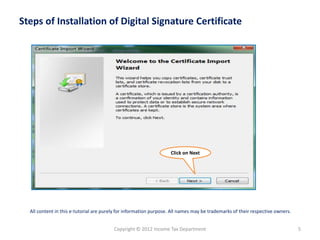
Steps of Installation of Digital Signature Certificate

Click on Next

All content in this e-tutorial are purely for information purpose. All names may be trademarks of their respective owners.

Copyright © 2012 Income Tax Department

5
Steps of Installation of Digital Signature Certificate(contd.)

Click on
Next

All content in this e-tutorial are purely for information purpose. All names may be trademarks of their respective owners.

Copyright © 2012 Income Tax Department

6
Steps of Installation of Digital Signature Certificate(contd.)

Enter Valid Password, allotted
by third party vendor who
has issued pfx file of digital
signature.

Click on
Next

All content in this e-tutorial are purely for information purpose. All names may be trademarks of their respective owners.

Copyright © 2012 Income Tax Department

7
Steps of Installation of Digital Signature Certificate(contd.)

Select Ist
Option
Click on
Next

All content in this e-tutorial are purely for information purpose. All names may be trademarks of their respective owners.

Copyright © 2012 Income Tax Department

8
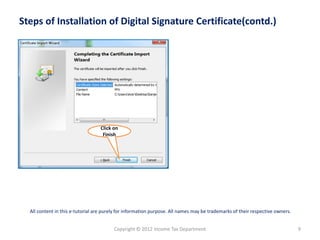
Steps of Installation of Digital Signature Certificate(contd.)

Click on
Finish

All content in this e-tutorial are purely for information purpose. All names may be trademarks of their respective owners.

Copyright © 2012 Income Tax Department

9
Steps of Installation of Digital Signature Certificate(contd.)

Click on ‘Set
Security Level’

Note : Feature is browser specific, depends on security settings set by admin and on
the security level set in internet options. Since, user will be asked to provide the
private key while installing the certificate, browser may not ask for key again.
All content in this e-tutorial are purely for information purpose. All names may be trademarks of their respective owners.

Copyright © 2012 Income Tax Department

10
Steps of Installation of Digital Signature Certificate(contd.)

Enter Password to set high security
level and confirm Password. The same
will be asked at the time of registration
of digital signature.

Note : Feature is browser specific, depends on security settings set by admin and on
the security level set in internet options. Since, user will be asked to provide the
private key while installing the certificate, browser may not ask for key again.
All content in this e-tutorial are purely for information purpose. All names may be trademarks of their respective owners.

Copyright © 2012 Income Tax Department

11
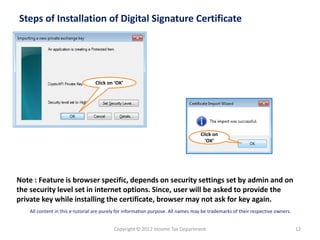
Steps of Installation of Digital Signature Certificate

Click on ‘OK’

Click on
‘OK’

Note : Feature is browser specific, depends on security settings set by admin and on
the security level set in internet options. Since, user will be asked to provide the
private key while installing the certificate, browser may not ask for key again.
All content in this e-tutorial are purely for information purpose. All names may be trademarks of their respective owners.

Copyright © 2012 Income Tax Department

12
Register Digital Signature

Copyright © 2012 Income Tax Department

13
Steps of Register Digital Signature

Select
‘Profile’ tab

Select ‘Digital
Signature under
‘Signature’ tab

Click on ‘
Register DSC’

14
Steps of Register Digital Signature (contd.)

The applet window will display
PAN of authorized person. Digital
signature certificate PFX file must
be for the same PAN.

Web signer
applet
window will
appear

15
Steps of Register Digital Signature (contd.)

Select Digital
signature certificate
.pfx file for the same
PAN mentioned in
the applet window.
Click on
‘Register’

16
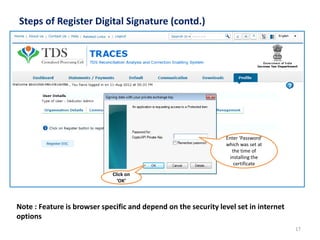
Steps of Register Digital Signature (contd.)

Enter ‘Password’
which was set at
the time of
installing the
certificate
Click on
‘OK’

Note : Feature is browser specific and depend on the security level set in internet
options
17
Steps of Register Digital Signature (contd.)

Certificate details are displayed
in a modal dialog window for
the certificate selected during
registration process

Click on ‘OK’
to successfully
complete
registration

18
Steps of Register Digital Signature (contd.)

Digital Signature is registered
successfully against PAN of
authorised person and success
message is displayed

Note : User can view certificate details registered by clicking on the hyperlink by
navigating to ‘Signature’ tab or click on “Re-Register” button to re-register digital
signature certificate using the same process
19
Steps of Register Digital Signature (contd.)
Error message will pop up indicating PAN
validation mismatch if user selects
incorrect digital signature certificate PFX
file ( not associated with the same PAN)
and will not be allowed to proceed.

20
Steps of Register Digital Signature (contd.)

Cick on Signature tab
and view certificate
detail

User can re-register the
new digital signature by
clicking here.

Note : In case user tries to register / re-register with a digital signature certificate which
is already registered before, an error message is displayed on the screen : “Certificate
selected is already registered
21
Steps of Register Digital Signature
•When certificate registered is about to expire, a prompt will be shown on the screen
intimating the user regarding expiry of DSC. (“Your certificate will expire in ‘n’ days”).
• If certificate registered earlier, has expired then previous certificate details will not be
shown to user. Instead, digital signature registration screen will be displayed with
“Register DSC” button for initiation of fresh DSC registration.
•In case certificate used has been revoked by certain Certifying Authority and Certificate
Revocation List maintained on the server has been updated with the corresponding
crl(certificate revoking list) file, user shall not be allowed to register revoked certificate
on TRACES. Error message will be displayed while registration.

22

E tutorial - digital signature

  • 1.
    e-Tutorial Digital Signature Copyright ©2012 Income Tax Department 1
  • 2.
    Install Digital Signaturecertificate PFX file All content in this e-tutorial are purely for information purpose. All names may be trademarks of their respective owners. Copyright © 2012 Income Tax Department 2
  • 3.
    Steps of Installationof Digital Signature Certificate Requirement for installing of Digital signature certificate : • Valid Digital Signature should be obtained from Third Party Vendor. • Only class 2 or class 3 digital Signature certificate is allowed for the purpose of registration on TRACES. • Digital Signature certificate PFX file stored in the CD media or hard disk. All content in this e-tutorial are purely for information purpose. All names may be trademarks of their respective owners. Copyright © 2012 Income Tax Department 3
  • 4.
    Steps of Installationof Digital Signature Certificate Click on the ‘Install PFX’ Select .PFX file All content in this e-tutorial are purely for information purpose. All names may be trademarks of their respective owners. Copyright © 2012 Income Tax Department 4
  • 5.
    Steps of Installationof Digital Signature Certificate Click on Next All content in this e-tutorial are purely for information purpose. All names may be trademarks of their respective owners. Copyright © 2012 Income Tax Department 5
  • 6.
    Steps of Installationof Digital Signature Certificate(contd.) Click on Next All content in this e-tutorial are purely for information purpose. All names may be trademarks of their respective owners. Copyright © 2012 Income Tax Department 6
  • 7.
    Steps of Installationof Digital Signature Certificate(contd.) Enter Valid Password, allotted by third party vendor who has issued pfx file of digital signature. Click on Next All content in this e-tutorial are purely for information purpose. All names may be trademarks of their respective owners. Copyright © 2012 Income Tax Department 7
  • 8.
    Steps of Installationof Digital Signature Certificate(contd.) Select Ist Option Click on Next All content in this e-tutorial are purely for information purpose. All names may be trademarks of their respective owners. Copyright © 2012 Income Tax Department 8
  • 9.
    Steps of Installationof Digital Signature Certificate(contd.) Click on Finish All content in this e-tutorial are purely for information purpose. All names may be trademarks of their respective owners. Copyright © 2012 Income Tax Department 9
  • 10.
    Steps of Installationof Digital Signature Certificate(contd.) Click on ‘Set Security Level’ Note : Feature is browser specific, depends on security settings set by admin and on the security level set in internet options. Since, user will be asked to provide the private key while installing the certificate, browser may not ask for key again. All content in this e-tutorial are purely for information purpose. All names may be trademarks of their respective owners. Copyright © 2012 Income Tax Department 10
  • 11.
    Steps of Installationof Digital Signature Certificate(contd.) Enter Password to set high security level and confirm Password. The same will be asked at the time of registration of digital signature. Note : Feature is browser specific, depends on security settings set by admin and on the security level set in internet options. Since, user will be asked to provide the private key while installing the certificate, browser may not ask for key again. All content in this e-tutorial are purely for information purpose. All names may be trademarks of their respective owners. Copyright © 2012 Income Tax Department 11
  • 12.
    Steps of Installationof Digital Signature Certificate Click on ‘OK’ Click on ‘OK’ Note : Feature is browser specific, depends on security settings set by admin and on the security level set in internet options. Since, user will be asked to provide the private key while installing the certificate, browser may not ask for key again. All content in this e-tutorial are purely for information purpose. All names may be trademarks of their respective owners. Copyright © 2012 Income Tax Department 12
  • 13.
    Register Digital Signature Copyright© 2012 Income Tax Department 13
  • 14.
    Steps of RegisterDigital Signature Select ‘Profile’ tab Select ‘Digital Signature under ‘Signature’ tab Click on ‘ Register DSC’ 14
  • 15.
    Steps of RegisterDigital Signature (contd.) The applet window will display PAN of authorized person. Digital signature certificate PFX file must be for the same PAN. Web signer applet window will appear 15
  • 16.
    Steps of RegisterDigital Signature (contd.) Select Digital signature certificate .pfx file for the same PAN mentioned in the applet window. Click on ‘Register’ 16
  • 17.
    Steps of RegisterDigital Signature (contd.) Enter ‘Password’ which was set at the time of installing the certificate Click on ‘OK’ Note : Feature is browser specific and depend on the security level set in internet options 17
  • 18.
    Steps of RegisterDigital Signature (contd.) Certificate details are displayed in a modal dialog window for the certificate selected during registration process Click on ‘OK’ to successfully complete registration 18
  • 19.
    Steps of RegisterDigital Signature (contd.) Digital Signature is registered successfully against PAN of authorised person and success message is displayed Note : User can view certificate details registered by clicking on the hyperlink by navigating to ‘Signature’ tab or click on “Re-Register” button to re-register digital signature certificate using the same process 19
  • 20.
    Steps of RegisterDigital Signature (contd.) Error message will pop up indicating PAN validation mismatch if user selects incorrect digital signature certificate PFX file ( not associated with the same PAN) and will not be allowed to proceed. 20
  • 21.
    Steps of RegisterDigital Signature (contd.) Cick on Signature tab and view certificate detail User can re-register the new digital signature by clicking here. Note : In case user tries to register / re-register with a digital signature certificate which is already registered before, an error message is displayed on the screen : “Certificate selected is already registered 21
  • 22.
    Steps of RegisterDigital Signature •When certificate registered is about to expire, a prompt will be shown on the screen intimating the user regarding expiry of DSC. (“Your certificate will expire in ‘n’ days”). • If certificate registered earlier, has expired then previous certificate details will not be shown to user. Instead, digital signature registration screen will be displayed with “Register DSC” button for initiation of fresh DSC registration. •In case certificate used has been revoked by certain Certifying Authority and Certificate Revocation List maintained on the server has been updated with the corresponding crl(certificate revoking list) file, user shall not be allowed to register revoked certificate on TRACES. Error message will be displayed while registration. 22