e-Tutorial
Online Correction – Challan
Correction
Copyright © 2012 Income Tax Department 1
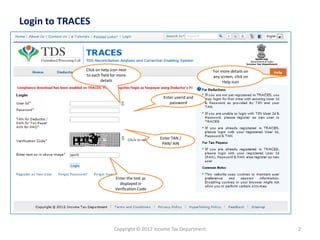
Login to TRACES
Copyright © 2012 Income Tax Department 2
Click on help icon next
to each field for more
details
For more details on
any screen, click on
Help icon
Enter the text as
displayed in
Verification Code
Enter TAN /
PAN/ AIN
Enter userid and
password
Copyright © 2012 Income Tax Department 3
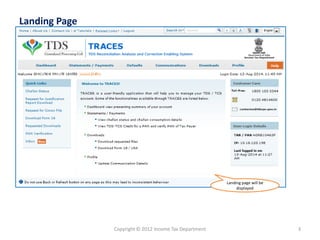
Landing Page
Landing page will be
displayed
Copyright © 2012 Income Tax Department 4
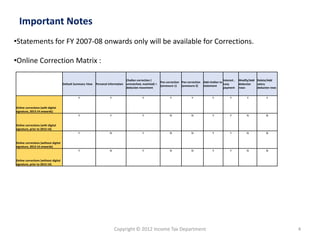
Important Notes
•Statements for FY 2007-08 onwards only will be available for Corrections.
•Online Correction Matrix :
Default Summary View Personal Information
Challan correction (
unmatched, matched) +
deductee movement
Pan correction
(annexure 1)
Pan correction
(annexure 2)
Add challan to
statement
Interest ,
Levy
payment
Modify/Add
deductee
rows
Delete/Add
salary
deductee rows
Online corrections (with digital
signature, 2013-14 onwards)
Y Y Y Y Y Y Y Y Y
Online corrections (with digital
signature, prior to 2013-14)
Y Y Y N N Y Y N N
Online corrections (without digital
signature, 2013-14 onwards)
Y N Y N N Y Y N N
Online corrections (without digital
signature, prior to 2013-14)
Y N Y N N Y Y N N
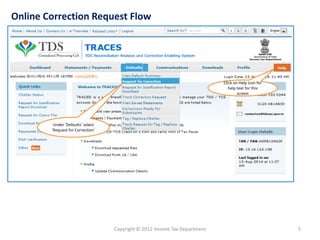
Online Correction Request Flow
Click on Help icon for
help text for this
screen
Under ‘Defaults’ select
‘Request for Correction’
5Copyright © 2012 Income Tax Department
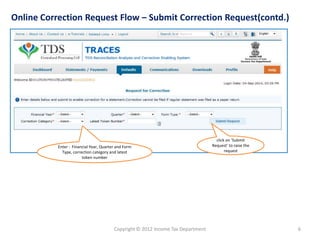
Online Correction Request Flow – Submit Correction Request(contd.)
6Copyright © 2012 Income Tax Department
click on ‘Submit
Request’ to raise the
request
Enter : Financial Year, Quarter and Form
Type, correction category and latest
token number
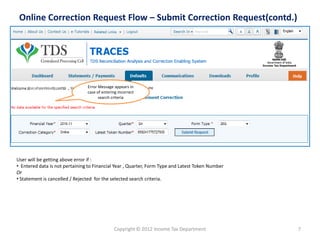
Online Correction Request Flow – Submit Correction Request(contd.)
Error Message appears in
case of entering incorrect
search criteria
User will be getting above error if :
• Entered data is not pertaining to Financial Year , Quarter, Form Type and Latest Token Number
Or
• Statement is cancelled / Rejected for the selected search criteria.
7Copyright © 2012 Income Tax Department
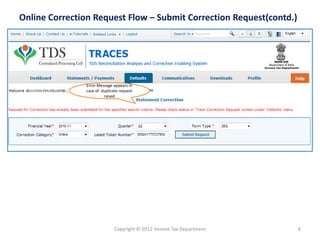
Online Correction Request Flow – Submit Correction Request(contd.)
Error Message appears in
case of duplicate request
raised
8Copyright © 2012 Income Tax Department
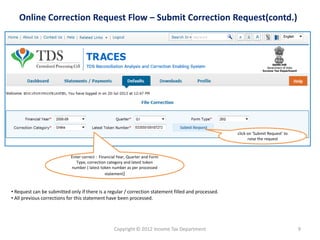
Online Correction Request Flow – Submit Correction Request(contd.)
Enter correct : Financial Year, Quarter and Form
Type, correction category and latest token
number ( latest token number as per processed
statement)
click on ‘Submit Request’ to
raise the request
• Request can be submitted only if there is a regular / correction statement filled and processed.
• All previous corrections for this statement have been processed.
9Copyright © 2012 Income Tax Department
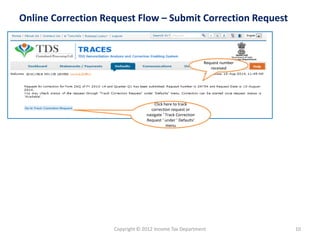
Online Correction Request Flow – Submit Correction Request
Request number
received
Click here to track
correction request or
navigate ‘ Track Correction
Request ‘ under ‘ Defaults’
menu
10Copyright © 2012 Income Tax Department
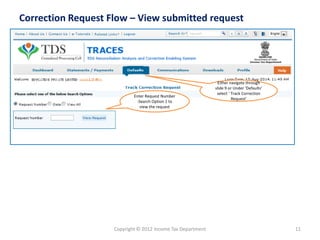
Correction Request Flow – View submitted request
Enter Request Number
-Search Option 1 to
view the request
Either navigate through
slide 9 or Under ‘Defaults’
select ‘ Track Correction
Request’
11Copyright © 2012 Income Tax Department
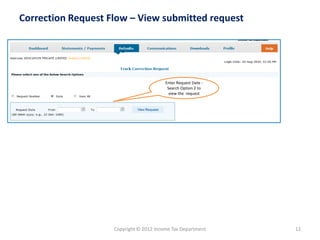
Correction Request Flow – View submitted request
Enter Request Date -
Search Option 2 to
view the request
12Copyright © 2012 Income Tax Department
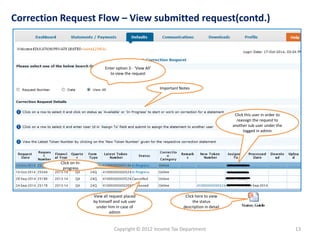
Correction Request Flow – View submitted request(contd.)
13Copyright © 2012 Income Tax Department
Click this user in order to
reassign the request to
another sub user under the
logged in admin
Click on In-
progress
Important Notes
Enter option 3 - ‘View All’
to view the request
View all request placed
by himself and sub user
under him in case of
admin
Click here to view
the status
description in detail
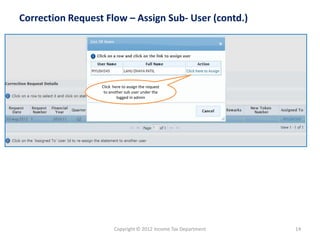
Correction Request Flow – Assign Sub- User (contd.)
Click here to assign the request
to another sub user under the
logged in admin
14Copyright © 2012 Income Tax Department
Copyright © 2012 Income Tax Department 15
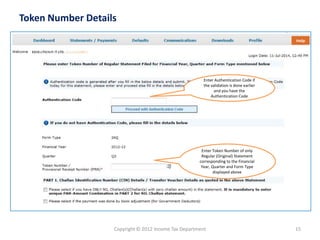
Token Number Details
Enter Authentication Code if
the validation is done earlier
and you have the
Authentication Code
Enter Token Number of only
Regular (Original) Statement
corresponding to the Financial
Year, Quarter and Form Type
displayed above
Copyright © 2012 Income Tax Department 16
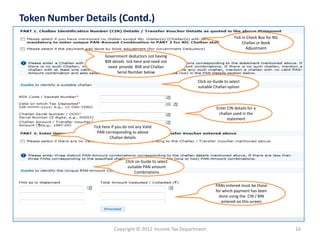
Token Number Details (Contd.)
Tick in Check Box for NIL
Challan or Book
Adjustment
Government deductors not having
BIN details tick here and need not
need provide BSR and Challan
Serial Number below
Enter CIN details for a
challan used in the
statement
Click on Guide to select
suitable Challan option
PANs entered must be those
for which payment has been
done using the CIN / BIN
entered on this screen
Tick here if you do not any Valid
PAN corresponding to above
Challan details
Click on Guide to select
suitable PAN amount
Combinations
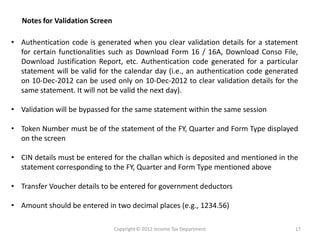
• Authentication code is generated when you clear validation details for a statement
for certain functionalities such as Download Form 16 / 16A, Download Conso File,
Download Justification Report, etc. Authentication code generated for a particular
statement will be valid for the calendar day (i.e., an authentication code generated
on 10-Dec-2012 can be used only on 10-Dec-2012 to clear validation details for the
same statement. It will not be valid the next day).
• Validation will be bypassed for the same statement within the same session
• Token Number must be of the statement of the FY, Quarter and Form Type displayed
on the screen
• CIN details must be entered for the challan which is deposited and mentioned in the
statement corresponding to the FY, Quarter and Form Type mentioned above
• Transfer Voucher details to be entered for government deductors
• Amount should be entered in two decimal places (e.g., 1234.56)
Notes for Validation Screen
Copyright © 2012 Income Tax Department 17
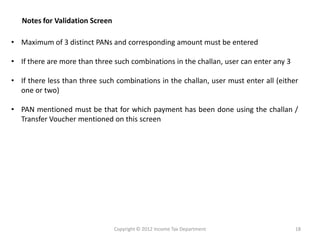
• Maximum of 3 distinct PANs and corresponding amount must be entered
• If there are more than three such combinations in the challan, user can enter any 3
• If there less than three such combinations in the challan, user must enter all (either
one or two)
• PAN mentioned must be that for which payment has been done using the challan /
Transfer Voucher mentioned on this screen
Notes for Validation Screen
Copyright © 2012 Income Tax Department 18
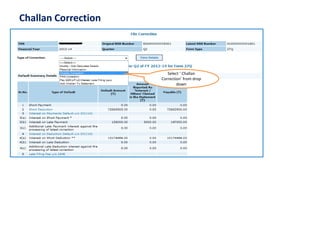
Challan Correction
Select ‘ Challan
Correction’ from drop
down
Challan Correction
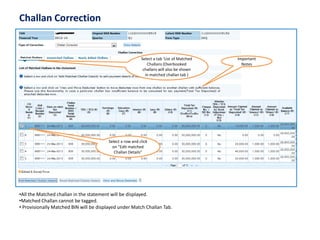
Select a tab ‘List of Matched
Challans (Overbooked
challans will also be shown
in matched challan tab )
Select a row and click
on ”Edit matched
Challan Details”
•All the Matched challan in the statement will be displayed.
•Matched Challan cannot be tagged.
• Provisionally Matched BIN will be displayed under Match Challan Tab.
Important
Notes
Challan Correction
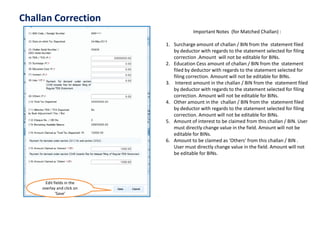
Edit fields in the
overlay and click on
‘Save’
Important Notes (for Matched Challan) :
1. Surcharge amount of challan / BIN from the statement filed
by deductor with regards to the statement selected for filing
correction .Amount will not be editable for BINs.
2. Education Cess amount of challan / BIN from the statement
filed by deductor with regards to the statement selected for
filing correction. Amount will not be editable for BINs.
3. Interest amount in the challan / BIN from the statement filed
by deductor with regards to the statement selected for filing
correction. Amount will not be editable for BINs.
4. Other amount in the challan / BIN from the statement filed
by deductor with regards to the statement selected for filing
correction. Amount will not be editable for BINs.
5. Amount of interest to be claimed from this challan / BIN. User
must directly change value in the field. Amount will not be
editable for BINs.
6. Amount to be claimed as 'Others' from this challan / BIN .
User must directly change value in the field. Amount will not
be editable for BINs.
Challan Correction
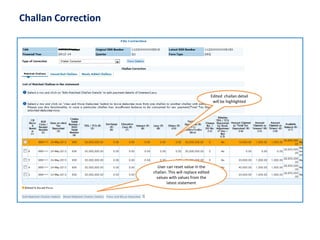
Edited challan detail
will be highlighted
User can reset value in the
challan. This will replace edited
values with values from the
latest statement
Challan Correction
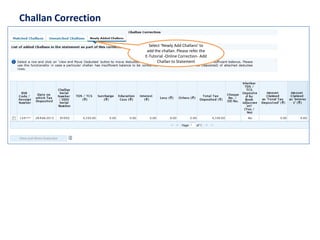
Select ‘Newly Add Challans’ to
add the challan. Please refer the
E-Tutorial -Online Correction- Add
Challan to Statement
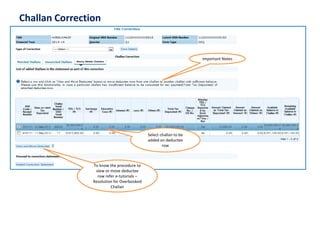
Challan Correction
Select challan to be
added on deductee
row
To know the procedure to
view or move deductee
row refer e-tutorials –
Resolution for Overbooked
Challan
Important Notes
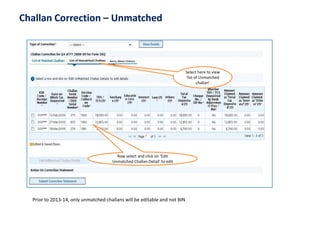
Challan Correction – Unmatched
Select here to view
‘list of Unmatched
challan’
Row select and click on ‘Edit
Unmatched Challan Detail’ to edit
Prior to 2013-14, only unmatched challans will be editable and not BIN
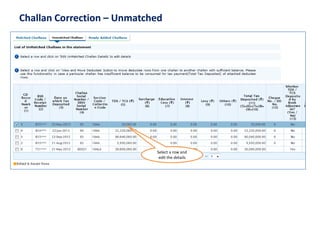
Challan Correction – Unmatched
Select a row and
edit the details
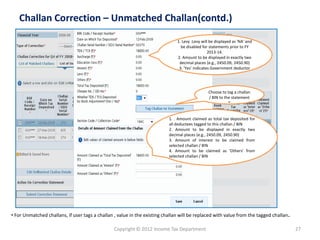
Copyright © 2012 Income Tax Department 27
Challan Correction – Unmatched Challan(contd.)
Choose to tag a challan
/ BIN to the statement
”
• For Unmatched challans, if user tags a challan , value in the existing challan will be replaced with value from the tagged challan.
1. Levy :Levy will be displayed as 'NA' and
be disabled for statements prior to FY
2013-14.
2. Amount to be displayed in exactly two
decimal places (e.g., 2450.09, 2450.90)
3. 'Yes' indicates Government deductor
1. . Amount claimed as total tax deposited for
all deductees tagged to this challan / BIN
2. Amount to be displayed in exactly two
decimal places (e.g., 2450.09, 2450.90)
3. Amount of interest to be claimed from
selected challan / BIN
4. Amount to be claimed as 'Others' from
selected challan / BIN
Copyright © 2012 Income Tax Department 28
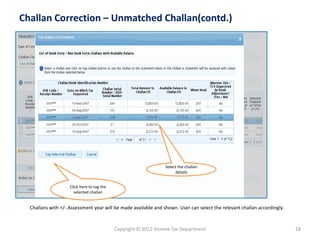
Challan Correction – Unmatched Challan(contd.)
Select the challan
details
Click here to tag the
selected challan
Challans with +/- Assessment year will be made available and shown. User can select the relevant challan accordingly.
Copyright © 2012 Income Tax Department 29
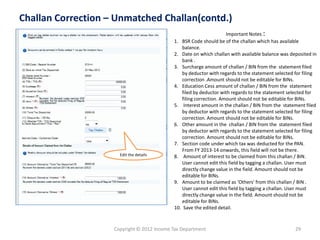
Challan Correction – Unmatched Challan(contd.)
Edit the details
Important Notes :
1. BSR Code should be of the challan which has available
balance.
2. Date on which challan with available balance was deposited in
bank .
3. Surcharge amount of challan / BIN from the statement filed
by deductor with regards to the statement selected for filing
correction .Amount should not be editable for BINs.
4. Education Cess amount of challan / BIN from the statement
filed by deductor with regards to the statement selected for
filing correction. Amount should not be editable for BINs.
5. Interest amount in the challan / BIN from the statement filed
by deductor with regards to the statement selected for filing
correction. Amount should not be editable for BINs.
6. Other amount in the challan / BIN from the statement filed
by deductor with regards to the statement selected for filing
correction. Amount should not be editable for BINs.
7. Section code under which tax was deducted for the PAN.
From FY 2013-14 onwards, this field will not be there.
8. Amount of interest to be claimed from this challan / BIN.
User cannot edit this field by tagging a challan. User must
directly change value in the field. Amount should not be
editable for BINs.
9. Amount to be claimed as 'Others' from this challan / BIN .
User cannot edit this field by tagging a challan. User must
directly change value in the field. Amount should not be
editable for BINs.
10. Save the edited detail.
Copyright © 2012 Income Tax Department 30
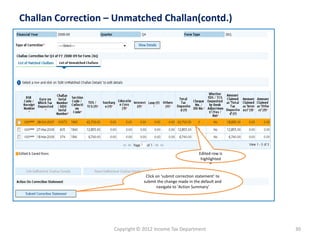
Challan Correction – Unmatched Challan(contd.)
Click on ‘submit correction statement’ to
submit the change made in the default and
navigate to ‘Action Summary’
Edited row is
highlighted
”
Action Summary
Copyright © 2012 Income Tax Department
Copyright © 2012 Income Tax Department 32
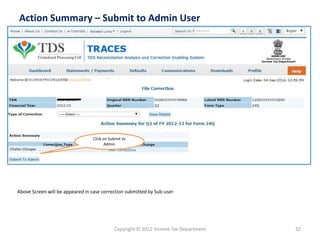
Action Summary – Submit to Admin User
Above Screen will be appeared in case correction submitted by Sub-user
Click on Submit to
Admin
Copyright © 2012 Income Tax Department 33
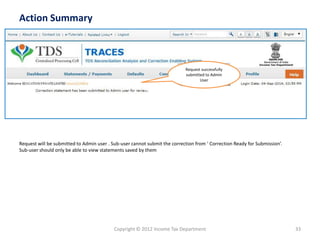
Action Summary
Request will be submitted to Admin user . Sub-user cannot submit the correction from ‘ Correction Ready for Submission’.
Sub-user should only be able to view statements saved by them
Request successfully
submitted to Admin
User
Copyright © 2012 Income Tax Department 34
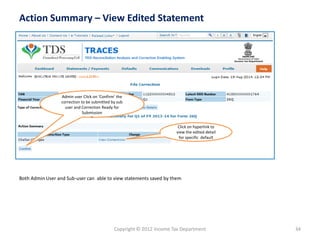
Action Summary – View Edited Statement
Both Admin User and Sub-user can able to view statements saved by them
Click on hyperlink to
view the edited detail
for specific default
Admin user Click on ‘Confirm’ the
correction to be submitted by sub
user and Correction Ready for
Submission
”
Copyright © 2012 Income Tax Department 35
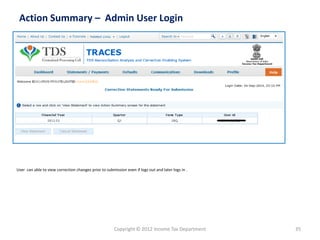
Action Summary – Admin User Login
User can able to view correction changes prior to submission even if logs out and later logs in .
Copyright © 2012 Income Tax Department 36
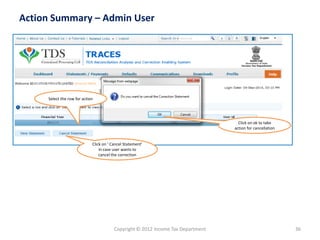
Action Summary – Admin User
Click on ok to take
action for cancellation
Click on ‘ Cancel Statement’
in case user wants to
cancel the correction
Select the row for action
Copyright © 2012 Income Tax Department 37
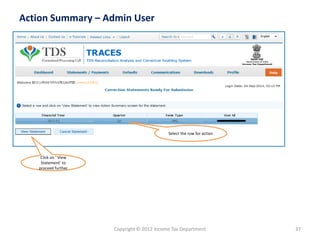
Action Summary – Admin User
Click on ‘ View
Statement’ to
proceed further
Select the row for action
Copyright © 2012 Income Tax Department 38
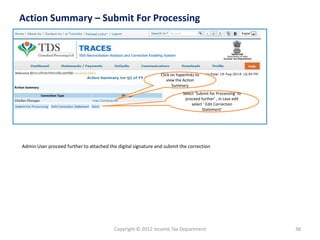
Action Summary – Submit For Processing
Admin User proceed further to attached the digital signature and submit the correction
Click on hyperlinks to
view the Action
Summary
Select ‘Submit for Processing’ to
proceed further’ , in case edit
select ‘ Edit Correction
Statement’
Copyright © 2012 Income Tax Department 39
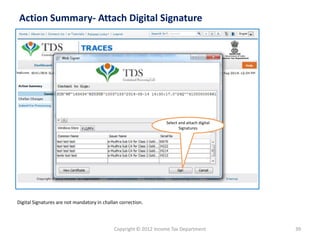
Action Summary- Attach Digital Signature
Digital Signatures are not mandatory in challan correction.
Select and attach digital
Signatures
Copyright © 2012 Income Tax Department 40
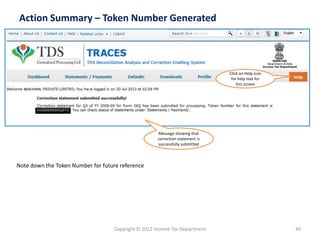
Action Summary – Token Number Generated
Click on Help icon
for help text for
this screen
Message showing that
correction statement is
successfully submitted
Note down the Token Number for future reference

E tutorial -

  • 1.
    e-Tutorial Online Correction –Challan Correction Copyright © 2012 Income Tax Department 1
  • 2.
    Login to TRACES Copyright© 2012 Income Tax Department 2 Click on help icon next to each field for more details For more details on any screen, click on Help icon Enter the text as displayed in Verification Code Enter TAN / PAN/ AIN Enter userid and password
  • 3.
    Copyright © 2012Income Tax Department 3 Landing Page Landing page will be displayed
  • 4.
    Copyright © 2012Income Tax Department 4 Important Notes •Statements for FY 2007-08 onwards only will be available for Corrections. •Online Correction Matrix : Default Summary View Personal Information Challan correction ( unmatched, matched) + deductee movement Pan correction (annexure 1) Pan correction (annexure 2) Add challan to statement Interest , Levy payment Modify/Add deductee rows Delete/Add salary deductee rows Online corrections (with digital signature, 2013-14 onwards) Y Y Y Y Y Y Y Y Y Online corrections (with digital signature, prior to 2013-14) Y Y Y N N Y Y N N Online corrections (without digital signature, 2013-14 onwards) Y N Y N N Y Y N N Online corrections (without digital signature, prior to 2013-14) Y N Y N N Y Y N N
  • 5.
    Online Correction RequestFlow Click on Help icon for help text for this screen Under ‘Defaults’ select ‘Request for Correction’ 5Copyright © 2012 Income Tax Department
  • 6.
    Online Correction RequestFlow – Submit Correction Request(contd.) 6Copyright © 2012 Income Tax Department click on ‘Submit Request’ to raise the request Enter : Financial Year, Quarter and Form Type, correction category and latest token number
  • 7.
    Online Correction RequestFlow – Submit Correction Request(contd.) Error Message appears in case of entering incorrect search criteria User will be getting above error if : • Entered data is not pertaining to Financial Year , Quarter, Form Type and Latest Token Number Or • Statement is cancelled / Rejected for the selected search criteria. 7Copyright © 2012 Income Tax Department
  • 8.
    Online Correction RequestFlow – Submit Correction Request(contd.) Error Message appears in case of duplicate request raised 8Copyright © 2012 Income Tax Department
  • 9.
    Online Correction RequestFlow – Submit Correction Request(contd.) Enter correct : Financial Year, Quarter and Form Type, correction category and latest token number ( latest token number as per processed statement) click on ‘Submit Request’ to raise the request • Request can be submitted only if there is a regular / correction statement filled and processed. • All previous corrections for this statement have been processed. 9Copyright © 2012 Income Tax Department
  • 10.
    Online Correction RequestFlow – Submit Correction Request Request number received Click here to track correction request or navigate ‘ Track Correction Request ‘ under ‘ Defaults’ menu 10Copyright © 2012 Income Tax Department
  • 11.
    Correction Request Flow– View submitted request Enter Request Number -Search Option 1 to view the request Either navigate through slide 9 or Under ‘Defaults’ select ‘ Track Correction Request’ 11Copyright © 2012 Income Tax Department
  • 12.
    Correction Request Flow– View submitted request Enter Request Date - Search Option 2 to view the request 12Copyright © 2012 Income Tax Department
  • 13.
    Correction Request Flow– View submitted request(contd.) 13Copyright © 2012 Income Tax Department Click this user in order to reassign the request to another sub user under the logged in admin Click on In- progress Important Notes Enter option 3 - ‘View All’ to view the request View all request placed by himself and sub user under him in case of admin Click here to view the status description in detail
  • 14.
    Correction Request Flow– Assign Sub- User (contd.) Click here to assign the request to another sub user under the logged in admin 14Copyright © 2012 Income Tax Department
  • 15.
    Copyright © 2012Income Tax Department 15 Token Number Details Enter Authentication Code if the validation is done earlier and you have the Authentication Code Enter Token Number of only Regular (Original) Statement corresponding to the Financial Year, Quarter and Form Type displayed above
  • 16.
    Copyright © 2012Income Tax Department 16 Token Number Details (Contd.) Tick in Check Box for NIL Challan or Book Adjustment Government deductors not having BIN details tick here and need not need provide BSR and Challan Serial Number below Enter CIN details for a challan used in the statement Click on Guide to select suitable Challan option PANs entered must be those for which payment has been done using the CIN / BIN entered on this screen Tick here if you do not any Valid PAN corresponding to above Challan details Click on Guide to select suitable PAN amount Combinations
  • 17.
    • Authentication codeis generated when you clear validation details for a statement for certain functionalities such as Download Form 16 / 16A, Download Conso File, Download Justification Report, etc. Authentication code generated for a particular statement will be valid for the calendar day (i.e., an authentication code generated on 10-Dec-2012 can be used only on 10-Dec-2012 to clear validation details for the same statement. It will not be valid the next day). • Validation will be bypassed for the same statement within the same session • Token Number must be of the statement of the FY, Quarter and Form Type displayed on the screen • CIN details must be entered for the challan which is deposited and mentioned in the statement corresponding to the FY, Quarter and Form Type mentioned above • Transfer Voucher details to be entered for government deductors • Amount should be entered in two decimal places (e.g., 1234.56) Notes for Validation Screen Copyright © 2012 Income Tax Department 17
  • 18.
    • Maximum of3 distinct PANs and corresponding amount must be entered • If there are more than three such combinations in the challan, user can enter any 3 • If there less than three such combinations in the challan, user must enter all (either one or two) • PAN mentioned must be that for which payment has been done using the challan / Transfer Voucher mentioned on this screen Notes for Validation Screen Copyright © 2012 Income Tax Department 18
  • 19.
    Challan Correction Select ‘Challan Correction’ from drop down
  • 20.
    Challan Correction Select atab ‘List of Matched Challans (Overbooked challans will also be shown in matched challan tab ) Select a row and click on ”Edit matched Challan Details” •All the Matched challan in the statement will be displayed. •Matched Challan cannot be tagged. • Provisionally Matched BIN will be displayed under Match Challan Tab. Important Notes
  • 21.
    Challan Correction Edit fieldsin the overlay and click on ‘Save’ Important Notes (for Matched Challan) : 1. Surcharge amount of challan / BIN from the statement filed by deductor with regards to the statement selected for filing correction .Amount will not be editable for BINs. 2. Education Cess amount of challan / BIN from the statement filed by deductor with regards to the statement selected for filing correction. Amount will not be editable for BINs. 3. Interest amount in the challan / BIN from the statement filed by deductor with regards to the statement selected for filing correction. Amount will not be editable for BINs. 4. Other amount in the challan / BIN from the statement filed by deductor with regards to the statement selected for filing correction. Amount will not be editable for BINs. 5. Amount of interest to be claimed from this challan / BIN. User must directly change value in the field. Amount will not be editable for BINs. 6. Amount to be claimed as 'Others' from this challan / BIN . User must directly change value in the field. Amount will not be editable for BINs.
  • 22.
    Challan Correction Edited challandetail will be highlighted User can reset value in the challan. This will replace edited values with values from the latest statement
  • 23.
    Challan Correction Select ‘NewlyAdd Challans’ to add the challan. Please refer the E-Tutorial -Online Correction- Add Challan to Statement
  • 24.
    Challan Correction Select challanto be added on deductee row To know the procedure to view or move deductee row refer e-tutorials – Resolution for Overbooked Challan Important Notes
  • 25.
    Challan Correction –Unmatched Select here to view ‘list of Unmatched challan’ Row select and click on ‘Edit Unmatched Challan Detail’ to edit Prior to 2013-14, only unmatched challans will be editable and not BIN
  • 26.
    Challan Correction –Unmatched Select a row and edit the details
  • 27.
    Copyright © 2012Income Tax Department 27 Challan Correction – Unmatched Challan(contd.) Choose to tag a challan / BIN to the statement ” • For Unmatched challans, if user tags a challan , value in the existing challan will be replaced with value from the tagged challan. 1. Levy :Levy will be displayed as 'NA' and be disabled for statements prior to FY 2013-14. 2. Amount to be displayed in exactly two decimal places (e.g., 2450.09, 2450.90) 3. 'Yes' indicates Government deductor 1. . Amount claimed as total tax deposited for all deductees tagged to this challan / BIN 2. Amount to be displayed in exactly two decimal places (e.g., 2450.09, 2450.90) 3. Amount of interest to be claimed from selected challan / BIN 4. Amount to be claimed as 'Others' from selected challan / BIN
  • 28.
    Copyright © 2012Income Tax Department 28 Challan Correction – Unmatched Challan(contd.) Select the challan details Click here to tag the selected challan Challans with +/- Assessment year will be made available and shown. User can select the relevant challan accordingly.
  • 29.
    Copyright © 2012Income Tax Department 29 Challan Correction – Unmatched Challan(contd.) Edit the details Important Notes : 1. BSR Code should be of the challan which has available balance. 2. Date on which challan with available balance was deposited in bank . 3. Surcharge amount of challan / BIN from the statement filed by deductor with regards to the statement selected for filing correction .Amount should not be editable for BINs. 4. Education Cess amount of challan / BIN from the statement filed by deductor with regards to the statement selected for filing correction. Amount should not be editable for BINs. 5. Interest amount in the challan / BIN from the statement filed by deductor with regards to the statement selected for filing correction. Amount should not be editable for BINs. 6. Other amount in the challan / BIN from the statement filed by deductor with regards to the statement selected for filing correction. Amount should not be editable for BINs. 7. Section code under which tax was deducted for the PAN. From FY 2013-14 onwards, this field will not be there. 8. Amount of interest to be claimed from this challan / BIN. User cannot edit this field by tagging a challan. User must directly change value in the field. Amount should not be editable for BINs. 9. Amount to be claimed as 'Others' from this challan / BIN . User cannot edit this field by tagging a challan. User must directly change value in the field. Amount should not be editable for BINs. 10. Save the edited detail.
  • 30.
    Copyright © 2012Income Tax Department 30 Challan Correction – Unmatched Challan(contd.) Click on ‘submit correction statement’ to submit the change made in the default and navigate to ‘Action Summary’ Edited row is highlighted ”
  • 31.
    Action Summary Copyright ©2012 Income Tax Department
  • 32.
    Copyright © 2012Income Tax Department 32 Action Summary – Submit to Admin User Above Screen will be appeared in case correction submitted by Sub-user Click on Submit to Admin
  • 33.
    Copyright © 2012Income Tax Department 33 Action Summary Request will be submitted to Admin user . Sub-user cannot submit the correction from ‘ Correction Ready for Submission’. Sub-user should only be able to view statements saved by them Request successfully submitted to Admin User
  • 34.
    Copyright © 2012Income Tax Department 34 Action Summary – View Edited Statement Both Admin User and Sub-user can able to view statements saved by them Click on hyperlink to view the edited detail for specific default Admin user Click on ‘Confirm’ the correction to be submitted by sub user and Correction Ready for Submission ”
  • 35.
    Copyright © 2012Income Tax Department 35 Action Summary – Admin User Login User can able to view correction changes prior to submission even if logs out and later logs in .
  • 36.
    Copyright © 2012Income Tax Department 36 Action Summary – Admin User Click on ok to take action for cancellation Click on ‘ Cancel Statement’ in case user wants to cancel the correction Select the row for action
  • 37.
    Copyright © 2012Income Tax Department 37 Action Summary – Admin User Click on ‘ View Statement’ to proceed further Select the row for action
  • 38.
    Copyright © 2012Income Tax Department 38 Action Summary – Submit For Processing Admin User proceed further to attached the digital signature and submit the correction Click on hyperlinks to view the Action Summary Select ‘Submit for Processing’ to proceed further’ , in case edit select ‘ Edit Correction Statement’
  • 39.
    Copyright © 2012Income Tax Department 39 Action Summary- Attach Digital Signature Digital Signatures are not mandatory in challan correction. Select and attach digital Signatures
  • 40.
    Copyright © 2012Income Tax Department 40 Action Summary – Token Number Generated Click on Help icon for help text for this screen Message showing that correction statement is successfully submitted Note down the Token Number for future reference