Android Application Development
         User Interface


                                       Ahsanul Karim
                          ahsanul.karim@sentinelbd.com
                               Sentinel Solutions Ltd.
                             http://www.sentinelbd.com
User Interface
Today
The Android Widget Toolbox

1.TextView
2.EditText
3.Spinner
4.Button
5.CheckBox
6.RadioButton
7.DatePicker
8.TimePicker

  We have already used TextView, EditText and Button
User Interface
Android Widget Toolbox
Form Elements Tutorial
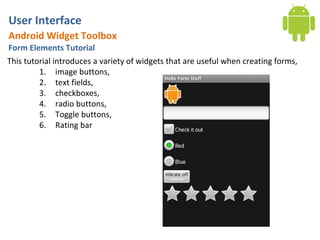
This tutorial introduces a variety of widgets that are useful when creating forms,
         1. image buttons,
         2. text fields,
         3. checkboxes,
         4. radio buttons,
         5. Toggle buttons,
         6. Rating bar
User Interface
  Android Widget Toolbox
  Form Elements Tutorial (Contd.)
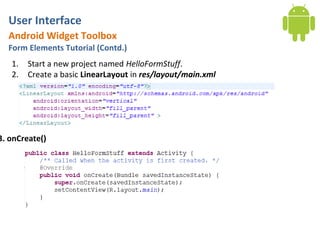
   1.   Start a new project named HelloFormStuff.
   2.   Create a basic LinearLayout in res/layout/main.xml


3. onCreate()
User Interface
Android Widget Toolbox
Form Elements Tutorial (Contd.)- Custom Button

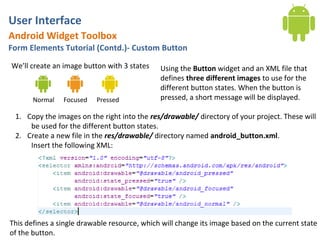
We’ll create an image button with 3 states    Using the Button widget and an XML file that
                                              defines three different images to use for the
                                              different button states. When the button is
       Normal   Focused   Pressed             pressed, a short message will be displayed.

 1. Copy the images on the right into the res/drawable/ directory of your project. These will
     be used for the different button states.
 2. Create a new file in the res/drawable/ directory named android_button.xml.
     Insert the following XML:


This defines a single drawable resource, which will change its image based on the current state
of the button.
User Interface
  Android Widget Toolbox
  Form Elements Tutorial (Contd.)- Custom Button
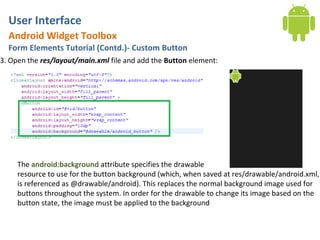
3. Open the res/layout/main.xml file and add the Button element:


     The android:background attribute specifies the drawable
     resource to use for the button background (which, when saved at res/drawable/android.xml,
     is referenced as @drawable/android). This replaces the normal background image used for
     buttons throughout the system. In order for the drawable to change its image based on the
     button state, the image must be applied to the background
User Interface
  Android Widget Toolbox
  Form Elements Tutorial (Contd.)- Custom Button
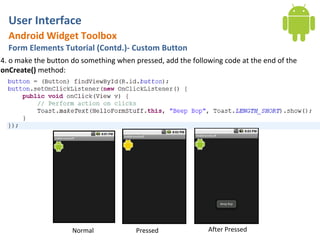
4. o make the button do something when pressed, add the following code at the end of the
onCreate() method:


                     Normal             Pressed              After Pressed
User Interface
 Android Widget Toolbox
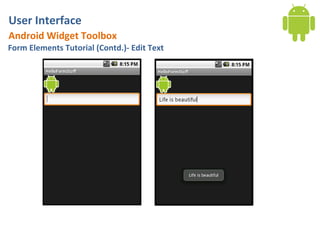
 Form Elements Tutorial (Contd.)- Edit Text
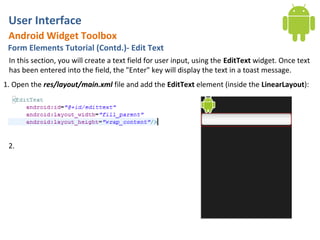
 In this section, you will create a text field for user input, using the EditText widget. Once text
 has been entered into the field, the "Enter" key will display the text in a toast message.
1. Open the res/layout/main.xml file and add the EditText element (inside the LinearLayout):


 2.
User Interface
Android Widget Toolbox
Form Elements Tutorial (Contd.)- Edit Text
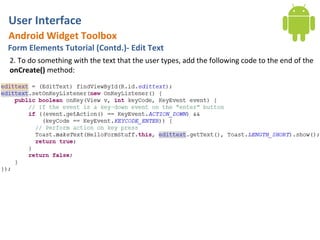
2. To do something with the text that the user types, add the following code to the end of the
onCreate() method:
User Interface
Android Widget Toolbox
Form Elements Tutorial (Contd.)- Edit Text
User Interface
 Android Widget Toolbox
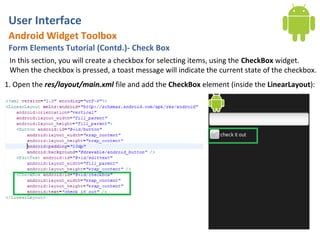
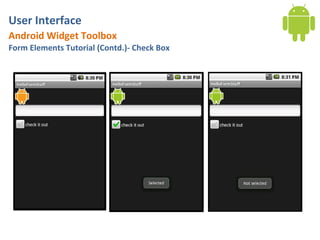
 Form Elements Tutorial (Contd.)- Check Box
 In this section, you will create a checkbox for selecting items, using the CheckBox widget.
 When the checkbox is pressed, a toast message will indicate the current state of the checkbox.
1. Open the res/layout/main.xml file and add the CheckBox element (inside the LinearLayout):
User Interface
Android Widget Toolbox
Form Elements Tutorial (Contd.)- Check Box
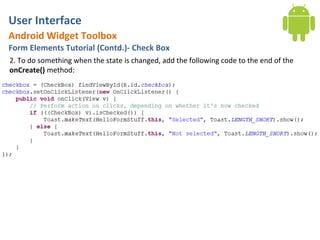
2. To do something when the state is changed, add the following code to the end of the
onCreate() method:
User Interface
Android Widget Toolbox
Form Elements Tutorial (Contd.)- Check Box
User Interface
 Android Widget Toolbox
 Form Elements Tutorial (Contd.)- Radio Button
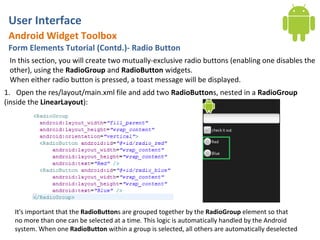
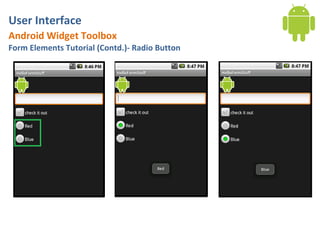
 In this section, you will create two mutually-exclusive radio buttons (enabling one disables the
 other), using the RadioGroup and RadioButton widgets.
 When either radio button is pressed, a toast message will be displayed.
1. Open the res/layout/main.xml file and add two RadioButtons, nested in a RadioGroup
(inside the LinearLayout):


   It's important that the RadioButtons are grouped together by the RadioGroup element so that
   no more than one can be selected at a time. This logic is automatically handled by the Android
   system. When one RadioButton within a group is selected, all others are automatically deselected
User Interface
Android Widget Toolbox
Form Elements Tutorial (Contd.)- Radio Button
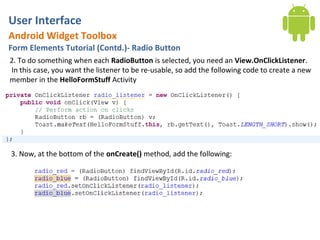
2. To do something when each RadioButton is selected, you need an View.OnClickListener.
In this case, you want the listener to be re-usable, so add the following code to create a new
member in the HelloFormStuff Activity


3. Now, at the bottom of the onCreate() method, add the following:
User Interface
Android Widget Toolbox
Form Elements Tutorial (Contd.)- Radio Button
User Interface
Android Widget Toolbox
Form Elements Tutorial (Contd.)- Toggle Button
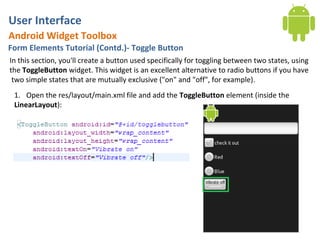
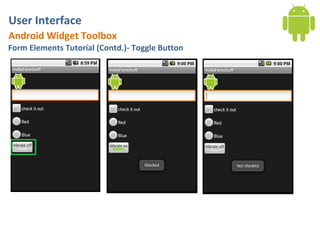
In this section, you'll create a button used specifically for toggling between two states, using
the ToggleButton widget. This widget is an excellent alternative to radio buttons if you have
 two simple states that are mutually exclusive ("on" and "off", for example).
 1. Open the res/layout/main.xml file and add the ToggleButton element (inside the
 LinearLayout):
User Interface
Android Widget Toolbox
Form Elements Tutorial (Contd.)- Toggle Button
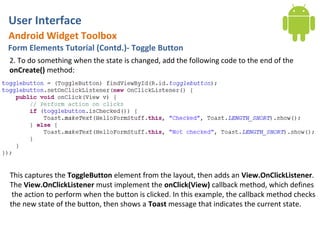
2. To do something when the state is changed, add the following code to the end of the
onCreate() method:


This captures the ToggleButton element from the layout, then adds an View.OnClickListener.
The View.OnClickListener must implement the onClick(View) callback method, which defines
 the action to perform when the button is clicked. In this example, the callback method checks
the new state of the button, then shows a Toast message that indicates the current state.
User Interface
Android Widget Toolbox
Form Elements Tutorial (Contd.)- Toggle Button
User Interface
Android Widget Toolbox
Form Elements Tutorial (Contd.)- Rating Bar
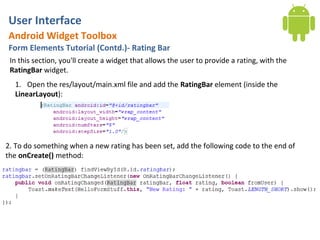
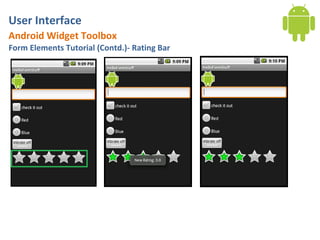
 In this section, you'll create a widget that allows the user to provide a rating, with the
 RatingBar widget.
  1. Open the res/layout/main.xml file and add the RatingBar element (inside the
  LinearLayout):


2. To do something when a new rating has been set, add the following code to the end of
the onCreate() method:
User Interface
Android Widget Toolbox
Form Elements Tutorial (Contd.)- Rating Bar
User Interface
Android Widget Toolbox
Auto Complete Tutorial
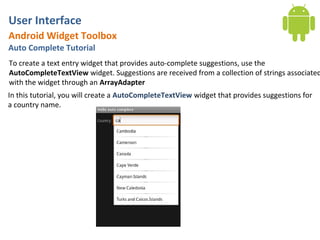
To create a text entry widget that provides auto-complete suggestions, use the
AutoCompleteTextView widget. Suggestions are received from a collection of strings associated
with the widget through an ArrayAdapter
In this tutorial, you will create a AutoCompleteTextView widget that provides suggestions for
a country name.
User Interface
Android Widget Toolbox
Auto Complete Tutorial (Contd.)
1. Start a new project named HelloAutoComplete.
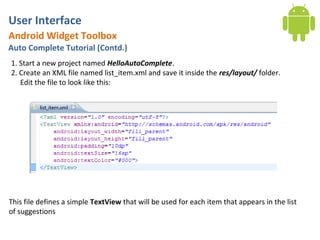
2. Create an XML file named list_item.xml and save it inside the res/layout/ folder.
   Edit the file to look like this:


This file defines a simple TextView that will be used for each item that appears in the list
of suggestions
User Interface
Android Widget Toolbox
Auto Complete Tutorial (Contd.)
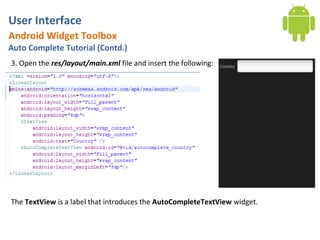
3. Open the res/layout/main.xml file and insert the following:


The TextView is a label that introduces the AutoCompleteTextView widget.
User Interface
  Android Widget Toolbox
  Auto Complete Tutorial (Contd.)
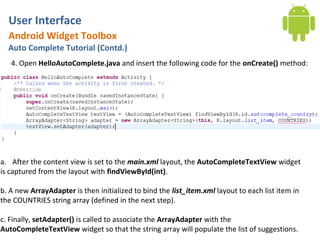
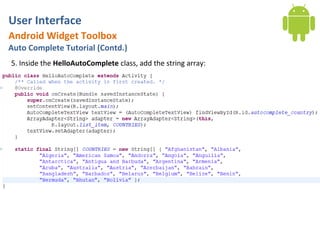
   4. Open HelloAutoComplete.java and insert the following code for the onCreate() method:


a. After the content view is set to the main.xml layout, the AutoCompleteTextView widget
is captured from the layout with findViewById(int).

b. A new ArrayAdapter is then initialized to bind the list_item.xml layout to each list item in
the COUNTRIES string array (defined in the next step).

c. Finally, setAdapter() is called to associate the ArrayAdapter with the
AutoCompleteTextView widget so that the string array will populate the list of suggestions.
User Interface
Android Widget Toolbox
Auto Complete Tutorial (Contd.)
5. Inside the HelloAutoComplete class, add the string array:
User Interface
Android Widget Toolbox
Auto Complete Tutorial (Contd.)
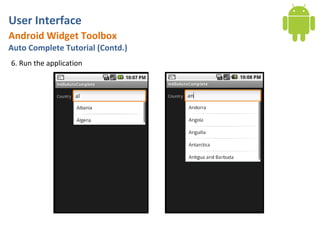
6. Run the application
User Interface
Android Widget Toolbox
Auto Complete Tutorial (Contd.)
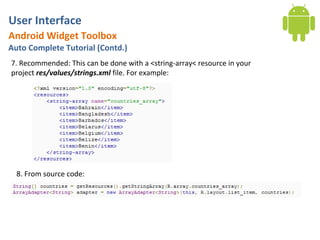
7. Recommended: This can be done with a <string-array< resource in your
project res/values/strings.xml file. For example:


  8. From source code:

Day 5: Android User Interface [View Widgets]

  • 1.
    Android Application Development User Interface Ahsanul Karim ahsanul.karim@sentinelbd.com Sentinel Solutions Ltd. http://www.sentinelbd.com
  • 2.
    User Interface Today The AndroidWidget Toolbox 1.TextView 2.EditText 3.Spinner 4.Button 5.CheckBox 6.RadioButton 7.DatePicker 8.TimePicker We have already used TextView, EditText and Button
  • 3.
    User Interface Android WidgetToolbox Form Elements Tutorial This tutorial introduces a variety of widgets that are useful when creating forms, 1. image buttons, 2. text fields, 3. checkboxes, 4. radio buttons, 5. Toggle buttons, 6. Rating bar
  • 4.
    User Interface Android Widget Toolbox Form Elements Tutorial (Contd.) 1. Start a new project named HelloFormStuff. 2. Create a basic LinearLayout in res/layout/main.xml 3. onCreate()
  • 5.
    User Interface Android WidgetToolbox Form Elements Tutorial (Contd.)- Custom Button We’ll create an image button with 3 states Using the Button widget and an XML file that defines three different images to use for the different button states. When the button is Normal Focused Pressed pressed, a short message will be displayed. 1. Copy the images on the right into the res/drawable/ directory of your project. These will be used for the different button states. 2. Create a new file in the res/drawable/ directory named android_button.xml. Insert the following XML: This defines a single drawable resource, which will change its image based on the current state of the button.
  • 6.
    User Interface Android Widget Toolbox Form Elements Tutorial (Contd.)- Custom Button 3. Open the res/layout/main.xml file and add the Button element: The android:background attribute specifies the drawable resource to use for the button background (which, when saved at res/drawable/android.xml, is referenced as @drawable/android). This replaces the normal background image used for buttons throughout the system. In order for the drawable to change its image based on the button state, the image must be applied to the background
  • 7.
    User Interface Android Widget Toolbox Form Elements Tutorial (Contd.)- Custom Button 4. o make the button do something when pressed, add the following code at the end of the onCreate() method: Normal Pressed After Pressed
  • 8.
    User Interface AndroidWidget Toolbox Form Elements Tutorial (Contd.)- Edit Text In this section, you will create a text field for user input, using the EditText widget. Once text has been entered into the field, the "Enter" key will display the text in a toast message. 1. Open the res/layout/main.xml file and add the EditText element (inside the LinearLayout): 2.
  • 9.
    User Interface Android WidgetToolbox Form Elements Tutorial (Contd.)- Edit Text 2. To do something with the text that the user types, add the following code to the end of the onCreate() method:
  • 10.
    User Interface Android WidgetToolbox Form Elements Tutorial (Contd.)- Edit Text
  • 11.
    User Interface AndroidWidget Toolbox Form Elements Tutorial (Contd.)- Check Box In this section, you will create a checkbox for selecting items, using the CheckBox widget. When the checkbox is pressed, a toast message will indicate the current state of the checkbox. 1. Open the res/layout/main.xml file and add the CheckBox element (inside the LinearLayout):
  • 12.
    User Interface Android WidgetToolbox Form Elements Tutorial (Contd.)- Check Box 2. To do something when the state is changed, add the following code to the end of the onCreate() method:
  • 13.
    User Interface Android WidgetToolbox Form Elements Tutorial (Contd.)- Check Box
  • 14.
    User Interface AndroidWidget Toolbox Form Elements Tutorial (Contd.)- Radio Button In this section, you will create two mutually-exclusive radio buttons (enabling one disables the other), using the RadioGroup and RadioButton widgets. When either radio button is pressed, a toast message will be displayed. 1. Open the res/layout/main.xml file and add two RadioButtons, nested in a RadioGroup (inside the LinearLayout): It's important that the RadioButtons are grouped together by the RadioGroup element so that no more than one can be selected at a time. This logic is automatically handled by the Android system. When one RadioButton within a group is selected, all others are automatically deselected
  • 15.
    User Interface Android WidgetToolbox Form Elements Tutorial (Contd.)- Radio Button 2. To do something when each RadioButton is selected, you need an View.OnClickListener. In this case, you want the listener to be re-usable, so add the following code to create a new member in the HelloFormStuff Activity 3. Now, at the bottom of the onCreate() method, add the following:
  • 16.
    User Interface Android WidgetToolbox Form Elements Tutorial (Contd.)- Radio Button
  • 17.
    User Interface Android WidgetToolbox Form Elements Tutorial (Contd.)- Toggle Button In this section, you'll create a button used specifically for toggling between two states, using the ToggleButton widget. This widget is an excellent alternative to radio buttons if you have two simple states that are mutually exclusive ("on" and "off", for example). 1. Open the res/layout/main.xml file and add the ToggleButton element (inside the LinearLayout):
  • 18.
    User Interface Android WidgetToolbox Form Elements Tutorial (Contd.)- Toggle Button 2. To do something when the state is changed, add the following code to the end of the onCreate() method: This captures the ToggleButton element from the layout, then adds an View.OnClickListener. The View.OnClickListener must implement the onClick(View) callback method, which defines the action to perform when the button is clicked. In this example, the callback method checks the new state of the button, then shows a Toast message that indicates the current state.
  • 19.
    User Interface Android WidgetToolbox Form Elements Tutorial (Contd.)- Toggle Button
  • 20.
    User Interface Android WidgetToolbox Form Elements Tutorial (Contd.)- Rating Bar In this section, you'll create a widget that allows the user to provide a rating, with the RatingBar widget. 1. Open the res/layout/main.xml file and add the RatingBar element (inside the LinearLayout): 2. To do something when a new rating has been set, add the following code to the end of the onCreate() method:
  • 21.
    User Interface Android WidgetToolbox Form Elements Tutorial (Contd.)- Rating Bar
  • 22.
    User Interface Android WidgetToolbox Auto Complete Tutorial To create a text entry widget that provides auto-complete suggestions, use the AutoCompleteTextView widget. Suggestions are received from a collection of strings associated with the widget through an ArrayAdapter In this tutorial, you will create a AutoCompleteTextView widget that provides suggestions for a country name.
  • 23.
    User Interface Android WidgetToolbox Auto Complete Tutorial (Contd.) 1. Start a new project named HelloAutoComplete. 2. Create an XML file named list_item.xml and save it inside the res/layout/ folder. Edit the file to look like this: This file defines a simple TextView that will be used for each item that appears in the list of suggestions
  • 24.
    User Interface Android WidgetToolbox Auto Complete Tutorial (Contd.) 3. Open the res/layout/main.xml file and insert the following: The TextView is a label that introduces the AutoCompleteTextView widget.
  • 25.
    User Interface Android Widget Toolbox Auto Complete Tutorial (Contd.) 4. Open HelloAutoComplete.java and insert the following code for the onCreate() method: a. After the content view is set to the main.xml layout, the AutoCompleteTextView widget is captured from the layout with findViewById(int). b. A new ArrayAdapter is then initialized to bind the list_item.xml layout to each list item in the COUNTRIES string array (defined in the next step). c. Finally, setAdapter() is called to associate the ArrayAdapter with the AutoCompleteTextView widget so that the string array will populate the list of suggestions.
  • 26.
    User Interface Android WidgetToolbox Auto Complete Tutorial (Contd.) 5. Inside the HelloAutoComplete class, add the string array:
  • 27.
    User Interface Android WidgetToolbox Auto Complete Tutorial (Contd.) 6. Run the application
  • 28.
    User Interface Android WidgetToolbox Auto Complete Tutorial (Contd.) 7. Recommended: This can be done with a <string-array< resource in your project res/values/strings.xml file. For example: 8. From source code: