Android
Graphical User Interface
Agenda
Basic Widgets
Labels
Buttons
Edit Text
Check Box
Spinner
RadioGroup
Basic Widgets
Android Basics: Main components of Interest
• the control file-tells the system what to do with the top-
level componentsAndroidManifest.xml:
• an object that has a life cycle and is a chunk of code
that does some work. Corresponds to a single screen.Activity:
• an object that knows how to draw itself to the screenView:
• a simple message object that represents an "intention"
to do something. Consider an intent received when an
event is triggered (e.g., a phone ring)
Intent:
Basic Widgets: Labels
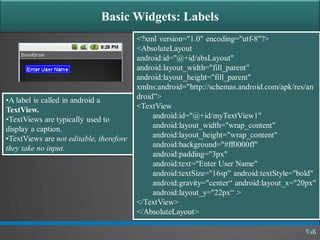
•A label is called in android a
TextView.
•TextViews are typically used to
display a caption.
•TextViews are not editable, therefore
they take no input.
<?xml version="1.0" encoding="utf-8"?>
<AbsoluteLayout
android:id="@+id/absLayout"
android:layout_width="fill_parent"
android:layout_height="fill_parent"
xmlns:android="http://schemas.android.com/apk/res/an
droid”>
<TextView
android:id="@+id/myTextView1"
android:layout_width="wrap_content"
android:layout_height="wrap_content"
android:background="#ff0000ff"
android:padding="3px"
android:text="Enter User Name"
android:textSize="16sp” android:textStyle="bold"
android:gravity="center“ android:layout_x="20px"
android:layout_y="22px“ >
</TextView>
</AbsoluteLayout>
Basic Widgets: Buttons
•A Button widget allows the
simulation of a clicking action on a
GUI.
•Button is a subclass of TextView.
Therefore formatting a Button’s face is
similar to the setting of a TextView.
<?xml version="1.0" encoding="utf-8"?>
<AbsoluteLayout
android:id="@+id/absLayout"
android:layout_width="fill_parent"
android:layout_height="fill_parent"
xmlns:android="http://schemas.android.com/apk/res/an
droid”>
<Button android:id="@+id/btnExitApp"
android:layout_width="wrap_content"
android:layout_height="wrap_content"
android:padding="10px"
android:layout_marginLeft="5px"
android:text="Exit Application"
android:textSize="16sp"
android:textStyle="bold"
android:gravity="center"
android:layout_gravity="center_horizontal”>
</Button>
</AbsoluteLayout>
Basic Widgets: Images
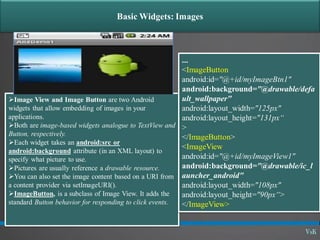
Image View and Image Button are two Android
widgets that allow embedding of images in your
applications.
Both are image-based widgets analogue to TextView and
Button, respectively.
Each widget takes an android:src or
android:background attribute (in an XML layout) to
specify what picture to use.
Pictures are usually reference a drawable resource.
You can also set the image content based on a URI from
a content provider via setImageURI().
ImageButton, is a subclass of Image View. It adds the
standard Button behavior for responding to click events.
...
<ImageButton
android:id="@+id/myImageBtn1"
android:background="@drawable/defa
ult_wallpaper"
android:layout_width="125px"
android:layout_height="131px“
>
</ImageButton>
<ImageView
android:id="@+id/myImageView1"
android:background="@drawable/ic_l
auncher_android"
android:layout_width="108px"
android:layout_height="90px“>
</ImageView>
Basic Widgets: Edit Text
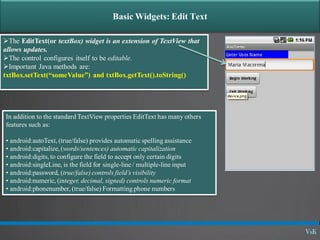
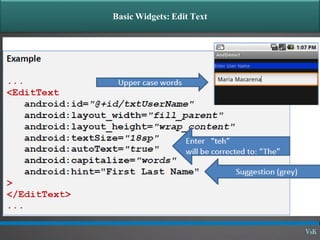
The EditText(or textBox) widget is an extension of TextView that
allows updates.
The control configures itself to be editable.
Important Java methods are:
txtBox.setText(“someValue”) and txtBox.getText().toString()
In addition to the standard TextView properties EditText has many others
features such as:
• android:autoText, (true/false) provides automatic spelling assistance
• android:capitalize, (words/sentences) automatic capitalization
• android:digits, to configure the field to accept only certain digits
• android:singleLine, is the field for single-line / multiple-line input
• android:password, (true/false) controls field’s visibility
• android:numeric, (integer, decimal, signed) controls numeric format
• android:phonenumber, (true/false) Formatting phone numbers
Basic Widgets: Edit Text
Edit Text
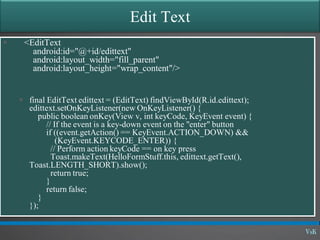
 <EditText
android:id="@+id/edittext"
android:layout_width="fill_parent"
android:layout_height="wrap_content"/>
 final EditText edittext = (EditText) findViewById(R.id.edittext);
edittext.setOnKeyListener(new OnKeyListener() {
public boolean onKey(View v, int keyCode, KeyEvent event) {
// If the event is a key-down event on the "enter" button
if ((event.getAction() == KeyEvent.ACTION_DOWN) &&
(KeyEvent.KEYCODE_ENTER)) {
// Perform action keyCode == on key press
Toast.makeText(HelloFormStuff.this, edittext.getText(),
Toast.LENGTH_SHORT).show();
return true;
}
return false;
}
});
Basic Widgets: Check Box
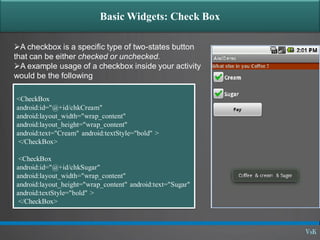
A checkbox is a specific type of two-states button
that can be either checked or unchecked.
A example usage of a checkbox inside your activity
would be the following
<CheckBox
android:id="@+id/chkCream"
android:layout_width="wrap_content"
android:layout_height="wrap_content"
android:text="Cream" android:textStyle="bold" >
</CheckBox>
<CheckBox
android:id="@+id/chkSugar"
android:layout_width="wrap_content"
android:layout_height="wrap_content" android:text="Sugar"
android:textStyle="bold" >
</CheckBox>
Check Box
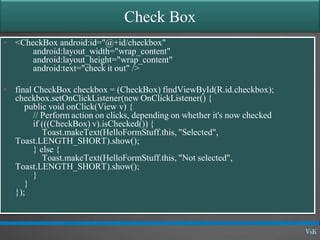
 <CheckBox android:id="@+id/checkbox"
android:layout_width="wrap_content"
android:layout_height="wrap_content"
android:text="check it out" />
 final CheckBox checkbox = (CheckBox) findViewById(R.id.checkbox);
checkbox.setOnClickListener(new OnClickListener() {
public void onClick(View v) {
// Perform action on clicks, depending on whether it's now checked
if (((CheckBox) v).isChecked()) {
Toast.makeText(HelloFormStuff.this, "Selected",
Toast.LENGTH_SHORT).show();
} else {
Toast.makeText(HelloFormStuff.this, "Not selected",
Toast.LENGTH_SHORT).show();
}
}
});
Basic Widgets: Spinner [listbox]
A view that displays one child at a time
and lets the user pick among them.
The items in the Spinner come from the
Adapter associated with this view.
<Spinner
android:layout_height="wrap_content"
android:layout_width="wrap_content"
android:id="@+id/State"/>
Basic Widgets: RadioGroup
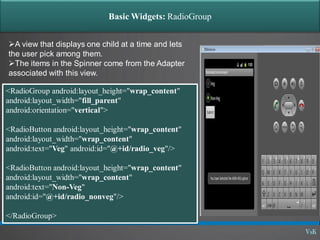
A view that displays one child at a time and lets
the user pick among them.
The items in the Spinner come from the Adapter
associated with this view.
<RadioGroup android:layout_height="wrap_content"
android:layout_width="fill_parent"
android:orientation="vertical">
<RadioButton android:layout_height="wrap_content"
android:layout_width="wrap_content"
android:text="Veg" android:id="@+id/radio_veg"/>
<RadioButton android:layout_height="wrap_content"
android:layout_width="wrap_content"
android:text="Non-Veg"
android:id="@+id/radio_nonveg"/>
</RadioGroup>
Basic Widgets: Radio Buttons
 A radio button is a two-states button that can be either checked or unchecked.
 When the radio button is unchecked, the user can press or click it to check it.
 Radio buttons are normally used together in a RadioGroup.
 When several radio buttons live inside a radio group, checking one radio button
unchecks all the others.
 RadioButton inherits from … TextView. Hence, all the standard TextView
properties for font face, style, color, etc. are available for controlling the look of
radio buttons.
 Similarly, you can call isChecked() on a RadioButton to see if it is selected,
toggle() to select it, and so on, like you can with a CheckBox.
Radio Button
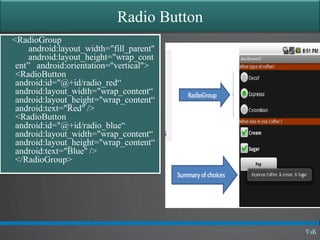
<RadioGroup
android:layout_width="fill_parent"
android:layout_height="wrap_cont
ent” android:orientation="vertical">
<RadioButton
android:id="@+id/radio_red“
android:layout_width="wrap_content“
android:layout_height="wrap_content“
android:text="Red" />
<RadioButton
android:id="@+id/radio_blue“
android:layout_width="wrap_content“
android:layout_height="wrap_content“
android:text="Blue" />
</RadioGroup>
UI –Other Features
 All widgets extend View therefore they acquire a number of useful
View properties and methods including:
 XML Controls the focus sequence:
 android:visibility
 Android:background
 Java methods
 myButton.requestFocus()
 myTextBox.isFocused()
 myWidget.setEnabled()
 myWidget.isEnabled()
Questions?

01 09 - graphical user interface - basic widgets

  • 1.
  • 2.
  • 3.
  • 4.
    Android Basics: Maincomponents of Interest • the control file-tells the system what to do with the top- level componentsAndroidManifest.xml: • an object that has a life cycle and is a chunk of code that does some work. Corresponds to a single screen.Activity: • an object that knows how to draw itself to the screenView: • a simple message object that represents an "intention" to do something. Consider an intent received when an event is triggered (e.g., a phone ring) Intent:
  • 5.
    Basic Widgets: Labels •Alabel is called in android a TextView. •TextViews are typically used to display a caption. •TextViews are not editable, therefore they take no input. <?xml version="1.0" encoding="utf-8"?> <AbsoluteLayout android:id="@+id/absLayout" android:layout_width="fill_parent" android:layout_height="fill_parent" xmlns:android="http://schemas.android.com/apk/res/an droid”> <TextView android:id="@+id/myTextView1" android:layout_width="wrap_content" android:layout_height="wrap_content" android:background="#ff0000ff" android:padding="3px" android:text="Enter User Name" android:textSize="16sp” android:textStyle="bold" android:gravity="center“ android:layout_x="20px" android:layout_y="22px“ > </TextView> </AbsoluteLayout>
  • 6.
    Basic Widgets: Buttons •AButton widget allows the simulation of a clicking action on a GUI. •Button is a subclass of TextView. Therefore formatting a Button’s face is similar to the setting of a TextView. <?xml version="1.0" encoding="utf-8"?> <AbsoluteLayout android:id="@+id/absLayout" android:layout_width="fill_parent" android:layout_height="fill_parent" xmlns:android="http://schemas.android.com/apk/res/an droid”> <Button android:id="@+id/btnExitApp" android:layout_width="wrap_content" android:layout_height="wrap_content" android:padding="10px" android:layout_marginLeft="5px" android:text="Exit Application" android:textSize="16sp" android:textStyle="bold" android:gravity="center" android:layout_gravity="center_horizontal”> </Button> </AbsoluteLayout>
  • 7.
    Basic Widgets: Images ImageView and Image Button are two Android widgets that allow embedding of images in your applications. Both are image-based widgets analogue to TextView and Button, respectively. Each widget takes an android:src or android:background attribute (in an XML layout) to specify what picture to use. Pictures are usually reference a drawable resource. You can also set the image content based on a URI from a content provider via setImageURI(). ImageButton, is a subclass of Image View. It adds the standard Button behavior for responding to click events. ... <ImageButton android:id="@+id/myImageBtn1" android:background="@drawable/defa ult_wallpaper" android:layout_width="125px" android:layout_height="131px“ > </ImageButton> <ImageView android:id="@+id/myImageView1" android:background="@drawable/ic_l auncher_android" android:layout_width="108px" android:layout_height="90px“> </ImageView>
  • 8.
    Basic Widgets: EditText The EditText(or textBox) widget is an extension of TextView that allows updates. The control configures itself to be editable. Important Java methods are: txtBox.setText(“someValue”) and txtBox.getText().toString() In addition to the standard TextView properties EditText has many others features such as: • android:autoText, (true/false) provides automatic spelling assistance • android:capitalize, (words/sentences) automatic capitalization • android:digits, to configure the field to accept only certain digits • android:singleLine, is the field for single-line / multiple-line input • android:password, (true/false) controls field’s visibility • android:numeric, (integer, decimal, signed) controls numeric format • android:phonenumber, (true/false) Formatting phone numbers
  • 9.
  • 10.
    Edit Text  <EditText android:id="@+id/edittext" android:layout_width="fill_parent" android:layout_height="wrap_content"/> final EditText edittext = (EditText) findViewById(R.id.edittext); edittext.setOnKeyListener(new OnKeyListener() { public boolean onKey(View v, int keyCode, KeyEvent event) { // If the event is a key-down event on the "enter" button if ((event.getAction() == KeyEvent.ACTION_DOWN) && (KeyEvent.KEYCODE_ENTER)) { // Perform action keyCode == on key press Toast.makeText(HelloFormStuff.this, edittext.getText(), Toast.LENGTH_SHORT).show(); return true; } return false; } });
  • 11.
    Basic Widgets: CheckBox A checkbox is a specific type of two-states button that can be either checked or unchecked. A example usage of a checkbox inside your activity would be the following <CheckBox android:id="@+id/chkCream" android:layout_width="wrap_content" android:layout_height="wrap_content" android:text="Cream" android:textStyle="bold" > </CheckBox> <CheckBox android:id="@+id/chkSugar" android:layout_width="wrap_content" android:layout_height="wrap_content" android:text="Sugar" android:textStyle="bold" > </CheckBox>
  • 12.
    Check Box  <CheckBoxandroid:id="@+id/checkbox" android:layout_width="wrap_content" android:layout_height="wrap_content" android:text="check it out" />  final CheckBox checkbox = (CheckBox) findViewById(R.id.checkbox); checkbox.setOnClickListener(new OnClickListener() { public void onClick(View v) { // Perform action on clicks, depending on whether it's now checked if (((CheckBox) v).isChecked()) { Toast.makeText(HelloFormStuff.this, "Selected", Toast.LENGTH_SHORT).show(); } else { Toast.makeText(HelloFormStuff.this, "Not selected", Toast.LENGTH_SHORT).show(); } } });
  • 13.
    Basic Widgets: Spinner[listbox] A view that displays one child at a time and lets the user pick among them. The items in the Spinner come from the Adapter associated with this view. <Spinner android:layout_height="wrap_content" android:layout_width="wrap_content" android:id="@+id/State"/>
  • 14.
    Basic Widgets: RadioGroup Aview that displays one child at a time and lets the user pick among them. The items in the Spinner come from the Adapter associated with this view. <RadioGroup android:layout_height="wrap_content" android:layout_width="fill_parent" android:orientation="vertical"> <RadioButton android:layout_height="wrap_content" android:layout_width="wrap_content" android:text="Veg" android:id="@+id/radio_veg"/> <RadioButton android:layout_height="wrap_content" android:layout_width="wrap_content" android:text="Non-Veg" android:id="@+id/radio_nonveg"/> </RadioGroup>
  • 15.
    Basic Widgets: RadioButtons  A radio button is a two-states button that can be either checked or unchecked.  When the radio button is unchecked, the user can press or click it to check it.  Radio buttons are normally used together in a RadioGroup.  When several radio buttons live inside a radio group, checking one radio button unchecks all the others.  RadioButton inherits from … TextView. Hence, all the standard TextView properties for font face, style, color, etc. are available for controlling the look of radio buttons.  Similarly, you can call isChecked() on a RadioButton to see if it is selected, toggle() to select it, and so on, like you can with a CheckBox.
  • 16.
  • 17.
    UI –Other Features All widgets extend View therefore they acquire a number of useful View properties and methods including:  XML Controls the focus sequence:  android:visibility  Android:background  Java methods  myButton.requestFocus()  myTextBox.isFocused()  myWidget.setEnabled()  myWidget.isEnabled()
  • 18.