Android Application Development
            Environment Setup


                                                   Ahsanul Karim
                                     ahsanul.karim@sentinelbd.com
Workshop: Day 1 Part 3                    Sentinel Solutions Ltd.
                                         http://www.sentinelbd.com
                                http://androidstream.wordpress.com
Setting up Development Environment
System Requirements
  Supported OS
  1. Windows XP (32-bit), Vista (32- or 64-bit), or Windows 7
     (32- or 64-bit)
  2. Mac OS X 10.5.8 or later (x86 only)
  3. Linux (tested on Ubuntu Linux, Lucid Lynx)


  Supported Development Environment (Eclipse IDE based)
  1. Eclipse 3.4 (Ganymede) or greater/Eclipse Classic (versions
     3.5.1 and higher)
  2. JDK 1.5 or 1.6
  3. ADT Plugin
Setting up Development Environment(Contd.)
To set up the development environment, we need:
1. Java Development Kit (JDK 1.5+, 1.6 is preferable)
2. Eclipse IDE
3. Android SDK
Setting up Development Environment (Contd.)
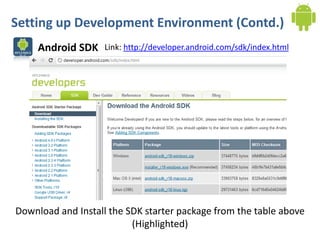
     Android SDK    Link: http://developer.android.com/sdk/index.html


Download and Install the SDK starter package from the table above
                          (Highlighted)
Setting up Development Environment (Contd.)
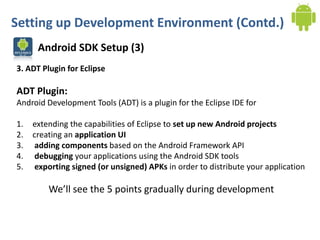
      Android SDK Setup (3)
3. ADT Plugin for Eclipse

ADT Plugin:
Android Development Tools (ADT) is a plugin for the Eclipse IDE for

1.   extending the capabilities of Eclipse to set up new Android projects
2.   creating an application UI
3.    adding components based on the Android Framework API
4.    debugging your applications using the Android SDK tools
5.    exporting signed (or unsigned) APKs in order to distribute your application

         We’ll see the 5 points gradually during development
Setting up Development Environment (Contd.)
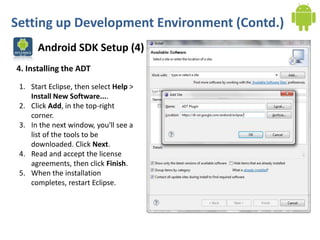
      Android SDK Setup (4)
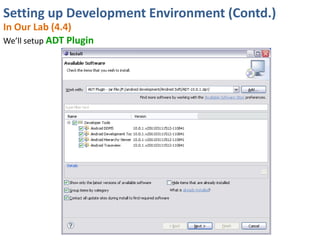
4. Installing the ADT

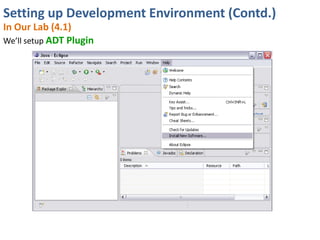
 1. Start Eclipse, then select Help >
    Install New Software....
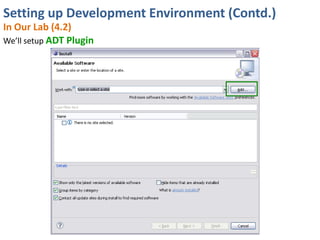
 2. Click Add, in the top-right
    corner.
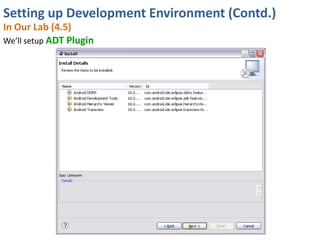
 3. In the next window, you'll see a
    list of the tools to be
    downloaded. Click Next.
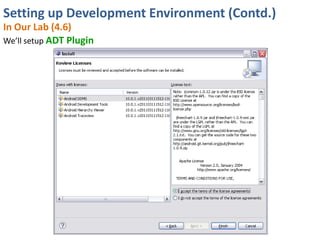
 4. Read and accept the license
    agreements, then click Finish.
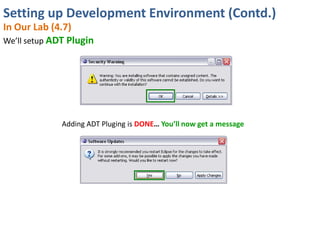
 5. When the installation
    completes, restart Eclipse.
Setting up Development Environment (Contd.)
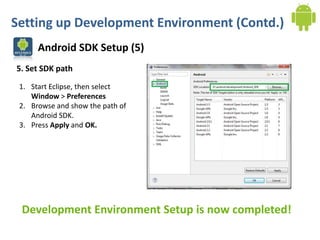
      Android SDK Setup (5)
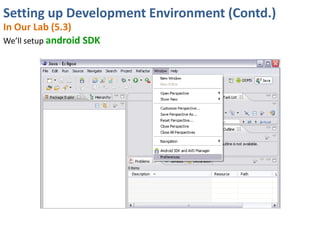
5. Set SDK path

 1. Start Eclipse, then select
    Window > Preferences
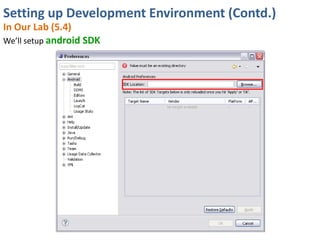
 2. Browse and show the path of
    Android SDK.
 3. Press Apply and OK.


 Development Environment Setup is now completed!
Setting up Development Environment (Contd.)
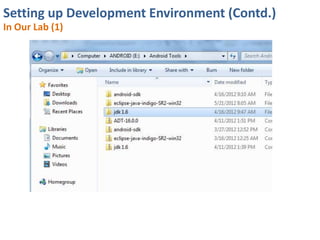
In Our Lab (1)
Setting up Development Environment (Contd.)
In Our Lab (2)
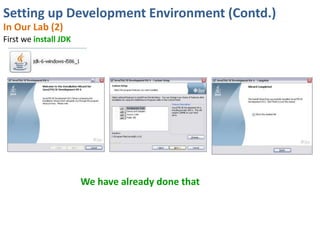
First we install JDK


                       We have already done that
Setting up Development Environment (Contd.)
In Our Lab (3.1)
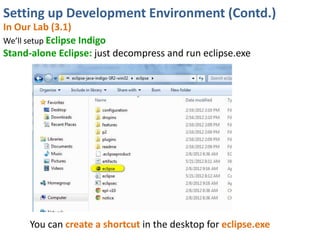
We’ll setup Eclipse Indigo
Stand-alone Eclipse: just decompress and run eclipse.exe


      You can create a shortcut in the desktop for eclipse.exe
Setting up Development Environment (Contd.)
In Our Lab (3.3)
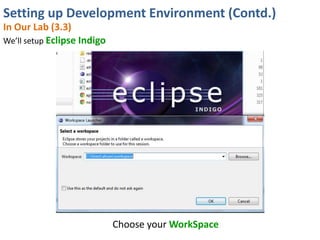
We’ll setup Eclipse Indigo


                             Choose your WorkSpace
Setting up Development Environment (Contd.)
In Our Lab (3.5)
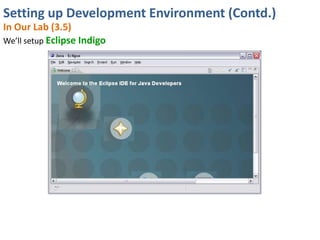
We’ll setup Eclipse Indigo
Setting up Development Environment (Contd.)
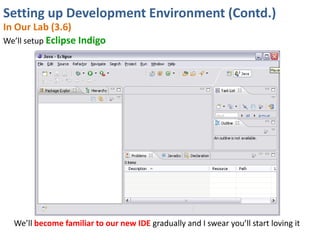
In Our Lab (3.6)
We’ll setup Eclipse Indigo


  We’ll become familiar to our new IDE gradually and I swear you’ll start loving it
Setting up Development Environment (Contd.)
In Our Lab (4.1)
We’ll setup ADT Plugin
Setting up Development Environment (Contd.)
In Our Lab (4.2)
We’ll setup ADT Plugin
Setting up Development Environment (Contd.)
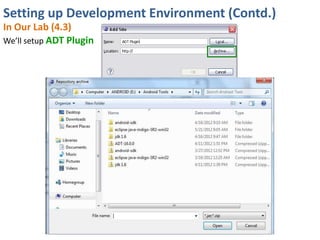
In Our Lab (4.3)
We’ll setup ADT Plugin
Setting up Development Environment (Contd.)
In Our Lab (4.4)
We’ll setup ADT Plugin
Setting up Development Environment (Contd.)
In Our Lab (4.5)
We’ll setup ADT Plugin
Setting up Development Environment (Contd.)
In Our Lab (4.6)
We’ll setup ADT Plugin
Setting up Development Environment (Contd.)
In Our Lab (4.7)
We’ll setup ADT Plugin


              Adding ADT Pluging is DONE… You’ll now get a message
Setting up Development Environment (Contd.)
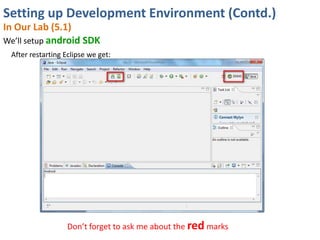
In Our Lab (5.1)
We’ll setup android SDK
 After restarting Eclipse we get:


                   Don’t forget to ask me about the red marks
Setting up Development Environment (Contd.)
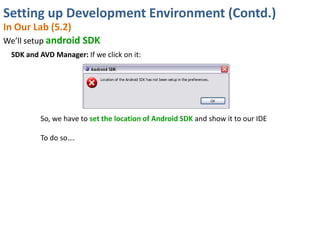
In Our Lab (5.2)
We’ll setup android SDK
 SDK and AVD Manager: If we click on it:


         So, we have to set the location of Android SDK and show it to our IDE

         To do so….
Setting up Development Environment (Contd.)
In Our Lab (5.3)
We’ll setup android SDK
Setting up Development Environment (Contd.)
In Our Lab (5.4)
We’ll setup android SDK
Setting up Development Environment (Contd.)
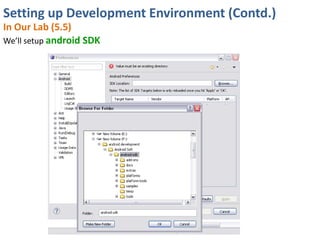
In Our Lab (5.5)
We’ll setup android SDK
Setting up Development Environment (Contd.)
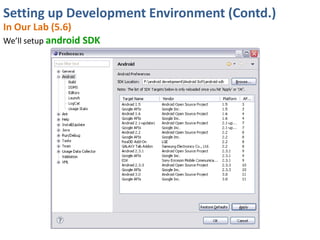
In Our Lab (5.6)
We’ll setup android SDK
Setting up Development Environment (Contd.)
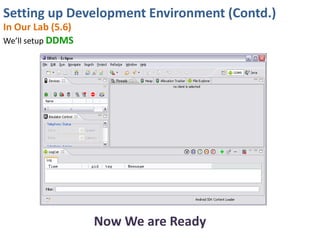
In Our Lab (5.6)
We’ll setup DDMS


                   Now We are Ready
Let’s say “Hello” to the Android World!
Let’s Go Deep…
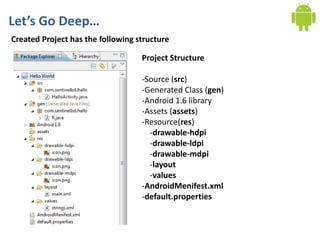
Created Project has the following structure

                                   Project Structure

                                   -Source (src)
                                   -Generated Class (gen)
                                   -Android 1.6 library
                                   -Assets (assets)
                                   -Resource(res)
                                     -drawable-hdpi
                                     -drawable-ldpi
                                     -drawable-mdpi
                                     -layout
                                     -values
                                   -AndroidMenifest.xml
                                   -default.properties
Let’s Go Deep… (Contd.)
To run the app in emulator, we have to do the following steps:

1. Create AVD (Android Virtual Device)
2. Create Run Configuration
3. Run the Application

To run the app in device, we have to do the following steps:

1.   Install device driver
2.   Connect device through USB
3.   Create Run Configuration
4.   Run the Application

           We’ll run the app in emulator for now
Let’s Go Deep… (Contd.)
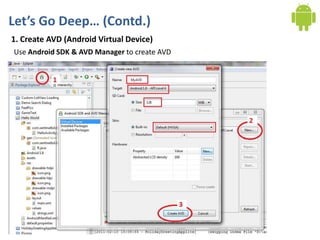
1. Create AVD (Android Virtual Device)
Use Android SDK & AVD Manager to create AVD
Let’s Go Deep… (Contd.)
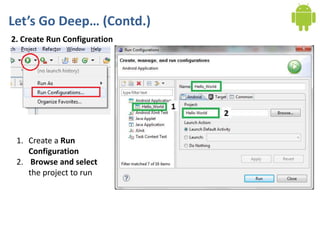
2. Create Run Configuration


 1. Create a Run
    Configuration
 2. Browse and select
    the project to run
Let’s Go Deep… (Contd.)
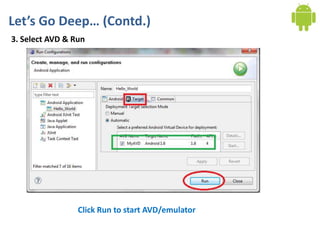
3. Select AVD & Run


                 Click Run to start AVD/emulator
Let’s Go Deep… (Contd.)
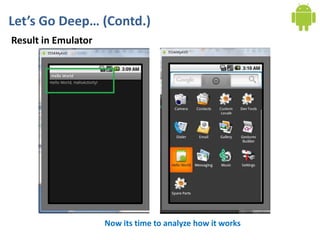
Result in Emulator


                     Now its time to analyze how it works
Project Structure…
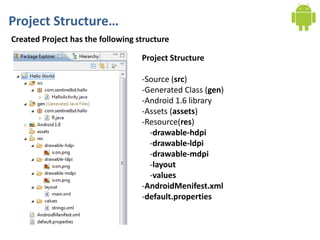
Created Project has the following structure

                                   Project Structure

                                   -Source (src)
                                   -Generated Class (gen)
                                   -Android 1.6 library
                                   -Assets (assets)
                                   -Resource(res)
                                     -drawable-hdpi
                                     -drawable-ldpi
                                     -drawable-mdpi
                                     -layout
                                     -values
                                   -AndroidMenifest.xml
                                   -default.properties
Project Structure (Contd.)
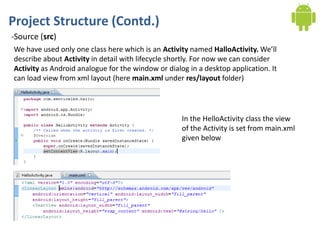
-Source (src)
We have used only one class here which is an Activity named HalloActivity. We’ll
describe about Activity in detail with lifecycle shortly. For now we can consider
Activity as Android analogue for the window or dialog in a desktop application. It
can load view from xml layout (here main.xml under res/layout folder)


                                                    In the HelloActivity class the view
                                                    of the Activity is set from main.xml
                                                    given below
Project Structure (Contd.)
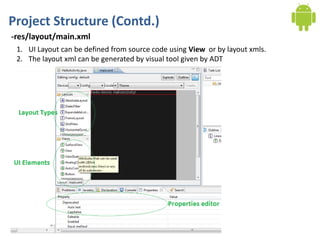
-res/layout/main.xml
 1. UI Layout can be defined from source code using View or by layout xmls.
 2. The layout xml can be generated by visual tool given by ADT
Project Structure (Contd.)
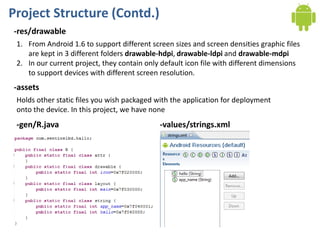
-res/drawable
 1. From Android 1.6 to support different screen sizes and screen densities graphic files
    are kept in 3 different folders drawable-hdpi, drawable-ldpi and drawable-mdpi
 2. In our current project, they contain only default icon file with different dimensions
    to support devices with different screen resolution.
-assets
 Holds other static files you wish packaged with the application for deployment
 onto the device. In this project, we have none
 -gen/R.java                                 -values/strings.xml
Project Structure (Contd.)
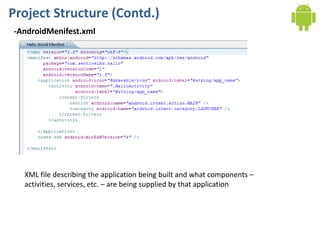
-AndroidMenifest.xml


  XML file describing the application being built and what components –
  activities, services, etc. – are being supplied by that application

Android Workshop: Day 1 Part 3

  • 1.
    Android Application Development Environment Setup Ahsanul Karim ahsanul.karim@sentinelbd.com Workshop: Day 1 Part 3 Sentinel Solutions Ltd. http://www.sentinelbd.com http://androidstream.wordpress.com
  • 2.
    Setting up DevelopmentEnvironment System Requirements Supported OS 1. Windows XP (32-bit), Vista (32- or 64-bit), or Windows 7 (32- or 64-bit) 2. Mac OS X 10.5.8 or later (x86 only) 3. Linux (tested on Ubuntu Linux, Lucid Lynx) Supported Development Environment (Eclipse IDE based) 1. Eclipse 3.4 (Ganymede) or greater/Eclipse Classic (versions 3.5.1 and higher) 2. JDK 1.5 or 1.6 3. ADT Plugin
  • 3.
    Setting up DevelopmentEnvironment(Contd.) To set up the development environment, we need: 1. Java Development Kit (JDK 1.5+, 1.6 is preferable) 2. Eclipse IDE 3. Android SDK
  • 4.
    Setting up DevelopmentEnvironment (Contd.) Android SDK Link: http://developer.android.com/sdk/index.html Download and Install the SDK starter package from the table above (Highlighted)
  • 5.
    Setting up DevelopmentEnvironment (Contd.) Android SDK Setup (3) 3. ADT Plugin for Eclipse ADT Plugin: Android Development Tools (ADT) is a plugin for the Eclipse IDE for 1. extending the capabilities of Eclipse to set up new Android projects 2. creating an application UI 3. adding components based on the Android Framework API 4. debugging your applications using the Android SDK tools 5. exporting signed (or unsigned) APKs in order to distribute your application We’ll see the 5 points gradually during development
  • 6.
    Setting up DevelopmentEnvironment (Contd.) Android SDK Setup (4) 4. Installing the ADT 1. Start Eclipse, then select Help > Install New Software.... 2. Click Add, in the top-right corner. 3. In the next window, you'll see a list of the tools to be downloaded. Click Next. 4. Read and accept the license agreements, then click Finish. 5. When the installation completes, restart Eclipse.
  • 7.
    Setting up DevelopmentEnvironment (Contd.) Android SDK Setup (5) 5. Set SDK path 1. Start Eclipse, then select Window > Preferences 2. Browse and show the path of Android SDK. 3. Press Apply and OK. Development Environment Setup is now completed!
  • 8.
    Setting up DevelopmentEnvironment (Contd.) In Our Lab (1)
  • 9.
    Setting up DevelopmentEnvironment (Contd.) In Our Lab (2) First we install JDK We have already done that
  • 10.
    Setting up DevelopmentEnvironment (Contd.) In Our Lab (3.1) We’ll setup Eclipse Indigo Stand-alone Eclipse: just decompress and run eclipse.exe You can create a shortcut in the desktop for eclipse.exe
  • 11.
    Setting up DevelopmentEnvironment (Contd.) In Our Lab (3.3) We’ll setup Eclipse Indigo Choose your WorkSpace
  • 12.
    Setting up DevelopmentEnvironment (Contd.) In Our Lab (3.5) We’ll setup Eclipse Indigo
  • 13.
    Setting up DevelopmentEnvironment (Contd.) In Our Lab (3.6) We’ll setup Eclipse Indigo We’ll become familiar to our new IDE gradually and I swear you’ll start loving it
  • 14.
    Setting up DevelopmentEnvironment (Contd.) In Our Lab (4.1) We’ll setup ADT Plugin
  • 15.
    Setting up DevelopmentEnvironment (Contd.) In Our Lab (4.2) We’ll setup ADT Plugin
  • 16.
    Setting up DevelopmentEnvironment (Contd.) In Our Lab (4.3) We’ll setup ADT Plugin
  • 17.
    Setting up DevelopmentEnvironment (Contd.) In Our Lab (4.4) We’ll setup ADT Plugin
  • 18.
    Setting up DevelopmentEnvironment (Contd.) In Our Lab (4.5) We’ll setup ADT Plugin
  • 19.
    Setting up DevelopmentEnvironment (Contd.) In Our Lab (4.6) We’ll setup ADT Plugin
  • 20.
    Setting up DevelopmentEnvironment (Contd.) In Our Lab (4.7) We’ll setup ADT Plugin Adding ADT Pluging is DONE… You’ll now get a message
  • 21.
    Setting up DevelopmentEnvironment (Contd.) In Our Lab (5.1) We’ll setup android SDK After restarting Eclipse we get: Don’t forget to ask me about the red marks
  • 22.
    Setting up DevelopmentEnvironment (Contd.) In Our Lab (5.2) We’ll setup android SDK SDK and AVD Manager: If we click on it: So, we have to set the location of Android SDK and show it to our IDE To do so….
  • 23.
    Setting up DevelopmentEnvironment (Contd.) In Our Lab (5.3) We’ll setup android SDK
  • 24.
    Setting up DevelopmentEnvironment (Contd.) In Our Lab (5.4) We’ll setup android SDK
  • 25.
    Setting up DevelopmentEnvironment (Contd.) In Our Lab (5.5) We’ll setup android SDK
  • 26.
    Setting up DevelopmentEnvironment (Contd.) In Our Lab (5.6) We’ll setup android SDK
  • 27.
    Setting up DevelopmentEnvironment (Contd.) In Our Lab (5.6) We’ll setup DDMS Now We are Ready
  • 28.
    Let’s say “Hello”to the Android World!
  • 29.
    Let’s Go Deep… CreatedProject has the following structure Project Structure -Source (src) -Generated Class (gen) -Android 1.6 library -Assets (assets) -Resource(res) -drawable-hdpi -drawable-ldpi -drawable-mdpi -layout -values -AndroidMenifest.xml -default.properties
  • 30.
    Let’s Go Deep…(Contd.) To run the app in emulator, we have to do the following steps: 1. Create AVD (Android Virtual Device) 2. Create Run Configuration 3. Run the Application To run the app in device, we have to do the following steps: 1. Install device driver 2. Connect device through USB 3. Create Run Configuration 4. Run the Application We’ll run the app in emulator for now
  • 31.
    Let’s Go Deep…(Contd.) 1. Create AVD (Android Virtual Device) Use Android SDK & AVD Manager to create AVD
  • 32.
    Let’s Go Deep…(Contd.) 2. Create Run Configuration 1. Create a Run Configuration 2. Browse and select the project to run
  • 33.
    Let’s Go Deep…(Contd.) 3. Select AVD & Run Click Run to start AVD/emulator
  • 34.
    Let’s Go Deep…(Contd.) Result in Emulator Now its time to analyze how it works
  • 35.
    Project Structure… Created Projecthas the following structure Project Structure -Source (src) -Generated Class (gen) -Android 1.6 library -Assets (assets) -Resource(res) -drawable-hdpi -drawable-ldpi -drawable-mdpi -layout -values -AndroidMenifest.xml -default.properties
  • 36.
    Project Structure (Contd.) -Source(src) We have used only one class here which is an Activity named HalloActivity. We’ll describe about Activity in detail with lifecycle shortly. For now we can consider Activity as Android analogue for the window or dialog in a desktop application. It can load view from xml layout (here main.xml under res/layout folder) In the HelloActivity class the view of the Activity is set from main.xml given below
  • 37.
    Project Structure (Contd.) -res/layout/main.xml 1. UI Layout can be defined from source code using View or by layout xmls. 2. The layout xml can be generated by visual tool given by ADT
  • 38.
    Project Structure (Contd.) -res/drawable 1. From Android 1.6 to support different screen sizes and screen densities graphic files are kept in 3 different folders drawable-hdpi, drawable-ldpi and drawable-mdpi 2. In our current project, they contain only default icon file with different dimensions to support devices with different screen resolution. -assets Holds other static files you wish packaged with the application for deployment onto the device. In this project, we have none -gen/R.java -values/strings.xml
  • 39.
    Project Structure (Contd.) -AndroidMenifest.xml XML file describing the application being built and what components – activities, services, etc. – are being supplied by that application