Android	
  User	
  
  Interface	


 Marko	
  Gargenta	
  
   Marakana	
  
HELLO	
  WORLD!	
  
Create	
  New	
  Project
                                         	
  
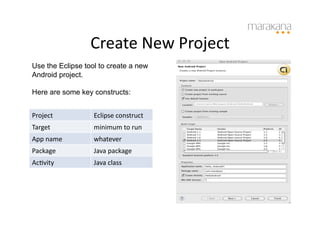
Use the Eclipse tool to create a new
Android project.

Here are some key constructs:


Project	
          Eclipse	
  construct	
  
Target	
           minimum	
  to	
  run	
  
App	
  name	
      whatever	
  
Package	
          Java	
  package	
  
AcBvity	
          Java	
  class	
  
The	
  Manifest	
  File	
  
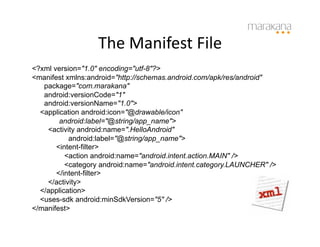
<?xml version="1.0" encoding="utf-8"?>
<manifest xmlns:android="http://schemas.android.com/apk/res/android"
   package="com.marakana"
   android:versionCode="1"
   android:versionName="1.0">
  <application android:icon="@drawable/icon"
        android:label="@string/app_name">
    <activity android:name=".HelloAndroid"
           android:label="@string/app_name">
       <intent-filter>
          <action android:name="android.intent.action.MAIN" />
          <category android:name="android.intent.category.LAUNCHER" />
       </intent-filter>
    </activity>
  </application>
  <uses-sdk android:minSdkVersion="5" />
</manifest>
The	
  Layout	
  Resource	
  

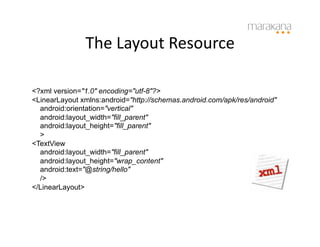
<?xml version="1.0" encoding="utf-8"?>
<LinearLayout xmlns:android="http://schemas.android.com/apk/res/android"
  android:orientation="vertical"
  android:layout_width="fill_parent"
  android:layout_height="fill_parent"
  >
<TextView
  android:layout_width="fill_parent"
  android:layout_height="wrap_content"
  android:text="@string/hello"
  />
</LinearLayout>
The	
  Java	
  File	
  
package com.marakana;

import android.app.Activity;
import android.os.Bundle;

public class HelloAndroid extends Activity {
  /** Called when the activity is first created. */
  @Override
  public void onCreate(Bundle savedInstanceState) {
     super.onCreate(savedInstanceState);
     setContentView(R.layout.main);
  }
}
ANDROID	
  USER	
  INTERFACE	
  
Two	
  UI	
  Approaches	
  
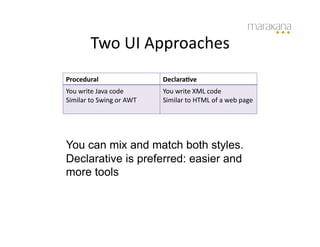
Procedural	
                              Declara;ve	
  
You	
  write	
  Java	
  code	
            You	
  write	
  XML	
  code	
  
Similar	
  to	
  Swing	
  or	
  AWT	
     Similar	
  to	
  HTML	
  of	
  a	
  web	
  page	


You can mix and match both styles.
Declarative is preferred: easier and
more tools
XML-­‐Based	
  User	
  Interface	


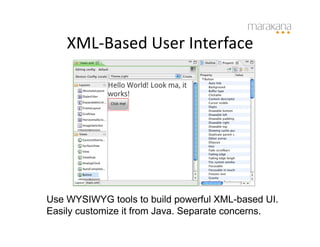
Use WYSIWYG tools to build powerful XML-based UI.
Easily customize it from Java. Separate concerns.
Dips	
  and	
  Sps	
  

px	
  (pixel)	
                                 Dots	
  on	
  the	
  screen	
  
in	
  (inches)	
                                Size	
  as	
  measured	
  by	
  a	
  ruler	
  
mm	
  (millimeters)	
                           Size	
  as	
  measured	
  by	
  a	
  ruler	
  
pt	
  (points)	
                                1/72	
  of	
  an	
  inch	
  
dp	
  (density-­‐independent	
  pixel)	
        Abstract	
  unit.	
  On	
  screen	
  with	
  160dpi,	
  
                                                1dp=1px	
  
dip	
                                           synonym	
  for	
  dp	
  and	
  o^en	
  used	
  by	
  Google	
  
sp	
                                            Similar	
  to	
  dp	
  but	
  also	
  scaled	
  by	
  users	
  font	
  
                                                size	
  preference	
  
Views	
  and	
  Layouts


                    ViewGroup


        ViewGroup               View


 View     View      View


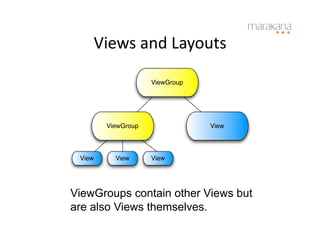
ViewGroups contain other Views but
are also Views themselves.
Common	
  UI	
  Components
                                	
  
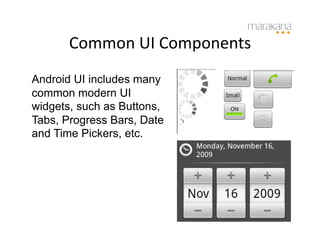
Android UI includes many
common modern UI
widgets, such as Buttons,
Tabs, Progress Bars, Date
and Time Pickers, etc.
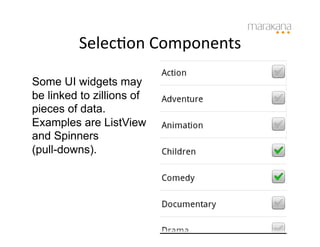
SelecBon	
  Components


Some UI widgets may
be linked to zillions of
pieces of data.
Examples are ListView
and Spinners
(pull-downs).
Adapters


                      Adapter       Data
                                   Source


To make sure they run smoothly, Android uses
Adapters to connect them to their data sources. A
typical data source is an Array or a Database.
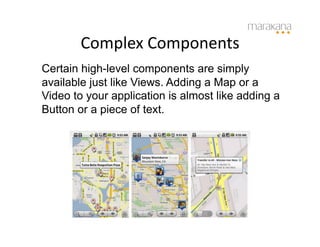
Complex	
  Components
                            	
  
Certain high-level components are simply
available just like Views. Adding a Map or a
Video to your application is almost like adding a
Button or a piece of text.
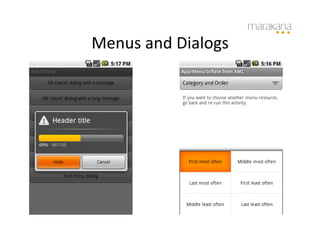
Menus	
  and	
  Dialogs
                      	
  
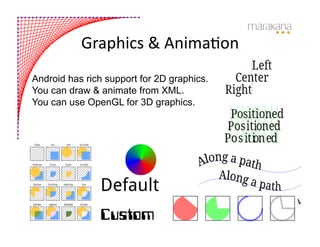
Graphics	
  &	
  AnimaBon	
  
Android has rich support for 2D graphics.
You can draw & animate from XML.
You can use OpenGL for 3D graphics.
MulBmedia	
  
AudioPlayer lets you simply specify
the audio resource and play it.

VideoView is a View that you can
drop anywhere in your activity, point
to a video file and play it.

XML:
<VideoView
  android:id="@+id/video"
  android:layout_width="fill_parent"
  android:layout_height="fill_parent"
  android:layout_gravity="center” />

Java:
player = (VideoView) findViewById(R.id.video);
player.setVideoPath("/sdcard/samplevideo.3gp");
player.start();
Google	
  Maps
                                      	
  
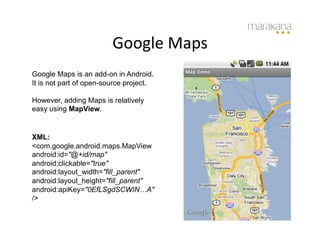
Google Maps is an add-on in Android.
It is not part of open-source project.

However, adding Maps is relatively
easy using MapView.


XML:
<com.google.android.maps.MapView
android:id="@+id/map"
android:clickable="true"
android:layout_width="fill_parent"
android:layout_height="fill_parent"
android:apiKey="0EfLSgdSCWIN…A"
/>
Building	
  UI	
  for	
  Performance	


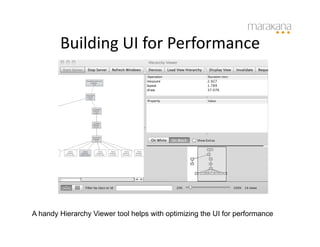
A handy Hierarchy Viewer tool helps with optimizing the UI for performance
Summary	
  
     Main difference between Java and
     Android is User Interface.

     Android has two approaches to UI:
     programmatic and declarative. Best
     practice is to use both.

     Lifecycle of an activity is very
     important for overall performance of
     your app. So, optimize your UI.


     Marko Gargenta, Marakana.com
     marko@marakana.com
     +1-415-647-7000

     Licensed under Creative Commons
     License (cc-by-nc-nd). Please Share!

Marakana Android User Interface

  • 1.
    Android  User   Interface   Marko  Gargenta   Marakana  
  • 2.
  • 3.
    Create  New  Project   Use the Eclipse tool to create a new Android project. Here are some key constructs: Project   Eclipse  construct   Target   minimum  to  run   App  name   whatever   Package   Java  package   AcBvity   Java  class  
  • 4.
    The  Manifest  File   <?xml version="1.0" encoding="utf-8"?> <manifest xmlns:android="http://schemas.android.com/apk/res/android" package="com.marakana" android:versionCode="1" android:versionName="1.0"> <application android:icon="@drawable/icon" android:label="@string/app_name"> <activity android:name=".HelloAndroid" android:label="@string/app_name"> <intent-filter> <action android:name="android.intent.action.MAIN" /> <category android:name="android.intent.category.LAUNCHER" /> </intent-filter> </activity> </application> <uses-sdk android:minSdkVersion="5" /> </manifest>
  • 5.
    The  Layout  Resource   <?xml version="1.0" encoding="utf-8"?> <LinearLayout xmlns:android="http://schemas.android.com/apk/res/android" android:orientation="vertical" android:layout_width="fill_parent" android:layout_height="fill_parent" > <TextView android:layout_width="fill_parent" android:layout_height="wrap_content" android:text="@string/hello" /> </LinearLayout>
  • 6.
    The  Java  File   package com.marakana; import android.app.Activity; import android.os.Bundle; public class HelloAndroid extends Activity { /** Called when the activity is first created. */ @Override public void onCreate(Bundle savedInstanceState) { super.onCreate(savedInstanceState); setContentView(R.layout.main); } }
  • 7.
  • 8.
    Two  UI  Approaches   Procedural   Declara;ve   You  write  Java  code   You  write  XML  code   Similar  to  Swing  or  AWT   Similar  to  HTML  of  a  web  page   You can mix and match both styles. Declarative is preferred: easier and more tools
  • 9.
    XML-­‐Based  User  Interface   Use WYSIWYG tools to build powerful XML-based UI. Easily customize it from Java. Separate concerns.
  • 10.
    Dips  and  Sps   px  (pixel)   Dots  on  the  screen   in  (inches)   Size  as  measured  by  a  ruler   mm  (millimeters)   Size  as  measured  by  a  ruler   pt  (points)   1/72  of  an  inch   dp  (density-­‐independent  pixel)   Abstract  unit.  On  screen  with  160dpi,   1dp=1px   dip   synonym  for  dp  and  o^en  used  by  Google   sp   Similar  to  dp  but  also  scaled  by  users  font   size  preference  
  • 11.
    Views  and  Layouts   ViewGroup ViewGroup View View View View ViewGroups contain other Views but are also Views themselves.
  • 12.
    Common  UI  Components   Android UI includes many common modern UI widgets, such as Buttons, Tabs, Progress Bars, Date and Time Pickers, etc.
  • 13.
    SelecBon  Components   Some UI widgets may be linked to zillions of pieces of data. Examples are ListView and Spinners (pull-downs).
  • 14.
    Adapters   Adapter Data Source To make sure they run smoothly, Android uses Adapters to connect them to their data sources. A typical data source is an Array or a Database.
  • 15.
    Complex  Components   Certain high-level components are simply available just like Views. Adding a Map or a Video to your application is almost like adding a Button or a piece of text.
  • 16.
  • 17.
    Graphics  &  AnimaBon   Android has rich support for 2D graphics. You can draw & animate from XML. You can use OpenGL for 3D graphics.
  • 18.
    MulBmedia   AudioPlayer letsyou simply specify the audio resource and play it. VideoView is a View that you can drop anywhere in your activity, point to a video file and play it. XML: <VideoView android:id="@+id/video" android:layout_width="fill_parent" android:layout_height="fill_parent" android:layout_gravity="center” /> Java: player = (VideoView) findViewById(R.id.video); player.setVideoPath("/sdcard/samplevideo.3gp"); player.start();
  • 19.
    Google  Maps   Google Maps is an add-on in Android. It is not part of open-source project. However, adding Maps is relatively easy using MapView. XML: <com.google.android.maps.MapView android:id="@+id/map" android:clickable="true" android:layout_width="fill_parent" android:layout_height="fill_parent" android:apiKey="0EfLSgdSCWIN…A" />
  • 20.
    Building  UI  for  Performance   A handy Hierarchy Viewer tool helps with optimizing the UI for performance
  • 21.
    Summary   Main difference between Java and Android is User Interface. Android has two approaches to UI: programmatic and declarative. Best practice is to use both. Lifecycle of an activity is very important for overall performance of your app. So, optimize your UI. Marko Gargenta, Marakana.com marko@marakana.com +1-415-647-7000 Licensed under Creative Commons License (cc-by-nc-nd). Please Share!