Data Analysis for Effective
Decision Making
By:
Syed Sohail Ahmed
Assistant Professor
Email: ssoahmed@ssuet.edu.pk
Agenda
 What is data Analysis?
 What Is Decision Making?
 International tools for Decision
Making
 Use of SPSS in Data Analysis
 References
What is data Analysis?
 The term “data analysis” refers to
the process by which large
amounts of raw data is reviewed
in order to determine conclusions
based on that data
Types of Data Analysis
 The nature of data analysis varies,
and correlates to the type of data
being examined
 there are two broad categories:
 Qualitative analysis
 Quantitative Analysis
Qualitative analysis
 Qualitative analysis deals with the
analysis of data that is categorical in
nature. In other words, data is not
described through numerical values,
but rather by some sort of descriptive
context such as text.
 Data can be gathered by many
methods such as interviews, videos
and audio recordings, field notes, etc.
 Qualitative analysis can be
summarized by three basic principles
(Seidel, 1998):
 Notice things
 Collect things
 Think about things
Quantitative Analysis:
 Quantitative analysis refers to the
process by which numerical data is
analyzed, and often involves
descriptive statistics such as mean,
media, standard deviation, etc
Statistical Models
 Analysis of variables
 Data dispersion
 Analysis of relationships between variables
 Contingence and correlation
 Regression analysis
 Statistical significance
 Precision
 Error limits
 Know where to find the Information
and how to use it- That’s the secret of
Success
 By Albert Einstein
Benefits of Data Analysis
 Allows for the identification of important trends
 identify performance problems that require
some sort of action
 Can be viewed in a visual manner, which leads
to faster and better decisions(e.g Pie Chart)
 Better awareness regarding the habits of
potential customers
 It can provide a company with an edge over
their competitors
What Is Decision Making?
 Decision making is the study of
identifying and choosing
alternatives based on the values
and preferences of the decision
maker
Internationally recognized tools
for Decision Making
 STATA
 SPSS
 Mstat C
13
Introduction to SPSS 16.0
14
Outline
 Review of Concepts (stats and
scales)
 Data entry (the workspace and
labels)
 By hand
 Import Excel
 Running an analysis- frequency,
central tendency, correlation
Types of Variables
 What are variables you
would consider in buying a
second hand bike?
19
Row tree, D. (1981). Statistics without tears. London: Penguin
Books.
 Brand (Trek, Raleigh)
 Type (road, mountain, racer)
 Components (Shimano, no
name)
 Age
 Condition (Excellent, good, poor)
 Price
 Frame size
 Number of gears
20
Types of Scales
 Nominal- objects or people are categorized
according to some criterion (gender, job
category)
 Ordinal- Categories which are ranked
according to characteristics (income- low,
moderate, high)
 Interval- contain equal distance between
units of measure- but no zero (calendar
years, temperature)
 Ratio- has an absolute zero and consistent
intervals (distance, weight)
Parametric vs Non-parametric
 Parametric stats are more powerful
than non-parametric stats- for real
numbers- T test
 Non-parametric stats are not as
powerful but good for category
variables - Mann-Whitney U (likert)
21
22
The Workspace
Cases
Variables
Toggle between
Data and Variable
Views
Value Label
23
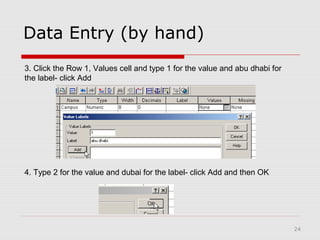
Data Entry (by hand)
1. Click Variable View
2. Click the Row 1, Name cell and type Campus (no spaces allowed in
name)
24
4. Type 2 for the value and dubai for the label- click Add and then OK
3. Click the Row 1, Values cell and type 1 for the value and abu dhabi for
the label- click Add
Data Entry (by hand)
25
Data Entry (by hand)
5. Click the Row 2, Name cell and type TOEFL
6. Click the Row 2, Label cell and type Paper based TOEFL Scores
26
Data Entry (by hand)
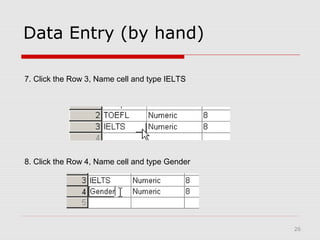
8. Click the Row 4, Name cell and type Gender
7. Click the Row 3, Name cell and type IELTS
27
Data Entry (by hand)
9. Click the Row 4, Type cell and click String and click OK
10. Click the Row 4, Values cell and type m for the value and male for the
label- click Add
28
Data Entry (by hand)
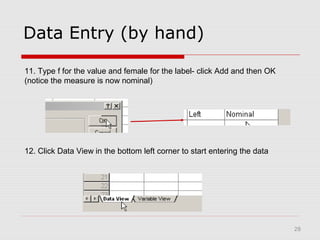
11. Type f for the value and female for the label- click Add and then OK
(notice the measure is now nominal)
12. Click Data View in the bottom left corner to start entering the data
29
Data Entry (by hand)
13. Click on the cells and enter the data (either type numbers of select from
the dropdown menu)
30
Data Entry (import from Excel)
14. Click Open- Data…
15. Change Files of type to Excel, then browse and open the file.
31
Data Entry (import from Excel)
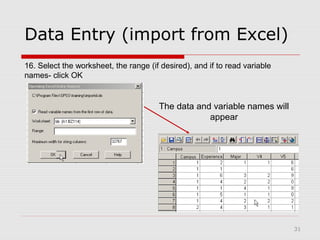
16. Select the worksheet, the range (if desired), and if to read variable
names- click OK
The data and variable names will
appear
32
Running Analyses
17. With SPSS open, select file- Open- Data
18. Navigate to SPSS- Tutorial- sample_files- select demo, click Open
33
Running Analyses (Frequency)
19. Select Analyze- Descriptive Stats- Frequencies
20. Select the desired variables and click the arrow to move them to the right
side
34
21. Click Statistics
22. Select any stats that you want to see, click Continue
Running Analyses (Frequency)
35
Running Analyses (Frequency)
23. Click Charts
24. Select the type of chart you want, click Continue, then OK
36
Running Analyses (Frequency)
Result Tables and Graphs will appear
37
Running Analyses (Central
Tendency)
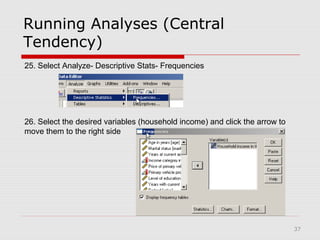
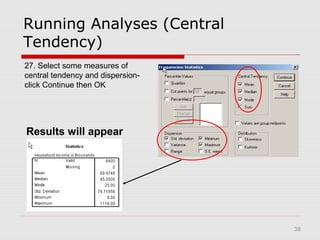
26. Select the desired variables (household income) and click the arrow to
move them to the right side
25. Select Analyze- Descriptive Stats- Frequencies
38
Running Analyses (Central
Tendency)
Results will appear
27. Select some measures of
central tendency and dispersion-
click Continue then OK
39
Running Analyses (Correlation)
28. Click Analyze- Correlate- Bivariate
29. Move the two variables of
interest to the right side (age &
income), click OK
40
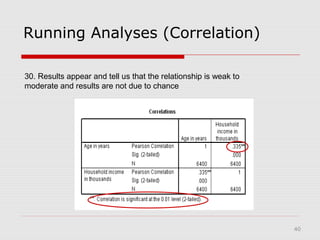
Running Analyses (Correlation)
30. Results appear and tell us that the relationship is weak to
moderate and results are not due to chance
41
Resources
 Texas A & M- a huge selection of helpful movies
http://www.stat.tamu.edu/spss.php
 UCLA- SPSS 12.0 Starter Kit (useful movies, FAQs, etc)
http://www.ats.ucla.edu/stat/spss/sk/default.htm
 Indiana University- Getting Started (useful instructions with
screenshots)
http://www.indiana.edu/~statmath/stat/spss/win/
 University of Toronto- A Brief Tutorial (screenshots, instructions
and basic stats)
http://www.psych.utoronto.ca/courses/c1/spss/page1.htm
 Central Michigan- Tutorials and Clips (movies, screenshots,
instructions- slow loading but good)
http://calcnet.mth.cmich.edu/org/spss/toc.htm
 SPSS Statistics Coach and Tutorial (under Help) as well as the ZU
library
 Online Statistics Textbook
http://www.statsoft.com/textbook/stathome.html

Data analysis for effective decision making

  • 1.
    Data Analysis forEffective Decision Making By: Syed Sohail Ahmed Assistant Professor Email: ssoahmed@ssuet.edu.pk
  • 2.
    Agenda  What isdata Analysis?  What Is Decision Making?  International tools for Decision Making  Use of SPSS in Data Analysis  References
  • 3.
    What is dataAnalysis?  The term “data analysis” refers to the process by which large amounts of raw data is reviewed in order to determine conclusions based on that data
  • 4.
    Types of DataAnalysis  The nature of data analysis varies, and correlates to the type of data being examined  there are two broad categories:  Qualitative analysis  Quantitative Analysis
  • 5.
    Qualitative analysis  Qualitativeanalysis deals with the analysis of data that is categorical in nature. In other words, data is not described through numerical values, but rather by some sort of descriptive context such as text.  Data can be gathered by many methods such as interviews, videos and audio recordings, field notes, etc.
  • 6.
     Qualitative analysiscan be summarized by three basic principles (Seidel, 1998):  Notice things  Collect things  Think about things
  • 7.
    Quantitative Analysis:  Quantitativeanalysis refers to the process by which numerical data is analyzed, and often involves descriptive statistics such as mean, media, standard deviation, etc
  • 8.
    Statistical Models  Analysisof variables  Data dispersion  Analysis of relationships between variables  Contingence and correlation  Regression analysis  Statistical significance  Precision  Error limits
  • 9.
     Know whereto find the Information and how to use it- That’s the secret of Success  By Albert Einstein
  • 10.
    Benefits of DataAnalysis  Allows for the identification of important trends  identify performance problems that require some sort of action  Can be viewed in a visual manner, which leads to faster and better decisions(e.g Pie Chart)  Better awareness regarding the habits of potential customers  It can provide a company with an edge over their competitors
  • 11.
    What Is DecisionMaking?  Decision making is the study of identifying and choosing alternatives based on the values and preferences of the decision maker
  • 12.
    Internationally recognized tools forDecision Making  STATA  SPSS  Mstat C
  • 13.
  • 14.
    14 Outline  Review ofConcepts (stats and scales)  Data entry (the workspace and labels)  By hand  Import Excel  Running an analysis- frequency, central tendency, correlation
  • 15.
    Types of Variables What are variables you would consider in buying a second hand bike? 19 Row tree, D. (1981). Statistics without tears. London: Penguin Books.  Brand (Trek, Raleigh)  Type (road, mountain, racer)  Components (Shimano, no name)  Age  Condition (Excellent, good, poor)  Price  Frame size  Number of gears
  • 16.
    20 Types of Scales Nominal- objects or people are categorized according to some criterion (gender, job category)  Ordinal- Categories which are ranked according to characteristics (income- low, moderate, high)  Interval- contain equal distance between units of measure- but no zero (calendar years, temperature)  Ratio- has an absolute zero and consistent intervals (distance, weight)
  • 17.
    Parametric vs Non-parametric Parametric stats are more powerful than non-parametric stats- for real numbers- T test  Non-parametric stats are not as powerful but good for category variables - Mann-Whitney U (likert) 21
  • 18.
  • 19.
    23 Data Entry (byhand) 1. Click Variable View 2. Click the Row 1, Name cell and type Campus (no spaces allowed in name)
  • 20.
    24 4. Type 2for the value and dubai for the label- click Add and then OK 3. Click the Row 1, Values cell and type 1 for the value and abu dhabi for the label- click Add Data Entry (by hand)
  • 21.
    25 Data Entry (byhand) 5. Click the Row 2, Name cell and type TOEFL 6. Click the Row 2, Label cell and type Paper based TOEFL Scores
  • 22.
    26 Data Entry (byhand) 8. Click the Row 4, Name cell and type Gender 7. Click the Row 3, Name cell and type IELTS
  • 23.
    27 Data Entry (byhand) 9. Click the Row 4, Type cell and click String and click OK 10. Click the Row 4, Values cell and type m for the value and male for the label- click Add
  • 24.
    28 Data Entry (byhand) 11. Type f for the value and female for the label- click Add and then OK (notice the measure is now nominal) 12. Click Data View in the bottom left corner to start entering the data
  • 25.
    29 Data Entry (byhand) 13. Click on the cells and enter the data (either type numbers of select from the dropdown menu)
  • 26.
    30 Data Entry (importfrom Excel) 14. Click Open- Data… 15. Change Files of type to Excel, then browse and open the file.
  • 27.
    31 Data Entry (importfrom Excel) 16. Select the worksheet, the range (if desired), and if to read variable names- click OK The data and variable names will appear
  • 28.
    32 Running Analyses 17. WithSPSS open, select file- Open- Data 18. Navigate to SPSS- Tutorial- sample_files- select demo, click Open
  • 29.
    33 Running Analyses (Frequency) 19.Select Analyze- Descriptive Stats- Frequencies 20. Select the desired variables and click the arrow to move them to the right side
  • 30.
    34 21. Click Statistics 22.Select any stats that you want to see, click Continue Running Analyses (Frequency)
  • 31.
    35 Running Analyses (Frequency) 23.Click Charts 24. Select the type of chart you want, click Continue, then OK
  • 32.
    36 Running Analyses (Frequency) ResultTables and Graphs will appear
  • 33.
    37 Running Analyses (Central Tendency) 26.Select the desired variables (household income) and click the arrow to move them to the right side 25. Select Analyze- Descriptive Stats- Frequencies
  • 34.
    38 Running Analyses (Central Tendency) Resultswill appear 27. Select some measures of central tendency and dispersion- click Continue then OK
  • 35.
    39 Running Analyses (Correlation) 28.Click Analyze- Correlate- Bivariate 29. Move the two variables of interest to the right side (age & income), click OK
  • 36.
    40 Running Analyses (Correlation) 30.Results appear and tell us that the relationship is weak to moderate and results are not due to chance
  • 37.
    41 Resources  Texas A& M- a huge selection of helpful movies http://www.stat.tamu.edu/spss.php  UCLA- SPSS 12.0 Starter Kit (useful movies, FAQs, etc) http://www.ats.ucla.edu/stat/spss/sk/default.htm  Indiana University- Getting Started (useful instructions with screenshots) http://www.indiana.edu/~statmath/stat/spss/win/  University of Toronto- A Brief Tutorial (screenshots, instructions and basic stats) http://www.psych.utoronto.ca/courses/c1/spss/page1.htm  Central Michigan- Tutorials and Clips (movies, screenshots, instructions- slow loading but good) http://calcnet.mth.cmich.edu/org/spss/toc.htm  SPSS Statistics Coach and Tutorial (under Help) as well as the ZU library  Online Statistics Textbook http://www.statsoft.com/textbook/stathome.html

Editor's Notes

  • #14 Dubai FGF-008 (ground floor of F-wing)
  • #16 Nearly everything you do will probably use inferential stats- in spss is it doesn’t you will select descriptive stats Give some examples in the room – stats are something we use all the time- ages, height, grades etc
  • #17 A descriptive B is inferential because it is making a prediction based upon past observations
  • #18 The other way descriptive stats and inferential stats differ
  • #19 Labeling and enter your variables in SPSS is much of this first session
  • #20 Lets put these data types in groupings- categories & numbers
  • #21 Interval and ratio are real numbers Issues arise when we try to apply parametric stats to ordinal- ie) likert scales
  • #22 Parametric- you have a better chance of recognizing chance vs actual patterns in the datayou have a better chance of recognizing chance vs Tell story about Likert scales t test
  • #23 Save as you go
  • #25 Note the scales-option real numbers or not will effect what you can do
  • #31 Use xl demo inside Tutorial- sample files
  • #40 Use statistics coach as an example Keep the default settings- Pearson is for interval or ratio data Spearman is for dichotomous
  • #41 R=.335 (weak to moderate) The significance of a correlation coefficient is not a determination of the strength of the relationship. Significance means, as always, that the observed value most likely did not occur by chance.