Adobe Creative Suite
                        Crash Course: Illustrator


                 1                  2              3
            Illustrator          InDesign      Photoshop


Friday, October 5, 12
Illustrator’s primary purpose is to
                   draw and manipulate vector-based shapes.


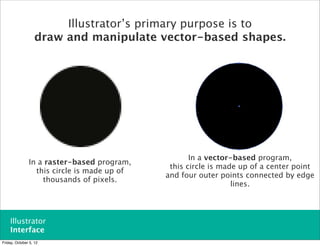
                                                    In a vector-based program,
               In a raster-based program,
                                              this circle is made up of a center point
                 this circle is made up of
                                             and four outer points connected by edge
                   thousands of pixels.
                                                                lines.


    Illustrator
    Interface
Friday, October 5, 12
Illustrator’s primary purpose is to
                   draw and manipulate vector-based shapes.


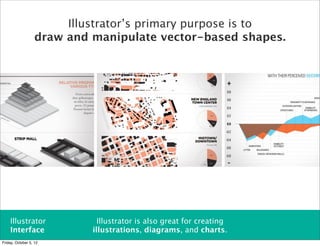
    Illustrator               Illustrator is also great for creating
    Interface               illustrations, diagrams, and charts.
Friday, October 5, 12
Illustrator’s primary purpose is to
                   draw and manipulate vector-based shapes.


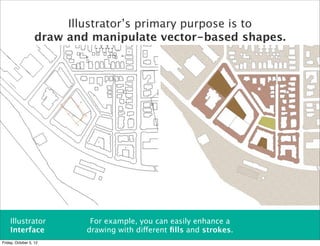
    Illustrator             For example, you can easily enhance a
    Interface              drawing with different fills and strokes.
Friday, October 5, 12
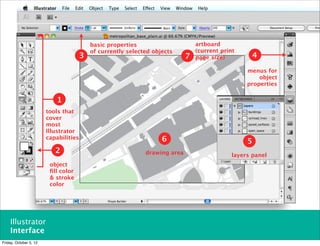
basic properties                      artboard
                                           of currently selected objects         (current print
                                       3                                     7   page size)            4

                                                                                                   menus for
                                                                                                       object
                                                                                                   properties

                           1
                        tools that
                        cover
                        most
                        Illustrator
                        capabilities                                6                              5
                           2                                  drawing area                    layers panel
                         object
                         fill color
                         & stroke
                         color


    Illustrator
    Interface
Friday, October 5, 12
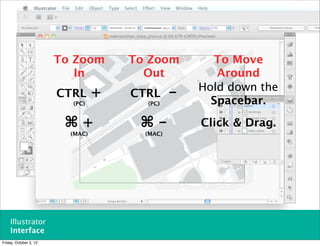
To Zoom       To Zoom         To Move
                           In           Out            Around
                                                    Hold down the
                        CTRL      +   CTRL      -     Spacebar.
                          (PC)          (PC)


                         ⌘+            ⌘-           Click & Drag.
                          (MAC)         (MAC)


    Illustrator
    Interface
Friday, October 5, 12
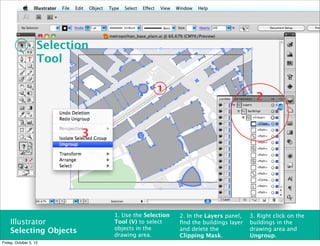
Selection
                    Tool

                                               1
                                                                                   2


                           3


                                1. Use the Selection   2. In the Layers panel,   3. Right click on the
    Illustrator                 Tool (V) to select     find the buildings layer   buildings in the
                                objects in the         and delete the            drawing area and
    Selecting Objects           drawing area.          Clipping Mask.            Ungroup.
Friday, October 5, 12
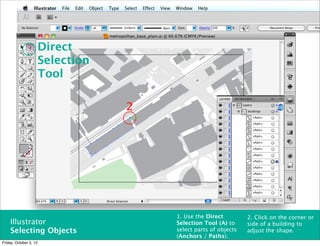
Direct
                        Selection
                        Tool

                                    2


                                        1. Use the Direct         2. Click on the corner or
    Illustrator                         Selection Tool (A) to     side of a building to
    Selecting Objects                   select parts of objects   adjust the shape.
                                        (Anchors / Paths).
Friday, October 5, 12
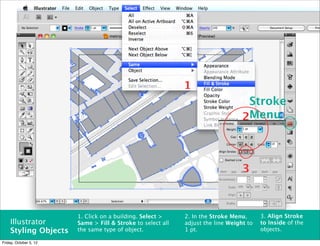
1
                                                                                   Stroke
                                                                                  2Menu


                                                                                  3


                        1. Click on a building. Select >     2. In the Stroke Menu,      3. Align Stroke
    Illustrator         Same > Fill & Stroke to select all   adjust the line Weight to   to Inside of the
    Styling Objects     the same type of object.             1 pt.                       objects.

Friday, October 5, 12
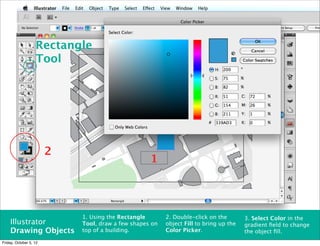
Rectangle
                   Tool


                        2
                                                   1


                            1. Using the Rectangle       2. Double-click on the        3. Select Color in the
    Illustrator             Tool, draw a few shapes on   object Fill to bring up the   gradient field to change
    Drawing Objects         top of a building.           Color Picker.                 the object fill.
Friday, October 5, 12
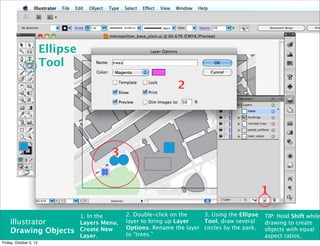
Ellipse
                        Tool                 3
                                                                   2


                                           3


                                                                                                  1

                                  1. In the      2. Double-click on the    3. Using the Ellipse   TIP: Hold Shift while
    Illustrator                   Layers Menu,   layer to bring up Layer   Tool, draw several     drawing to create
                                  Create New     Options. Rename the layer circles by the park.   objects with equal
    Drawing Objects                              to “trees.”
                                  Layer.                                                          aspect ratios.
Friday, October 5, 12
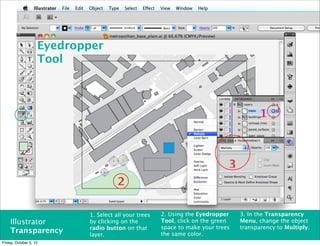
Eyedropper
                    Tool


                                                                                        1


                                                                             3
                                      2

                           1. Select all your trees   2. Using the Eyedropper    3. In the Transparency
    Illustrator            by clicking on the         Tool, click on the green   Menu, change the object
                           radio button on that       space to make your trees   transparency to Multiply.
    Transparency           layer.                     the same color.
Friday, October 5, 12
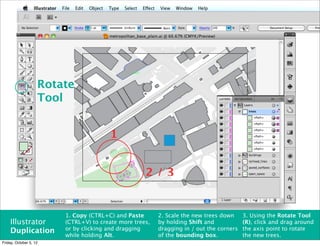
Rotate
                    Tool


                                       1


                                                    2/3


                        1. Copy (CTRL+C) and Paste       2. Scale the new trees down     3. Using the Rotate Tool
    Illustrator         (CTRL+V) to create more trees,   by holding Shift and            (R), click and drag around
    Duplication         or by clicking and dragging      dragging in / out the corners   the axis point to rotate
                        while holding Alt.               of the bounding box.            the new trees.
Friday, October 5, 12
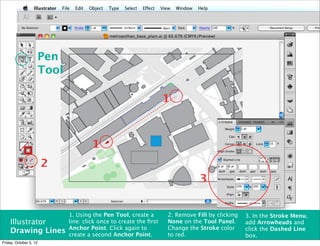
Pen
                        Tool

                                                                     1


                                        1
                        2
                                                                                3


                               1. Using the Pen Tool, create a       2. Remove Fill by clicking   3. In the Stroke Menu,
    Illustrator                line: click once to create the first   None on the Tool Panel.      add Arrowheads and
                               Anchor Point. Click again to          Change the Stroke color      click the Dashed Line
    Drawing Lines              create a second Anchor Point.         to red.                      box.
Friday, October 5, 12
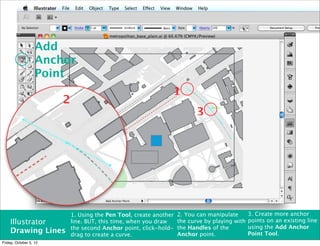
Add
                   Anchor
                   Point
                                                                    1
                            2
                                                                               3


                        2


                                1. Using the Pen Tool, create another   2. You can manipulate       3. Create more anchor
    Illustrator                 line. BUT, this time, when you draw     the curve by playing with   points on an existing line
                                the second Anchor point, click-hold-    the Handles of the          using the Add Anchor
    Drawing Lines               drag to create a curve.                 Anchor point.               Point Tool.
Friday, October 5, 12
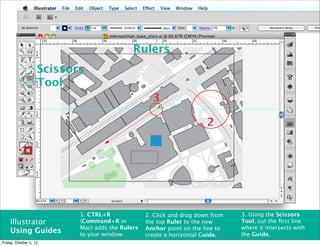
Rulers
                    Scissors
                    Tool
                                                    3

                                                                       2


                           1. CTRL+R              2. Click and drag down from   3. Using the Scissors
    Illustrator            (Command+R in          the top Ruler to the new      Tool, cut the first line
                           Mac) adds the Rulers   Anchor point on the line to   where it intersects with
    Using Guides           to your window.                                      the Guide.
                                                  create a horizontal Guide.
Friday, October 5, 12
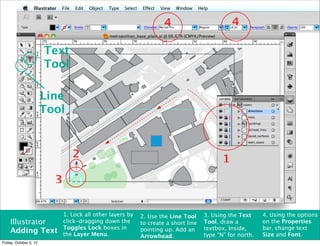
4                          4

                        Text
                        Tool

                        Line
                        Tool


                                 2                                                          1
                          3

                              1. Lock all other layers by   2. Use the Line Tool     3. Using the Text     4. Using the options
    Illustrator               click-dragging down the       to create a short line   Tool, draw a          on the Properties
                              Toggles Lock boxes in                                  textbox. Inside,      bar, change text
    Adding Text               the Layer Menu.
                                                            pointing up. Add an
                                                                                                           Size and Font.
                                                            Arrowhead.               type “N” for north.
Friday, October 5, 12
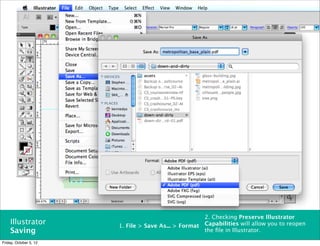
2. Checking Preserve Illustrator
    Illustrator         1. File > Save As... > Format   Capabilities will allow you to reopen
    Saving                                              the file in Illustrator.

Friday, October 5, 12

DUSPviz 2012 Illustrator

  • 1.
    Adobe Creative Suite Crash Course: Illustrator 1 2 3 Illustrator InDesign Photoshop Friday, October 5, 12
  • 2.
    Illustrator’s primary purposeis to draw and manipulate vector-based shapes. In a vector-based program, In a raster-based program, this circle is made up of a center point this circle is made up of and four outer points connected by edge thousands of pixels. lines. Illustrator Interface Friday, October 5, 12
  • 3.
    Illustrator’s primary purposeis to draw and manipulate vector-based shapes. Illustrator Illustrator is also great for creating Interface illustrations, diagrams, and charts. Friday, October 5, 12
  • 4.
    Illustrator’s primary purposeis to draw and manipulate vector-based shapes. Illustrator For example, you can easily enhance a Interface drawing with different fills and strokes. Friday, October 5, 12
  • 5.
    basic properties artboard of currently selected objects (current print 3 7 page size) 4 menus for object properties 1 tools that cover most Illustrator capabilities 6 5 2 drawing area layers panel object fill color & stroke color Illustrator Interface Friday, October 5, 12
  • 6.
    To Zoom To Zoom To Move In Out Around Hold down the CTRL + CTRL - Spacebar. (PC) (PC) ⌘+ ⌘- Click & Drag. (MAC) (MAC) Illustrator Interface Friday, October 5, 12
  • 7.
    Selection Tool 1 2 3 1. Use the Selection 2. In the Layers panel, 3. Right click on the Illustrator Tool (V) to select find the buildings layer buildings in the objects in the and delete the drawing area and Selecting Objects drawing area. Clipping Mask. Ungroup. Friday, October 5, 12
  • 8.
    Direct Selection Tool 2 1. Use the Direct 2. Click on the corner or Illustrator Selection Tool (A) to side of a building to Selecting Objects select parts of objects adjust the shape. (Anchors / Paths). Friday, October 5, 12
  • 9.
    1 Stroke 2Menu 3 1. Click on a building. Select > 2. In the Stroke Menu, 3. Align Stroke Illustrator Same > Fill & Stroke to select all adjust the line Weight to to Inside of the Styling Objects the same type of object. 1 pt. objects. Friday, October 5, 12
  • 10.
    Rectangle Tool 2 1 1. Using the Rectangle 2. Double-click on the 3. Select Color in the Illustrator Tool, draw a few shapes on object Fill to bring up the gradient field to change Drawing Objects top of a building. Color Picker. the object fill. Friday, October 5, 12
  • 11.
    Ellipse Tool 3 2 3 1 1. In the 2. Double-click on the 3. Using the Ellipse TIP: Hold Shift while Illustrator Layers Menu, layer to bring up Layer Tool, draw several drawing to create Create New Options. Rename the layer circles by the park. objects with equal Drawing Objects to “trees.” Layer. aspect ratios. Friday, October 5, 12
  • 12.
    Eyedropper Tool 1 3 2 1. Select all your trees 2. Using the Eyedropper 3. In the Transparency Illustrator by clicking on the Tool, click on the green Menu, change the object radio button on that space to make your trees transparency to Multiply. Transparency layer. the same color. Friday, October 5, 12
  • 13.
    Rotate Tool 1 2/3 1. Copy (CTRL+C) and Paste 2. Scale the new trees down 3. Using the Rotate Tool Illustrator (CTRL+V) to create more trees, by holding Shift and (R), click and drag around Duplication or by clicking and dragging dragging in / out the corners the axis point to rotate while holding Alt. of the bounding box. the new trees. Friday, October 5, 12
  • 14.
    Pen Tool 1 1 2 3 1. Using the Pen Tool, create a 2. Remove Fill by clicking 3. In the Stroke Menu, Illustrator line: click once to create the first None on the Tool Panel. add Arrowheads and Anchor Point. Click again to Change the Stroke color click the Dashed Line Drawing Lines create a second Anchor Point. to red. box. Friday, October 5, 12
  • 15.
    Add Anchor Point 1 2 3 2 1. Using the Pen Tool, create another 2. You can manipulate 3. Create more anchor Illustrator line. BUT, this time, when you draw the curve by playing with points on an existing line the second Anchor point, click-hold- the Handles of the using the Add Anchor Drawing Lines drag to create a curve. Anchor point. Point Tool. Friday, October 5, 12
  • 16.
    Rulers Scissors Tool 3 2 1. CTRL+R 2. Click and drag down from 3. Using the Scissors Illustrator (Command+R in the top Ruler to the new Tool, cut the first line Mac) adds the Rulers Anchor point on the line to where it intersects with Using Guides to your window. the Guide. create a horizontal Guide. Friday, October 5, 12
  • 17.
    4 4 Text Tool Line Tool 2 1 3 1. Lock all other layers by 2. Use the Line Tool 3. Using the Text 4. Using the options Illustrator click-dragging down the to create a short line Tool, draw a on the Properties Toggles Lock boxes in textbox. Inside, bar, change text Adding Text the Layer Menu. pointing up. Add an Size and Font. Arrowhead. type “N” for north. Friday, October 5, 12
  • 18.
    2. Checking PreserveIllustrator Illustrator 1. File > Save As... > Format Capabilities will allow you to reopen Saving the file in Illustrator. Friday, October 5, 12