CHAPTER THREE
COMPUTER
HARDWARE
CHAPTER HIGHLIGHTS
• Components of a Computer System
• Types of Computer Systems
• Computer Platforms
• Hardware Basics
– System Unit
– Peripheral Devices
• Network Fundamentals
– WAN and LAN
– Internet
2
COMPUTER SYSTEMS
• An integrated set of hardware and software
designed to process data and produce a
meaningful result.
• Basic functions:
– Input
– Processing
– Storage
– Output
– Transmission.
3
TYPES OF COMPUTER SYSTEMS
• Supercomputer.
– Offers the fastest processing speeds and performs the
most complex calculations.
• Mainframe computer.
– Provides multi-user computing to large organizations
for tasks such as managing extensive databases,
financial transactions, and communications.
• Personal computer.
– Provides computing to a single user performing
multiple tasks.
4
COMPUTER PLATFORM
• Platform is a combination of hardware and
operating system.
– Windows/PC platform.
– Macintosh platform.
– Mobile Computing platform.
• Cross-platform compatibility.
– Ability of an application to run on different hardware and
operating systems.
• Adobe's Acrobat .pdf files can be opened on Windows or Mac
OS based computers.
– The WWW provides a cross-platform computing
experience.
5
COMPUTER HARDWARE BASICS
6
SYSTEM UNIT and PERIPHERALS at
work.
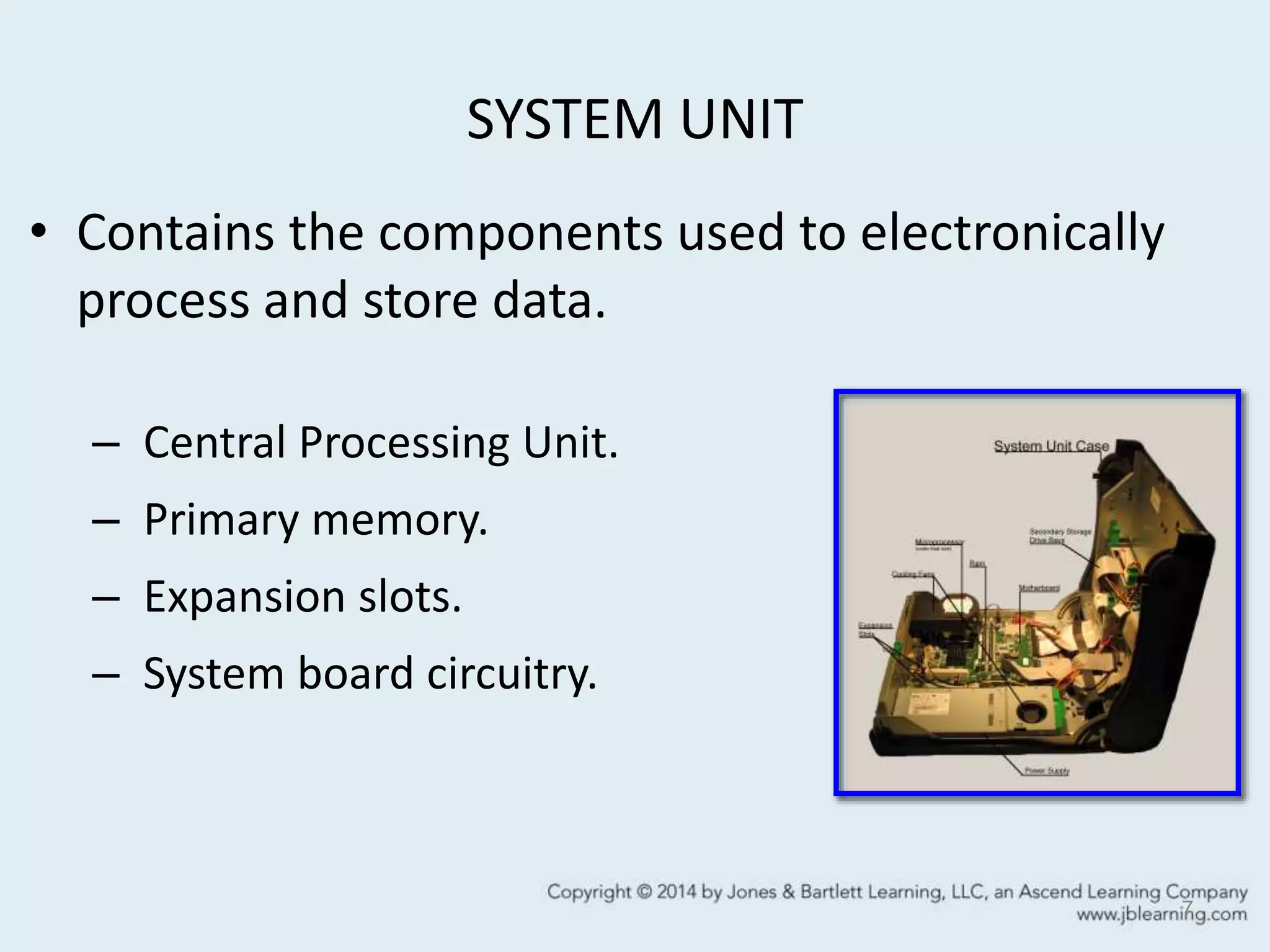
SYSTEM UNIT
• Contains the components used to electronically
process and store data.
– Central Processing Unit.
– Primary memory.
– Expansion slots.
– System board circuitry.
7
CENTRAL PROCESSING UNIT (CPU)
• Consists of millions of integrated transistors that
execute program instructions and manipulate
data.
• Sets of transistors include:
– Control Unit
– Arithmetic Logic Unit
– Registers
– Cache.
8
View IT
Intel explains
the future for
transistors on
the CPU.
CPU AT WORK
• Processing data and instructions is
systematically executed in a machine cycle.
• Four steps in the cycle:
– Fetch
– Decode
– Execute
– Store.
9
Figure 3.3
CPU FEATURES
• Clock speed
– Rate the CPU carries out basic instructions.
– Measured in megahertz (MHz) or gigahertz (GHz).
• Word size
– Number of bits the processor can manipulate in
one machine cycle.
– 64 bit processor can execute more data than a 32
bit processor.
10
CPU FEATURES
• Bus width
– The width of the electronic pathway that moves
data and instructions to the processor.
– A bus 64 bits wide carries more data than a bus
16 bits wide.
• Pipelining
– Method to increase processing speed by launching
more than one instruction in a single machine
cycle.
11
CPU FEATURES
• RISC
– Reduced Instruction Set Computer chips eliminate
complex embedded microcode.
• Multi-processing
– Combination of multiple processors to execute
instructions simultaneously.
12
APPROACHES TO Multi-Processing
• Multiple processors
– CPU + graphics co-processor.
• Multi-core processors
– Two or more logic cores on a single CPU chip to
execute different tasks.
• Parallel processing
– Linking multiple processors together to operate
simultaneously on the same task.
13
PRIMARY MEMORY
• Electronic storage locations for data and
instructions directly addressed by the CPU.
• Random Access Memory (RAM)
– Volatile storage area for operating system, software
applications, and user data.
– Capacities are measured in megabytes or gigabytes on
personal computers.
• Read Only Memory (ROM)
– Non-volatile electronic storage for frequently used
instructions such as the computer's boot sequence.
14
CACHE MEMORY
• High speed electronic storage to optimize the
performance of the CPU.
– Reduces time to fetch data and instructions from RAM
storage.
• Level 1 or Primary Cache stores data and
instructions on the CPU chip.
• Level 2 Cache positioned between the CPU and
RAM.
• Capacities of cache vary.
– Total amounts are not part of RAM capacity.
15
SYSTEM BOARD
• Electronic circuit board at the base of the
system unit.
• Manages flow of electronic bits to:
– CPU
– RAM
– Expansion slots
– Video card
– Analog - Digital converters
– I/O interface ports.
16
HARDWARE INTERFACE
• Point of union between the system board and
peripheral devices.
• Data flows to the system board in
– Parallel transmission or
– Serial transmission.
17
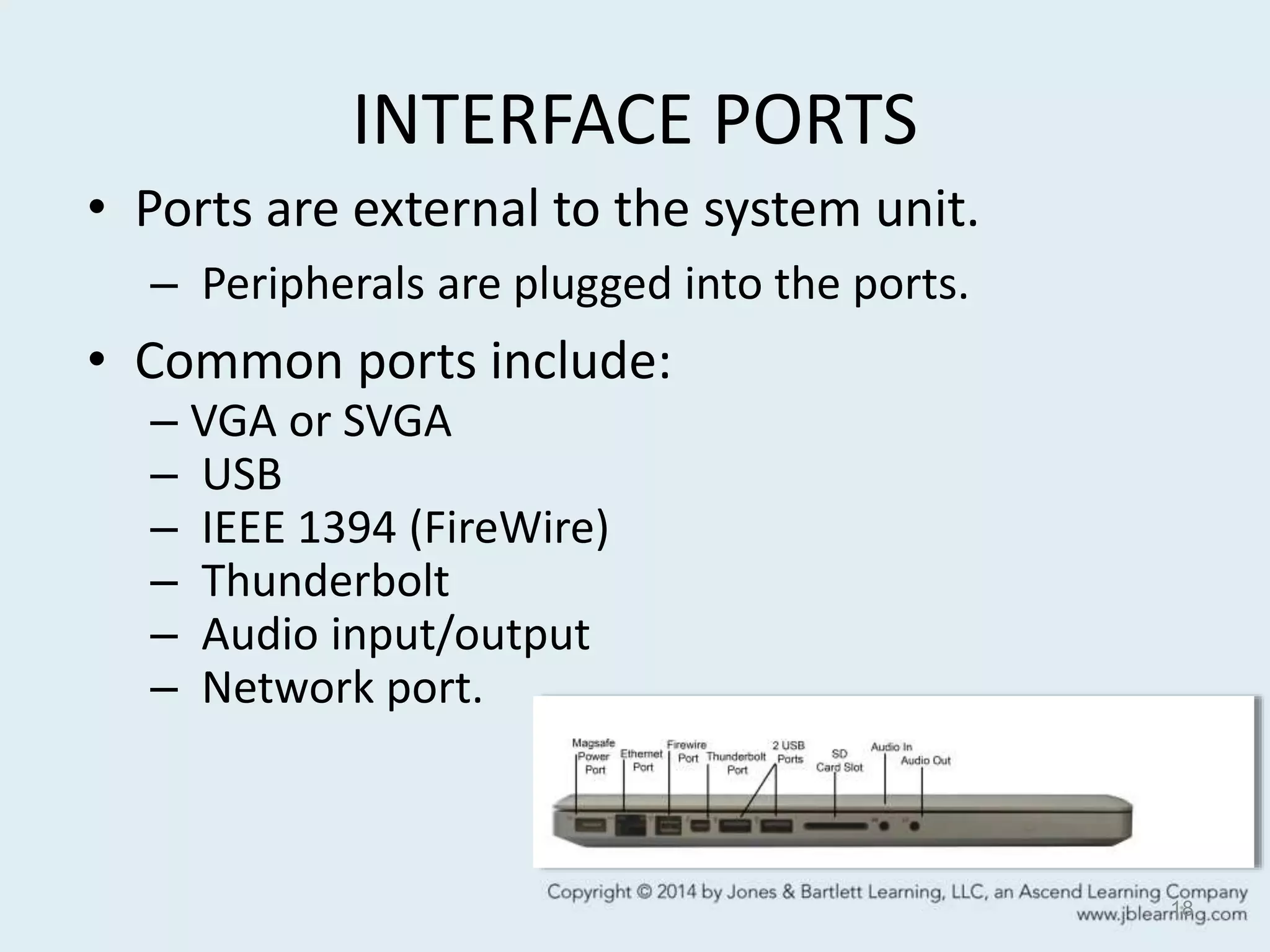
INTERFACE PORTS
• Ports are external to the system unit.
– Peripherals are plugged into the ports.
• Common ports include:
– VGA or SVGA
– USB
– IEEE 1394 (FireWire)
– Thunderbolt
– Audio input/output
– Network port.
18
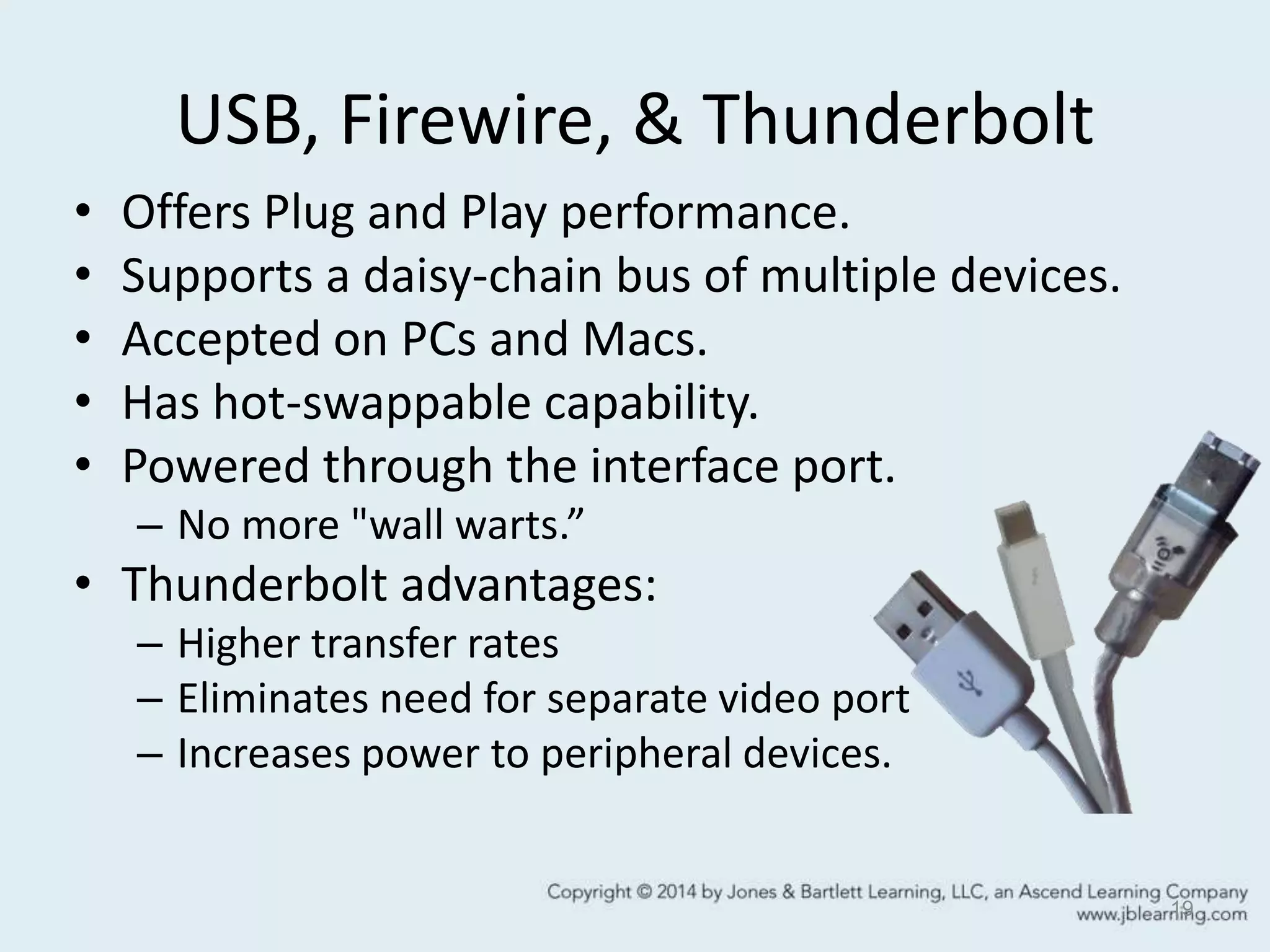
USB, Firewire, & Thunderbolt
• Offers Plug and Play performance.
• Supports a daisy-chain bus of multiple devices.
• Accepted on PCs and Macs.
• Has hot-swappable capability.
• Powered through the interface port.
– No more "wall warts.”
• Thunderbolt advantages:
– Higher transfer rates
– Eliminates need for separate video port
– Increases power to peripheral devices.
19
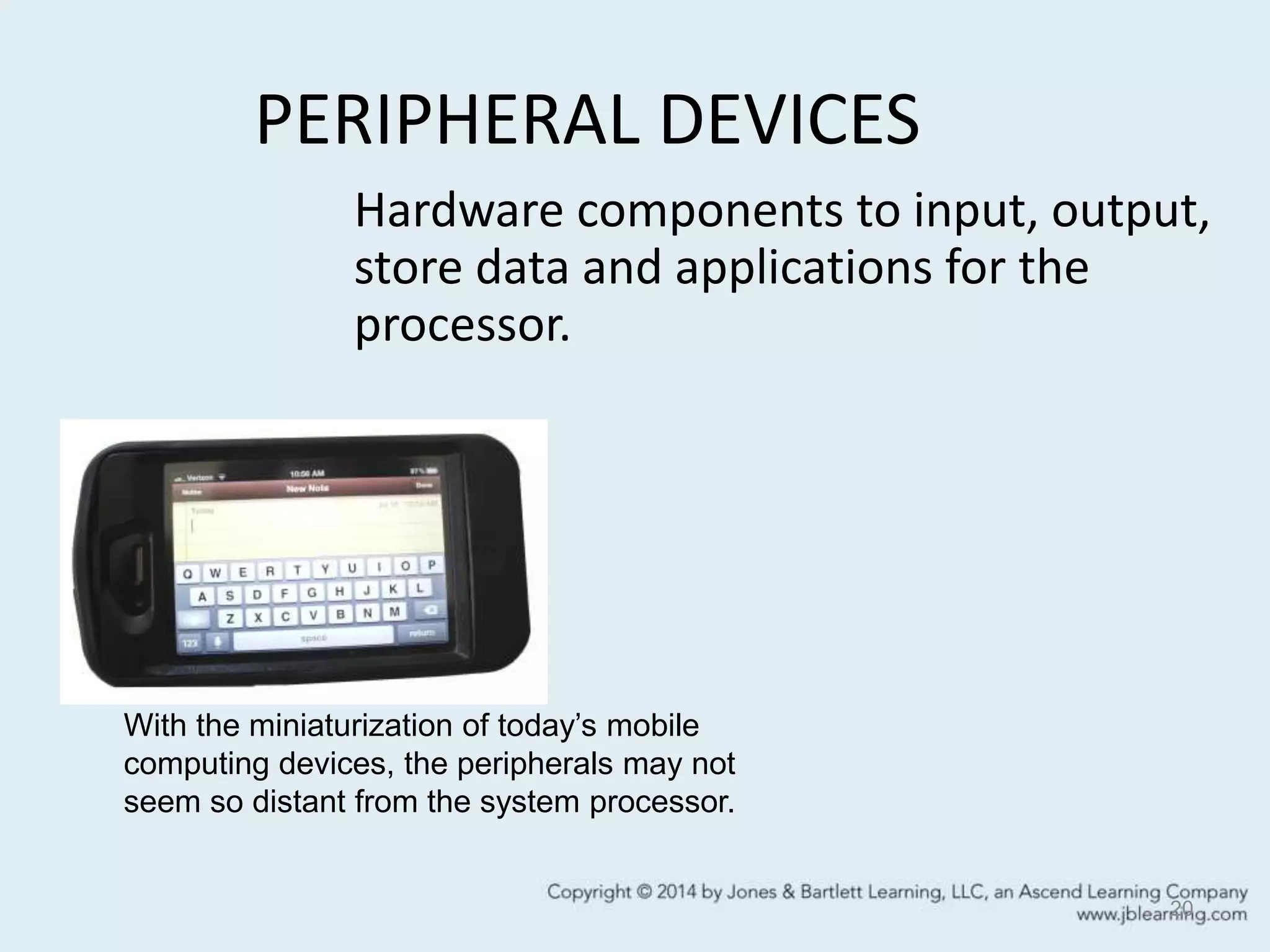
PERIPHERAL DEVICES
20
Hardware components to input, output,
store data and applications for the
processor.
With the miniaturization of today’s mobile
computing devices, the peripherals may not
seem so distant from the system processor.
SECONDARY STORAGE
• Holds data and instructions outside the
system unit for long periods of time.
• Advantages over primary storage:
– Nonvolatile storage
– Expandable
– Portable
– Inexpensive.
• Options include magnetic, optical, solid-state
storage.
21
SECONDARY STORAGE
• Five Main Uses
– Saving data during edit process.
– Backup data and applications.
– Distribute data and applications.
– Transport data and applications.
– Archive data and applications.
22
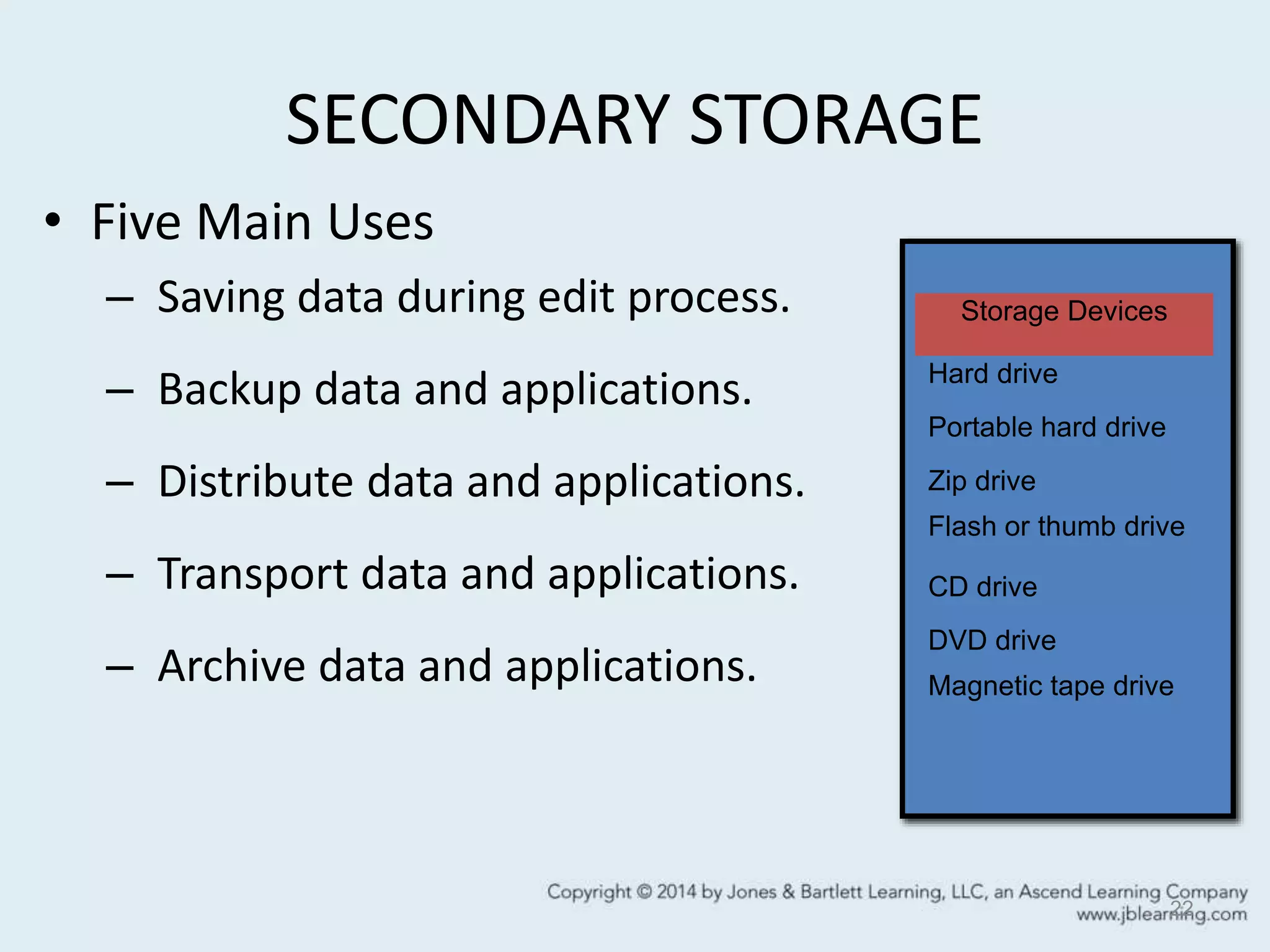
Storage Devices
Hard drive
Portable hard drive
Zip drive
Flash or thumb drive
CD drive
DVD drive
Magnetic tape drive
MAGNETIC STORAGE
• Bits are stored in magnetic form on disk
platters or magnetic tape.
• Data stored in addressable tracks and sectors
defined by the operating system.
– Track — circular paths
– Sector — pie shaped logical divisions of the track.
23
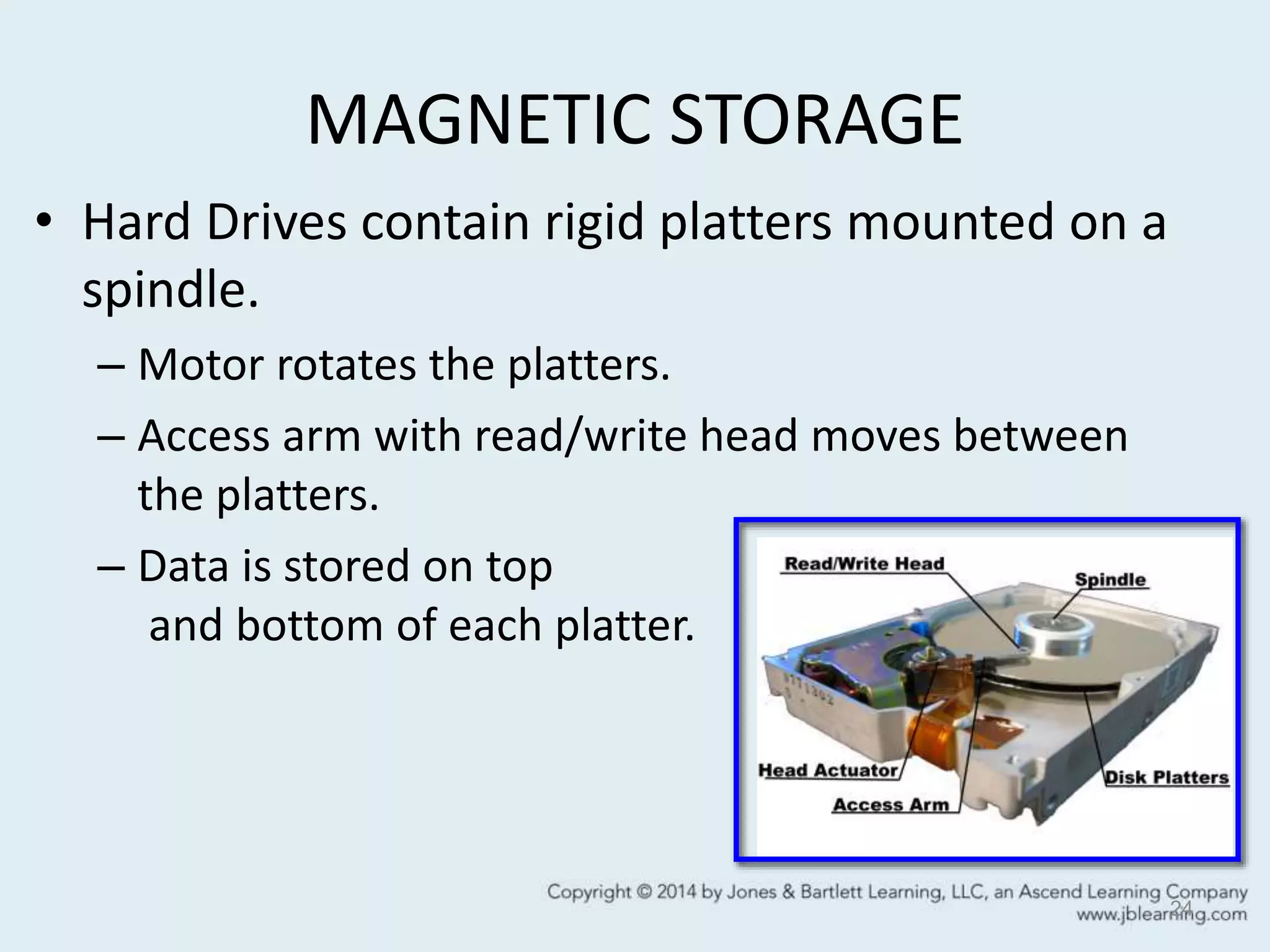
MAGNETIC STORAGE
• Hard Drives contain rigid platters mounted on a
spindle.
– Motor rotates the platters.
– Access arm with read/write head moves between
the platters.
– Data is stored on top
and bottom of each platter.
24
HARD DRIVE PERFORMANCE
• Storage capacity
– Measured in gigabytes or terabytes.
• Access time
– Measured in milliseconds, the time to locate data on
the platter.
• Transfer rate
– Measured in bytes, the speed of data transfer from
the platter to RAM.
25
MAGNETIC OPTIONS
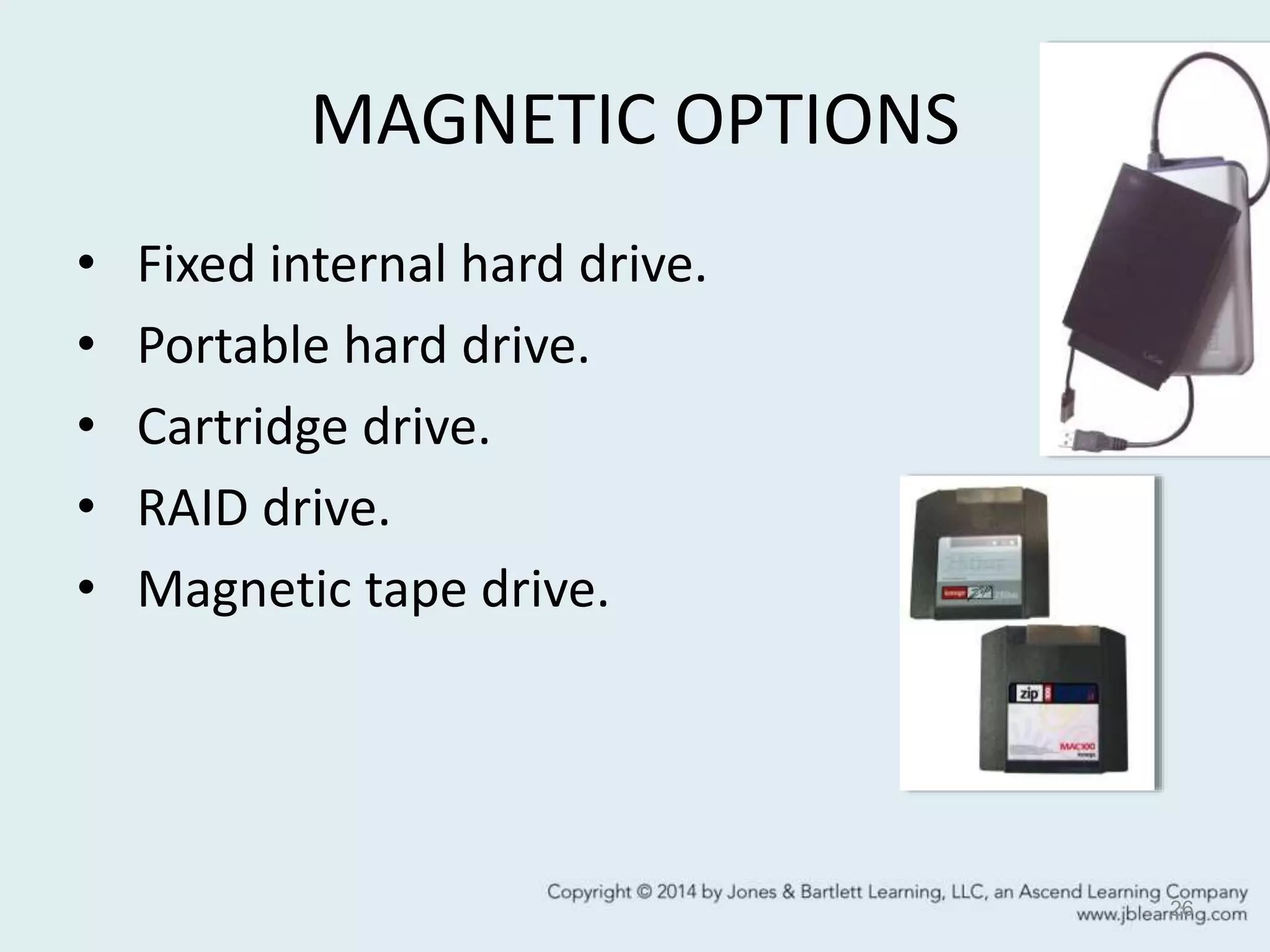
• Fixed internal hard drive.
• Portable hard drive.
• Cartridge drive.
• RAID drive.
• Magnetic tape drive.
26
MAGNETIC STORAGE
• Benefits:
– Large storage capacity
– Fast access to data
– Economical.
• Challenges:
– Limited durability
– Easily damaged.
27
FYI:
The projected cost
of a gigabyte of
magnetic storage
in 2016 is .01
cents.
OPTICAL STORAGE
• Compact Disc (CD) first used to replace vinyl
records in music industry.
– Stored digital music for permanent, high fidelity
recordings.
– Capacity set at 74 minutes of digital audio.
28
FYI:
Disc refers
to optical
storage.
Disk denotes
magnetic
storage.
LASER BEAMS
• Amplified light energy.
• When focused on a shiny surface, the beam reflects back to a photo
detector.
• Disc surface is "stamped" with pits and lands.
– Pits — indentations on surface.
– Land — flat area on surface.
• Digital code is read as variations in the reflection intensity.
29
LASER ADVANTAGES
• High capacity storage.
– Pits = .83 microns long and .5 microns wide.
– Data stored in a continuous spiral from inside to
outside edge of disc.
• Durable data.
– Pits and lands are pressed into a platter and
coated with lacquer material.
– Data is encoded with error detection/correction to
prevent damaged data.
30
OPTICAL RECORDING
• Data is organized
in:
– Tracks —
addressing scheme
on CD.
– Frame — physical
format of the data.
• 58 frames form a
sector on CD-ROM
or 2048 bytes of
data code.
– Sessions — single
recorded segment
on CD.
31
Compact Disc Formats
• Standard physical size.
– 120 mm, 15mm center hole, 1.2 mm thick.
– Led to rapid development of drives to accept all
CD formats.
• CD-DA (Digital Audio format).
• CD-ROM (Read-Only format).
• CD-R (Recordable format).
• CD-RW (Re-Writable format).
32
OPTICAL DRIVE
• Laser head moves along rails to position the
laser lens.
• Light reflects back to a photo detector.
• Motor spins the disc.
• Data is read using:
– CLV — Constant Linear Velocity
– CAV — Constant Angular Velocity.
33
DIGITAL VERSATILE DISC (DVD)
• Optical storage that uses:
– More precise laser light
– Multi-layer storage
– New video compression methods
– Improved error detection and correction.
• Result.
– Higher storage capacity than compact disc
• 650MB on CD (74 minutes of music)
• 17GB on DVD (8 hrs of video).
34
DVD FEATURES
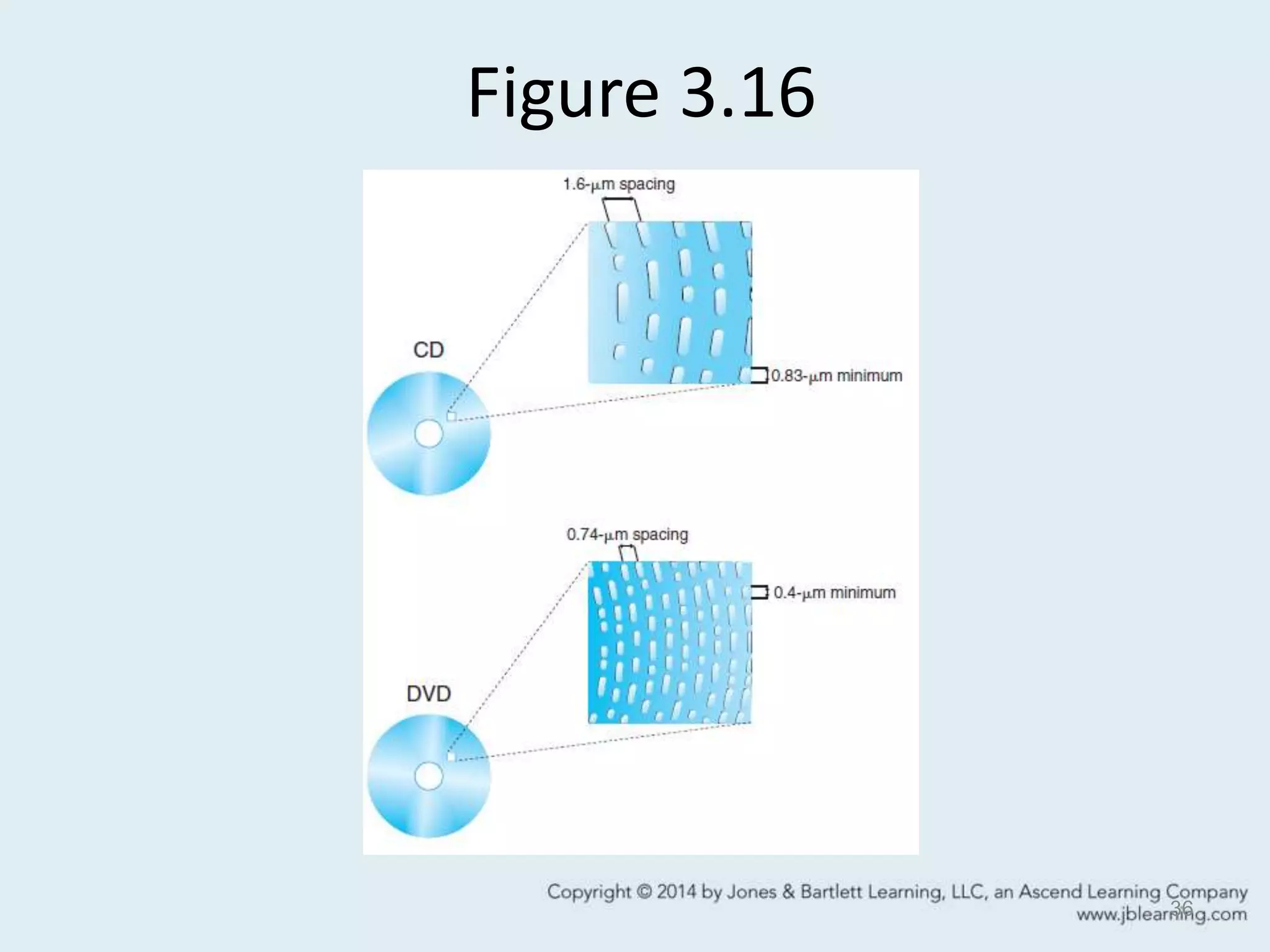
• More precise laser beam reads smaller pits.
– .40 microns wide vs .83 microns on CD
– Smaller pits = more data capacity.
• Multi layer storage.
– Two reflective layers per side
– Each layer stores 4.7GB data.
35
FYI: Laser
Wavelength
compared.
CD = 780
nanometers.
DVD = 650
nanometers.
Blu-ray = 405
nanometers
Figure 3.16
36
DVD FEATURES
• MPEG2 compression.
– Compresses video at 40:1 ratio without
compromising video quality.
• Improved error detection/correction.
– CDs use 33% storage for ECC/EDC (error detection
and correction).
– DVDs reduce this to 13% of the storage.
37
DVD FORMATS
• Standards vary by player and data.
• DVD recordable formats:
– DVD-R: compatible with most players & drives
– DVD-RW: playable in many DVD drives and players
– DVD-RAM: Removable storage for computers.
38
BLU-RAY: Next Generation
• Optical storage based on blu-ray laser.
– Shorter wavelength (405nm).
• Massive storage capacity.
– Single layer can store 27GB of data.
• Can store 2 hours of high-definition video or
• 13 hours of standard video.
– Dual layer stores 50GB of data.
• Currently used for recording high definition video
and PlayStation 3 games.
39
SOLID-STATE STORAGE
• Computer storage with no moving parts.
• Devices are based on flash memory
technology.
– Contains a grid of cells, each with two transistors
separated by a thin layer of insulating oxide.
– The insulating oxide layer preserves information
with no need of external power.
40
SOLID-STATE STORAGE
• Benefits:
– Lightweight
– Small
– Low power requirements
– More durable than devices with movable parts.
• Disadvantages:
– More expensive than magnetic
storage
– Limited capacity
– Limited life expectancy.
41
FYI:
Labels for solid state
storage devices
include:
•USB drive
•Flash drive
•Thumb drive
•Memory stick
Storage in the Cloud
• The “cloud” is a metaphor for a network server
generally accessed via the Internet.
– Users maintain accounts to store, maintain, and manage
data remotely.
• Benefits of networked storage include:
– Portability
– Ubiquitous access.
• Challenges include:
– Security and reliability of the server.
– Access to data is dependent on the performance of a
remote server and network connections.
42
SECONDARY STORAGE &
Future of Digital Data
• Practical issues surrounding the migration of
data to secondary storage include:
– Effective and efficient data management.
– Enduring file formats over the years.
– Ability to access the data on the storage media
• Hardware requirements
• Software dependence.
– Data longevity.
43
INPUT DEVICES
• Capture and transmit data and instructions to
the system using for processing and storage.
• Categories:
– Keyboard
– Pointing devices
– Scanning devices
– Image capture
– Audio capture.
44
INPUT DEVICES
• Keyboard.
– Capture user text and commands.
• Pointing device.
– Relies on graphic interface to click or select the input.
– Devices include:
• Fingers
• Mouse
• Pointing stick
• Stylus
• Touch screens
• Touch pads
• Trackball.
45
FYI:
The Wii Remote
is also a pointing
device for the
popular game
console.
INPUT DEVICES: SCANNER
• Captures text or graphics using a light-sensing
device called a Charge-Coupled Device (CCD).
• Types of scanners include:
– Flat bed
– Hand held
– Sheet fed
– Slide.
• Scanner quality depends on:
– Spatial resolution
– Color resolution (bit depth).
46
SCANNER Settings
• Spatial Resolution (dpi).
– Depends on use of image.
• 72 dpi for computer display.
• 300 dpi for printer output.
• Color resolution (bit depth).
– 8 bit setting confines color range to 256.
– Grayscale setting uses black, white and shades of gray.
• Scaling.
– Set the size larger or smaller before the scan.
• Tonal quality.
– Adjust brightness and contrast based on preview of scan.
47
SCANNER & OCR
• Optical Character Recognition is a process that
converts printed text into an editable word
processed digital file.
– OCR software analyzes the image of a character
and translates it to an ASCII code of the character.
• OCR quality depends on software, quality of
printed text, and type of paper being scanned.
– Extensive editing may be required to remove stray
characters or misinterpreted text.
48
DIGITAL CAMERA
• Captures images in real time at the source.
• Benefits include:
– Instant review of image
– Re-capture the image if necessary
– High quality spatial and color resolution.
• Image file size depends on capture resolution (6 -
12 megapixel) and color depth (16 - 24 bit color) can
produce large file sizes.
• Images transferred to hard drive via memory card
or USB direct connection.
49
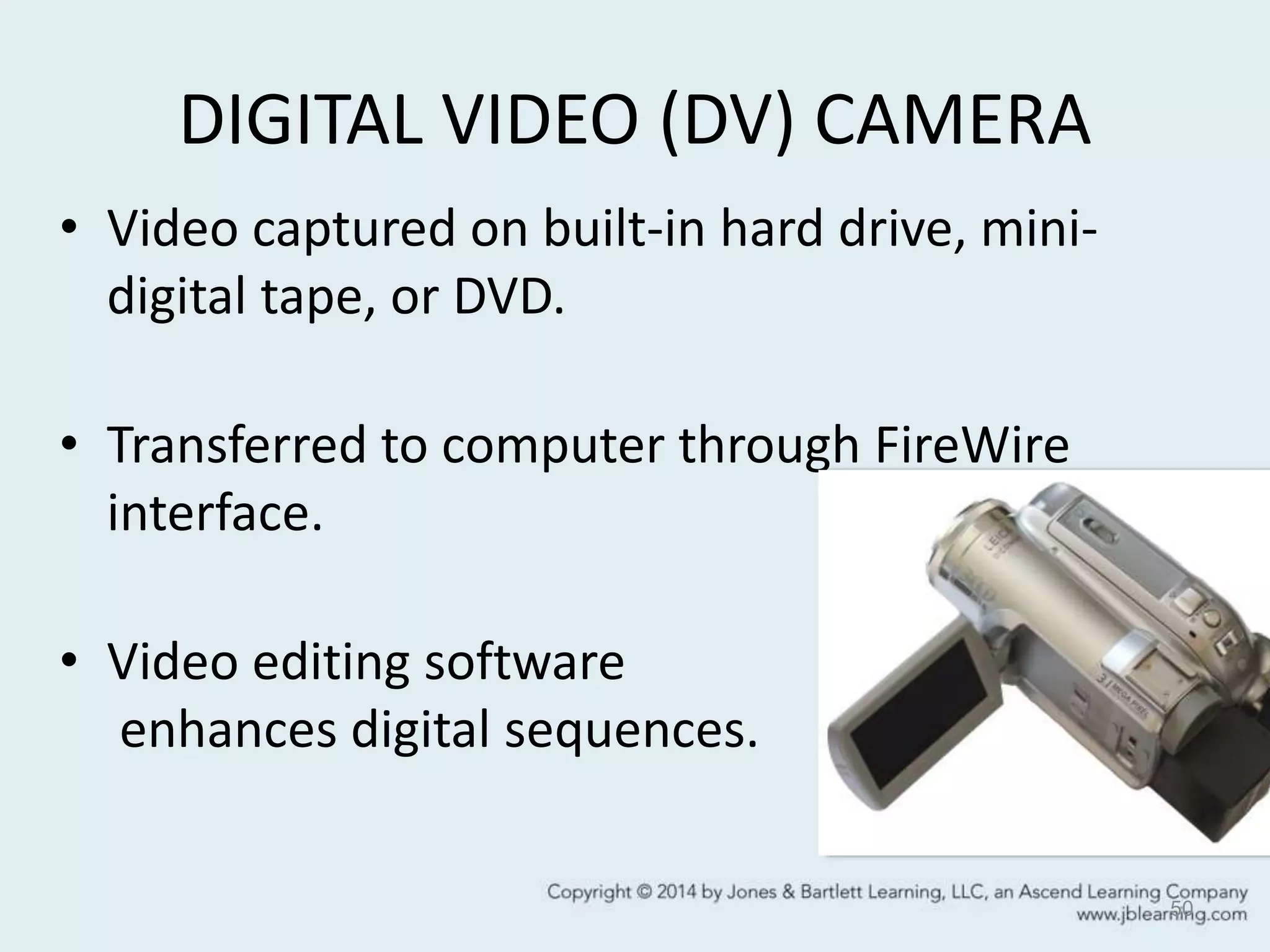
DIGITAL VIDEO (DV) CAMERA
• Video captured on built-in hard drive, mini-
digital tape, or DVD.
• Transferred to computer through FireWire
interface.
• Video editing software
enhances digital sequences.
50
DV CAMERA PERFORMANCE
• Method used to capture image.
– Single chip reproduce RGB color.
– 3-chip have separate CCD for Red, Green, Blue.
• Lens quality.
• Zoom quality.
– Optical zoom vs. digital zoom.
• Image stabilization.
• Preprogrammed modes.
– Lighting and weather conditions.
51
View IT:
Web source
and video on
choosing the
right video
camera.
SOUND CAPTURE
• Devices to transform analog waveforms to
digital files.
– Microphones
• External vs. internal
– CD & Tape players
– Digital Recorders.
52
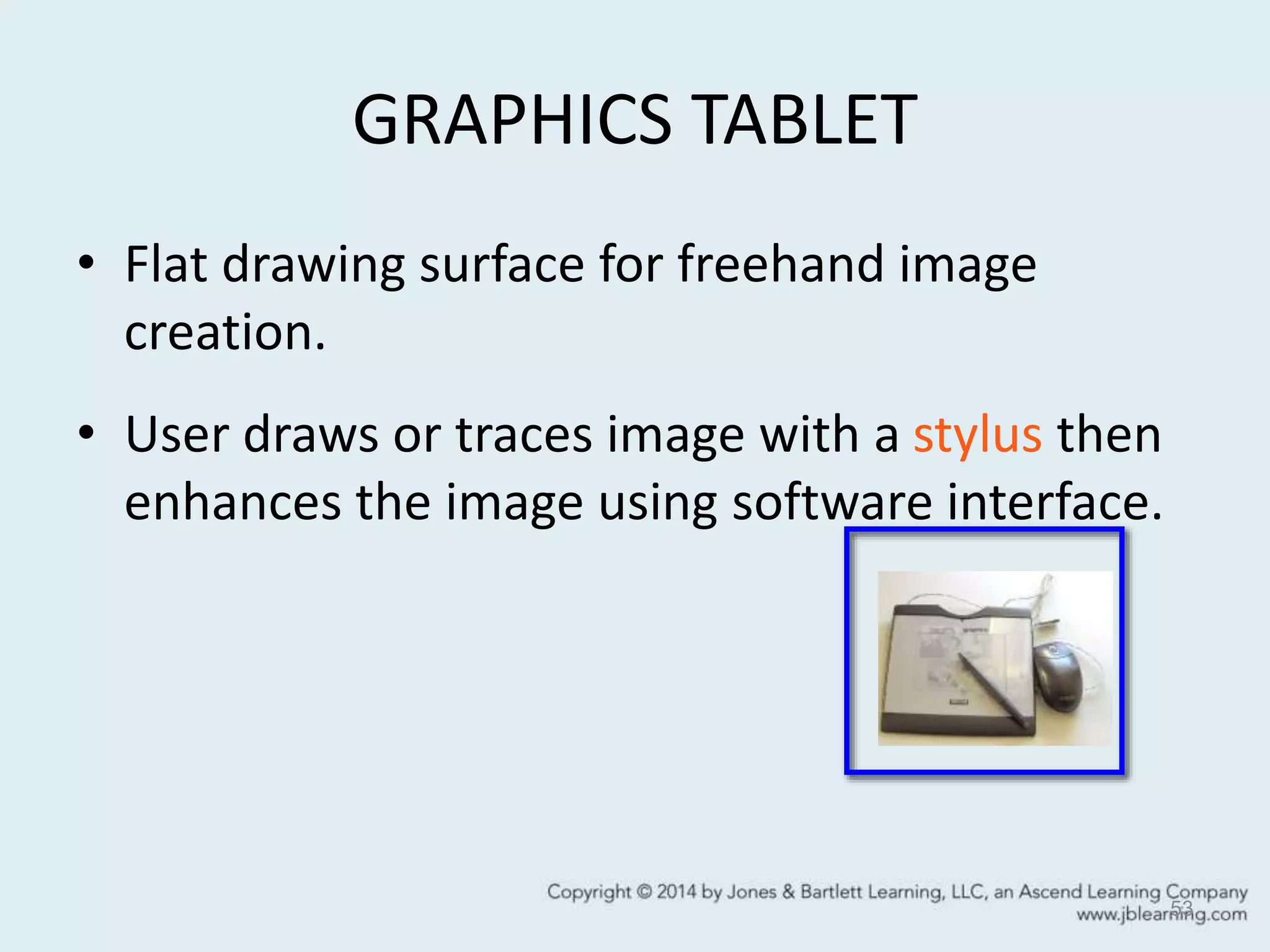
GRAPHICS TABLET
• Flat drawing surface for freehand image
creation.
• User draws or traces image with a stylus then
enhances the image using software interface.
53
OUTPUT DEVICES
• Present processed data in a useful form.
• Devices include:
– Screen display
– Audio speakers
– Hard copy.
54
DISPLAY DEVICES
• Produce an image on a screen through a series
of individual pixels.
– Display quality is determined by spatial and color
resolution.
– Displays with 1024 X 768 spatial resolution have
more addressable pixels than 640 X 480
resolution.
– 24-bit color graphics display has richer colors than
16-bit color.
55
CRT DISPLAY
• Raster scanning technology generates a
display.
– Based on Cathode Ray Tube technology.
• Electronic signal scans
horizontal rows from
top to bottom of screen.
56
Figure
3.23
Figure 3.23
57
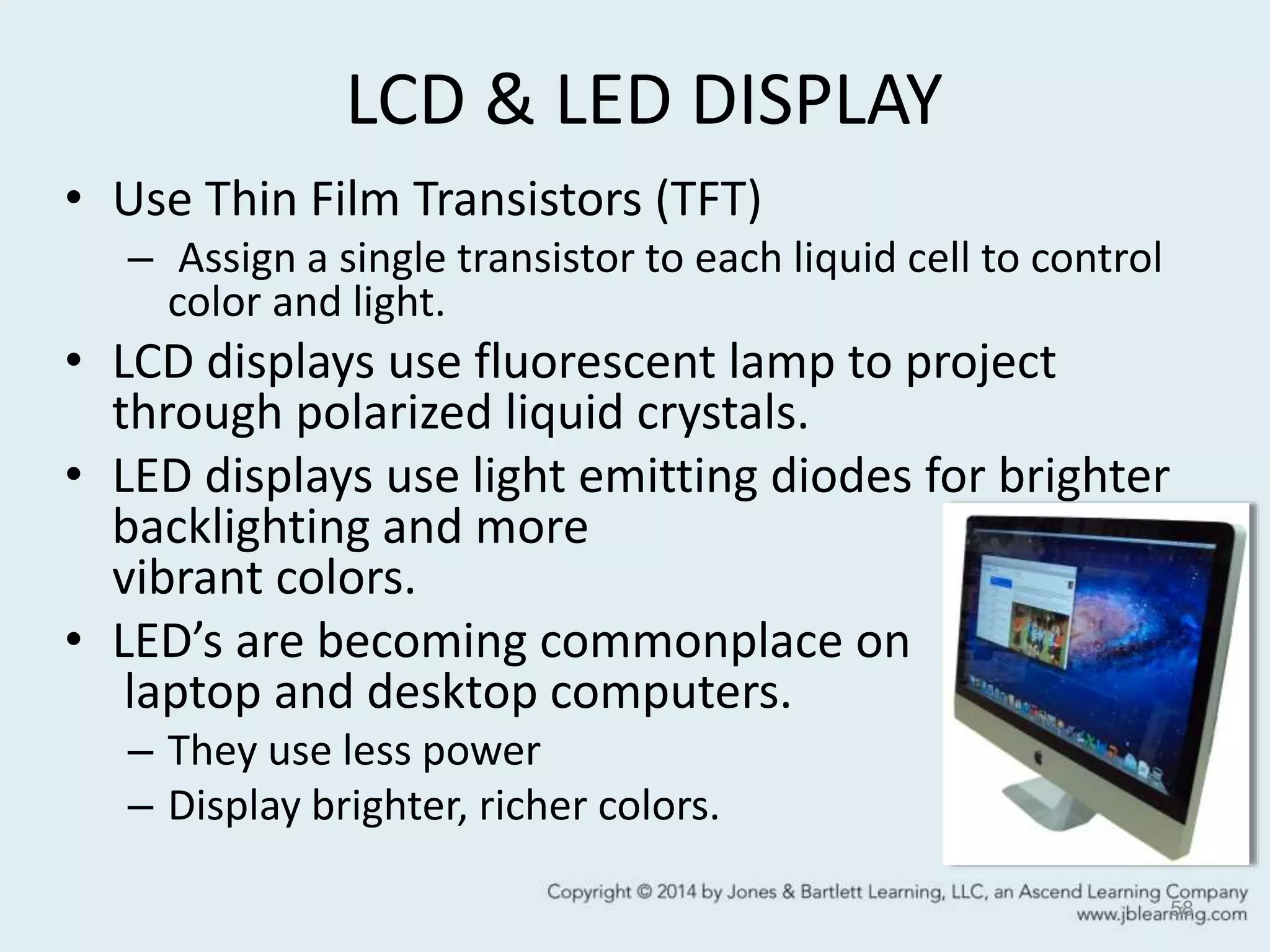
LCD & LED DISPLAY
• Use Thin Film Transistors (TFT)
– Assign a single transistor to each liquid cell to control
color and light.
• LCD displays use fluorescent lamp to project
through polarized liquid crystals.
• LED displays use light emitting diodes for brighter
backlighting and more
vibrant colors.
• LED’s are becoming commonplace on
laptop and desktop computers.
– They use less power
– Display brighter, richer colors.
58
SPEAKER SYSTEMS
• Speakers or headsets are plugged into the
soundboard where digital data is converted to
analog waveforms.
• Sound card circuitry performs four processes:
– Converts digital sound data into analog with DAC.
(digital to analog converter)
– Records sound in digital form with analog ADC.
– Amplifies signal.
– Creates digital sounds using a synthesizer.
59
PRINTERS
• Two basic printing technologies:
– Impact, print head makes contact with the paper.
• Dot-matrix printer.
• Used for multi-part forms and low cost output
requirements.
– Nonimpact, print head does not contact paper.
• Laser printer
• Ink-jet printer
• Photo printer.
60
NON-IMPACT PRINTERS
• Ink-jet printer.
– Line printer that delivers high quality color.
– Output quality determined by
• Printer resolution measured in dots/inch
• Paper quality.
• Photo printer.
– Delivers photo-lab-quality output directly from
camera or card.
– Use inkjet cartridges or dye sublimation process to
print image.
61
NON-IMPACT PRINTERS
• Laser printer.
– Fuse text and image to paper one page at a time.
– High quality output resolutions of 600 to 2400 dpi.
– Deliver high quality color output using cyan, magenta,
yellow, and black toner.
• Multifunction printer.
– Combines printer, scanning, fax,
and copier technology in one device.
62
View IT
Learn how
laser printers
create the
output.
NETWORKS
• A collection of computers connected through a
communication link to share resources.
• Two main categories:
– WAN
• Covers wide geographic area using communication lines
of an external service provider.
– LAN
• Computers and peripherals connected within an
organization on privately owned communication lines.
63
INTERNET
• A network of networks built on TCP/IP protocols.
– Transfer Control Protocol prepares data in packets to
distribute on the network.
– Internet Protocol assigns an numeric address to each
packet of data.
• Common Internet protocols:
– eMail — smtp
– File transfer — ftp
– Web — http.
64
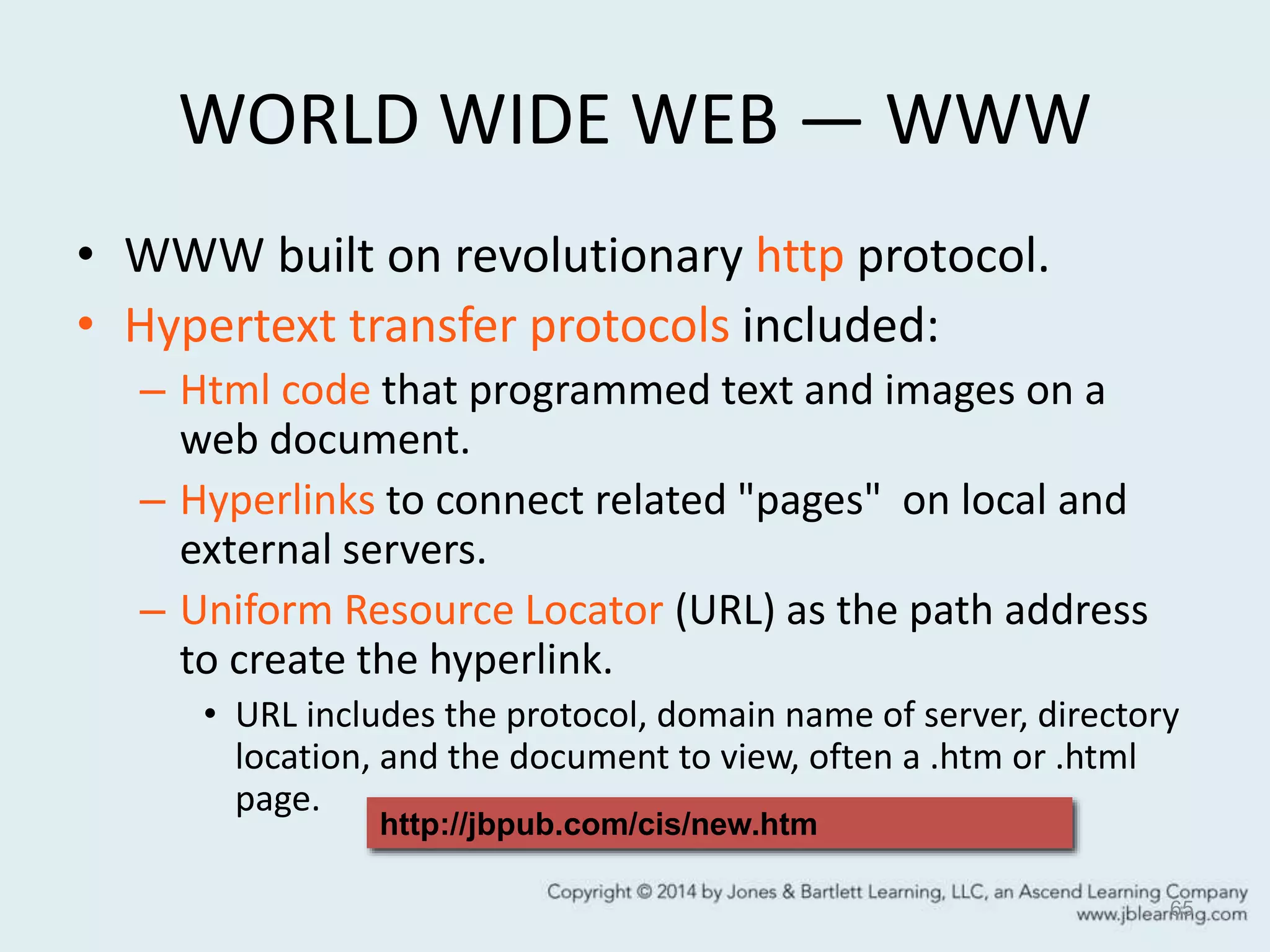
WORLD WIDE WEB — WWW
• WWW built on revolutionary http protocol.
• Hypertext transfer protocols included:
– Html code that programmed text and images on a
web document.
– Hyperlinks to connect related "pages" on local and
external servers.
– Uniform Resource Locator (URL) as the path address
to create the hyperlink.
• URL includes the protocol, domain name of server, directory
location, and the document to view, often a .htm or .html
page.
65
http://jbpub.com/cis/new.htm
NETWORKS
• Client/Server organization.
– Efficient means to distribute data from the server and
rely on processing at the client (local) computer.
– Commonly used on LANs and WWW.
• Ethernet.
– Protocol to control flow of data on LAN.
• WiFi & Bluetooth.
– Mobile computing network standards.
66
WRAP UP
• Computer systems
– Supercomputer
– Mainframe
– Microcomputer
– Mobile devices (iPad, iPhone,
Ultrabook)
• System unit
– CPU
– Primary memory
– System board
• Interface ports
– USB
– FireWire
– Thunder Bolt
67
• Peripherals
• Storage devices
• Input devices
• Output devices
• Networks
• WAN
• LAN
• Internet
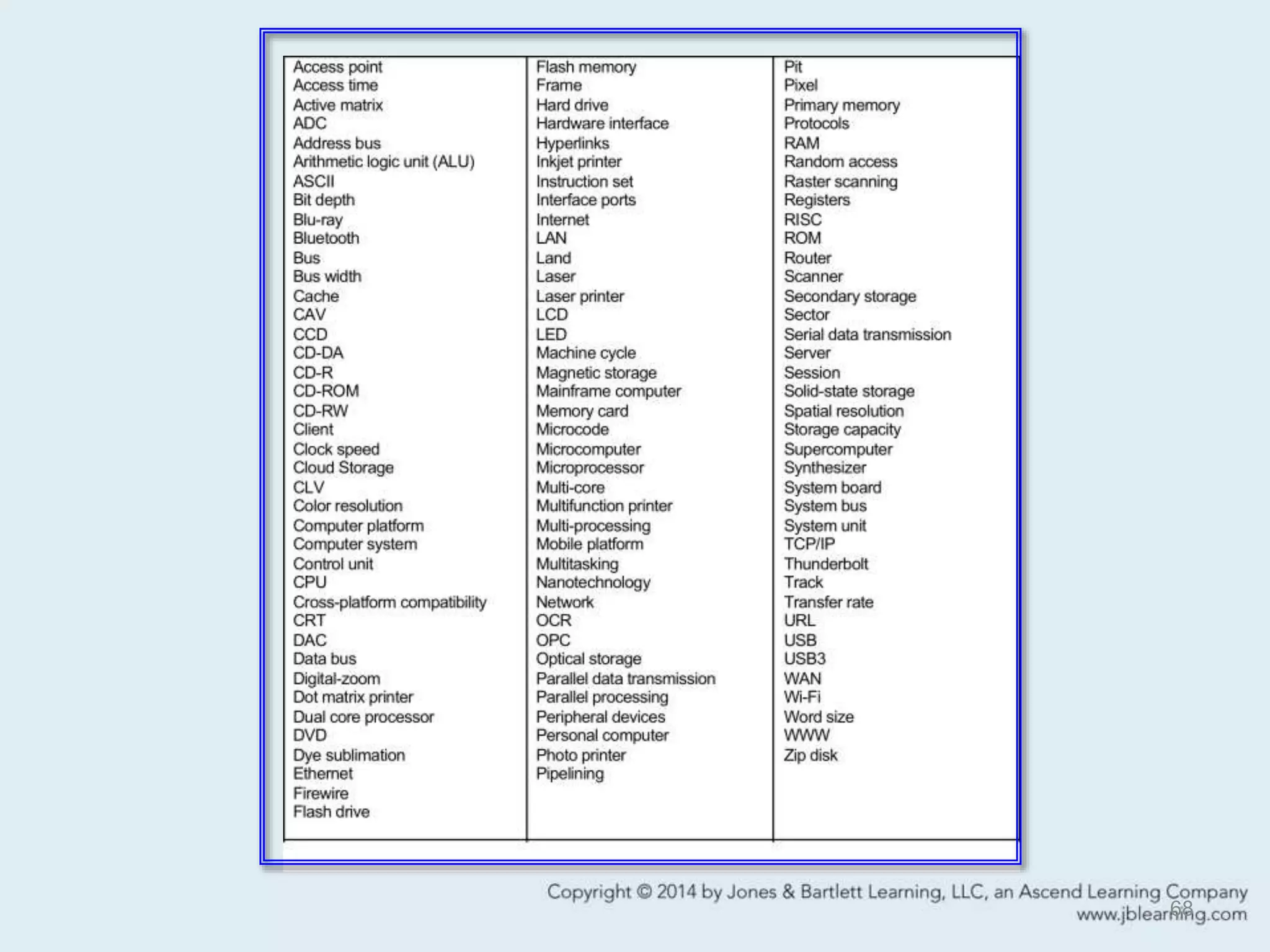
68

Chapter Three

  • 1.
  • 2.
    CHAPTER HIGHLIGHTS • Componentsof a Computer System • Types of Computer Systems • Computer Platforms • Hardware Basics – System Unit – Peripheral Devices • Network Fundamentals – WAN and LAN – Internet 2
  • 3.
    COMPUTER SYSTEMS • Anintegrated set of hardware and software designed to process data and produce a meaningful result. • Basic functions: – Input – Processing – Storage – Output – Transmission. 3
  • 4.
    TYPES OF COMPUTERSYSTEMS • Supercomputer. – Offers the fastest processing speeds and performs the most complex calculations. • Mainframe computer. – Provides multi-user computing to large organizations for tasks such as managing extensive databases, financial transactions, and communications. • Personal computer. – Provides computing to a single user performing multiple tasks. 4
  • 5.
    COMPUTER PLATFORM • Platformis a combination of hardware and operating system. – Windows/PC platform. – Macintosh platform. – Mobile Computing platform. • Cross-platform compatibility. – Ability of an application to run on different hardware and operating systems. • Adobe's Acrobat .pdf files can be opened on Windows or Mac OS based computers. – The WWW provides a cross-platform computing experience. 5
  • 6.
    COMPUTER HARDWARE BASICS 6 SYSTEMUNIT and PERIPHERALS at work.
  • 7.
    SYSTEM UNIT • Containsthe components used to electronically process and store data. – Central Processing Unit. – Primary memory. – Expansion slots. – System board circuitry. 7
  • 8.
    CENTRAL PROCESSING UNIT(CPU) • Consists of millions of integrated transistors that execute program instructions and manipulate data. • Sets of transistors include: – Control Unit – Arithmetic Logic Unit – Registers – Cache. 8 View IT Intel explains the future for transistors on the CPU.
  • 9.
    CPU AT WORK •Processing data and instructions is systematically executed in a machine cycle. • Four steps in the cycle: – Fetch – Decode – Execute – Store. 9 Figure 3.3
  • 10.
    CPU FEATURES • Clockspeed – Rate the CPU carries out basic instructions. – Measured in megahertz (MHz) or gigahertz (GHz). • Word size – Number of bits the processor can manipulate in one machine cycle. – 64 bit processor can execute more data than a 32 bit processor. 10
  • 11.
    CPU FEATURES • Buswidth – The width of the electronic pathway that moves data and instructions to the processor. – A bus 64 bits wide carries more data than a bus 16 bits wide. • Pipelining – Method to increase processing speed by launching more than one instruction in a single machine cycle. 11
  • 12.
    CPU FEATURES • RISC –Reduced Instruction Set Computer chips eliminate complex embedded microcode. • Multi-processing – Combination of multiple processors to execute instructions simultaneously. 12
  • 13.
    APPROACHES TO Multi-Processing •Multiple processors – CPU + graphics co-processor. • Multi-core processors – Two or more logic cores on a single CPU chip to execute different tasks. • Parallel processing – Linking multiple processors together to operate simultaneously on the same task. 13
  • 14.
    PRIMARY MEMORY • Electronicstorage locations for data and instructions directly addressed by the CPU. • Random Access Memory (RAM) – Volatile storage area for operating system, software applications, and user data. – Capacities are measured in megabytes or gigabytes on personal computers. • Read Only Memory (ROM) – Non-volatile electronic storage for frequently used instructions such as the computer's boot sequence. 14
  • 15.
    CACHE MEMORY • Highspeed electronic storage to optimize the performance of the CPU. – Reduces time to fetch data and instructions from RAM storage. • Level 1 or Primary Cache stores data and instructions on the CPU chip. • Level 2 Cache positioned between the CPU and RAM. • Capacities of cache vary. – Total amounts are not part of RAM capacity. 15
  • 16.
    SYSTEM BOARD • Electroniccircuit board at the base of the system unit. • Manages flow of electronic bits to: – CPU – RAM – Expansion slots – Video card – Analog - Digital converters – I/O interface ports. 16
  • 17.
    HARDWARE INTERFACE • Pointof union between the system board and peripheral devices. • Data flows to the system board in – Parallel transmission or – Serial transmission. 17
  • 18.
    INTERFACE PORTS • Portsare external to the system unit. – Peripherals are plugged into the ports. • Common ports include: – VGA or SVGA – USB – IEEE 1394 (FireWire) – Thunderbolt – Audio input/output – Network port. 18
  • 19.
    USB, Firewire, &Thunderbolt • Offers Plug and Play performance. • Supports a daisy-chain bus of multiple devices. • Accepted on PCs and Macs. • Has hot-swappable capability. • Powered through the interface port. – No more "wall warts.” • Thunderbolt advantages: – Higher transfer rates – Eliminates need for separate video port – Increases power to peripheral devices. 19
  • 20.
    PERIPHERAL DEVICES 20 Hardware componentsto input, output, store data and applications for the processor. With the miniaturization of today’s mobile computing devices, the peripherals may not seem so distant from the system processor.
  • 21.
    SECONDARY STORAGE • Holdsdata and instructions outside the system unit for long periods of time. • Advantages over primary storage: – Nonvolatile storage – Expandable – Portable – Inexpensive. • Options include magnetic, optical, solid-state storage. 21
  • 22.
    SECONDARY STORAGE • FiveMain Uses – Saving data during edit process. – Backup data and applications. – Distribute data and applications. – Transport data and applications. – Archive data and applications. 22 Storage Devices Hard drive Portable hard drive Zip drive Flash or thumb drive CD drive DVD drive Magnetic tape drive
  • 23.
    MAGNETIC STORAGE • Bitsare stored in magnetic form on disk platters or magnetic tape. • Data stored in addressable tracks and sectors defined by the operating system. – Track — circular paths – Sector — pie shaped logical divisions of the track. 23
  • 24.
    MAGNETIC STORAGE • HardDrives contain rigid platters mounted on a spindle. – Motor rotates the platters. – Access arm with read/write head moves between the platters. – Data is stored on top and bottom of each platter. 24
  • 25.
    HARD DRIVE PERFORMANCE •Storage capacity – Measured in gigabytes or terabytes. • Access time – Measured in milliseconds, the time to locate data on the platter. • Transfer rate – Measured in bytes, the speed of data transfer from the platter to RAM. 25
  • 26.
    MAGNETIC OPTIONS • Fixedinternal hard drive. • Portable hard drive. • Cartridge drive. • RAID drive. • Magnetic tape drive. 26
  • 27.
    MAGNETIC STORAGE • Benefits: –Large storage capacity – Fast access to data – Economical. • Challenges: – Limited durability – Easily damaged. 27 FYI: The projected cost of a gigabyte of magnetic storage in 2016 is .01 cents.
  • 28.
    OPTICAL STORAGE • CompactDisc (CD) first used to replace vinyl records in music industry. – Stored digital music for permanent, high fidelity recordings. – Capacity set at 74 minutes of digital audio. 28 FYI: Disc refers to optical storage. Disk denotes magnetic storage.
  • 29.
    LASER BEAMS • Amplifiedlight energy. • When focused on a shiny surface, the beam reflects back to a photo detector. • Disc surface is "stamped" with pits and lands. – Pits — indentations on surface. – Land — flat area on surface. • Digital code is read as variations in the reflection intensity. 29
  • 30.
    LASER ADVANTAGES • Highcapacity storage. – Pits = .83 microns long and .5 microns wide. – Data stored in a continuous spiral from inside to outside edge of disc. • Durable data. – Pits and lands are pressed into a platter and coated with lacquer material. – Data is encoded with error detection/correction to prevent damaged data. 30
  • 31.
    OPTICAL RECORDING • Datais organized in: – Tracks — addressing scheme on CD. – Frame — physical format of the data. • 58 frames form a sector on CD-ROM or 2048 bytes of data code. – Sessions — single recorded segment on CD. 31
  • 32.
    Compact Disc Formats •Standard physical size. – 120 mm, 15mm center hole, 1.2 mm thick. – Led to rapid development of drives to accept all CD formats. • CD-DA (Digital Audio format). • CD-ROM (Read-Only format). • CD-R (Recordable format). • CD-RW (Re-Writable format). 32
  • 33.
    OPTICAL DRIVE • Laserhead moves along rails to position the laser lens. • Light reflects back to a photo detector. • Motor spins the disc. • Data is read using: – CLV — Constant Linear Velocity – CAV — Constant Angular Velocity. 33
  • 34.
    DIGITAL VERSATILE DISC(DVD) • Optical storage that uses: – More precise laser light – Multi-layer storage – New video compression methods – Improved error detection and correction. • Result. – Higher storage capacity than compact disc • 650MB on CD (74 minutes of music) • 17GB on DVD (8 hrs of video). 34
  • 35.
    DVD FEATURES • Moreprecise laser beam reads smaller pits. – .40 microns wide vs .83 microns on CD – Smaller pits = more data capacity. • Multi layer storage. – Two reflective layers per side – Each layer stores 4.7GB data. 35 FYI: Laser Wavelength compared. CD = 780 nanometers. DVD = 650 nanometers. Blu-ray = 405 nanometers
  • 36.
  • 37.
    DVD FEATURES • MPEG2compression. – Compresses video at 40:1 ratio without compromising video quality. • Improved error detection/correction. – CDs use 33% storage for ECC/EDC (error detection and correction). – DVDs reduce this to 13% of the storage. 37
  • 38.
    DVD FORMATS • Standardsvary by player and data. • DVD recordable formats: – DVD-R: compatible with most players & drives – DVD-RW: playable in many DVD drives and players – DVD-RAM: Removable storage for computers. 38
  • 39.
    BLU-RAY: Next Generation •Optical storage based on blu-ray laser. – Shorter wavelength (405nm). • Massive storage capacity. – Single layer can store 27GB of data. • Can store 2 hours of high-definition video or • 13 hours of standard video. – Dual layer stores 50GB of data. • Currently used for recording high definition video and PlayStation 3 games. 39
  • 40.
    SOLID-STATE STORAGE • Computerstorage with no moving parts. • Devices are based on flash memory technology. – Contains a grid of cells, each with two transistors separated by a thin layer of insulating oxide. – The insulating oxide layer preserves information with no need of external power. 40
  • 41.
    SOLID-STATE STORAGE • Benefits: –Lightweight – Small – Low power requirements – More durable than devices with movable parts. • Disadvantages: – More expensive than magnetic storage – Limited capacity – Limited life expectancy. 41 FYI: Labels for solid state storage devices include: •USB drive •Flash drive •Thumb drive •Memory stick
  • 42.
    Storage in theCloud • The “cloud” is a metaphor for a network server generally accessed via the Internet. – Users maintain accounts to store, maintain, and manage data remotely. • Benefits of networked storage include: – Portability – Ubiquitous access. • Challenges include: – Security and reliability of the server. – Access to data is dependent on the performance of a remote server and network connections. 42
  • 43.
    SECONDARY STORAGE & Futureof Digital Data • Practical issues surrounding the migration of data to secondary storage include: – Effective and efficient data management. – Enduring file formats over the years. – Ability to access the data on the storage media • Hardware requirements • Software dependence. – Data longevity. 43
  • 44.
    INPUT DEVICES • Captureand transmit data and instructions to the system using for processing and storage. • Categories: – Keyboard – Pointing devices – Scanning devices – Image capture – Audio capture. 44
  • 45.
    INPUT DEVICES • Keyboard. –Capture user text and commands. • Pointing device. – Relies on graphic interface to click or select the input. – Devices include: • Fingers • Mouse • Pointing stick • Stylus • Touch screens • Touch pads • Trackball. 45 FYI: The Wii Remote is also a pointing device for the popular game console.
  • 46.
    INPUT DEVICES: SCANNER •Captures text or graphics using a light-sensing device called a Charge-Coupled Device (CCD). • Types of scanners include: – Flat bed – Hand held – Sheet fed – Slide. • Scanner quality depends on: – Spatial resolution – Color resolution (bit depth). 46
  • 47.
    SCANNER Settings • SpatialResolution (dpi). – Depends on use of image. • 72 dpi for computer display. • 300 dpi for printer output. • Color resolution (bit depth). – 8 bit setting confines color range to 256. – Grayscale setting uses black, white and shades of gray. • Scaling. – Set the size larger or smaller before the scan. • Tonal quality. – Adjust brightness and contrast based on preview of scan. 47
  • 48.
    SCANNER & OCR •Optical Character Recognition is a process that converts printed text into an editable word processed digital file. – OCR software analyzes the image of a character and translates it to an ASCII code of the character. • OCR quality depends on software, quality of printed text, and type of paper being scanned. – Extensive editing may be required to remove stray characters or misinterpreted text. 48
  • 49.
    DIGITAL CAMERA • Capturesimages in real time at the source. • Benefits include: – Instant review of image – Re-capture the image if necessary – High quality spatial and color resolution. • Image file size depends on capture resolution (6 - 12 megapixel) and color depth (16 - 24 bit color) can produce large file sizes. • Images transferred to hard drive via memory card or USB direct connection. 49
  • 50.
    DIGITAL VIDEO (DV)CAMERA • Video captured on built-in hard drive, mini- digital tape, or DVD. • Transferred to computer through FireWire interface. • Video editing software enhances digital sequences. 50
  • 51.
    DV CAMERA PERFORMANCE •Method used to capture image. – Single chip reproduce RGB color. – 3-chip have separate CCD for Red, Green, Blue. • Lens quality. • Zoom quality. – Optical zoom vs. digital zoom. • Image stabilization. • Preprogrammed modes. – Lighting and weather conditions. 51 View IT: Web source and video on choosing the right video camera.
  • 52.
    SOUND CAPTURE • Devicesto transform analog waveforms to digital files. – Microphones • External vs. internal – CD & Tape players – Digital Recorders. 52
  • 53.
    GRAPHICS TABLET • Flatdrawing surface for freehand image creation. • User draws or traces image with a stylus then enhances the image using software interface. 53
  • 54.
    OUTPUT DEVICES • Presentprocessed data in a useful form. • Devices include: – Screen display – Audio speakers – Hard copy. 54
  • 55.
    DISPLAY DEVICES • Producean image on a screen through a series of individual pixels. – Display quality is determined by spatial and color resolution. – Displays with 1024 X 768 spatial resolution have more addressable pixels than 640 X 480 resolution. – 24-bit color graphics display has richer colors than 16-bit color. 55
  • 56.
    CRT DISPLAY • Rasterscanning technology generates a display. – Based on Cathode Ray Tube technology. • Electronic signal scans horizontal rows from top to bottom of screen. 56 Figure 3.23
  • 57.
  • 58.
    LCD & LEDDISPLAY • Use Thin Film Transistors (TFT) – Assign a single transistor to each liquid cell to control color and light. • LCD displays use fluorescent lamp to project through polarized liquid crystals. • LED displays use light emitting diodes for brighter backlighting and more vibrant colors. • LED’s are becoming commonplace on laptop and desktop computers. – They use less power – Display brighter, richer colors. 58
  • 59.
    SPEAKER SYSTEMS • Speakersor headsets are plugged into the soundboard where digital data is converted to analog waveforms. • Sound card circuitry performs four processes: – Converts digital sound data into analog with DAC. (digital to analog converter) – Records sound in digital form with analog ADC. – Amplifies signal. – Creates digital sounds using a synthesizer. 59
  • 60.
    PRINTERS • Two basicprinting technologies: – Impact, print head makes contact with the paper. • Dot-matrix printer. • Used for multi-part forms and low cost output requirements. – Nonimpact, print head does not contact paper. • Laser printer • Ink-jet printer • Photo printer. 60
  • 61.
    NON-IMPACT PRINTERS • Ink-jetprinter. – Line printer that delivers high quality color. – Output quality determined by • Printer resolution measured in dots/inch • Paper quality. • Photo printer. – Delivers photo-lab-quality output directly from camera or card. – Use inkjet cartridges or dye sublimation process to print image. 61
  • 62.
    NON-IMPACT PRINTERS • Laserprinter. – Fuse text and image to paper one page at a time. – High quality output resolutions of 600 to 2400 dpi. – Deliver high quality color output using cyan, magenta, yellow, and black toner. • Multifunction printer. – Combines printer, scanning, fax, and copier technology in one device. 62 View IT Learn how laser printers create the output.
  • 63.
    NETWORKS • A collectionof computers connected through a communication link to share resources. • Two main categories: – WAN • Covers wide geographic area using communication lines of an external service provider. – LAN • Computers and peripherals connected within an organization on privately owned communication lines. 63
  • 64.
    INTERNET • A networkof networks built on TCP/IP protocols. – Transfer Control Protocol prepares data in packets to distribute on the network. – Internet Protocol assigns an numeric address to each packet of data. • Common Internet protocols: – eMail — smtp – File transfer — ftp – Web — http. 64
  • 65.
    WORLD WIDE WEB— WWW • WWW built on revolutionary http protocol. • Hypertext transfer protocols included: – Html code that programmed text and images on a web document. – Hyperlinks to connect related "pages" on local and external servers. – Uniform Resource Locator (URL) as the path address to create the hyperlink. • URL includes the protocol, domain name of server, directory location, and the document to view, often a .htm or .html page. 65 http://jbpub.com/cis/new.htm
  • 66.
    NETWORKS • Client/Server organization. –Efficient means to distribute data from the server and rely on processing at the client (local) computer. – Commonly used on LANs and WWW. • Ethernet. – Protocol to control flow of data on LAN. • WiFi & Bluetooth. – Mobile computing network standards. 66
  • 67.
    WRAP UP • Computersystems – Supercomputer – Mainframe – Microcomputer – Mobile devices (iPad, iPhone, Ultrabook) • System unit – CPU – Primary memory – System board • Interface ports – USB – FireWire – Thunder Bolt 67 • Peripherals • Storage devices • Input devices • Output devices • Networks • WAN • LAN • Internet
  • 68.