Multimedia Hardware
IT: Multimedia
Intensive Work
• Multimedia projects involve working with lots of
different types of media
• Usually this will require faster or special purpose
hardware
• Not only in production, but rendering
(producing the final presentation) can be very
intensive work for a computer
Desktop vs. Laptop
Desktop Laptop
Performance Faster, more options Lower power consumption
Portability Not really Absolutely
Cost Excellent value for money Usually a premium price tag
Keyboard Easier to work with Designed for portability
Screen Multiple large screen
options
The bigger the screen, the less
battery time
Upgrading Swapping parts is easy Can be difficult and costly
Generally, multimedia designers will usually have both a
desktop and a laptop. The desktop for designing and their
laptop for presenting.
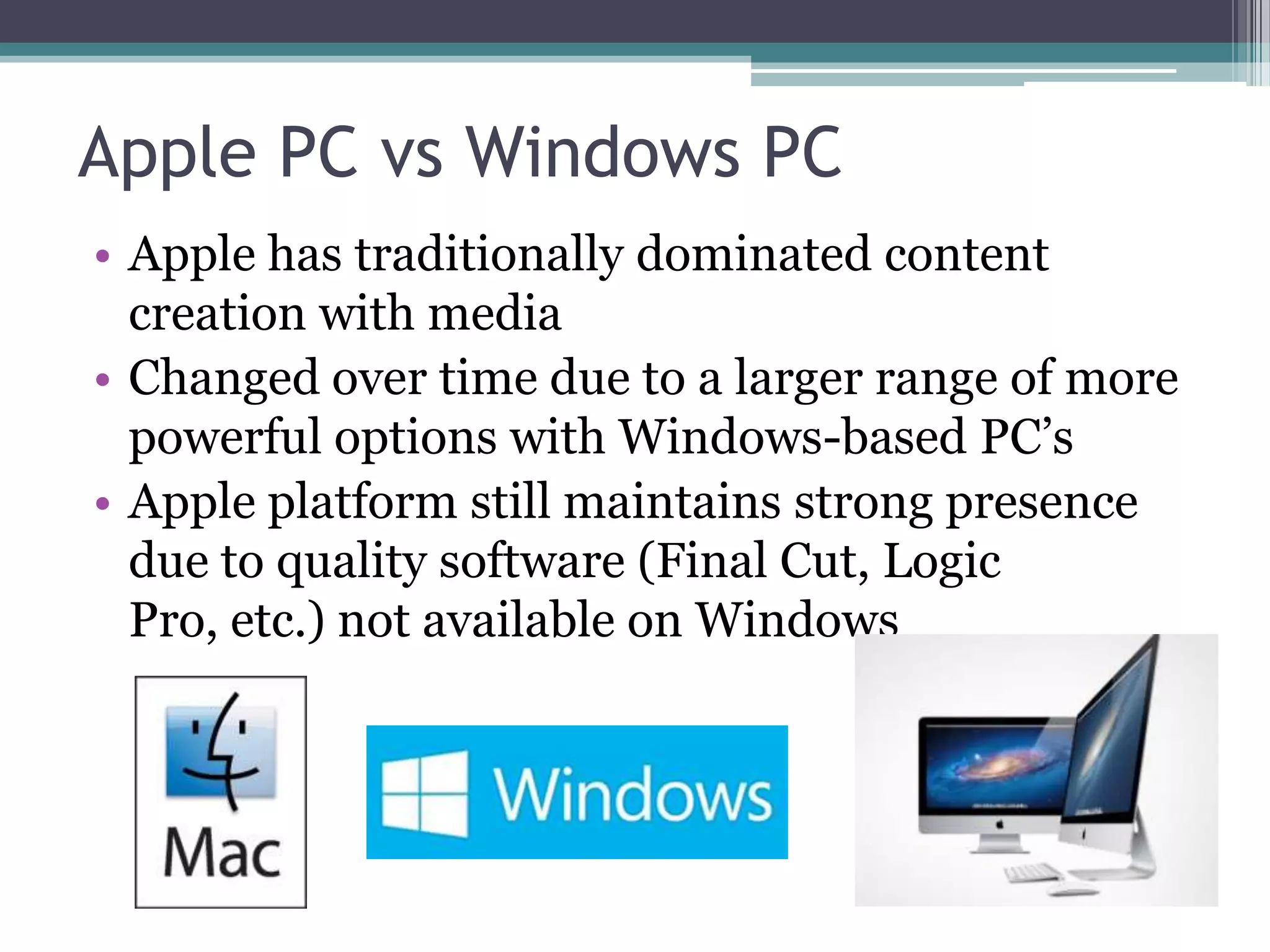
Apple PC vs Windows PC
• Apple has traditionally dominated content
creation with media
• Changed over time due to a larger range of more
powerful options with Windows-based PC’s
• Apple platform still maintains strong presence
due to quality software (Final Cut, Logic
Pro, etc.) not available on Windows
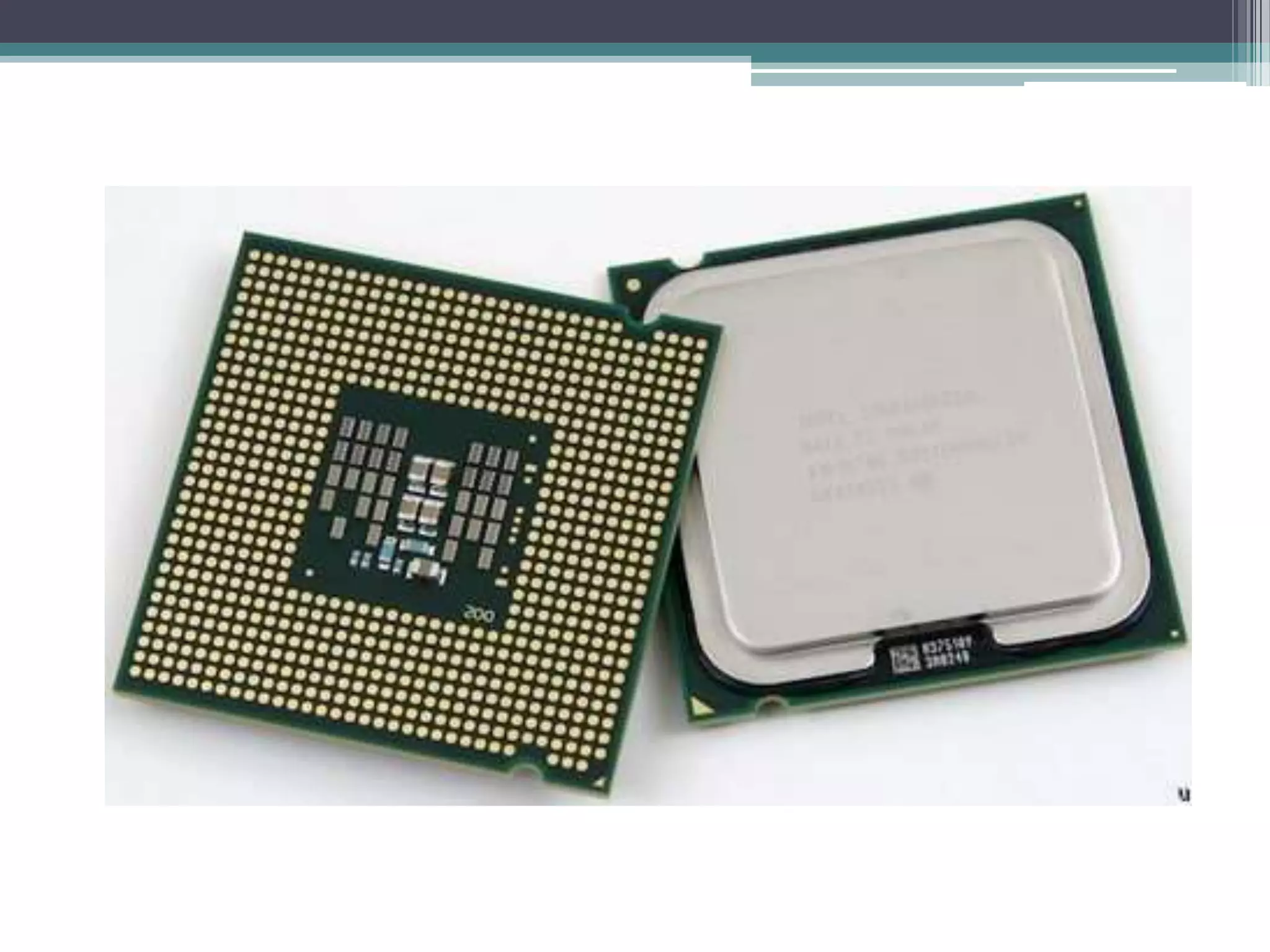
CPU – Central Processing Unit
• The “brain” of the computer
• It’s the component that does all the heavy lifting
(computational work)
• The faster the processor, the faster the computer
can work
• Two factors – speed vs multi core
CPU Speed
• Raw speed of a CPU, measured in Hertz
• Data cycles through the CPU, the higher the
Hertz, the faster it travels
• Most multimedia systems will have a CPU speed
of over 3GHz
Multicore / Multi-threaded
• These are CPU’s that have more than one
processor built in
• Data is usually shared between them to reduce
computing time
• Therefore a slower multicore CPU can (in some
instances) perform better than a fast single core
• Application dependent – software must work
with Multicore for the benefit
What’s better for Multimedia?
• Multi-threaded systems tend to suit multimedia
project more as long as the software being used
supports it
• Major applications – Adobe, Autodesk, etc. all
now support multicore systems
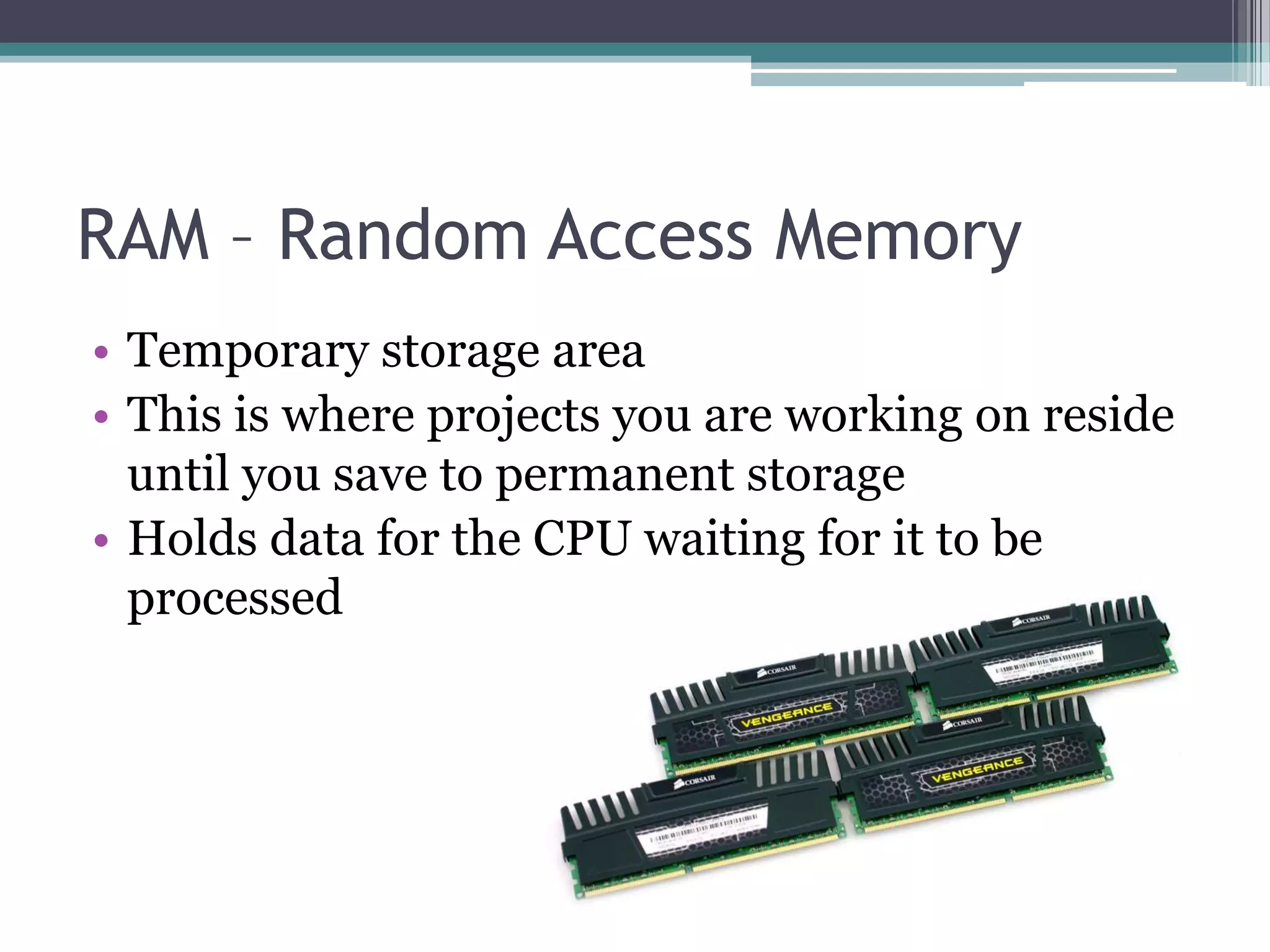
RAM – Random Access Memory
• Temporary storage area
• This is where projects you are working on reside
until you save to permanent storage
• Holds data for the CPU waiting for it to be
processed
How important is RAM?
• Very!
• The more RAM you have, the more applications
you can work on at the same time
• The faster your RAM is, the more your processor
can do (latency and speed)
• Modern multimedia systems will generally have
at least 8GB of DDR3 RAM
GPU
• This is like the CPU but designed for graphics
• The GPU will often determine how fast
images/graphics will move when animated
• Determines the computers maximum display
resolution
• Can have more than one core (just like a CPU)
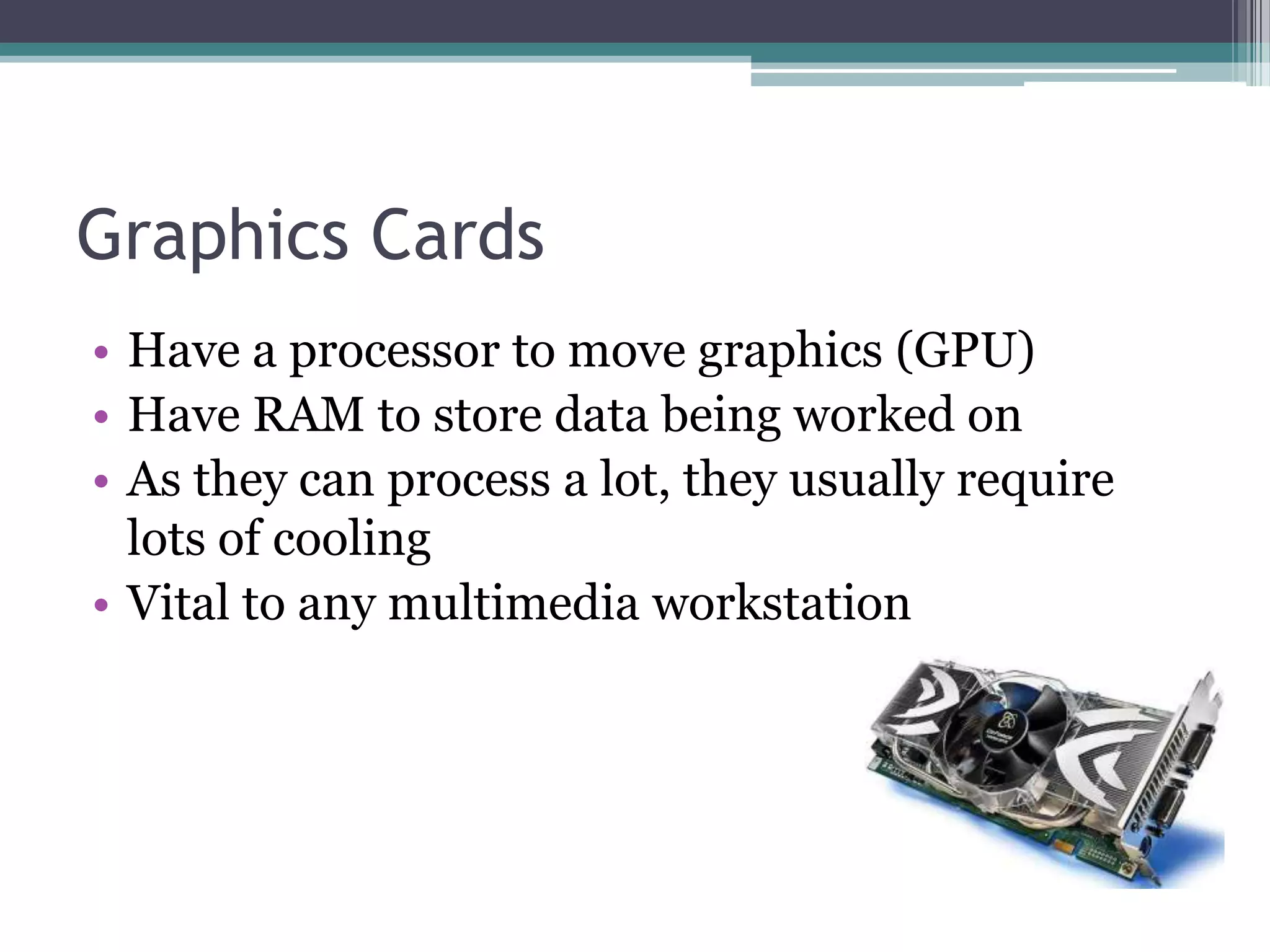
Graphics Cards
• Have a processor to move graphics (GPU)
• Have RAM to store data being worked on
• As they can process a lot, they usually require
lots of cooling
• Vital to any multimedia workstation
The power of the GPU
• As GPU performance is now outpacing CPU
performance, many organisations are relying on
GPU’s for all their processing (GPGPU)
• Technologies, such as nVidia’s CUDA, allow
applications such as Autodesk 3D Studio Max
and Adobe Premiere to use the GPU for more
than just moving graphics around
• CUDA has thousands of small cores that process
data at the same time (parallel computing)
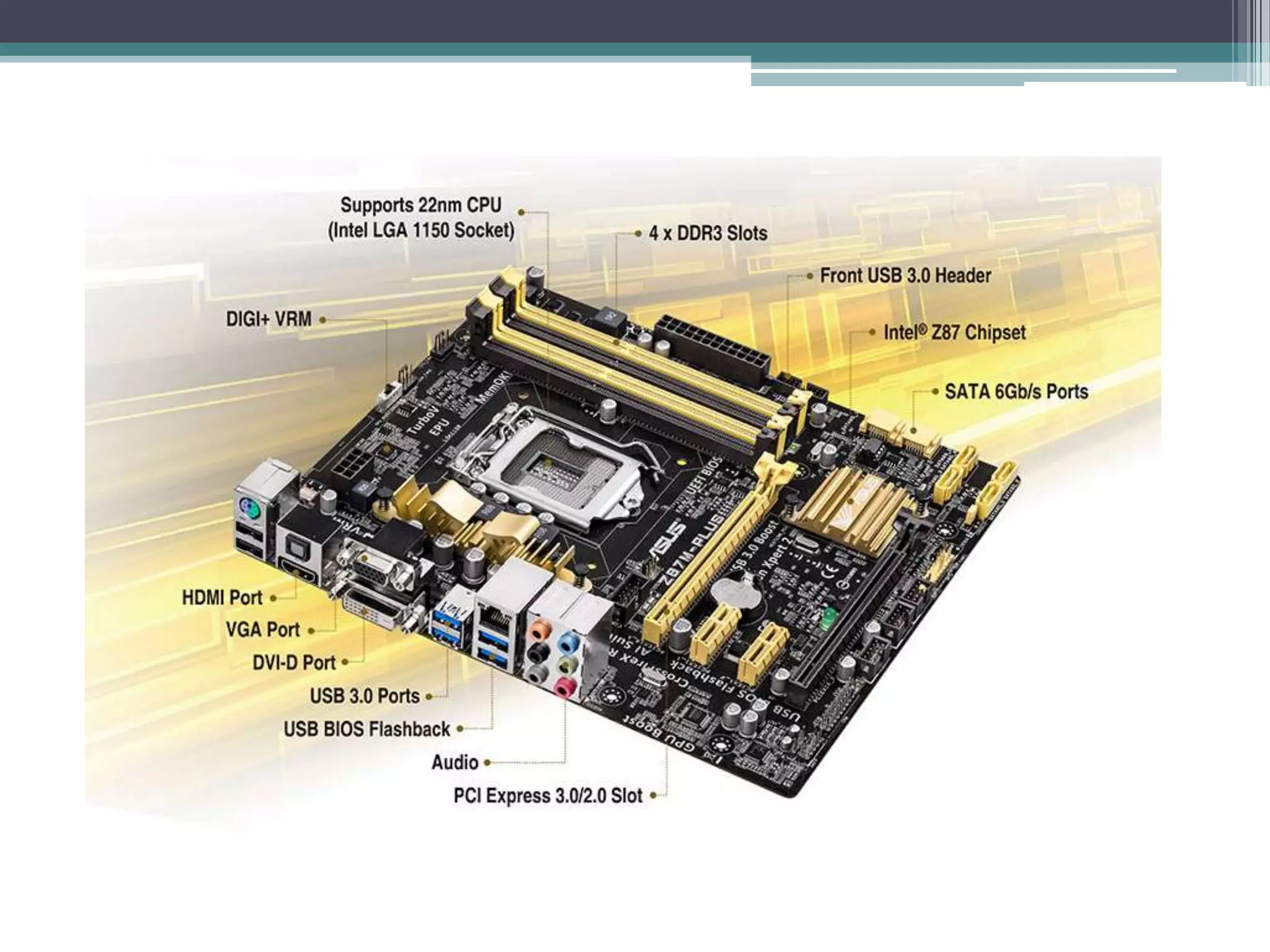
Motherboard
• Sometimes called Mainboard
• Component that connects everything together
• Controllers for moving data around the
computer
• Processor brand/type specific – usually can’t
mix and match between architectures
• Some will contain built-in components such as
GPU or Sound Processor
Sound Cards
• Needed so you can hear sound from your
computer
• Converts digital data into sound waves
• Most systems have a sound controller built into
the Motherboard and use the CPU for processing
• Audiophiles and sound professionals will have a
dedicated DSP for this
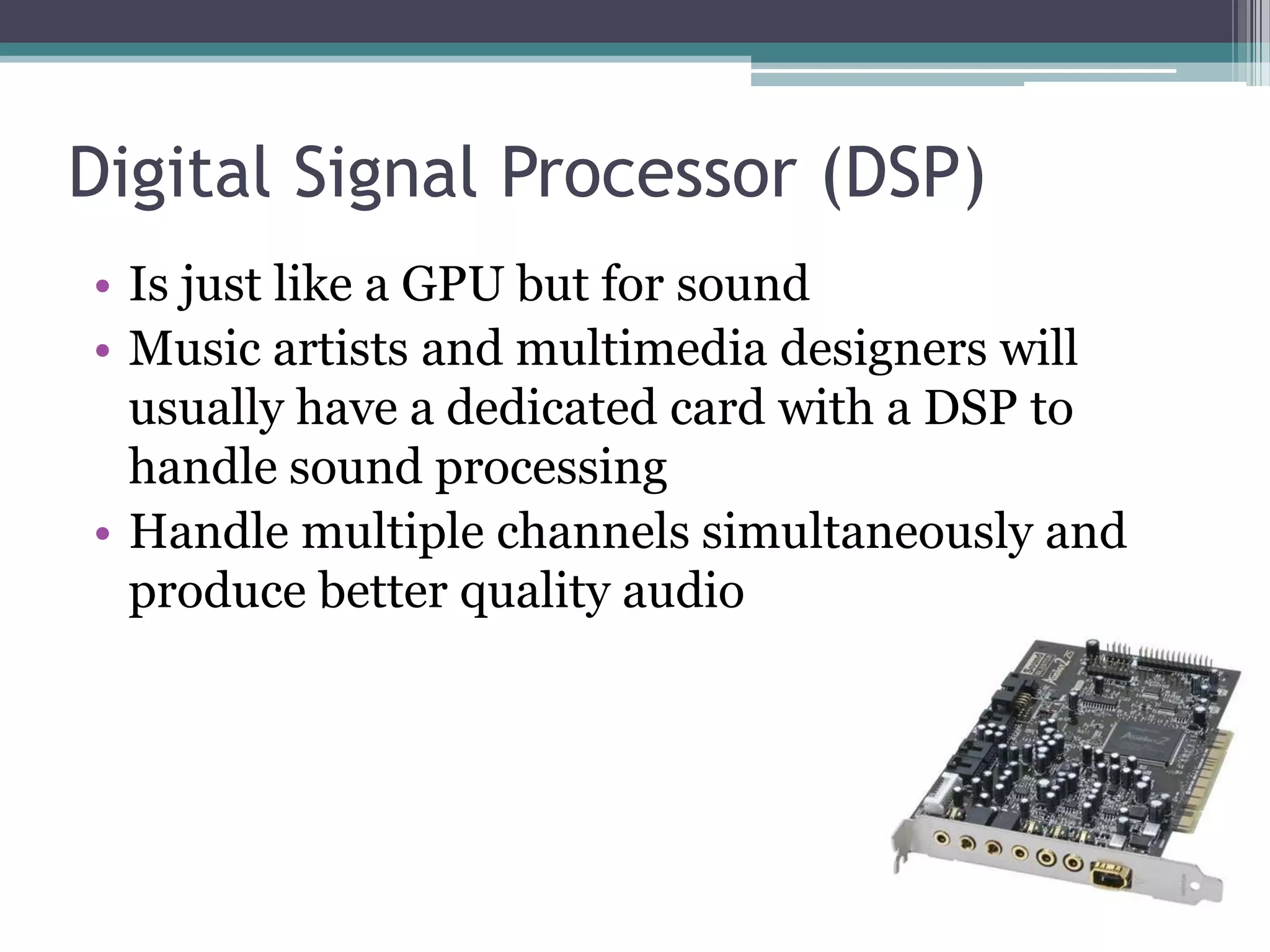
Digital Signal Processor (DSP)
• Is just like a GPU but for sound
• Music artists and multimedia designers will
usually have a dedicated card with a DSP to
handle sound processing
• Handle multiple channels simultaneously and
produce better quality audio
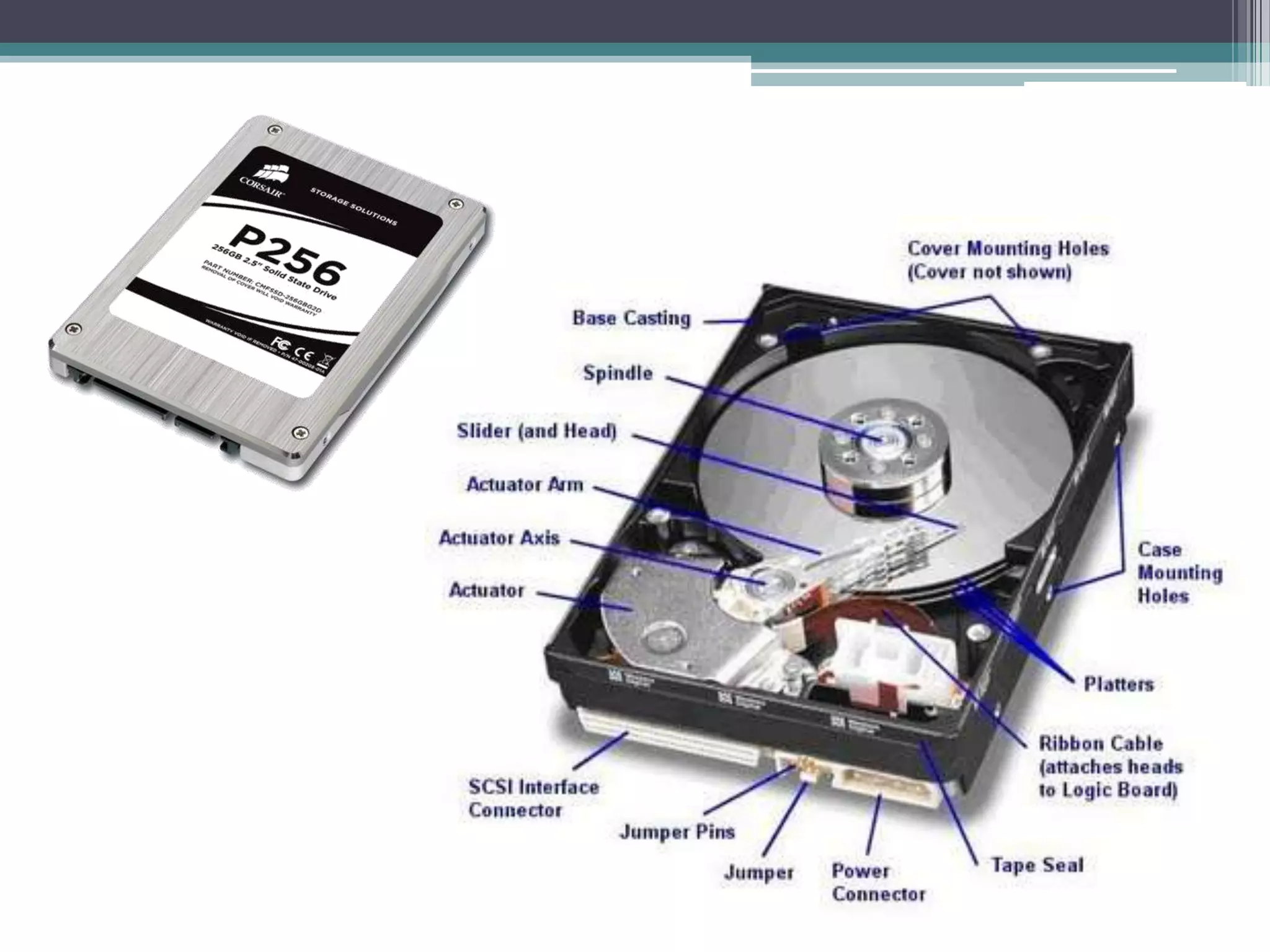
Storage: Hard Disk Drive (HDD)
• HDD – traditional storage medium for nearly all
computers
• Mechanical disk made up of metal platters that
are magnetised to hold data
Storage: Solid State Drive (SSD)
• A combination of a Flash USB drive and a Hard
Disk Drive
• No moving parts
• Becoming far more common
• Popular with light weight, portable devices
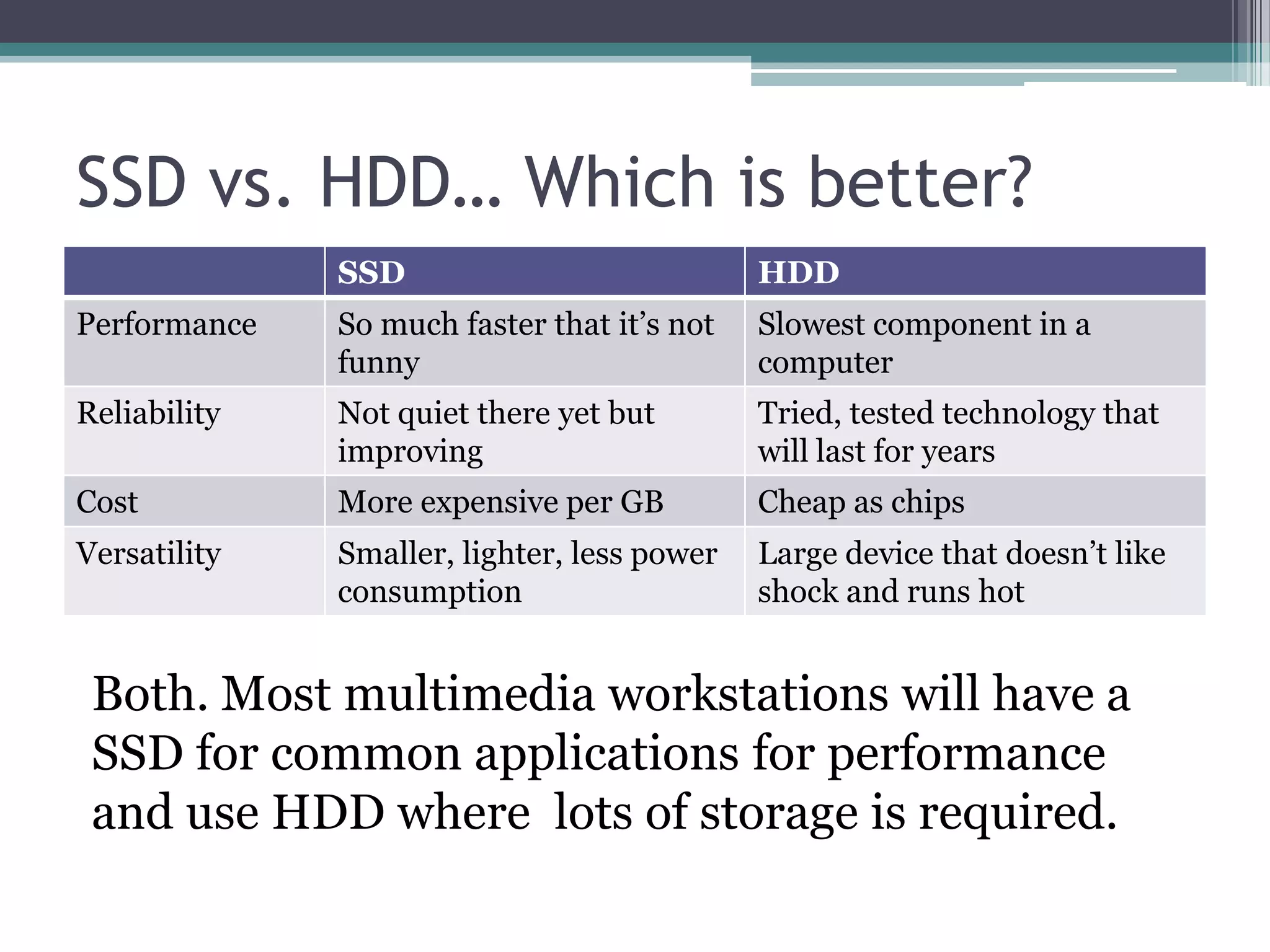
SSD vs. HDD… Which is better?
SSD HDD
Performance So much faster that it’s not
funny
Slowest component in a
computer
Reliability Not quiet there yet but
improving
Tried, tested technology that
will last for years
Cost More expensive per GB Cheap as chips
Versatility Smaller, lighter, less power
consumption
Large device that doesn’t like
shock and runs hot
Both. Most multimedia workstations will have a
SSD for common applications for performance
and use HDD where lots of storage is required.
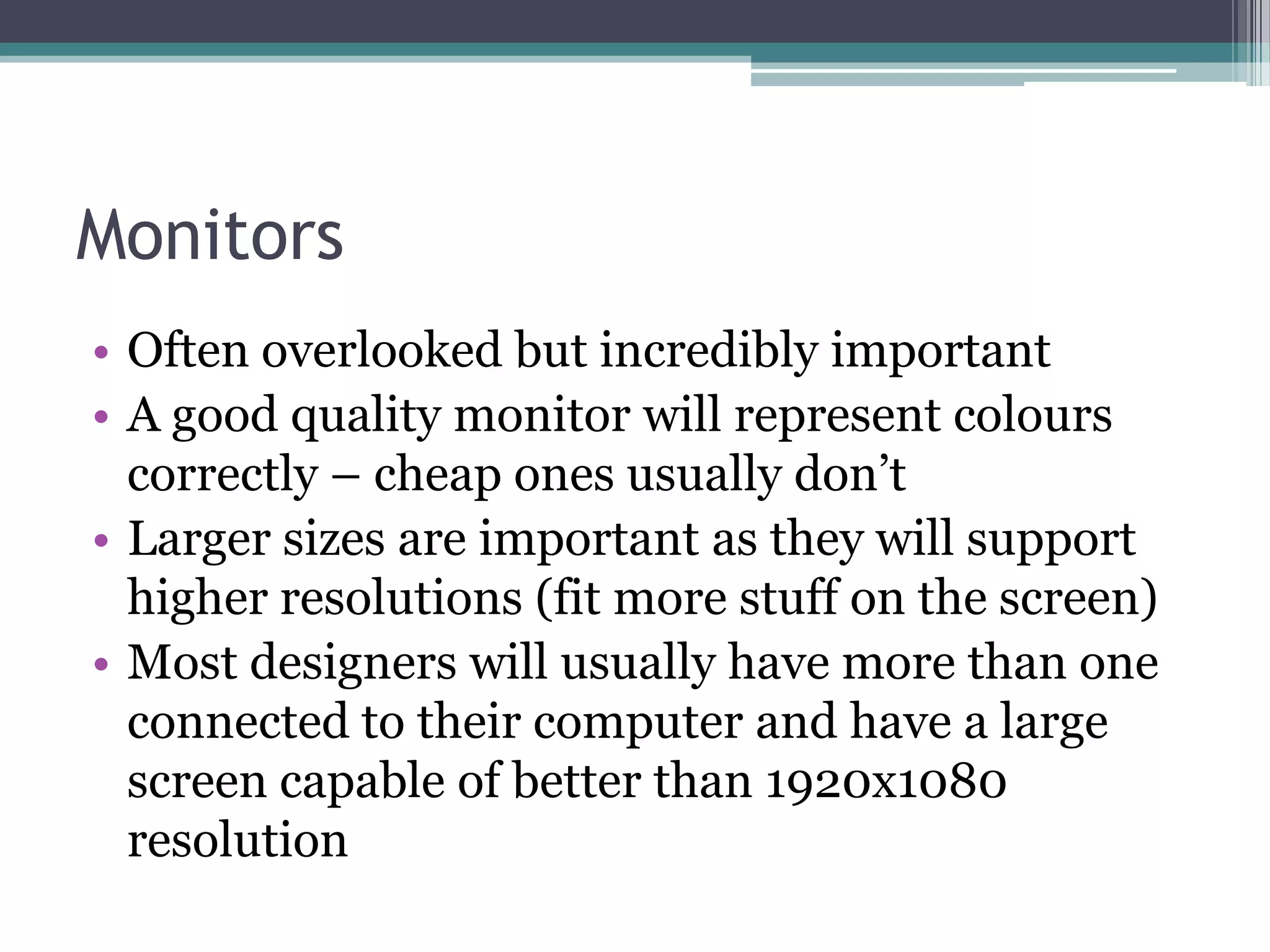
Monitors
• Often overlooked but incredibly important
• A good quality monitor will represent colours
correctly – cheap ones usually don’t
• Larger sizes are important as they will support
higher resolutions (fit more stuff on the screen)
• Most designers will usually have more than one
connected to their computer and have a large
screen capable of better than 1920x1080
resolution
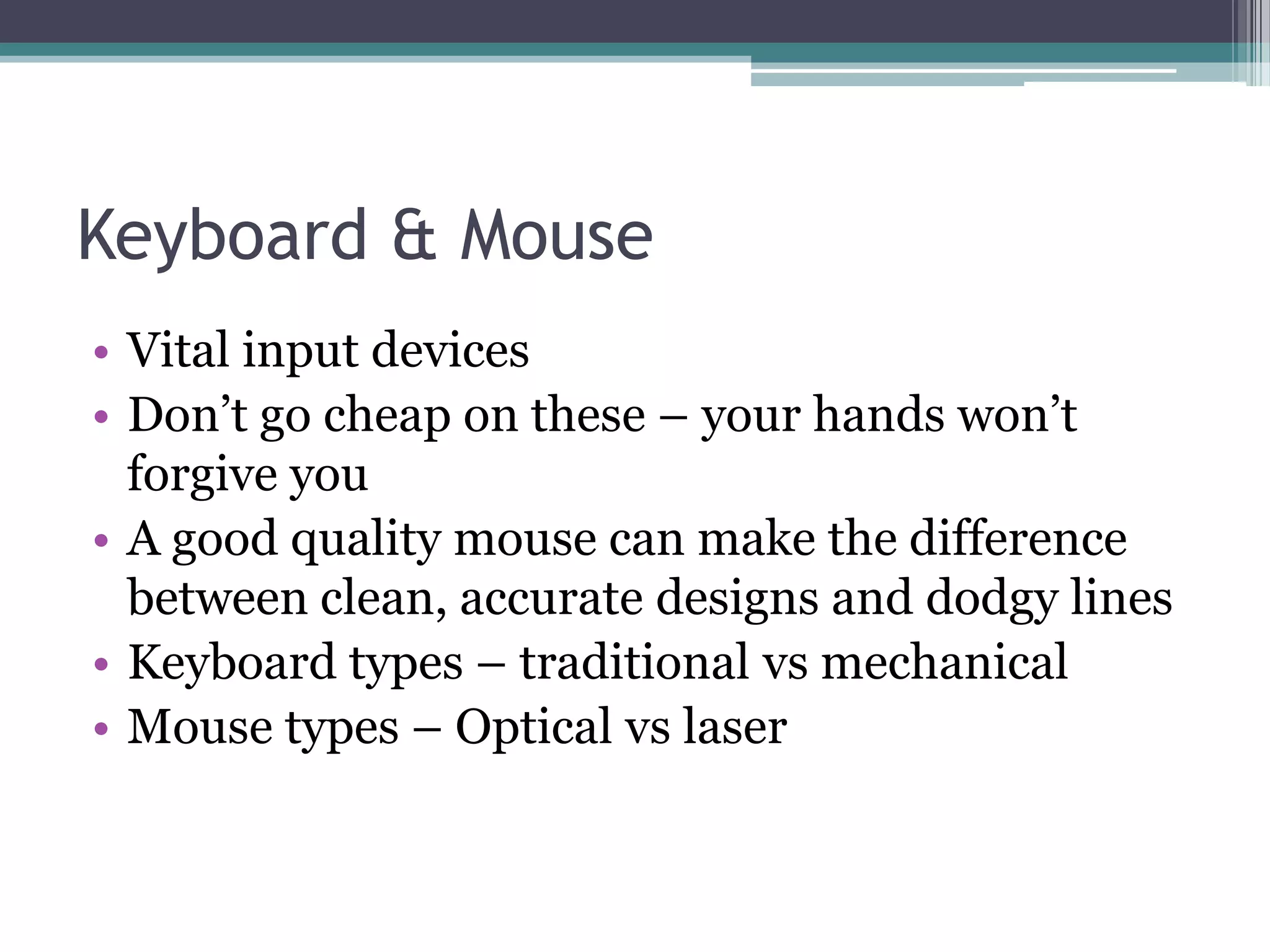
Keyboard & Mouse
• Vital input devices
• Don’t go cheap on these – your hands won’t
forgive you
• A good quality mouse can make the difference
between clean, accurate designs and dodgy lines
• Keyboard types – traditional vs mechanical
• Mouse types – Optical vs laser
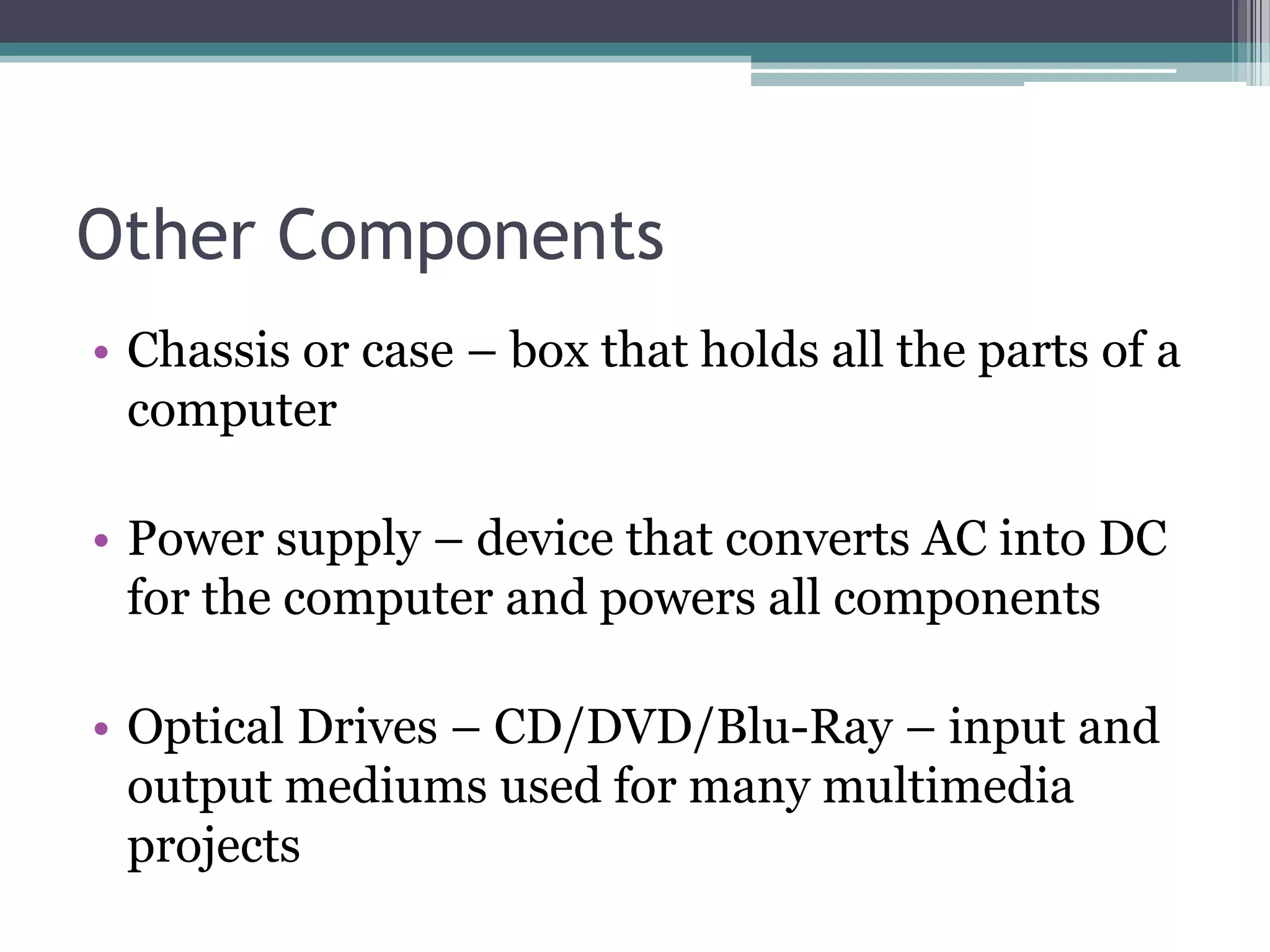
Other Components
• Chassis or case – box that holds all the parts of a
computer
• Power supply – device that converts AC into DC
for the computer and powers all components
• Optical Drives – CD/DVD/Blu-Ray – input and
output mediums used for many multimedia
projects
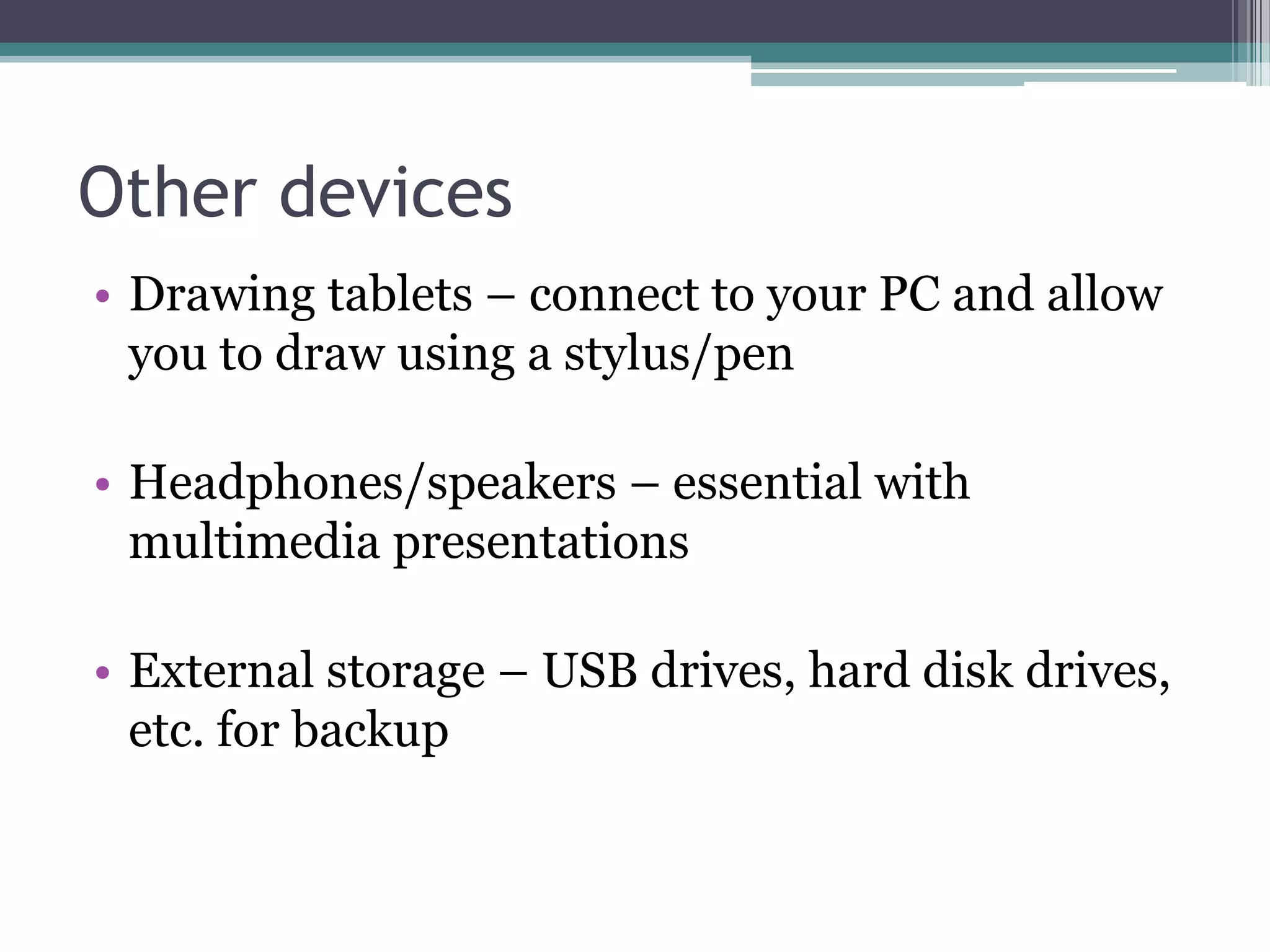
Other devices
• Drawing tablets – connect to your PC and allow
you to draw using a stylus/pen
• Headphones/speakers – essential with
multimedia presentations
• External storage – USB drives, hard disk drives,
etc. for backup
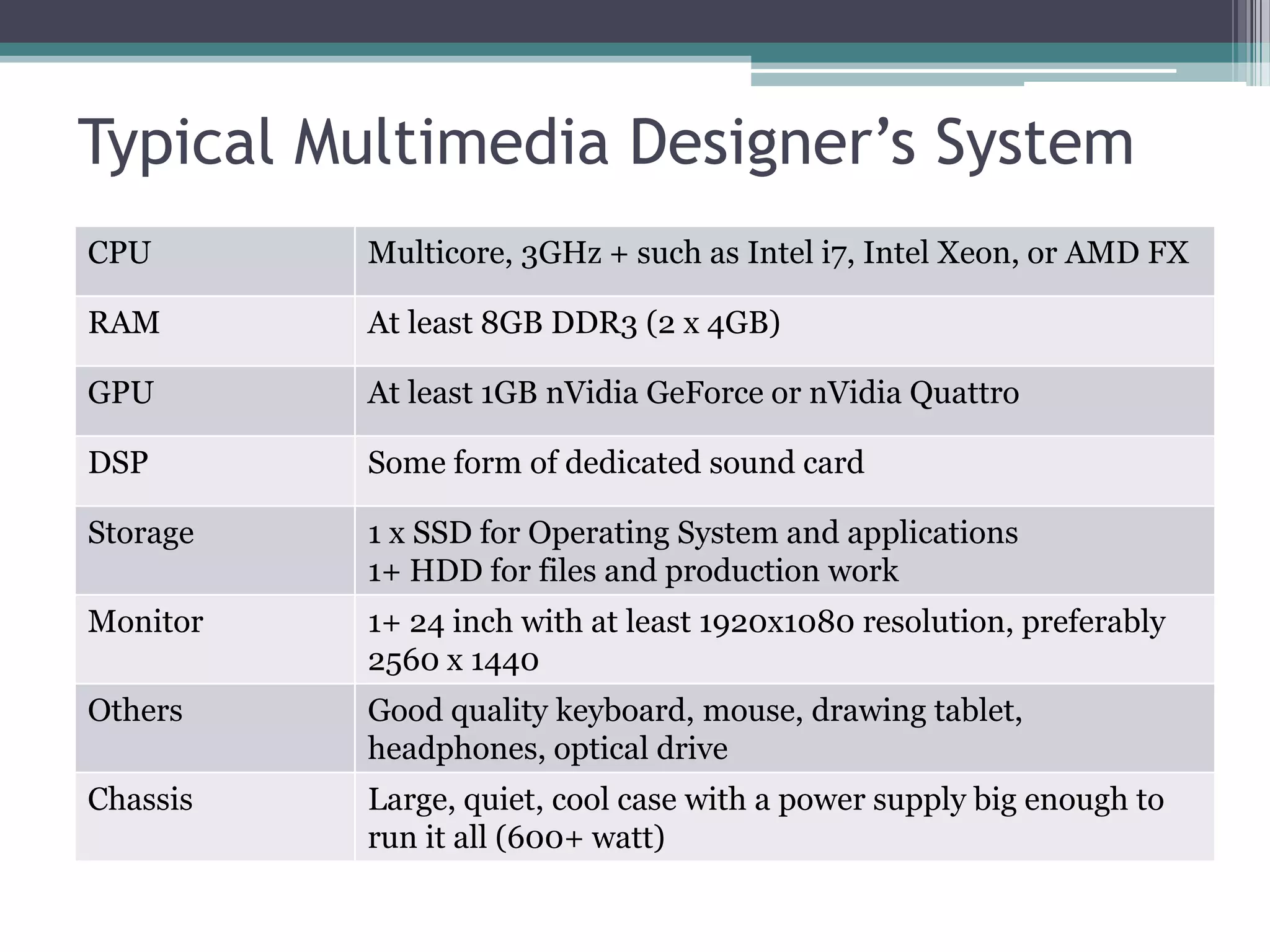
Typical Multimedia Designer’s System
CPU Multicore, 3GHz + such as Intel i7, Intel Xeon, or AMD FX
RAM At least 8GB DDR3 (2 x 4GB)
GPU At least 1GB nVidia GeForce or nVidia Quattro
DSP Some form of dedicated sound card
Storage 1 x SSD for Operating System and applications
1+ HDD for files and production work
Monitor 1+ 24 inch with at least 1920x1080 resolution, preferably
2560 x 1440
Others Good quality keyboard, mouse, drawing tablet,
headphones, optical drive
Chassis Large, quiet, cool case with a power supply big enough to
run it all (600+ watt)

Multimedia Hardware

  • 1.
  • 2.
    Intensive Work • Multimediaprojects involve working with lots of different types of media • Usually this will require faster or special purpose hardware • Not only in production, but rendering (producing the final presentation) can be very intensive work for a computer
  • 3.
    Desktop vs. Laptop DesktopLaptop Performance Faster, more options Lower power consumption Portability Not really Absolutely Cost Excellent value for money Usually a premium price tag Keyboard Easier to work with Designed for portability Screen Multiple large screen options The bigger the screen, the less battery time Upgrading Swapping parts is easy Can be difficult and costly Generally, multimedia designers will usually have both a desktop and a laptop. The desktop for designing and their laptop for presenting.
  • 4.
    Apple PC vsWindows PC • Apple has traditionally dominated content creation with media • Changed over time due to a larger range of more powerful options with Windows-based PC’s • Apple platform still maintains strong presence due to quality software (Final Cut, Logic Pro, etc.) not available on Windows
  • 5.
    CPU – CentralProcessing Unit • The “brain” of the computer • It’s the component that does all the heavy lifting (computational work) • The faster the processor, the faster the computer can work • Two factors – speed vs multi core
  • 6.
    CPU Speed • Rawspeed of a CPU, measured in Hertz • Data cycles through the CPU, the higher the Hertz, the faster it travels • Most multimedia systems will have a CPU speed of over 3GHz
  • 7.
    Multicore / Multi-threaded •These are CPU’s that have more than one processor built in • Data is usually shared between them to reduce computing time • Therefore a slower multicore CPU can (in some instances) perform better than a fast single core • Application dependent – software must work with Multicore for the benefit
  • 9.
    What’s better forMultimedia? • Multi-threaded systems tend to suit multimedia project more as long as the software being used supports it • Major applications – Adobe, Autodesk, etc. all now support multicore systems
  • 10.
    RAM – RandomAccess Memory • Temporary storage area • This is where projects you are working on reside until you save to permanent storage • Holds data for the CPU waiting for it to be processed
  • 11.
    How important isRAM? • Very! • The more RAM you have, the more applications you can work on at the same time • The faster your RAM is, the more your processor can do (latency and speed) • Modern multimedia systems will generally have at least 8GB of DDR3 RAM
  • 12.
    GPU • This islike the CPU but designed for graphics • The GPU will often determine how fast images/graphics will move when animated • Determines the computers maximum display resolution • Can have more than one core (just like a CPU)
  • 13.
    Graphics Cards • Havea processor to move graphics (GPU) • Have RAM to store data being worked on • As they can process a lot, they usually require lots of cooling • Vital to any multimedia workstation
  • 14.
    The power ofthe GPU • As GPU performance is now outpacing CPU performance, many organisations are relying on GPU’s for all their processing (GPGPU) • Technologies, such as nVidia’s CUDA, allow applications such as Autodesk 3D Studio Max and Adobe Premiere to use the GPU for more than just moving graphics around • CUDA has thousands of small cores that process data at the same time (parallel computing)
  • 15.
    Motherboard • Sometimes calledMainboard • Component that connects everything together • Controllers for moving data around the computer • Processor brand/type specific – usually can’t mix and match between architectures • Some will contain built-in components such as GPU or Sound Processor
  • 17.
    Sound Cards • Neededso you can hear sound from your computer • Converts digital data into sound waves • Most systems have a sound controller built into the Motherboard and use the CPU for processing • Audiophiles and sound professionals will have a dedicated DSP for this
  • 18.
    Digital Signal Processor(DSP) • Is just like a GPU but for sound • Music artists and multimedia designers will usually have a dedicated card with a DSP to handle sound processing • Handle multiple channels simultaneously and produce better quality audio
  • 19.
    Storage: Hard DiskDrive (HDD) • HDD – traditional storage medium for nearly all computers • Mechanical disk made up of metal platters that are magnetised to hold data
  • 20.
    Storage: Solid StateDrive (SSD) • A combination of a Flash USB drive and a Hard Disk Drive • No moving parts • Becoming far more common • Popular with light weight, portable devices
  • 21.
    SSD vs. HDD…Which is better? SSD HDD Performance So much faster that it’s not funny Slowest component in a computer Reliability Not quiet there yet but improving Tried, tested technology that will last for years Cost More expensive per GB Cheap as chips Versatility Smaller, lighter, less power consumption Large device that doesn’t like shock and runs hot Both. Most multimedia workstations will have a SSD for common applications for performance and use HDD where lots of storage is required.
  • 23.
    Monitors • Often overlookedbut incredibly important • A good quality monitor will represent colours correctly – cheap ones usually don’t • Larger sizes are important as they will support higher resolutions (fit more stuff on the screen) • Most designers will usually have more than one connected to their computer and have a large screen capable of better than 1920x1080 resolution
  • 24.
    Keyboard & Mouse •Vital input devices • Don’t go cheap on these – your hands won’t forgive you • A good quality mouse can make the difference between clean, accurate designs and dodgy lines • Keyboard types – traditional vs mechanical • Mouse types – Optical vs laser
  • 25.
    Other Components • Chassisor case – box that holds all the parts of a computer • Power supply – device that converts AC into DC for the computer and powers all components • Optical Drives – CD/DVD/Blu-Ray – input and output mediums used for many multimedia projects
  • 26.
    Other devices • Drawingtablets – connect to your PC and allow you to draw using a stylus/pen • Headphones/speakers – essential with multimedia presentations • External storage – USB drives, hard disk drives, etc. for backup
  • 27.
    Typical Multimedia Designer’sSystem CPU Multicore, 3GHz + such as Intel i7, Intel Xeon, or AMD FX RAM At least 8GB DDR3 (2 x 4GB) GPU At least 1GB nVidia GeForce or nVidia Quattro DSP Some form of dedicated sound card Storage 1 x SSD for Operating System and applications 1+ HDD for files and production work Monitor 1+ 24 inch with at least 1920x1080 resolution, preferably 2560 x 1440 Others Good quality keyboard, mouse, drawing tablet, headphones, optical drive Chassis Large, quiet, cool case with a power supply big enough to run it all (600+ watt)