CHAPTER 7
MAKING MULTIMEDIA
Making Multimedia
• Introduction to Making Multimedia
– Guidance and suggestions for getting started
• Multimedia Skills
– What skills required
Introduction to Making
Multimedia
• The stages of a project:
– Planning and costing
• Idea/objectives
• Multimedia expertise required
• Structure & navigation system
• Time & cost estimation
– Designing & producing
– Testing
– Delivering
Introduction to Making
Multimedia
• What we need?
– Hardware
– Software
– Good ideas
– Talent
– Skill
– Good organization of works
Introduction to Making
Multimedia
• Creativity:
– Develop a sense of its scope and content
– Difficult to learn creativity
• “but like classical artists who work in paint, marble,
or bronze, the better you know your medium, the
better able you are to express your creativity”
• Know your hardware & software first!!
Introduction to Making
Multimedia
• Organization
– Develop an organized outline a a plan that
rationally details the skills, time, budget, tools,
and resources we will need for a project
Introduction to Making
Multimedia
• Hardware
– 2 most significance platforms:
• Macintosh OS
• Intel-based IBM PC or PC Clone (MS Windows)
– Development environment
• Powerful workstation (Silicon Graphics, Sun
Microsystems, or mainframe)
– Apple (Macintosh OS) more suitable for
multimedia editing
– Cross platform format (both Mac & Windows)
Introduction to Making
Multimedia
• Networking
– A collection of computers and other hardware
components interconnected by
communication channels that allow sharing of
resources and information.
– LAN and WAN
– Cable and Wireless
• Ethernet, Fiber Optics, WIFI, Bluetooth n etc
– Internet Service Provider
Introduction to Making
Multimedia
• The various connection methodologies
include:
– Small Computer System Interface (SCSI).
– Integrated Drive Electronics (IDE).
– Universal Serial Bus (USB).
– FireWire
– SATA
– IDE
– Fiber Channel
– Serial and Parallel Port
– Types of connections and transfer rate (refer to table 7-2 page 203.
Small Computer System
Interface (SCSI)
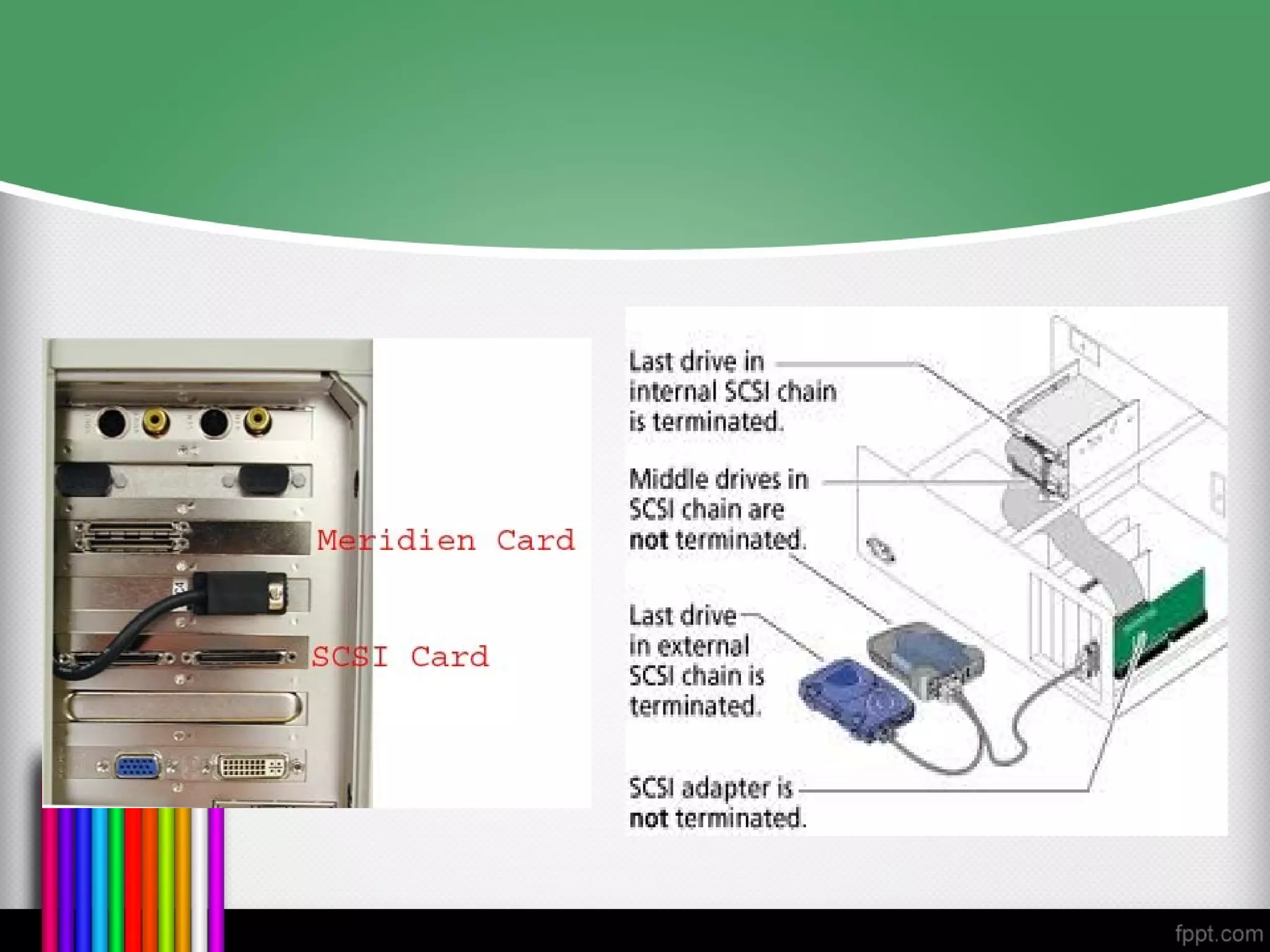
• SCSI can connect internal and external peripheral
equipments and devices that conform to the SCSI
standard.
• SCSI cards can be installed on Macintosh and PC
platforms.
• SCSI is preferred for real-time video editing, network
servers, and situations that require mirroring.
• SCSI ID conflicts should be avoided by providing unique
IDs to devices.
Integrated Drive Electronics
(IDE)
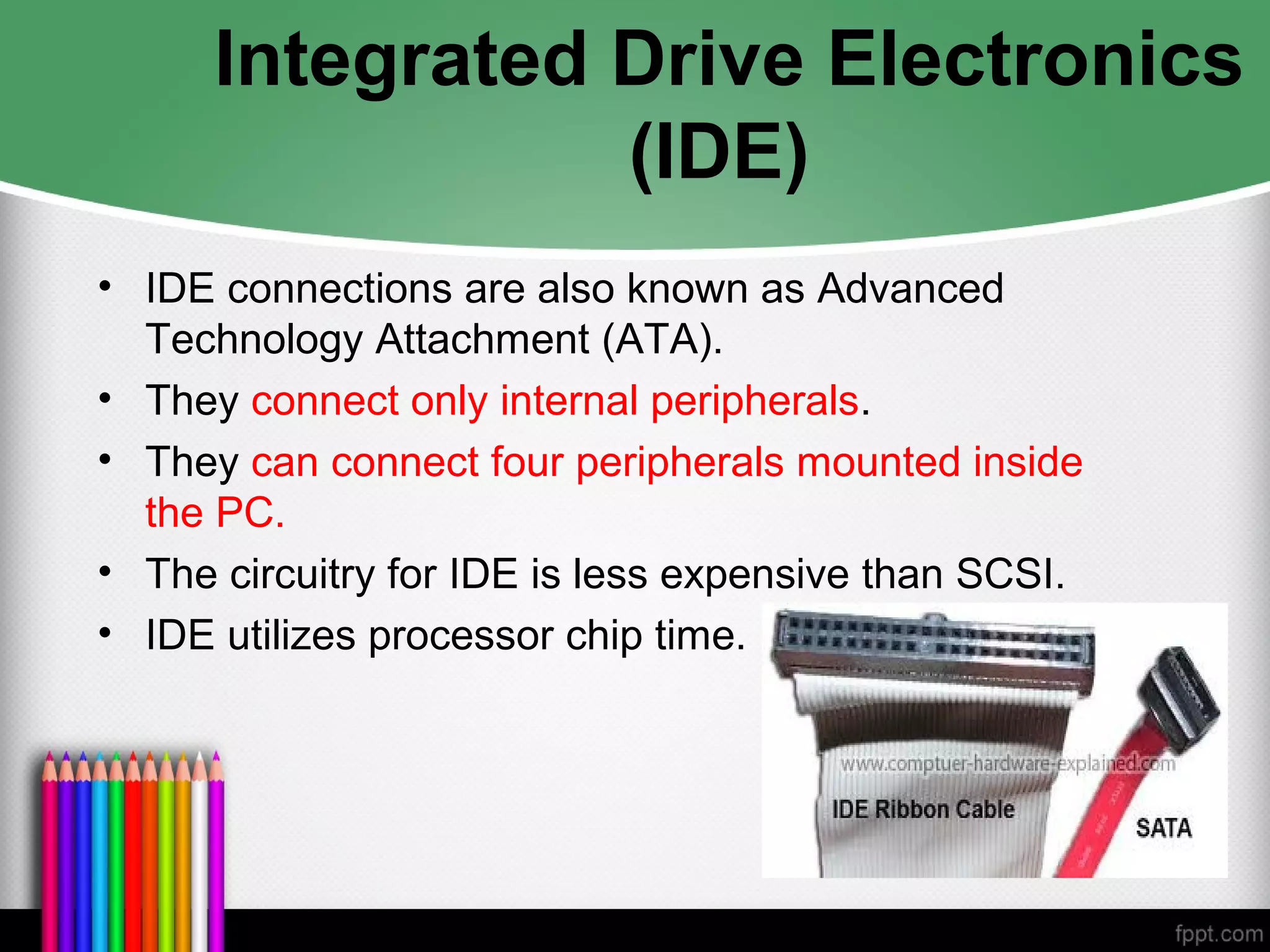
• IDE connections are also known as Advanced
Technology Attachment (ATA).
• They connect only internal peripherals.
• They can connect four peripherals mounted inside
the PC.
• The circuitry for IDE is less expensive than SCSI.
• IDE utilizes processor chip time.
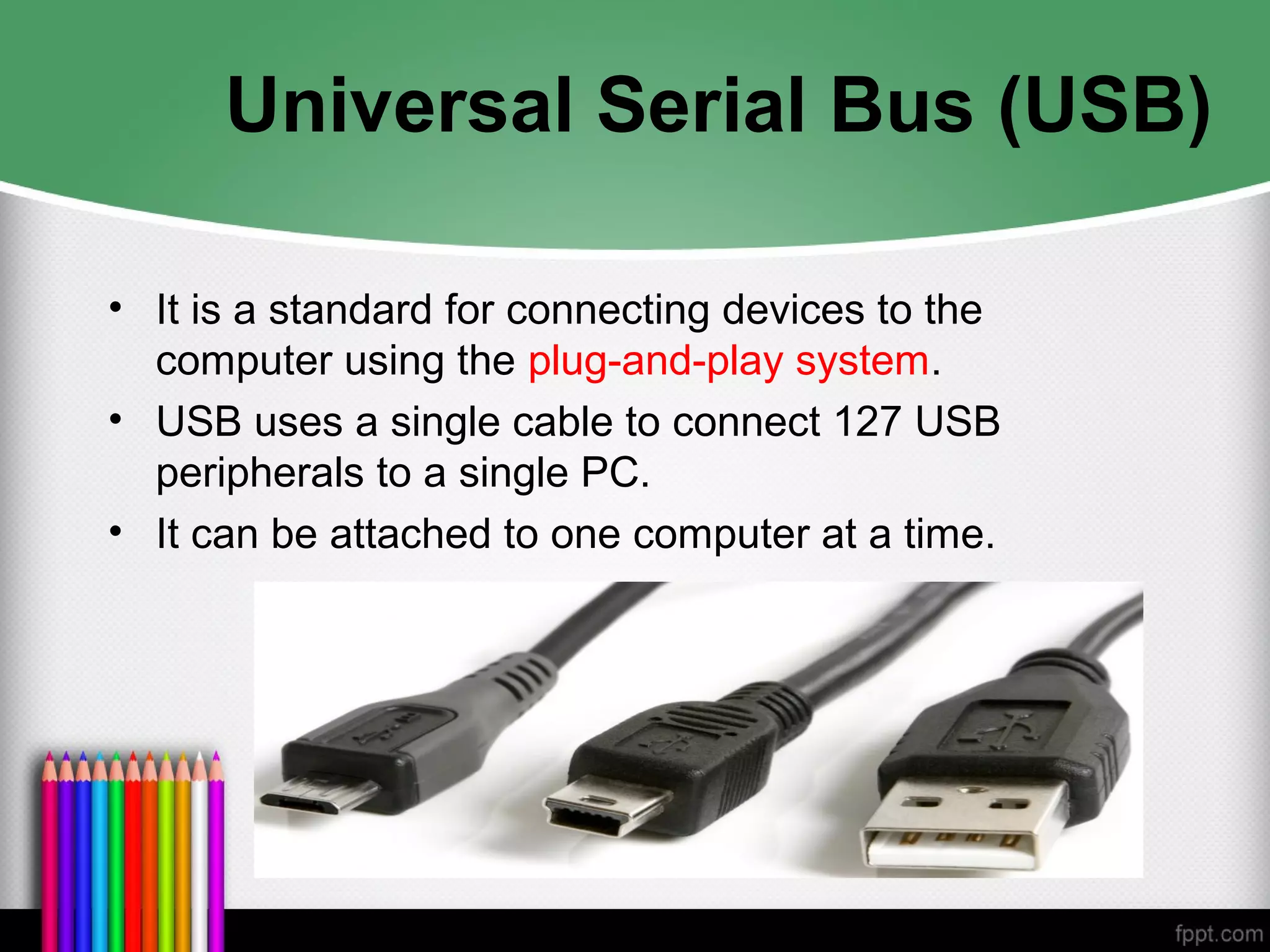
Universal Serial Bus (USB)
• It is a standard for connecting devices to the
computer using the plug-and-play system.
• USB uses a single cable to connect 127 USB
peripherals to a single PC.
• It can be attached to one computer at a time.
FireWire
• FireWire was introduced by Apple in the 1980s.
• It is the industry standard and provides support for
high-bandwidth serial data transfer, particularly for
digital video and mass storage.
• Can connect multiple computers and peripheral
devices (peer-to-peer).
• It is the most common method for connecting and
interconnecting professional digital video equipment.
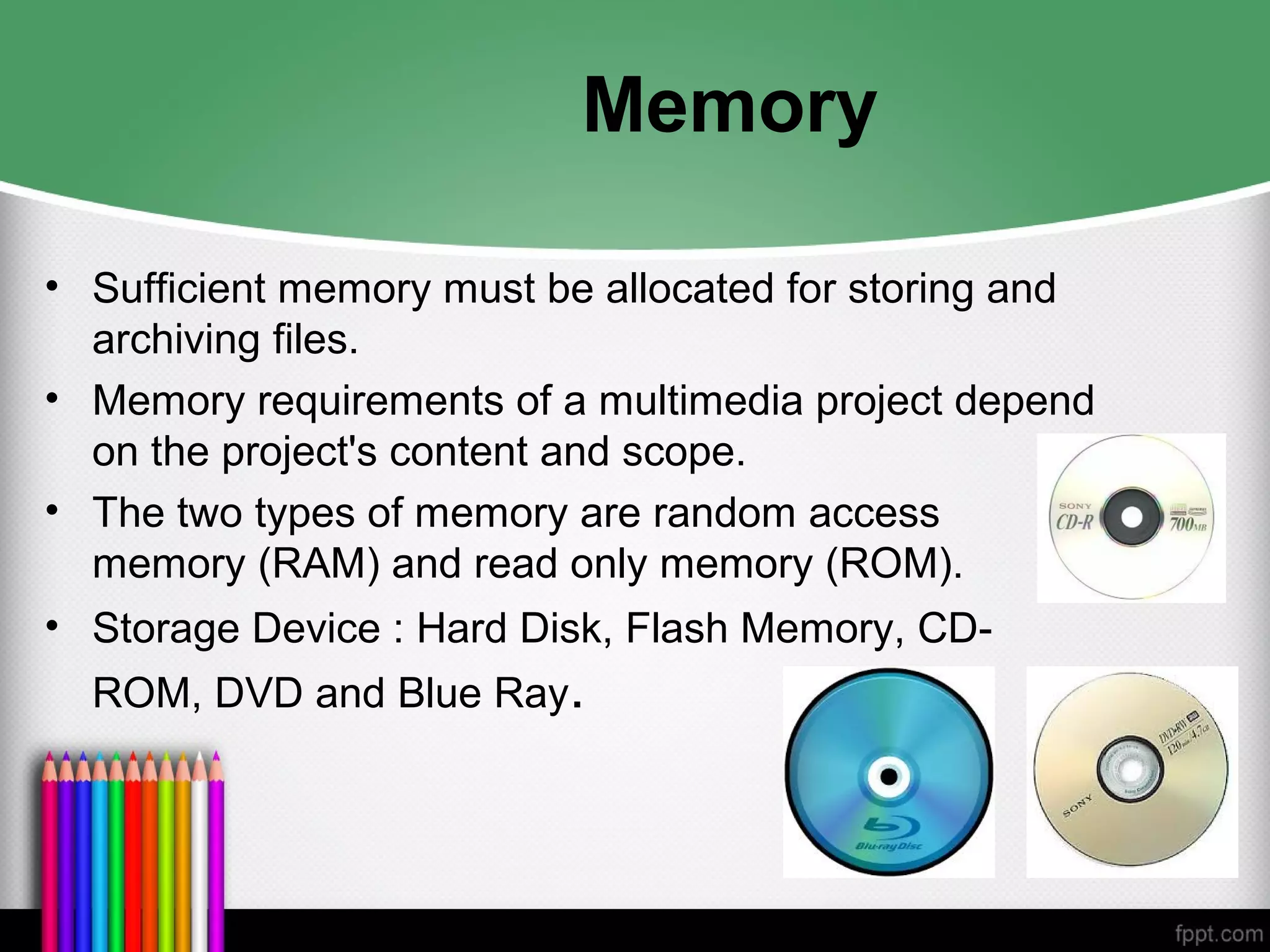
Memory
• Sufficient memory must be allocated for storing and
archiving files.
• Memory requirements of a multimedia project depend
on the project's content and scope.
• The two types of memory are random access
memory (RAM) and read only memory (ROM).
• Storage Device : Hard Disk, Flash Memory, CD-
ROM, DVD and Blue Ray.
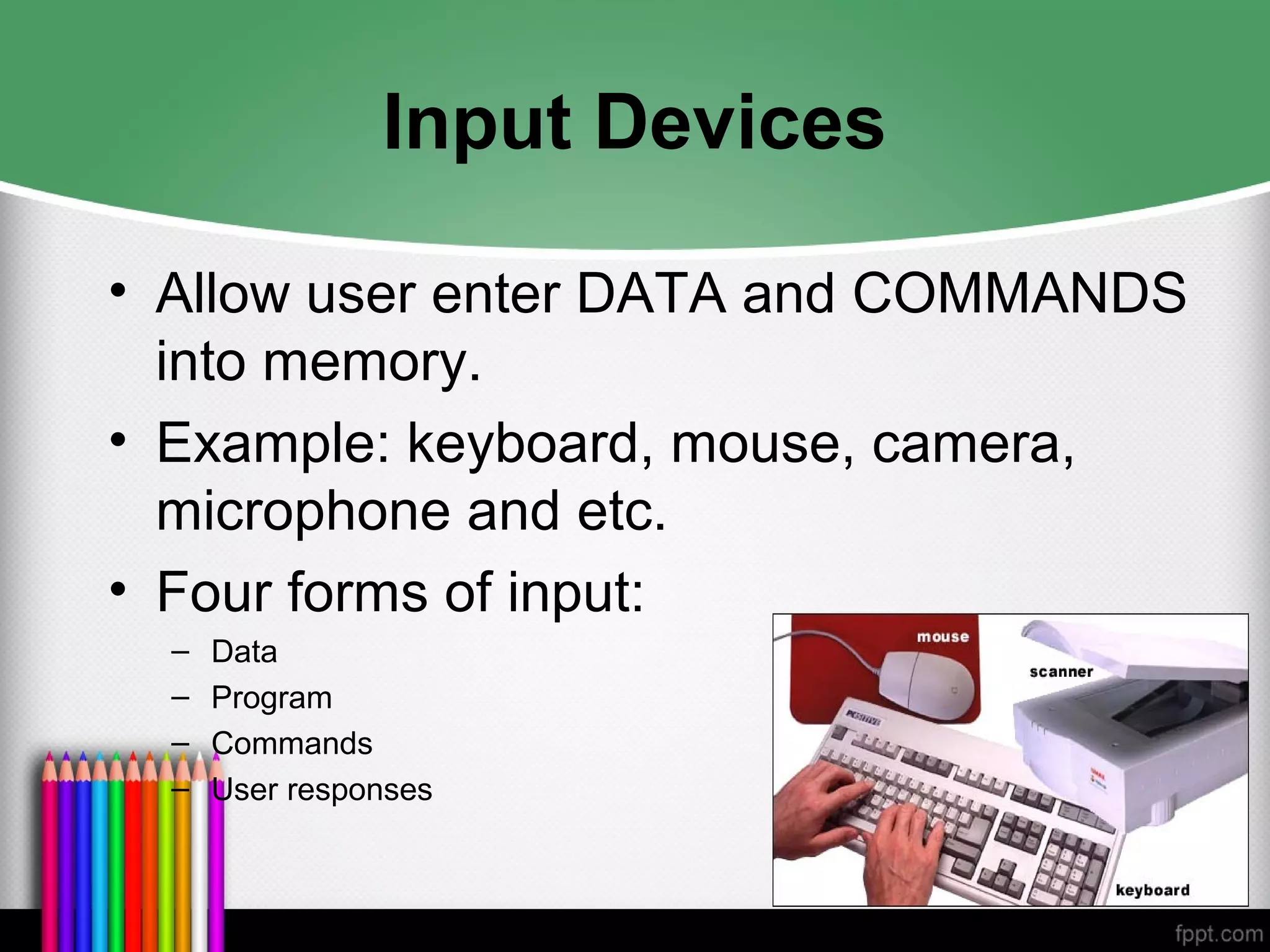
Input Devices
• Allow user enter DATA and COMMANDS
into memory.
• Example: keyboard, mouse, camera,
microphone and etc.
• Four forms of input:
– Data
– Program
– Commands
– User responses
Input Devices
• Keyboard - Is the most commonly used
input device. The most common
keyboard for PCs is the 101 style, which
provides 101 keys.
• Mouse - Is the standard input device for
a graphical user interface (GUI).
Input Devices
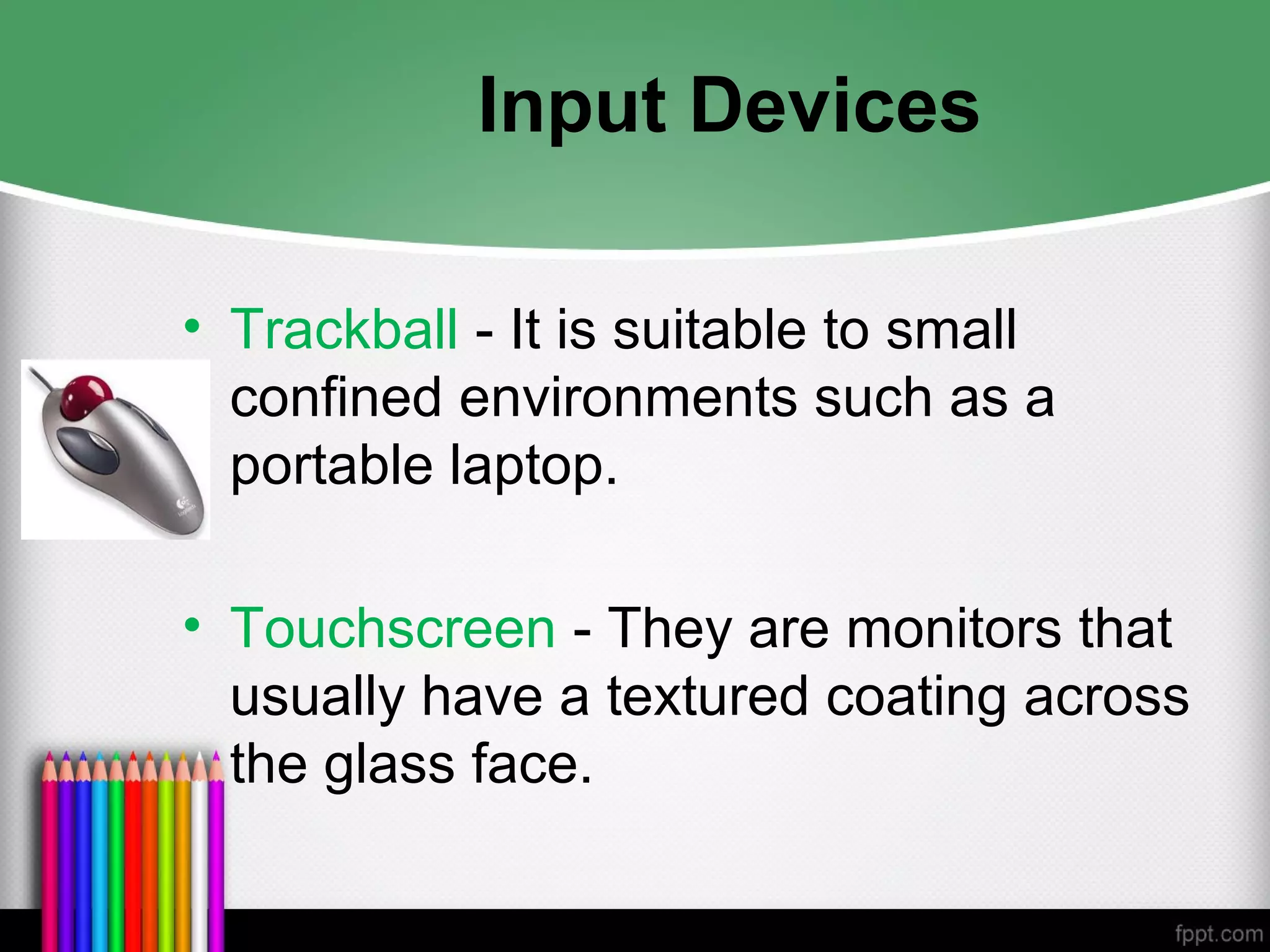
• Trackball - It is suitable to small
confined environments such as a
portable laptop.
• Touchscreen - They are monitors that
usually have a textured coating across
the glass face.
Input Devices
• Magnetic card encoder and reader - Is
useful when an interface is needed for a
database application or multimedia project
that tracks users.
• Graphic tablet - Provides great control for
editing finely detailed graphic elements.
• Scanner - Is the most useful device for
producing multimedia. They are categorized
as flat-bed, handheld, and drum.
Input Devices
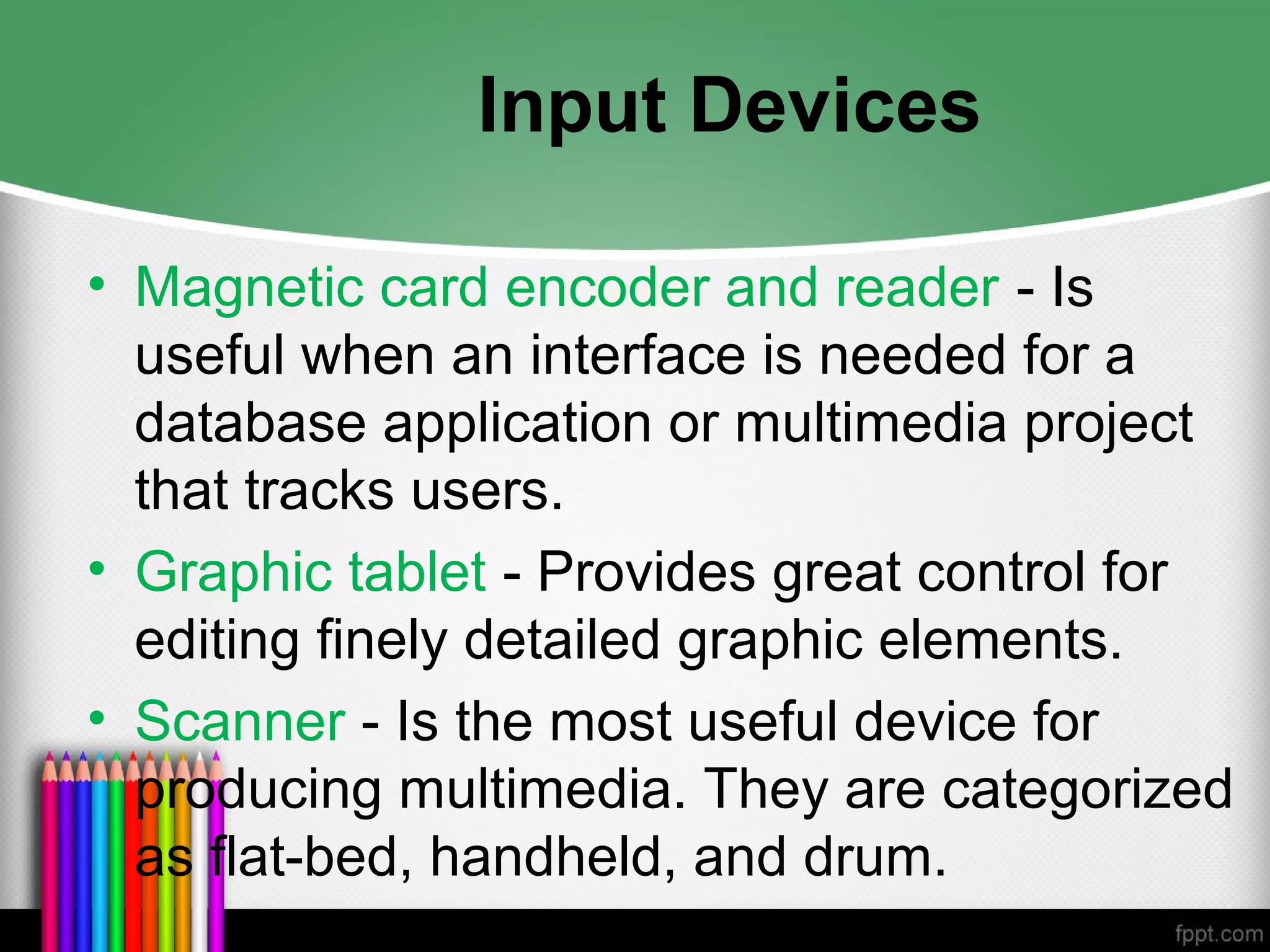
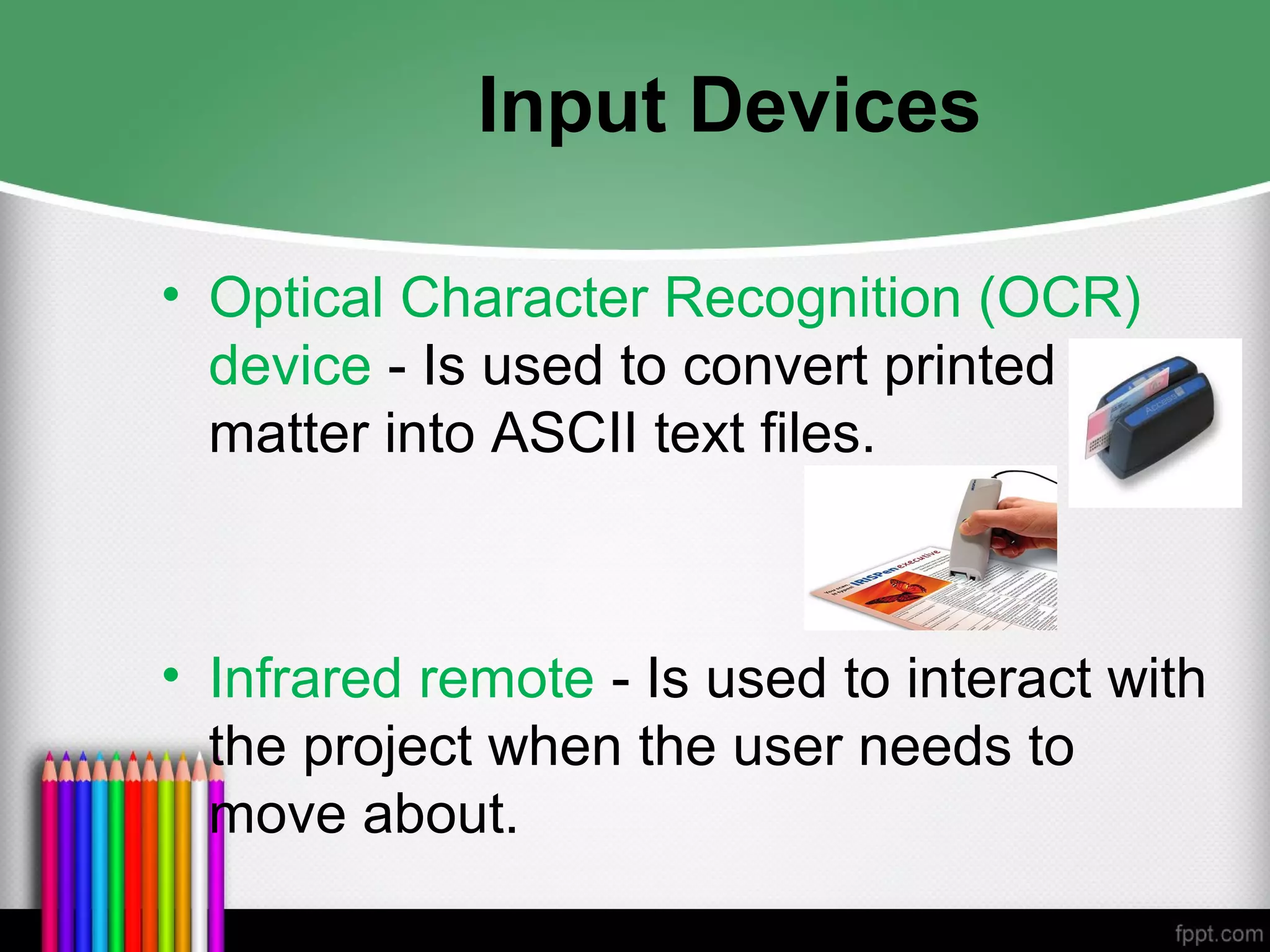
• Optical Character Recognition (OCR)
device - Is used to convert printed
matter into ASCII text files.
• Infrared remote - Is used to interact with
the project when the user needs to
move about.
Input Devices
• Voice recognition system - Is used to
facilitate hands-free interaction with the
project.
• Digital camera - Is used to capture still
images of a specific resolution, and
store them in camera’s memory. These
images can then be uploaded to a
computer.
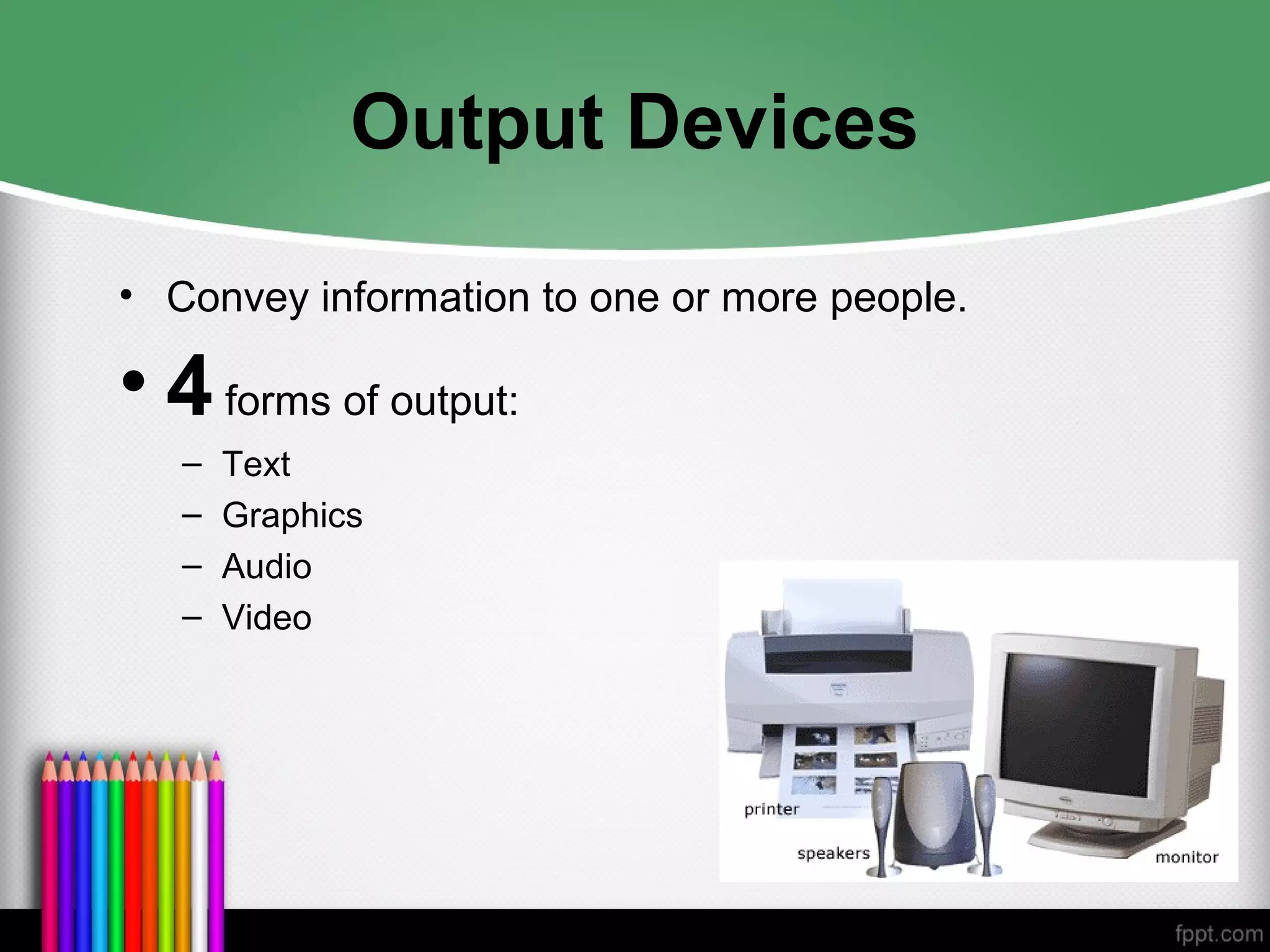
Output Devices
• Convey information to one or more people.
• 4forms of output:
– Text
– Graphics
– Audio
– Video
Output Devices
Audio devices:
– They include sound chips and microphones.
– Amplifiers are required when the project has to be
presented to a large audience or in a noisy setting.
– Speakers can be internal or external.
Output Devices
Video devices:
– Video creates the maximum visual impact.
– Video devices include videodisc players and video
cards.
– Videodisc players provide precise control over the
image being viewed.
– Video cards enable the user to place an image in
a window on the computer monitor.
Output Devices
Projectors:
– Projectors are used when you have a larger
audience that can be accommodated around a
computer monitor.
– The different types of projectors include
• Cathode-Ray Tube (CRT)
• Liquid-Crystal Display (LCD) panels
• Stand-Alone LCD projectors
• Light-Valve projectors.
Output Devices
Projectors (continued):
– CRT projectors are compatible with the output of
most computers as well as televisions.
– LCD panels are portable devices that are popular
for on-the-road presentations.
– Light-valve projectors use liquid crystal
technology. The images generated are very bright
and color saturated and can be projected onto
wide screens.
Output Devices
Printers:
– The 2 types of printers:-
– Laser printers offer higher print quality, lower
operating costs, but a higher initial cost.
– Inkjet printers are comparatively cheaper, but
require higher maintenance.
– Color printers have become an important part of
multimedia development.
Memory and Storage Device
• Software:
– Multimedia software tells the hardware what
to do
– Text, images, sounds, and video.
• Capturing images, translating between file formats,
and editing your resources
• Photoshop, SoundForge, Premiere, GIF Animator,
etc.
– Multimedia authoring
• Macromedia Director or flash
– Everybody can make multimedia project!!
Types of Software
• Text-based editing tools.
• Graphical tools.
• Sound editing tools.
• Animation, video, and digital movie
tools.
• Video formats.
• Utilities useful for multimedia.
Introduction
• Software, also called a program, is a series of instructions that tells
the computer what to do and how to do it.
• Users interact with the program through its GRAPHICAL USER
INTERFACE (GUI) which contains an object called ICON (can be as
text, graphics or visual images).
ICONs
Introduction (Cont.)
• Two categories of software:
– System Software
– Application Software
Introduction (Cont.)
1. System Software
– Consists of the programs that control or maintain the operations of the computers
and its devices.
– 2 types of system software
• Operating System
– Windows XP
• Utility Programs
– Disk defragmenter, Anti virus, Scan Disk
Introduction (Cont.)
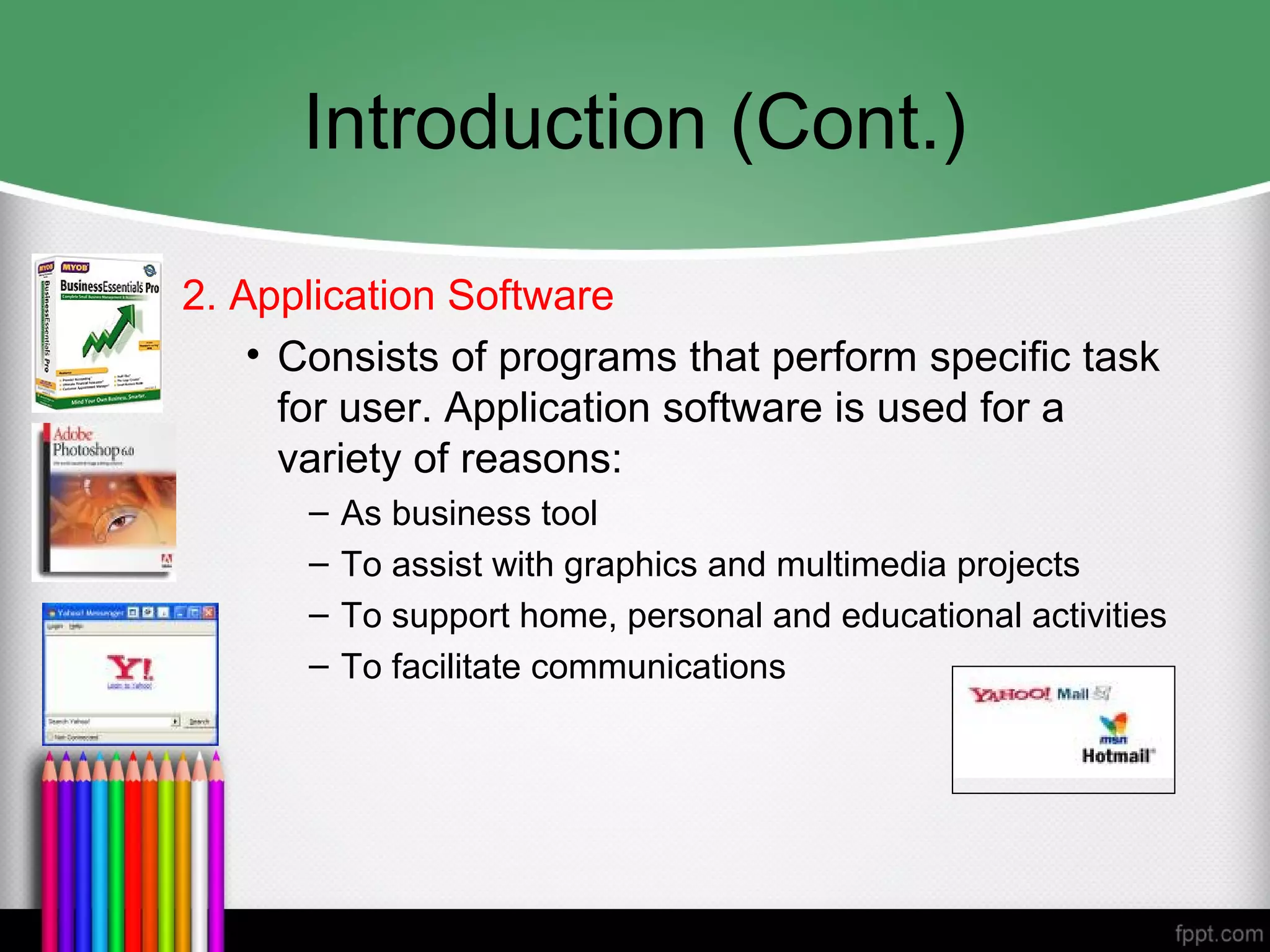
2. Application Software
• Consists of programs that perform specific task
for user. Application software is used for a
variety of reasons:
– As business tool
– To assist with graphics and multimedia projects
– To support home, personal and educational activities
– To facilitate communications
Introduction (Cont.)
• Business Software
– Accounting
– Stock
• Graphic and Multimedia Software
– Photo Editing
– Authoring tools
– Movie Players
• Home, Personal and Education Software
– Courseware
• Communication Software
– Yahoo Messenger MSN Messenger, ICQ, MIRC
• Web Application
– Maybank2u, Web based E-mail
Text-based Editing Tools
Word processors:
– Are powerful applications that include spell
checkers, table formatters, thesaurus, and pre-
built templates for commonly used documents.
– Are used for creating project letters, invoices, and
storyboards.
– Allow embedded multimedia elements.
Text-based Editing Tools
Word processors (continued):
– Microsoft Word and WordPerfect are Word
processors.
– Often come bundled in an "Office Suite."
Text-based Editing Tools
Optical Character Recognition (OCR)
software:
– Converts bitmapped characters into electronically
recognizable ASCII text.
– Makes use of probability and expert system
algorithms.
– Is very accurate and saves time and effort.
Graphical Tools
• Painting and drawing tools.
• 3-D modeling tools.
• Image editing tools.
Painting and Drawing Tools
• Most graphic programs use bitmapped images since
they provide the greatest choice.
• Include the Eyedropper tool, Autotrace tool, and anti-
aliasing, airbrushing, blending, and masking
functionalities.
• PhotoShop, Fireworks, and Painter are painting
software.
• CorelDraw, FreeHand, and Illustrator are drawing
software.
Painting and Drawing Tools
Features include:
– An intuitive graphical user interface.
– Scalable dimensions.
– Multiple undo capability.
– Scalable text font support.
– Support for third-party special effect plug-ins.
– Layering capability.
3-D Modeling Tools
Features include (continued):
– Good color and palette management.
– Multiple dimension windows and unlimited
cameras.
– Lathe and extrude features.
– Ability to drag and drop primitive shapes, sculpt
organic objects.
– Color and texture mapping.
Image-Editing Tools
• Are specialized and powerful tools for enhancing and
retouching existing bitmapped images.
• Features include conversion of image-data types and
file formats, masking features, employment of virtual
memory scheme, etc.
• Support third-party plug-ins.
Sound Editing Tools
• Enables the user to see music as well as hear sound.
• This is done by drawing a representation of sound in
fine increments.
• Enable the user to create custom system beeps.
• System beeps are pre-packaged sounds that indicate
an error, warning or special user activity.
What is an Authoring Tools
• The tools by which various media components are brought
together (integrated) into a structure and flow.
Authoring Tools

Chapter 7

  • 1.
  • 2.
    Making Multimedia • Introductionto Making Multimedia – Guidance and suggestions for getting started • Multimedia Skills – What skills required
  • 3.
    Introduction to Making Multimedia •The stages of a project: – Planning and costing • Idea/objectives • Multimedia expertise required • Structure & navigation system • Time & cost estimation – Designing & producing – Testing – Delivering
  • 4.
    Introduction to Making Multimedia •What we need? – Hardware – Software – Good ideas – Talent – Skill – Good organization of works
  • 5.
    Introduction to Making Multimedia •Creativity: – Develop a sense of its scope and content – Difficult to learn creativity • “but like classical artists who work in paint, marble, or bronze, the better you know your medium, the better able you are to express your creativity” • Know your hardware & software first!!
  • 6.
    Introduction to Making Multimedia •Organization – Develop an organized outline a a plan that rationally details the skills, time, budget, tools, and resources we will need for a project
  • 7.
    Introduction to Making Multimedia •Hardware – 2 most significance platforms: • Macintosh OS • Intel-based IBM PC or PC Clone (MS Windows) – Development environment • Powerful workstation (Silicon Graphics, Sun Microsystems, or mainframe) – Apple (Macintosh OS) more suitable for multimedia editing – Cross platform format (both Mac & Windows)
  • 8.
    Introduction to Making Multimedia •Networking – A collection of computers and other hardware components interconnected by communication channels that allow sharing of resources and information. – LAN and WAN – Cable and Wireless • Ethernet, Fiber Optics, WIFI, Bluetooth n etc – Internet Service Provider
  • 9.
    Introduction to Making Multimedia •The various connection methodologies include: – Small Computer System Interface (SCSI). – Integrated Drive Electronics (IDE). – Universal Serial Bus (USB). – FireWire – SATA – IDE – Fiber Channel – Serial and Parallel Port – Types of connections and transfer rate (refer to table 7-2 page 203.
  • 10.
    Small Computer System Interface(SCSI) • SCSI can connect internal and external peripheral equipments and devices that conform to the SCSI standard. • SCSI cards can be installed on Macintosh and PC platforms. • SCSI is preferred for real-time video editing, network servers, and situations that require mirroring. • SCSI ID conflicts should be avoided by providing unique IDs to devices.
  • 12.
    Integrated Drive Electronics (IDE) •IDE connections are also known as Advanced Technology Attachment (ATA). • They connect only internal peripherals. • They can connect four peripherals mounted inside the PC. • The circuitry for IDE is less expensive than SCSI. • IDE utilizes processor chip time.
  • 13.
    Universal Serial Bus(USB) • It is a standard for connecting devices to the computer using the plug-and-play system. • USB uses a single cable to connect 127 USB peripherals to a single PC. • It can be attached to one computer at a time.
  • 14.
    FireWire • FireWire wasintroduced by Apple in the 1980s. • It is the industry standard and provides support for high-bandwidth serial data transfer, particularly for digital video and mass storage. • Can connect multiple computers and peripheral devices (peer-to-peer). • It is the most common method for connecting and interconnecting professional digital video equipment.
  • 15.
    Memory • Sufficient memorymust be allocated for storing and archiving files. • Memory requirements of a multimedia project depend on the project's content and scope. • The two types of memory are random access memory (RAM) and read only memory (ROM). • Storage Device : Hard Disk, Flash Memory, CD- ROM, DVD and Blue Ray.
  • 16.
    Input Devices • Allowuser enter DATA and COMMANDS into memory. • Example: keyboard, mouse, camera, microphone and etc. • Four forms of input: – Data – Program – Commands – User responses
  • 17.
    Input Devices • Keyboard- Is the most commonly used input device. The most common keyboard for PCs is the 101 style, which provides 101 keys. • Mouse - Is the standard input device for a graphical user interface (GUI).
  • 18.
    Input Devices • Trackball- It is suitable to small confined environments such as a portable laptop. • Touchscreen - They are monitors that usually have a textured coating across the glass face.
  • 19.
    Input Devices • Magneticcard encoder and reader - Is useful when an interface is needed for a database application or multimedia project that tracks users. • Graphic tablet - Provides great control for editing finely detailed graphic elements. • Scanner - Is the most useful device for producing multimedia. They are categorized as flat-bed, handheld, and drum.
  • 20.
    Input Devices • OpticalCharacter Recognition (OCR) device - Is used to convert printed matter into ASCII text files. • Infrared remote - Is used to interact with the project when the user needs to move about.
  • 21.
    Input Devices • Voicerecognition system - Is used to facilitate hands-free interaction with the project. • Digital camera - Is used to capture still images of a specific resolution, and store them in camera’s memory. These images can then be uploaded to a computer.
  • 22.
    Output Devices • Conveyinformation to one or more people. • 4forms of output: – Text – Graphics – Audio – Video
  • 23.
    Output Devices Audio devices: –They include sound chips and microphones. – Amplifiers are required when the project has to be presented to a large audience or in a noisy setting. – Speakers can be internal or external.
  • 24.
    Output Devices Video devices: –Video creates the maximum visual impact. – Video devices include videodisc players and video cards. – Videodisc players provide precise control over the image being viewed. – Video cards enable the user to place an image in a window on the computer monitor.
  • 25.
    Output Devices Projectors: – Projectorsare used when you have a larger audience that can be accommodated around a computer monitor. – The different types of projectors include • Cathode-Ray Tube (CRT) • Liquid-Crystal Display (LCD) panels • Stand-Alone LCD projectors • Light-Valve projectors.
  • 26.
    Output Devices Projectors (continued): –CRT projectors are compatible with the output of most computers as well as televisions. – LCD panels are portable devices that are popular for on-the-road presentations. – Light-valve projectors use liquid crystal technology. The images generated are very bright and color saturated and can be projected onto wide screens.
  • 27.
    Output Devices Printers: – The2 types of printers:- – Laser printers offer higher print quality, lower operating costs, but a higher initial cost. – Inkjet printers are comparatively cheaper, but require higher maintenance. – Color printers have become an important part of multimedia development.
  • 28.
    Memory and StorageDevice • Software: – Multimedia software tells the hardware what to do – Text, images, sounds, and video. • Capturing images, translating between file formats, and editing your resources • Photoshop, SoundForge, Premiere, GIF Animator, etc. – Multimedia authoring • Macromedia Director or flash – Everybody can make multimedia project!!
  • 29.
    Types of Software •Text-based editing tools. • Graphical tools. • Sound editing tools. • Animation, video, and digital movie tools. • Video formats. • Utilities useful for multimedia.
  • 30.
    Introduction • Software, alsocalled a program, is a series of instructions that tells the computer what to do and how to do it. • Users interact with the program through its GRAPHICAL USER INTERFACE (GUI) which contains an object called ICON (can be as text, graphics or visual images). ICONs
  • 31.
    Introduction (Cont.) • Twocategories of software: – System Software – Application Software
  • 32.
    Introduction (Cont.) 1. SystemSoftware – Consists of the programs that control or maintain the operations of the computers and its devices. – 2 types of system software • Operating System – Windows XP • Utility Programs – Disk defragmenter, Anti virus, Scan Disk
  • 33.
    Introduction (Cont.) 2. ApplicationSoftware • Consists of programs that perform specific task for user. Application software is used for a variety of reasons: – As business tool – To assist with graphics and multimedia projects – To support home, personal and educational activities – To facilitate communications
  • 34.
    Introduction (Cont.) • BusinessSoftware – Accounting – Stock • Graphic and Multimedia Software – Photo Editing – Authoring tools – Movie Players • Home, Personal and Education Software – Courseware • Communication Software – Yahoo Messenger MSN Messenger, ICQ, MIRC • Web Application – Maybank2u, Web based E-mail
  • 35.
    Text-based Editing Tools Wordprocessors: – Are powerful applications that include spell checkers, table formatters, thesaurus, and pre- built templates for commonly used documents. – Are used for creating project letters, invoices, and storyboards. – Allow embedded multimedia elements.
  • 36.
    Text-based Editing Tools Wordprocessors (continued): – Microsoft Word and WordPerfect are Word processors. – Often come bundled in an "Office Suite."
  • 37.
    Text-based Editing Tools OpticalCharacter Recognition (OCR) software: – Converts bitmapped characters into electronically recognizable ASCII text. – Makes use of probability and expert system algorithms. – Is very accurate and saves time and effort.
  • 38.
    Graphical Tools • Paintingand drawing tools. • 3-D modeling tools. • Image editing tools.
  • 39.
    Painting and DrawingTools • Most graphic programs use bitmapped images since they provide the greatest choice. • Include the Eyedropper tool, Autotrace tool, and anti- aliasing, airbrushing, blending, and masking functionalities. • PhotoShop, Fireworks, and Painter are painting software. • CorelDraw, FreeHand, and Illustrator are drawing software.
  • 40.
    Painting and DrawingTools Features include: – An intuitive graphical user interface. – Scalable dimensions. – Multiple undo capability. – Scalable text font support. – Support for third-party special effect plug-ins. – Layering capability.
  • 41.
    3-D Modeling Tools Featuresinclude (continued): – Good color and palette management. – Multiple dimension windows and unlimited cameras. – Lathe and extrude features. – Ability to drag and drop primitive shapes, sculpt organic objects. – Color and texture mapping.
  • 42.
    Image-Editing Tools • Arespecialized and powerful tools for enhancing and retouching existing bitmapped images. • Features include conversion of image-data types and file formats, masking features, employment of virtual memory scheme, etc. • Support third-party plug-ins.
  • 43.
    Sound Editing Tools •Enables the user to see music as well as hear sound. • This is done by drawing a representation of sound in fine increments. • Enable the user to create custom system beeps. • System beeps are pre-packaged sounds that indicate an error, warning or special user activity.
  • 44.
    What is anAuthoring Tools • The tools by which various media components are brought together (integrated) into a structure and flow.
  • 45.