aslkjdhfalskhjfgalsdkfhalskdhjfglaskdhjflaskdhjfglaksjdhflakshflaksdhjfglaksjhflaksjhf aslkjdhfalskhjfgalsdkfhalskdhjfglaskdhjflaskdhjfglaksjdhflakshflaksdhjfglaksjhflaksjhf aslkjdhfalskhjfgalsdkfhalskdhjfglaskdhjflaskdhjfglaksjdhflakshflaksdhjfglaksjhflaksjhf aslkjdhfalskhjfgalsdkfhalskdhjfglaskdhjflaskdhjfglaksjdhflakshflaksdhjfglaksjhflaksjhf aslkjdhfalskhjfgalsdkfhalskdhjfglaskdhjflaskdhjfglaksjdhflakshflaksdhjfglaksjhflaksjhf aslkjdhfalskhjfgalsdkfhalskdhjfglaskdhjflaskdhjfglaksjdhflakshflaksdhjfglaksjhflaksjhf aslkjdhfalskhjfgalsdkfhalskdhjfglaskdhjflaskdhjfglaksjdhflakshflaksdhjfglaksjhflaksjhf aslkjdhfalskhjfgalsdkfhalskdhjfglaskdhjflaskdhjfglaksjdhflakshflaksdhjfglaksjhflaksjhf aslkjdhfalskhjfgalsdkfhalskdhjfglaskdhjflaskdhjfglaksjdhflakshflaksdhjfglaksjhflaksjhf aslkjdhfalskhjfgalsdkfhalskdhjfglaskdhjflaskdhjfglaksjdhflakshflaksdhjfglaksjhflaksjhf aslkjdhfalskhjfgalsdkfhalskdhjfglaskdhjflaskdhjfglaksjdhflakshflaksdhjfglaksjhflaksjhf aslkjdhfalskhjfgalsdkfhalskdhjfglaskdhjflaskdhjfglaksjdhflakshflaksdhjfglaksjhflaksjhf aslkjdhfalskhjfgalsdkfhalskdhjfglaskdhjflaskdhjfglaksjdhflakshflaksdhjfglaksjhflaksjhf aslkjdhfalskhjfgalsdkfhalskdhjfglaskdhjflaskdhjfglaksjdhflakshflaksdhjfglaksjhflaksjhf aslkjdhfalskhjfgalsdkfhalskdhjfglaskdhjflaskdhjfglaksjdhflakshflaksdhjfglaksjhflaksjhf aslkjdhfalskhjfgalsdkfhalskdhjfglaskdhjflaskdhjfglaksjdhflakshflaksdhjfglaksjhflaksjhf aslkjdhfalskhjfgalsdkfhalskdhjfglaskdhjflaskdhjfglaksjdhflakshflaksdhjfglaksjhflaksjhf aslkjdhfalskhjfgalsdkfhalskdhjfglaskdhjflaskdhjfglaksjdhflakshflaksdhjfglaksjhflaksjhf aslkjdhfalskhjfgalsdkfhalskdhjfglaskdhjflaskdhjfglaksjdhflakshflaksdhjfglaksjhflaksjhf aslkjdhfalskhjfgalsdkfhalskdhjfglaskdhjflaskdhjfglaksjdhflakshflaksdhjfglaksjhflaksjhf aslkjdhfalskhjfgalsdkfhalskdhjfglaskdhjflaskdhjfglaksjdhflakshflaksdhjfglaksjhflaksjhf aslkjdhfalskhjfgalsdkfhalskdhjfglaskdhjflaskdhjfglaksjdhflakshflaksdhjfglaksjhflaksjhf aslkjdhfalskhjfgalsdkfhalskdhjfglaskdhjflaskdhjfglaksjdhflakshflaksdhjfglaksjhflaksjhf aslkjdhfalskhjfgalsdkfhalskdhjfglaskdhjflaskdhjfglaksjdhflakshflaksdhjfglaksjhflaksjhf
Graphics, Animation, Sound, and Drag-and-Drop Chapter 13 McGraw-Hill © 2006 The McGraw-Hill Companies, Inc. All rights reserved.
Objectives  (1 of 2) Use  Graphics  methods to draw shapes, lines, and filled shapes Create a drawing surface with a Graphics object Instantiate Pen and  Brush objects  as needed for drawing Create animation by changing pictures at run time Create simple animation by moving images
Objectives  (2 of 2) Use the  Timer component  to automate animation Use scroll bars to move an image Add a sound player component to add sound to a project Incorporate drag-and-drop events into your program Draw a pie chart using the methods of the Graphics object
Graphics in Windows and the Web Graphics refers to any text, drawing, image, or icon that is displayed on the screen in either: Windows Forms PictureBox   control Can draw graphics shapes (circles, lines, rectangles) on a form or control Accepts more file formats than a Web Form Web Forms Image  control
The Graphics Environment >NET framework uses GDI+ technology for drawing graphics GDI+ is designed to be device-independent Code to draw a graphic is the same regardless of the output device
Steps for Drawing Graphics Create a  Graphics   object to use as a drawing surface Instantiate a  Pen   or   Brush   object to draw with Call the drawing methods from the Graphics object
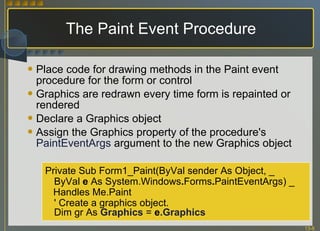
The Paint Event Procedure Place code for drawing methods in the Paint event procedure for the form or control  Graphics are redrawn every time form is repainted or rendered Declare a Graphics object Assign the Graphics property of the procedure's  PaintEventArgs  argument to the new Graphics object Private Sub Form1_Paint(ByVal sender As Object, _  ByVal  e  As System.Windows . Forms . PaintEventArgs) _  Handles Me.Paint ' Create a graphics object. Dim gr As  Graphics  =  e .Graphics
Pen and Brush Objects  (1 of 2) Pen Use to draw lines or outlined shapes such as rectangles or circles Properties: Width, Color Brush Use to create filled shapes Property: Color
Pen and Brush Objects   (2 pf 2) Width property Specifies the width of the stroke of a line or outlined shape created by  Pen object Specified in  pixels Default width = One pixel Color property Specifies color of lines drawn by Pen object and color of filled shapes drawn by Brush object Assign color using Color constants
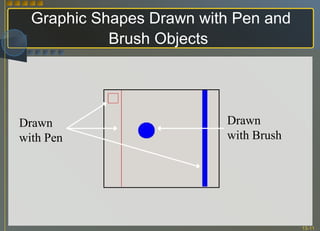
Graphic Shapes Drawn with Pen and Brush Objects   Drawn with Pen Drawn with Brush
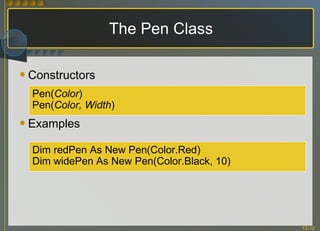
Constructors Examples The Pen Class Pen( Color ) Pen( Color, Width ) Dim redPen As New Pen(Color.Red) Dim widePen As New Pen(Color.Black, 10)
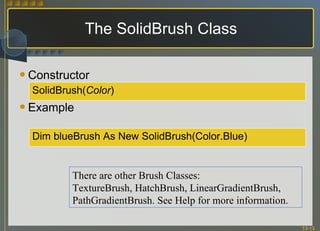
Constructor Example The SolidBrush Class SolidBrush( Color ) Dim blueBrush As New SolidBrush(Color.Blue)  There are other Brush Classes: TextureBrush, HatchBrush, LinearGradientBrush, PathGradientBrush. See Help for more information.
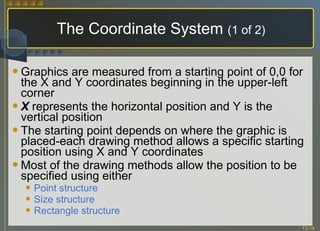
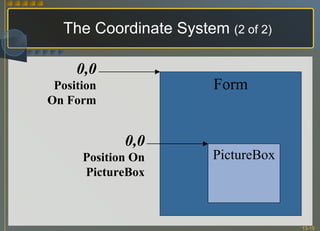
The Coordinate System  (1 of 2) Graphics are measured from a starting point of 0,0 for the X and Y coordinates beginning in the upper-left corner X  represents the horizontal position and Y is the vertical position The starting point depends on where the graphic is placed-each drawing method allows a specific starting position using X and Y coordinates Most of the drawing methods allow the position to be specified using either Point structure Size structure  Rectangle structure
The Coordinate System  (2 of 2) Form PictureBox 0,0 Position On Form 0,0 Position On PictureBox
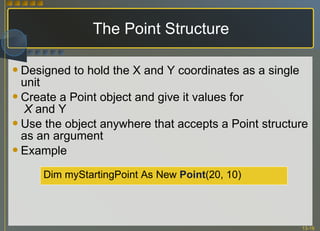
The Point Structure Designed to hold the X and Y coordinates as a single unit Create a Point object and give it values for   X  and Y Use the object anywhere that accepts a Point structure as an argument Example Dim myStartingPoint As New  Point (20, 10)
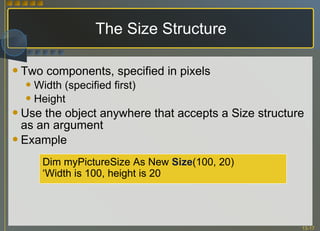
The Size Structure Two components, specified in pixels Width (specified first) Height Use the object anywhere that accepts a Size structure as an argument Example Dim myPictureSize As New  Size (100, 20)  ‘ Width is 100, height is 20
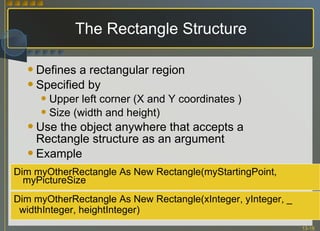
The Rectangle Structure Defines a rectangular region Specified by Upper left corner (X and Y coordinates ) Size (width and height) Use the object anywhere that accepts a Rectangle structure as an argument Example Dim myOtherRectangle As New Rectangle(xInteger, yInteger, _ widthInteger, heightInteger) Dim myOtherRectangle As New Rectangle(myStartingPoint, myPictureSize
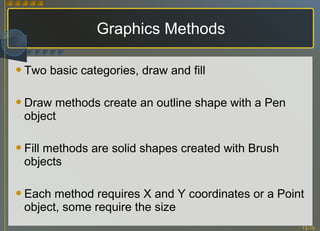
Graphics Methods Two basic categories, draw and fill Draw methods create an outline shape with a Pen object Fill methods are solid shapes created with Brush objects Each method requires X and Y coordinates or a Point object, some require the size
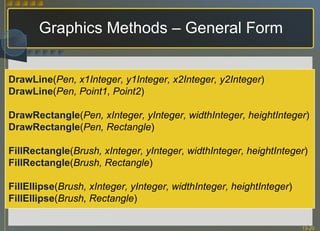
Graphics Methods – General Form DrawLine ( Pen, x1Integer, y1Integer, x2Integer, y2Integer )  DrawLine ( Pen, Point1, Point2 ) DrawRectangle ( Pen, xInteger, yInteger, widthInteger, heightInteger ) DrawRectangle ( Pen, Rectangle ) FillRectangle ( Brush, xInteger, yInteger, widthInteger, heightInteger ) FillRectangle ( Brush, Rectangle ) FillEllipse ( Brush, xInteger, yInteger, widthInteger, heightInteger ) FillEllipse ( Brush, Rectangle )
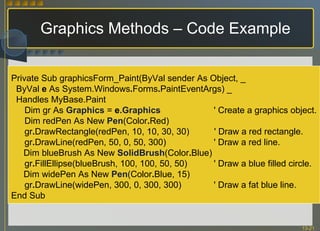
Graphics Methods – Code Example Private Sub graphicsForm_Paint(ByVal sender As Object, _  ByVal  e  As System.Windows . Forms . PaintEventArgs) _  Handles MyBase.Paint Dim gr As  Graphics  =  e .Graphics   ' Create a graphics object. Dim redPen As New   Pen (Color . Red) gr . DrawRectangle(redPen, 10, 10, 30, 30)  ' Draw a red rectangle. gr . DrawLine(redPen, 50, 0, 50, 300)   ' Draw a red line. Dim blueBrush As New  SolidBrush (Color . Blue) gr . FillEllipse(blueBrush, 100, 100, 50, 50)   ' Draw a blue filled circle. Dim widePen As New   Pen (Color . Blue, 15) gr . DrawLine(widePen, 300, 0, 300, 300)   ' Draw a fat blue line. End Sub
Selected Methods from the Graphics Class Clear Dispose DrawArc DrawLine DrawEllipse DrawRectangle DrawPie  DrawString FillEllipse FillPie FillRectangle See Help for information for all draw and fill methods
Random Numbers Random class  contains methods to return random numbers of different data types To generate a different series for each run, use an integer value when instantiating an object from the Random class ( seeding  the random number generator) Can use system date to get different seed for each execution of code Generate random numbers using the Random object’s  Next method
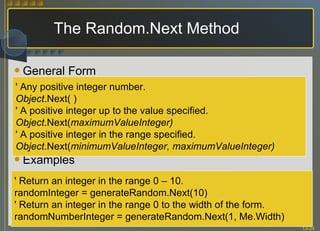
The Random.Next Method General Form Examples ' Any positive integer number. Object .Next( ) ' A positive integer up to the value specified. Object .Next( maximumValueInteger) ' A positive integer in the range specified. Object .Next( minimumValueInteger, maximumValueInteger) ' Return an integer in the range 0 – 10. randomInteger = generateRandom.Next(10) ' Return an integer in the range 0 to the width of the form. randomNumberInteger = generateRandom.Next(1, Me.Width)
Simple Animation Possible approaches Display an animated .gif file in a PictureBox Replace one graphic with another Move a picture Rotate through a series of pictures Create graphics with various graphics methods On a Web page display animated .gif files or use a scripting language or Java Applets and avoid roundtrips to the server
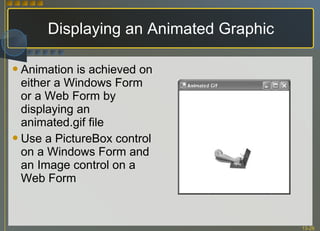
Displaying an Animated Graphic Animation is achieved on either a Windows Form or a Web Form by displaying an animated.gif file Use a PictureBox control on a Windows Form and an Image control on a Web Form
Controlling Pictures at Run Time Pictures can be added or changed at run time To speed execution, load pictures in controls that can be made invisible and set Visible property to True at run time Use the  FromFile   Method  to load a picture at run time Requires file name and path Store image files in Bin folder to eliminate need for path To remove a picture from the display, either hide or use the Nothing constant
Switching Images Easy way to show animation is to replace one picture with another Use images (or icons) of similar sizes May use images (or icons) with opposite states (open/closed, on/off, etc.)--
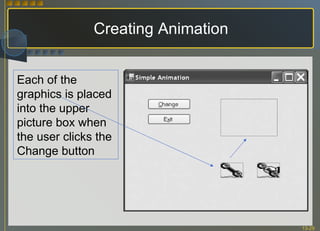
Creating Animation Each of the  graphics is placed into the upper picture box when the user clicks the Change button
Moving a Picture Change the Left and Top properties -- OR--, better Use the control's  SetBounds   Method  which produces  a smoother-appearing move
Use to move a control or change its size General Form Examples SetBounds Method SetBounds ( xInteger, yInteger, widthInteger, heightInteger ) Me.planePictureBox. SetBounds (xInteger ,  yInteger, planeWidth, planeHeight) Me.enginePictureBox. SetBounds (xInteger, yInteger, widthInteger, heightInteger)
Cause events to occur at a set interval with its  Tick  event Useful for animation; move or change an image each time the Tick event occurs Set value at run time or design time The Timer Component  (1 of 2)
The Timer Component   (2 of 2) Interval  property Between 0 and 65,535 milliseconds 1,000 milliseconds = 1 second Enabled  property False (default) ==> Do not run Tick event True ==> Run Tick event at designated interval Tick   event Occurs each time the Timer's designated interval elapses, if Enabled = True
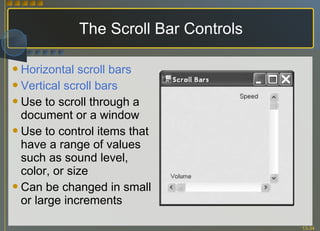
The Scroll Bar Controls Horizontal scroll bars   Vertical scroll bars Use to scroll through a document or a window Use to control items that have a range of values such as sound level, color, or size Can be changed in small or large increments
Scroll Bar Properties  (1 of 3) Together represent a range of values Minimum Minimum value Maximum Maximum value SmallChange Distance to move when user clicks scroll arrows LargeChange Distance to move when user clicks gray area of scroll bar or presses Page-Up or Page-Down keys
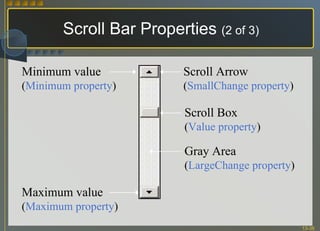
Scroll Bar Properties  (2 of 3) Gray Area ( LargeChange property ) Scroll Box ( Value property ) Scroll Arrow ( SmallChange property ) Maximum value ( Maximum property ) Minimum value ( Minimum property )
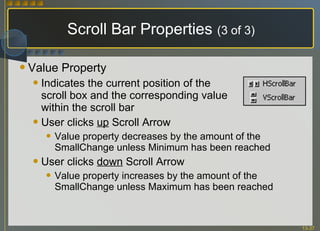
Scroll Bar Properties   (3 of 3) Value Property Indicates the current position of the scroll box and the corresponding value within the scroll bar User clicks  up  Scroll Arrow Value property decreases by the amount of the SmallChange unless Minimum has been reached  User clicks  down  Scroll Arrow Value property increases by the amount of the SmallChange unless Maximum has been reached
Scroll Bar Events ValueChanged   event Occurs anytime the Value property changes, by user action or in code Scroll event Occurs when user drags the scroll box As long as user continues to drag scroll box this event continues to occur Only when user releases scroll box will Scroll event cease and ValueChanged event occur
The SoundPlayer Component Programs play sounds files, called wave files (.wav) using the new My.Computer.Audio.Play --OR-- A  SoundPlayer component The component’s  SoundLocation property  gives the location of the file
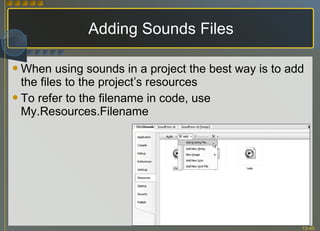
Adding Sounds Files When using sounds in a project the best way is to add the files to the project’s resources To refer to the filename in code, use My.Resources.Filename
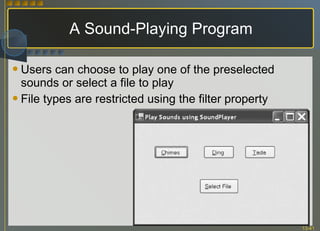
A Sound-Playing Program Users can choose to play one of the preselected sounds or select a file to play File types are restricted using the filter property
Drag-and-Drop Programming  (1 of 2) Often Windows users use drag-and-drop events rather than selecting a menu item or pressing a button Drag-and-drop programming requires that a user begin the drag-drop with a  MouseDown event Determine the effect of the drop with a DragEnter event The event that holds the code for the drop is the  DragDrop event
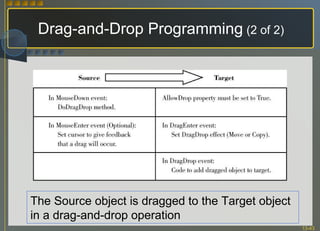
Drag-and-Drop Programming  (2 of 2) The Source object is dragged to the Target object in a drag-and-drop operation
The Source Object The item chosen to drag  With .NET programming begin a drag-drop operation by setting the source object using a control’s  DoDragDrop method The DragDrop effect specifies the requested action; choices inlcude DragDropEffects.Copy, DragDropEffects.Move, and DragDropEffects.None General Form Example ObjectName.DoDragDrop(DataToDrag, DesiredDragDropEffect)
The Target Object Location at which a user releases the mouse, a drop, is the target Forms may have multiple targets To set a control to be a target, set its  AllowDrop property  to True Target control needs  DragEnter procedure that sets the effect  DragDrop event procedure that executes the action to take and when the drop takes place
The DragEnter Event When a user drags a source object over the target, the target control’s DragEnter event fires The argument is defined as DragEventArgs—which has special properties for the drag operation
The DragDrop Event Statements to perform additional functions are added to the DragDrop event Data that is being dragged is contained in the Data property of the argument of the DragDrop event procedure Retrieve the dragged data using the GetData method of the Data object Format the data or use a predefined clipboard data format

Chapter 13

  • 1.
    aslkjdhfalskhjfgalsdkfhalskdhjfglaskdhjflaskdhjfglaksjdhflakshflaksdhjfglaksjhflaksjhf aslkjdhfalskhjfgalsdkfhalskdhjfglaskdhjflaskdhjfglaksjdhflakshflaksdhjfglaksjhflaksjhf aslkjdhfalskhjfgalsdkfhalskdhjfglaskdhjflaskdhjfglaksjdhflakshflaksdhjfglaksjhflaksjhfaslkjdhfalskhjfgalsdkfhalskdhjfglaskdhjflaskdhjfglaksjdhflakshflaksdhjfglaksjhflaksjhf aslkjdhfalskhjfgalsdkfhalskdhjfglaskdhjflaskdhjfglaksjdhflakshflaksdhjfglaksjhflaksjhf aslkjdhfalskhjfgalsdkfhalskdhjfglaskdhjflaskdhjfglaksjdhflakshflaksdhjfglaksjhflaksjhf aslkjdhfalskhjfgalsdkfhalskdhjfglaskdhjflaskdhjfglaksjdhflakshflaksdhjfglaksjhflaksjhf aslkjdhfalskhjfgalsdkfhalskdhjfglaskdhjflaskdhjfglaksjdhflakshflaksdhjfglaksjhflaksjhf aslkjdhfalskhjfgalsdkfhalskdhjfglaskdhjflaskdhjfglaksjdhflakshflaksdhjfglaksjhflaksjhf aslkjdhfalskhjfgalsdkfhalskdhjfglaskdhjflaskdhjfglaksjdhflakshflaksdhjfglaksjhflaksjhf aslkjdhfalskhjfgalsdkfhalskdhjfglaskdhjflaskdhjfglaksjdhflakshflaksdhjfglaksjhflaksjhf aslkjdhfalskhjfgalsdkfhalskdhjfglaskdhjflaskdhjfglaksjdhflakshflaksdhjfglaksjhflaksjhf aslkjdhfalskhjfgalsdkfhalskdhjfglaskdhjflaskdhjfglaksjdhflakshflaksdhjfglaksjhflaksjhf aslkjdhfalskhjfgalsdkfhalskdhjfglaskdhjflaskdhjfglaksjdhflakshflaksdhjfglaksjhflaksjhf aslkjdhfalskhjfgalsdkfhalskdhjfglaskdhjflaskdhjfglaksjdhflakshflaksdhjfglaksjhflaksjhf aslkjdhfalskhjfgalsdkfhalskdhjfglaskdhjflaskdhjfglaksjdhflakshflaksdhjfglaksjhflaksjhf aslkjdhfalskhjfgalsdkfhalskdhjfglaskdhjflaskdhjfglaksjdhflakshflaksdhjfglaksjhflaksjhf aslkjdhfalskhjfgalsdkfhalskdhjfglaskdhjflaskdhjfglaksjdhflakshflaksdhjfglaksjhflaksjhf aslkjdhfalskhjfgalsdkfhalskdhjfglaskdhjflaskdhjfglaksjdhflakshflaksdhjfglaksjhflaksjhf aslkjdhfalskhjfgalsdkfhalskdhjfglaskdhjflaskdhjfglaksjdhflakshflaksdhjfglaksjhflaksjhf aslkjdhfalskhjfgalsdkfhalskdhjfglaskdhjflaskdhjfglaksjdhflakshflaksdhjfglaksjhflaksjhf aslkjdhfalskhjfgalsdkfhalskdhjfglaskdhjflaskdhjfglaksjdhflakshflaksdhjfglaksjhflaksjhf aslkjdhfalskhjfgalsdkfhalskdhjfglaskdhjflaskdhjfglaksjdhflakshflaksdhjfglaksjhflaksjhf aslkjdhfalskhjfgalsdkfhalskdhjfglaskdhjflaskdhjfglaksjdhflakshflaksdhjfglaksjhflaksjhf
  • 2.
    Graphics, Animation, Sound,and Drag-and-Drop Chapter 13 McGraw-Hill © 2006 The McGraw-Hill Companies, Inc. All rights reserved.
  • 3.
    Objectives (1of 2) Use Graphics methods to draw shapes, lines, and filled shapes Create a drawing surface with a Graphics object Instantiate Pen and Brush objects as needed for drawing Create animation by changing pictures at run time Create simple animation by moving images
  • 4.
    Objectives (2of 2) Use the Timer component to automate animation Use scroll bars to move an image Add a sound player component to add sound to a project Incorporate drag-and-drop events into your program Draw a pie chart using the methods of the Graphics object
  • 5.
    Graphics in Windowsand the Web Graphics refers to any text, drawing, image, or icon that is displayed on the screen in either: Windows Forms PictureBox control Can draw graphics shapes (circles, lines, rectangles) on a form or control Accepts more file formats than a Web Form Web Forms Image control
  • 6.
    The Graphics Environment>NET framework uses GDI+ technology for drawing graphics GDI+ is designed to be device-independent Code to draw a graphic is the same regardless of the output device
  • 7.
    Steps for DrawingGraphics Create a Graphics object to use as a drawing surface Instantiate a Pen or Brush object to draw with Call the drawing methods from the Graphics object
  • 8.
    The Paint EventProcedure Place code for drawing methods in the Paint event procedure for the form or control Graphics are redrawn every time form is repainted or rendered Declare a Graphics object Assign the Graphics property of the procedure's PaintEventArgs argument to the new Graphics object Private Sub Form1_Paint(ByVal sender As Object, _ ByVal e As System.Windows . Forms . PaintEventArgs) _ Handles Me.Paint ' Create a graphics object. Dim gr As Graphics = e .Graphics
  • 9.
    Pen and BrushObjects (1 of 2) Pen Use to draw lines or outlined shapes such as rectangles or circles Properties: Width, Color Brush Use to create filled shapes Property: Color
  • 10.
    Pen and BrushObjects (2 pf 2) Width property Specifies the width of the stroke of a line or outlined shape created by Pen object Specified in pixels Default width = One pixel Color property Specifies color of lines drawn by Pen object and color of filled shapes drawn by Brush object Assign color using Color constants
  • 11.
    Graphic Shapes Drawnwith Pen and Brush Objects Drawn with Pen Drawn with Brush
  • 12.
    Constructors Examples ThePen Class Pen( Color ) Pen( Color, Width ) Dim redPen As New Pen(Color.Red) Dim widePen As New Pen(Color.Black, 10)
  • 13.
    Constructor Example TheSolidBrush Class SolidBrush( Color ) Dim blueBrush As New SolidBrush(Color.Blue) There are other Brush Classes: TextureBrush, HatchBrush, LinearGradientBrush, PathGradientBrush. See Help for more information.
  • 14.
    The Coordinate System (1 of 2) Graphics are measured from a starting point of 0,0 for the X and Y coordinates beginning in the upper-left corner X represents the horizontal position and Y is the vertical position The starting point depends on where the graphic is placed-each drawing method allows a specific starting position using X and Y coordinates Most of the drawing methods allow the position to be specified using either Point structure Size structure Rectangle structure
  • 15.
    The Coordinate System (2 of 2) Form PictureBox 0,0 Position On Form 0,0 Position On PictureBox
  • 16.
    The Point StructureDesigned to hold the X and Y coordinates as a single unit Create a Point object and give it values for X and Y Use the object anywhere that accepts a Point structure as an argument Example Dim myStartingPoint As New Point (20, 10)
  • 17.
    The Size StructureTwo components, specified in pixels Width (specified first) Height Use the object anywhere that accepts a Size structure as an argument Example Dim myPictureSize As New Size (100, 20) ‘ Width is 100, height is 20
  • 18.
    The Rectangle StructureDefines a rectangular region Specified by Upper left corner (X and Y coordinates ) Size (width and height) Use the object anywhere that accepts a Rectangle structure as an argument Example Dim myOtherRectangle As New Rectangle(xInteger, yInteger, _ widthInteger, heightInteger) Dim myOtherRectangle As New Rectangle(myStartingPoint, myPictureSize
  • 19.
    Graphics Methods Twobasic categories, draw and fill Draw methods create an outline shape with a Pen object Fill methods are solid shapes created with Brush objects Each method requires X and Y coordinates or a Point object, some require the size
  • 20.
    Graphics Methods –General Form DrawLine ( Pen, x1Integer, y1Integer, x2Integer, y2Integer ) DrawLine ( Pen, Point1, Point2 ) DrawRectangle ( Pen, xInteger, yInteger, widthInteger, heightInteger ) DrawRectangle ( Pen, Rectangle ) FillRectangle ( Brush, xInteger, yInteger, widthInteger, heightInteger ) FillRectangle ( Brush, Rectangle ) FillEllipse ( Brush, xInteger, yInteger, widthInteger, heightInteger ) FillEllipse ( Brush, Rectangle )
  • 21.
    Graphics Methods –Code Example Private Sub graphicsForm_Paint(ByVal sender As Object, _ ByVal e As System.Windows . Forms . PaintEventArgs) _ Handles MyBase.Paint Dim gr As Graphics = e .Graphics ' Create a graphics object. Dim redPen As New Pen (Color . Red) gr . DrawRectangle(redPen, 10, 10, 30, 30) ' Draw a red rectangle. gr . DrawLine(redPen, 50, 0, 50, 300) ' Draw a red line. Dim blueBrush As New SolidBrush (Color . Blue) gr . FillEllipse(blueBrush, 100, 100, 50, 50) ' Draw a blue filled circle. Dim widePen As New Pen (Color . Blue, 15) gr . DrawLine(widePen, 300, 0, 300, 300) ' Draw a fat blue line. End Sub
  • 22.
    Selected Methods fromthe Graphics Class Clear Dispose DrawArc DrawLine DrawEllipse DrawRectangle DrawPie DrawString FillEllipse FillPie FillRectangle See Help for information for all draw and fill methods
  • 23.
    Random Numbers Randomclass contains methods to return random numbers of different data types To generate a different series for each run, use an integer value when instantiating an object from the Random class ( seeding the random number generator) Can use system date to get different seed for each execution of code Generate random numbers using the Random object’s Next method
  • 24.
    The Random.Next MethodGeneral Form Examples ' Any positive integer number. Object .Next( ) ' A positive integer up to the value specified. Object .Next( maximumValueInteger) ' A positive integer in the range specified. Object .Next( minimumValueInteger, maximumValueInteger) ' Return an integer in the range 0 – 10. randomInteger = generateRandom.Next(10) ' Return an integer in the range 0 to the width of the form. randomNumberInteger = generateRandom.Next(1, Me.Width)
  • 25.
    Simple Animation Possibleapproaches Display an animated .gif file in a PictureBox Replace one graphic with another Move a picture Rotate through a series of pictures Create graphics with various graphics methods On a Web page display animated .gif files or use a scripting language or Java Applets and avoid roundtrips to the server
  • 26.
    Displaying an AnimatedGraphic Animation is achieved on either a Windows Form or a Web Form by displaying an animated.gif file Use a PictureBox control on a Windows Form and an Image control on a Web Form
  • 27.
    Controlling Pictures atRun Time Pictures can be added or changed at run time To speed execution, load pictures in controls that can be made invisible and set Visible property to True at run time Use the FromFile Method to load a picture at run time Requires file name and path Store image files in Bin folder to eliminate need for path To remove a picture from the display, either hide or use the Nothing constant
  • 28.
    Switching Images Easyway to show animation is to replace one picture with another Use images (or icons) of similar sizes May use images (or icons) with opposite states (open/closed, on/off, etc.)--
  • 29.
    Creating Animation Eachof the graphics is placed into the upper picture box when the user clicks the Change button
  • 30.
    Moving a PictureChange the Left and Top properties -- OR--, better Use the control's SetBounds Method which produces a smoother-appearing move
  • 31.
    Use to movea control or change its size General Form Examples SetBounds Method SetBounds ( xInteger, yInteger, widthInteger, heightInteger ) Me.planePictureBox. SetBounds (xInteger , yInteger, planeWidth, planeHeight) Me.enginePictureBox. SetBounds (xInteger, yInteger, widthInteger, heightInteger)
  • 32.
    Cause events tooccur at a set interval with its Tick event Useful for animation; move or change an image each time the Tick event occurs Set value at run time or design time The Timer Component (1 of 2)
  • 33.
    The Timer Component (2 of 2) Interval property Between 0 and 65,535 milliseconds 1,000 milliseconds = 1 second Enabled property False (default) ==> Do not run Tick event True ==> Run Tick event at designated interval Tick event Occurs each time the Timer's designated interval elapses, if Enabled = True
  • 34.
    The Scroll BarControls Horizontal scroll bars Vertical scroll bars Use to scroll through a document or a window Use to control items that have a range of values such as sound level, color, or size Can be changed in small or large increments
  • 35.
    Scroll Bar Properties (1 of 3) Together represent a range of values Minimum Minimum value Maximum Maximum value SmallChange Distance to move when user clicks scroll arrows LargeChange Distance to move when user clicks gray area of scroll bar or presses Page-Up or Page-Down keys
  • 36.
    Scroll Bar Properties (2 of 3) Gray Area ( LargeChange property ) Scroll Box ( Value property ) Scroll Arrow ( SmallChange property ) Maximum value ( Maximum property ) Minimum value ( Minimum property )
  • 37.
    Scroll Bar Properties (3 of 3) Value Property Indicates the current position of the scroll box and the corresponding value within the scroll bar User clicks up Scroll Arrow Value property decreases by the amount of the SmallChange unless Minimum has been reached User clicks down Scroll Arrow Value property increases by the amount of the SmallChange unless Maximum has been reached
  • 38.
    Scroll Bar EventsValueChanged event Occurs anytime the Value property changes, by user action or in code Scroll event Occurs when user drags the scroll box As long as user continues to drag scroll box this event continues to occur Only when user releases scroll box will Scroll event cease and ValueChanged event occur
  • 39.
    The SoundPlayer ComponentPrograms play sounds files, called wave files (.wav) using the new My.Computer.Audio.Play --OR-- A SoundPlayer component The component’s SoundLocation property gives the location of the file
  • 40.
    Adding Sounds FilesWhen using sounds in a project the best way is to add the files to the project’s resources To refer to the filename in code, use My.Resources.Filename
  • 41.
    A Sound-Playing ProgramUsers can choose to play one of the preselected sounds or select a file to play File types are restricted using the filter property
  • 42.
    Drag-and-Drop Programming (1 of 2) Often Windows users use drag-and-drop events rather than selecting a menu item or pressing a button Drag-and-drop programming requires that a user begin the drag-drop with a MouseDown event Determine the effect of the drop with a DragEnter event The event that holds the code for the drop is the DragDrop event
  • 43.
    Drag-and-Drop Programming (2 of 2) The Source object is dragged to the Target object in a drag-and-drop operation
  • 44.
    The Source ObjectThe item chosen to drag With .NET programming begin a drag-drop operation by setting the source object using a control’s DoDragDrop method The DragDrop effect specifies the requested action; choices inlcude DragDropEffects.Copy, DragDropEffects.Move, and DragDropEffects.None General Form Example ObjectName.DoDragDrop(DataToDrag, DesiredDragDropEffect)
  • 45.
    The Target ObjectLocation at which a user releases the mouse, a drop, is the target Forms may have multiple targets To set a control to be a target, set its AllowDrop property to True Target control needs DragEnter procedure that sets the effect DragDrop event procedure that executes the action to take and when the drop takes place
  • 46.
    The DragEnter EventWhen a user drags a source object over the target, the target control’s DragEnter event fires The argument is defined as DragEventArgs—which has special properties for the drag operation
  • 47.
    The DragDrop EventStatements to perform additional functions are added to the DragDrop event Data that is being dragged is contained in the Data property of the argument of the DragDrop event procedure Retrieve the dragged data using the GetData method of the Data object Format the data or use a predefined clipboard data format

Editor's Notes

  • #2 Brief description on how to navigate within this presentation (ppt) The first time a Key Term from the chapter is used in the ppt it will display in blue Gold colored text boxes display coding examples Slides will be numbered (# of #) when multiple slides on same topic (Slide title) Speaker notes are included where appropriate for slides (*)Denotes either a comment for page reference to textbook or slide reference in ppt
  • #7 GDI+ is more advanced and an improvement over the previous Graphics Device Interface (GDI) used in previous version of VB Being device dependent, the programmer doesn’t have to be concerned about the physical characteristics of the output device
  • #8 *The next few slides describe the steps in more detail
  • #9 A graphics object can also be created by calling the CreateGraphics method of a form or control—it is used when wanting to display a graphic from a procedure other than the Paint event Lines and shapes are drawn on forms and controls by drawing on a Graphics object
  • #10 *The Pen/Brush properties are described on the next slide
  • #11 *The next slide displays a graphic shape created by drawing with Pen and Brush objects
  • #12 *The next slides show examples of code for Pen and Brush classes
  • #13 There may be times that several different pens are used—for each different color or line width another Pen object can be created or redefine an already dimensioned Pen variable
  • #14 Use the Color constants to assign a color to Brush objects
  • #15 *The next slide displays the coordinates for graphic
  • #16 The coordinates for graphics begin with 0,0 in the upper-left corner of a form or container
  • #17 An example of a Point in the design of a form can easily be seen-examine the Location property of any control; the Location is assigned a Point object with x and y properties
  • #18 Examine the design of any form to see an example of a Size structure-each of the controls has a Size property which has width and height properties
  • #19 The first example defines a rectangular region, specified by its upper left corner and its size The second example using the overloaded constructor declare a new Rectangle by specifying its location in x and y coordinates and its width and height Point, Size, and rectangle structures can be created for single-precision floating-point values—specify the PointF, SizeF, and RectangleF structures
  • #20 *The next slide displays the Graphics Method-General Forms
  • #21 Rather than declaring a pen or brush-type Pens.color or Brushes.color directly in the Graphics method; the pen or brush object must be declared if wanting to change the width
  • #22 The code example draws the outline of rectangle in red using the DrawRectangle method (key term) and draws a line with the DrawLine method ; (keyterm) the FillEllipse method (key term) is used to draw a filled circle
  • #24 A Random object is popular for use in games, as well as problems in probability and queuing theory
  • #25 *Refer to textbook p. 509 for an example of output produced by Chapter13RandomNumbers example program—the program draws the figure and generates random snowflakes in the form’s Pain event handler
  • #31 You can use a control’s SetBounds method to move it to a new location and/or to change its size *The next slide displays examples of the SetBounds Method General Form and usage examples
  • #33 Generally events occur when the user takes an action-using the Timer component and its Tick event When a timer is added, it goes into the component tray-the tool for the timer is represented by the little stopwatch in the toolbox
  • #36 *Each of these properties has a default value-see Table 13.2 p.516 in textbook
  • #40 It’s fun to add sound to an application—computers play sounds as they are turned on and off or receiving email
  • #42 If it is desired to have a sound play as the application opens, set the SoundLocation property of a SoundPlayer component to the desired file at design time
  • #44 *The Source and Target Objects are described on the following slides