R Graphics Lectures
Computer Graphics
• Drawing graphics in a window on the screen of a
computer is very similar to drawing by hand on a sheet
of paper.
• We begin a drawing by getting out a clean piece of paper
and then deciding what scale to use in the drawing.
• With those basic decisions made, we can then start
putting pen to paper.
• The steps in R are very similar.
Starting a New Plot
We begin a plot by first telling the graphics system that we are
about to start a new plot.
> plot.new()
This indicates that we are about to start a new plot and must
happen before any graphics takes place.
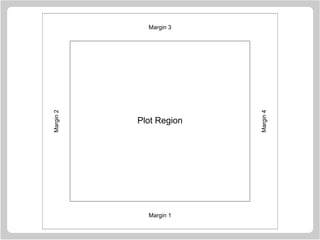
The call to plot.new chooses a default rectangular plotting
region for the plot to appear in.
The plotting region is surrounded by four margins.
Plot Region
Margin 1
Margin2
Margin 3
Margin4
Controlling The Margins
The sizes of the margins can be changed by making a call to
the function par before calling plot.new.
Set the margin sizes in inches.
> par(mai=c(2, 2, 1, 1))
Set the margin sizes in lines of text.
> par(mar=c(4, 4, 2, 2))
Set the plot width and height in inches.
> par(pin=c(5, 4))
Setting the Axis Scales
Next we set the scales on along the sides of the plot. This
determines how coordinates get mapped onto the page.
> plot.window(xlim = xlimits, ylim = ylimits)
The graphics system arranges for the specified region to
appear on the page.
xlimits and ylimits are vectors which contain lower and
upper limits which are to appear on the x and y axes.
For example,
... xlim = c(-pi, pi), ylim = c(-1, 1), ...
might be suitable for plotting sine and cosine functions.
Manipulating the Axis Limits
The statement
> plot.window(xlim = c(0, 1), ylim = c(10, 20))
produces axis limits which are expanded by 6% over those
actually specified. This expansion can be inhibited by
specifying xaxs="i" and/or yaxs="i".
For example, the call
> plot.window(xlim = c(0, 1), ylim = c(10, 20),
xaxs = "i")
produces a plot with 0 lying at the extreme left of the plot
region and 1 lying at the extreme right.
Aspect Ratio Control
There is also an optional argument to the function
plot.window() which allows a user to specify a particular
aspect ratio.
> plot.window(xlim = xlimits,
ylim = ylimits,
asp = 1)
The use of asp=1 means that unit steps in the x and y
directions produce equal distances in the x and y directions on
the page.
This is important if circles are to appear as circles rather than
ellipses.
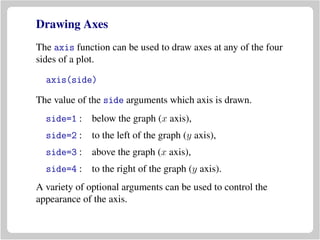
Drawing Axes
The axis function can be used to draw axes at any of the four
sides of a plot.
axis(side)
The value of the side arguments which axis is drawn.
side=1 : below the graph (x axis),
side=2 : to the left of the graph (y axis),
side=3 : above the graph (x axis),
side=4 : to the right of the graph (y axis).
A variety of optional arguments can be used to control the
appearance of the axis.
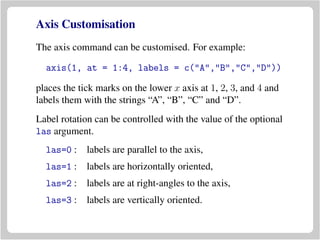
Axis Customisation
The axis command can be customised. For example:
axis(1, at = 1:4, labels = c("A","B","C","D"))
places the tick marks on the lower x axis at 1, 2, 3, and 4 and
labels them with the strings “A”, “B”, “C” and “D”.
Label rotation can be controlled with the value of the optional
las argument.
las=0 : labels are parallel to the axis,
las=1 : labels are horizontally oriented,
las=2 : labels are at right-angles to the axis,
las=3 : labels are vertically oriented.
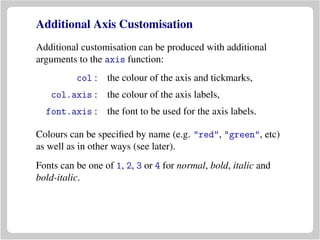
Additional Axis Customisation
Additional customisation can be produced with additional
arguments to the axis function:
col : the colour of the axis and tickmarks,
col.axis : the colour of the axis labels,
font.axis : the font to be used for the axis labels.
Colours can be specified by name (e.g. "red", "green", etc)
as well as in other ways (see later).
Fonts can be one of 1, 2, 3 or 4 for normal, bold, italic and
bold-italic.
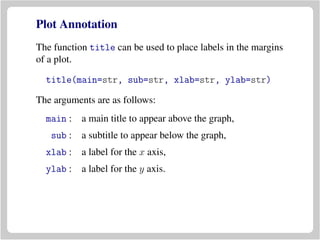
Plot Annotation
The function title can be used to place labels in the margins
of a plot.
title(main=str, sub=str, xlab=str, ylab=str)
The arguments are as follows:
main : a main title to appear above the graph,
sub : a subtitle to appear below the graph,
xlab : a label for the x axis,
ylab : a label for the y axis.
Customising Plot Annotation
The elements of the plot annotation can be customised with
additional optional arguments.
font.main, col.main, cex.main
The font (1, 2, 3, or 4), colour and
magnification-factor for the main title.
font.sub, col.sub, cex.sub
The font, colour and magnification-factor for the
subtitle.
font.lab, col.lab, cex.lab
The font, colour and magnification-factor for the
axis labels.
Framing a Plot
It can be useful to draw a box around a plot. This can be done
with the function box. The call
> box()
draws a box around the plot region (the region within the plot
margins). The call
> box("figure")
draws a box around the figure region (the region containing
the plot and its margins).
An optional col argument makes it possible to specify the
colour for the box.
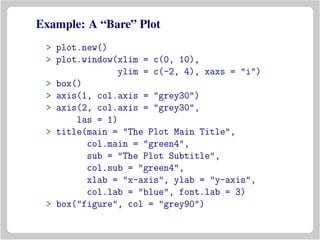
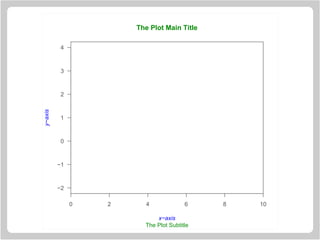
Example: A “Bare” Plot
> plot.new()
> plot.window(xlim = c(0, 10),
ylim = c(-2, 4), xaxs = "i")
> box()
> axis(1, col.axis = "grey30")
> axis(2, col.axis = "grey30",
las = 1)
> title(main = "The Plot Main Title",
col.main = "green4",
sub = "The Plot Subtitle",
col.sub = "green4",
xlab = "x-axis", ylab = "y-axis",
col.lab = "blue", font.lab = 3)
> box("figure", col = "grey90")
0 2 4 6 8 10
−2
−1
0
1
2
3
4
The Plot Main Title
The Plot Subtitle
x−axis
y−axis
Some Drawing Primitives
• Points
• Connected Line Segments
• Straight Lines Across A Plot
• Disconnected Line Segments
• Arrows
• Rectangles
• Polygons
• Text
• Legends
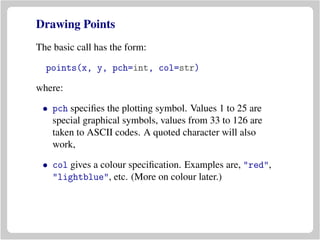
Drawing Points
The basic call has the form:
points(x, y, pch=int, col=str)
where:
• pch specifies the plotting symbol. Values 1 to 25 are
special graphical symbols, values from 33 to 126 are
taken to ASCII codes. A quoted character will also
work,
• col gives a colour specification. Examples are, "red",
"lightblue", etc. (More on colour later.)
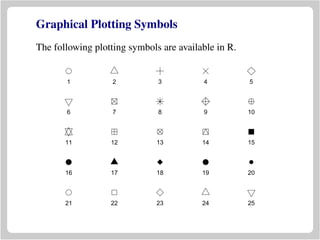
Graphical Plotting Symbols
The following plotting symbols are available in R.
1 2 3 4 5
6 7 8 9 10
11 12 13 14 15
16 17 18 19 20
21 22 23 24 25
q
q
q
q q q
q
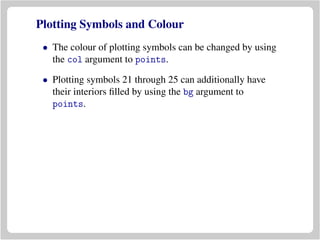
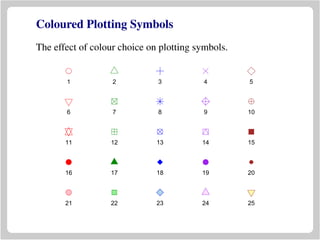
Plotting Symbols and Colour
• The colour of plotting symbols can be changed by using
the col argument to points.
• Plotting symbols 21 through 25 can additionally have
their interiors filled by using the bg argument to
points.
Coloured Plotting Symbols
The effect of colour choice on plotting symbols.
1 2 3 4 5
6 7 8 9 10
11 12 13 14 15
16 17 18 19 20
21 22 23 24 25
q
q
q
q q q
q
Drawing Connected Line Segments
The basic call has the form:
lines(x, y, lty=str, lwd=num, col=str)
where:
• lty specifies the line texture. It should be one of
"blank", "solid", "dashed", "dotted", "dotdash",
"longdash" or "twodash".
Alternatively the length of on/off pen stokes in the
texture. "11" is a high density dotted line, "33" is a
short dashed line and "1333" is a dot-dashed line.
• lwd and col specify the line width and colour.
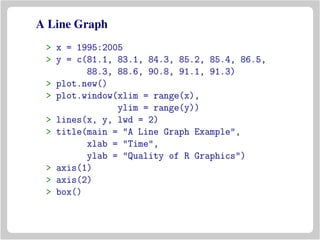
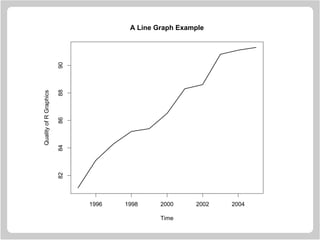
A Line Graph
> x = 1995:2005
> y = c(81.1, 83.1, 84.3, 85.2, 85.4, 86.5,
88.3, 88.6, 90.8, 91.1, 91.3)
> plot.new()
> plot.window(xlim = range(x),
ylim = range(y))
> lines(x, y, lwd = 2)
> title(main = "A Line Graph Example",
xlab = "Time",
ylab = "Quality of R Graphics")
> axis(1)
> axis(2)
> box()
A Line Graph Example
Time
QualityofRGraphics
1996 1998 2000 2002 2004
8284868890
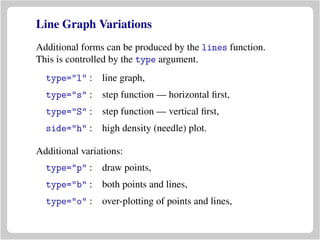
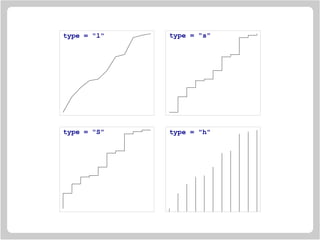
Line Graph Variations
Additional forms can be produced by the lines function.
This is controlled by the type argument.
type="l" : line graph,
type="s" : step function — horizontal first,
type="S" : step function — vertical first,
side="h" : high density (needle) plot.
Additional variations:
type="p" : draw points,
type="b" : both points and lines,
type="o" : over-plotting of points and lines,
x
y
type = "l"
x
y
type = "s"
y
type = "S"
y
type = "h"
Drawing Straight Lines
The basic call has the forms:
abline(a=intercept, b=slope)
abline(h=numbers)
abline(v=numbers)
where
• The a / b form specifies a line in intercept / slope form.
• h specifies horizontal lines at the given y values.
• v specifies vertical lines at the given x values.
• Line texture, colour and width arguments can also be
given.
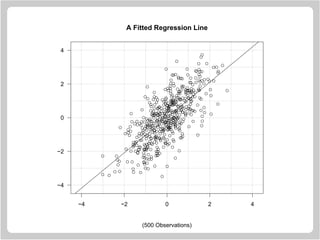
Straight Line Example
> x = rnorm(500)
> y = x + rnorm(500)
> plot.new()
> plot.window(xlim = c(-4.5, 4.5), xaxs = "i",
ylim = c(-4.5, 4.5), yaxs = "i")
> z = lm(y ~ x)
> abline(h = -4:4, v = -4:4, col = "lightgrey")
> abline(a = coef(z)[1], b = coef(z)[2])
> points(x, y)
> axis(1)
> axis(2, las = 1)
> box()
> title(main = "A Fitted Regression Line")
> title(sub = "(500 Observations)")
q
q
q
q
q q
q
q
q
q
q
q
q
q
q
q
q
q
q
q
q
q q
q
q
q
q q
q
q
q
q
q
q
q
q
q
q
q
q
q
q
q
q q q
q
q
q
q
q
q
q
q
q
q
q
q
q
q
q
q
q
q
q
q
q
q
q
q
q
q
q
q
q
q
q
q
q
q
q
q
q
q
q
q
q
q
q
q
q
q
q
q
qq
q
q
q
q
q
q
q q
q
q q
q
q
q
q
q
q
q
q
q
q
q
q
q
q
q
q
q
q
q
q
q
q
q
q
q
q
q
q
q
q
q
q
q
q
q
q
q
q
q
q
q
q
q
q
q
q
q
q
q
q
q
q
q
q
q
q
q q
q
q
q
q
q
q
q
q
q
q
q
q
q
q
q
q
q
q
q
q
q
q
q
q
q
q
q
q
q
q
q
q
q
q
q
q
q q
q
q
q
q
q
q
q
q
q
q
q
q
q
q
q
q
q
q
q
q
q
q
q
q
q
q
q
q
q
q
q
q
q
q
q
q
q
q
q
q
q
q
q
q
q
q
q
q
q
q
q
q
q
q
q
q
q
q
q
q q
q
q
q
q
q
q
q
q
q
q
q
q
q
q q
q
q
q
q q
q
q
q
q
q
q
q
q
q
q
q
q
q
q
q
q
q
q
q
q
q
q
q
q
q
q
q
q
q
q
q
q
q q
q
q
q
q
q
q
q
q
q
q
q
q
q
q
q
q
q
q
q
q
q
q
q
q
q
q
q
q
q
q
q
q
q
q
q
q
q
q
q
q
q
q
q
q
q
q
q
q
q
q
q
q
q
q
q
q
q
q
q
q
q
q
q
q
q
q
q
q
q
q
q
q
q
q
q
q
q
q
q
q
q
q
q
q
q
q
q
q
q
q
q
q
q
q
q
q
q
q
q
q
q
q
q
q
q
q
q
q q
q
q
q
q
q
q
q
q
q
q
q
q
q
q
q
q
q
q
q
q
q
q
q
q
q
q
q
q
q
q
q
q
q
qq
q
q
q
q
q
q
q
q
q
q
q
q
q
q
q
q
q
q
q
q
q
q
q
q
q
q
q
q
q
q
q
q
q
q
q
q
q
q
−4 −2 0 2 4
−4
−2
0
2
4
A Fitted Regression Line
(500 Observations)
Drawing Disconnected Line Segments
The basic call has the form:
segments(x0, y0, x1, y1)
where
• The x0, y0, x1, y1 arguments give the start and end
coordinates of the segments.
• Line texture, colour and width arguments can also be
given.
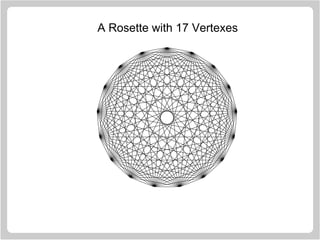
Rosettes
A rosette is a figure which is created by taking a series of
equally spaced points around the circumference of a circle
and joining each of these points to all the other points.
> n = 17
> theta = seq(0, 2 * pi, length = n + 1)[1:n]
> x = sin(theta)
> y = cos(theta)
> v1 = rep(1:n, n)
> v2 = rep(1:n, rep(n, n))
> plot.new()
> plot.window(xlim = c(-1, 1),
ylim = c(-1, 1), asp = 1)
> segments(x[v1], y[v1], x[v2], y[v2])
A Rosette with 17 Vertexes
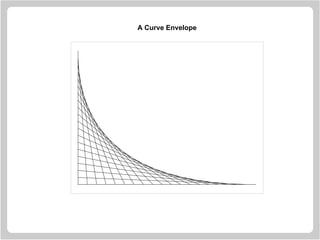
A Curve Envelope
Here is another example which shows how the eye can
perceive a sequence of straight lines as a curve.
> x1 = seq(0, 1, length = 20)
> y1 = rep(0, 20)
> x2 = rep(0, 20)
> y2 = seq(0.75, 0, length = 20)
> plot.new()
> plot.window(xlim = c(0, 1),
ylim = c(0, 0.75), asp = 1)
> segments(x1, y1, x2, y2)
> box(col = "grey")
A Curve Envelope
Drawing Arrows
The basic call has the form:
arrows(x0, y0, x1, y1, code=int,
length=num, angle=num)
where
• The x0, y0, x1, y1 arguments give the start and end
coordinates of the arrows.
• code=1 – head at the start, code=2 – head at the end
and code=3 – a head at both ends.
• length and angle – length of the arrow head and angle
to the shaft.
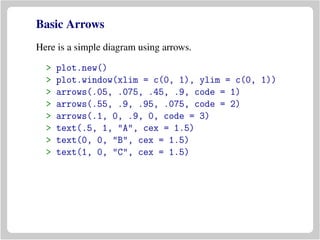
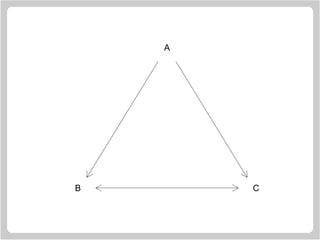
Basic Arrows
Here is a simple diagram using arrows.
> plot.new()
> plot.window(xlim = c(0, 1), ylim = c(0, 1))
> arrows(.05, .075, .45, .9, code = 1)
> arrows(.55, .9, .95, .075, code = 2)
> arrows(.1, 0, .9, 0, code = 3)
> text(.5, 1, "A", cex = 1.5)
> text(0, 0, "B", cex = 1.5)
> text(1, 0, "C", cex = 1.5)
A
B C
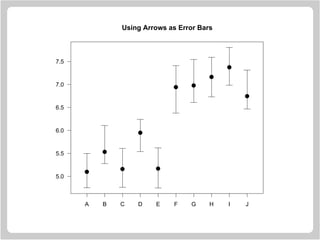
Using Arrows as Error Bars
> x = 1:10
> y = runif(10) + rep(c(5, 6.5), c(5, 5))
> yl = y - 0.25 - runif(10)/3
> yu = y + 0.25 + runif(10)/3
> plot.new()
> plot.window(xlim = c(0.5, 10.5),
ylim = range(yl, yu))
> arrows(x, yl, x, yu, code = 3,
angle = 90, length = .125)
> points(x, y, pch = 19, cex = 1.5)
> axis(1, at = 1:10, labels = LETTERS[1:10])
> axis(2, las = 1)
> box()
q
q
q
q
q
q q
q
q
q
A B C D E F G H I J
5.0
5.5
6.0
6.5
7.0
7.5
Using Arrows as Error Bars
Drawing Rectangles
The basic call has the form:
rect(x0, y0, x1, y1, col=str, border=str)
where
• x0, y0, x1, y1 give the coordinates of diagonally
opposite corners of the rectangles.
• col and border specify the colour of the interior and
border of the rectangles.
• line texture and width specifications can also be given.
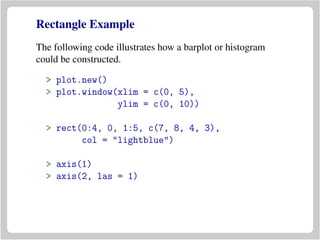
Rectangle Example
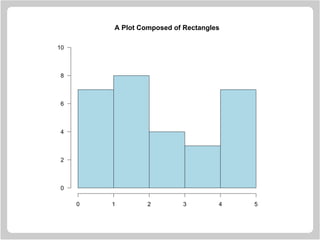
The following code illustrates how a barplot or histogram
could be constructed.
> plot.new()
> plot.window(xlim = c(0, 5),
ylim = c(0, 10))
> rect(0:4, 0, 1:5, c(7, 8, 4, 3),
col = "lightblue")
> axis(1)
> axis(2, las = 1)
0 1 2 3 4 5
0
2
4
6
8
10
A Plot Composed of Rectangles
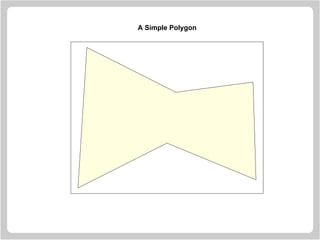
Drawing Polygons
The basic call has the form:
polygon(x, y, col=str, border=str)
where
• x and y give the coordinates of the polygon vertexes. NA
values separate polygons.
• col and border specify the colour of the interior and
border of the polygons.
• line texture and width specifications can also be given.
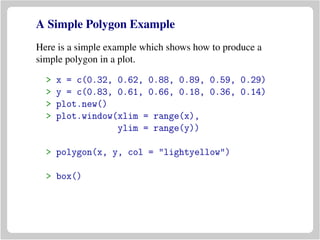
A Simple Polygon Example
Here is a simple example which shows how to produce a
simple polygon in a plot.
> x = c(0.32, 0.62, 0.88, 0.89, 0.59, 0.29)
> y = c(0.83, 0.61, 0.66, 0.18, 0.36, 0.14)
> plot.new()
> plot.window(xlim = range(x),
ylim = range(y))
> polygon(x, y, col = "lightyellow")
> box()
A Simple Polygon
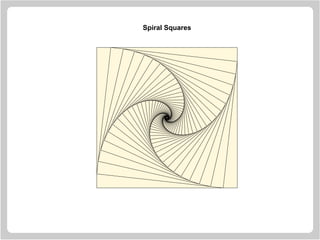
Spiral Squares
> plot.new()
> plot.window(xlim = c(-1, 1),
ylim = c(-1, 1), asp = 1)
> x = c(-1, 1, 1, -1)
> y = c( 1, 1, -1, -1)
> polygon(x, y, col = "cornsilk")
> vertex1 = c(1, 2, 3, 4)
> vertex2 = c(2, 3, 4, 1)
> for(i in 1:50) {
x = 0.9 * x[vertex1] + 0.1 * x[vertex2]
y = 0.9 * y[vertex1] + 0.1 * y[vertex2]
polygon(x, y, col = "cornsilk")
}
Spiral Squares
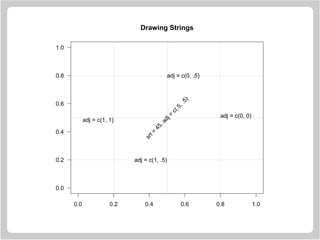
Drawing Text
The basic call has the form:
text(x, y, labels)
where
• x and y give the text coordinates.
• labels gives the actual text strings.
Optionally,
• font and col give the font and colour of the text,
• srt and adj give the rotation and justification of the
strings.
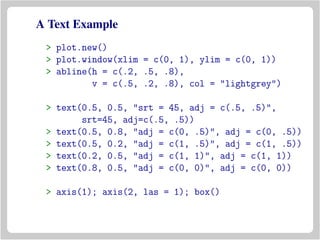
A Text Example
> plot.new()
> plot.window(xlim = c(0, 1), ylim = c(0, 1))
> abline(h = c(.2, .5, .8),
v = c(.5, .2, .8), col = "lightgrey")
> text(0.5, 0.5, "srt = 45, adj = c(.5, .5)",
srt=45, adj=c(.5, .5))
> text(0.5, 0.8, "adj = c(0, .5)", adj = c(0, .5))
> text(0.5, 0.2, "adj = c(1, .5)", adj = c(1, .5))
> text(0.2, 0.5, "adj = c(1, 1)", adj = c(1, 1))
> text(0.8, 0.5, "adj = c(0, 0)", adj = c(0, 0))
> axis(1); axis(2, las = 1); box()
srt=
45,adj=
c(.5,.5)
adj = c(0, .5)
adj = c(1, .5)
adj = c(1, 1)
adj = c(0, 0)
0.0 0.2 0.4 0.6 0.8 1.0
0.0
0.2
0.4
0.6
0.8
1.0
Drawing Strings
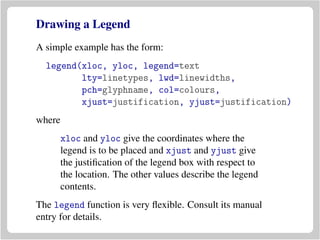
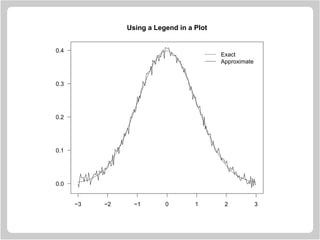
Drawing a Legend
A simple example has the form:
legend(xloc, yloc, legend=text
lty=linetypes, lwd=linewidths,
pch=glyphname, col=colours,
xjust=justification, yjust=justification)
where
xloc and yloc give the coordinates where the
legend is to be placed and xjust and yjust give
the justification of the legend box with respect to
the location. The other values describe the legend
contents.
The legend function is very flexible. Consult its manual
entry for details.
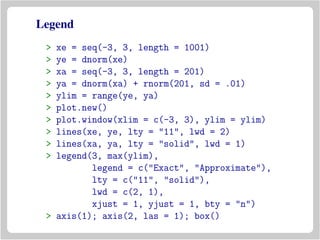
Legend
> xe = seq(-3, 3, length = 1001)
> ye = dnorm(xe)
> xa = seq(-3, 3, length = 201)
> ya = dnorm(xa) + rnorm(201, sd = .01)
> ylim = range(ye, ya)
> plot.new()
> plot.window(xlim = c(-3, 3), ylim = ylim)
> lines(xe, ye, lty = "11", lwd = 2)
> lines(xa, ya, lty = "solid", lwd = 1)
> legend(3, max(ylim),
legend = c("Exact", "Approximate"),
lty = c("11", "solid"),
lwd = c(2, 1),
xjust = 1, yjust = 1, bty = "n")
> axis(1); axis(2, las = 1); box()
Exact
Approximate
−3 −2 −1 0 1 2 3
0.0
0.1
0.2
0.3
0.4
Using a Legend in a Plot
Drawing Curves
• There are no general curve drawing primitives available
in R (yet).
• To draw a curve you must approximate it by a sequence
of straight line segments.
• The question is how many line segments are required to
obtain a visually “smooth” approximation to the curve.
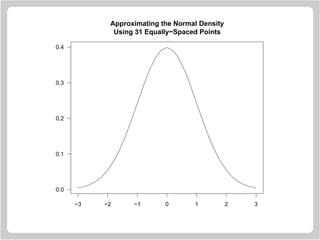
Approximating the Normal Density
Using 31 Equally−Spaced Points
−3 −2 −1 0 1 2 3
0.0
0.1
0.2
0.3
0.4
Lack of Smoothness
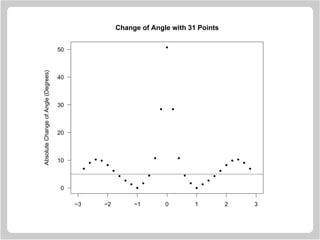
• Using 31 points to approximate the curve, there is a
noticeable lack of smoothness in regions where the
curve has high curvature.
• This is because our eye-brain system is good a detecting
large changes of direction but sees changes in direction
of less than 5◦
as “smooth.”
• Checking the changes of angle in the approximation
shows that there are some very large changes of angle.
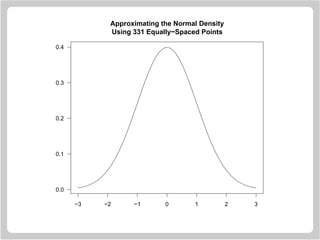
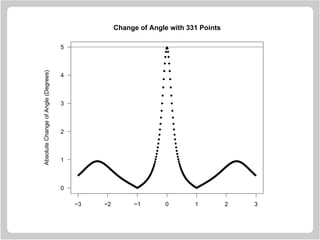
• Increasing the number of approximating points to 331
means that there are no changes of direction which
exceed 5◦
.
q
q
q q
q
q
q
q
q
q
q
q
q
q
q
q
q
q
q
q
q
q
q
q
q
q q
q
q
−3 −2 −1 0 1 2 3
0
10
20
30
40
50
AbsoluteChangeofAngle(Degrees)
Change of Angle with 31 Points
Approximating the Normal Density
Using 331 Equally−Spaced Points
−3 −2 −1 0 1 2 3
0.0
0.1
0.2
0.3
0.4
qqqqqqqqqqqqqqqqqqqqqqqqqqqqqqqqqqqqqqqqqqqqqqqqqqqqqqqqqqqqqqqqqqqqqqqqqqqqqqqqqqqqqqqqqqqqqqqqqqqqqqqqqqqqqqqqqqqqqqqqqqqqqqqqqqqqqqqq
q
q
q
q
q
q
q
q
q
q
q
q
q
q
q
q
q
q
q
q
q
q
q
q
q
q
q
qqq
q
q
q
q
q
q
q
q
q
q
q
q
q
q
q
q
q
q
q
q
q
q
q
q
q
q
q
qqqqqqqqqqqqqqqqqqqqqqqqqqqqqqqqqqqqqqqqqqqqqqqqqqqqqqqqqqqqqqqqqqqqqqqqqqqqqqqqqqqqqqqqqqqqqqqqqqqqqqqqqqqqqqqqqqqqqqqqqqqqqqqqqqqqqqqq
−3 −2 −1 0 1 2 3
0
1
2
3
4
5AbsoluteChangeofAngle(Degrees)
Change of Angle with 331 Points
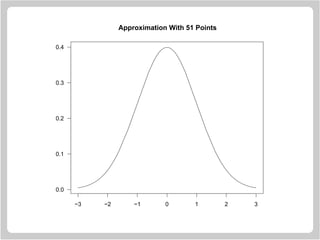
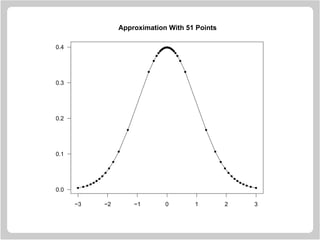
Nonuniform Point Placement
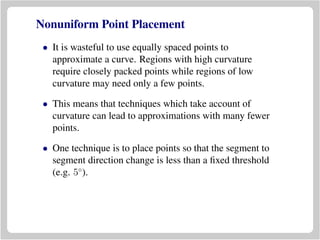
• It is wasteful to use equally spaced points to
approximate a curve. Regions with high curvature
require closely packed points while regions of low
curvature may need only a few points.
• This means that techniques which take account of
curvature can lead to approximations with many fewer
points.
• One technique is to place points so that the segment to
segment direction change is less than a fixed threshold
(e.g. 5◦
).
−3 −2 −1 0 1 2 3
0.0
0.1
0.2
0.3
0.4
Approximation With 51 Points
−3 −2 −1 0 1 2 3
0.0
0.1
0.2
0.3
0.4
q q q
q
q
q
q
q
q
q
q
q
q
q
q
q
q
qqqqqqqqqqqqqqqqqqqq
q
q
q
q
q
q
q
q
q
q
q
q
q
q
q q q
Approximation With 51 Points
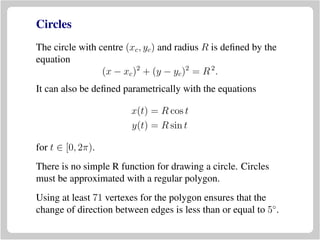
Circles
The circle with centre (xc, yc) and radius R is defined by the
equation
(x − xc)2
+ (y − yc)2
= R2
.
It can also be defined parametrically with the equations
x(t) = R cos t
y(t) = R sin t
for t ∈ [0, 2π).
There is no simple R function for drawing a circle. Circles
must be approximated with a regular polygon.
Using at least 71 vertexes for the polygon ensures that the
change of direction between edges is less than or equal to 5◦
.
Drawing Circles
> R = 1
> xc = 0
> yc = 0
> n = 72
> t = seq(0, 2 * pi, length = n)[1:(n-1)]
> x = xc + R * cos(t)
> y = yc + R * sin(t)
> plot.new()
> plot.window(xlim = range(x),
ylim = range(y), asp = 1)
> polygon(x, y, col = "lightblue",
border = "navyblue")
A 71−Vertex Polygon Approximating a Circle
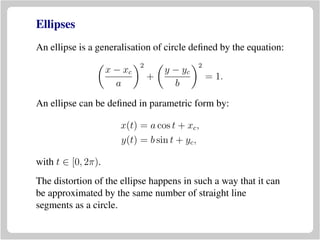
Ellipses
An ellipse is a generalisation of circle defined by the equation:
x − xc
a
2
+
y − yc
b
2
= 1.
An ellipse can be defined in parametric form by:
x(t) = a cos t + xc,
y(t) = b sin t + yc,
with t ∈ [0, 2π).
The distortion of the ellipse happens in such a way that it can
be approximated by the same number of straight line
segments as a circle.
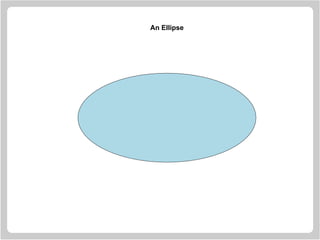
Drawing Ellipses
> a = 4
> b = 2
> xc = 0
> yc = 0
> n = 72
> t = seq(0, 2 * pi, length = n)[1:(n-1)]
> x = xc + a * cos(t)
> y = yc + b * sin(t)
> plot.new()
> plot.window(xlim = range(x),
ylim = range(y),
asp = 1)
> polygon(x, y, col = "lightblue")
An Ellipse
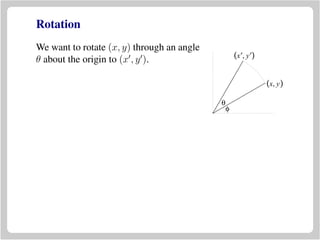
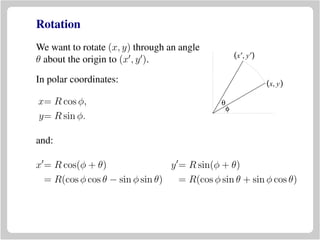
Rotation
We want to rotate (x, y) through an angle
θ about the origin to (x , y ).
(x, y)
(x′, y′)
θ
φ
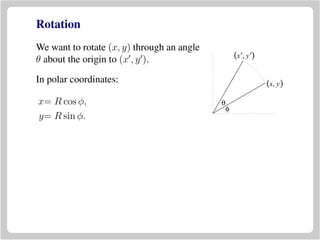
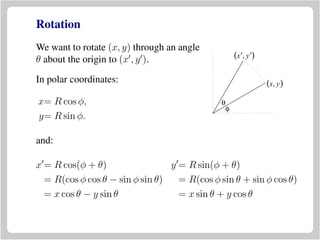
Rotation
We want to rotate (x, y) through an angle
θ about the origin to (x , y ).
(x, y)
(x′, y′)
θ
φ
In polar coordinates:
x= R cos φ,
y= R sin φ.
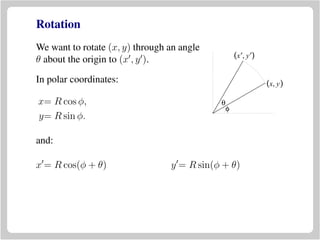
Rotation
We want to rotate (x, y) through an angle
θ about the origin to (x , y ).
(x, y)
(x′, y′)
θ
φ
In polar coordinates:
x= R cos φ,
y= R sin φ.
and:
x = R cos(φ + θ) y = R sin(φ + θ)
Rotation
We want to rotate (x, y) through an angle
θ about the origin to (x , y ).
(x, y)
(x′, y′)
θ
φ
In polar coordinates:
x= R cos φ,
y= R sin φ.
and:
x = R cos(φ + θ) y = R sin(φ + θ)
= R(cos φ cos θ − sin φ sin θ) = R(cos φ sin θ + sin φ cos θ)
Rotation
We want to rotate (x, y) through an angle
θ about the origin to (x , y ).
(x, y)
(x′, y′)
θ
φ
In polar coordinates:
x= R cos φ,
y= R sin φ.
and:
x = R cos(φ + θ) y = R sin(φ + θ)
= R(cos φ cos θ − sin φ sin θ) = R(cos φ sin θ + sin φ cos θ)
= x cos θ − y sin θ = x sin θ + y cos θ
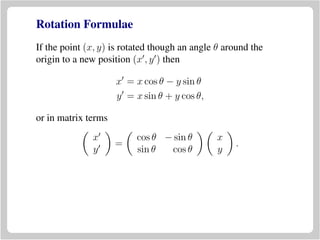
Rotation Formulae
If the point (x, y) is rotated though an angle θ around the
origin to a new position (x , y ) then
x = x cos θ − y sin θ
y = x sin θ + y cos θ,
or in matrix terms
x
y
=
cos θ − sin θ
sin θ cos θ
x
y
.
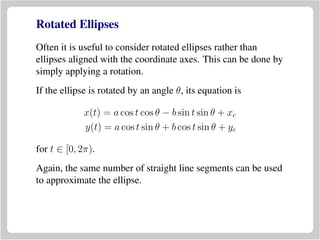
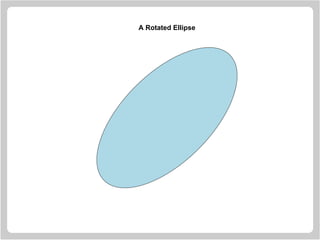
Rotated Ellipses
Often it is useful to consider rotated ellipses rather than
ellipses aligned with the coordinate axes. This can be done by
simply applying a rotation.
If the ellipse is rotated by an angle θ, its equation is
x(t) = a cos t cos θ − b sin t sin θ + xc
y(t) = a cos t sin θ + b cos t sin θ + yc
for t ∈ [0, 2π).
Again, the same number of straight line segments can be used
to approximate the ellipse.
Drawing Rotated Ellipses
> a = 4
> b = 2
> xc = 0
> yc = 0
> n = 72
> theta = 45 * (pi / 180)
> t = seq(0, 2 * pi, length = n)[1:(n-1)]
> x = xc + a * cos(t) * cos(theta) -
b * sin(t) * sin(theta)
> y = yc + a * cos(t) * sin(theta) +
b * sin(t) * cos(theta)
> plot.new()
> plot.window(xlim = range(x),
ylim = range(y), asp = 1)
> polygon(x, y, col = "lightblue")
A Rotated Ellipse
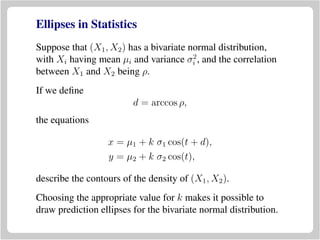
Ellipses in Statistics
Suppose that (X1, X2) has a bivariate normal distribution,
with Xi having mean µi and variance σ2
i , and the correlation
between X1 and X2 being ρ.
If we define
d = arccos ρ,
the equations
x = µ1 + k σ1 cos(t + d),
y = µ2 + k σ2 cos(t),
describe the contours of the density of (X1, X2).
Choosing the appropriate value for k makes it possible to
draw prediction ellipses for the bivariate normal distribution.
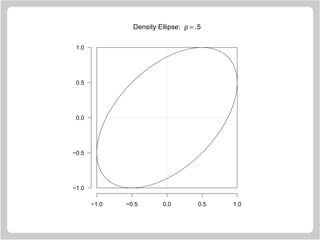
Statistical Ellipses
Here µ1 = µ2 = 0, σ1 = σ2 = 1 and k = 1.
> n = 72
> rho = 0.5
> d = acos(rho)
> t = seq(0, 2 * pi, length = n)[1:(n-1)]
> plot.new()
> plot.window(xlim = c(-1, 1),
ylim = c(-1, 1), asp = 1)
> rect(-1, -1, 1, 1)
> polygon(cos(t + d), y = cos(t))
> segments(-1, 0, 1, 0, lty = "13")
> segments(0, -1, 0, 1, lty = "13")
> axis(1); axis(2, las = 1)
−1.0 −0.5 0.0 0.5 1.0
−1.0
−0.5
0.0
0.5
1.0
Density Ellipse: ρ = .5
−1.0 −0.5 0.0 0.5 1.0
−1.0
−0.5
0.0
0.5
1.0
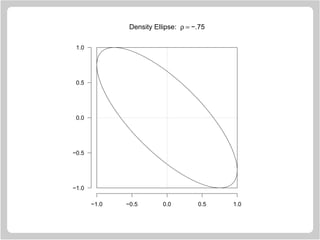
Density Ellipse: ρ = −.75
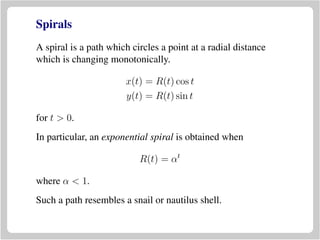
Spirals
A spiral is a path which circles a point at a radial distance
which is changing monotonically.
x(t) = R(t) cos t
y(t) = R(t) sin t
for t > 0.
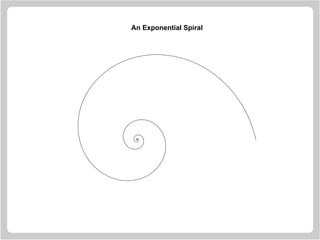
In particular, an exponential spiral is obtained when
R(t) = αt
where α < 1.
Such a path resembles a snail or nautilus shell.
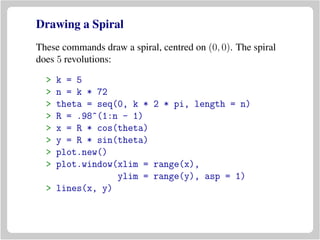
Drawing a Spiral
These commands draw a spiral, centred on (0, 0). The spiral
does 5 revolutions:
> k = 5
> n = k * 72
> theta = seq(0, k * 2 * pi, length = n)
> R = .98^(1:n - 1)
> x = R * cos(theta)
> y = R * sin(theta)
> plot.new()
> plot.window(xlim = range(x),
ylim = range(y), asp = 1)
> lines(x, y)
An Exponential Spiral
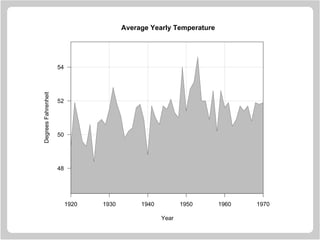
Filling Areas In Line Graphs
Annual year temperatures in New Haven (1920-1970).
> y
[1] 49.3 51.9 50.8 49.6 49.3 50.6 48.4
[8] 50.7 50.9 50.6 51.5 52.8 51.8 51.1
[15] 49.8 50.2 50.4 51.6 51.8 50.9 48.8
[22] 51.7 51.0 50.6 51.7 51.5 52.1 51.3
[29] 51.0 54.0 51.4 52.7 53.1 54.6 52.0
[36] 52.0 50.9 52.6 50.2 52.6 51.6 51.9
[43] 50.5 50.9 51.7 51.4 51.7 50.8 51.9
[50] 51.8 51.9
The corresponding years.
> x = 1920:1970
1920 1930 1940 1950 1960 1970
48
50
52
54
Average Yearly Temperature
DegreesFahrenheit
Year
Plot Construction
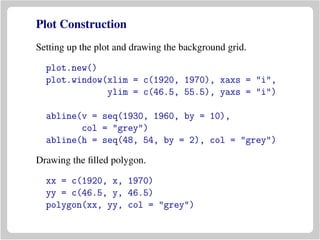
Setting up the plot and drawing the background grid.
plot.new()
plot.window(xlim = c(1920, 1970), xaxs = "i",
ylim = c(46.5, 55.5), yaxs = "i")
abline(v = seq(1930, 1960, by = 10),
col = "grey")
abline(h = seq(48, 54, by = 2), col = "grey")
Drawing the filled polygon.
xx = c(1920, x, 1970)
yy = c(46.5, y, 46.5)
polygon(xx, yy, col = "grey")
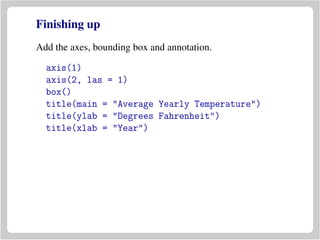
Finishing up
Add the axes, bounding box and annotation.
axis(1)
axis(2, las = 1)
box()
title(main = "Average Yearly Temperature")
title(ylab = "Degrees Fahrenheit")
title(xlab = "Year")
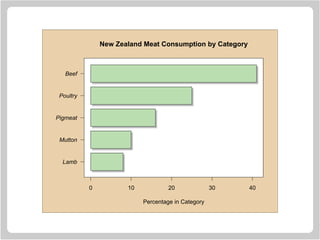
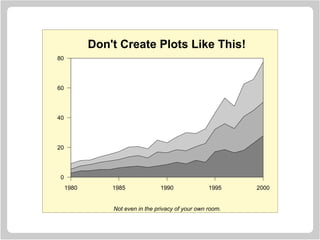
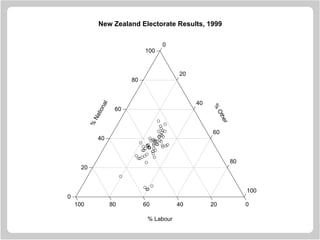
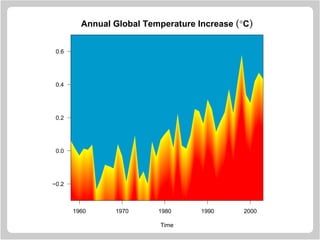
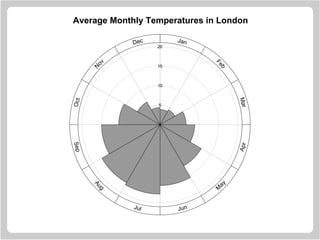
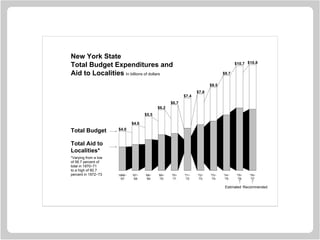
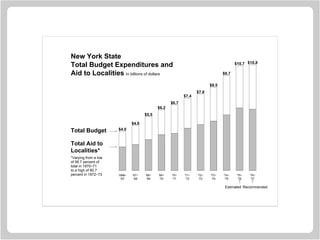
Some Graphics Examples
Here is a short set of examples to show the kind of graphics
that is possible to create using the R graphics primitives.
These are not necessarily all “good” graphs. They just show
what is possible with a little effort.
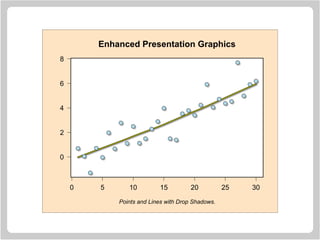
0 5 10 15 20 25 30
0
2
4
6
8
q
q
q
q
q
q
q
q
q
q
q
q
q
q
q
q q
q
q
q
q
q
q
q
q q
q
q
q
q
q
q
q
q
q
q
q
q
q
q
q
q
q
q
q
q q
q
q
q
q
q
q
q
q q
q
q
q
q
Enhanced Presentation Graphics
Points and Lines with Drop Shadows.
0 10 20 30 40
Lamb
Mutton
Pigmeat
Poultry
Beef
New Zealand Meat Consumption by Category
Percentage in Category
1980 1985 1990 1995 2000
0
20
40
60
80
Don't Create Plots Like This!
Not even in the privacy of your own room.
100
80
60
40
20
0
%
Other
100
80
60
40
20
0
%
National
100 80 60 40 20 0
% Labour
q
q
q q
q
q
q
q
q
q
q
q
q
q
q
q
q
q
q
q
q
q
q
q
q
q
q q
q
q
q
q
q
q
q
q
q
q
q
q
q
q
q
q
q
q
q
q
q
q
q
q
q
qq
q
q
q
q
New Zealand Electorate Results, 1999
1960 1970 1980 1990 2000
−0.2
0.0
0.2
0.4
0.6
Annual Global Temperature Increase (°C)
Time
5
10
15
20
Jan
Feb
MarApr
M
ay
JunJul
Aug
SepOct
N
ov
Dec
Average Monthly Temperatures in London
$4.0
$4.6
$5.5
$6.2
$6.7
$7.4
$7.8
$8.5
$9.7
$10.7 $10.8
1966−
'67
'67−
'68
'68−
'69
'69−
'70
'70−
'71
'71−
'72
'72−
'73
'73−
'74
'74−
'75
'75−
'76
'76−
'77
New York State
Total Budget Expenditures and
Aid to Localities In billions of dollars
Total Budget
Total Aid to
Localities*
*Varying from a low
of 56.7 percent of
total in 1970−71
to a high of 60.7
percent in 1972−73
Estimated Recommended
$4.0
$4.6
$5.5
$6.2
$6.7
$7.4
$7.8
$8.5
$9.7
$10.7 $10.8
1966−
'67
'67−
'68
'68−
'69
'69−
'70
'70−
'71
'71−
'72
'72−
'73
'73−
'74
'74−
'75
'75−
'76
'76−
'77
New York State
Total Budget Expenditures and
Aid to Localities In billions of dollars
Total Budget
Total Aid to
Localities*
*Varying from a low
of 56.7 percent of
total in 1970−71
to a high of 60.7
percent in 1972−73
Estimated Recommended
0°
−9°
−21°
−11°
−20°
−24°
−30°
−26°
Oct.18Nov.9Nov.14Nov.28Dec.1Dec.6Dec.7
100 km
Moscow
MaloyaroslavetsVyazma
Polotsk
Minsk
Vilna Smolensk
Borodino
Dnieper R.
Berezina R.
Nieman R.
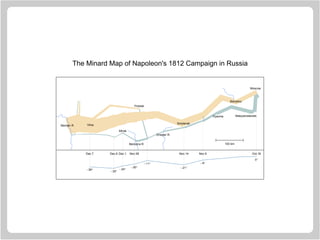
The Minard Map of Napoleon's 1812 Campaign in Russia
Packaging Graphics Functionality
We have seen lots of ways of drawing graphs. Now let’s look
at how this capability can be packaged as general purpose
tools (i.e. R functions).
There are two types of tool to consider.
• Tools which set up and draw a complete plot,
• Tools which add to existing plots.
The tools are slightly simplified versions of real tools which
are part of R, or can be found in extension libraries.
A Scatterplot Function
There are a number of tasks which must be solved:
• Determining the x and y ranges.
• Setting up the plot window.
• Plotting the points.
• Adding the plot axes and frame.
Each of these tasks is relatively simple.
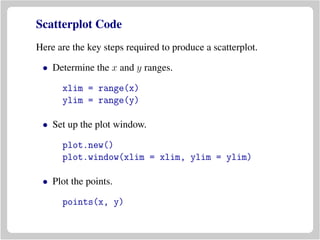
Scatterplot Code
Here are the key steps required to produce a scatterplot.
• Determine the x and y ranges.
xlim = range(x)
ylim = range(y)
• Set up the plot window.
plot.new()
plot.window(xlim = xlim, ylim = ylim)
• Plot the points.
points(x, y)
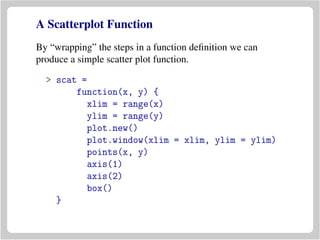
A Scatterplot Function
By “wrapping” the steps in a function definition we can
produce a simple scatter plot function.
> scat =
function(x, y) {
xlim = range(x)
ylim = range(y)
plot.new()
plot.window(xlim = xlim, ylim = ylim)
points(x, y)
axis(1)
axis(2)
box()
}
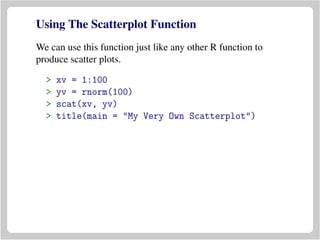
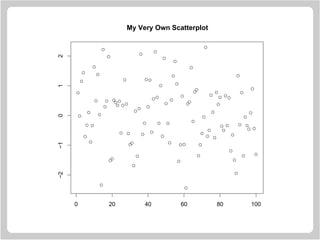
Using The Scatterplot Function
We can use this function just like any other R function to
produce scatter plots.
> xv = 1:100
> yv = rnorm(100)
> scat(xv, yv)
> title(main = "My Very Own Scatterplot")
q
q
q
q
q
q
q
q
q
q
q
q
q
q
q
q
q
q
qq
q
q
q
q
q
q
q
q
q
qq
q
q
q
q
q
q
q
q
q
q
q
q
q
q
q
q
q
q
q
q
q
q
q
q
q
q
q
q
q
q
q
q
q
q
q
q
q
q
q
q
q
q
q
q
q
q
q
q
q
q
q
q
q
q
q
q
q
q
q
q
q
q
q
q
q
q
q
q
q
0 20 40 60 80 100
−2−1012
My Very Own Scatterplot
Customisation
The scat function is very restricted in what it can do. Let’s
add a little flexibility.
• Optional plotting symbol specification
• Optional colour specification
• Optional range specification
• Optional logarithmic axes
• Optional annotation
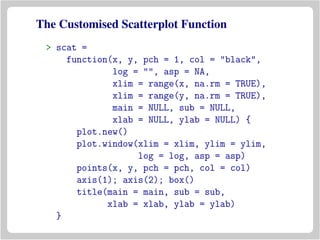
The Customised Scatterplot Function
> scat =
function(x, y, pch = 1, col = "black",
log = "", asp = NA,
xlim = range(x, na.rm = TRUE),
xlim = range(y, na.rm = TRUE),
main = NULL, sub = NULL,
xlab = NULL, ylab = NULL) {
plot.new()
plot.window(xlim = xlim, ylim = ylim,
log = log, asp = asp)
points(x, y, pch = pch, col = col)
axis(1); axis(2); box()
title(main = main, sub = sub,
xlab = xlab, ylab = ylab)
}
An Ellipse Drawing Function
Now we show a function which can be draw a single ellipse
with centre (ax,yc), axis lengths a and b and rotated by theta
degrees.
It is possible to pass the function parameters which change the
colour of the ellipse and its border, and to change the line type
used for the border.
A real ellipse drawing function would be more complex (but
harder to fit onto a single slide).
An Ellipse Drawing Function
> ellipse =
function(a = 1, b = 1, theta = 0,
xc = 0, yc = 0, n = 72, ...)
{
t = seq(0, 2 * pi, length = n)[-n]
theta = theta * (pi / 180)
x = xc + a * cos(theta) * cos(t) -
b * sin(theta) * sin(t)
y = yc + a * sin(theta) * cos(t) +
b * cos(theta) * sin(t)
polygon(x, y, ...)
}
Querying and Specifying Graphics State
The par function provides a way of maintaining graphics
state in the form of a variety of graphics parameters.
The call
> par(mar = c(4, 4, 2, 2))
sets the plot margins to consist of 4, 4, 2 and 2 lines of text.
The call
> par("mar")
returns the current setting of the mar parameter.
There are a large number of graphics parameters which can
be set and retrieved with par.
Device, Figure and Plot Size Enquiries
The graphics system uses inches as its basic measure of
length. Note that 1 inch = 2.54 cm.
par("din") : the device dimensions in inches,
par("fin") : the current figure dimensions in inches,
par("pin") : the current plot region dimensions in inches,
par("fig") : NDC coordinates for the figure region,
par("plt") : NDC coordinates for the plot region,
NDC = normalised device coordinates.
User Coordinate System Enquiries
The upper and lower x and y limits for the plot region may
not be exactly those specified by a user (because of a possible
6% expansion). The exact limits can be obtained as follows:
> usr = par("usr")
After this call, usr will contain a vector of four numbers. The
first two are the left and right x scale limits and the second
two are the bottom and top y scale limits.
A call to par can also be used to change the limits.
> par(usr = c(0, 1, 10, 20))
The specified limits must be sensible.
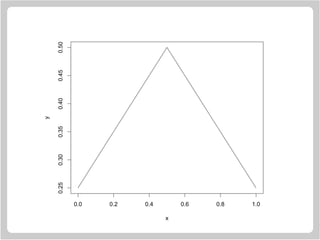
Computing Direction Change in Degrees
Here is a sketch of how the change of angle computations
were done in the “smooth curve” examples. This works by
transforming from data units to inches.
> x = c(0, 0.5, 1.0)
> y = c(0.25, 0.5, 0.25)
> plot(x, y, type = "l")
> dx = diff(x)
> dy = diff(y)
> pin = par("pin")
> usr = par("usr")
> ax = pin[1]/diff(usr[1:2])
> ay = pin[2]/diff(usr[3:4])
> diff(180 * atan2(ay * dy, ax * dx) / pi)
[1] -115.2753
0.0 0.2 0.4 0.6 0.8 1.0
0.250.300.350.400.450.50
x
y
Multifigure Layouts
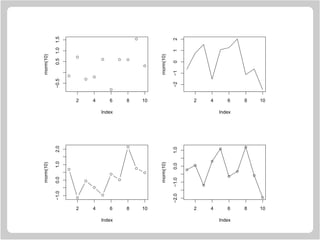
par can be used to set up arrays of figures on the page. These
arrays are then filled row-by-row or column-by-column.
The following example declares a two-by-two array to be
filled by rows and then produces the plots.
> par(mfrow=c(2, 2))
> plot(rnorm(10), type = "p")
> plot(rnorm(10), type = "l")
> plot(rnorm(10), type = "b")
> plot(rnorm(10), type = "o")
A two-by-two array to be filled by columns would be declared
with
> par(mfcol = c(2, 2))
q
q
q
q
q
q
q q
q
q
2 4 6 8 10
−0.50.51.01.5
Index
rnorm(10)
2 4 6 8 10
−2−1012
Index
rnorm(10)
q
q
q
q
q
q
q
q
q
q
2 4 6 8 10
−1.00.01.02.0
Index
rnorm(10)
q
q
q
q
q
q
q
q
q
q
2 4 6 8 10
−2.0−1.00.01.0
Index
rnorm(10)
Eliminating Waste Margin Space
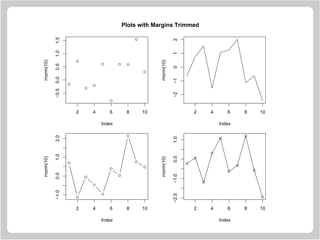
It can be useful to eliminate redundant space from multi-way
arrays by trimming the margins a little.
> par(mfrow=c(2, 2))
> par(mar = c(5.1, 4.1, 0.1, 2.1))
> par(oma = c(0, 0, 4, 0))
> plot(rnorm(10), type = "p")
> plot(rnorm(10), type = "l")
> plot(rnorm(10), type = "b")
> plot(rnorm(10), type = "o")
> title(main = "Plots with Margins Trimmed",
outer = TRUE)
Here we have trimmed space from the top of each plot, and
placed a 4 line outer margin at the top of of the layout.
q
q
q
q
q
q
q q
q
q
2 4 6 8 10
−0.50.00.51.01.5
Index
rnorm(10)
2 4 6 8 10
−2−1012
Index
rnorm(10)q
q
q
q
q
q
q
q
q
q
2 4 6 8 10
−1.00.01.02.0
Index
rnorm(10)
q
q
q
q
q
q
q
q
q
q
2 4 6 8 10
−2.0−1.00.01.0
Index
rnorm(10)
Plots with Margins Trimmed

Lectures r-graphics

  • 1.
  • 2.
    Computer Graphics • Drawinggraphics in a window on the screen of a computer is very similar to drawing by hand on a sheet of paper. • We begin a drawing by getting out a clean piece of paper and then deciding what scale to use in the drawing. • With those basic decisions made, we can then start putting pen to paper. • The steps in R are very similar.
  • 3.
    Starting a NewPlot We begin a plot by first telling the graphics system that we are about to start a new plot. > plot.new() This indicates that we are about to start a new plot and must happen before any graphics takes place. The call to plot.new chooses a default rectangular plotting region for the plot to appear in. The plotting region is surrounded by four margins.
  • 4.
  • 5.
    Controlling The Margins Thesizes of the margins can be changed by making a call to the function par before calling plot.new. Set the margin sizes in inches. > par(mai=c(2, 2, 1, 1)) Set the margin sizes in lines of text. > par(mar=c(4, 4, 2, 2)) Set the plot width and height in inches. > par(pin=c(5, 4))
  • 6.
    Setting the AxisScales Next we set the scales on along the sides of the plot. This determines how coordinates get mapped onto the page. > plot.window(xlim = xlimits, ylim = ylimits) The graphics system arranges for the specified region to appear on the page. xlimits and ylimits are vectors which contain lower and upper limits which are to appear on the x and y axes. For example, ... xlim = c(-pi, pi), ylim = c(-1, 1), ... might be suitable for plotting sine and cosine functions.
  • 7.
    Manipulating the AxisLimits The statement > plot.window(xlim = c(0, 1), ylim = c(10, 20)) produces axis limits which are expanded by 6% over those actually specified. This expansion can be inhibited by specifying xaxs="i" and/or yaxs="i". For example, the call > plot.window(xlim = c(0, 1), ylim = c(10, 20), xaxs = "i") produces a plot with 0 lying at the extreme left of the plot region and 1 lying at the extreme right.
  • 8.
    Aspect Ratio Control Thereis also an optional argument to the function plot.window() which allows a user to specify a particular aspect ratio. > plot.window(xlim = xlimits, ylim = ylimits, asp = 1) The use of asp=1 means that unit steps in the x and y directions produce equal distances in the x and y directions on the page. This is important if circles are to appear as circles rather than ellipses.
  • 9.
    Drawing Axes The axisfunction can be used to draw axes at any of the four sides of a plot. axis(side) The value of the side arguments which axis is drawn. side=1 : below the graph (x axis), side=2 : to the left of the graph (y axis), side=3 : above the graph (x axis), side=4 : to the right of the graph (y axis). A variety of optional arguments can be used to control the appearance of the axis.
  • 10.
    Axis Customisation The axiscommand can be customised. For example: axis(1, at = 1:4, labels = c("A","B","C","D")) places the tick marks on the lower x axis at 1, 2, 3, and 4 and labels them with the strings “A”, “B”, “C” and “D”. Label rotation can be controlled with the value of the optional las argument. las=0 : labels are parallel to the axis, las=1 : labels are horizontally oriented, las=2 : labels are at right-angles to the axis, las=3 : labels are vertically oriented.
  • 11.
    Additional Axis Customisation Additionalcustomisation can be produced with additional arguments to the axis function: col : the colour of the axis and tickmarks, col.axis : the colour of the axis labels, font.axis : the font to be used for the axis labels. Colours can be specified by name (e.g. "red", "green", etc) as well as in other ways (see later). Fonts can be one of 1, 2, 3 or 4 for normal, bold, italic and bold-italic.
  • 12.
    Plot Annotation The functiontitle can be used to place labels in the margins of a plot. title(main=str, sub=str, xlab=str, ylab=str) The arguments are as follows: main : a main title to appear above the graph, sub : a subtitle to appear below the graph, xlab : a label for the x axis, ylab : a label for the y axis.
  • 13.
    Customising Plot Annotation Theelements of the plot annotation can be customised with additional optional arguments. font.main, col.main, cex.main The font (1, 2, 3, or 4), colour and magnification-factor for the main title. font.sub, col.sub, cex.sub The font, colour and magnification-factor for the subtitle. font.lab, col.lab, cex.lab The font, colour and magnification-factor for the axis labels.
  • 14.
    Framing a Plot Itcan be useful to draw a box around a plot. This can be done with the function box. The call > box() draws a box around the plot region (the region within the plot margins). The call > box("figure") draws a box around the figure region (the region containing the plot and its margins). An optional col argument makes it possible to specify the colour for the box.
  • 15.
    Example: A “Bare”Plot > plot.new() > plot.window(xlim = c(0, 10), ylim = c(-2, 4), xaxs = "i") > box() > axis(1, col.axis = "grey30") > axis(2, col.axis = "grey30", las = 1) > title(main = "The Plot Main Title", col.main = "green4", sub = "The Plot Subtitle", col.sub = "green4", xlab = "x-axis", ylab = "y-axis", col.lab = "blue", font.lab = 3) > box("figure", col = "grey90")
  • 16.
    0 2 46 8 10 −2 −1 0 1 2 3 4 The Plot Main Title The Plot Subtitle x−axis y−axis
  • 17.
    Some Drawing Primitives •Points • Connected Line Segments • Straight Lines Across A Plot • Disconnected Line Segments • Arrows • Rectangles • Polygons • Text • Legends
  • 18.
    Drawing Points The basiccall has the form: points(x, y, pch=int, col=str) where: • pch specifies the plotting symbol. Values 1 to 25 are special graphical symbols, values from 33 to 126 are taken to ASCII codes. A quoted character will also work, • col gives a colour specification. Examples are, "red", "lightblue", etc. (More on colour later.)
  • 19.
    Graphical Plotting Symbols Thefollowing plotting symbols are available in R. 1 2 3 4 5 6 7 8 9 10 11 12 13 14 15 16 17 18 19 20 21 22 23 24 25 q q q q q q q
  • 20.
    Plotting Symbols andColour • The colour of plotting symbols can be changed by using the col argument to points. • Plotting symbols 21 through 25 can additionally have their interiors filled by using the bg argument to points.
  • 21.
    Coloured Plotting Symbols Theeffect of colour choice on plotting symbols. 1 2 3 4 5 6 7 8 9 10 11 12 13 14 15 16 17 18 19 20 21 22 23 24 25 q q q q q q q
  • 22.
    Drawing Connected LineSegments The basic call has the form: lines(x, y, lty=str, lwd=num, col=str) where: • lty specifies the line texture. It should be one of "blank", "solid", "dashed", "dotted", "dotdash", "longdash" or "twodash". Alternatively the length of on/off pen stokes in the texture. "11" is a high density dotted line, "33" is a short dashed line and "1333" is a dot-dashed line. • lwd and col specify the line width and colour.
  • 23.
    A Line Graph >x = 1995:2005 > y = c(81.1, 83.1, 84.3, 85.2, 85.4, 86.5, 88.3, 88.6, 90.8, 91.1, 91.3) > plot.new() > plot.window(xlim = range(x), ylim = range(y)) > lines(x, y, lwd = 2) > title(main = "A Line Graph Example", xlab = "Time", ylab = "Quality of R Graphics") > axis(1) > axis(2) > box()
  • 24.
    A Line GraphExample Time QualityofRGraphics 1996 1998 2000 2002 2004 8284868890
  • 25.
    Line Graph Variations Additionalforms can be produced by the lines function. This is controlled by the type argument. type="l" : line graph, type="s" : step function — horizontal first, type="S" : step function — vertical first, side="h" : high density (needle) plot. Additional variations: type="p" : draw points, type="b" : both points and lines, type="o" : over-plotting of points and lines,
  • 26.
    x y type = "l" x y type= "s" y type = "S" y type = "h"
  • 27.
    Drawing Straight Lines Thebasic call has the forms: abline(a=intercept, b=slope) abline(h=numbers) abline(v=numbers) where • The a / b form specifies a line in intercept / slope form. • h specifies horizontal lines at the given y values. • v specifies vertical lines at the given x values. • Line texture, colour and width arguments can also be given.
  • 28.
    Straight Line Example >x = rnorm(500) > y = x + rnorm(500) > plot.new() > plot.window(xlim = c(-4.5, 4.5), xaxs = "i", ylim = c(-4.5, 4.5), yaxs = "i") > z = lm(y ~ x) > abline(h = -4:4, v = -4:4, col = "lightgrey") > abline(a = coef(z)[1], b = coef(z)[2]) > points(x, y) > axis(1) > axis(2, las = 1) > box() > title(main = "A Fitted Regression Line") > title(sub = "(500 Observations)")
  • 29.
    q q q q q q q q q q q q q q q q q q q q q q q q q q qq q q q q q q q q q q q q q q q q q q q q q q q q q q q q q q q q q q q q q q q q q q q q q q q q q q q q q q q q q q q q q q q q q q qq q q q q q q q q q q q q q q q q q q q q q q q q q q q q q q q q q q q q q q q q q q q q q q q q q q q q q q q q q q q q q q q q q q q q q q q q q q q q q q q q q q q q q q q q q q q q q q q q q q q q q q q q q q q q q q q q q q q q q q q q q q q q q q q q q q q q q q q q q q q q q q q q q q q q q q q q q q q q q q q q q q q q q q q q q q q q q q q q q q q q q q q q q q q q q q q q q q q q q q q q q q q q q q q q q q q q q q q q q q q q q q q q q q q q q q q q q q q q q q q q q q q q q q q q q q q q q q q q q q q q q q q q q q q q q q q q q q q q q q q q q q q q q q q q q q q q q q q q q q q q q q q q q q q q q q q q q q q q q q q q q q q q q q q q q q q q q q q q q q q q q q q q q q q q q q q q q q q q q q q q q q q q qq q q q q q q q q q q q q q q q q q q q q q q q q q q q q q q q q q q q q q q −4 −2 0 2 4 −4 −2 0 2 4 A Fitted Regression Line (500 Observations)
  • 30.
    Drawing Disconnected LineSegments The basic call has the form: segments(x0, y0, x1, y1) where • The x0, y0, x1, y1 arguments give the start and end coordinates of the segments. • Line texture, colour and width arguments can also be given.
  • 31.
    Rosettes A rosette isa figure which is created by taking a series of equally spaced points around the circumference of a circle and joining each of these points to all the other points. > n = 17 > theta = seq(0, 2 * pi, length = n + 1)[1:n] > x = sin(theta) > y = cos(theta) > v1 = rep(1:n, n) > v2 = rep(1:n, rep(n, n)) > plot.new() > plot.window(xlim = c(-1, 1), ylim = c(-1, 1), asp = 1) > segments(x[v1], y[v1], x[v2], y[v2])
  • 32.
    A Rosette with17 Vertexes
  • 33.
    A Curve Envelope Hereis another example which shows how the eye can perceive a sequence of straight lines as a curve. > x1 = seq(0, 1, length = 20) > y1 = rep(0, 20) > x2 = rep(0, 20) > y2 = seq(0.75, 0, length = 20) > plot.new() > plot.window(xlim = c(0, 1), ylim = c(0, 0.75), asp = 1) > segments(x1, y1, x2, y2) > box(col = "grey")
  • 34.
  • 35.
    Drawing Arrows The basiccall has the form: arrows(x0, y0, x1, y1, code=int, length=num, angle=num) where • The x0, y0, x1, y1 arguments give the start and end coordinates of the arrows. • code=1 – head at the start, code=2 – head at the end and code=3 – a head at both ends. • length and angle – length of the arrow head and angle to the shaft.
  • 36.
    Basic Arrows Here isa simple diagram using arrows. > plot.new() > plot.window(xlim = c(0, 1), ylim = c(0, 1)) > arrows(.05, .075, .45, .9, code = 1) > arrows(.55, .9, .95, .075, code = 2) > arrows(.1, 0, .9, 0, code = 3) > text(.5, 1, "A", cex = 1.5) > text(0, 0, "B", cex = 1.5) > text(1, 0, "C", cex = 1.5)
  • 37.
  • 38.
    Using Arrows asError Bars > x = 1:10 > y = runif(10) + rep(c(5, 6.5), c(5, 5)) > yl = y - 0.25 - runif(10)/3 > yu = y + 0.25 + runif(10)/3 > plot.new() > plot.window(xlim = c(0.5, 10.5), ylim = range(yl, yu)) > arrows(x, yl, x, yu, code = 3, angle = 90, length = .125) > points(x, y, pch = 19, cex = 1.5) > axis(1, at = 1:10, labels = LETTERS[1:10]) > axis(2, las = 1) > box()
  • 39.
    q q q q q q q q q q A BC D E F G H I J 5.0 5.5 6.0 6.5 7.0 7.5 Using Arrows as Error Bars
  • 40.
    Drawing Rectangles The basiccall has the form: rect(x0, y0, x1, y1, col=str, border=str) where • x0, y0, x1, y1 give the coordinates of diagonally opposite corners of the rectangles. • col and border specify the colour of the interior and border of the rectangles. • line texture and width specifications can also be given.
  • 41.
    Rectangle Example The followingcode illustrates how a barplot or histogram could be constructed. > plot.new() > plot.window(xlim = c(0, 5), ylim = c(0, 10)) > rect(0:4, 0, 1:5, c(7, 8, 4, 3), col = "lightblue") > axis(1) > axis(2, las = 1)
  • 42.
    0 1 23 4 5 0 2 4 6 8 10 A Plot Composed of Rectangles
  • 43.
    Drawing Polygons The basiccall has the form: polygon(x, y, col=str, border=str) where • x and y give the coordinates of the polygon vertexes. NA values separate polygons. • col and border specify the colour of the interior and border of the polygons. • line texture and width specifications can also be given.
  • 44.
    A Simple PolygonExample Here is a simple example which shows how to produce a simple polygon in a plot. > x = c(0.32, 0.62, 0.88, 0.89, 0.59, 0.29) > y = c(0.83, 0.61, 0.66, 0.18, 0.36, 0.14) > plot.new() > plot.window(xlim = range(x), ylim = range(y)) > polygon(x, y, col = "lightyellow") > box()
  • 45.
  • 46.
    Spiral Squares > plot.new() >plot.window(xlim = c(-1, 1), ylim = c(-1, 1), asp = 1) > x = c(-1, 1, 1, -1) > y = c( 1, 1, -1, -1) > polygon(x, y, col = "cornsilk") > vertex1 = c(1, 2, 3, 4) > vertex2 = c(2, 3, 4, 1) > for(i in 1:50) { x = 0.9 * x[vertex1] + 0.1 * x[vertex2] y = 0.9 * y[vertex1] + 0.1 * y[vertex2] polygon(x, y, col = "cornsilk") }
  • 47.
  • 48.
    Drawing Text The basiccall has the form: text(x, y, labels) where • x and y give the text coordinates. • labels gives the actual text strings. Optionally, • font and col give the font and colour of the text, • srt and adj give the rotation and justification of the strings.
  • 49.
    A Text Example >plot.new() > plot.window(xlim = c(0, 1), ylim = c(0, 1)) > abline(h = c(.2, .5, .8), v = c(.5, .2, .8), col = "lightgrey") > text(0.5, 0.5, "srt = 45, adj = c(.5, .5)", srt=45, adj=c(.5, .5)) > text(0.5, 0.8, "adj = c(0, .5)", adj = c(0, .5)) > text(0.5, 0.2, "adj = c(1, .5)", adj = c(1, .5)) > text(0.2, 0.5, "adj = c(1, 1)", adj = c(1, 1)) > text(0.8, 0.5, "adj = c(0, 0)", adj = c(0, 0)) > axis(1); axis(2, las = 1); box()
  • 50.
    srt= 45,adj= c(.5,.5) adj = c(0,.5) adj = c(1, .5) adj = c(1, 1) adj = c(0, 0) 0.0 0.2 0.4 0.6 0.8 1.0 0.0 0.2 0.4 0.6 0.8 1.0 Drawing Strings
  • 51.
    Drawing a Legend Asimple example has the form: legend(xloc, yloc, legend=text lty=linetypes, lwd=linewidths, pch=glyphname, col=colours, xjust=justification, yjust=justification) where xloc and yloc give the coordinates where the legend is to be placed and xjust and yjust give the justification of the legend box with respect to the location. The other values describe the legend contents. The legend function is very flexible. Consult its manual entry for details.
  • 52.
    Legend > xe =seq(-3, 3, length = 1001) > ye = dnorm(xe) > xa = seq(-3, 3, length = 201) > ya = dnorm(xa) + rnorm(201, sd = .01) > ylim = range(ye, ya) > plot.new() > plot.window(xlim = c(-3, 3), ylim = ylim) > lines(xe, ye, lty = "11", lwd = 2) > lines(xa, ya, lty = "solid", lwd = 1) > legend(3, max(ylim), legend = c("Exact", "Approximate"), lty = c("11", "solid"), lwd = c(2, 1), xjust = 1, yjust = 1, bty = "n") > axis(1); axis(2, las = 1); box()
  • 53.
    Exact Approximate −3 −2 −10 1 2 3 0.0 0.1 0.2 0.3 0.4 Using a Legend in a Plot
  • 54.
    Drawing Curves • Thereare no general curve drawing primitives available in R (yet). • To draw a curve you must approximate it by a sequence of straight line segments. • The question is how many line segments are required to obtain a visually “smooth” approximation to the curve.
  • 55.
    Approximating the NormalDensity Using 31 Equally−Spaced Points −3 −2 −1 0 1 2 3 0.0 0.1 0.2 0.3 0.4
  • 56.
    Lack of Smoothness •Using 31 points to approximate the curve, there is a noticeable lack of smoothness in regions where the curve has high curvature. • This is because our eye-brain system is good a detecting large changes of direction but sees changes in direction of less than 5◦ as “smooth.” • Checking the changes of angle in the approximation shows that there are some very large changes of angle. • Increasing the number of approximating points to 331 means that there are no changes of direction which exceed 5◦ .
  • 57.
    q q q q q q q q q q q q q q q q q q q q q q q q q q q q q −3−2 −1 0 1 2 3 0 10 20 30 40 50 AbsoluteChangeofAngle(Degrees) Change of Angle with 31 Points
  • 58.
    Approximating the NormalDensity Using 331 Equally−Spaced Points −3 −2 −1 0 1 2 3 0.0 0.1 0.2 0.3 0.4
  • 59.
  • 60.
    Nonuniform Point Placement •It is wasteful to use equally spaced points to approximate a curve. Regions with high curvature require closely packed points while regions of low curvature may need only a few points. • This means that techniques which take account of curvature can lead to approximations with many fewer points. • One technique is to place points so that the segment to segment direction change is less than a fixed threshold (e.g. 5◦ ).
  • 61.
    −3 −2 −10 1 2 3 0.0 0.1 0.2 0.3 0.4 Approximation With 51 Points
  • 62.
    −3 −2 −10 1 2 3 0.0 0.1 0.2 0.3 0.4 q q q q q q q q q q q q q q q q q qqqqqqqqqqqqqqqqqqqq q q q q q q q q q q q q q q q q q Approximation With 51 Points
  • 63.
    Circles The circle withcentre (xc, yc) and radius R is defined by the equation (x − xc)2 + (y − yc)2 = R2 . It can also be defined parametrically with the equations x(t) = R cos t y(t) = R sin t for t ∈ [0, 2π). There is no simple R function for drawing a circle. Circles must be approximated with a regular polygon. Using at least 71 vertexes for the polygon ensures that the change of direction between edges is less than or equal to 5◦ .
  • 64.
    Drawing Circles > R= 1 > xc = 0 > yc = 0 > n = 72 > t = seq(0, 2 * pi, length = n)[1:(n-1)] > x = xc + R * cos(t) > y = yc + R * sin(t) > plot.new() > plot.window(xlim = range(x), ylim = range(y), asp = 1) > polygon(x, y, col = "lightblue", border = "navyblue")
  • 65.
    A 71−Vertex PolygonApproximating a Circle
  • 66.
    Ellipses An ellipse isa generalisation of circle defined by the equation: x − xc a 2 + y − yc b 2 = 1. An ellipse can be defined in parametric form by: x(t) = a cos t + xc, y(t) = b sin t + yc, with t ∈ [0, 2π). The distortion of the ellipse happens in such a way that it can be approximated by the same number of straight line segments as a circle.
  • 67.
    Drawing Ellipses > a= 4 > b = 2 > xc = 0 > yc = 0 > n = 72 > t = seq(0, 2 * pi, length = n)[1:(n-1)] > x = xc + a * cos(t) > y = yc + b * sin(t) > plot.new() > plot.window(xlim = range(x), ylim = range(y), asp = 1) > polygon(x, y, col = "lightblue")
  • 68.
  • 69.
    Rotation We want torotate (x, y) through an angle θ about the origin to (x , y ). (x, y) (x′, y′) θ φ
  • 70.
    Rotation We want torotate (x, y) through an angle θ about the origin to (x , y ). (x, y) (x′, y′) θ φ In polar coordinates: x= R cos φ, y= R sin φ.
  • 71.
    Rotation We want torotate (x, y) through an angle θ about the origin to (x , y ). (x, y) (x′, y′) θ φ In polar coordinates: x= R cos φ, y= R sin φ. and: x = R cos(φ + θ) y = R sin(φ + θ)
  • 72.
    Rotation We want torotate (x, y) through an angle θ about the origin to (x , y ). (x, y) (x′, y′) θ φ In polar coordinates: x= R cos φ, y= R sin φ. and: x = R cos(φ + θ) y = R sin(φ + θ) = R(cos φ cos θ − sin φ sin θ) = R(cos φ sin θ + sin φ cos θ)
  • 73.
    Rotation We want torotate (x, y) through an angle θ about the origin to (x , y ). (x, y) (x′, y′) θ φ In polar coordinates: x= R cos φ, y= R sin φ. and: x = R cos(φ + θ) y = R sin(φ + θ) = R(cos φ cos θ − sin φ sin θ) = R(cos φ sin θ + sin φ cos θ) = x cos θ − y sin θ = x sin θ + y cos θ
  • 74.
    Rotation Formulae If thepoint (x, y) is rotated though an angle θ around the origin to a new position (x , y ) then x = x cos θ − y sin θ y = x sin θ + y cos θ, or in matrix terms x y = cos θ − sin θ sin θ cos θ x y .
  • 75.
    Rotated Ellipses Often itis useful to consider rotated ellipses rather than ellipses aligned with the coordinate axes. This can be done by simply applying a rotation. If the ellipse is rotated by an angle θ, its equation is x(t) = a cos t cos θ − b sin t sin θ + xc y(t) = a cos t sin θ + b cos t sin θ + yc for t ∈ [0, 2π). Again, the same number of straight line segments can be used to approximate the ellipse.
  • 76.
    Drawing Rotated Ellipses >a = 4 > b = 2 > xc = 0 > yc = 0 > n = 72 > theta = 45 * (pi / 180) > t = seq(0, 2 * pi, length = n)[1:(n-1)] > x = xc + a * cos(t) * cos(theta) - b * sin(t) * sin(theta) > y = yc + a * cos(t) * sin(theta) + b * sin(t) * cos(theta) > plot.new() > plot.window(xlim = range(x), ylim = range(y), asp = 1) > polygon(x, y, col = "lightblue")
  • 77.
  • 78.
    Ellipses in Statistics Supposethat (X1, X2) has a bivariate normal distribution, with Xi having mean µi and variance σ2 i , and the correlation between X1 and X2 being ρ. If we define d = arccos ρ, the equations x = µ1 + k σ1 cos(t + d), y = µ2 + k σ2 cos(t), describe the contours of the density of (X1, X2). Choosing the appropriate value for k makes it possible to draw prediction ellipses for the bivariate normal distribution.
  • 79.
    Statistical Ellipses Here µ1= µ2 = 0, σ1 = σ2 = 1 and k = 1. > n = 72 > rho = 0.5 > d = acos(rho) > t = seq(0, 2 * pi, length = n)[1:(n-1)] > plot.new() > plot.window(xlim = c(-1, 1), ylim = c(-1, 1), asp = 1) > rect(-1, -1, 1, 1) > polygon(cos(t + d), y = cos(t)) > segments(-1, 0, 1, 0, lty = "13") > segments(0, -1, 0, 1, lty = "13") > axis(1); axis(2, las = 1)
  • 80.
    −1.0 −0.5 0.00.5 1.0 −1.0 −0.5 0.0 0.5 1.0 Density Ellipse: ρ = .5
  • 81.
    −1.0 −0.5 0.00.5 1.0 −1.0 −0.5 0.0 0.5 1.0 Density Ellipse: ρ = −.75
  • 82.
    Spirals A spiral isa path which circles a point at a radial distance which is changing monotonically. x(t) = R(t) cos t y(t) = R(t) sin t for t > 0. In particular, an exponential spiral is obtained when R(t) = αt where α < 1. Such a path resembles a snail or nautilus shell.
  • 83.
    Drawing a Spiral Thesecommands draw a spiral, centred on (0, 0). The spiral does 5 revolutions: > k = 5 > n = k * 72 > theta = seq(0, k * 2 * pi, length = n) > R = .98^(1:n - 1) > x = R * cos(theta) > y = R * sin(theta) > plot.new() > plot.window(xlim = range(x), ylim = range(y), asp = 1) > lines(x, y)
  • 84.
  • 85.
    Filling Areas InLine Graphs Annual year temperatures in New Haven (1920-1970). > y [1] 49.3 51.9 50.8 49.6 49.3 50.6 48.4 [8] 50.7 50.9 50.6 51.5 52.8 51.8 51.1 [15] 49.8 50.2 50.4 51.6 51.8 50.9 48.8 [22] 51.7 51.0 50.6 51.7 51.5 52.1 51.3 [29] 51.0 54.0 51.4 52.7 53.1 54.6 52.0 [36] 52.0 50.9 52.6 50.2 52.6 51.6 51.9 [43] 50.5 50.9 51.7 51.4 51.7 50.8 51.9 [50] 51.8 51.9 The corresponding years. > x = 1920:1970
  • 86.
    1920 1930 19401950 1960 1970 48 50 52 54 Average Yearly Temperature DegreesFahrenheit Year
  • 87.
    Plot Construction Setting upthe plot and drawing the background grid. plot.new() plot.window(xlim = c(1920, 1970), xaxs = "i", ylim = c(46.5, 55.5), yaxs = "i") abline(v = seq(1930, 1960, by = 10), col = "grey") abline(h = seq(48, 54, by = 2), col = "grey") Drawing the filled polygon. xx = c(1920, x, 1970) yy = c(46.5, y, 46.5) polygon(xx, yy, col = "grey")
  • 88.
    Finishing up Add theaxes, bounding box and annotation. axis(1) axis(2, las = 1) box() title(main = "Average Yearly Temperature") title(ylab = "Degrees Fahrenheit") title(xlab = "Year")
  • 89.
    Some Graphics Examples Hereis a short set of examples to show the kind of graphics that is possible to create using the R graphics primitives. These are not necessarily all “good” graphs. They just show what is possible with a little effort.
  • 90.
    0 5 1015 20 25 30 0 2 4 6 8 q q q q q q q q q q q q q q q q q q q q q q q q q q q q q q q q q q q q q q q q q q q q q q q q q q q q q q q q q q q q Enhanced Presentation Graphics Points and Lines with Drop Shadows.
  • 91.
    0 10 2030 40 Lamb Mutton Pigmeat Poultry Beef New Zealand Meat Consumption by Category Percentage in Category
  • 92.
    1980 1985 19901995 2000 0 20 40 60 80 Don't Create Plots Like This! Not even in the privacy of your own room.
  • 93.
    100 80 60 40 20 0 % Other 100 80 60 40 20 0 % National 100 80 6040 20 0 % Labour q q q q q q q q q q q q q q q q q q q q q q q q q q q q q q q q q q q q q q q q q q q q q q q q q q q q q qq q q q q New Zealand Electorate Results, 1999
  • 94.
    1960 1970 19801990 2000 −0.2 0.0 0.2 0.4 0.6 Annual Global Temperature Increase (°C) Time
  • 95.
  • 96.
    $4.0 $4.6 $5.5 $6.2 $6.7 $7.4 $7.8 $8.5 $9.7 $10.7 $10.8 1966− '67 '67− '68 '68− '69 '69− '70 '70− '71 '71− '72 '72− '73 '73− '74 '74− '75 '75− '76 '76− '77 New YorkState Total Budget Expenditures and Aid to Localities In billions of dollars Total Budget Total Aid to Localities* *Varying from a low of 56.7 percent of total in 1970−71 to a high of 60.7 percent in 1972−73 Estimated Recommended
  • 98.
    $4.0 $4.6 $5.5 $6.2 $6.7 $7.4 $7.8 $8.5 $9.7 $10.7 $10.8 1966− '67 '67− '68 '68− '69 '69− '70 '70− '71 '71− '72 '72− '73 '73− '74 '74− '75 '75− '76 '76− '77 New YorkState Total Budget Expenditures and Aid to Localities In billions of dollars Total Budget Total Aid to Localities* *Varying from a low of 56.7 percent of total in 1970−71 to a high of 60.7 percent in 1972−73 Estimated Recommended
  • 101.
  • 102.
    Packaging Graphics Functionality Wehave seen lots of ways of drawing graphs. Now let’s look at how this capability can be packaged as general purpose tools (i.e. R functions). There are two types of tool to consider. • Tools which set up and draw a complete plot, • Tools which add to existing plots. The tools are slightly simplified versions of real tools which are part of R, or can be found in extension libraries.
  • 103.
    A Scatterplot Function Thereare a number of tasks which must be solved: • Determining the x and y ranges. • Setting up the plot window. • Plotting the points. • Adding the plot axes and frame. Each of these tasks is relatively simple.
  • 104.
    Scatterplot Code Here arethe key steps required to produce a scatterplot. • Determine the x and y ranges. xlim = range(x) ylim = range(y) • Set up the plot window. plot.new() plot.window(xlim = xlim, ylim = ylim) • Plot the points. points(x, y)
  • 105.
    A Scatterplot Function By“wrapping” the steps in a function definition we can produce a simple scatter plot function. > scat = function(x, y) { xlim = range(x) ylim = range(y) plot.new() plot.window(xlim = xlim, ylim = ylim) points(x, y) axis(1) axis(2) box() }
  • 106.
    Using The ScatterplotFunction We can use this function just like any other R function to produce scatter plots. > xv = 1:100 > yv = rnorm(100) > scat(xv, yv) > title(main = "My Very Own Scatterplot")
  • 107.
  • 108.
    Customisation The scat functionis very restricted in what it can do. Let’s add a little flexibility. • Optional plotting symbol specification • Optional colour specification • Optional range specification • Optional logarithmic axes • Optional annotation
  • 109.
    The Customised ScatterplotFunction > scat = function(x, y, pch = 1, col = "black", log = "", asp = NA, xlim = range(x, na.rm = TRUE), xlim = range(y, na.rm = TRUE), main = NULL, sub = NULL, xlab = NULL, ylab = NULL) { plot.new() plot.window(xlim = xlim, ylim = ylim, log = log, asp = asp) points(x, y, pch = pch, col = col) axis(1); axis(2); box() title(main = main, sub = sub, xlab = xlab, ylab = ylab) }
  • 110.
    An Ellipse DrawingFunction Now we show a function which can be draw a single ellipse with centre (ax,yc), axis lengths a and b and rotated by theta degrees. It is possible to pass the function parameters which change the colour of the ellipse and its border, and to change the line type used for the border. A real ellipse drawing function would be more complex (but harder to fit onto a single slide).
  • 111.
    An Ellipse DrawingFunction > ellipse = function(a = 1, b = 1, theta = 0, xc = 0, yc = 0, n = 72, ...) { t = seq(0, 2 * pi, length = n)[-n] theta = theta * (pi / 180) x = xc + a * cos(theta) * cos(t) - b * sin(theta) * sin(t) y = yc + a * sin(theta) * cos(t) + b * cos(theta) * sin(t) polygon(x, y, ...) }
  • 112.
    Querying and SpecifyingGraphics State The par function provides a way of maintaining graphics state in the form of a variety of graphics parameters. The call > par(mar = c(4, 4, 2, 2)) sets the plot margins to consist of 4, 4, 2 and 2 lines of text. The call > par("mar") returns the current setting of the mar parameter. There are a large number of graphics parameters which can be set and retrieved with par.
  • 113.
    Device, Figure andPlot Size Enquiries The graphics system uses inches as its basic measure of length. Note that 1 inch = 2.54 cm. par("din") : the device dimensions in inches, par("fin") : the current figure dimensions in inches, par("pin") : the current plot region dimensions in inches, par("fig") : NDC coordinates for the figure region, par("plt") : NDC coordinates for the plot region, NDC = normalised device coordinates.
  • 114.
    User Coordinate SystemEnquiries The upper and lower x and y limits for the plot region may not be exactly those specified by a user (because of a possible 6% expansion). The exact limits can be obtained as follows: > usr = par("usr") After this call, usr will contain a vector of four numbers. The first two are the left and right x scale limits and the second two are the bottom and top y scale limits. A call to par can also be used to change the limits. > par(usr = c(0, 1, 10, 20)) The specified limits must be sensible.
  • 115.
    Computing Direction Changein Degrees Here is a sketch of how the change of angle computations were done in the “smooth curve” examples. This works by transforming from data units to inches. > x = c(0, 0.5, 1.0) > y = c(0.25, 0.5, 0.25) > plot(x, y, type = "l") > dx = diff(x) > dy = diff(y) > pin = par("pin") > usr = par("usr") > ax = pin[1]/diff(usr[1:2]) > ay = pin[2]/diff(usr[3:4]) > diff(180 * atan2(ay * dy, ax * dx) / pi) [1] -115.2753
  • 116.
    0.0 0.2 0.40.6 0.8 1.0 0.250.300.350.400.450.50 x y
  • 117.
    Multifigure Layouts par canbe used to set up arrays of figures on the page. These arrays are then filled row-by-row or column-by-column. The following example declares a two-by-two array to be filled by rows and then produces the plots. > par(mfrow=c(2, 2)) > plot(rnorm(10), type = "p") > plot(rnorm(10), type = "l") > plot(rnorm(10), type = "b") > plot(rnorm(10), type = "o") A two-by-two array to be filled by columns would be declared with > par(mfcol = c(2, 2))
  • 118.
    q q q q q q q q q q 2 46 8 10 −0.50.51.01.5 Index rnorm(10) 2 4 6 8 10 −2−1012 Index rnorm(10) q q q q q q q q q q 2 4 6 8 10 −1.00.01.02.0 Index rnorm(10) q q q q q q q q q q 2 4 6 8 10 −2.0−1.00.01.0 Index rnorm(10)
  • 119.
    Eliminating Waste MarginSpace It can be useful to eliminate redundant space from multi-way arrays by trimming the margins a little. > par(mfrow=c(2, 2)) > par(mar = c(5.1, 4.1, 0.1, 2.1)) > par(oma = c(0, 0, 4, 0)) > plot(rnorm(10), type = "p") > plot(rnorm(10), type = "l") > plot(rnorm(10), type = "b") > plot(rnorm(10), type = "o") > title(main = "Plots with Margins Trimmed", outer = TRUE) Here we have trimmed space from the top of each plot, and placed a 4 line outer margin at the top of of the layout.
  • 120.
    q q q q q q q q q q 2 46 8 10 −0.50.00.51.01.5 Index rnorm(10) 2 4 6 8 10 −2−1012 Index rnorm(10)q q q q q q q q q q 2 4 6 8 10 −1.00.01.02.0 Index rnorm(10) q q q q q q q q q q 2 4 6 8 10 −2.0−1.00.01.0 Index rnorm(10) Plots with Margins Trimmed