Visual C# .Net using
framework 4.5
Eng. Mahmoud Ouf
Lecture 06
mmouf@2017
Generics
With the release of .NET 2.0, the C# programming language has been
enhanced to support a new feature of the CTS termed generics. Simply,
generics provide a way for programmers to define “placeholders” (formally
termed type parameters) for method arguments and type definitions, which
are specified at the time of invoking the generic method or creating the
generic type
Generic methods enable you to specify, with a single method declaration, a
set of related methods.
Generic classes enable you to specify, with a single class declaration, a set
of related classes.
mmouf@2017
Generics
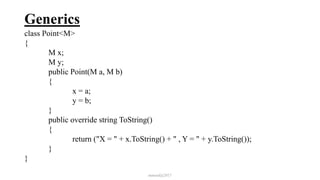
class Point<M>
{
M x;
M y;
public Point(M a, M b)
{
x = a;
y = b;
}
public override string ToString()
{
return ("X = " + x.ToString() + " , Y = " + y.ToString());
}
}
mmouf@2017
Generics
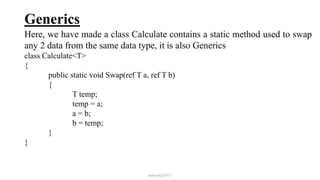
Here, we have made a class Calculate contains a static method used to swap
any 2 data from the same data type, it is also Generics
class Calculate<T>
{
public static void Swap(ref T a, ref T b)
{
T temp;
temp = a;
a = b;
b = temp;
}
}
mmouf@2017
Generics
class Program
{
static void Main(string[] args)
{ int x = 3, y = 4;
Calculate<int>.Swap(ref x, ref y);
Console.WriteLine("X = {0}", x);
Console.WriteLine("Y = {0}", y);
Point<float> pt1 = new Point<float>(5.6f, 7.9f);
Point<float> pt2 = new Point<float>(20.5f, 50.7f);
Calculate<Point<float>>.Swap(ref pt1, ref pt2);
Console.WriteLine("PT1 = {0}", pt1.ToString());
Console.WriteLine("PT2 = {0}", pt2.ToString());
}
}
mmouf@2017
Partial class
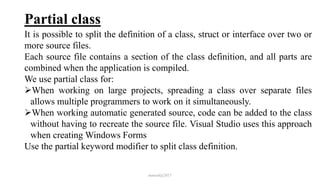
It is possible to split the definition of a class, struct or interface over two or
more source files.
Each source file contains a section of the class definition, and all parts are
combined when the application is compiled.
We use partial class for:
When working on large projects, spreading a class over separate files
allows multiple programmers to work on it simultaneously.
When working automatic generated source, code can be added to the class
without having to recreate the source file. Visual Studio uses this approach
when creating Windows Forms
Use the partial keyword modifier to split class definition.
mmouf@2017
Partial class
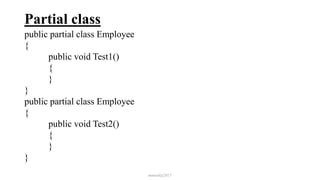
public partial class Employee
{
public void Test1()
{
}
}
public partial class Employee
{
public void Test2()
{
}
}
mmouf@2017
Partial class
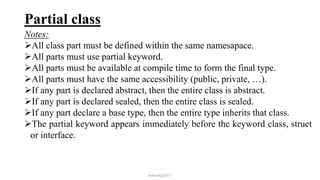
Notes:
All class part must be defined within the same namesapace.
All parts must use partial keyword.
All parts must be available at compile time to form the final type.
All parts must have the same accessibility (public, private, …).
If any part is declared abstract, then the entire class is abstract.
If any part is declared sealed, then the entire class is sealed.
If any part declare a base type, then the entire type inherits that class.
The partial keyword appears immediately before the keyword class, struct
or interface.
mmouf@2017
Windows Programming
GUI (Graphical User Interface)
mmouf@2017
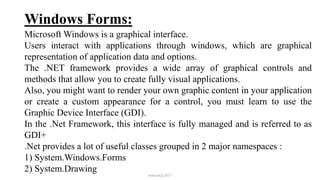
Windows Forms:
Microsoft Windows is a graphical interface.
Users interact with applications through windows, which are graphical
representation of application data and options.
The .NET framework provides a wide array of graphical controls and
methods that allow you to create fully visual applications.
Also, you might want to render your own graphic content in your application
or create a custom appearance for a control, you must learn to use the
Graphic Device Interface (GDI).
In the .Net Framework, this interface is fully managed and is referred to as
GDI+
.Net provides a lot of useful classes grouped in 2 major namespaces :
1) System.Windows.Forms
2) System.Drawing
mmouf@2017
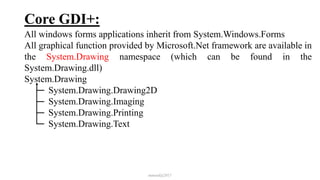
Core GDI+:
All windows forms applications inherit from System.Windows.Forms
All graphical function provided by Microsoft.Net framework are available in
the System.Drawing namespace (which can be found in the
System.Drawing.dll)
System.Drawing
System.Drawing.Drawing2D
System.Drawing.Imaging
System.Drawing.Printing
System.Drawing.Text
mmouf@2017
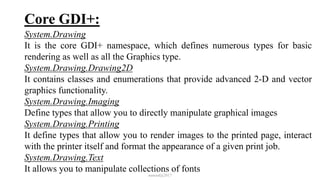
Core GDI+:
System.Drawing
It is the core GDI+ namespace, which defines numerous types for basic
rendering as well as all the Graphics type.
System.Drawing.Drawing2D
It contains classes and enumerations that provide advanced 2-D and vector
graphics functionality.
System.Drawing.Imaging
Define types that allow you to directly manipulate graphical images
System.Drawing.Printing
It define types that allow you to render images to the printed page, interact
with the printer itself and format the appearance of a given print job.
System.Drawing.Text
It allows you to manipulate collections of fonts
mmouf@2017
The Graphics object
The Graphics object is the principal object used in rendering graphics.
It represents the drawing surface of a visual element, such as form, a control
or an Image object.
A form has an associated Graphics object that can be used to draw inside the
form, and the same for the control and the image.
You can’t directly instantiate one with the call of constructor.
Instead, you must create a Graphics object directly from the visual element.
You can use CreateGraphics method that allow you to get a reference to the
Graphics object associated with that Control.
Ex: System.Drawing.Graphics myGraphics;
myGraphics = myForm.CreateGraphics();
mmouf@2017
Coordinate and Shapes
Many of drawing methods defined by the Graphics object require you to
specify the coordinate in which you wish to render a given item.
System.Drawing namespace contains a variety of structure that can be used
to describe the location or the region within this coordinate system.
By default, the origin of the coordinate system for each control is the Upper
Left corner, which has coordinates of (0,0)
Point:
Represents an ordered pair of integer x- and y-coordinates that defines a
point in a two-dimensional plane
public Point(int dw);
public Point(Size sz);
public Point(int x, int y);
mmouf@2017
Coordinate and Shapes
PointF:
Represents an ordered pair of float x- and y-coordinates that defines a point
in a two-dimensional plane
public PointF(float dw);
public PointF(SizeF sz);
public PointF(float x, float y);
Size:
Stores an ordered pair of integers, typically the width and height of a
rectangle.
public Size(Point pt);
public Size(int width, int height);
mmouf@2017
Coordinate and Shapes
SizeF:
Stores an ordered pair of float, typically the width and height of a rectangle.
public SizeF(PointF pt);
public SizeF(float width, float height);
Rectangle:
Stores a set of four integers that represent the location and size of a rectangle
public Rectangle(Point location, Size size);
public Rectangle(int x, int y, int width, int height);
RectangleF:
Stores a set of four float that represent the location and size of a rectangle
public Rectangle(PointF location, SizeF size);
public Rectangle(float x, float y, float width, float height);
mmouf@2017
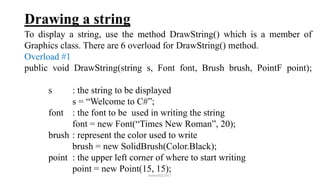
Drawing a string
To display a string, use the method DrawString() which is a member of
Graphics class. There are 6 overload for DrawString() method.
Overload #1
public void DrawString(string s, Font font, Brush brush, PointF point);
s : the string to be displayed
s = “Welcome to C#”;
font : the font to be used in writing the string
font = new Font(“Times New Roman”, 20);
brush : represent the color used to write
brush = new SolidBrush(Color.Black);
point : the upper left corner of where to start writing
point = new Point(15, 15);
mmouf@2017
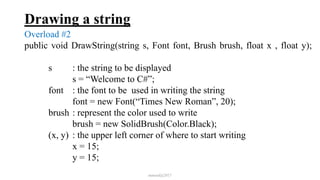
Drawing a string
Overload #2
public void DrawString(string s, Font font, Brush brush, float x , float y);
s : the string to be displayed
s = “Welcome to C#”;
font : the font to be used in writing the string
font = new Font(“Times New Roman”, 20);
brush : represent the color used to write
brush = new SolidBrush(Color.Black);
(x, y) : the upper left corner of where to start writing
x = 15;
y = 15;
mmouf@2017
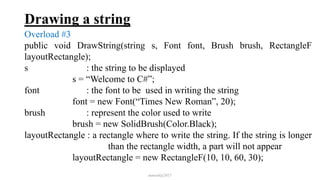
Drawing a string
Overload #3
public void DrawString(string s, Font font, Brush brush, RectangleF
layoutRectangle);
s : the string to be displayed
s = “Welcome to C#”;
font : the font to be used in writing the string
font = new Font(“Times New Roman”, 20);
brush : represent the color used to write
brush = new SolidBrush(Color.Black);
layoutRectangle : a rectangle where to write the string. If the string is longer
than the rectangle width, a part will not appear
layoutRectangle = new RectangleF(10, 10, 60, 30);
mmouf@2017
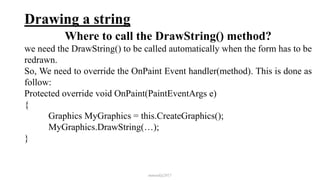
Drawing a string
Where to call the DrawString() method?
we need the DrawString() to be called automatically when the form has to be
redrawn.
So, We need to override the OnPaint Event handler(method). This is done as
follow:
Protected override void OnPaint(PaintEventArgs e)
{
Graphics MyGraphics = this.CreateGraphics();
MyGraphics.DrawString(…);
}
mmouf@2017
Drawing a line
To draw a line, use the method DrawLine() which is a member of Graphics
class.
The DrawLine method have 4 overloading:
public void DrawLine(Pen pen, Point pt1, Point pt2);
public void DrawLine(Pen pen, int x1, int y1, int x2, int y2);
pen: is used to determine the line color and thickness
Pen pen = new Pen(Color.Red);
OR Pen pen = new Pen(Color.Red, 5);
The Pen also has some properties as “DashStyle” which is an
enumeration contains the line style.
Solid = 0, Dash = 1, Dot = 2, DahDot = 3, DashDotDot = 4
p1, (x1, y1): specify the starting point
p2, (x2, y2): specify the ending point
mmouf@2017
Drawing a rectangle
There are 2 types of rectangle:
1) Just Frame:
To draw a rectangle use the method DrawRectangle() which is a member of
Graphics class.
To draw a rectangle we must know the Pen and the UL corner, the width.
and the height
The DrawRectangle method have 3 overloading:
public void DrawRectangle(Pen pen, Rectangle rect);
public void DrawRectangle(Pen pen, int x, int y, int width, int height);
public void DrawRectangle(Pen pen, float x, float y, float width,
float height);
mmouf@2017
Drawing a rectangle
2) Filled Rectagle:
To draw a filled rectangle, use the method FillRectangle() which is a
member of Graphics class.
To draw a filled rectangle, we must know the brush (color, style) and the
rectangle to be drawn
public void FillRectangle(Brush brush, Rectangle rect);
public void FillRectangle(Brush brush, RectangleF rect);
public void FillRectangle(Brush brush, int x, int y, int width,
int height);
public void FillRectangle(Brush brush, float x, float y, float width,
float height);
mmouf@2017
Drawing a rectangle
2) Filled Rectagle:
The Brush is used to determine the color and the filled style. This is an
abstract base class and cannot be instantiated. To create a brush object, use
classes derived from Brush such as SolidBrush, HatchBrush
Working with SolidBrush
public SolidBrush(Color color);
It has only one property which is the color of the rectangle and the filled area.
Ex : Brush mBrush = new SolidBrush(Color.Yellow);
mmouf@2017
Drawing a rectangle
2) Filled Rectagle:
Working with HatchBrush
public HatchBrush(HatchStyle hatchstyle, Color foreColor);
//default background BLACK
public HatchBrush(HatchStyle hatchstyle, Color foreColor,
Color backColor);
The HachStyle is an enumeration that define the pattern used to fill the
Shape”Rectangle”
Ex of style : BackwardDiagonal //
ForwardDiagonal 
Vertical ||
mmouf@2017

Intake 37 6

  • 1.
    Visual C# .Netusing framework 4.5 Eng. Mahmoud Ouf Lecture 06 mmouf@2017
  • 2.
    Generics With the releaseof .NET 2.0, the C# programming language has been enhanced to support a new feature of the CTS termed generics. Simply, generics provide a way for programmers to define “placeholders” (formally termed type parameters) for method arguments and type definitions, which are specified at the time of invoking the generic method or creating the generic type Generic methods enable you to specify, with a single method declaration, a set of related methods. Generic classes enable you to specify, with a single class declaration, a set of related classes. mmouf@2017
  • 3.
    Generics class Point<M> { M x; My; public Point(M a, M b) { x = a; y = b; } public override string ToString() { return ("X = " + x.ToString() + " , Y = " + y.ToString()); } } mmouf@2017
  • 4.
    Generics Here, we havemade a class Calculate contains a static method used to swap any 2 data from the same data type, it is also Generics class Calculate<T> { public static void Swap(ref T a, ref T b) { T temp; temp = a; a = b; b = temp; } } mmouf@2017
  • 5.
    Generics class Program { static voidMain(string[] args) { int x = 3, y = 4; Calculate<int>.Swap(ref x, ref y); Console.WriteLine("X = {0}", x); Console.WriteLine("Y = {0}", y); Point<float> pt1 = new Point<float>(5.6f, 7.9f); Point<float> pt2 = new Point<float>(20.5f, 50.7f); Calculate<Point<float>>.Swap(ref pt1, ref pt2); Console.WriteLine("PT1 = {0}", pt1.ToString()); Console.WriteLine("PT2 = {0}", pt2.ToString()); } } mmouf@2017
  • 6.
    Partial class It ispossible to split the definition of a class, struct or interface over two or more source files. Each source file contains a section of the class definition, and all parts are combined when the application is compiled. We use partial class for: When working on large projects, spreading a class over separate files allows multiple programmers to work on it simultaneously. When working automatic generated source, code can be added to the class without having to recreate the source file. Visual Studio uses this approach when creating Windows Forms Use the partial keyword modifier to split class definition. mmouf@2017
  • 7.
    Partial class public partialclass Employee { public void Test1() { } } public partial class Employee { public void Test2() { } } mmouf@2017
  • 8.
    Partial class Notes: All classpart must be defined within the same namesapace. All parts must use partial keyword. All parts must be available at compile time to form the final type. All parts must have the same accessibility (public, private, …). If any part is declared abstract, then the entire class is abstract. If any part is declared sealed, then the entire class is sealed. If any part declare a base type, then the entire type inherits that class. The partial keyword appears immediately before the keyword class, struct or interface. mmouf@2017
  • 9.
    Windows Programming GUI (GraphicalUser Interface) mmouf@2017
  • 10.
    Windows Forms: Microsoft Windowsis a graphical interface. Users interact with applications through windows, which are graphical representation of application data and options. The .NET framework provides a wide array of graphical controls and methods that allow you to create fully visual applications. Also, you might want to render your own graphic content in your application or create a custom appearance for a control, you must learn to use the Graphic Device Interface (GDI). In the .Net Framework, this interface is fully managed and is referred to as GDI+ .Net provides a lot of useful classes grouped in 2 major namespaces : 1) System.Windows.Forms 2) System.Drawing mmouf@2017
  • 11.
    Core GDI+: All windowsforms applications inherit from System.Windows.Forms All graphical function provided by Microsoft.Net framework are available in the System.Drawing namespace (which can be found in the System.Drawing.dll) System.Drawing System.Drawing.Drawing2D System.Drawing.Imaging System.Drawing.Printing System.Drawing.Text mmouf@2017
  • 12.
    Core GDI+: System.Drawing It isthe core GDI+ namespace, which defines numerous types for basic rendering as well as all the Graphics type. System.Drawing.Drawing2D It contains classes and enumerations that provide advanced 2-D and vector graphics functionality. System.Drawing.Imaging Define types that allow you to directly manipulate graphical images System.Drawing.Printing It define types that allow you to render images to the printed page, interact with the printer itself and format the appearance of a given print job. System.Drawing.Text It allows you to manipulate collections of fonts mmouf@2017
  • 13.
    The Graphics object TheGraphics object is the principal object used in rendering graphics. It represents the drawing surface of a visual element, such as form, a control or an Image object. A form has an associated Graphics object that can be used to draw inside the form, and the same for the control and the image. You can’t directly instantiate one with the call of constructor. Instead, you must create a Graphics object directly from the visual element. You can use CreateGraphics method that allow you to get a reference to the Graphics object associated with that Control. Ex: System.Drawing.Graphics myGraphics; myGraphics = myForm.CreateGraphics(); mmouf@2017
  • 14.
    Coordinate and Shapes Manyof drawing methods defined by the Graphics object require you to specify the coordinate in which you wish to render a given item. System.Drawing namespace contains a variety of structure that can be used to describe the location or the region within this coordinate system. By default, the origin of the coordinate system for each control is the Upper Left corner, which has coordinates of (0,0) Point: Represents an ordered pair of integer x- and y-coordinates that defines a point in a two-dimensional plane public Point(int dw); public Point(Size sz); public Point(int x, int y); mmouf@2017
  • 15.
    Coordinate and Shapes PointF: Representsan ordered pair of float x- and y-coordinates that defines a point in a two-dimensional plane public PointF(float dw); public PointF(SizeF sz); public PointF(float x, float y); Size: Stores an ordered pair of integers, typically the width and height of a rectangle. public Size(Point pt); public Size(int width, int height); mmouf@2017
  • 16.
    Coordinate and Shapes SizeF: Storesan ordered pair of float, typically the width and height of a rectangle. public SizeF(PointF pt); public SizeF(float width, float height); Rectangle: Stores a set of four integers that represent the location and size of a rectangle public Rectangle(Point location, Size size); public Rectangle(int x, int y, int width, int height); RectangleF: Stores a set of four float that represent the location and size of a rectangle public Rectangle(PointF location, SizeF size); public Rectangle(float x, float y, float width, float height); mmouf@2017
  • 17.
    Drawing a string Todisplay a string, use the method DrawString() which is a member of Graphics class. There are 6 overload for DrawString() method. Overload #1 public void DrawString(string s, Font font, Brush brush, PointF point); s : the string to be displayed s = “Welcome to C#”; font : the font to be used in writing the string font = new Font(“Times New Roman”, 20); brush : represent the color used to write brush = new SolidBrush(Color.Black); point : the upper left corner of where to start writing point = new Point(15, 15); mmouf@2017
  • 18.
    Drawing a string Overload#2 public void DrawString(string s, Font font, Brush brush, float x , float y); s : the string to be displayed s = “Welcome to C#”; font : the font to be used in writing the string font = new Font(“Times New Roman”, 20); brush : represent the color used to write brush = new SolidBrush(Color.Black); (x, y) : the upper left corner of where to start writing x = 15; y = 15; mmouf@2017
  • 19.
    Drawing a string Overload#3 public void DrawString(string s, Font font, Brush brush, RectangleF layoutRectangle); s : the string to be displayed s = “Welcome to C#”; font : the font to be used in writing the string font = new Font(“Times New Roman”, 20); brush : represent the color used to write brush = new SolidBrush(Color.Black); layoutRectangle : a rectangle where to write the string. If the string is longer than the rectangle width, a part will not appear layoutRectangle = new RectangleF(10, 10, 60, 30); mmouf@2017
  • 20.
    Drawing a string Whereto call the DrawString() method? we need the DrawString() to be called automatically when the form has to be redrawn. So, We need to override the OnPaint Event handler(method). This is done as follow: Protected override void OnPaint(PaintEventArgs e) { Graphics MyGraphics = this.CreateGraphics(); MyGraphics.DrawString(…); } mmouf@2017
  • 21.
    Drawing a line Todraw a line, use the method DrawLine() which is a member of Graphics class. The DrawLine method have 4 overloading: public void DrawLine(Pen pen, Point pt1, Point pt2); public void DrawLine(Pen pen, int x1, int y1, int x2, int y2); pen: is used to determine the line color and thickness Pen pen = new Pen(Color.Red); OR Pen pen = new Pen(Color.Red, 5); The Pen also has some properties as “DashStyle” which is an enumeration contains the line style. Solid = 0, Dash = 1, Dot = 2, DahDot = 3, DashDotDot = 4 p1, (x1, y1): specify the starting point p2, (x2, y2): specify the ending point mmouf@2017
  • 22.
    Drawing a rectangle Thereare 2 types of rectangle: 1) Just Frame: To draw a rectangle use the method DrawRectangle() which is a member of Graphics class. To draw a rectangle we must know the Pen and the UL corner, the width. and the height The DrawRectangle method have 3 overloading: public void DrawRectangle(Pen pen, Rectangle rect); public void DrawRectangle(Pen pen, int x, int y, int width, int height); public void DrawRectangle(Pen pen, float x, float y, float width, float height); mmouf@2017
  • 23.
    Drawing a rectangle 2)Filled Rectagle: To draw a filled rectangle, use the method FillRectangle() which is a member of Graphics class. To draw a filled rectangle, we must know the brush (color, style) and the rectangle to be drawn public void FillRectangle(Brush brush, Rectangle rect); public void FillRectangle(Brush brush, RectangleF rect); public void FillRectangle(Brush brush, int x, int y, int width, int height); public void FillRectangle(Brush brush, float x, float y, float width, float height); mmouf@2017
  • 24.
    Drawing a rectangle 2)Filled Rectagle: The Brush is used to determine the color and the filled style. This is an abstract base class and cannot be instantiated. To create a brush object, use classes derived from Brush such as SolidBrush, HatchBrush Working with SolidBrush public SolidBrush(Color color); It has only one property which is the color of the rectangle and the filled area. Ex : Brush mBrush = new SolidBrush(Color.Yellow); mmouf@2017
  • 25.
    Drawing a rectangle 2)Filled Rectagle: Working with HatchBrush public HatchBrush(HatchStyle hatchstyle, Color foreColor); //default background BLACK public HatchBrush(HatchStyle hatchstyle, Color foreColor, Color backColor); The HachStyle is an enumeration that define the pattern used to fill the Shape”Rectangle” Ex of style : BackwardDiagonal // ForwardDiagonal Vertical || mmouf@2017