Chapter 16 – Graphics and Media Outline 16.1  Introduction 16.2  Graphics Contexts and Graphics Objects 16.3  Color Control 16.4  Font Control 16.5  Drawing Lines, Rectangles and Ovals 16.6  Drawing Arcs 16.7  Drawing Polygons and Polylines 16.8  Advanced Graphics Capabilities 16.9  Introduction to Multimedia 16.10  Loading, Displaying and Scaling Images 16.11  Animating a Series of Images 16.12  Windows Media Player 16.13  Microsoft Agent
16.1 Introduction Graphical Device Interface Two dimensional vector graphics Drawing capabilities Pen or Brush object Structure Color Positioning in x,y coordinate system
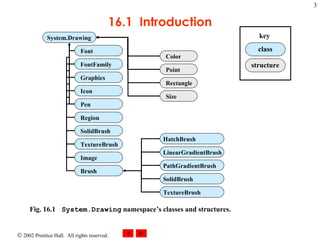
16.1  Introduction Fig. 16.1 System.Drawing  namespace’s classes and structures.   structure class key System.Drawing Font FontFamily Graphics Icon Pen Region SolidBrush TextureBrush Image Brush HatchBrush LinearGradientBrush PathGradientBrush SolidBrush TextureBrush Color Point Rectangle Size
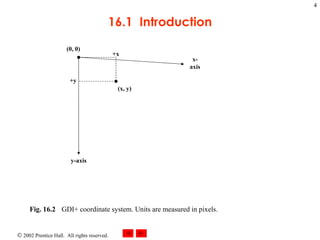
16.1  Introduction Fig. 16.2 GDI+ coordinate system. Units are measured in pixels.   x-axis y-axis (0, 0) +x +y (x, y)
16.2 Graphics Contexts and Graphics Objects Graphics context Drawing surface Graphics object  control how information is drawn Virtual OnPaint event handler Method Invalidate Refreshes and repaints
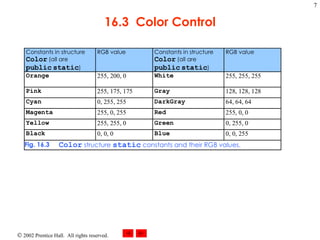
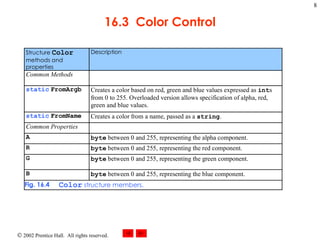
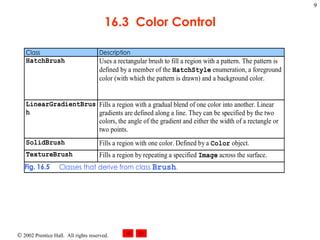
16.3 Color Control Enhancing program appearance Structure Color ARGB values Value range from 0 to 255
16.3  Color Control
16.3  Color Control
16.3  Color Control
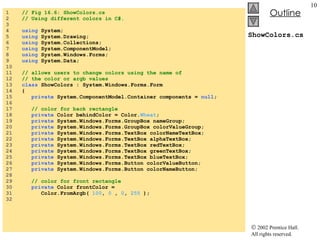
ShowColors.cs 1  // Fig 16.6: ShowColors.cs 2  // Using different colors in C#. 3  4  using  System; 5  using  System.Drawing; 6  using  System.Collections; 7  using  System.ComponentModel; 8  using  System.Windows.Forms; 9  using  System.Data; 10  11  // allows users to change colors using the name of  12  // the color or argb values 13  class  ShowColors : System.Windows.Forms.Form 14  { 15  private  System.ComponentModel.Container components =  null ; 16  17  // color for back rectangle 18  private  Color behindColor = Color. Wheat ; 19  private  System.Windows.Forms.GroupBox nameGroup; 20  private  System.Windows.Forms.GroupBox colorValueGroup; 21  private  System.Windows.Forms.TextBox colorNameTextBox; 22  private  System.Windows.Forms.TextBox alphaTextBox; 23  private  System.Windows.Forms.TextBox redTextBox; 24  private  System.Windows.Forms.TextBox greenTextBox; 25  private  System.Windows.Forms.TextBox blueTextBox; 26  private  System.Windows.Forms.Button colorValueButton; 27  private  System.Windows.Forms.Button colorNameButton; 28  29  // color for front rectangle 30  private  Color frontColor =  31  Color.FromArgb(  100 ,  0  ,  0 ,  255  ); 32
ShowColors.cs 33  [STAThread] 34  static void  Main()  35  { 36  Application.Run(  new  ShowColors() ); 37  } 38  39  // Visual Studio .NET generated code 40  41  // override Form OnPaint method 42  protected override void  OnPaint( PaintEventArgs e ) 43  { 44  Graphics graphicsObject = e.Graphics;  // get graphics 45  46  // create text brush 47  SolidBrush textBrush =  new  SolidBrush( Color. Black  ); 48  49  // create solid brush 50  SolidBrush brush =  new  SolidBrush( Color. White  );  51  52  // draw white background 53  graphicsObject.FillRectangle( brush,  4 ,  4 ,  275 ,  180  ); 54  55  // display name of behindColor 56  graphicsObject.DrawString( behindColor.Name,  this .Font, 57  textBrush,  40 ,  5  ); 58  59  // set brush color and display back rectangle 60  brush.Color = behindColor; 61  62  graphicsObject.FillRectangle( brush,  45 ,  20 ,  150 ,  120  ); 63  Method  OnPaint  to paint the window Graphics  object  graphicsObject  created graphicsObject  assign  to  PaintEventArgs   e ’s  Graphics New black  SolidBrush New white  SolidBrush Class  SolidBrush  derives from  Brush Method  FillRectangle  to draws a solid white rectangle X and Y coordinates of a point Width and height of the rectangle Color  behindColor  assign to  Color ’s property brush ’s  Color  property changed to  behindColor Method  DrawString  display  Brush ’s  Color  property Using  SolidBrush   brush Display another rectangle
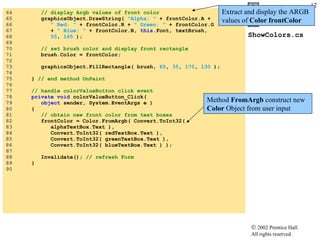
ShowColors.cs 64  // display Argb values of front color 65  graphicsObject.DrawString(  "Alpha: "  + frontColor.A + 66  " Red: "  + frontColor.R +  " Green: "  + frontColor.G  67  +  " Blue: "  + frontColor.B,  this .Font, textBrush,  68  55 ,  165  ); 69  70  // set brush color and display front rectangle 71  brush.Color = frontColor; 72  73  graphicsObject.FillRectangle( brush,  65 ,  35 ,  170 ,  130  ); 74  75  }  // end method OnPaint 76  77  // handle colorValueButton click event 78  private void  colorValueButton_Click(  79  object  sender, System.EventArgs e ) 80  { 81  // obtain new front color from text boxes 82  frontColor = Color.FromArgb( Convert.ToInt32(  83  alphaTextBox.Text ),  84  Convert.ToInt32( redTextBox.Text ), 85  Convert.ToInt32( greenTextBox.Text ),  86  Convert.ToInt32( blueTextBox.Text ) ); 87  88  Invalidate();  // refresh Form 89  } 90  Extract and display the ARGB values of  Color   frontColor Method  FromArgb  construct new  Color  Object from user input
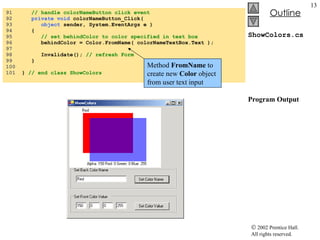
ShowColors.cs Program Output 91  // handle colorNameButton click event 92  private void  colorNameButton_Click(  93  object  sender, System.EventArgs e ) 94  { 95  // set behindColor to color specified in text box 96  behindColor = Color.FromName( colorNameTextBox.Text ); 97  98  Invalidate();  // refresh Form 99  }  100  101  }  // end class ShowColors Method  FromName  to create new  Color  object from user text input
ShowColorsComplex.cs 1  //Fig. 16.7: ShowColorsComplex.cs 2  // Change the background and text colors of a form. 3  4  using  System; 5  using  System.Drawing; 6  using  System.Collections; 7  using  System.ComponentModel; 8  using  System.Windows.Forms; 9  using  System.Data; 10  11  // allows users to change colors using a ColorDialog 12  public class  ShowColorsComplex : System.Windows.Forms.Form 13  { 14  private  System.Windows.Forms.Button backgroundColorButton; 15  private  System.Windows.Forms.Button textColorButton; 16  17  private  System.ComponentModel.Container components =  null ; 18  19  [STAThread] 20  static void  Main()  21  { 22  Application.Run(  new  ShowColorsComplex() ); 23  } 24  25  // Visual Studio .NET generated code 26  27  // change text color 28  private void  textColorButton_Click( 29  object  sender, System.EventArgs e ) 30  { 31  // create ColorDialog object 32  ColorDialog colorChooser = new ColorDialog(); 33  DialogResult result; 34
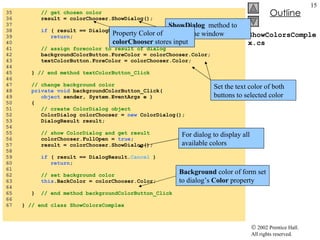
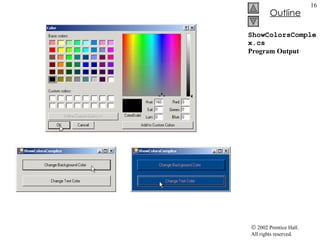
ShowColorsComplex.cs 35  // get chosen color 36  result = colorChooser.ShowDialog(); 37  38  if  ( result == DialogResult. Cancel  ) 39  return ; 40  41  // assign forecolor to result of dialog 42  backgroundColorButton.ForeColor = colorChooser.Color; 43  textColorButton.ForeColor = colorChooser.Color; 44  45  }  // end method textColorButton_Click 46  47  // change background color 48  private void  backgroundColorButton_Click( 49  object  sender, System.EventArgs e ) 50  { 51  // create ColorDialog object 52  ColorDialog colorChooser =  new  ColorDialog(); 53  DialogResult result; 54  55  // show ColorDialog and get result 56  colorChooser.FullOpen =  true ; 57  result = colorChooser.ShowDialog(); 58  59  if  ( result == DialogResult. Cancel  ) 60  return ; 61  62  // set background color 63  this .BackColor = colorChooser.Color; 64  65  }  // end method backgroundColorButton_Click 66  67  }  // end class ShowColorsComplex ShowDialog   method to display the window Property Color of  colorChooser  stores input Set the text color of both buttons to selected color Background  color of form set to dialog’s  Color  property For dialog to display all available colors
ShowColorsComplex.cs Program Output
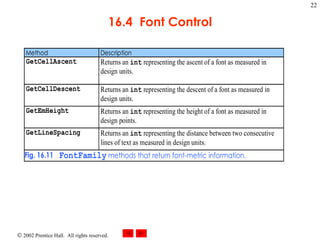
16.4 Font Control Methods and constants of font control Creating Font Font’s metrics:  height,  decent, ascent and leading Once created properties cannot be modified  Size property Return font size measured in design units
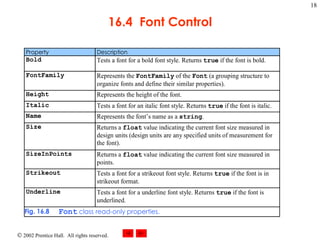
16.4  Font Control
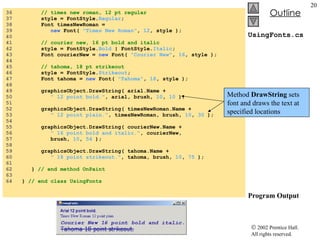
UsingFonts.cs 1  // Fig 16.9: UsingFonts.cs 2  // Demonstrating various font settings. 3  4  using  System; 5  using  System.Drawing; 6  using  System.Collections; 7  using  System.ComponentModel; 8  using  System.Windows.Forms; 9  using  System.Data; 10  11  // demonstrate font constructors and properties 12  public class  UsingFonts : System.Windows.Forms.Form 13  { 14  private  System.ComponentModel.Container components =  null ; 15  16  [STAThread] 17  static void  Main()  18  { 19  Application.Run(  new  UsingFonts() ); 20  } 21  22  // Visual Studio .NET generated code 23  24  // demonstrate various font and style settings 25  protected override  void OnPaint(  26  PaintEventArgs paintEvent ) 27  { 28  Graphics graphicsObject = paintEvent.Graphics; 29  SolidBrush brush =  new  SolidBrush( Color. DarkBlue  ); 30  31  // arial, 12 pt bold 32  FontStyle style = FontStyle. Bold ; 33  Font arial =  34  new  Font(  new  FontFamily(  "Arial"  ),  12 , style ); 35  Font  constructor initialize  Font  objects Font name as a  string A font size (a  float ) FontStyle  object
UsingFonts.cs Program Output 36  // times new roman, 12 pt regular 37  style = FontStyle. Regular ; 38  Font timesNewRoman =  39  new  Font(  "Times New Roman" ,  12 , style ); 40  41  // courier new, 16 pt bold and italic 42  style = FontStyle. Bold  | FontStyle. Italic ; 43  Font courierNew =  new  Font(  "Courier New" ,  16 , style ); 44  45  // tahoma, 18 pt strikeout 46  style = FontStyle. Strikeout ; 47  Font tahoma =  new  Font(  "Tahoma" ,  18 , style ); 48  49  graphicsObject.DrawString( arial.Name +  50  " 12 point bold." , arial, brush,  10 ,  10  ); 51  52  graphicsObject.DrawString( timesNewRoman.Name +  53  " 12 point plain." , timesNewRoman, brush,  10 ,  30  ); 54  55  graphicsObject.DrawString( courierNew.Name +  56  " 16 point bold and italic." , courierNew,  57  brush,  10 ,  54  ); 58  59  graphicsObject.DrawString( tahoma.Name + 60  " 18 point strikeout." , tahoma, brush,  10 ,  75  ); 61  62  }  // end method OnPaint 63  64  }  // end class UsingFonts Method  DrawString  sets font and draws the text at specified locations
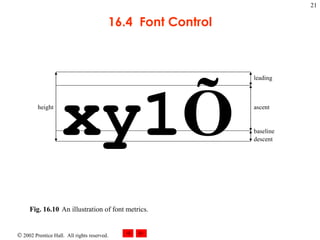
16.4  Font Control Fig. 16.10 An illustration of font metrics.  xy1 Õ descent baseline ascent leading height
16.4  Font Control
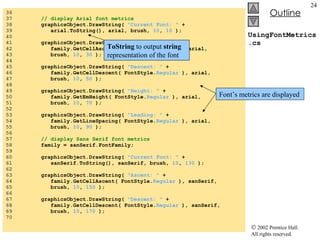
UsingFontMetrics.cs 1  // Fig 16.12: UsingFontMetrics.cs 2  // Displaying font metric information. 3  4  using  System; 5  using  System.Drawing; 6  using  System.Collections; 7  using  System.ComponentModel; 8  using  System.Windows.Forms; 9  using  System.Data; 10  11  // displays font information 12  public class  UsingFontMetrics : System.Windows.Forms.Form 13  { 14  private  System.ComponentModel.Container components =  null ; 15  16  [STAThread] 17  static void  Main()  18  { 19  Application.Run(  new  UsingFontMetrics() ); 20  } 21  22  // Visual Studio .NET generated code 23  24  // displays font information 25  protected override   void  OnPaint( 26  PaintEventArgs paintEvent ) 27  { 28  Graphics graphicsObject = paintEvent.Graphics; 29  SolidBrush brush =  new  SolidBrush( Color. DarkBlue  ); 30  31  // Arial font metrics 32  Font arial =  new  Font(  "Arial" ,  12  ); 33  FontFamily family = arial.FontFamily; 34  Font sanSerif =  new  Font(  "Microsoft Sans Serif" , 35  14 , FontStyle. Italic  ); Creates  Font arial Property  FontFamily  to to get  aria l’s  FontFamily
UsingFontMetrics.cs 36  37  // display Arial font metrics 38  graphicsObject.DrawString(  "Current Font: "  +  39  arial.ToString(), arial, brush,  10 ,  10  ); 40  41  graphicsObject.DrawString(  "Ascent: "  + 42  family.GetCellAscent( FontStyle. Regular  ), arial, 43  brush,  10 ,  30  ); 44  45  graphicsObject.DrawString(  "Descent: "  + 46  family.GetCellDescent( FontStyle. Regular  ), arial, 47  brush,  10 ,  50  ); 48  49  graphicsObject.DrawString(  "Height: "  +  50  family.GetEmHeight( FontStyle. Regular  ), arial, 51  brush,  10 ,  70  ); 52  53  graphicsObject.DrawString(  "Leading: "  + 54  family.GetLineSpacing( FontStyle. Regular  ), arial, 55  brush,  10 ,  90  ); 56  57  // display Sans Serif font metrics 58  family = sanSerif.FontFamily; 59  60  graphicsObject.DrawString(  "Current Font: "  +  61  sanSerif.ToString(), sanSerif, brush,  10 ,  130  ); 62  63  graphicsObject.DrawString(  "Ascent: "  + 64  family.GetCellAscent( FontStyle. Regular  ), sanSerif, 65  brush,  10 ,  150  ); 66  67  graphicsObject.DrawString(  "Descent: "  + 68  family.GetCellDescent( FontStyle. Regular  ), sanSerif,  69  brush,  10 ,  170  ); 70  ToString  to output  string  representation of the font Font’s metrics are displayed
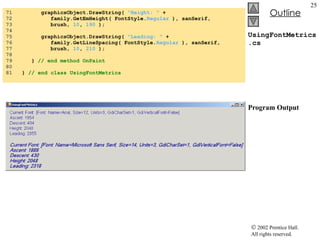
UsingFontMetrics.cs Program Output 71  graphicsObject.DrawString(  "Height: "  +  72  family.GetEmHeight( FontStyle. Regular  ), sanSerif, 73  brush,  10 ,  190  ); 74  75  graphicsObject.DrawString(  "Leading: "  + 76  family.GetLineSpacing( FontStyle. Regular  ), sanSerif, 77  brush,  10 ,  210  ); 78  79  }  // end method OnPaint 80  81  }  // end class UsingFontMetrics
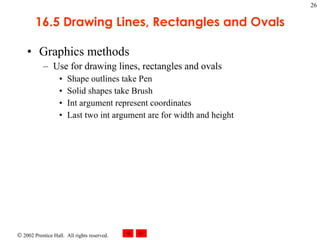
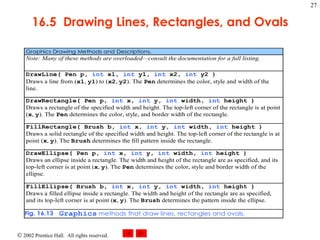
16.5 Drawing Lines, Rectangles and Ovals Graphics methods Use for drawing lines, rectangles and ovals Shape outlines take Pen Solid shapes take Brush Int argument represent coordinates Last two int argument are for width and height
16.5  Drawing Lines, Rectangles, and Ovals
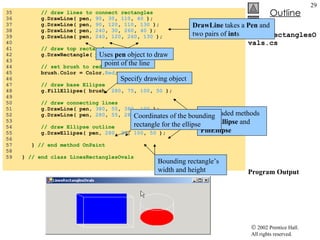
LinesRectanglesOvals.cs 1  // Fig. 16.14: LinesRectanglesOvals.cs 2  // Demonstrating lines, rectangles and ovals. 3  4  using  System; 5  using  System.Drawing; 6  using  System.Collections; 7  using  System.ComponentModel; 8  using  System.Windows.Forms; 9  using  System.Data; 10  11  // draws shapes on the Form 12  public class  LinesRectanglesOvals : System.Windows.Forms.Form 13  { 14  private  System.ComponentModel.Container components =  null ; 15  16  [STAThread] 17  static void  Main()  18  { 19  Application.Run(  new  LinesRectanglesOvals() ); 20  } 21  22  // Visual Studio .NET generated code 23  24  protected override void  OnPaint( 25  PaintEventArgs paintEvent ) 26  { 27  // get graphics object 28  Graphics g = paintEvent.Graphics; 29  SolidBrush brush =  new  SolidBrush( Color. Blue  ); 30  Pen pen =  new  Pen( Color. AliceBlue  ); 31  32  // create filled rectangle 33  g.FillRectangle( brush,  90 ,  30 ,  150 ,  90  ); 34  Drawing rectangle on the screen Drawing object Coordinates for bounding rectangle Rectangle’s width and height
LinesRectanglesOvals.cs Program Output 35  // draw lines to connect rectangles 36  g.DrawLine( pen,  90 ,  30 ,  110 ,  40  ); 37  g.DrawLine( pen,  90 ,  120 ,  110 ,  130  ); 38  g.DrawLine( pen,  240 ,  30 ,  260 ,  40  ); 39  g.DrawLine( pen,  240 ,  120 ,  260 ,  130  ); 40  41  // draw top rectangle 42  g.DrawRectangle( pen,  110 ,  40 ,  150 ,  90  ); 43  44  // set brush to red 45  brush.Color = Color. Red ; 46  47  // draw base Ellipse 48  g.FillEllipse( brush,  280 ,  75 ,  100 ,  50  ); 49  50  // draw connecting lines 51  g.DrawLine( pen,  380 ,  55 ,  380 ,  100  ); 52  g.DrawLine( pen,  280 ,  55 ,  280 ,  100  ); 53  54  // draw Ellipse outline 55  g.DrawEllipse( pen,  280 ,  30 ,  100 ,  50  ); 56  57  }  // end method OnPaint 58  59  }  // end class LinesRectanglesOvals DrawLine  takes a  Pen  and two pairs of  int s Start and end point of the line Uses  pen  object to draw Overloaded methods  DrawEllipse  and  FillEllipse   Specify drawing object Coordinates of the bounding rectangle for the ellipse Bounding rectangle’s width and height
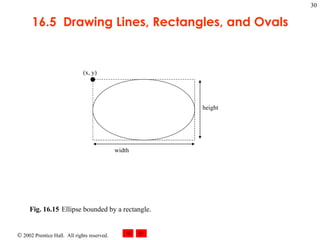
16.5  Drawing Lines, Rectangles, and Ovals Fig. 16.15 Ellipse bounded by a rectangle.  (x, y) height width
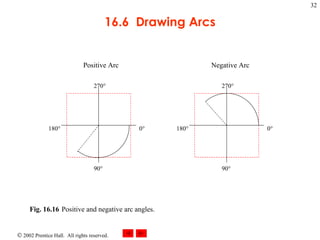
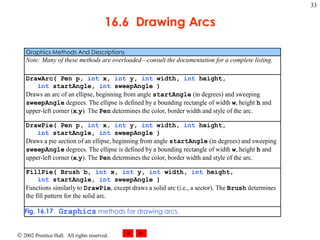
16.6 Drawing Arcs Properties of an Arc Starting angle Arc angle Bounding rectangle
16.6  Drawing Arcs Fig. 16.16 Positive and negative arc angles.  0° 18 0° 9 0° 27 0° 0° 18 0° 9 0° 27 0° Positive Arc Negative Arc
16.6  Drawing Arcs
DrawArcs.cs 1  // Fig. 16.18: DrawArcs.cs 2  // Drawing various arcs on a form. 3  4  using  System; 5  using  System.Drawing; 6  using  System.Collections; 7  using  System.ComponentModel; 8  using  System.Windows.Forms; 9  using  System.Data; 10  11  // draws various arcs 12  public class  DrawArcs : System.Windows.Forms.Form 13  { 14  private  System.ComponentModel.Container components =  null ; 15  16  [STAThread] 17  static void  Main()  18  { 19  Application.Run(  new  DrawArcs() ); 20  } 21  22  // Visual Studio .NET generated code 23  24  private void  DrawArcs_Paint( 25  object  sender, System.Windows.Forms.PaintEventArgs e ) 26  { 27  // get graphics object 28  Graphics graphicsObject = e.Graphics; 29  Rectangle rectangle1 =  30  new  Rectangle(  15 ,  35 ,  80 ,  80  ); 31  SolidBrush brush1 =  32  new  SolidBrush( Color. Firebrick  ); 33  Pen pen1 =  new  Pen( brush1,  1  ); 34  SolidBrush brush2 =  new  SolidBrush( Color. DarkBlue  ); 35  Pen pen2 =  new  Pen( brush2,  1  ); Create various  Graphics  object
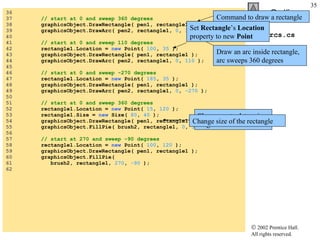
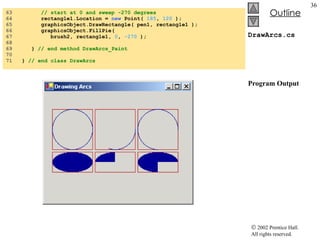
DrawArcs.cs 36  37  // start at 0 and sweep 360 degrees 38  graphicsObject.DrawRectangle( pen1, rectangle1 ); 39  graphicsObject.DrawArc( pen2, rectangle1,  0 ,  360  ); 40  41  // start at 0 and sweep 110 degrees 42  rectangle1.Location =  new  Point(  100 ,  35  ); 43  graphicsObject.DrawRectangle( pen1, rectangle1 ); 44  graphicsObject.DrawArc( pen2, rectangle1,  0 ,  110  ); 45  46  // start at 0 and sweep -270 degrees 47  rectangle1.Location =  new  Point(  185 ,  35  ); 48  graphicsObject.DrawRectangle( pen1, rectangle1 ); 49  graphicsObject.DrawArc( pen2, rectangle1,  0 ,  -270  ); 50  51  // start at 0 and sweep 360 degrees 52  rectangle1.Location =  new  Point(  15 ,  120  ); 53  rectangle1.Size =  new  Size(  80 ,  40  ); 54  graphicsObject.DrawRectangle( pen1, rectangle1 ); 55  graphicsObject.FillPie( brush2, rectangle1,  0 ,  360  ); 56  57  // start at 270 and sweep -90 degrees 58  rectangle1.Location =  new  Point(  100 ,  120  ); 59  graphicsObject.DrawRectangle( pen1, rectangle1 ); 60  graphicsObject.FillPie(  61  brush2, rectangle1,  270 ,  -90  ); 62  Command to draw a rectangle Draw an arc inside rectangle, arc sweeps 360 degrees Set  Rectangle ’s  Location   property to new  Point Size  property determine height and width Change size of the rectangle
DrawArcs.cs Program Output 63  // start at 0 and sweep -270 degrees 64  rectangle1.Location =  new  Point(  185 ,  120  ); 65  graphicsObject.DrawRectangle( pen1, rectangle1 ); 66  graphicsObject.FillPie(  67  brush2, rectangle1,  0 ,  -270  ); 68  69  }  // end method DrawArcs_Paint 70  71  }  // end class DrawArcs
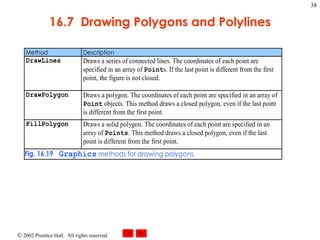
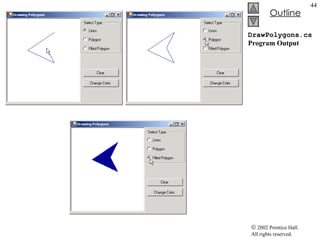
16.7 Drawing Polygons and Polylines Polygons Multisided shapes DrawLine Series of connected points DrawPolygon Closed polygon FillPolygon Solid polygon
16.7  Drawing Polygons and Polylines
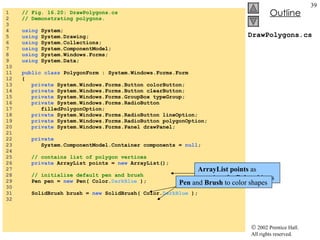
DrawPolygons.cs 1  // Fig. 16.20: DrawPolygons.cs 2  // Demonstrating polygons. 3  4  using  System; 5  using  System.Drawing; 6  using  System.Collections; 7  using  System.ComponentModel; 8  using  System.Windows.Forms; 9  using  System.Data; 10  11  public class  PolygonForm : System.Windows.Forms.Form 12  { 13  private  System.Windows.Forms.Button colorButton; 14  private  System.Windows.Forms.Button clearButton; 15  private  System.Windows.Forms.GroupBox typeGroup; 16  private  System.Windows.Forms.RadioButton  17  filledPolygonOption; 18  private  System.Windows.Forms.RadioButton lineOption; 19  private  System.Windows.Forms.RadioButton polygonOption; 20  private  System.Windows.Forms.Panel drawPanel; 21  22  private   23  System.ComponentModel.Container components =  null ; 24  25  // contains list of polygon vertices 26  private  ArrayList points =  new  ArrayList(); 27  28  // initialize default pen and brush 29  Pen pen =  new  Pen( Color. DarkBlue  ); 30  31  SolidBrush brush =  new  SolidBrush( Color. DarkBlue  ); 32  ArrayList points  as container for  Point  objects Pen  and  Brush  to color shapes
DrawPolygons.cs 33  [STAThread] 34  static   void  Main()  35  { 36  Application.Run(  new  PolygonForm() ); 37  } 38  39  // Visual Studio .NET generated code 40  41  // draw panel mouse down event handler 42  private void  drawPanel_MouseDown( 43  object  sender, System.Windows.Forms.MouseEventArgs e ) 44  { 45  // add mouse position to vertex list 46  points.Add(  new  Point( e.X, e.Y ) ); 47  drawPanel.Invalidate();  // refresh panel 48  49  }  // end method drawPanel_MouseDown 50  51  private void  drawPanel_Paint( 52  object  sender, System.Windows.Forms.PaintEventArgs e ) 53  { 54  // get graphics object for panel 55  Graphics graphicsObject = e.Graphics; 56  57  // if arraylist has 2 or more points, display shape 58  if  ( points.Count >  1  ) 59  { 60  // get array for use in drawing functions 61  Point[] pointArray =  62  ( Point[] )points.ToArray(  63  points[  0  ].GetType() ); 64  65  if  ( polygonOption.Checked ) 66  Stores mouse-click locations in  ArrayList Refresh panel for new point If two or more  Points  are in  ArrayList   points  then display polygon Extract an  Array  from  ArrayList  via  ToArray
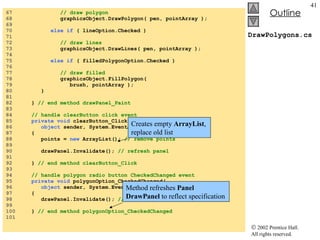
DrawPolygons.cs 67  // draw polygon 68  graphicsObject.DrawPolygon( pen, pointArray ); 69  70  else if  ( lineOption.Checked ) 71  72  // draw lines 73  graphicsObject.DrawLines( pen, pointArray ); 74  75  else if  ( filledPolygonOption.Checked ) 76  77  // draw filled 78  graphicsObject.FillPolygon(  79  brush, pointArray ); 80  } 81  82  }  // end method drawPanel_Paint 83  84  // handle clearButton click event 85  private void  clearButton_Click( 86  object  sender, System.EventArgs e ) 87  { 88  points =  new  ArrayList();  // remove points 89  90  drawPanel.Invalidate();  // refresh panel 91  92  }  // end method clearButton_Click 93  94  // handle polygon radio button CheckedChanged event 95  private void  polygonOption_CheckedChanged( 96  object  sender, System.EventArgs e) 97  { 98  drawPanel.Invalidate();  // refresh panel 99  100  }  // end method polygonOption_CheckedChanged 101  Creates empty  ArrayList , replace old list Method refreshes  Panel   DrawPanel  to reflect specification
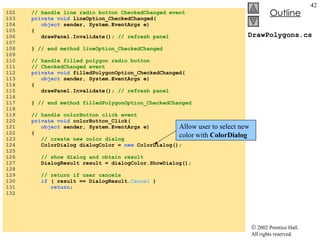
DrawPolygons.cs 102  // handle line radio button CheckedChanged event 103  private void  lineOption_CheckedChanged( 104  object  sender, System.EventArgs e) 105  { 106  drawPanel.Invalidate();  // refresh panel 107  108  }  // end method lineOption_CheckedChanged 109  110  // handle filled polygon radio button  111  // CheckedChanged event 112  private void  filledPolygonOption_CheckedChanged( 113  object  sender, System.EventArgs e) 114  { 115  drawPanel.Invalidate();  // refresh panel 116  117  }  // end method filledPolygonOption_CheckedChanged 118  119  // handle colorButton click event 120  private void  colorButton_Click( 121  object  sender, System.EventArgs e) 122  { 123  // create new color dialog 124  ColorDialog dialogColor =  new  ColorDialog(); 125  126  // show dialog and obtain result 127  DialogResult result = dialogColor.ShowDialog(); 128  129  // return if user cancels 130  if  ( result == DialogResult. Cancel  ) 131  return ; 132  Allow user to select new color with  ColorDialog
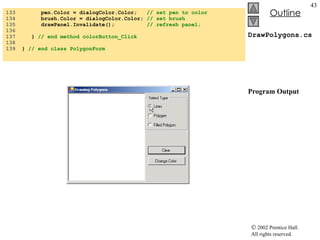
DrawPolygons.cs Program Output 133  pen.Color = dialogColor.Color;  // set pen to color 134  brush.Color = dialogColor.Color;  // set brush 135  drawPanel.Invalidate();  // refresh panel; 136  137  }  // end method colorButton_Click 138  139  }  // end class PolygonForm
DrawPolygons.cs Program Output
16.8 Advanced Graphics Capabilities Brush hierarchy Provide additional capabilities General path
DrawShapes.cs 1  // Fig. 16.21: DrawShapes.cs 2  // Drawing various shapes on a form. 3  4  using  System; 5  using  System.Drawing; 6  using  System.Collections; 7  using  System.ComponentModel; 8  using  System.Windows.Forms; 9  using  System.Data; 10  using  System.Drawing.Drawing2D; 11  12  // draws shapes with different brushes 13  public class  DrawShapesForm : System.Windows.Forms.Form 14  { 15  private  System.ComponentModel.Container components =  null ; 16  17  [STAThread] 18  static void  Main()  19  { 20  Application.Run(  new  DrawShapesForm() ); 21  } 22  23  // Visual Studio .NET generated code 24  25  // draw various shapes on form 26  private void  DrawShapesForm_Paint( 27  object  sender, System.Windows.Forms.PaintEventArgs e ) 28  { 29  // references to object we will use 30  Graphics graphicsObject = e.Graphics; 31  32  // ellipse rectangle and gradient brush 33  Rectangle drawArea1 =  34  new  Rectangle(  5 ,  35 ,  30 ,  100  );
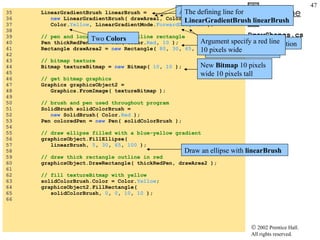
DrawShapes.cs 35  LinearGradientBrush linearBrush =  36  new  LinearGradientBrush( drawArea1, Color. Blue , 37  Color. Yellow , LinearGradientMode. ForwardDiagonal  ); 38  39  // pen and location for red outline rectangle 40  Pen thickRedPen =  new  Pen( Color. Red ,  10  ); 41  Rectangle drawArea2 =  new  Rectangle(  80 ,  30 ,  65 ,  100  ); 42  43  // bitmap texture 44  Bitmap textureBitmap =  new  Bitmap(  10 ,  10  ); 45  46  // get bitmap graphics 47  Graphics graphicsObject2 =  48  Graphics.FromImage( textureBitmap ); 49  50  // brush and pen used throughout program 51  SolidBrush solidColorBrush =  52  new  SolidBrush( Color. Red  ); 53  Pen coloredPen =  new  Pen( solidColorBrush ); 54  55  // draw ellipse filled with a blue-yellow gradient 56  graphicsObject.FillEllipse(  57  linearBrush,  5 ,  30 ,  65 ,  100  ); 58  59  // draw thick rectangle outline in red 60  graphicsObject.DrawRectangle( thickRedPen, drawArea2 ); 61  62  // fill textureBitmap with yellow 63  solidColorBrush.Color = Color. Yellow ; 64  graphicsObject2.FillRectangle(  65  solidColorBrush,  0 ,  0 ,  10 ,  10  ); 66  LinearGradientBrush  allow users to draw color gradient Argument takes a  Rectangle   Two  Colors An enumeration  LinearGradientMode The defining line for  LinearGradientBrush linearBrush Specifies the gradient’s direction Draw an ellipse with  linearBrush Argument specify a red line 10 pixels wide New  Bitmap  10 pixels wide 10 pixels tall
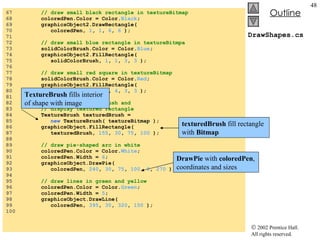
DrawShapes.cs 67  // draw small black rectangle in textureBitmap 68  coloredPen.Color = Color. Black ; 69  graphicsObject2.DrawRectangle(  70  coloredPen,  1 ,  1 ,  6 ,  6  ); 71  72  // draw small blue rectangle in textureBitmpa 73  solidColorBrush.Color = Color. Blue ; 74  graphicsObject2.FillRectangle(  75  solidColorBrush,  1 ,  1 ,  3 ,  3  ); 76  77  // draw small red square in textureBitmap 78  solidColorBrush.Color = Color. Red ; 79  graphicsObject2.FillRectangle(  80  solidColorBrush,  4 ,  4 ,  3 ,  3  ); 81  82  // create textured brush and  83  // display textured rectangle 84  TextureBrush texturedBrush =  85  new  TextureBrush( textureBitmap ); 86  graphicsObject.FillRectangle(  87  texturedBrush,  155 ,  30 ,  75 ,  100  ); 88  89  // draw pie-shaped arc in white 90  coloredPen.Color = Color. White ; 91  coloredPen.Width =  6 ; 92  graphicsObject.DrawPie(  93  coloredPen,  240 ,  30 ,  75 ,  100 ,  0 ,  270  ); 94  95  // draw lines in green and yellow 96  coloredPen.Color = Color. Green ; 97  coloredPen.Width =  5 ; 98  graphicsObject.DrawLine(  99  coloredPen,  395 ,  30 ,  320 ,  150  ); 100  TextureBrush  fills interior of shape with image texturedBrush  fill rectangle with  Bitmap DrawPie  with  coloredPen , coordinates and sizes
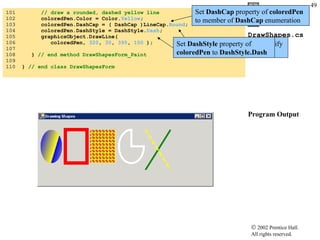
DrawShapes.cs Program Output 101  // draw a rounded, dashed yellow line 102  coloredPen.Color = Color. Yellow ; 103  coloredPen.DashCap = ( DashCap )LineCap. Round ; 104  coloredPen.DashStyle = DashStyle. Dash ; 105  graphicsObject.DrawLine(  106  coloredPen,  320 ,  30 ,  395 ,  150  ); 107  108  }  // end method DrawShapesForm_Paint 109  110  }  // end class DrawShapesForm Set  DashCap  property of  coloredPen  to member of  DashCap  enumeration DashCap  enumeration specify styles for endpoints Set  DashStyle  property of  coloredPen  to  DashStyle.Dash
DrawStarsForm.cs 1  // Fig. 16.22: DrawStarsForm.cs 2  // Using paths to draw stars on the form. 3  4  using  System; 5  using  System.Drawing; 6  using  System.Collections; 7  using  System.ComponentModel; 8  using  System.Windows.Forms; 9  using  System.Data; 10  using  System.Drawing.Drawing2D; 11  12  // draws randomly colored stars 13  public class  DrawStarsForm : System.Windows.Forms.Form 14  {  15  private   16  System.ComponentModel.Container components =  null ; 17  18  [STAThread] 19  static void  Main()  20  { 21  Application.Run(  new  DrawStarsForm() ); 22  } 23  24  // Visual Studio .NET generated code 25  26  // create path and draw stars along it 27  private void  DrawStarsForm_Paint( 28  object  sender, System.Windows.Forms.PaintEventArgs e ) 29  { 30  Graphics graphicsObject = e.Graphics; 31  Random random =  new  Random(); 32  SolidBrush brush =  33  new  SolidBrush( Color. DarkMagenta  ); 34
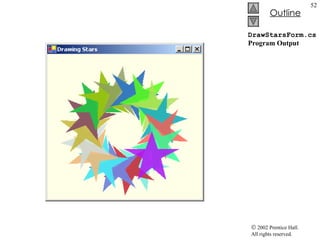
DrawStarsForm.cs 35  // x and y points of the path 36  int [] xPoints =  37  {  55 ,  67 ,  109 ,  73 ,  83 ,  55 ,  27 ,  37 ,  1 ,  43  }; 38  int [] yPoints =  39  {  0 ,  36 ,  36 ,  54 ,  96 ,  72 ,  96 ,  54 ,  36 ,  36  }; 40  41  // create graphics path for star; 42  GraphicsPath star =  new  GraphicsPath(); 43  44  // translate the origin to (150, 150) 45  graphicsObject.TranslateTransform(  150 ,  150  ); 46  47  // create star from series of points 48  for  (  int  i =  0 ; i <=  8 ; i +=  2  ) 49  star.AddLine( xPoints[ i ], yPoints[ i ], 50  xPoints[ i +  1  ], yPoints[ i +  1  ] ); 51  52  // close the shape 53  star.CloseFigure(); 54  55  // rotate the origin and draw stars in random colors 56  for  (  int  i =  1 ; i <=  18 ; i++ ) 57  { 58  graphicsObject.RotateTransform(  20  ); 59  60  brush.Color = Color.FromArgb(  61  random.Next(  200 ,  255  ), random.Next(  255  ),  62  random.Next(  255  ), random.Next(  255  ) ); 63  64  graphicsObject.FillPath( brush, star ); 65  } 66  67  }  // end method DrawStarsForm_Paint 68  69  }  // end class DrawStarsForm Set the origin of the  Graphics  object Int  array representing coordinates points for the star Create lines to connect the points of the star and store them in  star CloseFigure  to complete the shape Method  AddLine  to append line to the shape AddLine  adds a line from the previous point to current point Loop to draw  star  18 times, rotating around the origin Method  FillPath  draws a filled  star  with  Brush Randomly generate colors for the stars
DrawStarsForm.cs Program Output
16.9 Introduction to Multimedia Multimedia revolution Faster processors  Allows multimedia application
16.10 Loading, Displaying and Scaling Images C#’s multimedia capabilities Graphics Images Animations video
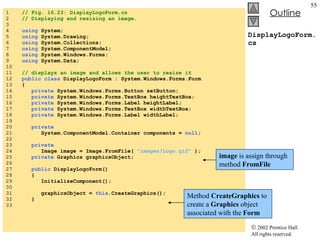
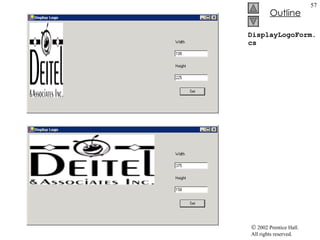
DisplayLogoForm.cs 1  // Fig. 16.23: DisplayLogoForm.cs 2  // Displaying and resizing an image. 3  4  using  System; 5  using  System.Drawing; 6  using  System.Collections; 7  using  System.ComponentModel; 8  using  System.Windows.Forms; 9  using  System.Data; 10  11  // displays an image and allows the user to resize it 12  public class  DisplayLogoForm : System.Windows.Forms.Form 13  { 14  private  System.Windows.Forms.Button setButton; 15  private  System.Windows.Forms.TextBox heightTextBox; 16  private  System.Windows.Forms.Label heightLabel; 17  private  System.Windows.Forms.TextBox widthTextBox; 18  private  System.Windows.Forms.Label widthLabel; 19  20  private   21  System.ComponentModel.Container components =  null ; 22  23  private   24  Image image = Image.FromFile(  &quot;images/Logo.gif&quot;  ); 25  private  Graphics graphicsObject; 26  27  public  DisplayLogoForm() 28  { 29  InitializeComponent(); 30  31  graphicsObject =  this .CreateGraphics(); 32  } 33  image  is assign through method  FromFile Method  CreateGraphics  to create a  Graphics  object associated with the  Form
DisplayLogoForm.cs 34  [STAThread] 35  static void  Main()  36  { 37  Application.Run(  new  DisplayLogoForm() ); 38  } 39  40  // Visual Studio .NET generated code 41  42  private void  setButton_Click( 43  object  sender, System.EventArgs e ) 44  { 45  // get user input 46  int  width = Convert.ToInt32( widthTextBox.Text ); 47  int  height = Convert.ToInt32( heightTextBox.Text ); 48  49  // if dimensions specified are too large  50  // display problem 51  if  ( width >  375  || height >  225  ) 52  { 53  MessageBox.Show(  &quot;Height or Width too large&quot;  ); 54  55  return ; 56  } 57  58  // clear Windows Form 59  graphicsObject.Clear(  this .BackColor ); 60  61  // draw image 62  graphicsObject.DrawImage(  63  image,  5 ,  5 , width, height ); 64  65  }  // end method setButton_Click 66  67  }  // end class DisplayLogoForm When user select  Set , test to validate they are in acceptable range Method  Clear  to paint entire  Form  in current background color Graphics  method  DrawImage  is called to display image
DisplayLogoForm.cs
16.11 Animating a Series of Images Animate series of images from an array Collision detection Regional invalidation
LogoAnimator.cs 1  // Fig. 16.24: LogoAnimator.cs 2  // Program that animates a series of images. 3  4  using  System; 5  using  System.Drawing; 6  using  System.Collections; 7  using  System.ComponentModel; 8  using  System.Windows.Forms; 9  using  System.Data; 10  11  // animates a series of 30 images 12  public class  LogoAnimator : System.Windows.Forms.Form 13  { 14  private  System.Windows.Forms.PictureBox logoPictureBox; 15  private  System.Windows.Forms.Timer Timer; 16  private  System.ComponentModel.IContainer components; 17  18  private  ArrayList images =  new  ArrayList(); 19  private   int  count =  -1 ; 20  21  public  LogoAnimator() 22  { 23  InitializeComponent(); 24  25  for  (  int  i =  0 ; i <  30 ; i++ ) 26  images.Add( Image.FromFile(  &quot;images/deitel&quot;  + i + 27  &quot;.gif&quot;  ) ); 28  29  // load first image 30  logoPictureBox.Image = ( Image ) images[  0  ]; 31  32  // set PictureBox to be the same size as Image 33  logoPictureBox.Size = logoPictureBox.Image.Size; 34  35  }  // end constructor PictureBox  contain images to animate Timer  to cycle through the image Count  keeps track of current image Load each of 30 images and store in an  ArrayList Places first image in the  PictureBox Modify size if  PictureBox  to equal size of  Image
LogoAnimator.cs   Program Output 36  37  [STAThread] 38  static void  Main()  39  { 40  Application.Run(  new  LogoAnimator() ); 41  } 42  43  // Visual Studio .NET generated code 44  45  private void  Timer_Tick( 46  object  sender, System.EventArgs e ) 47  { 48  // increment counter 49  count = ( count +  1  ) %  30 ; 50  51  // load next image 52  logoPictureBox.Image = ( Image )images[ count ]; 53  54  }  // end method Timer_Tick 55  56  }  // end class LogoAnimator
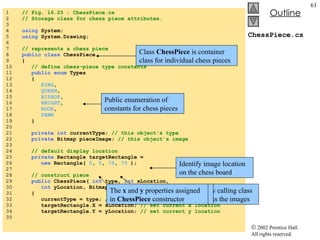
ChessPiece.cs 1  // Fig. 16.25 : ChessPiece.cs 2  // Storage class for chess piece attributes. 3  4  using  System; 5  using  System.Drawing; 6  7  // represents a chess piece 8  public class  ChessPiece 9  { 10  // define chess-piece type constants 11  public enum  Types 12  { 13  KING , 14  QUEEN , 15  BISHOP , 16  KNIGHT , 17  ROOK , 18  PAWN 19  } 20  21  private int  currentType;  // this object's type 22  private  Bitmap pieceImage;  // this object's image 23  24  // default display location 25  private  Rectangle targetRectangle =  26  new  Rectangle(  0 ,  0 ,  75 ,  75  ); 27  28  // construct piece 29  public  ChessPiece(  int  type,  int  xLocation,  30  int  yLocation, Bitmap sourceImage ) 31  { 32  currentType = type;  // set current type 33  targetRectangle.X = xLocation;  // set current x location 34  targetRectangle.Y = yLocation;  // set current y location 35  Class  ChessPiece  is container class for individual chess pieces Public enumeration of constants for chess pieces Identify image location on the chess board Allow calling class to pass the images Chess-piece images have height and width 75 The  x  and  y  properties assigned in  ChessPiece  constructor
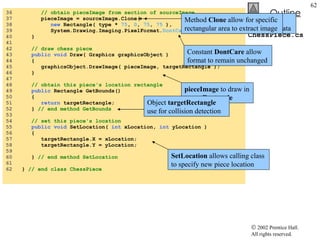
ChessPiece.cs 36  // obtain pieceImage from section of sourceImage 37  pieceImage = sourceImage.Clone(  38  new  Rectangle( type *  75 ,  0 ,  75 ,  75  ),  39  System.Drawing.Imaging.PixelFormat. DontCare  ); 40  } 41  42  // draw chess piece 43  public void  Draw( Graphics graphicsObject ) 44  { 45  graphicsObject.DrawImage( pieceImage, targetRectangle ); 46  }  47  48  // obtain this piece's location rectangle 49  public  Rectangle GetBounds() 50  { 51  return  targetRectangle; 52  }  // end method GetBounds 53  54  // set this piece's location 55  public void  SetLocation(  int  xLocation,  int  yLocation ) 56  { 57  targetRectangle.X = xLocation; 58  targetRectangle.Y = yLocation; 59  60  }  // end method SetLocation 61  62  }  // end class ChessPiece Extract subimage of the current piece’s bitmap data One image contain six chess pieces in one big block Method  Clone  allow for specific rectangular area to extract image Constant  DontCare  allow format to remain unchanged pieceImage  to draw in  targetRectangle Object  targetRectangle  use for collision detection SetLocation  allows calling class to specify new piece location
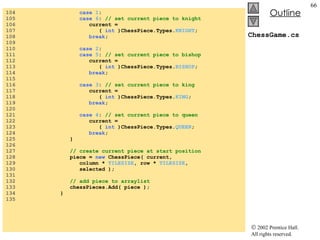
ChessGame.cs 1  // Fig. 16.26: ChessGame.cs 2  // Chess Game graphics code. 3  4  using  System; 5  using  System.Drawing; 6  using  System.Collections; 7  using  System.ComponentModel; 8  using  System.Windows.Forms; 9  using  System.Data; 10  11  // allows 2 players to play chess 12  public class  ChessGame : System.Windows.Forms.Form 13  { 14  private  System.Windows.Forms.PictureBox pieceBox; 15  private  System.Windows.Forms.MainMenu GameMenu; 16  private  System.Windows.Forms.MenuItem gameItem; 17  private  System.Windows.Forms.MenuItem newGameItem; 18  19  private   20  System.ComponentModel.Container components =  null ; 21  22  // ArrayList for board tile images 23  ArrayList chessTile =  new  ArrayList(); 24  25  // ArrayList for chess pieces 26  ArrayList chessPieces =  new  ArrayList(); 27  28  // define index for selected piece 29  int  selectedIndex =  -1 ; 30  int [,] board =  new   int [  8 ,  8  ];  // board array 31  32  // define chess tile size in pixels 33  private const int  TILESIZE =  75 ; 34  Defines game and graphics code for chess game ArrayList chessTile  stores the board tile images ArrayList   chessPieces  stores active  ChessPiece  objects Identify index in  chessPieces  of currently selected piece Size of each tile in pixels
ChessGame.cs 35  [STAThread] 36  static void  Main()  37  { 38  Application.Run(  new  ChessGame() ); 39  } 40  41  // Visual Studio .NET generated code 42  43  // load tile bitmaps and reset game 44  private void  ChessGame_Load( 45  object  sender, System.EventArgs e) 46  { 47  // load chess board tiles 48  chessTile.Add( Bitmap.FromFile(  &quot;lightTile1.png&quot;  ) ); 49  chessTile.Add( Bitmap.FromFile(  &quot;lightTile2.png&quot;  ) ); 50  chessTile.Add( Bitmap.FromFile(  &quot;darkTile1.png&quot;  ) ); 51  chessTile.Add( Bitmap.FromFile(  &quot;darkTile2.png&quot;  ) ); 52  53  ResetBoard();  // initialize board 54  Invalidate();  // refresh form 55  56  }  // end method ChessGame_Load 57  58  // initialize pieces to start and rebuild board 59  private void  ResetBoard() 60  { 61  int  current =  -1 ; 62  ChessPiece piece; 63  Random random =  new  Random(); 64  bool  light =  false ; 65  int  type; 66  67  // ensure empty arraylist 68  chessPieces =  new  ArrayList(); 69  ChessGame   Load  loads each tile image into  chessTile Refresh the  Form  and begin game Assign  chessPieces  to a new  arrayList
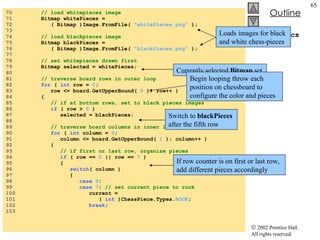
ChessGame.cs 70  // load whitepieces image 71  Bitmap whitePieces =  72  ( Bitmap )Image.FromFile(  &quot;whitePieces.png&quot;  ); 73  74  // load blackpieces image 75  Bitmap blackPieces =  76  ( Bitmap )Image.FromFile(  &quot;blackPieces.png&quot;  ); 77  78  // set whitepieces drawn first 79  Bitmap selected = whitePieces; 80  81  // traverse board rows in outer loop 82  for  (  int  row =  0 ;  83  row <= board.GetUpperBound(  0  ); row++ ) 84  { 85  // if at bottom rows, set to black pieces images 86  if  ( row >  5  ) 87  selected = blackPieces; 88  89  // traverse board columns in inner loop 90  for  (  int  column =  0 ;  91  column <= board.GetUpperBound(  1  ); column++ ) 92  { 93  // if first or last row, organize pieces 94  if  ( row ==  0  || row ==  7  ) 95  { 96  switch ( column ) 97  { 98  case   0 : 99  case   7 :  // set current piece to rook 100  current =  101  (  int  )ChessPiece.Types. ROOK ; 102  break ; 103  Loads images for black and white chess-pieces Currently selected  Bitmap  set Begin looping throw each position on chessboard to configure the color and pieces Switch to  blackPieces  after the fifth row If row counter is on first or last row, add different pieces accordingly
ChessGame.cs 104  case   1 : 105  case   6 :  // set current piece to knight 106  current =  107  (  int  )ChessPiece.Types. KNIGHT ; 108  break ; 109  110  case   2 : 111  case   5 :  // set current piece to bishop 112  current =  113  (  int  )ChessPiece.Types. BISHOP ; 114  break ; 115  116  case   3 :  // set current piece to king 117  current =  118  (  int  )ChessPiece.Types. KING ; 119  break ; 120  121  case   4 :  // set current piece to queen 122  current =  123  (  int  )ChessPiece.Types. QUEEN ; 124  break ; 125  } 126  127  // create current piece at start position 128  piece =  new  ChessPiece( current,  129  column *  TILESIZE , row *  TILESIZE ,  130  selected ); 131  132  // add piece to arraylist 133  chessPieces.Add( piece ); 134  } 135
ChessGame.cs 136  // if second or seventh row, organize pawns 137  if  ( row ==  1  || row ==  6  ) 138  { 139  piece =  new  ChessPiece(  140  (  int  )ChessPiece.Types. PAWN , 141  column *  TILESIZE , row *  TILESIZE ,  142  selected ); 143  144  // add piece to arraylist 145  chessPieces.Add( piece ); 146  } 147  148  // determine board piece type 149  type = random.Next(  0 ,  2  ); 150  151  if  ( light ) 152  { 153  // set light tile 154  board[ row, column ] = type; 155  light =  false ; 156  } 157  else 158  { 159  // set dark tile 160  board[ row, column ] = type +  2 ; 161  light =  true ; 162  } 163  } 164  165  // account for new row tile color switch 166  light = !light; 167  } 168  169  }  // end method ResetBoard 170  Assign current board-tile color as an index in the  board  array
ChessGame.cs 171  // display board in form OnPaint event 172  private void  ChessGame_Paint( 173  object  sender, System.Windows.Forms.PaintEventArgs e) 174  { 175  // obtain graphics object 176  Graphics graphicsObject = e.Graphics; 177  178  for  (  int  row =  0 ;  179  row <= board.GetUpperBound(  0  ); row++ ) 180  { 181  for  (  int  column =  0 ;  182  column <= board.GetUpperBound(  1  ); column++ ) 183  { 184  // draw image specified in board array 185  graphicsObject.DrawImage( 186  (Image)chessTile[ board[ row, column ] ], 187  new  Point(  TILESIZE  * column, 188  TILESIZE  * row ) ); 189  } 190  } 191  192  }  // end method ChessGame_Paint 193  194  // return index of piece that intersects point 195  // optionally exclude a value 196  private int  CheckBounds( Point point,  int  exclude ) 197  { 198  Rectangle rectangle;  // current bounding rectangle 199  200  for  (  int  i =  0 ; i < chessPieces.Count; i++ ) 201  { 202  // get piece rectangle 203  rectangle = GetPiece( i ).GetBounds(); 204  Handles this class  Form ’s Paint event and draw the tiles Collision-detection helper method
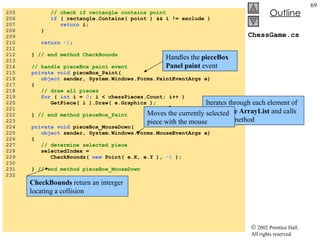
ChessGame.cs 205  // check if rectangle contains point 206  if  ( rectangle.Contains( point ) && i != exclude ) 207  return  i; 208  } 209  210  return   -1 ; 211  212  }  // end method CheckBounds 213  214  // handle pieceBox paint event 215  private void  pieceBox_Paint( 216  object  sender, System.Windows.Forms.PaintEventArgs e) 217  { 218  // draw all pieces 219  for  (  int  i =  0 ; i < chessPieces.Count; i++ ) 220  GetPiece( i ).Draw( e.Graphics ); 221  222  }  // end method pieceBox_Paint 223  224  private void  pieceBox_MouseDown( 225  object  sender, System.Windows.Forms.MouseEventArgs e) 226  { 227  // determine selected piece 228  selectedIndex =  229  CheckBounds(  new  Point( e.X, e.Y ),  -1  ); 230  231  }  // end method pieceBox_MouseDown 232  Handles the  pieceBox   Panel   paint  event Iterates through each element of  chessPiece   ArrayList  and calls its  Draw  method CheckBounds  return an interger locating a collision Moves the currently selected piece with the mouse
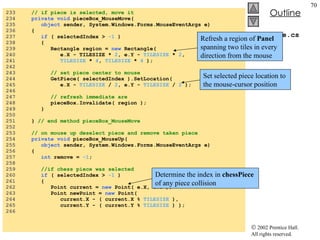
ChessGame.cs 233  // if piece is selected, move it 234  private void  pieceBox_MouseMove( 235  object  sender, System.Windows.Forms.MouseEventArgs e) 236  { 237  if  ( selectedIndex >  -1  ) 238  { 239  Rectangle region =  new  Rectangle(  240  e.X - TILESIZE *  2 , e.Y -  TILESIZE  *  2 ,  241  TILESIZE  *  4 ,   TILESIZE  *  4  ); 242  243  // set piece center to mouse 244  GetPiece( selectedIndex ).SetLocation(  245  e.X -  TILESIZE  /  2 , e.Y -  TILESIZE  /  2  ); 246  247  // refresh immediate are 248  pieceBox.Invalidate( region ); 249  } 250  251  }  // end method pieceBox_MouseMove 252  253  // on mouse up deselect piece and remove taken piece 254  private void  pieceBox_MouseUp( 255  object  sender, System.Windows.Forms.MouseEventArgs e) 256  { 257  int  remove =  -1 ; 258  259  //if chess piece was selected 260  if  ( selectedIndex >  -1  ) 261  { 262  Point current =  new  Point( e.X, e.Y ); 263  Point newPoint =  new  Point(  264  current.X - ( current.X %  TILESIZE  ), 265  current.Y - ( current.Y %  TILESIZE  ) ); 266  Set selected piece location to the mouse-cursor position Refresh a region of  Panel  spanning two tiles in every direction from the mouse Determine the index in  chessPiece  of any piece collision
ChessGame.cs 267  // check bounds with point, exclude selected piece 268  remove = CheckBounds( current, selectedIndex ); 269  270  // snap piece into center of closest square 271  GetPiece( selectedIndex ).SetLocation( newPoint.X, 272  newPoint.Y ); 273  274  // deselect piece 275  selectedIndex =  -1 ; 276  277  // remove taken piece 278  if  ( remove >  -1  ) 279  chessPieces.RemoveAt( remove ); 280  } 281  282  // refresh pieceBox to ensure artifact removal 283  pieceBox.Invalidate(); 284  285  }  // end method pieceBox_MouseUp 286  287  // helper function to convert  288  // ArrayList object to ChessPiece 289  private  ChessPiece GetPiece(  int  i ) 290  { 291  return  (ChessPiece)chessPieces[ i ]; 292  }  // end method GetPiece 293  Remove collided piece Align the current piece into a valid location and deselect piece If remove contain positive value, remove object at index from  chessPieces ArrayList Entire  Panel  is  Invalidated   Helper function, simplifies conversion from  object s to  ChessPiece  types
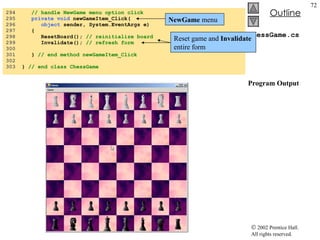
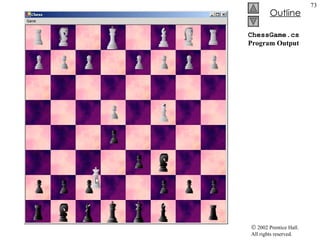
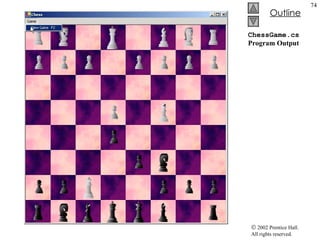
ChessGame.cs Program Output 294  // handle NewGame menu option click 295  private void  newGameItem_Click( 296  object  sender, System.EventArgs e) 297  { 298  ResetBoard();  // reinitialize board 299  Invalidate();  // refresh form 300  301  }  // end method newGameItem_Click 302  303  }  // end class ChessGame NewGame  menu  Reset game and  Invalidate  entire form
ChessGame.cs Program Output
16.12 Windows Media Player Application useful for view and sound Multiple format Can find preexisting content Can create from available packages
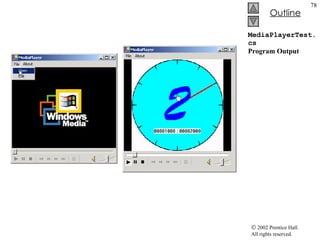
MediaPlayerTest.cs 1  // Fig 16.27: MediaPlayerTest.cs 2  // Demonstrates the Windows Media Player control 3  4  using  System; 5  using  System.Drawing; 6  using  System.Collections; 7  using  System.ComponentModel; 8  using  System.Windows.Forms; 9  using  System.Data; 10  11  // allows users to play media files using a  12  // Windows Media Player control 13  public class  MediaPlayer : System.Windows.Forms.Form 14  { 15  private  System.Windows.Forms.MainMenu applicationMenu; 16  private  System.Windows.Forms.MenuItem fileItem; 17  private  System.Windows.Forms.MenuItem openItem; 18  private  System.Windows.Forms.MenuItem exitItem; 19  private  System.Windows.Forms.MenuItem aboutItem; 20  private  System.Windows.Forms.MenuItem aboutMessageItem; 21  private  System.Windows.Forms.OpenFileDialog  22  openMediaFileDialog; 23  private  AxMediaPlayer.AxMediaPlayer player; 24  25  private   26  System.ComponentModel.Container components =  null ; 27  28  [STAThread] 29  static void  Main()  30  { 31  Application.Run(  new  MediaPlayer() ); 32  } 33  34  // Visual Studio .NET generated code 35
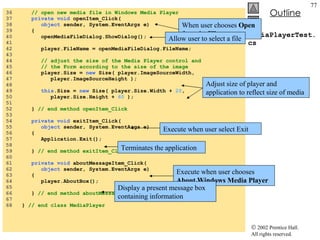
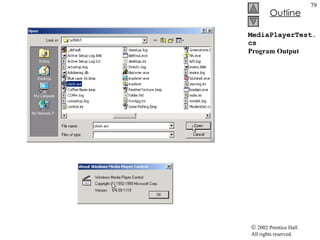
MediaPlayerTest.cs 36  // open new media file in Windows Media Player 37  private void  openItem_Click( 38  object  sender, System.EventArgs e) 39  { 40  openMediaFileDialog.ShowDialog(); 41  42  player.FileName = openMediaFileDialog.FileName; 43  44  // adjust the size of the Media Player control and 45  // the Form according to the size of the image 46  player.Size =  new  Size( player.ImageSourceWidth,  47  player.ImageSourceHeight ); 48  49  this .Size =  new  Size( player.Size.Width +  20 ,  50  player.Size.Height +  60  ); 51  52  }  // end method openItem_Click 53  54  private void  exitItem_Click( 55  object  sender, System.EventArgs e) 56  { 57  Application.Exit(); 58  59  }  // end method exitItem_Click 60  61  private void  aboutMessageItem_Click( 62  object  sender, System.EventArgs e) 63  { 64  player.AboutBox(); 65  66  }  // end method aboutMessageItem_Click 67  68  }  // end class MediaPlayer When user chooses  Open  from the  File  menu Allow user to select a file Adjust size of player and application to reflect size of media Execute when user select Exit Terminates the application Execute when user chooses  About Windows Media Player Display a present message box containing information
MediaPlayerTest.cs Program Output
16.13 Microsoft Agent Interactive animated characters Interactivity is essential Aid users with questions Speech recognition engine Text-to-speech engine
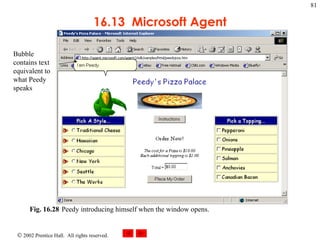
16.13  Microsoft Agent Fig. 16.28 Peedy introducing himself when the window opens.  Bubble contains text equivalent to what Peedy speaks
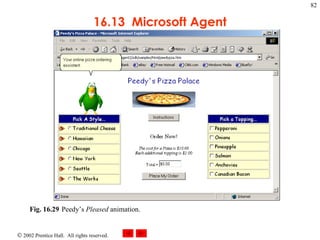
16.13  Microsoft Agent Fig. 16.29 Peedy’s  Pleased  animation.
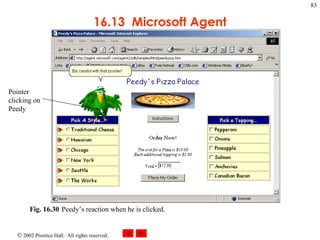
16.13  Microsoft Agent Fig. 16.30 Peedy’s reaction when he is clicked.   Pointer clicking on Peedy
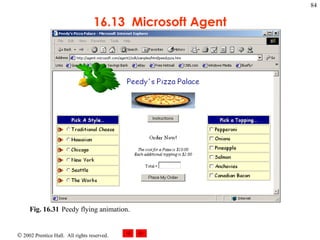
16.13  Microsoft Agent Fig. 16.31 Peedy flying animation.
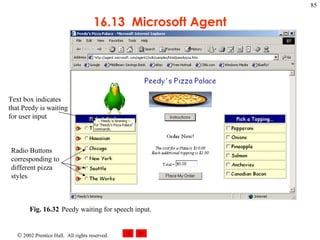
16.13  Microsoft Agent Fig. 16.32 Peedy waiting for speech input.   Text box indicates that Peedy is waiting for user input Radio Buttons corresponding to different pizza styles
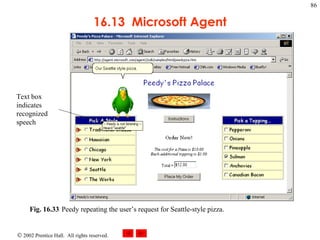
16.13  Microsoft Agent Fig. 16.33 Peedy repeating the user’s request for Seattle-style pizza.   Text box indicates recognized speech
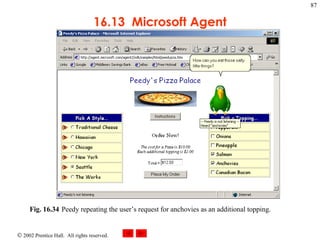
16.13  Microsoft Agent Fig. 16.34 Peedy repeating the user’s request for anchovies as an additional topping.
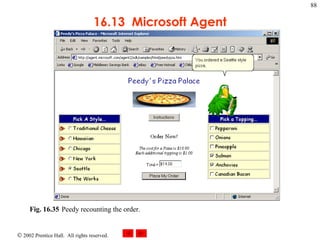
16.13  Microsoft Agent Fig. 16.35 Peedy recounting the order.
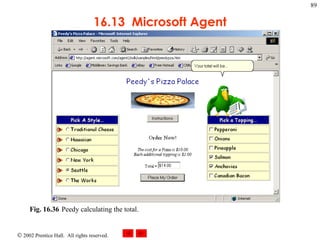
16.13  Microsoft Agent Fig. 16.36 Peedy calculating the total.
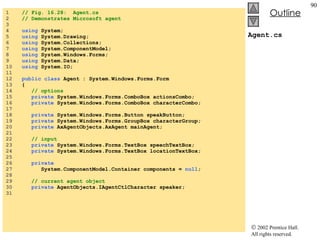
Agent.cs 1  // Fig. 16.28:  Agent.cs 2  // Demonstrates Microsoft agent 3  4  using  System; 5  using  System.Drawing; 6  using  System.Collections; 7  using  System.ComponentModel; 8  using  System.Windows.Forms; 9  using  System.Data; 10  using  System.IO; 11  12  public class  Agent : System.Windows.Forms.Form 13  { 14  // options 15  private  System.Windows.Forms.ComboBox actionsCombo; 16  private  System.Windows.Forms.ComboBox characterCombo; 17  18  private  System.Windows.Forms.Button speakButton; 19  private  System.Windows.Forms.GroupBox characterGroup; 20  private  AxAgentObjects.AxAgent mainAgent; 21  22  // input 23  private  System.Windows.Forms.TextBox speechTextBox; 24  private  System.Windows.Forms.TextBox locationTextBox; 25  26  private   27  System.ComponentModel.Container components =  null ; 28  29  // current agent object 30  private  AgentObjects.IAgentCtlCharacter speaker; 31
Agent.cs 32  [STAThread] 33  static void  Main()  34  { 35  Application.Run(  new  Agent() ); 36  } 37  38  // Visual Studio .NET generated code 39  40  // KeyDown event handler for locationTextBox 41  private void  locationTextBox_KeyDown( 42  object  sender, System.Windows.Forms.KeyEventArgs e ) 43  { 44  if  ( e.KeyCode == Keys. Enter  ) 45  { 46  // set character location to text box value 47  string  location = locationTextBox.Text; 48  49  // initialize the characters 50  try 51  { 52  // load characters into agent object 53  mainAgent.Characters.Load(  &quot;Genie&quot; , 54  location +  &quot;Genie.acs&quot;  ); 55  56  mainAgent.Characters.Load(  &quot;Merlin&quot; , 57  location +  &quot;Merlin.acs&quot;  ); 58  59  mainAgent.Characters.Load(  &quot;Peedy&quot; , 60  location +  &quot;Peedy.acs&quot;  ); 61  62  mainAgent.Characters.Load(  &quot;Robby&quot; , 63  location +  &quot;Robby.acs&quot;  ); 64  Wait for user to press Enter in the  TextBox Load the predefined animated characters
Agent.cs 65  // disable TextBox for entering the location 66  // and enable other controls 67  locationTextBox.Enabled =  false ; 68  speechTextBox.Enabled =  true ; 69  speakButton.Enabled =  true ; 70  characterCombo.Enabled =  true ; 71  actionsCombo.Enabled =  true ; 72  73  // set current character to Genie and show him 74  speaker = mainAgent.Characters[  &quot;Genie&quot;  ]; 75  76  // obtain an animation name list 77  GetAnimationNames(); 78  speaker.Show(  0  ); 79  } 80  catch ( FileNotFoundException ) 81  { 82  MessageBox.Show(  &quot;Invalid character location&quot; , 83  &quot;Error&quot; , MessageBoxButtons. OK , 84  MessageBoxIcon. Error  ); 85  } 86  } 87  88  }  // end method locationTextBox_KeyDown 89  90  private void  speakButton_Click( 91  object  sender, System.EventArgs e ) 92  { 93  // if textbox is empty, have the character ask 94  // user to type the words into textbox, otherwise 95  // have character say the words in textbox 96  if  ( speechTextBox.Text ==  &quot;&quot;  ) 97  speaker.Speak( 98  &quot;Please, type the words you want me to speak&quot; ,  99  &quot;&quot;  ); If any character is missing Disable  locationTextBox Set Genie as default character Obtain all animation names and  Show  to display the characters Contain all characters that have been loaded Call speaker’s method  Speak , supplying the text in  speechTextBox If no text was supplied
Agent.cs 100  else 101  speaker.Speak( speechTextBox.Text, &quot;&quot; ); 102  103  }  // end method speakButton_Click 104  105  // click event for agent 106  private void  mainAgent_ClickEvent(  object  sender,  107  AxAgentObjects._AgentEvents_ClickEvent e ) 108  { 109  speaker.Play(  &quot;Confused&quot;  ); 110  speaker.Speak(  &quot;Why are you poking me?&quot; ,  &quot;&quot;  ); 111  speaker.Play(  &quot;RestPose&quot;  ); 112  113  }  // end method mainAgent_ClickEvent 114  115  // combobox changed event, switch active agent 116  private void  characterCombo_SelectedIndexChanged( 117  object  sender, System.EventArgs e ) 118  { 119  ChangeCharacter( characterCombo.Text ); 120  121  }  // end method characterCombo_SelectedIndexChanged 122  123  private void  ChangeCharacter( string name ) 124  { 125  speaker.Hide(  0  ); 126  speaker = mainAgent.Characters[ name ]; 127  128  // regenerate animation name list 129  GetAnimationNames(); 130  speaker.Show(  0  ); 131  132  }  // end method ChangeCharacter 133  When user clicks the character speaker  method Play plays an animation Method accepts string argument representing predefined animations Return character to neutral pose When user choose to display a different character To remove current character from view Assign new character to speaker Generates the character’s animation names and commands Displays the new character
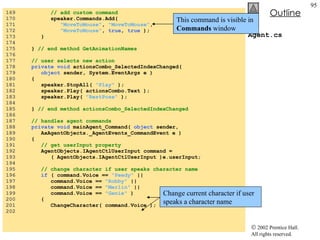
Agent.cs 134  // get animation names and store in arraylist 135  private void  GetAnimationNames() 136  { 137  // ensure thread safety 138  lock (  this  ) 139  { 140  141  // get animation names 142  IEnumerator enumerator = 143  mainAgent.Characters[ 144  speaker.Name ].AnimationNames.GetEnumerator(); 145  146  string  voiceString; 147  148  // clear actionsCombo 149  actionsCombo.Items.Clear(); 150  speaker.Commands.RemoveAll(); 151  152  // copy enumeration to ArrayList 153  while  ( enumerator.MoveNext() ) 154  { 155  //remove underscores in speech string 156  voiceString = (  string  )enumerator.Current; 157  voiceString =  158  voiceString.Replace(  &quot;_&quot; ,  &quot;underscore&quot;  ); 159  160  actionsCombo.Items.Add( enumerator.Current ); 161  162  // add all animations as voice enabled commands 163  speaker.Commands.Add(  164  (  string  )enumerator.Current, 165  enumerator.Current, 166  voiceString,  true ,  false  ); 167  } 168  Fills the  actionsCombo   ComboBox  with the current character’s animation listing To prevent errors resulting from rapid character changes Obtains the current character’s animations as an enumerator Clear existing items Iterate through all items in the animation-name enumerator Assign animation name to  string voiceString Remove underscore characters and replace with “ underscore ” Add new command to current character Animation name as the new command’s  name  and caption Voice activation string Enable the command but not for the  Commands  window
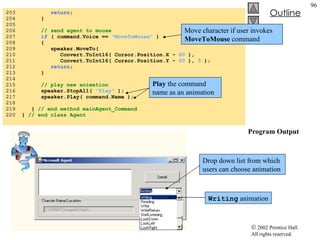
Agent.cs 169  // add custom command 170  speaker.Commands.Add(  171  &quot;MoveToMouse&quot; ,  &quot;MoveToMouse&quot; , 172  &quot;MoveToMouse&quot; ,  true ,  true  ); 173  } 174  175  }  // end method GetAnimationNames 176  177  // user selects new action 178  private void  actionsCombo_SelectedIndexChanged( 179  object  sender, System.EventArgs e ) 180  { 181  speaker.StopAll(  &quot;Play&quot;  ); 182  speaker.Play( actionsCombo.Text ); 183  speaker.Play(  &quot;RestPose&quot;  ); 184  185  }  // end method actionsCombo_SelectedIndexChanged 186  187  // handles agent commands 188  private void  mainAgent_Command(  object  sender,  189  AxAgentObjects._AgentEvents_CommandEvent e ) 190  { 191  // get userInput property 192  AgentObjects.IAgentCtlUserInput command = 193  ( AgentObjects.IAgentCtlUserInput )e.userInput; 194  195  // change character if user speaks character name 196  if  ( command.Voice ==  &quot;Peedy&quot;  || 197  command.Voice ==  &quot;Robby&quot;  || 198  command.Voice ==  &quot;Merlin&quot;  || 199  command.Voice ==  &quot;Genie&quot;  ) 200  { 201  ChangeCharacter( command.Voice ); 202  This command is visible in  Commands  window Change current character if user speaks a character name
Agent.cs Program Output 203  return ; 204  } 205  206  // send agent to mouse 207  if  ( command.Voice ==  &quot;MoveToMouse&quot;  ) 208  { 209  speaker.MoveTo(  210  Convert.ToInt16( Cursor.Position.X -  60  ), 211  Convert.ToInt16( Cursor.Position.Y -  60  ),  5  ); 212  return ; 213  } 214  215  // play new animation 216  speaker.StopAll(  &quot;Play&quot;  ); 217  speaker.Play( command.Name ); 218  219  }  // end method mainAgent_Command 220  }  // end class Agent Drop down list from which users can choose animation Writing  animation Move character if user invokes  MoveToMouse  command Play  the command name as an animation
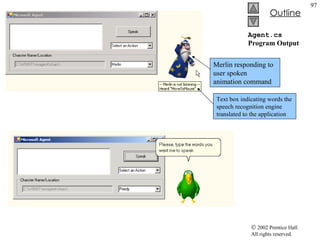
Agent.cs Program Output Merlin responding to user spoken animation command Text box indicating words the speech recognition engine translated to the application
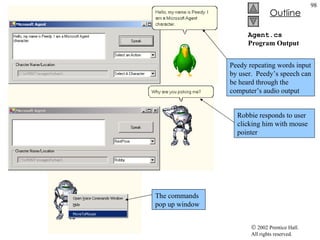
Agent.cs Program Output Peedy repeating words input by user.  Peedy’s speech can be heard through the computer’s audio output The commands pop up window Robbie responds to user clicking him with mouse pointer

Csphtp1 16

  • 1.
    Chapter 16 –Graphics and Media Outline 16.1 Introduction 16.2 Graphics Contexts and Graphics Objects 16.3 Color Control 16.4 Font Control 16.5 Drawing Lines, Rectangles and Ovals 16.6 Drawing Arcs 16.7 Drawing Polygons and Polylines 16.8 Advanced Graphics Capabilities 16.9 Introduction to Multimedia 16.10 Loading, Displaying and Scaling Images 16.11 Animating a Series of Images 16.12 Windows Media Player 16.13 Microsoft Agent
  • 2.
    16.1 Introduction GraphicalDevice Interface Two dimensional vector graphics Drawing capabilities Pen or Brush object Structure Color Positioning in x,y coordinate system
  • 3.
    16.1 IntroductionFig. 16.1 System.Drawing namespace’s classes and structures. structure class key System.Drawing Font FontFamily Graphics Icon Pen Region SolidBrush TextureBrush Image Brush HatchBrush LinearGradientBrush PathGradientBrush SolidBrush TextureBrush Color Point Rectangle Size
  • 4.
    16.1 IntroductionFig. 16.2 GDI+ coordinate system. Units are measured in pixels. x-axis y-axis (0, 0) +x +y (x, y)
  • 5.
    16.2 Graphics Contextsand Graphics Objects Graphics context Drawing surface Graphics object control how information is drawn Virtual OnPaint event handler Method Invalidate Refreshes and repaints
  • 6.
    16.3 Color ControlEnhancing program appearance Structure Color ARGB values Value range from 0 to 255
  • 7.
    16.3 ColorControl
  • 8.
    16.3 ColorControl
  • 9.
    16.3 ColorControl
  • 10.
    ShowColors.cs 1 // Fig 16.6: ShowColors.cs 2 // Using different colors in C#. 3 4 using System; 5 using System.Drawing; 6 using System.Collections; 7 using System.ComponentModel; 8 using System.Windows.Forms; 9 using System.Data; 10 11 // allows users to change colors using the name of 12 // the color or argb values 13 class ShowColors : System.Windows.Forms.Form 14 { 15 private System.ComponentModel.Container components = null ; 16 17 // color for back rectangle 18 private Color behindColor = Color. Wheat ; 19 private System.Windows.Forms.GroupBox nameGroup; 20 private System.Windows.Forms.GroupBox colorValueGroup; 21 private System.Windows.Forms.TextBox colorNameTextBox; 22 private System.Windows.Forms.TextBox alphaTextBox; 23 private System.Windows.Forms.TextBox redTextBox; 24 private System.Windows.Forms.TextBox greenTextBox; 25 private System.Windows.Forms.TextBox blueTextBox; 26 private System.Windows.Forms.Button colorValueButton; 27 private System.Windows.Forms.Button colorNameButton; 28 29 // color for front rectangle 30 private Color frontColor = 31 Color.FromArgb( 100 , 0 , 0 , 255 ); 32
  • 11.
    ShowColors.cs 33 [STAThread] 34 static void Main() 35 { 36 Application.Run( new ShowColors() ); 37 } 38 39 // Visual Studio .NET generated code 40 41 // override Form OnPaint method 42 protected override void OnPaint( PaintEventArgs e ) 43 { 44 Graphics graphicsObject = e.Graphics; // get graphics 45 46 // create text brush 47 SolidBrush textBrush = new SolidBrush( Color. Black ); 48 49 // create solid brush 50 SolidBrush brush = new SolidBrush( Color. White ); 51 52 // draw white background 53 graphicsObject.FillRectangle( brush, 4 , 4 , 275 , 180 ); 54 55 // display name of behindColor 56 graphicsObject.DrawString( behindColor.Name, this .Font, 57 textBrush, 40 , 5 ); 58 59 // set brush color and display back rectangle 60 brush.Color = behindColor; 61 62 graphicsObject.FillRectangle( brush, 45 , 20 , 150 , 120 ); 63 Method OnPaint to paint the window Graphics object graphicsObject created graphicsObject assign to PaintEventArgs e ’s Graphics New black SolidBrush New white SolidBrush Class SolidBrush derives from Brush Method FillRectangle to draws a solid white rectangle X and Y coordinates of a point Width and height of the rectangle Color behindColor assign to Color ’s property brush ’s Color property changed to behindColor Method DrawString display Brush ’s Color property Using SolidBrush brush Display another rectangle
  • 12.
    ShowColors.cs 64 // display Argb values of front color 65 graphicsObject.DrawString( &quot;Alpha: &quot; + frontColor.A + 66 &quot; Red: &quot; + frontColor.R + &quot; Green: &quot; + frontColor.G 67 + &quot; Blue: &quot; + frontColor.B, this .Font, textBrush, 68 55 , 165 ); 69 70 // set brush color and display front rectangle 71 brush.Color = frontColor; 72 73 graphicsObject.FillRectangle( brush, 65 , 35 , 170 , 130 ); 74 75 } // end method OnPaint 76 77 // handle colorValueButton click event 78 private void colorValueButton_Click( 79 object sender, System.EventArgs e ) 80 { 81 // obtain new front color from text boxes 82 frontColor = Color.FromArgb( Convert.ToInt32( 83 alphaTextBox.Text ), 84 Convert.ToInt32( redTextBox.Text ), 85 Convert.ToInt32( greenTextBox.Text ), 86 Convert.ToInt32( blueTextBox.Text ) ); 87 88 Invalidate(); // refresh Form 89 } 90 Extract and display the ARGB values of Color frontColor Method FromArgb construct new Color Object from user input
  • 13.
    ShowColors.cs Program Output91 // handle colorNameButton click event 92 private void colorNameButton_Click( 93 object sender, System.EventArgs e ) 94 { 95 // set behindColor to color specified in text box 96 behindColor = Color.FromName( colorNameTextBox.Text ); 97 98 Invalidate(); // refresh Form 99 } 100 101 } // end class ShowColors Method FromName to create new Color object from user text input
  • 14.
    ShowColorsComplex.cs 1 //Fig. 16.7: ShowColorsComplex.cs 2 // Change the background and text colors of a form. 3 4 using System; 5 using System.Drawing; 6 using System.Collections; 7 using System.ComponentModel; 8 using System.Windows.Forms; 9 using System.Data; 10 11 // allows users to change colors using a ColorDialog 12 public class ShowColorsComplex : System.Windows.Forms.Form 13 { 14 private System.Windows.Forms.Button backgroundColorButton; 15 private System.Windows.Forms.Button textColorButton; 16 17 private System.ComponentModel.Container components = null ; 18 19 [STAThread] 20 static void Main() 21 { 22 Application.Run( new ShowColorsComplex() ); 23 } 24 25 // Visual Studio .NET generated code 26 27 // change text color 28 private void textColorButton_Click( 29 object sender, System.EventArgs e ) 30 { 31 // create ColorDialog object 32 ColorDialog colorChooser = new ColorDialog(); 33 DialogResult result; 34
  • 15.
    ShowColorsComplex.cs 35 // get chosen color 36 result = colorChooser.ShowDialog(); 37 38 if ( result == DialogResult. Cancel ) 39 return ; 40 41 // assign forecolor to result of dialog 42 backgroundColorButton.ForeColor = colorChooser.Color; 43 textColorButton.ForeColor = colorChooser.Color; 44 45 } // end method textColorButton_Click 46 47 // change background color 48 private void backgroundColorButton_Click( 49 object sender, System.EventArgs e ) 50 { 51 // create ColorDialog object 52 ColorDialog colorChooser = new ColorDialog(); 53 DialogResult result; 54 55 // show ColorDialog and get result 56 colorChooser.FullOpen = true ; 57 result = colorChooser.ShowDialog(); 58 59 if ( result == DialogResult. Cancel ) 60 return ; 61 62 // set background color 63 this .BackColor = colorChooser.Color; 64 65 } // end method backgroundColorButton_Click 66 67 } // end class ShowColorsComplex ShowDialog method to display the window Property Color of colorChooser stores input Set the text color of both buttons to selected color Background color of form set to dialog’s Color property For dialog to display all available colors
  • 16.
  • 17.
    16.4 Font ControlMethods and constants of font control Creating Font Font’s metrics: height, decent, ascent and leading Once created properties cannot be modified Size property Return font size measured in design units
  • 18.
    16.4 FontControl
  • 19.
    UsingFonts.cs 1 // Fig 16.9: UsingFonts.cs 2 // Demonstrating various font settings. 3 4 using System; 5 using System.Drawing; 6 using System.Collections; 7 using System.ComponentModel; 8 using System.Windows.Forms; 9 using System.Data; 10 11 // demonstrate font constructors and properties 12 public class UsingFonts : System.Windows.Forms.Form 13 { 14 private System.ComponentModel.Container components = null ; 15 16 [STAThread] 17 static void Main() 18 { 19 Application.Run( new UsingFonts() ); 20 } 21 22 // Visual Studio .NET generated code 23 24 // demonstrate various font and style settings 25 protected override void OnPaint( 26 PaintEventArgs paintEvent ) 27 { 28 Graphics graphicsObject = paintEvent.Graphics; 29 SolidBrush brush = new SolidBrush( Color. DarkBlue ); 30 31 // arial, 12 pt bold 32 FontStyle style = FontStyle. Bold ; 33 Font arial = 34 new Font( new FontFamily( &quot;Arial&quot; ), 12 , style ); 35 Font constructor initialize Font objects Font name as a string A font size (a float ) FontStyle object
  • 20.
    UsingFonts.cs Program Output36 // times new roman, 12 pt regular 37 style = FontStyle. Regular ; 38 Font timesNewRoman = 39 new Font( &quot;Times New Roman&quot; , 12 , style ); 40 41 // courier new, 16 pt bold and italic 42 style = FontStyle. Bold | FontStyle. Italic ; 43 Font courierNew = new Font( &quot;Courier New&quot; , 16 , style ); 44 45 // tahoma, 18 pt strikeout 46 style = FontStyle. Strikeout ; 47 Font tahoma = new Font( &quot;Tahoma&quot; , 18 , style ); 48 49 graphicsObject.DrawString( arial.Name + 50 &quot; 12 point bold.&quot; , arial, brush, 10 , 10 ); 51 52 graphicsObject.DrawString( timesNewRoman.Name + 53 &quot; 12 point plain.&quot; , timesNewRoman, brush, 10 , 30 ); 54 55 graphicsObject.DrawString( courierNew.Name + 56 &quot; 16 point bold and italic.&quot; , courierNew, 57 brush, 10 , 54 ); 58 59 graphicsObject.DrawString( tahoma.Name + 60 &quot; 18 point strikeout.&quot; , tahoma, brush, 10 , 75 ); 61 62 } // end method OnPaint 63 64 } // end class UsingFonts Method DrawString sets font and draws the text at specified locations
  • 21.
    16.4 FontControl Fig. 16.10 An illustration of font metrics. xy1 Õ descent baseline ascent leading height
  • 22.
    16.4 FontControl
  • 23.
    UsingFontMetrics.cs 1 // Fig 16.12: UsingFontMetrics.cs 2 // Displaying font metric information. 3 4 using System; 5 using System.Drawing; 6 using System.Collections; 7 using System.ComponentModel; 8 using System.Windows.Forms; 9 using System.Data; 10 11 // displays font information 12 public class UsingFontMetrics : System.Windows.Forms.Form 13 { 14 private System.ComponentModel.Container components = null ; 15 16 [STAThread] 17 static void Main() 18 { 19 Application.Run( new UsingFontMetrics() ); 20 } 21 22 // Visual Studio .NET generated code 23 24 // displays font information 25 protected override void OnPaint( 26 PaintEventArgs paintEvent ) 27 { 28 Graphics graphicsObject = paintEvent.Graphics; 29 SolidBrush brush = new SolidBrush( Color. DarkBlue ); 30 31 // Arial font metrics 32 Font arial = new Font( &quot;Arial&quot; , 12 ); 33 FontFamily family = arial.FontFamily; 34 Font sanSerif = new Font( &quot;Microsoft Sans Serif&quot; , 35 14 , FontStyle. Italic ); Creates Font arial Property FontFamily to to get aria l’s FontFamily
  • 24.
    UsingFontMetrics.cs 36 37 // display Arial font metrics 38 graphicsObject.DrawString( &quot;Current Font: &quot; + 39 arial.ToString(), arial, brush, 10 , 10 ); 40 41 graphicsObject.DrawString( &quot;Ascent: &quot; + 42 family.GetCellAscent( FontStyle. Regular ), arial, 43 brush, 10 , 30 ); 44 45 graphicsObject.DrawString( &quot;Descent: &quot; + 46 family.GetCellDescent( FontStyle. Regular ), arial, 47 brush, 10 , 50 ); 48 49 graphicsObject.DrawString( &quot;Height: &quot; + 50 family.GetEmHeight( FontStyle. Regular ), arial, 51 brush, 10 , 70 ); 52 53 graphicsObject.DrawString( &quot;Leading: &quot; + 54 family.GetLineSpacing( FontStyle. Regular ), arial, 55 brush, 10 , 90 ); 56 57 // display Sans Serif font metrics 58 family = sanSerif.FontFamily; 59 60 graphicsObject.DrawString( &quot;Current Font: &quot; + 61 sanSerif.ToString(), sanSerif, brush, 10 , 130 ); 62 63 graphicsObject.DrawString( &quot;Ascent: &quot; + 64 family.GetCellAscent( FontStyle. Regular ), sanSerif, 65 brush, 10 , 150 ); 66 67 graphicsObject.DrawString( &quot;Descent: &quot; + 68 family.GetCellDescent( FontStyle. Regular ), sanSerif, 69 brush, 10 , 170 ); 70 ToString to output string representation of the font Font’s metrics are displayed
  • 25.
    UsingFontMetrics.cs Program Output71 graphicsObject.DrawString( &quot;Height: &quot; + 72 family.GetEmHeight( FontStyle. Regular ), sanSerif, 73 brush, 10 , 190 ); 74 75 graphicsObject.DrawString( &quot;Leading: &quot; + 76 family.GetLineSpacing( FontStyle. Regular ), sanSerif, 77 brush, 10 , 210 ); 78 79 } // end method OnPaint 80 81 } // end class UsingFontMetrics
  • 26.
    16.5 Drawing Lines,Rectangles and Ovals Graphics methods Use for drawing lines, rectangles and ovals Shape outlines take Pen Solid shapes take Brush Int argument represent coordinates Last two int argument are for width and height
  • 27.
    16.5 DrawingLines, Rectangles, and Ovals
  • 28.
    LinesRectanglesOvals.cs 1 // Fig. 16.14: LinesRectanglesOvals.cs 2 // Demonstrating lines, rectangles and ovals. 3 4 using System; 5 using System.Drawing; 6 using System.Collections; 7 using System.ComponentModel; 8 using System.Windows.Forms; 9 using System.Data; 10 11 // draws shapes on the Form 12 public class LinesRectanglesOvals : System.Windows.Forms.Form 13 { 14 private System.ComponentModel.Container components = null ; 15 16 [STAThread] 17 static void Main() 18 { 19 Application.Run( new LinesRectanglesOvals() ); 20 } 21 22 // Visual Studio .NET generated code 23 24 protected override void OnPaint( 25 PaintEventArgs paintEvent ) 26 { 27 // get graphics object 28 Graphics g = paintEvent.Graphics; 29 SolidBrush brush = new SolidBrush( Color. Blue ); 30 Pen pen = new Pen( Color. AliceBlue ); 31 32 // create filled rectangle 33 g.FillRectangle( brush, 90 , 30 , 150 , 90 ); 34 Drawing rectangle on the screen Drawing object Coordinates for bounding rectangle Rectangle’s width and height
  • 29.
    LinesRectanglesOvals.cs Program Output35 // draw lines to connect rectangles 36 g.DrawLine( pen, 90 , 30 , 110 , 40 ); 37 g.DrawLine( pen, 90 , 120 , 110 , 130 ); 38 g.DrawLine( pen, 240 , 30 , 260 , 40 ); 39 g.DrawLine( pen, 240 , 120 , 260 , 130 ); 40 41 // draw top rectangle 42 g.DrawRectangle( pen, 110 , 40 , 150 , 90 ); 43 44 // set brush to red 45 brush.Color = Color. Red ; 46 47 // draw base Ellipse 48 g.FillEllipse( brush, 280 , 75 , 100 , 50 ); 49 50 // draw connecting lines 51 g.DrawLine( pen, 380 , 55 , 380 , 100 ); 52 g.DrawLine( pen, 280 , 55 , 280 , 100 ); 53 54 // draw Ellipse outline 55 g.DrawEllipse( pen, 280 , 30 , 100 , 50 ); 56 57 } // end method OnPaint 58 59 } // end class LinesRectanglesOvals DrawLine takes a Pen and two pairs of int s Start and end point of the line Uses pen object to draw Overloaded methods DrawEllipse and FillEllipse Specify drawing object Coordinates of the bounding rectangle for the ellipse Bounding rectangle’s width and height
  • 30.
    16.5 DrawingLines, Rectangles, and Ovals Fig. 16.15 Ellipse bounded by a rectangle. (x, y) height width
  • 31.
    16.6 Drawing ArcsProperties of an Arc Starting angle Arc angle Bounding rectangle
  • 32.
    16.6 DrawingArcs Fig. 16.16 Positive and negative arc angles. 0° 18 0° 9 0° 27 0° 0° 18 0° 9 0° 27 0° Positive Arc Negative Arc
  • 33.
  • 34.
    DrawArcs.cs 1 // Fig. 16.18: DrawArcs.cs 2 // Drawing various arcs on a form. 3 4 using System; 5 using System.Drawing; 6 using System.Collections; 7 using System.ComponentModel; 8 using System.Windows.Forms; 9 using System.Data; 10 11 // draws various arcs 12 public class DrawArcs : System.Windows.Forms.Form 13 { 14 private System.ComponentModel.Container components = null ; 15 16 [STAThread] 17 static void Main() 18 { 19 Application.Run( new DrawArcs() ); 20 } 21 22 // Visual Studio .NET generated code 23 24 private void DrawArcs_Paint( 25 object sender, System.Windows.Forms.PaintEventArgs e ) 26 { 27 // get graphics object 28 Graphics graphicsObject = e.Graphics; 29 Rectangle rectangle1 = 30 new Rectangle( 15 , 35 , 80 , 80 ); 31 SolidBrush brush1 = 32 new SolidBrush( Color. Firebrick ); 33 Pen pen1 = new Pen( brush1, 1 ); 34 SolidBrush brush2 = new SolidBrush( Color. DarkBlue ); 35 Pen pen2 = new Pen( brush2, 1 ); Create various Graphics object
  • 35.
    DrawArcs.cs 36 37 // start at 0 and sweep 360 degrees 38 graphicsObject.DrawRectangle( pen1, rectangle1 ); 39 graphicsObject.DrawArc( pen2, rectangle1, 0 , 360 ); 40 41 // start at 0 and sweep 110 degrees 42 rectangle1.Location = new Point( 100 , 35 ); 43 graphicsObject.DrawRectangle( pen1, rectangle1 ); 44 graphicsObject.DrawArc( pen2, rectangle1, 0 , 110 ); 45 46 // start at 0 and sweep -270 degrees 47 rectangle1.Location = new Point( 185 , 35 ); 48 graphicsObject.DrawRectangle( pen1, rectangle1 ); 49 graphicsObject.DrawArc( pen2, rectangle1, 0 , -270 ); 50 51 // start at 0 and sweep 360 degrees 52 rectangle1.Location = new Point( 15 , 120 ); 53 rectangle1.Size = new Size( 80 , 40 ); 54 graphicsObject.DrawRectangle( pen1, rectangle1 ); 55 graphicsObject.FillPie( brush2, rectangle1, 0 , 360 ); 56 57 // start at 270 and sweep -90 degrees 58 rectangle1.Location = new Point( 100 , 120 ); 59 graphicsObject.DrawRectangle( pen1, rectangle1 ); 60 graphicsObject.FillPie( 61 brush2, rectangle1, 270 , -90 ); 62 Command to draw a rectangle Draw an arc inside rectangle, arc sweeps 360 degrees Set Rectangle ’s Location property to new Point Size property determine height and width Change size of the rectangle
  • 36.
    DrawArcs.cs Program Output63 // start at 0 and sweep -270 degrees 64 rectangle1.Location = new Point( 185 , 120 ); 65 graphicsObject.DrawRectangle( pen1, rectangle1 ); 66 graphicsObject.FillPie( 67 brush2, rectangle1, 0 , -270 ); 68 69 } // end method DrawArcs_Paint 70 71 } // end class DrawArcs
  • 37.
    16.7 Drawing Polygonsand Polylines Polygons Multisided shapes DrawLine Series of connected points DrawPolygon Closed polygon FillPolygon Solid polygon
  • 38.
    16.7 DrawingPolygons and Polylines
  • 39.
    DrawPolygons.cs 1 // Fig. 16.20: DrawPolygons.cs 2 // Demonstrating polygons. 3 4 using System; 5 using System.Drawing; 6 using System.Collections; 7 using System.ComponentModel; 8 using System.Windows.Forms; 9 using System.Data; 10 11 public class PolygonForm : System.Windows.Forms.Form 12 { 13 private System.Windows.Forms.Button colorButton; 14 private System.Windows.Forms.Button clearButton; 15 private System.Windows.Forms.GroupBox typeGroup; 16 private System.Windows.Forms.RadioButton 17 filledPolygonOption; 18 private System.Windows.Forms.RadioButton lineOption; 19 private System.Windows.Forms.RadioButton polygonOption; 20 private System.Windows.Forms.Panel drawPanel; 21 22 private 23 System.ComponentModel.Container components = null ; 24 25 // contains list of polygon vertices 26 private ArrayList points = new ArrayList(); 27 28 // initialize default pen and brush 29 Pen pen = new Pen( Color. DarkBlue ); 30 31 SolidBrush brush = new SolidBrush( Color. DarkBlue ); 32 ArrayList points as container for Point objects Pen and Brush to color shapes
  • 40.
    DrawPolygons.cs 33 [STAThread] 34 static void Main() 35 { 36 Application.Run( new PolygonForm() ); 37 } 38 39 // Visual Studio .NET generated code 40 41 // draw panel mouse down event handler 42 private void drawPanel_MouseDown( 43 object sender, System.Windows.Forms.MouseEventArgs e ) 44 { 45 // add mouse position to vertex list 46 points.Add( new Point( e.X, e.Y ) ); 47 drawPanel.Invalidate(); // refresh panel 48 49 } // end method drawPanel_MouseDown 50 51 private void drawPanel_Paint( 52 object sender, System.Windows.Forms.PaintEventArgs e ) 53 { 54 // get graphics object for panel 55 Graphics graphicsObject = e.Graphics; 56 57 // if arraylist has 2 or more points, display shape 58 if ( points.Count > 1 ) 59 { 60 // get array for use in drawing functions 61 Point[] pointArray = 62 ( Point[] )points.ToArray( 63 points[ 0 ].GetType() ); 64 65 if ( polygonOption.Checked ) 66 Stores mouse-click locations in ArrayList Refresh panel for new point If two or more Points are in ArrayList points then display polygon Extract an Array from ArrayList via ToArray
  • 41.
    DrawPolygons.cs 67 // draw polygon 68 graphicsObject.DrawPolygon( pen, pointArray ); 69 70 else if ( lineOption.Checked ) 71 72 // draw lines 73 graphicsObject.DrawLines( pen, pointArray ); 74 75 else if ( filledPolygonOption.Checked ) 76 77 // draw filled 78 graphicsObject.FillPolygon( 79 brush, pointArray ); 80 } 81 82 } // end method drawPanel_Paint 83 84 // handle clearButton click event 85 private void clearButton_Click( 86 object sender, System.EventArgs e ) 87 { 88 points = new ArrayList(); // remove points 89 90 drawPanel.Invalidate(); // refresh panel 91 92 } // end method clearButton_Click 93 94 // handle polygon radio button CheckedChanged event 95 private void polygonOption_CheckedChanged( 96 object sender, System.EventArgs e) 97 { 98 drawPanel.Invalidate(); // refresh panel 99 100 } // end method polygonOption_CheckedChanged 101 Creates empty ArrayList , replace old list Method refreshes Panel DrawPanel to reflect specification
  • 42.
    DrawPolygons.cs 102 // handle line radio button CheckedChanged event 103 private void lineOption_CheckedChanged( 104 object sender, System.EventArgs e) 105 { 106 drawPanel.Invalidate(); // refresh panel 107 108 } // end method lineOption_CheckedChanged 109 110 // handle filled polygon radio button 111 // CheckedChanged event 112 private void filledPolygonOption_CheckedChanged( 113 object sender, System.EventArgs e) 114 { 115 drawPanel.Invalidate(); // refresh panel 116 117 } // end method filledPolygonOption_CheckedChanged 118 119 // handle colorButton click event 120 private void colorButton_Click( 121 object sender, System.EventArgs e) 122 { 123 // create new color dialog 124 ColorDialog dialogColor = new ColorDialog(); 125 126 // show dialog and obtain result 127 DialogResult result = dialogColor.ShowDialog(); 128 129 // return if user cancels 130 if ( result == DialogResult. Cancel ) 131 return ; 132 Allow user to select new color with ColorDialog
  • 43.
    DrawPolygons.cs Program Output133 pen.Color = dialogColor.Color; // set pen to color 134 brush.Color = dialogColor.Color; // set brush 135 drawPanel.Invalidate(); // refresh panel; 136 137 } // end method colorButton_Click 138 139 } // end class PolygonForm
  • 44.
  • 45.
    16.8 Advanced GraphicsCapabilities Brush hierarchy Provide additional capabilities General path
  • 46.
    DrawShapes.cs 1 // Fig. 16.21: DrawShapes.cs 2 // Drawing various shapes on a form. 3 4 using System; 5 using System.Drawing; 6 using System.Collections; 7 using System.ComponentModel; 8 using System.Windows.Forms; 9 using System.Data; 10 using System.Drawing.Drawing2D; 11 12 // draws shapes with different brushes 13 public class DrawShapesForm : System.Windows.Forms.Form 14 { 15 private System.ComponentModel.Container components = null ; 16 17 [STAThread] 18 static void Main() 19 { 20 Application.Run( new DrawShapesForm() ); 21 } 22 23 // Visual Studio .NET generated code 24 25 // draw various shapes on form 26 private void DrawShapesForm_Paint( 27 object sender, System.Windows.Forms.PaintEventArgs e ) 28 { 29 // references to object we will use 30 Graphics graphicsObject = e.Graphics; 31 32 // ellipse rectangle and gradient brush 33 Rectangle drawArea1 = 34 new Rectangle( 5 , 35 , 30 , 100 );
  • 47.
    DrawShapes.cs 35 LinearGradientBrush linearBrush = 36 new LinearGradientBrush( drawArea1, Color. Blue , 37 Color. Yellow , LinearGradientMode. ForwardDiagonal ); 38 39 // pen and location for red outline rectangle 40 Pen thickRedPen = new Pen( Color. Red , 10 ); 41 Rectangle drawArea2 = new Rectangle( 80 , 30 , 65 , 100 ); 42 43 // bitmap texture 44 Bitmap textureBitmap = new Bitmap( 10 , 10 ); 45 46 // get bitmap graphics 47 Graphics graphicsObject2 = 48 Graphics.FromImage( textureBitmap ); 49 50 // brush and pen used throughout program 51 SolidBrush solidColorBrush = 52 new SolidBrush( Color. Red ); 53 Pen coloredPen = new Pen( solidColorBrush ); 54 55 // draw ellipse filled with a blue-yellow gradient 56 graphicsObject.FillEllipse( 57 linearBrush, 5 , 30 , 65 , 100 ); 58 59 // draw thick rectangle outline in red 60 graphicsObject.DrawRectangle( thickRedPen, drawArea2 ); 61 62 // fill textureBitmap with yellow 63 solidColorBrush.Color = Color. Yellow ; 64 graphicsObject2.FillRectangle( 65 solidColorBrush, 0 , 0 , 10 , 10 ); 66 LinearGradientBrush allow users to draw color gradient Argument takes a Rectangle Two Colors An enumeration LinearGradientMode The defining line for LinearGradientBrush linearBrush Specifies the gradient’s direction Draw an ellipse with linearBrush Argument specify a red line 10 pixels wide New Bitmap 10 pixels wide 10 pixels tall
  • 48.
    DrawShapes.cs 67 // draw small black rectangle in textureBitmap 68 coloredPen.Color = Color. Black ; 69 graphicsObject2.DrawRectangle( 70 coloredPen, 1 , 1 , 6 , 6 ); 71 72 // draw small blue rectangle in textureBitmpa 73 solidColorBrush.Color = Color. Blue ; 74 graphicsObject2.FillRectangle( 75 solidColorBrush, 1 , 1 , 3 , 3 ); 76 77 // draw small red square in textureBitmap 78 solidColorBrush.Color = Color. Red ; 79 graphicsObject2.FillRectangle( 80 solidColorBrush, 4 , 4 , 3 , 3 ); 81 82 // create textured brush and 83 // display textured rectangle 84 TextureBrush texturedBrush = 85 new TextureBrush( textureBitmap ); 86 graphicsObject.FillRectangle( 87 texturedBrush, 155 , 30 , 75 , 100 ); 88 89 // draw pie-shaped arc in white 90 coloredPen.Color = Color. White ; 91 coloredPen.Width = 6 ; 92 graphicsObject.DrawPie( 93 coloredPen, 240 , 30 , 75 , 100 , 0 , 270 ); 94 95 // draw lines in green and yellow 96 coloredPen.Color = Color. Green ; 97 coloredPen.Width = 5 ; 98 graphicsObject.DrawLine( 99 coloredPen, 395 , 30 , 320 , 150 ); 100 TextureBrush fills interior of shape with image texturedBrush fill rectangle with Bitmap DrawPie with coloredPen , coordinates and sizes
  • 49.
    DrawShapes.cs Program Output101 // draw a rounded, dashed yellow line 102 coloredPen.Color = Color. Yellow ; 103 coloredPen.DashCap = ( DashCap )LineCap. Round ; 104 coloredPen.DashStyle = DashStyle. Dash ; 105 graphicsObject.DrawLine( 106 coloredPen, 320 , 30 , 395 , 150 ); 107 108 } // end method DrawShapesForm_Paint 109 110 } // end class DrawShapesForm Set DashCap property of coloredPen to member of DashCap enumeration DashCap enumeration specify styles for endpoints Set DashStyle property of coloredPen to DashStyle.Dash
  • 50.
    DrawStarsForm.cs 1 // Fig. 16.22: DrawStarsForm.cs 2 // Using paths to draw stars on the form. 3 4 using System; 5 using System.Drawing; 6 using System.Collections; 7 using System.ComponentModel; 8 using System.Windows.Forms; 9 using System.Data; 10 using System.Drawing.Drawing2D; 11 12 // draws randomly colored stars 13 public class DrawStarsForm : System.Windows.Forms.Form 14 { 15 private 16 System.ComponentModel.Container components = null ; 17 18 [STAThread] 19 static void Main() 20 { 21 Application.Run( new DrawStarsForm() ); 22 } 23 24 // Visual Studio .NET generated code 25 26 // create path and draw stars along it 27 private void DrawStarsForm_Paint( 28 object sender, System.Windows.Forms.PaintEventArgs e ) 29 { 30 Graphics graphicsObject = e.Graphics; 31 Random random = new Random(); 32 SolidBrush brush = 33 new SolidBrush( Color. DarkMagenta ); 34
  • 51.
    DrawStarsForm.cs 35 // x and y points of the path 36 int [] xPoints = 37 { 55 , 67 , 109 , 73 , 83 , 55 , 27 , 37 , 1 , 43 }; 38 int [] yPoints = 39 { 0 , 36 , 36 , 54 , 96 , 72 , 96 , 54 , 36 , 36 }; 40 41 // create graphics path for star; 42 GraphicsPath star = new GraphicsPath(); 43 44 // translate the origin to (150, 150) 45 graphicsObject.TranslateTransform( 150 , 150 ); 46 47 // create star from series of points 48 for ( int i = 0 ; i <= 8 ; i += 2 ) 49 star.AddLine( xPoints[ i ], yPoints[ i ], 50 xPoints[ i + 1 ], yPoints[ i + 1 ] ); 51 52 // close the shape 53 star.CloseFigure(); 54 55 // rotate the origin and draw stars in random colors 56 for ( int i = 1 ; i <= 18 ; i++ ) 57 { 58 graphicsObject.RotateTransform( 20 ); 59 60 brush.Color = Color.FromArgb( 61 random.Next( 200 , 255 ), random.Next( 255 ), 62 random.Next( 255 ), random.Next( 255 ) ); 63 64 graphicsObject.FillPath( brush, star ); 65 } 66 67 } // end method DrawStarsForm_Paint 68 69 } // end class DrawStarsForm Set the origin of the Graphics object Int array representing coordinates points for the star Create lines to connect the points of the star and store them in star CloseFigure to complete the shape Method AddLine to append line to the shape AddLine adds a line from the previous point to current point Loop to draw star 18 times, rotating around the origin Method FillPath draws a filled star with Brush Randomly generate colors for the stars
  • 52.
  • 53.
    16.9 Introduction toMultimedia Multimedia revolution Faster processors Allows multimedia application
  • 54.
    16.10 Loading, Displayingand Scaling Images C#’s multimedia capabilities Graphics Images Animations video
  • 55.
    DisplayLogoForm.cs 1 // Fig. 16.23: DisplayLogoForm.cs 2 // Displaying and resizing an image. 3 4 using System; 5 using System.Drawing; 6 using System.Collections; 7 using System.ComponentModel; 8 using System.Windows.Forms; 9 using System.Data; 10 11 // displays an image and allows the user to resize it 12 public class DisplayLogoForm : System.Windows.Forms.Form 13 { 14 private System.Windows.Forms.Button setButton; 15 private System.Windows.Forms.TextBox heightTextBox; 16 private System.Windows.Forms.Label heightLabel; 17 private System.Windows.Forms.TextBox widthTextBox; 18 private System.Windows.Forms.Label widthLabel; 19 20 private 21 System.ComponentModel.Container components = null ; 22 23 private 24 Image image = Image.FromFile( &quot;images/Logo.gif&quot; ); 25 private Graphics graphicsObject; 26 27 public DisplayLogoForm() 28 { 29 InitializeComponent(); 30 31 graphicsObject = this .CreateGraphics(); 32 } 33 image is assign through method FromFile Method CreateGraphics to create a Graphics object associated with the Form
  • 56.
    DisplayLogoForm.cs 34 [STAThread] 35 static void Main() 36 { 37 Application.Run( new DisplayLogoForm() ); 38 } 39 40 // Visual Studio .NET generated code 41 42 private void setButton_Click( 43 object sender, System.EventArgs e ) 44 { 45 // get user input 46 int width = Convert.ToInt32( widthTextBox.Text ); 47 int height = Convert.ToInt32( heightTextBox.Text ); 48 49 // if dimensions specified are too large 50 // display problem 51 if ( width > 375 || height > 225 ) 52 { 53 MessageBox.Show( &quot;Height or Width too large&quot; ); 54 55 return ; 56 } 57 58 // clear Windows Form 59 graphicsObject.Clear( this .BackColor ); 60 61 // draw image 62 graphicsObject.DrawImage( 63 image, 5 , 5 , width, height ); 64 65 } // end method setButton_Click 66 67 } // end class DisplayLogoForm When user select Set , test to validate they are in acceptable range Method Clear to paint entire Form in current background color Graphics method DrawImage is called to display image
  • 57.
  • 58.
    16.11 Animating aSeries of Images Animate series of images from an array Collision detection Regional invalidation
  • 59.
    LogoAnimator.cs 1 // Fig. 16.24: LogoAnimator.cs 2 // Program that animates a series of images. 3 4 using System; 5 using System.Drawing; 6 using System.Collections; 7 using System.ComponentModel; 8 using System.Windows.Forms; 9 using System.Data; 10 11 // animates a series of 30 images 12 public class LogoAnimator : System.Windows.Forms.Form 13 { 14 private System.Windows.Forms.PictureBox logoPictureBox; 15 private System.Windows.Forms.Timer Timer; 16 private System.ComponentModel.IContainer components; 17 18 private ArrayList images = new ArrayList(); 19 private int count = -1 ; 20 21 public LogoAnimator() 22 { 23 InitializeComponent(); 24 25 for ( int i = 0 ; i < 30 ; i++ ) 26 images.Add( Image.FromFile( &quot;images/deitel&quot; + i + 27 &quot;.gif&quot; ) ); 28 29 // load first image 30 logoPictureBox.Image = ( Image ) images[ 0 ]; 31 32 // set PictureBox to be the same size as Image 33 logoPictureBox.Size = logoPictureBox.Image.Size; 34 35 } // end constructor PictureBox contain images to animate Timer to cycle through the image Count keeps track of current image Load each of 30 images and store in an ArrayList Places first image in the PictureBox Modify size if PictureBox to equal size of Image
  • 60.
    LogoAnimator.cs Program Output 36 37 [STAThread] 38 static void Main() 39 { 40 Application.Run( new LogoAnimator() ); 41 } 42 43 // Visual Studio .NET generated code 44 45 private void Timer_Tick( 46 object sender, System.EventArgs e ) 47 { 48 // increment counter 49 count = ( count + 1 ) % 30 ; 50 51 // load next image 52 logoPictureBox.Image = ( Image )images[ count ]; 53 54 } // end method Timer_Tick 55 56 } // end class LogoAnimator
  • 61.
    ChessPiece.cs 1 // Fig. 16.25 : ChessPiece.cs 2 // Storage class for chess piece attributes. 3 4 using System; 5 using System.Drawing; 6 7 // represents a chess piece 8 public class ChessPiece 9 { 10 // define chess-piece type constants 11 public enum Types 12 { 13 KING , 14 QUEEN , 15 BISHOP , 16 KNIGHT , 17 ROOK , 18 PAWN 19 } 20 21 private int currentType; // this object's type 22 private Bitmap pieceImage; // this object's image 23 24 // default display location 25 private Rectangle targetRectangle = 26 new Rectangle( 0 , 0 , 75 , 75 ); 27 28 // construct piece 29 public ChessPiece( int type, int xLocation, 30 int yLocation, Bitmap sourceImage ) 31 { 32 currentType = type; // set current type 33 targetRectangle.X = xLocation; // set current x location 34 targetRectangle.Y = yLocation; // set current y location 35 Class ChessPiece is container class for individual chess pieces Public enumeration of constants for chess pieces Identify image location on the chess board Allow calling class to pass the images Chess-piece images have height and width 75 The x and y properties assigned in ChessPiece constructor
  • 62.
    ChessPiece.cs 36 // obtain pieceImage from section of sourceImage 37 pieceImage = sourceImage.Clone( 38 new Rectangle( type * 75 , 0 , 75 , 75 ), 39 System.Drawing.Imaging.PixelFormat. DontCare ); 40 } 41 42 // draw chess piece 43 public void Draw( Graphics graphicsObject ) 44 { 45 graphicsObject.DrawImage( pieceImage, targetRectangle ); 46 } 47 48 // obtain this piece's location rectangle 49 public Rectangle GetBounds() 50 { 51 return targetRectangle; 52 } // end method GetBounds 53 54 // set this piece's location 55 public void SetLocation( int xLocation, int yLocation ) 56 { 57 targetRectangle.X = xLocation; 58 targetRectangle.Y = yLocation; 59 60 } // end method SetLocation 61 62 } // end class ChessPiece Extract subimage of the current piece’s bitmap data One image contain six chess pieces in one big block Method Clone allow for specific rectangular area to extract image Constant DontCare allow format to remain unchanged pieceImage to draw in targetRectangle Object targetRectangle use for collision detection SetLocation allows calling class to specify new piece location
  • 63.
    ChessGame.cs 1 // Fig. 16.26: ChessGame.cs 2 // Chess Game graphics code. 3 4 using System; 5 using System.Drawing; 6 using System.Collections; 7 using System.ComponentModel; 8 using System.Windows.Forms; 9 using System.Data; 10 11 // allows 2 players to play chess 12 public class ChessGame : System.Windows.Forms.Form 13 { 14 private System.Windows.Forms.PictureBox pieceBox; 15 private System.Windows.Forms.MainMenu GameMenu; 16 private System.Windows.Forms.MenuItem gameItem; 17 private System.Windows.Forms.MenuItem newGameItem; 18 19 private 20 System.ComponentModel.Container components = null ; 21 22 // ArrayList for board tile images 23 ArrayList chessTile = new ArrayList(); 24 25 // ArrayList for chess pieces 26 ArrayList chessPieces = new ArrayList(); 27 28 // define index for selected piece 29 int selectedIndex = -1 ; 30 int [,] board = new int [ 8 , 8 ]; // board array 31 32 // define chess tile size in pixels 33 private const int TILESIZE = 75 ; 34 Defines game and graphics code for chess game ArrayList chessTile stores the board tile images ArrayList chessPieces stores active ChessPiece objects Identify index in chessPieces of currently selected piece Size of each tile in pixels
  • 64.
    ChessGame.cs 35 [STAThread] 36 static void Main() 37 { 38 Application.Run( new ChessGame() ); 39 } 40 41 // Visual Studio .NET generated code 42 43 // load tile bitmaps and reset game 44 private void ChessGame_Load( 45 object sender, System.EventArgs e) 46 { 47 // load chess board tiles 48 chessTile.Add( Bitmap.FromFile( &quot;lightTile1.png&quot; ) ); 49 chessTile.Add( Bitmap.FromFile( &quot;lightTile2.png&quot; ) ); 50 chessTile.Add( Bitmap.FromFile( &quot;darkTile1.png&quot; ) ); 51 chessTile.Add( Bitmap.FromFile( &quot;darkTile2.png&quot; ) ); 52 53 ResetBoard(); // initialize board 54 Invalidate(); // refresh form 55 56 } // end method ChessGame_Load 57 58 // initialize pieces to start and rebuild board 59 private void ResetBoard() 60 { 61 int current = -1 ; 62 ChessPiece piece; 63 Random random = new Random(); 64 bool light = false ; 65 int type; 66 67 // ensure empty arraylist 68 chessPieces = new ArrayList(); 69 ChessGame Load loads each tile image into chessTile Refresh the Form and begin game Assign chessPieces to a new arrayList
  • 65.
    ChessGame.cs 70 // load whitepieces image 71 Bitmap whitePieces = 72 ( Bitmap )Image.FromFile( &quot;whitePieces.png&quot; ); 73 74 // load blackpieces image 75 Bitmap blackPieces = 76 ( Bitmap )Image.FromFile( &quot;blackPieces.png&quot; ); 77 78 // set whitepieces drawn first 79 Bitmap selected = whitePieces; 80 81 // traverse board rows in outer loop 82 for ( int row = 0 ; 83 row <= board.GetUpperBound( 0 ); row++ ) 84 { 85 // if at bottom rows, set to black pieces images 86 if ( row > 5 ) 87 selected = blackPieces; 88 89 // traverse board columns in inner loop 90 for ( int column = 0 ; 91 column <= board.GetUpperBound( 1 ); column++ ) 92 { 93 // if first or last row, organize pieces 94 if ( row == 0 || row == 7 ) 95 { 96 switch ( column ) 97 { 98 case 0 : 99 case 7 : // set current piece to rook 100 current = 101 ( int )ChessPiece.Types. ROOK ; 102 break ; 103 Loads images for black and white chess-pieces Currently selected Bitmap set Begin looping throw each position on chessboard to configure the color and pieces Switch to blackPieces after the fifth row If row counter is on first or last row, add different pieces accordingly
  • 66.
    ChessGame.cs 104 case 1 : 105 case 6 : // set current piece to knight 106 current = 107 ( int )ChessPiece.Types. KNIGHT ; 108 break ; 109 110 case 2 : 111 case 5 : // set current piece to bishop 112 current = 113 ( int )ChessPiece.Types. BISHOP ; 114 break ; 115 116 case 3 : // set current piece to king 117 current = 118 ( int )ChessPiece.Types. KING ; 119 break ; 120 121 case 4 : // set current piece to queen 122 current = 123 ( int )ChessPiece.Types. QUEEN ; 124 break ; 125 } 126 127 // create current piece at start position 128 piece = new ChessPiece( current, 129 column * TILESIZE , row * TILESIZE , 130 selected ); 131 132 // add piece to arraylist 133 chessPieces.Add( piece ); 134 } 135
  • 67.
    ChessGame.cs 136 // if second or seventh row, organize pawns 137 if ( row == 1 || row == 6 ) 138 { 139 piece = new ChessPiece( 140 ( int )ChessPiece.Types. PAWN , 141 column * TILESIZE , row * TILESIZE , 142 selected ); 143 144 // add piece to arraylist 145 chessPieces.Add( piece ); 146 } 147 148 // determine board piece type 149 type = random.Next( 0 , 2 ); 150 151 if ( light ) 152 { 153 // set light tile 154 board[ row, column ] = type; 155 light = false ; 156 } 157 else 158 { 159 // set dark tile 160 board[ row, column ] = type + 2 ; 161 light = true ; 162 } 163 } 164 165 // account for new row tile color switch 166 light = !light; 167 } 168 169 } // end method ResetBoard 170 Assign current board-tile color as an index in the board array
  • 68.
    ChessGame.cs 171 // display board in form OnPaint event 172 private void ChessGame_Paint( 173 object sender, System.Windows.Forms.PaintEventArgs e) 174 { 175 // obtain graphics object 176 Graphics graphicsObject = e.Graphics; 177 178 for ( int row = 0 ; 179 row <= board.GetUpperBound( 0 ); row++ ) 180 { 181 for ( int column = 0 ; 182 column <= board.GetUpperBound( 1 ); column++ ) 183 { 184 // draw image specified in board array 185 graphicsObject.DrawImage( 186 (Image)chessTile[ board[ row, column ] ], 187 new Point( TILESIZE * column, 188 TILESIZE * row ) ); 189 } 190 } 191 192 } // end method ChessGame_Paint 193 194 // return index of piece that intersects point 195 // optionally exclude a value 196 private int CheckBounds( Point point, int exclude ) 197 { 198 Rectangle rectangle; // current bounding rectangle 199 200 for ( int i = 0 ; i < chessPieces.Count; i++ ) 201 { 202 // get piece rectangle 203 rectangle = GetPiece( i ).GetBounds(); 204 Handles this class Form ’s Paint event and draw the tiles Collision-detection helper method
  • 69.
    ChessGame.cs 205 // check if rectangle contains point 206 if ( rectangle.Contains( point ) && i != exclude ) 207 return i; 208 } 209 210 return -1 ; 211 212 } // end method CheckBounds 213 214 // handle pieceBox paint event 215 private void pieceBox_Paint( 216 object sender, System.Windows.Forms.PaintEventArgs e) 217 { 218 // draw all pieces 219 for ( int i = 0 ; i < chessPieces.Count; i++ ) 220 GetPiece( i ).Draw( e.Graphics ); 221 222 } // end method pieceBox_Paint 223 224 private void pieceBox_MouseDown( 225 object sender, System.Windows.Forms.MouseEventArgs e) 226 { 227 // determine selected piece 228 selectedIndex = 229 CheckBounds( new Point( e.X, e.Y ), -1 ); 230 231 } // end method pieceBox_MouseDown 232 Handles the pieceBox Panel paint event Iterates through each element of chessPiece ArrayList and calls its Draw method CheckBounds return an interger locating a collision Moves the currently selected piece with the mouse
  • 70.
    ChessGame.cs 233 // if piece is selected, move it 234 private void pieceBox_MouseMove( 235 object sender, System.Windows.Forms.MouseEventArgs e) 236 { 237 if ( selectedIndex > -1 ) 238 { 239 Rectangle region = new Rectangle( 240 e.X - TILESIZE * 2 , e.Y - TILESIZE * 2 , 241 TILESIZE * 4 , TILESIZE * 4 ); 242 243 // set piece center to mouse 244 GetPiece( selectedIndex ).SetLocation( 245 e.X - TILESIZE / 2 , e.Y - TILESIZE / 2 ); 246 247 // refresh immediate are 248 pieceBox.Invalidate( region ); 249 } 250 251 } // end method pieceBox_MouseMove 252 253 // on mouse up deselect piece and remove taken piece 254 private void pieceBox_MouseUp( 255 object sender, System.Windows.Forms.MouseEventArgs e) 256 { 257 int remove = -1 ; 258 259 //if chess piece was selected 260 if ( selectedIndex > -1 ) 261 { 262 Point current = new Point( e.X, e.Y ); 263 Point newPoint = new Point( 264 current.X - ( current.X % TILESIZE ), 265 current.Y - ( current.Y % TILESIZE ) ); 266 Set selected piece location to the mouse-cursor position Refresh a region of Panel spanning two tiles in every direction from the mouse Determine the index in chessPiece of any piece collision
  • 71.
    ChessGame.cs 267 // check bounds with point, exclude selected piece 268 remove = CheckBounds( current, selectedIndex ); 269 270 // snap piece into center of closest square 271 GetPiece( selectedIndex ).SetLocation( newPoint.X, 272 newPoint.Y ); 273 274 // deselect piece 275 selectedIndex = -1 ; 276 277 // remove taken piece 278 if ( remove > -1 ) 279 chessPieces.RemoveAt( remove ); 280 } 281 282 // refresh pieceBox to ensure artifact removal 283 pieceBox.Invalidate(); 284 285 } // end method pieceBox_MouseUp 286 287 // helper function to convert 288 // ArrayList object to ChessPiece 289 private ChessPiece GetPiece( int i ) 290 { 291 return (ChessPiece)chessPieces[ i ]; 292 } // end method GetPiece 293 Remove collided piece Align the current piece into a valid location and deselect piece If remove contain positive value, remove object at index from chessPieces ArrayList Entire Panel is Invalidated Helper function, simplifies conversion from object s to ChessPiece types
  • 72.
    ChessGame.cs Program Output294 // handle NewGame menu option click 295 private void newGameItem_Click( 296 object sender, System.EventArgs e) 297 { 298 ResetBoard(); // reinitialize board 299 Invalidate(); // refresh form 300 301 } // end method newGameItem_Click 302 303 } // end class ChessGame NewGame menu Reset game and Invalidate entire form
  • 73.
  • 74.
  • 75.
    16.12 Windows MediaPlayer Application useful for view and sound Multiple format Can find preexisting content Can create from available packages
  • 76.
    MediaPlayerTest.cs 1 // Fig 16.27: MediaPlayerTest.cs 2 // Demonstrates the Windows Media Player control 3 4 using System; 5 using System.Drawing; 6 using System.Collections; 7 using System.ComponentModel; 8 using System.Windows.Forms; 9 using System.Data; 10 11 // allows users to play media files using a 12 // Windows Media Player control 13 public class MediaPlayer : System.Windows.Forms.Form 14 { 15 private System.Windows.Forms.MainMenu applicationMenu; 16 private System.Windows.Forms.MenuItem fileItem; 17 private System.Windows.Forms.MenuItem openItem; 18 private System.Windows.Forms.MenuItem exitItem; 19 private System.Windows.Forms.MenuItem aboutItem; 20 private System.Windows.Forms.MenuItem aboutMessageItem; 21 private System.Windows.Forms.OpenFileDialog 22 openMediaFileDialog; 23 private AxMediaPlayer.AxMediaPlayer player; 24 25 private 26 System.ComponentModel.Container components = null ; 27 28 [STAThread] 29 static void Main() 30 { 31 Application.Run( new MediaPlayer() ); 32 } 33 34 // Visual Studio .NET generated code 35
  • 77.
    MediaPlayerTest.cs 36 // open new media file in Windows Media Player 37 private void openItem_Click( 38 object sender, System.EventArgs e) 39 { 40 openMediaFileDialog.ShowDialog(); 41 42 player.FileName = openMediaFileDialog.FileName; 43 44 // adjust the size of the Media Player control and 45 // the Form according to the size of the image 46 player.Size = new Size( player.ImageSourceWidth, 47 player.ImageSourceHeight ); 48 49 this .Size = new Size( player.Size.Width + 20 , 50 player.Size.Height + 60 ); 51 52 } // end method openItem_Click 53 54 private void exitItem_Click( 55 object sender, System.EventArgs e) 56 { 57 Application.Exit(); 58 59 } // end method exitItem_Click 60 61 private void aboutMessageItem_Click( 62 object sender, System.EventArgs e) 63 { 64 player.AboutBox(); 65 66 } // end method aboutMessageItem_Click 67 68 } // end class MediaPlayer When user chooses Open from the File menu Allow user to select a file Adjust size of player and application to reflect size of media Execute when user select Exit Terminates the application Execute when user chooses About Windows Media Player Display a present message box containing information
  • 78.
  • 79.
  • 80.
    16.13 Microsoft AgentInteractive animated characters Interactivity is essential Aid users with questions Speech recognition engine Text-to-speech engine
  • 81.
    16.13 MicrosoftAgent Fig. 16.28 Peedy introducing himself when the window opens. Bubble contains text equivalent to what Peedy speaks
  • 82.
    16.13 MicrosoftAgent Fig. 16.29 Peedy’s Pleased animation.
  • 83.
    16.13 MicrosoftAgent Fig. 16.30 Peedy’s reaction when he is clicked. Pointer clicking on Peedy
  • 84.
    16.13 MicrosoftAgent Fig. 16.31 Peedy flying animation.
  • 85.
    16.13 MicrosoftAgent Fig. 16.32 Peedy waiting for speech input. Text box indicates that Peedy is waiting for user input Radio Buttons corresponding to different pizza styles
  • 86.
    16.13 MicrosoftAgent Fig. 16.33 Peedy repeating the user’s request for Seattle-style pizza. Text box indicates recognized speech
  • 87.
    16.13 MicrosoftAgent Fig. 16.34 Peedy repeating the user’s request for anchovies as an additional topping.
  • 88.
    16.13 MicrosoftAgent Fig. 16.35 Peedy recounting the order.
  • 89.
    16.13 MicrosoftAgent Fig. 16.36 Peedy calculating the total.
  • 90.
    Agent.cs 1 // Fig. 16.28: Agent.cs 2 // Demonstrates Microsoft agent 3 4 using System; 5 using System.Drawing; 6 using System.Collections; 7 using System.ComponentModel; 8 using System.Windows.Forms; 9 using System.Data; 10 using System.IO; 11 12 public class Agent : System.Windows.Forms.Form 13 { 14 // options 15 private System.Windows.Forms.ComboBox actionsCombo; 16 private System.Windows.Forms.ComboBox characterCombo; 17 18 private System.Windows.Forms.Button speakButton; 19 private System.Windows.Forms.GroupBox characterGroup; 20 private AxAgentObjects.AxAgent mainAgent; 21 22 // input 23 private System.Windows.Forms.TextBox speechTextBox; 24 private System.Windows.Forms.TextBox locationTextBox; 25 26 private 27 System.ComponentModel.Container components = null ; 28 29 // current agent object 30 private AgentObjects.IAgentCtlCharacter speaker; 31
  • 91.
    Agent.cs 32 [STAThread] 33 static void Main() 34 { 35 Application.Run( new Agent() ); 36 } 37 38 // Visual Studio .NET generated code 39 40 // KeyDown event handler for locationTextBox 41 private void locationTextBox_KeyDown( 42 object sender, System.Windows.Forms.KeyEventArgs e ) 43 { 44 if ( e.KeyCode == Keys. Enter ) 45 { 46 // set character location to text box value 47 string location = locationTextBox.Text; 48 49 // initialize the characters 50 try 51 { 52 // load characters into agent object 53 mainAgent.Characters.Load( &quot;Genie&quot; , 54 location + &quot;Genie.acs&quot; ); 55 56 mainAgent.Characters.Load( &quot;Merlin&quot; , 57 location + &quot;Merlin.acs&quot; ); 58 59 mainAgent.Characters.Load( &quot;Peedy&quot; , 60 location + &quot;Peedy.acs&quot; ); 61 62 mainAgent.Characters.Load( &quot;Robby&quot; , 63 location + &quot;Robby.acs&quot; ); 64 Wait for user to press Enter in the TextBox Load the predefined animated characters
  • 92.
    Agent.cs 65 // disable TextBox for entering the location 66 // and enable other controls 67 locationTextBox.Enabled = false ; 68 speechTextBox.Enabled = true ; 69 speakButton.Enabled = true ; 70 characterCombo.Enabled = true ; 71 actionsCombo.Enabled = true ; 72 73 // set current character to Genie and show him 74 speaker = mainAgent.Characters[ &quot;Genie&quot; ]; 75 76 // obtain an animation name list 77 GetAnimationNames(); 78 speaker.Show( 0 ); 79 } 80 catch ( FileNotFoundException ) 81 { 82 MessageBox.Show( &quot;Invalid character location&quot; , 83 &quot;Error&quot; , MessageBoxButtons. OK , 84 MessageBoxIcon. Error ); 85 } 86 } 87 88 } // end method locationTextBox_KeyDown 89 90 private void speakButton_Click( 91 object sender, System.EventArgs e ) 92 { 93 // if textbox is empty, have the character ask 94 // user to type the words into textbox, otherwise 95 // have character say the words in textbox 96 if ( speechTextBox.Text == &quot;&quot; ) 97 speaker.Speak( 98 &quot;Please, type the words you want me to speak&quot; , 99 &quot;&quot; ); If any character is missing Disable locationTextBox Set Genie as default character Obtain all animation names and Show to display the characters Contain all characters that have been loaded Call speaker’s method Speak , supplying the text in speechTextBox If no text was supplied
  • 93.
    Agent.cs 100 else 101 speaker.Speak( speechTextBox.Text, &quot;&quot; ); 102 103 } // end method speakButton_Click 104 105 // click event for agent 106 private void mainAgent_ClickEvent( object sender, 107 AxAgentObjects._AgentEvents_ClickEvent e ) 108 { 109 speaker.Play( &quot;Confused&quot; ); 110 speaker.Speak( &quot;Why are you poking me?&quot; , &quot;&quot; ); 111 speaker.Play( &quot;RestPose&quot; ); 112 113 } // end method mainAgent_ClickEvent 114 115 // combobox changed event, switch active agent 116 private void characterCombo_SelectedIndexChanged( 117 object sender, System.EventArgs e ) 118 { 119 ChangeCharacter( characterCombo.Text ); 120 121 } // end method characterCombo_SelectedIndexChanged 122 123 private void ChangeCharacter( string name ) 124 { 125 speaker.Hide( 0 ); 126 speaker = mainAgent.Characters[ name ]; 127 128 // regenerate animation name list 129 GetAnimationNames(); 130 speaker.Show( 0 ); 131 132 } // end method ChangeCharacter 133 When user clicks the character speaker method Play plays an animation Method accepts string argument representing predefined animations Return character to neutral pose When user choose to display a different character To remove current character from view Assign new character to speaker Generates the character’s animation names and commands Displays the new character
  • 94.
    Agent.cs 134 // get animation names and store in arraylist 135 private void GetAnimationNames() 136 { 137 // ensure thread safety 138 lock ( this ) 139 { 140 141 // get animation names 142 IEnumerator enumerator = 143 mainAgent.Characters[ 144 speaker.Name ].AnimationNames.GetEnumerator(); 145 146 string voiceString; 147 148 // clear actionsCombo 149 actionsCombo.Items.Clear(); 150 speaker.Commands.RemoveAll(); 151 152 // copy enumeration to ArrayList 153 while ( enumerator.MoveNext() ) 154 { 155 //remove underscores in speech string 156 voiceString = ( string )enumerator.Current; 157 voiceString = 158 voiceString.Replace( &quot;_&quot; , &quot;underscore&quot; ); 159 160 actionsCombo.Items.Add( enumerator.Current ); 161 162 // add all animations as voice enabled commands 163 speaker.Commands.Add( 164 ( string )enumerator.Current, 165 enumerator.Current, 166 voiceString, true , false ); 167 } 168 Fills the actionsCombo ComboBox with the current character’s animation listing To prevent errors resulting from rapid character changes Obtains the current character’s animations as an enumerator Clear existing items Iterate through all items in the animation-name enumerator Assign animation name to string voiceString Remove underscore characters and replace with “ underscore ” Add new command to current character Animation name as the new command’s name and caption Voice activation string Enable the command but not for the Commands window
  • 95.
    Agent.cs 169 // add custom command 170 speaker.Commands.Add( 171 &quot;MoveToMouse&quot; , &quot;MoveToMouse&quot; , 172 &quot;MoveToMouse&quot; , true , true ); 173 } 174 175 } // end method GetAnimationNames 176 177 // user selects new action 178 private void actionsCombo_SelectedIndexChanged( 179 object sender, System.EventArgs e ) 180 { 181 speaker.StopAll( &quot;Play&quot; ); 182 speaker.Play( actionsCombo.Text ); 183 speaker.Play( &quot;RestPose&quot; ); 184 185 } // end method actionsCombo_SelectedIndexChanged 186 187 // handles agent commands 188 private void mainAgent_Command( object sender, 189 AxAgentObjects._AgentEvents_CommandEvent e ) 190 { 191 // get userInput property 192 AgentObjects.IAgentCtlUserInput command = 193 ( AgentObjects.IAgentCtlUserInput )e.userInput; 194 195 // change character if user speaks character name 196 if ( command.Voice == &quot;Peedy&quot; || 197 command.Voice == &quot;Robby&quot; || 198 command.Voice == &quot;Merlin&quot; || 199 command.Voice == &quot;Genie&quot; ) 200 { 201 ChangeCharacter( command.Voice ); 202 This command is visible in Commands window Change current character if user speaks a character name
  • 96.
    Agent.cs Program Output203 return ; 204 } 205 206 // send agent to mouse 207 if ( command.Voice == &quot;MoveToMouse&quot; ) 208 { 209 speaker.MoveTo( 210 Convert.ToInt16( Cursor.Position.X - 60 ), 211 Convert.ToInt16( Cursor.Position.Y - 60 ), 5 ); 212 return ; 213 } 214 215 // play new animation 216 speaker.StopAll( &quot;Play&quot; ); 217 speaker.Play( command.Name ); 218 219 } // end method mainAgent_Command 220 } // end class Agent Drop down list from which users can choose animation Writing animation Move character if user invokes MoveToMouse command Play the command name as an animation
  • 97.
    Agent.cs Program OutputMerlin responding to user spoken animation command Text box indicating words the speech recognition engine translated to the application
  • 98.
    Agent.cs Program OutputPeedy repeating words input by user. Peedy’s speech can be heard through the computer’s audio output The commands pop up window Robbie responds to user clicking him with mouse pointer