JavaScript, Sixth Edition
Chapter 5
Working with the Document Object
Model (DOM) and DHTML
JavaScript, Sixth Edition 2
Objectives
When you complete this chapter, you will be able to:
• Access elements by id, tag name, class, name, or
selector
• Access element content, CSS properties, and
attributes
• Add and remove document nodes
• Create and close new browser tabs and windows
with an app
JavaScript, Sixth Edition 3
Objectives (cont'd.)
When you complete this chapter, you will be able to:
• Use the setTimeout() and setInterval()
methods to specify a delay or a duration
• Use the History, Location, Navigation, and
Screen objects to manipulate the browser window
JavaScript, Sixth Edition 4
Understanding the Browser Object
Model and the Document Object Model
• JavaScript treats web page content as set of related
components
– objects
• Every element on web page is an object
• You can also create objects
– a function is an object
JavaScript, Sixth Edition 5
Understanding the Browser Object
Model
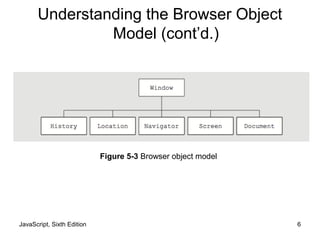
• Browser object model (BOM) or client-side object
model
– Hierarchy of objects
– Each provides programmatic access
• To a different aspect of the web browser window or the
web page
• Window object
– Represents a Web browser window
– Called the global object
• Because all other BOM objects contained within it
JavaScript, Sixth Edition 6
Figure 5-3 Browser object model
Understanding the Browser Object
Model (cont’d.)
JavaScript, Sixth Edition 7
The Document Object Model
• Document object
– Represents the Web page displayed in a browser
– Contains all Web page elements
– JavaScript represents each element by its own object
JavaScript, Sixth Edition 8
The DOM and DHTML
• Dynamic HTML (DHTML)
– Interaction can change content of web page without
reloading
– Can also change presentation of content
– Combination of HTML, CSS, and JavaScript
• DOM
– example of an application programming interface
(API)
– structure of objects with set of properties and
methods
JavaScript, Sixth Edition 9
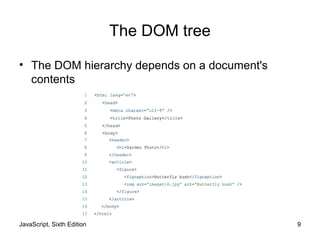
The DOM tree
• The DOM hierarchy depends on a document's
contents
JavaScript, Sixth Edition 10
The DOM tree (cont'd.)
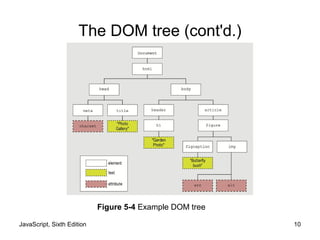
Figure 5-4 Example DOM tree
JavaScript, Sixth Edition 11
The DOM tree
• Each item in the DOM tree is a node
• Element, attribute, and text content nodes are most
commonly used
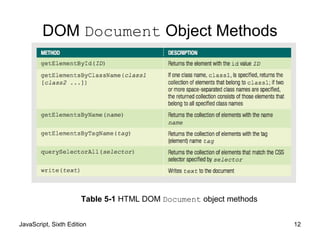
JavaScript, Sixth Edition 12
DOM Document Object Methods
Table 5-1 HTML DOM Document object methods
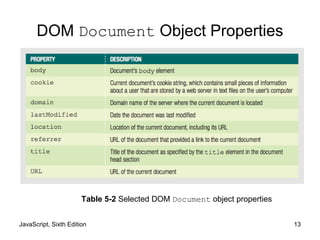
JavaScript, Sixth Edition 13
DOM Document Object Properties
Table 5-2 Selected DOM Document object properties
JavaScript, Sixth Edition 14
Accessing Document Elements,
Content, Properties, and Attributes
• Methods such as getElementById() are methods
of the Document object
• Several methods available for JavaScript to
reference web page elements
JavaScript, Sixth Edition 15
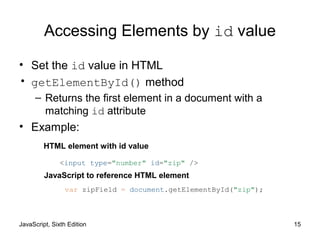
Accessing Elements by id value
• Set the id value in HTML
• getElementById() method
– Returns the first element in a document with a
matching id attribute
• Example:
<input type="number" id="zip" />
var zipField = document.getElementById("zip");
HTML element with id value
JavaScript to reference HTML element
JavaScript, Sixth Edition 16
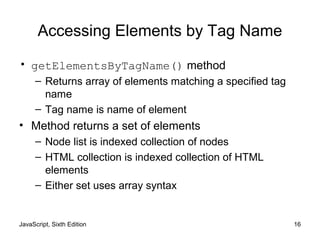
Accessing Elements by Tag Name
• getElementsByTagName() method
– Returns array of elements matching a specified tag
name
– Tag name is name of element
• Method returns a set of elements
– Node list is indexed collection of nodes
– HTML collection is indexed collection of HTML
elements
– Either set uses array syntax
JavaScript, Sixth Edition 17
Accessing Elements by Tag Name
(cont'd.)
• Example:
– Index numbers start at 0, so second element uses
index number 1
– To work with the second h1 element on a page:
var secondH1 = document.getElementsByTagName("h1")[1];
JavaScript, Sixth Edition 18
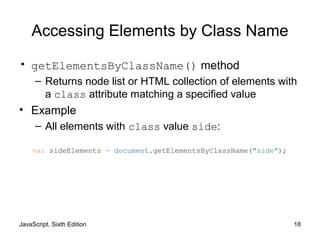
Accessing Elements by Class Name
• getElementsByClassName() method
– Returns node list or HTML collection of elements with
a class attribute matching a specified value
• Example
– All elements with class value side:
var sideElements = document.getElementsByClassName("side");
JavaScript, Sixth Edition 19
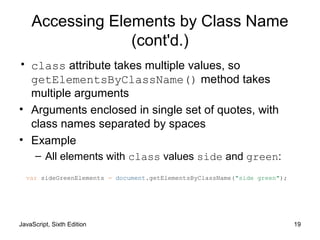
Accessing Elements by Class Name
(cont'd.)
• class attribute takes multiple values, so
getElementsByClassName() method takes
multiple arguments
• Arguments enclosed in single set of quotes, with
class names separated by spaces
• Example
– All elements with class values side and green:
var sideGreenElements = document.getElementsByClassName("side green");
JavaScript, Sixth Edition 20
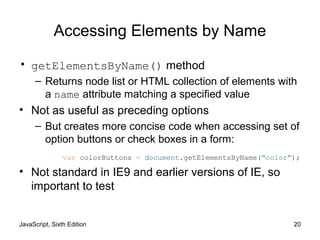
Accessing Elements by Name
• getElementsByName() method
– Returns node list or HTML collection of elements with
a name attribute matching a specified value
• Not as useful as preceding options
– But creates more concise code when accessing set of
option buttons or check boxes in a form:
• Not standard in IE9 and earlier versions of IE, so
important to test
var colorButtons = document.getElementsByName("color");
JavaScript, Sixth Edition 21
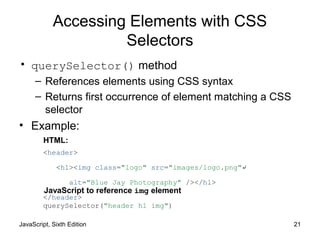
Accessing Elements with CSS
Selectors
• querySelector() method
– References elements using CSS syntax
– Returns first occurrence of element matching a CSS
selector
• Example:
<header>
<h1><img class="logo" src="images/logo.png"↵
alt="Blue Jay Photography" /></h1>
</header>
querySelector("header h1 img")
HTML:
JavaScript to reference img element
JavaScript, Sixth Edition 22
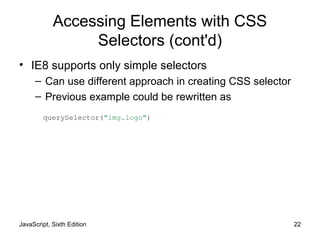
Accessing Elements with CSS
Selectors (cont'd)
• IE8 supports only simple selectors
– Can use different approach in creating CSS selector
– Previous example could be rewritten as
querySelector("img.logo")
JavaScript, Sixth Edition 23
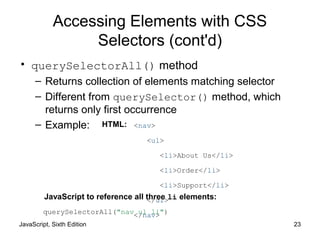
Accessing Elements with CSS
Selectors (cont'd)
• querySelectorAll() method
– Returns collection of elements matching selector
– Different from querySelector() method, which
returns only first occurrence
– Example: <nav>
<ul>
<li>About Us</li>
<li>Order</li>
<li>Support</li>
</ul>
</nav>querySelectorAll("nav ul li")
HTML:
JavaScript to reference all three li elements:
JavaScript, Sixth Edition 24
Accessing an Element's Content
• textContent property
– Accesses and changes text that an element contains
– Unlike innerHTML, textContent strips out HTML
tags
• Example:
<ul>
<li class="topnav"><a href="aboutus.htm">About Us</a></li>
<li class="topnav"><a href="order.htm">Order</a></li>
<li class="topnav"><a href="support.htm">Support</a></li>
</ul>
var button1 = querySelectorAll("li.topNav")[0];
var allContent = button1.innerHTML;
// <a href="aboutus.htm">About Us</a>
var justText = button1.textContent;
// About Us
HTML:
JavaScript to reference and access first li element:
JavaScript, Sixth Edition 25
Accessing an Element's Content
(cont'd)
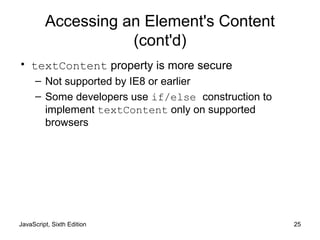
• textContent property is more secure
– Not supported by IE8 or earlier
– Some developers use if/else construction to
implement textContent only on supported
browsers
JavaScript, Sixth Edition 26
Accessing an Element's CSS
Properties
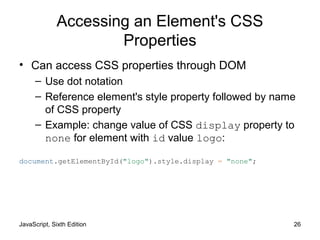
• Can access CSS properties through DOM
– Use dot notation
– Reference element's style property followed by name
of CSS property
– Example: change value of CSS display property to
none for element with id value logo:
document.getElementById("logo").style.display = "none";
JavaScript, Sixth Edition 27
Accessing an Element's CSS
Properties (cont'd.)
• When CSS property includes hyphen (-), remove
hyphen and capitalize letter following hyphen
– Use dot notation
– font-family becomes fontFamily
– Example:
• CSS value specified using DOM reference is an
inline style
– Higher priority than embedded or external styles
var font = document.getElementById("logo").style.fontFamily;
JavaScript, Sixth Edition 28
Accessing an Element's CSS
Properties (cont'd.)
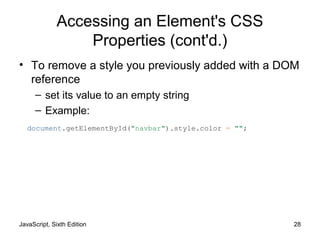
• To remove a style you previously added with a DOM
reference
– set its value to an empty string
– Example:
document.getElementById("navbar").style.color = "";
JavaScript, Sixth Edition 29
Accessing Element Attributes
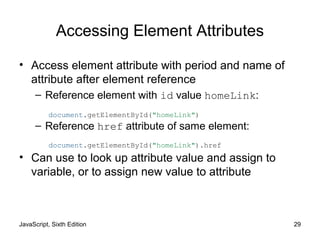
• Access element attribute with period and name of
attribute after element reference
– Reference element with id value homeLink:
– Reference href attribute of same element:
• Can use to look up attribute value and assign to
variable, or to assign new value to attribute
document.getElementById("homeLink")
document.getElementById("homeLink").href
JavaScript, Sixth Edition 30
Accessing Element Attributes (cont'd)
• One exception for accessing element attributes
– Must use property name className to refer to
class attribute values
– Single class value returned like standard attribute
value
– Multiple class values returned in single string,
separated by spaces
JavaScript, Sixth Edition 31
Adding and Removing Document
Nodes
• DOM includes methods to change DOM tree
– Can create brand new elements
– Can add/remove elements from DOM tree
JavaScript, Sixth Edition 32
Creating Nodes
• createElement() method
– Creates a new element
– Syntax:
– element is an element name
– Example:
• To create a new div element:
document.createElement("element")
document.createElement("div");
JavaScript, Sixth Edition 33
Attaching Nodes
• Newly created node is independent of DOM tree
• appendChild() method
– Attaches node to DOM tree
– Syntax:
– childNode is node to be attached
– parentNode is node to attach child node to
parentNode.appendChild(childNode)
JavaScript, Sixth Edition 34
Attaching Nodes (cont'd.)
• Example:
– Create new li element and attach to element with id
value navList:
• Document fragment
– Set of connected nodes not part of document
– Can use appendChild() to add document fragment
to DOM tree for a document
var list = document.getElementById("navList");
var contact = document.createElement("li");
list.appendChild(contact);
JavaScript, Sixth Edition 35
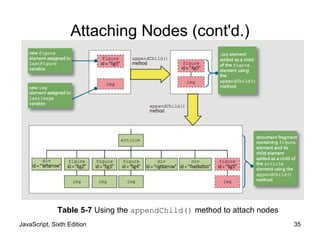
Attaching Nodes (cont'd.)
Table 5-7 Using the appendChild() method to attach nodes
JavaScript, Sixth Edition 36
Cloning Nodes
• Create new node same as existing node
• cloneNode() method
• Syntax:
– existingNode.cloneNode(true | false)
– true argument clones child nodes
– false argument clones only specified parent node
• Example:
document.createElement("div");
JavaScript, Sixth Edition 37
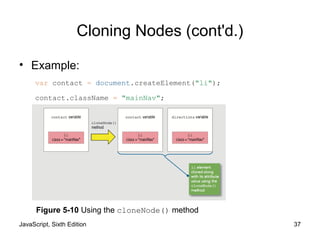
Cloning Nodes (cont'd.)
• Example:
var contact = document.createElement("li");
contact.className = "mainNav";
var directions = contact.cloneNode(true);
Figure 5-10 Using the cloneNode() method
JavaScript, Sixth Edition 38
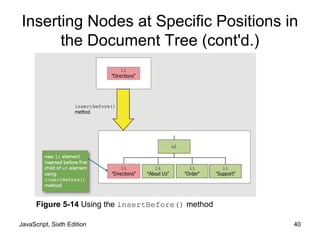
Inserting Nodes at Specific Positions in
the Document Tree
• New node created with createElement() is not
attached to document tree
• appendChild() adds node after existing child
nodes
• To specify a different position, use
insertBefore()
• Syntax:
– parentNode.insertBefore(newChildNode, existingChildNode)
JavaScript, Sixth Edition 39
Inserting Nodes at Specific Positions in
the Document Tree (cont'd.)
• Example:
– HTML:
– JavaScript:
<ul id="topnav">
<li><a href="aboutus.htm">About Us</a></li>
<li><a href="order.htm">Order</a></li>
<li><a href="support.htm">Support</a></li>
</ul>
var list = document.getElementById("topnav");
var directions = document.createElement("li");
directions.innerHTML = "Directions";
var aboutus = document.querySelectorAll("#topnav li")[0];
list.insertBefore(directions, aboutus);
JavaScript, Sixth Edition 40
Inserting Nodes at Specific Positions in
the Document Tree (cont'd.)
Figure 5-14 Using the insertBefore() method
JavaScript, Sixth Edition 41
Removing Nodes
• removeNode() removes node from DOM tree
• Syntax:
– parentNode.removeChild(childNode)
• Can assign removed node to variable:
– Node removed without being assigned to a variable is
deleted during garbage collection
var list = document.getElementById("topnav");
var aboutus = document.querySelectorAll("#topnav li")[0];
var aboutNode = list.removeChild(aboutus);
JavaScript, Sixth Edition 42
Manipulating the Browser with the
Window Object
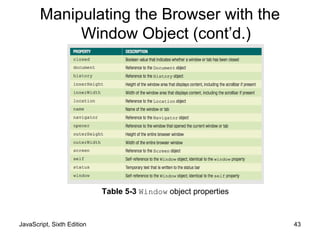
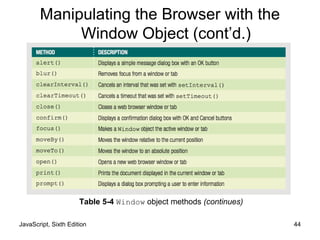
• Window object
– Includes properties containing information about the
web browser window or tab
– Contains methods to manipulate the web browser
window or tab itself
JavaScript, Sixth Edition 43
Table 5-3 Window object properties
Manipulating the Browser with the
Window Object (cont’d.)
JavaScript, Sixth Edition 44
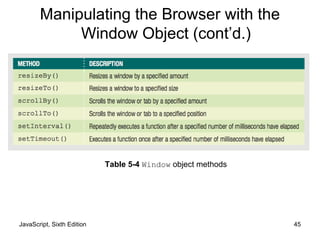
Table 5-4 Window object methods (continues)
Manipulating the Browser with the
Window Object (cont’d.)
JavaScript, Sixth Edition 45
Table 5-4 Window object methods
Manipulating the Browser with the
Window Object (cont’d.)
JavaScript, Sixth Edition 46
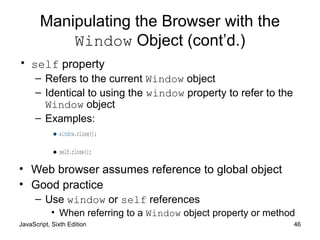
Manipulating the Browser with the
Window Object (cont’d.)
• self property
– Refers to the current Window object
– Identical to using the window property to refer to the
Window object
– Examples:
•window.close();
•self.close();
• Web browser assumes reference to global object
• Good practice
– Use window or self references
• When referring to a Window object property or method
JavaScript, Sixth Edition 47
Opening and Closing Windows
• Reasons to open a new Web browser window
– To launch a new Web page in a separate window
– To use an additional window to display information
• When new Web browser window opened:
– New Window object created
• Represents the new window
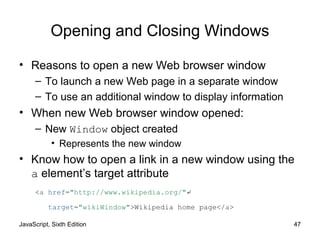
• Know how to open a link in a new window using the
a element’s target attribute
<a href="http://www.wikipedia.org/"↵
target="wikiWindow">Wikipedia home page</a>
JavaScript, Sixth Edition 48
Opening a Window
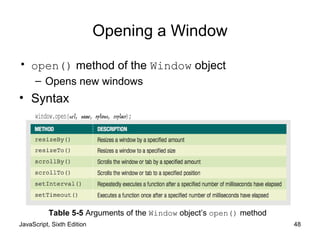
• open() method of the Window object
– Opens new windows
• Syntax
window.open(url, name, options, replace);
Table 5-5 Arguments of the Window object’s open() method
JavaScript, Sixth Edition 49
Opening a Window (cont’d.)
• Include all (or none) window.open() method
arguments
• Example:
– window.open("http://www.wikipedia.org");
JavaScript, Sixth Edition 50
Opening a Window (cont’d.)
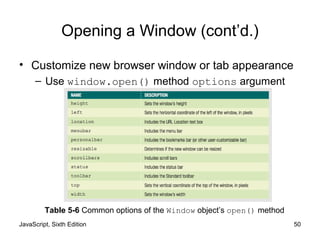
• Customize new browser window or tab appearance
– Use window.open() method options argument
Table 5-6 Common options of the Window object’s open() method
JavaScript, Sixth Edition 51
Opening a Window (cont’d.)
• window.open() method name argument
– Same as value assigned to the target attribute
• Specifies window name where the URL should open
– If name argument already in use
• JavaScript changes focus to the existing Web browser
window instead of creating a new window
JavaScript, Sixth Edition 52
Opening a Window (cont’d.)
• Window object’s name property used to specify a
target window with a link
– Cannot be used in JavaScript code
• Assign the new Window object created with the
window.open() method to a variable to control it
• focus() method
– Makes a window the active window
JavaScript, Sixth Edition 53
Closing a Window
• close() method
– Closes a web browser window
• window.close() or self.close()
– Closes the current window
JavaScript, Sixth Edition 54
Working with Timeouts and Intervals
• Window object’s timeout and interval methods
– Creates code that executes automatically
• setTimeout() method
– Executes code after a specific amount of time
– Executes only once
– Syntax
• var variable = setTimeout("code", milliseconds);
• clearTimeout() method
– Cancel setTimeout() before its code executes
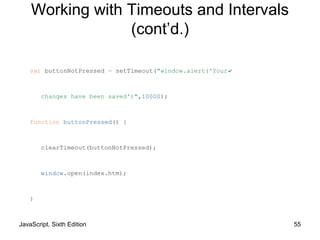
• Example on next slide
JavaScript, Sixth Edition 55
var buttonNotPressed = setTimeout("window.alert('Your↵
changes have been saved')",10000);
function buttonPressed() {
clearTimeout(buttonNotPressed);
window.open(index.htm);
}
Working with Timeouts and Intervals
(cont’d.)
JavaScript, Sixth Edition 56
Working with Timeouts and Intervals
(cont’d.)
• setInterval() method
– Repeatedly executes the same code after being
called only once
– Syntax:
•var variable = setInterval("code", milliseconds);
• clearInterval() method
– Used to clear setInterval() method call
JavaScript, Sixth Edition 57
The History Object
• History object
– Maintains internal list (history list)
• All documents opened during current web browser
session
• Security features
– Will not display URLs contained in the history list
JavaScript, Sixth Edition 58
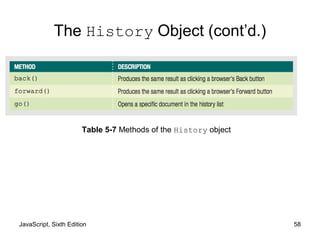
Table 5-7 Methods of the History object
The History Object (cont’d.)
JavaScript, Sixth Edition 59
The History Object (cont’d.)
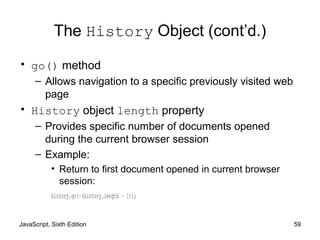
• go() method
– Allows navigation to a specific previously visited web
page
• History object length property
– Provides specific number of documents opened
during the current browser session
– Example:
• Return to first document opened in current browser
session:
history.go(-(history.length - 1));
JavaScript, Sixth Edition 60
The Location Object
• Location object
– Allows changes to a new web page from within
JavaScript code
• Location object properties allow modification of
URL individual portions
– Web browser automatically attempts to open that new
URL
JavaScript, Sixth Edition 61
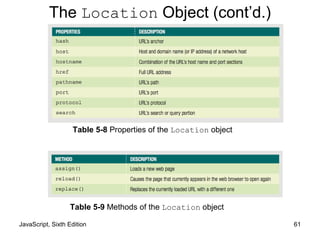
Table 5-8 Properties of the Location object
Table 5-9 Methods of the Location object
The Location Object (cont’d.)
JavaScript, Sixth Edition 62
The Location Object (cont’d.)
• Location object’s assign() method
– Same action as changing the href property
– Loads a new web page
• Location object’s reload() method
– Equivalent to the browser Reload or Refresh button
– Causes current page to open again
• Location object’s replace() method
– Replaces currently loaded URL with a different one
JavaScript, Sixth Edition 63
The Navigator Object
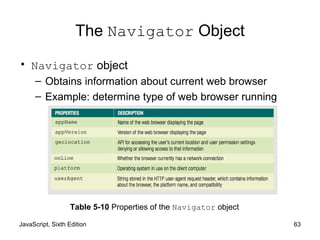
• Navigator object
– Obtains information about current web browser
– Example: determine type of web browser running
Table 5-10 Properties of the Navigator object
JavaScript, Sixth Edition 64
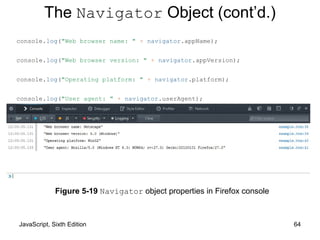
console.log("Web browser name: " + navigator.appName);
console.log("Web browser version: " + navigator.appVersion);
console.log("Operating platform: " + navigator.platform);
console.log("User agent: " + navigator.userAgent);
Figure 5-19 Navigator object properties in Firefox console
The Navigator Object (cont’d.)
JavaScript, Sixth Edition 65
The Screen Object
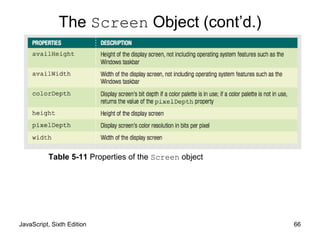
• Screen object
– Obtains information about display screen’s size,
resolution, color depth
• Common use of Screen object properties
– Centering a web browser window in the middle of the
display area
JavaScript, Sixth Edition 66
Table 5-11 Properties of the Screen object
The Screen Object (cont’d.)
JavaScript, Sixth Edition 67
The Screen Object (cont’d.)
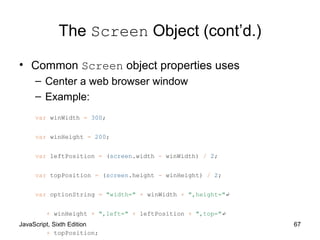
• Common Screen object properties uses
– Center a web browser window
– Example:
var winWidth = 300;
var winHeight = 200;
var leftPosition = (screen.width - winWidth) / 2;
var topPosition = (screen.height - winHeight) / 2;
var optionString = "width=" + winWidth + ",height="↵
+ winHeight + ",left=" + leftPosition + ",top="↵
+ topPosition;
JavaScript, Sixth Edition 68
Summary
• Browser object model (BOM) or client-side object
model
– Hierarchy of objects
• Top-level object in the browser object model
– Window object
• Document object: most important object
• DOM represents web page displayed in window
JavaScript, Sixth Edition 69
Summary (cont'd.)
• Access elements with getElementById(),
getElementsByTagName(),
getElementsByClassName(),
getElementsByName, querySelector(), or
querySelectorAll()
• Access element content with textContent() or
innerHTML() property
• Access CSS properties using an element's
JavaScript style property
JavaScript, Sixth Edition 70
Summary (cont'd.)
• Create new node with createElement()
• Attach node with appendChild()
• Clone node with cloneNode()
• Attach node in specific place with
insertBefore()
• Remove node with removeNode()
• Open new window with window.open()
• Close window with window.close()
JavaScript, Sixth Edition 71
Summary (cont'd.)
• setTimeout() executes code after specific
amount of time
• clearTimeout() cancels setTimeout()
• setInterval() executes code repeatedly
• clearInterval() cancels setInterval()
JavaScript, Sixth Edition 72
Summary (cont’d.)
• History object maintains an opened documents
history list
• Location object allows changes to a new web
page from within JavaScript code
• Navigator object obtains information about the
current web browser
• Screen object obtains information about the display
screen’s size, resolution, color depth

9781305078444 ppt ch05

  • 1.
    JavaScript, Sixth Edition Chapter5 Working with the Document Object Model (DOM) and DHTML
  • 2.
    JavaScript, Sixth Edition2 Objectives When you complete this chapter, you will be able to: • Access elements by id, tag name, class, name, or selector • Access element content, CSS properties, and attributes • Add and remove document nodes • Create and close new browser tabs and windows with an app
  • 3.
    JavaScript, Sixth Edition3 Objectives (cont'd.) When you complete this chapter, you will be able to: • Use the setTimeout() and setInterval() methods to specify a delay or a duration • Use the History, Location, Navigation, and Screen objects to manipulate the browser window
  • 4.
    JavaScript, Sixth Edition4 Understanding the Browser Object Model and the Document Object Model • JavaScript treats web page content as set of related components – objects • Every element on web page is an object • You can also create objects – a function is an object
  • 5.
    JavaScript, Sixth Edition5 Understanding the Browser Object Model • Browser object model (BOM) or client-side object model – Hierarchy of objects – Each provides programmatic access • To a different aspect of the web browser window or the web page • Window object – Represents a Web browser window – Called the global object • Because all other BOM objects contained within it
  • 6.
    JavaScript, Sixth Edition6 Figure 5-3 Browser object model Understanding the Browser Object Model (cont’d.)
  • 7.
    JavaScript, Sixth Edition7 The Document Object Model • Document object – Represents the Web page displayed in a browser – Contains all Web page elements – JavaScript represents each element by its own object
  • 8.
    JavaScript, Sixth Edition8 The DOM and DHTML • Dynamic HTML (DHTML) – Interaction can change content of web page without reloading – Can also change presentation of content – Combination of HTML, CSS, and JavaScript • DOM – example of an application programming interface (API) – structure of objects with set of properties and methods
  • 9.
    JavaScript, Sixth Edition9 The DOM tree • The DOM hierarchy depends on a document's contents
  • 10.
    JavaScript, Sixth Edition10 The DOM tree (cont'd.) Figure 5-4 Example DOM tree
  • 11.
    JavaScript, Sixth Edition11 The DOM tree • Each item in the DOM tree is a node • Element, attribute, and text content nodes are most commonly used
  • 12.
    JavaScript, Sixth Edition12 DOM Document Object Methods Table 5-1 HTML DOM Document object methods
  • 13.
    JavaScript, Sixth Edition13 DOM Document Object Properties Table 5-2 Selected DOM Document object properties
  • 14.
    JavaScript, Sixth Edition14 Accessing Document Elements, Content, Properties, and Attributes • Methods such as getElementById() are methods of the Document object • Several methods available for JavaScript to reference web page elements
  • 15.
    JavaScript, Sixth Edition15 Accessing Elements by id value • Set the id value in HTML • getElementById() method – Returns the first element in a document with a matching id attribute • Example: <input type="number" id="zip" /> var zipField = document.getElementById("zip"); HTML element with id value JavaScript to reference HTML element
  • 16.
    JavaScript, Sixth Edition16 Accessing Elements by Tag Name • getElementsByTagName() method – Returns array of elements matching a specified tag name – Tag name is name of element • Method returns a set of elements – Node list is indexed collection of nodes – HTML collection is indexed collection of HTML elements – Either set uses array syntax
  • 17.
    JavaScript, Sixth Edition17 Accessing Elements by Tag Name (cont'd.) • Example: – Index numbers start at 0, so second element uses index number 1 – To work with the second h1 element on a page: var secondH1 = document.getElementsByTagName("h1")[1];
  • 18.
    JavaScript, Sixth Edition18 Accessing Elements by Class Name • getElementsByClassName() method – Returns node list or HTML collection of elements with a class attribute matching a specified value • Example – All elements with class value side: var sideElements = document.getElementsByClassName("side");
  • 19.
    JavaScript, Sixth Edition19 Accessing Elements by Class Name (cont'd.) • class attribute takes multiple values, so getElementsByClassName() method takes multiple arguments • Arguments enclosed in single set of quotes, with class names separated by spaces • Example – All elements with class values side and green: var sideGreenElements = document.getElementsByClassName("side green");
  • 20.
    JavaScript, Sixth Edition20 Accessing Elements by Name • getElementsByName() method – Returns node list or HTML collection of elements with a name attribute matching a specified value • Not as useful as preceding options – But creates more concise code when accessing set of option buttons or check boxes in a form: • Not standard in IE9 and earlier versions of IE, so important to test var colorButtons = document.getElementsByName("color");
  • 21.
    JavaScript, Sixth Edition21 Accessing Elements with CSS Selectors • querySelector() method – References elements using CSS syntax – Returns first occurrence of element matching a CSS selector • Example: <header> <h1><img class="logo" src="images/logo.png"↵ alt="Blue Jay Photography" /></h1> </header> querySelector("header h1 img") HTML: JavaScript to reference img element
  • 22.
    JavaScript, Sixth Edition22 Accessing Elements with CSS Selectors (cont'd) • IE8 supports only simple selectors – Can use different approach in creating CSS selector – Previous example could be rewritten as querySelector("img.logo")
  • 23.
    JavaScript, Sixth Edition23 Accessing Elements with CSS Selectors (cont'd) • querySelectorAll() method – Returns collection of elements matching selector – Different from querySelector() method, which returns only first occurrence – Example: <nav> <ul> <li>About Us</li> <li>Order</li> <li>Support</li> </ul> </nav>querySelectorAll("nav ul li") HTML: JavaScript to reference all three li elements:
  • 24.
    JavaScript, Sixth Edition24 Accessing an Element's Content • textContent property – Accesses and changes text that an element contains – Unlike innerHTML, textContent strips out HTML tags • Example: <ul> <li class="topnav"><a href="aboutus.htm">About Us</a></li> <li class="topnav"><a href="order.htm">Order</a></li> <li class="topnav"><a href="support.htm">Support</a></li> </ul> var button1 = querySelectorAll("li.topNav")[0]; var allContent = button1.innerHTML; // <a href="aboutus.htm">About Us</a> var justText = button1.textContent; // About Us HTML: JavaScript to reference and access first li element:
  • 25.
    JavaScript, Sixth Edition25 Accessing an Element's Content (cont'd) • textContent property is more secure – Not supported by IE8 or earlier – Some developers use if/else construction to implement textContent only on supported browsers
  • 26.
    JavaScript, Sixth Edition26 Accessing an Element's CSS Properties • Can access CSS properties through DOM – Use dot notation – Reference element's style property followed by name of CSS property – Example: change value of CSS display property to none for element with id value logo: document.getElementById("logo").style.display = "none";
  • 27.
    JavaScript, Sixth Edition27 Accessing an Element's CSS Properties (cont'd.) • When CSS property includes hyphen (-), remove hyphen and capitalize letter following hyphen – Use dot notation – font-family becomes fontFamily – Example: • CSS value specified using DOM reference is an inline style – Higher priority than embedded or external styles var font = document.getElementById("logo").style.fontFamily;
  • 28.
    JavaScript, Sixth Edition28 Accessing an Element's CSS Properties (cont'd.) • To remove a style you previously added with a DOM reference – set its value to an empty string – Example: document.getElementById("navbar").style.color = "";
  • 29.
    JavaScript, Sixth Edition29 Accessing Element Attributes • Access element attribute with period and name of attribute after element reference – Reference element with id value homeLink: – Reference href attribute of same element: • Can use to look up attribute value and assign to variable, or to assign new value to attribute document.getElementById("homeLink") document.getElementById("homeLink").href
  • 30.
    JavaScript, Sixth Edition30 Accessing Element Attributes (cont'd) • One exception for accessing element attributes – Must use property name className to refer to class attribute values – Single class value returned like standard attribute value – Multiple class values returned in single string, separated by spaces
  • 31.
    JavaScript, Sixth Edition31 Adding and Removing Document Nodes • DOM includes methods to change DOM tree – Can create brand new elements – Can add/remove elements from DOM tree
  • 32.
    JavaScript, Sixth Edition32 Creating Nodes • createElement() method – Creates a new element – Syntax: – element is an element name – Example: • To create a new div element: document.createElement("element") document.createElement("div");
  • 33.
    JavaScript, Sixth Edition33 Attaching Nodes • Newly created node is independent of DOM tree • appendChild() method – Attaches node to DOM tree – Syntax: – childNode is node to be attached – parentNode is node to attach child node to parentNode.appendChild(childNode)
  • 34.
    JavaScript, Sixth Edition34 Attaching Nodes (cont'd.) • Example: – Create new li element and attach to element with id value navList: • Document fragment – Set of connected nodes not part of document – Can use appendChild() to add document fragment to DOM tree for a document var list = document.getElementById("navList"); var contact = document.createElement("li"); list.appendChild(contact);
  • 35.
    JavaScript, Sixth Edition35 Attaching Nodes (cont'd.) Table 5-7 Using the appendChild() method to attach nodes
  • 36.
    JavaScript, Sixth Edition36 Cloning Nodes • Create new node same as existing node • cloneNode() method • Syntax: – existingNode.cloneNode(true | false) – true argument clones child nodes – false argument clones only specified parent node • Example: document.createElement("div");
  • 37.
    JavaScript, Sixth Edition37 Cloning Nodes (cont'd.) • Example: var contact = document.createElement("li"); contact.className = "mainNav"; var directions = contact.cloneNode(true); Figure 5-10 Using the cloneNode() method
  • 38.
    JavaScript, Sixth Edition38 Inserting Nodes at Specific Positions in the Document Tree • New node created with createElement() is not attached to document tree • appendChild() adds node after existing child nodes • To specify a different position, use insertBefore() • Syntax: – parentNode.insertBefore(newChildNode, existingChildNode)
  • 39.
    JavaScript, Sixth Edition39 Inserting Nodes at Specific Positions in the Document Tree (cont'd.) • Example: – HTML: – JavaScript: <ul id="topnav"> <li><a href="aboutus.htm">About Us</a></li> <li><a href="order.htm">Order</a></li> <li><a href="support.htm">Support</a></li> </ul> var list = document.getElementById("topnav"); var directions = document.createElement("li"); directions.innerHTML = "Directions"; var aboutus = document.querySelectorAll("#topnav li")[0]; list.insertBefore(directions, aboutus);
  • 40.
    JavaScript, Sixth Edition40 Inserting Nodes at Specific Positions in the Document Tree (cont'd.) Figure 5-14 Using the insertBefore() method
  • 41.
    JavaScript, Sixth Edition41 Removing Nodes • removeNode() removes node from DOM tree • Syntax: – parentNode.removeChild(childNode) • Can assign removed node to variable: – Node removed without being assigned to a variable is deleted during garbage collection var list = document.getElementById("topnav"); var aboutus = document.querySelectorAll("#topnav li")[0]; var aboutNode = list.removeChild(aboutus);
  • 42.
    JavaScript, Sixth Edition42 Manipulating the Browser with the Window Object • Window object – Includes properties containing information about the web browser window or tab – Contains methods to manipulate the web browser window or tab itself
  • 43.
    JavaScript, Sixth Edition43 Table 5-3 Window object properties Manipulating the Browser with the Window Object (cont’d.)
  • 44.
    JavaScript, Sixth Edition44 Table 5-4 Window object methods (continues) Manipulating the Browser with the Window Object (cont’d.)
  • 45.
    JavaScript, Sixth Edition45 Table 5-4 Window object methods Manipulating the Browser with the Window Object (cont’d.)
  • 46.
    JavaScript, Sixth Edition46 Manipulating the Browser with the Window Object (cont’d.) • self property – Refers to the current Window object – Identical to using the window property to refer to the Window object – Examples: •window.close(); •self.close(); • Web browser assumes reference to global object • Good practice – Use window or self references • When referring to a Window object property or method
  • 47.
    JavaScript, Sixth Edition47 Opening and Closing Windows • Reasons to open a new Web browser window – To launch a new Web page in a separate window – To use an additional window to display information • When new Web browser window opened: – New Window object created • Represents the new window • Know how to open a link in a new window using the a element’s target attribute <a href="http://www.wikipedia.org/"↵ target="wikiWindow">Wikipedia home page</a>
  • 48.
    JavaScript, Sixth Edition48 Opening a Window • open() method of the Window object – Opens new windows • Syntax window.open(url, name, options, replace); Table 5-5 Arguments of the Window object’s open() method
  • 49.
    JavaScript, Sixth Edition49 Opening a Window (cont’d.) • Include all (or none) window.open() method arguments • Example: – window.open("http://www.wikipedia.org");
  • 50.
    JavaScript, Sixth Edition50 Opening a Window (cont’d.) • Customize new browser window or tab appearance – Use window.open() method options argument Table 5-6 Common options of the Window object’s open() method
  • 51.
    JavaScript, Sixth Edition51 Opening a Window (cont’d.) • window.open() method name argument – Same as value assigned to the target attribute • Specifies window name where the URL should open – If name argument already in use • JavaScript changes focus to the existing Web browser window instead of creating a new window
  • 52.
    JavaScript, Sixth Edition52 Opening a Window (cont’d.) • Window object’s name property used to specify a target window with a link – Cannot be used in JavaScript code • Assign the new Window object created with the window.open() method to a variable to control it • focus() method – Makes a window the active window
  • 53.
    JavaScript, Sixth Edition53 Closing a Window • close() method – Closes a web browser window • window.close() or self.close() – Closes the current window
  • 54.
    JavaScript, Sixth Edition54 Working with Timeouts and Intervals • Window object’s timeout and interval methods – Creates code that executes automatically • setTimeout() method – Executes code after a specific amount of time – Executes only once – Syntax • var variable = setTimeout("code", milliseconds); • clearTimeout() method – Cancel setTimeout() before its code executes • Example on next slide
  • 55.
    JavaScript, Sixth Edition55 var buttonNotPressed = setTimeout("window.alert('Your↵ changes have been saved')",10000); function buttonPressed() { clearTimeout(buttonNotPressed); window.open(index.htm); } Working with Timeouts and Intervals (cont’d.)
  • 56.
    JavaScript, Sixth Edition56 Working with Timeouts and Intervals (cont’d.) • setInterval() method – Repeatedly executes the same code after being called only once – Syntax: •var variable = setInterval("code", milliseconds); • clearInterval() method – Used to clear setInterval() method call
  • 57.
    JavaScript, Sixth Edition57 The History Object • History object – Maintains internal list (history list) • All documents opened during current web browser session • Security features – Will not display URLs contained in the history list
  • 58.
    JavaScript, Sixth Edition58 Table 5-7 Methods of the History object The History Object (cont’d.)
  • 59.
    JavaScript, Sixth Edition59 The History Object (cont’d.) • go() method – Allows navigation to a specific previously visited web page • History object length property – Provides specific number of documents opened during the current browser session – Example: • Return to first document opened in current browser session: history.go(-(history.length - 1));
  • 60.
    JavaScript, Sixth Edition60 The Location Object • Location object – Allows changes to a new web page from within JavaScript code • Location object properties allow modification of URL individual portions – Web browser automatically attempts to open that new URL
  • 61.
    JavaScript, Sixth Edition61 Table 5-8 Properties of the Location object Table 5-9 Methods of the Location object The Location Object (cont’d.)
  • 62.
    JavaScript, Sixth Edition62 The Location Object (cont’d.) • Location object’s assign() method – Same action as changing the href property – Loads a new web page • Location object’s reload() method – Equivalent to the browser Reload or Refresh button – Causes current page to open again • Location object’s replace() method – Replaces currently loaded URL with a different one
  • 63.
    JavaScript, Sixth Edition63 The Navigator Object • Navigator object – Obtains information about current web browser – Example: determine type of web browser running Table 5-10 Properties of the Navigator object
  • 64.
    JavaScript, Sixth Edition64 console.log("Web browser name: " + navigator.appName); console.log("Web browser version: " + navigator.appVersion); console.log("Operating platform: " + navigator.platform); console.log("User agent: " + navigator.userAgent); Figure 5-19 Navigator object properties in Firefox console The Navigator Object (cont’d.)
  • 65.
    JavaScript, Sixth Edition65 The Screen Object • Screen object – Obtains information about display screen’s size, resolution, color depth • Common use of Screen object properties – Centering a web browser window in the middle of the display area
  • 66.
    JavaScript, Sixth Edition66 Table 5-11 Properties of the Screen object The Screen Object (cont’d.)
  • 67.
    JavaScript, Sixth Edition67 The Screen Object (cont’d.) • Common Screen object properties uses – Center a web browser window – Example: var winWidth = 300; var winHeight = 200; var leftPosition = (screen.width - winWidth) / 2; var topPosition = (screen.height - winHeight) / 2; var optionString = "width=" + winWidth + ",height="↵ + winHeight + ",left=" + leftPosition + ",top="↵ + topPosition;
  • 68.
    JavaScript, Sixth Edition68 Summary • Browser object model (BOM) or client-side object model – Hierarchy of objects • Top-level object in the browser object model – Window object • Document object: most important object • DOM represents web page displayed in window
  • 69.
    JavaScript, Sixth Edition69 Summary (cont'd.) • Access elements with getElementById(), getElementsByTagName(), getElementsByClassName(), getElementsByName, querySelector(), or querySelectorAll() • Access element content with textContent() or innerHTML() property • Access CSS properties using an element's JavaScript style property
  • 70.
    JavaScript, Sixth Edition70 Summary (cont'd.) • Create new node with createElement() • Attach node with appendChild() • Clone node with cloneNode() • Attach node in specific place with insertBefore() • Remove node with removeNode() • Open new window with window.open() • Close window with window.close()
  • 71.
    JavaScript, Sixth Edition71 Summary (cont'd.) • setTimeout() executes code after specific amount of time • clearTimeout() cancels setTimeout() • setInterval() executes code repeatedly • clearInterval() cancels setInterval()
  • 72.
    JavaScript, Sixth Edition72 Summary (cont’d.) • History object maintains an opened documents history list • Location object allows changes to a new web page from within JavaScript code • Navigator object obtains information about the current web browser • Screen object obtains information about the display screen’s size, resolution, color depth