Discovering
Computers 2009

Chapter 1
Introduction to
Computers
Chapter 1 Objectives
Recognize the importance of
computer literacy

Distinguish between system software
and application software

Define the term, computer

Describe the categories of computers
Identify the components
of a computer
Discuss the advantages and
disadvantages of using computers

Identify the elements of
an information system

Describe the various types
of computer users

Recognize the purpose of a network
Discuss the uses of the Internet and
World Wide Web

Discuss various computer
applications in society

Next
A World of Computers
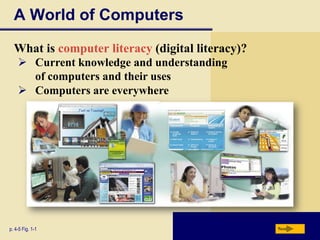
What is computer literacy (digital literacy)?
 Current knowledge and understanding
of computers and their uses
 Computers are everywhere

p. 4-5 Fig. 1-1

Next
What Is a Computer?
How is a computer defined?
 Electronic device operating under the control of
instructions stored in its own memory

Accepts data
Collection of
unprocessed items

Processes data into
information
Conveys meaning and is
useful to people

Produces and stores results

p. 6

Next
What Is a Computer?
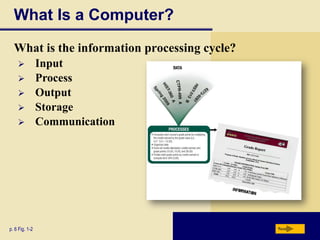
What is the information processing cycle?







p. 6 Fig. 1-2

Input
Process
Output
Storage
Communication

Next
The Components of a Computer
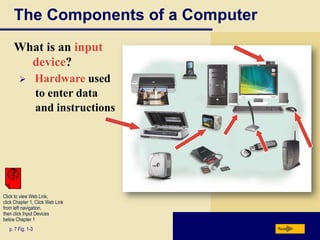
What is an input
device?


Hardware used
to enter data
and instructions

Click to view Web Link,
click Chapter 1, Click Web Link
from left navigation,
then click Input Devices
below Chapter 1
p. 7 Fig. 1-3

Next
The Components of a Computer
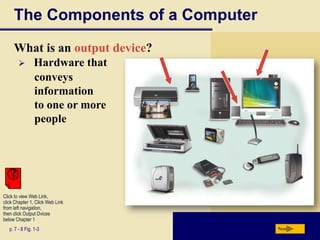
What is an output device?


Hardware that
conveys
information
to one or more
people

Click to view Web Link,
click Chapter 1, Click Web Link
from left navigation,
then click Output Dvices
below Chapter 1
p. 7 - 8 Fig. 1-3

Next
The Components of a Computer
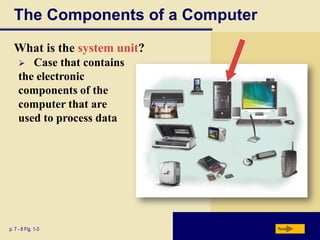
What is the system unit?
Case that contains
the electronic
components of the
computer that are
used to process data


p. 7 - 8 Fig. 1-3

Next
The Components of a Computer
What are two main components on the motherboard?
Processor
Also called a Central Processing Unit (CPU)
The electronic component that interprets and carries
out the basic instructions that operate the computer

Memory
Consists of electronic components that store
instructions waiting to be executed and data needed by
those instructions
p. 8

Next
The Components of a Computer
What is storage?
 Holds data, instructions, and information
for future use
Storage media
Physical material on which data, instructions,
and information are stored

Storage device
Records and retrieves items to and from
storage media

p. 8

Next
The Components of a Computer
What is a USB flash drive?

Portable storage device
Small and lightweight enough
to be transported on a keychain
or in a pocket
The average USB flash drive
can hold about 2 billion
characters

p. 8

Next
The Components of a Computer
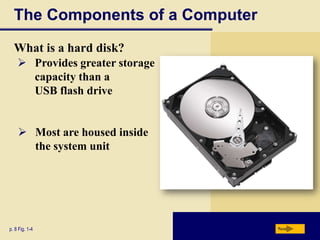
What is a hard disk?
 Provides greater storage
capacity than a
USB flash drive
 Most are housed inside
the system unit

p. 8 Fig. 1-4

Next
The Components of a Computer
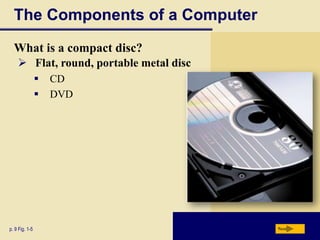
What is a compact disc?
 Flat, round, portable metal disc



p. 9 Fig. 1-5

CD
DVD

Next
The Components of a Computer
What is a communications device?
Hardware component that
enables a computer to
send and receive data, instructions,
and information

Click to view Web Link,
click Chapter 1, Click Web Link
from left navigation,
then click Communications
Devices below Chapter 1
p. 9

Occurs over cables, telephone
lines, cellular radio networks,
satellites, and other
transmission media

Next
Advantages and Disadvantages
of Using Computers
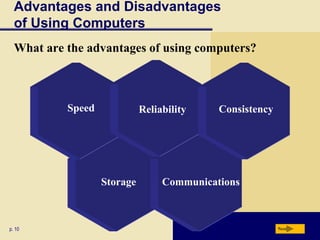
What are the advantages of using computers?

Speed

Reliability

Storage

p. 10

Consistency

Communications

Next
Advantages and Disadvantages
of Using Computers
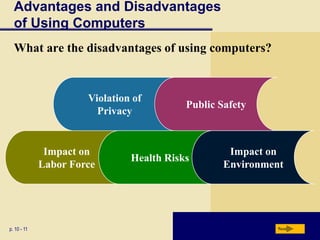
What are the disadvantages of using computers?

Violation of
Privacy

Impact on
Labor Force

p. 10 - 11

Public Safety

Health Risks

Impact on
Environment

Next
Networks and the Internet
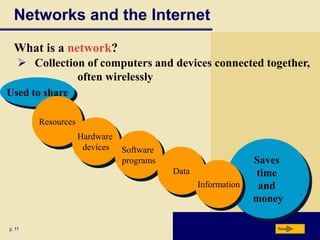
What is a network?
 Collection of computers and devices connected together,
often wirelessly
Used to share
Resources

Hardware
devices

Software
programs
Data
Information

p. 11

Saves
time
and
money
Next
Networks and the Internet
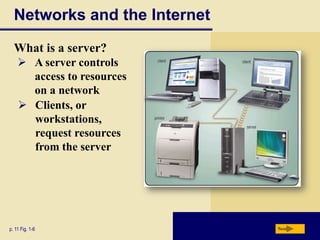
What is a server?
 A server controls
access to resources
on a network
 Clients, or
workstations,
request resources
from the server

p. 11 Fig. 1-6

Next
Networks and the Internet
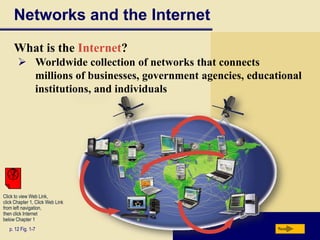
What is the Internet?
 Worldwide collection of networks that connects
millions of businesses, government agencies, educational
institutions, and individuals

Click to view Web Link,
click Chapter 1, Click Web Link
from left navigation,
then click Internet
below Chapter 1
p. 12 Fig. 1-7

Next
Networks and the Internet
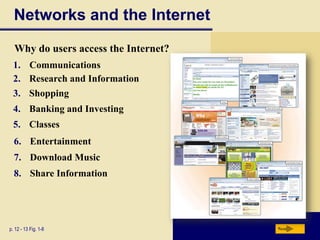
Why do users access the Internet?
1. Communications
2. Research and Information

3. Shopping
4. Banking and Investing
5. Classes
6. Entertainment
7. Download Music
8. Share Information

p. 12 - 13 Fig. 1-8

Next
Networks and the Internet
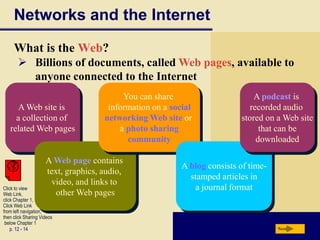
What is the Web?
 Billions of documents, called Web pages, available to
anyone connected to the Internet
A Web site is
a collection of
related Web pages

You can share
information on a social
networking Web site or
a photo sharing
community

A Web page contains
text, graphics, audio,
video, and links to
other Web pages

Click to view
Web Link,
click Chapter 1,
Click Web Link
from left navigation,
then click Sharing Videos
below Chapter 1
p. 12 - 14

A podcast is
recorded audio
stored on a Web site
that can be
downloaded

A blog consists of timestamped articles in
a journal format

Next
Computer Software
What is software?

Consists of a series
of instructions that
tells the computer
what to do and
how to do it

p. 15

Also called a
program

Next
Computer Software
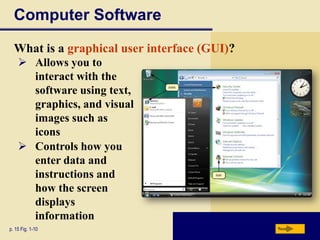
What is a graphical user interface (GUI)?
 Allows you to
interact with the
software using text,
graphics, and visual
images such as
icons
 Controls how you
enter data and
instructions and
how the screen
displays
information
p. 15 Fig. 1-10

Next
Computer Software
What is system software?
 Programs that control or maintain the operations of
the computer and its devices

Operating System (OS)
is a set of programs
that coordinates all
activities among
computer hardware
devices
Click to view Web Link,
click Chapter 1, Click
Web Link from
left navigation, then click
Windows Vista below Chapter 1
p. 15-16

Utility Programs allow the user to
perform maintenance-type tasks
usually related to managing a
computer, its devices or its programs

Next
Computer Software
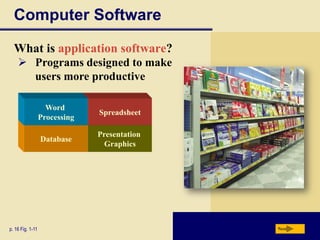
What is application software?
 Programs designed to make
users more productive
Word
Processing

Database

p. 16 Fig. 1-11

Spreadsheet

Presentation
Graphics

Next
Computer Software
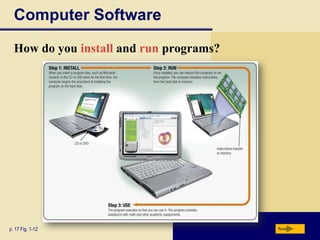
How do you install and run programs?

p. 17 Fig. 1-12

Next
Computer Software
JavaScript

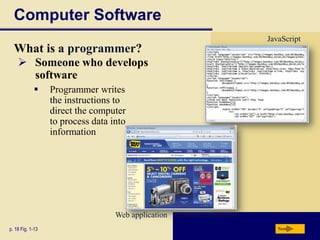
What is a programmer?
 Someone who develops
software


Programmer writes
the instructions to
direct the computer
to process data into
information

Web application
p. 18 Fig. 1-13

Next
Categories of Computers
What are the categories of computers?
Personal Computers
(desktop)
Mobile Computers and
Mobile Devices
Game Consoles
Servers
Mainframes

Supercomputers
Embedded Computers
p. 19

Next
Personal Computers
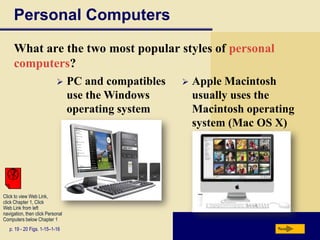
What are the two most popular styles of personal
computers?


PC and compatibles
use the Windows
operating system



Apple Macintosh
usually uses the
Macintosh operating
system (Mac OS X)

Click to view Web Link,
click Chapter 1, Click
Web Link from left
navigation, then click Personal
Computers below Chapter 1
p. 19 - 20 Figs. 1-15–1-16

Next
Personal Computers
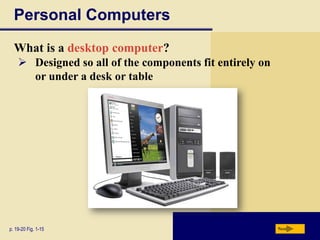
What is a desktop computer?
 Designed so all of the components fit entirely on
or under a desk or table

p. 19-20 Fig. 1-15

Next
Mobile Computers and Mobile Devices
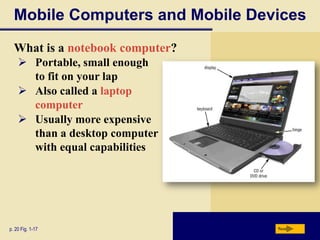
What is a notebook computer?
 Portable, small enough
to fit on your lap
 Also called a laptop
computer
 Usually more expensive
than a desktop computer
with equal capabilities

p. 20 Fig. 1-17

Next
Mobile Computers and Mobile Devices
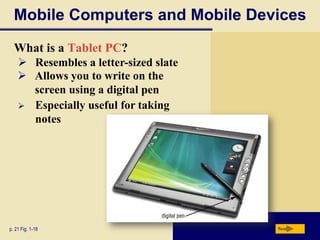
What is a Tablet PC?
 Resembles a letter-sized slate
 Allows you to write on the
screen using a digital pen
 Especially useful for taking
notes

p. 21 Fig. 1-18

Next
Mobile Computers and Mobile Devices
What are mobile devices?

Small enough to
carry in a pocket

Internet-enabled
telephone is a
“smart phone”

p. 21 - 22

Next
Mobile Computers and Mobile Devices
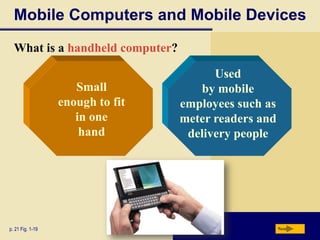
What is a handheld computer?
Small
enough to fit
in one
hand

p. 21 Fig. 1-19

Used
by mobile
employees such as
meter readers and
delivery people

Next
Mobile Computers and Mobile Devices
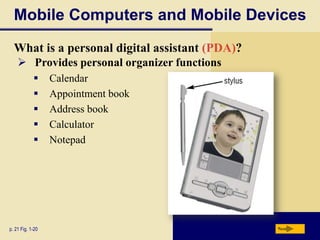
What is a personal digital assistant (PDA)?
 Provides personal organizer functions






p. 21 Fig. 1-20

Calendar
Appointment book
Address book
Calculator
Notepad

Next
Mobile Computers and Mobile Devices
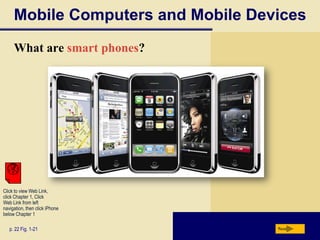
What are smart phones?

Click to view Web Link,
click Chapter 1, Click
Web Link from left
navigation, then click iPhone
below Chapter 1
p. 22 Fig. 1-21

Next
Game Consoles
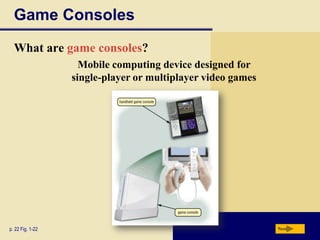
What are game consoles?
Mobile computing device designed for
single-player or multiplayer video games

p. 22 Fig. 1-22

Next
Servers
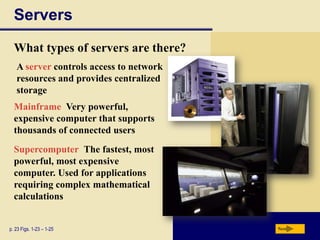
What types of servers are there?
A server controls access to network
resources and provides centralized
storage
Mainframe Very powerful,
expensive computer that supports
thousands of connected users
Supercomputer The fastest, most
powerful, most expensive
computer. Used for applications
requiring complex mathematical
calculations

p. 23 Figs. 1-23 – 1-25

Next
Embedded Computers
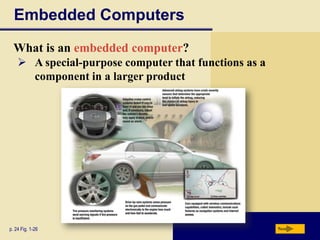
What is an embedded computer?
 A special-purpose computer that functions as a
component in a larger product

p. 24 Fig. 1-26

Next
Elements of an Information System
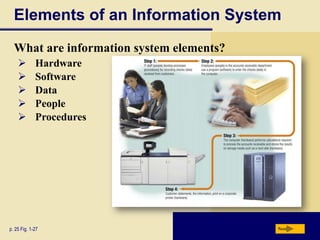
What are information system elements?






Hardware
Software
Data
People
Procedures

p. 25 Fig. 1-27

Next
Examples of Computer Usage
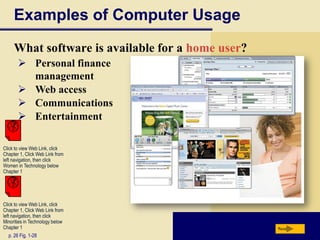
What software is available for a home user?
 Personal finance
management
 Web access
 Communications
 Entertainment
Click to view Web Link, click
Chapter 1, Click Web Link from
left navigation, then click
Women in Technology below
Chapter 1

Click to view Web Link, click
Chapter 1, Click Web Link from
left navigation, then click
Minorities in Technology below
Chapter 1
p. 26 Fig. 1-28

Next
Examples of Computer Usage
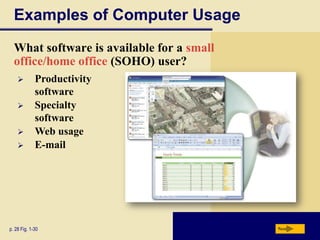
What software is available for a small
office/home office (SOHO) user?





Productivity
software
Specialty
software
Web usage
E-mail

p. 28 Fig. 1-30

Next
Examples of Computer Usage
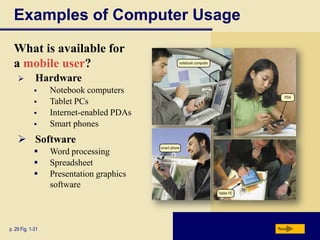
What is available for
a mobile user?


Hardware





Notebook computers
Tablet PCs
Internet-enabled PDAs
Smart phones

 Software




p. 29 Fig. 1-31

Word processing
Spreadsheet
Presentation graphics
software

Next
Examples of Computer Usage
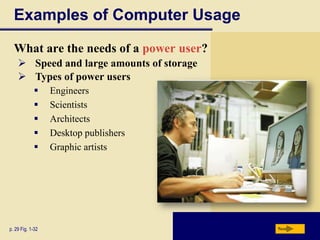
What are the needs of a power user?
 Speed and large amounts of storage
 Types of power users






p. 29 Fig. 1-32

Engineers
Scientists
Architects
Desktop publishers
Graphic artists

Next
Examples of Computer Usage
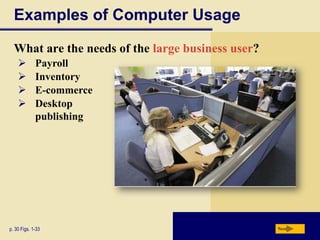
What are the needs of the large business user?





Payroll
Inventory
E-commerce
Desktop
publishing

p. 30 Figs. 1-33

Next
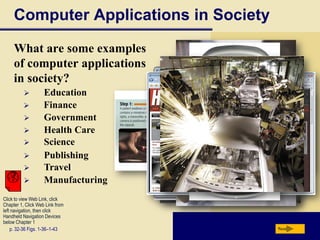
Computer Applications in Society
What are some examples
of computer applications
in society?










Education
Finance
Government
Health Care
Science
Publishing
Travel
Manufacturing

Click to view Web Link, click
Chapter 1, Click Web Link from
left navigation, then click
Handheld Navigation Devices
below Chapter 1
p. 32-36 Figs. 1-36–1-43

Next

Chapter 01 (Discovering Computers)

  • 1.
  • 2.
    Chapter 1 Objectives Recognizethe importance of computer literacy Distinguish between system software and application software Define the term, computer Describe the categories of computers Identify the components of a computer Discuss the advantages and disadvantages of using computers Identify the elements of an information system Describe the various types of computer users Recognize the purpose of a network Discuss the uses of the Internet and World Wide Web Discuss various computer applications in society Next
  • 3.
    A World ofComputers What is computer literacy (digital literacy)?  Current knowledge and understanding of computers and their uses  Computers are everywhere p. 4-5 Fig. 1-1 Next
  • 4.
    What Is aComputer? How is a computer defined?  Electronic device operating under the control of instructions stored in its own memory Accepts data Collection of unprocessed items Processes data into information Conveys meaning and is useful to people Produces and stores results p. 6 Next
  • 5.
    What Is aComputer? What is the information processing cycle?      p. 6 Fig. 1-2 Input Process Output Storage Communication Next
  • 6.
    The Components ofa Computer What is an input device?  Hardware used to enter data and instructions Click to view Web Link, click Chapter 1, Click Web Link from left navigation, then click Input Devices below Chapter 1 p. 7 Fig. 1-3 Next
  • 7.
    The Components ofa Computer What is an output device?  Hardware that conveys information to one or more people Click to view Web Link, click Chapter 1, Click Web Link from left navigation, then click Output Dvices below Chapter 1 p. 7 - 8 Fig. 1-3 Next
  • 8.
    The Components ofa Computer What is the system unit? Case that contains the electronic components of the computer that are used to process data  p. 7 - 8 Fig. 1-3 Next
  • 9.
    The Components ofa Computer What are two main components on the motherboard? Processor Also called a Central Processing Unit (CPU) The electronic component that interprets and carries out the basic instructions that operate the computer Memory Consists of electronic components that store instructions waiting to be executed and data needed by those instructions p. 8 Next
  • 10.
    The Components ofa Computer What is storage?  Holds data, instructions, and information for future use Storage media Physical material on which data, instructions, and information are stored Storage device Records and retrieves items to and from storage media p. 8 Next
  • 11.
    The Components ofa Computer What is a USB flash drive? Portable storage device Small and lightweight enough to be transported on a keychain or in a pocket The average USB flash drive can hold about 2 billion characters p. 8 Next
  • 12.
    The Components ofa Computer What is a hard disk?  Provides greater storage capacity than a USB flash drive  Most are housed inside the system unit p. 8 Fig. 1-4 Next
  • 13.
    The Components ofa Computer What is a compact disc?  Flat, round, portable metal disc   p. 9 Fig. 1-5 CD DVD Next
  • 14.
    The Components ofa Computer What is a communications device? Hardware component that enables a computer to send and receive data, instructions, and information Click to view Web Link, click Chapter 1, Click Web Link from left navigation, then click Communications Devices below Chapter 1 p. 9 Occurs over cables, telephone lines, cellular radio networks, satellites, and other transmission media Next
  • 15.
    Advantages and Disadvantages ofUsing Computers What are the advantages of using computers? Speed Reliability Storage p. 10 Consistency Communications Next
  • 16.
    Advantages and Disadvantages ofUsing Computers What are the disadvantages of using computers? Violation of Privacy Impact on Labor Force p. 10 - 11 Public Safety Health Risks Impact on Environment Next
  • 17.
    Networks and theInternet What is a network?  Collection of computers and devices connected together, often wirelessly Used to share Resources Hardware devices Software programs Data Information p. 11 Saves time and money Next
  • 18.
    Networks and theInternet What is a server?  A server controls access to resources on a network  Clients, or workstations, request resources from the server p. 11 Fig. 1-6 Next
  • 19.
    Networks and theInternet What is the Internet?  Worldwide collection of networks that connects millions of businesses, government agencies, educational institutions, and individuals Click to view Web Link, click Chapter 1, Click Web Link from left navigation, then click Internet below Chapter 1 p. 12 Fig. 1-7 Next
  • 20.
    Networks and theInternet Why do users access the Internet? 1. Communications 2. Research and Information 3. Shopping 4. Banking and Investing 5. Classes 6. Entertainment 7. Download Music 8. Share Information p. 12 - 13 Fig. 1-8 Next
  • 21.
    Networks and theInternet What is the Web?  Billions of documents, called Web pages, available to anyone connected to the Internet A Web site is a collection of related Web pages You can share information on a social networking Web site or a photo sharing community A Web page contains text, graphics, audio, video, and links to other Web pages Click to view Web Link, click Chapter 1, Click Web Link from left navigation, then click Sharing Videos below Chapter 1 p. 12 - 14 A podcast is recorded audio stored on a Web site that can be downloaded A blog consists of timestamped articles in a journal format Next
  • 22.
    Computer Software What issoftware? Consists of a series of instructions that tells the computer what to do and how to do it p. 15 Also called a program Next
  • 23.
    Computer Software What isa graphical user interface (GUI)?  Allows you to interact with the software using text, graphics, and visual images such as icons  Controls how you enter data and instructions and how the screen displays information p. 15 Fig. 1-10 Next
  • 24.
    Computer Software What issystem software?  Programs that control or maintain the operations of the computer and its devices Operating System (OS) is a set of programs that coordinates all activities among computer hardware devices Click to view Web Link, click Chapter 1, Click Web Link from left navigation, then click Windows Vista below Chapter 1 p. 15-16 Utility Programs allow the user to perform maintenance-type tasks usually related to managing a computer, its devices or its programs Next
  • 25.
    Computer Software What isapplication software?  Programs designed to make users more productive Word Processing Database p. 16 Fig. 1-11 Spreadsheet Presentation Graphics Next
  • 26.
    Computer Software How doyou install and run programs? p. 17 Fig. 1-12 Next
  • 27.
    Computer Software JavaScript What isa programmer?  Someone who develops software  Programmer writes the instructions to direct the computer to process data into information Web application p. 18 Fig. 1-13 Next
  • 28.
    Categories of Computers Whatare the categories of computers? Personal Computers (desktop) Mobile Computers and Mobile Devices Game Consoles Servers Mainframes Supercomputers Embedded Computers p. 19 Next
  • 29.
    Personal Computers What arethe two most popular styles of personal computers?  PC and compatibles use the Windows operating system  Apple Macintosh usually uses the Macintosh operating system (Mac OS X) Click to view Web Link, click Chapter 1, Click Web Link from left navigation, then click Personal Computers below Chapter 1 p. 19 - 20 Figs. 1-15–1-16 Next
  • 30.
    Personal Computers What isa desktop computer?  Designed so all of the components fit entirely on or under a desk or table p. 19-20 Fig. 1-15 Next
  • 31.
    Mobile Computers andMobile Devices What is a notebook computer?  Portable, small enough to fit on your lap  Also called a laptop computer  Usually more expensive than a desktop computer with equal capabilities p. 20 Fig. 1-17 Next
  • 32.
    Mobile Computers andMobile Devices What is a Tablet PC?  Resembles a letter-sized slate  Allows you to write on the screen using a digital pen  Especially useful for taking notes p. 21 Fig. 1-18 Next
  • 33.
    Mobile Computers andMobile Devices What are mobile devices? Small enough to carry in a pocket Internet-enabled telephone is a “smart phone” p. 21 - 22 Next
  • 34.
    Mobile Computers andMobile Devices What is a handheld computer? Small enough to fit in one hand p. 21 Fig. 1-19 Used by mobile employees such as meter readers and delivery people Next
  • 35.
    Mobile Computers andMobile Devices What is a personal digital assistant (PDA)?  Provides personal organizer functions      p. 21 Fig. 1-20 Calendar Appointment book Address book Calculator Notepad Next
  • 36.
    Mobile Computers andMobile Devices What are smart phones? Click to view Web Link, click Chapter 1, Click Web Link from left navigation, then click iPhone below Chapter 1 p. 22 Fig. 1-21 Next
  • 37.
    Game Consoles What aregame consoles? Mobile computing device designed for single-player or multiplayer video games p. 22 Fig. 1-22 Next
  • 38.
    Servers What types ofservers are there? A server controls access to network resources and provides centralized storage Mainframe Very powerful, expensive computer that supports thousands of connected users Supercomputer The fastest, most powerful, most expensive computer. Used for applications requiring complex mathematical calculations p. 23 Figs. 1-23 – 1-25 Next
  • 39.
    Embedded Computers What isan embedded computer?  A special-purpose computer that functions as a component in a larger product p. 24 Fig. 1-26 Next
  • 40.
    Elements of anInformation System What are information system elements?      Hardware Software Data People Procedures p. 25 Fig. 1-27 Next
  • 41.
    Examples of ComputerUsage What software is available for a home user?  Personal finance management  Web access  Communications  Entertainment Click to view Web Link, click Chapter 1, Click Web Link from left navigation, then click Women in Technology below Chapter 1 Click to view Web Link, click Chapter 1, Click Web Link from left navigation, then click Minorities in Technology below Chapter 1 p. 26 Fig. 1-28 Next
  • 42.
    Examples of ComputerUsage What software is available for a small office/home office (SOHO) user?     Productivity software Specialty software Web usage E-mail p. 28 Fig. 1-30 Next
  • 43.
    Examples of ComputerUsage What is available for a mobile user?  Hardware     Notebook computers Tablet PCs Internet-enabled PDAs Smart phones  Software    p. 29 Fig. 1-31 Word processing Spreadsheet Presentation graphics software Next
  • 44.
    Examples of ComputerUsage What are the needs of a power user?  Speed and large amounts of storage  Types of power users      p. 29 Fig. 1-32 Engineers Scientists Architects Desktop publishers Graphic artists Next
  • 45.
    Examples of ComputerUsage What are the needs of the large business user?     Payroll Inventory E-commerce Desktop publishing p. 30 Figs. 1-33 Next
  • 46.
    Computer Applications inSociety What are some examples of computer applications in society?         Education Finance Government Health Care Science Publishing Travel Manufacturing Click to view Web Link, click Chapter 1, Click Web Link from left navigation, then click Handheld Navigation Devices below Chapter 1 p. 32-36 Figs. 1-36–1-43 Next