Terminals and Shells
Eric Roberts
Hoffman Lab
1
Shells
- Features
- Choosing
- Modes
- Bash configuration
- Configuration files
2
Presentation Guide
Terminals
- History
- Configuration
- Customization
- Multiplexing
- Psuedoterminals
3
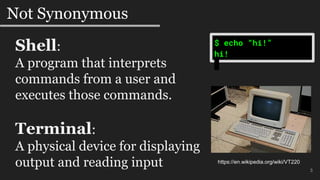
Not Synonymous
Shell:
A program that interprets
commands from a user and
executes those commands.
Terminal:
A physical device for displaying
output and reading input
$ echo “hi!”
hi!
https://en.wikipedia.org/wiki/VT220
4
A Brief History of Terminals
Telex
- The first international network
established on phone lines
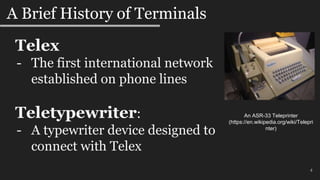
Teletypewriter:
- A typewriter device designed to
connect with Telex
An ASR-33 Teleprinter
(https://en.wikipedia.org/wiki/Telepri
nter)
5
A Brief History of Terminals - 2
Mainframe
- A large shared computer (z/OS)
Terminal:
- A device (e.g. a Teletypewriter)
that connects to a computer
(e.g. a Mainframe) for input and
output
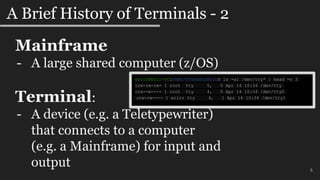
ericr@Eric-PC:/mnt/c/Users/Eric$ ls -al /dev/tty* | head -n 3
crw-rw-rw- 1 root tty 5, 0 Apr 14 10:34 /dev/tty
crw--w---- 1 root tty 4, 0 Apr 14 10:34 /dev/tty0
crw-rw---- 1 ericr tty 4, 1 Apr 14 10:34 /dev/tty1
6
A Brief History of Terminals - 3
Terminal Emulators:
- Software programs meant to
emulate physical terminals
- Xterm
- Vt102, textronix 4014, vt 220...
- Gnome-terminal
- PuTTY
7
8
Terminal Configuration
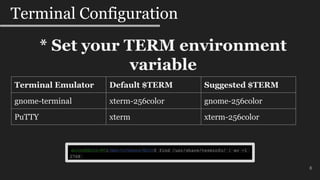
ericr@Eric-PC:/mnt/c/Users/Eric$ find /usr/share/terminfo/ | wc -l
2768
* Set your TERM environment
variable
Terminal Emulator Default $TERM Suggested $TERM
gnome-terminal xterm-256color gnome-256color
PuTTY xterm xterm-256color
RESET='[$(tput sgr0)]'
export PS1="$(my-wacky-prompt)${RESET}$"
9
Terminal Customization
ericr@Eric-PC:/mnt/c/Users/Eric$ infocmp gnome-256color | grep sgr0
sgr0=E[0m017, sitm=E[3m, smacs=^N, smam=E[?7h,
ericr@Eric-PC:/mnt/c/Users/Eric$ infocmp xterm-256color | grep sgr0
sgr0=E(BE[m, sitm=E[3m, smacs=E(0, smam=E[?7h,
* Beware of escape sequences
* Use ‘tput’ instead if possible
RESET='[E[0m017]'
export PS1="$(my-wacky-prompt)${RESET}$"
EVIL
GOOD
10
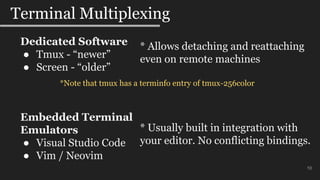
Terminal Multiplexing
Dedicated Software
● Tmux - “newer”
● Screen - “older”
* Allows detaching and reattaching
even on remote machines
Embedded Terminal
Emulators
● Visual Studio Code
● Vim / Neovim
* Usually built in integration with
your editor. No conflicting bindings.
*Note that tmux has a terminfo entry of tmux-256color
11
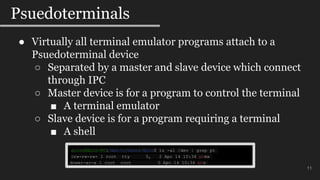
Psuedoterminals
ericr@Eric-PC:/mnt/c/Users/Eric$ ls -al /dev | grep pt
crw-rw-rw- 1 root tty 5, 2 Apr 14 10:34 ptmx
drwxr-xr-x 1 root root 0 Apr 14 10:34 pts
● Virtually all terminal emulator programs attach to a
Psuedoterminal device
○ Separated by a master and slave device which connect
through IPC
○ Master device is for a program to control the terminal
■ A terminal emulator
○ Slave device is for a program requiring a terminal
■ A shell
12
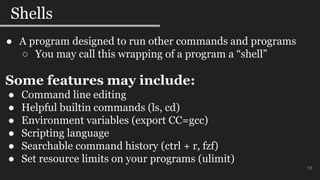
Shells
● A program designed to run other commands and programs
○ You may call this wrapping of a program a “shell”
Some features may include:
● Command line editing
● Helpful builtin commands (ls, cd)
● Environment variables (export CC=gcc)
● Scripting language
● Searchable command history (ctrl + r, fzf)
● Set resource limits on your programs (ulimit)
13
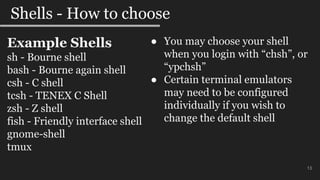
Shells - How to choose
● You may choose your shell
when you login with “chsh”, or
“ypchsh”
● Certain terminal emulators
may need to be configured
individually if you wish to
change the default shell
Example Shells
sh - Bourne shell
bash - Bourne again shell
csh - C shell
tcsh - TENEX C Shell
zsh - Z shell
fish - Friendly interface shell
gnome-shell
tmux
14
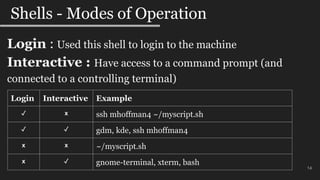
Shells - Modes of Operation
Login Interactive Example
✓ x ssh mhoffman4 ~/myscript.sh
✓ ✓ gdm, kde, ssh mhoffman4
x x ~/myscript.sh
x ✓ gnome-terminal, xterm, bash
Login : Used this shell to login to the machine
Interactive : Have access to a command prompt (and
connected to a controlling terminal)
15
Shells - Bash Configuration Files
Login:
- /etc/profile
- ~/.bash_profile
- ~/.bash_login
- ~/.profile
Interactive and non-login:
- ~/.bashrc
*Only the first one of these
files is ever sourced on login
*Always sourced on login
* ‘sh’ has its entirely
different own
sourcing rules
16
Shells - Sane(?) Bash Configuration
Bash Manual Suggestion:
~/.bash_profile
if [ -f ~/.bashrc ]; then . ~/.bashrc; fi
* Place any behaviour you only want
on login here as well
(e.g. sshfs, startup scripts, etc.)
17
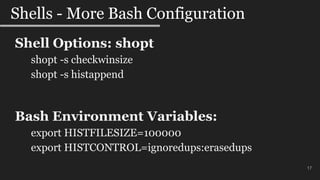
Shells - More Bash Configuration
Shell Options: shopt
shopt -s checkwinsize
shopt -s histappend
Bash Environment Variables:
export HISTFILESIZE=100000
export HISTCONTROL=ignoredups:erasedups
Questions
18

Terminals and Shells

  • 1.
    Terminals and Shells EricRoberts Hoffman Lab 1
  • 2.
    Shells - Features - Choosing -Modes - Bash configuration - Configuration files 2 Presentation Guide Terminals - History - Configuration - Customization - Multiplexing - Psuedoterminals
  • 3.
    3 Not Synonymous Shell: A programthat interprets commands from a user and executes those commands. Terminal: A physical device for displaying output and reading input $ echo “hi!” hi! https://en.wikipedia.org/wiki/VT220
  • 4.
    4 A Brief Historyof Terminals Telex - The first international network established on phone lines Teletypewriter: - A typewriter device designed to connect with Telex An ASR-33 Teleprinter (https://en.wikipedia.org/wiki/Telepri nter)
  • 5.
    5 A Brief Historyof Terminals - 2 Mainframe - A large shared computer (z/OS) Terminal: - A device (e.g. a Teletypewriter) that connects to a computer (e.g. a Mainframe) for input and output ericr@Eric-PC:/mnt/c/Users/Eric$ ls -al /dev/tty* | head -n 3 crw-rw-rw- 1 root tty 5, 0 Apr 14 10:34 /dev/tty crw--w---- 1 root tty 4, 0 Apr 14 10:34 /dev/tty0 crw-rw---- 1 ericr tty 4, 1 Apr 14 10:34 /dev/tty1
  • 6.
    6 A Brief Historyof Terminals - 3 Terminal Emulators: - Software programs meant to emulate physical terminals - Xterm - Vt102, textronix 4014, vt 220... - Gnome-terminal - PuTTY
  • 7.
  • 8.
    8 Terminal Configuration ericr@Eric-PC:/mnt/c/Users/Eric$ find/usr/share/terminfo/ | wc -l 2768 * Set your TERM environment variable Terminal Emulator Default $TERM Suggested $TERM gnome-terminal xterm-256color gnome-256color PuTTY xterm xterm-256color
  • 9.
    RESET='[$(tput sgr0)]' export PS1="$(my-wacky-prompt)${RESET}$" 9 TerminalCustomization ericr@Eric-PC:/mnt/c/Users/Eric$ infocmp gnome-256color | grep sgr0 sgr0=E[0m017, sitm=E[3m, smacs=^N, smam=E[?7h, ericr@Eric-PC:/mnt/c/Users/Eric$ infocmp xterm-256color | grep sgr0 sgr0=E(BE[m, sitm=E[3m, smacs=E(0, smam=E[?7h, * Beware of escape sequences * Use ‘tput’ instead if possible RESET='[E[0m017]' export PS1="$(my-wacky-prompt)${RESET}$" EVIL GOOD
  • 10.
    10 Terminal Multiplexing Dedicated Software ●Tmux - “newer” ● Screen - “older” * Allows detaching and reattaching even on remote machines Embedded Terminal Emulators ● Visual Studio Code ● Vim / Neovim * Usually built in integration with your editor. No conflicting bindings. *Note that tmux has a terminfo entry of tmux-256color
  • 11.
    11 Psuedoterminals ericr@Eric-PC:/mnt/c/Users/Eric$ ls -al/dev | grep pt crw-rw-rw- 1 root tty 5, 2 Apr 14 10:34 ptmx drwxr-xr-x 1 root root 0 Apr 14 10:34 pts ● Virtually all terminal emulator programs attach to a Psuedoterminal device ○ Separated by a master and slave device which connect through IPC ○ Master device is for a program to control the terminal ■ A terminal emulator ○ Slave device is for a program requiring a terminal ■ A shell
  • 12.
    12 Shells ● A programdesigned to run other commands and programs ○ You may call this wrapping of a program a “shell” Some features may include: ● Command line editing ● Helpful builtin commands (ls, cd) ● Environment variables (export CC=gcc) ● Scripting language ● Searchable command history (ctrl + r, fzf) ● Set resource limits on your programs (ulimit)
  • 13.
    13 Shells - Howto choose ● You may choose your shell when you login with “chsh”, or “ypchsh” ● Certain terminal emulators may need to be configured individually if you wish to change the default shell Example Shells sh - Bourne shell bash - Bourne again shell csh - C shell tcsh - TENEX C Shell zsh - Z shell fish - Friendly interface shell gnome-shell tmux
  • 14.
    14 Shells - Modesof Operation Login Interactive Example ✓ x ssh mhoffman4 ~/myscript.sh ✓ ✓ gdm, kde, ssh mhoffman4 x x ~/myscript.sh x ✓ gnome-terminal, xterm, bash Login : Used this shell to login to the machine Interactive : Have access to a command prompt (and connected to a controlling terminal)
  • 15.
    15 Shells - BashConfiguration Files Login: - /etc/profile - ~/.bash_profile - ~/.bash_login - ~/.profile Interactive and non-login: - ~/.bashrc *Only the first one of these files is ever sourced on login *Always sourced on login * ‘sh’ has its entirely different own sourcing rules
  • 16.
    16 Shells - Sane(?)Bash Configuration Bash Manual Suggestion: ~/.bash_profile if [ -f ~/.bashrc ]; then . ~/.bashrc; fi * Place any behaviour you only want on login here as well (e.g. sshfs, startup scripts, etc.)
  • 17.
    17 Shells - MoreBash Configuration Shell Options: shopt shopt -s checkwinsize shopt -s histappend Bash Environment Variables: export HISTFILESIZE=100000 export HISTCONTROL=ignoredups:erasedups
  • 18.

Editor's Notes

  • #3 This is mostly an intermediate presentation since the vast majority of you have had some experience using a terminal and shell in some capacity. I assume you know all use bash or a similar shell, you’ve all opened a terminal window at some point, and also may have tinkered with your bashrc to some degree of success. The aim of this presentation is to hopefully clear up any confusing nomenclature, configuration, terminology, and the all-around arcane technology that is the terminal and shell. Armed with this newfound knowledge you should, at the very least, have a much better clue as to what is going wrong when things eventually go wrong running your programs - whether or not they are inside a terminal.
  • #4 So to start I’m going to clear up some definitions here since often they are used synonymously although incorrectly. It helps to know the difference between these two when you will eventually wind up searching for issues and need to distinguish between the two. Shells are also known as command interpreters. Sometimes there also known as a command prompt when used interactively (we’ll get to specifics later). Sometimes you’ll have an operating system that provides multiple different shells. Windows provides both a “command prompt” and a “Power shell”. These are both shells. Terminals are devices for display and input. Although you will likely not, if ever, see a physical device like the one you see on the right. In actuality, the vast majority of the time you’ll be interacting with a terminal is through a program that emulates one (which we will also get to in a bit).
  • #5 So why do terminals exist? Where did they come from? Before the internet, ARPANET, there was Telex.This phone switched network was established post world war two. To send messages, typewriters were effectively designed to connect to the network to type messages as input and physically print out messages onto some spool of paper. This device the likely the reason why we still use the verb “print” in every programming language today even though nothing is physically printed.
  • #6 After a teletypewriter, we eventually get to what is more colloquially called a terminal. These more modern terminals were connected to computers through a serial cable (a RS-232) and had a CRT display. Lots of manufacturers made all sorts of different terminals with no agreed upon standard for how exactly things should be display. For example, how does a program tell a terminal to perform a linefeed or a carriage return? Inverted colors on the display? Blinking? Mainframes are still in use today and still connected to through terminals. These machines often take up entire rooms, if not floors. Modern mainframes are, for the most part, programmable spreadsheets on datasets on the order of tera or petabytes. This is where you will find the infamous home of the COBOL programming language as well.
  • #7 The vast majority of your interaction with terminals will be through a program that emulates one. Notably there is ‘st’ which stands for simple terminal and is roughly only 3k lines of code total
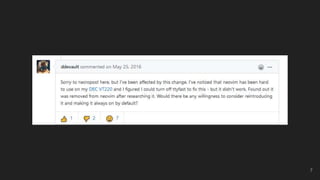
  • #8 Sometimes people still use physical terminals and it ends up with some esoteric requests. This request was eventually fufilled btw, but not because of supporting older hardware, just slower connections.
  • #9 So how do you ensure that your terminal emulator is using its full capabilities? By setting the TERM environment variable. Setting TERM tells the operating system, and more specifically, any terminal-using programs how to control the display of your particular terminal (emulator). If you want to find out all the different terminals and their specific settings your operating systems supports, you can list the contents of /usr/share/terminfo directory. Why gnome-terminal defaults to xterm-256color when there is literally a specific defined entry in most operating systems for this emulator? There was a long discussed issue on an issue tracker that seems to no longer exist.went back to check the newer issue tracker only had issues a year old. Very old machines may or may not support your terminal in which case you would have to specify a different $TERM value. If you use multiple terminal emulators, sometimes these terminal emulators set environment variables themselves that you can check first accordingly. Gnome-terminal sets VTE_VERSION, for example.
  • #10 Ocassionally when looking how to customize the appearence of your shell, you may run across some arcane text you are told to put into environment variables. This text is known as escape sequences that are not meant to be printable. They are meant to be a specific character sequence that when “printed” performs some act on the display. Here sgr0, performs a graphical reset on current settings. If you need to completely reset the display of your terminal, use `tput reset` instead.
  • #11 It is very useful, if you do not have the means already, to have the ability to manage multiple terminals within a single process. Being able to navigate through multiple panes of output, copy and move text is very convenient. A dedicated terminal multiplexer, such as tmux, launches programs separate from the session of the shell that started the terminal multiplexer itself. The idea being is if you suddenly disconnect from the terminal multiplexer, the system doesn’t immediately kill all the processes that were run by that multiplexer. You can simply reattach to the terminal multiplexer later. Odds are if you are the kind of person who keeps many tabs open in your browser at all times, a terminal multiplexer is for you. Note that I’ve only listed a few options for terminal multiplexers here. But these two are by far the most popular. Also of note, there is a terminfo entry for tmux. It is called tmux-256color. Alternatively, a less discussed option is simply using programs that can also run their own terminal emulator. Lots of IDEs have some sort of integration of a terminal emulator. One of Neovim’s biggest features was a buitlin terminal emulator, which Vim then followed suit. I assume emacs also has the ability to launch various terminal emulators but I’m not certain of the specifics.
  • #12 This part is really not that important on your day to day, but it is good to have some sort of vague recollection of later. Honestly the most useful part of this whole slide is the fact that you’ll recognize that if you see pts or ptmx - those are the pseudoterminal slave and master devices specifically.
  • #13 So it turns out, the nomenclature for why a command interpreter is called a shell is not particularly clear. The term “shell” originally came from the MULTICS computing system of which UNIX took ideas from and, if you didn’t know already, made fun of its name. The shells I’ll be mentioning generally have all these features. However if you were an unfortunate soul working on an older mainframe connected through a terminal, odds are you’d be missing a bunch of these features. GRUB, your bootloader that you see briefly before you operating system starts, also has a bare bones shell which misses a bunch of these features.
  • #14 You are not stuck with whatever shell the system decides to give you. You may change your shell at anytime. There are a lot of shells to choose from. Most linux defaults are “bash”, but on MacOS it is currently zsh, FreeBSD uses tcsh.
  • #15 A login shell is the first process opened under your used ID Since shells are programs designed to facilitate other programs, they may or may not be involved in any interaction. If they are being interacted with, they are said to have a controlling terminal. Also of note, all terminal emulators launched from MacOSX are also considered login shells.
  • #16 This is probably the most important, and unfortunate part about shells to take away from this talk. Specifically as it relates to bash, the most commonly used shell. You are all likely aware of all the files you can put your bash configuration into, but the rules of what gets sourced for configuration and what doesn’t can be a source of major confusion. The idea is you would login using bash, which is not that common, and you would have created some sort of global configuration in your .bash_profile. After you’ve logged in, when you start another shell, all following shells requiring interactivity would be configured with ~/.bashrc. This is not a common workflow anymore. Also to remind you like a mentioned before, MacOSX considers all terminal emulators launched to also be login shells. So these would be considered interactive and login, and only your .bash_profile would be sourced on these systems. Note that non-login and non-interactive shells won’t (re)source *any* of your configuration. Conda calling a non-exported function call
  • #17  # BASHRC SILLY RULES ARE THE FOLLOWING: # https://github.com/justinmk/config/blob/master/.bashrc#L1-L6 # "the best way to handle it is to do everything in .bashrc, and source .bashrc # from .bash_profile, but abort .bashrc if non-interactive" # TODO: Get more settings from there
  • #18 fzf demonstration