(Practical) Linux 101
Arie Bregman
Senior Software Engineer @RedHat
Agenda
● What is Linux?
● Why Linux?
● Practice time!
● More practice
● Yes, more practice
● Questions
What is Linux?
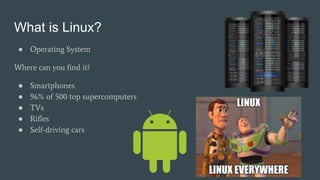
● Operating System
Where can you find it?
● Smartphones
● 96% of 500 top supercomputers
● TVs
● Rifles
● Self-driving cars
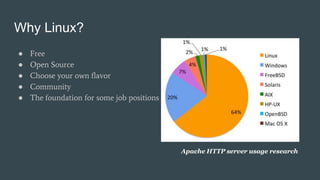
Why Linux?
Apache HTTP server usage research
● Free
● Open Source
● Choose your own flavor
● Community
● The foundation for some job positions
Before we start...
● Linux is case sensitive
○ A != a
● Don’t be afraid experimenting. It’s OK if you break stuff :)
○ Small note: don’t experiment on production
● Don’t expect feedback (like smiley) every time you execute a command.
● Everything we’ll do is distro-agnostic at this meetup
● ASK QUESTIONS
Enough talking. Practice Time!
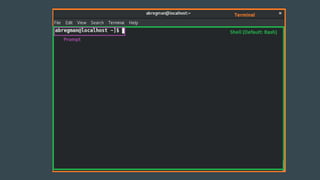
First, open your terminal
First command: pwd
● Print working/current directory
● Answers the question “Where Am I?”
3 Directories:
● /
● home
● arie
[arie@localhost ~]$ pwd
/home/arie
cd
● Change the current directory to another dir
● Try changing directory to /tmp and type ‘pwd’. What do you see?
[arie@localhost ~]$ cd /tmp
[arie@localhost ~]$ cd $HOME
[arie@localhost ~]$ cd ~
[arie@localhost ~]$ cd ..
You can see all shell variables by
running ‘set’ [arie@localhost ~]$ cd -
ls
● List directory contents and information
● Useful arguments
○ -a for hidden files
○ -l for long listing format
○ -F -> can you guess what it does?
[arie@localhost ~]$ ls
pictures docs file
[arie@localhost ~]$ ls /tmp
a b c
# How do I know if they are
directories, regular files or perhaps
some are directories and some are
regular?
Type of files
● “Everything is a file” in Linux
○ Regular
○ Directory
○ Block
○ Link
○ Socket
● In every directory you’ll find two hidden files:
○ ..
○ .
mkdir
● Create a directory
● Useful argument: -p for creating multiple directories at once
[arie@localhost ~]$ mkdir new
[arie@localhost ~]$ mkdir /tmp/new
[arie@localhost ~]$ mkdir /tmp/a/b
mkdir: cannot create directory
‘/tmp/a/b’: Not a directory
● After creating a new directory,
run ‘ls -lF’
● Try also ‘ls -ld new’
[arie@localhost ~]$ mkdir -p /tmp/a/b
touch
● Create files and modify their timestamp
[arie@localhost ~]$ touch new_file
[arie@localhost ~]$ touch a b
● After creating a new file, try to ‘touch’ it again.
Can you see its timestamp changed?
Pause
● Questions so far?
○ How many commands left to learn?
■ 2000 installed, more than 10,000,000 uninstalled
○ I don’t like typing. Is there a way I can use only my mouse?
■ Get out of the room
○ How am I supposed to remember all the commands?
■ MORE practice
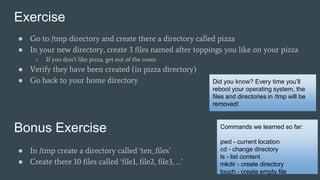
Exercise
● Go to /tmp directory and create there a directory called pizza
● In your new directory, create 3 files named after toppings you like on your pizza
○ If you don’t like pizza, get out of the room
● Verify they have been created (in pizza directory)
● Go back to your home directory Did you know? Every time you’ll
reboot your operating system, the
files and directories in /tmp will be
removed!
Bonus Exercise
● In /tmp create a directory called ‘ten_files’
● Create there 10 files called ‘file1, file2, file3, …’
Commands we learned so far:
pwd - current location
cd - change directory
ls - list content
mkdir - create directory
touch - create empty file
Solution
Bonus Solution
[arie@localhost ~]$ cd /tmp
[arie@localhost ~]$ mkdir pizza
[arie@localhost ~]$ cd pizza
[arie@localhost ~]$ touch mushrooms mozzarella tomatoes
[arie@localhost ~]$ ls
mushrooms mozzarella tomatoes
[arie@localhost ~]$ cd ~
[arie@localhost ~]$ cd /tmp
[arie@localhost ~]$ touch file{1..10}
The strange code for creating the 10
files ({1..10}) is called brace
expansion and provided by bash for
easily creating long and complex
combinations
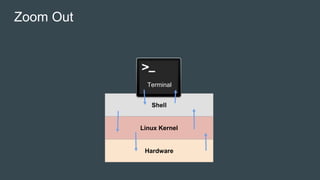
Zoom Out
Hardware
Linux Kernel
Shell
Terminal
echo
● Display a line of text
● You can create a new file using echo
[arie@localhost ~]$ echo “Look mom, I know
Linux!”
Look mom, I know Linux
[arie@localhost ~]$ echo “Amazing” > new_file
I/O Redirection
● Manipulation of I/O
● Three streams
○ stdin (Input) -> 0
○ stdout (Output) -> 1
○ stderr (Error) -> 2
● > for output redirection
● < for input redirection
● 2> for error
● Use ‘>>’ for appending
● 2>&1 redirect error to output target
[arie@localhost ~]$ blabla
blabla: command not found...
[arie@localhost ~]$ blabla 2> error_info
[arie@localhost ~]$ echo 1 > my_echos
[arie@localhost ~]$ echo 2 > my_echos
[arie@localhost ~]$ cat my_echos
2
[arie@localhost ~]$ echo 1 > my_echos
[arie@localhost ~]$ echo 2 >> my_echos
[arie@localhost ~]$ cat my_echos
1
2
cat
● Concatenate files.
● Probably most common use: read files :)
● You can also create files with content
[arie@localhost ~]$ cat /etc/passwd
Did you know? /etc/passwd used for
storing data on all users in the
system and their information (e.g.
home directory, shell, …)
[arie@localhost ~]$ echo “a” > file1
[arie@localhost ~]$ echo “b” > file2
[arie@localhost ~]$ cat file1 file2
a
b
[arie@localhost ~]$ echo > file3
Hello
there
(Press ctrl+d)
[arie@localhost ~]$ cat file3
Hello
there
mv
● Move files
● Also rename files
[arie@localhost ~]$ touch new
[arie@localhost ~]$ mv new /tmp/
[arie@localhost ~]$ ls /tmp
new
[arie@localhost ~]$ touch x
[arie@localhost ~]$ ls
x
[arie@localhost ~]$ mv x y
[arie@localhost ~]$ ls
y
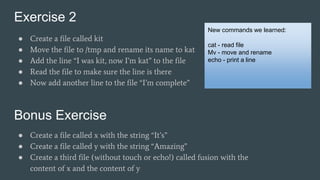
Exercise 2
● Create a file called kit
● Move the file to /tmp and rename its name to kat
● Add the line “I was kit, now I’m kat” to the file
● Read the file to make sure the line is there
● Now add another line to the file “I’m complete”
New commands we learned:
cat - read file
Mv - move and rename
echo - print a line
Bonus Exercise
● Create a file called x with the string “It’s”
● Create a file called y with the string “Amazing”
● Create a third file (without touch or echo!) called fusion with the
content of x and the content of y
Solution
Bonus Solution
[arie@localhost ~]$ touch kit
[arie@localhost ~]$ mv kit /tmp/kat
[arie@localhost ~]$ echo “I was kit, now I’m kat” > /tmp/kat
[arie@localhost ~]$ cat /tmp/kat
I was kit, now I’m kat
[arie@localhost ~]$ echo “I’m complete” >> /tmp/kat
[arie@localhost ~]$ echo “It’s” > x
[arie@localhost ~]$ echo “Amazing” > y
The strange code for creating the 10
files ({1..10}) is called brace
expansion and provided by bash for
easily creating long and complex
combinations
rm
● Remove files or directories
[arie@localhost ~]$ touch x
[arie@localhost ~]$ ls
x
[arie@localhost ~]$ rm x
[arie@localhost ~]$ ls x
ls: cannot access 'x': No such file or directory
[arie@localhost ~]$ mkdir directory
[arie@localhost ~]$ rm directory
rm: cannot remove 'directory': Is a directory
[arie@localhost ~]$ rm -r directory
[arie@localhost ~]$ ls
● Useful arguments
○ -r for removing directory its content
○ -i -> prompt before every removal
cp
● copy files and directories
[arie@localhost ~]$ touch x
[arie@localhost ~]$ cp x y
[arie@localhost ~]$ ls
x y
[arie@localhost ~]$ mkdir directory
[arie@localhost ~]$ touch directory/y
[arie@localhost ~]$ cp -r directory /tmp/● Useful arguments
○ -r -> like with rm, for copying an
entire directory and its content
&& (logical AND)
● Syntax: [command1] && [command2] && …
● The command after && will run only if the
command before && ran successfully
[arie@localhost ~]$ touch x
[arie@localhost ~]$ ls && echo “ls worked!”
x
ls worked
[arie@localhost ~]$ bla && echo “bla worked!”
bla: command not found
|| (logical OR)
● Syntax: [command1] || [command2] || …
● The command after || will run only if the
command before || failed
[arie@localhost ~]$ touch x
[arie@localhost ~]$ ls || echo “amazing!”
x
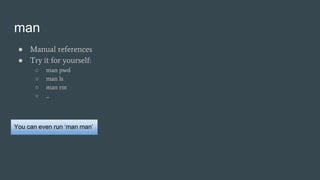
man
● Manual references
● Try it for yourself:
○ man pwd
○ man ls
○ man rm
○ ...
You can even run ‘man man’
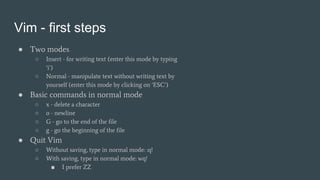
Vim - first steps
● Two modes
○ Insert - for writing text (enter this mode by typing
‘i’)
○ Normal - manipulate text without writing text by
yourself (enter this mode by clicking on ‘ESC’)
● Basic commands in normal mode
○ x - delete a character
○ o - newline
○ G - go to the end of the file
○ g - go the beginning of the file
● Quit Vim
○ Without saving, type in normal mode: :q!
○ With saving, type in normal mode: wq!
■ I prefer ZZ
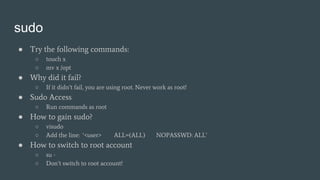
sudo
● Try the following commands:
○ touch x
○ mv x /opt
● Why did it fail?
○ If it didn’t fail, you are using root. Never work as root!
● Sudo Access
○ Run commands as root
● How to gain sudo?
○ visudo
○ Add the line: ‘<user> ALL=(ALL) NOPASSWD: ALL’
● How to switch to root account
○ su -
○ Don’t switch to root account!
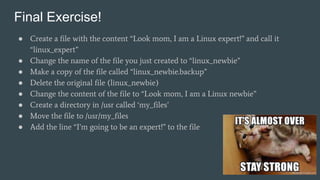
Final Exercise!
● Create a file with the content “Look mom, I am a Linux expert!” and call it
“linux_expert”
● Change the name of the file you just created to “linux_newbie”
● Make a copy of the file called “linux_newbie.backup”
● Delete the original file (linux_newbie)
● Change the content of the file to “Look mom, I am a Linux newbie”
● Create a directory in /usr called ‘my_files’
● Move the file to /usr/my_files
● Add the line “I’m going to be an expert!” to the file
It’s almost time to say goodbye...
● Possible topics for next meetups
○ (Practical) Linux 102 (and 103, 104, …)
○ Linux Scripting
○ Networking For Newbies
○ Git basics & Advanced Git.
○ Python or not to be
● DevOps Oriented
○ CI/CD with Jenkins & Kubernetes
○ Configuration Management with Ansible
○ Monitoring with Prometheus
○ Logging with Logstash
○ Building Web Applications with Flask
Thank You
● Everything is uploaded to GitHub
○ Linux
○ Computer Networking
○ Jenkins Goodies
○ More on GitHub
● Questions?

(Practical) linux 101

  • 1.
    (Practical) Linux 101 ArieBregman Senior Software Engineer @RedHat
  • 2.
    Agenda ● What isLinux? ● Why Linux? ● Practice time! ● More practice ● Yes, more practice ● Questions
  • 3.
    What is Linux? ●Operating System Where can you find it? ● Smartphones ● 96% of 500 top supercomputers ● TVs ● Rifles ● Self-driving cars
  • 4.
    Why Linux? Apache HTTPserver usage research ● Free ● Open Source ● Choose your own flavor ● Community ● The foundation for some job positions
  • 5.
    Before we start... ●Linux is case sensitive ○ A != a ● Don’t be afraid experimenting. It’s OK if you break stuff :) ○ Small note: don’t experiment on production ● Don’t expect feedback (like smiley) every time you execute a command. ● Everything we’ll do is distro-agnostic at this meetup ● ASK QUESTIONS
  • 6.
    Enough talking. PracticeTime! First, open your terminal
  • 8.
    First command: pwd ●Print working/current directory ● Answers the question “Where Am I?” 3 Directories: ● / ● home ● arie [arie@localhost ~]$ pwd /home/arie
  • 9.
    cd ● Change thecurrent directory to another dir ● Try changing directory to /tmp and type ‘pwd’. What do you see? [arie@localhost ~]$ cd /tmp [arie@localhost ~]$ cd $HOME [arie@localhost ~]$ cd ~ [arie@localhost ~]$ cd .. You can see all shell variables by running ‘set’ [arie@localhost ~]$ cd -
  • 10.
    ls ● List directorycontents and information ● Useful arguments ○ -a for hidden files ○ -l for long listing format ○ -F -> can you guess what it does? [arie@localhost ~]$ ls pictures docs file [arie@localhost ~]$ ls /tmp a b c # How do I know if they are directories, regular files or perhaps some are directories and some are regular?
  • 11.
    Type of files ●“Everything is a file” in Linux ○ Regular ○ Directory ○ Block ○ Link ○ Socket ● In every directory you’ll find two hidden files: ○ .. ○ .
  • 12.
    mkdir ● Create adirectory ● Useful argument: -p for creating multiple directories at once [arie@localhost ~]$ mkdir new [arie@localhost ~]$ mkdir /tmp/new [arie@localhost ~]$ mkdir /tmp/a/b mkdir: cannot create directory ‘/tmp/a/b’: Not a directory ● After creating a new directory, run ‘ls -lF’ ● Try also ‘ls -ld new’ [arie@localhost ~]$ mkdir -p /tmp/a/b
  • 13.
    touch ● Create filesand modify their timestamp [arie@localhost ~]$ touch new_file [arie@localhost ~]$ touch a b ● After creating a new file, try to ‘touch’ it again. Can you see its timestamp changed?
  • 14.
    Pause ● Questions sofar? ○ How many commands left to learn? ■ 2000 installed, more than 10,000,000 uninstalled ○ I don’t like typing. Is there a way I can use only my mouse? ■ Get out of the room ○ How am I supposed to remember all the commands? ■ MORE practice
  • 15.
    Exercise ● Go to/tmp directory and create there a directory called pizza ● In your new directory, create 3 files named after toppings you like on your pizza ○ If you don’t like pizza, get out of the room ● Verify they have been created (in pizza directory) ● Go back to your home directory Did you know? Every time you’ll reboot your operating system, the files and directories in /tmp will be removed! Bonus Exercise ● In /tmp create a directory called ‘ten_files’ ● Create there 10 files called ‘file1, file2, file3, …’ Commands we learned so far: pwd - current location cd - change directory ls - list content mkdir - create directory touch - create empty file
  • 16.
    Solution Bonus Solution [arie@localhost ~]$cd /tmp [arie@localhost ~]$ mkdir pizza [arie@localhost ~]$ cd pizza [arie@localhost ~]$ touch mushrooms mozzarella tomatoes [arie@localhost ~]$ ls mushrooms mozzarella tomatoes [arie@localhost ~]$ cd ~ [arie@localhost ~]$ cd /tmp [arie@localhost ~]$ touch file{1..10} The strange code for creating the 10 files ({1..10}) is called brace expansion and provided by bash for easily creating long and complex combinations
  • 17.
  • 18.
    echo ● Display aline of text ● You can create a new file using echo [arie@localhost ~]$ echo “Look mom, I know Linux!” Look mom, I know Linux [arie@localhost ~]$ echo “Amazing” > new_file
  • 19.
    I/O Redirection ● Manipulationof I/O ● Three streams ○ stdin (Input) -> 0 ○ stdout (Output) -> 1 ○ stderr (Error) -> 2 ● > for output redirection ● < for input redirection ● 2> for error ● Use ‘>>’ for appending ● 2>&1 redirect error to output target [arie@localhost ~]$ blabla blabla: command not found... [arie@localhost ~]$ blabla 2> error_info [arie@localhost ~]$ echo 1 > my_echos [arie@localhost ~]$ echo 2 > my_echos [arie@localhost ~]$ cat my_echos 2 [arie@localhost ~]$ echo 1 > my_echos [arie@localhost ~]$ echo 2 >> my_echos [arie@localhost ~]$ cat my_echos 1 2
  • 20.
    cat ● Concatenate files. ●Probably most common use: read files :) ● You can also create files with content [arie@localhost ~]$ cat /etc/passwd Did you know? /etc/passwd used for storing data on all users in the system and their information (e.g. home directory, shell, …) [arie@localhost ~]$ echo “a” > file1 [arie@localhost ~]$ echo “b” > file2 [arie@localhost ~]$ cat file1 file2 a b [arie@localhost ~]$ echo > file3 Hello there (Press ctrl+d) [arie@localhost ~]$ cat file3 Hello there
  • 21.
    mv ● Move files ●Also rename files [arie@localhost ~]$ touch new [arie@localhost ~]$ mv new /tmp/ [arie@localhost ~]$ ls /tmp new [arie@localhost ~]$ touch x [arie@localhost ~]$ ls x [arie@localhost ~]$ mv x y [arie@localhost ~]$ ls y
  • 22.
    Exercise 2 ● Createa file called kit ● Move the file to /tmp and rename its name to kat ● Add the line “I was kit, now I’m kat” to the file ● Read the file to make sure the line is there ● Now add another line to the file “I’m complete” New commands we learned: cat - read file Mv - move and rename echo - print a line Bonus Exercise ● Create a file called x with the string “It’s” ● Create a file called y with the string “Amazing” ● Create a third file (without touch or echo!) called fusion with the content of x and the content of y
  • 23.
    Solution Bonus Solution [arie@localhost ~]$touch kit [arie@localhost ~]$ mv kit /tmp/kat [arie@localhost ~]$ echo “I was kit, now I’m kat” > /tmp/kat [arie@localhost ~]$ cat /tmp/kat I was kit, now I’m kat [arie@localhost ~]$ echo “I’m complete” >> /tmp/kat [arie@localhost ~]$ echo “It’s” > x [arie@localhost ~]$ echo “Amazing” > y The strange code for creating the 10 files ({1..10}) is called brace expansion and provided by bash for easily creating long and complex combinations
  • 24.
    rm ● Remove filesor directories [arie@localhost ~]$ touch x [arie@localhost ~]$ ls x [arie@localhost ~]$ rm x [arie@localhost ~]$ ls x ls: cannot access 'x': No such file or directory [arie@localhost ~]$ mkdir directory [arie@localhost ~]$ rm directory rm: cannot remove 'directory': Is a directory [arie@localhost ~]$ rm -r directory [arie@localhost ~]$ ls ● Useful arguments ○ -r for removing directory its content ○ -i -> prompt before every removal
  • 25.
    cp ● copy filesand directories [arie@localhost ~]$ touch x [arie@localhost ~]$ cp x y [arie@localhost ~]$ ls x y [arie@localhost ~]$ mkdir directory [arie@localhost ~]$ touch directory/y [arie@localhost ~]$ cp -r directory /tmp/● Useful arguments ○ -r -> like with rm, for copying an entire directory and its content
  • 26.
    && (logical AND) ●Syntax: [command1] && [command2] && … ● The command after && will run only if the command before && ran successfully [arie@localhost ~]$ touch x [arie@localhost ~]$ ls && echo “ls worked!” x ls worked [arie@localhost ~]$ bla && echo “bla worked!” bla: command not found
  • 27.
    || (logical OR) ●Syntax: [command1] || [command2] || … ● The command after || will run only if the command before || failed [arie@localhost ~]$ touch x [arie@localhost ~]$ ls || echo “amazing!” x
  • 28.
    man ● Manual references ●Try it for yourself: ○ man pwd ○ man ls ○ man rm ○ ... You can even run ‘man man’
  • 29.
    Vim - firststeps ● Two modes ○ Insert - for writing text (enter this mode by typing ‘i’) ○ Normal - manipulate text without writing text by yourself (enter this mode by clicking on ‘ESC’) ● Basic commands in normal mode ○ x - delete a character ○ o - newline ○ G - go to the end of the file ○ g - go the beginning of the file ● Quit Vim ○ Without saving, type in normal mode: :q! ○ With saving, type in normal mode: wq! ■ I prefer ZZ
  • 30.
    sudo ● Try thefollowing commands: ○ touch x ○ mv x /opt ● Why did it fail? ○ If it didn’t fail, you are using root. Never work as root! ● Sudo Access ○ Run commands as root ● How to gain sudo? ○ visudo ○ Add the line: ‘<user> ALL=(ALL) NOPASSWD: ALL’ ● How to switch to root account ○ su - ○ Don’t switch to root account!
  • 31.
    Final Exercise! ● Createa file with the content “Look mom, I am a Linux expert!” and call it “linux_expert” ● Change the name of the file you just created to “linux_newbie” ● Make a copy of the file called “linux_newbie.backup” ● Delete the original file (linux_newbie) ● Change the content of the file to “Look mom, I am a Linux newbie” ● Create a directory in /usr called ‘my_files’ ● Move the file to /usr/my_files ● Add the line “I’m going to be an expert!” to the file
  • 32.
    It’s almost timeto say goodbye... ● Possible topics for next meetups ○ (Practical) Linux 102 (and 103, 104, …) ○ Linux Scripting ○ Networking For Newbies ○ Git basics & Advanced Git. ○ Python or not to be ● DevOps Oriented ○ CI/CD with Jenkins & Kubernetes ○ Configuration Management with Ansible ○ Monitoring with Prometheus ○ Logging with Logstash ○ Building Web Applications with Flask
  • 33.
    Thank You ● Everythingis uploaded to GitHub ○ Linux ○ Computer Networking ○ Jenkins Goodies ○ More on GitHub ● Questions?