Wordpress 101
marketing your business with…
the power of blogging.
What is this class?
• You’ll Learn how Wordpress works
• Modern marketing principles mixed
in so you understand why

Wordpress works
What you get...
• An overview of:
• What Wordpress is
• How it works in the Internet
Ecosystem

• How it integrates with social media
Who are you?
• Why have you chosen to take this
course?

• Why Wordpress?
• What is your business?
• What level user are you?
How hard is this?
• What’s your background?
• What’s your ambition?
• Recipes vs. Concepts
• Yes, some concepts are HARD
★ but you’ll need them!
How to be successful
with Wordpress...
• Be ACTIVE. Work at it every week.
• Get help, if you need it:
• Grammar, Style (can you write?)
• Images, photography
• Ideas... Customers and Employees
Mistakes WELCOME!
• It’s all fixable.

Questions WELCOME!
• It’s about you getting the info you need.
Wordpress
What it is...
What it is not.
The Internet Ecosystem
• Once mostly informational,
increasingly functional

• Is made up of “services”...
• “The Web” is just one of those services
It’s made up of...
A bunch of content
Might be:

• Personal expression
• Educational publishing
• Government info & services
• Mostly business, for marketing
Business on the web...
is mostly static marketing content:

• About <the business>
• Contact form
• Location, Directions, Phones
• Products and/or Services
These are: “Brochure Sites”
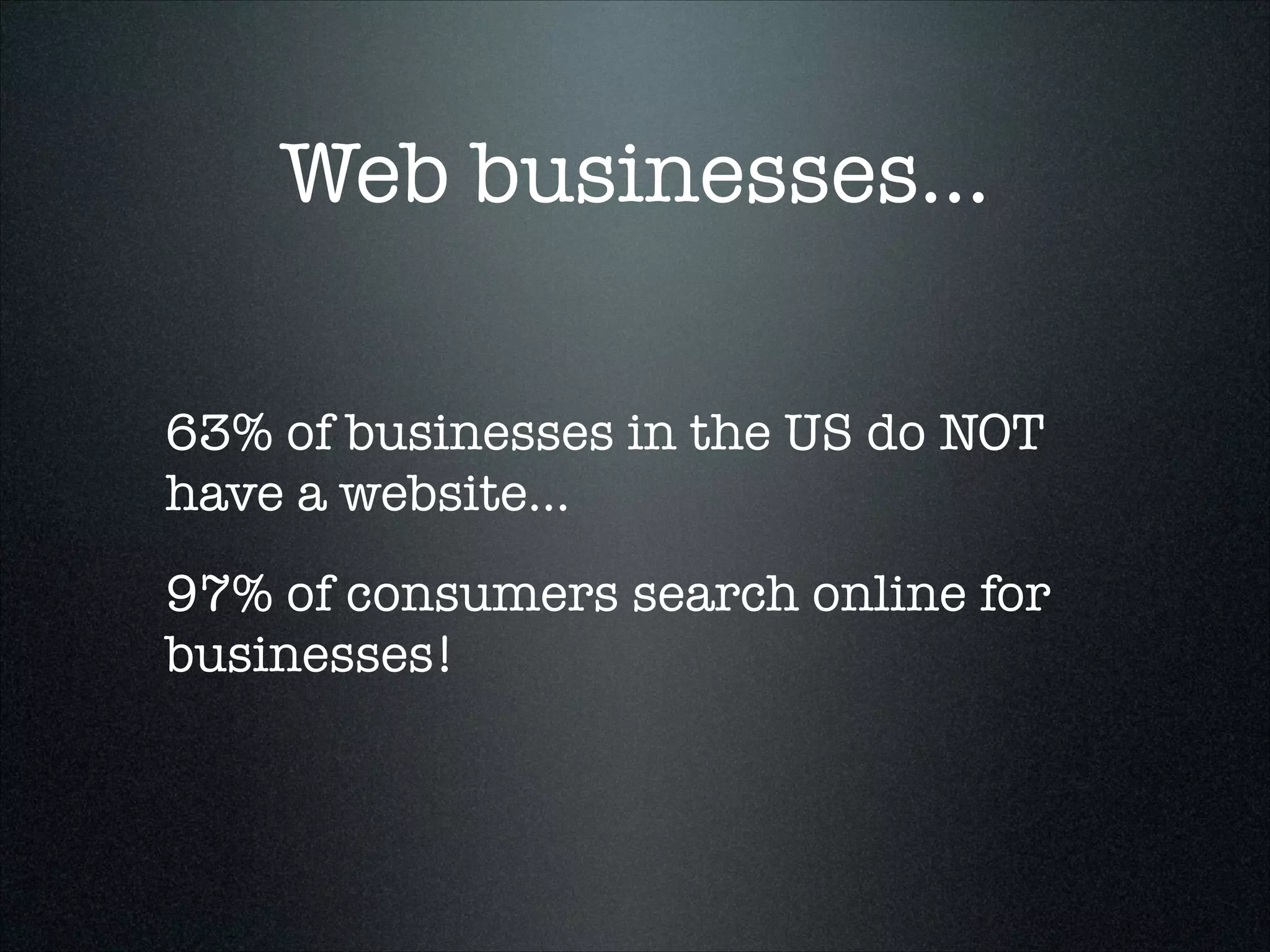
Web businesses...
• Websites that ARE businesses
• E-commerce (buy stuff online)
• Social Networks
• Ad Networks
• Software or Platform as a Service
★ SaaS or PaaS
Web businesses...
63% of businesses in the US do NOT
have a website...
97% of consumers search online for
businesses!
Other ways to use the
web for business
• #1: Customer Support
• Market research
• know your potential customers
• follow ‘trending’ topics
• survey users through online
communities
Most biz sites are
‘cobwebs’
• Haven’t been changed since 2009
• 1999???
• Never show up on search results
• Don’t drive sales
★ They just sit there!
Why Wordpress?
• The first few answers emerge...
• Acts as ‘brochure’ site
• You can edit your own site!
• Makes contact forms easy...
• Search engines LOVE it.


(more “why” later)
What is Wordpress?
• It’s a Content Management System
(CMS)...

• content goes into a database
• requested data is pulled out on

demand for viewing (or editing)

• it is wrapped in a ‘template’ for
consistent formatting

• links are managed automatically
a CMS:
Web Form
Title

!
Body
!
!
!
!
!
!
!

Database
Title

Body

Cat

Category

Web Page

Template
What is Wordpress?
• It’s a kind of CMS called a blog:
• content is displayed with the most
recent articles (posts) first.

• you can click to view content by...
• category
• author
• date... etc.
What is Wordpress?
• It doesn’t HAVE to be a blog
• it can have a simple 


page-by-page structure

• it can act like a simple 

e-commerce system

• it can have forums... etc.
How does a CMS / Blog work?
• It’s better to experience it than to
try to explain it.

• but basically...
...it takes a URL, and uses it to pull
information out of the database, and display
it in various ways. It gives you tools to put
in media (images, videos, audio files) and
text, link to stuff, and make it available to
people in a friendly, useful way. It can also
communicate to social media, and gather
data, and other nifty things. It’s a
publishing platform. It’s fun!
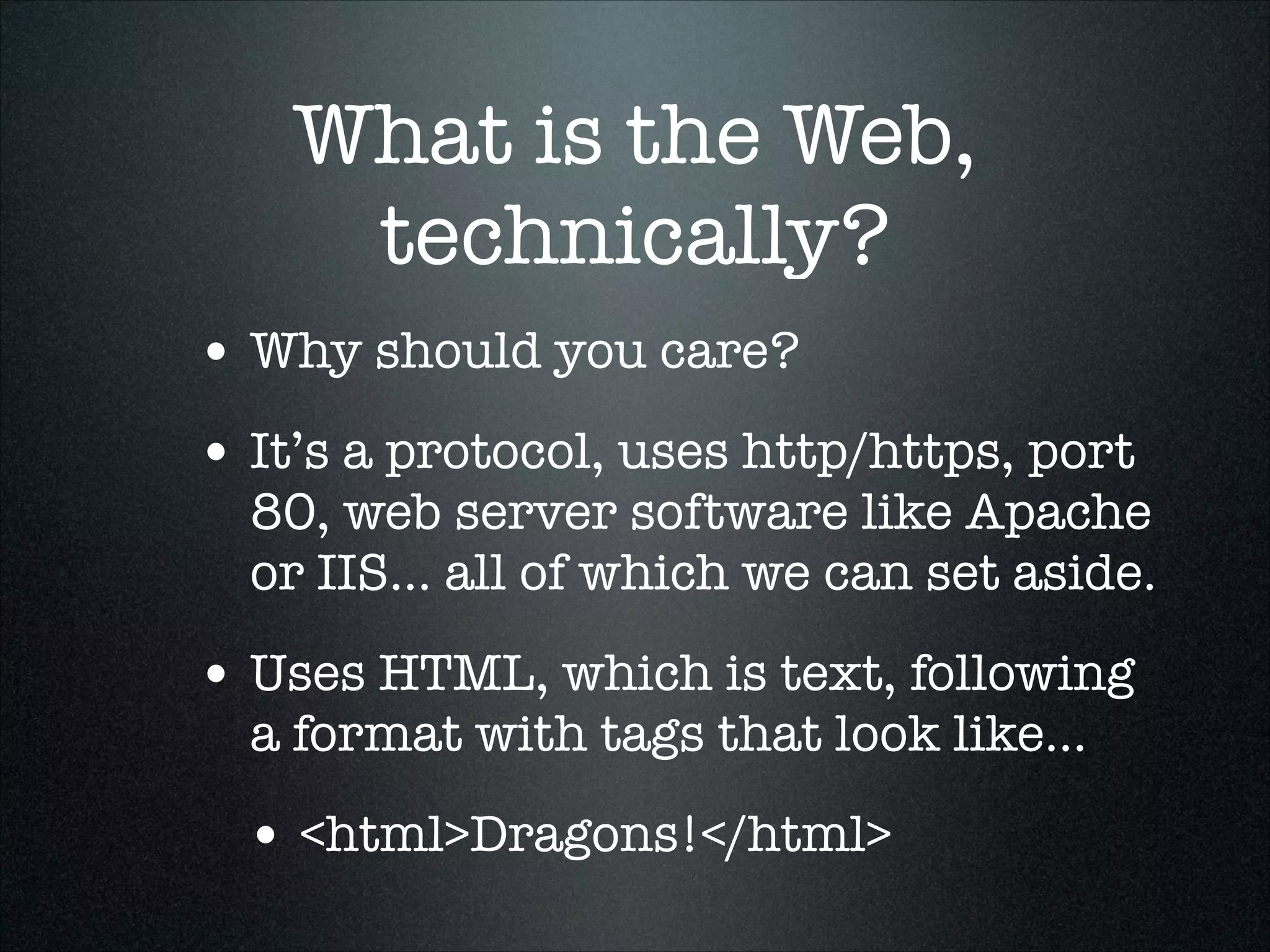
What is the Web,
technically?
• Why should you care?
• It’s a protocol, uses http/https, port

80, web server software like Apache
or IIS... all of which we can set aside.

• Uses HTML, which is text, following
a format with tags that look like...

• <html>Dragons!</html>
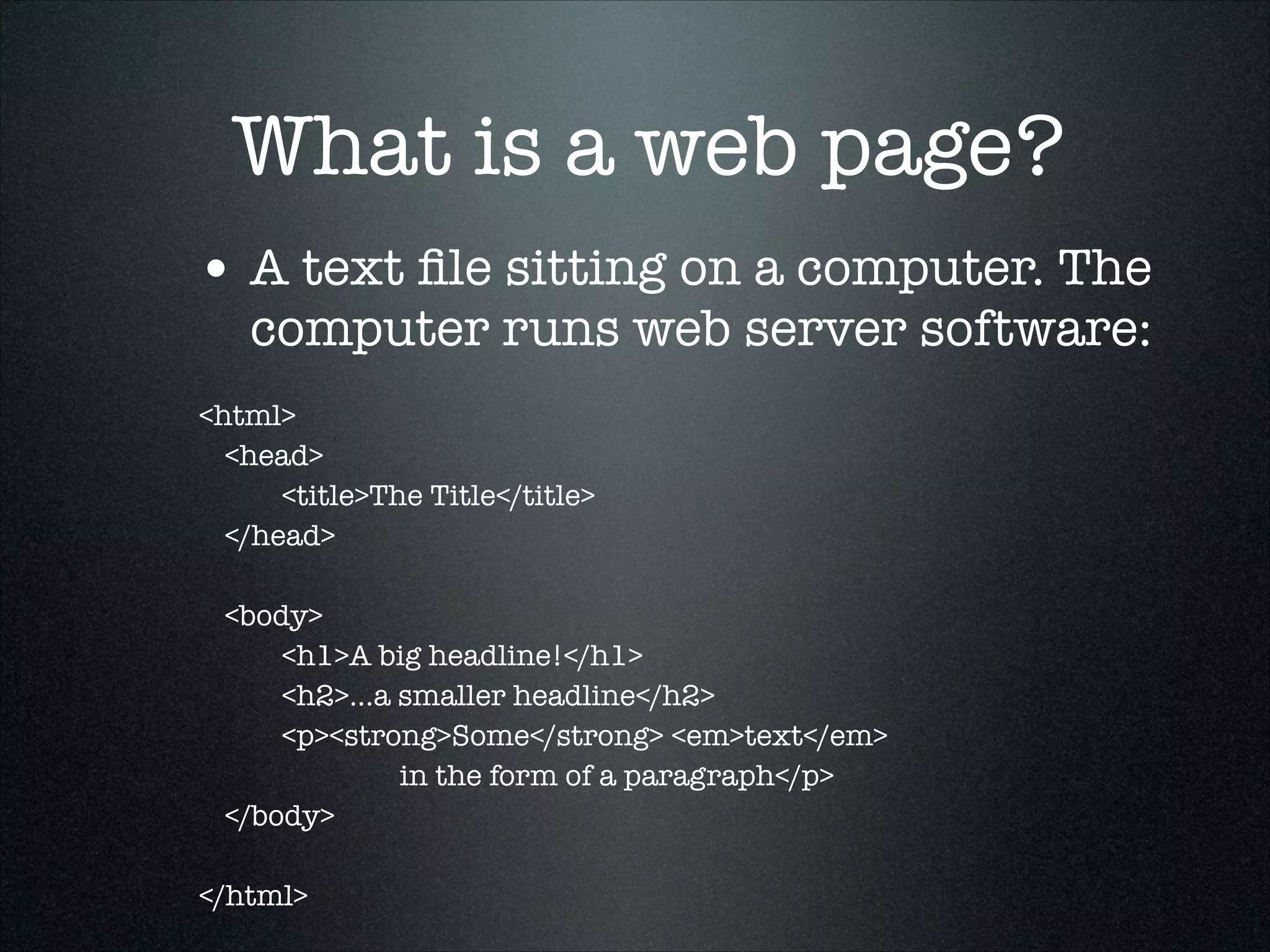
What is a web page?
• A text file sitting on a computer. The

computer runs web server software:

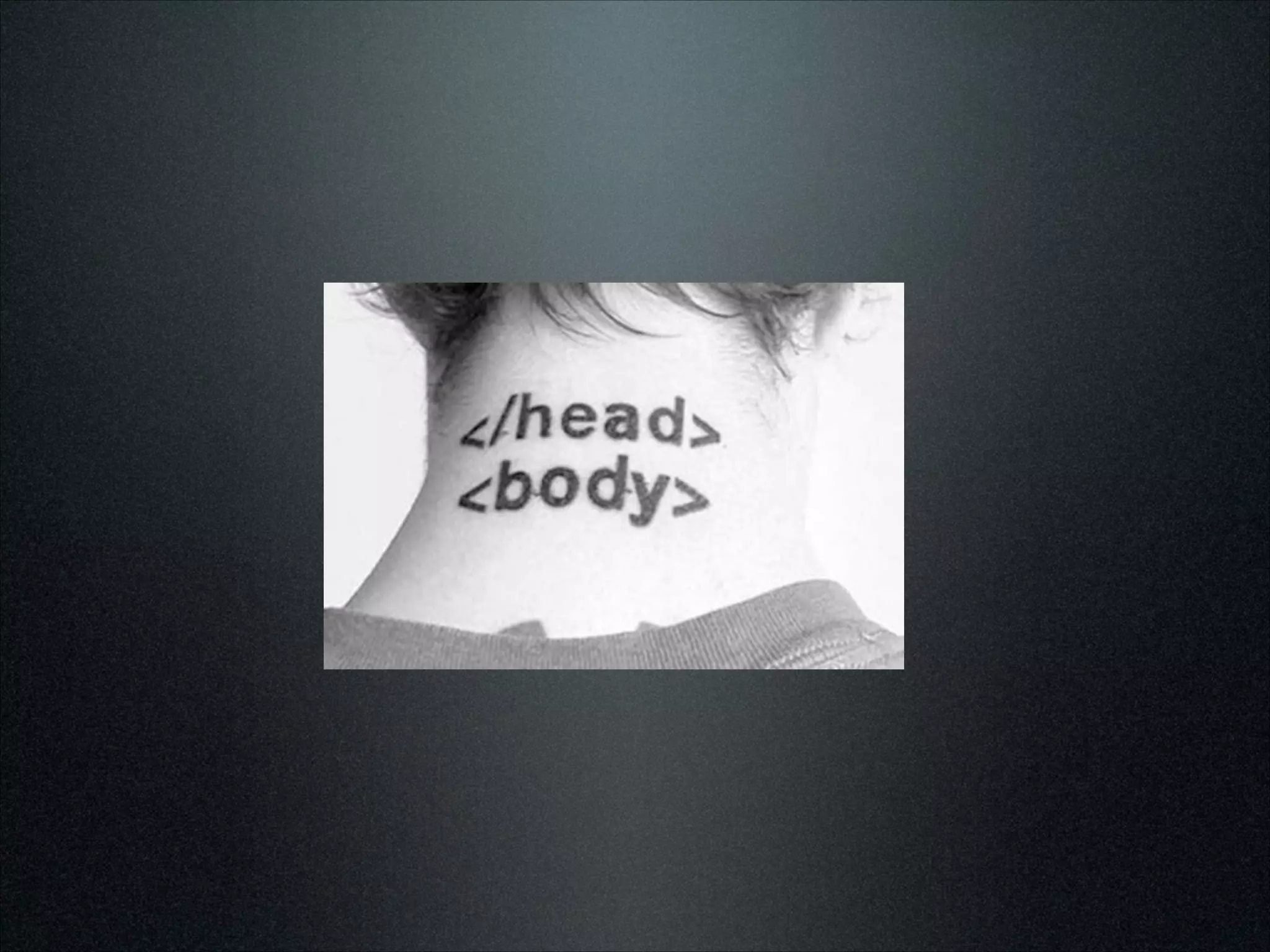
<html>
	 <head>
	 	
<title>The Title</title>
	 </head>
	
	 <body>
	 	
<h1>A big headline!</h1>
	 	
<h2>...a smaller headline</h2>
	 	
<p><strong>Some</strong> <em>text</em>
in the form of a paragraph</p>
	 </body>
	
</html>
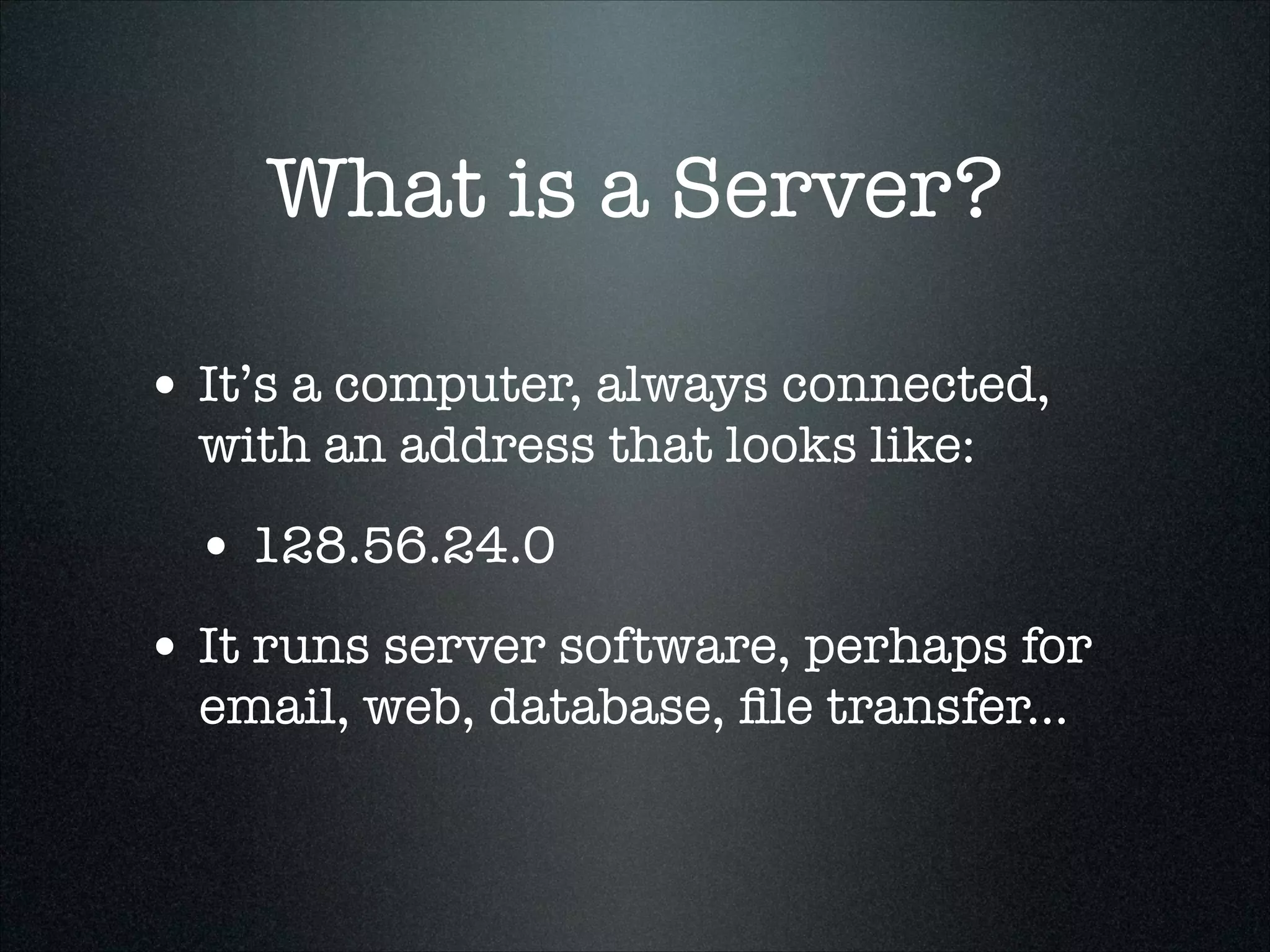
What is a Server?
• It’s a computer, always connected,
with an address that looks like:

• 128.56.24.0
• It runs server software, perhaps for
email, web, database, file transfer...
Types of Servers...
• Email Server Software (IMAP, POP,

SMTP servers, MX records, Ports 25,
465, 587

• Web Server Software (Apache, IIS,
etc., Port 80, 8080)

• Database (MySQL, PostgreSQL, etc.,
Port 3036)

• IRC, FTP, and other TLAs you (may)
never have to worry about...
Domains
• Domain Name Servers (DNS) look at the Top Level Domain (TLD)
like .com, .net, .biz, etc. and pass to...

• the Nameserver assigned to the Second-Level Domain, like
“facebook” or “google” or your domain name.

• That may point to another DNS server, or directly to a specific

server address, which is a number like 123.213.21.0 called an IP
address.

• The IP address may point to a specific computer running server

software. Based on the port and other info, it may be directed to a
specific type of software. That software will look for certain files
which may be some text or a script or a program which returns
information. Some is used only by machines, some is for humans.
Subdomains
• www...
• most people think all websites start

with www. But that's just an optional
thing. It can be any word or number
combination*

• So...
• www.richwebster.com
• subdomain.secondlevel.toplevel
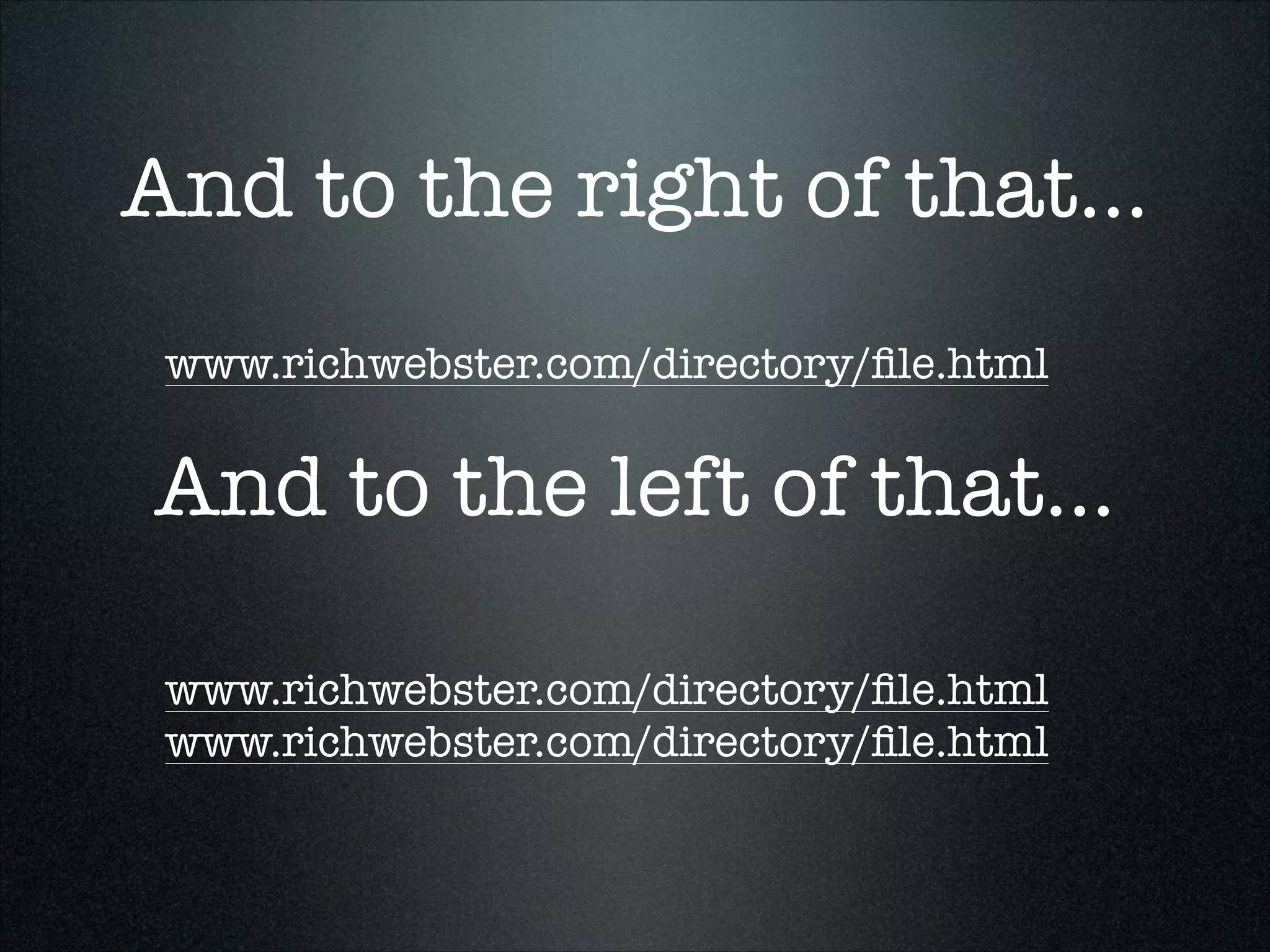
And to the right of that...
www.richwebster.com/directory/file.html

And to the left of that...
www.richwebster.com/directory/file.html
But wait...
• Wordpress can make urls that look like
www.richwebster.com/?p=123

• The “?” tells a script on the server to go
the the DB and do something

• In this case, go to the DB and get “post
#123”
Even better...
• Wordpress can make urls that look like
www.richwebster.com/postname/

• The “postname” is the title of your post,
like: top-10-reasons-to-buy-a-top-hat

• This is big-time Search Engine Mojo
(more on that, later).
Review:
• Your website is on a server:


— a computer with special software

• You get to it with a URL:


— protocol//sub.domain.tld/dir/file.html

— http://www.richwebster.com/about/me.htm

• The domain is registered; on a DNS server
• An HTML file + images make a web page
Why Wordpress
VS.
Something Else
Other Options
• There are hundreds of CMS solutions
• Wordpress is usually compared with:
• Joomla (similar to WP)
• Drupal (more powerful than WP)
• These are both open-source solutions

that are based on PHP and MySQL and
have strong, vibrant communities.
Power vs. Simplicity?
• WP is relatively easy for users
• WP is powerful, especially for
developers (like me).

• You control it (unlike Facebook, G+,
Tumblr, blogger, etc.)

• It’s “Open Source”
Open Source is...
• All the code is visible, and can be
modified by a developer.

• Closed code is ‘compiled’ and can’t be
viewed or modified.

• “Open” means thousands of people can
work on it, improve it, and extend it.

• If your expert drops dead, you can find
someone else who can work on it.
Wordpress is good...
• Thoroughly documented
• Frequently improved
• Clean architecture
• Core is separate, shared with all sites
• Themes define the user experience
• Secure as anything ever is, fixed fast
when new ‘exploits’ are found
Why not?
• It doesn’t have complex user roles
• It doesn’t do complex page layouts well
• You might need a specific functions WP
doesn’t have.

• Consider Drupal… or Concrete5
Reason #1: Wordpress is
SEO Catnip...
• People at Google help develop it
• It has lots of hidden attributes that
make it ideally ‘semantic’

• Google takes cues from how it works, it
takes cues from how Google works.

• ...more later
Will this be a good choice
in the future?
• Over 60 million users
• A very strong community
• Devotion to open source
• ...so, probably.
★ But the net changes fast!
Why Blog?
What makes blogging
special?

• Blogging serves people, but it also
serves machines: Search Engines
Blogs Serving People...
• people get to a site occasionally, not
regularly

• they want to know what's current, first.
But then they want to know the “back
story”, history, or story line.

• whether they are back after a week or a
month, they can scan what has
happened since they last visited.
Serving People...
• they can scan and then 'drill down'
easily

• they can search, easily (content in DB)
• they want consistent, easy navigation
• they want to find out about new things
through other channels:

★ Twitter, Facebook, LinkedIn, RSS
Serving Search Engines
★ Search Engine Optimization: SEO
• There's more than meets the eye:
Search Engine 'spiders or bots'
consume information too.

• Google tries to find and judge info the
way people do, or better

• It looks at the URLs, HTML, page
structure, relationships to other
websites
Serving Search Engines
• Google looks at time and location
• How old is the domain?
• How fresh is the content?
• Where is it published? (geolocation)
• <H1>, <H2>, <H3>, <p>, <strong> etc.
• there are special hidden files (XML site

maps) just for them, that WP can generate
(with a plugin).
Blogging for SEO
Optimal Patterns
★ Post 2 times/week
• Fresh content
• After a year, you have 100 articles
focused on your business.

• Each article can act as a de facto

“landing page” for a product, a target
market, or a “keyword set”
Optimal Patterns
★ Keyword-driven content and menus
• Figure out your “Keywords”
• 1-3 word phrases
• describe — or appeal to — your
target audience

• describe your products, services,
brands, community, aesthetics,
humor... think broadly
How do people describe
your business?
★ Plug ‘em in
• URL:
https://adwords.google.com/ko/
KeywordPlanner/
Keep these in mind
★ Write posts with these keywords
• Monitor the biggies:
• Google Alerts
• Twitter
• etc...
Your front page isn’t
always your ‘home’ page
★ Customers may land anywhere.
• Based on search or links-in
• What did they come for? Are you using
that page to do a “Call to action?”

• It’ll get traffic soon, but may years
later, too!
create targeted content:

★write articles about

things that will draw
the right visitors
Once they’ve arrived
• include calls to action: how to use this
information to act now!

• use energetic and positive writing
• choose who you alienate (if anyone)
• write your headlines carefully (do they
make good tweets?)
Before they go...
• friend you?
• tweet this?
• sign up for a newsletter?
• buy something?
The Takeaway...
What did we learn on the
show tonight, Craig?
• There’s a thing called the Internet...
• If you use Wordpress, you can have a
great hub for your brand

• A Blog is a CMS is a Website that you

can control without being a ‘developer’
What did we learn on the
show tonight, Craig?
•URLs really matter
•You can’t avoid HTML forever
• Keywords drive SEO
• Content tuned to your target audience
will deliver traffic.

• Once you have someone looking, get ‘em
signed up so you can bring ‘em back.
Next...
• What's your site going to be about?
• What do you want to name it?
• What's a good subtitle? (think
'keywords')

• Do you have a domain?
Getting your
feet wet....
First: a tour

• Generic Wordpress Site
• This is the TwentyEleven Theme
Browser:
• I can recommend Chrome, Firefox &
Safari. I do not recommend the
ubiquitous IE (Microsoft Internet
Explorer) in any version before 9.

• Nonetheless, your visitors will use

them, so you need to look at your site
that way sometimes (back to IE7).
The Parts of the Theme
• Site Title in Browser Tab
• URL
• Site Title on page
• Navigation
• Post
• Pages
Anatomy of a Page

• Title
• Content
• that’s all
Anatomy of the Blog
• Multiple posts, in reverse date order
• Each post exists by itself: the
Permalink

• Posts can be listed by date (archive),
author (archive), search results
(search match), and more.
The Admin Area

• Your admin area: /wp-login.php 

or /wp-admin
First Steps
Settings
• Site Title
• Site Description
• Front “Page” or “Blog”?
• Creating a Page
• Creating a Post
Touring the Editor
• Called “TinyMCE” shared by many
other CMS/Blog platforms.

• This is not a Word Processor, like
you’re used to

• Limited by HTML
• Very basic, but can be extended
Peek at code...
• Bold uses the <strong> tag
• italic uses the <em> tag
• strikethrough uses the <del> tag
• underlined uses the <span style="textdecoration: underline;">.

• The old way to do this were the <b>, <i>, <s>, <u>.
This relates to the increasing use of "Semantic"
tagging... The  ' style="" ' is an 'inline CSS style',
so it's your first glimpse at CSS.
Wordpress 101
Links & Images (in a post or page)
Creating Links
• Go to a page or post
• Highlight text
• Click ‘chain link’ icon
• URLs from other sites
• Open in new window
• Existing content
Links...
• Find a site to link to, or just type
in http://google.com

• Click the “Open New Window”
checkbox

• submit
Links...
• Now we’ll link to an internal page
• Highlight some (different) text
• Click the ‘link’ icon
• select a page from the list
• Note the title?
• submit
Links...
• Know your URL structure:
• http or https
• ://
• subdomain.domain.tld
• /folder/file?argument
• A look at a Google Map URL
Images...
• Add an image to a post (demo)
• Upload an image or images
• Make a gallery
Image Formats
• GIF: smallest, best for art, like
logos (unless transparent)

• JPEG: best for photos or other
“continuous tone” images

• PNG: best for transparent logos
Image Size
• Image in post can be full width
of post area

• 1/2 width (roughly) also good
• Thumbnail is pretty small 


(but what automatically is used
in Galleries)
Image Links
• Images can link to:
• image by itself (media)
• image in a page (attachment)
• image in a lightbox


(requires plugin: jQuery
Lightbox or similar)
Slideshows
• Require a plugin


(or may be in theme)

• SliderVilla.com is a good

source for slideshow/slider
plugins
Videos
• Easy to embed from:
• Youtube
• Screencast.com
• Vimeo
• Slideshare... and more
Videos are HUGE
• Lots of data: let YouTube

(Google) pay for the server
space instead of putting it on
your server

• Also has SEO value:
• YouTube links to your site
• You link to your 

YouTube video
Content
Content Plan
• Pages vs. Posts


= Static vs. Timely

1. Make a list for your pages
Titles
Basic idea of what goes on each...
What should be in every
business site*
• Contact Page
• phone, address, map, contact form
• Photos of you, your staff, building?
• Newsletter sign-up
• Testimonials	
• Social Links
• maybe an FAQ
Plan your first 10 posts
• What are the most common questions
customers have?

• What is new in your store, or industry
• The history of industry, products,
people

• Things that prompt discussion...
Should you accept
Comments?
• People can comment on posts 

(or you can block that)

• Should you allow this?
• If you do, should it be ‘hands-off’
• Think of it as a customer-support
channel
Using Other’s Content
• Most photos & original art/music are
off-limits without permission

• OK to summarize & link including
‘quotes’ from original text.

• Most sites want this... more traffic!
• Most YouTubes can be embedded
You can do delayed
publishing...
• Write a bunch of posts
• Publish at later date/time
• spread it out
Cross publish
• Using tools like “dlvr.it”
• http://dlvr.it
• To Facebook, Twitter, Linked-In
• Subscribe2 plugin, MailChimp,
Constant Contact or Aweber

• notifies users via email of new
content
Links to Social Media
• Link to YOUR Facebook or Twitter
• User’s can “Like” once there...
• AND allow users to post your content

to THEIR Facebook & Twitter, & other
sites as well...

• spread your content far and wide...
it all links back to you!

• “Sociable” plugin
Other Links-in
• SEO Concept: Link Building
• You want more links to your site
• You want “High Quality” links
• major news sites
• wikipedia
• social media & other blogs
• You want to “disavow” spammy links
Review
• Post (2x week is optimal)
• Cross post to social
• Schedule posts
• allow people to subscribe to be notified
• allow people to comment?
• allow people to post to social
• write useful stuff
Custom Appearance & Function
What is a theme?
• A collection of
• styles
• templates
• functions
What is a theme?
• May also include:
• plugins
• widgets
• custom admin-area forms
How to find themes
• Find some you like, don’t buy yet.
• Free themes are fun to play with
• Commercial themes can be a

headache that you feel trapped by...

• Did you spend a lot?
• Is it really going to be easy?
Custom Themes
• Tools you can use
• Artisteer
• A theme with options in the
Admin – not that easy!

• Genesis, Atahualpa, etc.
• Hire a pro... it’s worth it.
Custom Theme
Advantage
• No one else looks the same
• It has only those features you
need, none you don’t

• It lets you focus on content
Custom Theme Samples
• RosevilleHyperbaric.com
• NevadaCounty.com
• BrookDesign.com
Installing a Theme
• wp-admin > appearance > themes
• Select a theme
• Install & View
• Switch Back
• Demo of “full install” options
What happens when the
Theme changes?
• Image size issues
• ‘orphaned’ content
• but nothing is ‘lost’
• It might not land in the same
place when the original is
reactivated, though
What a Theme really is...
In wp-content/

All the stuff that
makes this WP
installation
“yours”
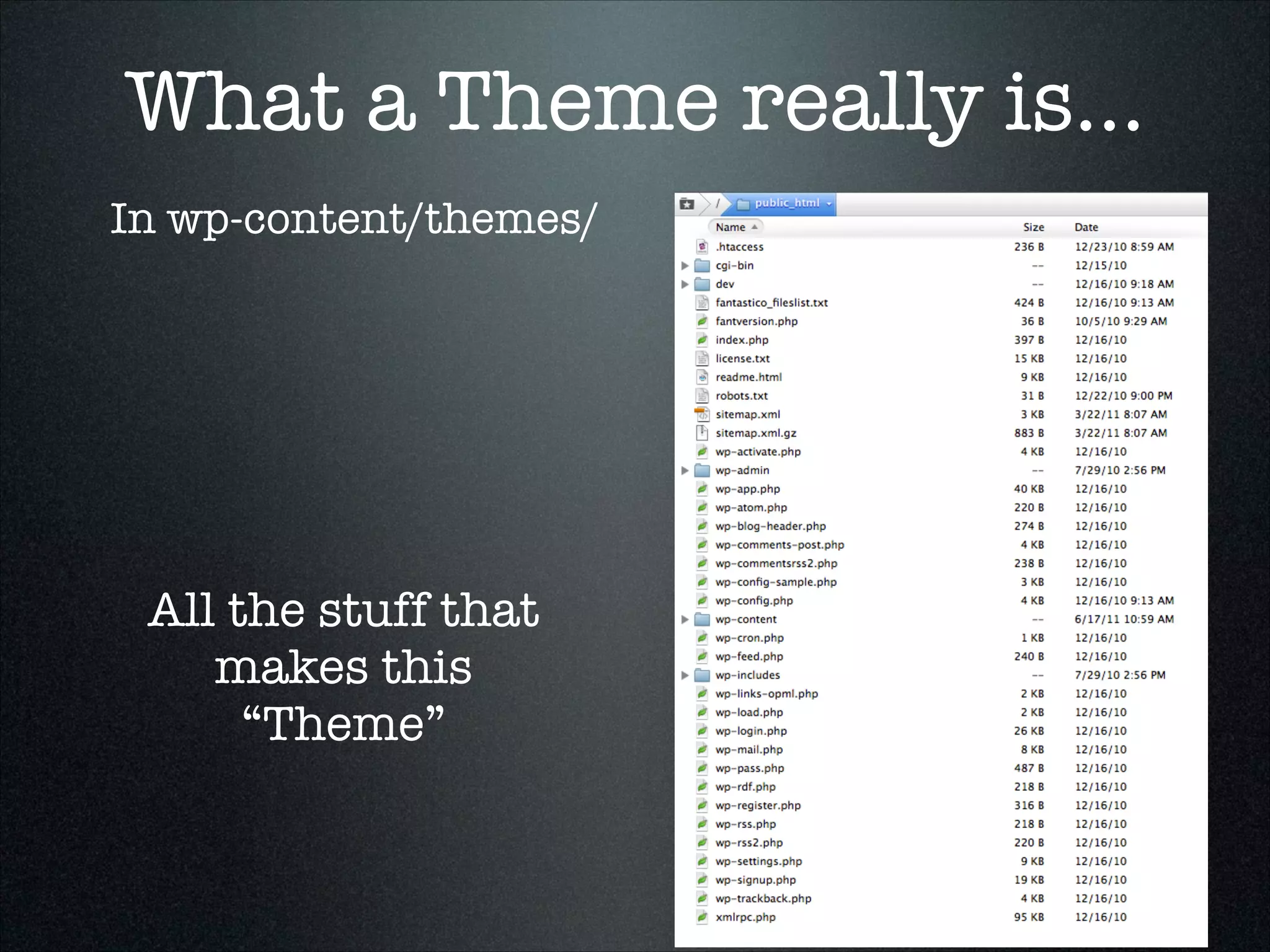
What a Theme really is...
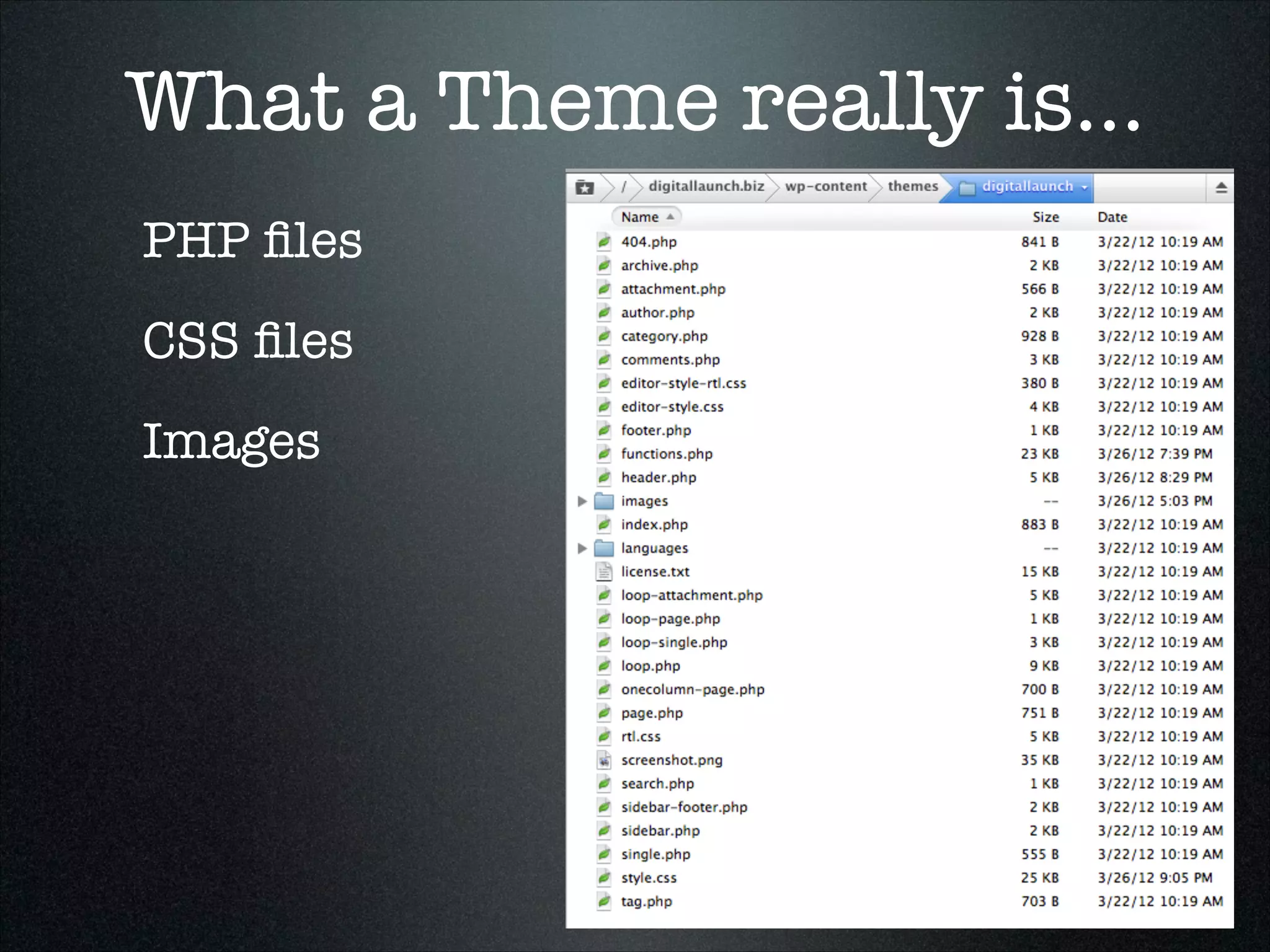
In wp-content/themes/

All the stuff that
makes this
“Theme”
What a Theme really is...
PHP files
CSS files
Images
What a Theme really is...
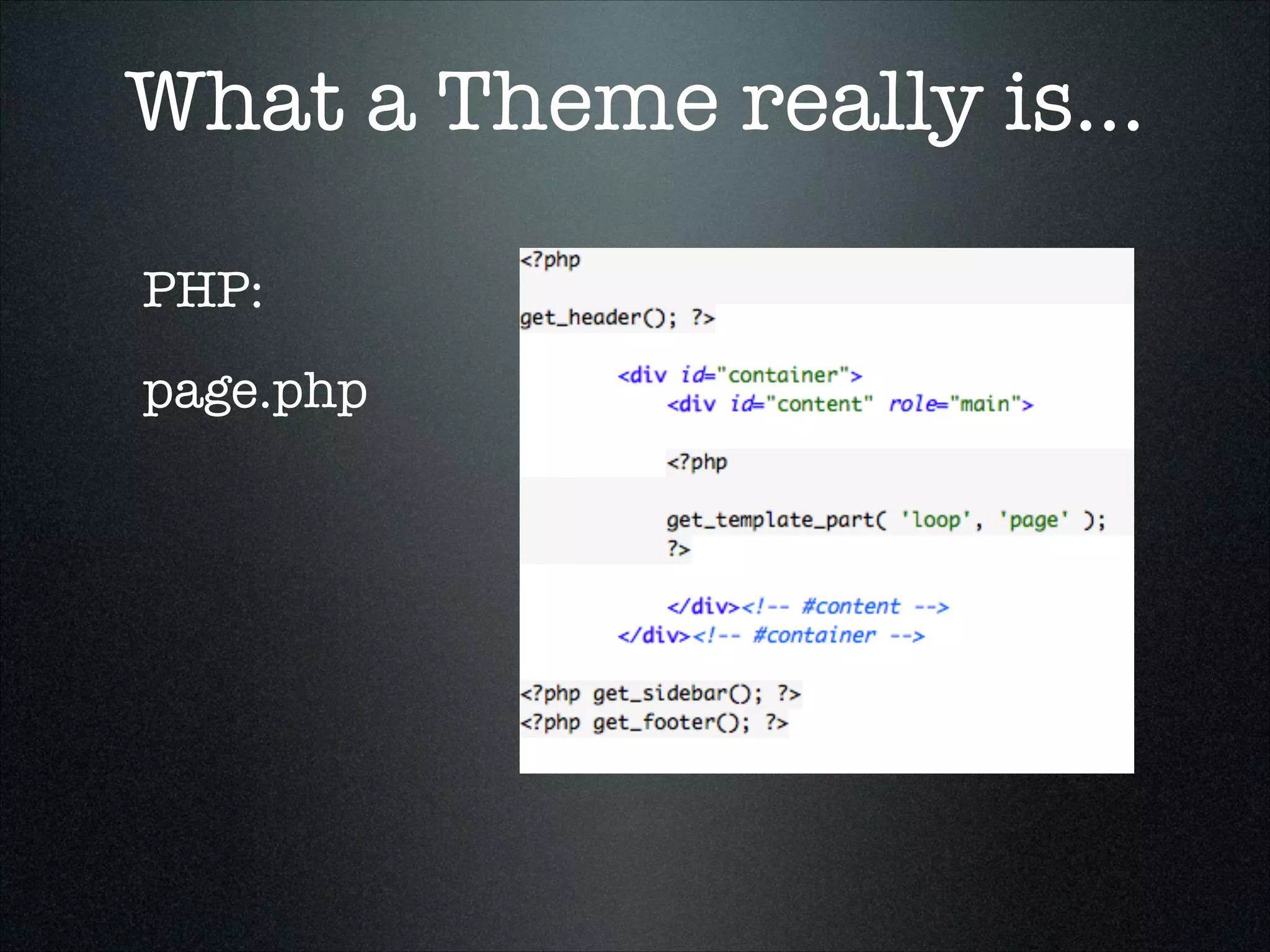
PHP:
page.php
What is a plugin?
• Extra functionality, in a tidy
package (hopefully)

• May be simple, or may require
expertise to implement

• Can turn your Wordpress site into a
forum, e-commerce system, or...?
Adding a Plugin
• Admin > Plugins
• Search or Upload
• Activate
• Keep updated
Examples of Plugins
• BackWPup
• XML Sitemap
• Sociable
• Gravity Forms
• Subscribe2
• ...and many more
Hosting
Major Hosts
• GoDaddy (warning: slow!,

restrictive, problematic, icky)

• HostGator (well liked, basic)
• 1and1 (good host, not great

support, nice interface, dual
hosting)

• DreamHost (old favorite)
• Bluehost (current champion)
Cheap Shared Account
• Go with any of these hosts (except

GoDaddy), it’ll take you a long way.

• IF lotsa traffic (you wish) you can
upgrade to “Pro” account, try
DreamPress, or WP-Engine

• Can support multiple sites/domains
• Hosts take care of a lot of hidden

complexity: Not rocket science; harder
Cloud Hosting
• It’s all the cloud, really
• The big two:
• Amazon Web Services (AWS)
• Google Cloud
• Services like WP-Engine layered on

the cloud. But so is Netflix, so it’s not
cheating, it is smart.
On Your Device
• A Mac or PC can have Wordpress
• Easiest
• MAMP or WAMP or XAMPP
• DesktopServer
Learning More…
Are you interested in more classes on the
details of WordPress? Let me know.
!

rich@richwebster.com

Wp 3hr-course

  • 1.
    Wordpress 101 marketing yourbusiness with… the power of blogging.
  • 2.
    What is thisclass? • You’ll Learn how Wordpress works • Modern marketing principles mixed in so you understand why
 Wordpress works
  • 3.
    What you get... •An overview of: • What Wordpress is • How it works in the Internet Ecosystem • How it integrates with social media
  • 4.
    Who are you? •Why have you chosen to take this course? • Why Wordpress? • What is your business? • What level user are you?
  • 5.
    How hard isthis? • What’s your background? • What’s your ambition? • Recipes vs. Concepts • Yes, some concepts are HARD ★ but you’ll need them!
  • 6.
    How to besuccessful with Wordpress... • Be ACTIVE. Work at it every week. • Get help, if you need it: • Grammar, Style (can you write?) • Images, photography • Ideas... Customers and Employees
  • 7.
    Mistakes WELCOME! • It’sall fixable. Questions WELCOME! • It’s about you getting the info you need.
  • 8.
  • 9.
    The Internet Ecosystem •Once mostly informational, increasingly functional • Is made up of “services”... • “The Web” is just one of those services
  • 10.
    It’s made upof... A bunch of content Might be: • Personal expression • Educational publishing • Government info & services • Mostly business, for marketing
  • 11.
    Business on theweb... is mostly static marketing content: • About <the business> • Contact form • Location, Directions, Phones • Products and/or Services These are: “Brochure Sites”
  • 12.
    Web businesses... • Websitesthat ARE businesses • E-commerce (buy stuff online) • Social Networks • Ad Networks • Software or Platform as a Service ★ SaaS or PaaS
  • 13.
    Web businesses... 63% ofbusinesses in the US do NOT have a website... 97% of consumers search online for businesses!
  • 14.
    Other ways touse the web for business • #1: Customer Support • Market research • know your potential customers • follow ‘trending’ topics • survey users through online communities
  • 15.
    Most biz sitesare ‘cobwebs’ • Haven’t been changed since 2009 • 1999??? • Never show up on search results • Don’t drive sales ★ They just sit there!
  • 16.
    Why Wordpress? • Thefirst few answers emerge... • Acts as ‘brochure’ site • You can edit your own site! • Makes contact forms easy... • Search engines LOVE it.
 
 (more “why” later)
  • 17.
    What is Wordpress? •It’s a Content Management System (CMS)... • content goes into a database • requested data is pulled out on demand for viewing (or editing) • it is wrapped in a ‘template’ for consistent formatting • links are managed automatically
  • 18.
  • 19.
    What is Wordpress? •It’s a kind of CMS called a blog: • content is displayed with the most recent articles (posts) first. • you can click to view content by... • category • author • date... etc.
  • 20.
    What is Wordpress? •It doesn’t HAVE to be a blog • it can have a simple 
 page-by-page structure • it can act like a simple 
 e-commerce system • it can have forums... etc.
  • 21.
    How does aCMS / Blog work? • It’s better to experience it than to try to explain it. • but basically... ...it takes a URL, and uses it to pull information out of the database, and display it in various ways. It gives you tools to put in media (images, videos, audio files) and text, link to stuff, and make it available to people in a friendly, useful way. It can also communicate to social media, and gather data, and other nifty things. It’s a publishing platform. It’s fun!
  • 22.
    What is theWeb, technically? • Why should you care? • It’s a protocol, uses http/https, port 80, web server software like Apache or IIS... all of which we can set aside. • Uses HTML, which is text, following a format with tags that look like... • <html>Dragons!</html>
  • 23.
    What is aweb page? • A text file sitting on a computer. The computer runs web server software: <html> <head> <title>The Title</title> </head> <body> <h1>A big headline!</h1> <h2>...a smaller headline</h2> <p><strong>Some</strong> <em>text</em> in the form of a paragraph</p> </body> </html>
  • 25.
    What is aServer? • It’s a computer, always connected, with an address that looks like: • 128.56.24.0 • It runs server software, perhaps for email, web, database, file transfer...
  • 26.
    Types of Servers... •Email Server Software (IMAP, POP, SMTP servers, MX records, Ports 25, 465, 587 • Web Server Software (Apache, IIS, etc., Port 80, 8080) • Database (MySQL, PostgreSQL, etc., Port 3036) • IRC, FTP, and other TLAs you (may) never have to worry about...
  • 27.
    Domains • Domain NameServers (DNS) look at the Top Level Domain (TLD) like .com, .net, .biz, etc. and pass to... • the Nameserver assigned to the Second-Level Domain, like “facebook” or “google” or your domain name. • That may point to another DNS server, or directly to a specific server address, which is a number like 123.213.21.0 called an IP address. • The IP address may point to a specific computer running server software. Based on the port and other info, it may be directed to a specific type of software. That software will look for certain files which may be some text or a script or a program which returns information. Some is used only by machines, some is for humans.
  • 28.
    Subdomains • www... • mostpeople think all websites start with www. But that's just an optional thing. It can be any word or number combination* • So... • www.richwebster.com • subdomain.secondlevel.toplevel
  • 29.
    And to theright of that... www.richwebster.com/directory/file.html And to the left of that... www.richwebster.com/directory/file.html www.richwebster.com/directory/file.html
  • 30.
    But wait... • Wordpresscan make urls that look like www.richwebster.com/?p=123 • The “?” tells a script on the server to go the the DB and do something • In this case, go to the DB and get “post #123”
  • 31.
    Even better... • Wordpresscan make urls that look like www.richwebster.com/postname/ • The “postname” is the title of your post, like: top-10-reasons-to-buy-a-top-hat • This is big-time Search Engine Mojo (more on that, later).
  • 32.
    Review: • Your websiteis on a server:
 — a computer with special software • You get to it with a URL:
 — protocol//sub.domain.tld/dir/file.html
 — http://www.richwebster.com/about/me.htm • The domain is registered; on a DNS server • An HTML file + images make a web page
  • 33.
  • 34.
    Other Options • Thereare hundreds of CMS solutions • Wordpress is usually compared with: • Joomla (similar to WP) • Drupal (more powerful than WP) • These are both open-source solutions that are based on PHP and MySQL and have strong, vibrant communities.
  • 35.
    Power vs. Simplicity? •WP is relatively easy for users • WP is powerful, especially for developers (like me). • You control it (unlike Facebook, G+, Tumblr, blogger, etc.) • It’s “Open Source”
  • 36.
    Open Source is... •All the code is visible, and can be modified by a developer. • Closed code is ‘compiled’ and can’t be viewed or modified. • “Open” means thousands of people can work on it, improve it, and extend it. • If your expert drops dead, you can find someone else who can work on it.
  • 37.
    Wordpress is good... •Thoroughly documented • Frequently improved • Clean architecture • Core is separate, shared with all sites • Themes define the user experience • Secure as anything ever is, fixed fast when new ‘exploits’ are found
  • 38.
    Why not? • Itdoesn’t have complex user roles • It doesn’t do complex page layouts well • You might need a specific functions WP doesn’t have. • Consider Drupal… or Concrete5
  • 39.
    Reason #1: Wordpressis SEO Catnip... • People at Google help develop it • It has lots of hidden attributes that make it ideally ‘semantic’ • Google takes cues from how it works, it takes cues from how Google works. • ...more later
  • 40.
    Will this bea good choice in the future? • Over 60 million users • A very strong community • Devotion to open source • ...so, probably. ★ But the net changes fast!
  • 41.
  • 42.
    What makes blogging special? •Blogging serves people, but it also serves machines: Search Engines
  • 43.
    Blogs Serving People... •people get to a site occasionally, not regularly • they want to know what's current, first. But then they want to know the “back story”, history, or story line. • whether they are back after a week or a month, they can scan what has happened since they last visited.
  • 44.
    Serving People... • theycan scan and then 'drill down' easily • they can search, easily (content in DB) • they want consistent, easy navigation • they want to find out about new things through other channels: ★ Twitter, Facebook, LinkedIn, RSS
  • 45.
    Serving Search Engines ★Search Engine Optimization: SEO • There's more than meets the eye: Search Engine 'spiders or bots' consume information too. • Google tries to find and judge info the way people do, or better • It looks at the URLs, HTML, page structure, relationships to other websites
  • 46.
    Serving Search Engines •Google looks at time and location • How old is the domain? • How fresh is the content? • Where is it published? (geolocation) • <H1>, <H2>, <H3>, <p>, <strong> etc. • there are special hidden files (XML site maps) just for them, that WP can generate (with a plugin).
  • 47.
  • 48.
    Optimal Patterns ★ Post2 times/week • Fresh content • After a year, you have 100 articles focused on your business. • Each article can act as a de facto “landing page” for a product, a target market, or a “keyword set”
  • 49.
    Optimal Patterns ★ Keyword-drivencontent and menus • Figure out your “Keywords” • 1-3 word phrases • describe — or appeal to — your target audience • describe your products, services, brands, community, aesthetics, humor... think broadly
  • 50.
    How do peopledescribe your business? ★ Plug ‘em in • URL: https://adwords.google.com/ko/ KeywordPlanner/
  • 51.
    Keep these inmind ★ Write posts with these keywords • Monitor the biggies: • Google Alerts • Twitter • etc...
  • 52.
    Your front pageisn’t always your ‘home’ page ★ Customers may land anywhere. • Based on search or links-in • What did they come for? Are you using that page to do a “Call to action?” • It’ll get traffic soon, but may years later, too!
  • 53.
    create targeted content: ★writearticles about things that will draw the right visitors
  • 54.
    Once they’ve arrived •include calls to action: how to use this information to act now! • use energetic and positive writing • choose who you alienate (if anyone) • write your headlines carefully (do they make good tweets?)
  • 55.
    Before they go... •friend you? • tweet this? • sign up for a newsletter? • buy something?
  • 56.
  • 57.
    What did welearn on the show tonight, Craig? • There’s a thing called the Internet... • If you use Wordpress, you can have a great hub for your brand • A Blog is a CMS is a Website that you can control without being a ‘developer’
  • 58.
    What did welearn on the show tonight, Craig? •URLs really matter •You can’t avoid HTML forever • Keywords drive SEO • Content tuned to your target audience will deliver traffic. • Once you have someone looking, get ‘em signed up so you can bring ‘em back.
  • 59.
    Next... • What's yoursite going to be about? • What do you want to name it? • What's a good subtitle? (think 'keywords') • Do you have a domain?
  • 60.
  • 61.
    First: a tour •Generic Wordpress Site • This is the TwentyEleven Theme
  • 62.
    Browser: • I canrecommend Chrome, Firefox & Safari. I do not recommend the ubiquitous IE (Microsoft Internet Explorer) in any version before 9. • Nonetheless, your visitors will use them, so you need to look at your site that way sometimes (back to IE7).
  • 63.
    The Parts ofthe Theme • Site Title in Browser Tab • URL • Site Title on page • Navigation • Post • Pages
  • 64.
    Anatomy of aPage • Title • Content • that’s all
  • 65.
    Anatomy of theBlog • Multiple posts, in reverse date order • Each post exists by itself: the Permalink • Posts can be listed by date (archive), author (archive), search results (search match), and more.
  • 66.
    The Admin Area •Your admin area: /wp-login.php 
 or /wp-admin
  • 67.
  • 68.
    Settings • Site Title •Site Description • Front “Page” or “Blog”? • Creating a Page • Creating a Post
  • 69.
    Touring the Editor •Called “TinyMCE” shared by many other CMS/Blog platforms. • This is not a Word Processor, like you’re used to • Limited by HTML • Very basic, but can be extended
  • 70.
    Peek at code... •Bold uses the <strong> tag • italic uses the <em> tag • strikethrough uses the <del> tag • underlined uses the <span style="textdecoration: underline;">. • The old way to do this were the <b>, <i>, <s>, <u>. This relates to the increasing use of "Semantic" tagging... The  ' style="" ' is an 'inline CSS style', so it's your first glimpse at CSS.
  • 71.
    Wordpress 101 Links &Images (in a post or page)
  • 72.
    Creating Links • Goto a page or post • Highlight text • Click ‘chain link’ icon • URLs from other sites • Open in new window • Existing content
  • 73.
    Links... • Find asite to link to, or just type in http://google.com • Click the “Open New Window” checkbox • submit
  • 74.
    Links... • Now we’lllink to an internal page • Highlight some (different) text • Click the ‘link’ icon • select a page from the list • Note the title? • submit
  • 75.
    Links... • Know yourURL structure: • http or https • :// • subdomain.domain.tld • /folder/file?argument • A look at a Google Map URL
  • 76.
    Images... • Add animage to a post (demo) • Upload an image or images • Make a gallery
  • 77.
    Image Formats • GIF:smallest, best for art, like logos (unless transparent) • JPEG: best for photos or other “continuous tone” images • PNG: best for transparent logos
  • 78.
    Image Size • Imagein post can be full width of post area • 1/2 width (roughly) also good • Thumbnail is pretty small 
 (but what automatically is used in Galleries)
  • 79.
    Image Links • Imagescan link to: • image by itself (media) • image in a page (attachment) • image in a lightbox
 (requires plugin: jQuery Lightbox or similar)
  • 80.
    Slideshows • Require aplugin
 (or may be in theme) • SliderVilla.com is a good source for slideshow/slider plugins
  • 81.
    Videos • Easy toembed from: • Youtube • Screencast.com • Vimeo • Slideshare... and more
  • 82.
    Videos are HUGE •Lots of data: let YouTube (Google) pay for the server space instead of putting it on your server • Also has SEO value: • YouTube links to your site • You link to your 
 YouTube video
  • 83.
  • 84.
    Content Plan • Pagesvs. Posts
 = Static vs. Timely 1. Make a list for your pages Titles Basic idea of what goes on each...
  • 85.
    What should bein every business site* • Contact Page • phone, address, map, contact form • Photos of you, your staff, building? • Newsletter sign-up • Testimonials • Social Links • maybe an FAQ
  • 86.
    Plan your first10 posts • What are the most common questions customers have? • What is new in your store, or industry • The history of industry, products, people • Things that prompt discussion...
  • 87.
    Should you accept Comments? •People can comment on posts 
 (or you can block that) • Should you allow this? • If you do, should it be ‘hands-off’ • Think of it as a customer-support channel
  • 88.
    Using Other’s Content •Most photos & original art/music are off-limits without permission • OK to summarize & link including ‘quotes’ from original text. • Most sites want this... more traffic! • Most YouTubes can be embedded
  • 89.
    You can dodelayed publishing... • Write a bunch of posts • Publish at later date/time • spread it out
  • 90.
    Cross publish • Usingtools like “dlvr.it” • http://dlvr.it • To Facebook, Twitter, Linked-In • Subscribe2 plugin, MailChimp, Constant Contact or Aweber • notifies users via email of new content
  • 91.
    Links to SocialMedia • Link to YOUR Facebook or Twitter • User’s can “Like” once there... • AND allow users to post your content to THEIR Facebook & Twitter, & other sites as well... • spread your content far and wide... it all links back to you! • “Sociable” plugin
  • 92.
    Other Links-in • SEOConcept: Link Building • You want more links to your site • You want “High Quality” links • major news sites • wikipedia • social media & other blogs • You want to “disavow” spammy links
  • 93.
    Review • Post (2xweek is optimal) • Cross post to social • Schedule posts • allow people to subscribe to be notified • allow people to comment? • allow people to post to social • write useful stuff
  • 94.
  • 95.
    What is atheme? • A collection of • styles • templates • functions
  • 96.
    What is atheme? • May also include: • plugins • widgets • custom admin-area forms
  • 97.
    How to findthemes • Find some you like, don’t buy yet. • Free themes are fun to play with • Commercial themes can be a headache that you feel trapped by... • Did you spend a lot? • Is it really going to be easy?
  • 98.
    Custom Themes • Toolsyou can use • Artisteer • A theme with options in the Admin – not that easy! • Genesis, Atahualpa, etc. • Hire a pro... it’s worth it.
  • 99.
    Custom Theme Advantage • Noone else looks the same • It has only those features you need, none you don’t • It lets you focus on content
  • 100.
    Custom Theme Samples •RosevilleHyperbaric.com • NevadaCounty.com • BrookDesign.com
  • 101.
    Installing a Theme •wp-admin > appearance > themes • Select a theme • Install & View • Switch Back • Demo of “full install” options
  • 102.
    What happens whenthe Theme changes? • Image size issues • ‘orphaned’ content • but nothing is ‘lost’ • It might not land in the same place when the original is reactivated, though
  • 103.
    What a Themereally is... In wp-content/ All the stuff that makes this WP installation “yours”
  • 104.
    What a Themereally is... In wp-content/themes/ All the stuff that makes this “Theme”
  • 105.
    What a Themereally is... PHP files CSS files Images
  • 106.
    What a Themereally is... PHP: page.php
  • 107.
    What is aplugin? • Extra functionality, in a tidy package (hopefully) • May be simple, or may require expertise to implement • Can turn your Wordpress site into a forum, e-commerce system, or...?
  • 108.
    Adding a Plugin •Admin > Plugins • Search or Upload • Activate • Keep updated
  • 109.
    Examples of Plugins •BackWPup • XML Sitemap • Sociable • Gravity Forms • Subscribe2 • ...and many more
  • 110.
  • 111.
    Major Hosts • GoDaddy(warning: slow!, restrictive, problematic, icky) • HostGator (well liked, basic) • 1and1 (good host, not great support, nice interface, dual hosting) • DreamHost (old favorite) • Bluehost (current champion)
  • 112.
    Cheap Shared Account •Go with any of these hosts (except GoDaddy), it’ll take you a long way. • IF lotsa traffic (you wish) you can upgrade to “Pro” account, try DreamPress, or WP-Engine • Can support multiple sites/domains • Hosts take care of a lot of hidden complexity: Not rocket science; harder
  • 113.
    Cloud Hosting • It’sall the cloud, really • The big two: • Amazon Web Services (AWS) • Google Cloud • Services like WP-Engine layered on the cloud. But so is Netflix, so it’s not cheating, it is smart.
  • 114.
    On Your Device •A Mac or PC can have Wordpress • Easiest • MAMP or WAMP or XAMPP • DesktopServer
  • 115.
    Learning More… Are youinterested in more classes on the details of WordPress? Let me know. ! rich@richwebster.com