Documents Writing With
Outline
• Introduction
• What to install? How to install?
• Latex usage for document writing
– Document structure
– Fonts, colors
– Text, paragraph formatting
– Tables, images
– Mathematical equations
– Cross-referencing, bibliography
• Guidelines for writing thesis, IEEE format document with help of latex
Introduction
• TeX is low-level markup and programming language to typeset the
document attractively and consistently
• Created by Donald Knuth in 1977.
• Pronounce it like first syllable of “technical”.
• It works similar to HTML, XML.
• Learning to write program in Tex is time consuming.
• Fortunately, document preparation systems based on TeX provide some
pre-built macros to reduce the user effort.
• One of the popular macro package is LaTeX.
LaTeX
• LaTeX (pronounce as Lah-tech or Lay-tech) is created by Leslie Lamport.
• It is a TeX-based document preparation system, and actually a set of macros
for TeX.
• LaTeX converts source code combined with markup into high quality
document.
• Aim: takes care of formatting process.
• Many of the packages or styles developed by other authors are bundled with
LaTeX software distribution. More can be found in CTAN(Comprehensive
TeX Archive Network http://www.ctan.org ).
• Advantages:
 Complete concentration on documents not with layout of document.
 No need of manual type settings of height, width etc.
 Mathematical formulae can be easily typeset
 Index, footnotes, citations and references are generated easily.
 Forced to structure your documents correctly
• It natively supports PDF (Potable Document Format), DVI(Device
Independent) file format but also PostScript, PNG, JPEG etc by using other
software.
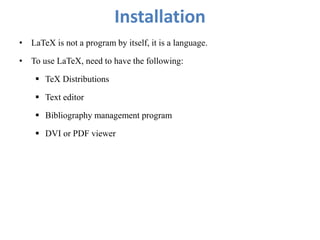
Installation
• LaTeX is not a program by itself, it is a language.
• To use LaTeX, need to have the following:
 TeX Distributions
 Text editor
 Bibliography management program
 DVI or PDF viewer
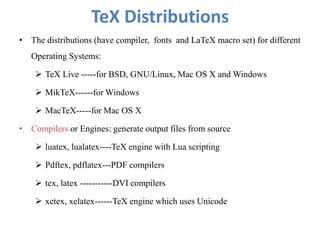
TeX Distributions
• The distributions (have compiler, fonts and LaTeX macro set) for different
Operating Systems:
 TeX Live -----for BSD, GNU/Linux, Mac OS X and Windows
 MikTeX------for Windows
 MacTeX-----for Mac OS X
• Compilers or Engines: generate output files from source
 luatex, lualatex----TeX engine with Lua scripting
 Pdftex, pdflatex---PDF compilers
 tex, latex -----------DVI compilers
 xetex, xelatex------TeX engine which uses Unicode
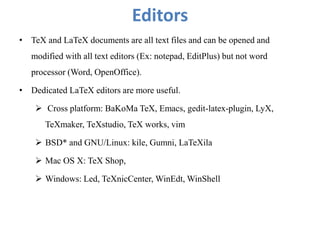
Editors
• TeX and LaTeX documents are all text files and can be opened and
modified with all text editors (Ex: notepad, EditPlus) but not word
processor (Word, OpenOffice).
• Dedicated LaTeX editors are more useful.
 Cross platform: BaKoMa TeX, Emacs, gedit-latex-plugin, LyX,
TeXmaker, TeXstudio, TeX works, vim
 BSD* and GNU/Linux: kile, Gumni, LaTeXila
 Mac OS X: TeX Shop,
 Windows: Led, TeXnicCenter, WinEdt, WinShell
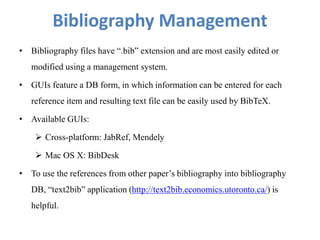
Bibliography Management
• Bibliography files have “.bib” extension and are most easily edited or
modified using a management system.
• GUIs feature a DB form, in which information can be entered for each
reference item and resulting text file can be easily used by BibTeX.
• Available GUIs:
 Cross-platform: JabRef, Mendely
 Mac OS X: BibDesk
• To use the references from other paper’s bibliography into bibliography
DB, “text2bib” application (http://text2bib.economics.utoronto.ca/) is
helpful.
Viewers
• All LaTeX distributions have a DVI viewer for viewing default output of
latex, or dvitopdf is used to convert from DVI to PDF format.
• There are number of PDF viewers: Adobe Reader, epdfview, Evince, Foxit,
Okular, Sumatra and Zathura.
Online Solutions
• Without installing any thing, LaTeX can be used from number of Web
Hosting Services: Google Documents, Latex Lab, LIMSUP, ScribTeX.com,
ShareLaTeX.com, SpanDeX, verbosus , writeLaTeX.com,publications.li
and Monkey TeX
Installation Procedure for MikTeX
• There are multiple MikTex distributions based on different necessities in url:
http://miktex.org/2.9/setup. Mainly two packages:
 One is “Net installation” provides complete list of packages but a large
size package (1.2GB).
 Another is “Basic installation” provides with basic set of packages and
remaining are installed using package manager after basic installation. It is
of low memory (163MB).
• Procedure for Basic installation requires following steps:
Step1: Download basic MikTeX 2.9 package from url:
http://miktex.org/2.9/setup or http://miktex.org/download
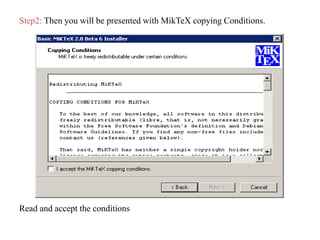
Step2: Then you will be presented with MikTeX copying Conditions.
Read and accept the conditions
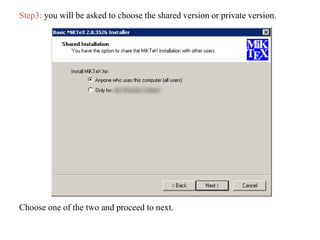
Step3: you will be asked to choose the shared version or private version.
Choose one of the two and proceed to next.
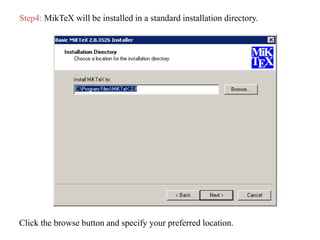
Step4: MikTeX will be installed in a standard installation directory.
Click the browse button and specify your preferred location.
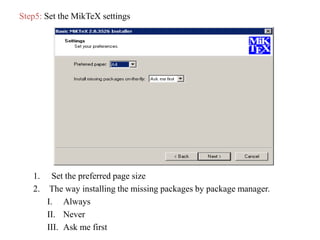
Step5: Set the MikTeX settings
1. Set the preferred page size
2. The way installing the missing packages by package manager.
I. Always
II. Never
III. Ask me first
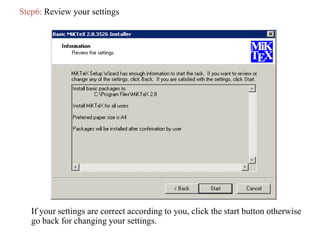
Step6: Review your settings
If your settings are correct according to you, click the start button otherwise
go back for changing your settings.
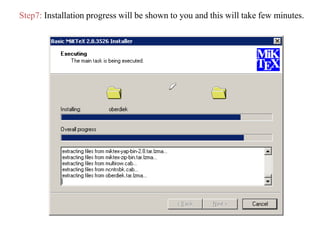
Step7: Installation progress will be shown to you and this will take few minutes.
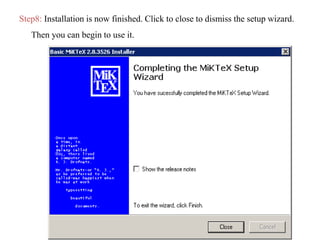
Step8: Installation is now finished. Click to close to dismiss the setup wizard.
Then you can begin to use it.
Installation Procedure for Texmaker
• The advantages of this editor are
 Automatic completion of commands while user creating or editing the
source document.
 Provide the easy view of output file, input file and structure of document.
 Provides the support in bibliography management, graphical support for
the commands of LaTeX.
 Provides the number of output viewers.
Step1: Download the package from the url:
http://www.xm1math.net/texmaker/download.html
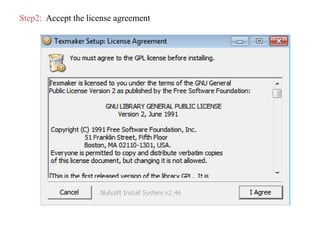
Step2: Accept the license agreement
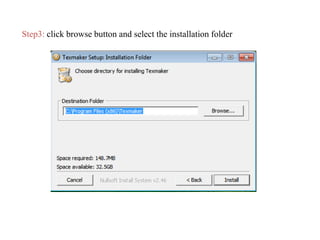
Step3: click browse button and select the installation folder
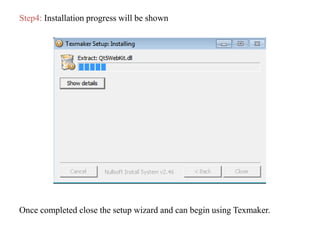
Step4: Installation progress will be shown
Once completed close the setup wizard and can begin using Texmaker.
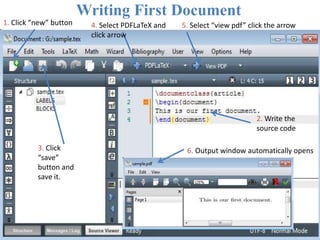
2. Write the
source code
5. Select “view pdf” click the arrow1. Click “new” button
3. Click
“save”
button and
save it.
6. Output window automatically opens
Writing First Document
4. Select PDFLaTeX and
click arrow
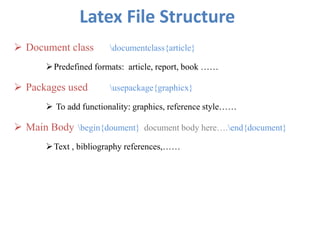
Latex File Structure
 Document class documentclass{article}
Predefined formats: article, report, book ……
 Packages used usepackage{graphicx}
 To add functionality: graphics, reference style……
 Main Body begin{doument} document body here….end{document}
Text , bibliography references,……
Basics of Typesetting
 Document Class: documentclass[options]{class}
Ex: documentclass[11pt,twoside,a4paper]{article}
 class: specifies type of the document and exists in ‘.cls’ format. Some
predefined classes are:
Article: for scientific journals, presentations, invitations…….
IEEEtran: for IEEE transactions format articles
Report : for longer reports having several chapters
…………………
 Options: customizes the behavior of document class. Some Common options:
10pt or 11pt: main font of the document
A4paper or letter paper: size of the paper
Onecolumn or twocolumn: typeset document in one or two columns
………………….
 Use packages: usepackage[options]{package (s)}
Ex: usepackage[margin=2cm]{geometry}
 Package: enhance the capabilities of Latex and exists in ‘.sty’ format. Some
popular and necessary packages are:
graphicx: to include images into document
Amsmath: to improve the mathematical equations environments
rotating: to rotate the text with options of 90o, 270o etc.
geometry: for setting the page layout (width, height, margins etc.)
url: for formatting email addresses, directory paths etc.
………….
 Options: keywords to trigger special features of packages
for url package: obeyspaces--- to allow spaces in url, hyphens---to allow
breaks of url at hyphens.
......................
 Main Body: The document content between begin{document}..end{document}.
 Basic commands for typesetting:
 newline or  to start new line
 newpage to start new page
 bf or textbf{..} to get bold font
 emph or textit{..} or it to get italics
 ul or underline{...} to underline the text
 output reserved characters (#, $, %, ^, &, _, {, }, ~, ) using backslash ‘’
 Comments using % character---ignores rest of current line,
line break, all whitespace at the beginning of next line.
 For multi-line comments use “comment” environment (begin{comment}
…..end{comment}) from “Verbatim” package.
 Any environment in Latex is of format: begin{evironment}[args]{args}…
end{environemnt} where arguments in [] are optional but in {} are mandatory.
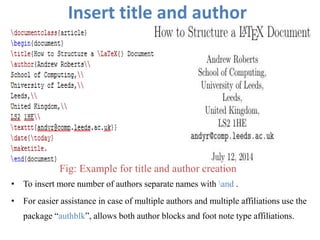
Insert title and author
• To insert more number of authors separate names with and .
• For easier assistance in case of multiple authors and multiple affiliations use the
package “authblk”, allows both author blocks and foot note type affiliations.
Fig: Example for title and author creation
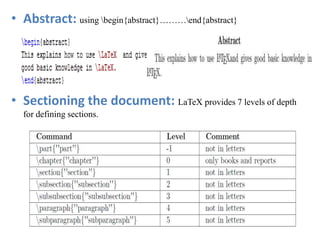
• Abstract: using begin{abstract}………end{abstract}
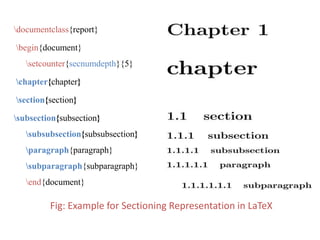
• Sectioning the document: LaTeX provides 7 levels of depth
for defining sections.
documentclass{report}
begin{document}
setcounter{secnumdepth}{5}
chapter{chapter}
section{section}
subsection{subsection}
subsubsection{subsubsection}
paragraph{paragraph}
subparagraph{subparagraph}
end{document}
Fig: Example for Sectioning Representation in LaTeX
Text Formatting• Spacing:
 Linespacing linespread{factor}
Ex: linespread{1.3}for one and half spacing
“setspace” package gives more fine grained control with commands
onehalfspacing, doublespacing, singlespacing etc.
 Non-breakable space use tilde ‘~’
 hfill horizontal stretched space pushes rest of content in a line toward
right margin.
 vfill vertical stretched space
 Manual spacing hspace{length}, hspace*{length} for horizontal space
vspace{length}, vspace*{length} for vertical space
 Supports macros for fixed length spacing between two paragraphs
smallskip, medskip, bigskip
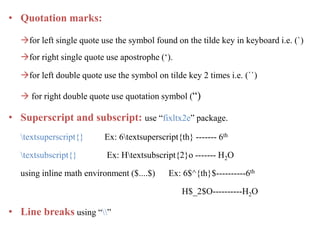
• Quotation marks:
for left single quote use the symbol found on the tilde key in keyboard i.e. (`)
for right single quote use apostrophe (‘).
for left double quote use the symbol on tilde key 2 times i.e. (``)
 for right double quote use quotation symbol (“)
• Superscript and subscript: use “fixltx2e” package.
textsuperscript{} Ex: 6textsuperscript{th} ------- 6th
textsubscript{} Ex: Htextsubscript{2}o ------- H2O
using inline math environment ($....$) Ex: 6$^{th}$----------6th
H$_2$O----------H2O
• Line breaks using “”
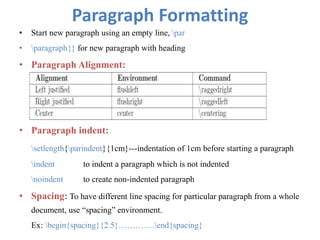
Paragraph Formatting
• Start new paragraph using an empty line, par
• paragraph{} for new paragraph with heading
• Paragraph Alignment:
• Paragraph indent:
setlength{parindent}{1cm}---indentation of 1cm before starting a paragraph
indent to indent a paragraph which is not indented
noindent to create non-indented paragraph
• Spacing: To have different line spacing for particular paragraph from a whole
document, use “spacing” environment.
Ex: begin{spacing}{2.5}………….end{spacing}
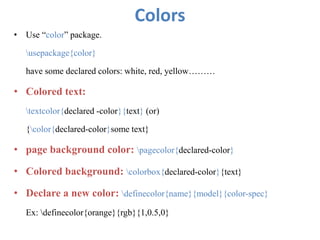
Colors
• Use “color” package.
usepackage{color}
have some declared colors: white, red, yellow………
• Colored text:
textcolor{declared -color}{text} (or)
{color{declared-color}some text}
• page background color: pagecolor{declared-color}
• Colored background: colorbox{declared-color}{text}
• Declare a new color: definecolor{name}{model}{color-spec}
Ex: definecolor{orange}{rgb}{1,0.5,0}
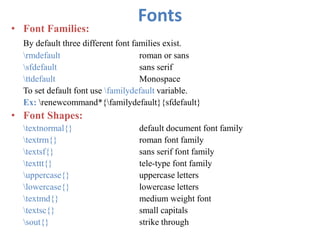
Fonts
• Font Families:
By default three different font families exist.
rmdefault roman or sans
sfdefault sans serif
ttdefault Monospace
To set default font use familydefault variable.
Ex: renewcommand*{familydefault}{sfdefault}
• Font Shapes:
textnormal{} default document font family
textrm{} roman font family
textsf{} sans serif font family
texttt{} tele-type font family
uppercase{} uppercase letters
lowercase{} lowercase letters
textmd{} medium weight font
textsc{} small capitals
sout{} strike through
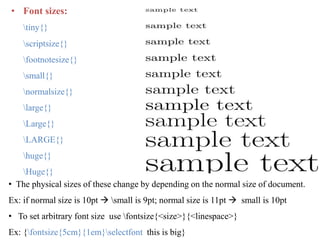
• Font sizes:
tiny{}
scriptsize{}
footnotesize{}
small{}
normalsize{}
large{}
Large{}
LARGE{}
huge{}
Huge{}
• The physical sizes of these change by depending on the normal size of document.
Ex: if normal size is 10pt  small is 9pt; normal size is 11pt  small is 10pt
• To set arbitrary font size use fontsize{<size>}{<linespace>}
Ex: {fontsize{5cm}{1em}selectfont this is big}
• For Font selection of a part of text
fontencoding OT1 (TeX default) or T1 (extended characters support, better
PDF support, widely used).
fontfamily
fontseries l=light, m=medium, b=bold, bx=very bold.
fontshape it=italic, n=normal, sl=slanted, sc=small capitals
Ex:
{fontencoding{T1}fontfamily{anttlc}fontseries{m}fontshape{n}selectfont
Some text in anttlc…} (or)
usefont{<encoding>}{<family>}{<series>}{<shape>}
Lists
• Three types of lists: itemize, enumerate, description
• “itemize” provide bulleted lists.
begin{itemize}
item first item
item second item
item third item
end{itemize}
• “enumerate” is for ordered lists with numerals (1,2,3…..); Use “enumerate”
package for different types of orders(alphabets, roman numbers etc.)
begin{enumerate}[i]
item first item
item second item
item third item
end{enumerate}
• “description” is useful for glossary; allows to pass item label by passing
optional argument
begin{description}
item[first] first item
item[second] second item
item [third] third item
end{description}
• Nested lists:
begin{enumerate}
item first item
begin{enumerate}
item first sub item
item second sub item
end{enumerate}
item second item
end{enumerate}
Mathematics Environment
• Use “amsmath” package.
• For inline mathematics use $....$.
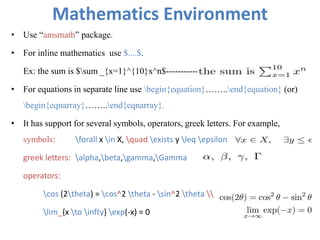
Ex: the sum is $sum _{x=1}^{10}x^n$-----------
• For equations in separate line use begin{equation}……..end{equation} (or)
begin{eqnarray}……..end{eqnarray}.
• It has support for several symbols, operators, greek letters. For example,
symbols: forall x in X, quad exists y leq epsilon
greek letters: alpha,beta,gamma,Gamma
operators:
cos (2theta) = cos^2 theta - sin^2 theta 
lim_{x to infty} exp(-x) = 0
• Fractions: frac{numerator}{denominator}
Ex: frac{n!}{k!(n-k)!}
• Roots: sqrt[magnitude] {}
Ex: sqrt{x}
sqrt[n]{1+x+x^2+x^3+ldots}
• Add text to equations: using text{…}
Ex: 50 text{apples} times 100 text{apples}= text{lots of apples}^2
• list of Latex symbols can be inserted directly from Texmaker directly or can be find
out in http://www.artofproblemsolving.com/Wiki/index.php/LaTeX:Symbols
(or) by using “detexify” (http://detexify.kirelabs.org)
• More about math environment from “amsmath” documentation
[ftp://ftp.ams.org/pub/tex/doc/amsmath/amsldoc.pdf ]
Importing Graphics
• Two ways to include graphics in Latex document
– Creating graphics
– Importing graphics: most usual way to include pictures
• For dvi output format , Latex supports “.eps” figures; for pdf output, it
supports “.pdf”, “.png”, “.jpg” figures.
• Use “graphicx” package.
• Use the command: includegraphics[attr1=val1, ..., attrn=valn]{imagename}
attributes are: width, height
keepaspectratio either true or false
scale to reduce the size
angle to rotate the image
trim has 4 values l,b,r,t to crop from 4 sides
clip should be true for working of the trim
• To include an image use “figure” environment , it allows to specify position of the
image, caption and label to the picture.
position:- h:current position, t: top , b:bottom, p: special page, !:determine good float
position, H: exactly at current position
Caption: to give the automatic numbering and description for the image
label: to give unique name in a document
Ex:
begin{figure}[p]
centering
includegraphics[width=0.8textwidth]{image.png}
label{fig:sampleimage}
caption{an awesome image of a chick}
end{figure}
Tables
• “tabular” environment constructs tables with optional horizontal , vertical lines.
• This environment has the 1st line: begin{tabular}{table-spec}
table-spec: has list of columns with their specifications
l: left-justified column
r: right-justified column
c: centered column
p{width}, m{width}, b{width}: paragraph columns with text vertically
aligned top, middle, bottom respectively.
|: vertical line
||: double vertical line
• some commands needed while constructing table
[width] starts new row, with optional argument of additional vertical
space after a row
hline horizontal line
cline{i-j} partial horizontal line starts with column i, and ends with column j
& column separator
• Ex: begin{tabular}{ |l|c||r| }
hline
1 & 2 & 3  hline
4 & 5 & 6  cline{2-3}
7 & 8 & 9  hline
end{tabular}
• Define multiple columns : use *{number of columns}{column-spec} in table-spec
Ex: begin{tabular}{l*{6}{c}r} creates table with one left justified
column, 6 centered columns, one right justified column.
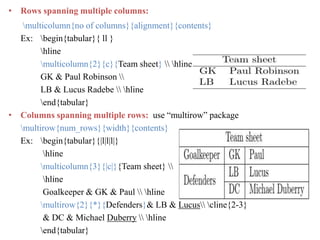
• Rows spanning multiple columns:
multicolumn{no of columns}{alignment}{contents}
Ex: begin{tabular}{ ll }
hline
multicolumn{2}{c}{Team sheet}  hline
GK & Paul Robinson 
LB & Lucus Radebe  hline
end{tabular}
• Columns spanning multiple rows: use “multirow” package
multirow{num_rows}{width}{contents}
Ex: begin{tabular}{|l|l|l|}
hline
multicolumn{3}{|c|}{Team sheet} 
hline
Goalkeeper & GK & Paul  hline
multirow{2}{*}{Defenders}& LB & Lucus cline{2-3}
& DC & Michael Duberry  hline
end{tabular}
• “table” environment is for position of the table, label, caption support.
Syntax:
begin{table}[position specifier]
centering
begin{tabular}{l}
……….
end{tabular}
caption{This table shows some data}
label{tab:myfirsttable}
end{table}
• Position specifier value can be h, t, b, p, !; default value is tbp
• Excel spread sheets can be imported using “excel2latex” package, and
openoffice spread sheets using “clac2latex” package;
• Latex also has support for importing from other softwares using different
packages.
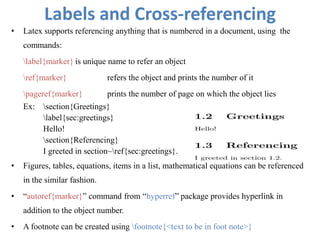
Labels and Cross-referencing
• Latex supports referencing anything that is numbered in a document, using the
commands:
label{marker} is unique name to refer an object
ref{marker} refers the object and prints the number of it
pageref{marker} prints the number of page on which the object lies
Ex: section{Greetings}
label{sec:greetings}
Hello!
section{Referencing}
I greeted in section~ref{sec:greetings}.
• Figures, tables, equations, items in a list, mathematical equations can be referenced
in the similar fashion.
• “autoref{marker}” command from “hyperref” package provides hyperlink in
addition to the object number.
• A footnote can be created using footnote{<text to be in foot note>}
Bibliography management
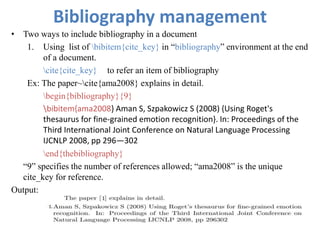
• Two ways to include bibliography in a document
1. Using list of bibitem{cite_key} in “bibliography” environment at the end
of a document.
cite{cite_key} to refer an item of bibliography
Ex: The paper~cite{ama2008} explains in detail.
begin{bibliography}{9}
bibitem{ama2008} Aman S, Szpakowicz S (2008) {Using Roget's
thesaurus for fine-grained emotion recognition}. In: Proceedings of the
Third International Joint Conference on Natural Language Processing
IJCNLP 2008, pp 296—302
end{thebibliography}
“9” specifies the number of references allowed; “ama2008” is the unique
cite_key for reference.
Output:
2. creating an external BibTeX database i.e. “.bib” file and include it in
document using two commands at the end of document.
bibliographystyle{style}
bibliography{filename(s)}
style: specifies the bibliography style file name, default is the “plain.bst”
filename(s): list of files(.bib files) containing the references.
Ex: bibliography{plain}
bibliography{samplebibdb}
• “.bib” file: is a flat database file with each reference item as one entry with
different attributes according to the type of it.
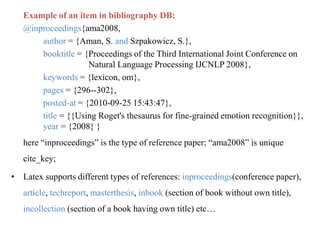
Example of an item in bibliography DB:
@inproceedings{ama2008,
author = {Aman, S. and Szpakowicz, S.},
booktitle = {Proceedings of the Third International Joint Conference on
Natural Language Processing IJCNLP 2008},
keywords = {lexicon, om},
pages = {296--302},
posted-at = {2010-09-25 15:43:47},
title = {{Using Roget's thesaurus for fine-grained emotion recognition}},
year = {2008} }
here “inproceedings” is the type of reference paper; “ama2008” is unique
cite_key;
• Latex supports different types of references: inproceedings(conference paper),
article, techreport, masterthesis, inbook (section of book without own title),
incollection (section of a book having own title) etc…
• Multiple citations: use the command
cite{citekey1,citekey2,citekey3…}
• No cite: to appear a reference in the bibliography without referencing in the
main text nocite{cite_key} command can be used.
• Author-year format of referencing: use “natbib” package for different styles
of author-year, numeric citation formats.
usepackage[options]{natbib}
It provides different style files: plainnat.bst, arrrvnat.bst, rmpaps.bst etc…
 provides different citation commands: citet{}, citep{}, citet*{} etc…
options: authoryear for author-year style
square [] around citation numbers
super superscripted numeric citations etc…..
Ex:
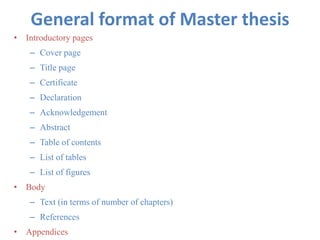
General format of Master thesis
• Introductory pages
– Cover page
– Title page
– Certificate
– Declaration
– Acknowledgement
– Abstract
– Table of contents
– List of tables
– List of figures
• Body
– Text (in terms of number of chapters)
– References
• Appendices
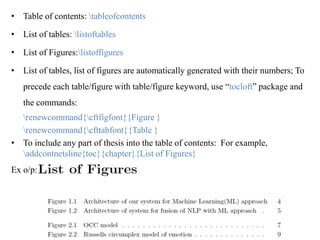
• Table of contents: tableofcontents
• List of tables: listoftables
• List of Figures:listoffigures
• List of tables, list of figures are automatically generated with their numbers; To
precede each table/figure with table/figure keyword, use “tocloft” package and
the commands:
renewcommand{cftfigfont}{Figure }
renewcommand{cfttabfont}{Table }
• To include any part of thesis into the table of contents: For example,
addcontnetsline{toc}{chapter}{List of Figures}
Ex o/p:
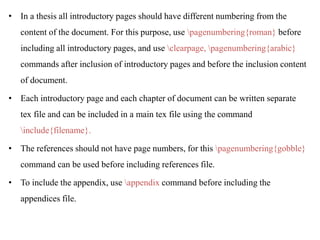
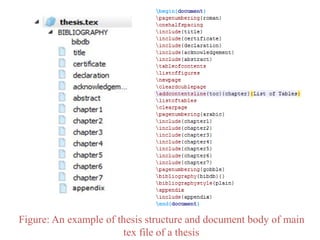
• In a thesis all introductory pages should have different numbering from the
content of the document. For this purpose, use pagenumbering{roman} before
including all introductory pages, and use clearpage, pagenumbering{arabic}
commands after inclusion of introductory pages and before the inclusion content
of document.
• Each introductory page and each chapter of document can be written separate
tex file and can be included in a main tex file using the command
include{filename}.
• The references should not have page numbers, for this pagenumbering{gobble}
command can be used before including references file.
• To include the appendix, use appendix command before including the
appendices file.
Figure: An example of thesis structure and document body of main
tex file of a thesis
Creating IEEE format document
• For this “IEEEtran.cls” is used.
Ex: documentclass[9pt, conference]{IEEEtran}
• IEEEtran and its support files can be downloaded from IEEEwebsite:
http://www.ieee.org/
• IEEEtran supports different modes: conference, journal, technote, peerreview...
• It supports two text column formats: one column, two column
two paper sizes: a4paper, letter paper
two layouts: oneside, twoside
• It provides slightly different commands than from a usual article and report.
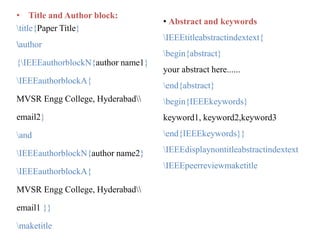
• Title and Author block:
title{Paper Title}
author
{IEEEauthorblockN{author name1}
IEEEauthorblockA{
MVSR Engg College, Hyderabad
email2}
and
IEEEauthorblockN{author name2}
IEEEauthorblockA{
MVSR Engg College, Hyderabad
email1 }}
maketitle
• Abstract and keywords
IEEEtitleabstractindextext{
begin{abstract}
your abstract here......
end{abstract}
begin{IEEEkeywords}
keyword1, keyword2,keyword3
end{IEEEkeywords}}
IEEEdisplaynontitleabstractindextext
IEEEpeerreviewmaketitle
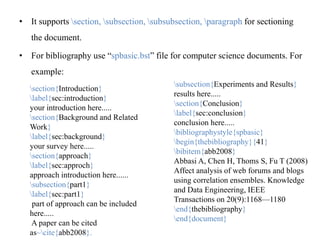
• It supports section, subsection, subsubsection, paragraph for sectioning
the document.
• For bibliography use “spbasic.bst” file for computer science documents. For
example:
section{Introduction}
label{sec:introduction}
your introduction here.....
section{Background and Related
Work}
label{sec:background}
your survey here.....
section{approach}
label{sec:approch}
approach introduction here......
subsection{part1}
label{sec:part1}
part of approach can be included
here.....
A paper can be cited
as~cite{abb2008}.
subsection{Experiments and Results}
results here.....
section{Conclusion}
label{sec:conclusion}
conclusion here.....
bibliographystyle{spbasic}
begin{thebibliography}{41}
bibitem{abb2008}
Abbasi A, Chen H, Thoms S, Fu T (2008)
Affect analysis of web forums and blogs
using correlation ensembles. Knowledge
and Data Engineering, IEEE
Transactions on 20(9):1168—1180
end{thebibliography}
end{document}
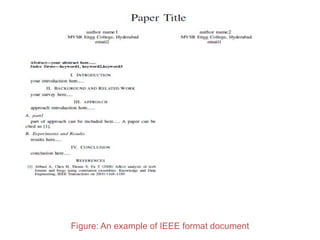
Figure: An example of IEEE format document
Conclusion
• LaTeX is easy to use document preparation system.
• Gives brief insight about latex including installation procedures, basic
commands for the usage of latex in writing any type of documents.
References
• Stefan kottwitz. “Latex: Beginner’s Guide” 2011.
• Latex documentation
• Latex: from wikipedia
http://upload.wikimedia.org/wikipedia/commons/2/2d/LaTeX.
pdf
documents writing with LATEX

documents writing with LATEX

  • 1.
  • 2.
    Outline • Introduction • Whatto install? How to install? • Latex usage for document writing – Document structure – Fonts, colors – Text, paragraph formatting – Tables, images – Mathematical equations – Cross-referencing, bibliography • Guidelines for writing thesis, IEEE format document with help of latex
  • 3.
    Introduction • TeX islow-level markup and programming language to typeset the document attractively and consistently • Created by Donald Knuth in 1977. • Pronounce it like first syllable of “technical”. • It works similar to HTML, XML. • Learning to write program in Tex is time consuming. • Fortunately, document preparation systems based on TeX provide some pre-built macros to reduce the user effort. • One of the popular macro package is LaTeX.
  • 4.
    LaTeX • LaTeX (pronounceas Lah-tech or Lay-tech) is created by Leslie Lamport. • It is a TeX-based document preparation system, and actually a set of macros for TeX. • LaTeX converts source code combined with markup into high quality document. • Aim: takes care of formatting process. • Many of the packages or styles developed by other authors are bundled with LaTeX software distribution. More can be found in CTAN(Comprehensive TeX Archive Network http://www.ctan.org ).
  • 5.
    • Advantages:  Completeconcentration on documents not with layout of document.  No need of manual type settings of height, width etc.  Mathematical formulae can be easily typeset  Index, footnotes, citations and references are generated easily.  Forced to structure your documents correctly • It natively supports PDF (Potable Document Format), DVI(Device Independent) file format but also PostScript, PNG, JPEG etc by using other software.
  • 6.
    Installation • LaTeX isnot a program by itself, it is a language. • To use LaTeX, need to have the following:  TeX Distributions  Text editor  Bibliography management program  DVI or PDF viewer
  • 7.
    TeX Distributions • Thedistributions (have compiler, fonts and LaTeX macro set) for different Operating Systems:  TeX Live -----for BSD, GNU/Linux, Mac OS X and Windows  MikTeX------for Windows  MacTeX-----for Mac OS X • Compilers or Engines: generate output files from source  luatex, lualatex----TeX engine with Lua scripting  Pdftex, pdflatex---PDF compilers  tex, latex -----------DVI compilers  xetex, xelatex------TeX engine which uses Unicode
  • 8.
    Editors • TeX andLaTeX documents are all text files and can be opened and modified with all text editors (Ex: notepad, EditPlus) but not word processor (Word, OpenOffice). • Dedicated LaTeX editors are more useful.  Cross platform: BaKoMa TeX, Emacs, gedit-latex-plugin, LyX, TeXmaker, TeXstudio, TeX works, vim  BSD* and GNU/Linux: kile, Gumni, LaTeXila  Mac OS X: TeX Shop,  Windows: Led, TeXnicCenter, WinEdt, WinShell
  • 9.
    Bibliography Management • Bibliographyfiles have “.bib” extension and are most easily edited or modified using a management system. • GUIs feature a DB form, in which information can be entered for each reference item and resulting text file can be easily used by BibTeX. • Available GUIs:  Cross-platform: JabRef, Mendely  Mac OS X: BibDesk • To use the references from other paper’s bibliography into bibliography DB, “text2bib” application (http://text2bib.economics.utoronto.ca/) is helpful.
  • 10.
    Viewers • All LaTeXdistributions have a DVI viewer for viewing default output of latex, or dvitopdf is used to convert from DVI to PDF format. • There are number of PDF viewers: Adobe Reader, epdfview, Evince, Foxit, Okular, Sumatra and Zathura.
  • 11.
    Online Solutions • Withoutinstalling any thing, LaTeX can be used from number of Web Hosting Services: Google Documents, Latex Lab, LIMSUP, ScribTeX.com, ShareLaTeX.com, SpanDeX, verbosus , writeLaTeX.com,publications.li and Monkey TeX
  • 12.
    Installation Procedure forMikTeX • There are multiple MikTex distributions based on different necessities in url: http://miktex.org/2.9/setup. Mainly two packages:  One is “Net installation” provides complete list of packages but a large size package (1.2GB).  Another is “Basic installation” provides with basic set of packages and remaining are installed using package manager after basic installation. It is of low memory (163MB). • Procedure for Basic installation requires following steps: Step1: Download basic MikTeX 2.9 package from url: http://miktex.org/2.9/setup or http://miktex.org/download
  • 13.
    Step2: Then youwill be presented with MikTeX copying Conditions. Read and accept the conditions
  • 14.
    Step3: you willbe asked to choose the shared version or private version. Choose one of the two and proceed to next.
  • 15.
    Step4: MikTeX willbe installed in a standard installation directory. Click the browse button and specify your preferred location.
  • 16.
    Step5: Set theMikTeX settings 1. Set the preferred page size 2. The way installing the missing packages by package manager. I. Always II. Never III. Ask me first
  • 17.
    Step6: Review yoursettings If your settings are correct according to you, click the start button otherwise go back for changing your settings.
  • 18.
    Step7: Installation progresswill be shown to you and this will take few minutes.
  • 19.
    Step8: Installation isnow finished. Click to close to dismiss the setup wizard. Then you can begin to use it.
  • 20.
    Installation Procedure forTexmaker • The advantages of this editor are  Automatic completion of commands while user creating or editing the source document.  Provide the easy view of output file, input file and structure of document.  Provides the support in bibliography management, graphical support for the commands of LaTeX.  Provides the number of output viewers. Step1: Download the package from the url: http://www.xm1math.net/texmaker/download.html
  • 21.
    Step2: Accept thelicense agreement
  • 22.
    Step3: click browsebutton and select the installation folder
  • 23.
    Step4: Installation progresswill be shown Once completed close the setup wizard and can begin using Texmaker.
  • 24.
    2. Write the sourcecode 5. Select “view pdf” click the arrow1. Click “new” button 3. Click “save” button and save it. 6. Output window automatically opens Writing First Document 4. Select PDFLaTeX and click arrow
  • 25.
    Latex File Structure Document class documentclass{article} Predefined formats: article, report, book ……  Packages used usepackage{graphicx}  To add functionality: graphics, reference style……  Main Body begin{doument} document body here….end{document} Text , bibliography references,……
  • 26.
    Basics of Typesetting Document Class: documentclass[options]{class} Ex: documentclass[11pt,twoside,a4paper]{article}  class: specifies type of the document and exists in ‘.cls’ format. Some predefined classes are: Article: for scientific journals, presentations, invitations……. IEEEtran: for IEEE transactions format articles Report : for longer reports having several chapters …………………  Options: customizes the behavior of document class. Some Common options: 10pt or 11pt: main font of the document A4paper or letter paper: size of the paper Onecolumn or twocolumn: typeset document in one or two columns ………………….
  • 27.
     Use packages:usepackage[options]{package (s)} Ex: usepackage[margin=2cm]{geometry}  Package: enhance the capabilities of Latex and exists in ‘.sty’ format. Some popular and necessary packages are: graphicx: to include images into document Amsmath: to improve the mathematical equations environments rotating: to rotate the text with options of 90o, 270o etc. geometry: for setting the page layout (width, height, margins etc.) url: for formatting email addresses, directory paths etc. ………….  Options: keywords to trigger special features of packages for url package: obeyspaces--- to allow spaces in url, hyphens---to allow breaks of url at hyphens. ......................
  • 28.
     Main Body:The document content between begin{document}..end{document}.  Basic commands for typesetting:  newline or to start new line  newpage to start new page  bf or textbf{..} to get bold font  emph or textit{..} or it to get italics  ul or underline{...} to underline the text  output reserved characters (#, $, %, ^, &, _, {, }, ~, ) using backslash ‘’  Comments using % character---ignores rest of current line, line break, all whitespace at the beginning of next line.  For multi-line comments use “comment” environment (begin{comment} …..end{comment}) from “Verbatim” package.  Any environment in Latex is of format: begin{evironment}[args]{args}… end{environemnt} where arguments in [] are optional but in {} are mandatory.
  • 29.
    Insert title andauthor • To insert more number of authors separate names with and . • For easier assistance in case of multiple authors and multiple affiliations use the package “authblk”, allows both author blocks and foot note type affiliations. Fig: Example for title and author creation
  • 30.
    • Abstract: usingbegin{abstract}………end{abstract} • Sectioning the document: LaTeX provides 7 levels of depth for defining sections.
  • 31.
  • 32.
    Text Formatting• Spacing: Linespacing linespread{factor} Ex: linespread{1.3}for one and half spacing “setspace” package gives more fine grained control with commands onehalfspacing, doublespacing, singlespacing etc.  Non-breakable space use tilde ‘~’  hfill horizontal stretched space pushes rest of content in a line toward right margin.  vfill vertical stretched space  Manual spacing hspace{length}, hspace*{length} for horizontal space vspace{length}, vspace*{length} for vertical space  Supports macros for fixed length spacing between two paragraphs smallskip, medskip, bigskip
  • 33.
    • Quotation marks: forleft single quote use the symbol found on the tilde key in keyboard i.e. (`) for right single quote use apostrophe (‘). for left double quote use the symbol on tilde key 2 times i.e. (``)  for right double quote use quotation symbol (“) • Superscript and subscript: use “fixltx2e” package. textsuperscript{} Ex: 6textsuperscript{th} ------- 6th textsubscript{} Ex: Htextsubscript{2}o ------- H2O using inline math environment ($....$) Ex: 6$^{th}$----------6th H$_2$O----------H2O • Line breaks using “”
  • 34.
    Paragraph Formatting • Startnew paragraph using an empty line, par • paragraph{} for new paragraph with heading • Paragraph Alignment: • Paragraph indent: setlength{parindent}{1cm}---indentation of 1cm before starting a paragraph indent to indent a paragraph which is not indented noindent to create non-indented paragraph • Spacing: To have different line spacing for particular paragraph from a whole document, use “spacing” environment. Ex: begin{spacing}{2.5}………….end{spacing}
  • 35.
    Colors • Use “color”package. usepackage{color} have some declared colors: white, red, yellow……… • Colored text: textcolor{declared -color}{text} (or) {color{declared-color}some text} • page background color: pagecolor{declared-color} • Colored background: colorbox{declared-color}{text} • Declare a new color: definecolor{name}{model}{color-spec} Ex: definecolor{orange}{rgb}{1,0.5,0}
  • 36.
    Fonts • Font Families: Bydefault three different font families exist. rmdefault roman or sans sfdefault sans serif ttdefault Monospace To set default font use familydefault variable. Ex: renewcommand*{familydefault}{sfdefault} • Font Shapes: textnormal{} default document font family textrm{} roman font family textsf{} sans serif font family texttt{} tele-type font family uppercase{} uppercase letters lowercase{} lowercase letters textmd{} medium weight font textsc{} small capitals sout{} strike through
  • 37.
    • Font sizes: tiny{} scriptsize{} footnotesize{} small{} normalsize{} large{} Large{} LARGE{} huge{} Huge{} •The physical sizes of these change by depending on the normal size of document. Ex: if normal size is 10pt  small is 9pt; normal size is 11pt  small is 10pt • To set arbitrary font size use fontsize{<size>}{<linespace>} Ex: {fontsize{5cm}{1em}selectfont this is big}
  • 38.
    • For Fontselection of a part of text fontencoding OT1 (TeX default) or T1 (extended characters support, better PDF support, widely used). fontfamily fontseries l=light, m=medium, b=bold, bx=very bold. fontshape it=italic, n=normal, sl=slanted, sc=small capitals Ex: {fontencoding{T1}fontfamily{anttlc}fontseries{m}fontshape{n}selectfont Some text in anttlc…} (or) usefont{<encoding>}{<family>}{<series>}{<shape>}
  • 39.
    Lists • Three typesof lists: itemize, enumerate, description • “itemize” provide bulleted lists. begin{itemize} item first item item second item item third item end{itemize} • “enumerate” is for ordered lists with numerals (1,2,3…..); Use “enumerate” package for different types of orders(alphabets, roman numbers etc.) begin{enumerate}[i] item first item item second item item third item end{enumerate}
  • 40.
    • “description” isuseful for glossary; allows to pass item label by passing optional argument begin{description} item[first] first item item[second] second item item [third] third item end{description} • Nested lists: begin{enumerate} item first item begin{enumerate} item first sub item item second sub item end{enumerate} item second item end{enumerate}
  • 41.
    Mathematics Environment • Use“amsmath” package. • For inline mathematics use $....$. Ex: the sum is $sum _{x=1}^{10}x^n$----------- • For equations in separate line use begin{equation}……..end{equation} (or) begin{eqnarray}……..end{eqnarray}. • It has support for several symbols, operators, greek letters. For example, symbols: forall x in X, quad exists y leq epsilon greek letters: alpha,beta,gamma,Gamma operators: cos (2theta) = cos^2 theta - sin^2 theta lim_{x to infty} exp(-x) = 0
  • 42.
    • Fractions: frac{numerator}{denominator} Ex:frac{n!}{k!(n-k)!} • Roots: sqrt[magnitude] {} Ex: sqrt{x} sqrt[n]{1+x+x^2+x^3+ldots} • Add text to equations: using text{…} Ex: 50 text{apples} times 100 text{apples}= text{lots of apples}^2 • list of Latex symbols can be inserted directly from Texmaker directly or can be find out in http://www.artofproblemsolving.com/Wiki/index.php/LaTeX:Symbols (or) by using “detexify” (http://detexify.kirelabs.org) • More about math environment from “amsmath” documentation [ftp://ftp.ams.org/pub/tex/doc/amsmath/amsldoc.pdf ]
  • 43.
    Importing Graphics • Twoways to include graphics in Latex document – Creating graphics – Importing graphics: most usual way to include pictures • For dvi output format , Latex supports “.eps” figures; for pdf output, it supports “.pdf”, “.png”, “.jpg” figures. • Use “graphicx” package. • Use the command: includegraphics[attr1=val1, ..., attrn=valn]{imagename} attributes are: width, height keepaspectratio either true or false scale to reduce the size angle to rotate the image trim has 4 values l,b,r,t to crop from 4 sides clip should be true for working of the trim
  • 44.
    • To includean image use “figure” environment , it allows to specify position of the image, caption and label to the picture. position:- h:current position, t: top , b:bottom, p: special page, !:determine good float position, H: exactly at current position Caption: to give the automatic numbering and description for the image label: to give unique name in a document Ex: begin{figure}[p] centering includegraphics[width=0.8textwidth]{image.png} label{fig:sampleimage} caption{an awesome image of a chick} end{figure}
  • 45.
    Tables • “tabular” environmentconstructs tables with optional horizontal , vertical lines. • This environment has the 1st line: begin{tabular}{table-spec} table-spec: has list of columns with their specifications l: left-justified column r: right-justified column c: centered column p{width}, m{width}, b{width}: paragraph columns with text vertically aligned top, middle, bottom respectively. |: vertical line ||: double vertical line
  • 46.
    • some commandsneeded while constructing table [width] starts new row, with optional argument of additional vertical space after a row hline horizontal line cline{i-j} partial horizontal line starts with column i, and ends with column j & column separator • Ex: begin{tabular}{ |l|c||r| } hline 1 & 2 & 3 hline 4 & 5 & 6 cline{2-3} 7 & 8 & 9 hline end{tabular} • Define multiple columns : use *{number of columns}{column-spec} in table-spec Ex: begin{tabular}{l*{6}{c}r} creates table with one left justified column, 6 centered columns, one right justified column.
  • 47.
    • Rows spanningmultiple columns: multicolumn{no of columns}{alignment}{contents} Ex: begin{tabular}{ ll } hline multicolumn{2}{c}{Team sheet} hline GK & Paul Robinson LB & Lucus Radebe hline end{tabular} • Columns spanning multiple rows: use “multirow” package multirow{num_rows}{width}{contents} Ex: begin{tabular}{|l|l|l|} hline multicolumn{3}{|c|}{Team sheet} hline Goalkeeper & GK & Paul hline multirow{2}{*}{Defenders}& LB & Lucus cline{2-3} & DC & Michael Duberry hline end{tabular}
  • 48.
    • “table” environmentis for position of the table, label, caption support. Syntax: begin{table}[position specifier] centering begin{tabular}{l} ………. end{tabular} caption{This table shows some data} label{tab:myfirsttable} end{table} • Position specifier value can be h, t, b, p, !; default value is tbp • Excel spread sheets can be imported using “excel2latex” package, and openoffice spread sheets using “clac2latex” package; • Latex also has support for importing from other softwares using different packages.
  • 49.
    Labels and Cross-referencing •Latex supports referencing anything that is numbered in a document, using the commands: label{marker} is unique name to refer an object ref{marker} refers the object and prints the number of it pageref{marker} prints the number of page on which the object lies Ex: section{Greetings} label{sec:greetings} Hello! section{Referencing} I greeted in section~ref{sec:greetings}. • Figures, tables, equations, items in a list, mathematical equations can be referenced in the similar fashion. • “autoref{marker}” command from “hyperref” package provides hyperlink in addition to the object number. • A footnote can be created using footnote{<text to be in foot note>}
  • 50.
    Bibliography management • Twoways to include bibliography in a document 1. Using list of bibitem{cite_key} in “bibliography” environment at the end of a document. cite{cite_key} to refer an item of bibliography Ex: The paper~cite{ama2008} explains in detail. begin{bibliography}{9} bibitem{ama2008} Aman S, Szpakowicz S (2008) {Using Roget's thesaurus for fine-grained emotion recognition}. In: Proceedings of the Third International Joint Conference on Natural Language Processing IJCNLP 2008, pp 296—302 end{thebibliography} “9” specifies the number of references allowed; “ama2008” is the unique cite_key for reference. Output:
  • 51.
    2. creating anexternal BibTeX database i.e. “.bib” file and include it in document using two commands at the end of document. bibliographystyle{style} bibliography{filename(s)} style: specifies the bibliography style file name, default is the “plain.bst” filename(s): list of files(.bib files) containing the references. Ex: bibliography{plain} bibliography{samplebibdb} • “.bib” file: is a flat database file with each reference item as one entry with different attributes according to the type of it.
  • 52.
    Example of anitem in bibliography DB: @inproceedings{ama2008, author = {Aman, S. and Szpakowicz, S.}, booktitle = {Proceedings of the Third International Joint Conference on Natural Language Processing IJCNLP 2008}, keywords = {lexicon, om}, pages = {296--302}, posted-at = {2010-09-25 15:43:47}, title = {{Using Roget's thesaurus for fine-grained emotion recognition}}, year = {2008} } here “inproceedings” is the type of reference paper; “ama2008” is unique cite_key; • Latex supports different types of references: inproceedings(conference paper), article, techreport, masterthesis, inbook (section of book without own title), incollection (section of a book having own title) etc…
  • 53.
    • Multiple citations:use the command cite{citekey1,citekey2,citekey3…} • No cite: to appear a reference in the bibliography without referencing in the main text nocite{cite_key} command can be used. • Author-year format of referencing: use “natbib” package for different styles of author-year, numeric citation formats. usepackage[options]{natbib} It provides different style files: plainnat.bst, arrrvnat.bst, rmpaps.bst etc…  provides different citation commands: citet{}, citep{}, citet*{} etc… options: authoryear for author-year style square [] around citation numbers super superscripted numeric citations etc….. Ex:
  • 54.
    General format ofMaster thesis • Introductory pages – Cover page – Title page – Certificate – Declaration – Acknowledgement – Abstract – Table of contents – List of tables – List of figures • Body – Text (in terms of number of chapters) – References • Appendices
  • 55.
    • Table ofcontents: tableofcontents • List of tables: listoftables • List of Figures:listoffigures • List of tables, list of figures are automatically generated with their numbers; To precede each table/figure with table/figure keyword, use “tocloft” package and the commands: renewcommand{cftfigfont}{Figure } renewcommand{cfttabfont}{Table } • To include any part of thesis into the table of contents: For example, addcontnetsline{toc}{chapter}{List of Figures} Ex o/p:
  • 56.
    • In athesis all introductory pages should have different numbering from the content of the document. For this purpose, use pagenumbering{roman} before including all introductory pages, and use clearpage, pagenumbering{arabic} commands after inclusion of introductory pages and before the inclusion content of document. • Each introductory page and each chapter of document can be written separate tex file and can be included in a main tex file using the command include{filename}. • The references should not have page numbers, for this pagenumbering{gobble} command can be used before including references file. • To include the appendix, use appendix command before including the appendices file.
  • 57.
    Figure: An exampleof thesis structure and document body of main tex file of a thesis
  • 58.
    Creating IEEE formatdocument • For this “IEEEtran.cls” is used. Ex: documentclass[9pt, conference]{IEEEtran} • IEEEtran and its support files can be downloaded from IEEEwebsite: http://www.ieee.org/ • IEEEtran supports different modes: conference, journal, technote, peerreview... • It supports two text column formats: one column, two column two paper sizes: a4paper, letter paper two layouts: oneside, twoside • It provides slightly different commands than from a usual article and report.
  • 59.
    • Title andAuthor block: title{Paper Title} author {IEEEauthorblockN{author name1} IEEEauthorblockA{ MVSR Engg College, Hyderabad email2} and IEEEauthorblockN{author name2} IEEEauthorblockA{ MVSR Engg College, Hyderabad email1 }} maketitle • Abstract and keywords IEEEtitleabstractindextext{ begin{abstract} your abstract here...... end{abstract} begin{IEEEkeywords} keyword1, keyword2,keyword3 end{IEEEkeywords}} IEEEdisplaynontitleabstractindextext IEEEpeerreviewmaketitle
  • 60.
    • It supportssection, subsection, subsubsection, paragraph for sectioning the document. • For bibliography use “spbasic.bst” file for computer science documents. For example: section{Introduction} label{sec:introduction} your introduction here..... section{Background and Related Work} label{sec:background} your survey here..... section{approach} label{sec:approch} approach introduction here...... subsection{part1} label{sec:part1} part of approach can be included here..... A paper can be cited as~cite{abb2008}. subsection{Experiments and Results} results here..... section{Conclusion} label{sec:conclusion} conclusion here..... bibliographystyle{spbasic} begin{thebibliography}{41} bibitem{abb2008} Abbasi A, Chen H, Thoms S, Fu T (2008) Affect analysis of web forums and blogs using correlation ensembles. Knowledge and Data Engineering, IEEE Transactions on 20(9):1168—1180 end{thebibliography} end{document}
  • 61.
    Figure: An exampleof IEEE format document
  • 62.
    Conclusion • LaTeX iseasy to use document preparation system. • Gives brief insight about latex including installation procedures, basic commands for the usage of latex in writing any type of documents.
  • 63.
    References • Stefan kottwitz.“Latex: Beginner’s Guide” 2011. • Latex documentation • Latex: from wikipedia http://upload.wikimedia.org/wikipedia/commons/2/2d/LaTeX. pdf