Savitribai Phule PUNE UNIVERSITY
LATEX (504205) Theory Notes
© All rights reserved - Not to be copied and Sold
PART-A
1. What is Latex?
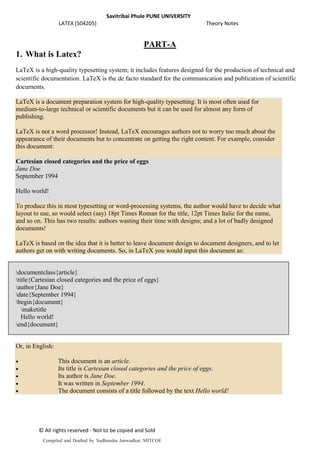
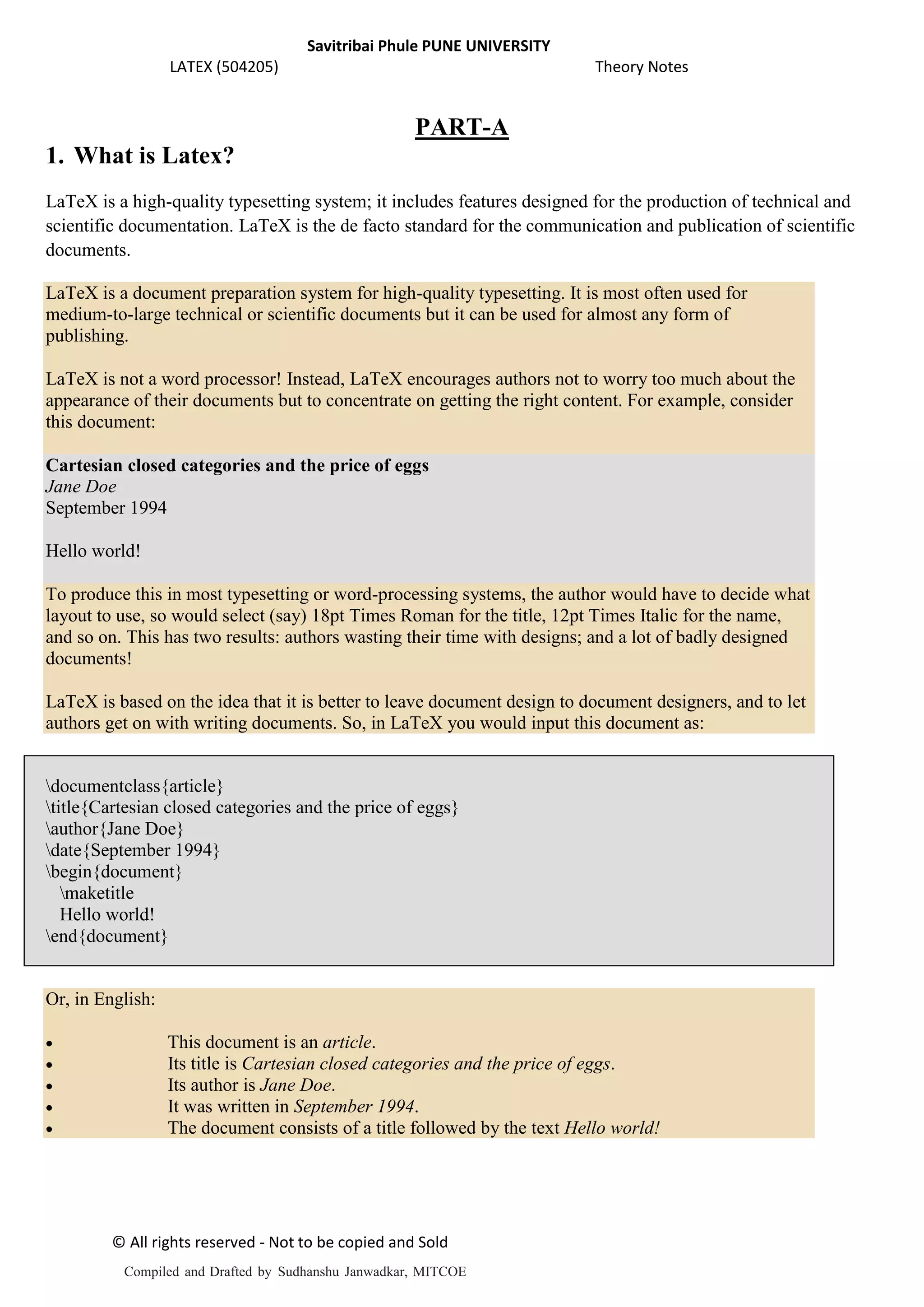
LaTeX is a high-quality typesetting system; it includes features designed for the production of technical and
scientific documentation. LaTeX is the de facto standard for the communication and publication of scientific
documents.
LaTeX is a document preparation system for high-quality typesetting. It is most often used for
medium-to-large technical or scientific documents but it can be used for almost any form of
publishing.
LaTeX is not a word processor! Instead, LaTeX encourages authors not to worry too much about the
appearance of their documents but to concentrate on getting the right content. For example, consider
this document:
Cartesian closed categories and the price of eggs
Jane Doe
September 1994
Hello world!
To produce this in most typesetting or word-processing systems, the author would have to decide what
layout to use, so would select (say) 18pt Times Roman for the title, 12pt Times Italic for the name,
and so on. This has two results: authors wasting their time with designs; and a lot of badly designed
documents!
LaTeX is based on the idea that it is better to leave document design to document designers, and to let
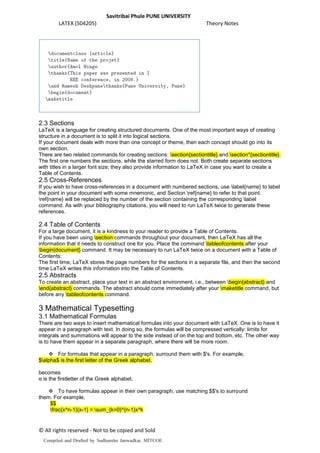
authors get on with writing documents. So, in LaTeX you would input this document as:
documentclass{article}
title{Cartesian closed categories and the price of eggs}
author{Jane Doe}
date{September 1994}
begin{document}
maketitle
Hello world!
end{document}
Or, in English:
 This document is an article.
 Its title is Cartesian closed categories and the price of eggs.
 Its author is Jane Doe.
 It was written in September 1994.
 The document consists of a title followed by the text Hello world!
Compiled and Drafted by Sudhanshu Janwadkar, MITCOE
Savitribai Phule PUNE UNIVERSITY
LATEX (504205) Theory Notes
© All rights reserved - Not to be copied and Sold
2. History of Latex:
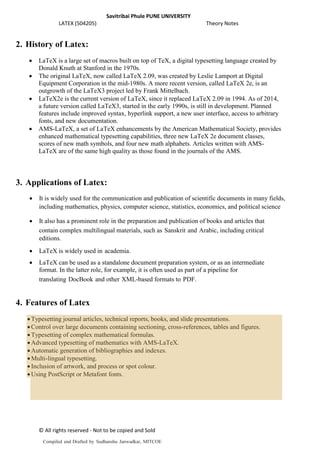
 LaTeX is a large set of macros built on top of TeX, a digital typesetting language created by
Donald Knuth at Stanford in the 1970s.
 The original LaTeX, now called LaTeX 2.09, was created by Leslie Lamport at Digital
Equipment Corporation in the mid-1980s. A more recent version, called LaTeX 2e, is an
outgrowth of the LaTeX3 project led by Frank Mittelbach.
 LaTeX2e is the current version of LaTeX, since it replaced LaTeX 2.09 in 1994. As of 2014,
a future version called LaTeX3, started in the early 1990s, is still in development. Planned
features include improved syntax, hyperlink support, a new user interface, access to arbitrary
fonts, and new documentation.
 AMS-LaTeX, a set of LaTeX enhancements by the American Mathematical Society, provides
enhanced mathematical typesetting capabilities, three new LaTeX 2e document classes,
scores of new math symbols, and four new math alphabets. Articles written with AMS-
LaTeX are of the same high quality as those found in the journals of the AMS.
3. Applications of Latex:
 It is widely used for the communication and publication of scientific documents in many fields,
including mathematics, physics, computer science, statistics, economics, and political science
 It also has a prominent role in the preparation and publication of books and articles that
contain complex multilingual materials, such as Sanskrit and Arabic, including critical
editions.
 LaTeX is widely used in academia.
 LaTeX can be used as a standalone document preparation system, or as an intermediate
format. In the latter role, for example, it is often used as part of a pipeline for
translating DocBook and other XML-based formats to PDF.
4. Features of Latex
Typesetting journal articles, technical reports, books, and slide presentations.
Control over large documents containing sectioning, cross-references, tables and figures.
Typesetting of complex mathematical formulas.
Advanced typesetting of mathematics with AMS-LaTeX.
Automatic generation of bibliographies and indexes.
Multi-lingual typesetting.
Inclusion of artwork, and process or spot colour.
Using PostScript or Metafont fonts.
Compiled and Drafted by Sudhanshu Janwadkar, MITCOE
Savitribai Phule PUNE UNIVERSITY
LATEX (504205) Theory Notes
© All rights reserved - Not to be copied and Sold
5. Advantages of & Limitations of Using Latex:
Advantages:
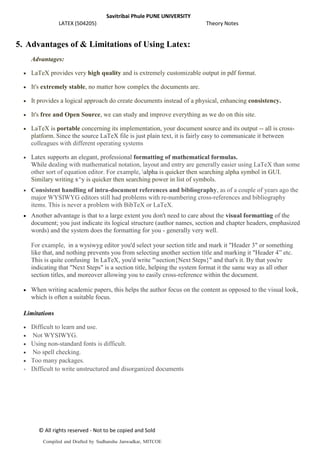
 LaTeX provides very high quality and is extremely customizable output in pdf format.
 It's extremely stable, no matter how complex the documents are.
 It provides a logical approach do create documents instead of a physical, enhancing consistency.
 It's free and Open Source, we can study and improve everything as we do on this site.
 LaTeX is portable concerning its implementation, your document source and its output -- all is cross-
platform. Since the source LaTeX file is just plain text, it is fairly easy to communicate it between
colleagues with different operating systems
 Latex supports an elegant, professional formatting of mathematical formulas.
While dealing with mathematical notation, layout and entry are generally easier using LaTeX than some
other sort of equation editor. For example, alpha is quicker then searching alpha symbol in GUI.
Similary writing x^y is quicker then searching power in list of symbols.
 Consistent handling of intra-document references and bibliography, as of a couple of years ago the
major WYSIWYG editors still had problems with re-numbering cross-references and bibliography
items. This is never a problem with BibTeX or LaTeX.
 Another advantage is that to a large extent you don't need to care about the visual formatting of the
document; you just indicate its logical structure (author names, section and chapter headers, emphasized
words) and the system does the formatting for you - generally very well.
For example, in a wysiwyg editor you'd select your section title and mark it "Header 3" or something
like that, and nothing prevents you from selecting another section title and marking it "Header 4” etc.
This is quite confusing In LaTeX, you'd write "section{Next Steps}" and that's it. By that you're
indicating that "Next Steps" is a section title, helping the system format it the same way as all other
section titles, and moreover allowing you to easily cross-reference within the document.
 When writing academic papers, this helps the author focus on the content as opposed to the visual look,
which is often a suitable focus.
Limitations
 Difficult to learn and use.
 Not WYSIWYG.
 Using non-standard fonts is difficult.
 No spell checking.
 Too many packages.
 Difficult to write unstructured and disorganized documents
Compiled and Drafted by Sudhanshu Janwadkar, MITCOE
Savitribai Phule PUNE UNIVERSITY
LATEX (504205) Theory Notes
© All rights reserved - Not to be copied and Sold
PART-B
1. Required Components of a LaTeX Document
 Every LaTeX document must contain the following three components. Everything else is optional
(even text):
1. documentclass{article}
2. begin{document}
3. end{document}
 The first statement tells LaTeX what kind of document it is to process, as there are different style
rules for dfferent kinds of documents.
 Possible classes include article, report, book, and letter.
 The default font size for each class is 10 point. You can use 11 point or 12 point fonts by
including this information in the documentclass command as documentclass[11pt]{article} or
documentclass[12pt]{article}. You could also use documentclass[10pt]{article}, but since this
is the default you don't need to type the [10pt] part.
 The documentclass command must appear at the very beginning of your LaTeX document,
before any other LaTeX commands, or you will get an error message.
 If you have commands for LaTeX that will a_ect the whole document, you should include them in
the preamble, which is what the space between the documentclass and begin{document}
commands is called.
 The body of the document, where you include all of your text, must occur between the
begin{document} and end{document} commands. Any text that comes after the end{document}
command will be ignored.
2 Document Structure
2.1 Page Numbering and Headings
The command pagestyle controls page numbering and headings. It should always go between the
documentclass{article} and the begin{document} commands. It can take the following forms:
1. pagestyle{plain} is the default, which puts the page number at the center of the bottom of the page
and provides no headings.
2. pagestyle{empty} provides neither page numbers nor headings.
3. pagestyle{headings} will provide page numbers and headings from any section's that you are
using.
4. pagestyle{myheadings} will provide page numbers and custom headings.
These commands can also be applied to a single page using thispagestyle instead of pagestyle.
2.2 Creating a Title Page
The title, author, and date of your document are information that various LaTeX commands can make
use of, if you provide it. The commands are:
1. title{yourtitlehere}
2. author{yournamehere}
3. date{currentdate}
Given that you have provided this information in the preamble, you may or may not want a title
heading. If you do, place a maketitle command immediately after the begin{document} command.
Compiled and Drafted by Sudhanshu Janwadkar, MITCOE
Savitribai Phule PUNE UNIVERSITY
LATEX (504205) Theory Notes
© All rights reserved - Not to be copied and Sold
2.3 Sections
LaTeX is a language for creating structured documents. One of the most important ways of creating
structure in a document is to split it into logical sections.
If your document deals with more than one concept or theme, then each concept should go into its
own section.
There are two related commands for creating sections: section{sectiontitle} and section*{sectiontitle}.
The first one numbers the sections, while the starred form does not. Both create separate sections
with titles in a larger font size; they also provide information to LaTeX in case you want to create a
Table of Contents.
2.5 Cross-References
If you wish to have cross-references in a document with numbered sections, use label{name} to label
the point in your document with some mnemonic, and Section ref{name} to refer to that point.
ref{name} will be replaced by the number of the section containing the corresponding label
command. As with your bibliography citations, you will need to run LaTeX twice to generate these
references.
2.4 Table of Contents
For a large document, it is a kindness to your reader to provide a Table of Contents.
If you have been using section commands throughout your document, then LaTeX has all the
information that it needs to construct one for you. Place the command tableofcontents after your
begin{document} command. It may be necessary to run LaTeX twice on a document with a Table of
Contents:
The first time, LaTeX stores the page numbers for the sections in a separate file, and then the second
time LaTeX writes this information into the Table of Contents.
2.5 Abstracts
To create an abstract, place your text in an abstract environment, i.e., between begin{abstract} and
end{abstract} commands. The abstract should come immediately after your maketitle command, but
before any tableofcontents command.
3 Mathematical Typesetting
3.1 Mathematical Formulas
There are two ways to insert mathematical formulas into your document with LaTeX. One is to have it
appear in a paragraph with text. In doing so, the formulas will be compressed vertically: limits for
integrals and summations will appear to the side instead of on the top and bottom, etc. The other way
is to have them appear in a separate paragraph, where there will be more room.
 For formulas that appear in a paragraph, surround them with $'s. For example,
$alpha$ is the first letter of the Greek alphabet.
becomes
α is the firstletter of the Greek alphabet.
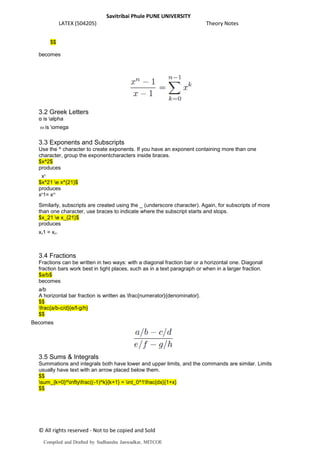
 To have formulas appear in their own paragraph, use matching $$'s to surround
them. For example,
$$
frac{x^n-1}{x-1} = sum_{k=0}^{n-1}x^k
Compiled and Drafted by Sudhanshu Janwadkar, MITCOE
Savitribai Phule PUNE UNIVERSITY
LATEX (504205) Theory Notes
© All rights reserved - Not to be copied and Sold
$$
becomes
3.2 Greek Letters
α is alpha
 is omega
3.3 Exponents and Subscripts
Use the ^ character to create exponents. If you have an exponent containing more than one
character, group the exponentcharacters inside braces.
$x^2$
produces
x2
$x^21 e x^{21}$
produces
x2
1= x21
Similarly, subscripts are created using the _ (underscore character). Again, for subscripts of more
than one character, use braces to indicate where the subscript starts and stops.
$x_21 e x_{21}$
produces
x21 = x21
3.4 Fractions
Fractions can be written in two ways: with a diagonal fraction bar or a horizontal one. Diagonal
fraction bars work best in tight places, such as in a text paragraph or when in a larger fraction.
$a/b$
becomes
a/b
A horizontal bar fraction is written as frac{numerator}{denominator}.
$$
frac{a/b-c/d}{e/f-g/h}
$$
Becomes
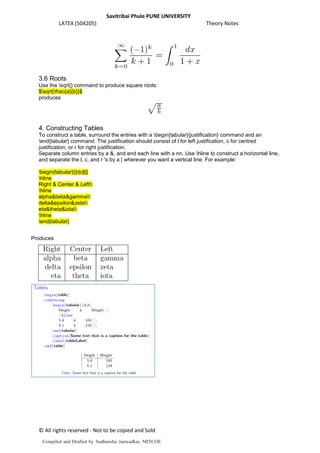
3.5 Sums & Integrals
Summations and integrals both have lower and upper limits, and the commands are similar. Limits
usually have text with an arrow placed below them.
$$
sum_{k=0}^inftyfrac{(-1)^k}{k+1} = int_0^1frac{dx}{1+x}
$$
Compiled and Drafted by Sudhanshu Janwadkar, MITCOE
Savitribai Phule PUNE UNIVERSITY
LATEX (504205) Theory Notes
© All rights reserved - Not to be copied and Sold
3.6 Roots
Use the sqrt{} command to produce square roots:
$sqrt{frac{a}{b}}$
produces
4. Constructing Tables
To construct a table, surround the entries with a begin{tabular}{justification} command and an
end{tabular} command. The justification should consist of l for left justification, c for centred
justification, or r for right justification.
Separate column entries by a &, and end each line with a nn. Use hline to construct a horizontal line,
and separate the l, c, and r 's by a | wherever you want a vertical line. For example:
begin{tabular}{|r|c|l|}
hline
Right & Center & Left
hline
alpha&beta&gamma
delta&epsilon&zeta
eta&theta&iota
hline
end{tabular}
Produces
Compiled and Drafted by Sudhanshu Janwadkar, MITCOE
Savitribai Phule PUNE UNIVERSITY
LATEX (504205) Theory Notes
© All rights reserved - Not to be copied and Sold
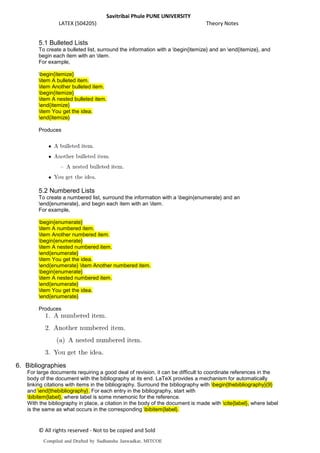
5.1 Bulleted Lists
To create a bulleted list, surround the information with a begin{itemize} and an end{itemize}, and
begin each item with an item.
For example,
begin{itemize}
item A bulleted item.
item Another bulleted item.
begin{itemize}
item A nested bulleted item.
end{itemize}
item You get the idea.
end{itemize}
Produces
5.2 Numbered Lists
To create a numbered list, surround the information with a begin{enumerate} and an
end{enumerate}, and begin each item with an item.
For example,
begin{enumerate}
item A numbered item.
item Another numbered item.
begin{enumerate}
item A nested numbered item.
end{enumerate}
item You get the idea.
end{enumerate} item Another numbered item.
begin{enumerate}
item A nested numbered item.
end{enumerate}
item You get the idea.
end{enumerate}
Produces
6. Bibliographies
For large documents requiring a good deal of revision, it can be difficult to coordinate references in the
body of the document with the bibliography at its end. LaTeX provides a mechanism for automatically
linking citations with items in the bibliography. Surround the bibliography with begin{thebibliography}{9}
and end{thebibliography}. For each entry in the bibliography, start with
bibitem{label}, where label is some mnemonic for the reference.
With the bibliography in place, a citation in the body of the document is made with cite{label}, where label
is the same as what occurs in the corresponding bibitem{label}.
Compiled and Drafted by Sudhanshu Janwadkar, MITCOE
Savitribai Phule PUNE UNIVERSITY
LATEX (504205) Theory Notes
© All rights reserved - Not to be copied and Sold
In order to keep track of new references that have been added, you will often need to run LaTeX twice
before previewing when using cite.
7. Including Graphics in Your Document
Graphics Package
If you are going to include graphics in your document, you will need to ask LaTeX to use a package of
graphics commands: place usepackage{graphicx} in the preamble.
Including Graphics Within Your Document
You use the includegraphics{graphicfile} command to include your graphic file in your document.
If you wish to control the size of the document, you can also specify the height and width:
includegraphics[height=2in, width = 3in]{graphicfile}.
Compiled and Drafted by Sudhanshu Janwadkar, MITCOE

Latex Notes

  • 1.
    Savitribai Phule PUNEUNIVERSITY LATEX (504205) Theory Notes © All rights reserved - Not to be copied and Sold PART-A 1. What is Latex? LaTeX is a high-quality typesetting system; it includes features designed for the production of technical and scientific documentation. LaTeX is the de facto standard for the communication and publication of scientific documents. LaTeX is a document preparation system for high-quality typesetting. It is most often used for medium-to-large technical or scientific documents but it can be used for almost any form of publishing. LaTeX is not a word processor! Instead, LaTeX encourages authors not to worry too much about the appearance of their documents but to concentrate on getting the right content. For example, consider this document: Cartesian closed categories and the price of eggs Jane Doe September 1994 Hello world! To produce this in most typesetting or word-processing systems, the author would have to decide what layout to use, so would select (say) 18pt Times Roman for the title, 12pt Times Italic for the name, and so on. This has two results: authors wasting their time with designs; and a lot of badly designed documents! LaTeX is based on the idea that it is better to leave document design to document designers, and to let authors get on with writing documents. So, in LaTeX you would input this document as: documentclass{article} title{Cartesian closed categories and the price of eggs} author{Jane Doe} date{September 1994} begin{document} maketitle Hello world! end{document} Or, in English:  This document is an article.  Its title is Cartesian closed categories and the price of eggs.  Its author is Jane Doe.  It was written in September 1994.  The document consists of a title followed by the text Hello world! Compiled and Drafted by Sudhanshu Janwadkar, MITCOE
  • 2.
    Savitribai Phule PUNEUNIVERSITY LATEX (504205) Theory Notes © All rights reserved - Not to be copied and Sold 2. History of Latex:  LaTeX is a large set of macros built on top of TeX, a digital typesetting language created by Donald Knuth at Stanford in the 1970s.  The original LaTeX, now called LaTeX 2.09, was created by Leslie Lamport at Digital Equipment Corporation in the mid-1980s. A more recent version, called LaTeX 2e, is an outgrowth of the LaTeX3 project led by Frank Mittelbach.  LaTeX2e is the current version of LaTeX, since it replaced LaTeX 2.09 in 1994. As of 2014, a future version called LaTeX3, started in the early 1990s, is still in development. Planned features include improved syntax, hyperlink support, a new user interface, access to arbitrary fonts, and new documentation.  AMS-LaTeX, a set of LaTeX enhancements by the American Mathematical Society, provides enhanced mathematical typesetting capabilities, three new LaTeX 2e document classes, scores of new math symbols, and four new math alphabets. Articles written with AMS- LaTeX are of the same high quality as those found in the journals of the AMS. 3. Applications of Latex:  It is widely used for the communication and publication of scientific documents in many fields, including mathematics, physics, computer science, statistics, economics, and political science  It also has a prominent role in the preparation and publication of books and articles that contain complex multilingual materials, such as Sanskrit and Arabic, including critical editions.  LaTeX is widely used in academia.  LaTeX can be used as a standalone document preparation system, or as an intermediate format. In the latter role, for example, it is often used as part of a pipeline for translating DocBook and other XML-based formats to PDF. 4. Features of Latex Typesetting journal articles, technical reports, books, and slide presentations. Control over large documents containing sectioning, cross-references, tables and figures. Typesetting of complex mathematical formulas. Advanced typesetting of mathematics with AMS-LaTeX. Automatic generation of bibliographies and indexes. Multi-lingual typesetting. Inclusion of artwork, and process or spot colour. Using PostScript or Metafont fonts. Compiled and Drafted by Sudhanshu Janwadkar, MITCOE
  • 3.
    Savitribai Phule PUNEUNIVERSITY LATEX (504205) Theory Notes © All rights reserved - Not to be copied and Sold 5. Advantages of & Limitations of Using Latex: Advantages:  LaTeX provides very high quality and is extremely customizable output in pdf format.  It's extremely stable, no matter how complex the documents are.  It provides a logical approach do create documents instead of a physical, enhancing consistency.  It's free and Open Source, we can study and improve everything as we do on this site.  LaTeX is portable concerning its implementation, your document source and its output -- all is cross- platform. Since the source LaTeX file is just plain text, it is fairly easy to communicate it between colleagues with different operating systems  Latex supports an elegant, professional formatting of mathematical formulas. While dealing with mathematical notation, layout and entry are generally easier using LaTeX than some other sort of equation editor. For example, alpha is quicker then searching alpha symbol in GUI. Similary writing x^y is quicker then searching power in list of symbols.  Consistent handling of intra-document references and bibliography, as of a couple of years ago the major WYSIWYG editors still had problems with re-numbering cross-references and bibliography items. This is never a problem with BibTeX or LaTeX.  Another advantage is that to a large extent you don't need to care about the visual formatting of the document; you just indicate its logical structure (author names, section and chapter headers, emphasized words) and the system does the formatting for you - generally very well. For example, in a wysiwyg editor you'd select your section title and mark it "Header 3" or something like that, and nothing prevents you from selecting another section title and marking it "Header 4” etc. This is quite confusing In LaTeX, you'd write "section{Next Steps}" and that's it. By that you're indicating that "Next Steps" is a section title, helping the system format it the same way as all other section titles, and moreover allowing you to easily cross-reference within the document.  When writing academic papers, this helps the author focus on the content as opposed to the visual look, which is often a suitable focus. Limitations  Difficult to learn and use.  Not WYSIWYG.  Using non-standard fonts is difficult.  No spell checking.  Too many packages.  Difficult to write unstructured and disorganized documents Compiled and Drafted by Sudhanshu Janwadkar, MITCOE
  • 4.
    Savitribai Phule PUNEUNIVERSITY LATEX (504205) Theory Notes © All rights reserved - Not to be copied and Sold PART-B 1. Required Components of a LaTeX Document  Every LaTeX document must contain the following three components. Everything else is optional (even text): 1. documentclass{article} 2. begin{document} 3. end{document}  The first statement tells LaTeX what kind of document it is to process, as there are different style rules for dfferent kinds of documents.  Possible classes include article, report, book, and letter.  The default font size for each class is 10 point. You can use 11 point or 12 point fonts by including this information in the documentclass command as documentclass[11pt]{article} or documentclass[12pt]{article}. You could also use documentclass[10pt]{article}, but since this is the default you don't need to type the [10pt] part.  The documentclass command must appear at the very beginning of your LaTeX document, before any other LaTeX commands, or you will get an error message.  If you have commands for LaTeX that will a_ect the whole document, you should include them in the preamble, which is what the space between the documentclass and begin{document} commands is called.  The body of the document, where you include all of your text, must occur between the begin{document} and end{document} commands. Any text that comes after the end{document} command will be ignored. 2 Document Structure 2.1 Page Numbering and Headings The command pagestyle controls page numbering and headings. It should always go between the documentclass{article} and the begin{document} commands. It can take the following forms: 1. pagestyle{plain} is the default, which puts the page number at the center of the bottom of the page and provides no headings. 2. pagestyle{empty} provides neither page numbers nor headings. 3. pagestyle{headings} will provide page numbers and headings from any section's that you are using. 4. pagestyle{myheadings} will provide page numbers and custom headings. These commands can also be applied to a single page using thispagestyle instead of pagestyle. 2.2 Creating a Title Page The title, author, and date of your document are information that various LaTeX commands can make use of, if you provide it. The commands are: 1. title{yourtitlehere} 2. author{yournamehere} 3. date{currentdate} Given that you have provided this information in the preamble, you may or may not want a title heading. If you do, place a maketitle command immediately after the begin{document} command. Compiled and Drafted by Sudhanshu Janwadkar, MITCOE
  • 5.
    Savitribai Phule PUNEUNIVERSITY LATEX (504205) Theory Notes © All rights reserved - Not to be copied and Sold 2.3 Sections LaTeX is a language for creating structured documents. One of the most important ways of creating structure in a document is to split it into logical sections. If your document deals with more than one concept or theme, then each concept should go into its own section. There are two related commands for creating sections: section{sectiontitle} and section*{sectiontitle}. The first one numbers the sections, while the starred form does not. Both create separate sections with titles in a larger font size; they also provide information to LaTeX in case you want to create a Table of Contents. 2.5 Cross-References If you wish to have cross-references in a document with numbered sections, use label{name} to label the point in your document with some mnemonic, and Section ref{name} to refer to that point. ref{name} will be replaced by the number of the section containing the corresponding label command. As with your bibliography citations, you will need to run LaTeX twice to generate these references. 2.4 Table of Contents For a large document, it is a kindness to your reader to provide a Table of Contents. If you have been using section commands throughout your document, then LaTeX has all the information that it needs to construct one for you. Place the command tableofcontents after your begin{document} command. It may be necessary to run LaTeX twice on a document with a Table of Contents: The first time, LaTeX stores the page numbers for the sections in a separate file, and then the second time LaTeX writes this information into the Table of Contents. 2.5 Abstracts To create an abstract, place your text in an abstract environment, i.e., between begin{abstract} and end{abstract} commands. The abstract should come immediately after your maketitle command, but before any tableofcontents command. 3 Mathematical Typesetting 3.1 Mathematical Formulas There are two ways to insert mathematical formulas into your document with LaTeX. One is to have it appear in a paragraph with text. In doing so, the formulas will be compressed vertically: limits for integrals and summations will appear to the side instead of on the top and bottom, etc. The other way is to have them appear in a separate paragraph, where there will be more room.  For formulas that appear in a paragraph, surround them with $'s. For example, $alpha$ is the first letter of the Greek alphabet. becomes α is the firstletter of the Greek alphabet.  To have formulas appear in their own paragraph, use matching $$'s to surround them. For example, $$ frac{x^n-1}{x-1} = sum_{k=0}^{n-1}x^k Compiled and Drafted by Sudhanshu Janwadkar, MITCOE
  • 6.
    Savitribai Phule PUNEUNIVERSITY LATEX (504205) Theory Notes © All rights reserved - Not to be copied and Sold $$ becomes 3.2 Greek Letters α is alpha  is omega 3.3 Exponents and Subscripts Use the ^ character to create exponents. If you have an exponent containing more than one character, group the exponentcharacters inside braces. $x^2$ produces x2 $x^21 e x^{21}$ produces x2 1= x21 Similarly, subscripts are created using the _ (underscore character). Again, for subscripts of more than one character, use braces to indicate where the subscript starts and stops. $x_21 e x_{21}$ produces x21 = x21 3.4 Fractions Fractions can be written in two ways: with a diagonal fraction bar or a horizontal one. Diagonal fraction bars work best in tight places, such as in a text paragraph or when in a larger fraction. $a/b$ becomes a/b A horizontal bar fraction is written as frac{numerator}{denominator}. $$ frac{a/b-c/d}{e/f-g/h} $$ Becomes 3.5 Sums & Integrals Summations and integrals both have lower and upper limits, and the commands are similar. Limits usually have text with an arrow placed below them. $$ sum_{k=0}^inftyfrac{(-1)^k}{k+1} = int_0^1frac{dx}{1+x} $$ Compiled and Drafted by Sudhanshu Janwadkar, MITCOE
  • 7.
    Savitribai Phule PUNEUNIVERSITY LATEX (504205) Theory Notes © All rights reserved - Not to be copied and Sold 3.6 Roots Use the sqrt{} command to produce square roots: $sqrt{frac{a}{b}}$ produces 4. Constructing Tables To construct a table, surround the entries with a begin{tabular}{justification} command and an end{tabular} command. The justification should consist of l for left justification, c for centred justification, or r for right justification. Separate column entries by a &, and end each line with a nn. Use hline to construct a horizontal line, and separate the l, c, and r 's by a | wherever you want a vertical line. For example: begin{tabular}{|r|c|l|} hline Right & Center & Left hline alpha&beta&gamma delta&epsilon&zeta eta&theta&iota hline end{tabular} Produces Compiled and Drafted by Sudhanshu Janwadkar, MITCOE
  • 8.
    Savitribai Phule PUNEUNIVERSITY LATEX (504205) Theory Notes © All rights reserved - Not to be copied and Sold 5.1 Bulleted Lists To create a bulleted list, surround the information with a begin{itemize} and an end{itemize}, and begin each item with an item. For example, begin{itemize} item A bulleted item. item Another bulleted item. begin{itemize} item A nested bulleted item. end{itemize} item You get the idea. end{itemize} Produces 5.2 Numbered Lists To create a numbered list, surround the information with a begin{enumerate} and an end{enumerate}, and begin each item with an item. For example, begin{enumerate} item A numbered item. item Another numbered item. begin{enumerate} item A nested numbered item. end{enumerate} item You get the idea. end{enumerate} item Another numbered item. begin{enumerate} item A nested numbered item. end{enumerate} item You get the idea. end{enumerate} Produces 6. Bibliographies For large documents requiring a good deal of revision, it can be difficult to coordinate references in the body of the document with the bibliography at its end. LaTeX provides a mechanism for automatically linking citations with items in the bibliography. Surround the bibliography with begin{thebibliography}{9} and end{thebibliography}. For each entry in the bibliography, start with bibitem{label}, where label is some mnemonic for the reference. With the bibliography in place, a citation in the body of the document is made with cite{label}, where label is the same as what occurs in the corresponding bibitem{label}. Compiled and Drafted by Sudhanshu Janwadkar, MITCOE
  • 9.
    Savitribai Phule PUNEUNIVERSITY LATEX (504205) Theory Notes © All rights reserved - Not to be copied and Sold In order to keep track of new references that have been added, you will often need to run LaTeX twice before previewing when using cite. 7. Including Graphics in Your Document Graphics Package If you are going to include graphics in your document, you will need to ask LaTeX to use a package of graphics commands: place usepackage{graphicx} in the preamble. Including Graphics Within Your Document You use the includegraphics{graphicfile} command to include your graphic file in your document. If you wish to control the size of the document, you can also specify the height and width: includegraphics[height=2in, width = 3in]{graphicfile}. Compiled and Drafted by Sudhanshu Janwadkar, MITCOE