Android Programming
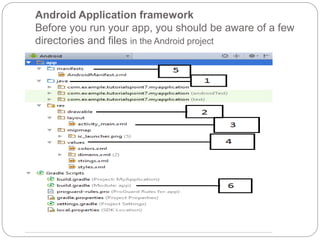
Android Application framework
Before you run your app, you should be aware of a few
directories and files in the Android project
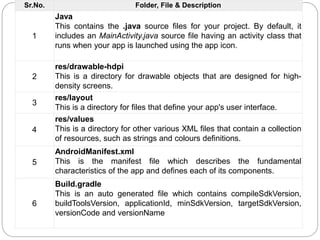
Sr.No. Folder, File & Description
1
Java
This contains the .java source files for your project. By default, it
includes an MainActivity.java source file having an activity class that
runs when your app is launched using the app icon.
2
res/drawable-hdpi
This is a directory for drawable objects that are designed for high-
density screens.
3
res/layout
This is a directory for files that define your app's user interface.
4
res/values
This is a directory for other various XML files that contain a collection
of resources, such as strings and colours definitions.
5
AndroidManifest.xml
This is the manifest file which describes the fundamental
characteristics of the app and defines each of its components.
6
Build.gradle
This is an auto generated file which contains compileSdkVersion,
buildToolsVersion, applicationId, minSdkVersion, targetSdkVersion,
versionCode and versionName
The Main Activity File
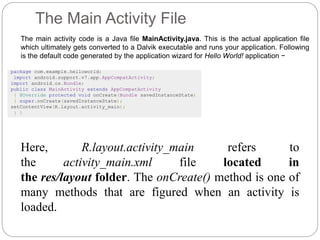
The main activity code is a Java file MainActivity.java. This is the actual application file
which ultimately gets converted to a Dalvik executable and runs your application. Following
is the default code generated by the application wizard for Hello World! application −
package com.example.helloworld;
import android.support.v7.app.AppCompatActivity;
import android.os.Bundle;
public class MainActivity extends AppCompatActivity
{ @Override protected void onCreate(Bundle savedInstanceState)
{ super.onCreate(savedInstanceState);
setContentView(R.layout.activity_main);
} }
Here, R.layout.activity_main refers to
the activity_main.xml file located in
the res/layout folder. The onCreate() method is one of
many methods that are figured when an activity is
loaded.
The Manifest File
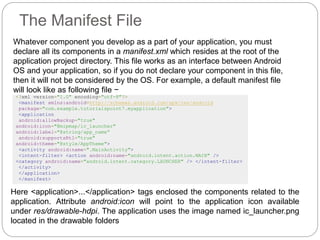
Whatever component you develop as a part of your application, you must
declare all its components in a manifest.xml which resides at the root of the
application project directory. This file works as an interface between Android
OS and your application, so if you do not declare your component in this file,
then it will not be considered by the OS. For example, a default manifest file
will look like as following file −
<?xml version="1.0" encoding="utf-8"?>
<manifest xmlns:android=http://schemas.android.com/apk/res/android
package="com.example.tutorialspoint7.myapplication">
<application
android:allowBackup="true"
android:icon="@mipmap/ic_launcher"
android:label="@string/app_name“
android:supportsRtl="true"
android:theme="@style/AppTheme">
<activity android:name=".MainActivity">
<intent-filter> <action android:name="android.intent.action.MAIN" />
<category android:name="android.intent.category.LAUNCHER" /> </intent-filter>
</activity>
</application>
</manifest>
Here <application>...</application> tags enclosed the components related to the
application. Attribute android:icon will point to the application icon available
under res/drawable-hdpi. The application uses the image named ic_launcher.png
located in the drawable folders
The <activity> tag is used to specify an activity and android:name attribute
specifies the fully qualified class name of the Activity subclass and
the android:label attributes specifies a string to use as the label for the activity.
You can specify multiple activities using <activity> tags.
The action for the intent filter is named android.intent.action.MAIN to indicate
that this activity serves as the entry point for the application. The category for
the intent-filter is named android.intent.category.LAUNCHER to indicate that the
application can be launched from the device's launcher icon.
The @string refers to the strings.xml file explained below.
Hence, @string/app_name refers to the app_name string defined in the
strings.xml file, which is "HelloWorld". Similar way, other strings get populated in
the application.
Following is the list of tags which you will use in your manifest file to specify
different Android application components −
<activity>elements for activities
<service> elements for services
<receiver> elements for broadcast receivers
<provider> elements for content providers
The Strings File
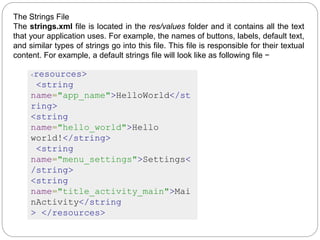
The strings.xml file is located in the res/values folder and it contains all the text
that your application uses. For example, the names of buttons, labels, default text,
and similar types of strings go into this file. This file is responsible for their textual
content. For example, a default strings file will look like as following file −
<resources>
<string
name="app_name">HelloWorld</st
ring>
<string
name="hello_world">Hello
world!</string>
<string
name="menu_settings">Settings<
/string>
<string
name="title_activity_main">Mai
nActivity</string
> </resources>
Android Programming.pptx

Android Programming.pptx

  • 1.
  • 2.
    Android Application framework Beforeyou run your app, you should be aware of a few directories and files in the Android project
  • 3.
    Sr.No. Folder, File& Description 1 Java This contains the .java source files for your project. By default, it includes an MainActivity.java source file having an activity class that runs when your app is launched using the app icon. 2 res/drawable-hdpi This is a directory for drawable objects that are designed for high- density screens. 3 res/layout This is a directory for files that define your app's user interface. 4 res/values This is a directory for other various XML files that contain a collection of resources, such as strings and colours definitions. 5 AndroidManifest.xml This is the manifest file which describes the fundamental characteristics of the app and defines each of its components. 6 Build.gradle This is an auto generated file which contains compileSdkVersion, buildToolsVersion, applicationId, minSdkVersion, targetSdkVersion, versionCode and versionName
  • 4.
    The Main ActivityFile The main activity code is a Java file MainActivity.java. This is the actual application file which ultimately gets converted to a Dalvik executable and runs your application. Following is the default code generated by the application wizard for Hello World! application − package com.example.helloworld; import android.support.v7.app.AppCompatActivity; import android.os.Bundle; public class MainActivity extends AppCompatActivity { @Override protected void onCreate(Bundle savedInstanceState) { super.onCreate(savedInstanceState); setContentView(R.layout.activity_main); } } Here, R.layout.activity_main refers to the activity_main.xml file located in the res/layout folder. The onCreate() method is one of many methods that are figured when an activity is loaded.
  • 5.
    The Manifest File Whatevercomponent you develop as a part of your application, you must declare all its components in a manifest.xml which resides at the root of the application project directory. This file works as an interface between Android OS and your application, so if you do not declare your component in this file, then it will not be considered by the OS. For example, a default manifest file will look like as following file − <?xml version="1.0" encoding="utf-8"?> <manifest xmlns:android=http://schemas.android.com/apk/res/android package="com.example.tutorialspoint7.myapplication"> <application android:allowBackup="true" android:icon="@mipmap/ic_launcher" android:label="@string/app_name“ android:supportsRtl="true" android:theme="@style/AppTheme"> <activity android:name=".MainActivity"> <intent-filter> <action android:name="android.intent.action.MAIN" /> <category android:name="android.intent.category.LAUNCHER" /> </intent-filter> </activity> </application> </manifest> Here <application>...</application> tags enclosed the components related to the application. Attribute android:icon will point to the application icon available under res/drawable-hdpi. The application uses the image named ic_launcher.png located in the drawable folders
  • 6.
    The <activity> tagis used to specify an activity and android:name attribute specifies the fully qualified class name of the Activity subclass and the android:label attributes specifies a string to use as the label for the activity. You can specify multiple activities using <activity> tags. The action for the intent filter is named android.intent.action.MAIN to indicate that this activity serves as the entry point for the application. The category for the intent-filter is named android.intent.category.LAUNCHER to indicate that the application can be launched from the device's launcher icon. The @string refers to the strings.xml file explained below. Hence, @string/app_name refers to the app_name string defined in the strings.xml file, which is "HelloWorld". Similar way, other strings get populated in the application. Following is the list of tags which you will use in your manifest file to specify different Android application components − <activity>elements for activities <service> elements for services <receiver> elements for broadcast receivers <provider> elements for content providers
  • 7.
    The Strings File Thestrings.xml file is located in the res/values folder and it contains all the text that your application uses. For example, the names of buttons, labels, default text, and similar types of strings go into this file. This file is responsible for their textual content. For example, a default strings file will look like as following file − <resources> <string name="app_name">HelloWorld</st ring> <string name="hello_world">Hello world!</string> <string name="menu_settings">Settings< /string> <string name="title_activity_main">Mai nActivity</string > </resources>