By
Kalluri Vinay Reddy
Android Club
Introduction to
Android App Development
Lesson 1
An Android project contains all the files that
comprise the source code for your Android app.
Note: You should already have the Android SDK
installed, and if you're using Android Studio, you
should also have Android Studio installed. If you
don't have these, follow the guide to Installing the
Android SDK before you start this lesson.
Source: developers.android.com
Introduction
C reate a Pro j ect wit h Andro id Studio
Demo
Your Android project is now a basic "Hello World" app that
contains some default files. Take a moment to review the most
important of these:
Lesson 1: Know About Files
This is the XML layout file for the activity you added when you created
the project with Android Studio.
Following the New Project workflow, Android Studio presents this file
with both a text view and a preview of the screen UI.
The file includes some default settings and a TextView element that
displays the message, “Hello world!”.
app/src/main/res/layout/activity_my.xml
A tab for this file appears in Android Studio when the
New Project workflow finishes.
When you select the file you see the class definition
for the activity you created.
When you build and run the app, the Activity class
starts the activity and loads the layout file that
says "Hello World!"
app/src/main/java/com.example.kallurivinayreddy.practise/MyActivity.java
• The manifest file describes the fundamental characteristics of the app
and defines each of its components.
• You'll revisit this file as you follow these lessons and add more
components to your app.
app/src/main/AndroidManifest.xml
• Android Studio uses Gradle to compile and build your app. There is a
build.gradle file for each module of your project, as well as a
build.gradle file for the entire project. Usually, you're only interested in
the build.gradle file for the module, in this case the app or application
module. This is where your app's build dependencies are set, including
the defaultConfig settings:
app/build.gradle
• is the platform version against which you will compile your app. By
default, this is set to the latest version of Android available in your SDK.
(It should be Android 4.1 or greater; if you don't have such a version
available, you must install one using the SDK Manager.) You can still
build your app to support older versions, but setting this to the latest
version allows you to enable new features and optimize your app for a
great user experience on the latest devices.
compiledSdkVersion
• Is the fully qualified package name for your application that you
specified during the New Project workflow.
applicationId
• is the Minimum SDK version you specified during the New Project
workflow. This is the earliest version of the Android SDK that your app
supports.
minSdkVersion
• indicates the highest version of Android with which you have tested
your application. As new versions of Android become available, you
should test your app on the new version and update this value to match
the latest API level and thereby take advantage of new platform
features. For more information, read Supporting Different Platform
Versions.
targetSdkVersion
• /res subdirectories that contain the resources for your application:
Note:
• Directories for drawable objects (such as bitmaps) that are designed for
various densities, such as medium-density (mdpi) and high-density
(hdpi) screens. Other drawable directories contain assets designed for
other screen densities. Here you'll find the ic_launcher.png that appears
when you run the default app.
drawable<density>/
• Directory for files that define your app's user interface like
activity_my.xml, discussed above, which describes a basic layout for the
MyActivity class.
layout/
• Directory for files that define your app's menu items.
menu/
• Directory for other XML files that contain a collection of resources, such
as string and color definitions. The strings.xml file defines the "Hello
world!" string that displays when you run the default app.
values/
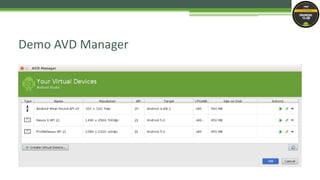
Demo AVD Manager
Android app development lesson 1

Android app development lesson 1

  • 1.
    By Kalluri Vinay Reddy AndroidClub Introduction to Android App Development Lesson 1
  • 2.
    An Android projectcontains all the files that comprise the source code for your Android app. Note: You should already have the Android SDK installed, and if you're using Android Studio, you should also have Android Studio installed. If you don't have these, follow the guide to Installing the Android SDK before you start this lesson. Source: developers.android.com Introduction
  • 3.
    C reate aPro j ect wit h Andro id Studio Demo
  • 4.
    Your Android projectis now a basic "Hello World" app that contains some default files. Take a moment to review the most important of these: Lesson 1: Know About Files
  • 5.
    This is theXML layout file for the activity you added when you created the project with Android Studio. Following the New Project workflow, Android Studio presents this file with both a text view and a preview of the screen UI. The file includes some default settings and a TextView element that displays the message, “Hello world!”. app/src/main/res/layout/activity_my.xml
  • 6.
    A tab forthis file appears in Android Studio when the New Project workflow finishes. When you select the file you see the class definition for the activity you created. When you build and run the app, the Activity class starts the activity and loads the layout file that says "Hello World!" app/src/main/java/com.example.kallurivinayreddy.practise/MyActivity.java
  • 7.
    • The manifestfile describes the fundamental characteristics of the app and defines each of its components. • You'll revisit this file as you follow these lessons and add more components to your app. app/src/main/AndroidManifest.xml
  • 8.
    • Android Studiouses Gradle to compile and build your app. There is a build.gradle file for each module of your project, as well as a build.gradle file for the entire project. Usually, you're only interested in the build.gradle file for the module, in this case the app or application module. This is where your app's build dependencies are set, including the defaultConfig settings: app/build.gradle
  • 9.
    • is theplatform version against which you will compile your app. By default, this is set to the latest version of Android available in your SDK. (It should be Android 4.1 or greater; if you don't have such a version available, you must install one using the SDK Manager.) You can still build your app to support older versions, but setting this to the latest version allows you to enable new features and optimize your app for a great user experience on the latest devices. compiledSdkVersion
  • 10.
    • Is thefully qualified package name for your application that you specified during the New Project workflow. applicationId
  • 11.
    • is theMinimum SDK version you specified during the New Project workflow. This is the earliest version of the Android SDK that your app supports. minSdkVersion
  • 12.
    • indicates thehighest version of Android with which you have tested your application. As new versions of Android become available, you should test your app on the new version and update this value to match the latest API level and thereby take advantage of new platform features. For more information, read Supporting Different Platform Versions. targetSdkVersion
  • 13.
    • /res subdirectoriesthat contain the resources for your application: Note:
  • 14.
    • Directories fordrawable objects (such as bitmaps) that are designed for various densities, such as medium-density (mdpi) and high-density (hdpi) screens. Other drawable directories contain assets designed for other screen densities. Here you'll find the ic_launcher.png that appears when you run the default app. drawable<density>/
  • 15.
    • Directory forfiles that define your app's user interface like activity_my.xml, discussed above, which describes a basic layout for the MyActivity class. layout/
  • 16.
    • Directory forfiles that define your app's menu items. menu/
  • 17.
    • Directory forother XML files that contain a collection of resources, such as string and color definitions. The strings.xml file defines the "Hello world!" string that displays when you run the default app. values/
  • 18.

Editor's Notes

  • #3 How presentation will benefit audience: Adult learners are more interested in a subject if they know how or why it is important to them. Presenter’s level of expertise in the subject: Briefly state your credentials in this area, or explain why participants should listen to you.
  • #4 Lesson descriptions should be brief.
  • #5 Example objectives At the end of this lesson, you will be able to: Save files to the team Web server. Move files to different locations on the team Web server. Share files on the team Web server.