Tutorial: Setup for
Android Development
Adam C. Champion
CSE 5236: Mobile Application Development
Autumn 2014
Based on material from C. Horstmann [1], J. Bloch [2], C. Collins et al. [4],
M.L. Sichitiu (NCSU), V. Janjic (Imperial College London), CSE 2221 (OSU), and other sources
1
Outline
•  Getting Started
•  Android Programming
2
Getting Started (1)
•  Need to install Java Development Kit (JDK) to write
Java (and Android) programs
–  Do not install Java Runtime Environment (JRE);
JDK and JRE are different!
•  Can download the JDK for your OS at http://java.oracle.com
•  Alternatively, for OS X, Linux:
–  OS X:
•  Open /Applications/Utilities/Terminal.app	
  
•  Type javac at command line
•  Install Java when prompt appears
–  Linux:
•  Type sudo	
  apt–get	
  install	
  default–jdk at command line
(Debian, Ubuntu)
•  Other distributions: consult distribution’s documentation
3
Install!
4
Getting Started (2)
•  After installing JDK, download Android SDK
from http://developer.android.com
•  Simplest: download and install Android Studio
bundle (including Android SDK) for your OS
•  Alternatives:
–  Download/install Android Developer Tools from this
site (based on Eclipse)
–  Install Android SDK tools by themselves, then install
ADT for Eclipse separately (from this site)
•  We’ll use Android Studio with SDK included
(easy)
5
Install!
6
Getting Started (3)
•  Install Android Studio directly (Windows, Mac); unzip to directory
android-­‐studio, then run ./android-­‐studio/bin/studio.sh (Linux)
•  You should see this:
7
Getting Started (4)
•  Strongly recommend testing
with real Android device
–  Android emulator: very slow
–  Faster emulator: Genymotion
[14], [15]
–  Install USB drivers for your
Android device!
•  Bring up the Android SDK
Manager
–  Recommended: Install
Android 2.2, 2.3.3 APIs and
4.x API
–  Do not worry about Intel x86
Atom, MIPS system images
Settings
Now you’re ready for Android development!
8
Outline
•  Getting Started
•  Android Programming
9
Introduction to Android
•  Popular mobile device
OS: 52% of U.S.
smartphone market [8]
•  Developed by Open
Handset Alliance, led by
Google
•  Google claims 900,000
Android device
activations [9]
Source: [8]
10
11
Android Highlights (1)
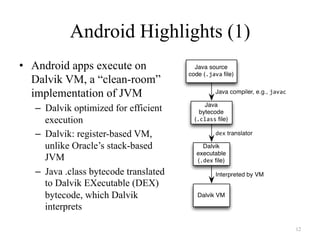
•  Android apps execute on
Dalvik VM, a “clean-room”
implementation of JVM
–  Dalvik optimized for efficient
execution
–  Dalvik: register-based VM,
unlike Oracle’s stack-based
JVM
–  Java .class bytecode translated
to Dalvik EXecutable (DEX)
bytecode, which Dalvik
interprets
12
Android Highlights (2)
•  Android apps written in Java 5
–  Actually, a Java dialect (Apache Harmony)
–  Everything we’ve learned still holds
•  Apps use four main components:
–  Activity: A “single screen” that’s visible to user
–  Service: Long-running background “part” of app (not
separate process or thread)
–  ContentProvider: Manages app data (usually stored in
database) and data access for queries
–  BroadcastReceiver: Component that listens for particular
Android system “events”, e.g., “found wireless device”,
and responds accordingly
13
App Manifest
•  Every Android app must include an
AndroidManifest.xml file describing functionality
•  The manifest specifies:
–  App’s Activities, Services, etc.
–  Permissions requested by app
–  Minimum API required
–  Hardware features required, e.g., camera with
autofocus
–  External libraries to which app is linked, e.g., Google
Maps library
14
Activity Lifecycle
•  Activity: key building
block of Android apps
•  Extend Activity class,
override onCreate(),
onPause(), onResume()
methods
•  Dalvik VM can stop any
Activity without warning,
so saving state is important!
•  Activities need to be
“responsive”, otherwise
Android shows user “App
Not Responsive” warning:
–  Place lengthy operations in
Runnable Threads,
AsyncTasks
Source: [12]
15
App Creation Checklist
•  If you own an Android device:
–  Ensure drivers are installed
–  Enable developer options on device under Settings,
specifically USB Debugging
•  Android 4.2+: Go to Settings→About phone, press Build number 7
times to enable developer options
•  For Android Studio:
–  Under File→Settings→Appearance, enable “Show tool
window bars”; the Android view shows LogCat, devices
–  Programs should log states via android.util.Log’s
Log.d(APP_TAG_STR,	
  “debug”), where APP_TAG_STR is a
final String tag denoting your app	
  
–  Other commands: Log.e() (error); Log.i() (info); Log.w()
(warning); Log.v() (verbose) – same parameters 16
Creating Android App (1)
•  Creating Android app
project in Android
Studio:
–  Go to File→New Project
–  Enter app, project name
–  Choose package name
using “reverse URL”
notation, e.g.,
edu.osu.myapp	
  
–  Select APIs for app, then
click Next
17
Creating Android App (2)
•  Determine what kind of
Activity to create; then
click Next
–  We’ll choose a Blank
Activity for simplicity
•  Enter information about
your Activity, then click
Finish
•  This creates a “Hello
World” app
18
Deploying the App
•  Two choices for deployment:
–  Real Android device
–  Android virtual device
•  Plug in your real device;
otherwise, create an Android
virtual device
•  Emulator is slow. Try Intel
accelerated version, or perhaps
http://www.genymotion.com/	
  
•  Run the app: press “Run”
button in toolbar
19
Underlying Source Code
package	
  edu.osu.helloandroid;	


import	
  android.os.Bundle;	
  
import	
  android.app.Activity;	
  
import	
  android.view.Menu;	


public	
  class	
  MainActivity	
  extends	
  Activity	
  
{	
  
	
  @Override	
  
	
  protected	
  void	
  onCreate(Bundle	
  savedInstanceState)	
  
	
  {	


  super.onCreate(savedInstanceState);	


  setContentView(R.layout.activity_main);	
  
	
  }	


  @Override	
  
	
  public	
  boolean	
  onCreateOptionsMenu(Menu	
  menu)	
  
	
  {	


  //	
  Inflate	
  the	
  menu;	
  this	
  adds	
  items	
  to	
  the	
  action	
  bar	
  if	
  it	
  is	
  present.	


  getMenuInflater().inflate(R.menu.main,	
  menu);	


  return	
  true;	
  
	
  }	
  
}	
  
src/…/MainActivity.java	
  
20
Underlying GUI Code
<RelativeLayout	
  xmlns:android="http://schemas.android.com/apk/res/android"	


  xmlns:tools="http://schemas.android.com/tools"	


  android:layout_width="match_parent"	


  android:layout_height="match_parent"	


  android:paddingBottom="@dimen/activity_vertical_margin"	


  android:paddingLeft="@dimen/activity_horizontal_margin"	


  android:paddingRight="@dimen/activity_horizontal_margin"	


  android:paddingTop="@dimen/activity_vertical_margin"	


  tools:context=".MainActivity"	
  >	


  <TextView	


  android:layout_width="wrap_content"	


  android:layout_height="wrap_content"	


  android:text="@string/hello_world"	
  />	
  
</RelativeLayout>	


res/layout/activity_main.xml	
  
– RelativeLayouts are quite complicated. See [13] for details 21
The App Manifest
<?xml	
  version="1.0"	
  encoding="utf-­‐8"?>	
  
<manifest	
  xmlns:android="http://schemas.android.com/apk/res/android"	


  package="edu.osu.helloandroid"	


  android:versionCode="1"	


  android:versionName="1.0"	
  >	


  <uses-­‐sdk	


  android:minSdkVersion="8"	


  android:targetSdkVersion="17"	
  />	


  <application	


  android:allowBackup="true"	


  android:icon="@drawable/ic_launcher"	


  android:label="@string/app_name"	


  android:theme="@style/AppTheme"	
  >	


  <activity	


  android:name="edu.osu.helloandroid.MainActivity"	


  android:label="@string/app_name"	
  >	


  <intent-­‐filter>	


  <action	
  android:name="android.intent.action.MAIN"	
  />	


  <category	
  android:name="android.intent.category.LAUNCHER"	
  />	


  </intent-­‐filter>	


  </activity>	


  </application>	
  
</manifest>	
  
AndroidManifest.xml	
  
22
A More Interesting App
•  We’ll now examine an
app with more features:
WiFi Tester (code on
class website)
•  Press a button, scan for
WiFi access points
(APs), display them
23
Underlying Source Code (1)
	
  @Override	
  
	
  public	
  void	
  onCreate(Bundle	
  savedInstanceState)	
  
	
  {	


  super.onCreate(savedInstanceState);	


  setContentView(R.layout.activity_wi_fi);	


  //	
  Set	
  up	
  WifiManager.	


  mWifiManager	
  =	
  (WifiManager)	
  getSystemService(Context.WIFI_SERVICE);	


  //	
  Create	
  listener	
  object	
  for	
  Button.	
  When	
  Button	
  is	
  pressed,	
  scan	
  for	


  //	
  APs	
  nearby.	


  Button	
  button	
  =	
  (Button)	
  findViewById(R.id.button);	


  button.setOnClickListener(new	
  View.OnClickListener()	


  {	


  public	
  void	
  onClick(View	
  v)	


  {	


  boolean	
  scanStarted	
  =	
  mWifiManager.startScan();	


  //	
  If	
  the	
  scan	
  failed,	
  log	
  it.	


  if	
  (!scanStarted)	
  Log.e(TAG,	
  "WiFi	
  scan	
  failed...");	


  }	


  });	


  //	
  Set	
  up	
  IntentFilter	
  for	
  "WiFi	
  scan	
  results	
  available"	
  Intent.	


  mIntentFilter	
  =	
  new	
  IntentFilter();	


  mIntentFilter.addAction(WifiManager.SCAN_RESULTS_AVAILABLE_ACTION);	
  
	
  }	
   24
Underlying Source Code (2)
•  Code much more complex
•  First get system WifiManager	
  
•  Create listener Object for button that
performs scans
•  We register Broadcast Receiver,
mReceiver, to listen for
WifiManager’s “finished scan” system
event (expressed as Intent
WifiManager.SCAN_RESULTS_	
  
AVAILABLE_ACTION)
•  Unregister Broadcast Receiver when
leaving Activity	
  
@Override	
  
protected	
  void	
  onResume()	
  
{	
  
	
  super.onResume();	
  
	
  registerReceiver(mReceiver,	
  
mIntentFilter);	
  
}	


@Override	
  
protected	
  void	
  onPause()	
  
{	
  
	
  super.onPause();	
  
unregisterReceiver(mReceiver);	
  
}	


25
The Broadcast Receiver
private	
  final	
  BroadcastReceiver	
  mReceiver	
  =	
  new	
  BroadcastReceiver()	
  
{	
  
	
  @Override	
  
	
  public	
  void	
  onReceive(Context	
  context,	
  Intent	
  intent)	
  
	
  {	


  String	
  action	
  =	
  intent.getAction();	


  if	
  (WifiManager.SCAN_RESULTS_AVAILABLE_ACTION.equals(action))	


  {	


  Log.e(TAG,	
  "Scan	
  results	
  available");	


  List<ScanResult>	
  scanResults	
  =	
  mWifiManager.getScanResults();	


  mApStr	
  =	
  "";	


  for	
  (ScanResult	
  result	
  :	
  scanResults)	


  {	


  mApStr	
  =	
  mApStr	
  +	
  result.SSID	
  +	
  ";	
  ";	


  mApStr	
  =	
  mApStr	
  +	
  result.BSSID	
  +	
  ";	
  ";	


  mApStr	
  =	
  mApStr	
  +	
  result.capabilities	
  +	
  ";	
  ";	


  mApStr	
  =	
  mApStr	
  +	
  result.frequency	
  +	
  "	
  MHz;";	


  mApStr	
  =	
  mApStr	
  +	
  result.level	
  +	
  "	
  dBmnn";	


  }	


  //	
  Update	
  UI	
  to	
  show	
  all	
  this	
  information.	


  setTextView(mApStr);	


  }	
  
	
  }	
  
};	
  
26
User Interface
Updating UI in code
private	
  void	
  setTextView(String	
  str)	
  
{	
  
	
  TextView	
  tv	
  =	
  (TextView)	
  
findViewById(R.id.textview);	
  
	
  tv.setMovementMethod(new	
  
ScrollingMovementMethod());	
  
	
  tv.setText(str);	
  
}	


•  This code simply has the UI display
all collected WiFi APs, makes the
text information scrollable
UI Layout (XML)
<LinearLayout	
  xmlns:android="http://schemas.android.com/apk/
res/android"	


  xmlns:tools="http://schemas.android.com/tools"	


  android:layout_width="fill_parent"	


  android:layout_height="fill_parent"	


  android:orientation="vertical">	


  <Button	


  android:layout_width="fill_parent"	


  android:layout_height="wrap_content"	


  android:id="@+id/button"	


  android:text="@string/button_text"/>	


  <TextView	


  android:id="@+id/header"	


  android:layout_width="fill_parent"	


  android:layout_height="wrap_content"	


  android:text="@string/ap_list"	


  tools:context=".WiFiActivity"	


  android:textStyle="bold"	


  android:gravity="center">	


  </TextView>	


  <TextView	


  android:layout_width="fill_parent"	


  android:layout_height="fill_parent"	


  tools:context=".WiFiActivity"	


  android:id="@+id/textview"	


  android:scrollbars="vertical">	


  </TextView>	
  	
  
</LinearLayout>	
  
27
Android Programming Notes
•  Android apps have multiple points of entry: no main() method
–  Cannot “sleep” in Android
–  During each entrance, certain Objects may be null	
  
–  Defensive programming is very useful to avoid crashes, e.g.,
if	
  (!(myObj	
  ==	
  null))	
  {	
  //	
  do	
  something	
  }	
  
•  Java concurrency techniques are required
–  Don’t block the “main” thread in Activities
–  Implement long-running tasks such as network connections
asynchronously, e.g., as AsyncTasks
–  Recommendation: read [4]; chapter 20 [10]; [11]
•  Logging state via android.util.Log throughout app is essential
when debugging (finding root causes)
•  Better to have “too many” permissions than too few
–  Otherwise, app crashes due to security exceptions!
–  Remove “unnecessary” permissions before releasing app to public
•  Event handling in Android GUIs entails many listener Objects
28
Concurrency: Threads (1)
•  Thread: program unit (within process) executing independently
•  Basic idea: create class that implements Runnable interface
–  Runnable has one method, run(), that contains code to be executed
–  Example:
public	
  class	
  OurRunnable	
  implements	
  Runnable	
  
{	


  public	
  void	
  run()	


  {	


  //	
  run	
  code	


  }	
  
}	
  
•  Create a Thread object from Runnable and start() Thread, e.g.,
Runnable	
  r	
  =	
  new	
  OurRunnable();	
  
Thread	
  t	
  =	
  new	
  Thread(r);	
  
t.start();	
  
•  Problem: this is cumbersome unless Thread code is reused
29
Concurrency: Threads (2)
•  Easier approach: anonymous inner classes, e.g.,
Thread	
  t	
  =	
  new	
  Thread(new	
  Runnable(	


  {	


  public	
  void	
  run()	


  {	


  //	
  code	
  to	
  run	


  }	


  });	
  
t.start();	
  
•  Idiom essential for one-time network connections in
Activities
•  However, Threads can be difficult to synchronize,
especially with UI thread in Activity. AsyncTasks are
better suited for this
30
Concurrency: AsyncTasks
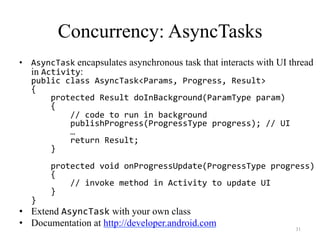
•  AsyncTask encapsulates asynchronous task that interacts with UI thread
in Activity:
public	
  class	
  AsyncTask<Params,	
  Progress,	
  Result>	
  	
  
{	


  protected	
  Result	
  doInBackground(ParamType	
  param)	


  {	


  //	
  code	
  to	
  run	
  in	
  background	


  publishProgress(ProgressType	
  progress);	
  //	
  UI	


  …	


  return	
  Result;	


  }	


  protected	
  void	
  onProgressUpdate(ProgressType	
  progress)	


  {	


  //	
  invoke	
  method	
  in	
  Activity	
  to	
  update	
  UI	


  }	
  
}	
  
•  Extend AsyncTask with your own class
•  Documentation at http://developer.android.com
31
Thank You
Any questions?
32
References (1)
1.  C. Horstmann, Big Java Late Objects, Wiley, 2012. Online: http://proquest.safaribooksonline.
com.proxy.lib.ohio–state.edu/book/–/9781118087886
2.  J. Bloch, Effective Java, 2nd ed., Addison–Wesley, 2008. Online: http://proquest.
safaribooksonline.com.proxy.lib.ohio–state.edu/book/programming/java/9780137150021
3.  S.B. Zakhour, S. Kannan, and R. Gallardo, The Java® Tutorial: A Short Course on the Basics,
5th ed., Addison–Wesley, 2013. Online: http://proquest.safaribooksonline.com.proxy.lib.
ohio–state.edu/book/programming/java/9780132761987
4.  C. Collins, M. Galpin, and M. Kaeppler, Android in Practice, Manning, 2011. Online:
http://proquest.safaribooksonline.com.proxy.lib.ohio–state.edu/book/programming/android/
9781935182924
5.  M.L. Sichitiu, 2011, http://www.ece.ncsu.edu/wireless/MadeInWALAN/AndroidTutorial/PPTs/
javaReview.ppt
6.  Oracle, http://docs.oracle.com/javase/1.5.0/docs/api/index.html
7.  Wikipedia, https://en.wikipedia.org/wiki/Vehicle_Identification_Number
8.  Nielsen Co., “Smartphone Milestone: Half of Mobile Subscribers Ages 55+ Own
Smartphones”, 22 Apr. 2014, http://www.nielsen.com/us/en/insights/news/2014/
smartphone-milestone-half-of-americans-ages-55-own-smartphones.html
9.  Android Open Source Project, http://www.android.com
33
References (2)
10.  http://bcs.wiley.com/he-bcs/Books?action=index&itemId=1118087887&bcsId=7006
11.  B. Goetz, T. Peierls, J. Bloch, J. Bowbeer, D. Holmes, and D. Lea, Java Concurrency in
Practice, Addison-Wesley, 2006, online at
http://proquest.safaribooksonline.com/book/programming/java/0321349601
12.  https://developer.android.com/guide/components/activities.html
13.  https://developer.android.com/guide/topics/ui/declaring-layout.html#CommonLayouts
14.  https://cloud.genymotion.com/page/doc/#collapse4
15.  http://blog.zeezonline.com/2013/11/install-google-play-on-genymotion-2-0/
34

Android studio

  • 1.
    Tutorial: Setup for AndroidDevelopment Adam C. Champion CSE 5236: Mobile Application Development Autumn 2014 Based on material from C. Horstmann [1], J. Bloch [2], C. Collins et al. [4], M.L. Sichitiu (NCSU), V. Janjic (Imperial College London), CSE 2221 (OSU), and other sources 1
  • 2.
  • 3.
    Getting Started (1) • Need to install Java Development Kit (JDK) to write Java (and Android) programs –  Do not install Java Runtime Environment (JRE); JDK and JRE are different! •  Can download the JDK for your OS at http://java.oracle.com •  Alternatively, for OS X, Linux: –  OS X: •  Open /Applications/Utilities/Terminal.app   •  Type javac at command line •  Install Java when prompt appears –  Linux: •  Type sudo  apt–get  install  default–jdk at command line (Debian, Ubuntu) •  Other distributions: consult distribution’s documentation 3
  • 4.
  • 5.
    Getting Started (2) • After installing JDK, download Android SDK from http://developer.android.com •  Simplest: download and install Android Studio bundle (including Android SDK) for your OS •  Alternatives: –  Download/install Android Developer Tools from this site (based on Eclipse) –  Install Android SDK tools by themselves, then install ADT for Eclipse separately (from this site) •  We’ll use Android Studio with SDK included (easy) 5
  • 6.
  • 7.
    Getting Started (3) • Install Android Studio directly (Windows, Mac); unzip to directory android-­‐studio, then run ./android-­‐studio/bin/studio.sh (Linux) •  You should see this: 7
  • 8.
    Getting Started (4) • Strongly recommend testing with real Android device –  Android emulator: very slow –  Faster emulator: Genymotion [14], [15] –  Install USB drivers for your Android device! •  Bring up the Android SDK Manager –  Recommended: Install Android 2.2, 2.3.3 APIs and 4.x API –  Do not worry about Intel x86 Atom, MIPS system images Settings Now you’re ready for Android development! 8
  • 9.
  • 10.
    Introduction to Android • Popular mobile device OS: 52% of U.S. smartphone market [8] •  Developed by Open Handset Alliance, led by Google •  Google claims 900,000 Android device activations [9] Source: [8] 10
  • 11.
  • 12.
    Android Highlights (1) • Android apps execute on Dalvik VM, a “clean-room” implementation of JVM –  Dalvik optimized for efficient execution –  Dalvik: register-based VM, unlike Oracle’s stack-based JVM –  Java .class bytecode translated to Dalvik EXecutable (DEX) bytecode, which Dalvik interprets 12
  • 13.
    Android Highlights (2) • Android apps written in Java 5 –  Actually, a Java dialect (Apache Harmony) –  Everything we’ve learned still holds •  Apps use four main components: –  Activity: A “single screen” that’s visible to user –  Service: Long-running background “part” of app (not separate process or thread) –  ContentProvider: Manages app data (usually stored in database) and data access for queries –  BroadcastReceiver: Component that listens for particular Android system “events”, e.g., “found wireless device”, and responds accordingly 13
  • 14.
    App Manifest •  EveryAndroid app must include an AndroidManifest.xml file describing functionality •  The manifest specifies: –  App’s Activities, Services, etc. –  Permissions requested by app –  Minimum API required –  Hardware features required, e.g., camera with autofocus –  External libraries to which app is linked, e.g., Google Maps library 14
  • 15.
    Activity Lifecycle •  Activity:key building block of Android apps •  Extend Activity class, override onCreate(), onPause(), onResume() methods •  Dalvik VM can stop any Activity without warning, so saving state is important! •  Activities need to be “responsive”, otherwise Android shows user “App Not Responsive” warning: –  Place lengthy operations in Runnable Threads, AsyncTasks Source: [12] 15
  • 16.
    App Creation Checklist • If you own an Android device: –  Ensure drivers are installed –  Enable developer options on device under Settings, specifically USB Debugging •  Android 4.2+: Go to Settings→About phone, press Build number 7 times to enable developer options •  For Android Studio: –  Under File→Settings→Appearance, enable “Show tool window bars”; the Android view shows LogCat, devices –  Programs should log states via android.util.Log’s Log.d(APP_TAG_STR,  “debug”), where APP_TAG_STR is a final String tag denoting your app   –  Other commands: Log.e() (error); Log.i() (info); Log.w() (warning); Log.v() (verbose) – same parameters 16
  • 17.
    Creating Android App(1) •  Creating Android app project in Android Studio: –  Go to File→New Project –  Enter app, project name –  Choose package name using “reverse URL” notation, e.g., edu.osu.myapp   –  Select APIs for app, then click Next 17
  • 18.
    Creating Android App(2) •  Determine what kind of Activity to create; then click Next –  We’ll choose a Blank Activity for simplicity •  Enter information about your Activity, then click Finish •  This creates a “Hello World” app 18
  • 19.
    Deploying the App • Two choices for deployment: –  Real Android device –  Android virtual device •  Plug in your real device; otherwise, create an Android virtual device •  Emulator is slow. Try Intel accelerated version, or perhaps http://www.genymotion.com/   •  Run the app: press “Run” button in toolbar 19
  • 20.
    Underlying Source Code package  edu.osu.helloandroid;     import  android.os.Bundle;   import  android.app.Activity;   import  android.view.Menu;     public  class  MainActivity  extends  Activity   {    @Override    protected  void  onCreate(Bundle  savedInstanceState)    {      super.onCreate(savedInstanceState);      setContentView(R.layout.activity_main);    }      @Override    public  boolean  onCreateOptionsMenu(Menu  menu)    {      //  Inflate  the  menu;  this  adds  items  to  the  action  bar  if  it  is  present.      getMenuInflater().inflate(R.menu.main,  menu);      return  true;    }   }   src/…/MainActivity.java   20
  • 21.
    Underlying GUI Code <RelativeLayout  xmlns:android="http://schemas.android.com/apk/res/android"          xmlns:tools="http://schemas.android.com/tools"          android:layout_width="match_parent"          android:layout_height="match_parent"          android:paddingBottom="@dimen/activity_vertical_margin"          android:paddingLeft="@dimen/activity_horizontal_margin"          android:paddingRight="@dimen/activity_horizontal_margin"          android:paddingTop="@dimen/activity_vertical_margin"          tools:context=".MainActivity"  >            <TextView                  android:layout_width="wrap_content"                  android:layout_height="wrap_content"                  android:text="@string/hello_world"  />   </RelativeLayout>     res/layout/activity_main.xml   – RelativeLayouts are quite complicated. See [13] for details 21
  • 22.
    The App Manifest <?xml  version="1.0"  encoding="utf-­‐8"?>   <manifest  xmlns:android="http://schemas.android.com/apk/res/android"          package="edu.osu.helloandroid"          android:versionCode="1"          android:versionName="1.0"  >            <uses-­‐sdk                  android:minSdkVersion="8"                  android:targetSdkVersion="17"  />            <application                  android:allowBackup="true"                  android:icon="@drawable/ic_launcher"                  android:label="@string/app_name"                  android:theme="@style/AppTheme"  >                  <activity                          android:name="edu.osu.helloandroid.MainActivity"                          android:label="@string/app_name"  >                          <intent-­‐filter>                                  <action  android:name="android.intent.action.MAIN"  />                                  <category  android:name="android.intent.category.LAUNCHER"  />                          </intent-­‐filter>                  </activity>          </application>   </manifest>   AndroidManifest.xml   22
  • 23.
    A More InterestingApp •  We’ll now examine an app with more features: WiFi Tester (code on class website) •  Press a button, scan for WiFi access points (APs), display them 23
  • 24.
    Underlying Source Code(1)  @Override    public  void  onCreate(Bundle  savedInstanceState)    {      super.onCreate(savedInstanceState);      setContentView(R.layout.activity_wi_fi);        //  Set  up  WifiManager.      mWifiManager  =  (WifiManager)  getSystemService(Context.WIFI_SERVICE);        //  Create  listener  object  for  Button.  When  Button  is  pressed,  scan  for      //  APs  nearby.      Button  button  =  (Button)  findViewById(R.id.button);      button.setOnClickListener(new  View.OnClickListener()      {        public  void  onClick(View  v)        {          boolean  scanStarted  =  mWifiManager.startScan();            //  If  the  scan  failed,  log  it.          if  (!scanStarted)  Log.e(TAG,  "WiFi  scan  failed...");        }      });        //  Set  up  IntentFilter  for  "WiFi  scan  results  available"  Intent.      mIntentFilter  =  new  IntentFilter();      mIntentFilter.addAction(WifiManager.SCAN_RESULTS_AVAILABLE_ACTION);    }   24
  • 25.
    Underlying Source Code(2) •  Code much more complex •  First get system WifiManager   •  Create listener Object for button that performs scans •  We register Broadcast Receiver, mReceiver, to listen for WifiManager’s “finished scan” system event (expressed as Intent WifiManager.SCAN_RESULTS_   AVAILABLE_ACTION) •  Unregister Broadcast Receiver when leaving Activity   @Override   protected  void  onResume()   {    super.onResume();    registerReceiver(mReceiver,   mIntentFilter);   }     @Override   protected  void  onPause()   {    super.onPause();   unregisterReceiver(mReceiver);   }     25
  • 26.
    The Broadcast Receiver private  final  BroadcastReceiver  mReceiver  =  new  BroadcastReceiver()   {    @Override    public  void  onReceive(Context  context,  Intent  intent)    {      String  action  =  intent.getAction();      if  (WifiManager.SCAN_RESULTS_AVAILABLE_ACTION.equals(action))      {        Log.e(TAG,  "Scan  results  available");        List<ScanResult>  scanResults  =  mWifiManager.getScanResults();        mApStr  =  "";        for  (ScanResult  result  :  scanResults)        {          mApStr  =  mApStr  +  result.SSID  +  ";  ";          mApStr  =  mApStr  +  result.BSSID  +  ";  ";          mApStr  =  mApStr  +  result.capabilities  +  ";  ";          mApStr  =  mApStr  +  result.frequency  +  "  MHz;";          mApStr  =  mApStr  +  result.level  +  "  dBmnn";        }        //  Update  UI  to  show  all  this  information.        setTextView(mApStr);      }    }   };   26
  • 27.
    User Interface Updating UIin code private  void  setTextView(String  str)   {    TextView  tv  =  (TextView)   findViewById(R.id.textview);    tv.setMovementMethod(new   ScrollingMovementMethod());    tv.setText(str);   }     •  This code simply has the UI display all collected WiFi APs, makes the text information scrollable UI Layout (XML) <LinearLayout  xmlns:android="http://schemas.android.com/apk/ res/android"          xmlns:tools="http://schemas.android.com/tools"          android:layout_width="fill_parent"          android:layout_height="fill_parent"            android:orientation="vertical">            <Button                  android:layout_width="fill_parent"                  android:layout_height="wrap_content"                  android:id="@+id/button"                    android:text="@string/button_text"/>                    <TextView                    android:id="@+id/header"                  android:layout_width="fill_parent"                  android:layout_height="wrap_content"                  android:text="@string/ap_list"                  tools:context=".WiFiActivity"                    android:textStyle="bold"                  android:gravity="center">          </TextView>            <TextView                  android:layout_width="fill_parent"                  android:layout_height="fill_parent"                  tools:context=".WiFiActivity"                  android:id="@+id/textview"        android:scrollbars="vertical">          </TextView>     </LinearLayout>   27
  • 28.
    Android Programming Notes • Android apps have multiple points of entry: no main() method –  Cannot “sleep” in Android –  During each entrance, certain Objects may be null   –  Defensive programming is very useful to avoid crashes, e.g., if  (!(myObj  ==  null))  {  //  do  something  }   •  Java concurrency techniques are required –  Don’t block the “main” thread in Activities –  Implement long-running tasks such as network connections asynchronously, e.g., as AsyncTasks –  Recommendation: read [4]; chapter 20 [10]; [11] •  Logging state via android.util.Log throughout app is essential when debugging (finding root causes) •  Better to have “too many” permissions than too few –  Otherwise, app crashes due to security exceptions! –  Remove “unnecessary” permissions before releasing app to public •  Event handling in Android GUIs entails many listener Objects 28
  • 29.
    Concurrency: Threads (1) • Thread: program unit (within process) executing independently •  Basic idea: create class that implements Runnable interface –  Runnable has one method, run(), that contains code to be executed –  Example: public  class  OurRunnable  implements  Runnable   {          public  void  run()          {                    //  run  code          }   }   •  Create a Thread object from Runnable and start() Thread, e.g., Runnable  r  =  new  OurRunnable();   Thread  t  =  new  Thread(r);   t.start();   •  Problem: this is cumbersome unless Thread code is reused 29
  • 30.
    Concurrency: Threads (2) • Easier approach: anonymous inner classes, e.g., Thread  t  =  new  Thread(new  Runnable(          {                  public  void  run()                  {                          //  code  to  run                  }          });   t.start();   •  Idiom essential for one-time network connections in Activities •  However, Threads can be difficult to synchronize, especially with UI thread in Activity. AsyncTasks are better suited for this 30
  • 31.
    Concurrency: AsyncTasks •  AsyncTaskencapsulates asynchronous task that interacts with UI thread in Activity: public  class  AsyncTask<Params,  Progress,  Result>     {          protected  Result  doInBackground(ParamType  param)          {                  //  code  to  run  in  background                  publishProgress(ProgressType  progress);  //  UI                  …                  return  Result;          }            protected  void  onProgressUpdate(ProgressType  progress)          {                  //  invoke  method  in  Activity  to  update  UI          }   }   •  Extend AsyncTask with your own class •  Documentation at http://developer.android.com 31
  • 32.
  • 33.
    References (1) 1.  C.Horstmann, Big Java Late Objects, Wiley, 2012. Online: http://proquest.safaribooksonline. com.proxy.lib.ohio–state.edu/book/–/9781118087886 2.  J. Bloch, Effective Java, 2nd ed., Addison–Wesley, 2008. Online: http://proquest. safaribooksonline.com.proxy.lib.ohio–state.edu/book/programming/java/9780137150021 3.  S.B. Zakhour, S. Kannan, and R. Gallardo, The Java® Tutorial: A Short Course on the Basics, 5th ed., Addison–Wesley, 2013. Online: http://proquest.safaribooksonline.com.proxy.lib. ohio–state.edu/book/programming/java/9780132761987 4.  C. Collins, M. Galpin, and M. Kaeppler, Android in Practice, Manning, 2011. Online: http://proquest.safaribooksonline.com.proxy.lib.ohio–state.edu/book/programming/android/ 9781935182924 5.  M.L. Sichitiu, 2011, http://www.ece.ncsu.edu/wireless/MadeInWALAN/AndroidTutorial/PPTs/ javaReview.ppt 6.  Oracle, http://docs.oracle.com/javase/1.5.0/docs/api/index.html 7.  Wikipedia, https://en.wikipedia.org/wiki/Vehicle_Identification_Number 8.  Nielsen Co., “Smartphone Milestone: Half of Mobile Subscribers Ages 55+ Own Smartphones”, 22 Apr. 2014, http://www.nielsen.com/us/en/insights/news/2014/ smartphone-milestone-half-of-americans-ages-55-own-smartphones.html 9.  Android Open Source Project, http://www.android.com 33
  • 34.
    References (2) 10.  http://bcs.wiley.com/he-bcs/Books?action=index&itemId=1118087887&bcsId=7006 11. B. Goetz, T. Peierls, J. Bloch, J. Bowbeer, D. Holmes, and D. Lea, Java Concurrency in Practice, Addison-Wesley, 2006, online at http://proquest.safaribooksonline.com/book/programming/java/0321349601 12.  https://developer.android.com/guide/components/activities.html 13.  https://developer.android.com/guide/topics/ui/declaring-layout.html#CommonLayouts 14.  https://cloud.genymotion.com/page/doc/#collapse4 15.  http://blog.zeezonline.com/2013/11/install-google-play-on-genymotion-2-0/ 34