Exp-5
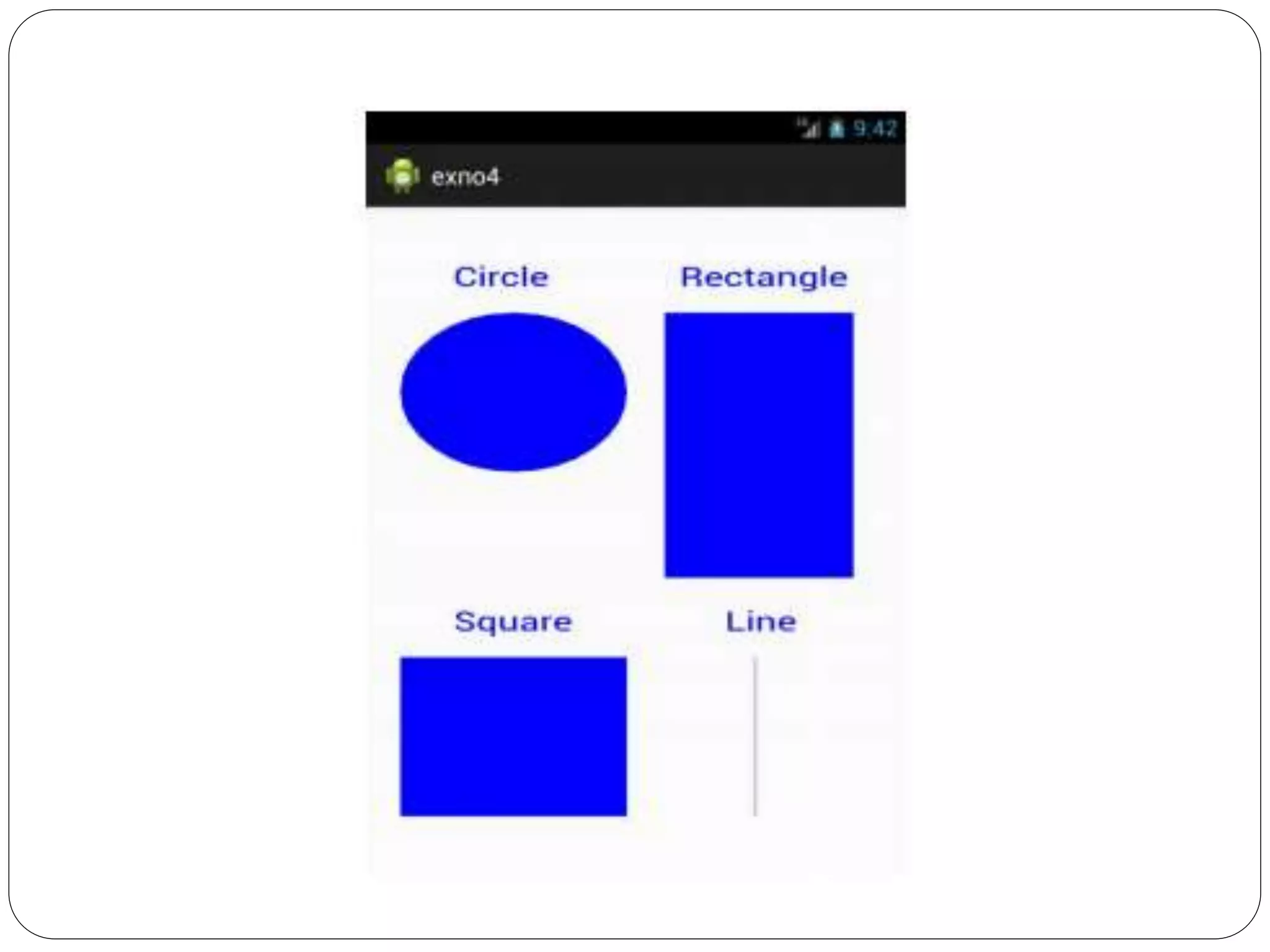
Write an application that draws basic
graphical primitives on the screen.
 Aim: To develop a Simple Android Application that
draws basic Graphical Primitives on the screen.
Creating a New project:
 Open Android Studio and then click on File -> New -
> New project.
 Then type the Application name as “ex.no.5″ and
click Next.
 Then select the Minimum SDK as shown below and
click Next.
 Then select the Empty Activity and click Next.
 Finally click Finish.
 It will take some time to build and load the project.
Designing layout for the Android Application:
Click on app -> res -> layout ->
activity_main.xml.
Now click on Text as shown below.
Then delete the code which is there
and type the code as given below.
Activity_main.xml:
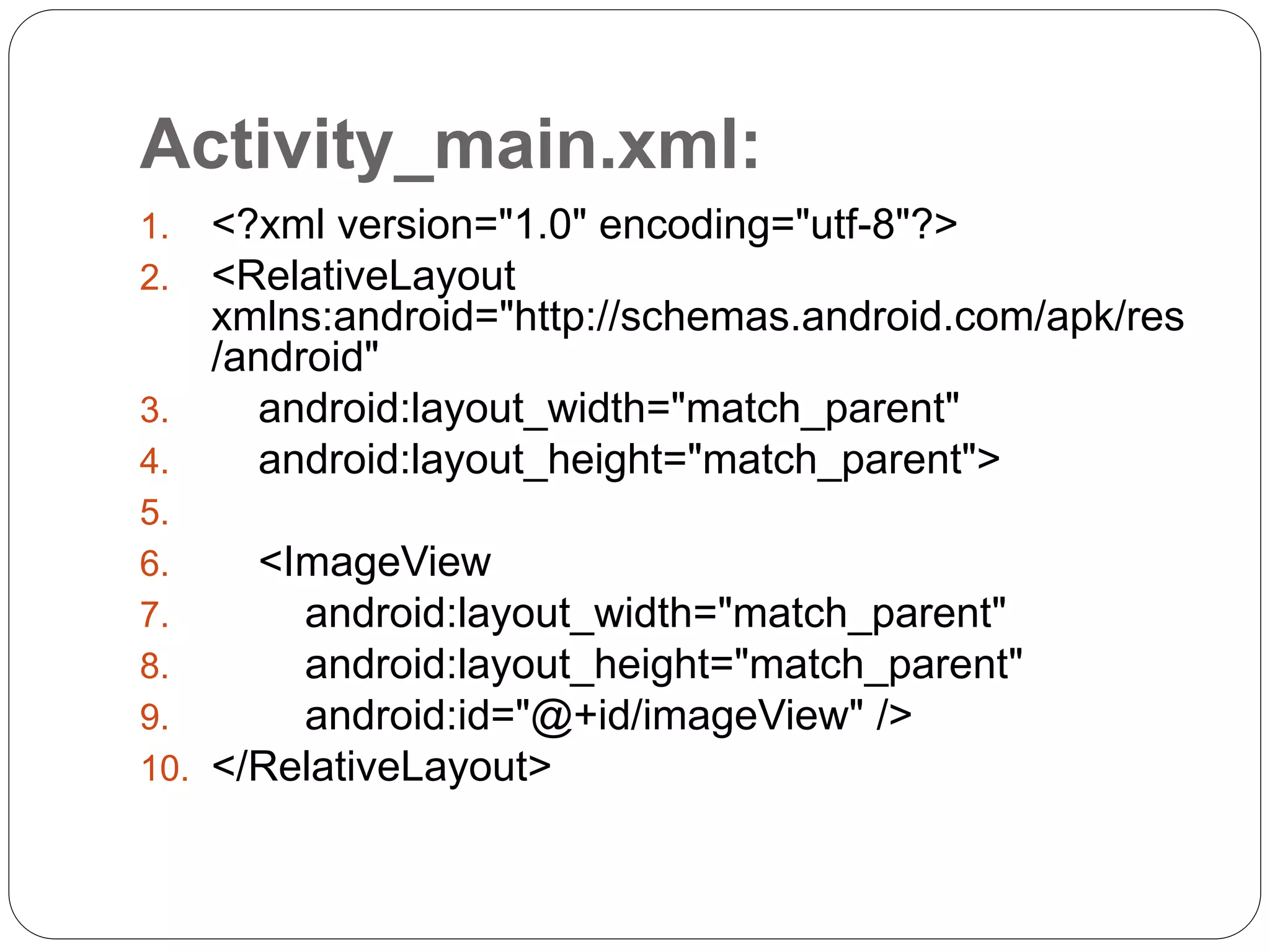
1. <?xml version="1.0" encoding="utf-8"?>
2. <RelativeLayout
xmlns:android="http://schemas.android.com/apk/res
/android"
3. android:layout_width="match_parent"
4. android:layout_height="match_parent">
5.
6. <ImageView
7. android:layout_width="match_parent"
8. android:layout_height="match_parent"
9. android:id="@+id/imageView" />
10. </RelativeLayout>
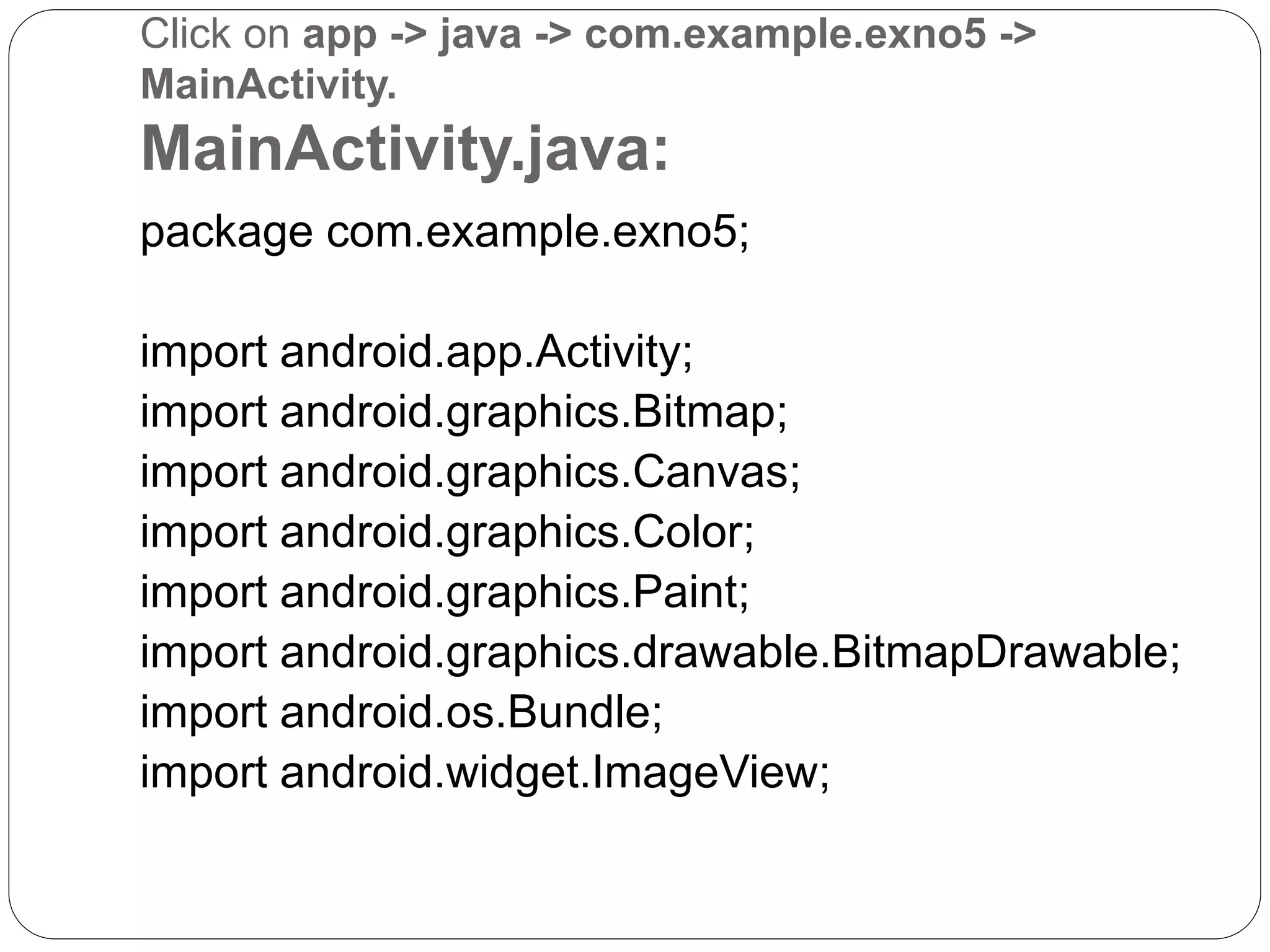
Click on app -> java -> com.example.exno5 ->
MainActivity.
MainActivity.java:
package com.example.exno5;
import android.app.Activity;
import android.graphics.Bitmap;
import android.graphics.Canvas;
import android.graphics.Color;
import android.graphics.Paint;
import android.graphics.drawable.BitmapDrawable;
import android.os.Bundle;
import android.widget.ImageView;
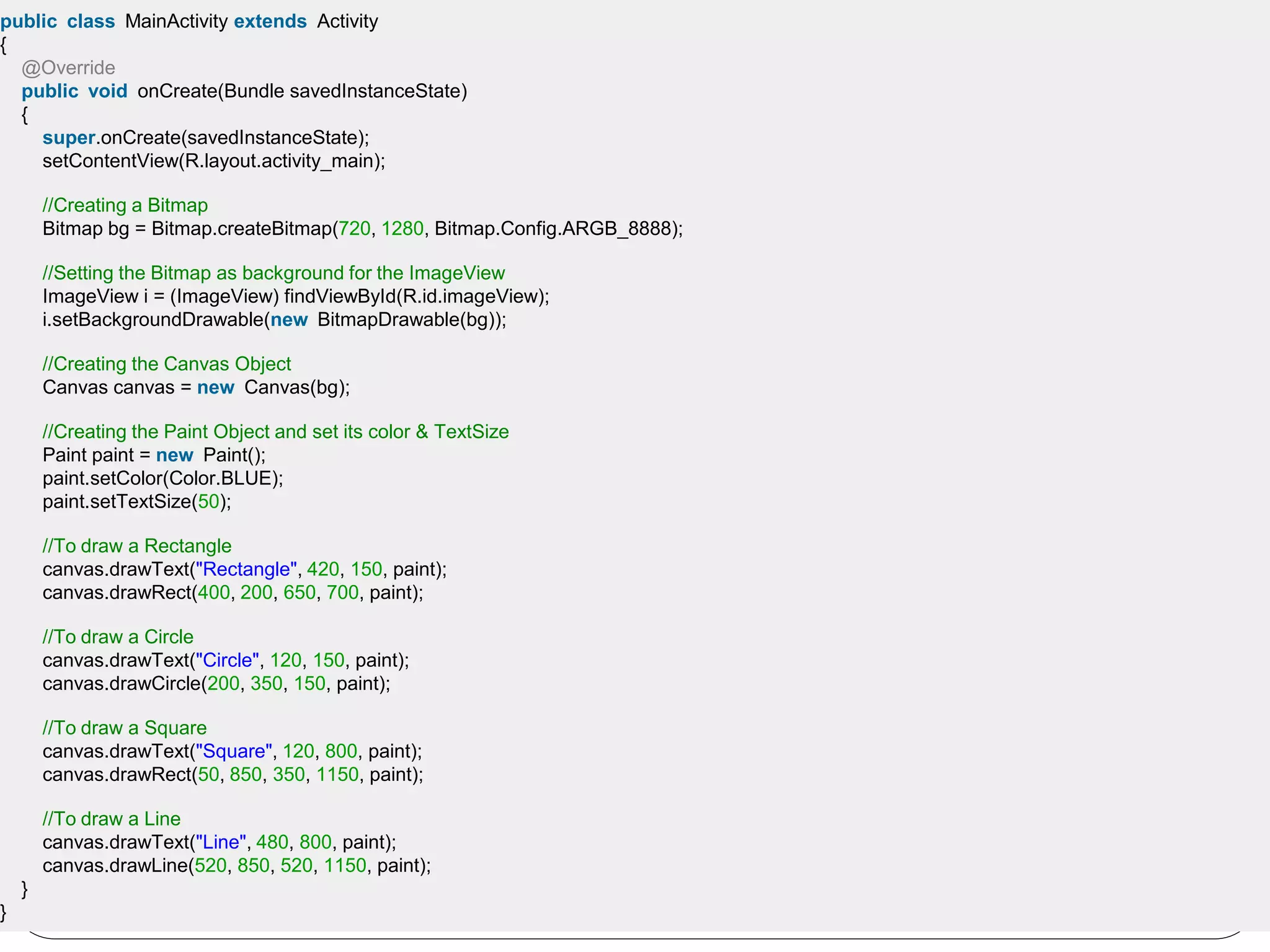
public class MainActivity extends Activity
{
@Override
public void onCreate(Bundle savedInstanceState)
{
super.onCreate(savedInstanceState);
setContentView(R.layout.activity_main);
//Creating a Bitmap
Bitmap bg = Bitmap.createBitmap(720, 1280, Bitmap.Config.ARGB_8888);
//Setting the Bitmap as background for the ImageView
ImageView i = (ImageView) findViewById(R.id.imageView);
i.setBackgroundDrawable(new BitmapDrawable(bg));
//Creating the Canvas Object
Canvas canvas = new Canvas(bg);
//Creating the Paint Object and set its color & TextSize
Paint paint = new Paint();
paint.setColor(Color.BLUE);
paint.setTextSize(50);
//To draw a Rectangle
canvas.drawText("Rectangle", 420, 150, paint);
canvas.drawRect(400, 200, 650, 700, paint);
//To draw a Circle
canvas.drawText("Circle", 120, 150, paint);
canvas.drawCircle(200, 350, 150, paint);
//To draw a Square
canvas.drawText("Square", 120, 800, paint);
canvas.drawRect(50, 850, 350, 1150, paint);
//To draw a Line
canvas.drawText("Line", 480, 800, paint);
canvas.drawLine(520, 850, 520, 1150, paint);
}
}
Write an application that draws basic graphical primitives.pptx

Write an application that draws basic graphical primitives.pptx

  • 1.
    Exp-5 Write an applicationthat draws basic graphical primitives on the screen.
  • 2.
     Aim: Todevelop a Simple Android Application that draws basic Graphical Primitives on the screen.
  • 3.
    Creating a Newproject:  Open Android Studio and then click on File -> New - > New project.  Then type the Application name as “ex.no.5″ and click Next.  Then select the Minimum SDK as shown below and click Next.  Then select the Empty Activity and click Next.  Finally click Finish.  It will take some time to build and load the project.
  • 4.
    Designing layout forthe Android Application: Click on app -> res -> layout -> activity_main.xml. Now click on Text as shown below. Then delete the code which is there and type the code as given below.
  • 5.
    Activity_main.xml: 1. <?xml version="1.0"encoding="utf-8"?> 2. <RelativeLayout xmlns:android="http://schemas.android.com/apk/res /android" 3. android:layout_width="match_parent" 4. android:layout_height="match_parent"> 5. 6. <ImageView 7. android:layout_width="match_parent" 8. android:layout_height="match_parent" 9. android:id="@+id/imageView" /> 10. </RelativeLayout>
  • 6.
    Click on app-> java -> com.example.exno5 -> MainActivity. MainActivity.java: package com.example.exno5; import android.app.Activity; import android.graphics.Bitmap; import android.graphics.Canvas; import android.graphics.Color; import android.graphics.Paint; import android.graphics.drawable.BitmapDrawable; import android.os.Bundle; import android.widget.ImageView;
  • 7.
    public class MainActivityextends Activity { @Override public void onCreate(Bundle savedInstanceState) { super.onCreate(savedInstanceState); setContentView(R.layout.activity_main); //Creating a Bitmap Bitmap bg = Bitmap.createBitmap(720, 1280, Bitmap.Config.ARGB_8888); //Setting the Bitmap as background for the ImageView ImageView i = (ImageView) findViewById(R.id.imageView); i.setBackgroundDrawable(new BitmapDrawable(bg)); //Creating the Canvas Object Canvas canvas = new Canvas(bg); //Creating the Paint Object and set its color & TextSize Paint paint = new Paint(); paint.setColor(Color.BLUE); paint.setTextSize(50); //To draw a Rectangle canvas.drawText("Rectangle", 420, 150, paint); canvas.drawRect(400, 200, 650, 700, paint); //To draw a Circle canvas.drawText("Circle", 120, 150, paint); canvas.drawCircle(200, 350, 150, paint); //To draw a Square canvas.drawText("Square", 120, 800, paint); canvas.drawRect(50, 850, 350, 1150, paint); //To draw a Line canvas.drawText("Line", 480, 800, paint); canvas.drawLine(520, 850, 520, 1150, paint); } }