Menu, Functions and Security Profile 
Oracle HRMS Functional Document 
Retro Pay 
Method I & II 
Part 5 
Note: This Document is created only for Class Room Training Purpose 
By 
Regintala Chandra Sekhar 
ora17hr@gmail.com 
Regintala Chandra Sekhar Page 1 ora17hr@gmail.com
Menu, Functions and Security Profile 
Table of Contents 
Retro Pay ......................................................................................................................................................................................... 3 
Enabling the Triggers ................................................................................................................................................................. 3 
Method 1 : Retro Pay for Single Employee .......................................................................................................................... 9 
Method 2: Retro Pay for Multiple Employees ................................................................................................................. 17 
Regintala Chandra Sekhar Page 2 ora17hr@gmail.com
If you have any queries regarding this document please see the part1, 2, 3 and Part4 documents . 
Set the Date: 01-Jan-2013 and check the Payroll Process Result if you have any runs roll back it 
Retro Pay 
What is retro pay? 
Ans: Retro pay is usually run for back dated increments or promotions to be paid in the current period. For 
instance, in a company, Increment arrears are paid two months after the increment period, so we need to run 
retro pay to make this payment in current period. 
Example 
Say in the month of Feb06 you were given "Cost Of Living Allowance" for a value 200. For some reasons the 
element entry did not take place correctly in Feb06 and the element entry was done for a value of 150 only. Let 
say now you are in May06, and you realize that you have been Short-Payed. You will in this event inform your 
payroll department to make the necessary backdated adjustment to that element entry. 
The challenges are:- 
1. Feb06 period is already closed. Hence you cannot rerun the payroll for the month of February06 again. 
2. You do not wish to capture that Element Entry in May06, as that can cause audit issues, and also can have tax 
implications as this is an Earning Element 
Enabling the Triggers 
Step 1: Enable the Trigger for the Event Group: PAY_ELEMENT_ENTRY_VALUES_F 
Navigation Path 
Regintala Chandra Sekhar Page 3 ora17hr@gmail.com
Step 2: Check on the Enabled check box 
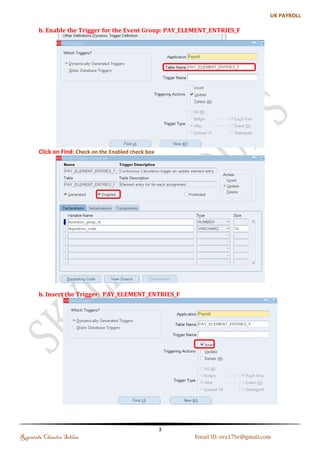
Step 3: Enable the Trigger for the Event Group: PAY_ELEMENT_ENTRIES_F 
Regintala Chandra Sekhar Page 4 ora17hr@gmail.com
Step 4: Click on Find: Check on the Enabled check box 
Step 5: Insert the Trigger: PAY_ELEMENT_ENTRIES_F 
Regintala Chandra Sekhar Page 5 ora17hr@gmail.com
Step 6: Click on Find: Check on the Enabled check box 
Step 7: Delete the Trigger: PAY_ELEMENT_ENTRIES_F 
Regintala Chandra Sekhar Page 6 ora17hr@gmail.com
Step 8: Click on Find: Check on the Enabled check box 
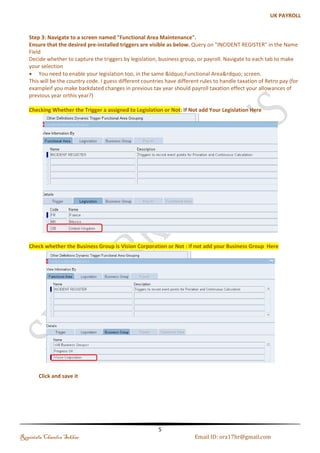
Step 9: Navigate to a screen named "Functional Area Maintenance". 
Ensure that the desired pre-installed triggers are visible as below. Query on "INCIDENT REGISTER" in the 
Name Field Decide whether to capture the triggers by legislation, business group, or payroll. Navigate to each 
tab to make your selection 
You need to enable your legislation too, in the same “Functional Area” screen. 
This will be the country code. I guess different countries have different rules to handle taxation of Retro pay 
(for example : If you make backdated changes in previous tax year should payroll taxation effect your 
allowances of previous year or this year?) 
Checking Whether the Trigger a assigned to Legislation or Not: If Not add Your Legislation Here 
Regintala Chandra Sekhar Page 7 ora17hr@gmail.com
Step 10: Check whether the Business Group is Vision Corporation or Not : if not add your Business 
Group Here 
Click and save it 
Regintala Chandra Sekhar Page 8 ora17hr@gmail.com
Method 1 : Retro Pay for Single Employee 
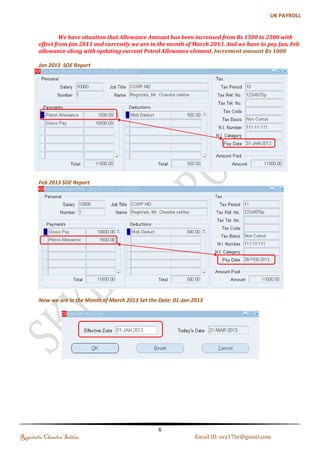
For Example : We have situation that Allowance Amount has been increased from Rs 1500 to 
2500 with effect from Jan 2013 and currently we are in the month of March 2013. And we have to pay 
Jan, Feb allowance along with updating current Petrol Allowance element. Increment Amount Rs 1000 
Jan 2013 SOE Report 
Feb 2013 SOE Report 
Now we are in the Month of March 2013 Set the Date: 01-Jan-2013 
Regintala Chandra Sekhar Page 9 ora17hr@gmail.com
Step 1: Create an Element 
Name: Allowance Adjustment 
Step 2: Link the Element to the Payroll 
Regintala Chandra Sekhar Page 10 ora17hr@gmail.com
Step 3: Creating Event Group 
Update Type Table Column Name 
Date Track Correction PAY_ELEMENT_ENTRY_VALUES_F SCREEN_ENTRY_VALUE 
Date Track Update PAY_ELEMENT_ENTRIES_F EFFECTIVE_START_ 
Date Track Update PAY_ELEMENT_ENTRIES_F EFFECTIVE_END_DATE 
Date Track End Date PAY_ELEMENT_ENTRIES_F 
Date Track Insert PAY_ELEMENT_ENTRIES_F 
Date Track Delete PAY_ELEMENT_ENTRIES_F 
Step 4: Query your existing Allowance Element and Assign the Event Group and Adjustment Element 
Regintala Chandra Sekhar Page 11 ora17hr@gmail.com
Step 5: Navigate to People-->Enter & Maintain -->Select the Employee-->Click on Assignments-->Entries 
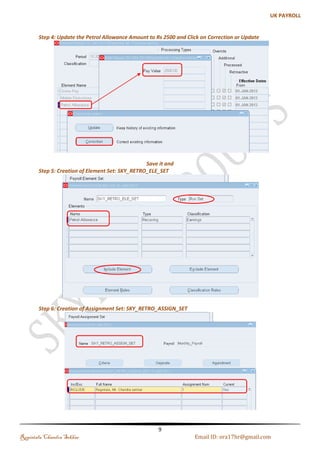
Update the Petrol Allowance Amount to Rs 2500 and Click on Correction or Update 
Save it and 
Step 6: Creation of Element Set: SKY_RETRO_ELE_SET 
Regintala Chandra Sekhar Page 12 ora17hr@gmail.com
Step 7: Creation of Assignment Set: SKY_RETRO_ASSIGN_SET 
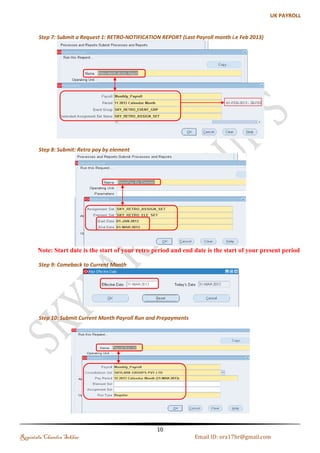
Step 8: Submit a Request 1: RETRO-NOTIFICATION REPORT (Last Payroll month i.e Feb 2013) 
Step 9: Submit: Retro pay by element 
Note: Start date is the start of your retro period and end date is the start of your present period 
Regintala Chandra Sekhar Page 13 ora17hr@gmail.com
Step 10: Comeback to Current Month 
Step 11: Submit Current Month Payroll Run and Prepayments 
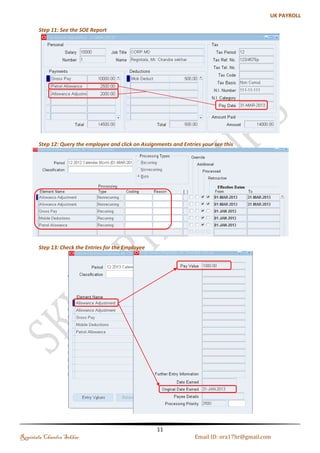
Step 12: See the SOE Report 
Regintala Chandra Sekhar Page 14 ora17hr@gmail.com
Step 13: Query the employee and click on Assignments and Entries your see this 
Step 14: Check the Entries for the Employee 
Regintala Chandra Sekhar Page 15 ora17hr@gmail.com
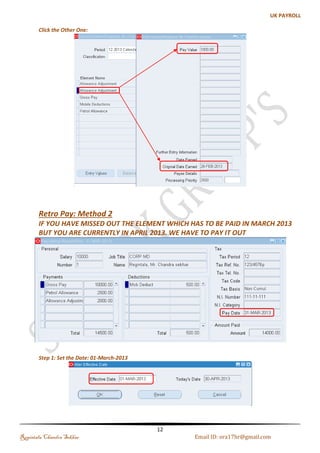
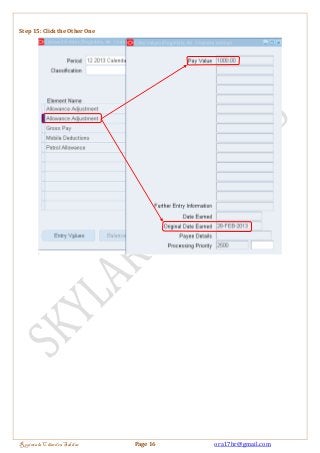
Step 15: Click the Other One 
Regintala Chandra Sekhar Page 16 ora17hr@gmail.com
Method 2: Retro Pay for Multiple Employees 
If You Have Missed Out The Element Which Has To Be Paid In March 2013 But You Are Currently 
In April 2013. We Have To Pay It Out 
April 2013 
Step 1: Set the Date: 01-March-2013 
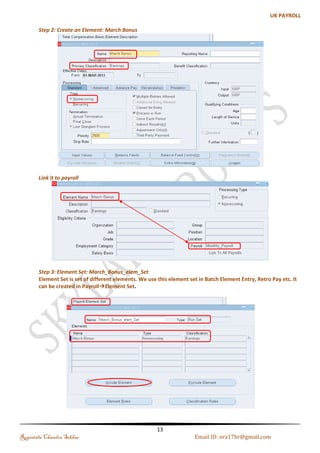
Step 2: Create an Element: March Bonus 
Regintala Chandra Sekhar Page 17 ora17hr@gmail.com
Step 3: Link it to payroll 
Step 4: Element Set: March_Bonus_elem_Set 
Element Set is set of different elements. We use this element set in Batch Element Entry, Retro Pay etc. 
It can be created in PayrollElement Set. 
Regintala Chandra Sekhar Page 18 ora17hr@gmail.com
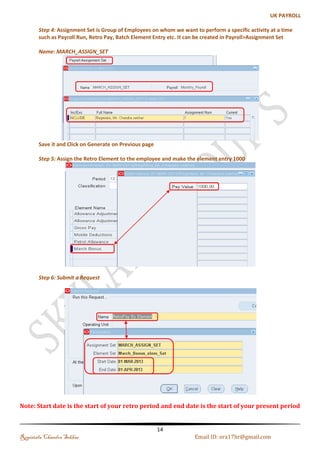
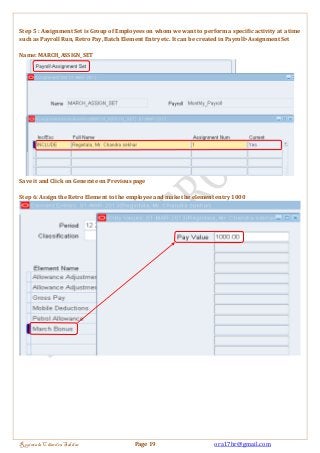
Step 5 : Assignment Set is Group of Employees on whom we want to perform a specific activity at a time 
such as Payroll Run, Retro Pay, Batch Element Entry etc. It can be created in Payroll>Assignment Set 
Name: MARCH_ASSIGN_SET 
Save it and Click on Generate on Previous page 
Step 6: Assign the Retro Element to the employee and make the element entry 1000 
Regintala Chandra Sekhar Page 19 ora17hr@gmail.com
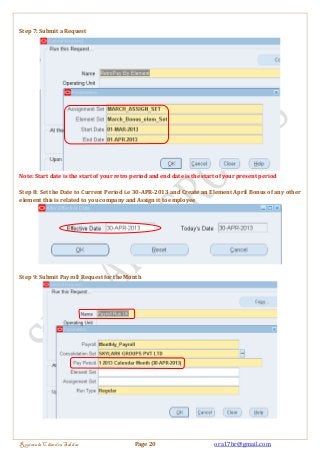
Step 7: Submit a Request 
Note: Start date is the start of your retro period and end date is the start of your present period 
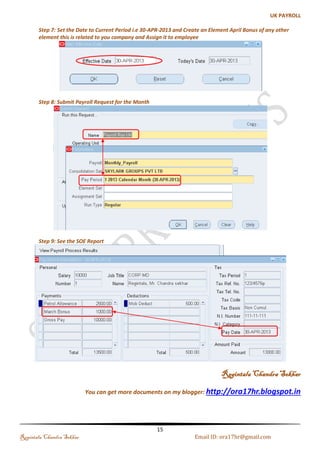
Step 8: Set the Date to Current Period i.e 30-APR-2013 and Create an Element April Bonus of any other 
element this is related to you company and Assign it to employee 
Step 9: Submit Payroll Request for the Month 
Regintala Chandra Sekhar Page 20 ora17hr@gmail.com
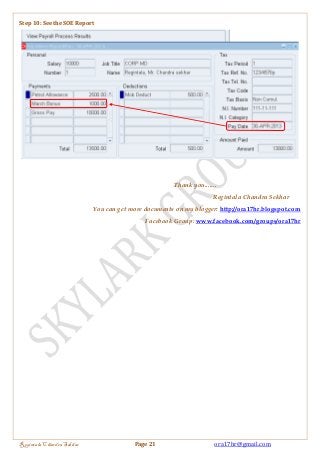
Step 10: See the SOE Report 
Thank you....... 
Regintala Chandra Sekhar 
You can get more documents on my blogger: http://ora17hr.blogspot.com 
Facebook Group: www.facebook.com/groups/ora17hr 
Regintala Chandra Sekhar Page 21 ora17hr@gmail.com

5 retro pay_methods_i___ii_part_5

  • 1.
    Menu, Functions andSecurity Profile Oracle HRMS Functional Document Retro Pay Method I & II Part 5 Note: This Document is created only for Class Room Training Purpose By Regintala Chandra Sekhar ora17hr@gmail.com Regintala Chandra Sekhar Page 1 ora17hr@gmail.com
  • 2.
    Menu, Functions andSecurity Profile Table of Contents Retro Pay ......................................................................................................................................................................................... 3 Enabling the Triggers ................................................................................................................................................................. 3 Method 1 : Retro Pay for Single Employee .......................................................................................................................... 9 Method 2: Retro Pay for Multiple Employees ................................................................................................................. 17 Regintala Chandra Sekhar Page 2 ora17hr@gmail.com
  • 3.
    If you haveany queries regarding this document please see the part1, 2, 3 and Part4 documents . Set the Date: 01-Jan-2013 and check the Payroll Process Result if you have any runs roll back it Retro Pay What is retro pay? Ans: Retro pay is usually run for back dated increments or promotions to be paid in the current period. For instance, in a company, Increment arrears are paid two months after the increment period, so we need to run retro pay to make this payment in current period. Example Say in the month of Feb06 you were given "Cost Of Living Allowance" for a value 200. For some reasons the element entry did not take place correctly in Feb06 and the element entry was done for a value of 150 only. Let say now you are in May06, and you realize that you have been Short-Payed. You will in this event inform your payroll department to make the necessary backdated adjustment to that element entry. The challenges are:- 1. Feb06 period is already closed. Hence you cannot rerun the payroll for the month of February06 again. 2. You do not wish to capture that Element Entry in May06, as that can cause audit issues, and also can have tax implications as this is an Earning Element Enabling the Triggers Step 1: Enable the Trigger for the Event Group: PAY_ELEMENT_ENTRY_VALUES_F Navigation Path Regintala Chandra Sekhar Page 3 ora17hr@gmail.com
  • 4.
    Step 2: Checkon the Enabled check box Step 3: Enable the Trigger for the Event Group: PAY_ELEMENT_ENTRIES_F Regintala Chandra Sekhar Page 4 ora17hr@gmail.com
  • 5.
    Step 4: Clickon Find: Check on the Enabled check box Step 5: Insert the Trigger: PAY_ELEMENT_ENTRIES_F Regintala Chandra Sekhar Page 5 ora17hr@gmail.com
  • 6.
    Step 6: Clickon Find: Check on the Enabled check box Step 7: Delete the Trigger: PAY_ELEMENT_ENTRIES_F Regintala Chandra Sekhar Page 6 ora17hr@gmail.com
  • 7.
    Step 8: Clickon Find: Check on the Enabled check box Step 9: Navigate to a screen named "Functional Area Maintenance". Ensure that the desired pre-installed triggers are visible as below. Query on "INCIDENT REGISTER" in the Name Field Decide whether to capture the triggers by legislation, business group, or payroll. Navigate to each tab to make your selection You need to enable your legislation too, in the same “Functional Area” screen. This will be the country code. I guess different countries have different rules to handle taxation of Retro pay (for example : If you make backdated changes in previous tax year should payroll taxation effect your allowances of previous year or this year?) Checking Whether the Trigger a assigned to Legislation or Not: If Not add Your Legislation Here Regintala Chandra Sekhar Page 7 ora17hr@gmail.com
  • 8.
    Step 10: Checkwhether the Business Group is Vision Corporation or Not : if not add your Business Group Here Click and save it Regintala Chandra Sekhar Page 8 ora17hr@gmail.com
  • 9.
    Method 1 :Retro Pay for Single Employee For Example : We have situation that Allowance Amount has been increased from Rs 1500 to 2500 with effect from Jan 2013 and currently we are in the month of March 2013. And we have to pay Jan, Feb allowance along with updating current Petrol Allowance element. Increment Amount Rs 1000 Jan 2013 SOE Report Feb 2013 SOE Report Now we are in the Month of March 2013 Set the Date: 01-Jan-2013 Regintala Chandra Sekhar Page 9 ora17hr@gmail.com
  • 10.
    Step 1: Createan Element Name: Allowance Adjustment Step 2: Link the Element to the Payroll Regintala Chandra Sekhar Page 10 ora17hr@gmail.com
  • 11.
    Step 3: CreatingEvent Group Update Type Table Column Name Date Track Correction PAY_ELEMENT_ENTRY_VALUES_F SCREEN_ENTRY_VALUE Date Track Update PAY_ELEMENT_ENTRIES_F EFFECTIVE_START_ Date Track Update PAY_ELEMENT_ENTRIES_F EFFECTIVE_END_DATE Date Track End Date PAY_ELEMENT_ENTRIES_F Date Track Insert PAY_ELEMENT_ENTRIES_F Date Track Delete PAY_ELEMENT_ENTRIES_F Step 4: Query your existing Allowance Element and Assign the Event Group and Adjustment Element Regintala Chandra Sekhar Page 11 ora17hr@gmail.com
  • 12.
    Step 5: Navigateto People-->Enter & Maintain -->Select the Employee-->Click on Assignments-->Entries Update the Petrol Allowance Amount to Rs 2500 and Click on Correction or Update Save it and Step 6: Creation of Element Set: SKY_RETRO_ELE_SET Regintala Chandra Sekhar Page 12 ora17hr@gmail.com
  • 13.
    Step 7: Creationof Assignment Set: SKY_RETRO_ASSIGN_SET Step 8: Submit a Request 1: RETRO-NOTIFICATION REPORT (Last Payroll month i.e Feb 2013) Step 9: Submit: Retro pay by element Note: Start date is the start of your retro period and end date is the start of your present period Regintala Chandra Sekhar Page 13 ora17hr@gmail.com
  • 14.
    Step 10: Comebackto Current Month Step 11: Submit Current Month Payroll Run and Prepayments Step 12: See the SOE Report Regintala Chandra Sekhar Page 14 ora17hr@gmail.com
  • 15.
    Step 13: Querythe employee and click on Assignments and Entries your see this Step 14: Check the Entries for the Employee Regintala Chandra Sekhar Page 15 ora17hr@gmail.com
  • 16.
    Step 15: Clickthe Other One Regintala Chandra Sekhar Page 16 ora17hr@gmail.com
  • 17.
    Method 2: RetroPay for Multiple Employees If You Have Missed Out The Element Which Has To Be Paid In March 2013 But You Are Currently In April 2013. We Have To Pay It Out April 2013 Step 1: Set the Date: 01-March-2013 Step 2: Create an Element: March Bonus Regintala Chandra Sekhar Page 17 ora17hr@gmail.com
  • 18.
    Step 3: Linkit to payroll Step 4: Element Set: March_Bonus_elem_Set Element Set is set of different elements. We use this element set in Batch Element Entry, Retro Pay etc. It can be created in PayrollElement Set. Regintala Chandra Sekhar Page 18 ora17hr@gmail.com
  • 19.
    Step 5 :Assignment Set is Group of Employees on whom we want to perform a specific activity at a time such as Payroll Run, Retro Pay, Batch Element Entry etc. It can be created in Payroll>Assignment Set Name: MARCH_ASSIGN_SET Save it and Click on Generate on Previous page Step 6: Assign the Retro Element to the employee and make the element entry 1000 Regintala Chandra Sekhar Page 19 ora17hr@gmail.com
  • 20.
    Step 7: Submita Request Note: Start date is the start of your retro period and end date is the start of your present period Step 8: Set the Date to Current Period i.e 30-APR-2013 and Create an Element April Bonus of any other element this is related to you company and Assign it to employee Step 9: Submit Payroll Request for the Month Regintala Chandra Sekhar Page 20 ora17hr@gmail.com
  • 21.
    Step 10: Seethe SOE Report Thank you....... Regintala Chandra Sekhar You can get more documents on my blogger: http://ora17hr.blogspot.com Facebook Group: www.facebook.com/groups/ora17hr Regintala Chandra Sekhar Page 21 ora17hr@gmail.com