Menu, Functions and Security Profile 
Oracle HRMS Functional Document 
Business Group Setup's 
Part 1 
Note: This Document is created only for Class Room Training Purpose 
By 
Regintala Chandra Sekhar 
ora17hr@gmail.com 
Regintala Chandra Sekhar Page 1 ora17hr@gmail.com
Menu, Functions and Security Profile 
Table of Contents 
Introduction ................................................................................................................................................................................... 3 
Process of setup of Business Group .................................................................................................................................. 3 
Define Values Set .......................................................................................................................................................................... 6 
(a). Independent Values Set for Job .................................................................................................................................. 7 
(b). Dependent Values Set .................................................................................................................................................... 8 
(c). None Value Set for Position ....................................................................................................................................... 11 
(d). Independent Value Set for Grade............................................................................................................................ 13 
Creation of Key Flexfields ...................................................................................................................................................... 14 
(a). Jobs Flexfield .................................................................................................................................................................. 14 
(b). Position Flexfield .......................................................................................................................................................... 15 
(c). Grade Flexfield ............................................................................................................................................................... 16 
(d). Competency Flexfield ................................................................................................................................................. 17 
(e). People Group Flexfield ............................................................................................................................................... 18 
(f). Cost Allocation Flexfield ............................................................................................................................................. 19 
Payroll to GL Segment Mapping .................................................................................................................................. 21 
Creating Descriptive Flexfield .............................................................................................................................................. 22 
Defining Lookup Types and Values .................................................................................................................................... 24 
Work Location ............................................................................................................................................................................ 25 
Business Group .......................................................................................................................................................................... 26 
(a). Business Group Information: ................................................................................................................................... 26 
(b). Setting up the Security Profile ................................................................................................................................. 27 
(c). Tax Details ....................................................................................................................................................................... 28 
Creating Units ............................................................................................................................................................................ 29 
(a). Defining GRE: Government Reporting .................................................................................................................. 29 
(b). Defining Operating Units: .......................................................................................................................................... 30 
(c). Defining Departments ................................................................................................................................................. 31 
Creating Hierarchy ................................................................................................................................................................... 32 
Creating Jobs ............................................................................................................................................................................... 34 
Creating Payment Methods ................................................................................................................................................... 35 
Creating Earning Element ...................................................................................................................................................... 36 
Defining Salary Basis ............................................................................................................................................................... 37 
Defining Payroll ......................................................................................................................................................................... 37 
GL Mapping.................................................................................................................................................................................. 39 
Defining Employees ................................................................................................................................................................. 40 
Regintala Chandra Sekhar Page 2 ora17hr@gmail.com
Introduction 
A Business Group (BG) holds information about the components of work structures such as jobs, grades 
and positions. At the BG level we set up the legislative rules, terms of employment, remuneration policies and 
employee work patterns. Oracle HRMS provides the flexibility to define enterprise the following four basic 
configurations models, 
1. A single operating company in one country. 
2. A single operating company in multiple countries. 
3. Multiple operating companies in one country. 
4. Multiple operating companies in multiple countries 
The major reason for creating many business groups is that you enterprise is present in many countries. The 
other reasons for creation of more than one BG are:- 
1. During acquisitions or mergers there is a need to manage separate structures and processed during a 
transition phase. 
2. To keep a copy of your live system with example records for training or testing purposes 
3. You are a holding company with a number of subsidiary companies and each subsidiary has its own 
structures, employees, and compensation and benefit policies. 
Process of setup of Business Group 
1. Select System Administrator responsibility 
2. Define required responsibilities (N: security -> responsibility -> define) 
3. Define user and assign responsibilities to the user (N: Security -> user -> define) 
4. Select GL Responsibility 
5. Define accounting flex field (N: setup -> financial -> flex field -> key -> segments) 
6. Give values for your segments (Setup -> financial -> flex field -> key -> values) 
7. Define Currency (N: setup -> Currencies -> define) 
8. Define Calendar (N: Setup -> financial -> calendar -> Type/Accounting) 
9. Create Ledger (N: Setup -> financial -> book -> define) 
10. Select HRMS responsibility 
11. Define a location (N: Work Structure->Location) 
12. Define a Business Group (N: Works Structure->organization->description) 
13. Set the following Profile Options to all your responsibilities 
14. Select Inventory responsibility 
15. Create legal entity (N: Setup -> organizations -> organizations) 
16. Create Operating unit (N: Setup -> organizations -> organizations) 
17. Set Profile option MO: Operating unit for all responsibilities 
18. Create Work day calendar 
19. Create Inventory Organization (N: Setup -> organizations -> organizations) 
20. Select Sys Admin responsibility and run replicate seed data program. 
Regintala Chandra Sekhar Page 3 ora17hr@gmail.com
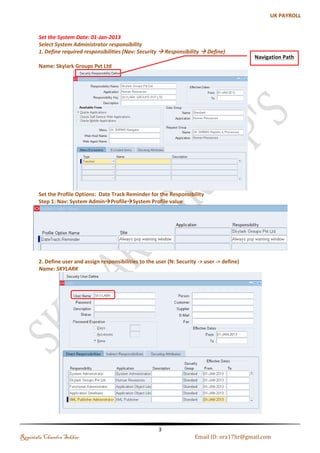
Set the System Date: 01-Jan-2013 
Step 1: Define required responsibilities 
Switch to System Administrator Responsibility 
Navigation: Security  Responsibility  Define 
Name: Skylark Groups Pvt Ltd 
Step 2: Set the Profile Options 
Date Track Reminder 
Navigation : System AdminProfileSystem Profile value 
Navigation Path 
Regintala Chandra Sekhar Page 4 ora17hr@gmail.com
Step 3: Define user and assign responsibilities to the user 
Navigation: Security  User DefineNew 
Name: SKYLARK 
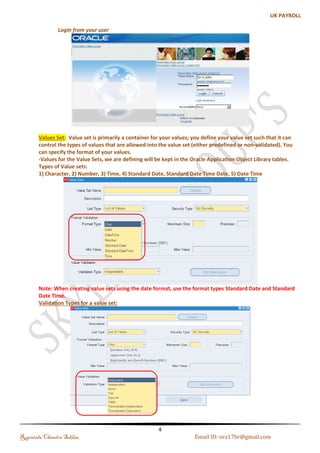
Step 4: Login from your user 
Regintala Chandra Sekhar Page 5 ora17hr@gmail.com
Define Values Set 
Value set is primarily a container for your values; you define your value set such that it can control the 
types of values that are allowed into the value set (either predefined or non-validated). You can specify the 
format of your values. Values for the Value Sets, we are defining will be kept in the Oracle Application Object 
Library tables. 
I. Format Validation Types 
1) Character, 2) Number, 3) Time, 4) Standard Date, Standard Date Time Date, 5) Date Time 
Note: When creating value sets using the date format, use the format types Standard Date and Standard Date 
Time. 
II. Validation Types 
Regintala Chandra Sekhar Page 6 ora17hr@gmail.com
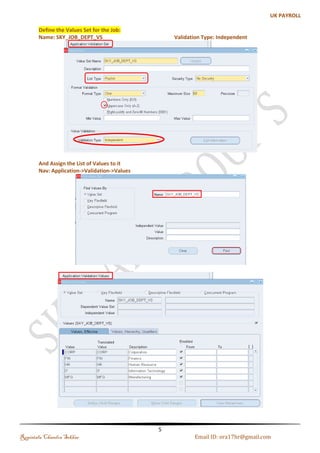
(a). Independent Values Set for Job 
Step 1: Creating Values for Job 
Name: SKY_JOB_DEPT_VS Validation Type: Independent 
Step 2: Assign the List of Values to it 
Navigation : Application-->Validation-->Values 
Regintala Chandra Sekhar Page 7 ora17hr@gmail.com
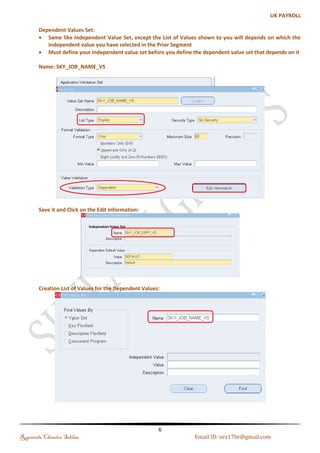
(b). Dependent Values Set 
Same like Independent Value Set, except the List of Values shown to you will depends on which the 
Independent value you have selected in the Prior Segment Must define your independent value set before you 
define the dependent value set that depends on it 
Step 1: Creating Dependent Values Set 
Name: SKY_JOB_NAME_VS 
Save it and Click on the Edit Information 
Step 2: Assigning the Independent Value Set 
Regintala Chandra Sekhar Page 8 ora17hr@gmail.com
Step 3: Creation List of Values for the Dependent Values 
Navigation: Application-->Validate-->Value Set-->Find-->Click on Independent Value Set column-->Press Down 
Arrow-->Enter the Values 
1. Corporation: 
Regintala Chandra Sekhar Page 9 ora17hr@gmail.com
2. Click on the CORP column and Press Down Arrow Key you will find the other three Departments 
Enter FIN Department Details 
3. Next HR Department 
Regintala Chandra Sekhar Page 10 ora17hr@gmail.com
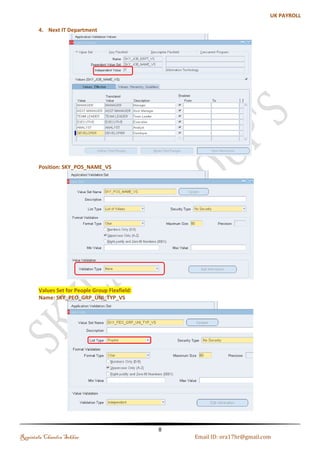
4. Next IT Department 
(c). None Value Set for Position 
Step 1: Creating Value set with Validation Type : None 
Position: SKY_POS_NAME_VS 
Regintala Chandra Sekhar Page 11 ora17hr@gmail.com
Step 2: Values Set for People Group Flexfield: 
Name: SKY_PEO_GRP_UNI_TYP_VS 
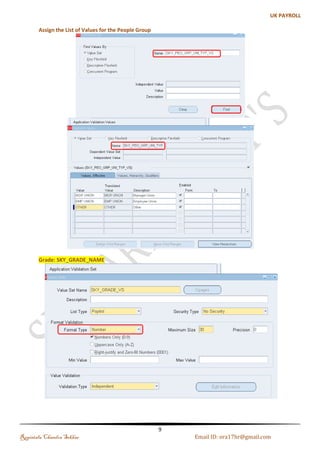
Step 3: Assign the List of Values for the People Group 
Navigation : Application-->Validation-->Values 
Regintala Chandra Sekhar Page 12 ora17hr@gmail.com
(d). Independent Value Set for Grade 
Step 1: Creating Independent Value set for Grade validation type : independent 
Grade: SKY_GRADE_NAME 
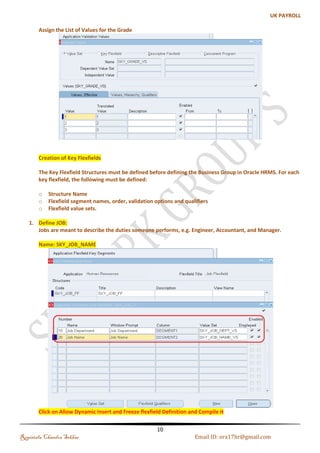
Step 2: Assign the List of Values for the Grade 
Regintala Chandra Sekhar Page 13 ora17hr@gmail.com
Creation of Key Flexfields 
The Key Flexfield Structures must be defined before defining the Business Group in Oracle HRMS. For 
each Key Flexfield, the following must be defined: 
 Structure Name 
 Flexfield segment names, order, validation options and qualifiers 
 Flexfield value sets. 
(a). Jobs Flexfield 
Jobs are meant to describe the duties someone performs, e.g. Engineer, Accountant, and Manager. 
Step 1: Creating Job Flexfield 
Navigation: Application-->Flexfield-->Key-->Segments-->Query the Job Flexfield-->Enter the Structures Details 
Name: SKY_JOB_NAME 
Regintala Chandra Sekhar Page 14 ora17hr@gmail.com
Step 2: Click on Allow Dynamic Insert and Freeze Flexfield Definition and Compile it 
(b). Position Flexfield 
Positions are meant to describe specific instances of that job, e.g. Trainee Engineer, Senior Cost 
Accountant, Sales Manager. In other words, Positions are subsets of Jobs. 
Click on Open Button uncheck the required check box so that it will not show as be mandatory 
Name: Sky_Position_FF 
Note: Click on Allow Dynamic Insert and Freeze Flexfield Definition and Compile it (see the above fig. Job) 
Regintala Chandra Sekhar Page 15 ora17hr@gmail.com
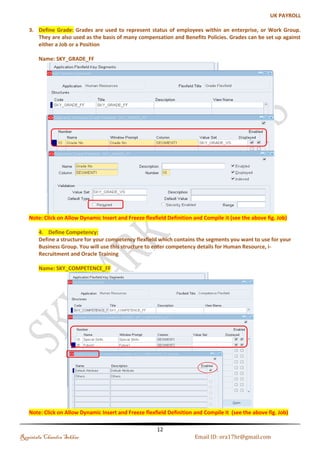
(c). Grade Flexfield 
Grades are used to represent status of employees within an enterprise, or Work Group. They are also 
used as the basis of many compensation and Benefits Policies. Grades can be set up against either a Job or a 
Position 
Navigation : Application-->Flexfield-->Key-->Segments-->Query the Grade Flexfield-->Enter the Structures 
Code-->Segment Names 
Name: SKY_GRADE_FF 
Note: Click on Allow Dynamic Insert and Freeze Flexfield Definition and Compile it (see the above fig. 
Job) 
Regintala Chandra Sekhar Page 16 ora17hr@gmail.com
(d). Competency Flexfield 
Define a structure for your competency Flexfield which contains the segments you want to use for your 
Business Group. You will use this structure to enter competency details for Human Resource, i-Recruitment and 
Oracle Training 
Navigation : Application-->Flexfield-->Key-->Segments-->Query the Competence Flexfield-->Enter the 
Structures Code-->Segment Names 
Name: SKY_COMPETENCE_FF 
Note: Click on Allow Dynamic Insert and Freeze Flexfield Definition and Compile it (see the above fig. 
Job) 
Regintala Chandra Sekhar Page 17 ora17hr@gmail.com
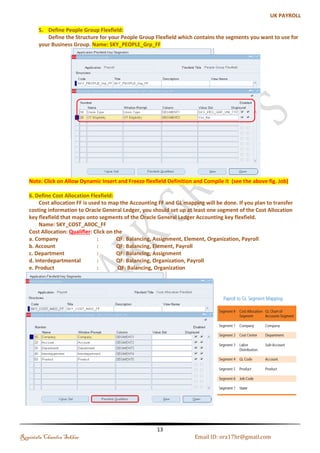
(e). People Group Flexfield 
Define the Structure for your People Group Flexfield which contains the segments you want to use for 
your Business Group. 
Navigation : Application-->Flexfield-->Key-->Segments-->Query the People Group Flexfield-->Enter the 
Structures Code-->Segment Names 
Name: SKY_PEOPLE_Grp_FF 
Note: Click on Allow Dynamic Insert and Freeze Flexfield Definition and Compile it (see the above fig. 
Job) 
Regintala Chandra Sekhar Page 18 ora17hr@gmail.com
(f). Cost Allocation Flexfield 
Cost allocation FF is used to map the Accounting FF and GL mapping will be done. If you plan to transfer 
costing information to Oracle General Ledger, you should set up at least one segment of the Cost Allocation key 
Flexfield that maps onto segments of the Oracle General Ledger Accounting key Flexfield. 
Navigation : Application-->Flexfield-->Key-->Segments-->Query the Cost Allocation Flexfield-->Enter the 
Structures Code-->Segment Names 
Name: SKY_COST_AllOC_FF 
Cost Allocation: Qualifier: Click on the 
a. Company : QF: Balancing, Assignment, Element, Organization, Payroll 
b. Account : QF: Balancing, Element, Payroll 
c. Department : QF: Balancing, Assignment 
d. Interdepartmental : QF: Balancing, Organization, Payroll 
e. Product : QF: Balancing, Organization 
Click on the Flexfield Qualifiers: 
Regintala Chandra Sekhar Page 19 ora17hr@gmail.com
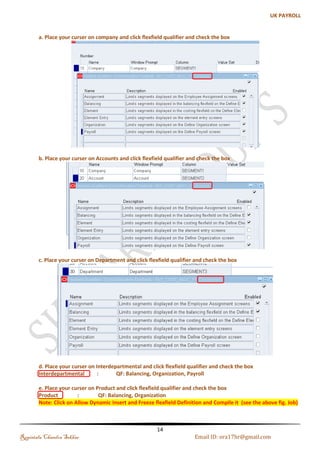
a. Place your curser on company and click Flexfield qualifier and check the box 
b. Place your curser on Accounts and click Flexfield qualifier and check the box 
c. Place your curser on Department and click Flexfield qualifier and check the box 
Regintala Chandra Sekhar Page 20 ora17hr@gmail.com
d. Place your curser on Interdepartmental and click Flexfield qualifier and check the box 
Interdepartmental : QF: Balancing, Organization, Payroll 
e. Place your curser on Product and click Flexfield qualifier and check the box 
Product : QF: Balancing, Organization 
Note: Click on Allow Dynamic Insert and Freeze Flexfield Definition and Compile it (see the above fig. 
Job) 
Payroll to GL Segment Mapping 
We have other Key Flexfield I will explain it later 
Bank Details 
Soft Code 
Personal Analysis Key Flexfield 
Regintala Chandra Sekhar Page 21 ora17hr@gmail.com
Creating Descriptive Flexfield 
Descriptive Flexfield is used to just capture extra information. You can define two types of descriptive 
Flexfield segments: 
 Global Segments: Segments always appear in the Flexfield window 
 Context Sensitive Segments: Segment appears only when a defined context exists. 
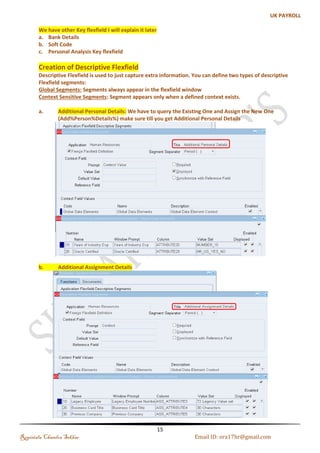
(a). Additional Personal Details: 
We have to query the Existing One and Assign the New One (Add%Person%Details%) make sure till 
you get Additional Personal Details 
Regintala Chandra Sekhar Page 22 ora17hr@gmail.com
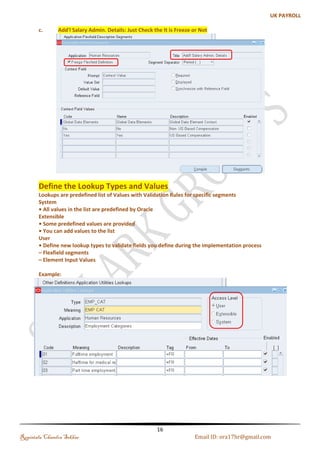
(b). Additional Assignment Details 
(c). Add'l Salary Admin. Details 
Note: Just Check the It is Freezed or Not 
Regintala Chandra Sekhar Page 23 ora17hr@gmail.com
Defining Lookup Types and Values 
Lookups are predefined list of Values with Validation Rules for specific segments 
Access Level 
i. System 
 All values in the list are predefined by Oracle 
ii. Extensible 
 Some predefined values are provided 
 You can add values to the list 
iii. User 
 Define new lookup types to validate fields you define during the implementation process 
– Flexfield segments 
– Element Input Values 
Example: 
Regintala Chandra Sekhar Page 24 ora17hr@gmail.com
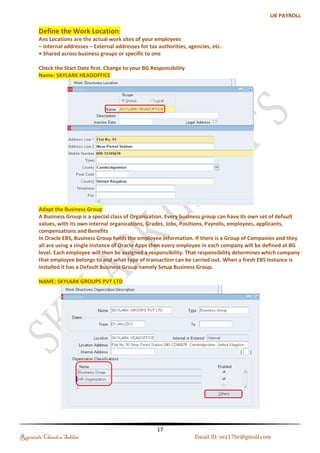
Work Location 
Locations are the actual work sites of your employees 
– Internal addresses 
– External addresses for tax authorities, agencies, etc. Shared across business groups or specific 
to one 
Check the Start Date first. Change to your BG Responsibility 
Name: SKYLARK HEADOFFICE 
Regintala Chandra Sekhar Page 25 ora17hr@gmail.com
Business Group 
A Business Group is a special class of Organization. Every business group can have its own set of default 
values, with its own internal organizations, Grades, Jobs, Positions, Payrolls, employees, applicants, 
compensations and Benefits 
In Oracle EBS, Business Group holds the employee information. If there is a Group of Companies and they all are 
using a single instance of Oracle Apps then every employee in each company will be defined at BG level. Each 
employee will then be assigned a responsibility. That responsibility determines which company that employee 
belongs to and what type of transaction can be carried out. 
Name: SKYLARK GROUPS PVT LTD 
(a). Business Group Information: 
Regintala Chandra Sekhar Page 26 ora17hr@gmail.com
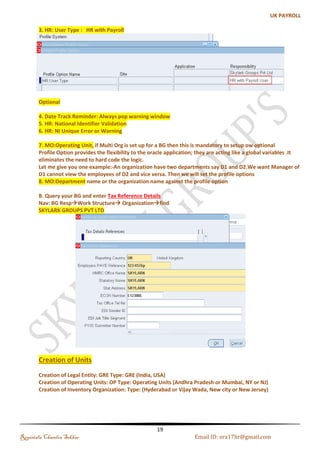
(b). Setting up the Security Profile 
i. HR:Cross/Business Group as yes/no, if yes. Then user can access data from other Business group too. 
ii. HR:Security Profile 
iii. HR: User Type : HR with Payroll 
Regintala Chandra Sekhar Page 27 ora17hr@gmail.com
Optional 
iv. Date Track Reminder: Always pop warning window 
v. HR: National Identifier Validation 
vi. HR: NI Unique Error or Warning 
vii. MO:Operating Unit, if Multi Org is set up for a BG then this is mandatory to setup ow optional. Profile 
Option provides the flexibility to the oracle application; they are acting like a global variables .It 
eliminates the need to hard code the logic. Let me give you one example:-An organization have two 
departments say D1 and D2.We want Manager of D1 cannot view the employees of D2 and vice versa. 
Then we will set the profile options 
viii. MO:Department name or the organization name against the profile option 
(c). Tax Details 
Query your BG and enter Tax Reference Details 
Navigation: BG RespWork Structure Organizationfind SKYLARK GROUPS PVT LTD--> 
Additional Organization Information-->Tax Details References 
Regintala Chandra Sekhar Page 28 ora17hr@gmail.com
Creating Units 
 Legal Entity : GRE Type: GRE (India, USA) 
 Operating Units : Operating Units (Andhra Pradesh or Mumbai, NY or NJ) 
 Inventory Organization : Type (Hyderabad or Vijay Wada, New city or New Jersey) 
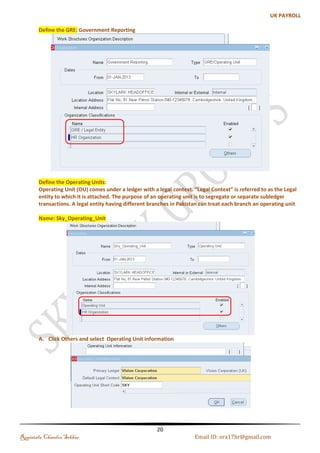
(a). Defining GRE: Government Reporting 
Regintala Chandra Sekhar Page 29 ora17hr@gmail.com
(b). Defining Operating Units: 
Operating Unit (OU) comes under a ledger with a legal context. “Legal Context” is referred to as the 
Legal entity to which it is attached. The purpose of an operating unit is to segregate or separate sub ledger 
transactions. A legal entity having different branches in Pakistan can treat each branch an operating unit 
Step 1: Creating Operating Unit 
Name: Sky_Operating_Unit 
Step 2: Click Others and select Operating Unit information 
Regintala Chandra Sekhar Page 30 ora17hr@gmail.com
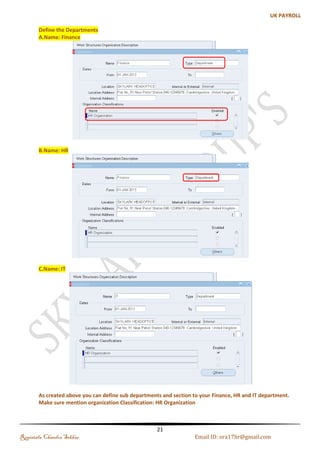
(c). Defining Departments 
a) Name: Finance 
b) Name: HR 
Regintala Chandra Sekhar Page 31 ora17hr@gmail.com
c) Name: IT 
Note: As we created above you can define sub departments and section to your Finance, HR and IT 
department. Make sure mention organization Classification: HR Organization 
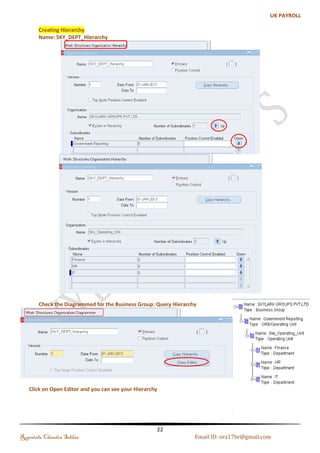
Creating Hierarchy 
Step 1: Creating Organization Hierarchy -->Check the Primary Check box-->Enter Version Number 
Name: SKY_DEPT_Hierarchy 
Regintala Chandra Sekhar Page 32 ora17hr@gmail.com
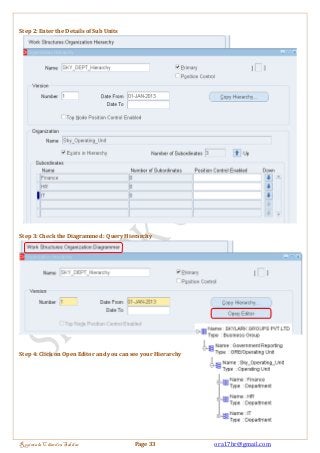
Step 2: Enter the Details of Sub Units 
Step 3: Check the Diagrammed : Query Hierarchy 
Step 4: Click on Open Editor and you can see your Hierarchy 
Regintala Chandra Sekhar Page 33 ora17hr@gmail.com
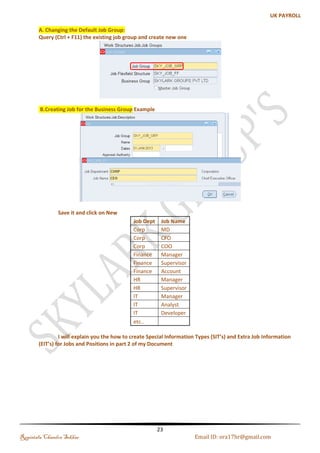
Creating Jobs 
Step 1: Changing the Default Job Group 
Query (Ctrl + F11) the existing job group and create new one 
Step 2: Creating Job for the Business Group Example 
Save it and click on New 
Job Dept Job Name 
Corp MD 
Corp CFO 
Corp COO 
Finance Manager 
Finance Supervisor 
Finance Account 
HR Manager 
HR Supervisor 
IT Manager 
IT Analyst 
IT Developer 
etc.. 
I will explain you the how to create Special Information Types (SIT’s) and Extra Job Information (EIT’s) for Jobs 
and Positions in part 2 of my Document 
Regintala Chandra Sekhar Page 34 ora17hr@gmail.com
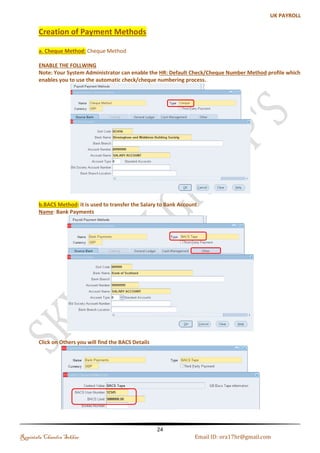
Creating Payment Methods 
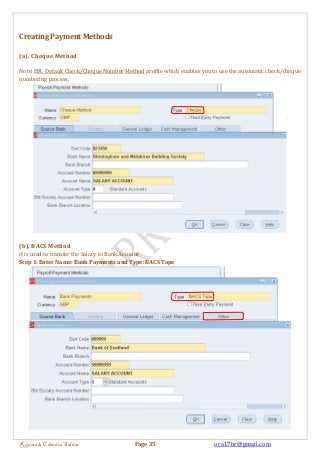
(a). Cheque Method 
Note: HR: Default Check/Cheque Number Method profile which enables you to use the automatic check/cheque 
numbering process. 
(b). BACS Method 
it is used to transfer the Salary to Bank Account 
Step 1: Enter Name: Bank Payments and Type: BACS Tape 
Regintala Chandra Sekhar Page 35 ora17hr@gmail.com
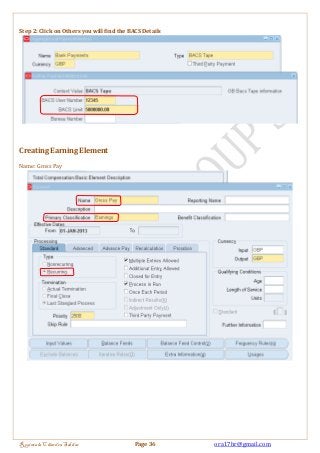
Step 2: Click on Others you will find the BACS Details 
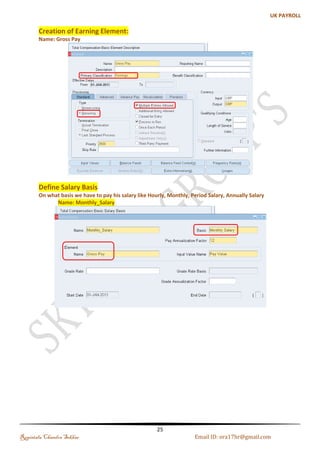
Creating Earning Element 
Name: Gross Pay 
Regintala Chandra Sekhar Page 36 ora17hr@gmail.com
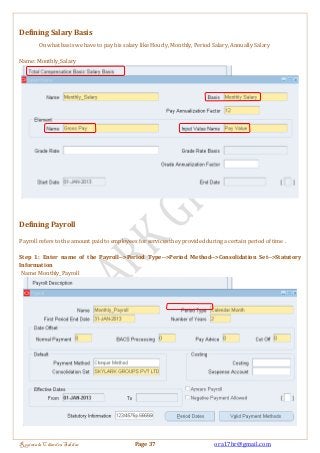
Defining Salary Basis 
On what basis we have to pay his salary like Hourly, Monthly, Period Salary, Annually Salary 
Name: Monthly_Salary 
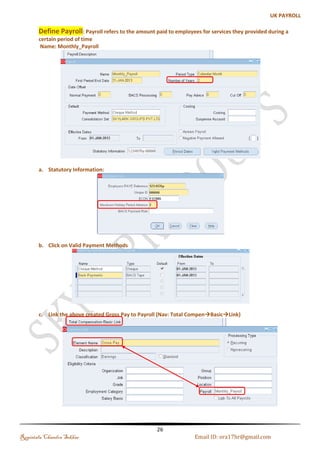
Defining Payroll 
Payroll refers to the amount paid to employees for services they provided during a certain period of time . 
Step 1: Enter name of the Payroll-->Period Type-->Period Method-->Consolidation Set-->Statutory 
Information 
Name: Monthly_Payroll 
Regintala Chandra Sekhar Page 37 ora17hr@gmail.com
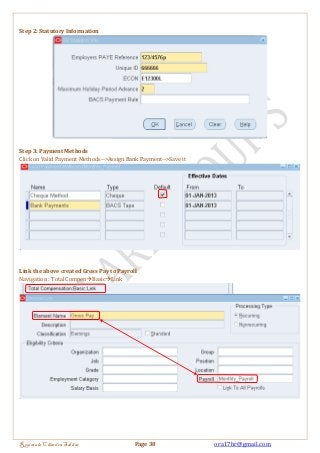
Step 2: Statutory Information 
Step 3: Payment Methods 
Click on Valid Payment Methods-->Assign Bank Payment-->Save it 
Link the above created Gross Pay to Payroll 
Navigation : Total CompenBasicLink 
Regintala Chandra Sekhar Page 38 ora17hr@gmail.com
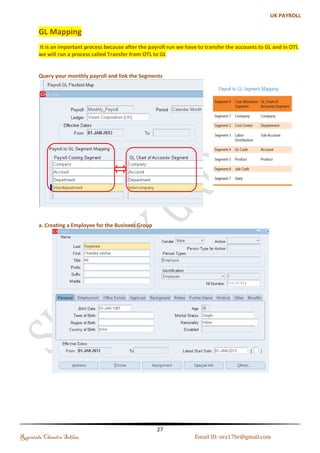
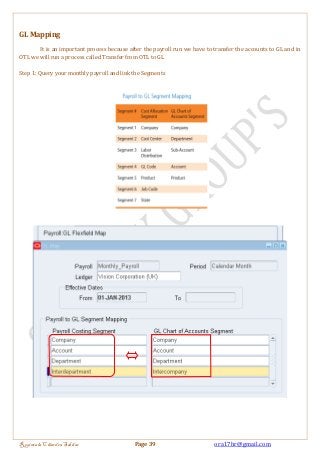
GL Mapping 
It is an important process because after the payroll run we have to transfer the accounts to GL and in 
OTL we will run a process called Transfer from OTL to GL 
Step 1: Query your monthly payroll and link the Segments 
Regintala Chandra Sekhar Page 39 ora17hr@gmail.com
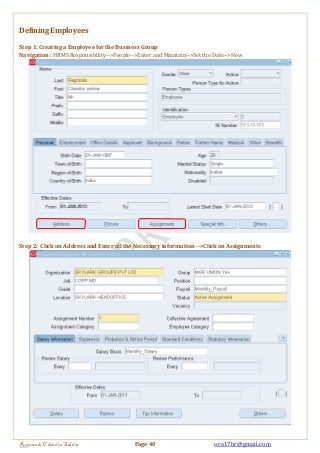
Defining Employees 
Step 1: Creating a Employee for the Business Group 
Navigation : HRMS Responsibility-->People-->Enter and Maintain-->Set the Date-->New 
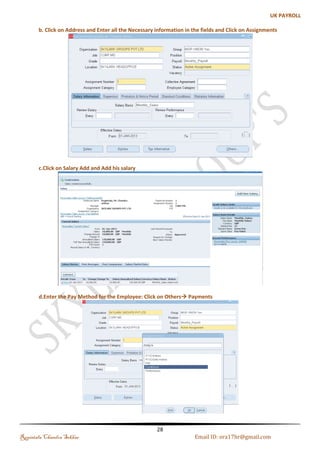
Step 2: Click on Address and Enter all the Necessary information -->Click on Assignments 
Regintala Chandra Sekhar Page 40 ora17hr@gmail.com
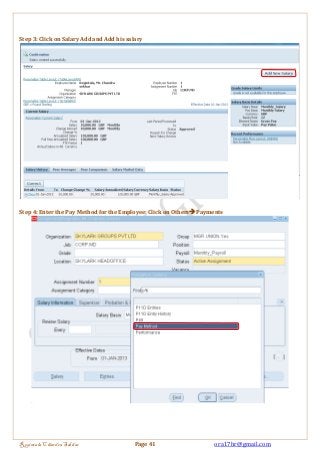
Step 3: Click on Salary Add and Add his salary 
Step 4: Enter the Pay Method for the Employee: Click on Others Payments 
Regintala Chandra Sekhar Page 41 ora17hr@gmail.com
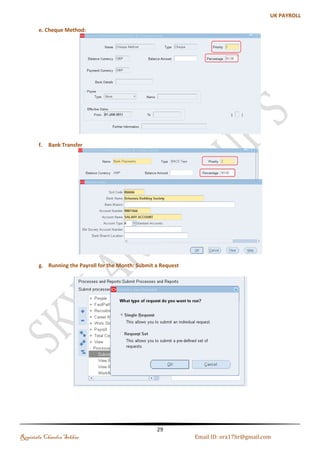
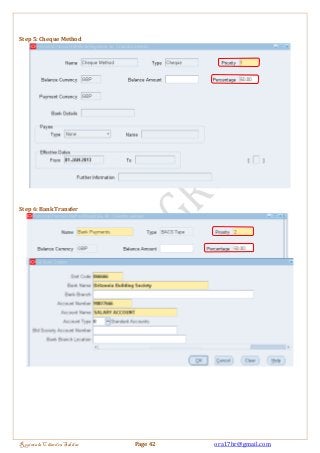
Step 5: Cheque Method 
Step 6: Bank Transfer 
Regintala Chandra Sekhar Page 42 ora17hr@gmail.com
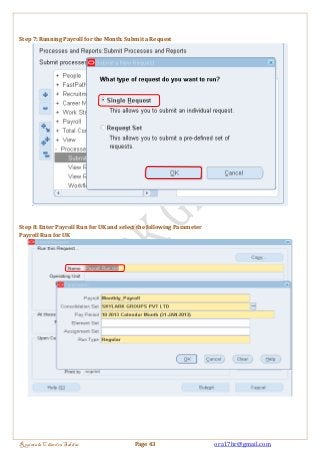
Step 7: Running Payroll for the Month: Submit a Request 
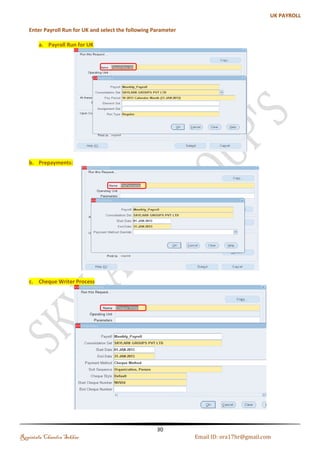
Step 8: Enter Payroll Run for UK and select the following Parameter 
Payroll Run for UK 
Regintala Chandra Sekhar Page 43 ora17hr@gmail.com
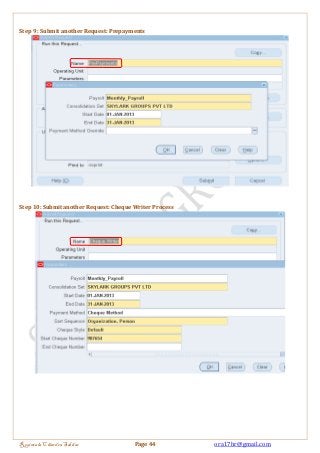
Step 9 : Submit another Request: Prepayments 
Step 10: Submit another Request: Cheque Writer Process 
Regintala Chandra Sekhar Page 44 ora17hr@gmail.com
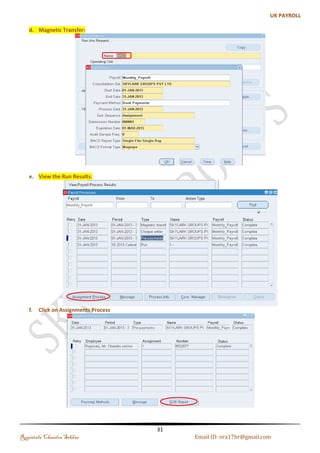
Step 11: Submit another Request: Magnetic Transfer: 
Step 12: Viewing Run Results 
Navigation : View-->Payroll Process Results-->Select Monthly Payroll-->Click on Find 
Regintala Chandra Sekhar Page 45 ora17hr@gmail.com
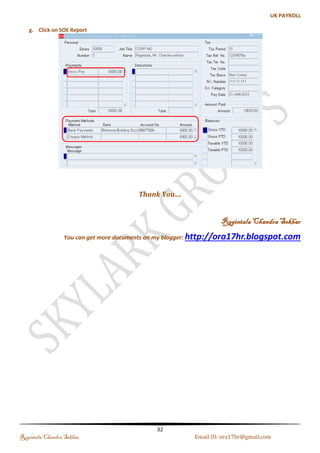
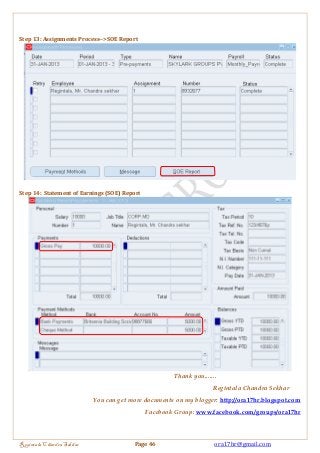
Step 13: Assignments Process-->SOE Report 
Step 14: Statement of Earnings (SOE) Report 
Thank you....... 
Regintala Chandra Sekhar 
You can get more documents on my blogger: http://ora17hr.blogspot.com 
Facebook Group: www.facebook.com/groups/ora17hr 
Regintala Chandra Sekhar Page 46 ora17hr@gmail.com

Oracle hrms bg setup examples

  • 1.
    Menu, Functions andSecurity Profile Oracle HRMS Functional Document Business Group Setup's Part 1 Note: This Document is created only for Class Room Training Purpose By Regintala Chandra Sekhar ora17hr@gmail.com Regintala Chandra Sekhar Page 1 ora17hr@gmail.com
  • 2.
    Menu, Functions andSecurity Profile Table of Contents Introduction ................................................................................................................................................................................... 3 Process of setup of Business Group .................................................................................................................................. 3 Define Values Set .......................................................................................................................................................................... 6 (a). Independent Values Set for Job .................................................................................................................................. 7 (b). Dependent Values Set .................................................................................................................................................... 8 (c). None Value Set for Position ....................................................................................................................................... 11 (d). Independent Value Set for Grade............................................................................................................................ 13 Creation of Key Flexfields ...................................................................................................................................................... 14 (a). Jobs Flexfield .................................................................................................................................................................. 14 (b). Position Flexfield .......................................................................................................................................................... 15 (c). Grade Flexfield ............................................................................................................................................................... 16 (d). Competency Flexfield ................................................................................................................................................. 17 (e). People Group Flexfield ............................................................................................................................................... 18 (f). Cost Allocation Flexfield ............................................................................................................................................. 19 Payroll to GL Segment Mapping .................................................................................................................................. 21 Creating Descriptive Flexfield .............................................................................................................................................. 22 Defining Lookup Types and Values .................................................................................................................................... 24 Work Location ............................................................................................................................................................................ 25 Business Group .......................................................................................................................................................................... 26 (a). Business Group Information: ................................................................................................................................... 26 (b). Setting up the Security Profile ................................................................................................................................. 27 (c). Tax Details ....................................................................................................................................................................... 28 Creating Units ............................................................................................................................................................................ 29 (a). Defining GRE: Government Reporting .................................................................................................................. 29 (b). Defining Operating Units: .......................................................................................................................................... 30 (c). Defining Departments ................................................................................................................................................. 31 Creating Hierarchy ................................................................................................................................................................... 32 Creating Jobs ............................................................................................................................................................................... 34 Creating Payment Methods ................................................................................................................................................... 35 Creating Earning Element ...................................................................................................................................................... 36 Defining Salary Basis ............................................................................................................................................................... 37 Defining Payroll ......................................................................................................................................................................... 37 GL Mapping.................................................................................................................................................................................. 39 Defining Employees ................................................................................................................................................................. 40 Regintala Chandra Sekhar Page 2 ora17hr@gmail.com
  • 3.
    Introduction A BusinessGroup (BG) holds information about the components of work structures such as jobs, grades and positions. At the BG level we set up the legislative rules, terms of employment, remuneration policies and employee work patterns. Oracle HRMS provides the flexibility to define enterprise the following four basic configurations models, 1. A single operating company in one country. 2. A single operating company in multiple countries. 3. Multiple operating companies in one country. 4. Multiple operating companies in multiple countries The major reason for creating many business groups is that you enterprise is present in many countries. The other reasons for creation of more than one BG are:- 1. During acquisitions or mergers there is a need to manage separate structures and processed during a transition phase. 2. To keep a copy of your live system with example records for training or testing purposes 3. You are a holding company with a number of subsidiary companies and each subsidiary has its own structures, employees, and compensation and benefit policies. Process of setup of Business Group 1. Select System Administrator responsibility 2. Define required responsibilities (N: security -> responsibility -> define) 3. Define user and assign responsibilities to the user (N: Security -> user -> define) 4. Select GL Responsibility 5. Define accounting flex field (N: setup -> financial -> flex field -> key -> segments) 6. Give values for your segments (Setup -> financial -> flex field -> key -> values) 7. Define Currency (N: setup -> Currencies -> define) 8. Define Calendar (N: Setup -> financial -> calendar -> Type/Accounting) 9. Create Ledger (N: Setup -> financial -> book -> define) 10. Select HRMS responsibility 11. Define a location (N: Work Structure->Location) 12. Define a Business Group (N: Works Structure->organization->description) 13. Set the following Profile Options to all your responsibilities 14. Select Inventory responsibility 15. Create legal entity (N: Setup -> organizations -> organizations) 16. Create Operating unit (N: Setup -> organizations -> organizations) 17. Set Profile option MO: Operating unit for all responsibilities 18. Create Work day calendar 19. Create Inventory Organization (N: Setup -> organizations -> organizations) 20. Select Sys Admin responsibility and run replicate seed data program. Regintala Chandra Sekhar Page 3 ora17hr@gmail.com
  • 4.
    Set the SystemDate: 01-Jan-2013 Step 1: Define required responsibilities Switch to System Administrator Responsibility Navigation: Security  Responsibility  Define Name: Skylark Groups Pvt Ltd Step 2: Set the Profile Options Date Track Reminder Navigation : System AdminProfileSystem Profile value Navigation Path Regintala Chandra Sekhar Page 4 ora17hr@gmail.com
  • 5.
    Step 3: Defineuser and assign responsibilities to the user Navigation: Security  User DefineNew Name: SKYLARK Step 4: Login from your user Regintala Chandra Sekhar Page 5 ora17hr@gmail.com
  • 6.
    Define Values Set Value set is primarily a container for your values; you define your value set such that it can control the types of values that are allowed into the value set (either predefined or non-validated). You can specify the format of your values. Values for the Value Sets, we are defining will be kept in the Oracle Application Object Library tables. I. Format Validation Types 1) Character, 2) Number, 3) Time, 4) Standard Date, Standard Date Time Date, 5) Date Time Note: When creating value sets using the date format, use the format types Standard Date and Standard Date Time. II. Validation Types Regintala Chandra Sekhar Page 6 ora17hr@gmail.com
  • 7.
    (a). Independent ValuesSet for Job Step 1: Creating Values for Job Name: SKY_JOB_DEPT_VS Validation Type: Independent Step 2: Assign the List of Values to it Navigation : Application-->Validation-->Values Regintala Chandra Sekhar Page 7 ora17hr@gmail.com
  • 8.
    (b). Dependent ValuesSet Same like Independent Value Set, except the List of Values shown to you will depends on which the Independent value you have selected in the Prior Segment Must define your independent value set before you define the dependent value set that depends on it Step 1: Creating Dependent Values Set Name: SKY_JOB_NAME_VS Save it and Click on the Edit Information Step 2: Assigning the Independent Value Set Regintala Chandra Sekhar Page 8 ora17hr@gmail.com
  • 9.
    Step 3: CreationList of Values for the Dependent Values Navigation: Application-->Validate-->Value Set-->Find-->Click on Independent Value Set column-->Press Down Arrow-->Enter the Values 1. Corporation: Regintala Chandra Sekhar Page 9 ora17hr@gmail.com
  • 10.
    2. Click onthe CORP column and Press Down Arrow Key you will find the other three Departments Enter FIN Department Details 3. Next HR Department Regintala Chandra Sekhar Page 10 ora17hr@gmail.com
  • 11.
    4. Next ITDepartment (c). None Value Set for Position Step 1: Creating Value set with Validation Type : None Position: SKY_POS_NAME_VS Regintala Chandra Sekhar Page 11 ora17hr@gmail.com
  • 12.
    Step 2: ValuesSet for People Group Flexfield: Name: SKY_PEO_GRP_UNI_TYP_VS Step 3: Assign the List of Values for the People Group Navigation : Application-->Validation-->Values Regintala Chandra Sekhar Page 12 ora17hr@gmail.com
  • 13.
    (d). Independent ValueSet for Grade Step 1: Creating Independent Value set for Grade validation type : independent Grade: SKY_GRADE_NAME Step 2: Assign the List of Values for the Grade Regintala Chandra Sekhar Page 13 ora17hr@gmail.com
  • 14.
    Creation of KeyFlexfields The Key Flexfield Structures must be defined before defining the Business Group in Oracle HRMS. For each Key Flexfield, the following must be defined:  Structure Name  Flexfield segment names, order, validation options and qualifiers  Flexfield value sets. (a). Jobs Flexfield Jobs are meant to describe the duties someone performs, e.g. Engineer, Accountant, and Manager. Step 1: Creating Job Flexfield Navigation: Application-->Flexfield-->Key-->Segments-->Query the Job Flexfield-->Enter the Structures Details Name: SKY_JOB_NAME Regintala Chandra Sekhar Page 14 ora17hr@gmail.com
  • 15.
    Step 2: Clickon Allow Dynamic Insert and Freeze Flexfield Definition and Compile it (b). Position Flexfield Positions are meant to describe specific instances of that job, e.g. Trainee Engineer, Senior Cost Accountant, Sales Manager. In other words, Positions are subsets of Jobs. Click on Open Button uncheck the required check box so that it will not show as be mandatory Name: Sky_Position_FF Note: Click on Allow Dynamic Insert and Freeze Flexfield Definition and Compile it (see the above fig. Job) Regintala Chandra Sekhar Page 15 ora17hr@gmail.com
  • 16.
    (c). Grade Flexfield Grades are used to represent status of employees within an enterprise, or Work Group. They are also used as the basis of many compensation and Benefits Policies. Grades can be set up against either a Job or a Position Navigation : Application-->Flexfield-->Key-->Segments-->Query the Grade Flexfield-->Enter the Structures Code-->Segment Names Name: SKY_GRADE_FF Note: Click on Allow Dynamic Insert and Freeze Flexfield Definition and Compile it (see the above fig. Job) Regintala Chandra Sekhar Page 16 ora17hr@gmail.com
  • 17.
    (d). Competency Flexfield Define a structure for your competency Flexfield which contains the segments you want to use for your Business Group. You will use this structure to enter competency details for Human Resource, i-Recruitment and Oracle Training Navigation : Application-->Flexfield-->Key-->Segments-->Query the Competence Flexfield-->Enter the Structures Code-->Segment Names Name: SKY_COMPETENCE_FF Note: Click on Allow Dynamic Insert and Freeze Flexfield Definition and Compile it (see the above fig. Job) Regintala Chandra Sekhar Page 17 ora17hr@gmail.com
  • 18.
    (e). People GroupFlexfield Define the Structure for your People Group Flexfield which contains the segments you want to use for your Business Group. Navigation : Application-->Flexfield-->Key-->Segments-->Query the People Group Flexfield-->Enter the Structures Code-->Segment Names Name: SKY_PEOPLE_Grp_FF Note: Click on Allow Dynamic Insert and Freeze Flexfield Definition and Compile it (see the above fig. Job) Regintala Chandra Sekhar Page 18 ora17hr@gmail.com
  • 19.
    (f). Cost AllocationFlexfield Cost allocation FF is used to map the Accounting FF and GL mapping will be done. If you plan to transfer costing information to Oracle General Ledger, you should set up at least one segment of the Cost Allocation key Flexfield that maps onto segments of the Oracle General Ledger Accounting key Flexfield. Navigation : Application-->Flexfield-->Key-->Segments-->Query the Cost Allocation Flexfield-->Enter the Structures Code-->Segment Names Name: SKY_COST_AllOC_FF Cost Allocation: Qualifier: Click on the a. Company : QF: Balancing, Assignment, Element, Organization, Payroll b. Account : QF: Balancing, Element, Payroll c. Department : QF: Balancing, Assignment d. Interdepartmental : QF: Balancing, Organization, Payroll e. Product : QF: Balancing, Organization Click on the Flexfield Qualifiers: Regintala Chandra Sekhar Page 19 ora17hr@gmail.com
  • 20.
    a. Place yourcurser on company and click Flexfield qualifier and check the box b. Place your curser on Accounts and click Flexfield qualifier and check the box c. Place your curser on Department and click Flexfield qualifier and check the box Regintala Chandra Sekhar Page 20 ora17hr@gmail.com
  • 21.
    d. Place yourcurser on Interdepartmental and click Flexfield qualifier and check the box Interdepartmental : QF: Balancing, Organization, Payroll e. Place your curser on Product and click Flexfield qualifier and check the box Product : QF: Balancing, Organization Note: Click on Allow Dynamic Insert and Freeze Flexfield Definition and Compile it (see the above fig. Job) Payroll to GL Segment Mapping We have other Key Flexfield I will explain it later Bank Details Soft Code Personal Analysis Key Flexfield Regintala Chandra Sekhar Page 21 ora17hr@gmail.com
  • 22.
    Creating Descriptive Flexfield Descriptive Flexfield is used to just capture extra information. You can define two types of descriptive Flexfield segments:  Global Segments: Segments always appear in the Flexfield window  Context Sensitive Segments: Segment appears only when a defined context exists. (a). Additional Personal Details: We have to query the Existing One and Assign the New One (Add%Person%Details%) make sure till you get Additional Personal Details Regintala Chandra Sekhar Page 22 ora17hr@gmail.com
  • 23.
    (b). Additional AssignmentDetails (c). Add'l Salary Admin. Details Note: Just Check the It is Freezed or Not Regintala Chandra Sekhar Page 23 ora17hr@gmail.com
  • 24.
    Defining Lookup Typesand Values Lookups are predefined list of Values with Validation Rules for specific segments Access Level i. System  All values in the list are predefined by Oracle ii. Extensible  Some predefined values are provided  You can add values to the list iii. User  Define new lookup types to validate fields you define during the implementation process – Flexfield segments – Element Input Values Example: Regintala Chandra Sekhar Page 24 ora17hr@gmail.com
  • 25.
    Work Location Locationsare the actual work sites of your employees – Internal addresses – External addresses for tax authorities, agencies, etc. Shared across business groups or specific to one Check the Start Date first. Change to your BG Responsibility Name: SKYLARK HEADOFFICE Regintala Chandra Sekhar Page 25 ora17hr@gmail.com
  • 26.
    Business Group ABusiness Group is a special class of Organization. Every business group can have its own set of default values, with its own internal organizations, Grades, Jobs, Positions, Payrolls, employees, applicants, compensations and Benefits In Oracle EBS, Business Group holds the employee information. If there is a Group of Companies and they all are using a single instance of Oracle Apps then every employee in each company will be defined at BG level. Each employee will then be assigned a responsibility. That responsibility determines which company that employee belongs to and what type of transaction can be carried out. Name: SKYLARK GROUPS PVT LTD (a). Business Group Information: Regintala Chandra Sekhar Page 26 ora17hr@gmail.com
  • 27.
    (b). Setting upthe Security Profile i. HR:Cross/Business Group as yes/no, if yes. Then user can access data from other Business group too. ii. HR:Security Profile iii. HR: User Type : HR with Payroll Regintala Chandra Sekhar Page 27 ora17hr@gmail.com
  • 28.
    Optional iv. DateTrack Reminder: Always pop warning window v. HR: National Identifier Validation vi. HR: NI Unique Error or Warning vii. MO:Operating Unit, if Multi Org is set up for a BG then this is mandatory to setup ow optional. Profile Option provides the flexibility to the oracle application; they are acting like a global variables .It eliminates the need to hard code the logic. Let me give you one example:-An organization have two departments say D1 and D2.We want Manager of D1 cannot view the employees of D2 and vice versa. Then we will set the profile options viii. MO:Department name or the organization name against the profile option (c). Tax Details Query your BG and enter Tax Reference Details Navigation: BG RespWork Structure Organizationfind SKYLARK GROUPS PVT LTD--> Additional Organization Information-->Tax Details References Regintala Chandra Sekhar Page 28 ora17hr@gmail.com
  • 29.
    Creating Units Legal Entity : GRE Type: GRE (India, USA)  Operating Units : Operating Units (Andhra Pradesh or Mumbai, NY or NJ)  Inventory Organization : Type (Hyderabad or Vijay Wada, New city or New Jersey) (a). Defining GRE: Government Reporting Regintala Chandra Sekhar Page 29 ora17hr@gmail.com
  • 30.
    (b). Defining OperatingUnits: Operating Unit (OU) comes under a ledger with a legal context. “Legal Context” is referred to as the Legal entity to which it is attached. The purpose of an operating unit is to segregate or separate sub ledger transactions. A legal entity having different branches in Pakistan can treat each branch an operating unit Step 1: Creating Operating Unit Name: Sky_Operating_Unit Step 2: Click Others and select Operating Unit information Regintala Chandra Sekhar Page 30 ora17hr@gmail.com
  • 31.
    (c). Defining Departments a) Name: Finance b) Name: HR Regintala Chandra Sekhar Page 31 ora17hr@gmail.com
  • 32.
    c) Name: IT Note: As we created above you can define sub departments and section to your Finance, HR and IT department. Make sure mention organization Classification: HR Organization Creating Hierarchy Step 1: Creating Organization Hierarchy -->Check the Primary Check box-->Enter Version Number Name: SKY_DEPT_Hierarchy Regintala Chandra Sekhar Page 32 ora17hr@gmail.com
  • 33.
    Step 2: Enterthe Details of Sub Units Step 3: Check the Diagrammed : Query Hierarchy Step 4: Click on Open Editor and you can see your Hierarchy Regintala Chandra Sekhar Page 33 ora17hr@gmail.com
  • 34.
    Creating Jobs Step1: Changing the Default Job Group Query (Ctrl + F11) the existing job group and create new one Step 2: Creating Job for the Business Group Example Save it and click on New Job Dept Job Name Corp MD Corp CFO Corp COO Finance Manager Finance Supervisor Finance Account HR Manager HR Supervisor IT Manager IT Analyst IT Developer etc.. I will explain you the how to create Special Information Types (SIT’s) and Extra Job Information (EIT’s) for Jobs and Positions in part 2 of my Document Regintala Chandra Sekhar Page 34 ora17hr@gmail.com
  • 35.
    Creating Payment Methods (a). Cheque Method Note: HR: Default Check/Cheque Number Method profile which enables you to use the automatic check/cheque numbering process. (b). BACS Method it is used to transfer the Salary to Bank Account Step 1: Enter Name: Bank Payments and Type: BACS Tape Regintala Chandra Sekhar Page 35 ora17hr@gmail.com
  • 36.
    Step 2: Clickon Others you will find the BACS Details Creating Earning Element Name: Gross Pay Regintala Chandra Sekhar Page 36 ora17hr@gmail.com
  • 37.
    Defining Salary Basis On what basis we have to pay his salary like Hourly, Monthly, Period Salary, Annually Salary Name: Monthly_Salary Defining Payroll Payroll refers to the amount paid to employees for services they provided during a certain period of time . Step 1: Enter name of the Payroll-->Period Type-->Period Method-->Consolidation Set-->Statutory Information Name: Monthly_Payroll Regintala Chandra Sekhar Page 37 ora17hr@gmail.com
  • 38.
    Step 2: StatutoryInformation Step 3: Payment Methods Click on Valid Payment Methods-->Assign Bank Payment-->Save it Link the above created Gross Pay to Payroll Navigation : Total CompenBasicLink Regintala Chandra Sekhar Page 38 ora17hr@gmail.com
  • 39.
    GL Mapping Itis an important process because after the payroll run we have to transfer the accounts to GL and in OTL we will run a process called Transfer from OTL to GL Step 1: Query your monthly payroll and link the Segments Regintala Chandra Sekhar Page 39 ora17hr@gmail.com
  • 40.
    Defining Employees Step1: Creating a Employee for the Business Group Navigation : HRMS Responsibility-->People-->Enter and Maintain-->Set the Date-->New Step 2: Click on Address and Enter all the Necessary information -->Click on Assignments Regintala Chandra Sekhar Page 40 ora17hr@gmail.com
  • 41.
    Step 3: Clickon Salary Add and Add his salary Step 4: Enter the Pay Method for the Employee: Click on Others Payments Regintala Chandra Sekhar Page 41 ora17hr@gmail.com
  • 42.
    Step 5: ChequeMethod Step 6: Bank Transfer Regintala Chandra Sekhar Page 42 ora17hr@gmail.com
  • 43.
    Step 7: RunningPayroll for the Month: Submit a Request Step 8: Enter Payroll Run for UK and select the following Parameter Payroll Run for UK Regintala Chandra Sekhar Page 43 ora17hr@gmail.com
  • 44.
    Step 9 :Submit another Request: Prepayments Step 10: Submit another Request: Cheque Writer Process Regintala Chandra Sekhar Page 44 ora17hr@gmail.com
  • 45.
    Step 11: Submitanother Request: Magnetic Transfer: Step 12: Viewing Run Results Navigation : View-->Payroll Process Results-->Select Monthly Payroll-->Click on Find Regintala Chandra Sekhar Page 45 ora17hr@gmail.com
  • 46.
    Step 13: AssignmentsProcess-->SOE Report Step 14: Statement of Earnings (SOE) Report Thank you....... Regintala Chandra Sekhar You can get more documents on my blogger: http://ora17hr.blogspot.com Facebook Group: www.facebook.com/groups/ora17hr Regintala Chandra Sekhar Page 46 ora17hr@gmail.com