Leave Accrual Plan
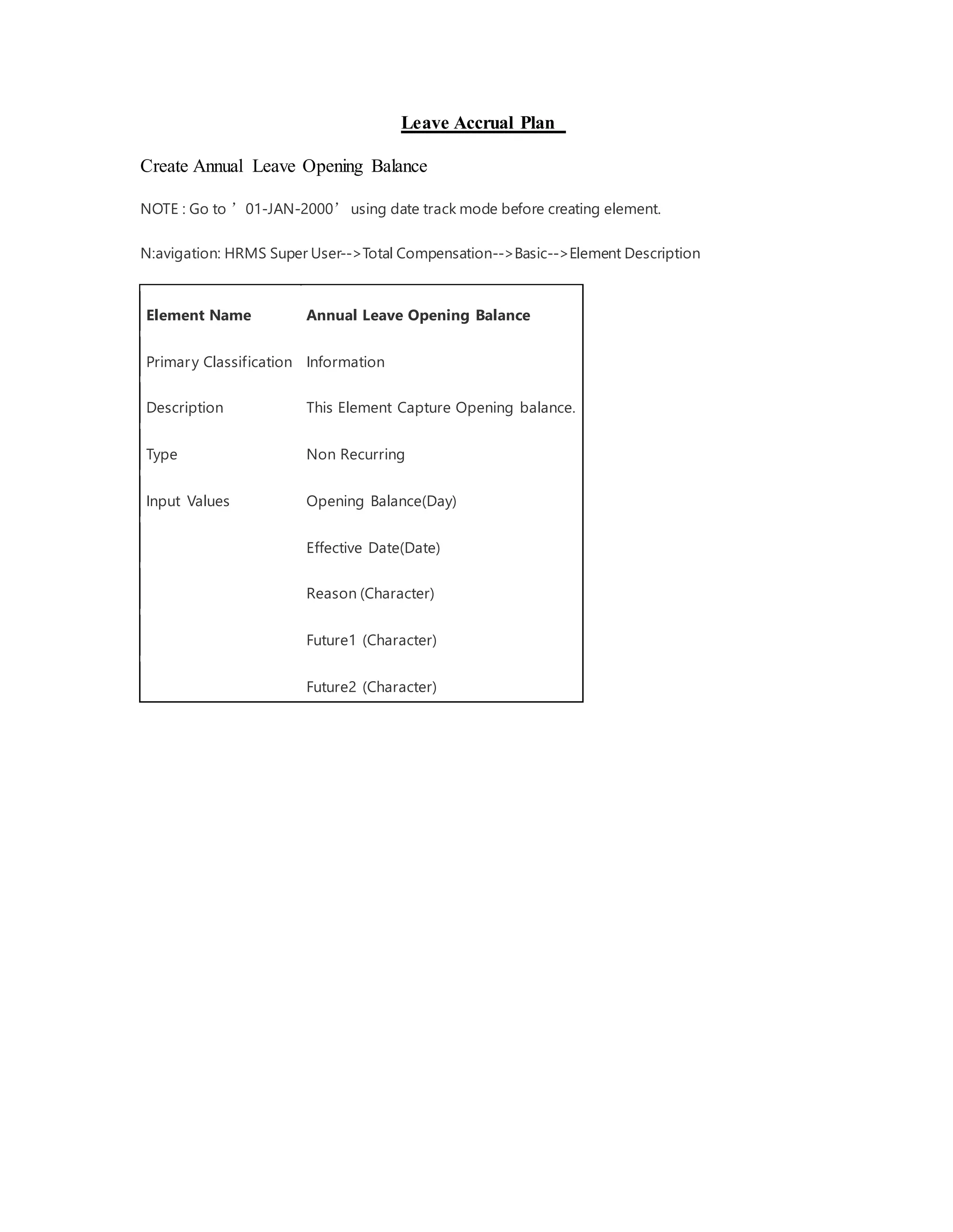
Create Annual Leave Opening Balance
NOTE : Go to ’01-JAN-2000’ using date track mode before creating element.
N:avigation: HRMS Super User-->Total Compensation-->Basic-->Element Description
Element Name Annual Leave Opening Balance
Primary Classification Information
Description This Element Capture Opening balance.
Type Non Recurring
Input Values Opening Balance(Day)
Effective Date(Date)
Reason (Character)
Future1 (Character)
Future2 (Character)
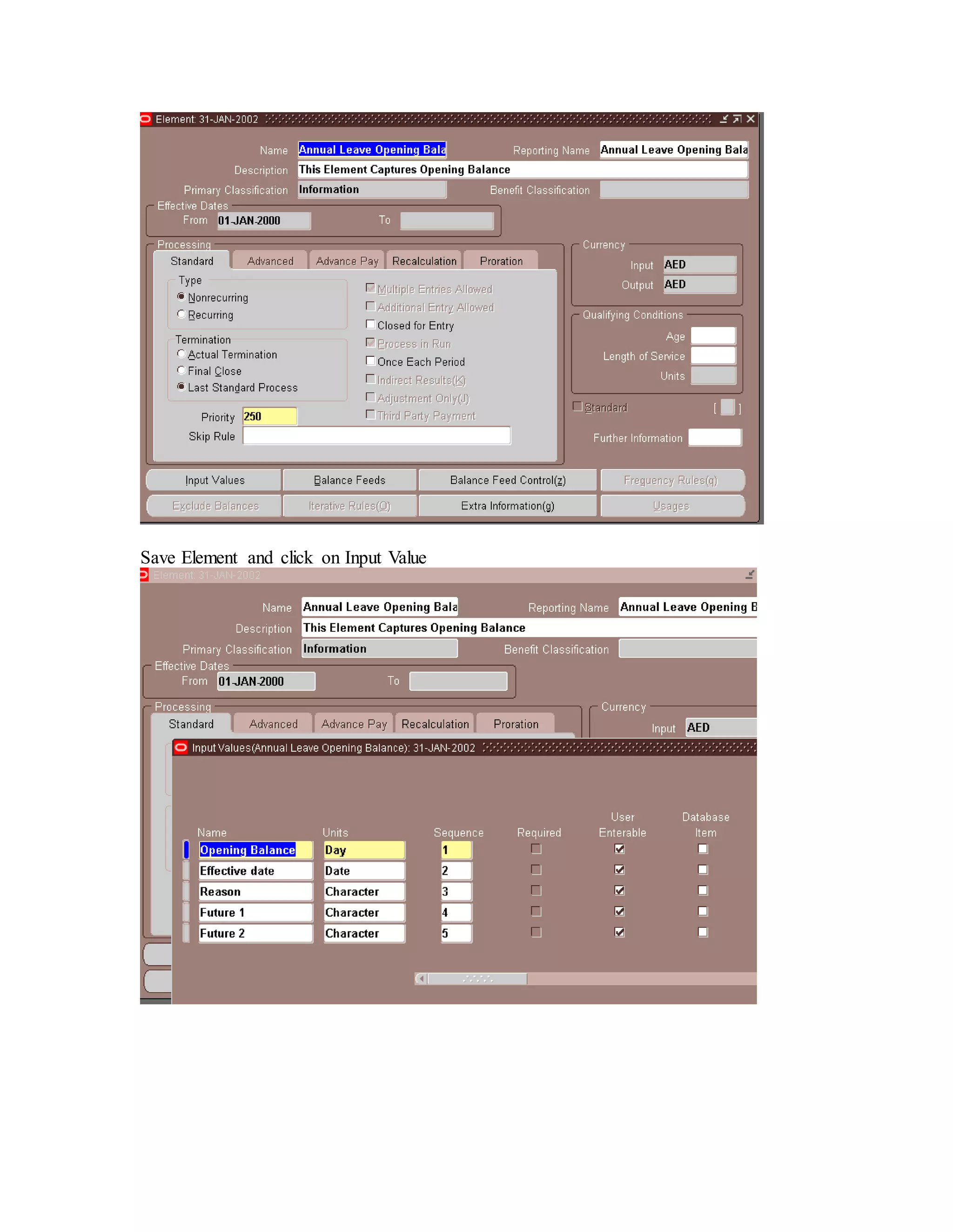
Save Element and click on Input Value
Create Annual Leave Adjustment
Element Name Annual Leave Adjustment
Primary Classification Information
Description This Element Capture Adjustment balance
Type Non Recurring
Input Values Adjustment Days (Day)
Effective Date (Date)
Reason(Character)
Future1 (Character)
Future2 (Character)
Save Element and click on Input Value
Create Annual Leave Encashment
Element Name Annual Leave Encashment
Primary Classification Information
Description This Element Capture Encashment of leave balance.
Type Non Recurring
Input Values Encashment Days (Day)
Effective Date (Date)
Reason(Character)
Future1 (Character)
Future2 (Character)
Save Element and click on Input Value
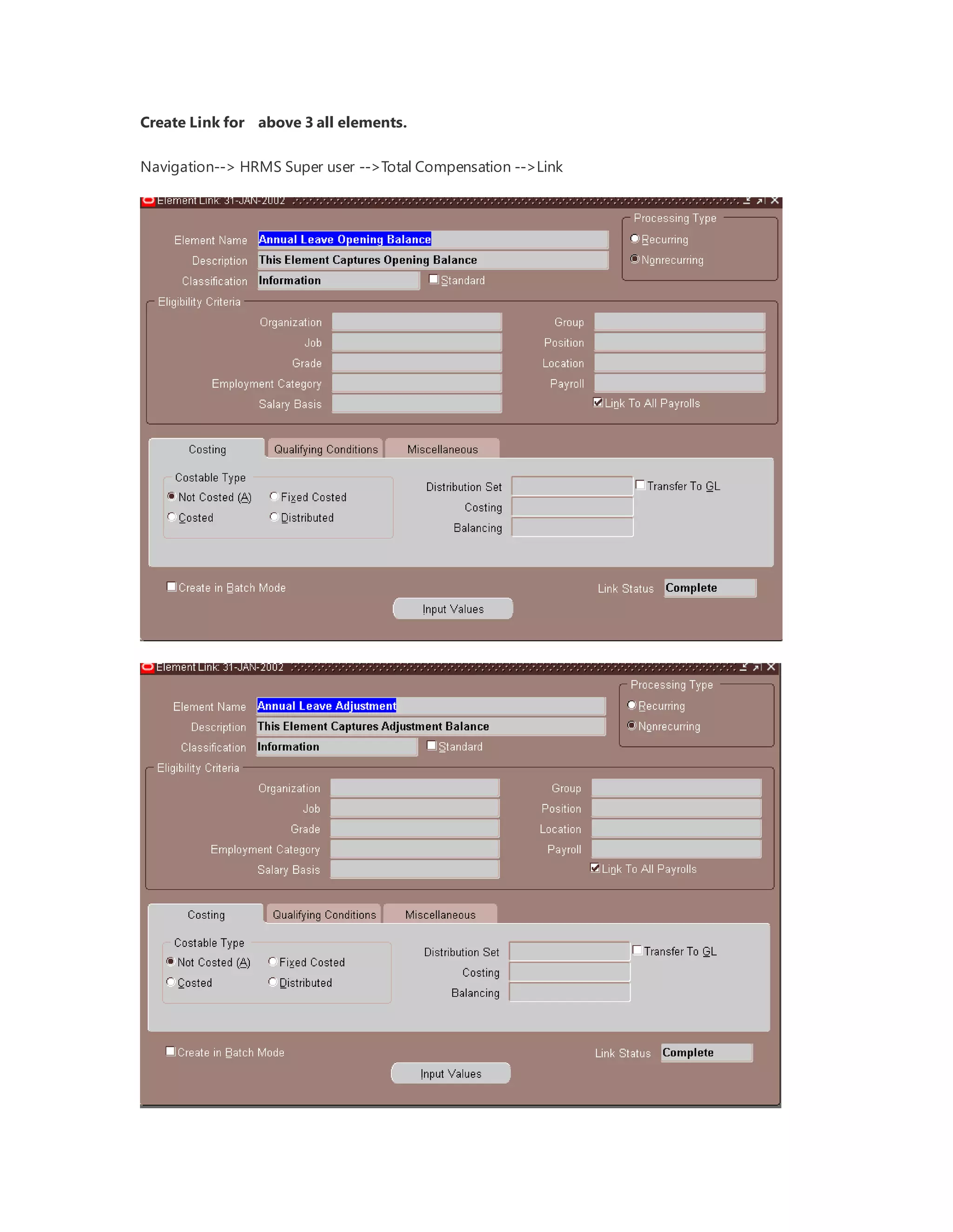
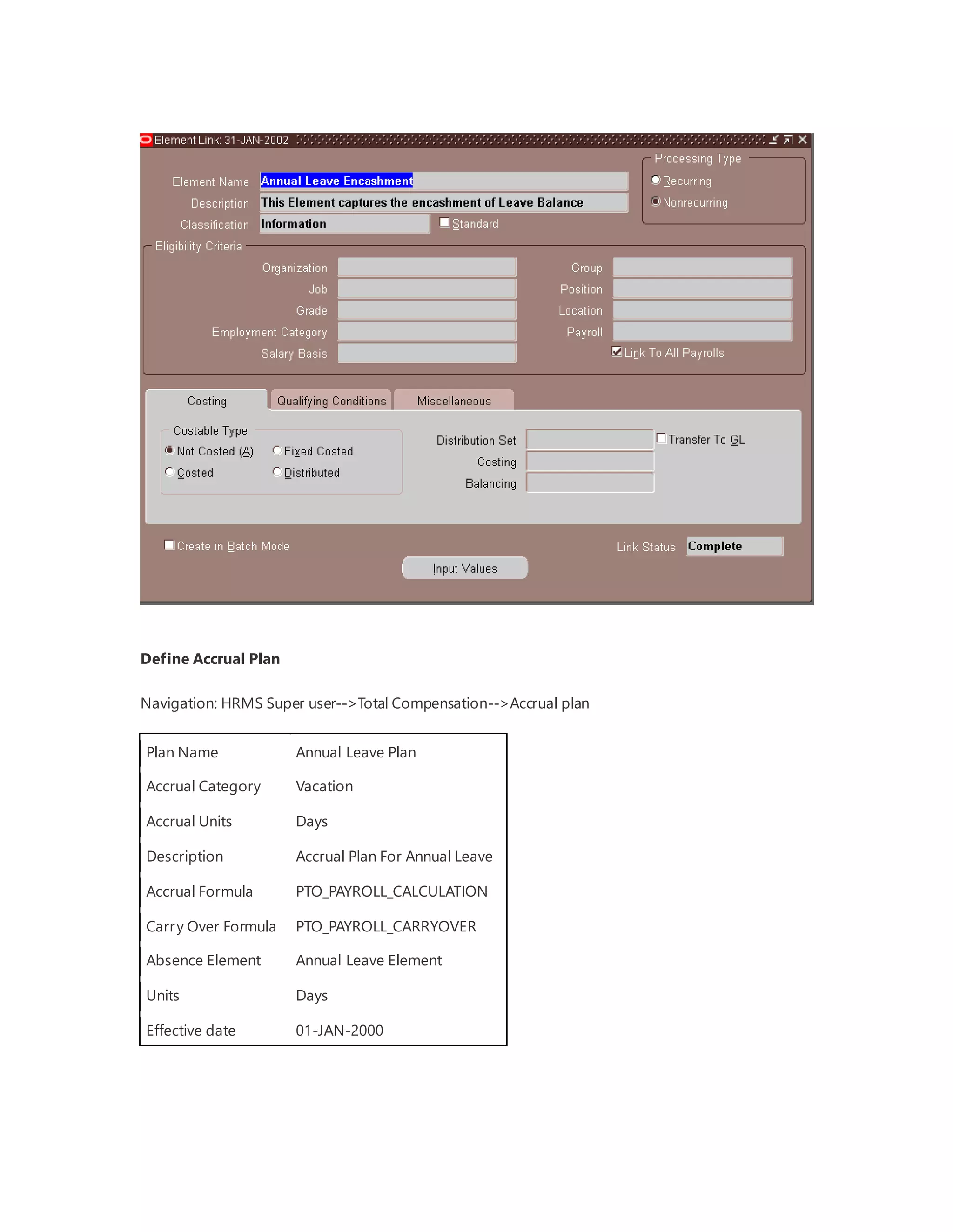
Create Link for above 3 all elements.
Navigation--> HRMS Super user -->Total Compensation -->Link
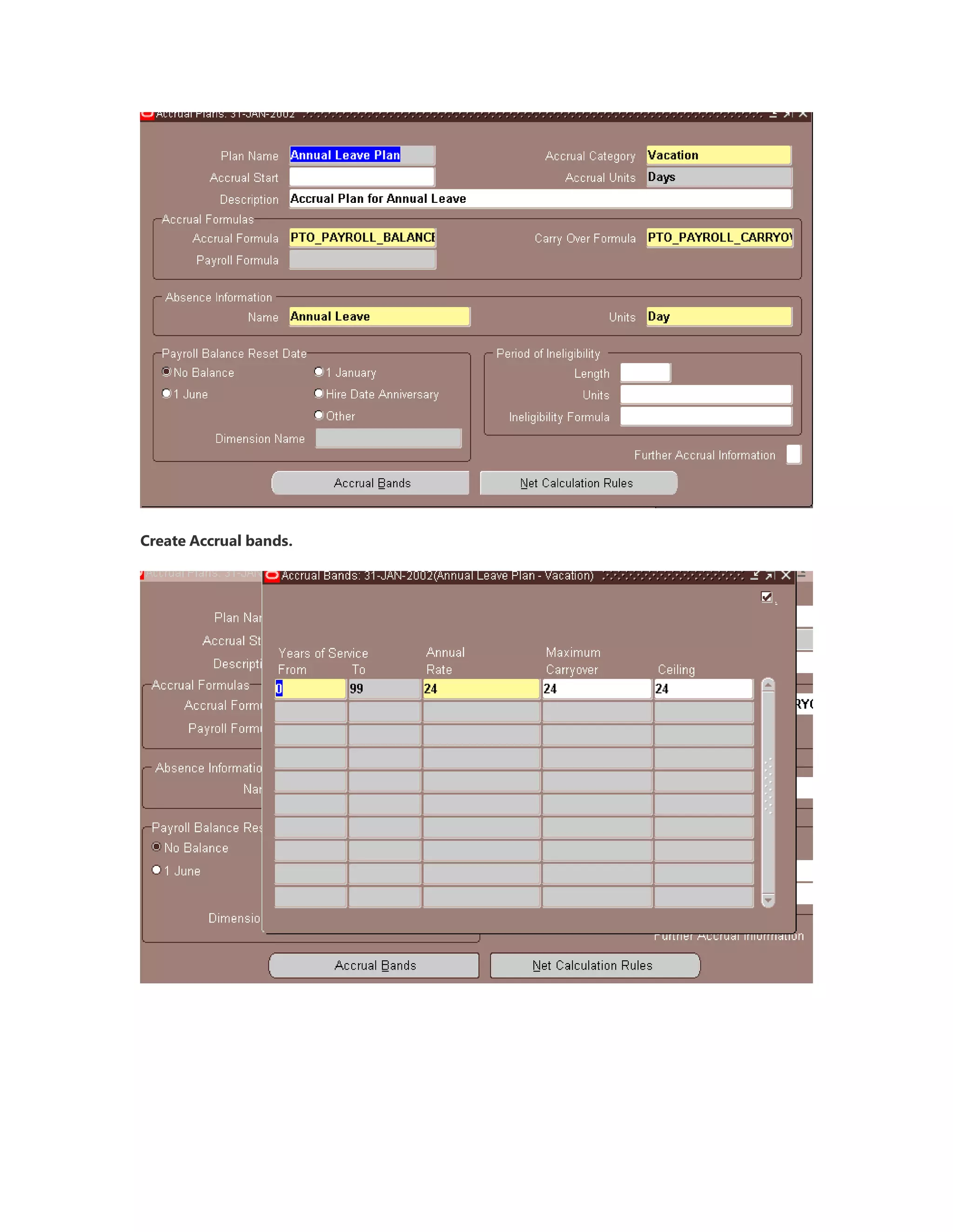
Define Accrual Plan
Navigation: HRMS Super user-->Total Compensation-->Accrual plan
Plan Name Annual Leave Plan
Accrual Category Vacation
Accrual Units Days
Description Accrual Plan For Annual Leave
Accrual Formula PTO_PAYROLL_CALCULATION
Carry Over Formula PTO_PAYROLL_CARRYOVER
Absence Element Annual Leave Element
Units Days
Effective date 01-JAN-2000
Create Accrual bands.
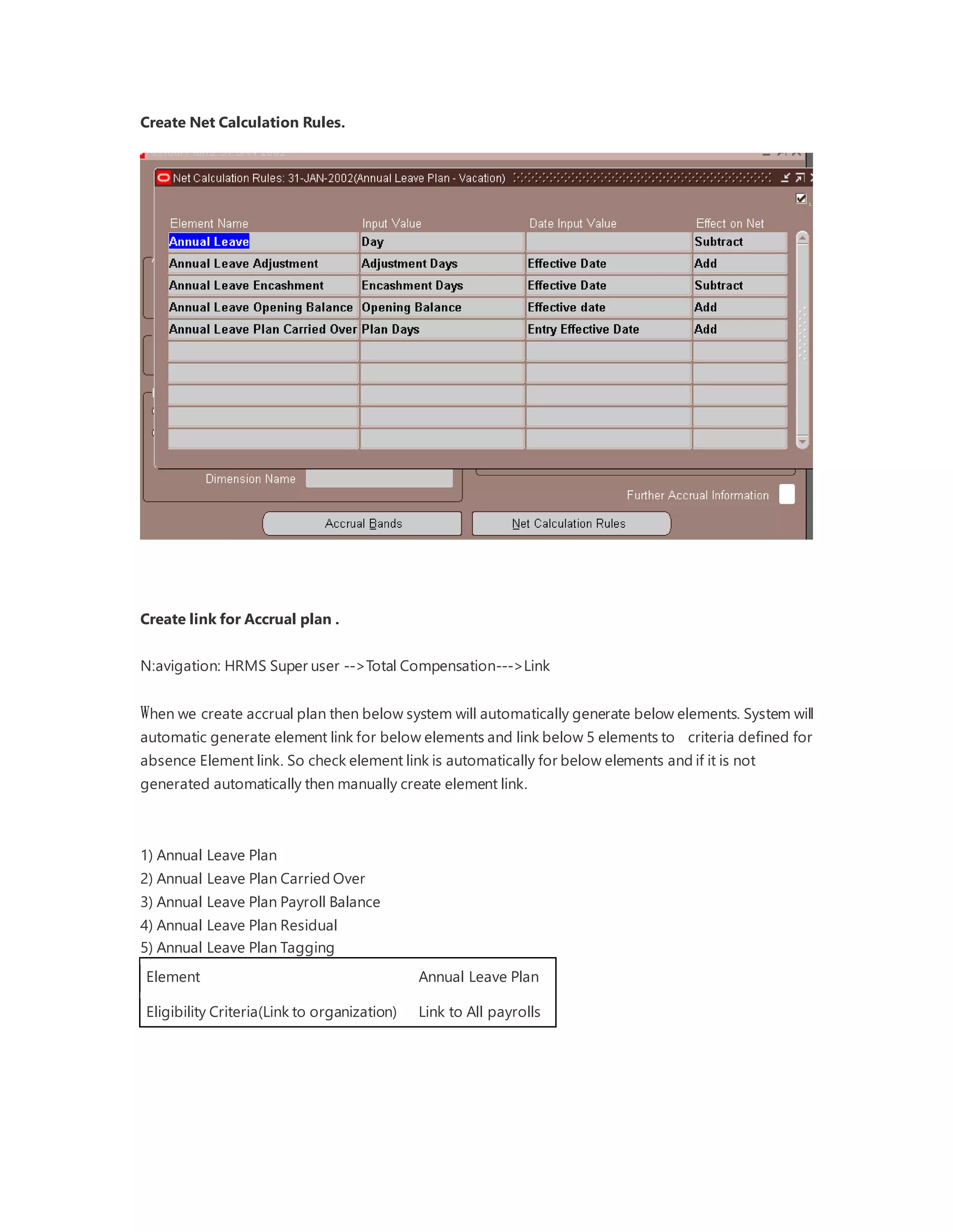
Create Net Calculation Rules.
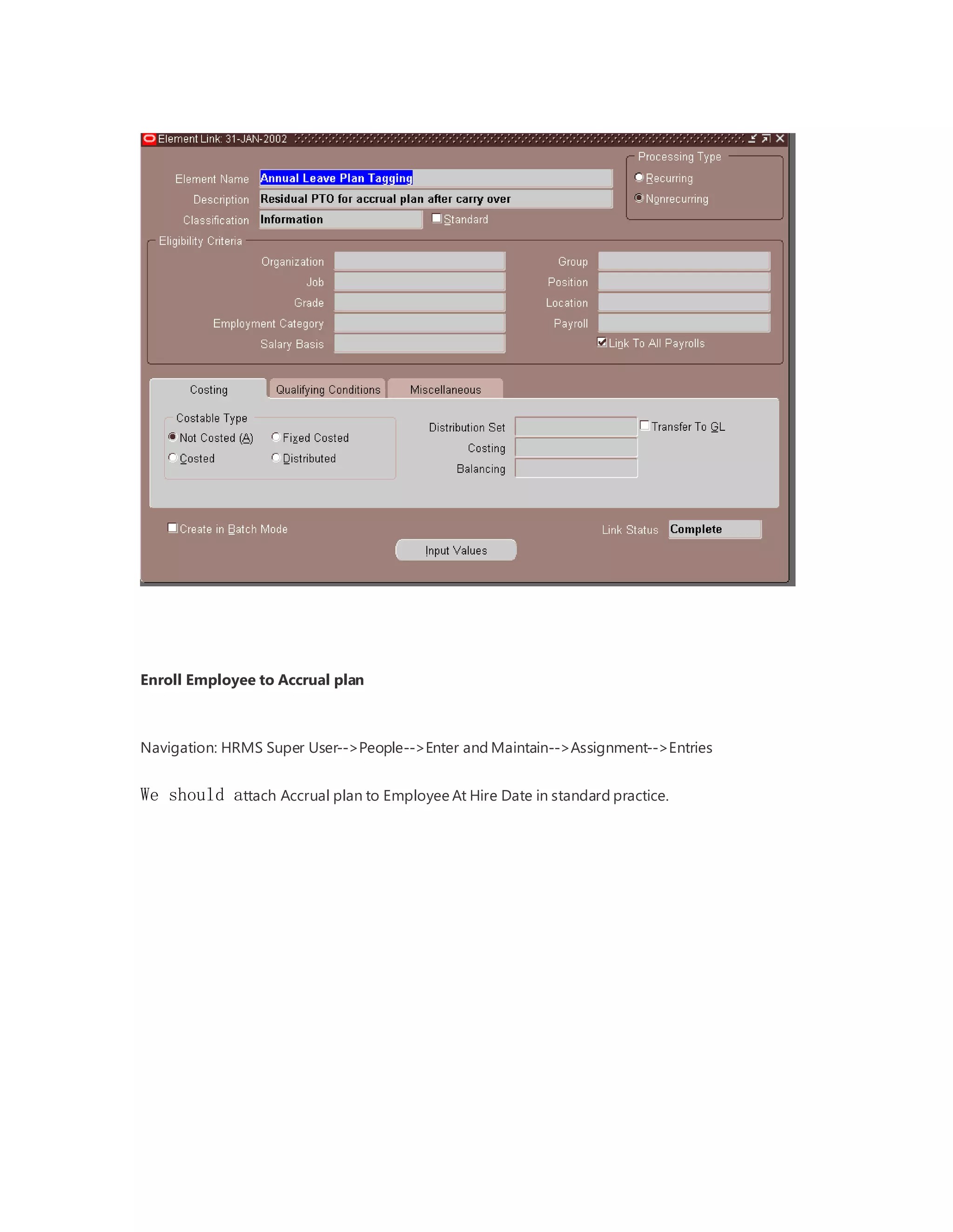
Create link for Accrual plan .
N:avigation: HRMS Super user -->Total Compensation--->Link
When we create accrual plan then below system will automatically generate below elements. System will
automatic generate element link for below elements and link below 5 elements to criteria defined for
absence Element link. So check element link is automatically for below elements and if it is not
generated automatically then manually create element link.
1) Annual Leave Plan
2) Annual Leave Plan Carried Over
3) Annual Leave Plan Payroll Balance
4) Annual Leave Plan Residual
5) Annual Leave Plan Tagging
Element Annual Leave Plan
Eligibility Criteria(Link to organization) Link to All payrolls
Navigation--> HRMS Super user -->Total Compensation -->Link
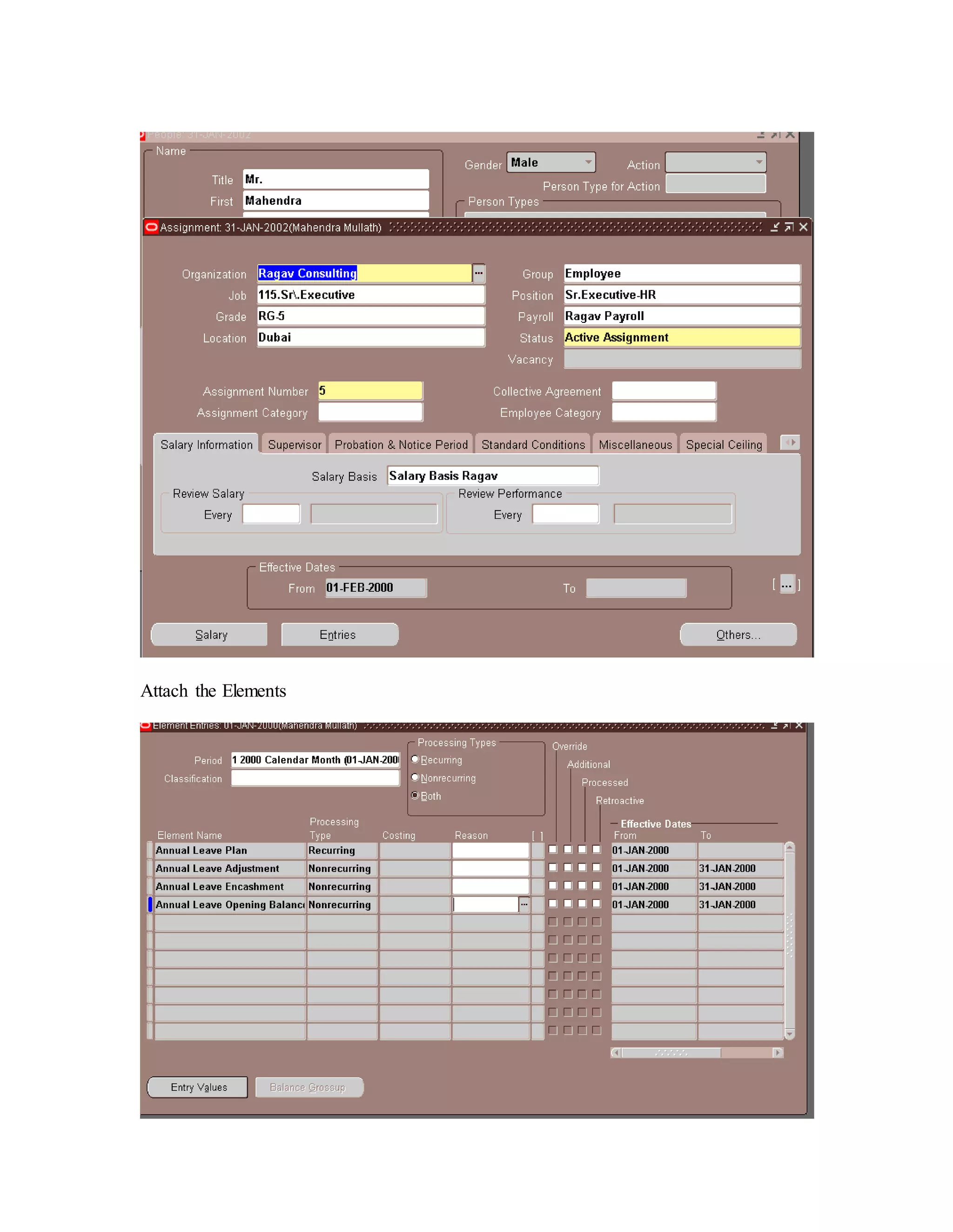
Enroll Employee to Accrual plan
Navigation: HRMS Super User-->People-->Enter and Maintain-->Assignment-->Entries
We should attach Accrual plan to Employee At Hire Date in standard practice.
Attach the Elements
Check accrual balance
Navigation: HRMS super User-->Fast Path-->Accruals
Here it is showing Net Entitlement as 18 because i am checking accrual balance on 30- SEP-2001 and
we have entered Accrual rate 24 in Accrual Band while defining Accrual Plan so system add 2 leaves
after each month in Annual Leave Plan. Here we are using seeded formula for Accrual , so we can
customize accrual plan details.
Create Absence for 10 days.
Navigation: Enter and Maintain-->People-->Others-->Absence
Save the absence and Check the leave balance in Accruals:
Leave Carry over process
Check accrual balance from 01-Jan-2001 to 31-Dec-2001
Navigation: HRMS super User-->Fast Path-->Accruals
Run the Concurrent PTO Carry Over
Navigation-->View-->Request-->submit a New Request-->OK
Run PTO Carry Over Process keeping calculation date as 01-JAN-2002
Click OK and refresh Data
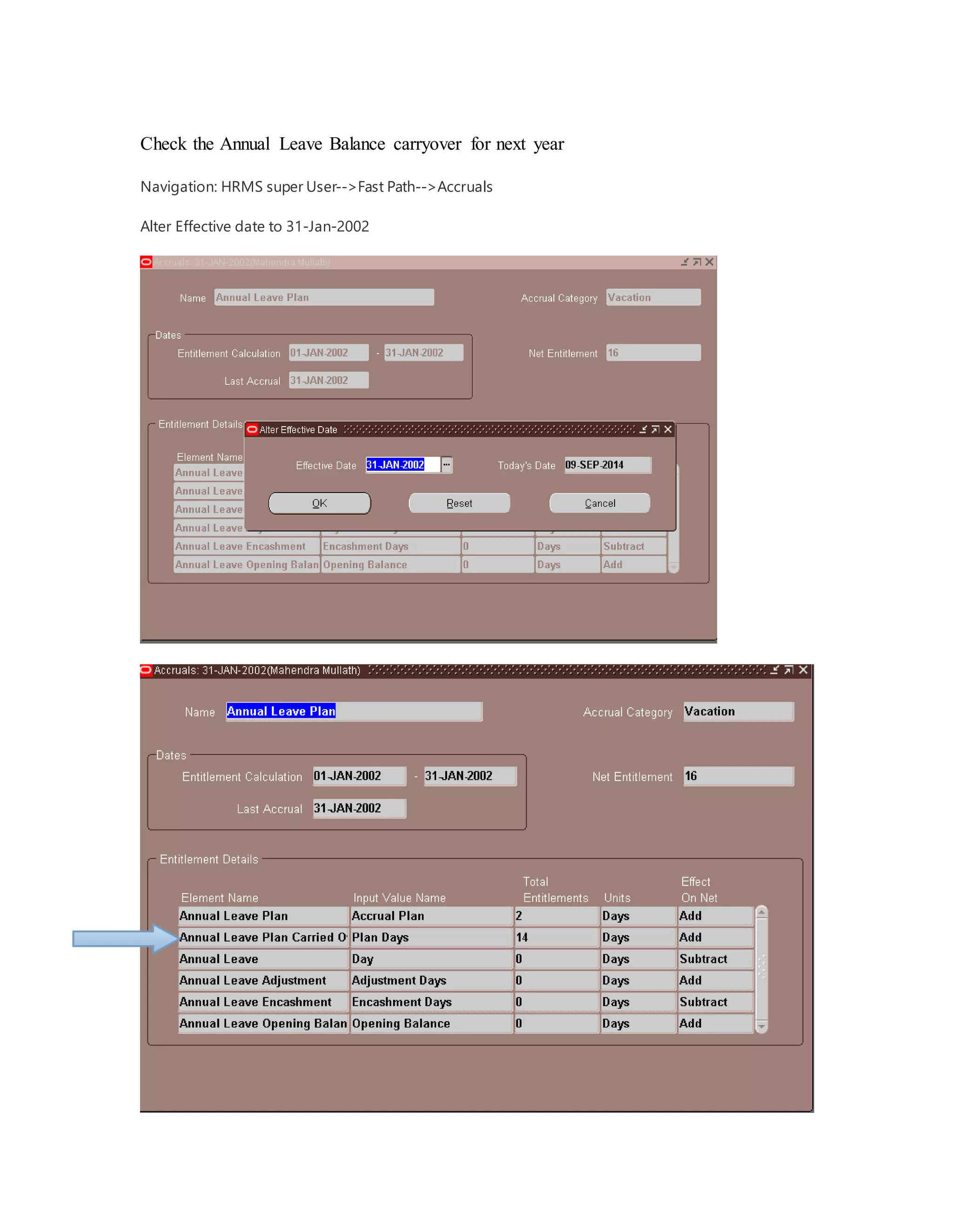
Check the Annual Leave Balance carryover for next year
Navigation: HRMS super User-->Fast Path-->Accruals
Alter Effective date to 31-Jan-2002

Oracle HRMS Accrual plan Setup

  • 1.
    Leave Accrual Plan CreateAnnual Leave Opening Balance NOTE : Go to ’01-JAN-2000’ using date track mode before creating element. N:avigation: HRMS Super User-->Total Compensation-->Basic-->Element Description Element Name Annual Leave Opening Balance Primary Classification Information Description This Element Capture Opening balance. Type Non Recurring Input Values Opening Balance(Day) Effective Date(Date) Reason (Character) Future1 (Character) Future2 (Character)
  • 2.
    Save Element andclick on Input Value
  • 3.
    Create Annual LeaveAdjustment Element Name Annual Leave Adjustment Primary Classification Information Description This Element Capture Adjustment balance Type Non Recurring Input Values Adjustment Days (Day) Effective Date (Date) Reason(Character) Future1 (Character) Future2 (Character)
  • 4.
    Save Element andclick on Input Value Create Annual Leave Encashment Element Name Annual Leave Encashment Primary Classification Information Description This Element Capture Encashment of leave balance. Type Non Recurring Input Values Encashment Days (Day) Effective Date (Date) Reason(Character) Future1 (Character) Future2 (Character)
  • 5.
    Save Element andclick on Input Value
  • 6.
    Create Link forabove 3 all elements. Navigation--> HRMS Super user -->Total Compensation -->Link
  • 7.
    Define Accrual Plan Navigation:HRMS Super user-->Total Compensation-->Accrual plan Plan Name Annual Leave Plan Accrual Category Vacation Accrual Units Days Description Accrual Plan For Annual Leave Accrual Formula PTO_PAYROLL_CALCULATION Carry Over Formula PTO_PAYROLL_CARRYOVER Absence Element Annual Leave Element Units Days Effective date 01-JAN-2000
  • 8.
  • 9.
    Create Net CalculationRules. Create link for Accrual plan . N:avigation: HRMS Super user -->Total Compensation--->Link When we create accrual plan then below system will automatically generate below elements. System will automatic generate element link for below elements and link below 5 elements to criteria defined for absence Element link. So check element link is automatically for below elements and if it is not generated automatically then manually create element link. 1) Annual Leave Plan 2) Annual Leave Plan Carried Over 3) Annual Leave Plan Payroll Balance 4) Annual Leave Plan Residual 5) Annual Leave Plan Tagging Element Annual Leave Plan Eligibility Criteria(Link to organization) Link to All payrolls
  • 10.
    Navigation--> HRMS Superuser -->Total Compensation -->Link
  • 12.
    Enroll Employee toAccrual plan Navigation: HRMS Super User-->People-->Enter and Maintain-->Assignment-->Entries We should attach Accrual plan to Employee At Hire Date in standard practice.
  • 13.
  • 14.
    Check accrual balance Navigation:HRMS super User-->Fast Path-->Accruals Here it is showing Net Entitlement as 18 because i am checking accrual balance on 30- SEP-2001 and we have entered Accrual rate 24 in Accrual Band while defining Accrual Plan so system add 2 leaves after each month in Annual Leave Plan. Here we are using seeded formula for Accrual , so we can customize accrual plan details.
  • 15.
    Create Absence for10 days. Navigation: Enter and Maintain-->People-->Others-->Absence Save the absence and Check the leave balance in Accruals:
  • 16.
    Leave Carry overprocess Check accrual balance from 01-Jan-2001 to 31-Dec-2001 Navigation: HRMS super User-->Fast Path-->Accruals Run the Concurrent PTO Carry Over Navigation-->View-->Request-->submit a New Request-->OK
  • 17.
    Run PTO CarryOver Process keeping calculation date as 01-JAN-2002 Click OK and refresh Data
  • 18.
    Check the AnnualLeave Balance carryover for next year Navigation: HRMS super User-->Fast Path-->Accruals Alter Effective date to 31-Jan-2002