1.Steps to configure and assign AME
transaction types to specific user on AME
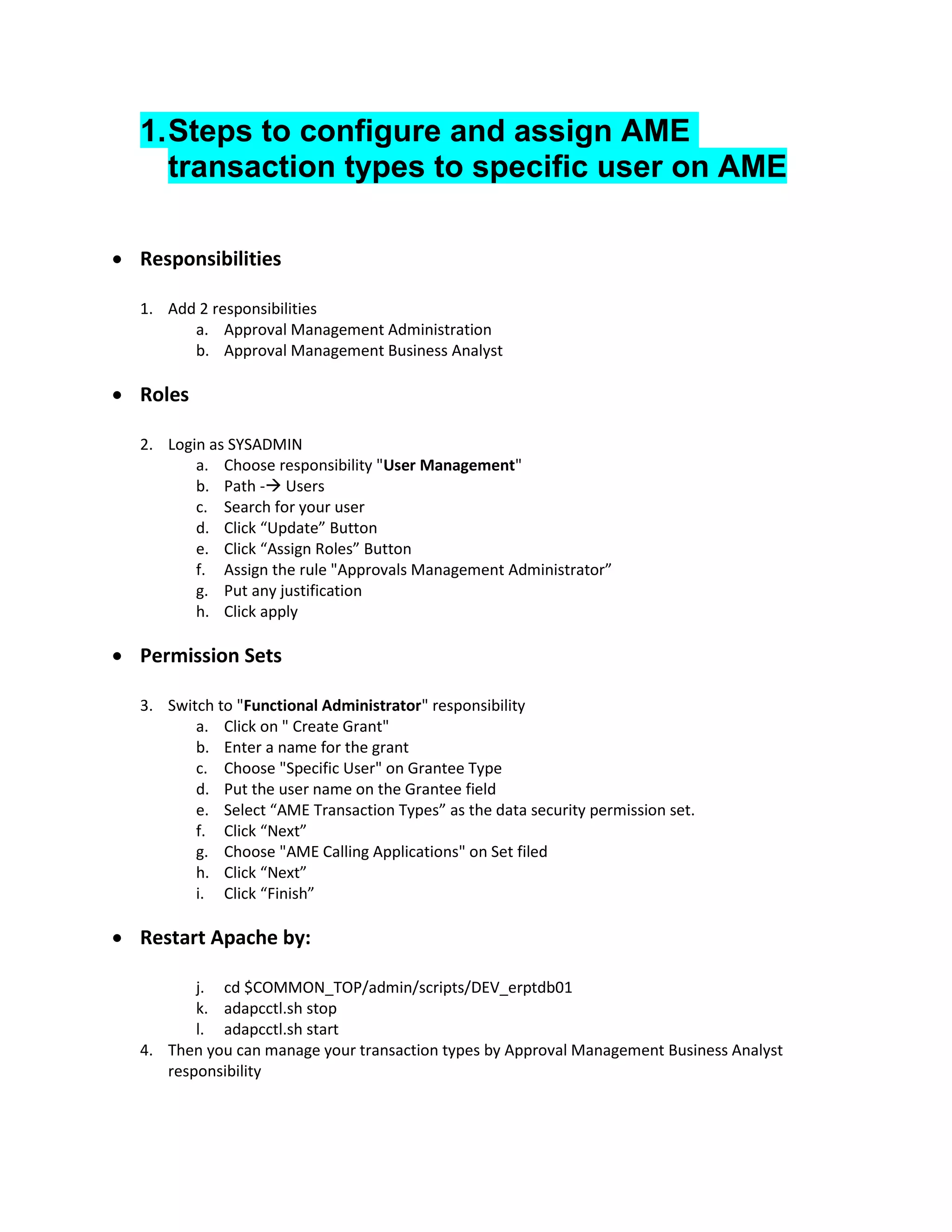
• Responsibilities
1. Add 2 responsibilities
a. Approval Management Administration
b. Approval Management Business Analyst
• Roles
2. Login as SYSADMIN
a. Choose responsibility "User Management"
b. Path - Users
c. Search for your user
d. Click “Update” Button
e. Click “Assign Roles” Button
f. Assign the rule "Approvals Management Administrator”
g. Put any justification
h. Click apply
• Permission Sets
3. Switch to "Functional Administrator" responsibility
a. Click on " Create Grant"
b. Enter a name for the grant
c. Choose "Specific User" on Grantee Type
d. Put the user name on the Grantee field
e. Select “AME Transaction Types” as the data security permission set.
f. Click “Next”
g. Choose "AME Calling Applications" on Set filed
h. Click “Next”
i. Click “Finish”
• Restart Apache by:
j. cd $COMMON_TOP/admin/scripts/DEV_erptdb01
k. adapcctl.sh stop
l. adapcctl.sh start
4. Then you can manage your transaction types by Approval Management Business Analyst
responsibility
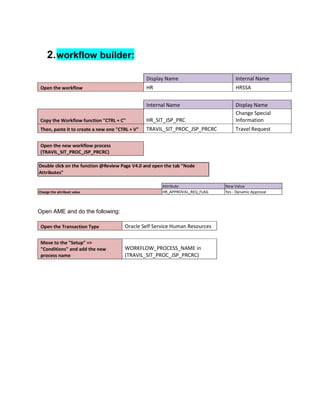
2.workflow builder:
Display Name Internal Name
Open the workflow HR HRSSA
Internal Name Display Name
Copy the Workflow function "CTRL + C" HR_SIT_JSP_PRC
Change Special
Information
Then, paste it to create a new one "CTRL + V" TRAVIL_SIT_PROC_JSP_PRCRC Travel Request
Open the new workflow process
(TRAVIL_SIT_PROC_JSP_PRCRC)
Double click on the function @Review Page V4.0 and open the tab "Node
Attributes"
Attribute New Value
Change the attribuet value HR_APPROVAL_REQ_FLAG Yes - Dynamic Approval
Open AME and do the following:
Open the Transaction Type Oracle Self Service Human Resources
Move to the "Setup" =>
"Conditions" and add the new
process name
WORKFLOW_PROCESS_NAME in
(TRAVIL_SIT_PROC_JSP_PRCRC)
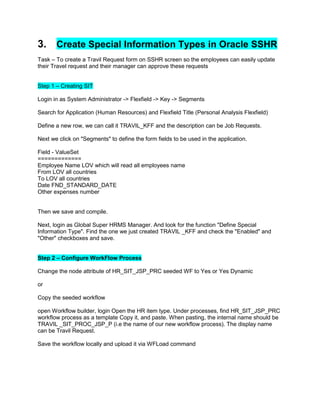
3. Create Special Information Types in Oracle SSHR
Task – To create a Travil Request form on SSHR screen so the employees can easily update
their Travel request and their manager can approve these requests
Step 1 – Creating SIT
Login in as System Administrator -> Flexfield -> Key -> Segments
Search for Application (Human Resources) and Flexfield Title (Personal Analysis Flexfield)
Define a new row, we can call it TRAVIL_KFF and the description can be Job Requests.
Next we click on "Segments" to define the form fields to be used in the application.
Field - ValueSet
=============
Employee Name LOV which will read all employees name
From LOV all countries
To LOV all countries
Date FND_STANDARD_DATE
Other expenses number
Then we save and compile.
Next, login as Global Super HRMS Manager. And look for the function "Define Special
Information Type". Find the one we just created TRAVIL _KFF and check the "Enabled" and
"Other" checkboxes and save.
Step 2 – Configure WorkFlow Process
Change the node attribute of HR_SIT_JSP_PRC seeded WF to Yes or Yes Dynamic
or
Copy the seeded workflow
open Workflow builder, login Open the HR item type. Under processes, find HR_SIT_JSP_PRC
workflow process as a template Copy it, and paste. When pasting, the internal name should be
TRAVIL _SIT_PROC_JSP_P (i.e the name of our new workflow process). The display name
can be Travil Request.
Save the workflow locally and upload it via WFLoad command
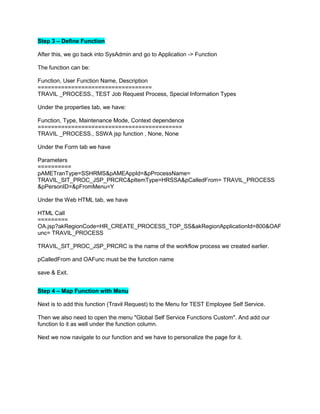
Step 3 – Define Function
After this, we go back into SysAdmin and go to Application -> Function
The function can be:
Function, User Function Name, Description
==================================
TRAVIL _PROCESS., TEST Job Request Process, Special Information Types
Under the properties tab, we have:
Function, Type, Maintenance Mode, Context dependence
===========================================
TRAVIL _PROCESS., SSWA jsp function , None, None
Under the Form tab we have
Parameters
==========
pAMETranType=SSHRMS&pAMEAppId=&pProcessName=
TRAVIL_SIT_PROC_JSP_PRCRC&pItemType=HRSSA&pCalledFrom= TRAVIL_PROCESS
&pPersonID=&pFromMenu=Y
Under the Web HTML tab, we have
HTML Call
=========
OA.jsp?akRegionCode=HR_CREATE_PROCESS_TOP_SS&akRegionApplicationId=800&OAF
unc= TRAVIL_PROCESS
TRAVIL_SIT_PROC_JSP_PRCRC is the name of the workflow process we created earlier.
pCalledFrom and OAFunc must be the function name
save & Exit.
Step 4 – Map Function with Menu
Next is to add this function (Travil Request) to the Menu for TEST Employee Self Service.
Then we also need to open the menu "Global Self Service Functions Custom". And add our
function to it as well under the function column.
Next we now navigate to our function and we have to personalize the page for it.
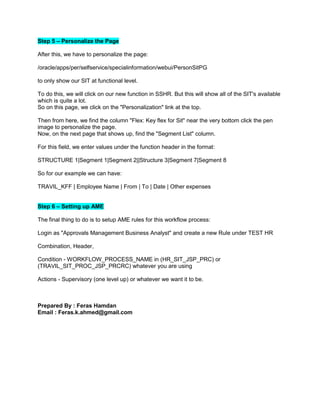
Step 5 – Personalize the Page
After this, we have to personalize the page:
/oracle/apps/per/selfservice/specialinformation/webui/PersonSitPG
to only show our SIT at functional level.
To do this, we will click on our new function in SSHR. But this will show all of the SIT's available
which is quite a lot.
So on this page, we click on the "Personalization" link at the top.
Then from here, we find the column "Flex: Key flex for Sit" near the very bottom click the pen
image to personalize the page.
Now, on the next page that shows up, find the "Segment List" column.
For this field, we enter values under the function header in the format:
STRUCTURE 1|Segment 1|Segment 2||Structure 3|Segment 7|Segment 8
So for our example we can have:
TRAVIL_KFF | Employee Name | From | To | Date | Other expenses
Step 6 – Setting up AME
The final thing to do is to setup AME rules for this workflow process:
Login as "Approvals Management Business Analyst" and create a new Rule under TEST HR
Combination, Header,
Condition - WORKFLOW_PROCESS_NAME in (HR_SIT_JSP_PRC) or
(TRAVIL_SIT_PROC_JSP_PRCRC) whatever you are using
Actions - Supervisory (one level up) or whatever we want it to be.
Prepared By : Feras Hamdan
Email : Feras.k.ahmed@gmail.com

Oracle EBS Self service from A to Z

  • 1.
    1.Steps to configureand assign AME transaction types to specific user on AME • Responsibilities 1. Add 2 responsibilities a. Approval Management Administration b. Approval Management Business Analyst • Roles 2. Login as SYSADMIN a. Choose responsibility "User Management" b. Path - Users c. Search for your user d. Click “Update” Button e. Click “Assign Roles” Button f. Assign the rule "Approvals Management Administrator” g. Put any justification h. Click apply • Permission Sets 3. Switch to "Functional Administrator" responsibility a. Click on " Create Grant" b. Enter a name for the grant c. Choose "Specific User" on Grantee Type d. Put the user name on the Grantee field e. Select “AME Transaction Types” as the data security permission set. f. Click “Next” g. Choose "AME Calling Applications" on Set filed h. Click “Next” i. Click “Finish” • Restart Apache by: j. cd $COMMON_TOP/admin/scripts/DEV_erptdb01 k. adapcctl.sh stop l. adapcctl.sh start 4. Then you can manage your transaction types by Approval Management Business Analyst responsibility
  • 2.
    2.workflow builder: Display NameInternal Name Open the workflow HR HRSSA Internal Name Display Name Copy the Workflow function "CTRL + C" HR_SIT_JSP_PRC Change Special Information Then, paste it to create a new one "CTRL + V" TRAVIL_SIT_PROC_JSP_PRCRC Travel Request Open the new workflow process (TRAVIL_SIT_PROC_JSP_PRCRC) Double click on the function @Review Page V4.0 and open the tab "Node Attributes" Attribute New Value Change the attribuet value HR_APPROVAL_REQ_FLAG Yes - Dynamic Approval Open AME and do the following: Open the Transaction Type Oracle Self Service Human Resources Move to the "Setup" => "Conditions" and add the new process name WORKFLOW_PROCESS_NAME in (TRAVIL_SIT_PROC_JSP_PRCRC)
  • 3.
    3. Create SpecialInformation Types in Oracle SSHR Task – To create a Travil Request form on SSHR screen so the employees can easily update their Travel request and their manager can approve these requests Step 1 – Creating SIT Login in as System Administrator -> Flexfield -> Key -> Segments Search for Application (Human Resources) and Flexfield Title (Personal Analysis Flexfield) Define a new row, we can call it TRAVIL_KFF and the description can be Job Requests. Next we click on "Segments" to define the form fields to be used in the application. Field - ValueSet ============= Employee Name LOV which will read all employees name From LOV all countries To LOV all countries Date FND_STANDARD_DATE Other expenses number Then we save and compile. Next, login as Global Super HRMS Manager. And look for the function "Define Special Information Type". Find the one we just created TRAVIL _KFF and check the "Enabled" and "Other" checkboxes and save. Step 2 – Configure WorkFlow Process Change the node attribute of HR_SIT_JSP_PRC seeded WF to Yes or Yes Dynamic or Copy the seeded workflow open Workflow builder, login Open the HR item type. Under processes, find HR_SIT_JSP_PRC workflow process as a template Copy it, and paste. When pasting, the internal name should be TRAVIL _SIT_PROC_JSP_P (i.e the name of our new workflow process). The display name can be Travil Request. Save the workflow locally and upload it via WFLoad command
  • 4.
    Step 3 –Define Function After this, we go back into SysAdmin and go to Application -> Function The function can be: Function, User Function Name, Description ================================== TRAVIL _PROCESS., TEST Job Request Process, Special Information Types Under the properties tab, we have: Function, Type, Maintenance Mode, Context dependence =========================================== TRAVIL _PROCESS., SSWA jsp function , None, None Under the Form tab we have Parameters ========== pAMETranType=SSHRMS&pAMEAppId=&pProcessName= TRAVIL_SIT_PROC_JSP_PRCRC&pItemType=HRSSA&pCalledFrom= TRAVIL_PROCESS &pPersonID=&pFromMenu=Y Under the Web HTML tab, we have HTML Call ========= OA.jsp?akRegionCode=HR_CREATE_PROCESS_TOP_SS&akRegionApplicationId=800&OAF unc= TRAVIL_PROCESS TRAVIL_SIT_PROC_JSP_PRCRC is the name of the workflow process we created earlier. pCalledFrom and OAFunc must be the function name save & Exit. Step 4 – Map Function with Menu Next is to add this function (Travil Request) to the Menu for TEST Employee Self Service. Then we also need to open the menu "Global Self Service Functions Custom". And add our function to it as well under the function column. Next we now navigate to our function and we have to personalize the page for it.
  • 5.
    Step 5 –Personalize the Page After this, we have to personalize the page: /oracle/apps/per/selfservice/specialinformation/webui/PersonSitPG to only show our SIT at functional level. To do this, we will click on our new function in SSHR. But this will show all of the SIT's available which is quite a lot. So on this page, we click on the "Personalization" link at the top. Then from here, we find the column "Flex: Key flex for Sit" near the very bottom click the pen image to personalize the page. Now, on the next page that shows up, find the "Segment List" column. For this field, we enter values under the function header in the format: STRUCTURE 1|Segment 1|Segment 2||Structure 3|Segment 7|Segment 8 So for our example we can have: TRAVIL_KFF | Employee Name | From | To | Date | Other expenses Step 6 – Setting up AME The final thing to do is to setup AME rules for this workflow process: Login as "Approvals Management Business Analyst" and create a new Rule under TEST HR Combination, Header, Condition - WORKFLOW_PROCESS_NAME in (HR_SIT_JSP_PRC) or (TRAVIL_SIT_PROC_JSP_PRCRC) whatever you are using Actions - Supervisory (one level up) or whatever we want it to be. Prepared By : Feras Hamdan Email : Feras.k.ahmed@gmail.com